

Adding new trusted device in two factor authenticated Apple Developer Account
1. You need to go to the link – https://appleid.apple.com
2. Here you need to log in with your apple account. You will receive the Authentication code, so please keep your iOS device with you in which you have logged in with the same Apple account.
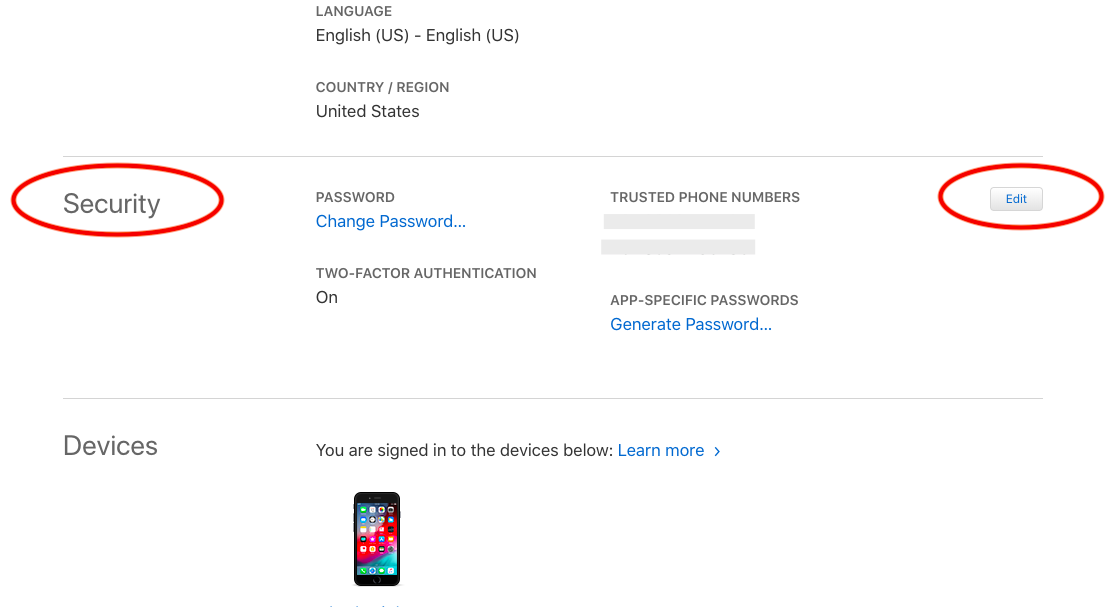
3. After you have logged into the account. Scroll down to “Security” section and click on “Edit” button. This will expand the security section and new options will appear.
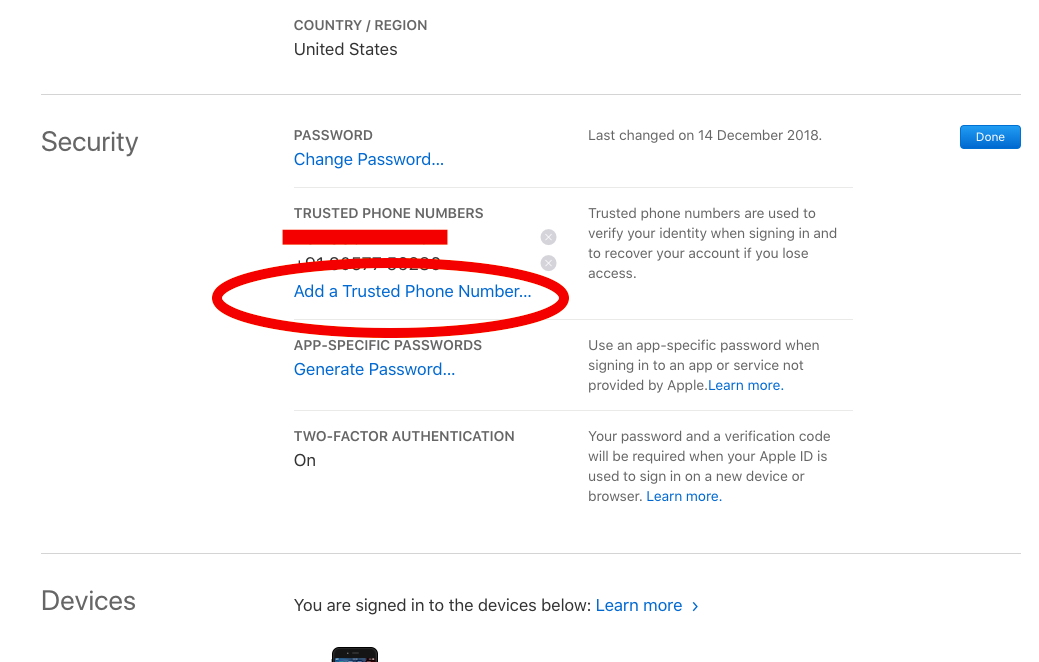
3. Below is the expanded “Security” Screen. Here you will have to click on “Add a trusted Phone Number“. Then a new pop up will appear where you can enter your phone number to be added as a trusted device.
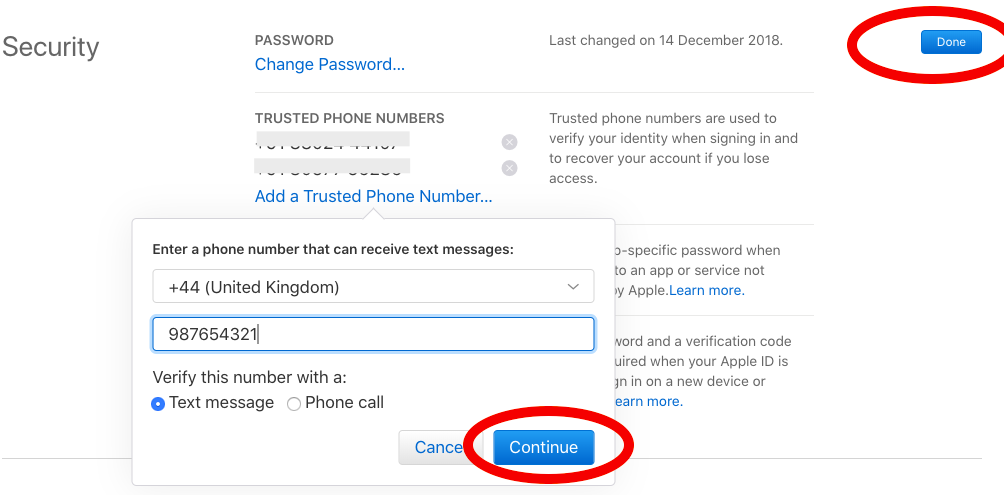
4. Enter the mobile number you want to add as a trusted device. Please keep the device with you as you will receive Authentication code after this step.
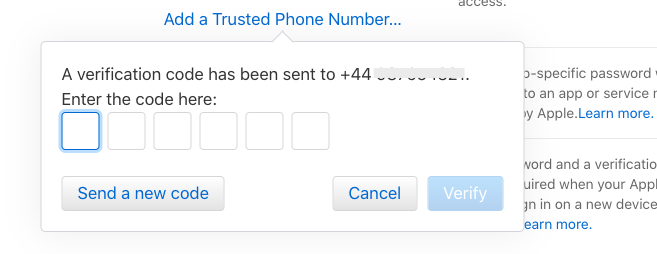
5. After filling the authentication code, the new device will be added to your Apple Developer Account as a trusted device.
- Top 5 Abandoned Cart Recovery Modules for PrestaShop
- PrestaShop AI Chatbot Module by Knowband: Everything You Need to Know About the Latest Updates
- How to Use PrestaShop’s Override System Without Breaking Core
- Implementing Lazy Loading for Product Images in OpenCart
- Troubleshooting Common Errors After Upgrading to PrestaShop 9.x