In today’s competitive world of e-commerce, providing a smooth and convenient shopping experience is crucial for success. However, one of the biggest pain points for online shoppers is the login and registration process. Unfortunately, lengthy forms and multiple password requirements can discourage customers, ultimately leading to lost sales. Introducing the Prestashop Social Loginizer Addon by Knowband is specifically designed to eliminate this barrier, thereby allowing users to register and log in using their existing social media accounts.
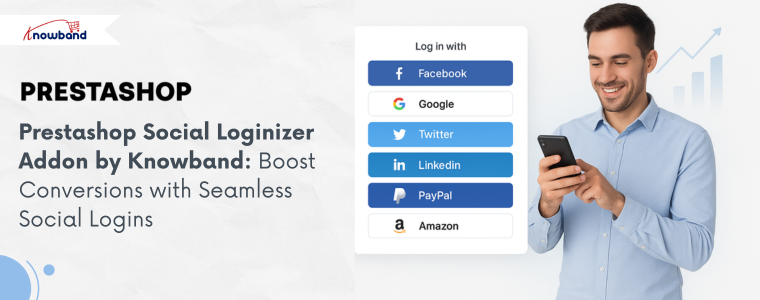
The Prestashop Social Loginizer Addon seamlessly integrates your Prestashop store with 13 major social networks, including Facebook, Google Plus, Twitter, LinkedIn, PayPal, Amazon, WordPress, Dropbox, and more. Furthermore, this module enables customers to log in quickly without creating a separate account, consequently streamlining the user experience and reducing friction during registration.
As a result, by simplifying the login process, this addon helps store owners increase customer engagement, boost conversions, and improve overall satisfaction.
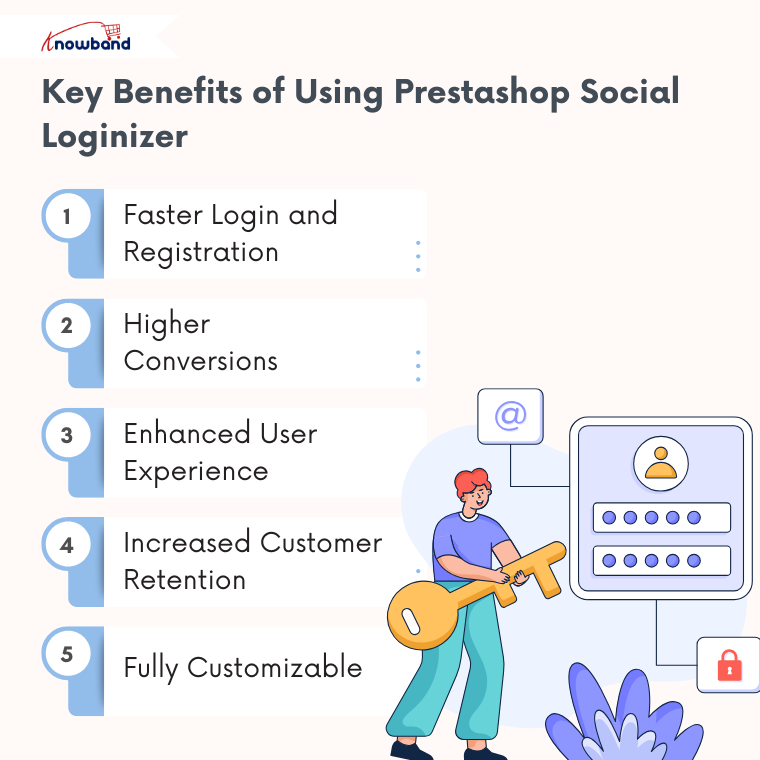
Key Benefits of Using Prestashop Social Loginizer
Faster Login and Registration
First and foremost, customers can log in instantly using their social accounts, therefore eliminating the need to fill out lengthy registration forms. This, in turn, improves user satisfaction and significantly reduces drop-offs.
Higher Conversions
Secondly, by making registration easier, more users are likely to complete purchases, which consequently increases sales directly.
Enhanced User Experience
Additionally, social login options offer a modern and seamless interface, thereby keeping customers engaged and minimising cart abandonment.
Increased Customer Retention
Moreover, with multiple login choices, users are more likely to return, thus building loyalty and repeat business.
Fully Customizable
Finally, store owners can customise the icons to match the design and branding of their Prestashop store perfectly.
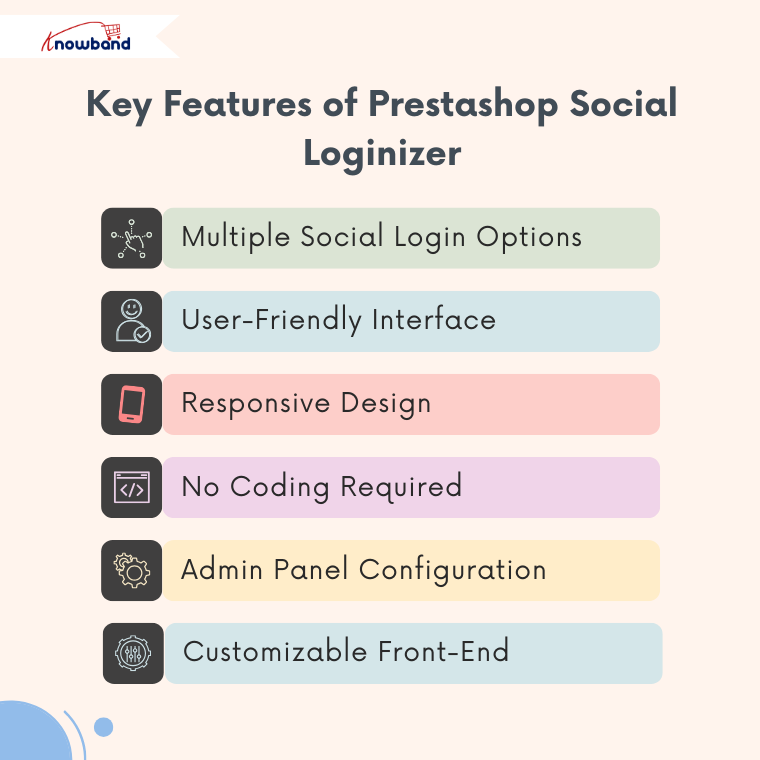
Key Features of Prestashop Social Loginizer Module
Multiple Social Login Options: Notably, it supports 14 social networks, including Facebook, Google Plus, Twitter, LinkedIn, Amazon, PayPal, WordPress, Dropbox, GitHub, Foursquare, Live, Yahoo, and Vkontakte.
User-Friendly Interface: Additionally, it provides smooth integration with Prestashop for a seamless login experience.
Responsive Design: Furthermore, the module is perfectly designed as it works flawlessly on desktops, tablets, and mobile devices.
No Coding Required: Importantly, the store owners are not required to have technical knowledge, as simple admins can easily install via FTP or upload a zip file directly from the Prestashop admin panel.
Admin Panel Configuration: Moreover, Knowband has provided dedicated settings tabs for each social network to easily manage logins through the Prestashop Facebook Login Module.
Customizable Front-End: Finally, it allows you to control the appearance and placement of social login buttons for a tailored user experience.
How the Prestashop Social Loginizer Module Works
Once installed, the Prestashop Social Loginizer Addon provides a comprehensive backend interface with dedicated tabs for each social network, allowing store owners to:
Configure login credentials and API keys for each social platform.
Enable or disable specific social login options as needed.
Customise the appearance of social login buttons on the front end.
Consequently, this ensures both the front-end user experience and admin management are fully streamlined and intuitive.
Why Every Prestashop Store Needs Social Login
In today’s rapidly evolving e-commerce environment, convenience and speed are absolutely key. Therefore, by offering social login options, your store can:
Reduce friction during registration.
Encourage more users to create accounts and make purchases.
Build a modern, user-friendly store that meets customer expectations.
As a result, the Prestashop Social Loginizer Addon by Knowband is a simple yet powerful plugin that can significantly enhance user experience, improve customer retention, and increase conversions.
Conclusion
In conclusion, if you want to provide a seamless login experience, reduce cart abandonment, and boost your Prestashop store’s sales, the Prestashop Social Loginizer Addon by Knowband is an essential module. Indeed, with its wide range of social login options, customizable features, and easy installation, it effectively helps transform the way customers interact with your store.
In today’s fast-paced digital world, customers demand a seamless shopping experience. Therefore, a cumbersome registration process can deter users and result in abandoned carts. That’s why modern eCommerce stores are turning to social login solutions. For Prestashop store owners, Knowband’s Prestashop Social Loginizer Addon is the ultimate tool to simplify customer registration and enhance user experience. This article explores how this feature-rich Prestashop Social Login Module can transform your store by enabling faster, hassle-free logins.
Knowband’s Social Loginizer Addon for Prestashop?
The Prestashop Social Loginizer Addon is a cutting-edge solution designed to simplify the login and registration process for eCommerce websites powered by Prestashop. Furthermore, the Prestashop social login addon allows customers to log in or sign up using their existing social media accounts. Thus, eliminating the need for manual registration, not only improves user convenience but also increases the likelihood of visitors completing their checkout process.
Supported Social Login Options:
The Social Loginizer Addon integrates with a wide range of platforms, including:
Facebook Login
Google Login
Yahoo Login
VK Login
Paypal Login
Twitter Login
Amazon Login
LinkedIn Login
Live Login
Foursquare Login
GitHub Login
Disqus Login
Dropbox Login
WordPress Login
With this extensive list of supported platforms, your store can cater to diverse customer preferences, ensuring a smooth and inclusive login experience for all users.
Why Your Store Needs a Social Login Plugin?
Simplified User Onboarding:
Traditional registration forms often discourage users due to their length and complexity. However, Knowband’s Prestashop Social Login Plugin enables one-click access, allowing customers to log in or register quickly and effortlessly.
Boost Conversion Rates:
By offering social login options like Google login, you reduce friction during the registration process. Thus, this convenience encourages more visitors to complete their purchases, directly impacting your store’s conversion rates.
Improved Data Accuracy:
Manual registration often results in incomplete or inaccurate data. Therefore, the Social Media Login Plugin Prestashop pulls verified information from social media accounts, ensuring reliable and accurate customer details.
Enhanced Customer Engagement:
With a streamlined process powered by the social login Prestashop module, customers can focus on browsing and shopping rather than struggling with passwords or lengthy forms. This convenience promotes better engagement and loyalty.
Key Features of the Prestashop Social Loginizer Addon!
From Facebook and Google to GitHub and WordPress, the Prestashop social media login plugin integrates with multiple platforms, ensuring flexibility for your customers.
Mobile-Friendly Design:
The Prestashop social media login module offers a fully responsive experience, ensuring smooth logins across all devices, including smartphones and tablets.
Customizable Button Designs:
Match the login buttons to your store’s theme with customizable designs, ensuring a consistent and professional look.
Multi-Language Support:
The social login Prestashop module supports multiple languages, allowing you to cater to a global audience.
Easy Setup:
With an intuitive interface, the Prestashop social login addon can be installed and configured in just a few clicks, even for non-technical users.
Benefits of Using Social Loginizer for Prestashop!
Reduce Bounce Rates:
A smooth login process minimizes barriers for visitors, reducing bounce rates. Moreover, the Prestashop social media login addon ensures customers stay engaged and continue exploring your store.
Save Time for Customers:
Social login options like Facebook and Google login eliminate the need for customers to remember passwords or fill out lengthy forms. The Prestashop social media login plugin also saves time and enhances the overall shopping experience of your customers.
Capture Reliable Data:
The free social login Prestashop module collects verified customer data, enabling you to craft more effective marketing campaigns.
Integrate Your 10+ Quick Social Login Options on Your Prestashop Store
Affordable Option: The Prestashop Free Social Loginizer Addon is cost-effective and delivers great value for money.
Final Thoughts!
A seamless login experience is crucial for retaining customers and driving conversions. Therefore, the Prestashop Social Loginizer Addon simplifies customer registration, enhances user satisfaction, and reduces cart abandonment. Thus, with support for 14 popular platforms, including Facebook, Google, and LinkedIn, this social login Prestashop module ensures inclusivity and convenience for every customer.
Don’t let complicated registration processes slow your store down. Install the Prestashop social media login plugin today and unlock the potential of faster, hassle-free logins for your eCommerce store.
Prestashop Social login module by Knowband allows your customers to register and login to your Prestashop store by using their social accounts from 13 social networks such as Facebook, Google Plus, Twitter, Foursquare, Live, WordPress, etc. This social login Prestashop module not only enhances your user’s experience but also increases sales and conversions.
Why use this Prestashop social media login plugin?
Prestashop Facebook login addon reduces the login/registration time of the customer.
This twitter login addon offers 14 social login/registration options.
Prestashop Google+ login addon offers a user-friendly interface.
Social login addon enhances user experience.
Prestashop social media login addon is fully customizable.
Installation steps of Prestashop Social Media Login Plugin:
The folder structure of the Prestashop Social Login plugin folder.
Copy the whole folder named as social loginizer into your modules folder of the root directory of your PrestaShop store through FTP.
You can also upload the zip folder of the module by clicking on Add New Module button, which should appear just in the top right corner of the module listing page.
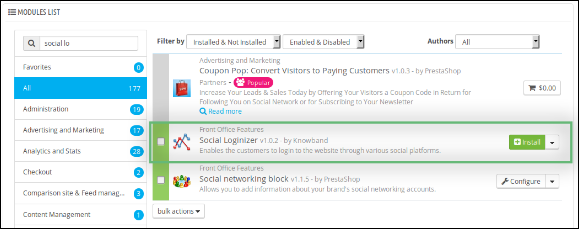
After that, you will be able to find the Prestashop social login plugin ready to be installed in the Modules in your PrestaShop store as shown below.
Click on the Install link to install this Prestashop social media login addon.
Admin Module of Social login Prestashop module
Here, the store owner can change the various settings of this Prestashop twitter login module by Knowband according to the requirements, which will be reflected at the front end as well as in the admin panel of the Prestashop Facebook login plugin.
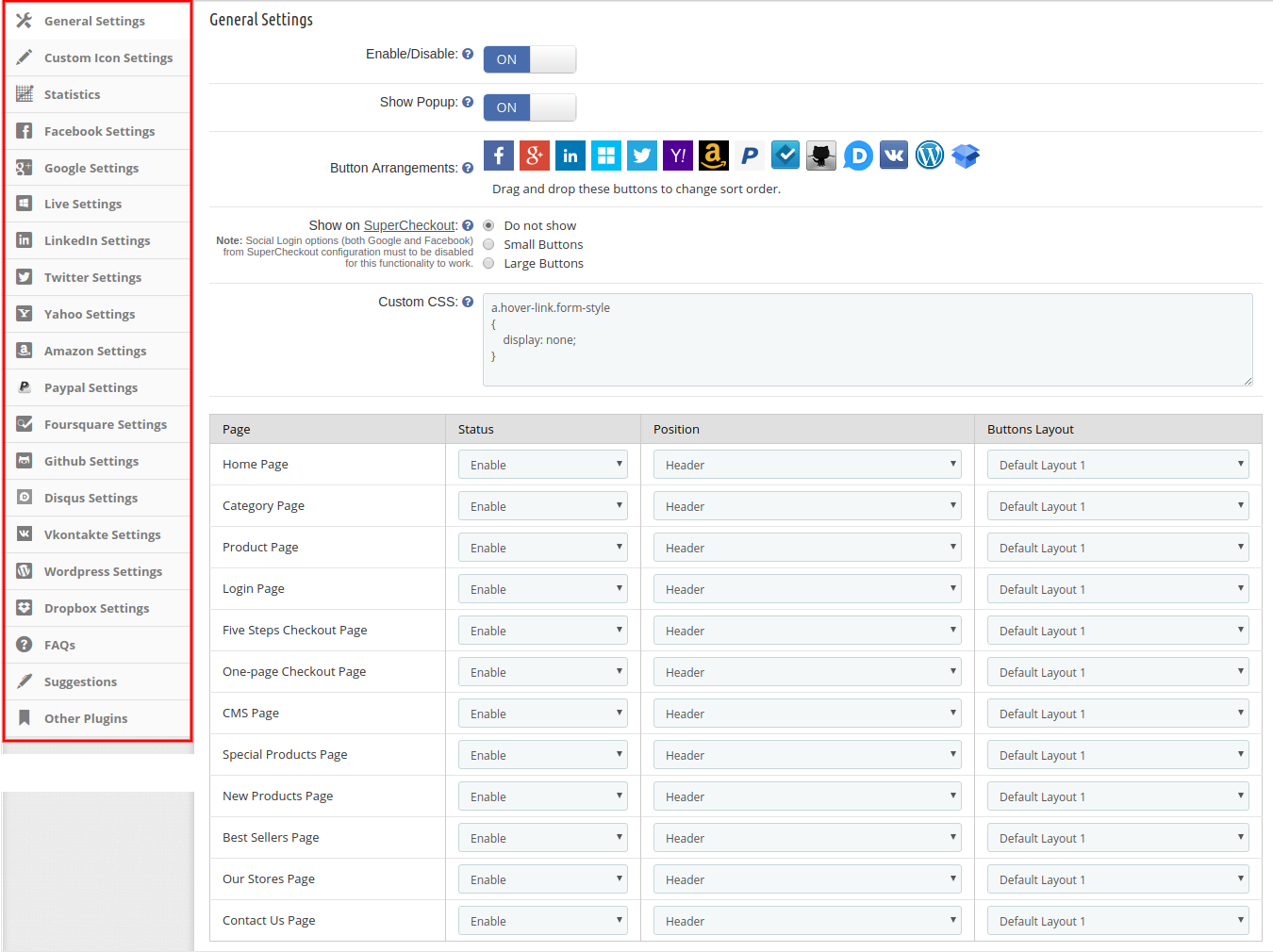
After installing the social login Prestashop module into the store, this Prestashop plugin will provide the following tabs in the interface:General Settings
Facebook Settings
Google Plus Settings
Live Settings
LinkedIn Settings
Yahoo Settings
Amazon Settings
Paypal Settings
Foursquare Settings
Github Settings
Disqus Settings
Vkontakte Settings
WordPress Settings
Dropbox Settings
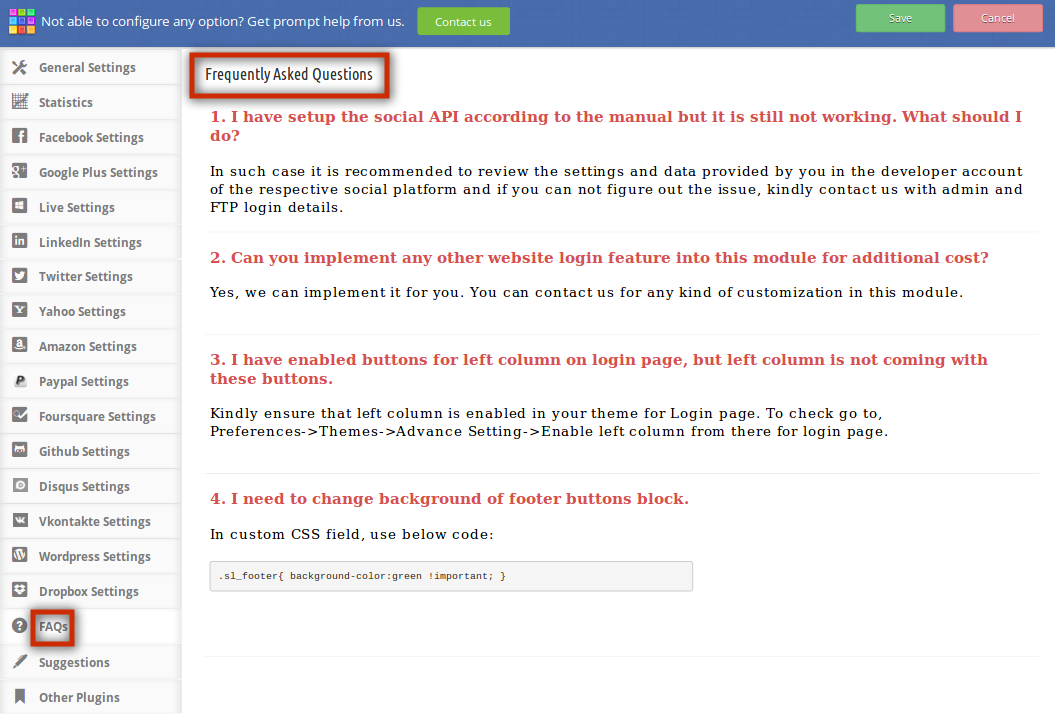
FAQs
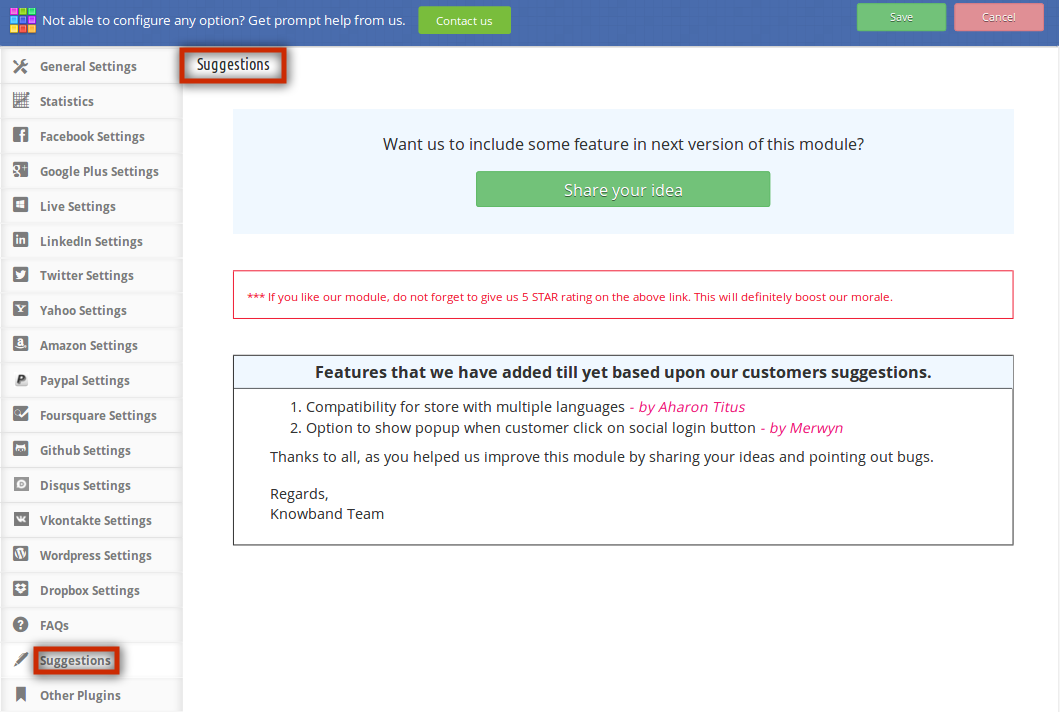
Suggestions
Other Plugins
Each tab is explained below.
General setting of Prestashop social login plugin:
On clicking on the configure link on the module listing page (configure link will automatically appear once you install the plugin), the system will open the general settings tab of the Prestashop google+ login plugin by default as shown in the screenshot below:
Initially, fields in the above form will be already filled with their default values.
Enable/Disable: Initially, this field of the Prestashop social login plugin will be OFF. Admin can enable/disable the Prestashop social media login module by turning ON/OFF in this setting.
show Popup: After enabling this field of the Prestashop social media login plugin by Knowband, it will show the login popup when the customer will click on any of the social login options.
Button Arrangement: Here, in this field of the social login Prestashop module, the admin can change the sequence of the buttons as they appear at the front-end just by dragging and dropping the icon.
show on SuperCheckout: This field of the Prestashop google+ login plugin module allows the admin to show this Prestashop social media login plugin on the SuperCheckout page. The admin can also select the button sizes either small or large. If he doesn’t want to show this social login option, then he can disable this by selecting the “Do Not Show” option.
Custom CSS & JS: The Knowband Prestashop social media login plugin allows the admin to change the look and feel of the social login Prestashop plugin as per his choices.
The admin can also manage the status, position, and button size of the Prestashop social login plugin. Such as, at which page he wants to show the extension (Home Page/Category Page/Product Page/Login Page etc.), what would be the position of this Prestashop extension (Header/Footer/Left Column/Right Column), and what would be the size (Small/Large).
Custom Icon Settings of this Social login options module:
In Custom icon settings, the online store merchant can manage the look and feel of social login icons. There will be a list of layouts that can be added, updated, and deleted at any time as per the requirements. The list is shown below:
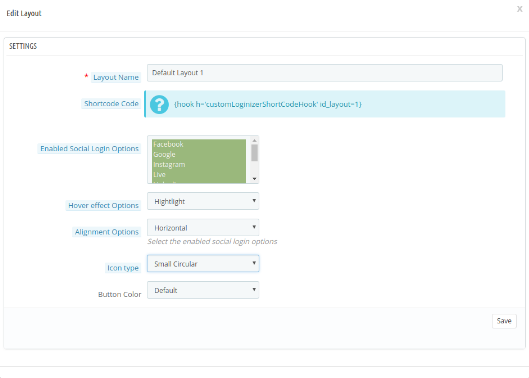
There are multiple customization options as shown below:
Layout name: Enter the name of the layout. Admin can also update the name of previously added layouts.
Shortcut code: Admin can copy and paste the shortcode in tpl to show the social login option as per your chosen position.
Enable social login options: Admin can select from various social login options for showing on the website front-end.
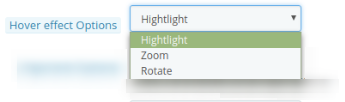
Hover effect option: Admin can select from several hover effects like he can highlight, rotate or zoom the social login icons.
Alignment options: Admin can align the social login options horizontally or vertically.
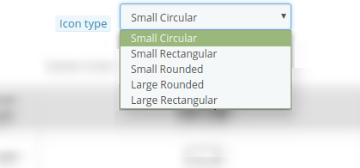
Icon type: Admin can set the icon type as small circular, small rectangular, small rounded, large rounded, and large rectangular.
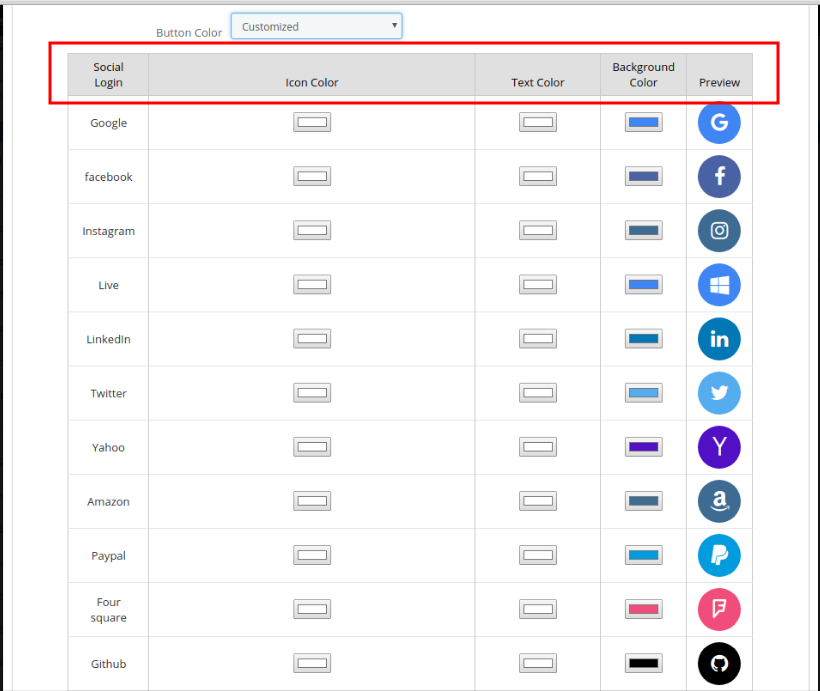
Button color: There are two options for button color. Admin can select the default button color or customize the button colors accordingly. Admin can select different colors from the color picker tool in the advance color selection option.
Statistics of Prestashop social login module
This field of the Prestashop twitter login module allows the store owner to view the report of Login and Registered users in graphical and tabular format. (Whether it is the social login or login with email id and password)
Facebook Settings:
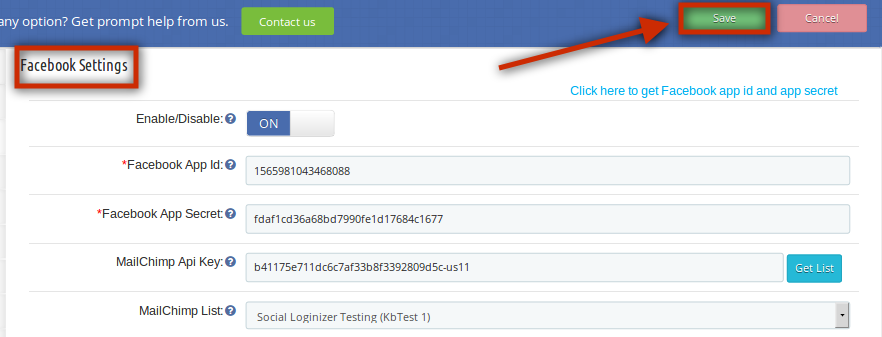
In this tab of the Prestashop Facebook login module, the admin can enable/disable Facebook login at the front end. Fill in the details and click on the ‘Save’ option. The following fields are mandatory:
Facebook App Id
Facebook App secret
The above field values will be available once you create a Facebook App in the respective developer’s console.
Google Plus Settings:
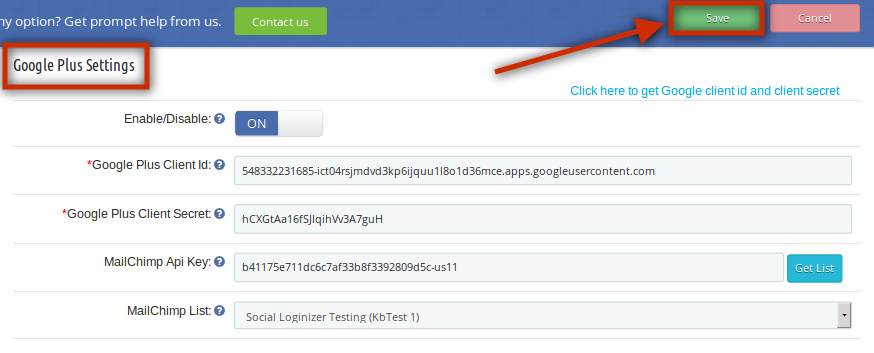
This tab of the Prestashop google+ login plugin allows the admin to enable/disable Google Plus login at the front end. Fill in the details and click on the ‘Save’ option. The following fields are mandatory:
Google Plus Client Id
Google Plus Client Secret:
The above field values will be available once you create a Google Plus App in the respective developer’s console
Live Settings:
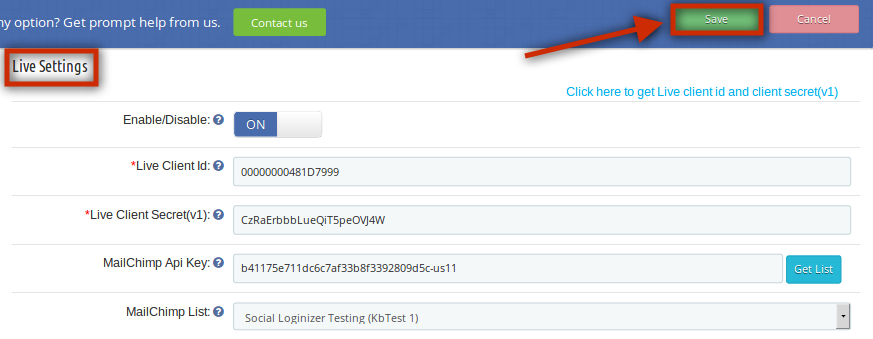
In this tab of the Prestashop social media login plugin, the admin can enable/disable live login at the front end. Fill in the details and click on the ‘Save’ option. The following fields are mandatory:
Live Client Id
Live Client secret(v1)
The above field values will be available once you create a Windows Live App in the respective developer’s console
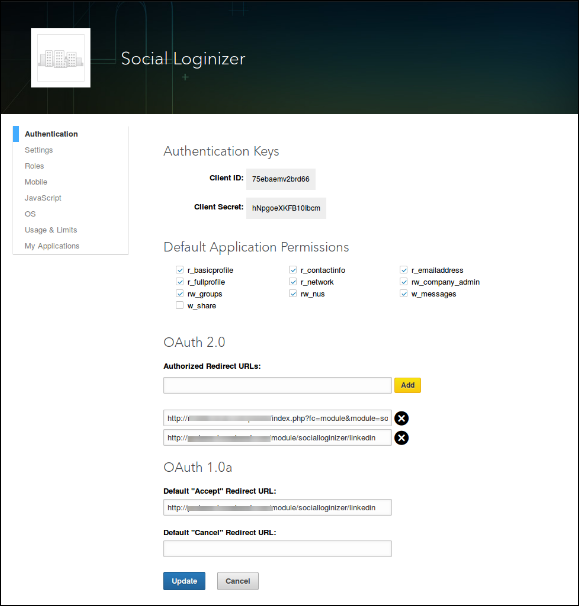
LinkedIn Settings:
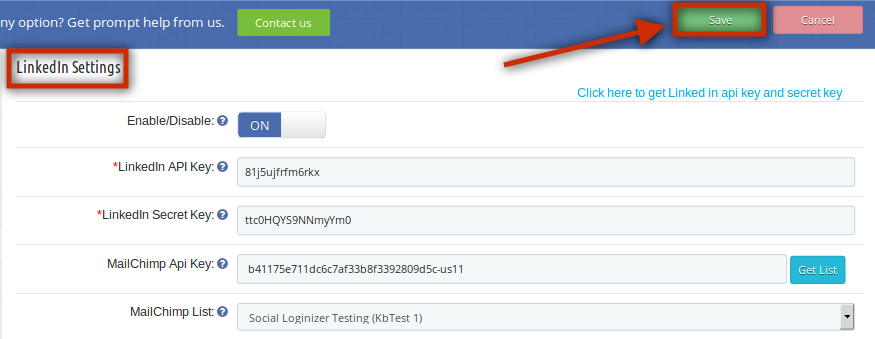
In this tab of Prestashop social login extension by Knowband, the admin can enable/disable Linkedin login at the front end. Fill in the details and click on the ‘Save’ option. The following fields are mandatory:
LinkedIn API Key
LinkedIn Secret Key
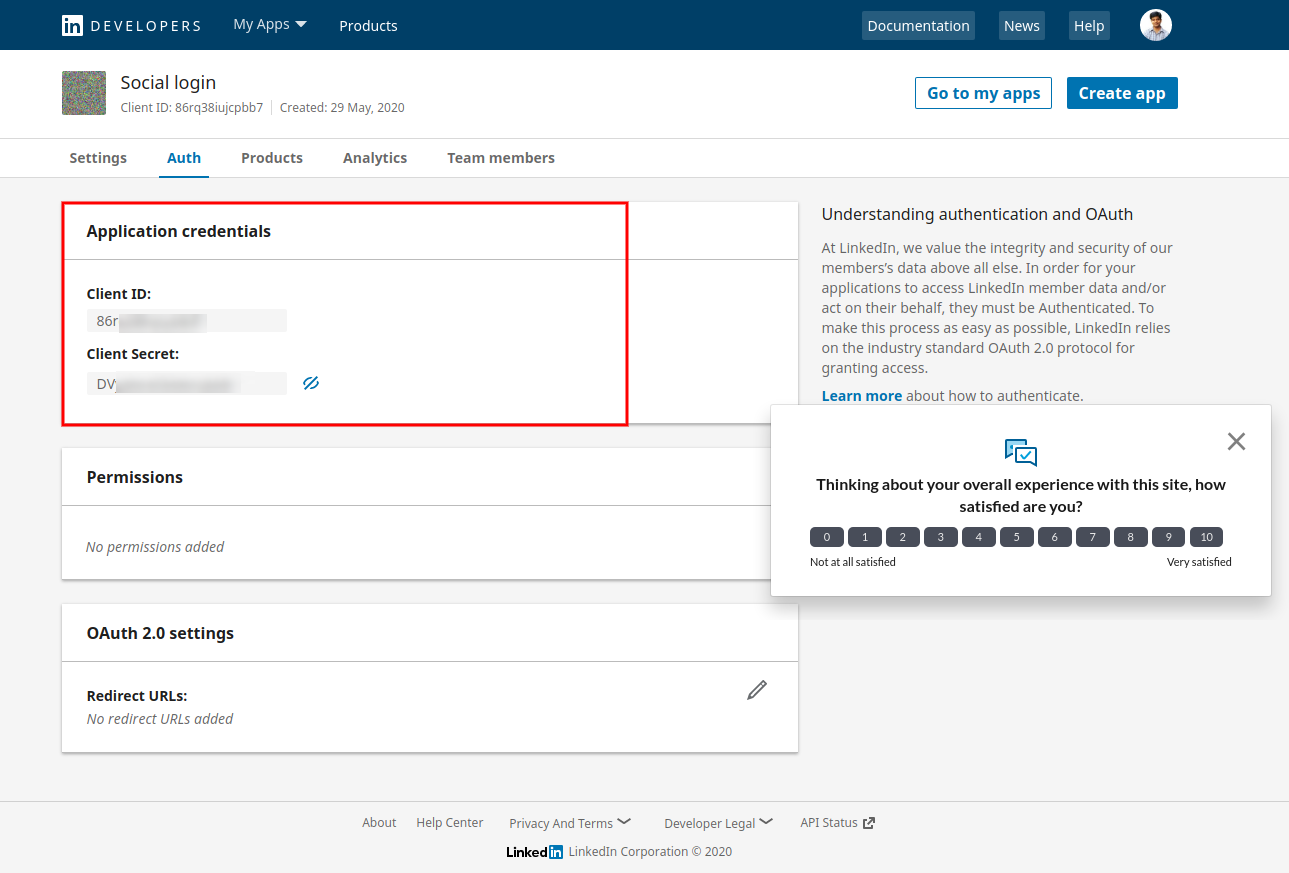
The above field values will be available once you create a LinkedIn App in the respective developer’s console.
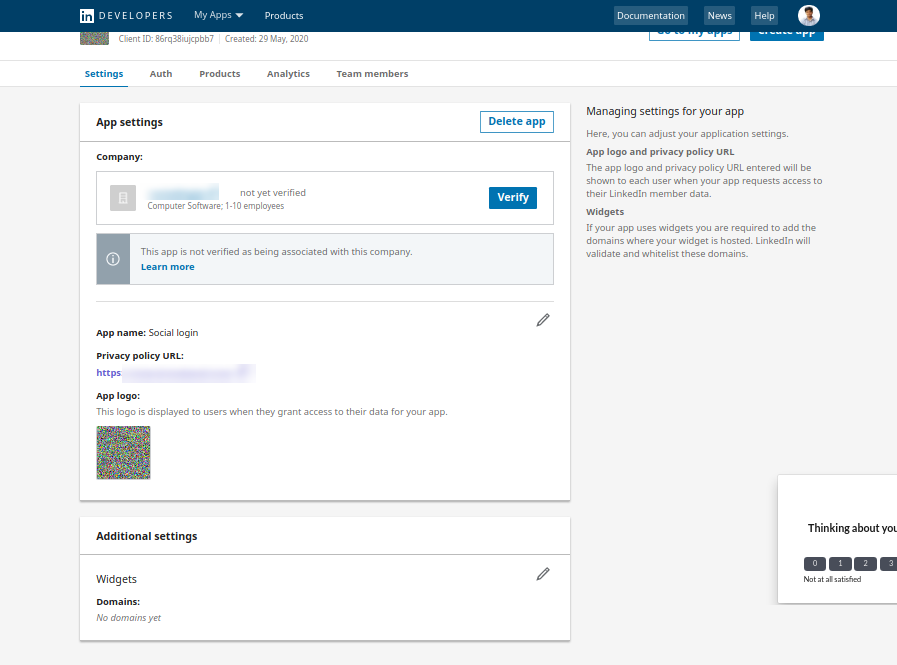
For setup, the admin needs to follow these steps:
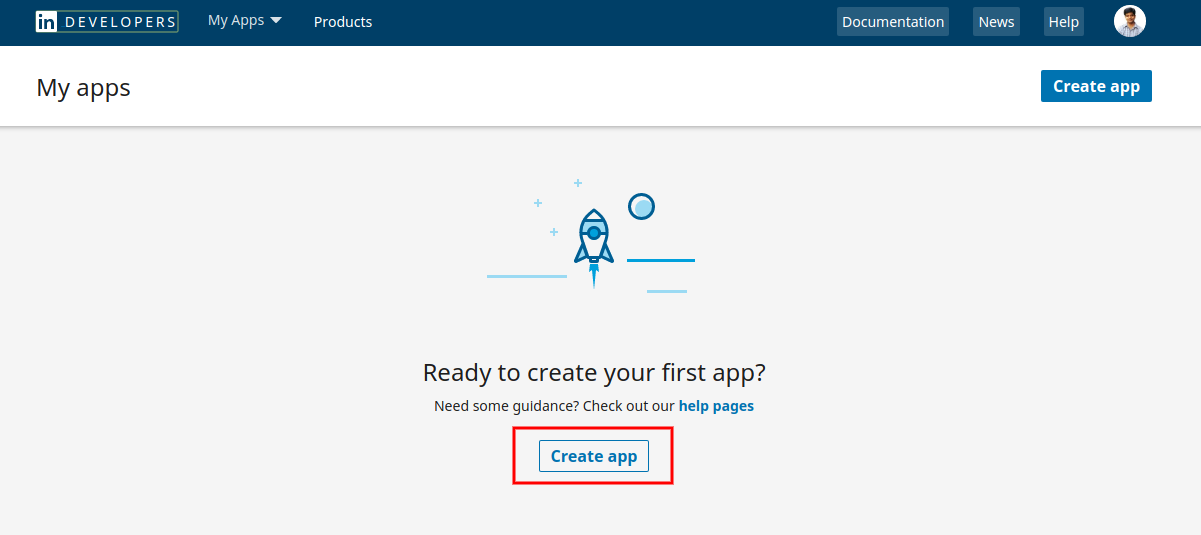
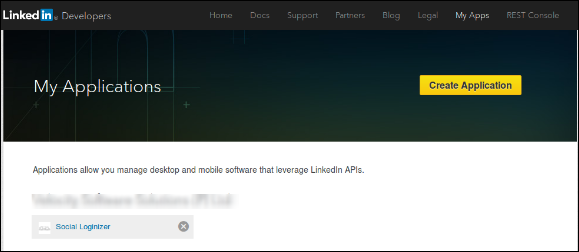
First of all, go to https://www.linkedin.com/developers/apps
Click on Create App option.
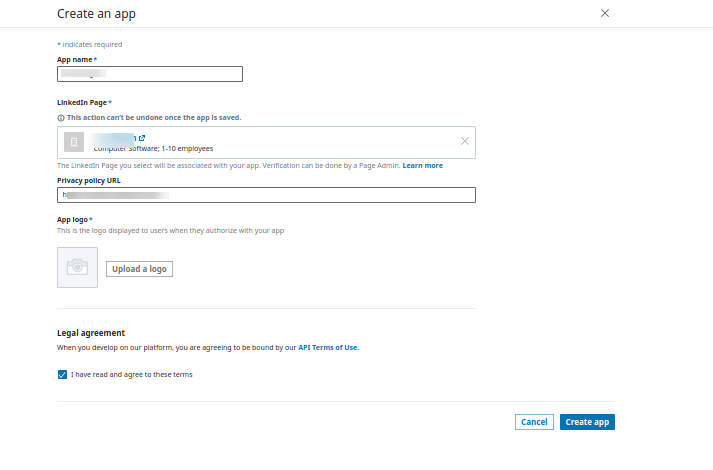
Now, Enter the details on the available form to register a new application. The website URL must be your Store URL like https://www.example.com.
After that, click on the create app button.
In the second option which is the auth section, the e-merchant can view the app Id and secret as shown below:
Twitter Settings:
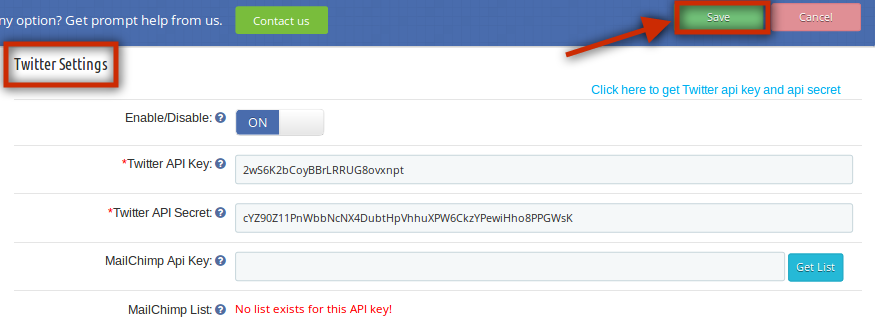
This tab of the Prestashop social media login plugin allows the admin to enable/disable Twitter login at the front end. Fill in the details and click on the ‘Save’ option. The following fields are mandatory:
Twitter API Key
Twitter API Secret
The above field values will be available once you create a Twitter App in the respective developer’s console.
Yahoo Settings:
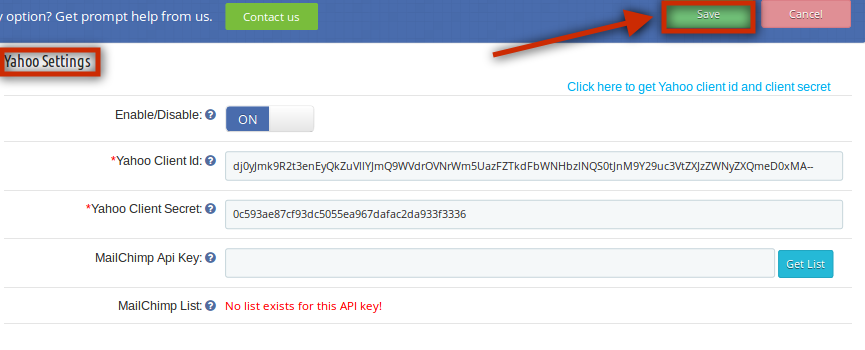
In this tab of the social media login Prestashop plugin, the admin can enable/disable Yahoo login at the front end. Fill in the details and click on the ‘Save’ option. The following fields are mandatory:
Yahoo Client ID
Yahoo Client Secret
The above field values will be available once you create a Yahoo App in the respective developers console.
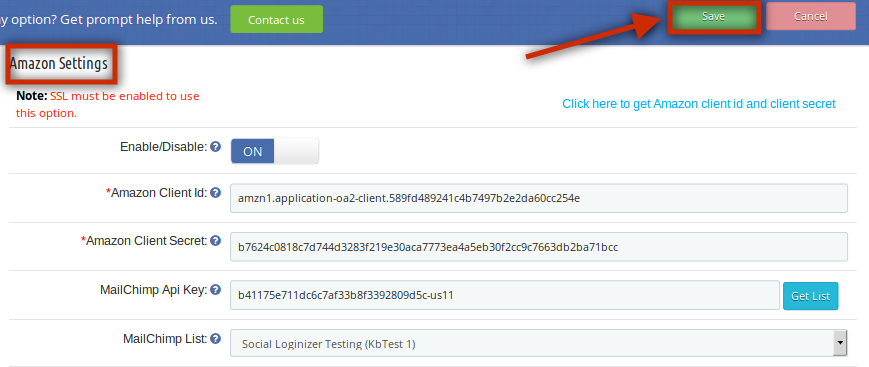
Amazon Settings:
In this tab of the Prestashop social login plugin, the admin can enable/disable Amazon login at the front end. Fill in the details and click on the ‘Save’ option. The following fields are mandatory:
Amazon Client Id
Amazon Client Secret
The above field values will be available once you create an Amazon App in the respective developer’s console.
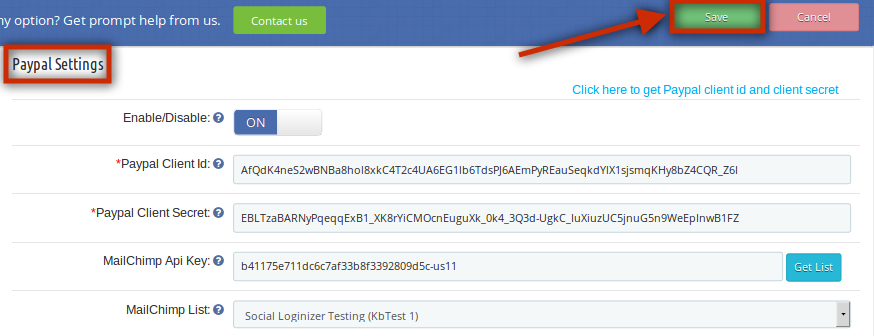
Paypal Settings:
In this tab of Prestashop google+ login addon, the admin can enable/disable Paypal login at the front end. Fill the details and click on the ‘Save’ option. The following fields are mandatory:
Paypal Client ID
Paypal Client Secret
The above field values will be available once you create a Paypal App in the respective developer’s console.
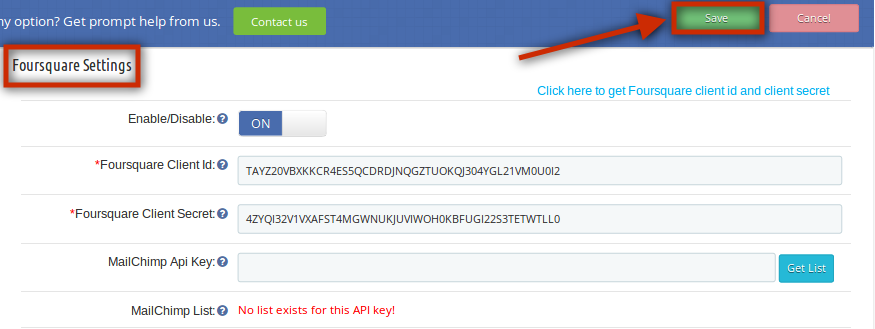
Foursquare Settings:
This tab of the Knowband Prestashop social login plugin allows the admin to enable/disable Foursquare login at the front end. Fill in the details and click on the ‘Save’ option. The following fields are mandatory:
Foursquare Client ID
Foursquare Client Secret
The above field values will be available once you create a Foursquare App in the respective developer’s console.
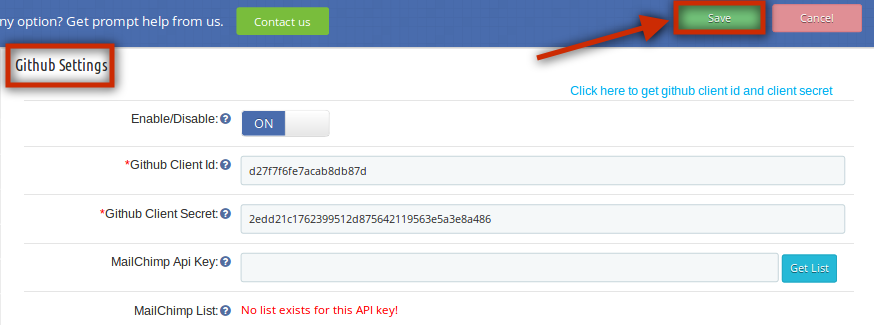
Github Settings:
In this tab of the Prestashop social media login module, the admin can enable/disable Github login at the front end. Fill in the details and click on the ‘Save’ option. The following fields are mandatory:
Github Client ID
Github Client Secret
The above field values will be available once you create a Github App in the respective developer’s console.
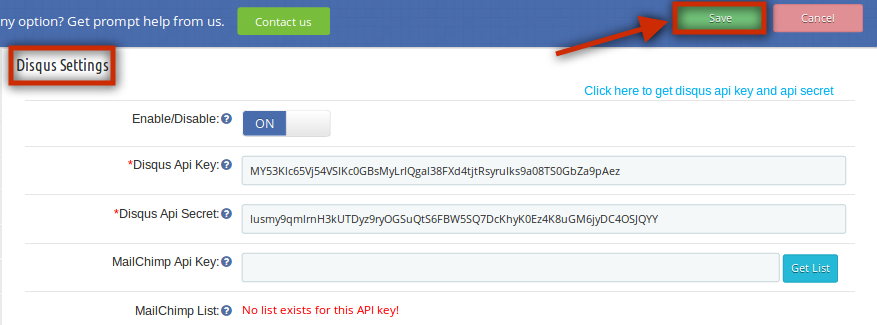
Disqus Settings:
In this tab of the Prestashop social media login plugin, the admin can enable/disable Disqus login at the front end. Fill the details and click on the ‘Save’ option. The following fields are mandatory:
Disqus API Key
Disqus API Secret
The above field values will be available once you create a Disqus App in the respective developer’s console.
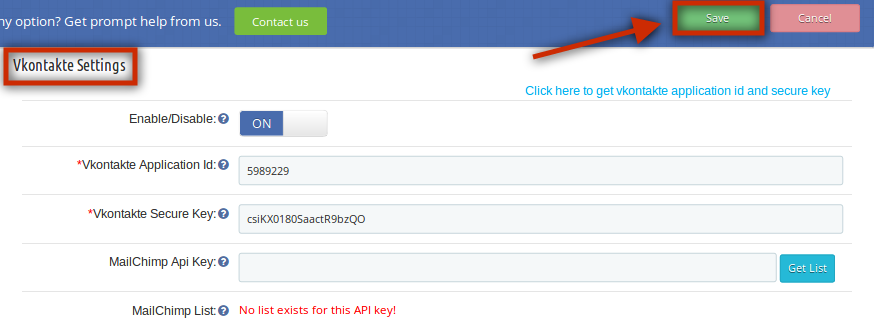
Vkontakte Settings:
In this tab of the Prestashop social login plugin by Knowband, the admin can enable/disable Vkontakte login at the front end. Fill in the details and click on the ‘Save’ option. The following fields are mandatory:
Vkontakte Application ID
Vkontakte Secure Key
The above field values will be available once you create a Vkontakte App in the respective developer’s console.
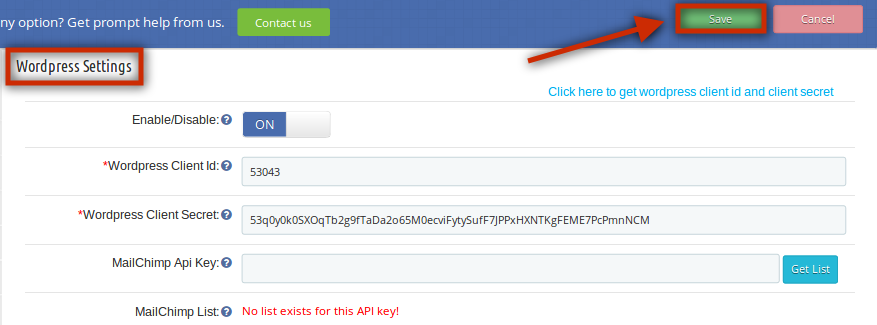
WordPress Settings:
This tab of the Prestashop social login module allows the admin to enable/disable WordPress login at the front end. Fill in the details and click on the ‘Save’ option. The following fields are mandatory:
WordPress Client ID
WordPress Client Secret
The above field values will be available once you create a WordPress App in the respective developer’s console.
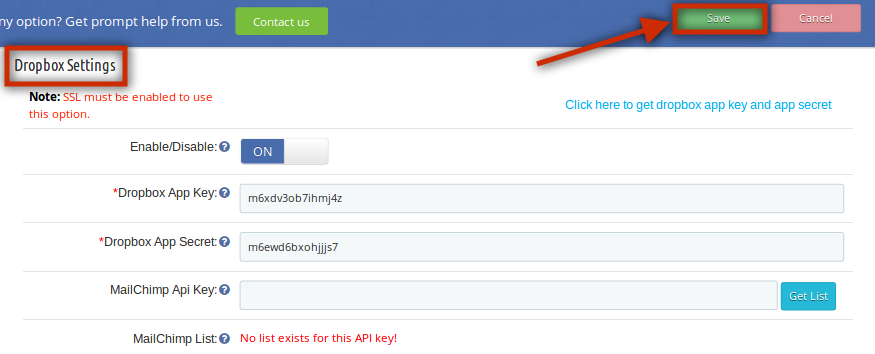
Dropbox Settings:
In this tab of the Prestashop Facebook login module, the admin can enable/disable Dropbox login at the front end. Fill the details and click on the ‘Save’ option. The following fields are mandatory:
Dropbox App Key
Dropbox App Secret
The above field values will be available once you create a Dropbox App in the respective developer’s console.
FAQs:
This tab of the social login Prestashop module contains several questions (with answers to them) that are asked by our customers. We recommend you go through the questions before raising any ticket for this Prestashop Facebook login plugin.
Suggestions:
In case you want to give any suggestions for some new features to be included in the new version of this Prestashop Google+ login plugin then you can use this tab.
Other Plugins:
This tab redirects to our developer page having the list of other plugins developed by us. If you like this Prestashop social media login plugin then you can try our other Prestashop plugins as well.
Front End Prestashop social login module:
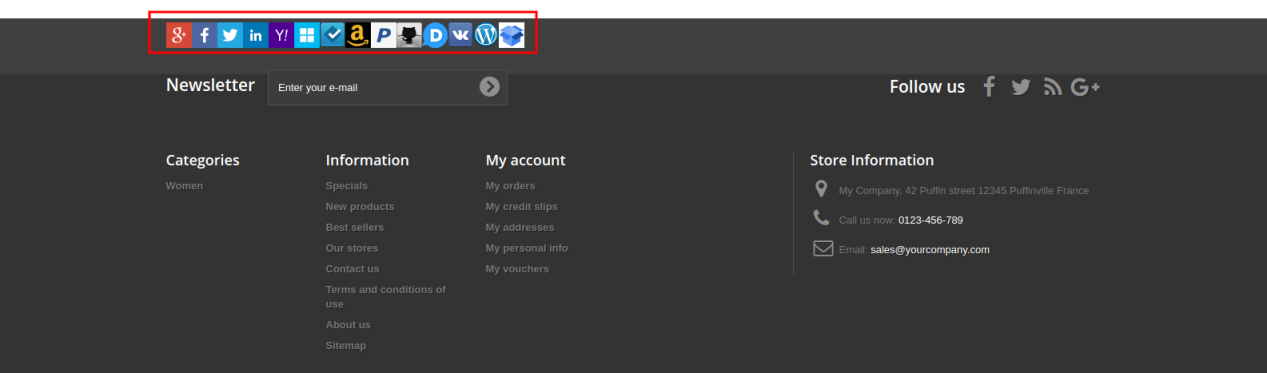
At the footer, the customers can view the social login options as shown below:
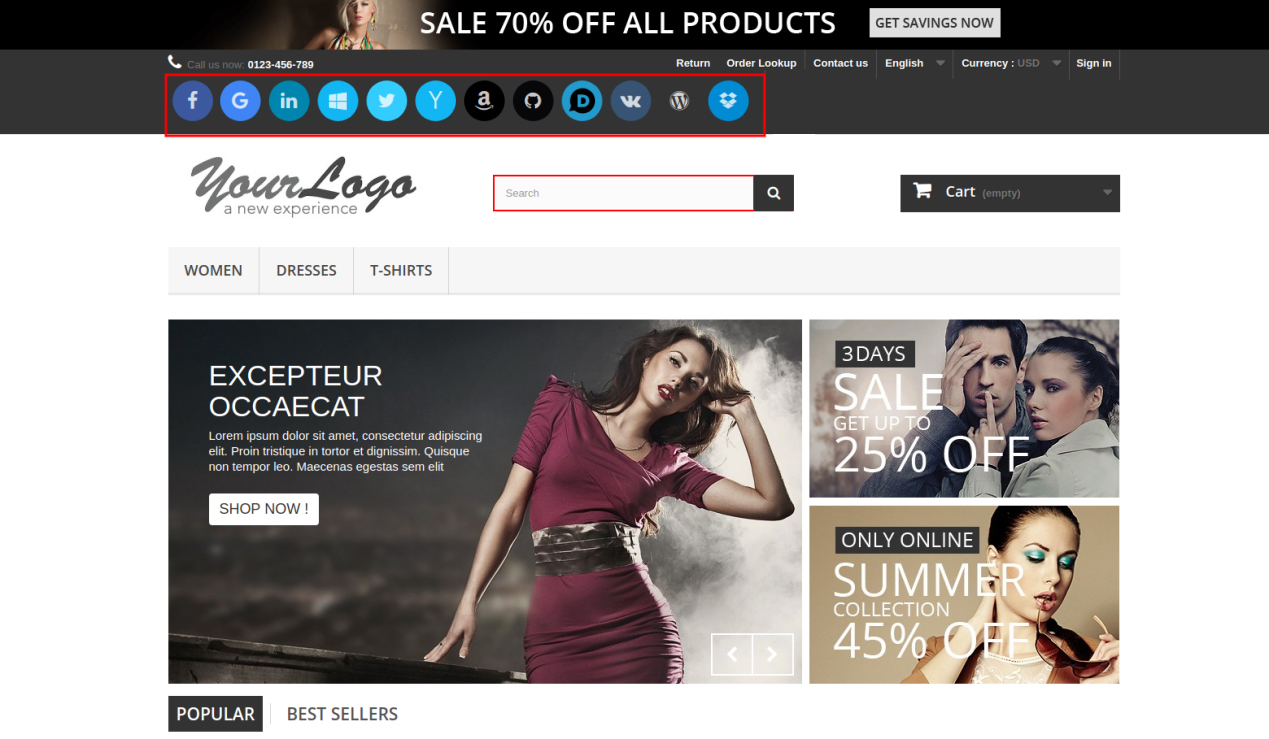
On the front end of this Prestashop social login plugin, customers can see the social login buttons near the ‘Sign in’ option as we have set the small button in the header of the website. Below is the screenshot of the same:
Short Code Functionality
In case you want to display social login buttons somewhere else where the module has no access. So, there is shortcode functionality providing you a way to display social login buttons anywhere throughout your site. To do this, you just have to put a line of code in your respective tpl file accordingly. The line of code is given below:
Code for display small icon: hook h=’customLoginizerShortCodeHook’ size=’small’
Code for display large icon: hook h=’customLoginizerShortCodeHook’ size=’large’
Recommendations:-
Refresh the home page of your store every time you enable/disable social media login Prestashop plugin. If Prestashop social login plugin is not working after installation then please check permissions on the modules folder. The folder should be writable. Please make the folder permission to 755.
How to get Facebook App details?
Facebook App can be created by following the below-mentioned steps:-
Step 1: Go to the given URL: https://developers.facebook.com/apps/
Step 2: Click on the “Add a New App” button.
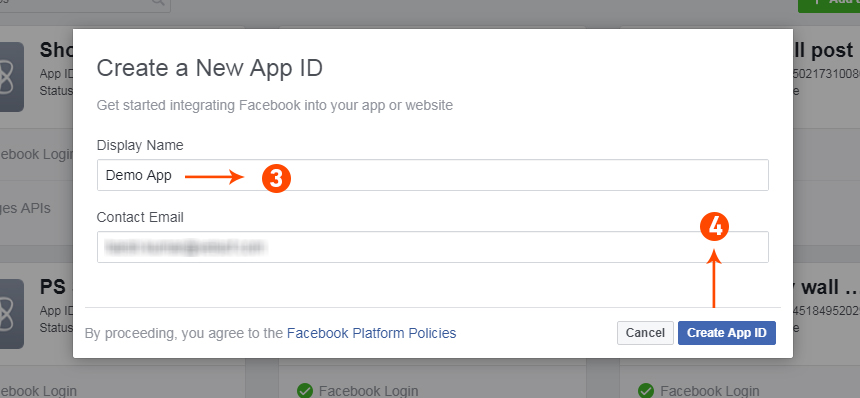
Step 3&4: Enter your App name and email id, then click on “Create App ID” button.
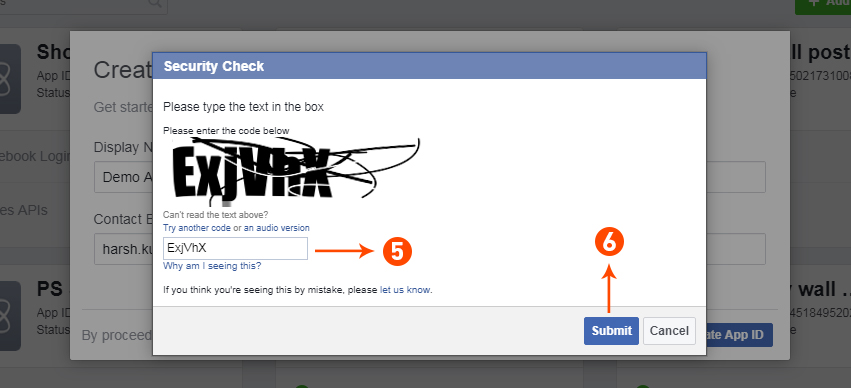
Step 5&6: After clicking on Create App ID you will have to go through a security check as shown:
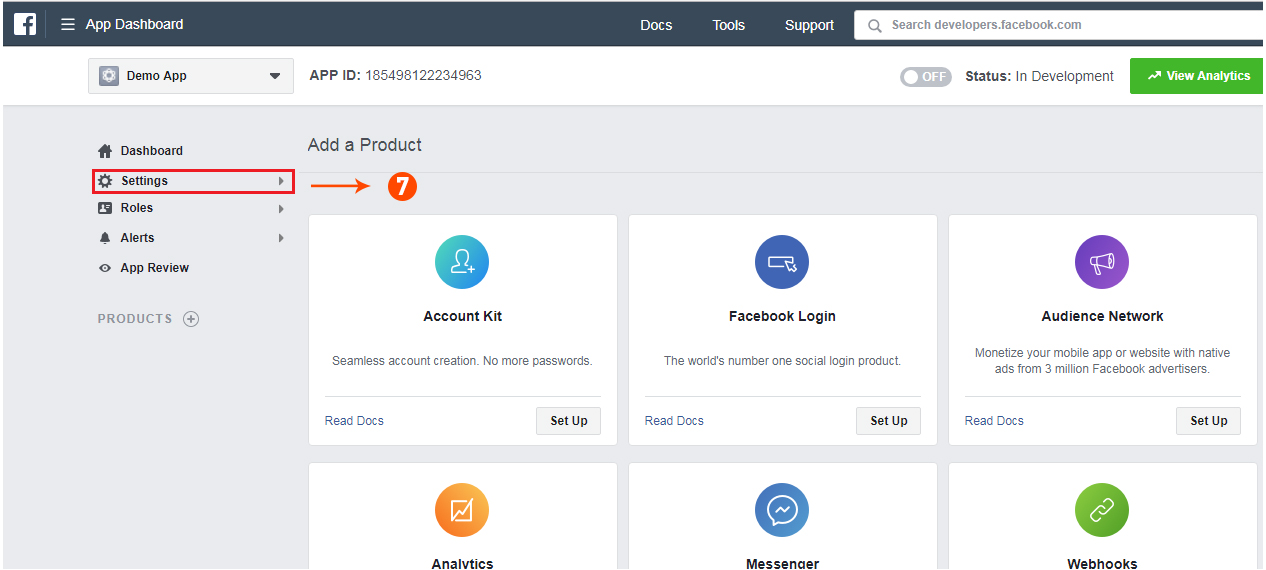
Step 7: Click on “Setting” tab.
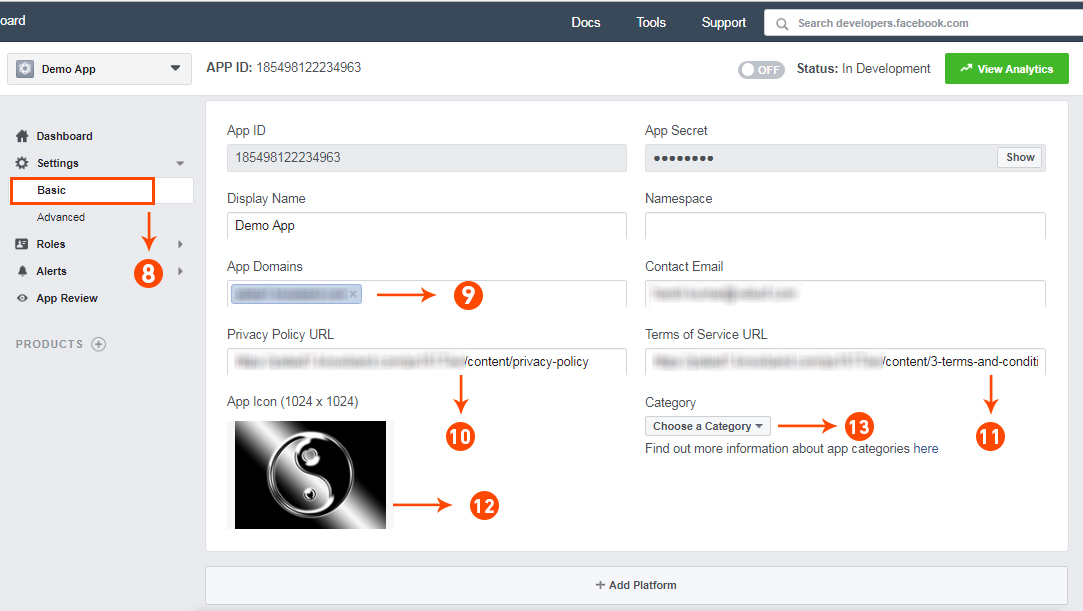
Step 8-13: Two options will be available in the dropdown, Basic and Advanced, click on “Basic”. And then enter your “App Domain”, “Contact Email”, ”Privacy URL”, ”Terms and Conditions URL”, ”Add Logo”, ”Select Category” and click on the “Save Changes” button.
App Domains:
yourdomain.com is correct
yourdomain.com/store is incorrect
www.domain.com is incorrect
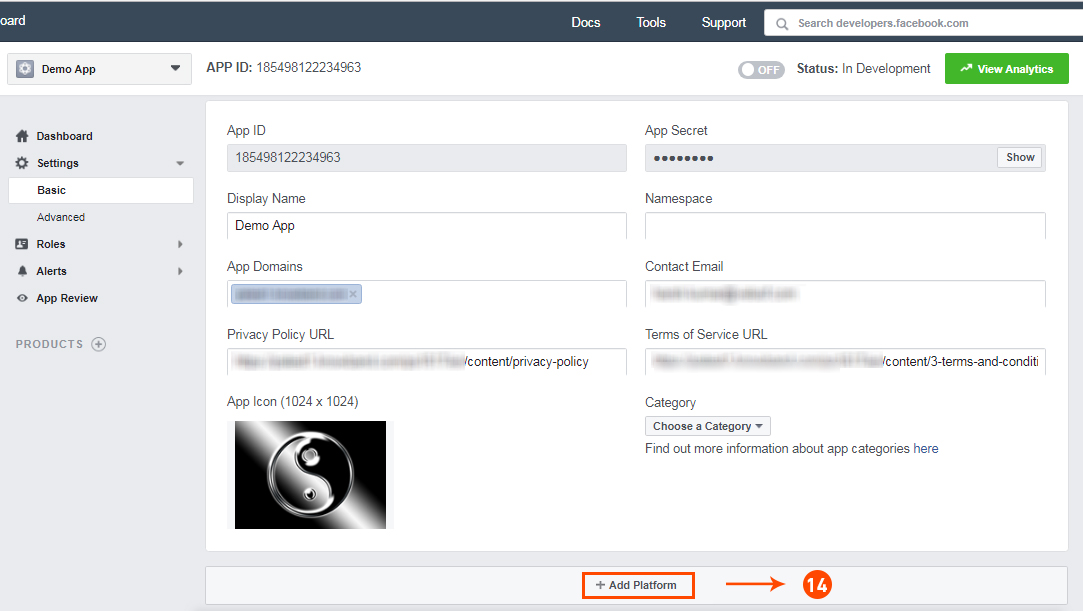
Step 14: Now click on “+Add Platform”.
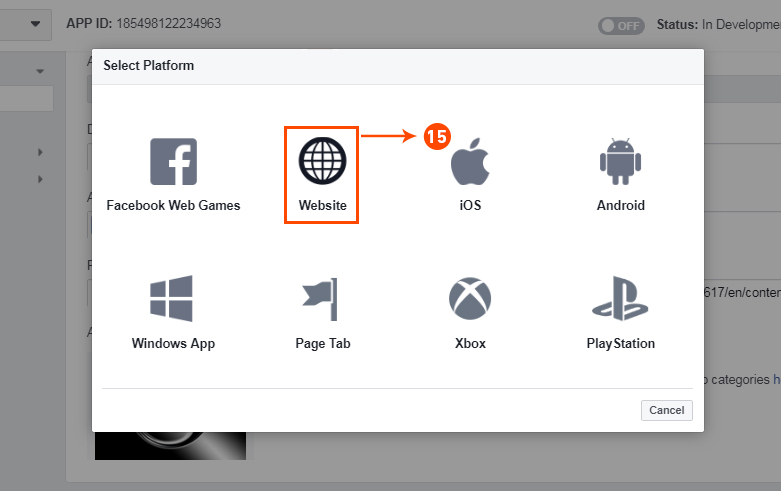
Step 15: And select Website as Platform
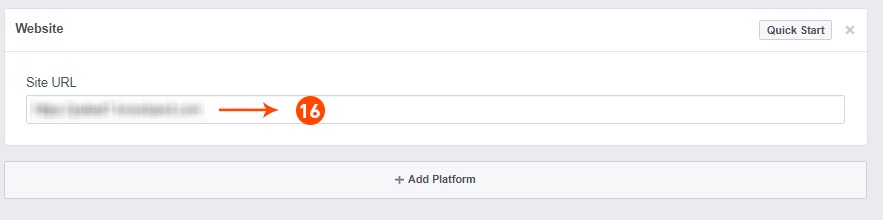
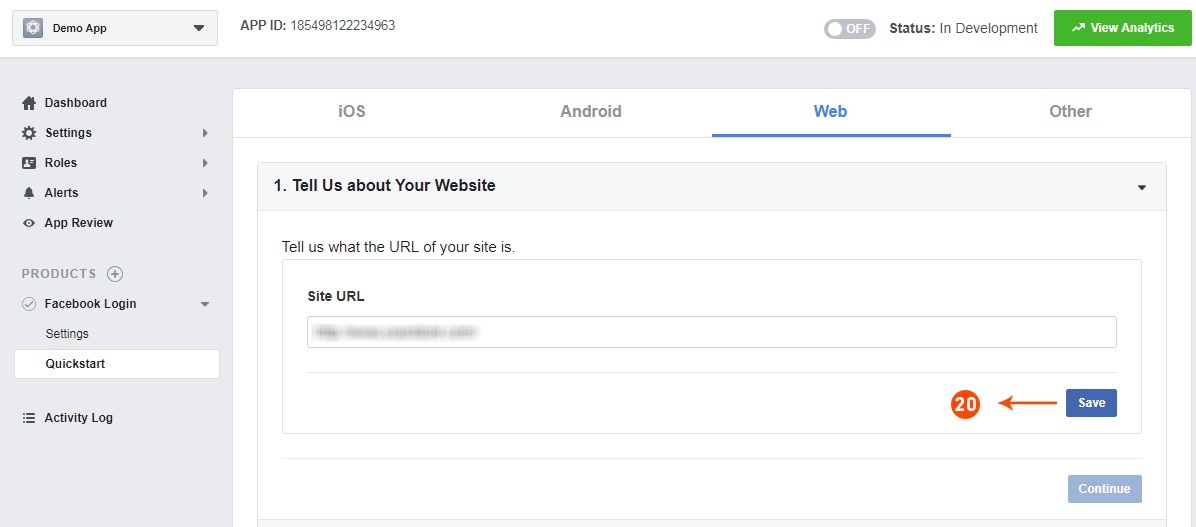
Step 16: Now Enter your site URL.
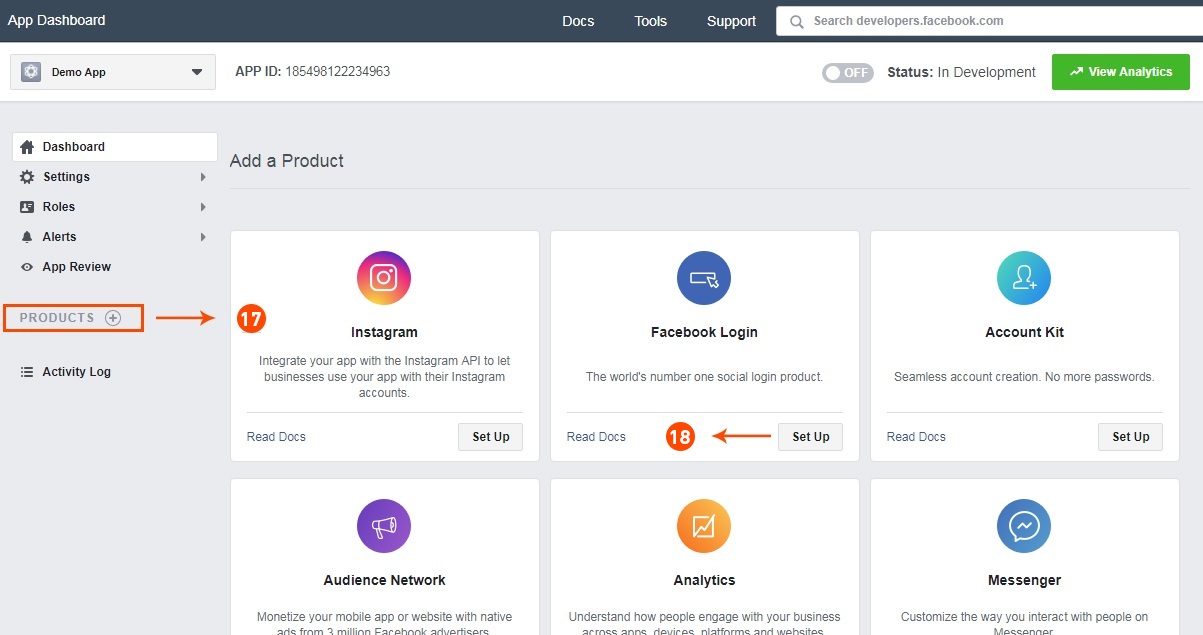
Step 17&18: Click on “Products+” and select Facebook login.
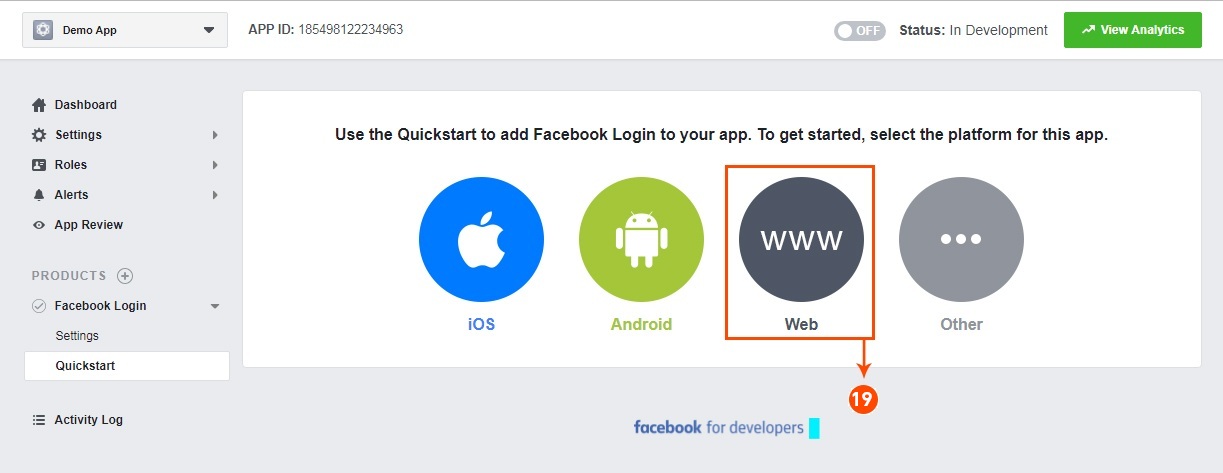
Step 19: Select web as the platform for the app.
Step 20: Now click on save.
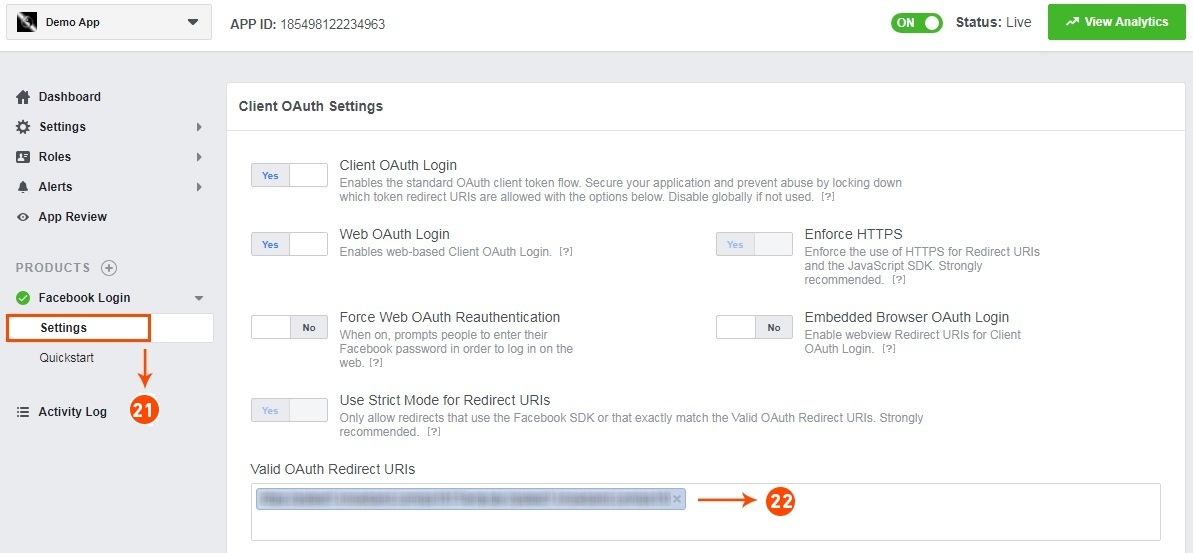
Step 21&22: Click on Settings and add a Valid OAuth Redirect URIs.
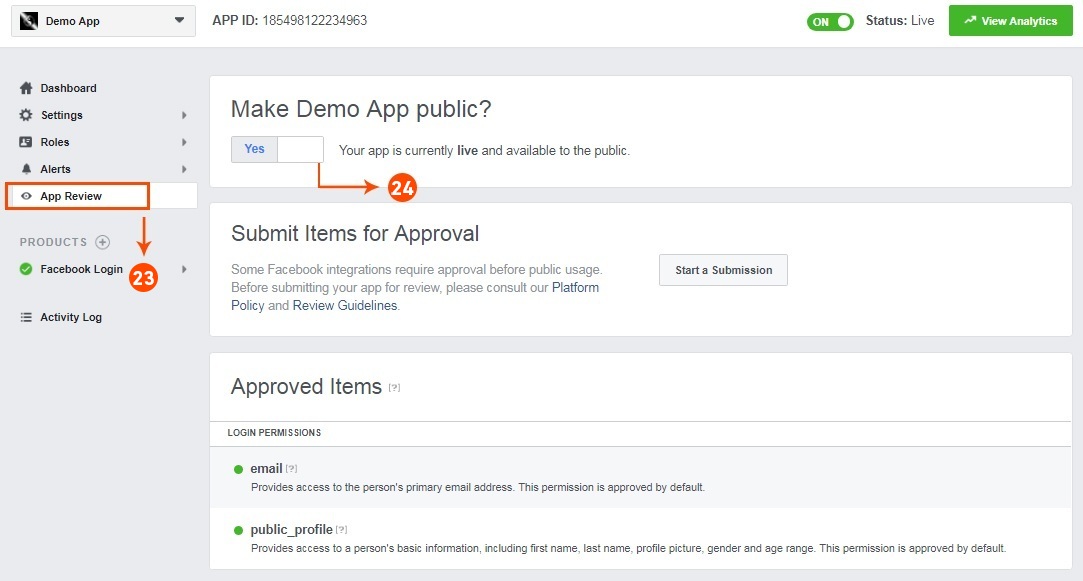
Step 23&24: Click on “App review”. And mark “Make ‘your app name’ Public” to Yes.
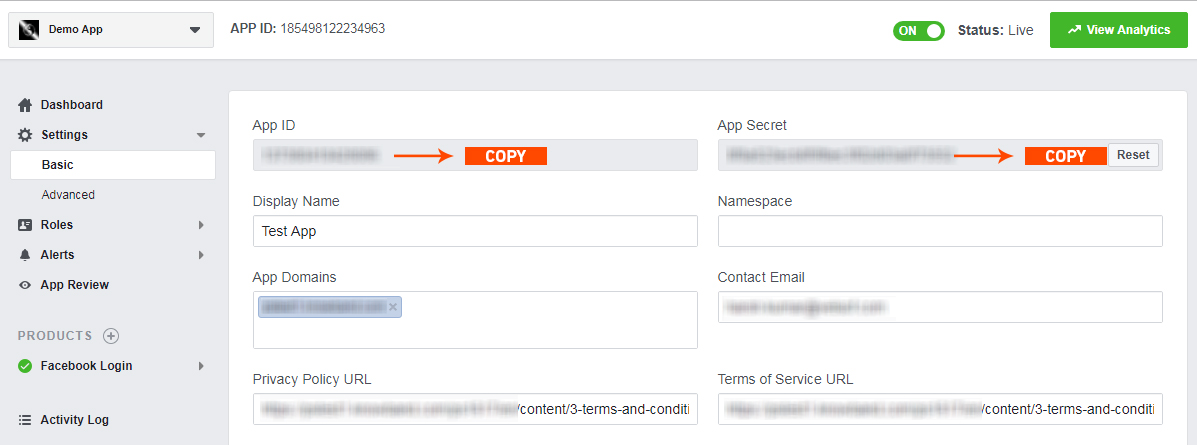
Final Step: Copy the App ID and App Secret and paste it into the fields provided in the module.
How to get Google App details?
Go to Google Developers Console (https://console.developers.google.com/project) or click on the link given top right of the respective tab on the module configuration page.
Now click on Create Project on the left of the page.
Enter a name for your project and proceed to the next step.
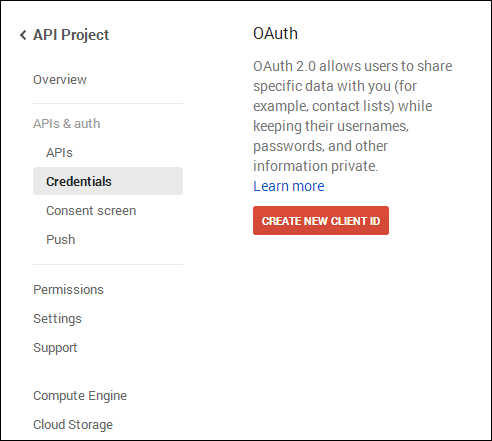
Now click on APIs and auth-> Credentials from the left menu as shown below.
Click Create New Client ID button from the right panel of the screen.
You may have to fill the form for Consent Screen before proceeding. To do so, that you have to click on Consent Screen in the left menu as shown in the image above.
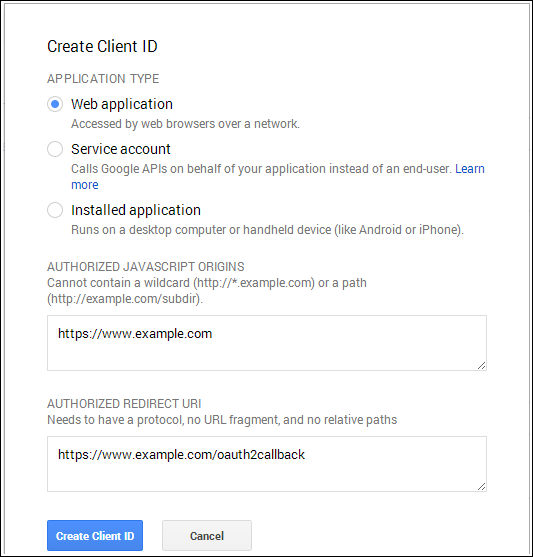
Fill the pop-up form with below details:
Application Type: Web Application.
Authorized JavaScript Origins: Your store domain name (https://www.yourstore.com).
Authorized redirect URI or URI of Loginizer redirect page:
In case you are using SEO Friendly URL for your store then use this –
Please make sure that the Default Application Permissions are selected properly in order to use the app. As shown in the above image.
Now you can use the API details of the app to let your customers login to your store using their linkedIn account.
How to get Live App details?
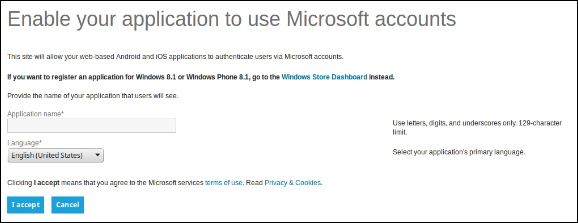
Go to Microsoft Development Center (https://account.live.com/developers/applications/create) or click on the link given top right of the respective tab on the module configuration page.
Enter the Application Name and click the I Accept button.
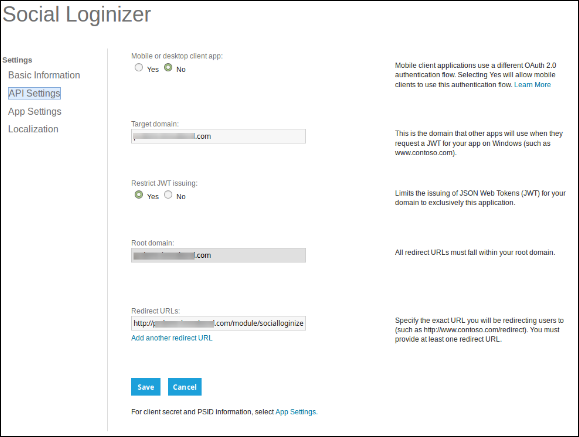
From the left menu select API Settings.
Now provide your store domain and Loginizer Redirect URL as
In Target Domain enter your domain name (example:- https://www.yourstore.com)
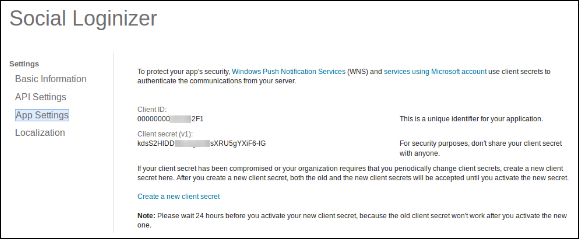
Now from the left menu click App Settings and copy your Client ID and Client Secret.
Now you can use the details of the application to let your customers login to your store using their Live or Microsoft Account.
How to get Twitter App details?
Go to Twitter App Management (https://dev.twitter.com/apps) or click on the link given top right of the respective tab on the module configuration page.
Click Create New App button.
Enter Application Details as follows:
Application Name: Name of your Application.
Description: 10 to 200 characters description of your application.
Website: Your store URL.
Callback URL: Loginizer redirects the page URL of your store.
In case you are using SEO Friendly URL for your store then use this for redirect URL –
Now, Click Yes, I agree, and then click Create your Twitter application.
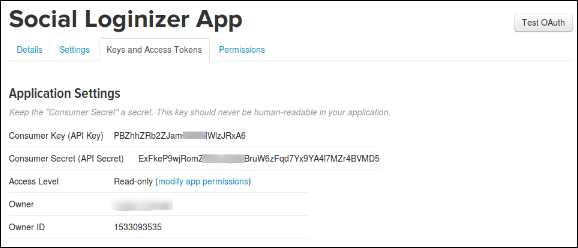
Next, select the Keys and Access Tokens from the menu below your Application Name and copy your API Key and API Secret.
Now you can use the details of the application to let your customers login to your store using their twitter account.
How to get Yahoo App details?
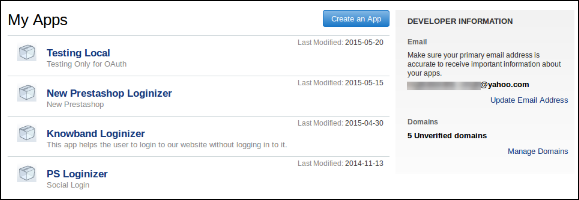
Go to Yahoo Developer Network (https://developer.apps.yahoo.com/projects) or click on the link given top right of the respective tab on module configuration page. Click on Create an App button to proceed.
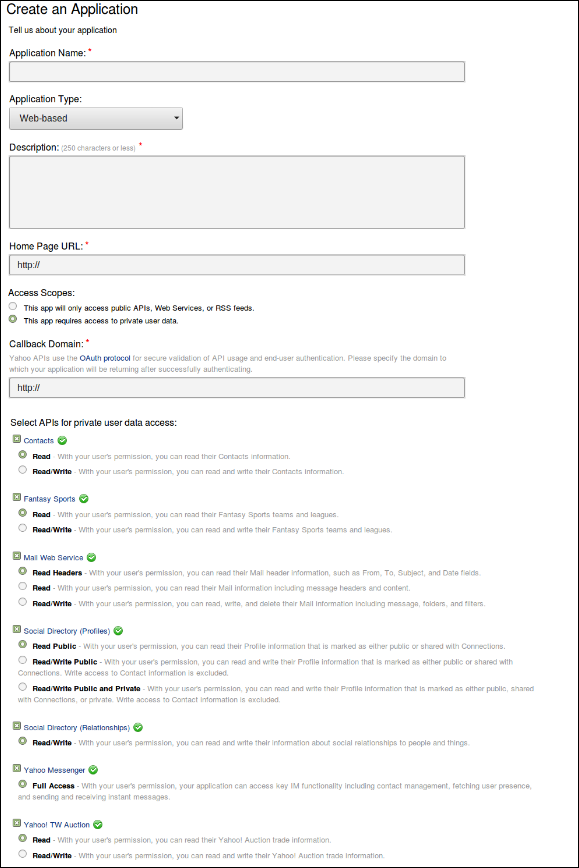
Fill in the required details as per instructions. Home URL will be your Store URL.
In case you are using SEO Friendly URL then use this for the callback domain:
Please make sure that the permissions for the app are properly selected while creating the App as shown in the image above.
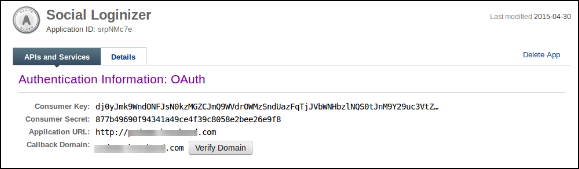
Once the application is created you can copy your Consumer Key and Consumer Secret.
Now you can use the details of the application to let your customers log in to your store using their yahoo account.
How to get Amazon App details?
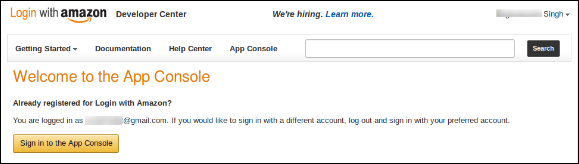
Go to Amazon Developer Network (https://login.amazon.com/manageApps) or click on the link given top right of the respective tab in the module configuration page.
Click on the Sign in to App Console button.
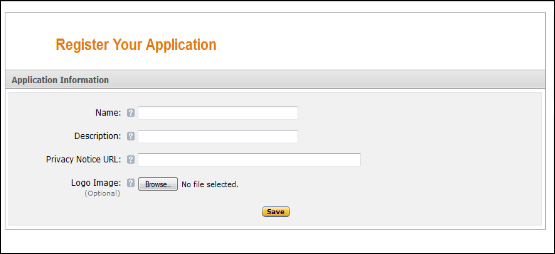
After successful login to App Console click on the Register New Application button in top right of the page and you will be redirected to the following page.
Enter Application Details as follows:
Name: Name of your Application.
Description: Description of your application.
Privacy Notice URL: Url of privacy policy page of your store.
Logo Image: Select the optional logo image of your store.
Click the Save button.
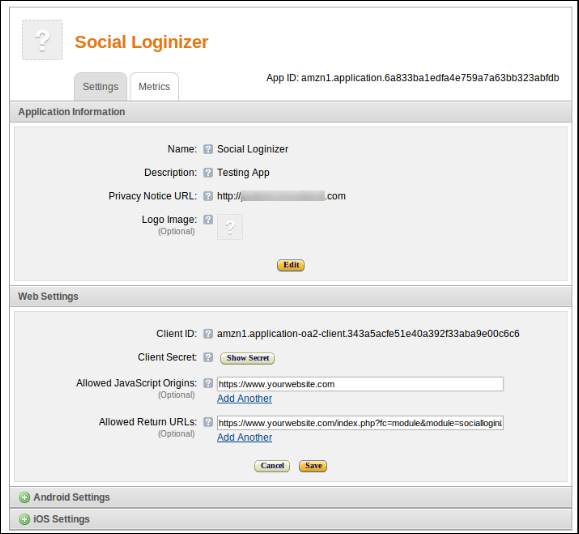
Now click on Web Settings to get your client id and secret.
Allowed Return URL: Loginizer redirects page URL of your store.
In case you are using SEO Friendly URL for your store then use this for redirect URL –
Note: To enable Amazon login into your website, your website must be secure with HTTPS otherwise Amazon login will not work.
Now you can use the client secret and client ID to let your customers login to your store using their amazon account.
How to get Paypal App details?
Go to Paypal Developer Network (https://developer.paypal.com/webapps/developer/applications/myapps) or click on the link given top right of the respective tab on the module configuration page.
Click on Create App button.
Now enter the name of your Application and click Create App Button.
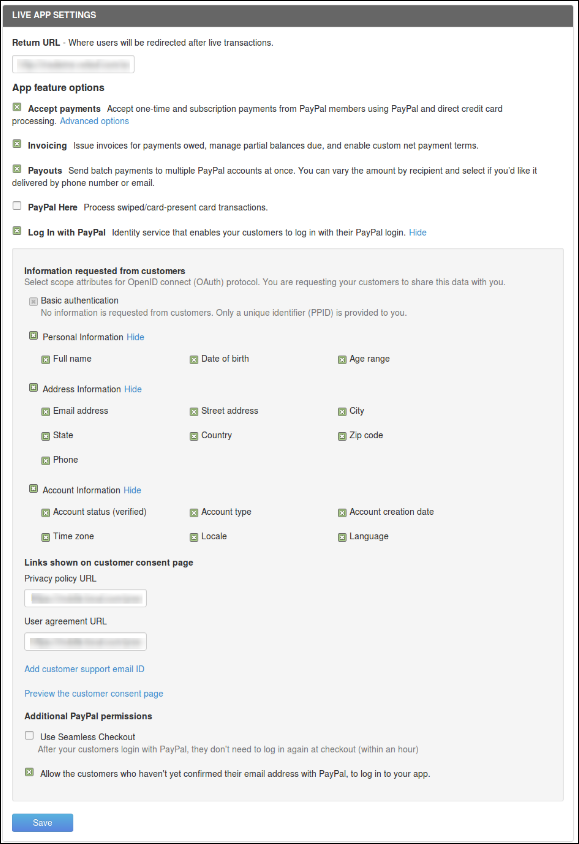
Set App return URL (live) as plugin redirect page URL of your store.
In case you are using SEO Friendly URL for your store then use this for redirect URL –