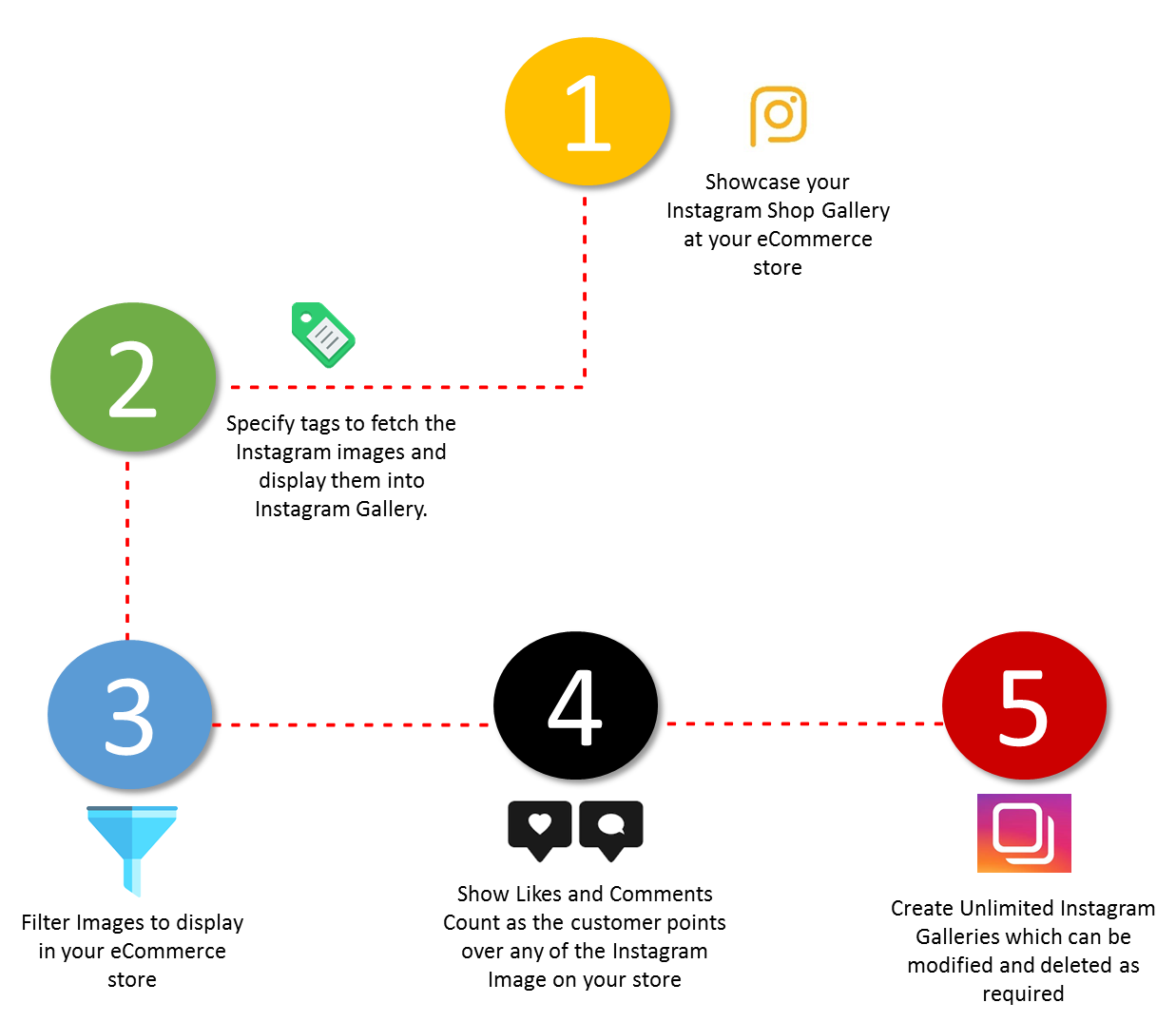
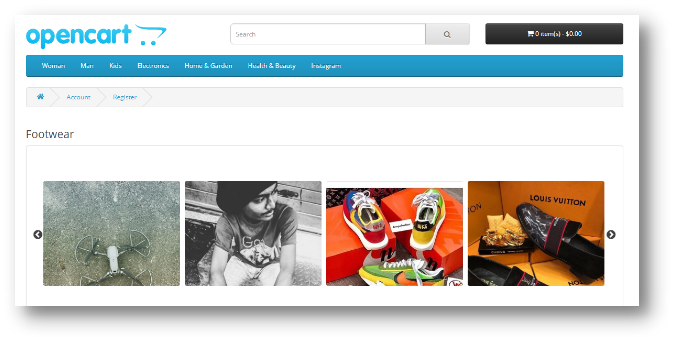
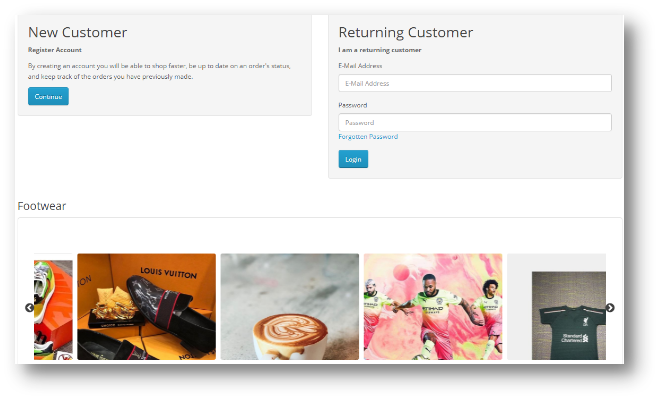
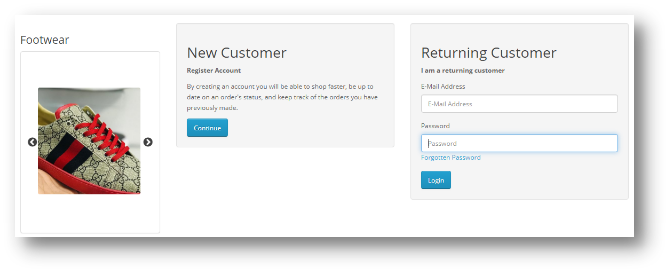
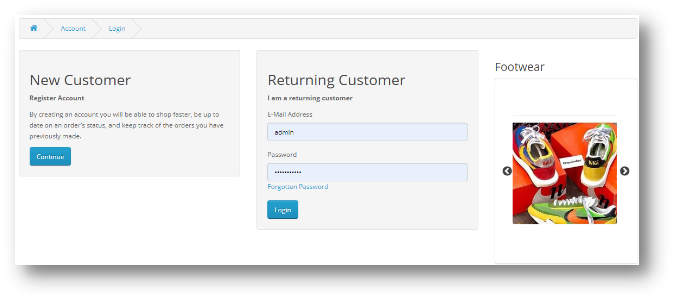
Instagram is undoubtedly one of the fastest ways to reach a huge number of specific users and have them familiarize with a brand. Opencart Instagram Shop Gallery Extension by Knowband lets your customers shop what they see in your Instagram Account. You can showcase your Opencart Shoppable Instagram Feed on to your eCommerce website. More and more businesses want to advertise on Instagram because of its incredible audience. As technology evolves toward a visual-centric approach, users wanting to obtain as much information as possible but in less time are shifting from editorial to mainly visual content. You can give your customers a visual approach for them to view the products on your eCommerce store as Opencart Shoppable Instagram Feed and buy tagged products as if they are shopping on Instagram.
2.0 Features
3.0 Installation Guide
Before starting the installation process, you have to buy the Opencart Instagram Shop Gallery Extension from the Knowband store. Once purchased, you will receive the following files on your registered email.
Source code of Opencart Instagram Shop Gallery Extension module in zipped file format.
User Manual of Opencart Instagram Shop Gallery Extension module.
Now in order to install this Opencart Instagram Shop Gallery Extension module on your online shop, follow the given steps:
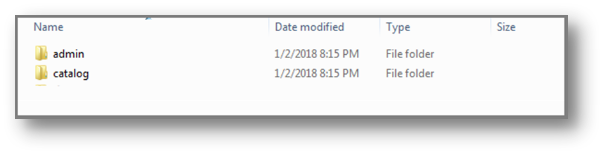
Step 1: Unzip the zip file. You will get the folders as shown in the image below
Step 2: Copy all the folders of the zip file in the Root Directory of OpenCart setup via FTP manager.
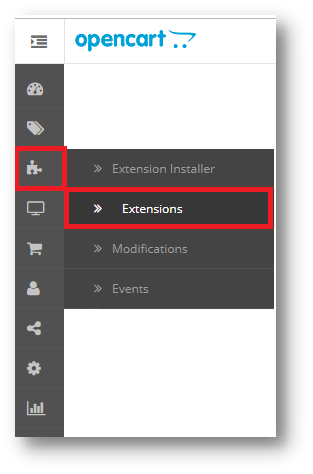
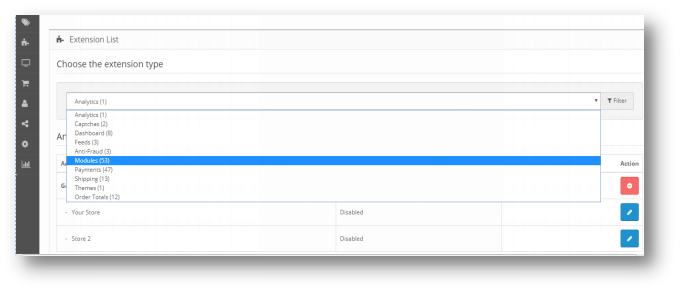
So, Opencart Instagram Shop Gallery Extension plugin is now successfully installed and is ready to use at your store. Go to the admin menu and click on the extensions. Choose the Extension Type as Modules. You will find a list of modules. Select the Opencart Instagram Shop Gallery Extension.
4.0 Admin Interface of OpenCart Instagram Shop Gallery Extension
To configure the Opencart Instagram Shop Gallery Extension, Navigate the settings in the following order: Admin Panel > Extensions > Modules > Instagram Shop
The Admin Interface of Opencart Instagram Integration Extension is divided into 6 Tabs:
Instagram Account
Photos and Videos
Tags
Layouts
Settings
Help
4.0.1 Instagram Account
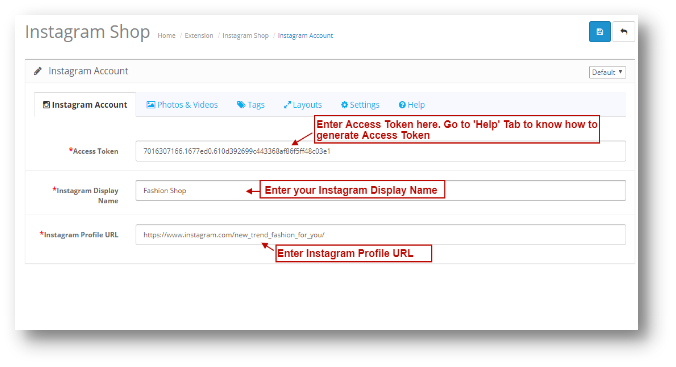
Under the Instagram Account of the Opencart Instagram Integration Extension, You will have the following configuration option:
Know how to generate Access Token: Annexure 1: How to generate Access Token?
4.0.2 Photos & Videos
Under the Photos & Videos of the Opencart Instagram Integration Extension, You will have the following configuration option:
1.All
2.Featured
3.Tagged with Products
4.0.2.1 All
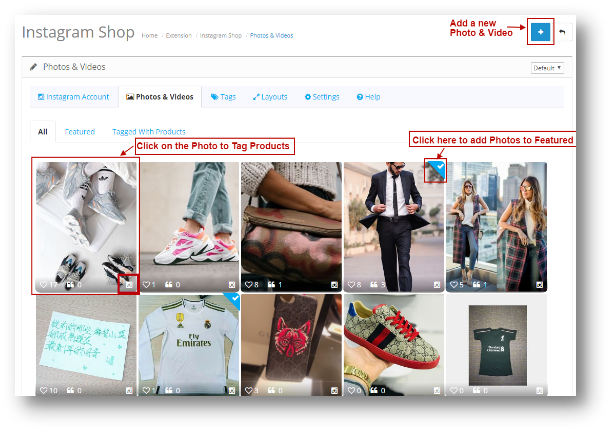
Here all the Photos added on your eCommerce store will be shown. The page will look like the following as shown below:
Instagram Icon: Click on the Icon to view the Photo on Instagram Profile.
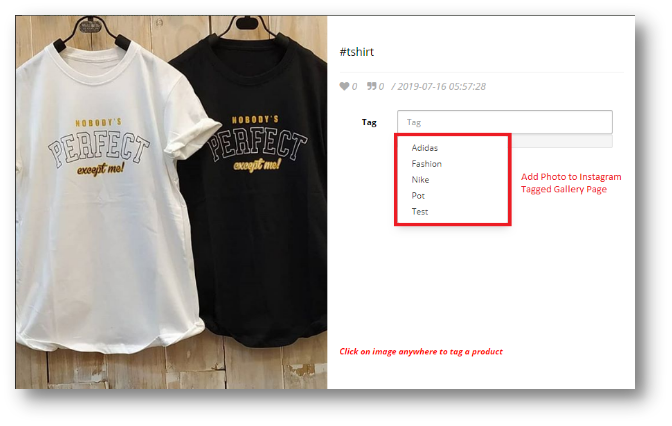
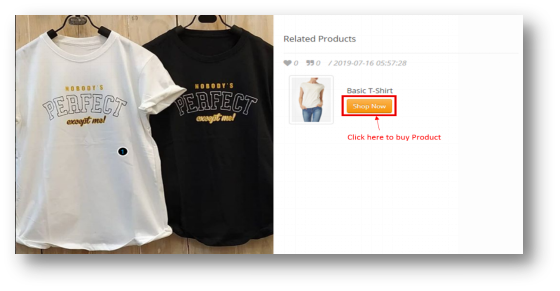
When you will click on the Photo, the following pop up will be appear to them as shown below:
You can add an Image or Video to a Tagged Gallery Page as follows:
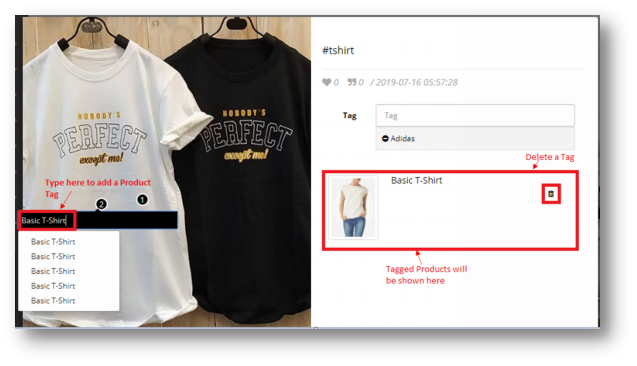
You can Tag as many Products as you want with this Photo.
Tagged products will be shown in your eCommerce store as below:
4.0.2.2 Featured
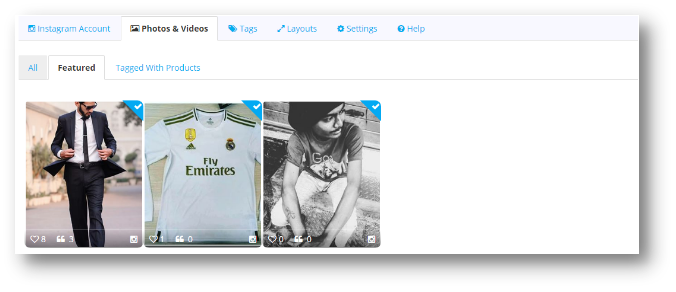
All the Photos and videos marked as Featured in ‘All’ Tab will be shown here. The page will look like as the one shown below:
4.0.2.3 Tagged with Products
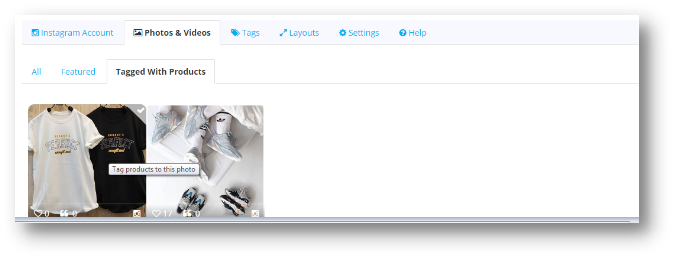
All the Photos and Videos which are tagged with products will be listed here. You can click on the image to Tag photo with products. The screen will be shown as below.
4.0.2.4 Add Photos & Videos
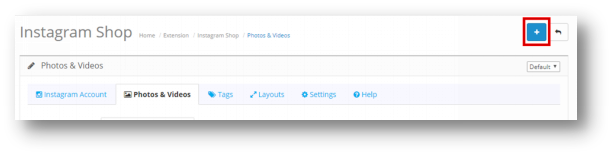
Follow these simple steps to add a Photo and Video. Click on the Add Icon which is highlighted on the screenshot below:
The following screen will appear:
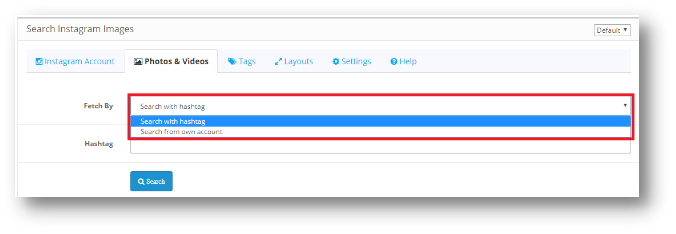
Users will have 2 options to add a screen:
Search with Hashtag
Search from own Account
Search with Hashtag
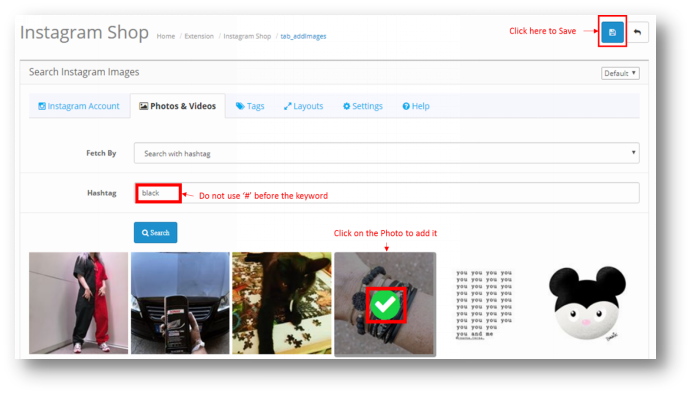
You can search a Photo using Hashtags and all the photos listed under that Hashtag will appear on the screen. You can select a Photo and click on Save and the Photo will be saved under ‘All’ Tab.
*Note – Do not use ‘#’ before the keyword to search a Photo.
You can only add a Photo using the Hashtag. To add a Video, you need to search it from your own account.
Search from own Account
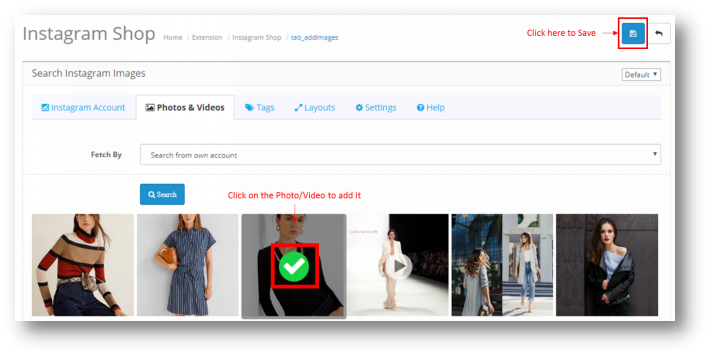
When you click on Search from own account, the following page will be shown below. All the Photos and Videos uploaded on your Opencart Shoppable Instagram Feed will be shown.
Once the Photo or video is added, it will be shown on the ‘All’ Tab of the Photos & Videos setting page of Opencart Instagram Integration Extension.
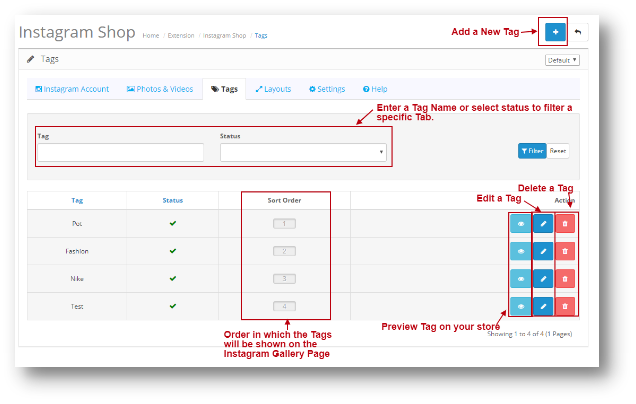
4.0.3 Tags
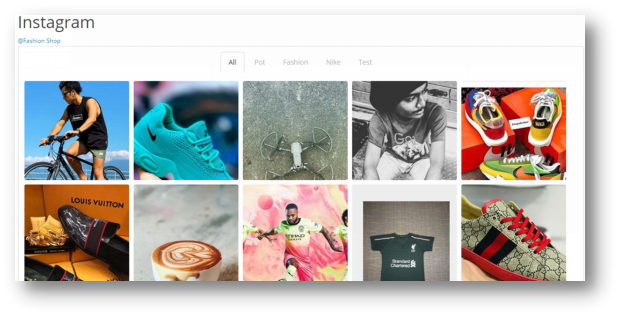
Using Tags, you can add a page in your store and show specific Products under that Tag. The Tag page will look like as shown below:
Preview Tag: If you click on this option then it will redirect you to the Store where you can view the Tag Page.
4.0.3.1 Add a Tag
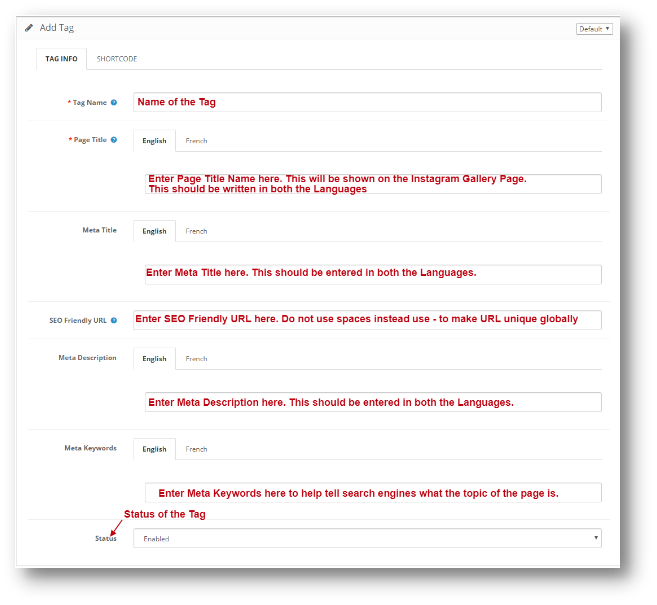
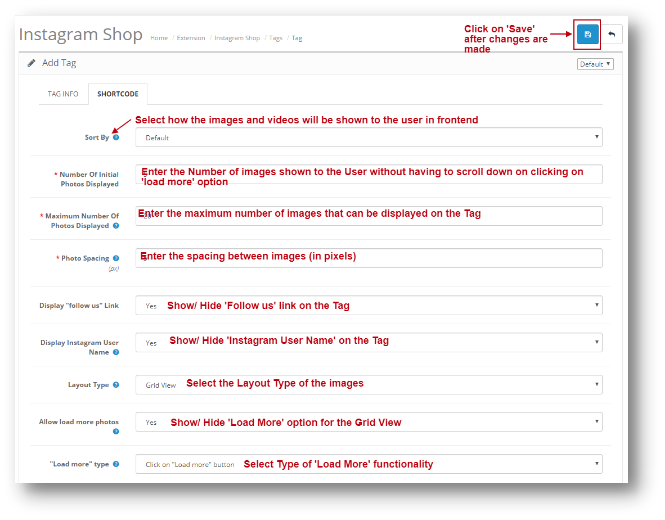
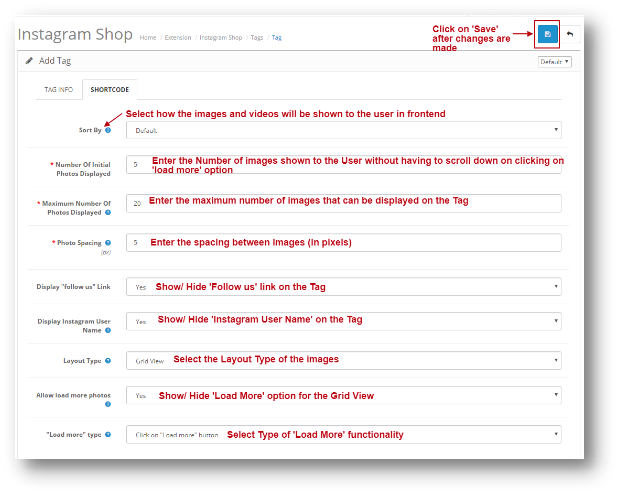
Under the Add Tag of Opencart Instagram Integration Extension, Admin will have the following configuration options:
Tag Info
Short code
After the information is saved on both the Tabs of Add Tag. You can click on Save and the Tag will be added.
Layouts:
The following two types of layout options are present in Opencart Instagram Shop Gallery Extension:
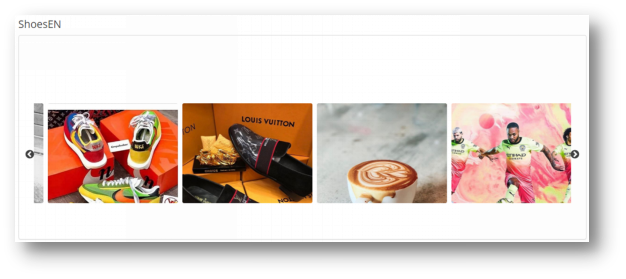
Carousel Slider
Grid View
4.0.3.2 Edit a Tag
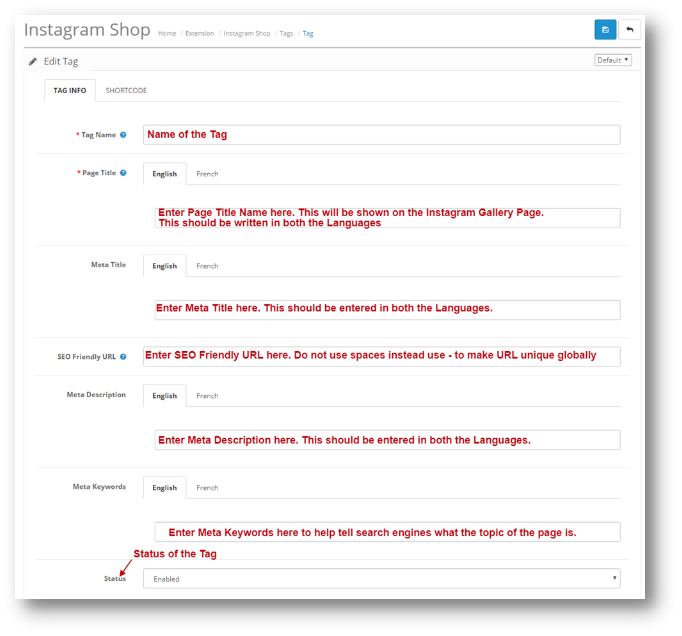
Under the Edit Tag of Opencart Instagram Integration Extension, You will have the following configuration options. It will be same as Add Tag, the only difference is that data will be pre-filled.
Tag Info
Short code
4.0.4 Layouts
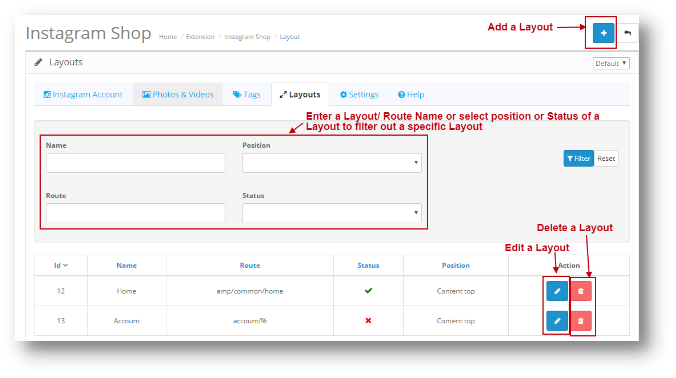
You can add your Instagram images on any page of your webstore from this option. Under the Layouts of the Opencart Instagram Integration Extension, You will have the following configuration option:
Edit Layout: Edit Layout Page will be same as Add a Layout Page. The only difference is that in edit page all the field will be pre-filled. Delete Layout: When you click on Delete Layout, the page will give a Pop up to confirm. Once you confirm it, the Layout will be deleted.
4.0.4.1 Add Layout
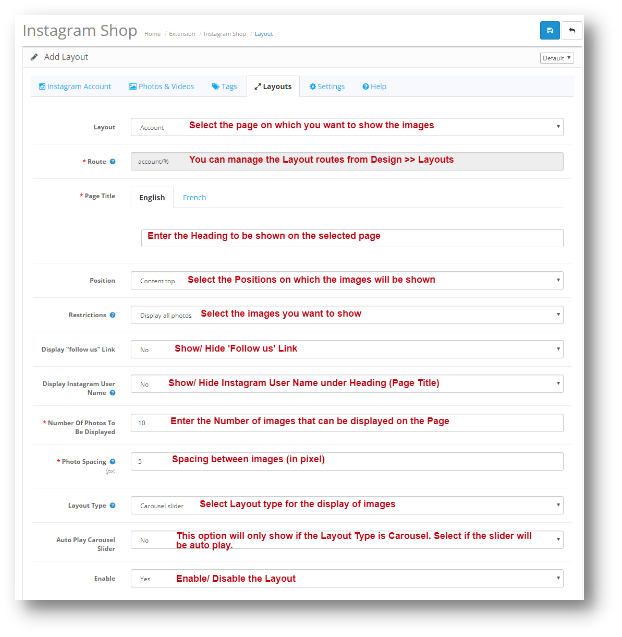
You can add images from your Instagram feed on any page of your Webstore from this option. Add Layout of Opencart Instagram Shop Gallery Extension will have the following configuration option:
Position of Layouts:
Content Top
Content Bottom
Column Left
Column Right
4.0.5 Settings
Settings page will have the following configuration options:
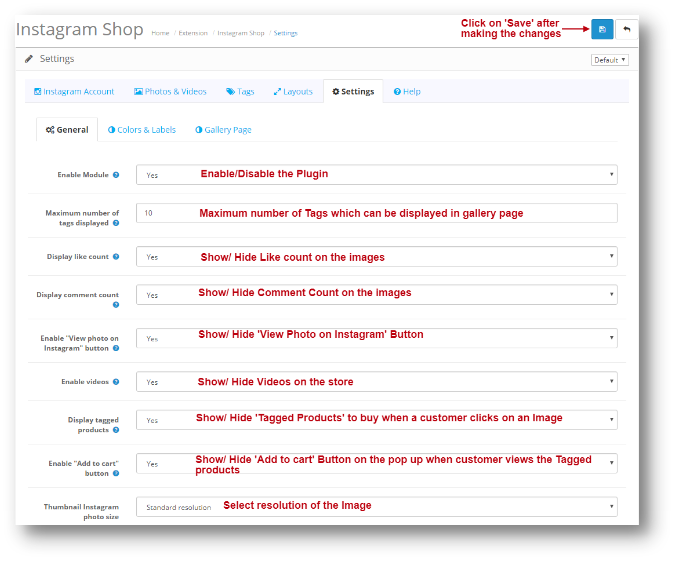
4.0.5.1 General
Under the General Settings of the Opencart Instagram Integration Extension, You will have the following configuration option:
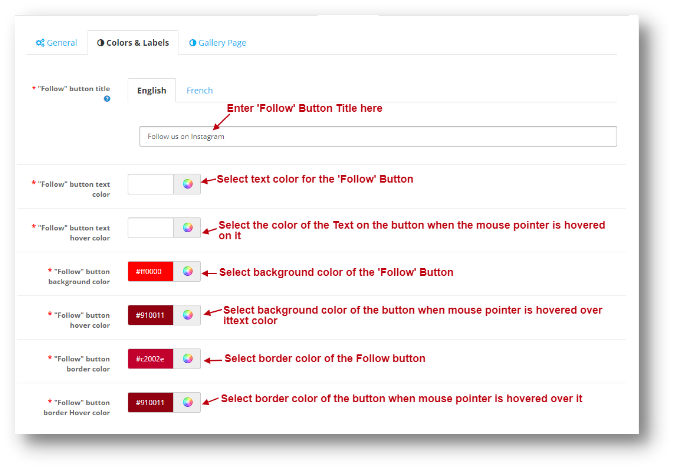
4.0.5.2 Colors and Labels
You can change the Look and feel of ‘Follow’ Button from this setting. The same is shown on the screenshot below:
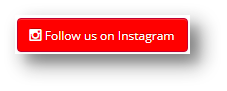
Follow button will look like as shown below:
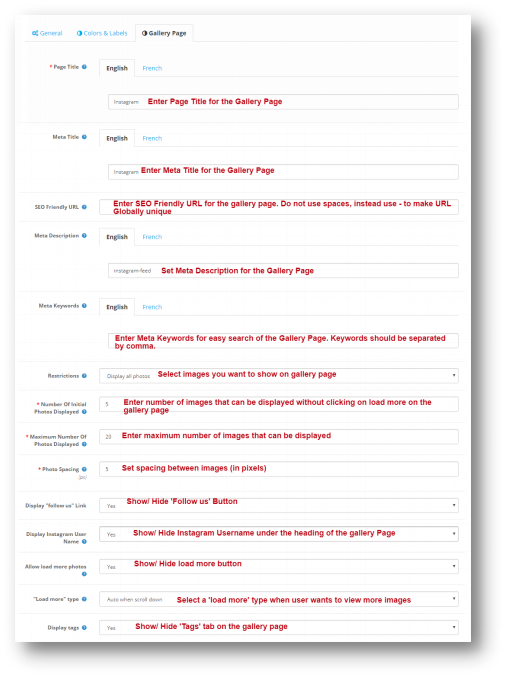
4.0.5.3 Gallery Page
You can change the main gallery page settings from this option. Under the Gallery Page Settings of the Opencart Instagram Integration Extension, You will have the following configuration option:
4.0.6 Help
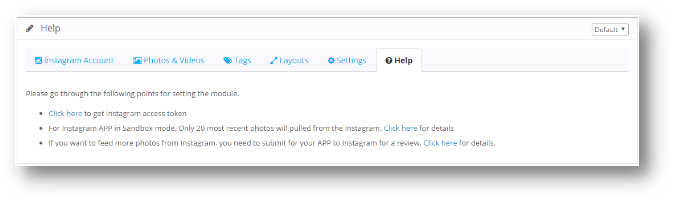
Under the Help Tab of the Opencart Instagram Integration Extension, You can see on how to get the access Token for your Instagram account. You can follow the listed steps to generate Access Token. The page will look like following:
Annexure 1: How to generate Access Token?
Click here to go to Instagram Account
Step 1:
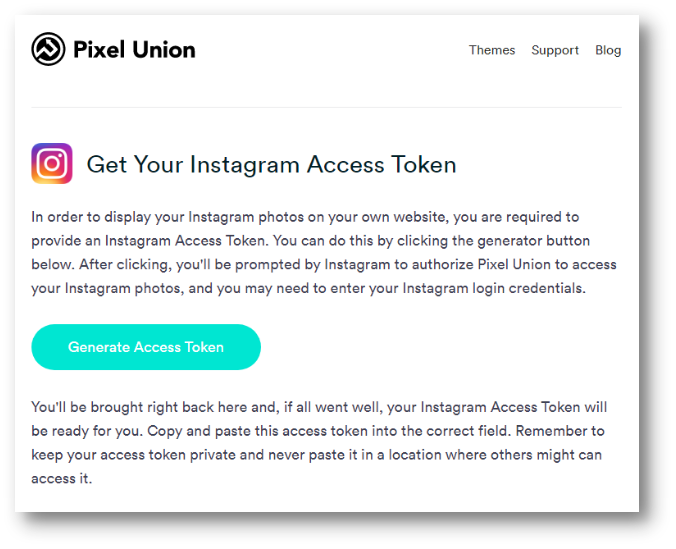
Go to https://instagram.pixelunion.net/ and click on Generate Access Token
Step 2:
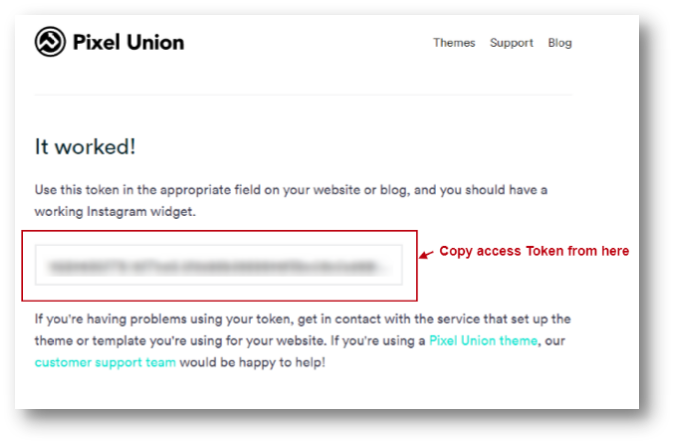
Copy Access Token
Step 3:
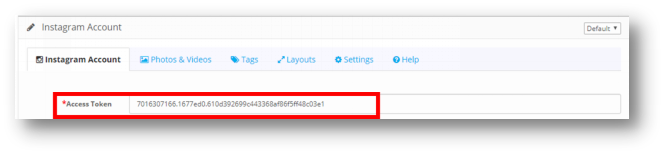
Paste it in the Access Token field under Instagram account settings.
Create a beautiful Instagram Gallery for your eCommerce store with Knowband’s Magento Instagram Shop Gallery Extension and boost the visitor engagement with your store. This Magento Instagram Shop Extension is an effective method to market your store products and thereby improving your site sales. With the highest user engagement, Instagram is been popularly used for branding business products and services. Likewise, you can also give the Instagram look and feel to your website to appeal the new and returning visitors at your online shop. This Instagram module for Magento builds your Instagram business profile and improves the user experience at your store.
1.1 Striking Features of Magento Instagram Shop Gallery Extension
This Instagram Shop Gallery Extension from Knowband is feature-rich extension offering you customizable features that can be configured without any technical knowledge. Let us quickly check the complete features of this Magento Instagram product tag feed module.
1. Magento Instagram Shop Gallery Extension incorporates an Instagram Shop Gallery at your eCommerce store.
2. With Magento Instagram Shop Extension, you can specify the particular tags to fetch the Instagram images and display them sorted into Instagram Gallery.
3. With Magento Instagram Integration Extension, you can filter fetched images by total images, approved images or images with shop products. The filtered results are shown on the website front.
4. The complete Instagram Image Gallery can be enabled or disabled from the back-office.
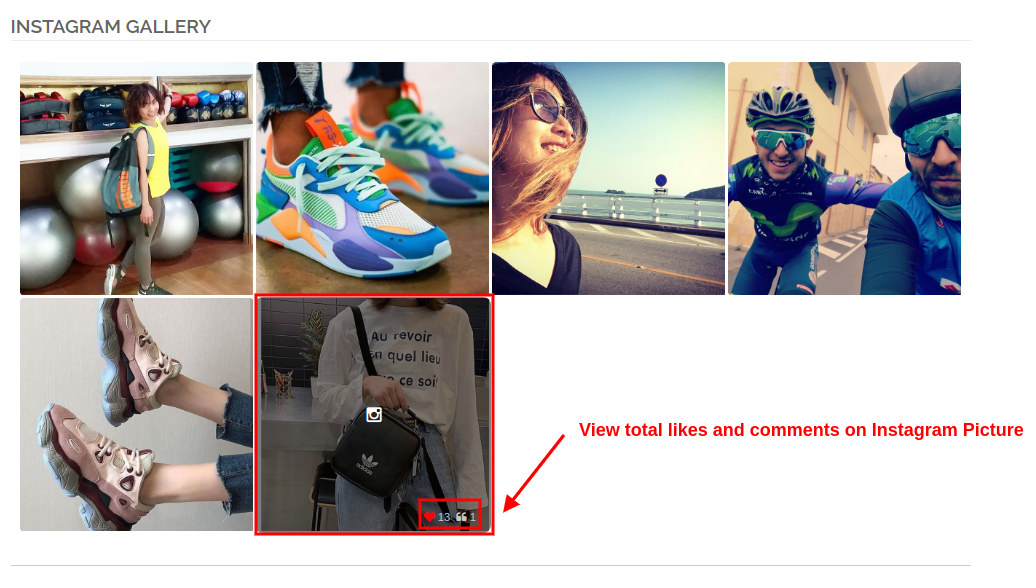
5. With Magento Instagram Shop Gallery Extension, you can show the likes and comments as the customer points over any of the Instagram Image
6. You can show or hide the main Instagram Gallery page from the backend of this Magento Instagram extension.
7. You can show or hide the Instagram Shop Gallery link in the footer section of the eCommerce website.
8. Instagram Gallery extension for Magento gives an option to set the title for Instagram Shop Gallery Page.
9. With Magento Instagram Module, you can show selected images on the main Instagram page which can be total photos, approved ones, having related images or having both approved and related images.
10. With Magento Instagram Shop Extension, you have the option to limit the number of images that can be shown on the Instagram Shop page.
11. You can even set a desired URL page key for this main Instagram Shop page.
12. You can create unlimited Instagram galleries with Magento Instagram product tag feed module which can be modified and deleted as required.
13. With Magento Instagram Shop Gallery Extension, you can set title, image limit and image visibility for the particular Instagram gallery.
14. You have the option to show or hide the selected image gallery on the main Instagram Shop page.
15. Magento Instagram product tag feed module allows you to set Instagram gallery visibility at different locations of different site pages.
16. You can add ‘N’ images to an Instagram gallery which can be edited or deleted anytime from the back-office of this Magento Instagram Integration Extension.
17. With Magento Instagram Shop Extension, you can set a sort order for the images in a Instagram Gallery.
18. Magento Instagram module allows you map and pin any site products with the Instagram image.
1.2 Technology for Development
Language: PHP Frame Work: Magento
2.0 Installation Guide for Magento Instagram Shop Gallery
1. Once after purchasing Magento Instagram Shop Gallery Extension from the Knowband store, you will get the following files on your registered email.
Source code file of Magento Instagram Shop Extension in zipped file format.
User Manual of Instagram Shop Gallery Extension.
Download the files.
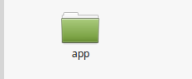
2. Unzip the package in the root folder of your Magento setup via FTP manager (like Filezilla or WinSCP – download here: https://filezilla-project.org/). You’ll find the files and folders as shown in the image below:
The Magento Instagram Shop Gallery Extension is now installed for your store and is ready to configure without any coding hassles.
3.0 Admin Interface of Magento Instagram Shop Gallery Extension
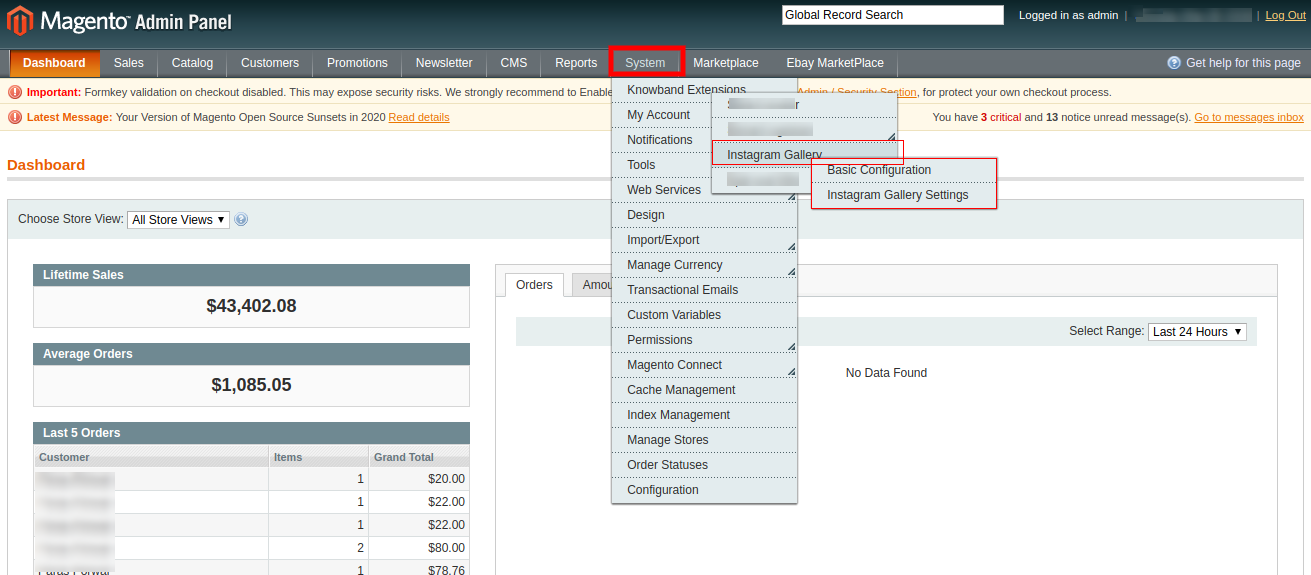
Once you have successfully installed Magento Instagram Gallery Module on your website, you can display unlimited Instagram image posts at different pages of your store as required. Further, to configure this Magento Instagram module, navigate the module settings in the given order: Admin Panel > System> Knowband Extensions > Instagram Gallery
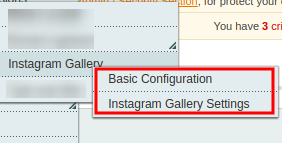
The easy to understand admin interface of Magento Instagram product tag feed plugin has been divided into two broad sections as:
Each of these sections has been discussed in detail below.
3.1 Basic Configuration Settings
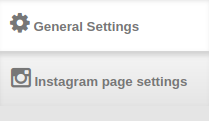
The configuration settings of this Magento Instagram Shop Extension is sub-divided into two sections as:
1.General Settings
2.Instagram Page Settings
Each of this sub-section has been discussed in the next section 3.1.1 and 3.1.2
3.1.1 General Settings
In the general settings of the Instagram Shop Gallery for Magento, you will get the following configuration options as given below:
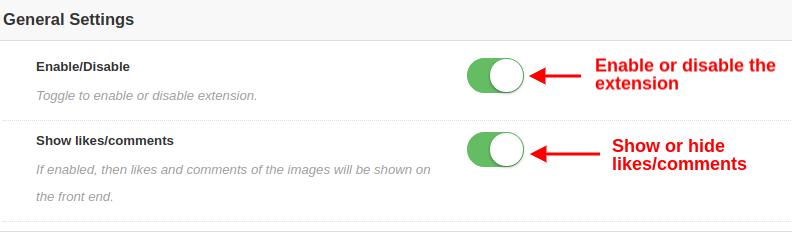
Enable/Disable: With this button, you can easily enable or disable the whole functionality of Magento Instagram Integration Module for your eCommerce store.
Show Likes/Comments: Using this option, you can enable or disable the likes and comments for any Instagram feed. If enabled, the likes and comments for the particular post will be visible on the frontend to the customers.
3.1.2 Instagram Page Settings
Under this section of Magento Instagram Integration Extension, you can configure the settings of main Instagram Page which will display all the fetched Instagram images at your store.
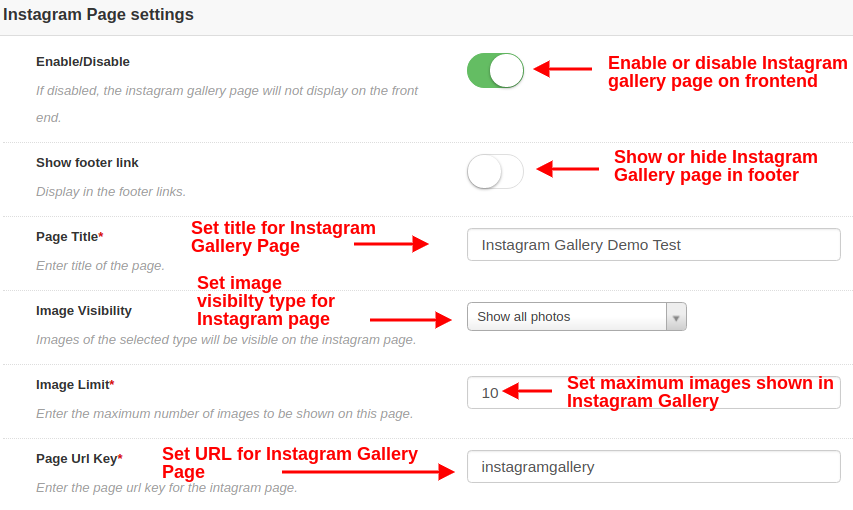
Enable/Disable: This option will enable or disable the main Instagram Gallery Page shown at the frontend of the website.
Show Footer Link: With this option, you can show or hide the Instagram page link in the footer section of website. If enabled, the Instagram gallery link is shown in the footer section of website.
Page Title: This option will allow you to set a desired title for the Instagram Shop Gallery Page.
Image Visibility: This option decides which category of images will be shown on the main Instagram page. You can set any image type out of these four options:
a. Show all photos
b. Only approved
c. Have related product
d. Approved and related product
Note: The total images can be managed from the “Gallery Settings” discussed in next section 3.2
Image Limit: With this option, you can set the maximum number of images which will be shown on the Instagram Gallery page.
Page Url Key: Using this option, you can set a custom URL key for the Instagram Shop Gallery Page.
3.2 Gallery Settings
The total Instagram images which are displayed at the front of the website can be configured and managed from this section of Magento Instagram Module. You can fetch as many images using different tags and create different Instagram Galleries. You also have the option to edit the settings of the Instagram gallery. You can manage the related products which will be shown with each of the Instagram Images.
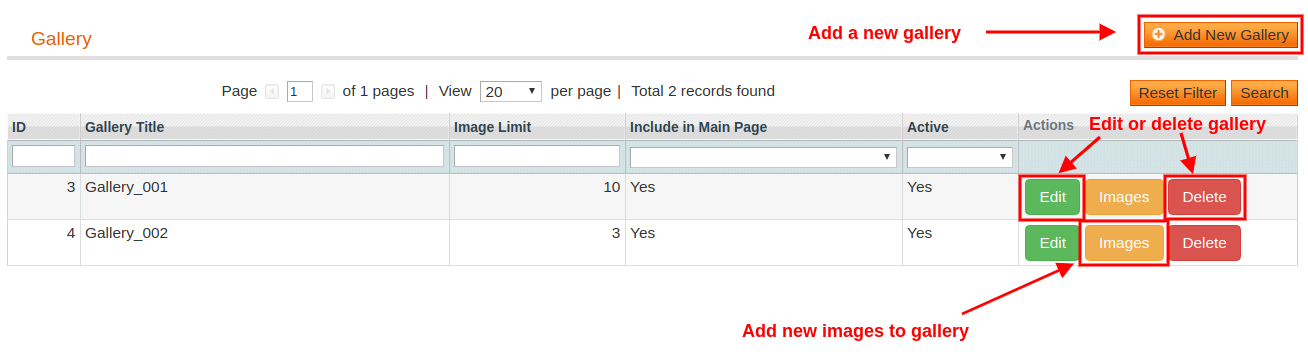
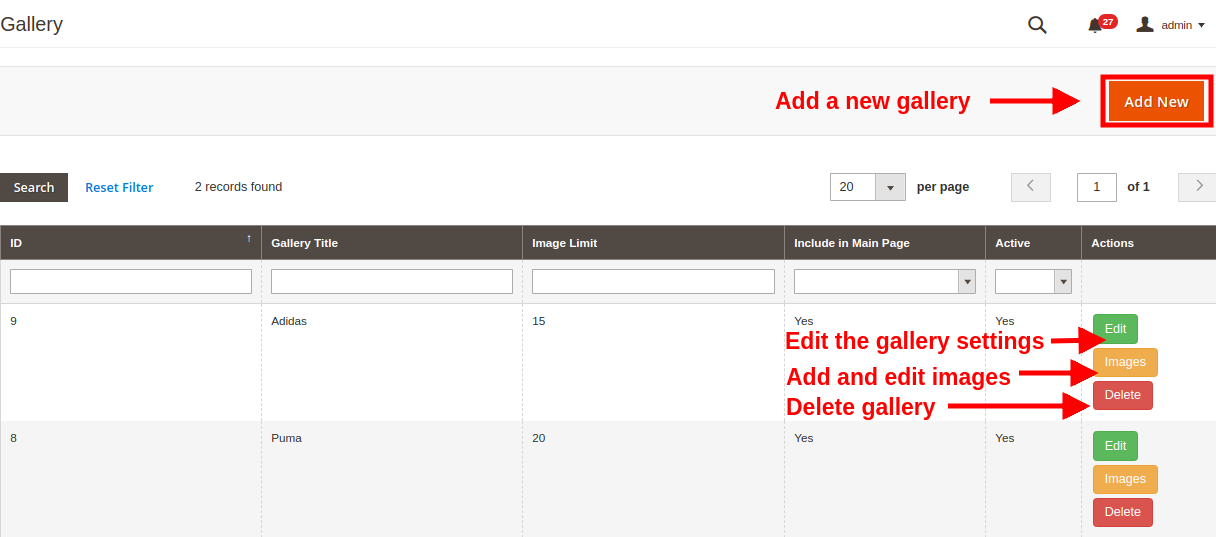
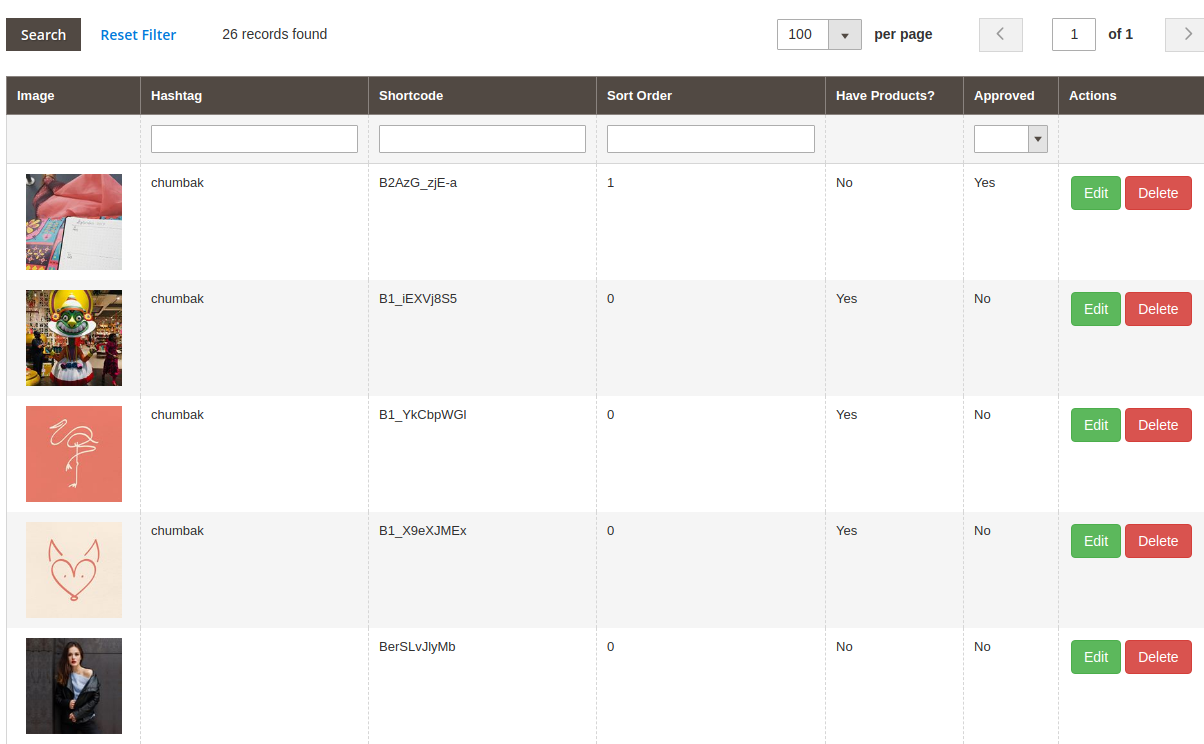
The below interface gives you a list of existing Instagram Gallery which can be edited or deleted. You can edit the existing images or you can add new images to the Instagram gallery.
From this interface, you can perform the following set of actions:
3.2.1 Add a New Gallery
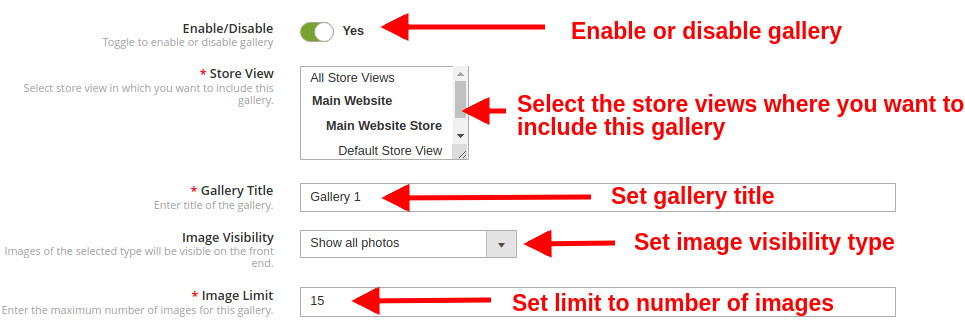
To add a new gallery, click on “Add New” button at the top right corner of the screen.
Enable/Disable: This option will enable or disable the selected Instagram gallery.
Gallery Title: With this option, you can set the desired title for the gallery.
Image Visibility: With this option, the images of the selected type will be shown on the frontend of the website.
Image Limit: Using this option, you can set a maximum number of image limit which will be shown in the gallery.
Include in Main Page: You can enable this toggle field if you want this gallery to be shown at the main Instagram page on the front.
Page Visibility: This option helps you can set visibility of Instagram gallery on various pages at different locations. Simply Click on Add button to display this gallery on different pages.
3.2.2 Edit the Existing Gallery Settings
Now if you want to edit the existing settings of the gallery, click the “Edit” button corresponding to the gallery you want to configure.
Enable/Disable: You can toggle this button to enable or disable the Instagram gallery.
Gallery Title: This option allows you to set a custom title for the Instagram gallery.
Image Visibility: With this option, you can select the visibility type for the images shown on the frontend.
Image Limit: Using this option, you can set the maximum number limit of images for this gallery.
Include in Main Page: By enabling this toggle field, you can add this gallery on the main Instagram page at front.
Page Visibility: With this option, you can set visibility of Instagram gallery on various pages and on different locations. Simply Click on Add button to display this gallery on different pages.
3.2.3 Add and Edit Images
You can add as many Instagram images to a gallery by clicking on the “Images” button corresponding to the gallery.
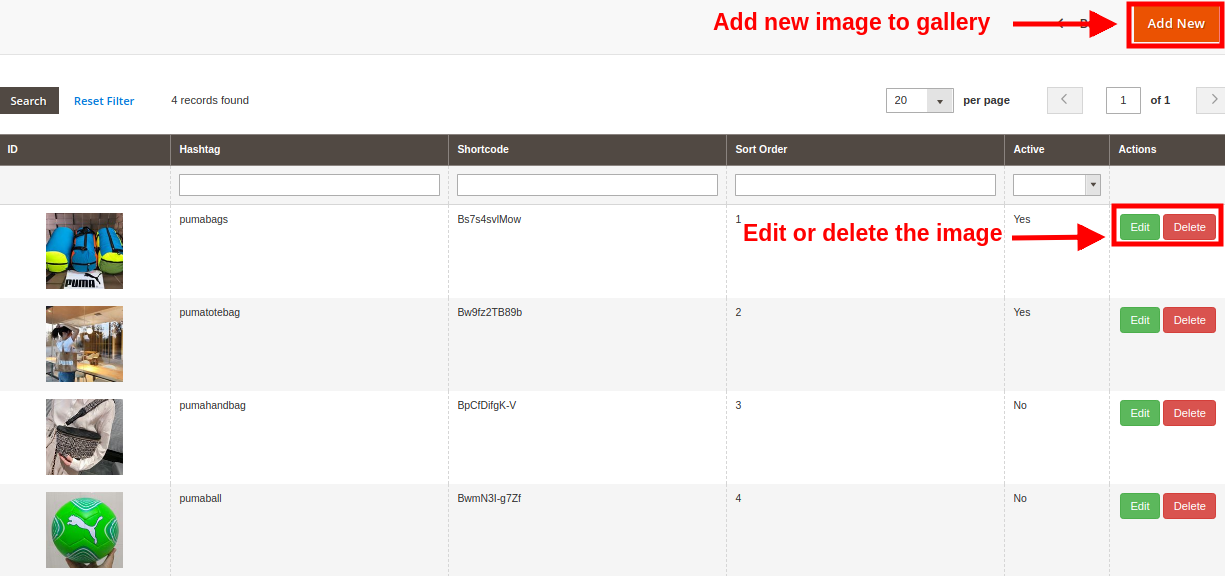
The above screen shows you a list of existing Instagram gallery images. You can add new images, modify or delete the existing images.
Note: Deleting an image is easy, you just have to click the “Delete” button corresponding to the image.
3.2.3.1 Add New Image
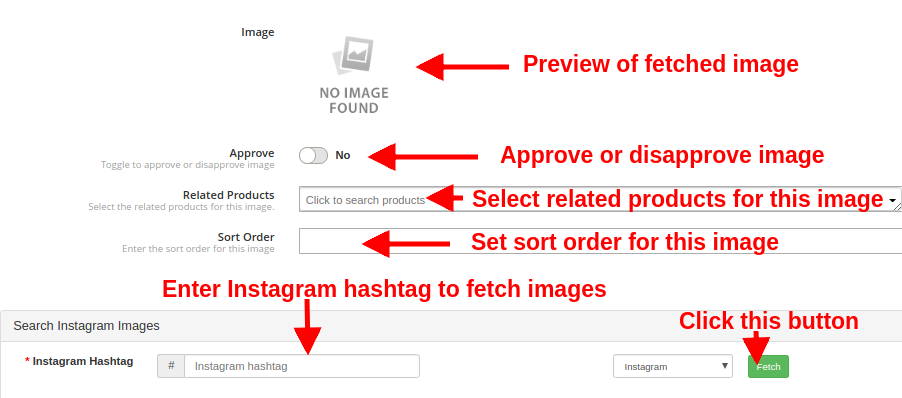
To add a new image to the Instagram Gallery, click on “Add New Image” button at the top right side of admin panel and fill the following fields:
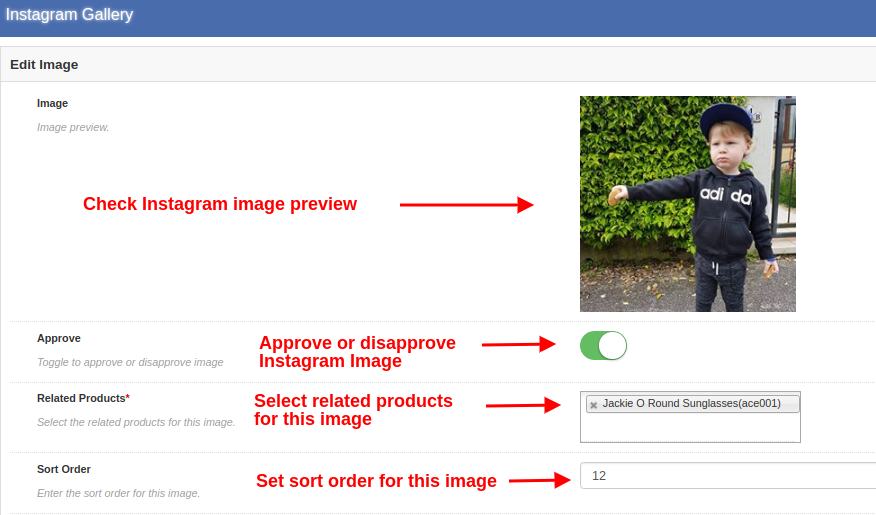
Image: This option will allow you to check the preview of the fetched Instagram image.
Approve: With this option, you can approve or disapprove the selected Instagram image.
Related Products: With this option. You can select the related site products that you want to pin with that Instagram image.
Sort Order: This option lets you set the sort order of image on the Instagram gallery page.
Instagram Hashtag: Enter the Instagram hashtag to find or fetch the relevant images and then click on “Fetch” button.
3.2.3.2 Edit an existing image
Image: This option lets you check the preview for the fetched Instagram image.Approve: With this option, you can approve or disapprove the image.
Related Products: This option allows you to select the related products that you want to show for that image.
Sort Order: This option lets you set the sort order of image.
3.2.4 Delete the Existing Gallery
Deleting a gallery is simple, you just have to click the “Delete” button corresponding to the desired Instagram gallery as shown in the image below:
4.0 Front Interface of Instagram Gallery Module for Magento
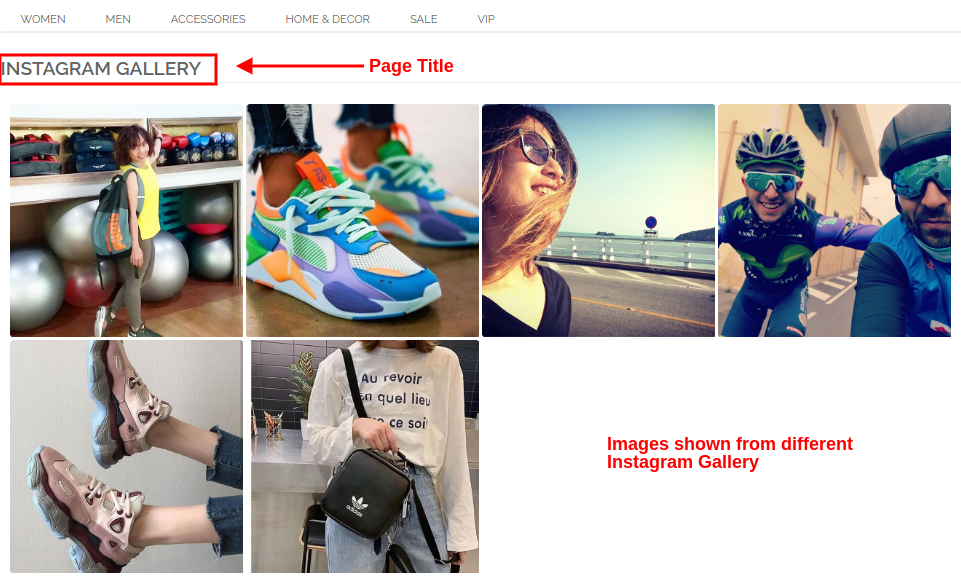
A) Instagram Shop Page
Customers will see this Instagram Gallery option in the footer section of the website.
Upon clicking the tab, they will be redirected to the Instagram Shop Page with URL key as:
“https://yourstore.com/mage1934/index.php/instagramgallery/”
This URL can be defined as per your own site needs. The Instagram Shop Gallery looks like in the image below:
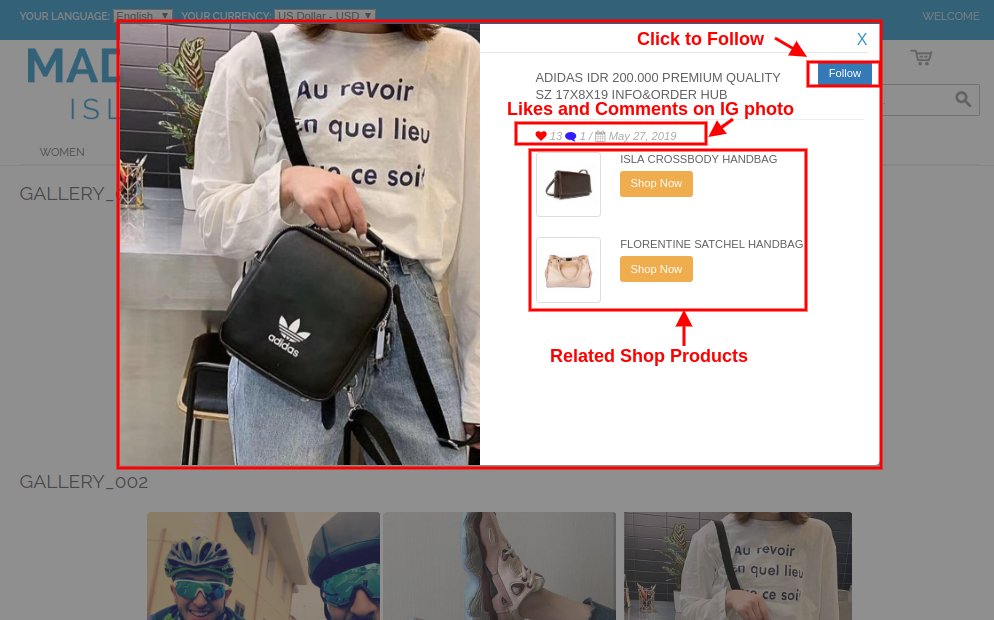
B) Likes and Comments for Instagram Image
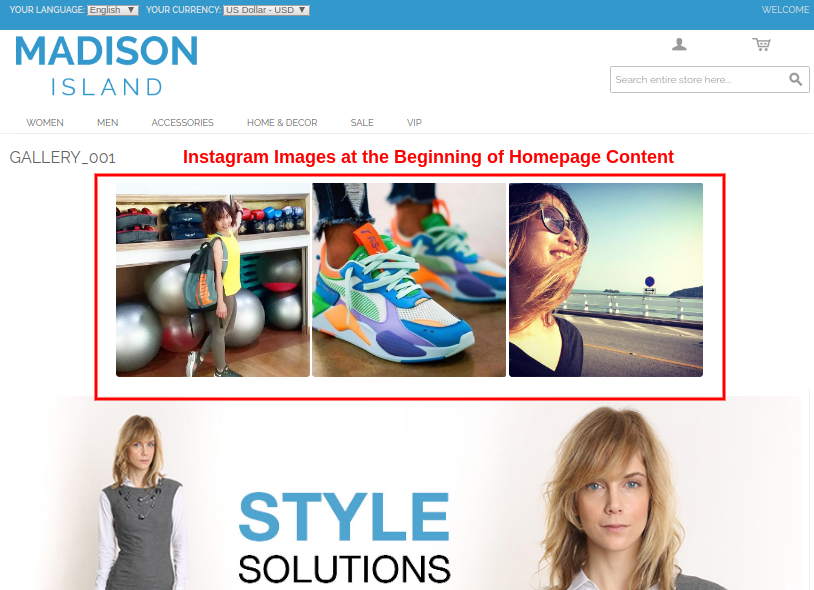
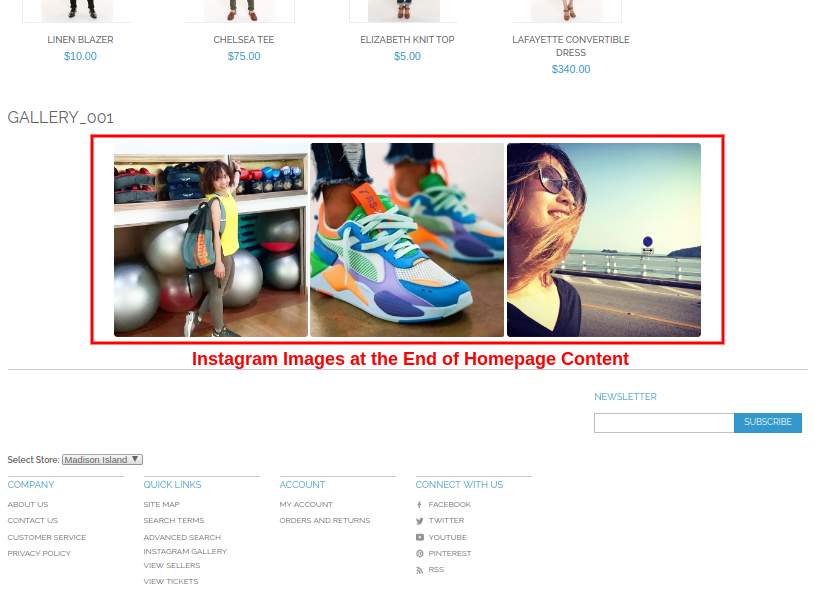
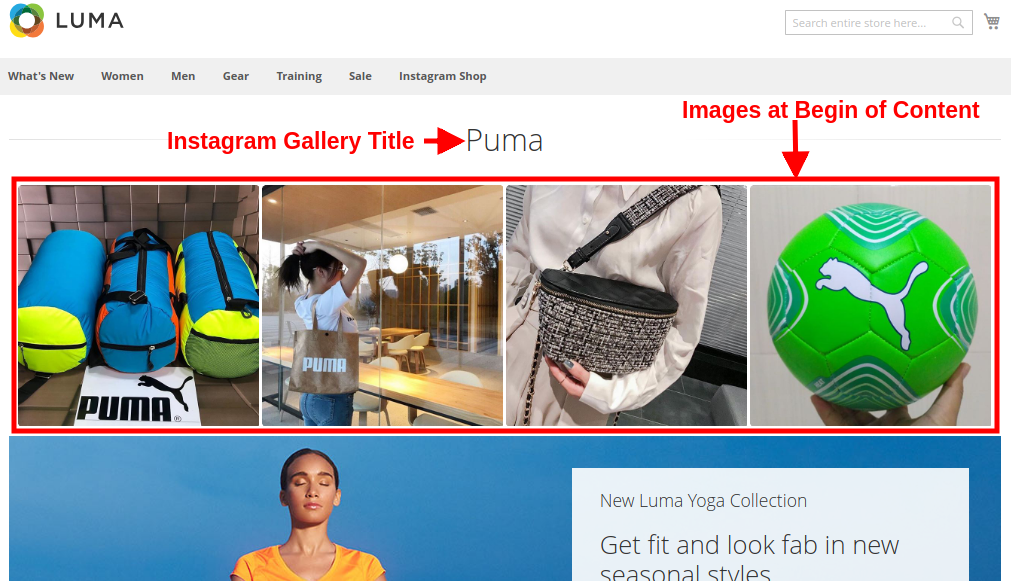
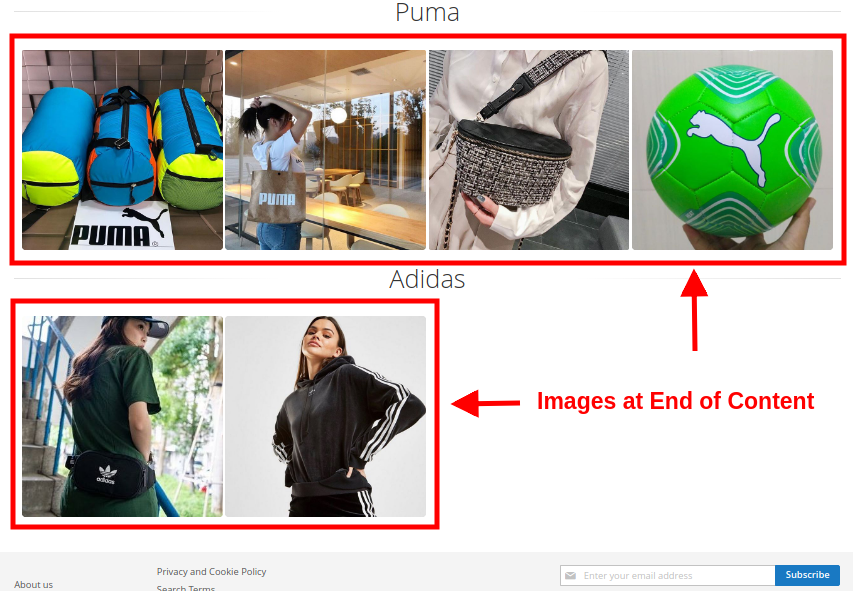
C) Show Instagram Gallery on Homepage
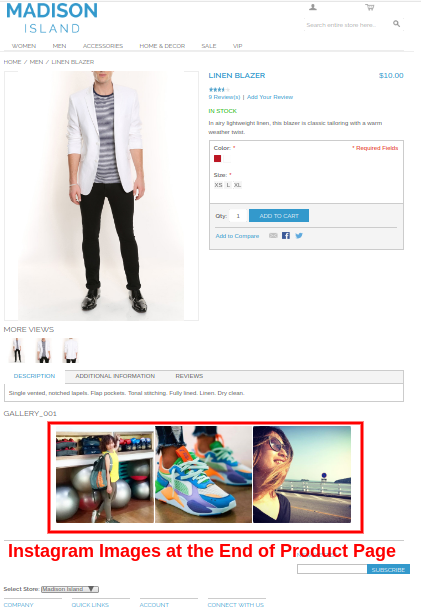
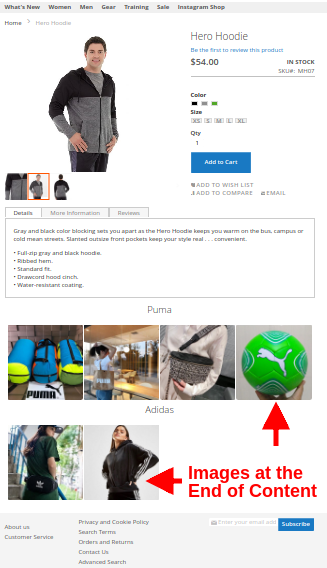
D) Show Instagram Gallery on Product Pages
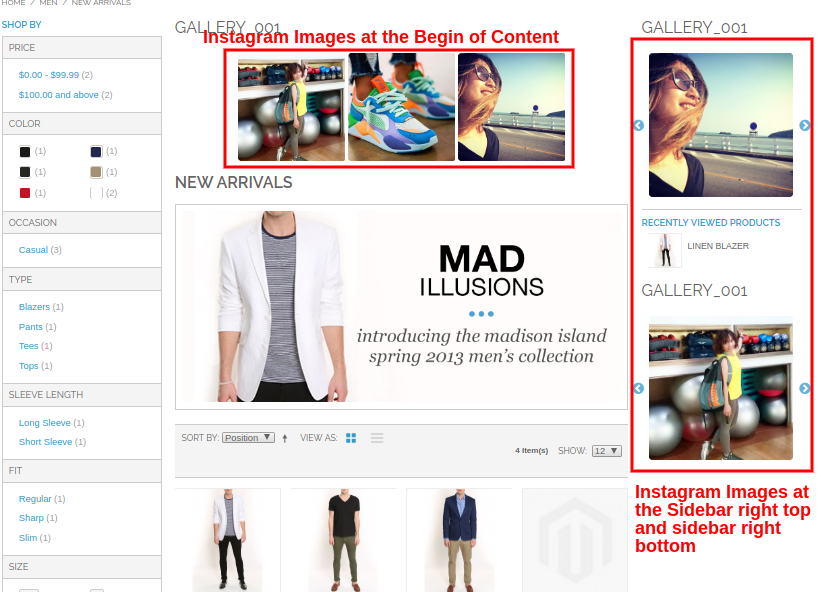
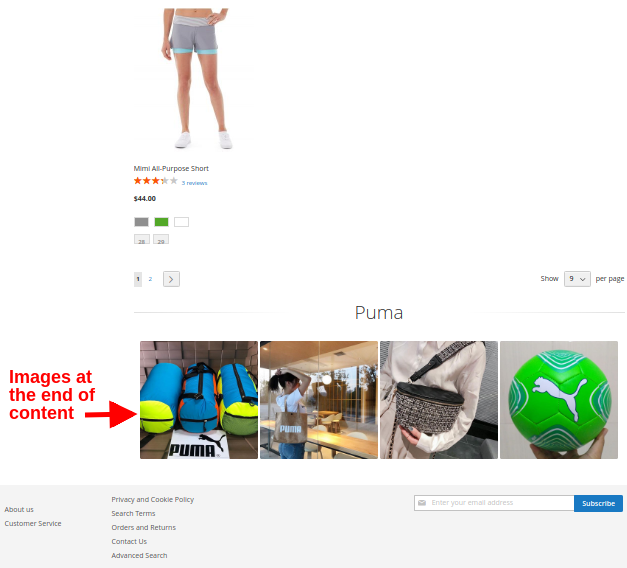
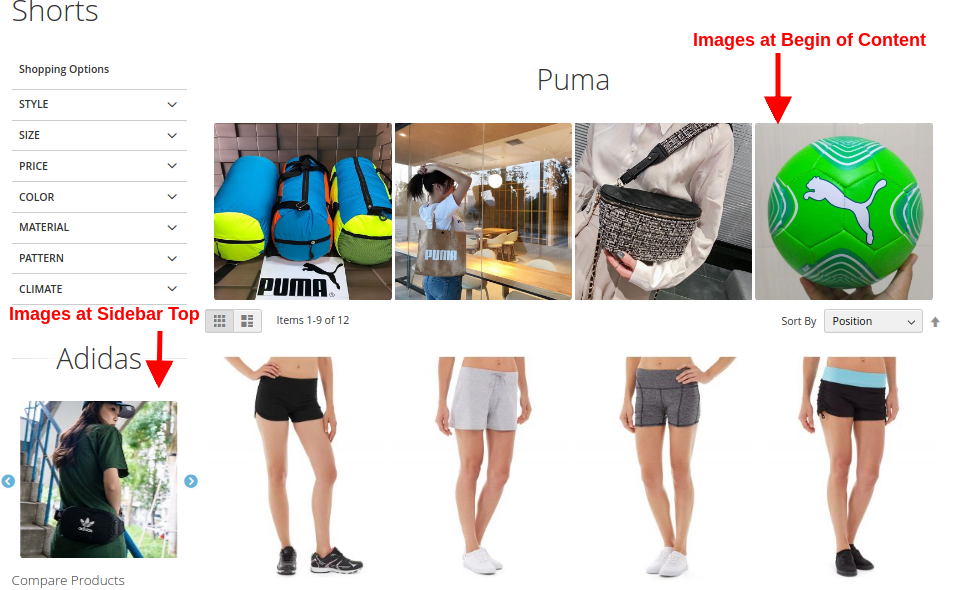
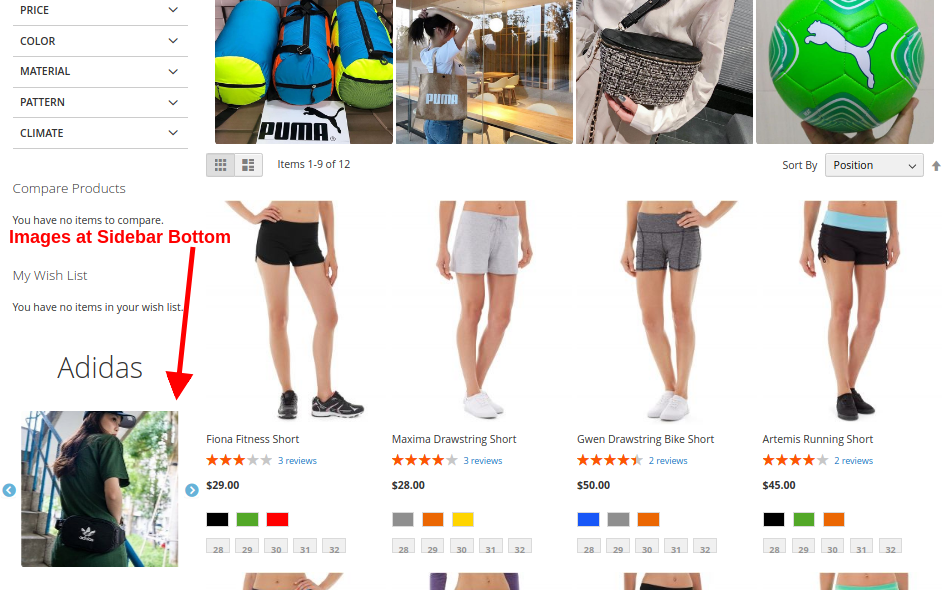
E) Show Instagram Gallery on Category Pages
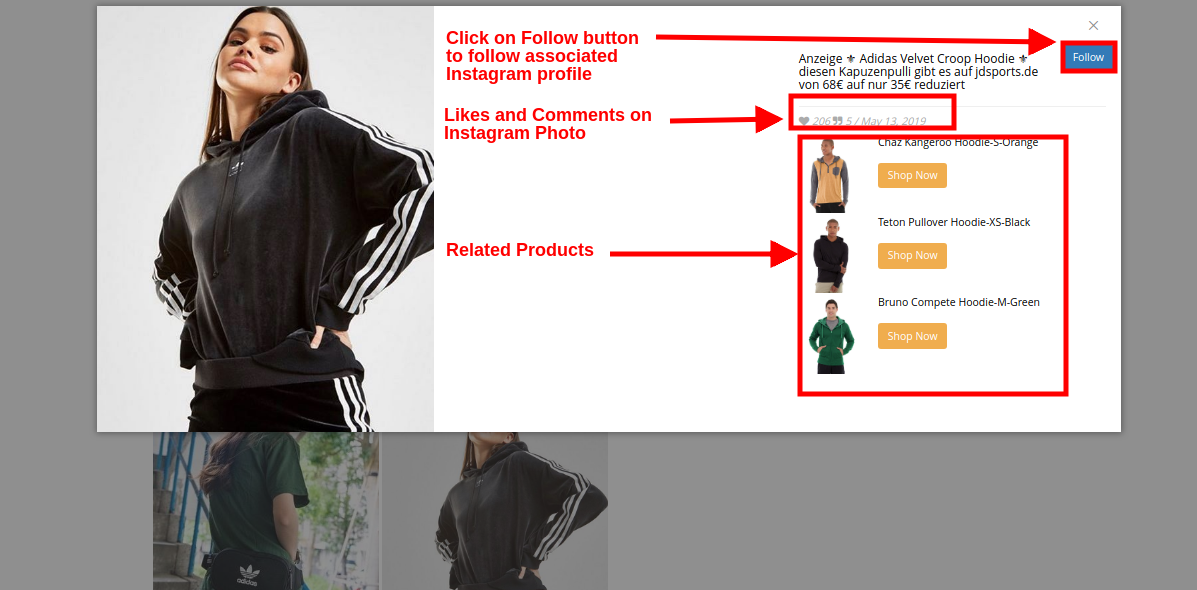
On clicking any of the images, customers will see the following image popup.
This way, the online store admin can show Instagram images on website pages without any hassle. The eCommerce store merchant can attract online users by showing eye-catchy Instagram photos. The online merchant can easily implement Magento Instagram Shop Extension and showcase Instagram images on website. The Shop on your Instagram gallery module shows a specific Instagram gallery page on the website. The online users can click on footer link and visit the Instagram gallery page. This way, the online merchant can reduce bounce rate easily. The Magento Instagram product tag feed module is highly customizable and allows the online users to view related products on clicking any specific page. The online merchant can add and showcase unlimited Instagram images.
The eCommerce store admin can show Instagram image on different website pages at desired position. The Magento Instagram Shop Gallery Extension is mobile responsive and offers smooth functioning. The online users can click on any Instagram image and view likes, comments and posting date details easily. The online merchant can also promote products by mapping the products as related products. This way admin can also increase website sales easily using this Magento Instagram module.
Knowband is one of the most reputed names in the field of plugin development. We provide best plugins for platforms like – Magento,Prestashop, OpenCart and
Embed Instagram image galleries anywhere on your eCommerce store and showcase a list of mapped site products with those images using Knowband’s Magento 2 Instagram Shop Gallery Extension. This is one best way to increase conversion rates directly by integrating Instagram tagged images. Instagram Shop module adds a well-known interface for the visitors which compels them to buy the related products immediately.
1.1 Striking Features of Magento 2 Instagram Shop Gallery Extension
The Magento 2 Instagram Shop Gallery Extension offers you multiple customizable features which are easy to implement for your eCommerce website. Admin can implement and configure any feature for their store without using any coding knowledge. Let us quickly take an overview of striking features by this Magento 2 Instagram product tag feed module.
1. Magento 2 Instagram Shop Gallery Extension helps e-merchants to embed Instagram gallery to their website front.
2. Magento 2 Instagram Shop Extension fetches and displays Instagram photos based on the tags specified by the admin at the backend.
3. Magento 2 Instagram Integration Extension lets admin integrate Instagram Shop gallery page to the website showing all the fetched Instagram images under different Instagram galleries.
4. Admin can enable or disable the complete working of Magento 2 Shoppable Instagram Module for their store.
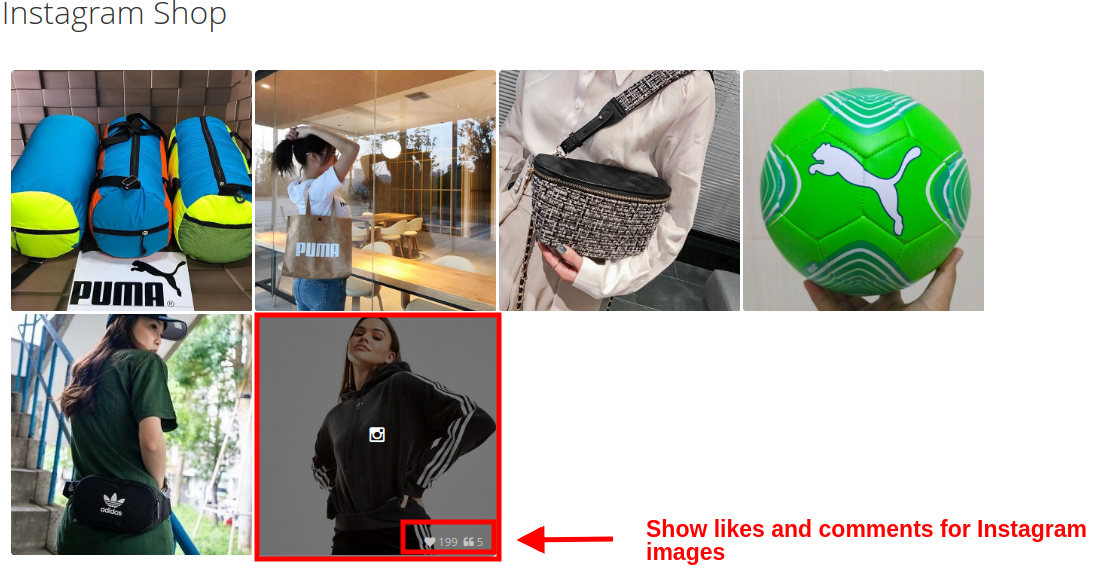
5. With Magento 2 Instagram Shop Gallery Extension, admin can show the likes and comments for the fetched Instagram image.
6. The main Instagram page can be enabled or disabled from the backend of this Magento 2 extension.
7. Using Magento 2 Instagram Shop Gallery Extension, Admin can show or hide the Instagram Page link in the top menu navigation bar of the website.
8. Insta Shoppable Gallery Module for Magento 2 allows admin to set the title for the Instagram Shop Gallery Page.
9. Using Magento 2 Shoppable Instagram Module, admin can show the images of the selected type on the main Instagram page. They can show all the photos, approved ones, having related images or having both approved and related images.
10. Magento 2 Instagram Shop Extension allows admin to set a limit on the maximum number of images that can be shown on this Instagram Shop page.
11. Admin can set a URL page key for this Instagram Shop page.
12. Magento 2 Instagram product tag feed module gives the flexibility to create as many Instagram gallery for the website which can be edited or deleted as per needs. They can be separately enabled or disabled if required.
13. Magento 2 Instagram Shop Extension allows admin to select the store view in which they want to include this gallery.
14. With Magento 2 Instagram Shop Gallery Extension, the store merchant can set the gallery title, image limit and image visibility for the particular gallery.
15. Admin gets an option to show or hide the selected image gallery on the main Instagram Shop page.
16. Using Magento 2 Instagram product tag feed module, admin can set the gallery visibility on different pages of the website at different positions.
17. The eCommerce store admin can add as many images for a particular gallery which can be edited or deleted anytime.
18. Admin has to specify Instagram Hashtag in order to fetch a new image. They can select any of the images out from the fetched images whose preview is available on the same interface.
19. Admin can use the toggle button to enable or disable a particular image.
20. Insta Shoppable Gallery Module for Magento 2 also allows admin to set a sort order for the images in a category.
21. Magento 2 Shoppable Instagram Module gives an option to map desired products for the Instagram image.
2.0 Installation Guide of Magento 2 Shoppable Instagram Module
1. Once after purchasing Magento 2 Instagram Shop Gallery Extension from the Knowband store, you will get the following files on your registered email:
Source code file of Magento 2 Instagram Shop Extension in zipped file format.
The Magento 2 Instagram Shop Gallery Extension is now installed and ready to use.
3.0 Admin Interface of Insta Shoppable Gallery Module for Magento 2
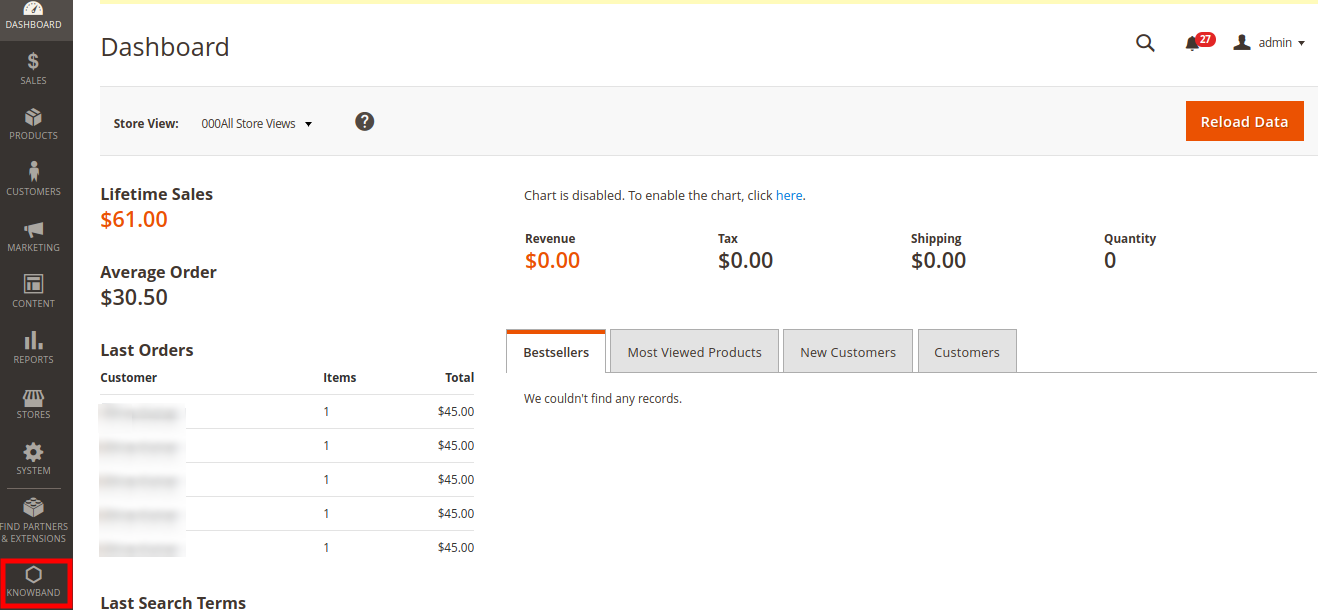
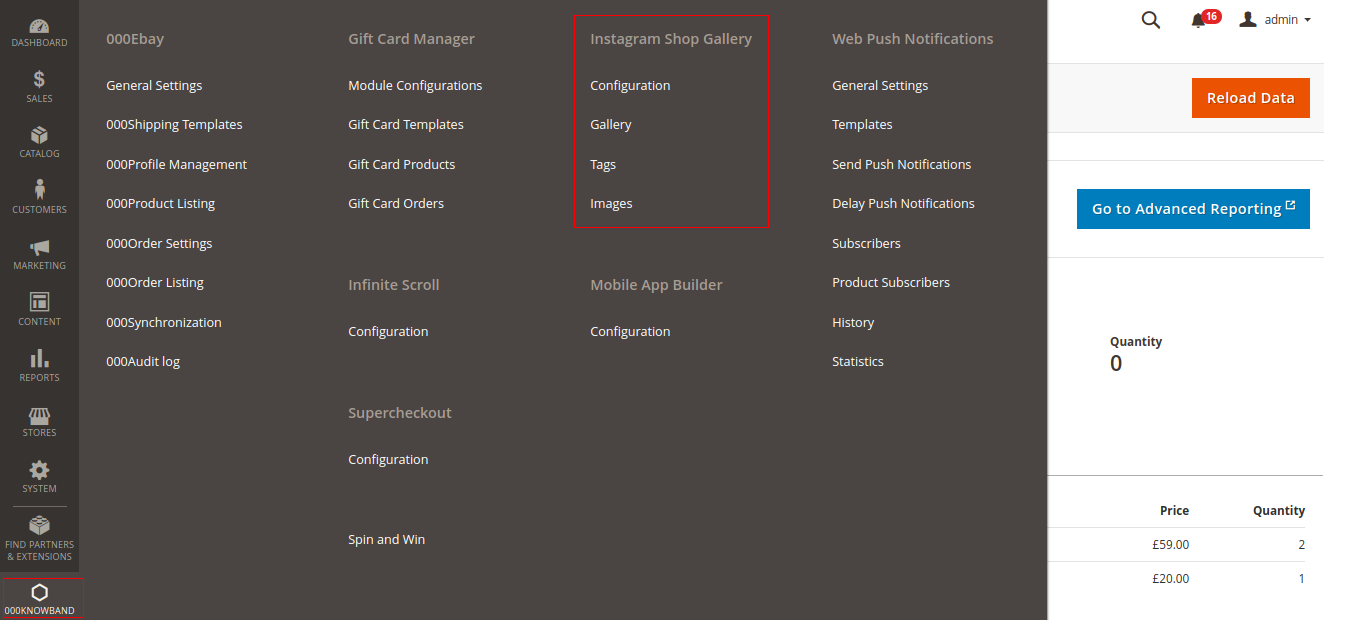
Just after successful installation of Magento 2 Shoppable Instagram Module on your website, you can display as many Instagram feeds on different pages of your store as per business requirements. In order to configure this Magento 2 Instagram module, navigate the settings in the given order: Admin Panel > Knowband > Instagram Shop Gallery
The simple to understand admin interface of Magento 2 Instagram product tag feed plugin has been divided into two broad sections:
1. Configuration
2. Gallery
3. Tags
4. Images
Each of these sections of Magento 2 Instagram Shop Gallery Extension has been discussed in detail below.
3.1 Configuration Settings
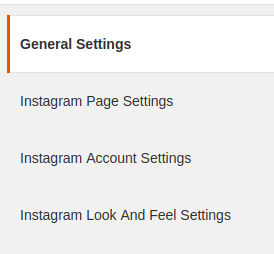
The configuration settings of Magento 2 Instagram Shop Extension is further divided into two sections as:
1. General Settings
2. Instagram Page Settings
3. Instagram Account Settings
4. Instagram Look and Feel Settings
Each of these settings has been discussed in the next section.
3.1.1 General Settings
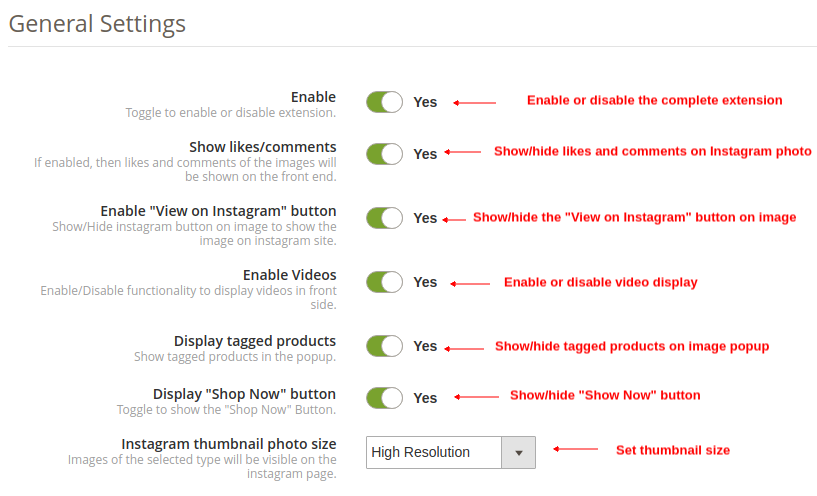
Under the general settings of Instagram Shop Gallery for Magento 2, you have the following configuration options:
Enable: On toggling this button, you can enable or disable the complete functionality of this Magento 2 Shoppable Instagram Module for your store.
Show Likes/Comments: Enable or disable this option to show likes and comments on the Instagram feed. If enabled, the likes and comments for the particular post will be shown on the frontend to the customers.
Enable View on the Instagram button: With the help of this option, you can enable or disable the “View on Instagram” button on the Instagram image popup.
Enable Videos: This option allows you to enable or disable Instagram videos on the frontend.
Display Tagged Products: With this option, you can show/hide the tagged products alongside Instagram photo.
Display Shop Now Button: By enabling this option, you can display the Shop Now button with every Instagram photo.
Instagram Thumbnail Photo Size: Using this option, you can set the size or resolution for Instagram photos.
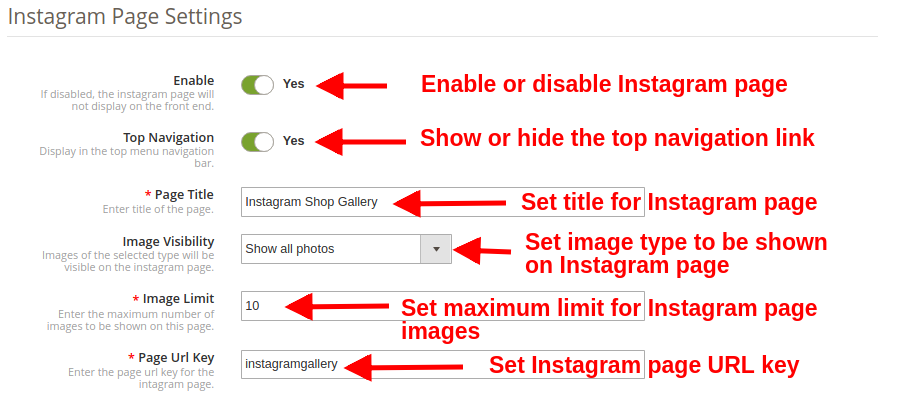
3.1.2 Instagram Page Settings
Under this section of Magento 2 Instagram Integration Extension, you can make various settings for the Instagram Page.
Enable: This option allows you to enable or disable the complete Instagram feed page whose link is shown on the menu bar of the website.
Top Navigation: You can show or hide the Instagram page link in the top navigation menu of the website. If enabled, the Insta shoppable gallery link is shown at the menu navigation bar.
Page Title: This option lets you set a custom title for the Instagram Shop Gallery Page.
Image Visibility: This option decides which category of images will be shown on the Instagram page. You can set any image type out of these four options:
a. Show all photos
b. Only approved
c. Have related product
d. Approved and related product Note: The total images can be managed from the “Gallery Settings” discussed in the next section 3.2
Image Limit: This option will set the maximum number of images to be shown on this Instagram Gallery page.
Page Url Key: Using this option, you can set a desired URL key for the Instagram Shop Gallery Page.
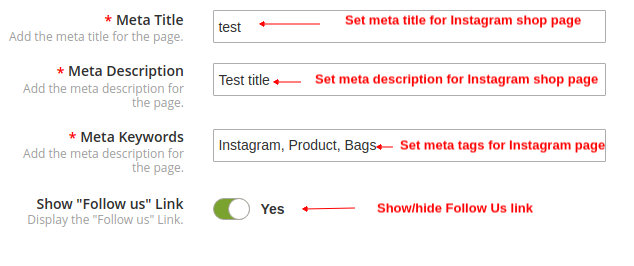
Meta Title: This option allows you to set your own meta title for Instagram shop page.
Meta Description: This option allows you to set the desired meta description for Instagram shop page.
Meta Keywords: This option allows you to set your meta keywords for Instagram shop page.
Show Follow Us Link: Using this option, you can show/hide a Follow Us link on the image popup.
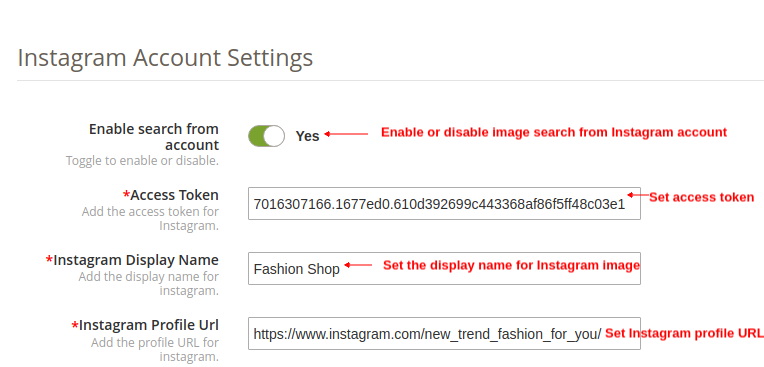
3.1.3 Instagram Account Settings
Enable Search from Account: This option will enable or disable the Instagram image search using the account.
Access Token: Set the generated access token using this option.
Instagram Display Name: With this option, you can set the display name for the Instagram page.
Instagram Profile URL: With this option, you can set the desired Instagram profile URL.
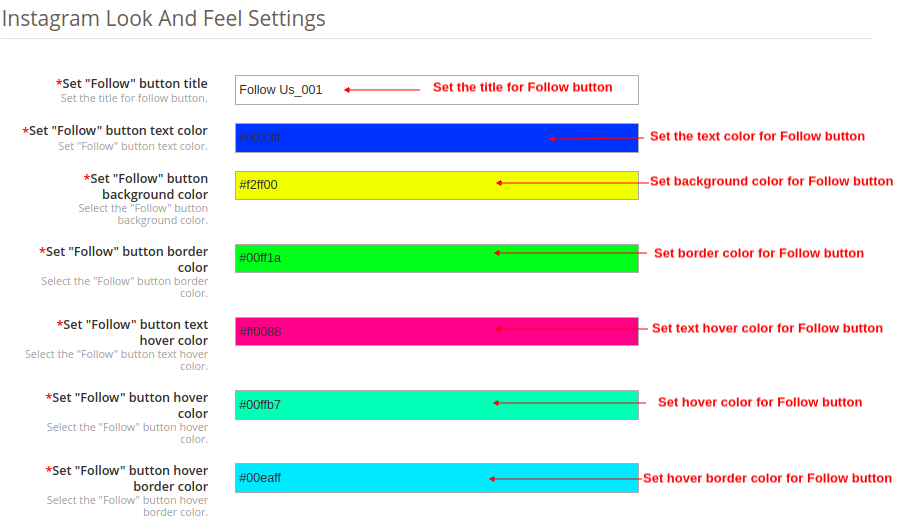
3.1.4 Instagram Look and Feel Settings
Set “Follow” button title: This option helps you to set the title for the Follow button.
Set “Follow” button text color: This option sets the font color for the Follow button.
Set “Follow” button background color: This option sets the background color for the Follow button.
Set “Follow” button border color: This option sets the border color for the Follow button.
Set “Follow” button text hover color: This option sets the text hover color for the Follow button.
Set “Follow” button hover color: This option sets the hover color for the Follow button.
Set “Follow” button hover border color: Using this option, you can set the hover border color of Follow button.
3.2 Gallery Settings
The Instagram images that will be fetched and shown on the website can be configured under this section of back-office. You can create multiple Instagram Shop galleries for your website and can even edit the settings of the existing gallery. You can show as many images in each of the Instagram gallery using relevant hashtags and show related products for those images.
The below interface shows a list of existing Instagram Gallery which can be edited or deleted. You can edit the existing images or you can add new images to the Instagram gallery.
From this interface, you can perform the following sequence of actions:
3.2.1 Add a New Gallery
To add a new gallery, click on “Add New” button at the top right corner of the screen.
Enable/Disable: Toggle this button to enable or disable the Instagram gallery.
Store View: With this option, select the store views where you want to include this gallery.
Gallery Title: This option allows you to set a title for the gallery.
Image Visibility: With this option, the images of the selected type will be shown on the frontend.
Image Limit: Using this option, set the maximum number of images for this gallery.
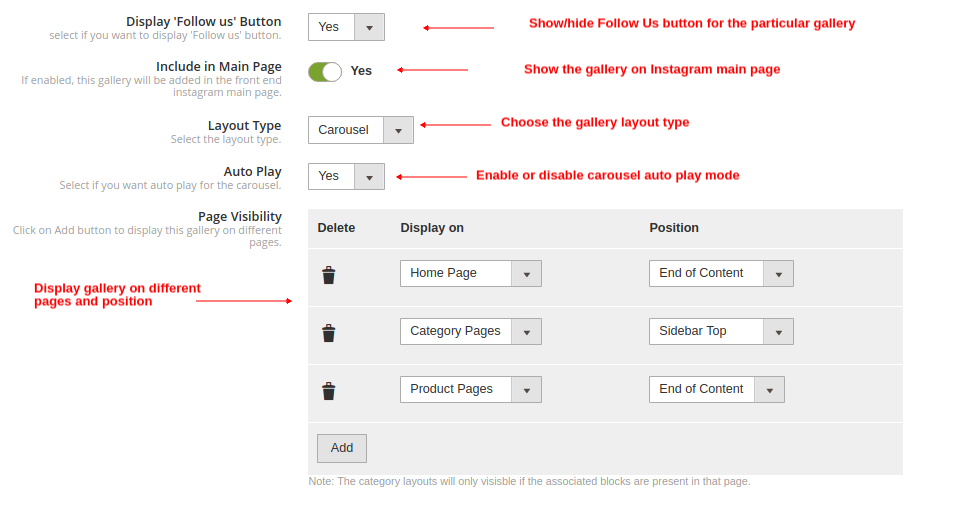
Display Follow Us button: This option allows you to show Follow Us button for the selected gallery.
Include in Main Page: You can enable this toggle field if you want this gallery to be added on the Instagram main page at the front.
Layout Type: With this option, you can set the gallery layout type as a carousel or grid view type.
Auto Play: Enable this option if you want auto play for the carousel.
Page Visibility: With this option, you can set visibility of Instagram gallery on various pages. Simply Click on Add button to display this gallery on different pages.
3.2.2 Edit the Existing Gallery Settings
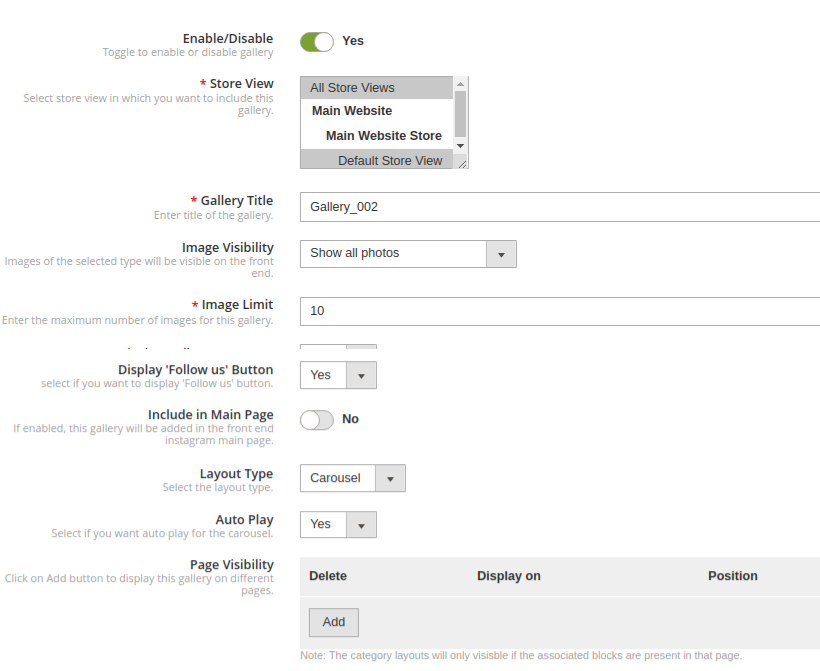
You can easily edit the existing settings of the gallery by clicking on the “Edit” button corresponding to the gallery you want to configure.
Enable/Disable: Toggle this button to enable or disable the Instagram gallery.
Store View: With this option, select the store views where you want to include this gallery.
Gallery Title: This option allows you to set a title for the gallery.
Image Visibility: With this option, the images of the selected type will be shown on the frontend.
Image Limit: Using this option, set the maximum number of images for this gallery.
Include in Main Page: You can enable this toggle field if you want this gallery to be added on the Instagram main page at the front.
Page Visibility: With this option, you can set visibility of Instagram gallery on various pages. Simply Click on Add button to display this gallery on different pages.
3.2.3 Add and Edit Images
Now once you have created a gallery, you can add multiple images to it by clicking on the “Images” button corresponding to the gallery.
The above screen shows you a list of existing Instagram gallery. You can add new images, modify or delete the existing images. Note: Deleting an image is easy, you just have to click the “Delete” button corresponding to the image.
3.2.3.1 Add New Image
In order to fetch and add images to a particular Instagram gallery, there are three ways you can prefer.
Enter the relevant tag of your choice and search those tagged photos from the whole of Instagram. Select “Instagram” and click on “Fetch” button.
The other option is that you can select “Saved Photos” option. This will fetch all the images that have been already added to any Instagram Gallery.
The option “From Account” fetches images and videos from a particular Instagram profile or account which you have set from backend.
3.2.3.2 Edit an existing image
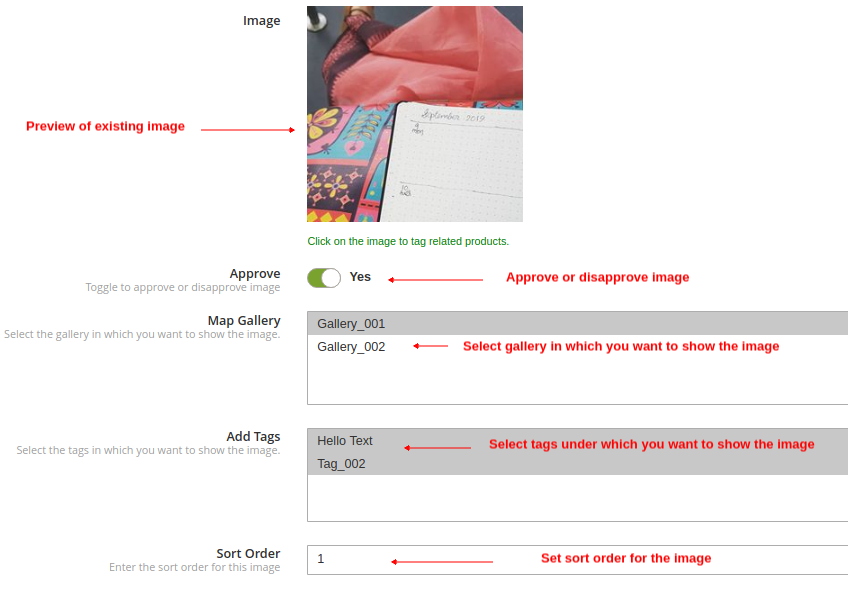
Image: This option lets you check the preview for the fetched Instagram image.
Approve: With this option, you can approve or disapprove the image.
Map Gallery: This option allows you to select the gallery in which you want to show that particular image.
Add Tags: Using this option, you can select the tag or category under which the image will be shown.
Sort Order: This option lets you set the sort order of image.
Related Products: This option allows you to select the related products that you want to show for that image. For this, you have to click on “Click on the image to tag related products” text shown in green color. This will allow you to pin unlimited site products to that image.
3.2.4 Delete the Existing Gallery
Deleting a gallery is simple, you just have to click the “Delete” button corresponding to the desired Instagram gallery.
3.3 Tags Settings
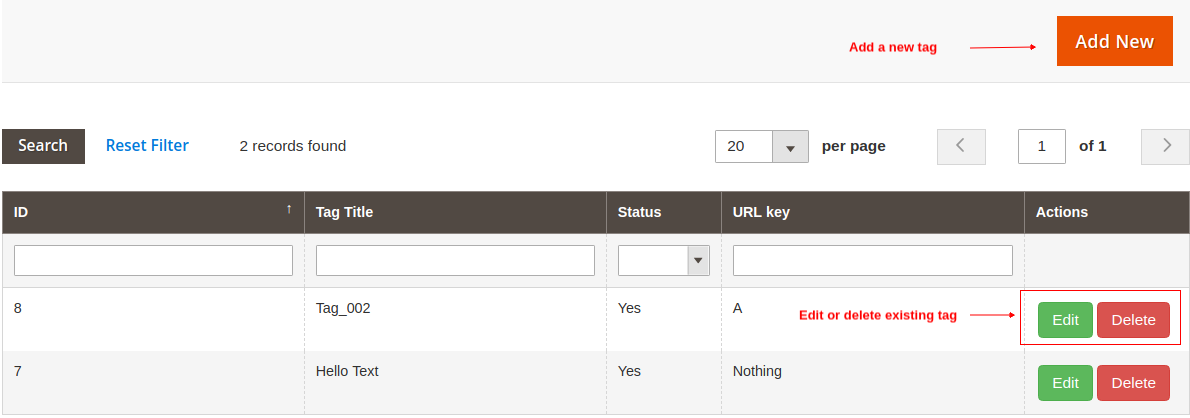
From this interface, you can perform 3 actions as:
Add a new tag
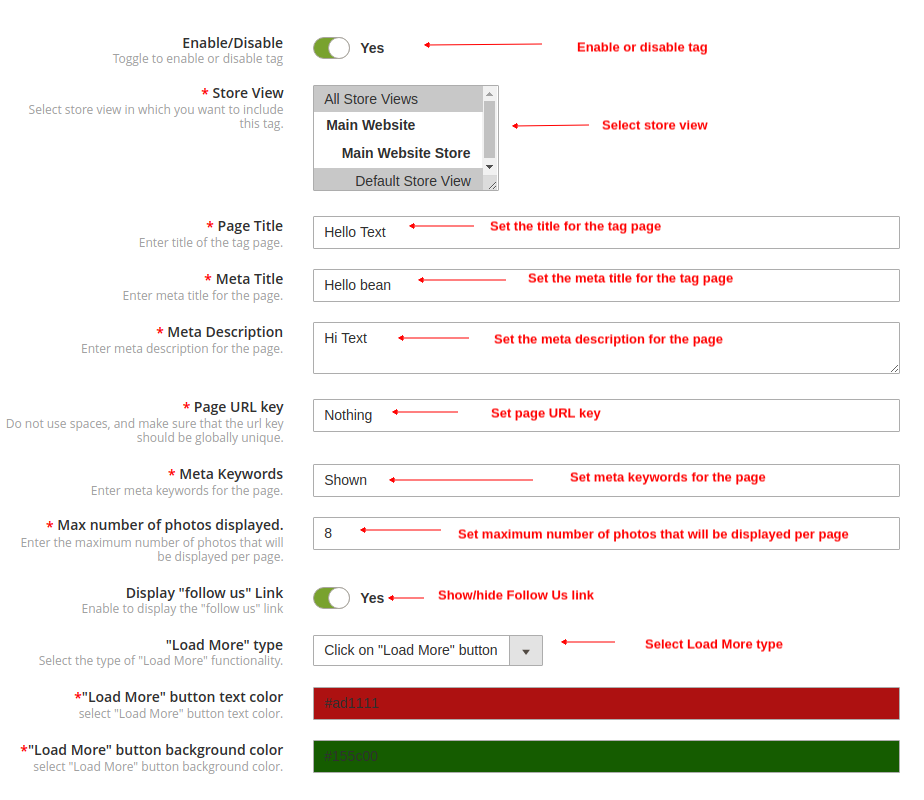
Enable/Disable: This option allows you to enable or disable the selected tag.
Store View: Using this option, select the store view in which you want to include the tag.
Page Title: This option allows you to set the title for the tag page.
Meta Title: This option allows you to set the meta title for the tag page.
Meta Description: This option allows you to set the meta description for the tag page.
Page URL Key: This option sets a unique page URL.
Meta Keywords: With this option, you can set the meta keywords for the tag page.
Max Number of Photos Displayed: This option sets the maximum photo limit for a particular tag.
Display Follow Us Link: This option allows you to show/hide Follow Us link on tag page.
Load More Type: Using this option, select the Load More type as:
Click on Load More button
Auto (when scroll down)
Load More Button Text Color: This option lets you set the text color for the Load More button.
Load More Button Background Color: This option lets you set the background color for the Load More button.
2. Edit existing tag
You will see the same configuration options when you edit the existing tag.
3. Delete existing tag
You can simply click on the Delete button corresponding to a particular tag.
3.4 Images Settings
From this interface, you can easily manage the total images fetched and added for various Instagram Gallery. You can add a new image, edit the existing one or delete them.
4.0 Front Interface of Insta Shoppable Gallery Module for Magento 2
A) Instagram Shop Page
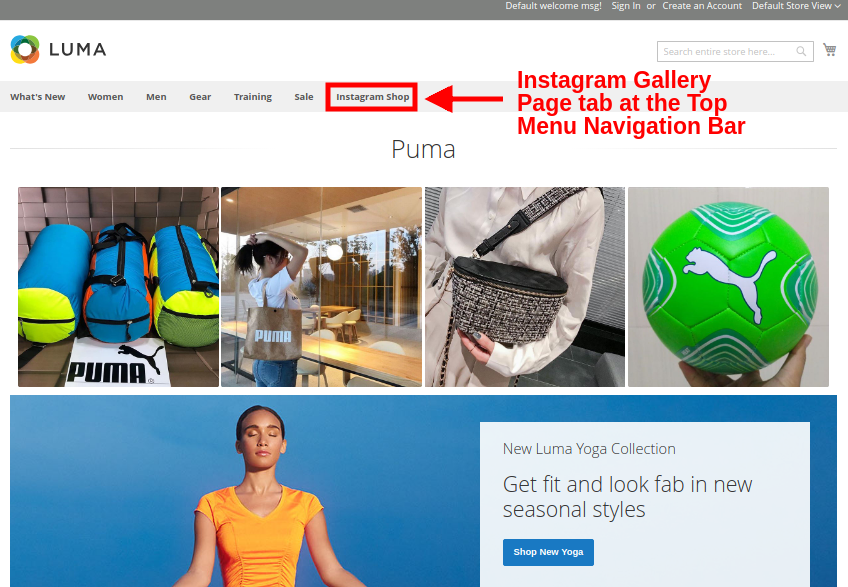
Customers will see this Instagram Gallery option on the top menu bar.
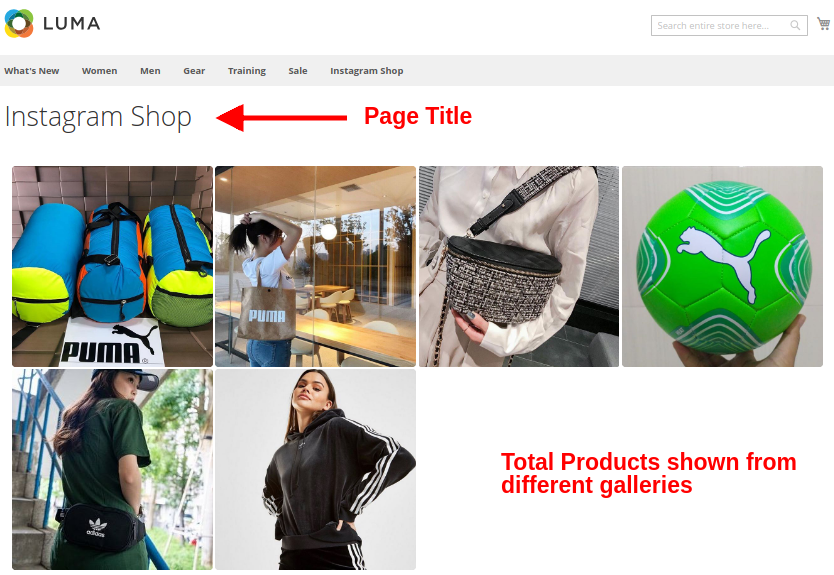
Upon clicking the tab, they will be redirected to the Instagram Shop Page with URL key as “https://ma2testing.knowband.com/ma215/instagramgallery/”. This URL can be defined as per your own site needs. The Instagram Shop Gallery looks like in the image below:
B) Likes and Comments for Instagram Image
C) Show Instagram Gallery on Homepage
D) Show Instagram Gallery on Product Pages
E) Show Instagram Gallery on Category Pages
On clicking any of the images, customers will see the following image popup.