This is a very common scenario that every store owner is used to. A customer will look around the store, add products to the cart, but will not make a purchase. This is usually the case in online shopping, and most of the time, it’s not because they don’t want to purchase the product. They just want to make purchases later or to compare with others and then make a choice.
Introducing the PrestaShop Save For Later Addon by Knowband, which provides customers with that very opportunity. Not only that, this interesting addon allows customers to save the products that they like and visit at any time they are willing to purchase the liked item. This minor detail has a significant impact on the store since it reduces the number of abandoned carts and makes the buyers feel that the store is closer to them.
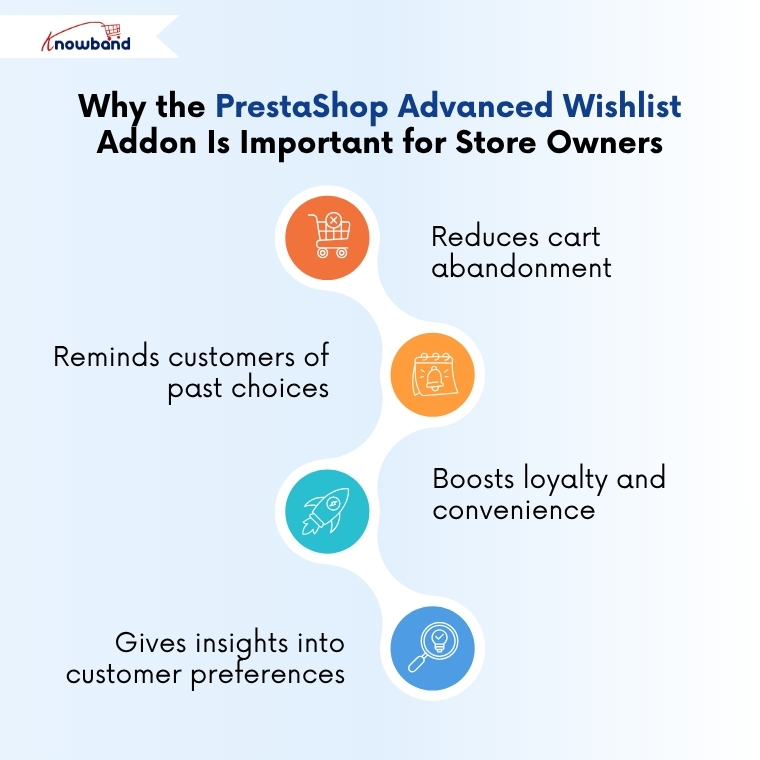
Why the PrestaShop Advanced Wishlist Addon Is Important for Store Owners
Timing is very critical in an online business. A lot of buyers take a long time to make purchases, and when they are unable to find the products again, they usually forget them forever. That is the way potential sales are lost.
The PrestaShop Advanced Wishlist Module ensures that this is not the case. With the option to save for later, your store will always be on the mind of the customers. The customers are able to see what they have saved anytime and purchase whenever they are ready.
This module not only enhances the user experience but also boosts sales and creates long-term loyalty.
The following is how it helps the store owners:
It minimises cart abandonment by keeping the shoppers engaged even after leaving the site.
Moreover, every time a customer visits the site, the module reminds them of their choices constantly.
It increases loyalty as it shows that customer convenience is important to your store.
Moreover, it also provides admins with an analysis of customer tastes and preferences.
Therefore, the PrestaShop Wishlist Addon by Knowband is not just a nice feature, but it is a strategy that will make you get closer to your customers.
Main Features of the PrestaShop Wishlist Module
The PrestaShop Save For Later Addon is an easy-to-use solution with multiple features that facilitate shopping and the management process.
The module works smoothly on all devices, like desktop, mobile & many more. So whether your customers are on mobile or desktop, or even tablet, this wishlist feature will work the same on all devices.
This Prestashop Advanced wishlist addon provides easy-to-use configurations that a store owner can use without having any extra knowledge. Furthermore, it provides the three features, including save for later, recently viewed, and recommended products. Not only that, but store admins have the authority to change their colour or fonts and many more.
Additionally, Store admins can now easily provide the social sharing option, where customers can share their saved products with friends via WhatsApp, Facebook, or Twitter.
Lastly, store owners can get useful analytics with this module. They can analyse which product is most saved, the interests of customers, and which product eventually turned into sales. Hence, this data helps in strategising marketing campaigns and ensuring better stock management.
And the best part? PrestaShop Favourite Product List Addon by Knowband is very simple to install and needs no technical skill or coding.
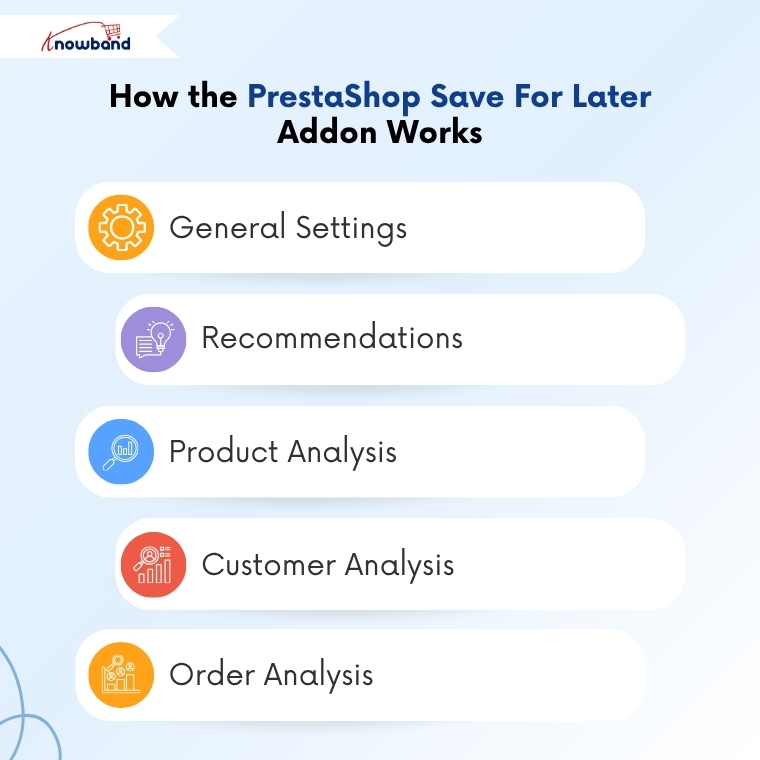
How the PrestaShop Save For Later Addon Works
General Settings
First, the admins can enable/disable the Prestashop save for later addon with one click. Then, they can enable/disable the compatibility with the PrestaShop GDPR toggle. Admins have the option to adjust the border shade, modify the buy button colour, change the bar’s background, and set the pagination limit. Moreover, admins can also customise the text and visibility of the save for later, recently viewed, and recommendations sections. Finally, in general settings, you can enable/disable social sharing for Facebook, WhatsApp, and Twitter.
Recommendations
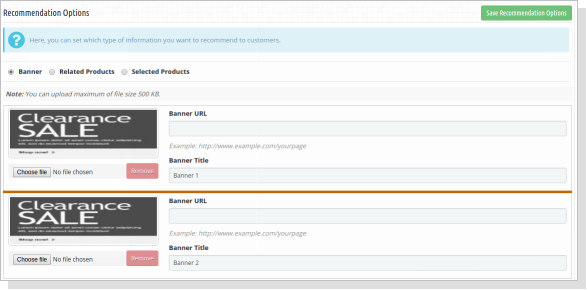
Here, admins are able to choose what products to display in the recommendations in the frontend. The first one is that they can choose Banner, where they can add a banner, title, and a URL that will appear at the frontend. Then you can choose the Related Products to be displayed in the recommendation section.
Product Analysis
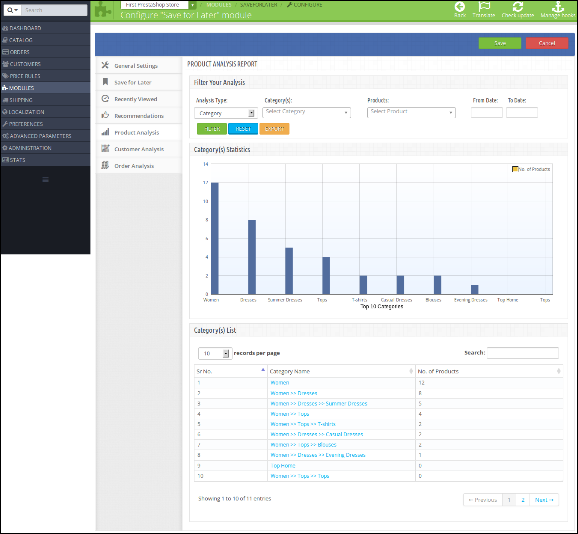
Here, admins can filter the products added to the save for later list by customers. They can check the number of products from which categories are being shortlisted in a tabular and graphical manner. Moreover, admins can download product listings in CSV format that they can easily manage and keep records.
Customer Analysis
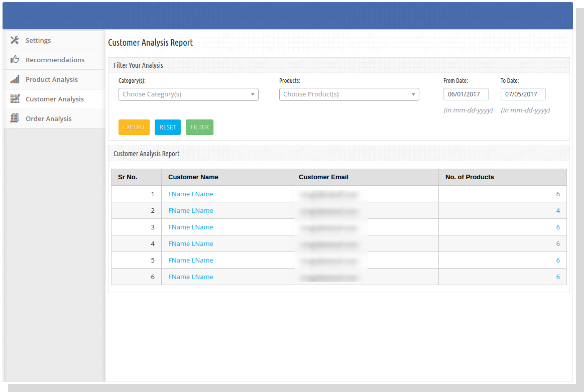
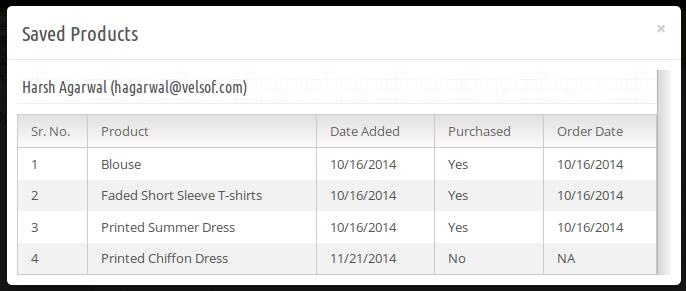
Here, admins can examine the product data from the save for later list of customers. Admins can view the number of products that have been added by the customers, when they added them, and whether they made a purchase or not. Besides, they are also able to filter the customers and export their CSV file.
Order Analysis
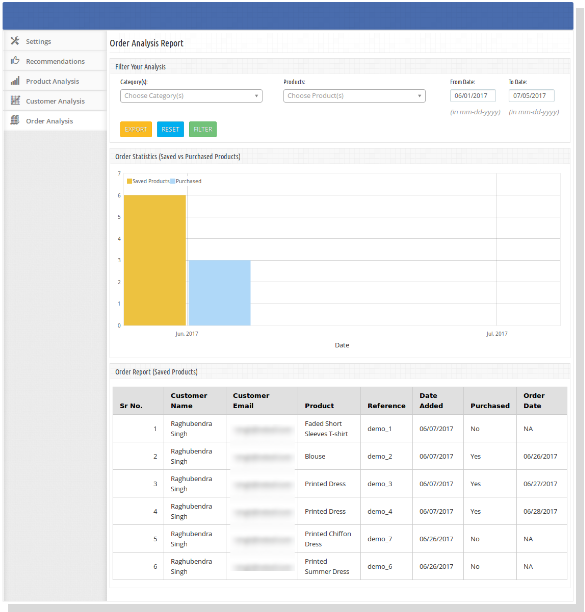
Similarly, here in the order analysis section, admins can analyse the order status of the products shortlisted by the customers. Here as well, you can filter and export the CSV file of the data.
Hence, Knowband’s PrestaShop Advanced Wishlist Addon gives the store owners complete authority to know their customers better and improve their sales process.
The PrestaShop Save For Later Addon by Knowband is an easy-to-use but powerful solution that helps merchants keep customers interested even when they are not ready to purchase. It creates trust, enhances customer experience, and also provides store owners with valuable information about their customers ‘ likes and dislikes.
Every small improvement is important in the current competitive world of e-commerce. Through this module, shoppers can save items, revisit them, and make their purchases easily whenever they are ready. Hence, store owners make more conversions and enhance interactions.
Therefore, to minimise cart abandonments and ensure that your customers will visit your store again, Knowband’s PrestaShop Wishlist Addon is the right solution. It is simple, effective, and designed to expand your business smartly.
Browse more PrestaShop addons and take your store to the next level, if you need assistance, email us at support@knowband.com
Retain holiday shoppers if want to maximize customer spending. For many eCommerce shops, the holiday season seems beneficial as they get a lot of traffic with appealing offers and discount deals. This results in an uptick in sales as well as conversion rates at this time.
It’s important to remember, though, that many of these holiday customers are unlikely to return to your store in the future. If you could keep these new customers as loyal customers, it would be a significant boost to your marketing efforts. In this blog, we will guide you on the benefits of customer retention, make you understand what is eCommerce customer retention. We will make you aware of Knowband modules that can help in retaining holiday shoppers on an eCommerce website.
What is eCommerce Customer Retention?
eCommerce customer retention refers to a set of coordinated strategies that drive repeat purchases from existing clients. In simple words, it’s about persuading one-time customers to become regular customers and brand evangelists. Customer retention maximizes the value of each customer as opposed to customer acquisition.
What are the benefits of customer retention?
Customer Retention Maximizes Profits
Customer retention maximizes profits. For example, let’s say you spent $30 on Facebook marketing to get a customer, and let’s pretend they spent $35 in your shop. Hence, the profit you get will be $5, which is a great profit, but not noteworthy, right?
On the other hand, for instance, let’s say you can send them a $0.001c email encouraging them to return and spend another $35. So the profit margin you get will rise by almost 700%. Henceforth, with a good retention plan in place, you won’t have to worry about constantly fighting growing ad expenses and churning through audiences to make a few pennies.
2. Retention Allows You to Outspend Competitors
Retention and acquisition are two sides of the same coin and if you maximize the value of each one, you may spend more money on recruiting new customers. Consider a scenario: your clients spend an average of $70 each year. That you have the financial means to pay that much for them. So, the profit which you will make in twelve months even if buyers just spend $30 the first time.
Compare this to your competition, which does not place a premium on customer retention. In an attempt to eke out some front-end profit, they’ll strive to bring their cost per acquisition below $30.
3. Retention is Easier compared to Acquisition
If we compare retention and acquisition, retention is easier. Further, most of the businessesare focused on gaining new clients that they don’t realize they’re taking the long route. Selling to existing clients is up to 3.5 times easier than to new consumers as per Invesp’s research. When you think about it, your existing consumers already know about business. Existing consumers already know you, products or services you are selling, what you believe in, etc. Because they’ve already purchased from you, there’s no reason they won’t do so again.
If easy sales are your jam, it’s very important to build a retention campaign. A retention campaign can pack a punch.
4. Marketing in Disguise
Are you someone who routinely recommends that company to others? You’re not alone, to be sure. Furthermore, consumers who are suggested by a friend spend 200% more on average than those who find you on their own. You’ll develop quickly and enjoy record-breaking earnings if you have an army of brand champions performing your marketing for you.
Knowband Modules that can retain Holiday Shoppers
If you do not know how to retain holiday shoppers, these Prestashop and Opencart modules can help you retain holiday shoppers. Modules like Loyalty Points, Wishlist, Abandoned Cart, and Spin and Win can help retain holiday shoppers.
1. Loyalty Points
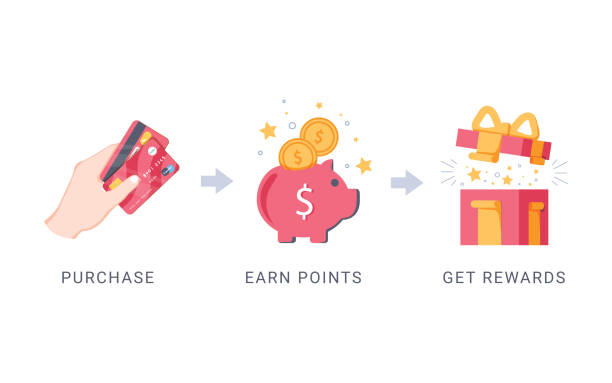
One of the most crucial features of eCommerce is customer retention. Further, one of the best methods to increase customer retention is by offering rewards/loyalty points.
Knowband has been offering best-in-class plugins for various eCommerce platforms including Prestashop and Opencart.
Wishlist addon is highly beneficial for eCommerce merchants, allowing clients to build customized groupings of items purchased. Further, customers can preserve them in their user account for future reference. Whether the customer is interested in the product or in purchasing it is indicated by Wishlist.
If buyers are visiting your website and going without making a purchase, the situation leads to higher abandoned carts. Times when a potential buyer begins the online buying process to purchase an item, however, leaves it before completing the transaction is called an abandoned shopping cart.
To reduce the chances of higher abandoned carts, Knowband offers an Abandoned Cart module for different eCommerce platforms, Prestashop and Opencart are even included. These modules helps retain holiday shoppers.
Spin and Win is a fun and engaging way of expanding an email list. Furthermore, with the help of Spin and Win, you can offer coupons in return for email addresses and other information. Moreover, visitors to your site asked to provide their email addresses in order to spin the wheel for a chance to win one of 12 prizes with Spin to Win.
In short, retention is great for online eCommerce merchants as it helps in maximizing customer spending and outbidding your competitors. This even helps merchants to sell their products and services with less effort. In simple words, sell more with minimum effort. Moreover one can create a team of customer marketers.
In case you find any issue with any of the modules above, feel free to write us at support@knowband.com.
Today, Online Customers on eCommerce sites browse through multiple products but only make a purchase of a selected product at a particular instance of time because the goal of the shoppers is not to make an immediate purchase always. Sometimes, the customers just visit to have a look at the product and add it to their cart, so that later when they would need the product they can buy it. Moreover, they check the other store prices and checkout. The Prestashop Advanced Wishlist addon by Knowband provides a special feature to display the shortlisted, recently viewed and recommended products/banners into the website. This Prestashop wishlist module allows the customer to shortlist their favorite products so that they can be aware of the products they want to purchase or view later. This Prestashop save for later extension is like a basket in hand where you add whatever you like and can change the quantity at last when making the purchase.
Knowband Prestashop Advanced Wishlist addon is integrated with GDPR hooks. GDPR settings are added in the module using which the Prestashop admin can comply with the rules of the GDPR. Please refer to the General Settings to know more about the GDPR.
The Prestashop advanced wishlist module by Knowband is beneficial for both merchant and the customer. Let us discuss how Prestashop wishlist addon is working.
1.1 Benefits for the Merchant
This Prestashop advanced wishlist addon is a help to the store owners for tracking the Customer requirement.
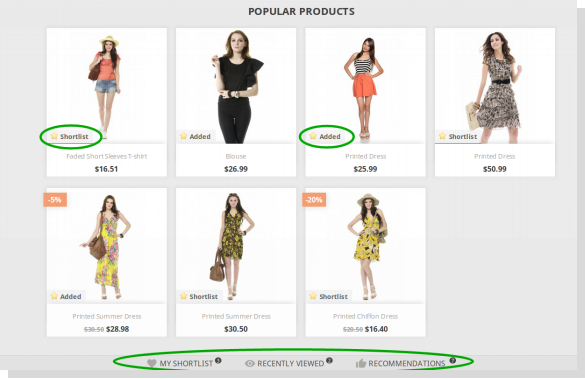
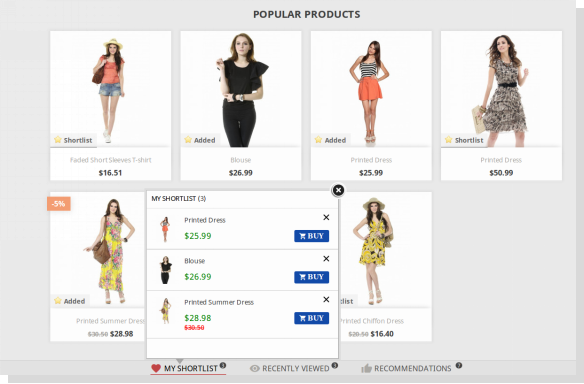
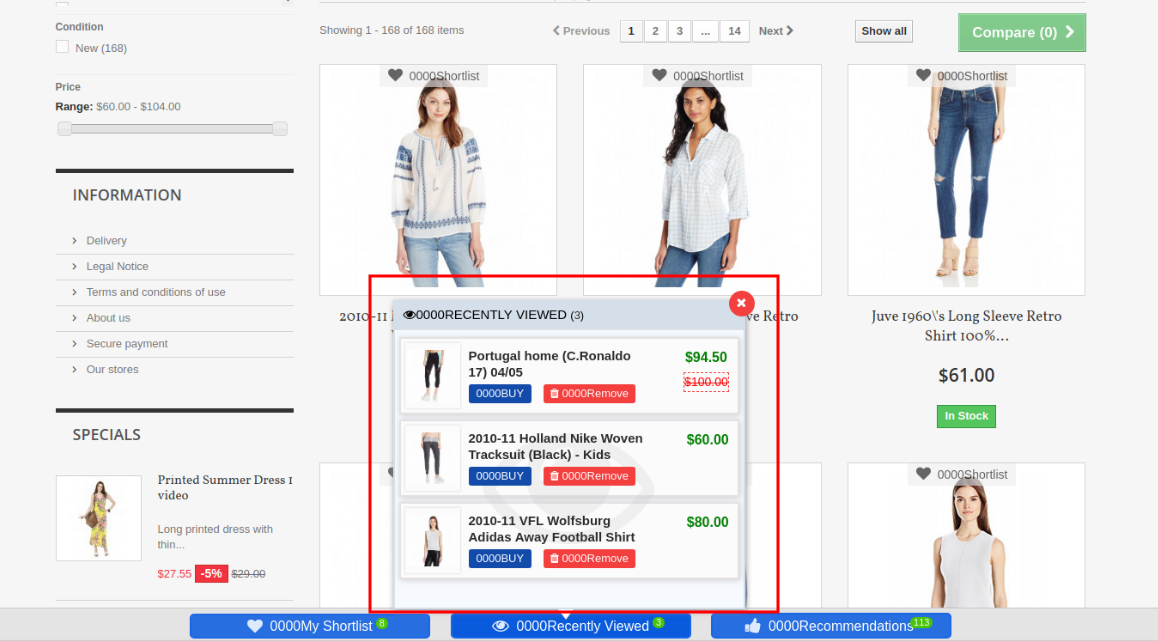
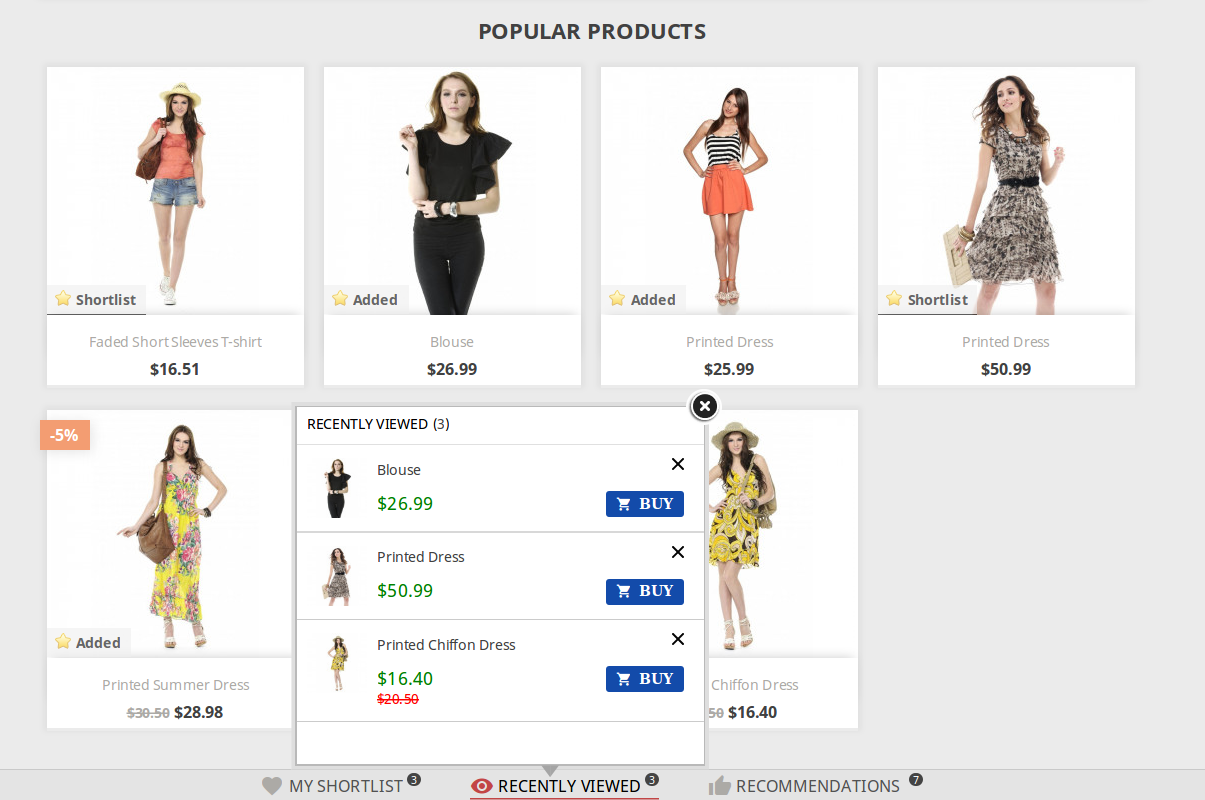
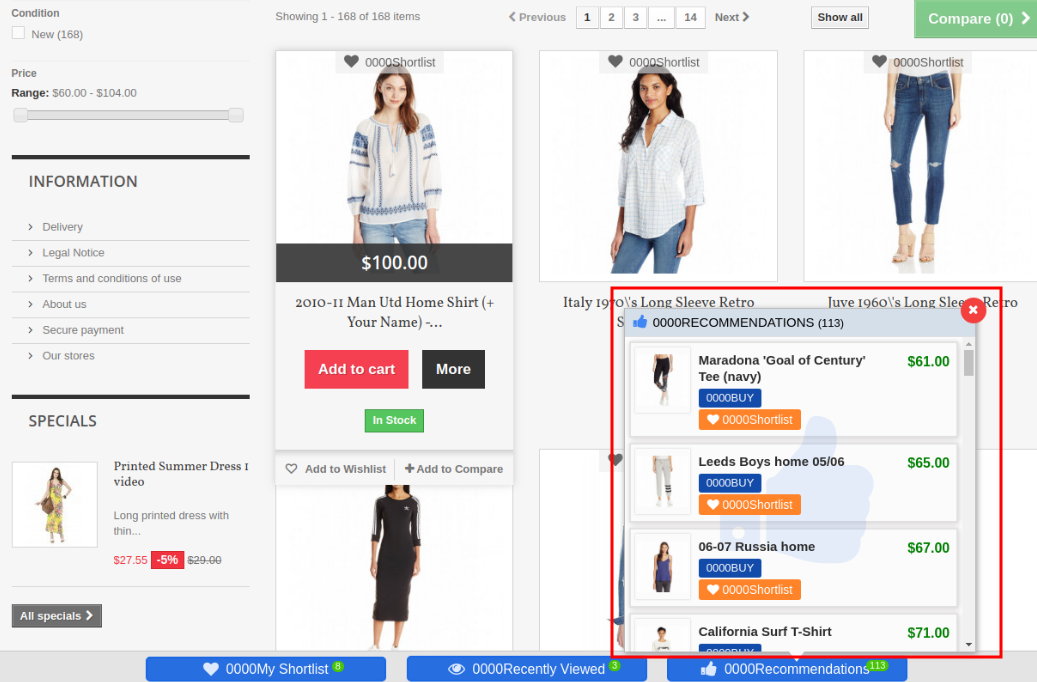
This Prestashop wishlist module shows the bar at the bottom of every page containing three different blocks as ‘My Shortlist’, ‘Recently Viewed’ and ‘Recommendations’. Each block has a pop-up containing respective data. This bar is managed by the admin according to the need.
This Knowband Prestashop advanced wishlist addon shows my wishlist block which is controlled by the online merchant. My Shortlist pop-up shows the products shortlisted by the customer.
This Prestashop advanced wishlist extension shows the recommendations block which is totally controlled by the Store Owner. Store the admin can choose products or banners as per choice.
This Prestashop save for later extension gives the access to the admin to enable/disable the recently viewed block that shows the products which are recently viewed by the customer.
This Prestashop wishlist addon helps the admin to view the product details which product is high on demand or which product is added in the wishlist the most. The Graph shows the whole information about the wishlist product.
This Prestashop advanced wishlist extension allows the admin to know what customers wish to purchase.
The Prestashop save for later extension helps for re-marketing.
This Prestashop wishlist addon reduces the abandoned cart of the website.
This module helps the admin in boosting sales and conversion rates for your online store.
The admin can easily customize the save for later addon.
The online store admin can set the number of products which he wants to show on the customer’s wishlist page.
The online store merchant can also provide an option to share wish-listed products on Social media platforms like Facebook, Twitter and WhatsApp.
Customers can view wishlist products, recently viewed products and recommendations.
The Prestashop wishlist module offers a userfriendly and eye-catchy interface.
The Prestashop wishlist addon is mobile responsive, multi-lingual compatible and offers multi-store support.
Admin can show specific Wishlist tab on the website.
The Prestashop plugin shows wishlist on the checkout page.
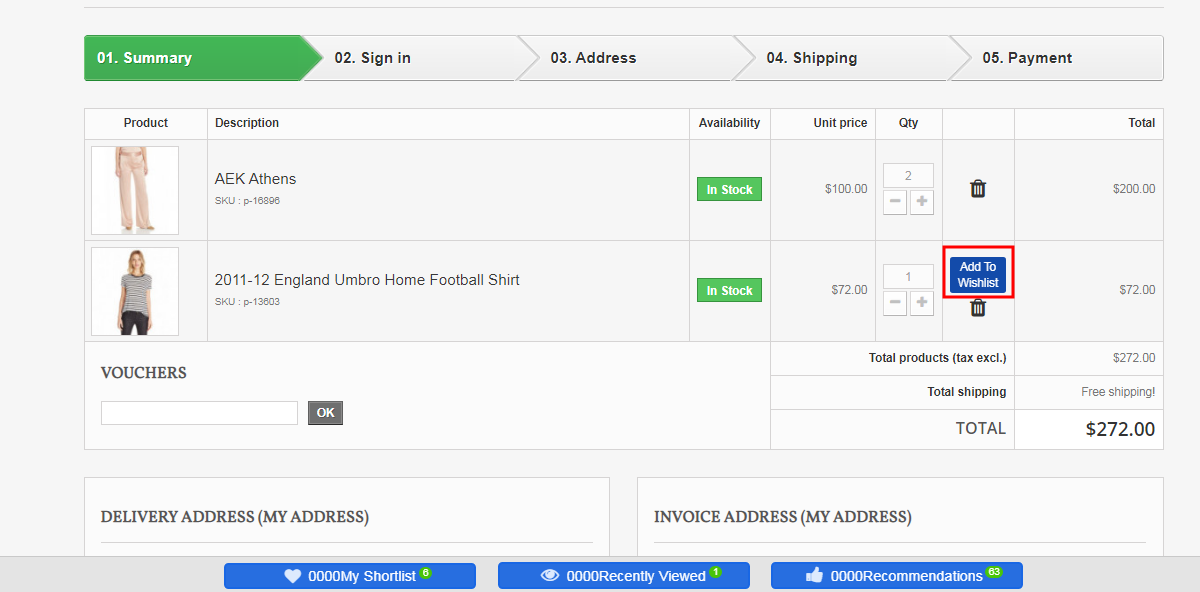
The customers can add available products from wishlist and move any product from cart to wishlist.
1.2 Benefits for the Customer
This Prestashop favorite product list addon helps online shoppers to add products to their wishlist and feel free to buy it later.
This Prestashop save for later module by Knowband is mobile responsive and allows the customers to use the Wishlist feature both on their mobile phones and desktop.
Customers can add product from the wishlist while checkout.
The online users can move any product to wishlist by clicking on “Add to Wishlist” button.
The online users can also share their wishlist on Facebook, Twitter and Whatsapp.
2.0 Installation
After purchasing the Prestashop advanced wishlist addon, you will get the following files as listed below:
1. Compressed File in ZIP format (contains source code of the module)
2. User Manual
Follow the following steps to install the Prestashop save for later extension:
1. Unzip the compressed file. It would contain files and folders as shown below –
2.Copy all the files and folders of the unzipped folder into your store “modules” directory on the path – Root Directory/modules/.
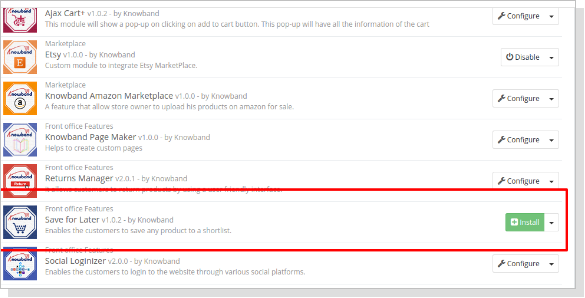
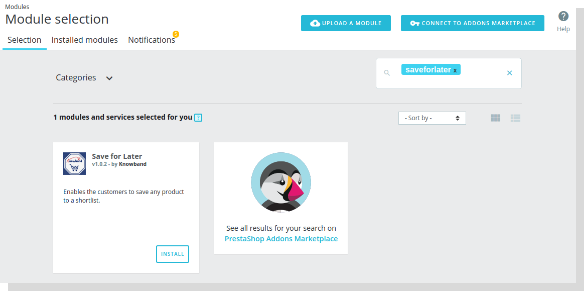
3. Now, the module is ready to be installed on your store and you can find that in Store the admin -> Modules and Services. It would shown as below –
PrestaShop 1.6
PrestaShop 1.7
4. Before installing the module, please make sure that ‘Customer.php’ does not exist in ‘Root Directory/override/classes/ folder. If it exists, then please remove it. Also, clear cache before installing the module.
5. Click on “Install” button to install the module. It would show a pop-up for your confirmation. Click on “Proceed with the installation” option. This step will install the module and show notification – “Module(s) installed successfully”.
3.0 How to configure module?
Once the Prestashop wishlist addon is configurable, the Store Owner can setup or configure this Prestashop save for later module through the Admin Panel of the store. There are following sections available to configure this module –
Go to Store the admin -> Modules and Services
Find “Advanced WishList Addon” and click “configure” button given corresponding to the module i.e. shown below-
After clicking on the “configure” button, you will see a window like the one mentioned below-
4.0 Admin Interface
After installing the Prestashop wishlist addon into the Prestashop store, the admin interface is designed in such a way that a Prestashop store owner can make the changes without any hassles. There are the following sections available on the admin interface: –
General Settings
Save for Later
Recently Viewed
Recommendations
Social Sharing
Recommendations
Product Analysis
Customer Analysis
Order Analysis
Above 5 points are actually one section which comes under “Settings” but as described here as a separate entity for more clarity.
Each section of this Prestashop save for later module is explained below.
4.1 Settings Tab
4.1.1 General Settings
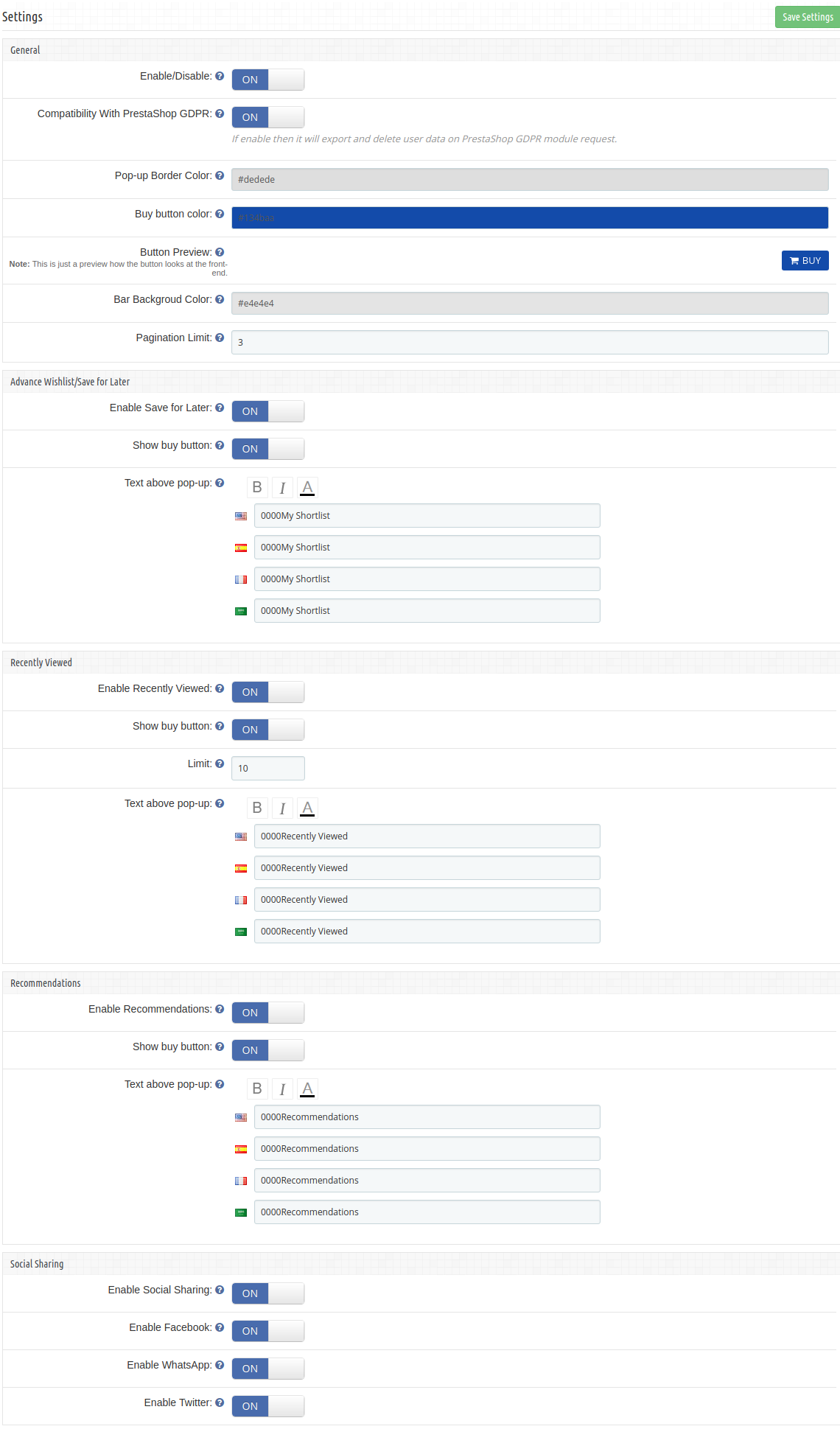
In the General settings tab, we have five options which the admin can use to manage the store;
Below mentioned is the general setting tab image-
This tab contains the following input fields which the Store Owner or the admin can update –
Enable/Disable: Initially, this will be notified as “OFF” And the admin can enable/disable the module by turning ON/OFF this option.
Compatibility with Prestashop GDPR Module: The Admin can enable the GDPR option. The Customer has an access to request the admin to delete and export the personal data from the back-office. The Admin can also export the customer data from the back-end.
Note: If you are using the official GDPR module then you must need to enable this setting. The main purpose of this feature is export and deletes user data on PrestaShop GDPR module request. It is also compatible with Prestashop GDPR Module developed by Knowband.
Pop-up Border Color: This setting enables the admin to change the border color of the pop-ups appearing at the front-end. Initially, it has a default color that best suits the pop-ups.
Buy Button Color: This setting enables the admin to change the buy button color appearing at the front-end, in front of every product in the pop-ups. Initially, it has a default color that best suits the button.
Button Preview: This option is not a setting, it is just a preview window of the buy-button appearing on the front-end. When the color of the buy button is changed using the above setting, then the color of the button preview will change dynamically displaying the current appearance of the buy button.
Bar Background Color: This Prestashop Advanced Wishlist addon enables the admin to change the background color for the bottom bar that appears at every page on the front-end. Initially, it has a default color that best suits the background of the bar.
Pagination Limit: The online merchant can set the number of products which he wants to show in a single page.
4.1.2 Save For later
In this section, the Prestashop Save for later addon allows Store Owner or the admin to update the settings of “My Shortlist” section of the Front-end. Through this section, the Store Owner or the admin can do the following things –
1.Enable/Disable “My Shortlist” section in the Store Front.
2.Show/Hide the Buy button
3. Add some text to “My Shortlist” popup which will be shown at the top of popup.
This Prestashop Advanced Wishlist extension form contains the following input fields which the Store Owner can update:
Enable Save for Later: Initially, this will be displayed as “OFF”. the admin can enable/disable the shortlist option by toggling the button.
Show buy Button : This Prestashop save for later addon allows the admin to choose whether to display the buy button in front of the products in the Shortlist pop-up or not.
Text above pop up: This Prestashop advanced wishlist addon allows the admin to enter the text that should be displayed at the front-end as a heading for the shortlist pop-up. the admin can enter the different text for different languages available in the system and can also customize the appearance (i.e. bold, italic and color of text) of the text using the font-style options.
4.1.3 Recently Viewed
Through this section, the Store Owner or the admin can do following things –
1.Enable/Disable “Recently Viewed” section in Store Front.
2.Show/Hide the Buy button
3.Limit the number of products to display
Add some text to the “Recently Viewed” popup which will be shown at the top of pop-up.
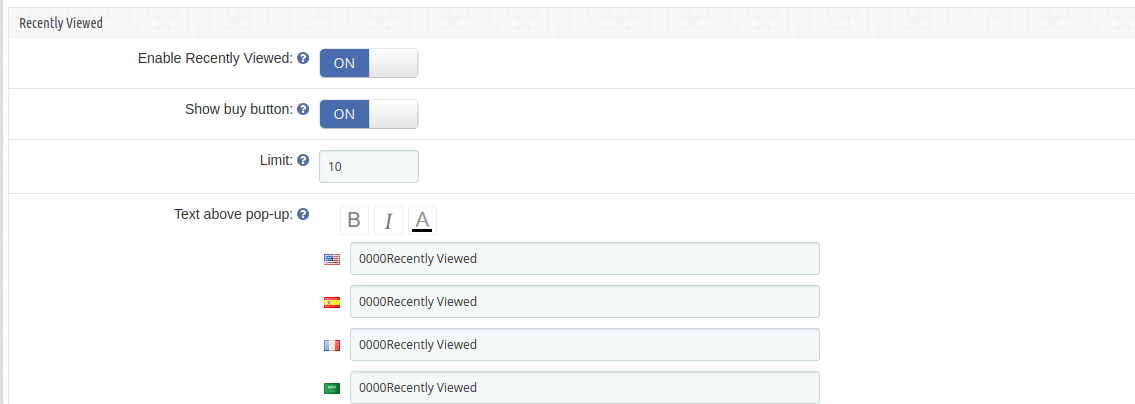
This Section contains the following input fields which the Store Owner or the admin can update –
1. Enable Recently Viewed: Initially, this will be OFF. Admin can enable/disable Recently viewed option by turning ON/OFF this setting.
2. Show buy Button : This setting enables the admin to choose whether to display the buy button in front of the products in the Recently viewed pop-up.
3. Limit: Admin can limit the products to display in recently viewed product section.
4. Text above pop up: This setting enables the admin to enter text that should be displayed at the front-end as a heading for the recently viewed pop-up. The admin can enter different text for different languages available in the system and can also customize the appearance (i.e. bold, italic and color of text) of the text using the font-style options.
4.1.4 Recommendations
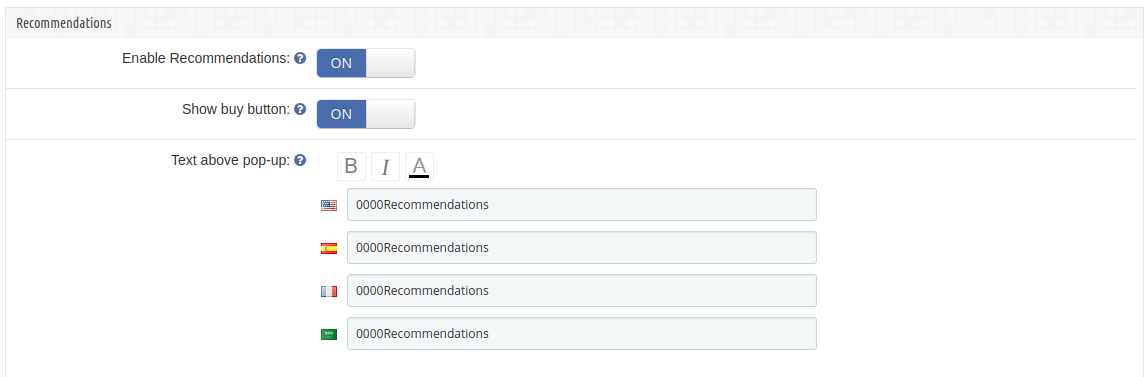
In this tab, change the settings for the Recommendations block of the plugin. Here, the admin can recommend various things to the customer as per the need. the admin can enable/disable it and can also customize the text above the recommendations popup.
1.Enable/Disable “Recommendations” section in the Store Front.
2.Show/Hide Buy Button
3.Add some text to the “Recommendations” popup which will be shown at the top of pop-up.
This form contains the following input fields which Store Owner or the admin can update –
1. Enable Recommendations : Initially, this will be OFF. Admin can enable/disable Recommendations option by turning ON/OFF this setting.
2. Show buy Button : This setting enables the admin to choose whether to display the buy button in front of the products(if admin wants to recommends products to customers) in the Recommendations pop-up.
3. Text above pop up : This setting enables the admin to enter text that should be displayed at the front-end as a heading for the Recommendations pop-up. The admin can enter different text for different languages available in the system and can also customize the appearance (i.e. bold, italic and color of text) of the text using the font-style options.
4.1.5 Social Sharing
The online store merchant can allow the online buyers to share wish list products in various Social Media Platform.
Enable Social Sharing: Enable or Disable social sharing option
Enable Facebook: Activate or deactivate to allow users to share wish-listed products on Facebook.
Enable Whatapp: Allow/disallow customers to share products on Whatsapp.
Enable Twitter: Enable the functionality to allow customers to share wish-listed products on Twitter.
5.0 Recommendations
This Prestashop advanced wishlist addon by Knowband allows the Store Owner or the admin to setup the content of Recommendation pop-up to display at Store Front.
There are 3 options available for Store Owner:
1.Banner
2.Related Products
3.Selected Products.
The admin can only choose one of them to display at Store Front as the content of Recommendations Pop-up.
5.1 Banners
Using this option, the admin can upload a maximum of two banners for the recommendations popup, there is also an option to enter the URls for the banners uploaded.
You have to follow steps given below to show banners in Recommendations Pop-up –
Go to the Module and Services -> Module and Services
It would list out all the modules of store. Find ‘Save for Later’ in modules list.
Now click on the ‘Configure’ button given corresponding to the ‘Save for Later’ module.
It would redirect the Store Owner or the admin to a module settings page. Now click on “Recommendations” option listed at left side column.
It would open a new section. Choose “Banner” option. It would display the section where you can upload/change banners (Max. 2) with their Title and Link. You can find the screenshot below –
Click on “Save Recommendation Options” button. It would validate the data and submit the form.
5.2 Related Products
You have to follow the steps given below to show the related products in the Recommendations Pop-up –
Go to the Module and Services -> Module and Services
It would list all the modules of the store. Find ‘Save for Later’ in modules list.
Now click on ‘Configure’
button given corresponding to the ‘Save for Later’ module.It would redirect the Store Owner or the admin to a module settings page. Now click on “Recommendations” option listed at left side column.
It would open a new section. Choose “Related Products” option. You can find the screenshot below –
Click on “Save Recommendation Options” button. It would validate the data and submit the form.
That’s It.
5.3 Selected Products
You have to follow the steps given below to show selected products in Recommendations Pop-up –
Go to the Module and Services -> Module and Services
It would list all the modules of the store. Find ‘Save for Later’ in modules list.
Now click on ‘Configure’ button given corresponding to the ‘Save for Later’ module.
It would redirect the Store Owner or the admin to a module settings page. Now click on “Recommendations” option listed at left side column.
It would open a new section. Choose “Selected Products” option. You can find the screenshot below –
After choosing “Selected Products” option, the module will ask to choose Category and then the Products to display at Store Front. Choose Products and module will list them one by one in a list. The admin can remove selected one from this list if needed.
Click on “Save Recommendation Options” button. It would validate the data and submit the form.
That’s It.
6.0 Product Analysis
This Prestashop save for later addon tab will display the category/product reports in the form of graphs and list. The graph will display top ten categories/products shortlisted by customers in descending order. You can find the screenshot below –
Below is the screen of this Product wishlist module product analysis tab:
1. Filter your analysis: The filter will be used for filtering data. There are folowing parameters on the basis of you can filter report:
Analysis Type: This will be the dropdown list. With this filter, you can change the behavior of report such displaying report for top 10 categories or top 10 products.
Category(s): Here you can select multiple categories to filter the report. This option will be hidden if you select analysis type as Products.
Products: The products will be in this drop-down will be displayed on the basis of categories you have selected. If analysis typeset as Product, it will display all the products.
Start and Date: To Specify start and end date.
Filter: To display filtered data, the user must have to click on this button.
Reset: On clicking this button, the module will reset all parameter and display default report i.e displaying report according to categories.
Export: To export the current report in excel.
2. Category(s)/Product(s) Statistics: This Prestashop wishlist addon by Knowband shows a bar graph which will display top 10 categories or top 10 products on the basis of analysis type.
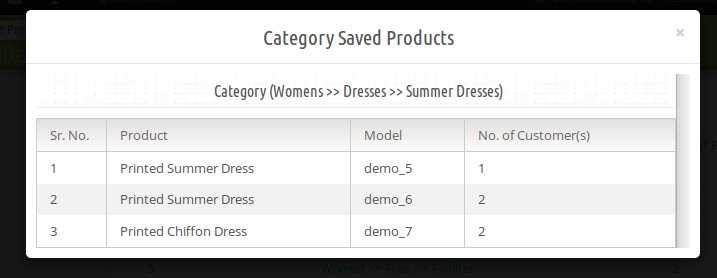
3. Category(s)/Product(s) List: In this, Prestashop advanced wishlist addon will list all the categories/products in descending order. If the analysis type is “Category” the module will display the category name in this list as clickable. On clicking the category, the module will display how many and which products of this category shortlisted by customers in the pop up box as shown in the below screen:
7.0 Customer Analysis
This Knowband Prestashop advanced wishlist addon shows the tab to display the list of customers with their number of shortlisted products. Here, the admin can also view the products list shortlisted by the particular customer.
1. Filter your analysis: The filter will be used for filtering data. There are folowing parameters on the basis of you can filter report:
Category(s): Here you can select multiple categories to filter the report.
Products: The products will be in this drop down will be displayed on the basis of categories you have selected.
Start and Date: To Specify start and end date.
Filter: To display filtered data, the user must have to click on this button.
Reset: On clicking this button, the Prestashop save for later module will reset all parameter and display default report i.e displaying report according to categories.
Export: To export the current report in excel.
2. Customer Analysis Report: In this, the Prestashop wishlist module will list all the registered customers and guest customers (who have placed an order as the guest) with how many products he/she has shortlisted. The customer email in this link will be clickable. On clicking email, a popup will display to showcase which product he/she has shortlisted and among these, which products are bought by corresponding customers as shown below:
8.0 Order Analysis
This tab is for doing analysis on the basis of how many products are ordered after shortlisted by the customer as shown in below screen:
1. Filter your analysis: The filter will be used for filtering data. There are folowing parameters on the basis of you can filter report:
Category(s): Here you can select multiple categories to filter the report.
Products: The products will be in this drop-down will be displayed on the basis of categories you have selected.
Start and Date: To Specify start and end date.
Filter: To display filtered data, the user must have to click on this button.
Reset: On clicking this button, Prestashop save for later addon will reset all parameter and display default report i.e displaying report according to categories.
Export: To export the current report in excel.
2. Order Report: In this, Prestashop advance wishlist addon by Knowband will list all the products which are shortlisted by customers with Purchased status. This Purchased status will tell you that this product is bought after shortlisted by the same customer.
9.0 Front End
After enabling the Prestashop wishlist addon the front-end user will see a bottom bar at every page of the front-end containing the blocks as they are enabled using the admin panel of the plugin.
The bottom bar at the front-end appears as follows:
PrestaShop Advanced Wishlist Addon 1.6
PrestaShop Advanced Wishlist Addon 1.7
The highlighted Shortlist button will allow customers to shortlist corresponding products into the separate bucket. This bucket displays at the bottom of the page as highlighted in above screen.
When the customer clicks on Shortlist button, the product will be added into bucket and button text will be changed from Shortlist to Added.
My Shortlist Pop-up
This Prestashop advanced wishlist addon by Knowband shows pop-up contains the products that are shortlisted by the customer. The customer can also remove the products from the shortlist by using the cross sign in front of products from the pop-up.
PrestaShop Wishlist Addon 1.6
PrestaShop Wishlist Addon 1.7
Recently Viewed Pop-up
This pop-up contains the products that are recently viewed by the customer. They can directly go to the product detail page of any product listed in this pop-up by clicking on the product name or by clicking on the ‘Buy’ button in front of the respective product.
PrestaShop Advanced Wishlist Addon 1.6
PrestaShop Advanced Wishlist Addon 1.7
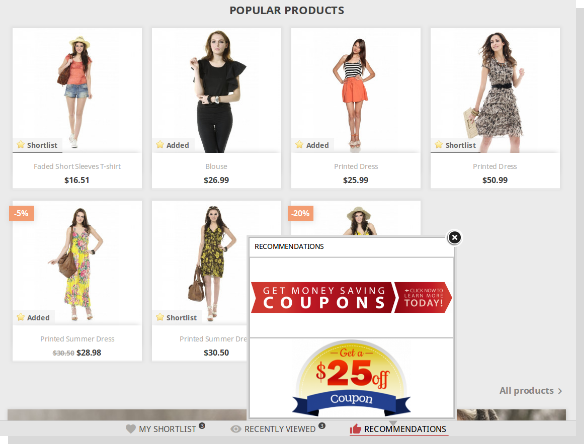
Recommendations
Content of this pop-up depends upon the choice of the admin. This Prestashop wishlist addon may have a list of selected products, it may have related products based on the browsing history of the customer or it can also have a maximum of two banners with an option of the link over them.
The recommendation pop-up with banners looks as follows:
PrestaShop Advanced Wishlist Addon 1.6
PrestaShop Advance Wishlist Addon 1.7
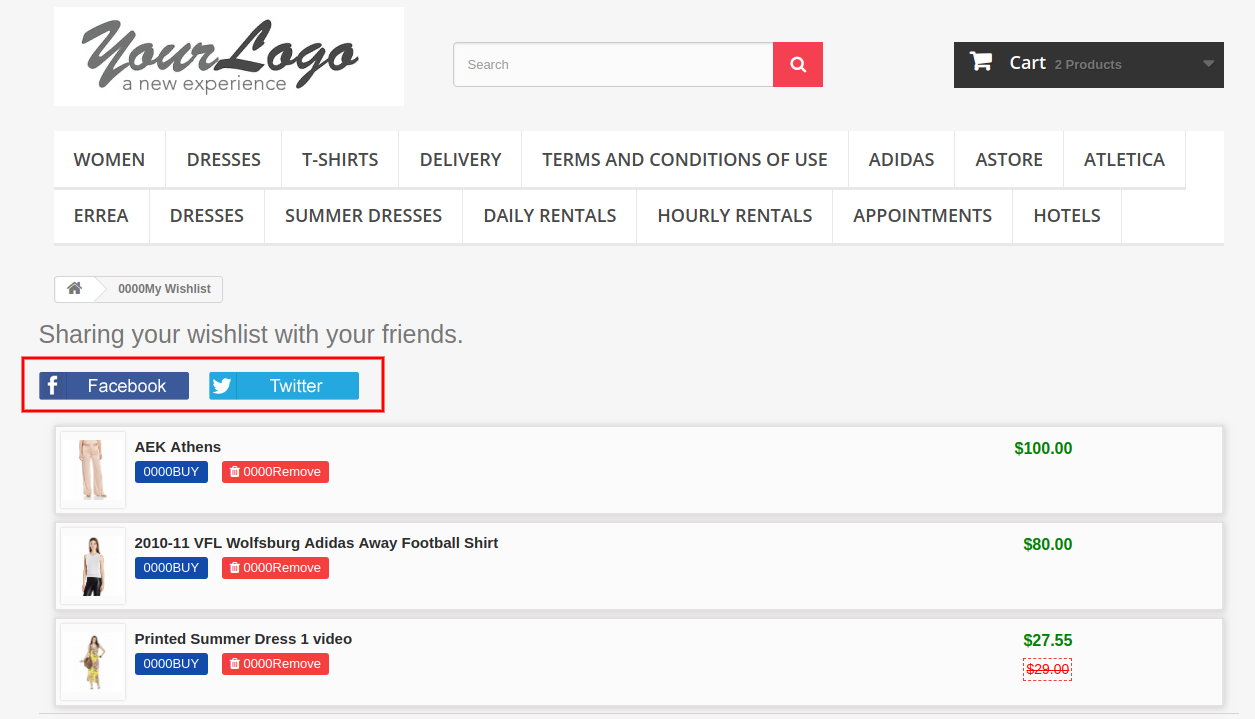
The online store admin can provide an option to share wish listed products on social media platforms like Facebook, Twitter and Whatsapp:
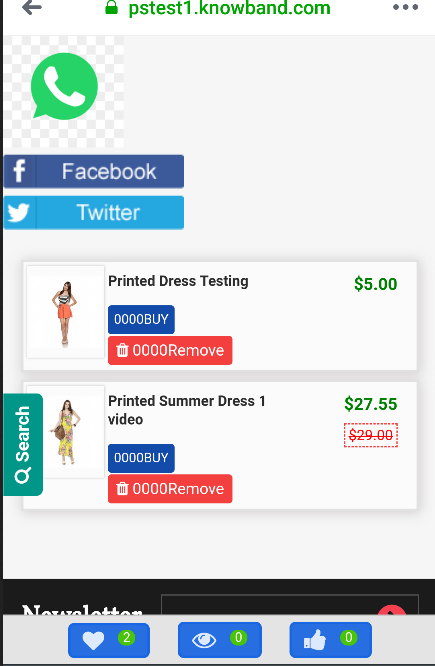
Online users can view whatsapp sharing option on their mobile devices:
The online users can view a specific tab for viewing wish list.
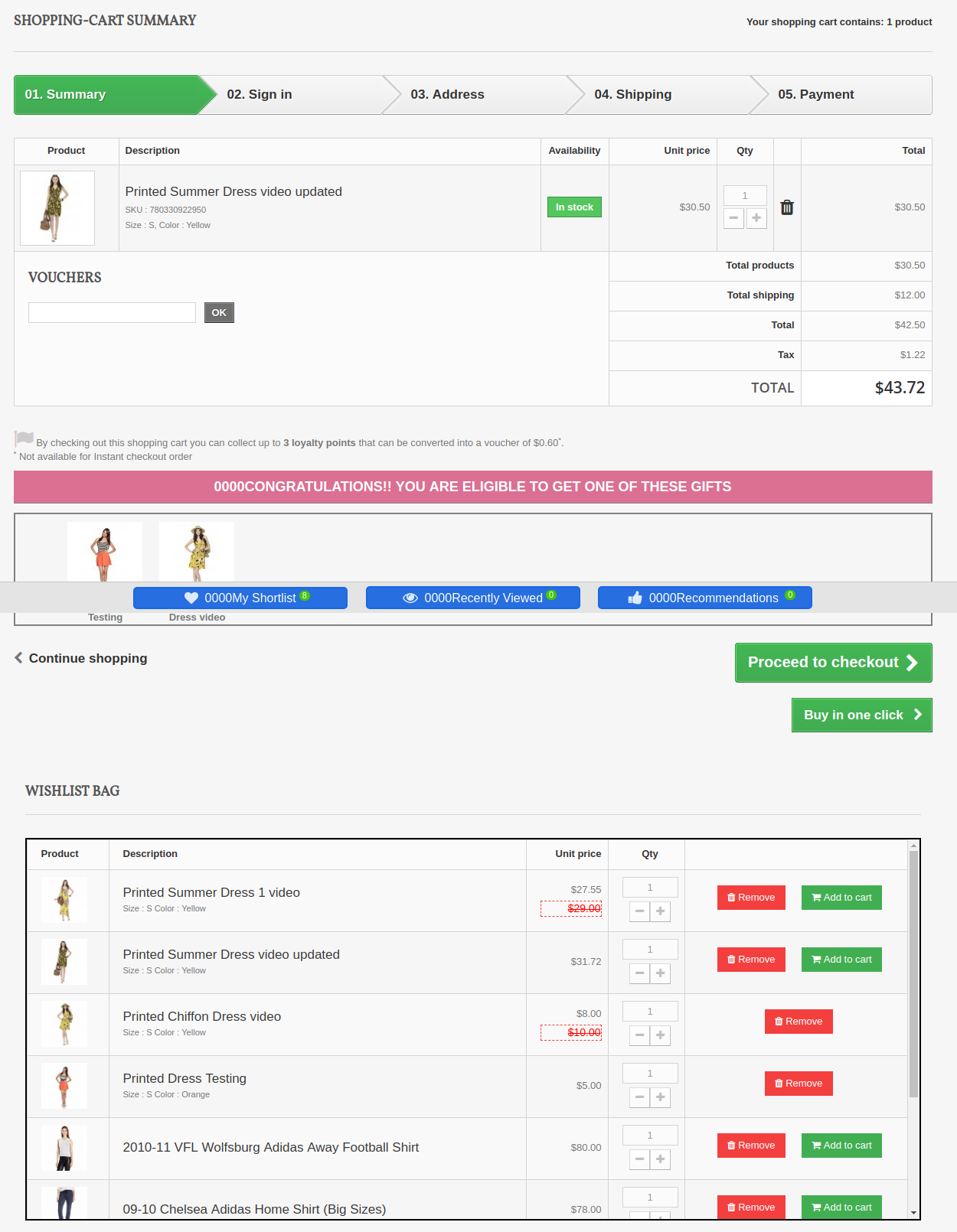
The online users can view wishlist on checkout page.
The online users get an option to move any cart product in wishlist:
Important Things
Refresh home page of your store every time you enable/disable plugin. If Prestashop favorite product list module is not working after installation then please check permissions on modules folder. The folder should be writable. Please make the folder permission to 755.
Before Installing Prestashop wishlist module, please check that Customer.php file already exists in root/override/classes/ folder. if yes, then Please remove it and clear the cache. We prefere that if exist, then please contact to our support to doing the same.
Now you can try Prestashop advanced wishlist addon by Knowband for on your Prestashop website. KnowBand Prestashop save for later addon helps you engage more customer to your store & increase the customer base.