How to Get PayPal Client ID and Secret Key?

In order to integrate Express Checkout with the REST API, a PayPal client ID that authenticates a merchant’s account with PayPal is necessary. A client ID can only be created by the account holder.

Ask the merchant to share their client ID with you if you’re a developer integrating Express Checkout on the client’s behalf. If the merchant hasn’t already done so, they must create a client ID.

Steps to find the PayPal ID and PayPal Client Secret Key:

1. Go to PayPal Developers Website home page.
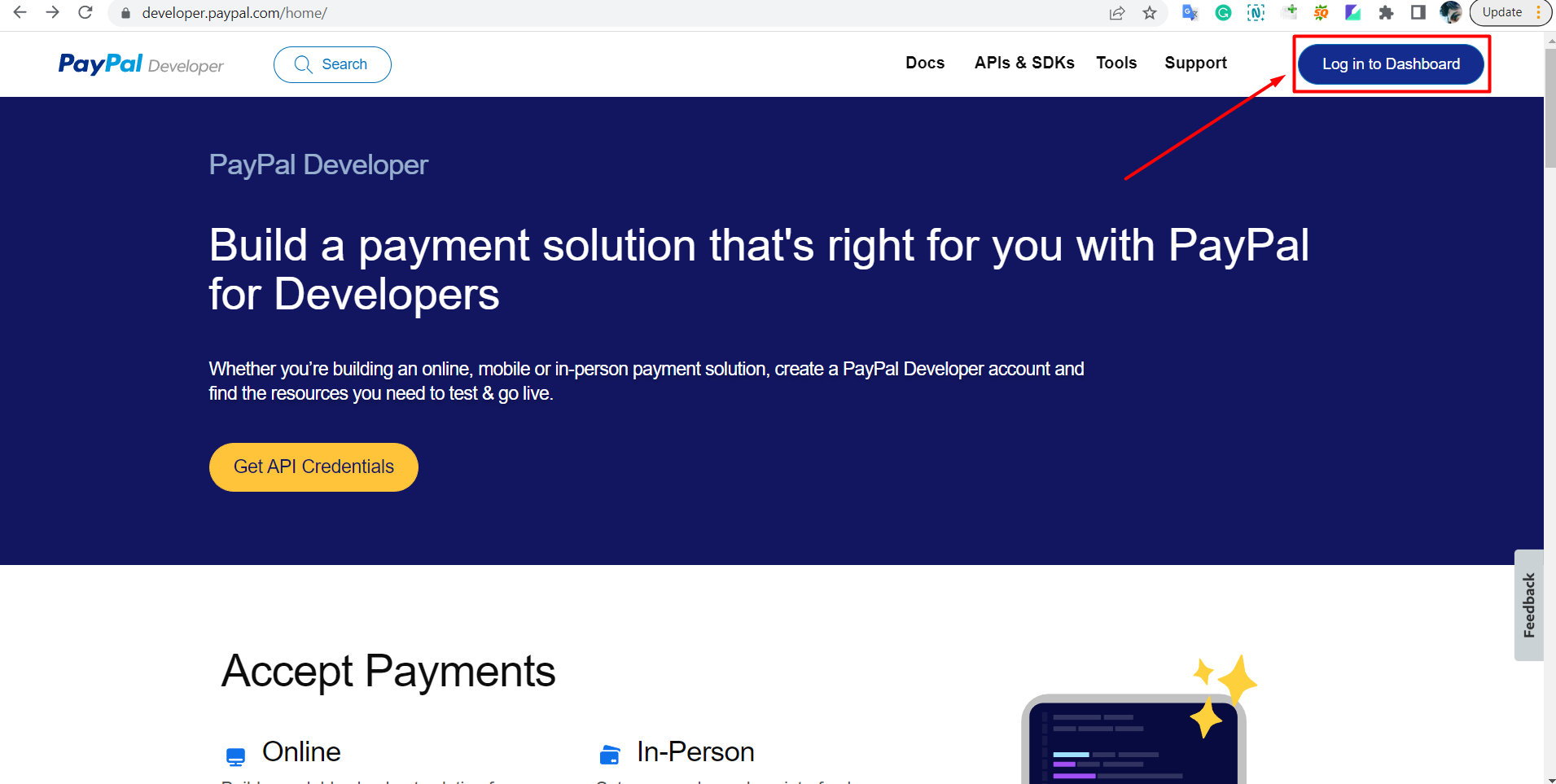
2. Then Login to the dashboard.
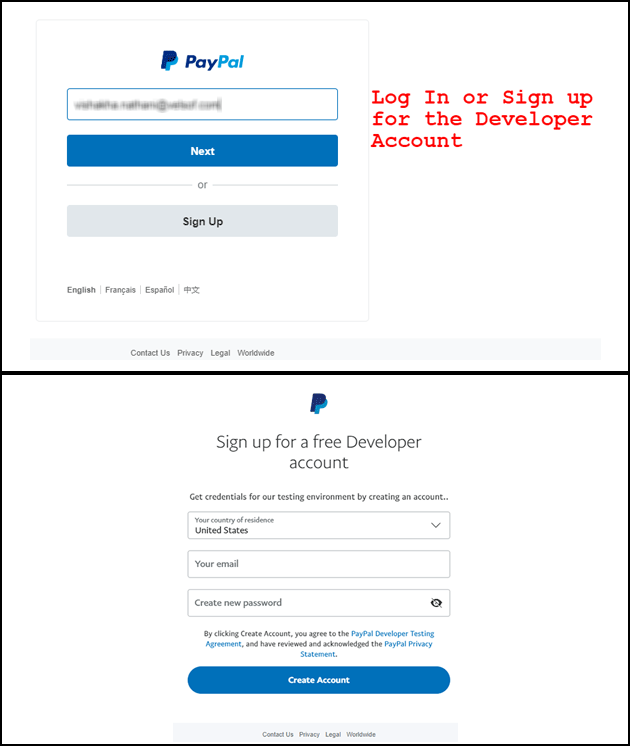
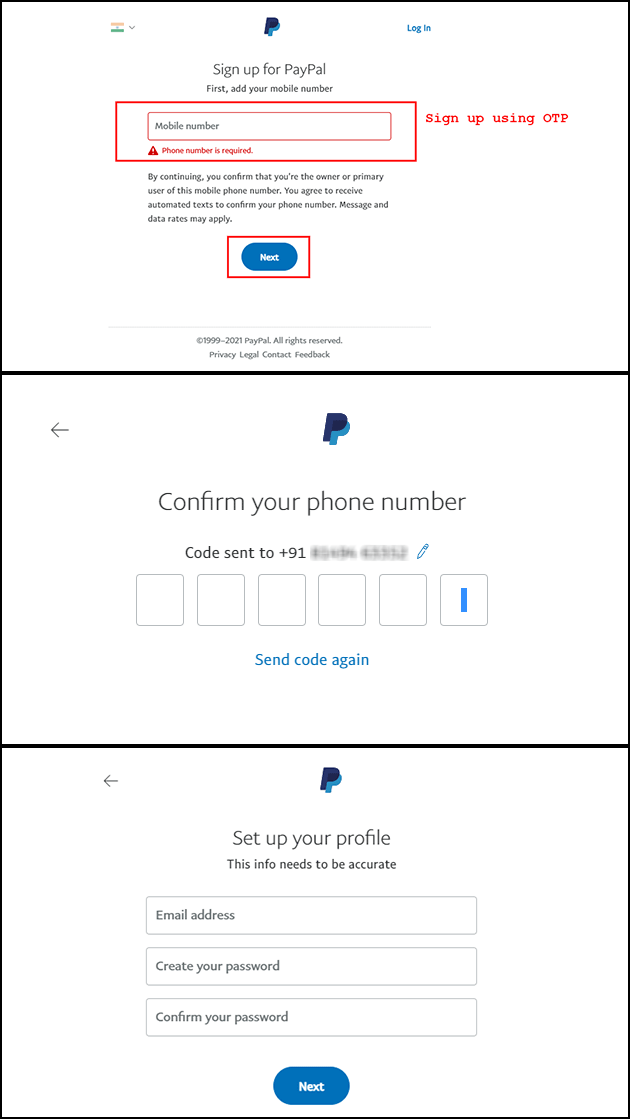
You can log in with your mobile number using OTP and set up your profile by adding basic details.
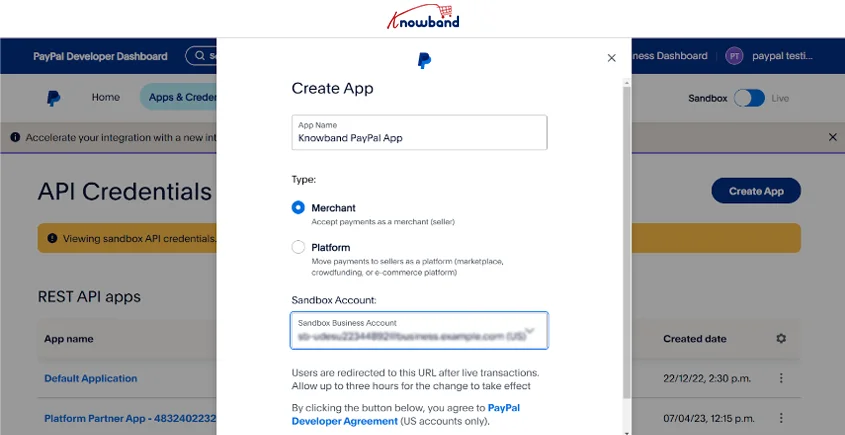
3. Go to “[Your Name]“, then go to “Dashboard” in the top right corner. You will get an option to “Create App“. Create your new app.
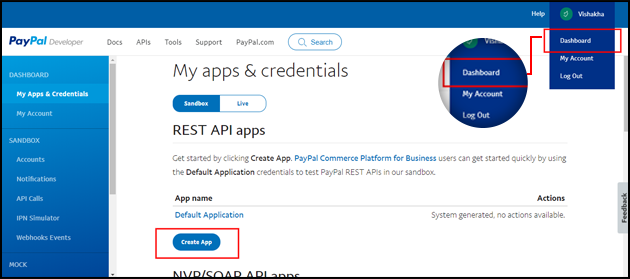
4. Fill in the details for the new app and create a new app. A new screen will open.
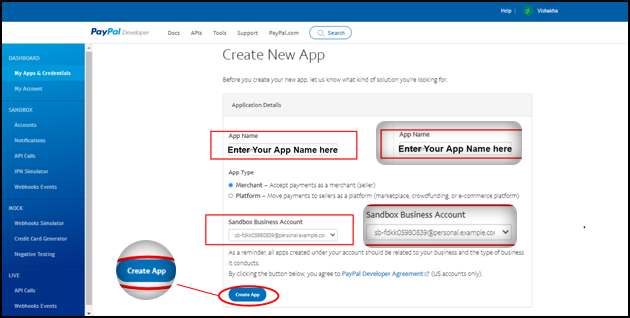

5. On the next page, you will be able to see your PayPal Client ID and PayPal Client secret.

Note: You will find Sandbox App settings and credentials on the same page.
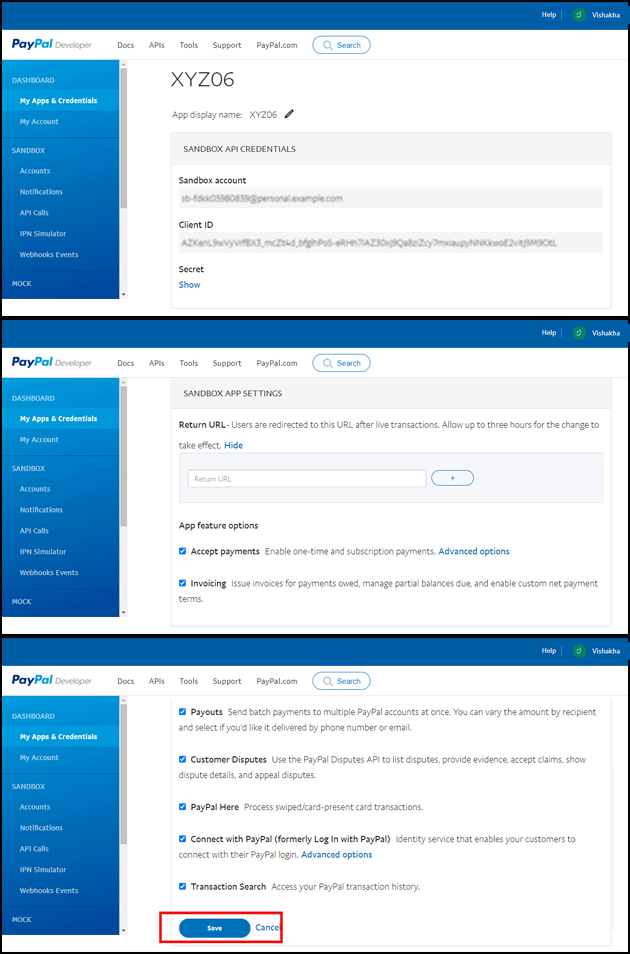

6. You have the PayPal Client ID and secret.

You need a developer, personal, or business account to access the Developer Dashboard, get credentials, and create sandbox accounts. Different levels of access to PayPal functionality are available with each account. On the My Account page in the Developer Dashboard, you can upgrade your account if you need access to a feature you don’t currently have.

Capabilities Developer Account Personal Account Business Account
Access sandbox x x x
Send and receive money x x
Go live x

You can use the Paypal Client ID with our One Page supercheckout Prestashop module and integrate the Paypal payment gateway and transform the standard checkout into an optimized, seamless, and feature-rich One page express checkout.
Prestashop One Page Supercheckout Addon

The Prestashop One Page Supercheckout addon by Knowband makes checkout faster and easier by putting everything on one page, helping to reduce cart abandonment.

SHOP NOW

Apart from it, along with Prestashop we offer One Page checkout modules for Opencart and Magento 2 eCommerce platforms. The One Page SuperCheckout Addon has over 15,000 downloads on the official addon store and is one of the top-selling extensions. On top of that, the module supports all the popular payment gateways and shipping methods, opening the door for endless customizations for eCommerce store admin. 

Having queries about PayPal payment gateway integration, get in touch with our support team at our email address support@knowband.com. 

You can also check out our top selling Module – Mobile App for PrestaShop

How to get PayPal API Client ID and Client Secret?

Paypal is one of the most popular and safest payment gateway interface used by millions of users across the globe. From business accounts to individual accounts there are a huge number of PayPal users everywhere.

Are you thinking about using PayPal as one of the social login options on your site?

You have come to the right place. This article aims to educate the readers about how to use PayPal as a social login option. To use PayPal social login, you need to install a social login module on your store. You can check out the modules available for PrestaShop, OpenCart, and Magento here.  After installing the module, you need the following PayPal API details to configure the social login.

  • Paypal Client ID
  • Paypal client secret

The steps to obtain PayPal API, Client ID and Client Secret are discussed below

Steps to get Paypal API, Client ID and Client Secret

Step 1: First of all, visit Paypal Developer Network, and on the screen that appears, Login to the dashboard.

After successful log-in, you will be able to access the dashboard. Click on Create App button.

Step 2: Here is “Application details”, enter the name of your Application and click Create App Button.

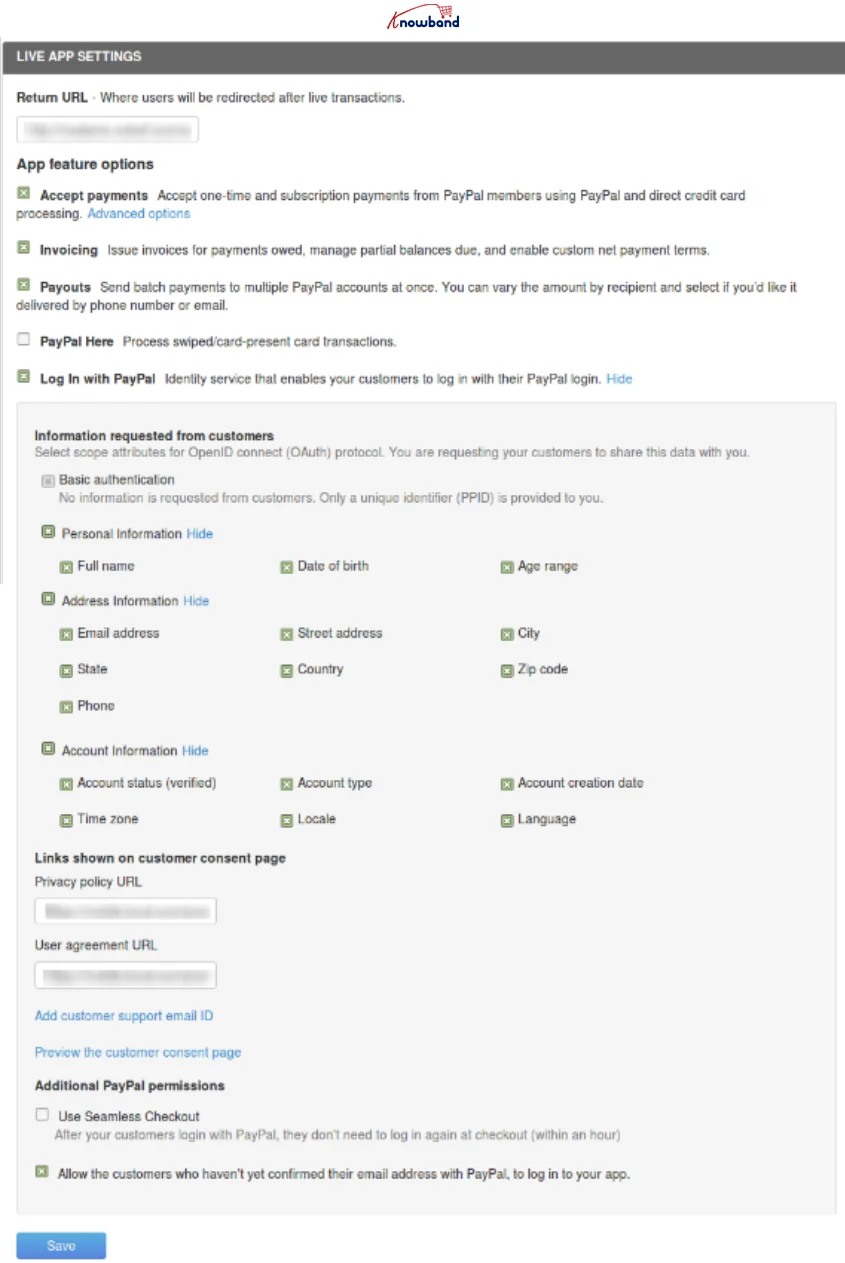
Step 3: Make needful changes and save the settings. You will get the Client ID, Sandbox account details, and Secret Key on the next page. Please don’t forget to select the Login with Paypal option also.


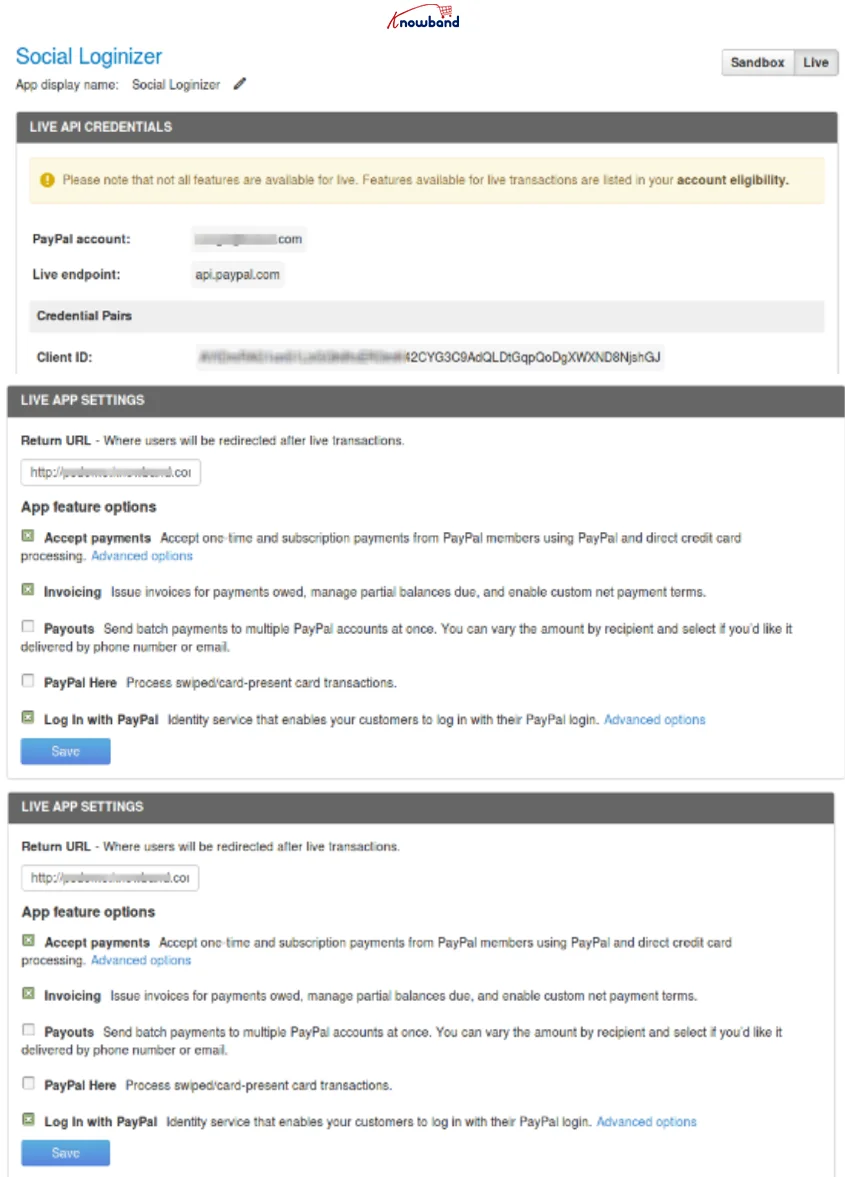
Step 4: Set App return URL (live) as plugin redirect page URL of your store. In case you are using our Social login module (PrestaShop, OpenCart, or Magento) with SEO Friendly URL for your store, then use this for redirect URL –

https://www.yourstore.com/module/socialloginizer/paypal

Otherwise, use this –

https://www.yourstore.com/index.php?fc=module&module=socialloginizer&controller=paypal

On this page itself, you will get the Client Id and Client Secret in LIVE API CREDENTIALS section. However, you cannot use them until you complete step 5.

Step 5: Make sure that the live APIs are selected in the LIVE APP SETTINGS tab completely as shown below:

Step 6: Now when you have correctly selected the live APIs, you can use the client secret and client ID to let your customers log in to your store using their PayPal account.

Just copy and paste these API details in specified fields of your social login module and save the configuration. You are ready to accept PayPal social login on your store. In case you are using our Social Loginizer module for PrestaShop, OpenCart, or Magento then the interface to enter the PayPal API details will look something like this.


Prestashop Social Loginizer Addon

Improve the user experience on your Prestashop store by enabling seamless social media logins with this excellent addon by Knowband.

SHOP NOW

Liked This? You’ll Like These Too