Ecommerce companies always look for options that can bring more and more sales. Store optimization for speed, engagement, customer acquisition, and retention rates are on the top of the list. To add to this, KnowBand launched a super easy-to-handle OpenCart plugin for Back-in-stock alerts and low stock notifications. The Back in Stock alerts notify customers about the subscribed products when they are available in stock and increase customer retention rate.
OpenCart Back-in-Stock plugin- Unique way to Capture Lost Sales
Does every customer like to receive emails from the eCommerce website? Is it worth sending alerts to all the customers visiting your store? Are your ongoing campaigns working well?
If your answer is ‘No’ for any of the questions asked, you must stick to this article and read further. Let me give you a brief about the plugin and how you can boost sales with this tool
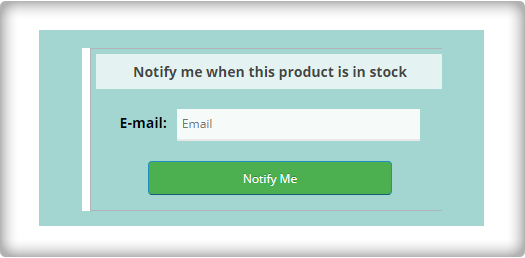
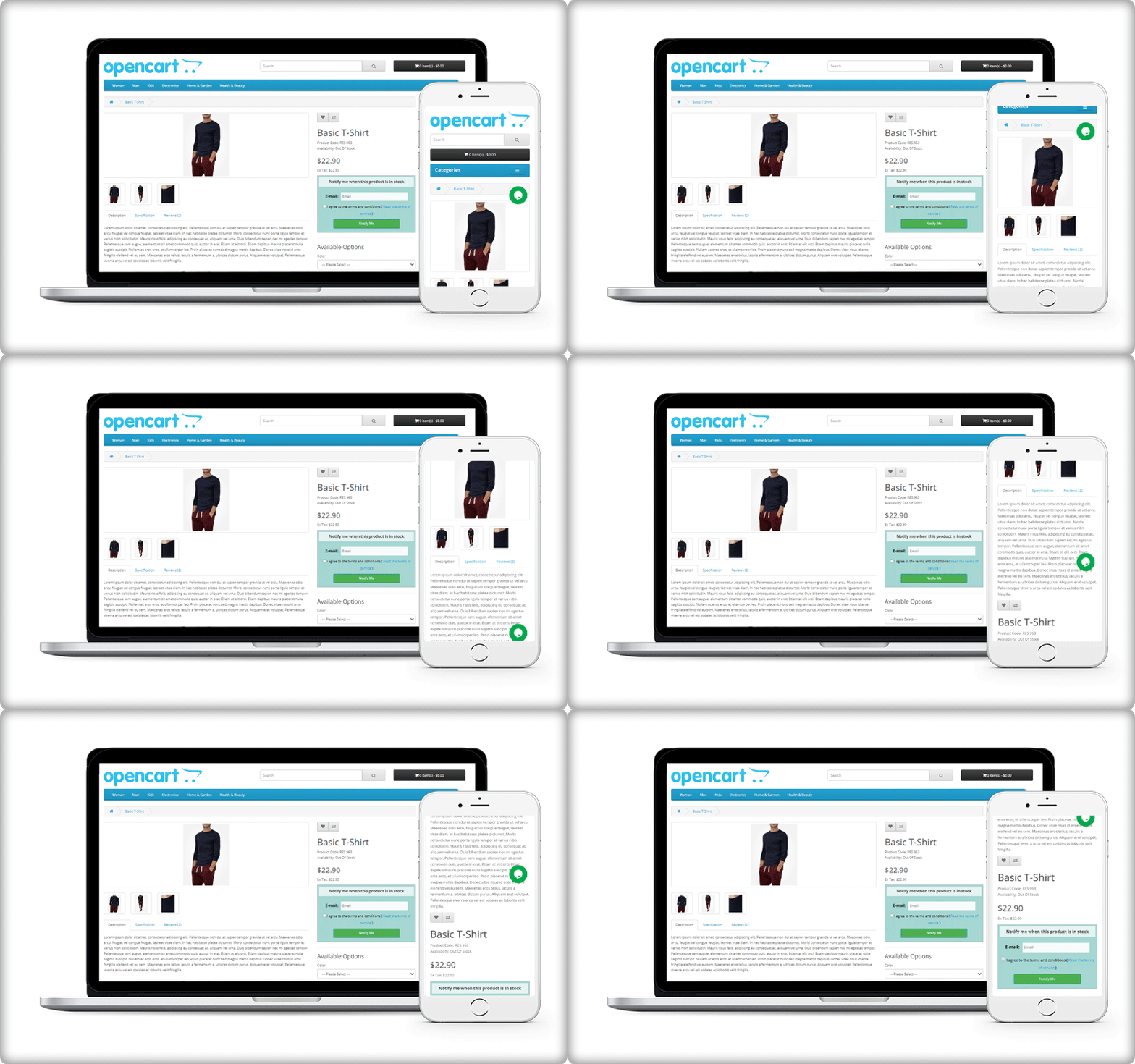
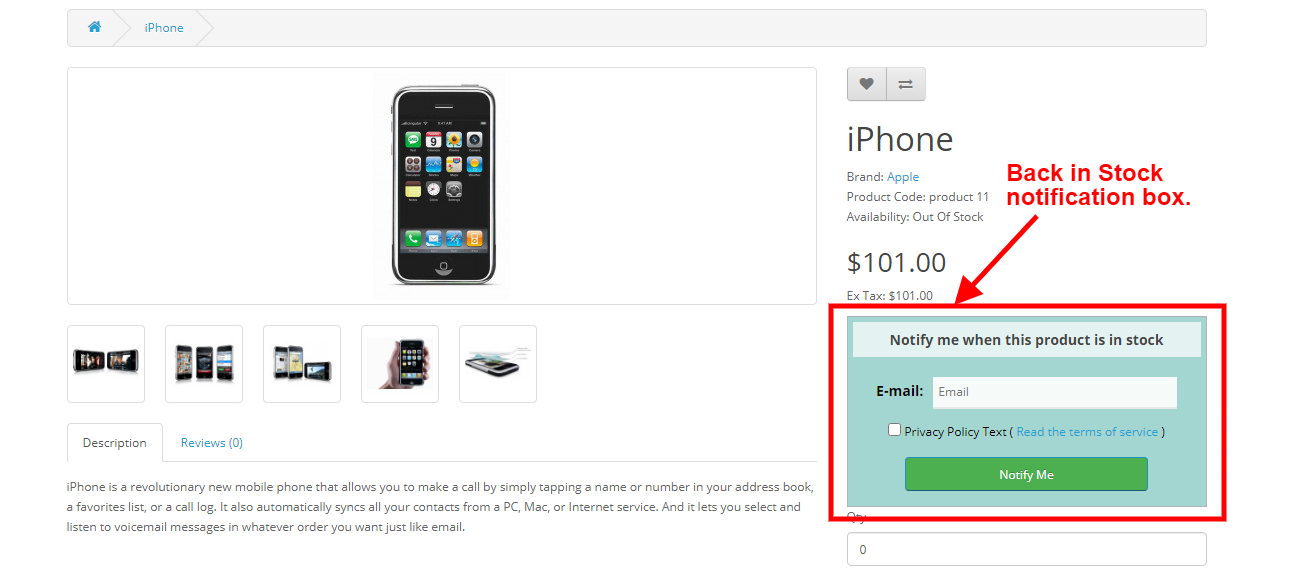
Display a subscription box on the product page
On your website, you must have added pop-ups for email subscriptions to grow your email list. But, it won’t tell you if the customer is interested in any particular product. For this, you can use the OpenCart Back-in-Stock plugin. With this, a customer can subscribe for back-in-stock alerts for a specific product on your OpenCart store.
OpenCart Back-in-stock alert is a 3-in-1 extension. It allows you to send alerts at three different points in time
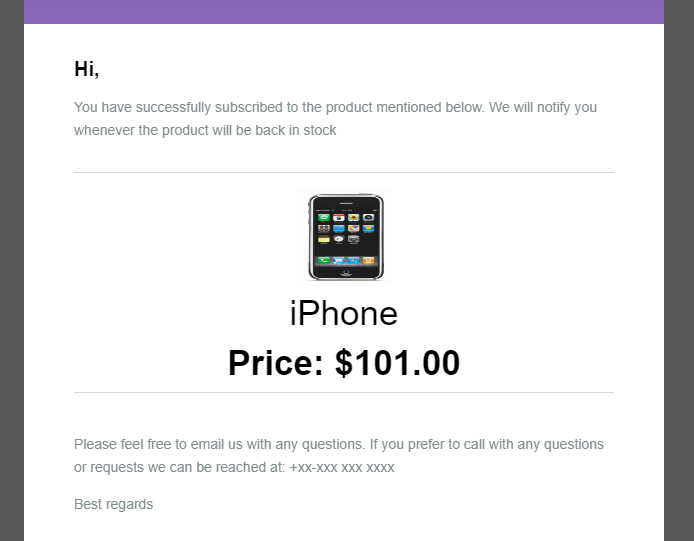
Send initial subscription email: As the customer subscribes to your custom alerts, you can send a customized welcome email with a text that states about the subscribed product.
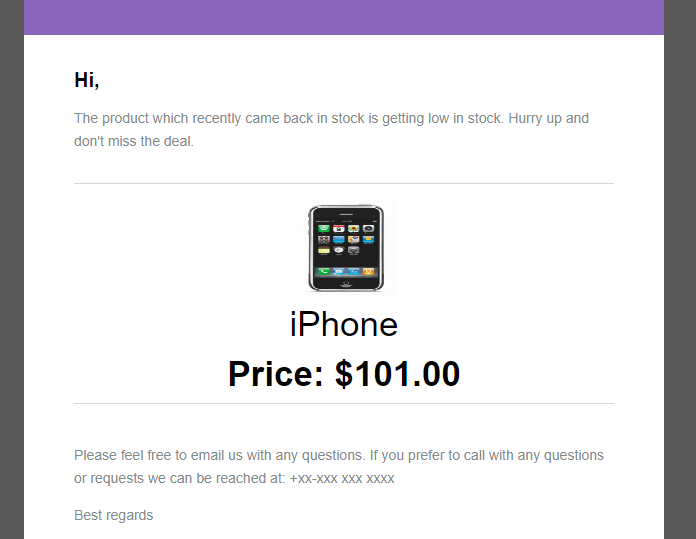
Notify customer with a low-stock alert: If the subscribed product is low in quantity, a low-stock notification will be sent automatically with the OpenCart Back-in-stock plugin.
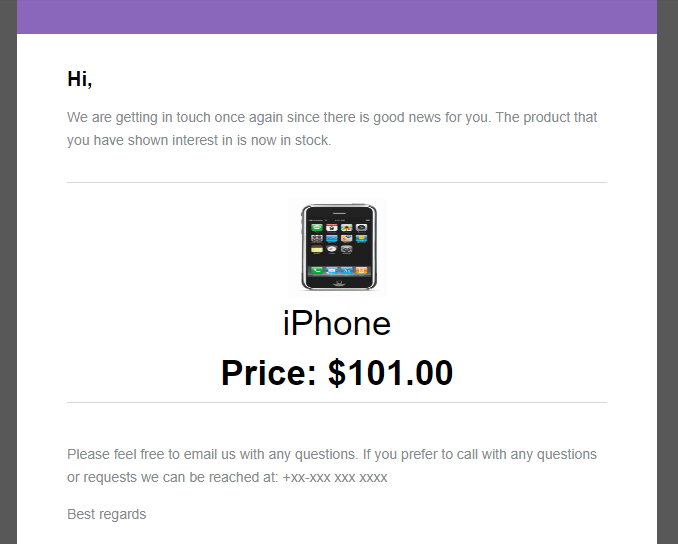
Send an email with ‘Back-in-stock’ custom text: The third email category is Back-in-stock. Make the best use of the OpenCart back-in-stock plugin when the product is again available in your store.
Auto-trigger Low stock and Back-in-stock alerts
Every time you send an email, there are chances that you miss out on some of the other details.
The OpenCart extension for low stock or back-in-stock allows the sender to save the default email templates. The template options are available for all three, the initial email, low-stock email, and the back-in-stock email.
In addition, it has cron functionality that sends your email alerts automatically to subscribers. For instance, set the low-stock alert quantity to 4, it will auto-trigger an email as the quantity reaches 4.
Real-time Analytics for Opencart
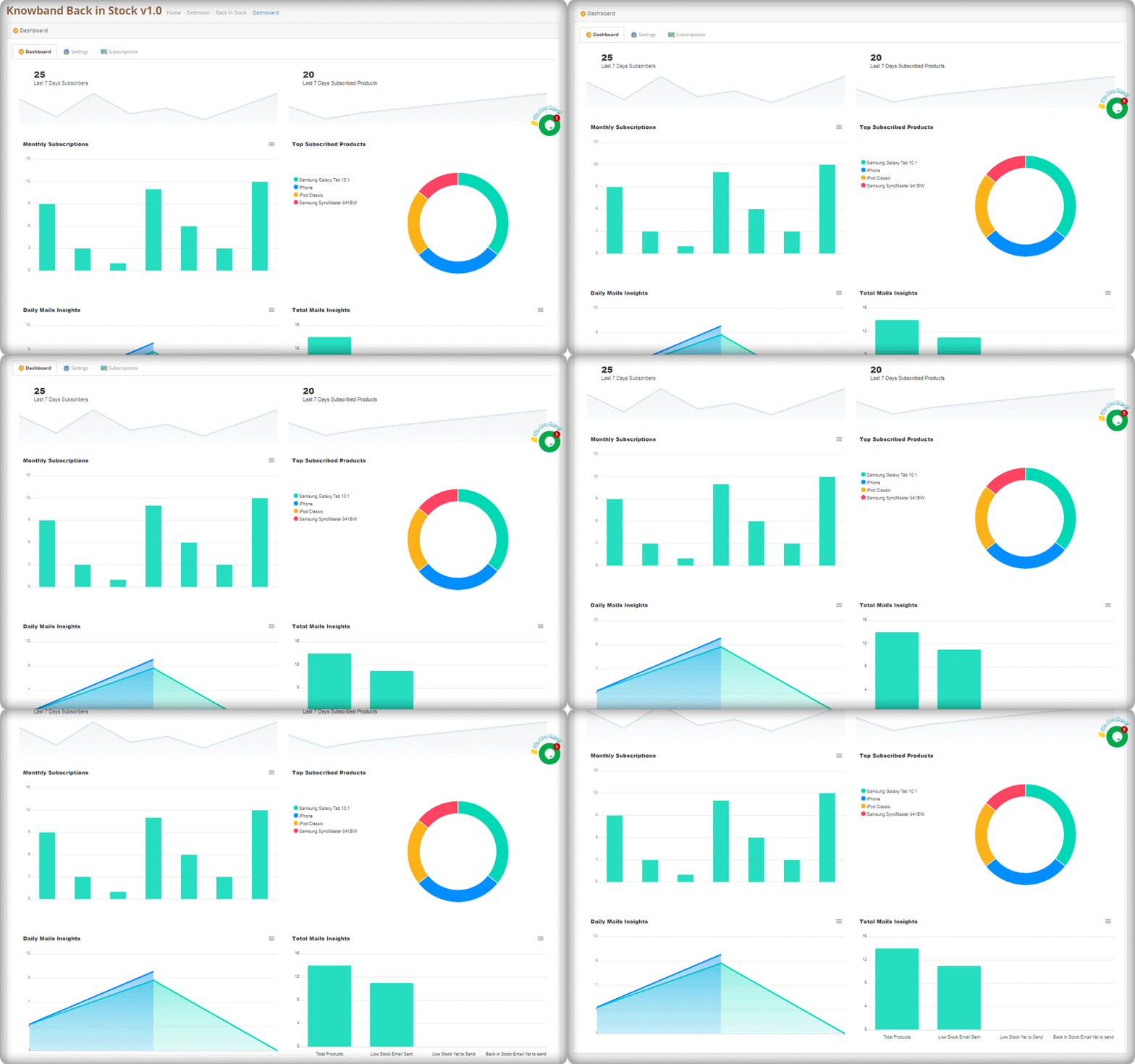
The best part of this extension is its analytical reports. Data gives you an insight into everything.
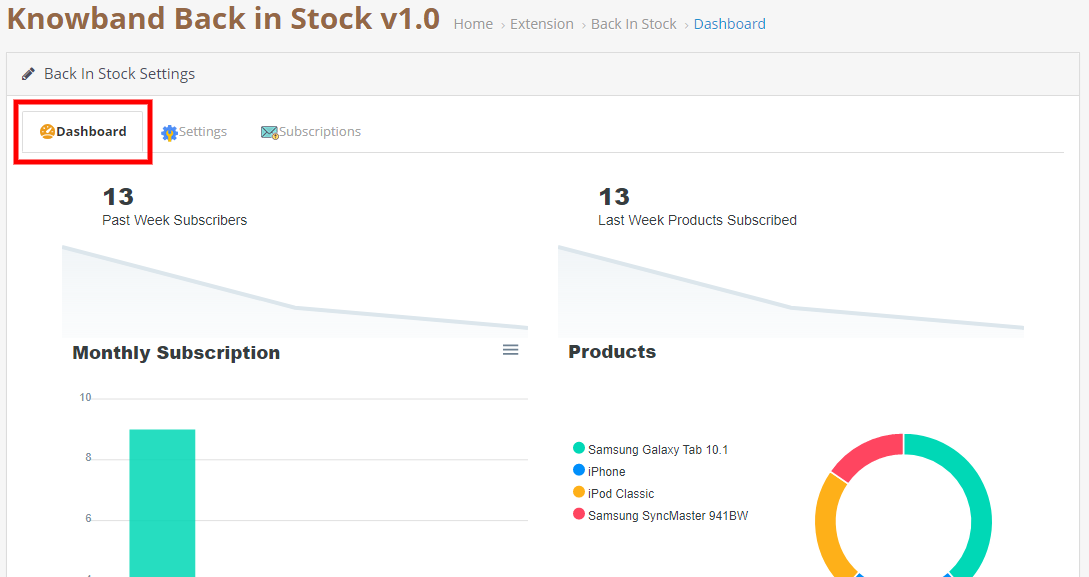
The graphical reports with pie diagrams display the number of subscribers (weekly), monthly subscription data, number of products subscribed, top subscribed products, and daily reports of the subscriptions.
The OpenCart Back-in-stock plugin gives well-analyzed reports. Anyone with or without an analytics degree can depict the results by looking at those colorful graphs.
Send alerts via your email provider like Mailchimp
Use this as an opportunity to run your email marketing campaign. The MailChimp synchronization with the module will build up your email list. Use this data for every other marketing campaign you run by email. Why just the stock alerts, but you can send welcome emails, discounted emails, abandoned cart alerts, and a lot more. If you haven’t started with email marketing, it’s time to buckle down.
This all-in-one email subscription and back-in-stock alert extension is a must-have for every OpenCart eCommerce store. You can send as many alerts as you want! Create customized templates for email and the product page subscription block. Customers won’t miss out on their favorite products and the merchant won’t lose any sales.
If there’s a feature you desire on your OpenCart site, there’s a good chance an Opencart plugin will let you achieve it; if you can’t find one, you can always contact us for custom plugin creation.
Online shoppers get disappointed when the product they are looking to purchase is out-of-stock. This majorly happens during the launch of a smartphone when it gets out of stock even before the user has added it to his cart. Furthermore, if the shopper is not notified, when the product comes back in stock, the store owner can lose that sale. Hence, this problem can be solved with the help of the simple Back in Stock notification with the OpenCart Back in Stock Extension by Knowband.
1.0.1 What is Back in Stock notification?
A back-in-stock notification is an email that is sent to those users who have subscribed to receive updates regarding an out-of-stock product. When the product is back-in-stock, the shoppers are informed via email about its availability so that they can purchase it as soon as possible or before it goes out of stock again.
Many of the users can miss out on the purchase if they aren’t notified and this eventually leads to some lost revenue.
The sole purpose of the back-in-stock email is to boost your sales. Besides, it helps you drive huge traffic to your website, encourages customer retention, helps you understand the touchpoint of your customers, and builds a strong connection between the brand and the consumers.
To save these missed out sales and make the shopper buy the product when it comes back in stock, You need to mail every shopper which will take a lot of time and effort.
Hereby, the OpenCart Back in Stock Extension will simplify this for you. This module allows the Admin to view all the customers who have subscribed to the product and can send the back-in-stock email accordingly. The admin can also create, edit or use the default email template for notification. The Admin can also choose to whether send a Low Stock Alert email or not via this module.
1.0.2 How does it work?
The working of the OpenCart Back in Stock module is explained by the following points.
If the shopper visits a product page where the product is out of stock, The user will be shown a Back in the Stock box where the user can add his/her email id to get subscribed to that product.
Once a product is subscribed it will be shown to the Admin, Where The Admin can see who and which product has subscribed and whether the email is sent to them or not.
Admin can manually run or schedule the cron file to send the Back in Stock email. The cron file will automatically send the email to the users who have subscribed to the product. It will also check whether the email is not sent to the user already to prevent spam.
If the Admin has enabled the Low Stock Alert functionality, Then Admin can also send the Low Stock alerts via Cron file using a similar process.
1.0.3 Salient Features of the OpenCart Back in Stock extension
The online merchant can use this OpenCart Back in Stock module for sending email notifications of the product back in stock to those users who subscribed for the same.
Admin can enable privacy policy settings and apply the related configurations from the admin interface of this OpenCart Back in Stock module.
In OpenCart Back in Stock module, the online users have an option to view the subscribed products list.
The online merchant can also send low stock alert notifications to the subscribers for the subscribed products.
OpenCart Back in Stock module allows adjusting the color of the notification box as well as the background color of the heading using the color picker tool.
Admin can also enter the custom CSS and JS code for the advanced look and feel management.
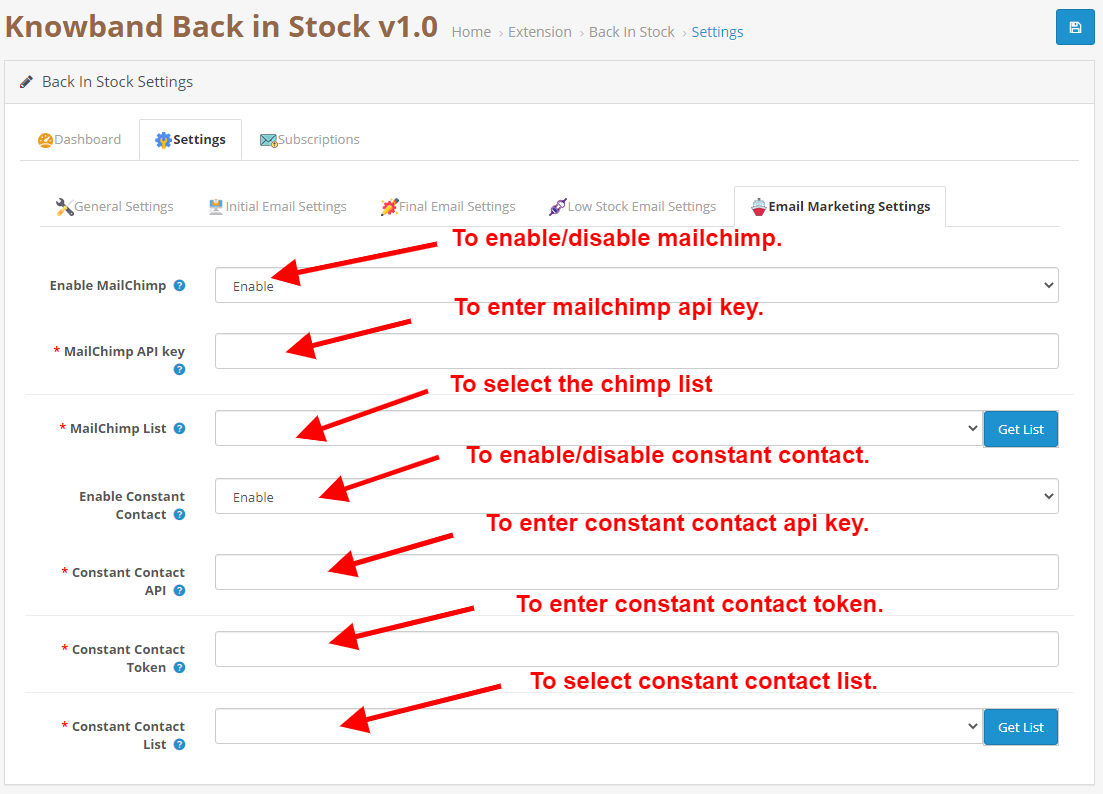
The Admin can integrate Mailchimp, Constant Contact email integrator for creating a list of customers for email marketing activities in the future.
The store admin can view a list of highly demanded products from the dashboard section.
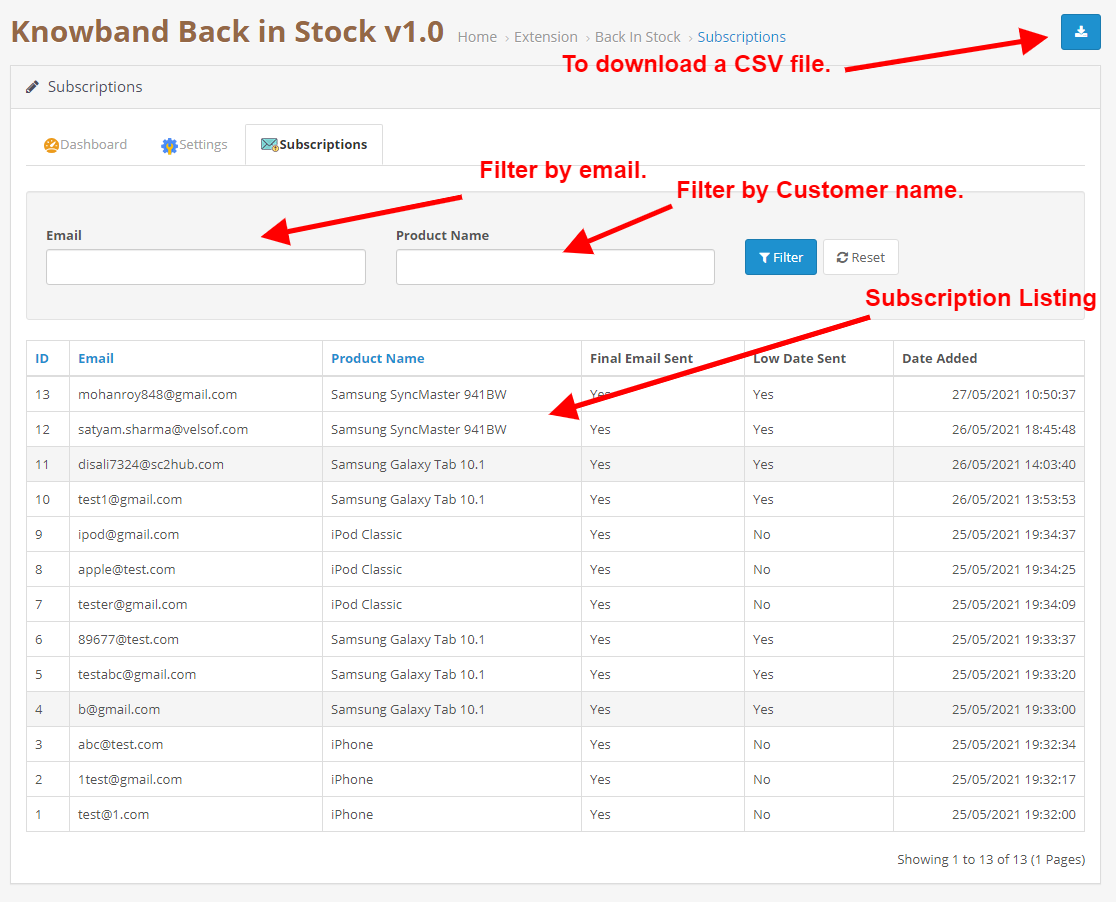
The Admin can download the subscriber list in CSV format from the subscriptions tab of the Back In Stock Module.
The OpenCart Back in Stock module offers multi-store and multi-lingual support.
OpenCart Back in Stock module Admin can share subscribed products, in stock, and low stock updates via email. The Admin can easily customize the subject and body of the emails.
2.0 Installation Guide
Once purchased, you will receive the following files in your registered email.
Source code of OpenCart Back in Stock module in zipped file format.
User Manual of OpenCart Back in Stock module.
Now to install this on your OpenCart Store, follow the given steps:
Unzip the zip file. You will get the folders as shown in the image below
Now choose the OpenCart version according to your store and open that specific OC folder. After opening it you will see the following content.
Copy and paste the content inside the upload folder inside your Opencart store folder.
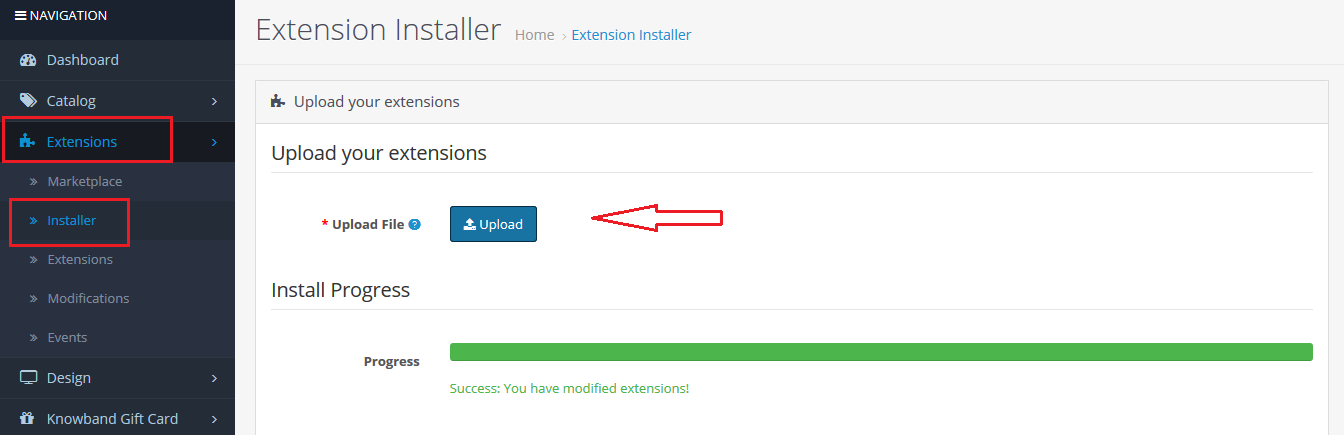
Go to Extensions and then Installer. From here, you can upload the ” kbback_in_stock.ocmod.zip” (for OC3.0.x) file and install the extension.
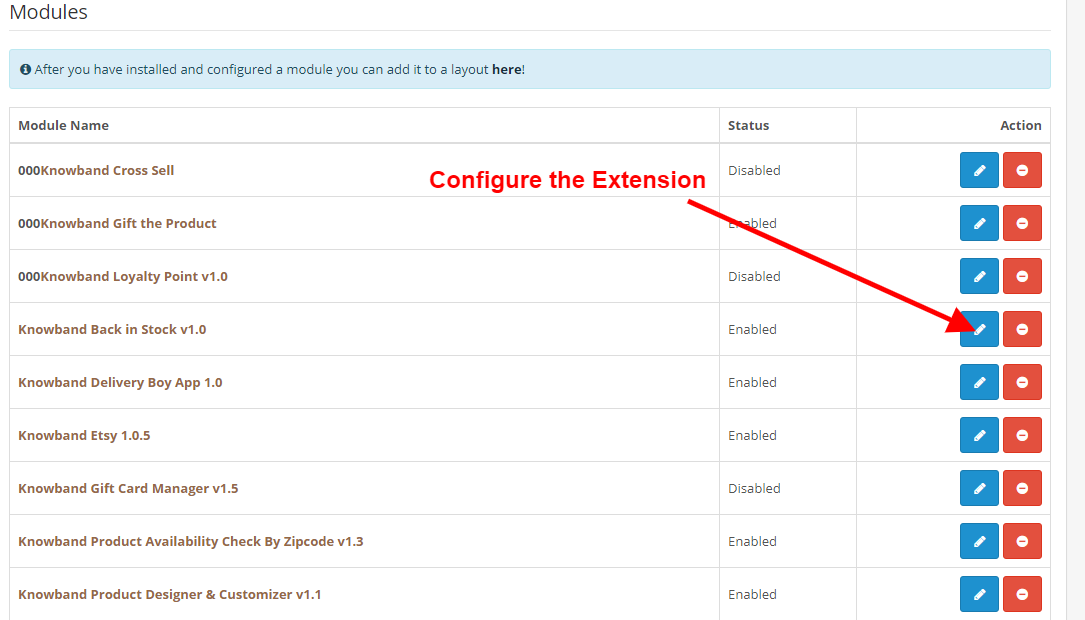
So, Opencart Back in Stock Extension is now successfully installed and is ready to use at your store. Go to the admin menu and click on the extensions. Choose the Extension Type as Modules. You will find a list of modules. Select the Knowband Back in Stock.
3.0 Admin Interface
The Admin Interface of OpenCart Back in Stock extension includes the following main settings:
Dashboard
Settings
Subscriptions
3.0.1 Dashboard
This tab is used to display different types of graphs which can be used to analyze which products are most subscribed, past week subscription, etc.
3.0.2 Settings
This tab consists of all the module configurationally settings.
3.0.2.1 General Settings
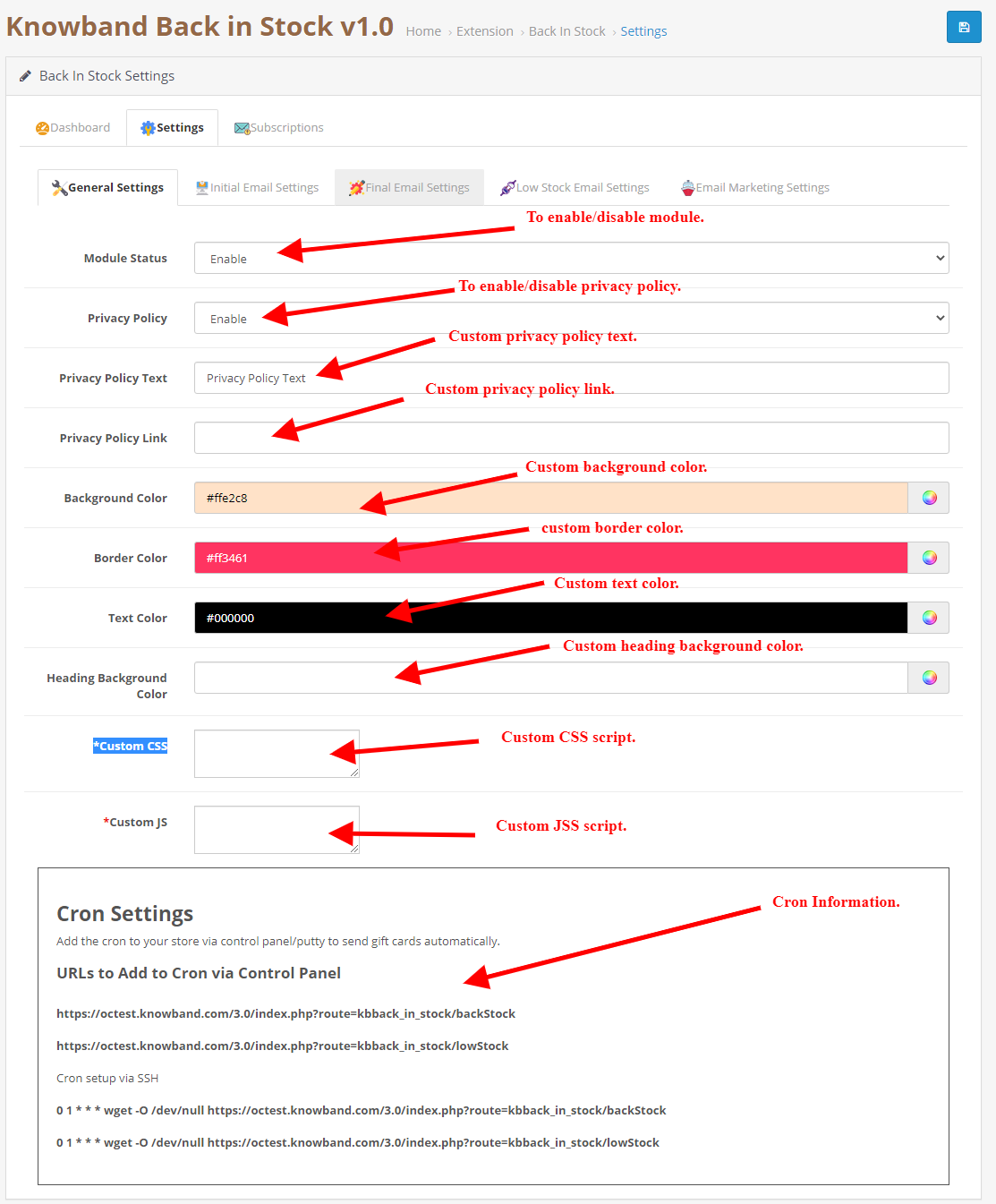
Enable/Disable: Initially, this field of OpenCart back in the stock module by Knowband will be “OFF”. Admin can enable/disable the Opencart module by turning ON/OFF in this setting.
Privacy Policy: Enable this toggle button to display the privacy policy option at the front end. The Privacy Policy will be shown at Notify Me block.
Privacy Policy Text: The admin can enter the desired text for a privacy policy. The text can be changed whenever needed.
Privacy Policy Page URL: The admin can easily set his choice of URL to the privacy policy.
Background Color: Initially, this field of our module will be filled with some default values. Admin can change the background color of the subscription box by picking the color from the color picker that will be reflected on the front end of the OpenCart back in the stock notification module.
Border Color: Using this option of the OpenCart back in stock notification module, the admin can set the border color of the subscribed box using the color picker.
Text Color: This field of OpenCart back in the stock module allows the admin to change the text color of the notify box.
Heading Background Color: This field of OpenCart Back in Stock Extension allows the admin to change the Heading background color of the notify box.
Custom CSS: This option of the OpenCart stock alert module allows the admin to write their CSS as per requirement and will be reflected in the front end of this OpenCart module.
Custom JS: This field of OpenCart Back in Stock Extension allows the admin to write their JavaScript as required.
3.0.2.2 Initial Email Settings
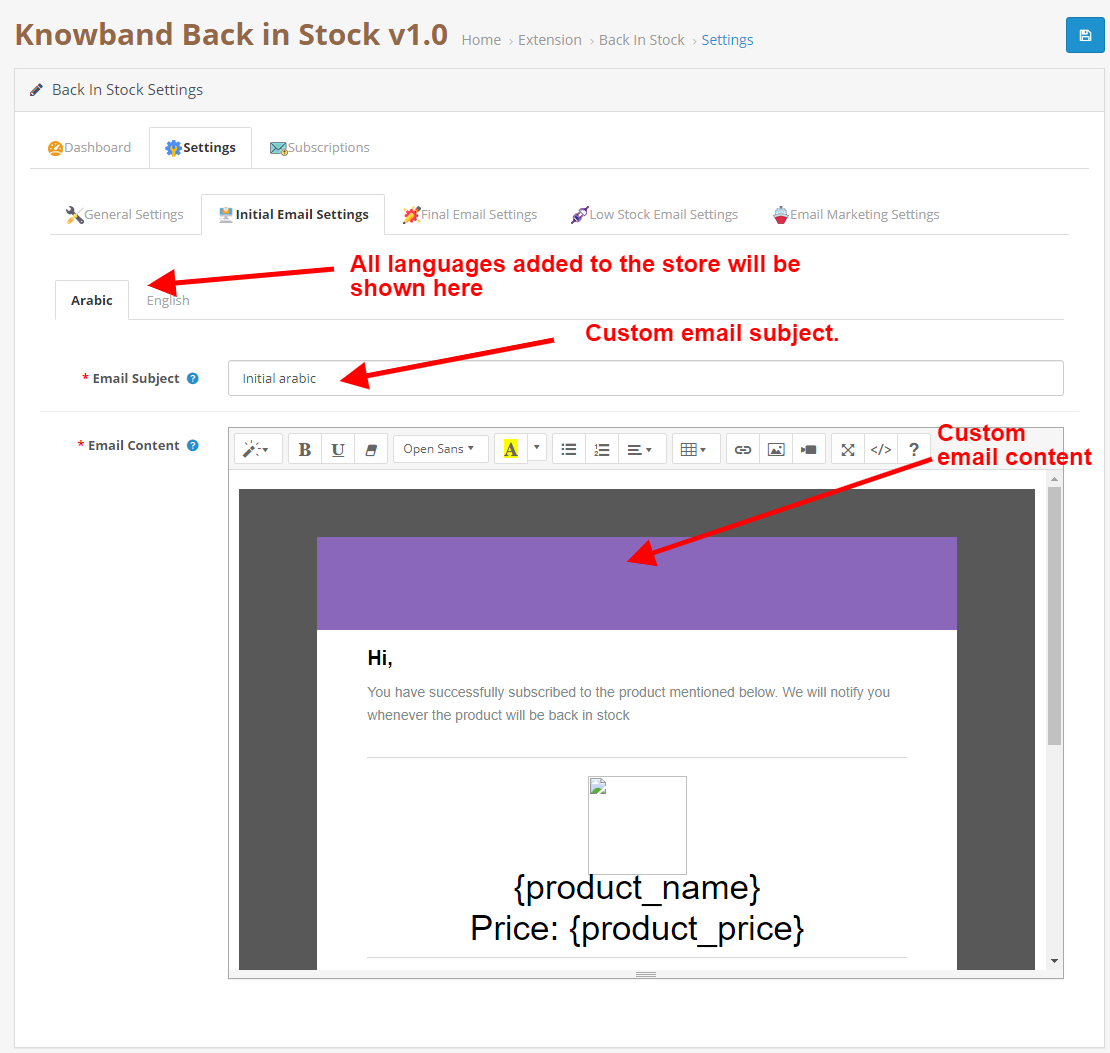
In this tab, you can configure custom subject and content for the initial email which will be sent to the user for subscription confirmation.
3.0.2.2 Final Email Settings
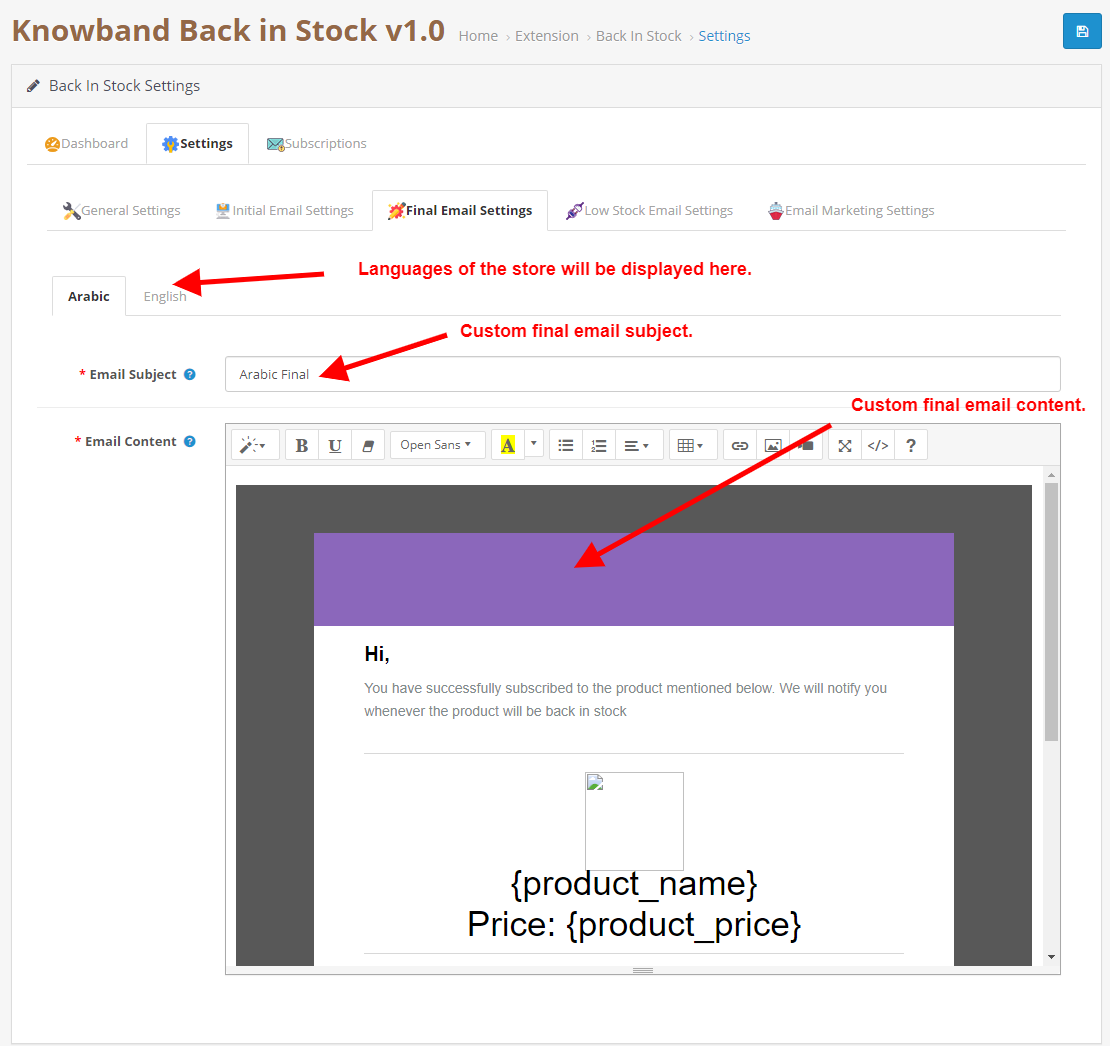
In this tab, you can configure custom subject and content for the final email which will be sent to the user when the product comes back in stock.
3.0.2.2 Low Stock Email Settings
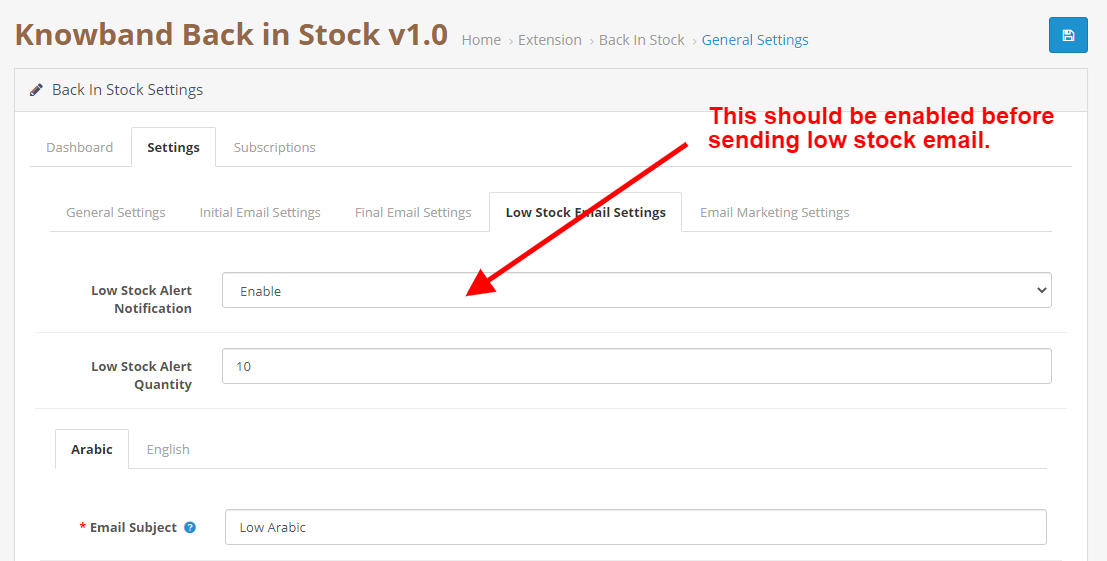
In this tab, you can configure enable/disable the low stock alert functionality. You can also configure the custom subject and content for the low stock alert email which will be sent to the user when the product goes low in stock than the specified quantity.
3.0.2.3 Email Marketing Settings
To enable/disable the Mailchimp/Constant Contact functionality this tab is used.
3.0.3 Subscription
This tab contains the list of all the subscriptions and It also contains a button that is used to download the CSV file for the subscriptions.
3.0.4 Useful Cron Instructions
3.0.4.1 Reasons/Cases when the email is not sent to the customers
Low Stock Alert not sent.
Check the product quantity if an email is not sent for a particular product, The product might still be out of stock (quantity = 0).
If you have not set up the Cron properly or if the Cron is not working.
3.0.4.2 Types of Crons
Two types of cron can run according to Admin con settings.
Cron to send Back in the Stock email: This is used to send the back in stock emails to all the customers in the list of the subscription if they did have already sent them back in stock for the same product.
Cron to send the low stock email: This cron will send the low stock alert email if it is enabled from the settings tab. It will check the quantity of the product is lower than the specified quantity in the module settings and If the back-in-stock mail is already sent to the customer then it will send low stock alert mail.
3.0.4.3 Procedure to configure CRON job
What is a cron?
A cron is a service that allows a user to automatically execute a script at a specific time.
For example, you can set a particular PHP script to be automatically executed every day at midnight.
Add the cron to your store via control panel/putty to send reminder mail automatically.
The online users can view an out-of-stock product notification box on the product pages which are out of stock and they can share email id for notification. The subscription block of the OpenCart Back in Stock module would appear as follows:
4.2
When the customer enters the email id and clicks on the button notify me the initial mail is sent to the entered email address and the message showing subscribed.
4.3
OpenCart Back in stock module will prevent the customer from subscribing to the same product twice. It will display an “already subscribed” message on the front end of the store.
4.4
The users can get an email notification when the product is available in stock.
4.5
They can also view a low stock alert email for the subscribed product in the case of running stocks.