An increase in abandoned cart rates can have a negative impact on your business. Usually, an abandoned cart happens when the client adds an item to their cart as well as does not purchase it. For instance, the client may want to purchase, however, the high shipping cost does let him or her do that. As a result, this leads to cart abandonment.
What is the reason behind the high cart abandonment rate?
The reasons that can cause a high cart abandonment rate are listed below:
Lack of trust
One of the biggest drawbacks of an online store is that you cannot hold your product physically. Moreover, you can identify the quality of the product you are purchasing. Furthermore, shoppers cannot try them as they hand over their hard-earned cash. Hence, this situation has somewhere led to an equal increase in fraudulent activity. If you can’t get your online shoppers or store visitors to trust your business, they are likely to abandon their carts.
Unexpected shipping costs
Another common reason for users abandoning the cart is higher or unexpected shipping costs. This has to do with something called price shock i.e. learning about hidden costs. For instance shipping, taxes, and other fees, etc. However, there is a way of minimizing price shock, a very good way and that is displaying shipping costs on product pages. This also creates transparency between your store as well as customers. Moreover, this does not lead to abandoning carts because they don’t have to face unexpected costs that have been added to the checkout process.
Pricing
Online shoppers are a very picky bunch. The word picky means liking specific things and are difficult to please. Furthermore, online shoppers can and will compare your prices with just a click of a few buttons. Buyers can compare prices with their competitors. And if they find a special deal elsewhere, in no time they will purchase it.
Like we mentioned before, shipping rates, import taxes, as well as unforeseen costs can lead to a price shock situation that can again give birth to the situation of cart abandonment.
How to solve cart abandoned rate issues?
Being a store merchant you need to look for different ways for solving cart abandoned rates. If we talk about solving the trust issues, being a merchant you need to use high-quality images, good copywriting, and need to go for lots and lots of social proof. You can even display social proof on your website.
Another solution is, using Knowband abandoned cart modules which can do all the work needed to solve this problem for you. And according to us, using Knowband plugins is the best solution.
Why Knowband?
Knowband is known for providing efficient plugins for different eCommerce platforms. Including Prestashop, Opencart, WooCommerce, and Shopify. Keeping the requirements, Knowband offers plugins for enhancing the functionality of your store.
Knowband modules for resolving abandoned cart issues
Module 1: Prestashop Abandoned Cart Addon
Store owners having their eCommerce store on Prestashop can opt for Prestashop Abandoned cart addon. By regular email follow-up, the module helps merchants to convert these abandoned carts into sales. Furthermore, the module is very effective when it’s about reducing shopping cart abandonment.
Features:
Analyzes the behavior of the online shoppers as well as tracks as well as marks the abandoned carts on the online store.
Permit admin to modify the follow-up email templates.
Allows the merchant to create new templates as many as he/she wants from the admin interface.
Offers discounted and non-discounted email templates.
Allows admin to highlight an attractive discount and coupon code in the email.
Module 2: Magento 2 Cart Serial Reminder
Want to recover all the customer’s forgotten carts? Magento 2 Abandoned cart extension by Knowband helps you with that. The module even allows your customer to finish their order by clicking the cart link in the reminder email. Furthermore,Magento 2 abandoned cart reminder encourages the consumer to return to the store to simply complete their pending checkout.
Features:
Automatically sends reminder notifications to the customer who forgot to complete checkout successfully.
Allows creating unlimited email templates for customers according to the conditions of their abandoned cart.
Tracks pending or abandoned carts on the store after customers add a product in their cart and exit.
Helps scheduling the timing of Cart Serial Reminders from the backend.
Offers flexibility to send a custom email notification to customers.
Offers flexibility to send customized email notifications to customers with or without discount coupons.
Module 3: OpenCart Abandoned Cart extension
With the assistance of the OpenCart Reduce Abandoned cart extension, merchants can significantly see the reduction in your shopping cart abandonment rate. Moreover, by sending reminder emails, you can follow up with those prospects who have abandoned their shopping cart because they were unable to complete their transaction.
Features:
Helps merchants to track and recover abandoned carts on their site.
With regular email follow-ups, convert abandoned cart users into customers.
Allows admin to analyze the cart of the store visitors as well as send them reminders via email.
Cart Abandonment is the primary concern for every eCommerce retailer. And in the online world, it is something that you have to deal with. It cannot be eradicated no matter how many efforts or techniques you apply.
However, many modules or plugins help website owners to reduce the cart abandonment rate on their website. One such module is the Abandoned Cart module by Knowband.
If you have a website on the Magento 2 platform and looking for some of the best Magento 2 Abandoned Cart extensions, Knowband’s Abandoned Cart extension for Magento 2 will probably put an end to your search.
1. Option to mark a cart as abandoned after a certain time
2. Auto-email functionality
3. Multiple email templates
4. Send discount and non-discount emails
5. Track Abandoned Carts
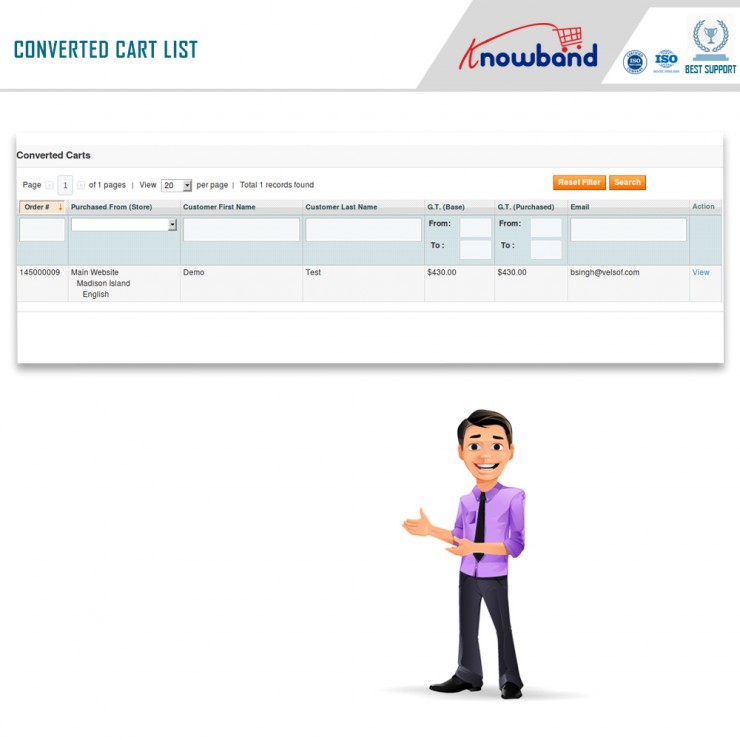
6. View Converted Carts
7. Abandoned Cart Analytics
8. Test mode functionality
Features of Magento 2 Abandoned Cart Extension [Detailed]-
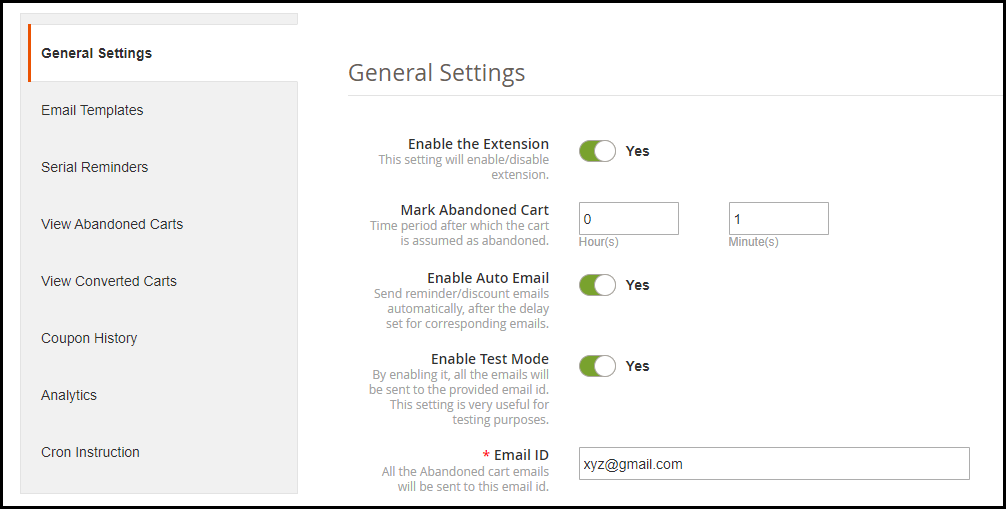
1. Magento 2 Abandoned Cart extension lets you specify a time period after which a customer’s cart is automatically marked as abandoned. For example, if the duration is set to 1 hour, then after 1 hour it will be added to the abandoned cart list.
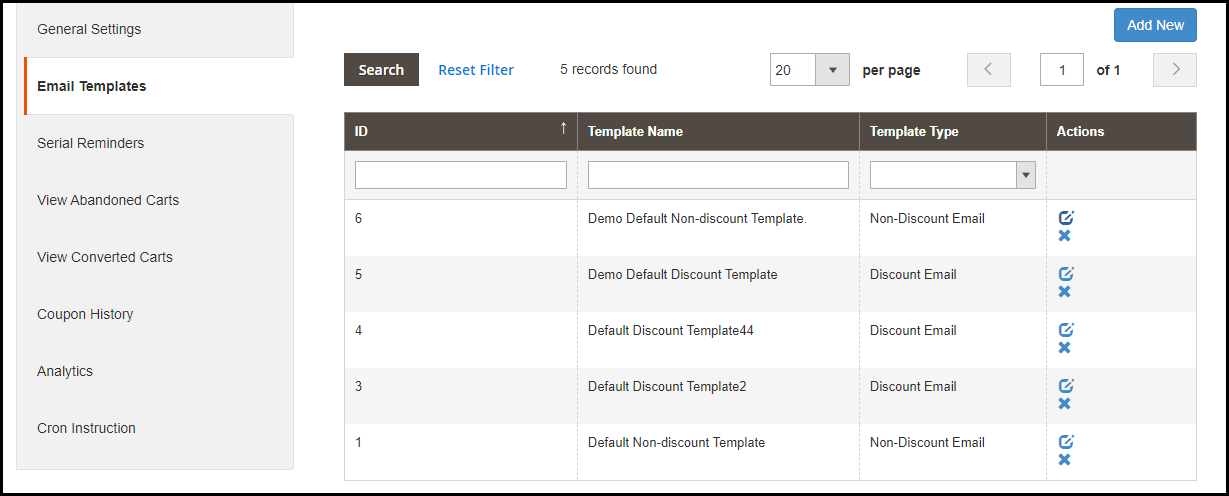
2. The Magento 2 follow up email extension offers multiple pre-existing email templates and you can also create new ones or customize the existing ones. For every email template, you can specify the template type whether it should be a discount email or a non-discount email. The latter is simply a reminder email where a user would be reminded about the pending items in his cart whereas the discount email contains a coupon code inside the email content which a user can claim to get discount on his left purchase.
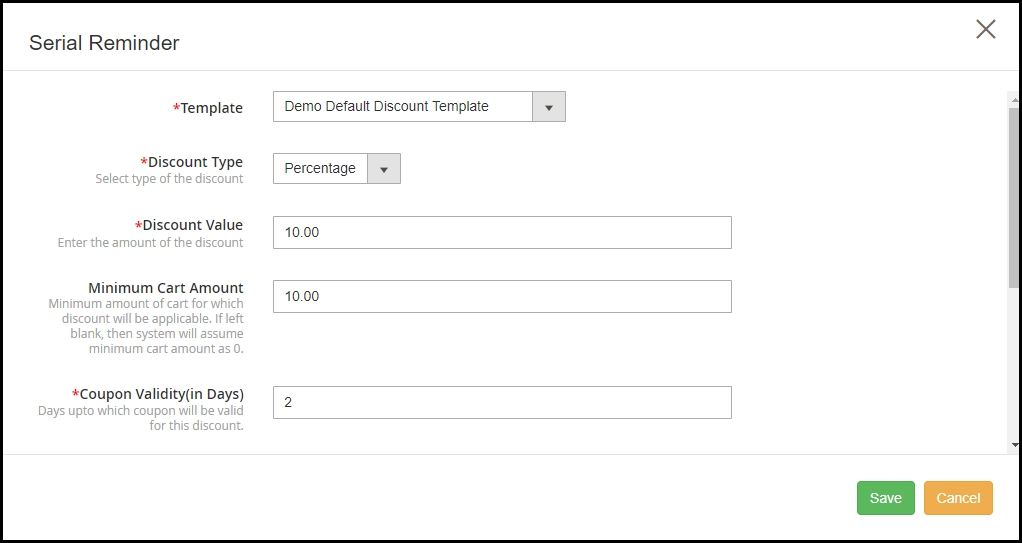
3. The Magento 2 Abandoned Cart extension allows you to schedule your emails. For discount email type, you can specify whether you want to provide a flat discount or percentage discount. You can also set the coupon value, coupon validity and specify the minimum cart amount for which the discount would be applicable. Besides, you can also offer free shipping to customers on their purchase.
4. Magento 2 Shopping cart abandonment extension also provides auto-email functionality enabling which the reminder emails would be automatically sent to the abandoned cart user after the set delay.
5. Track details of the abandoned cart users easily with the Magento 2 Abandoned Cart Reminder module. It displays some very useful information of the users like their name, email address, left cart amount, customer type whether they are registered or non-registered, their last visit or whether they have been sent a reminder email or not.
You can also check the pending items in their cart. Besides, you can view the list of the users who made a purchase after they had been sent the reminder email.
6. Check the complete history of the coupon codes that shows the discount amount, discount type, status of the coupon and whether it has been used or not.
7. Magento 2 Abandoned Cart Email extension provides you with some amazing analytics view in the form of line graphs and pie charts. You can compare abandoned carts and converted carts, abandoned cart amount and converted amount, and cart abandonments stats over a period.
8. There is test mode functionality that allows you to check how the emails are delivered to the user.
9. Enable/disable the extension in a single click.
If you need any assistance with this abandoned cart extension, you can reach out to us at support@knowband.com and we will try to resolve your query to the earliest.
Sometimes, the customer leaves the selected product in the cart and move to the other shopping site. The shopper who left the pending cart would have otherwise placed an order leading to a conversion. What’s the right solution to get them back to the store. Well, Knowband’s Magento 2 Abandoned cart extension automates everything from sending a discount cart reminder email to urging customers for the checkout. This Magento 2 Email Follow up module simply sends the pending cart details including customer’s name, a peachy discount coupon and the overview of cart items. Further, you can easily set and schedule the delivery of cart reminder notifications with Magento 2 Cart Abandoned module in order to compel the purchase decision, thus improving customer loyalty towards the store.
New Features in the updated version(1.0.1):
In the updated version of this Magento 2 Abandoned cart module, there are some additional useful features for better performance. The store merchant can now configure and send popup reminders and push notification reminders to those online users who left their cart abandoned. Apart from this, the admin can also offer a fixed or percentage-based discount with reminders. Magento 2 Abandoned cart module also provides a Cron log in the updated version. The online merchant can view the cron name, type, status and actions taken by Cron from this Cron log section.
1.1 Striking Features of Magento 2 Abandoned Cart Email Follow-up Module
The Magento 2 Abandoned cart module offers you multiple customizable features which are easy to implement for your eCommerce shop. You can implement and configure any feature for your store without using any coding knowledge. Let us quickly take an overview of striking features by Magento 2 Abandoned cart recovery email extension.
1. Magento 2 Cart Abandoned module incorporates an automated solution that sends a custom reminder notification to the customer who left items in their cart without completing its checkout.
2. You can create unlimited email templates for different abandoned carts with the help of Magento 2 Abandoned cart recovery email extension.
3. Magento 2 Email Follow up module allows you to track the complete list of abandoned carts and the customers who had abandoned.
4. This Magento 2 module offers the ease to schedule the delivery of Cart Serial Reminders from the backend.
5. Using this Magento 2 Reduce Cart Abandonment extension, you can include a discount coupon code to entice the abandoners.
6. Magento 2 Abandoned cart extension offers pre-defined email templates for abandoned cart reminders which can be modified as per requirements.
7. Magento 2 Abandoned cart extension automatically triggers reminder notifications after the delay set for corresponding emails.
8. Magento 2 Abandoned cart email follow-up module allows you to create as many cart abandonment rules or reminders for your eCommerce shop.
9. The complete details about total abandoned carts and converted carts can be outlooked from the back-office of this Magento 2 Reduce Cart Abandonment extension.
10. The order details corresponding to a converted cart can be checked from the backend of Magento 2 Abandoned cart email follow-up module.
11. Magento 2 Cart Serial Reminder module allows functionality to execute cron instructions manually from the back-office.
12. Magento 2 Email Follow up module lets you update Abandoned Cart List and Send Abandoned Cart Email just by running the cron file manually.
13. You can view the graphical statistics of total abandoned and converted cart value from the backend of Magento 2 Abandoned cart recovery email extension.
14. Magento 2 Abandoned cart module provides you a list of total used and unused discount coupons generated for cart recovery.
15. Magento 2 Email Follow up module gives an option to set time period after which the cart is marked as abandoned.
16. The test mode feature helps to test the follow-up emails before sending it to the actual user.
18. Magento 2 abandoned cart reminder notifications are mobile responsive.
19. From the Cron log section, the online merchant can check the cron name, its type, status and actions taken by Cron. This Magento 2 Abandoned cart email follow-up module provides a list of all the Crons and its actions.
20. The e-merchant can create popup templates and also setup multiple popup reminders from the admin interface of the Magento 2 Email Follow up the module. Admin can also offer discount coupons to the users with these reminders.
21. Admin has an option to set duration, discount type, discount value and minimum cart amount on which the online users will get a discount. The Magento 2 Abandoned cart recovery email module allows setting coupon validity days, pop-up reminder status and enabling free shipping for the users.
22. This Magento 2 Abandoned cart extension allows the e-merchant to set push notifications setting and send push notification reminders to the abandoned cart holders. In the push notification details, admin can check cart ID and click status.
2.0 Installation Guide of Magento 2 Abandoned Cart Reminder Extension
1. Once after purchasing Magento 2 Abandoned cart extension from the Knowband store, you will get the following files on your registered email:
Source code file of Magento 2 Cart Abandoned module in zipped file format.
User Manual of Magento 2 Cart Abandoned module
2. Unzip the extension package.
3. Create a folder{Magentoroot}/app/code/Knowband/Abandonedcart
4. Upload the extracted content in the above folder via FTP manager (like Filezilla or WinSCP – download here: https://filezilla-project.org/).
5. Now run below commands to install the plugin:
php -f bin/magento setup:upgrade
php -f bin/magento setup:di:compile
php bin/magento setup:static-content:deploy
php bin/magento cache:clean
The Magento 2 Abandoned cart extension is now installed and ready to use.
3.0 Admin Interface of Magento 2 Abandoned Cart Extension
Just after successful installation of Magento 2 Email Follow up extension on your website, you can create unlimited abandoned cart reminders for your store and automatically trigger them as per your business needs. In order to configure this Magento 2 Reduce Cart Abandonment extension, navigate the settings in the given order: Admin Panel > Knowband > Abandoned Cart > Configuration
The simple to understand admin interface of Magento 2 Abandoned cart module contains the following eight sections namely:
Each of these sections has been discussed in detail below.
3.1 General Settings
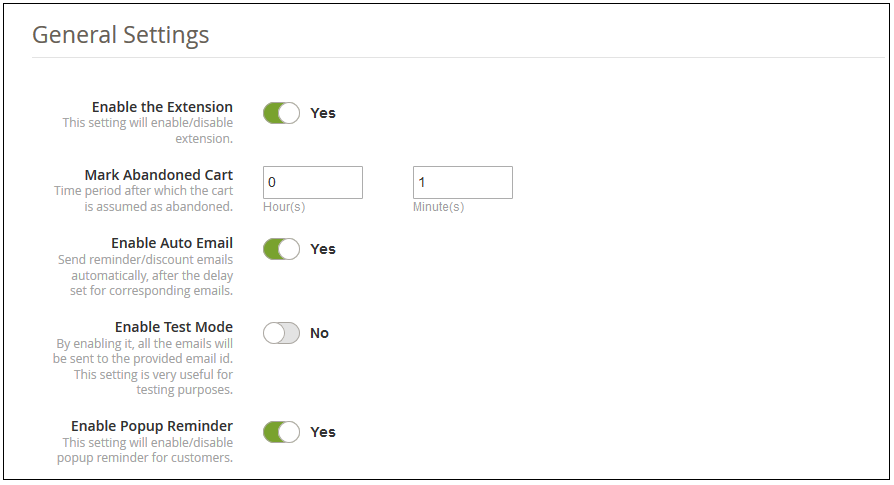
The general settings of Magento 2 abandoned cart reminder extension involve the following configuration options:
Enable the Extension: This option enables or disables the functionality of Magento 2 Abandoned cart extension for the online shop.
Mark Abandoned Cart: This option allows you to set time period(in hours and minutes) after which the cart is considered as abandoned.
Note: The minimum abandon cart time can be set to 0 hours and 1 minute.
Enable Auto Email: Enable or disable this option to send reminder/follow-up emails automatically after the set period is over for corresponding emails.
Enable Test Mode: This option will enable or disable the test mode functionality. If enabled, you can test the emails on the provided email address.
Email ID: This option sets the email ID used for testing purpose of reminder emails.
Enable Popup Reminder: The online merchant can activate settings for sending popup reminder.
3.2 Email Templates
Under this section of Magento 2 Abandoned cart email follow-up module, you can see the list of email templates used for various email reminders. The detail for every email template along with its name, type, and permitted actions is shown in this interface. You can edit or delete any of the templates by clicking the “Edit” and “Delete” button corresponding to the email template.
To create a new reminder email template, click on the “Add New” button at the top right screen side of the admin panel. Magento 2 Cart Abandoned module allows you to create two types of email templates as:
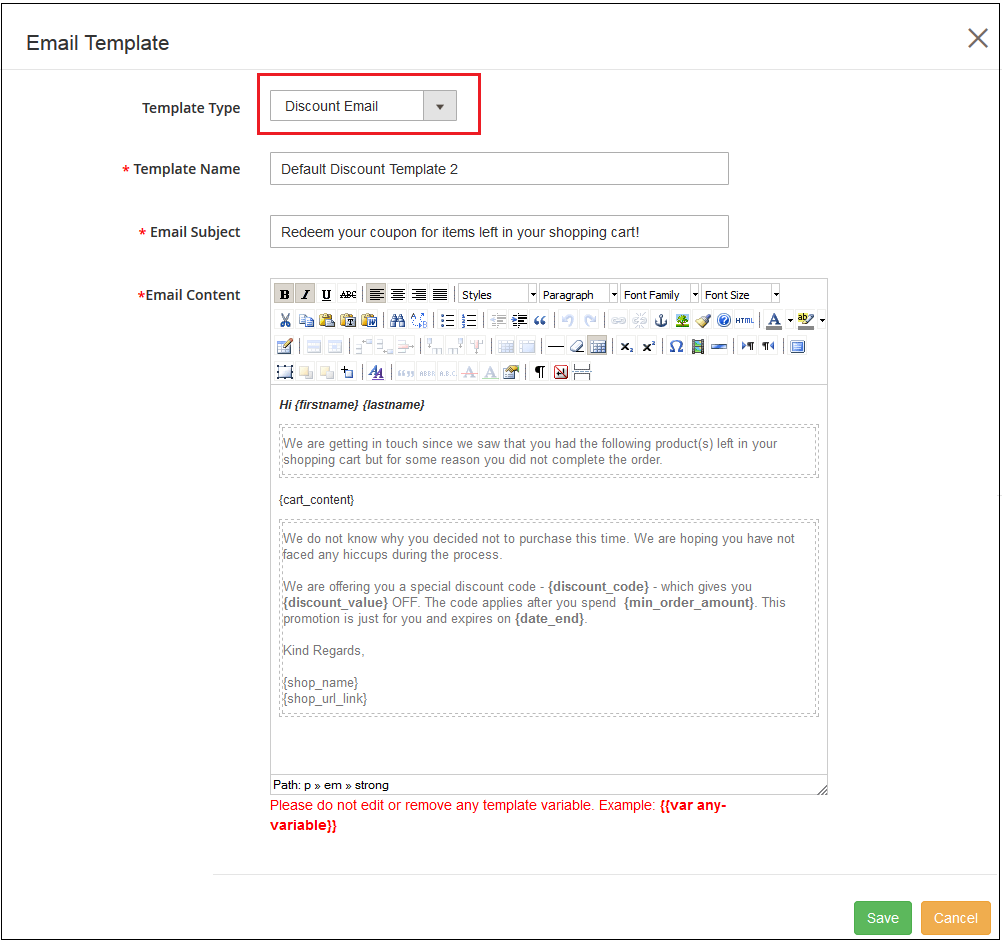
A) Discount Email Template
Template Type: You can choose the type of template you want to create as Discount Email Template or Non-Discount
Email Template: The above screenshot shows the settings of a Discount Email.
Template Name: This option allows you to set the name of the template.
Email Subject: With this option, you can set the subject for the discounted email template.
Email Content: This option specifies the body content of the discount email template.
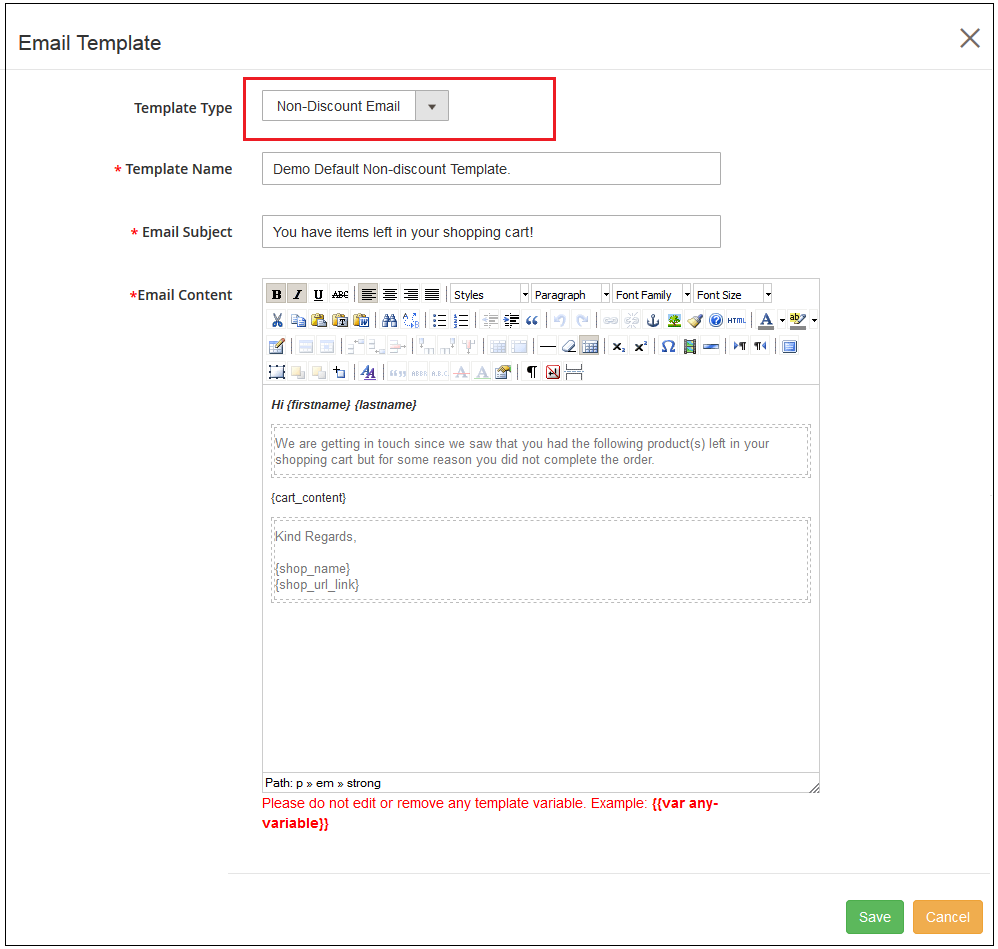
B) Non-Discount Email Template
Similar settings are for Non-Discount Email which is given below:
Template Type: You can choose the type of template you want to create as Discount Email Template or Non-Discount
Email Template: The above screenshot shows the settings of a Non-Discount Email.
Template Name: This option allows you to set the name of the template.
Email Subject: With this option, you can set the subject for the non-discounted email template.
Email Content: This option specifies the body content of the non-discount email template.
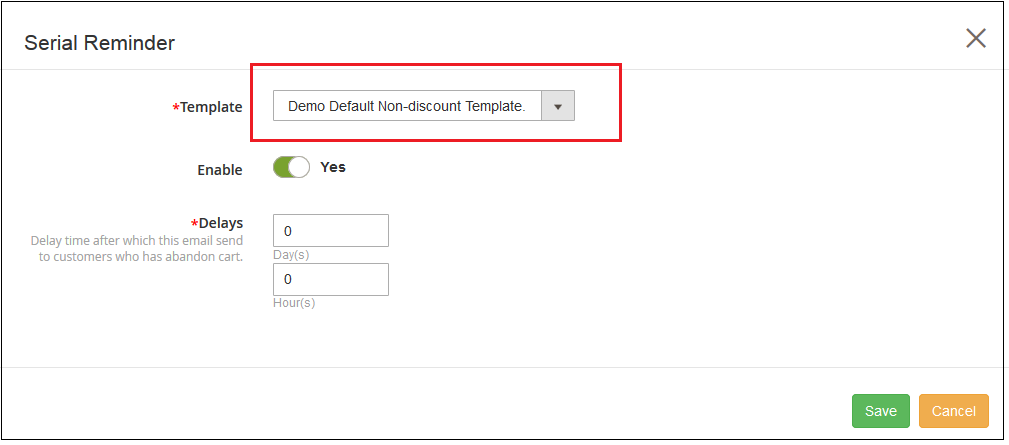
3.3 Serial Reminders
This section of Magento 2 Email Follow up module lists all the existing serial reminders. You can edit or delete any of these existing serial reminders by clicking on the corresponding “Edit” or “Delete” button. To add a new serial reminder, click on the “Add New” button at the top right corner of the screen.
You can create or add two types of follow-up reminders. One with a discount and the other non-discounted.
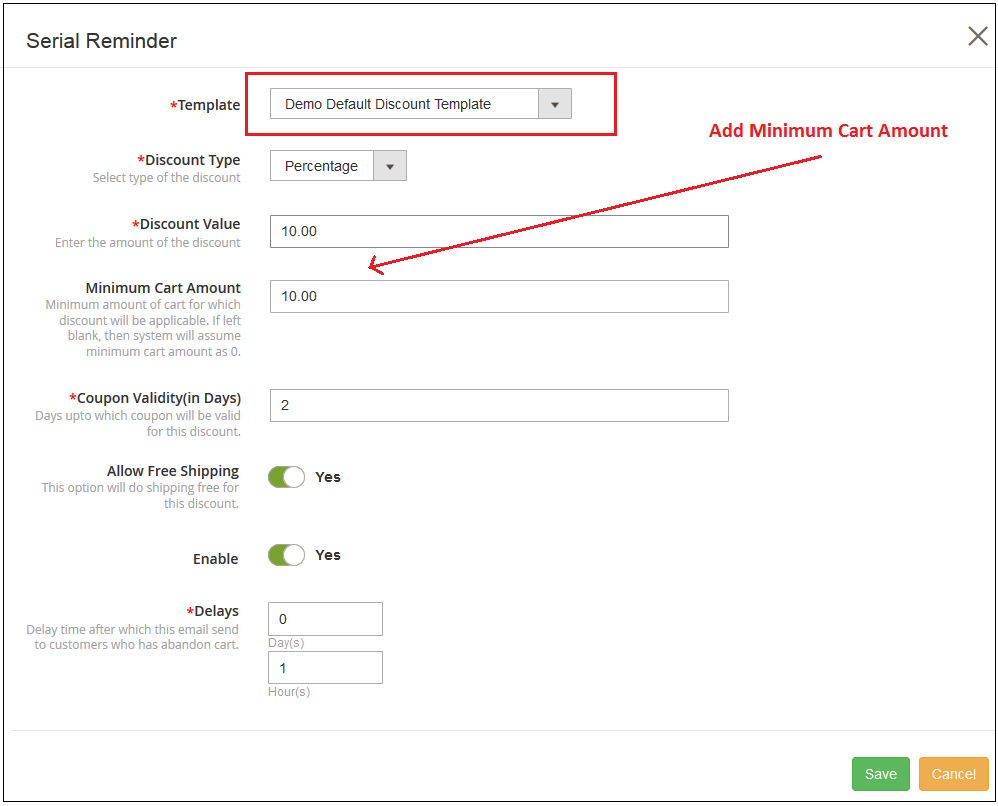
A) Discount Email Reminder
Template: This option lets you select the template for the reminder email. You can select the template as Discount template or Non-discount template.
Discount Type: This option allows you to set the discount type as fixed or percentage.
Discount Value: With this option, you can set a fixed discount value or percentage type value.
Minimum Cart Amount: You can set a minimum cart amount for which the discount coupon is applicable.
Coupon Validity (in days): You can set the validity for the discount coupon for which the discount value is applicable on orders.
Allow Free Shipping: This option will allow free shipping on product orders using this discount coupon.
Enable: This option will enable or disable this reminder email notification.
Delays: You can set a delay time after which this reminder email will be sent to customers who have abandoned their cart.
B) Non-Discount Email Reminder
Template: This option lets you select the template for the reminder email. You can select the template as a Discount template or Non-discount template.
Enable: This option will enable or disable this reminder email notification.
Delays: You can set a delay time after which this reminder email will be sent to customers who have abandoned their cart.
Similarly, the existing templates can be modified just by clicking the Edit option corresponding to any of these reminder notifications.
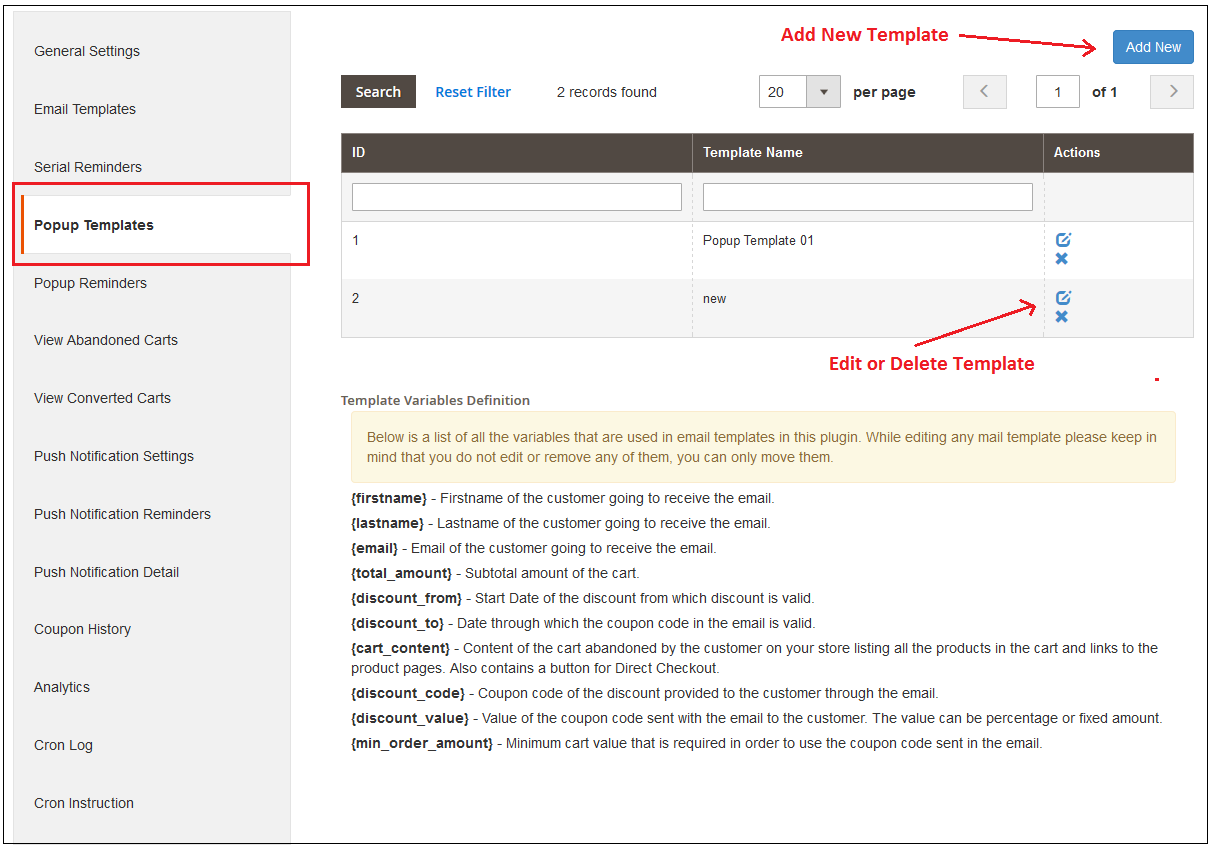
3.4 Popup Templates
Here, the store admin can view popup templates list and also add new popup templates for sending popup remindersto the users. Admin can view the popup templates list as shown below:
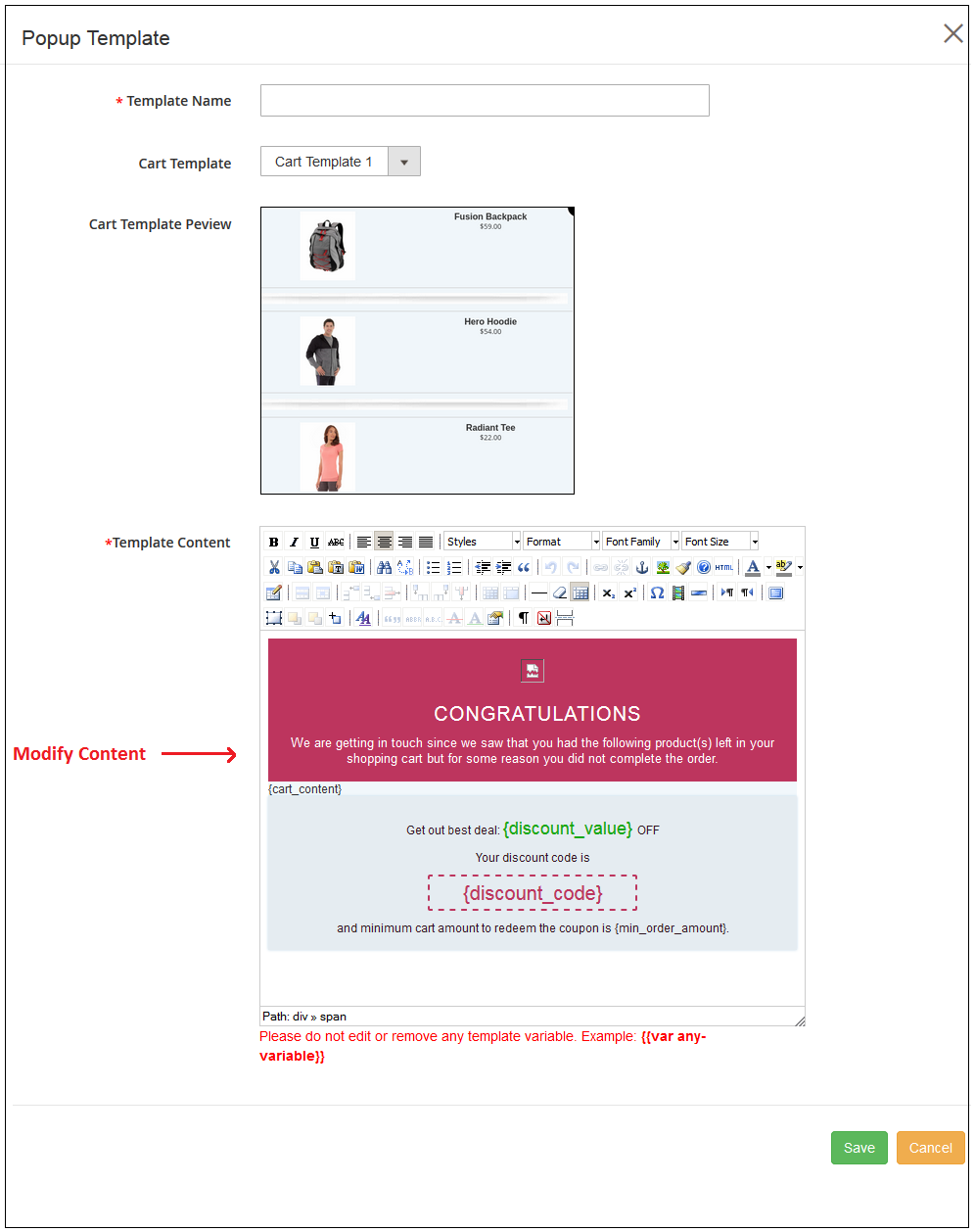
Admin can add, update and delete any popup template anytime from the admin interface. For adding new popup templates, admin needs to click on add new button. After clicking on this button, admin can view a popup as shown below:
Admin needs to enter these details for adding a new popup template:
Template Name: Admin needs to enter the name for popup template.
Cart Template: Admin needs to select the cart template from the list.
Cart Template Review: Admin can preview cart template from here.
Template content: Admin can set the template content from here.
After this admin needs to save these settings.
Admin can click on delete button for removing any popup template and click on edit button for editing any popup template. While editing the popup templates, admin can select the store also.
3.5 Popup Reminders
Here, admin can create multiple popup reminders and update or delete it a per the requiremnets. Admin can view a list of all the popup reminders as shown below:
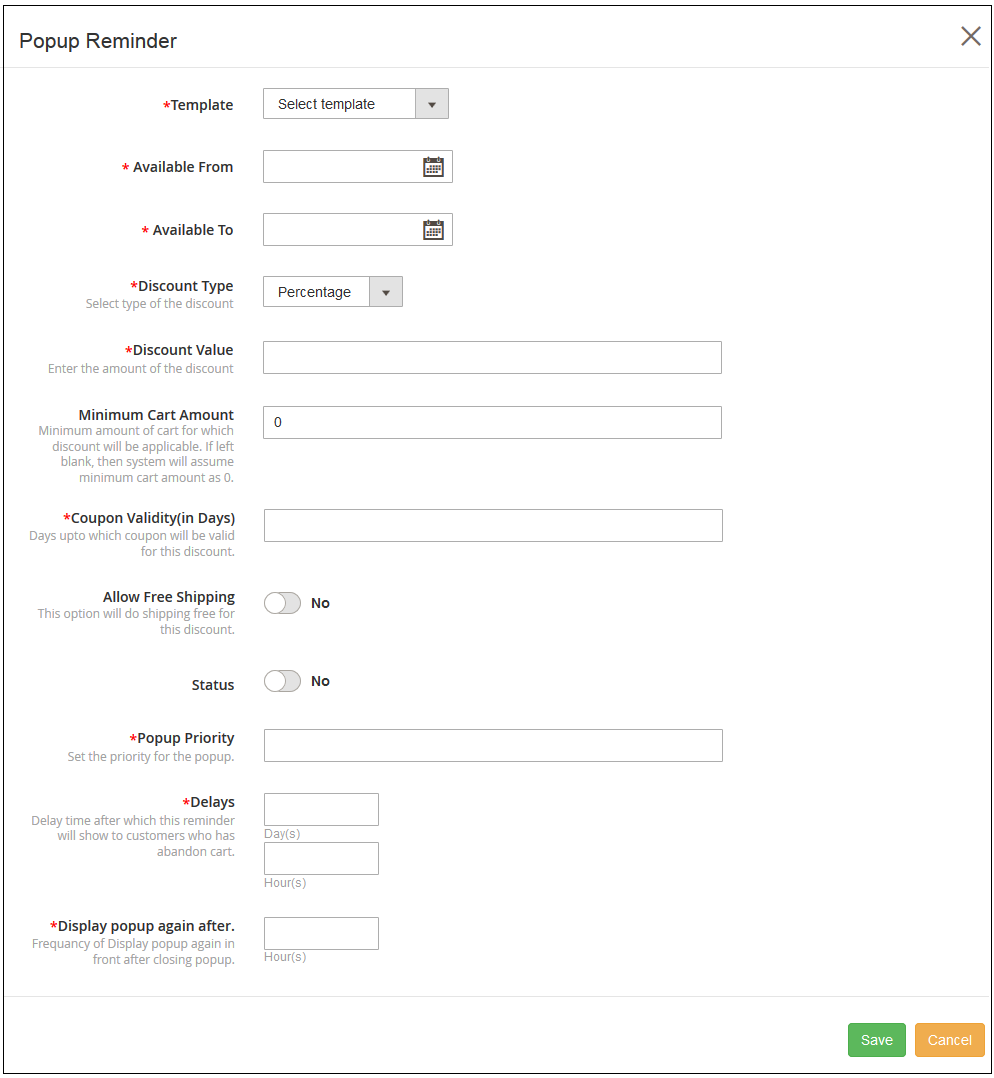
For adding new popup reminder, admin needs to click on Add new button. The admin needs to enter these details in the popup as shown below:
Templates: Admin needs to select the popup templates.
Available From: Enter Start Date and time.
Available to: Enter End Date and time.
Discount Type: Set fixed or percentage Based discount type.
Discount Value: Set the discount value.
Minimum Cart Amount: Set the minimum cart amount for which customers will get this discount.
Coupon Validity: Admin can set coupon validity in days.
Allow Free Shipping: Enable this option for offering free shipping.
Status: Activate the popup reminder from here.
Popup Priority: Set the priority of this popup reminder.
Delays: Set delay time in days, hours after which users will get this reminder.
Display popup again after: Set the time in hours after which you want to show popup reminders again.
The online merchant can edit and delete the settings.
3.6 View Abandoned Carts
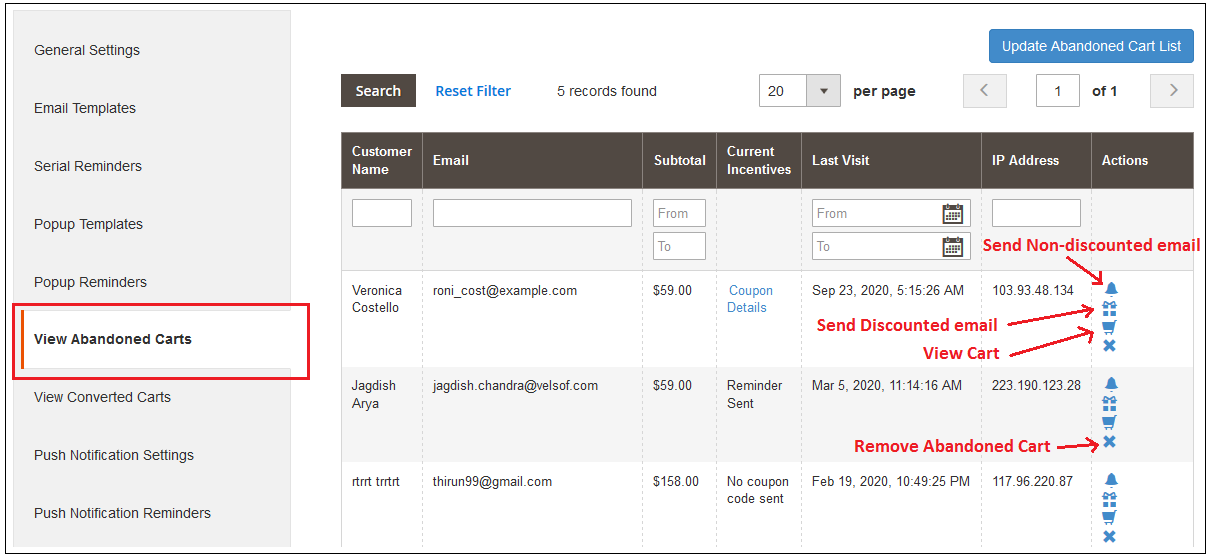
Under this section of Magento 2 Reduce Cart Abandonment extension, you can check the complete list of abandoned carts at your online shop.
You can manually update the abandoned cart list by clicking on the “Update Abandoned Cart List” button provided at the top right screen of the admin panel. Or, you can directly run the cron instruction to Manually update the abandoned cart list which is discussed in section 3.14.
With the help of these records, you can track the abandoned carts at your store along with the customer name, email, type, abandoned cart value, incentives offered and actions allowed.
There are five options corresponding to every abandoned cart which are:
Coupon Details: The details of the coupon sent to the customer can be seen by clicking on the “Coupon Details” link in front of the abandoned cart. This option is only seen for reminders with the discount coupon.
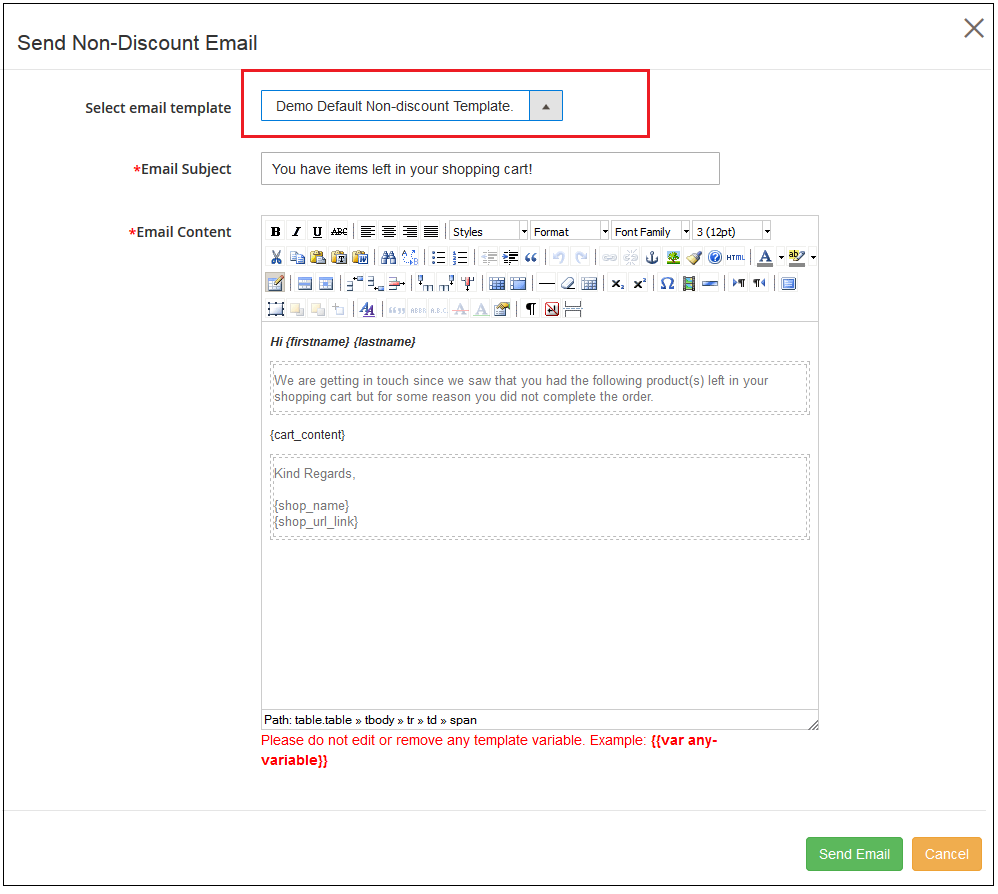
Send Non-Discount Email: By clicking on the bell icon of this Magento 2 abandoned cart module, you can send non-discount reminder regarding the products saved in the cart of the customers. On clicking the same a pop-up will appear having all the fields that will be sent in the follow-up email without any discount coupon.
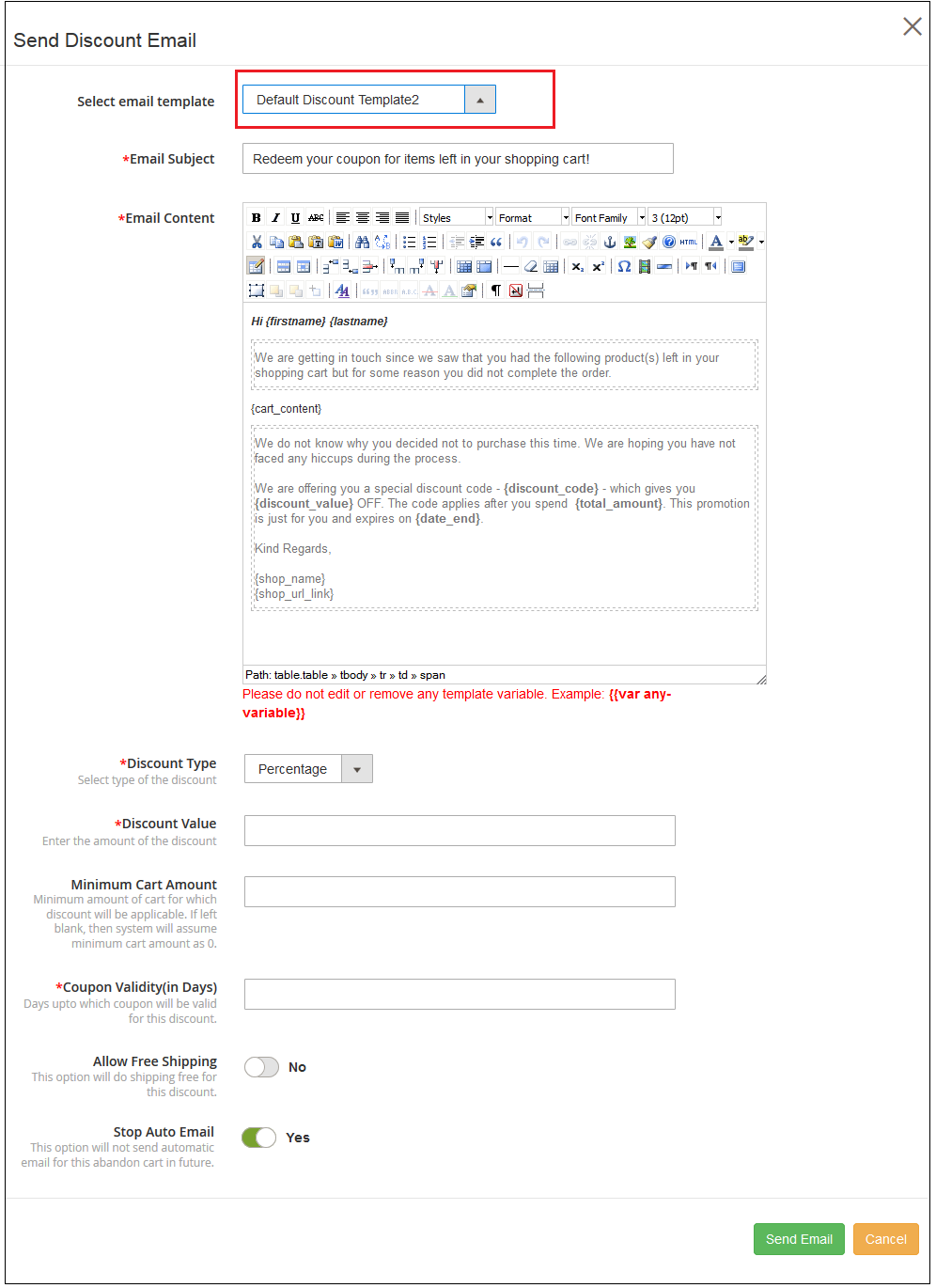
Send Discount Email: To send the follow-up email to the customer regarding the shopping cart abandonment with a discount coupon, you have to click on the “Gift Icon” in front of the desired abandoned cart. On clicking the same a pop-up will appear having all the fields that will be sent in the follow-up email.
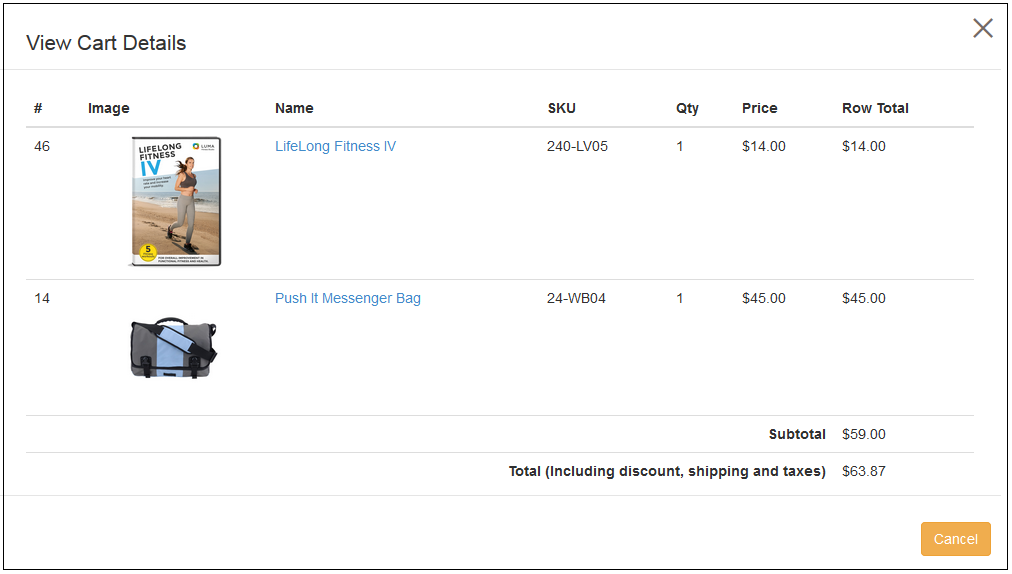
View Cart Details: To view the details about the abandoned cart, you have to click on the “Cart Icon” in front of the desired abandoned cart. A pop-up will appear having all the details of the cart.
Remove this Abandoned Cart: To delete any abandoned cart, you have to click on the “Remove Button” in front of the desired cart. A confirmation pop-up will appear asking for confirmation of the deletion, once confirmed the abandoned cart will be gone forever.
You can perform any listed options for an abandoned cart. These options can be used when you want to manually send discount/non-discount email to the selected abandoned cart.
The other way is to run the cron file instruction to send the abandoned cart email to all the queued customers who have abandoned their cart. This is discussed in section 3.8.
3.7 View Converted Carts
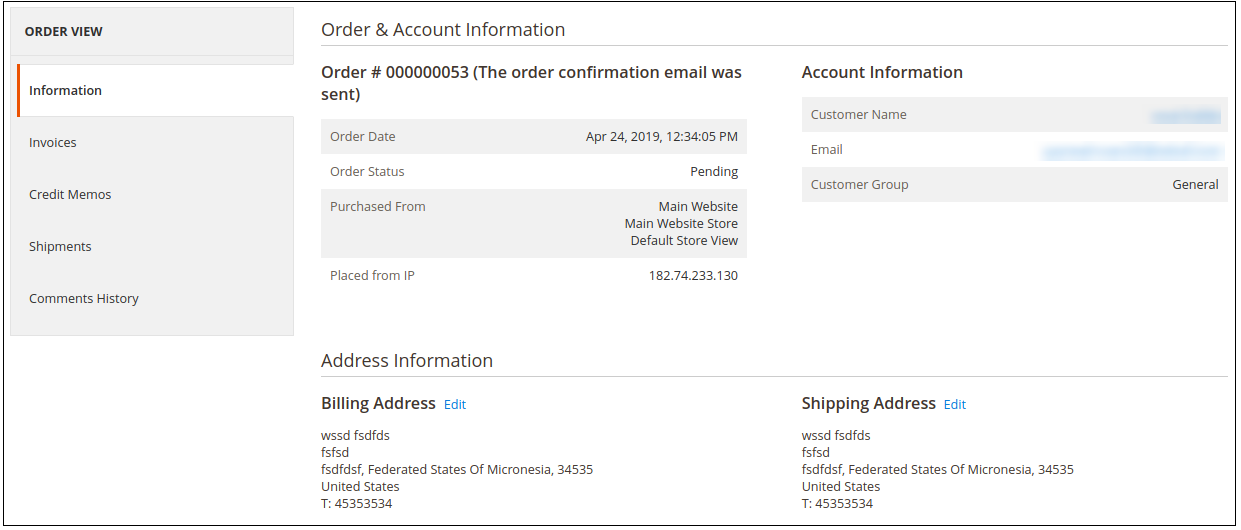
This section of Magento 2 Abandoned cart email follow-up module will list all abandoned carts that have been converted successfully. You can check the customer detail, order date and value for each of the converted carts. An option to “View Order” is also provided which will redirect to the order information page as shown in the image below:
Note: The Abandoned cart is considered as converted only if the customer places an order for that cart after a reminder mail has been sent.
3.8 Push Notification Settings
Admin can apply push notification settings from here:
Admin needs to activate the settings and enter API key, Project ID Messaging Sender Id along with server key details.
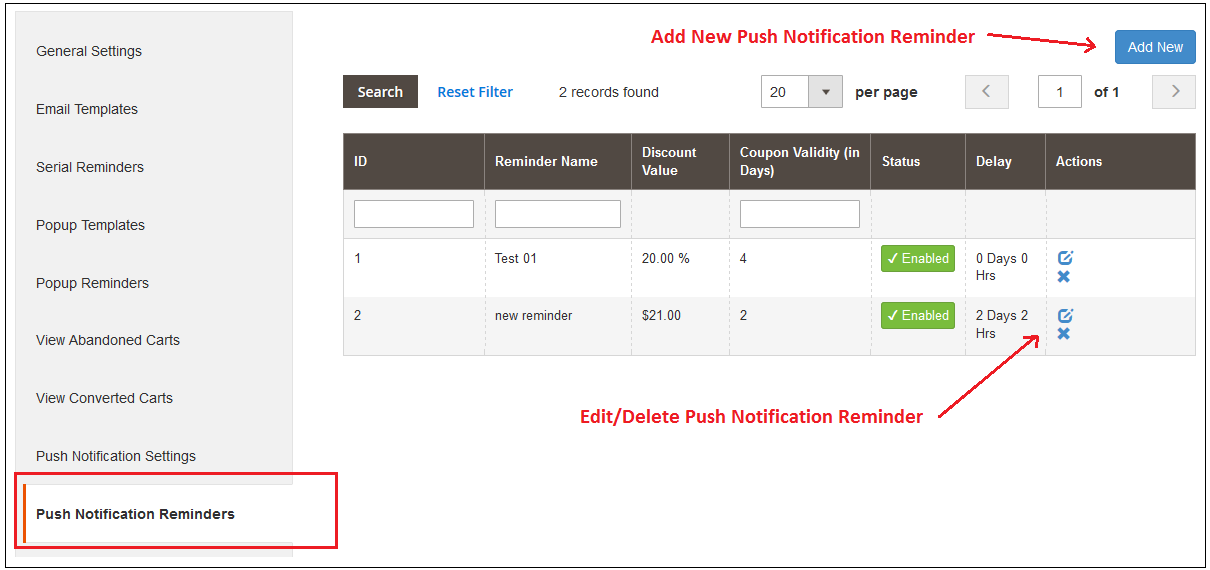
3.9 Push Notification Reminders
In Push notification reminders, admin can view a list of push notification reminders as shown below:
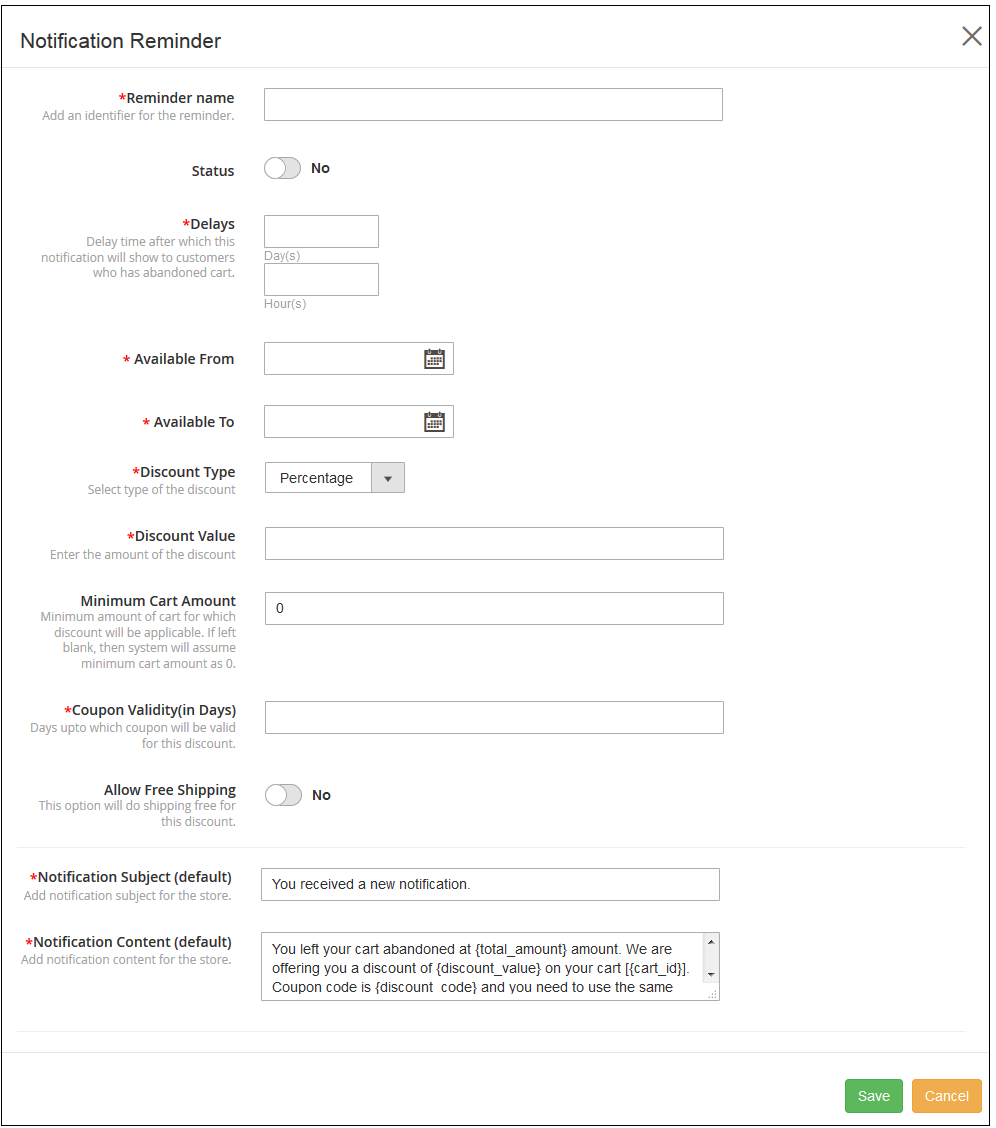
Admin can add new push notification reminders by clicking on the “Add new” button. After clicking on this button, admin needs to enter these details as shown below:
Reminder Name: Admin can set the reminder name from here.
Status: Admin can activate or deactivate the status.
Delays: Set the delay in days and hours after which this notification will be shown to the abandoned cart holders.
Minimum Cart Amount: Set min. cart amount here for which customers will get this discount.
Coupon Validity: Set coupon validity in days.
Allow Free Shipping: Offer free shipping to the users.
Notification Subject: Default notification subject is available. Admin can also edit it.
Notification Content: Content is available by default. Admin can modify the content.
Admin can save these settings. The Magento 2 Abandoned cart module also allows editing and deleting the push-up notification reminder.
3.10 Push Notification Detail
In push notification details, admin can view the reminder name, cart ID, Click status and actions.
3.11 Coupon History
This interface of Magento 2 Abandoned cart extension provides a view to the coupon history. Each record gives associated information about a coupon code, discount amount, discount type, coupon period, and its status.
3.12 Analytics
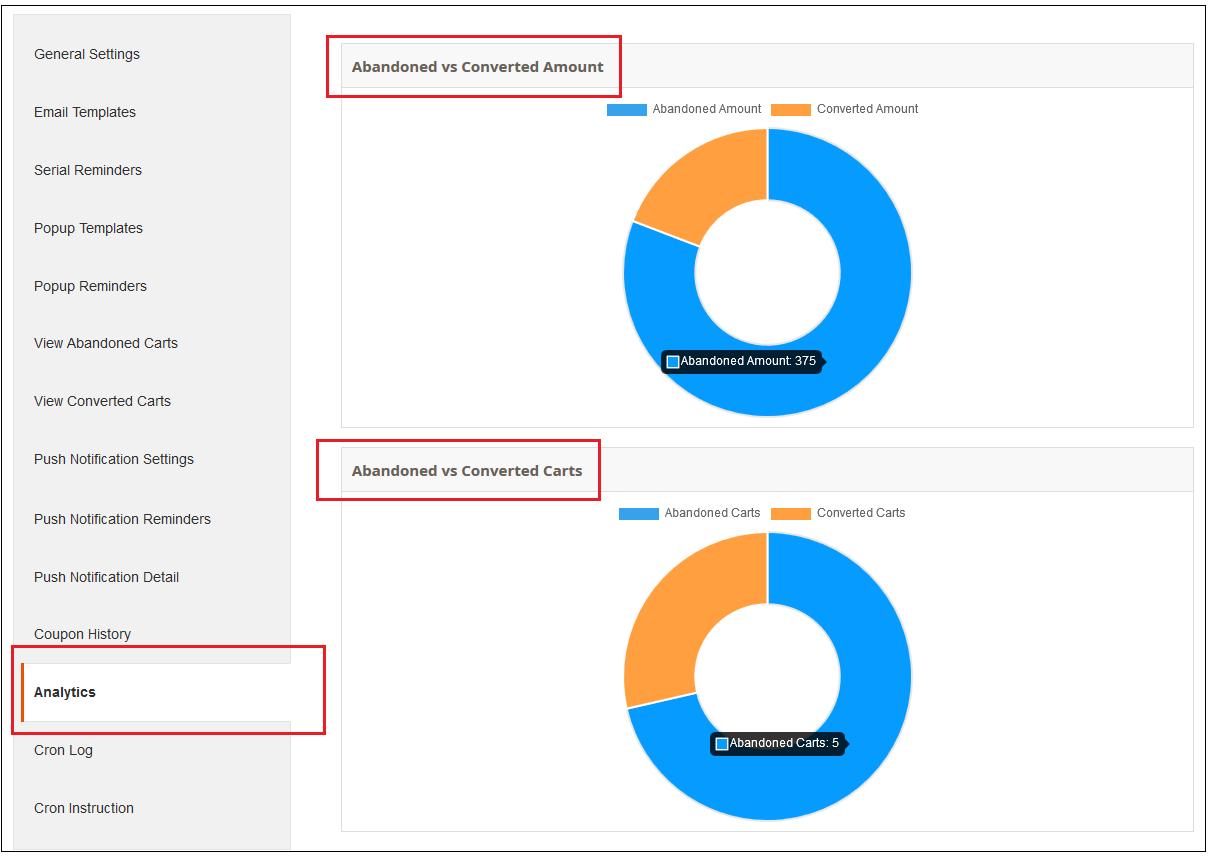
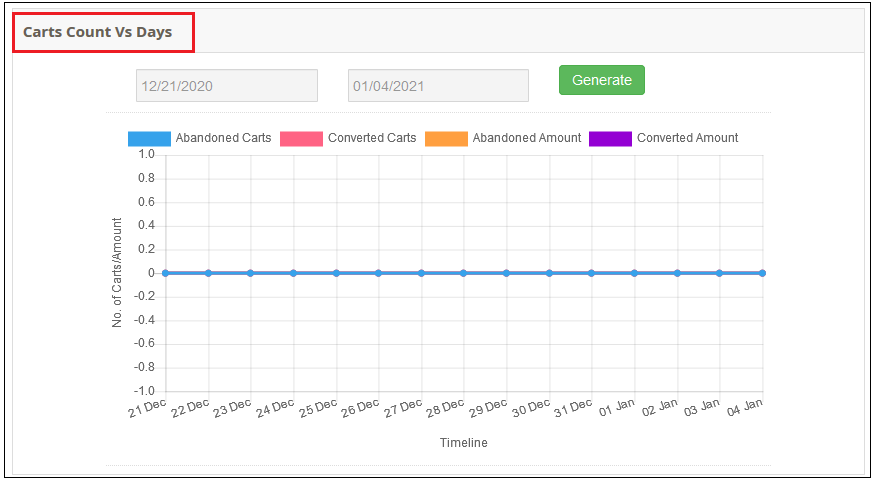
Under this section of Magento 2 Email Follow up module, you can check the graphical statistics between the total number of Abandoned Carts and Converted Carts. Also, you can check the comparison between Abandoned vs Converted Amount illustrated using pie charts.
This bar chart gives the overview of the total abandoned carts, converted carts, amount abandoned and amount converted in a given time span.
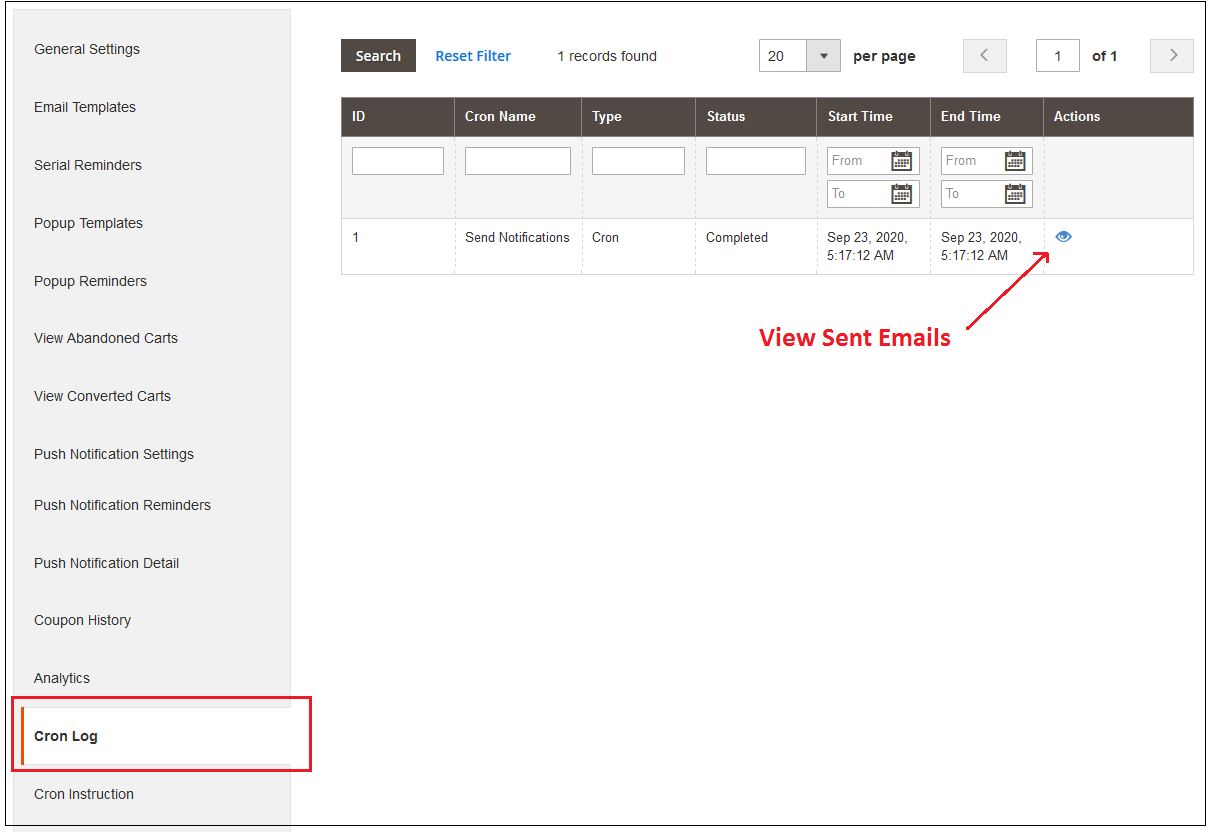
3.13 Cron Log
In Cron log admin can view these details as shown in the screenshot:
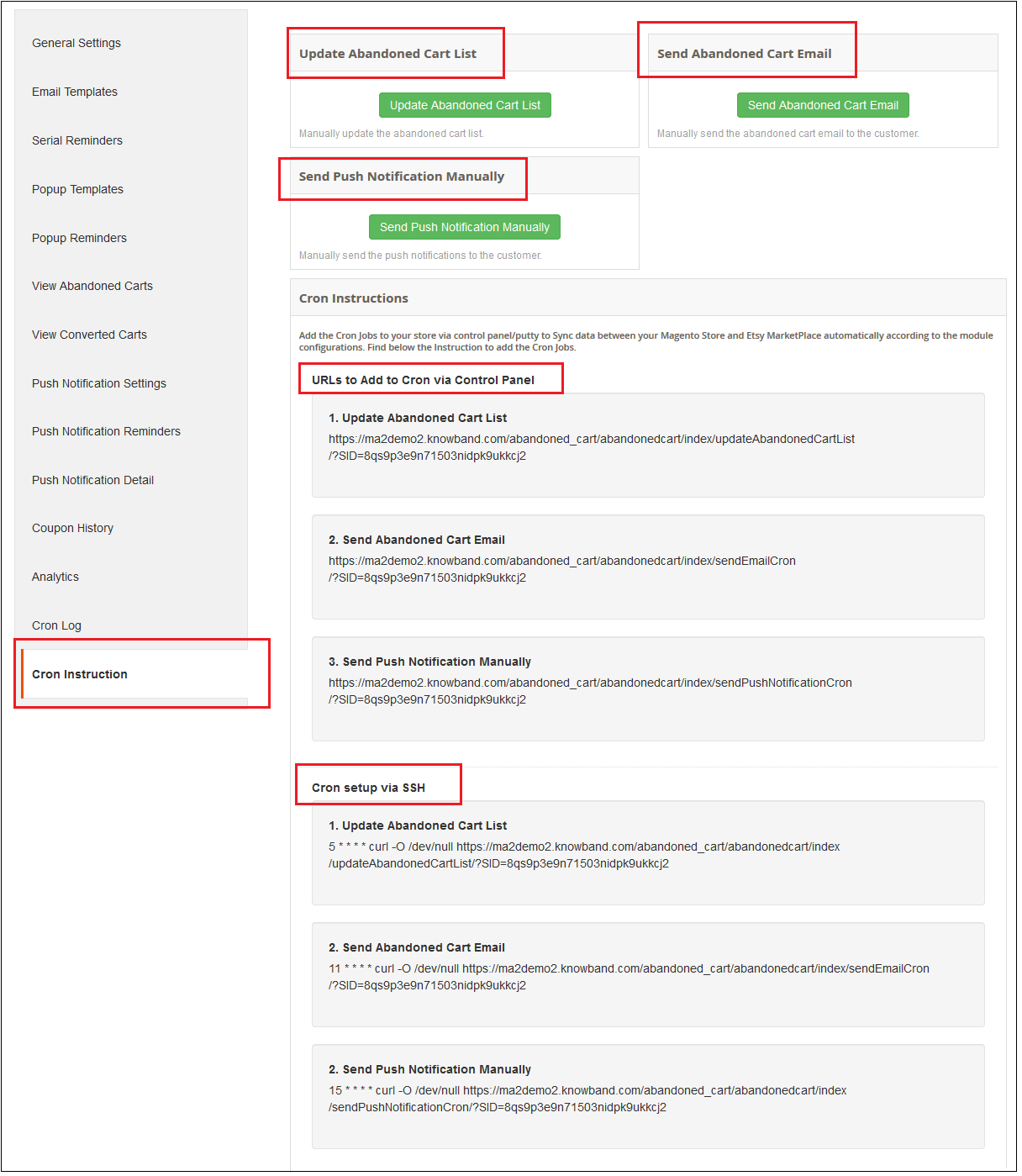
3.14 Cron Instruction
A cron is a service that allows a user to automatically execute a script at a specific time.
For example, you can set a particular PHP script to be automatically executed every day at midnight.
In order to set CRON for Abandoned Carts the following 2 URLs are supposed to be added to the crontab of your server:
Updating Abandoned Carts List
https://www.yourstore.com /abandonedcart/index/updateAbandonedCartList?SID=
A success message is also displayed as given below:
Sending Abandoned Cart Emails Automatically
https://www.yourstore.com /abandonedcart/index/sendEmailCron?SID=
Upon clicking the Send Abandoned cart Email button, a success message is shown as
Note: Reminder emails are sent only one time to a particular email ID or cart.
4.0 Front-End Interface
If the online user left his/her cart abandoned then this Magento 2 abandoned cart module sends a reminder email to the online users. Apart from this online users can also get popup reminders, pushup notification reminders along with the discount coupon. They can complete their order using the discount coupon provided by the online merchant.