OpenCart Social Messenger Extension – User Manual

1.0 Introduction

OpenCart Social Messenger Extension by KnowBand offers support service on the eCommerce store. Admin can offer live chat feature to the customers in order to directly communicate with them and resolve their issues by this functionality. Admin has to integrate Facebook App ID and Facebook Page ID on the store so that customers can directly log in to their Facebook profile and resolve their queries.

Live chat is the most important feature and one of the best ways in offering full support to customers. Many a times, customers leave the cart abandoned as they had any query related to the product. Social messenger resolves customer queries immediately so that they can go for instant purchase without any inconvenience.

This OpenCart messenger chat module for OpenCart store is highly customizable and offers smooth as well as flawless working. The admin can incorporate this functionality in the front-end with the help of Facebook page id and app id. Moreover, he can easily manage the messenger from the back-end of the OpenCart social messenger plugin. The admin can provide online customer support without even changing a single line of the base code of their site. The Messenger live chat module allows the admin to set the look and feel of the social messenger icon.

1.1 Striking Features of Social Messenger Extension for OpenCart

  1. The OpenCart social messenger extension executes the functionality of showing Facebook messenger on the website pages. Customers can chat by logging in to their messenger.
  2. With the help of OpenCart Social Messenger plugin, store admin can offer live chat support without changing any codes. The OpenCart live chat support module is highly customizable and offers smooth functioning.
  3. The store owner can enter the Facebook app id and Facebook page id for incorporating the Facebook messenger on the store.
  4. The e-merchant can change the default color of the Facebook messenger. The OpenCart Facebook messenger and live chat plugin provides a color-picker tool for color selection.
  5. Admin has the authority to display the messenger chat option on selected pages. Admin can select multiple pages for showing this chat functionality.
  6. The e-merchant can set different greeting messages for logged in and logged out customers.
  7. The OpenCart Facebook messenger and live chat plugin allows the store admin to set the greeting message delay time from the admin interface.
  8. The OpenCart Messenger chat bot module allows store admin to set the time as 0 seconds if he/she wants to show the greeting message without any delay.
  9. OpenCart Messenger chat bot module is SSL compatible and provides user-friendly interface.
  10. Facebook messenger and live chat plugin is multi-lingual compatible. The e-merchant can communicate in saveral languages.
  11. The OpenCart Facebook Chat messenger module is mobile responsive. Online customers can also chat on their mobile devices also.

1.2 Technology for Development

Language: PHP
Frame Work: OpenCart

2.0 Installation Guide

To install this OpenCart Social Messenger Module, please follow the following steps:

Purchase the OpenCart Social Messenger Extension from the Knowband store. You’ll get following files:

  • Zipped File containing the source code of the OpenCart Social Messenger module.
  • User Manual of OpenCart Social Messenger plugin.

Follow the steps below in order to install the OpenCart Social Messenger Extension in OpenCart store:

  • Unzip the zipped. You’ll get the folders as shown in the image below:

OpenCart Social Messenger Extension

  • Copy all the files and folders of the zip file in the Root Directory of OpenCart setup via FTP manager.
  • The OpenCart Social Messenger module is now installed and is ready to use. Go to Admin -> Main Menu -> Extensions as shown in the image below:
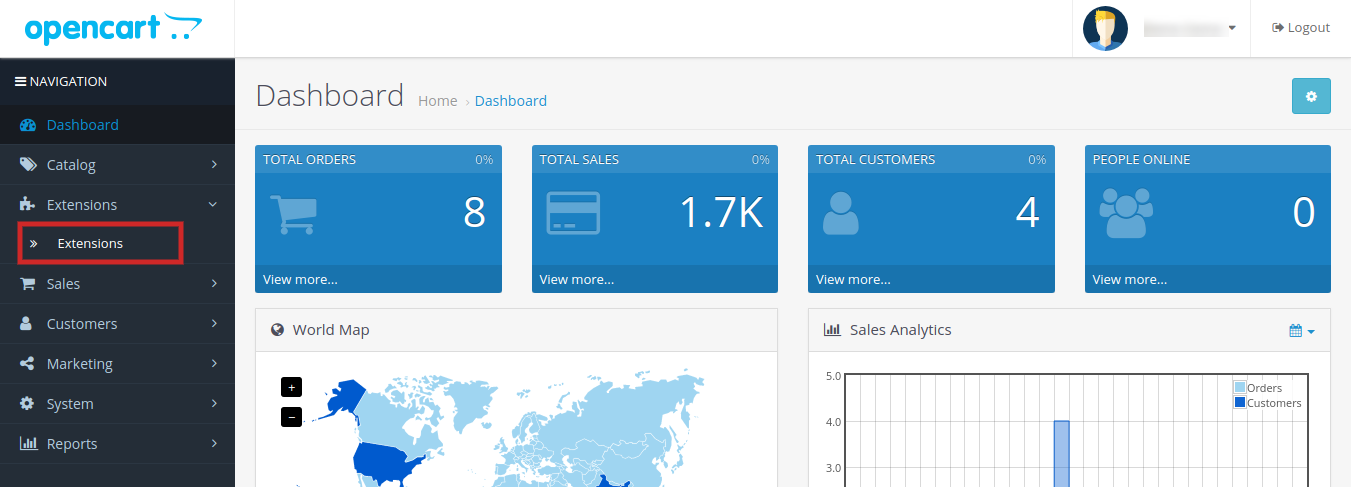
  • Select Social Messenger from the list of the modules and click on the Edit button.

3.0 Admin Interface of OpenCart Social Messenger Extension

OpenCart Social Messenger extension offers easy customization option to the store admin. The various Messenger live chat for OpenCart configuration options are discussed in detail below:

3.1 Edit Social Messenger Tab:

Following are the settings listed under this tab:
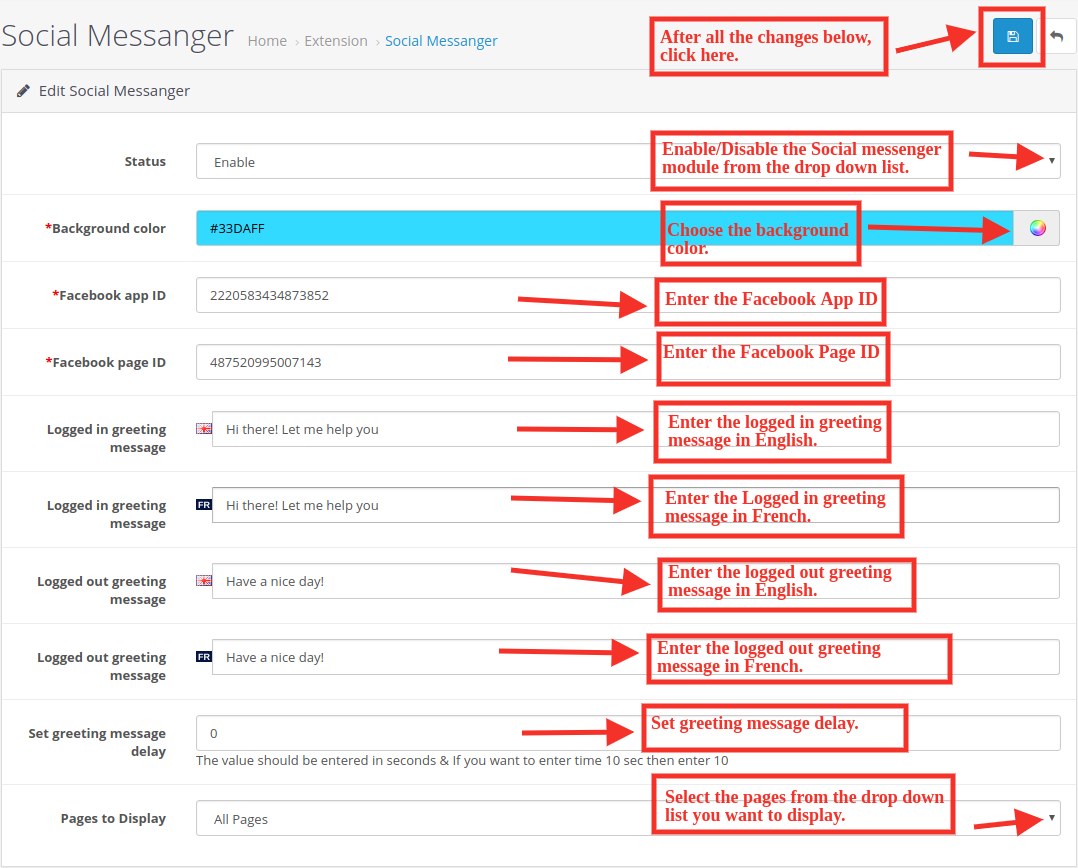
  • Status: Select ‘Enable’ from the drop-down list to qualify Social messenger extension on the front-end of the website. The admin just need to toggle a button in order to activate or deactivate the Facebook messenger extension.
  • Background color: Choose the background color from the drop-down list. This Facebook messenger and live chat plugin has a color picker tool for selecting the color of Facebook messenger. Admin can also show it’s default color.
  • Facebook app ID: Enter the Facebook App ID.
  • Facebook Page ID: Enter the Facebook Page ID.

For Getting Facebook app ID and page ID follow these steps:

Steps to generate Facebook app ID

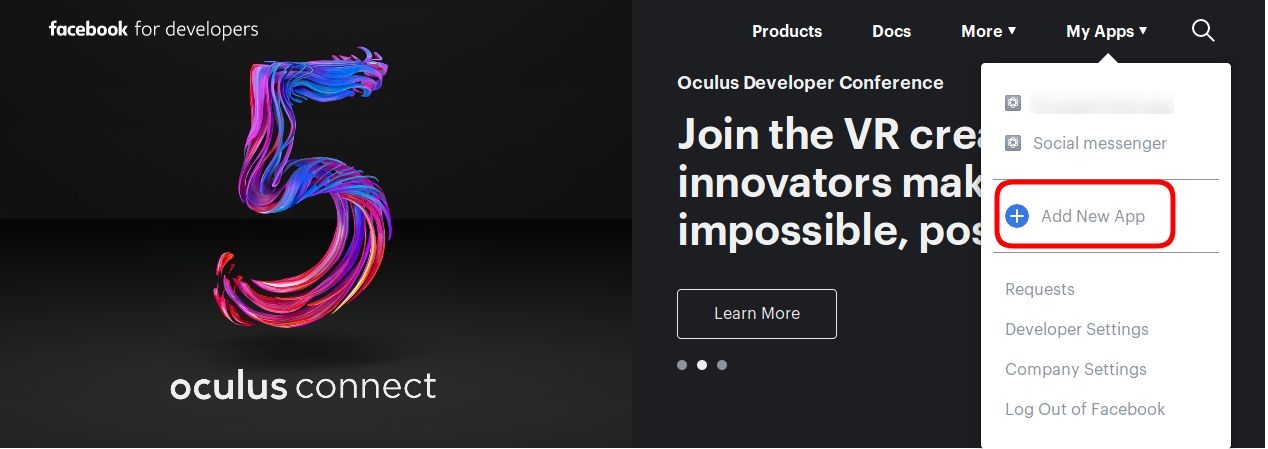
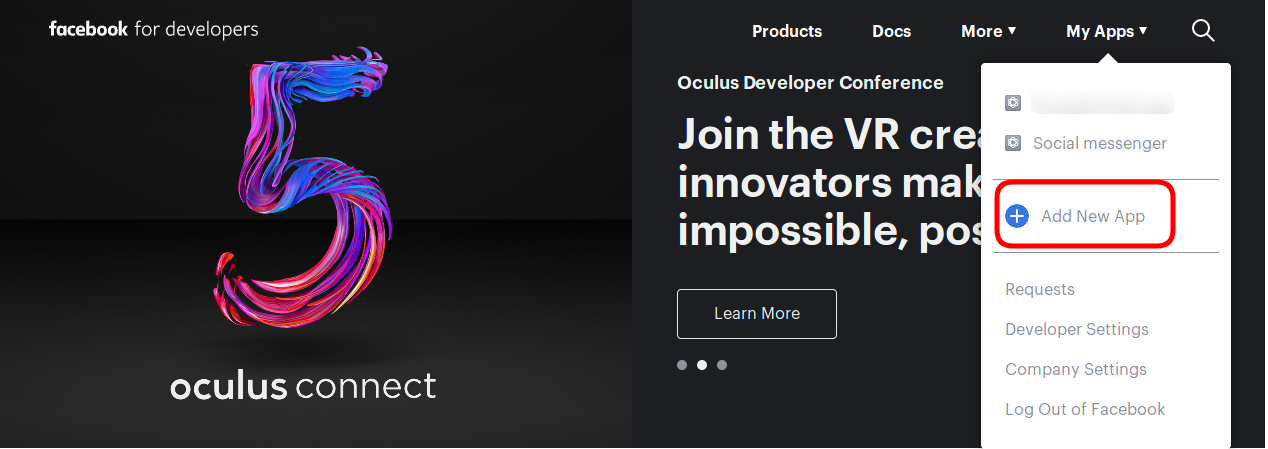
  • After that, Go to the “MY APPS” option and click on the ”ADD NEW APP”.
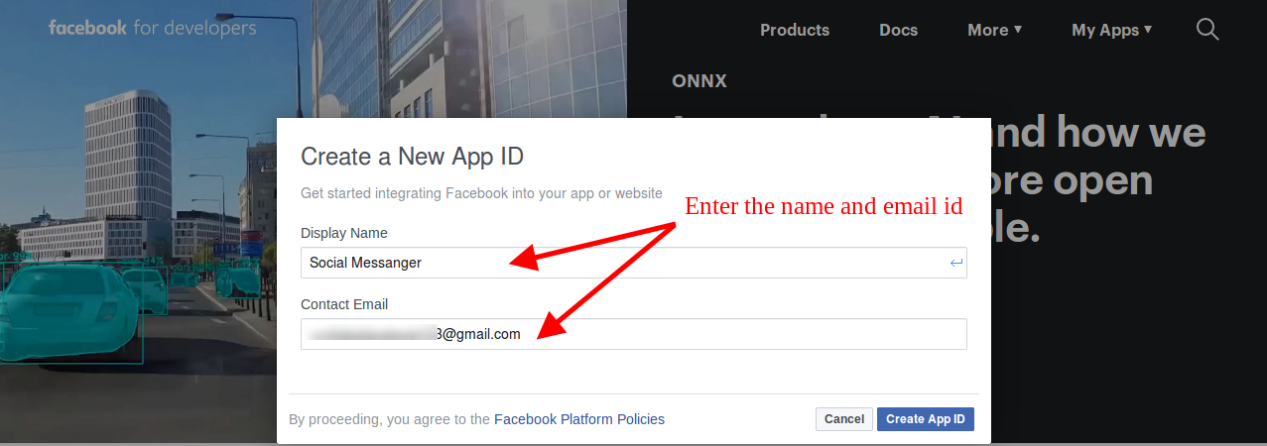
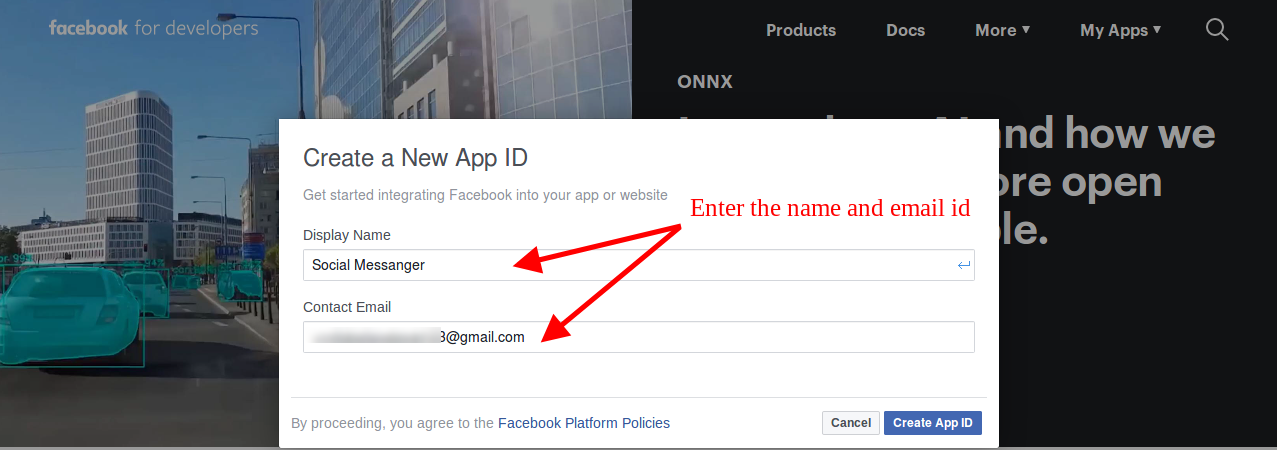
  • Now insert the “Display Name” and “contact email ID”. Click on the “Create APP ID” button.
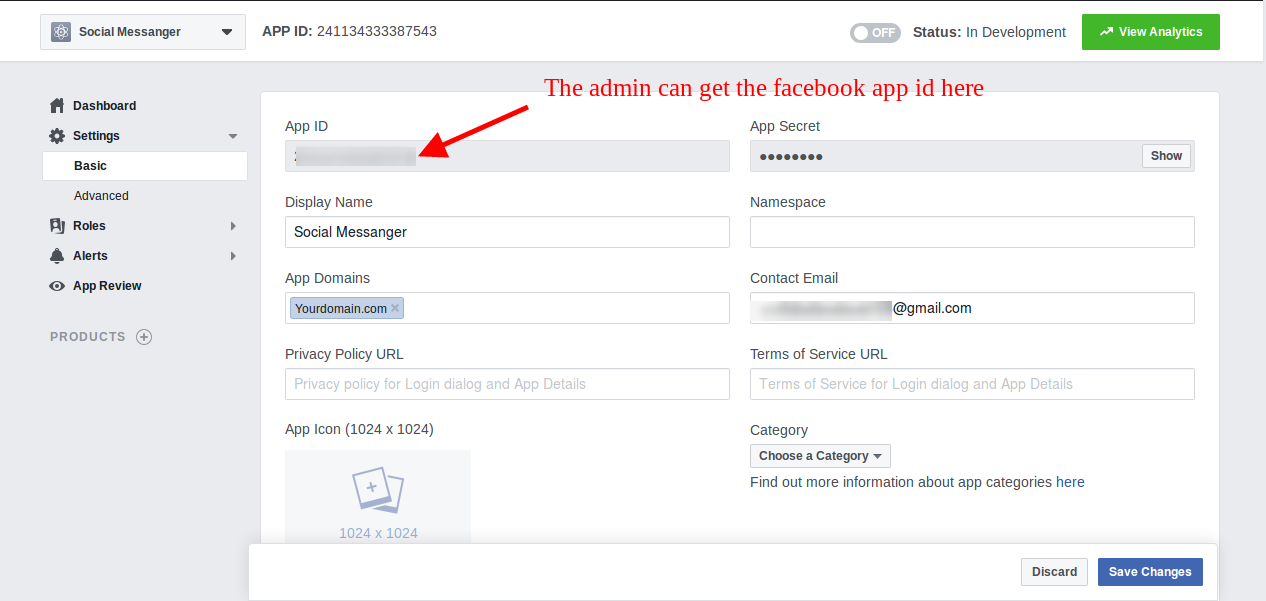
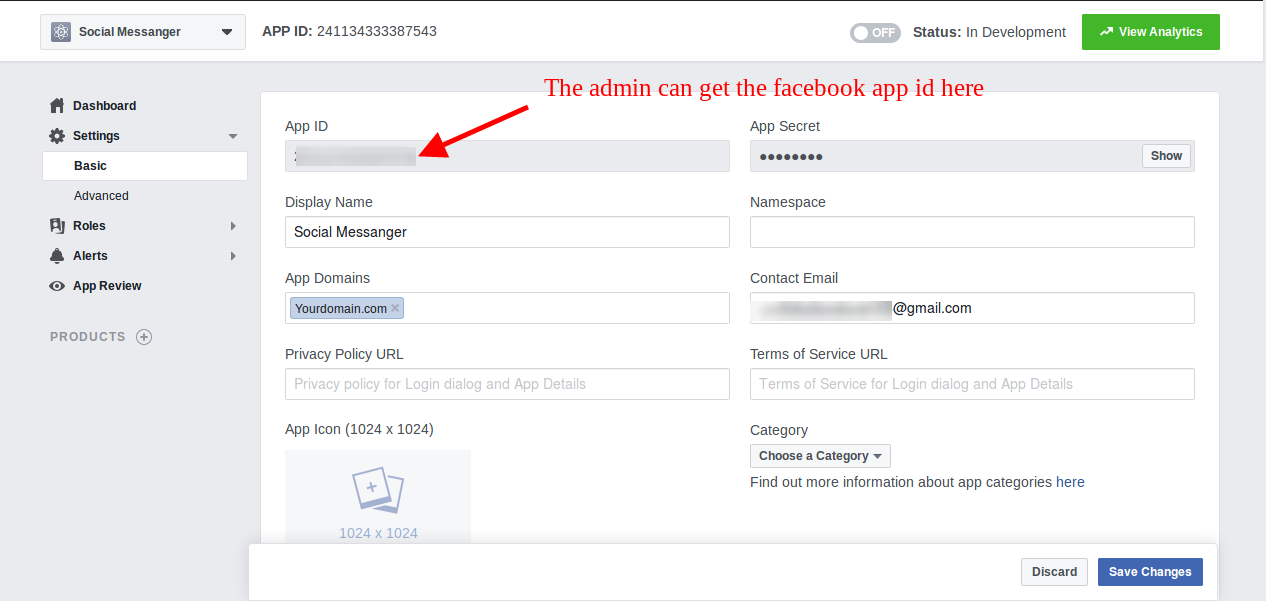
  • Once the APP ID created, the store owner can view the app id. Go to the “Settings” and then select “Basic”. Here you can view the APP ID as shown below.
  • Admin can insert the App Domain. After that click on the “save changes” option.

Steps to generate Facebook page ID

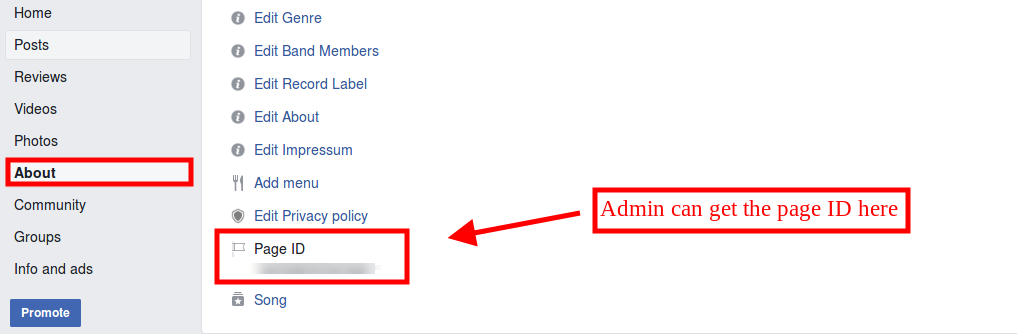
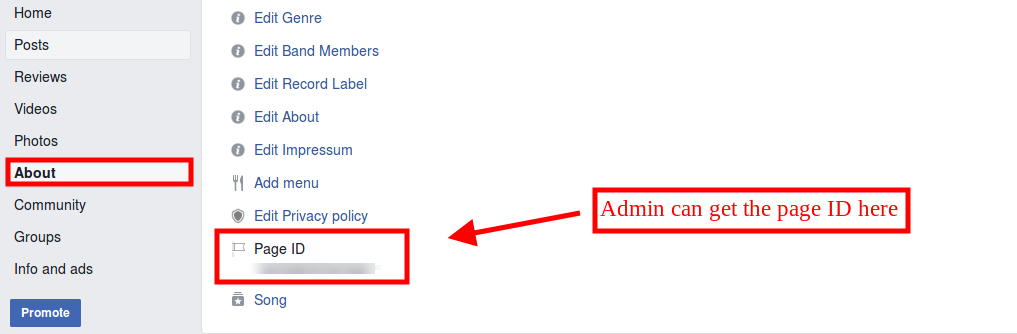
  • For getting Facebook page ID, open the Facebook page and go to the “about page“. At the bottom of the “about page“, the admin can view the page id.
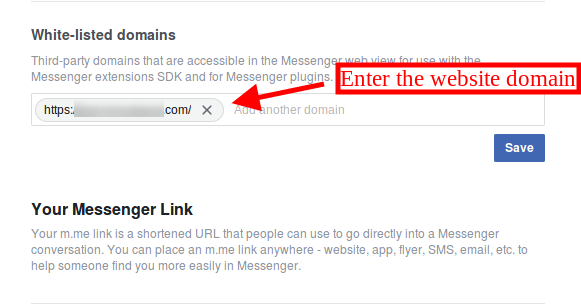
  • Go to the Settings option and then select the “messenger platform” option. Here you can enter the domain in the “White-listed domains” option.
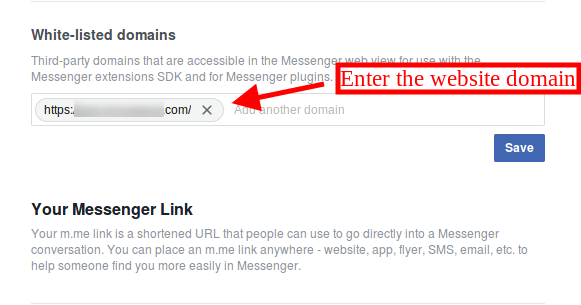
This way the store admin can get the facebook app id and page id.

  • Logged in greeting message: Enter the logged in greeting message in the English and French languages. This Facebook messenger and live chat plugin is multi-lingual compatible.
  • Logged out greeting message: Enter the logged out greeting message in the English and French languages. Admin can show greeting message to Facebook logged out customers.
  • Set greeting message delay: Set greetings message delay time in seconds. This way, you can show a greeting message just after the customer’s arrival or after some time.
  • Pages to Display: Select the pages from the drop-down list on which, you want to display facebook messenger. Admin can select all the pages or specific pages for showing Facebook messenger chat option.

4.0 Front End of the OpenCart Social Messenger Module

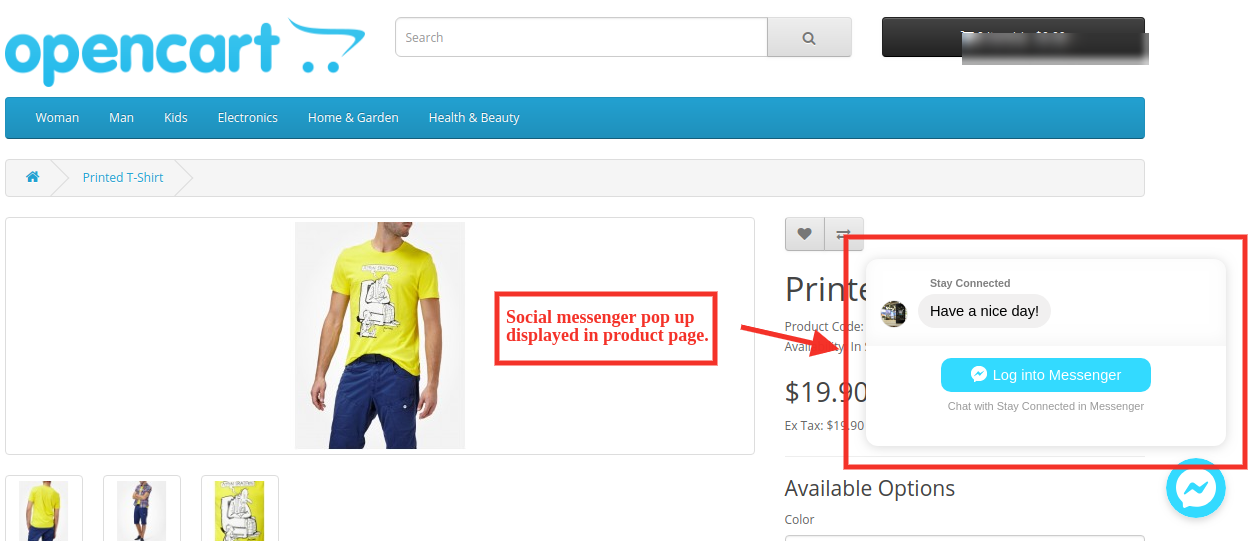
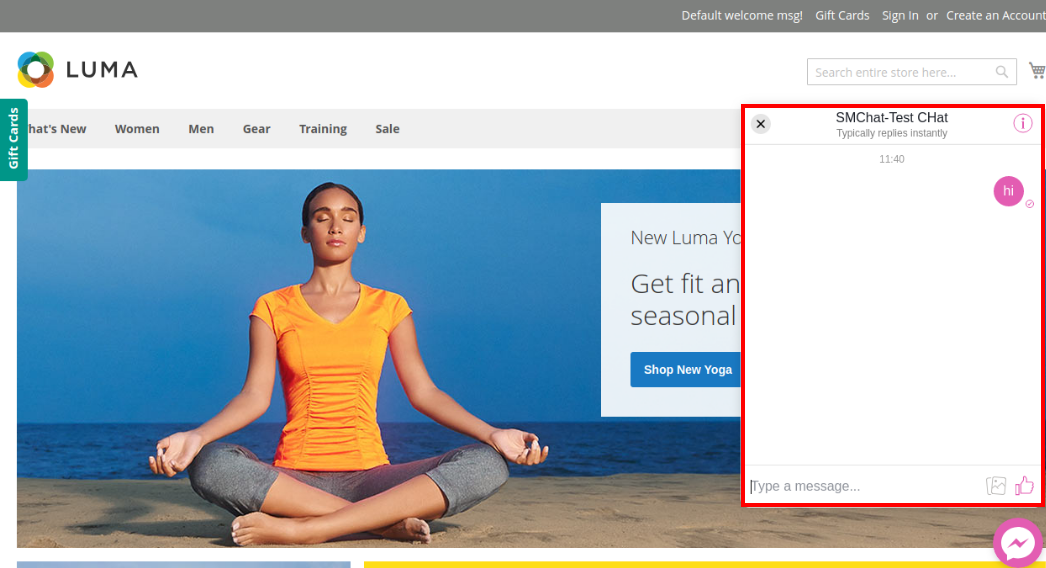
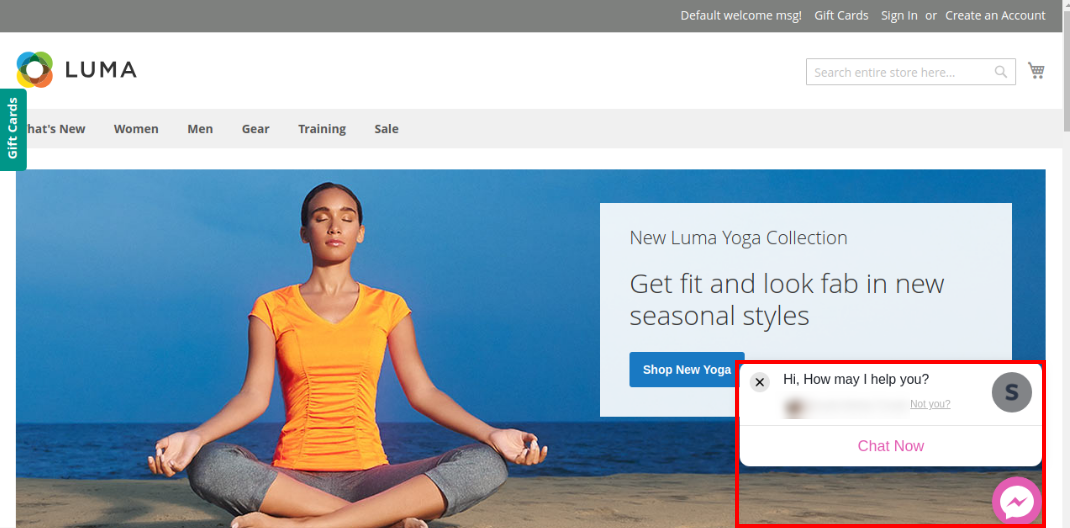
After customizing this facebook messenger integration plugin, the store admin can show facebook messenger successfully on the website front-end interface. The customers can view the live chat option on the store’s front-end as shown below:

  1. Product Page:


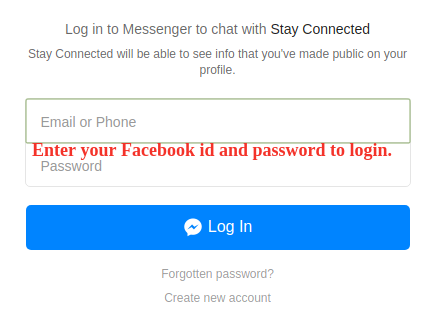
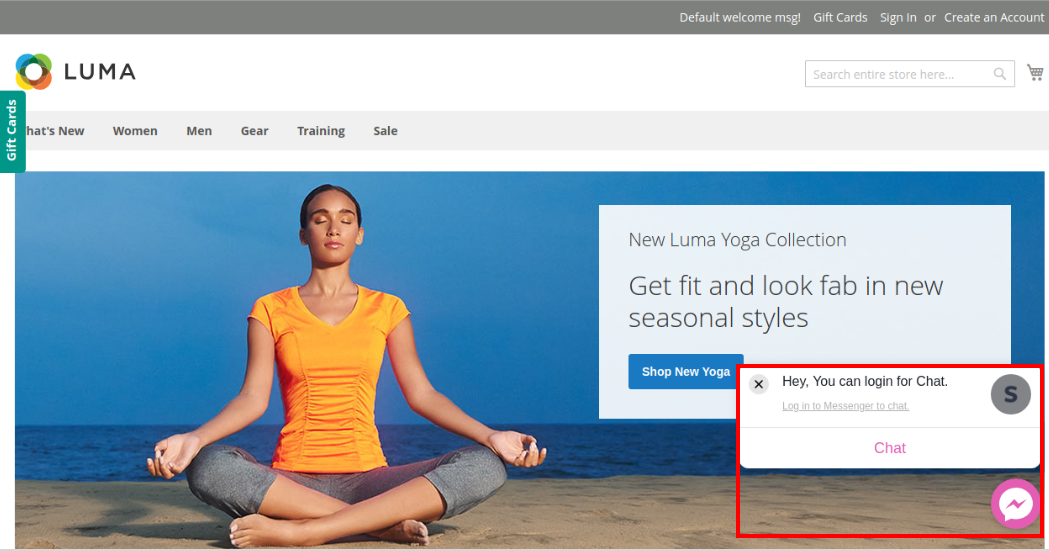
 2. Log in Window:

Online customers can easily login after clicking on the messenger chat box. They can chat and discuss any confusion, query or concern directly to the store admin. OpenCart Social Messenger Extension makes it very easy for the store admin to resolve customers concern. This OpenCart Social Messenger Module is multi-lingual compatible and mobile responsive. Facebook messenger for OpenCart allows the customers to directly communicate with the store admin and get the solution of their concerns in the least time.

Knowband  is one of the most reputed names in the field of plugin development. We provide best plugins for platforms like- Magento, Prestashop, OpenCart and

 Shopify.

Knowband OpenCart live chat support extension Module Link

Knowband OpenCart messenger chat module Admin Demo Link

Knowband OpenCart Social Messenger Extension Front-end Demo

Knowband Facebook messenger for OpenCart Youtube Video Link

facebook messenger integration Marketplace Link

For more support and information, feel free to contact us via email at support@knowband.com anytime.
Magento 2 Social Messenger Extension- User Manual

1.0 Introduction

The online store admin can now offer online chat support to the customers on the eCommerce store. Knowband offers Magento 2 Social Messenger module which implements the functionality of live chat support. The online store admin can integrate Facebook messenger and offer online chat support to the customers. The online users can send a message and ask their queries at the same time. Thus, the Magento 2 Facebook Messenger Integration module helps the store admin to resolve all the confusions and queries generated in the customer’s mind.

The Magento 2 Facebook Messenger Integration module helps the admin to offer best class support and better store experience. The online store admin can communicate to the customers directly and resolve their issues. This is the best way to develop a better relationship with customers. Online admin can enter Facebook app ID and page ID in order to integrate Facebook messenger.

1.1 Features offered by Magento 2 Facebook Messenger Integration

  1. With the help of this Magento 2 Facebook Messenger Integration module, the online store admin can integrate Facebook messenger on the store pages and offer chat support to the customers.
  2. By offering chat support option, the store owner can offer better store experience to the customers and communicate with them directly.
  3. In order to integrate the Facebook messenger, the online store admin needs to enter the Facebook app ID and page ID.
  4. The Magento 2 Social Live Chat Support module allows setting the messenger theme color using a color picker tool.
  5. The online merchant can select the pages for showing the messenger chat option.
  6. The Facebook messenger and live chat extension allows the admin to set the time after which the greeting message will be displayed.
  7. The admin can also set greeting messages for Facebook logged-in and logged-out customers separately.
  8. This Messenger Live Chat extension is multi-lingual compatible and offers a user-friendly interface.
  9. The online store admin can implement live chat support functionality on the store without changing any codes from the admin interface.
  10. No specific technical skills are required for the implementation.
  11. Magento 2 Social Live Chat Support extension is mobile responsive.

1.2 Admin benefits by Messenger Chat Module for Magento 2 Store

  1. The store admin can offer live messenger chat support to the customers and resolve customer’s issues and confusions easily without any hassle.
  2. The customers can communicate with the customers directly and resolve their confusions.
  3. The store admin can develop a better customer relationship and increase sales on the website.
  4. The store owner can easily integrate Facebook messenger on the store and show Facebook messenger on website pages.
  5. The store owner is allowed to change the messenger theme color.
  6. The online store admin can boost the sales and conversion rate easily by resolving the concerns and answering the queries of the customers.

2.0 Installation Steps

After purchasing Magento 2 Social Messenger module, the store admin will get the following files:

1. Socialmessenger.zip which contains the source code of the Magento 2 Social Messenger extension.

2. User Manual which includes all the details and helps regarding the extension.

The steps to install the Magento 2 Social Live Chat Support module are mentioned below:

1. Buy the Messenger Chat Module for Magento 2 store from Knowband. You can download the extension package.

2. The package has a zipped file that contains the user manual and the source code of Magento 2 Facebook Messenger Integration. Unzip the package.

3. Create a folder {Magentoroot}/app/code/Knowband/socialmessenger

4. Upload the extracted content in the above folder via FTP manager (like Filezilla or WinSCP – download here: https://filezilla-project.org/).

5. Now run below commands to install the plugin:

php -f bin/magento module:enable –clear-static-content Knowband_socialmessenger
php -f bin/magento setup:upgrade
php -f bin/magento setup:di:compile
php bin/magento setup:static-content:deploy

6. The extension is now installed and ready for use. In Admin Panel go to “Knowband Extensions >Social Messenger”.

You can now configure and use the Magento 2 Social Messenger.

3.0 Admin Interface

After the successful installation, the online store admin can get these configuration options:

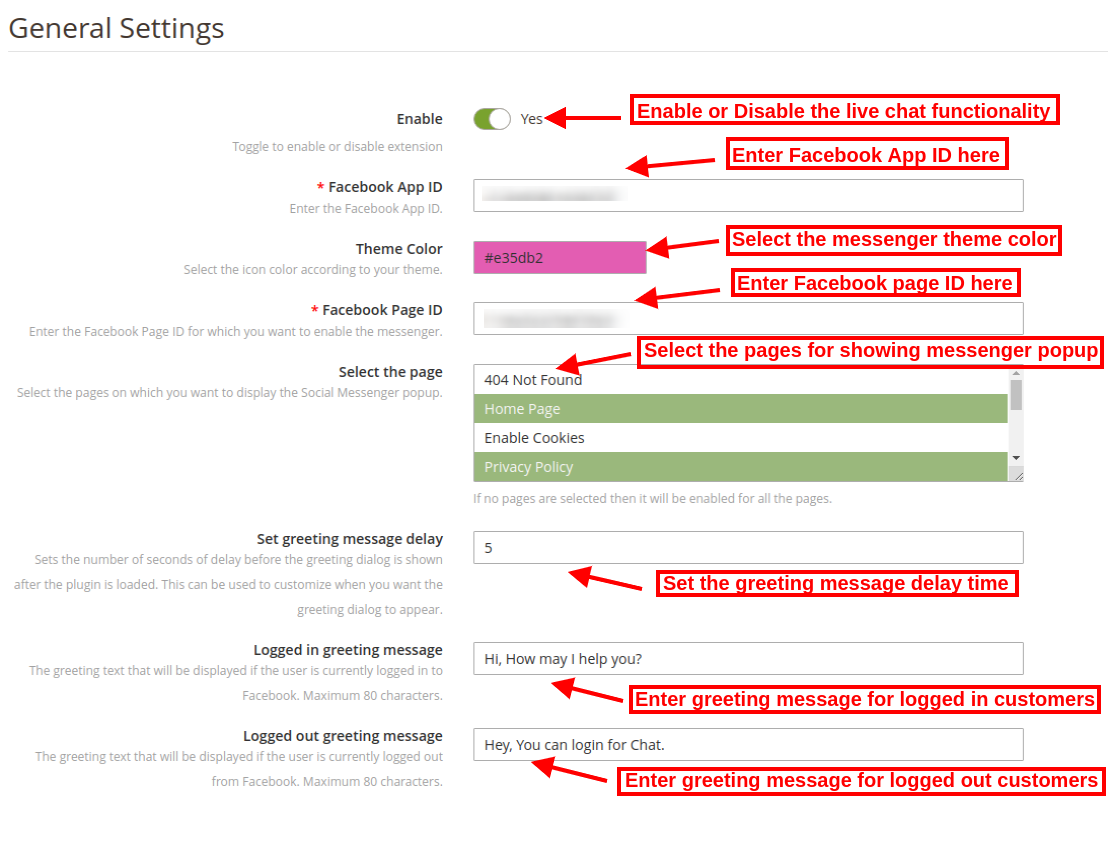
  • Enable/Disable: Activate or deactivate the Magento 2 Social Live Chat Support module functionality.
  • Facebook APP ID: Enter the Facebook app Id for integrating Facebook messenger. For generating the Facebook app id, follow steps provided in 3.1 section.
  • Theme Color: Select the messenger theme color from the color picker tool.
  • Page ID: Enter the Facebook page id in order to manage online chat conversation. Follow the steps described in 3.2 section.
  • Select the Page: Select the pages from the drop-down list. Admin can show messenger chat option on multiple pages.
  • Set Greeting Message Delay: Enter the time in seconds for setting the greeting message delay.
  • Logged-in Greeting Message: Enter the greeting message for Facebook logged in customers. The customers who are already logged in to Facebook will get this greeting message.
  • Logged-out Greeting Message: Enter the greeting message for the logged-out customers here. The customers who are logged out from Facebook will view this Facebook message.

3.1 Steps to generate Facebook app ID

For generating Facebook app id, please follow these steps:

  • Go to “MY APPS” and click on the ”ADD NEW APP” option.

  • Enter the details in “Display Name” and “contact email ID”. After that, click on the “Create APP ID” button.

  • After clicking the “create app id” button, go to the “Settings” and then select “Basic” option. Here, the store admin can view the APP ID. The admin needs to copy this Facebook app id and copy to the admin interface app id option.

  • Admin can insert the App Domain. After that click on the “save changes” option.

3.2 Steps to generate Facebook page ID

  • The admin needs to open the Facebook page and go to “about” page. Here, the admin can view the “page id”.

  • After that go to the settings option and select the “messenger platform” option. Here, the store admin can enter the domain in the “White-listed domains” option.

  • Now, the admin can enter the page id in the admin interface page id option.

4.0 Front-end Interface

The customers can view the messenger chat option on the website pages as shown below:

The logged-in customers will view different greeting message as shown below:

Logged-out customers will view different greeting message on the messenger as shown below:

The online users can ask their queries and concerns using this messenger chat option and get the solution in the meantime.

This way Magento 2 Live Chat Support module implements functionality to offer live chat support on the website without any complicated process. Messenger Chat Module for Magento 2 store integrates Facebook messenger and shows it on various website pages. The customers can easily log in messenger and ask their queries in the meantime.  Facebook Messenger and Live Chat plugin is highly customizable and mobile responsive also. The customers can also view the chat option on their mobile devices like tablet and phones. Messenger Live Chat extension functionality increase customers trust on the website which boosts the website revenue.
Magento 2 Social Live Chat Support extension also provides an option to set the theme color of the messenger as per the website theme. Admin can set different greeting message for the logged-in and logged-out customers from the Magento 2 Facebook Messenger Integration module admin interface.

Knowband is one of the most reputed names in the field of plugin development. We provide best plugins for platforms like –  Magento, Prestashop, Magento 2 and   Shopify.

Knowband Magento 2 live chat support extension Module Link 

Knowband Magento 2 messenger chat module Admin Demo Link 

Magento 2 Social Messenger Extension Front-end Demo

Facebook messenger for Magento 2 Youtube Video Link

Facebook messenger integration Marketplace Link

For more support and information, feel free to contact us via email at support@knowband.com anytime.