How to use GraphQL in PHP?

Have you heard about GraphQL?

GraphQL is a modern query language for the API. In another word, we can say it is a modern application layer query language.

With the help of GraphQL, we can fetch data from the API calls and it works on the HTTP as REST. It provides the powerful option to the client so that they ask what they exactly need and it helps in the API growth or evaluation.

Benefits of GraphQL
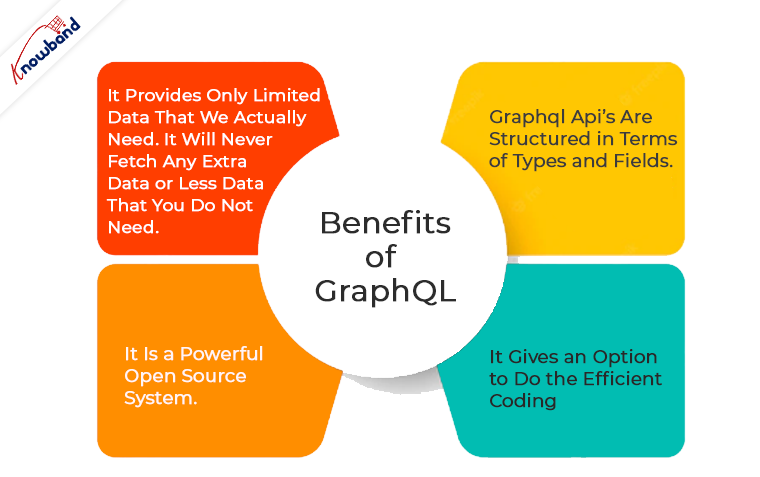
  • It provides only limited data that we actually need. It will never fetch any extra data or less data that you do not need.
  • It is a powerful open source system.
  • It gives an option to do the efficient coding. For example, suppose a table 40 column and sometimes we need the data of only 10 column or sometimes 20 etc. To solve this problem we have two option in normal API, either fetch all data in every API call and use any we want or we have to write the number of APIs for the same table so that we can call the efficient API as per requirement. But in GraphQL, we have to write only one API. So line code also gets reduced.
  • GraphQL API’s are structured in terms of Types and Fields.
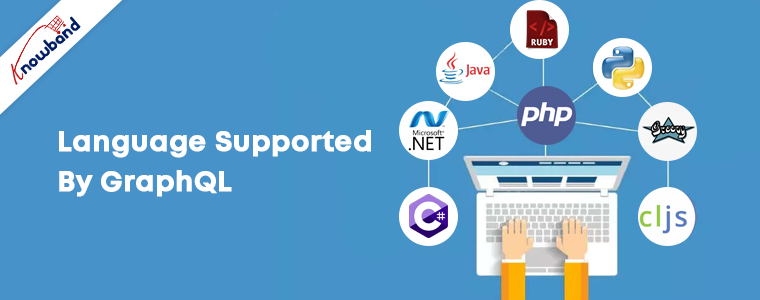
GraphQL has for supports various languages like

  • C#
  • .NET
  • Clojure
  • Elixir
  • Erlang
  • Go
  • Groovy
  • Java
  • JavaScript
  • PHP
  • Python
  • Scala
  • Ruby

In this blog, we will learn about the GraphQL in PHP.

Firstly we should know, in any language to use GraphQL we have to import their library.

In PHP, we can use this library file: webonyx/graphql-php.

Installation

Using composer, simply run:

composer require webonyx/graphql-php

How GraphQL Fetch Data with Queries?

In the REST, API returns data in a defined structure. While writing the API in REST we have to define the structure of data what it will return but GraphQL has no defined structure it will return. It can change their structure as per client need.

The client has to send some more information to the server in order to declare their requirements and this information is called the Query.

In the Query, we have to define the Root Fields in the other word we say the same as payload for the service.

Resolver

In the real world application like e-commerce application i.e. PrestaShop, OpenCart, Magneto etc. we need to fetch the customer data from the database by customerId and have to return the same. Our point is we don’t have to return the arrays, we have to return the values and graphql-php will pass it untouched to nested resolvers.

The resolver is basically a call back function for each field. There is always a default resolver for all fields. When we define our own resolve function for a field we simply override the default resolver.

How to define Schema for Query?

$schema_obj = new Schema {
          “query” => $queryType,
          “mutation” => $mutationType,
           “subscription” => $subscriptionType
}

Example

As this is a blog for the beginners or fresher let’s do a simple example.

Let’s create a type system that will be to process following simple query:

query {
  echo(message: "Hi Knowband, this is my first GraphQL program")
}

Note: We need an object type with field echo to do so.

<?php
use GraphQL\Type\Definition\ObjectType;
use GraphQL\Type\Definition\Type;
$queryType = new ObjectType([
    'name' => 'Query',
    'fields' => [
        'echo' => [
            'type' => Type::string(),
            'args' => [
                'message' => Type::nonNull(Type::string()),
            ],
            'resolve' => function ($root, $args) {
                return $root['prefix'] . $args['message'];
            }
        ],
    ],
]);

The resolve option is very important option of field definition. It is one which is responsible to for returning the value of our field. Values of the scalar fields will be directly get included in response while the values of the composite fields will be passed down to the nested field resolvers. Composite fields are interfaces, unions, objects etc.

Now after our type become ready, let’s write the GraphQL endpoint file for it graphql_program_1.php.

<?php
use GraphQL\GraphQL;
use GraphQL\Type\Schema;
try {
    $schema_obj = new Schema([
        'query' => $queryType
    ]);
    $Input = file_get_contents('php://input');
    $input_data = json_decode($Input, true);
    $query_data = $input_data['query'];
    $variable_values = isset($input_data['variables']) ? $input_data['variables'] : null;
    $value = ['prefix' => 'Output: '];
    $resultant = GraphQL::executeQuery($schema_obj, $query_data, $value, null, $variable_values);
    $output_value = $resultant->toArray();
} catch (\Exception $e) {
    $output_value = [
        'errors' => [
            [
                'message' => $e->getMessage()
            ]
        ]
    ];
}
header('Content-Type: application/json');
echo json_encode($output_value);
?>

How can we run the code?

We can run the code by:

php -S localhost:8080 graphql_program_1.php
curl https://localhost:8080 -d '{"query": "query { echo(message: \" Hi Knowband, this is my first GraphQL program \") }" }'

For any queries, please feel free to reach us at support@knowband.com. Knowband is providing the best in class modules for Prestashop, Opencart, Magento and Magento 2.

Take a look at one of our most popular for Prestashop called One page supercheckout:


How to create your own HTML template using jQuery?

This article is all about creating HTML template using jQuery.

Let’s know about the jQuery

jQuery is a fast, small, and feature-rich JavaScript library. It makes things like HTML document traversal and manipulation, event handling, animation, and Ajax much simpler with an easy-to-use API that works across a multitude of browsers. With a combination of versatility and extensibility, jQuery has changed the way that millions of people write JavaScript.

Let’s know about the jQuery Template

jQuery Template gives us an option or support to display and manipulation of the content on the browser. By using the jQuery Templating we can render JSON string to the HTML elements. Let us consider a simple example, we can use jQuery Template to display some set of records that we have got from an Ajax’s request.

A basic example of jQuery templates

Now we create a simple page using jQuery templates. We will only use the jQuery plugin. In this example, we will show you how to create a template and render the content from the JSON.

Requirement

Let’s us understand the requirement first.

Suppose we have to create a webpage like KnowBand website to sell the modules for the e-commerce platform like Opencart, Prestashop etc. We have some e-commerce modules or plugin that we want to list on KnowBand site. So, on the listing page, we will show the module’s name, image, and price.

We will use the below JSON string to list the data:

[
	{
		"name": "Product tabs- PrestashopAddons",
		"image_url": "https:\/\/www.knowband.com\/image\/data\/Plugin%20Logo\/Product-Tabs-logo-1000-x-1000.jpg",
		"module_url": "https:\/\/www.knowband.com\/prestashop-product-tabs",
		"price": "$25"
	},
	{
		"name": "Prestashop Mobile App builder",
		"image_url": "https:\/\/www.knowband.com\/image\/data\/Plugin%20Logo\/Mobile-app-prestashop-plugin-500-X-500.jpg",
		"module_url": "https:\/\/www.knowband.com\/prestashop-mobile-app-builder",
		"price": "$30"
	},
	{
		"name": "Return Manager - Magento Extensions",
		"image_url": "https:\/\/www.knowband.com\/image\/data\/Plugin%20Logo\/return-manager.png",
		"module_url": "https:\/\/www.knowband.com\/magento-return-manager",
		"price": "$50"
	},
	{
		"name": "Web Push Notification - PrestashopAddons",
		"image_url": "https:\/\/www.knowband.com\/image\/data\/Plugin%20Logo\/Web-Push-Notification-plugin.jpg",
		"module_url": "https:\/\/www.knowband.com\/prestashop-web-push-notifications",
		"price": "$43"
	}
]

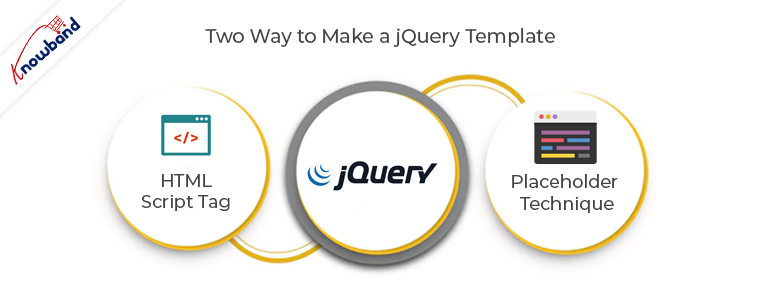
  1. By using the HTML Script Tag

    In this method, we will write HTML code in the script tag. The complete code is given below:

<html>
    <head>
            <link rel="stylesheet" href="https://maxcdn.bootstrapcdn.com/bootstrap/3.3.7/css/bootstrap.min.css&quot;>
            <script src="https://ajax.googleapis.com/ajax/libs/jquery/3.2.1/jquery.min.js&quot;&gt;&lt;/script>
        </head>
        <body>
            <div class="container">
                <script id="blog" type="template">
                    <div class="col-md-3">
                        <a href="{{module_url}}">
                            <div class="thumbnail">
                                <imgsrc="{{image_url}}" class="img-rounded img-responsive" width="100%"></img>
                                <div class="caption">
                                    <p class="lead">{{price}}</p>
                                    <p>{{name}}</p>
                                </div>
                            </div>
                        </a>
                    </div>
                </script>
            </div>
            <script>
            $(function () {
                varknoband_data = [
                        {
                            "name": "Product tabs- PrestashopAddons",
                            "image_url": "https:\/\/www.knowband.com\/image\/data\/Plugin%20Logo\/Product-Tabs-logo-1000-x-1000.jpg",
                            "module_url": "https:\/\/www.knowband.com\/prestashop-product-tabs",
                            "price": "$25"
                        },
                        {
                            "name": "Prestashop Mobile App builder",
                            "image_url": "https:\/\/www.knowband.com\/image\/data\/Plugin%20Logo\/Mobile-app-prestashop-plugin-500-X-500.jpg",
                            "module_url": "https:\/\/www.knowband.com\/prestashop-mobile-app-builder",
                            "price": "$30"
                        },
                        {
                            "name": "Return Manager - Magento Extensions",
                            "image_url": "https:\/\/www.knowband.com\/image\/data\/Plugin%20Logo\/return-manager.png",
                            "module_url": "https:\/\/www.knowband.com\/magento-return-manager",
                            "price": "$50"
                        },
                        {
                            "name": "Web Push Notification - PrestashopAddons",
                            "image_url": "https:\/\/www.knowband.com\/image\/data\/Plugin%20Logo\/Web-Push-Notification-plugin.jpg",
                            "module_url": "https:\/\/www.knowband.com\/prestashop-web-push-notifications",
                            "price": "$43"
                        }
                    ];
                var temp = $.trim($('#blog').html());
                $.each(knoband_data, function (index, obj) {
                    var x = temp.replace(/{{name}}/ig, obj.name);
                    x = x.replace(/{{image_url}}/ig, obj.image_url);
                    x = x.replace(/{{price}}/ig, obj.price);
                    x = x.replace(/{{module_url}}/ig, obj.module_url);
                    $('.container').append(x);
                });
            });
        </script>
        </body>
    </html>

We have created a thumbnail inside script tag i.e. #blog script tag and it was used as a template. In the above code, we have used {{ }} for wildcard variables.

Let’s understand actually what we have done in the above code:

var temp = $.trim($('#blog').html()); // It wil load all content of the #blog script tag in a temp variable.
var x = temp.replace(/{{name}}/ig, obj.name);       // Replaced the wildcard variable {{name}} with corresponding data from the JSON.
x = x.replace(/{{image_url}}/ig, obj.image_url);     // Replaced the wildcard variable {{image_url}} with corresponding data from the JSON.
x = x.replace(/{{price}}/ig, obj.price);                    // Replaced the wildcard variable {{price}} with corresponding data from the JSON.
x = x.replace(/{{module_url}}/ig, obj.module_url);  // Replaced the wildcard variable {{module_url}} with corresponding data from the JSON.
$('.container').append(x); // appended the content to the container div.
  1. By using the Placeholder technique

In this technique, we will append the content in the HTML after populating the data using the jQuery placeholder technique. The complete code is given below:

<html>
    <head>
        <link rel="stylesheet" href="https://maxcdn.bootstrapcdn.com/bootstrap/3.3.7/css/bootstrap.min.css&quot;>
        <script src="https://ajax.googleapis.com/ajax/libs/jquery/3.2.1/jquery.min.js&quot;&gt;&lt;/script>
    </head>
    <body>
        <div class="container"></div>
        <script>
         $(function() {
             varknoband_data = [
                        {
                            "name": "Product tabs- PrestashopAddons",
                            "image_url": "https:\/\/www.knowband.com\/image\/data\/Plugin%20Logo\/Product-Tabs-logo-1000-x-1000.jpg",
                            "module_url": "https:\/\/www.knowband.com\/prestashop-product-tabs",
                            "price": "$25"
                        },
                        {
                            "name": "Prestashop Mobile App builder",
                            "image_url": "https:\/\/www.knowband.com\/image\/data\/Plugin%20Logo\/Mobile-app-prestashop-plugin-500-X-500.jpg",
                            "module_url": "https:\/\/www.knowband.com\/prestashop-mobile-app-builder",
                            "price": "$30"
                        },
                        {
                            "name": "Return Manager - Magento Extensions",
                            "image_url": "https:\/\/www.knowband.com\/image\/data\/Plugin%20Logo\/return-manager.png",
                            "module_url": "https:\/\/www.knowband.com\/magento-return-manager",
                            "price": "$50"
                        },
                        {
                            "name": "Web Push Notification - PrestashopAddons",
                            "image_url": "https:\/\/www.knowband.com\/image\/data\/Plugin%20Logo\/Web-Push-Notification-plugin.jpg",
                            "module_url": "https:\/\/www.knowband.com\/prestashop-web-push-notifications",
                            "price": "$43"
                        }
                    ];
             $.each(knoband_data, function(index, obj) {
                $('.container').append(
                    `<div class="col-md-3">
                        <a href="${obj.module_url}">
                            <div class="thumbnail">
                                <imgsrc="${obj.image_url}" class="img-rounded img-responsive" width="100%"></img>
                                <div class="caption">
                                    <p class="lead">${obj.price}</p>
                                    <p>${obj.name}</p>
                                </div>
                            </div>
                        </a>
                    </div>`
                );
            });
         });
        </script>
    </body>
</html>

In the above example, we have used ` (back-tick) as template literal and ${ } as a placeholder. When we compare method 1 with method 2 we can easily say template literal and placeholder makes our task easier. In this example, we have written the template code in a loop and replaced our placeholders with its corresponding data.

Summary

To learn more about jQuery Templates, I recommend that you look at the documentation for jQuery Templates at the official jQuery website.

For any queries, please reach us at support@knowband.com. We also provide custom development of all sorts. You can also find the best eCommerce modules for Prestashop, Opencart, Magento and Magento 2 here.

We also recommend our most popular One page supercheckout module as a must-have module for all eCommerce stores. Know more:


How to programmatically create customer in Magento?

Magento is one of the most flexible and widely used e-commerce platforms nowadays. Many times during our development we need to create customers via our code. For example, if we are developing a Magento plugin to connect our Magento store to marketplaces like Walmart, Etsy etc then we create an order for the customer via our code. But to create an order we need to create customer if that customer does not exist on our Magento store. We can create customer in Magento simply by using the following code.

Code for creating a customer in Magento:

$_website = Mage::app()->getWebsite()-->getId();
        $store = Mage::app()->getStore();       
        $_firstName = 'Jhon';
        $_lastName = 'Doe';
        $_customerEmail = 'demo@demo.com';
        $_customerPassword = '#KnowbandPlugins';
        
        $_newCustomer = Mage::getModel("customer/customer");
        $_newCustomer->setWebsiteId($_website)
                     ->setStore($store)
                     ->setFirstname($_firstName)
                     ->setLastname($_lastName)
                     ->setEmail($_customerEmail)
                     ->setPassword($_customerPassword);
        try{
            $_newCustomer->save();
        }
        catch (Exception $e) {
            Mage::getSingleton('customer/session')->addException($e, $this->__('Error in creating customer'));
            Mage::logException($e);
        }
<a href="https://www.knowband.com/blog/wp-content/uploads/2018/10/untitled-26.png"><img class="alignnone size-medium wp-image-22306" src="https://www.knowband.com/blog/wp-content/uploads/2018/10/untitled-26-300x48.png" alt="creating-customer-in-magento" width="300" height="48" /></a>

But this customer only has very basic information like first name, last name, email etc. It does not have shipping or billing address. We can save complete address information of the customer via the following code.

Code for saving the address of the customer:

$_website = Mage::app();getWebsite();
$_customerEmail = 'demo@demo.com'; //Customer Email
$_countryId = 'IN';
        $_postCode = '201301';
        $_city = 'Noida';
        $_telephone = '1111111111';
        $_fax= '';
        $_company = 'Velocity Software Solutions';
        $_street = '';
        
        $_customer = Mage::getModel('customer/customer')
                ->setWebsiteId($_website->;getId())
                ->loadByEmail($_customerEmail);
        $_customerAddress = Mage::getModel("customer/address");
        $_customerAddress->setCustomerId($_customer->getId())
                ->setFirstname($_customer->getFirstname())
                ->setMiddleName($_customer->getMiddlename())
                ->setLastname($_customer->getLastname())
                ->setCountryId($_countryId)
                ->setPostcode($_postCode)
                ->setCity($_city)
                ->setTelephone($_telephone)
                ->setFax($_fax)
                ->setCompany($_company)
                ->setStreet($_street)
                ->setIsDefaultBilling('1')
                ->setIsDefaultShipping('1')
                ->setSaveInAddressBook('1');

        try{
            $_customerAddress->save();
        }
        catch (Exception $e) {
            Mage::getSingleton('customer/session')->addException($e, $this->__('Error in saving customer address.'));
            Mage::logException($e);
        }
<a href="https://www.knowband.com/blog/wp-content/uploads/2018/10/untitled-27.png"><img class="alignnone size-medium wp-image-22308" src="https://www.knowband.com/blog/wp-content/uploads/2018/10/untitled-27-300x133.png" alt="saving-address-of-customer" width="300" height="133" /></a>

Now the customer address information is complete. Hope the above-mentioned code will help you in adding a new customer to your Magento store.

How to install Magento using command line?

Magento is one of the best e-commerce based open-source platform which is written in PHP. Magento provides three different platforms:

  1. Magento Community Edition
  2. Magento Enterprise Edition
  3. Magento Enterprise Cloud Edition

Here we will be learning how to install Magento using the command line(CLI). Command line installation of Magento is one of the most efficient ways of installing if we are installing it on servers.

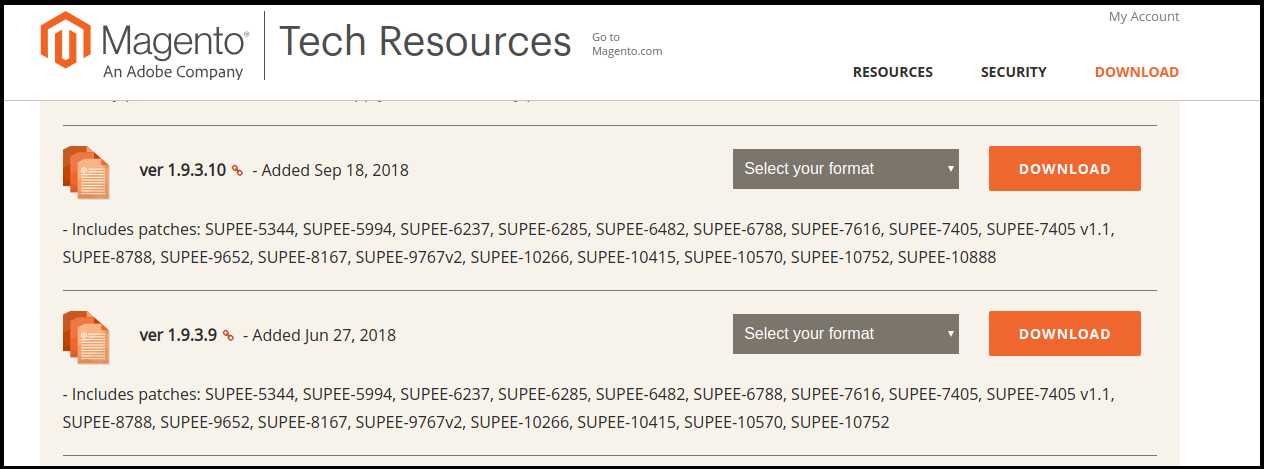
Download Magento Community Edition 1.X

One can download the required version of the Magento from the official website of the magneto. Use below link to download your package.

https://magento.com/tech-resources/download

It will ask to login. If you do not have an account then create an account and proceed further.

Uncompressing the downloaded file

Move the file to a directory where you want to install it and uncompress it.

a) If it is a zip file then using following way:

Syntax:- unzip file_name

e.g –

unzip magento-1.9.3.10-2018-09-18-03-21-10.zip

b) If it is a tar file then use the following way:

Syntax:- tar xf file_name

e.g –

tar xf magento-1.9.3.10-2018-09-18-03-21-10.tar.bz2

Prerequisite for Magento installation:

For the installation of the Magento, you will need to meet the standard system requirements. As per the documentation of Magento you need to meet the following requirement for the installation of the Magento.

a) Environment:

LAMP (Linux, Apache, MySQL, and PHP) or LNMP stack

b) Operating System:

Linux x 86, x86-64

c) Web Server:

  • Apache 2.x
  • Nginx 1.7.x

d) Server Hosting:

  • Ability to run scheduled jobs (crontab) with PHP 5.
  • Ability to override options in .htaccess files.

e) PHP:

  • PHP 5.6
  • PHP 5.5
  • PHP 5.4

f) Required extensions:

  • PDO_MySQL
  • Simplexml
  • Mcrypt
  • Hash
  • GD
  • DOM
  • Iconv
  • Curl
  • SOAP (for Webservices API)

g) Additional configuration:

  • safe_mode off
  • memory_limit no less than 256 MB (512 MB recommended)

h) Database:

  • MySQL 5.6 (Oracle or Percona)

For detailed information please check:

https://docs.magento.com/m1/ce/user_guide/magento/system-requirements.html

Setup Database

Now we will set up the database for our Magento. For setting up database one must have following things

  1. DB Host
  2. DB Name
  3. DB Username
  4. DB Password

Steps for creating a database:

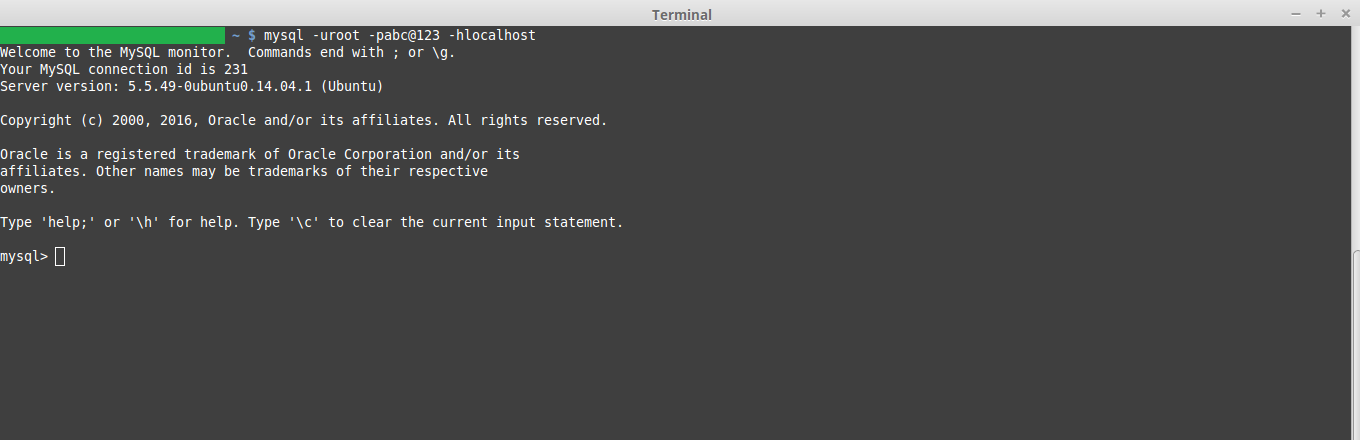
Step 1. Login to your MySQL:

MySQL -uDB_User -pDB_Password -hDB_Host

a) DB_User:- Username of the MySQL

b) DB_Password:- Password of the MySQL

c) DB_Host:- Hostname of the MySQL

Step 2. Create a database:

Syntax:- create database DB_NAME

E.g

create database kb_mage_db;

Here kb_mage_db is the name of the database which we are creating.

Step 3. Check the newly created database using below command

Show databases;

This will show the list of all the created database in your system. Here the name of the database which you created should show.

Step 3. Exit from your MySQL server using the following command

exit;

Installation of Magento

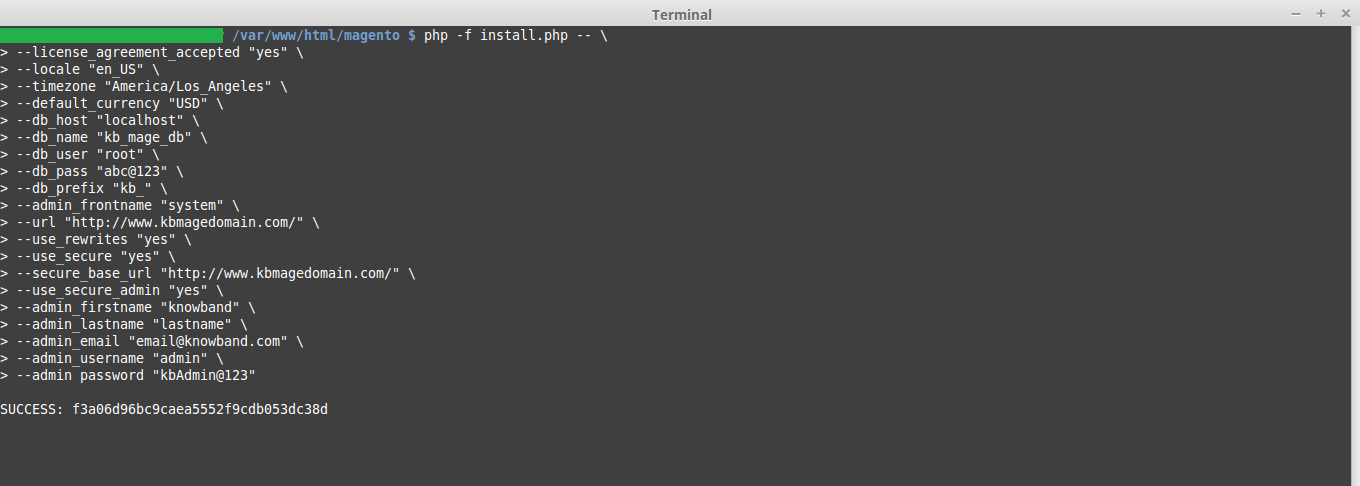
For CLI installation, we need to run the following command:

php -f install.php -- \
--license_agreement_accepted "yes" \
--locale "en_US" \
--timezone "America/Los_Angeles" \
--default_currency "USD" \
--db_host "DB_HOST" \
--db_name "DB_NAME" \
--db_user "DB_USER" \
--db_pass "DB_PASS" \
--db_prefix "DB_PREFIX" \
--admin_frontname "ADMIN_FRONT_NAME" \
--url "SITE_URL" \
--use_rewrites "yes" \
--use_secure "yes" \
--secure_base_url "SITE_URL" \
--use_secure_admin "yes" \
--admin_firstname "ADMIN_FIRST_NAME" \
--admin_lastname "ADMIN_FIRST_LAST_NAME" \
--admin_email "EMAIL" \
--admin_username "USERNAME" \
--admin_password "PASSWORD"

Explanation of the keywords used in the CLI command.

  1. Locale: Place language code like “en_US” which want to use in Magento.
  2. Timezone: Place timezone which wants to use in Magento. In this case, we have used “America/Los_Angeles”.
  3. Default_currency: Place currency which wants to use in Magento.
  4. DB_HOST – Database hostname, in case of a local system put localhost
  5. DB_NAME – The name of your database e.g. kb_mage_db
  6. DB_USER – The username with access rights to the database
  7. DB_PASS – The password for the database user
  8. SITE_URL – The path where Magento is installed, e.g. https://www.kbmagedomain.com/
  9. ADMIN_FIRST_NAME – First name of the admin
  10. ADMIN_LAST_NAME – Last name of the admin
  11. EMAIL – The store owner’s email address, e.g. email@knowband.com
  12. USERNAME – The administrator’s username. This will be used to login on magneto backend.
  13. PASSWORD – The administrator’s password. This will be used to login on magneto backend.

After the installation of the Magento, success message will show with the encryption id.

Now open your favorite browser and check you installed Magento using the URL you used.

How to programmatically create orders in Magento?

Sometimes we need to programmatically create orders in Magento. Suppose you are creating a Magento plugin for your store to connect it to the marketplace like Walmart or Etsy. In these cases, we need to create order on our Magneto store whenever a customer places an order on the marketplace. To do so we fetch the details of the item ordered and the customer details like shipping and billing details and create order on our Magento store programmatically.

So in today’s article, we will be learning how we can programmatically create an order for a customer for any particular item. We will follow the following steps for creating an order on the Magento store.

Steps involved in creating order:

  • We will define customer data like first name, last name, email.
  • Define Shipping and Billing address of the customer.
  • Define Shipping and Payment method of the customer.
  • Define product and the quantity which needs to be ordered on our Magento store.
  • Create a customer if the customer does not exist our Magento store. It’s an optional step.
  • Add product to the quote of the customer.
  • Add Shipping and Billing address to the quote of the customer.
  • Prepare and save quote of the customer.
  • The order is created on your Magento store.

Use the below code to create order in Magneto 1.x –

         $_store = Mage::app()->getStore();
         $_website = Mage::app()->getWebsite();
         $_firstName = John';
         $_lastName = 'doe;
         $_email = 'demo@demo.com';
        /*
         * Custom billing address
         */
        $billingAddress = array(
            'customer_address_id' => '',
                         'prefix' => '',
            'firstname' => $_firstName,
            'middlename' => '',
             'lastname' => $_lastName,
            'suffix' => '',
            'company' => '',
            'street' => array(
                 '0' => 'Sector 63', // Required
                '1' => 'Noida, UP' 
            ),
             'city' => 'Noida',
            'country_id' => 'IN', // Country code
            'region' => 'UP', 
            'region_id' => '',
            'postcode' => '201301',
            'telephone' => '888-888-8888',
            'fax' => '',
            'save_in_address_book' => 1
        );
 
        /*
         * Custom shipping address
         */
        $shippingAddress = array(
            'customer_address_id' => '',
            'prefix' => '',
            'firstname' => $_firstName,
            'middlename' => '',
            'lastname' => $_lastName,
            'suffix' => '',
            'company' => '',
            'street' => array(
                '0' => 'Sector 63', // Required
                '1' => 'Noida, UP' 
            ),
            'city' => 'Noida',
            'country_id' => 'IN', // Country code
            'region' => 'UP',
            'region_id' => '',
            'postcode' => '201301',
            'telephone' => '888-888-8888',
            'fax' => '',
            'save_in_address_book' => 1
        );
 
        /**
         * Enter the shipping method you want to use. Some of the other shipping
         * methods are tablerate_tablerate, freeshipping_freeshipping etc.
         * Here we are using flatrate_flatrate
         */
        $_shippingMethod = 'flatrate_flatrate';
 
        /**
         * Enter the payment method you want to use. Some of the order payment  
   	*methods are checkmo, free, banktransfer, ccsave, purchaseorder etc.
         */
        $_paymentMethod = 'cashondelivery';
 
        /**
         * Provide array of product and their qty.
         * $array = array(product_id => qty)
         */
        $productIds = array(905 => 1);
        $quote = Mage::getModel('sales/quote')
                ->setStoreId($_store->getId());
 
        $quote->setCurrency(Mage::app()->getStore()->getBaseCurrencyCode());
 
        $customer = Mage::getModel('customer/customer')
                ->setWebsiteId($_website->getId())
                ->loadByEmail($_email);
 
        /**
         * Preparing customer for the quote 
         * if the customer is not registered then we will create a new customer. This is  	*an optional process.
         */
        if (!$customer->getId()) {
            $customer = Mage::getModel('customer/customer');
 
            $customer->setWebsiteId($_website->getId())
                    ->setStore($_store)
                    ->setFirstname($_firstName)
                    ->setLastname($_lastName)
                    ->setEmail($_email);
 
            /**
             * Creating new customer
             * Skip try-catch if you don't want to create a new customer.
             */
            try {
                // Generating password for customer. You can also use any custom  // password for it.
                $password = $customer->generatePassword();
                $customer->setPassword($password);
                $customer->setForceConfirmed(true);
                $customer->save();
 
                $customer->setConfirmation(null);
                $customer->save();
                $customerId = $customer->getId();
                $customAddress = Mage::getModel('customer/address');
                $customAddress->setData($billingAddress)
                        ->setCustomerId($customerId)
                        ->setIsDefaultBilling('1')
                        ->setIsDefaultShipping('1')
                        ->setSaveInAddressBook('1');
                $customAddress->save();
 
            } catch (Mage_Core_Exception $e) {
                Mage::getSingleton('customer/session')->addException($e, $this- >__('Error in creating customer'));
                Mage::logException($e);
            } catch (Exception $e) {
                Mage::getSingleton('customer/session')->addException($e, $this- >__('Error in creating customer'));
                Mage::logException($e);
            }
        }
 
        // Assign customer to quote
        $quote->assignCustomer($customer);
 
        // Add products to quote
        foreach ($productIds as $productId => $qty) {
            $product = Mage::getModel('catalog/product')->load($productId);
            $quote->addProduct($product, $qty);
        }
 
        // Add billing address to quote
        $_billingAddressData = $quote->getBillingAddress()- >addData($billingAddress);
 
        // Add shipping address to quote
        $_shippingAddressData = $quote->getShippingAddress()- >addData($shippingAddress);
 
        /**
         * If the customer is a registered customer then you can fetch their billing or  *shipping address as below
         * 
         * $_customerBillingAddress = $customer->getPrimaryBillingAddress();
         * $_customerShippingAddress = $customer->getPrimaryShippingAddress();
         * 
         * $_billingAddressData = $quote->getBillingAddress()- >addData($_customerBillingAddress);
         * $_shippingAddressData = $quote->getShippingAddress()- >addData($_customerShippingAddress);
         */
 
        // Collect shipping rates on quote shipping address data
        $_shippingAddressData->setCollectShippingRates(true)
                ->collectShippingRates();
 
        // Set shipping and payment method on quote shipping address data
        $_shippingAddressData->setShippingMethod($_shippingMethod)
                ->setPaymentMethod($_paymentMethod);
 
        // Set payment method for the quote
        $quote->getPayment()->importData(array('method' => $_paymentMethod));
 
        try {
            $quote->collectTotals();
            $quote->save();
 
            // Preparing Order From Quote
            $service = Mage::getModel('sales/service_quote', $quote);
            $service->submitAll();
            
            // $incrementId is the increment id of the order created.
            $incrementId = $service->getOrder()->getRealOrderId();
 
            Mage::getSingleton('checkout/session')
                    ->setLastQuoteId($quote->getId())
                    ->setLastSuccessQuoteId($quote->getId())
                    ->clearHelperData();
 
           /*
           * $response is the Array of the response with the status of the order  creation.
           */
            $response['success'] = true;
            $response['error'] = false;
        $response['messages'] = 'Order number '.$incrementId.' created  successfully.';
        } catch (Mage_Core_Exception $e) {
            $response['success'] = false;
            $response['error'] = true;
            $response['messages'] = $e->getMessage();
            Mage::logException($e);
        } catch (Exception $e) {
            $response['success'] = false;
            $response['error'] = true;
            $response['messages'] = $this->__('Error in processing order. Please try  again later.');
 
            Mage::logException($e);
        }
        
        Mage::app()->getResponse()->setBody(Mage::helper('core')- >jsonEncode($response));

Please go through the above-mentioned code to create order on your store.  In the above example, we have placed an order of one simple item with quantity 1. We have used “cash on delivery” as the payment method and “flatrate_flatrate” as the shipping method. You can make any combination as per your requirement and your Magento store configuration. Hope this will help you in understanding the mechanism of creating order.

How to run Direct SQL Queries in Magento?

Today we will learn how to run direct SQL queries in the Magento 1.x. By default Magento usages data model to access and modify the database. The data model provides good abstraction which hides the tricky queries but they also make the operation slow. Direct SQL queries come very handily whenever we need to update/insert a large number of data. For example, you have to update the price of all the products of a manufacturer and there are 15k products in that manufacturer. Doing this via loading product model in Magento will take a lot of time.

We can also use Magento resource to directly run our SQL queries without loading the whole collection.

Get the core resource model –

$resource = Mage::getSingleton('core/resource');

After this we need to create read or write connection as per our need.

/**

* Retrieve the read connection

*/

$readConnection = $resource->getConnection('core_read');

/**

* Retrieve the write connection

*/

$writeConnection = $resource->getConnection('core_write');

Fetching the correct Table name –

In case you are unaware of the prefix of the table then you can use below code to fetch the correct table name.

$_tableName = $resource->getTableName('catalog_product_entity');

If the prefix is mage_ then the table name it will return will be mage_catalog_product_entity

Reading Data –

To read data from the table use the following code

$query = “select * from {$_tableName}”;

$query_result = $readConnection->fetchAll($query);

Here, $query_result will return the result of select query. In our case it will return the array of all the product. In case you need data of only product then use following command.

$query = “select * from {$_tableName} where entity_id={$_productId}”;

$query_result = $readConnection->fetchAll($query);

Here $_productId is the id of the product whose data we need.

Writing Data –

For inserting data into the table use the following code.

$insert_query = “INSERT INTO {$_tableName} (‘COL_NAME1’,’COL_NAME2’) VALUES                                                                 (‘COL_VALUE1’,’COL_VALUE2’)”;

$writeConnection->query($insert_query);

Updated Data –

If we have to update the type_id of a product to “configurable” then we can use following code. Here $_productId is the product id.

$update_query = “UPDATE {$_tableName} SET type_id=”configurable” WHERE 						entity_id={$_productId}”;
$writeConnection->query($update_query);

But Magento has provided the concept of the model for database connection as they provide abstraction and they are more secure that the direct SQL queries.

How to Read the File in PHP Language?

Objective

After reading this blog, you will be able to read files in PHP language. In the blog, you will get enough information about different ways used in PHP to read a file.

Let’s Learn About the File Reading Method in the PHP

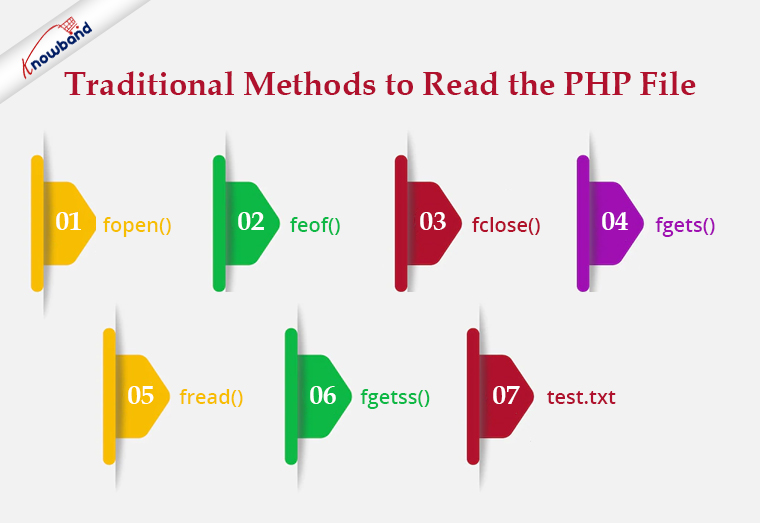
PHP provides various type of methods to read the file as follow:

Traditional Methods

In this type of method to read a file, we have to follow 3 steps.

  1. Open the file.
  2. Read the file.
  3. Close the file.

Let’s see some traditional methods:

Recommended Read: Export PHP data to the .xls file

fopen():

To read a file we need to open a file using fopen(). In fopen(), we have to pass to 2 parameters i.e. first is the file path and the next one is filed open mode. To read a file we will use “r” as file open mode, “r” denotes “read mode”.

$file = fopen("test.txt", "r") or die("Unable to open file!");

feof()

This method checks whether you have already read to the end of the file. This returns true till the last line of the file gets read and once we cross the last line it returns false. We use this method in a loop to read a file from the first line to the last line.


$file = fopen("test.txt", "r") or die("Unable to open file!");

while(!feof($file)) {

//your processing

}

fclose()

We use this method to close a file after reading the file. After closing a file we will no longer be able to read that file.

$file = fopen("test.txt", "r") or die("Unable to open file!");

while(!feof($file)) {

//your processing

}

fclose($file);

fgets()

We use this method to read a file line by line. It collects a single line of data from your file and returns it as a string. And from there either you can print the line or you can process the same as per your requirement.

&amp;lt;?php

$file = fopen("test.txt", "r") or die("Unable to open file!");

while(!feof($file)) {

echo fgets($file) . "&amp;lt;br&amp;gt;";

}

fclose($file);

?&amp;gt;

<strong>Recommended Read:</strong><a href="https://www.knowband.com/blog/tips/generate-qr-code-using-php/">Generate QR Code Using PHP</a>

fread()

We use this method if we want to read a file in a limited size. We have to pass a size limit in bytes in this method and then this method read the file up to a given size limit and ignores the rest part of the file.

If we want to read a file up to4,096 bytes (4 KB), we will write the code as –

$file = fopen("test.txt", "r") or die("Unable to open file!");

$data = fread($file, 4096);

Note: No matter what number you specify, fread will not read more than 8,192 bytes (8 KB). Assuming that the file is no bigger than 8 KB, the code below should read the entire file into a string.

<?php

$file = fopen("test.txt", "r") or die("Unable to open file!");

$data = fread($file, filesize("test.txt"));

fclose($file);

?>

fgetss()

This function is similar to the fgets() functionbut strips away any HTML or PHP tags it finds, leaving only plain text.

Code:

<?php

$file_handle = fopen("test.txt”, "r");

while (!feof($file_handle)) {

echo fgetss($file_handle);

}

fclose($file_handle);

?>

test.txt

<html>

<head>

<title></title>

</head>

<body>

<div class="editor-content" style="text-align: left">

<p>Knowband is one of the leading name as an e-commerce plugin development and marketing firm.</p>

<p> </p>

<p>Our team of highly skilled and experienced IT professionals.</p>

</div>

</body>

</html>

Output:

Knowband is one of the leading names of an e-commerce plugin development and marketing firm. Our team of highly skilled and experienced IT professionals.

Recommended Read: How to Integrate Google reCAPTCHA with PHP?

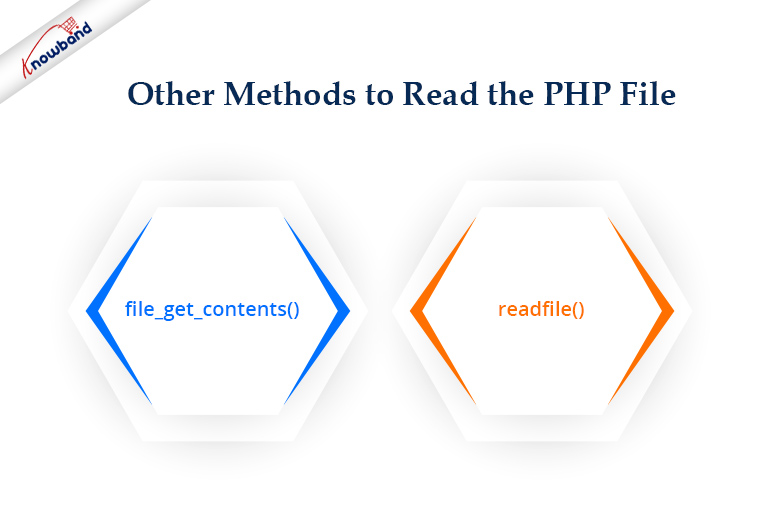
Other Methods

PHP also provides various other methods for file handling that we can use for different purposes.

file_get_contents()

This method can be used to collect all the data from a file as a string. For example, how can we collect all the data from our webpage? You have seen the fgets() example using a loop. But how we you make this more straightforward? We can easily do the same with the file_get_contents(). We do not need to open or close a file to read. On failure, file_get_contents() will return false.

<?php

$file= file_get_contents("https://www.knowband.com/");

echo $file;

?>

readfile()

The readfile function dumps the entire contents of a file or Web page to the default output buffer. By default, this command prints an error message if it fails. To avoid this behavior we use @readfile()

Let’s see the difference between readfile&& @readfile.

Let’s try to open the wrong file by readfile:

<?php

$file= readfile("wrong_test.txt");

if(!$file){

echo 'File not found.';

} else{

echo $file;

}

?>

Output

( ! ) Warning: readfile(wrong_test.txt): failed to open stream: No such file or directory
Call Stack

File not found.

Now replace readfile with @readfile and we will get the output as:

File not found.

Recommended Read:  Auto Loading in PHP

Good Practice!

If we are a programmer then we should always keep in mind our code can handle the error or condition. There might be a chance the file that we are going to read was moved from the path or permission for the file has been changed and hence you are unable to get the content. So good practice says before reading a file we should check if the file exists and the file has read permission.

<?php

$file = "test.txt";

if (file_exists($file) && is_readable($file)) {

$f = fopen($file, "r");

# Processing

fclose($f);

}

?>

Summary

If have any PHP eCommerce application like PrestaShop, OpenCart, Magneto, etc. you can use the codes to reading the file as per your requirements.

For all aspects related to eCommerce, we also offer custom development. Additionally, the top modules for Prestashop, Opencart, Magento, and Magento 2 are also available. A few of the top modules that Knowband offers are One Page SuperCheckout, Multi-Vendor Marketplace, Mobile App Builder, Spin and Win Module, Abandonded Cart and so on.  If you have any questions, contact us at support@knowband.com.

How to Create a Custom Layout for CMS Pages in Magento 2?

Computer software called a content management system (CMS) is used to control the creation and modification of digital content (content management). Enterprise content management (ECM) and web content management (WCM) are typical applications for a CMS.

ECM typically integrates document management, digital asset management, and record retention to support multiple users in a collaborative setting.

In contrast, WCM is a collaborative process for creating websites that allows for the inclusion of text as well as embedded graphics, photos, video, audio, maps, and program code that interacts with users and displays content.

In this article, we’ll learn about how to create custom CMS pages layout for our cms pages.

We’ll create a custom layout named Knowband Layout.

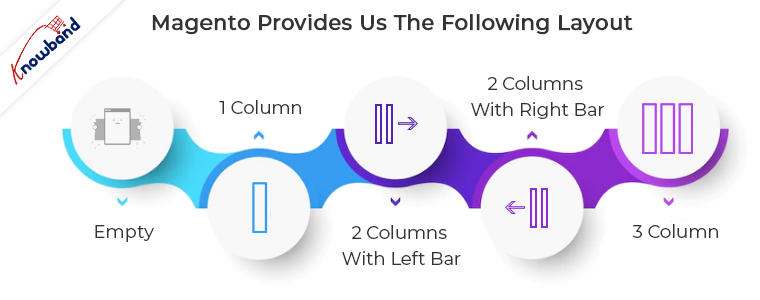
Magento provides us with the following layout:
-> Empty

-> 1 column

-> 2 columns with left bar

-> 2 columns with right bar

-> 3 columns

If you want to create your own customized layout for the cms pages or some specific pages then you need to focus on the following steps:

Step 1:

Create <Vendor_Name>/<Module_Name>/view/frontend/page_layout/kb_layout.xml file. This file will define the design of your custom layout.


<?xml version="1.0" encoding="UTF-8"?>

<layout xmlns:xsi="https://www.w3.org/2001/XMLSchema-instance" xsi:noNamespaceSchemaLocation="urn:magento:framework:View/Layout/etc/page_layout.xsd">

<update handle="empty"/><!-- you can change the handle like 2columns-left or 3columns etc-->

<referenceContainer name="page.wrapper">

<container name="header.container" as="header_container" label="Page Header Container"  htmlTag="header" htmlClass="page-header" before="main.content"/>

<container name="page.top" as="page_top" label="After Page Header" after="header.container"/>

<container name="footer-container" as="footer" after="-" label="Page Footer Container" htmlTag="footer" htmlClass="page-footer" />

</referenceContainer>

</layout>

Step 2:


Create <Vendor_Name>/<Module_Name>/view/frontend/layouts.xml. This file will register the custom layout.

<?xml version="1.0" encoding="UTF-8"?>

<page_layouts xmlns:xsi="https://www.w3.org/2001/XMLSchema-instance" xsi:noNamespaceSchemaLocation="urn:magento:framework:View/PageLayout/etc/layouts.xsd">

<layout id="kb_layout">

<label translate="true">Knowband Layout</label>

</layout>

</page_layouts>

After creating these two files, clear the cache and your custom layout will be added to the layout list.

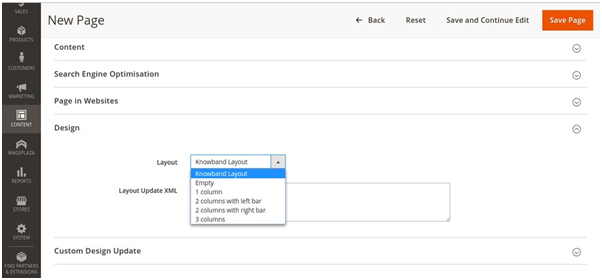
You can check your custom layout in the admin side at Content-> Pages -> Add New Page -> Design

Thanks for reading this. Please feel free to reach us at support@knowband.com for any issues.

Knowband also provides many great extensions for major CMS platforms like Prestashop, Opencart, Magento, Magento 2, and Woocommerce.

Take a look at our No Code Mobile App solution for all major CMS platforms here.

Know more:

How to Create eBay Application to Get Required API Keys and User Token?

To start selling on eBay Marketplace with any Marketplace Connector we need some mandatory eBay API keys and tokens to communicate with eBay API.  So, to get these keys and tokens we need an eBay Application. Thus, it is a prerequisite for any eBay-e-commerce connector. Moreover, we will take you over the step-by-step process for setting up an eBay application and obtaining the necessary eBay Keys and tokens in this article.

Step-By-Step Procedure to Set Up an eBay Application

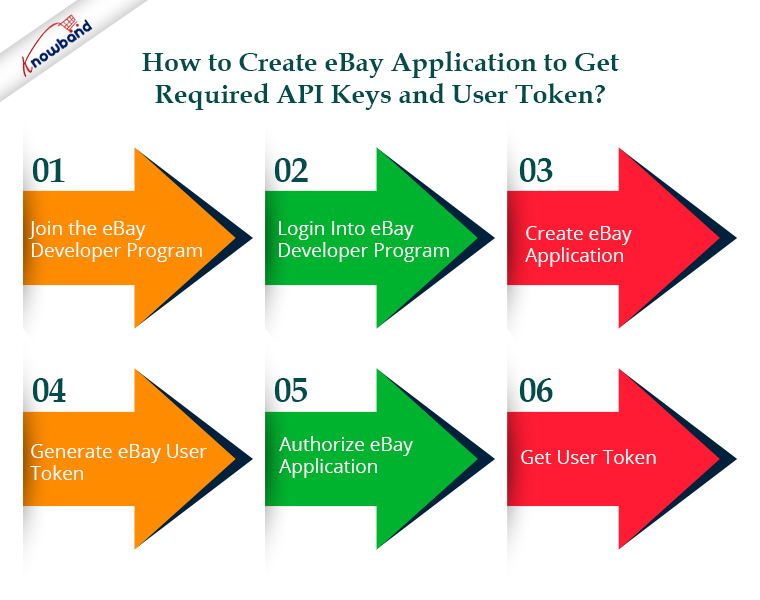
STEP 1:- Join the eBay Developer Program

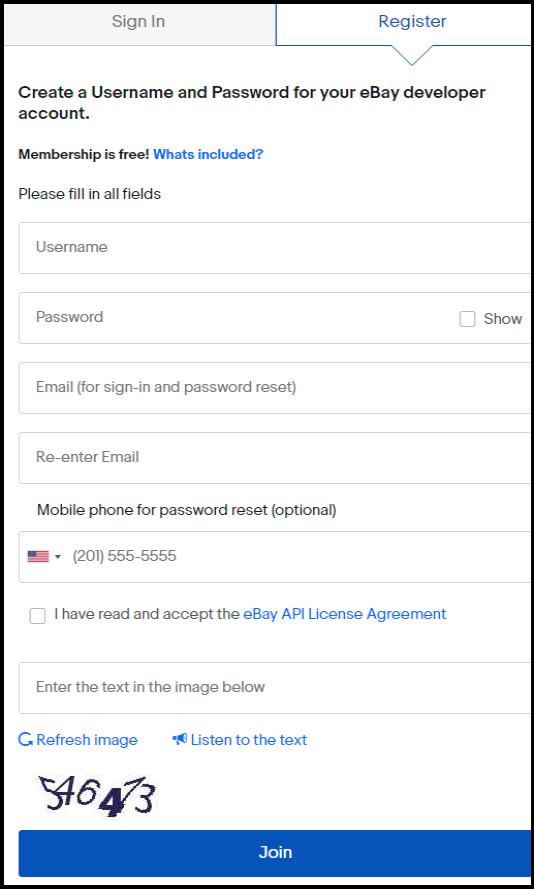
To access the eBay APIs, you should first create an eBay developer account. Visits https://developer.ebay.com/signin   and fill in all required details to get register a new eBay developer account.

Skip this step and log into your eBay developer account if you already have any developer accounts.

Recommended Read: How to Launch a Marketplace like Etsy and Ebay?

STEP 2:- Login Into eBay Developer Program

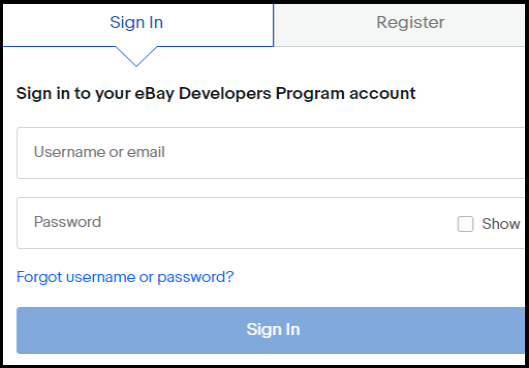
Using the credentials you gave in the first step, log in to the eBay developer account after the eBay account has been created.

STEP 3:- Create eBay Application

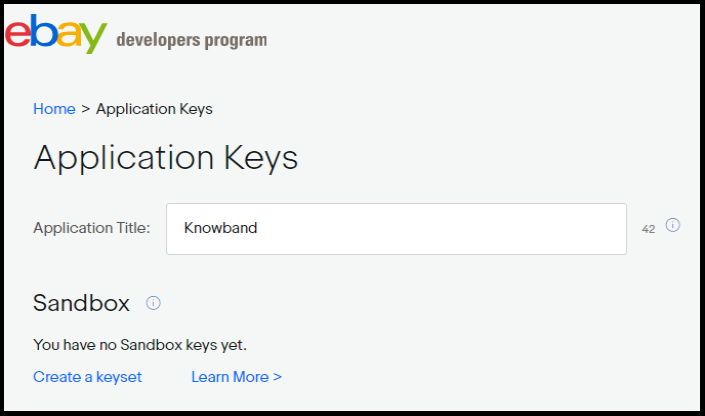
Once you have logged in to the eBay developer account it will ask you to set up the eBay Application name. Next, Input a valid Application name. Here you will be presented with two options:-

  • Sandbox
  • Production

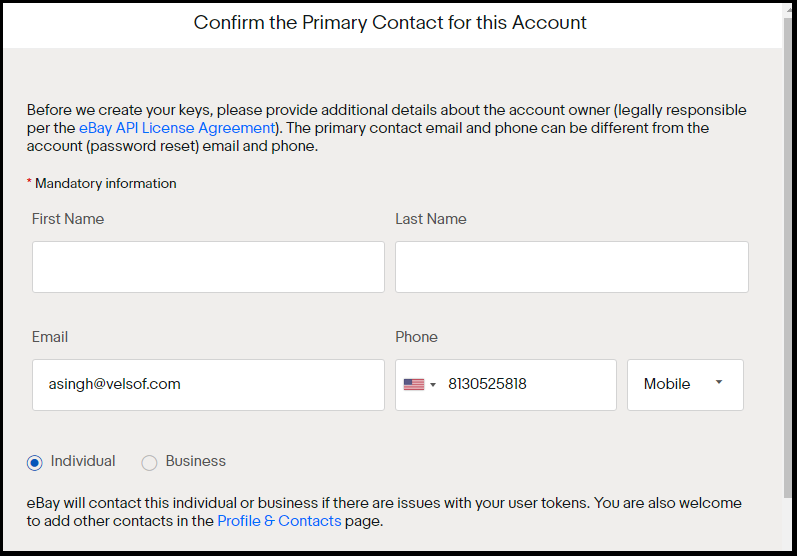
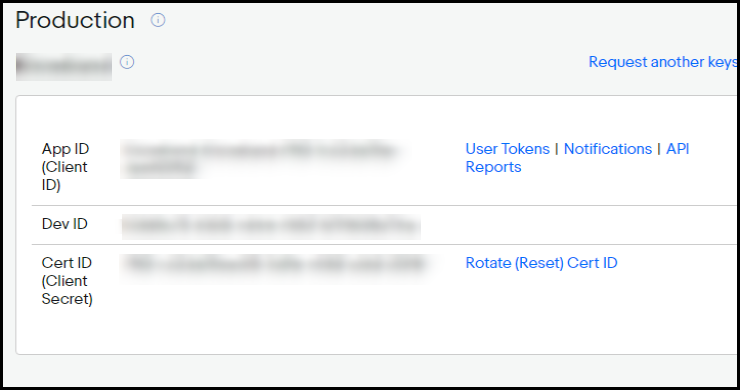
Click on ‘create a keyset’ of the mode you want to get data from. On clicking ‘create a keyset’ a new form will be opened as shown.

Recommended Read: How to Rank Higher and Get Your Listings Seen in eBay Search?

Enter the valid details and click on ‘Continue to create Keys’ to generate keys for this application and application keys will show on the next screen. Here you will get three keys:-

  • DevID- Unique identifier for the developer’s (or company’s) account.
  • AppID- Unique identifier for the application.
  • CertID- Certificate that authenticates the application when making API calls. Not to be confused with user-level authentication tokens

STEP 4:- Generate eBay User Token

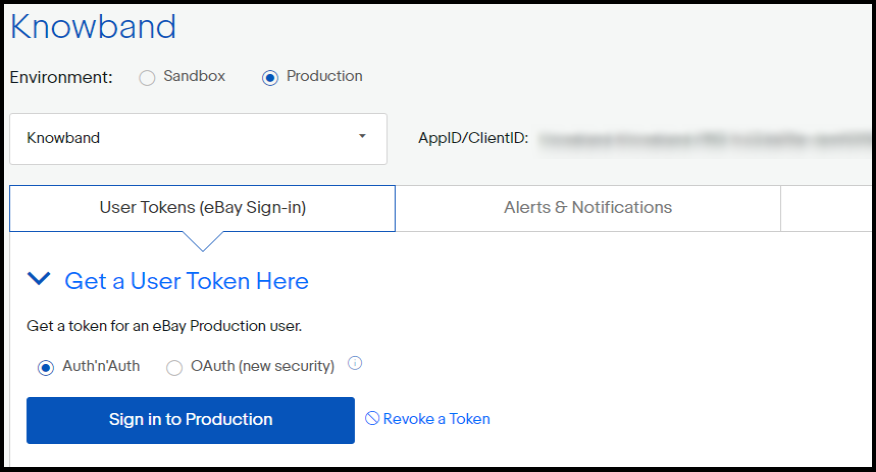
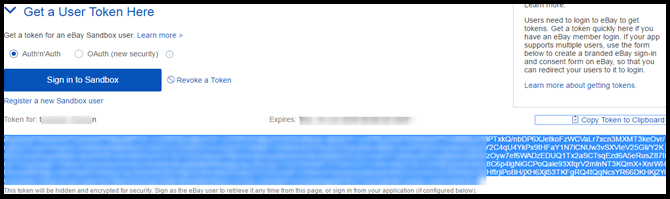
To generate an eBay user token, click on ‘User Tokens’ corresponding to the App ID key as shown in the above image. After clicking on ‘User Tokens’ you will see the below screen:-

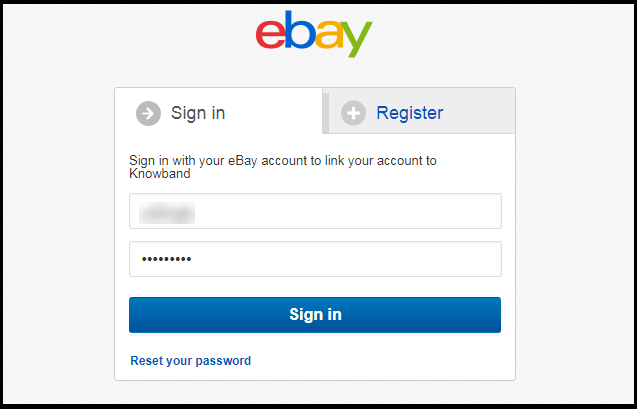
Click on the Sign in button shown in the image. It will redirect you to the respective (production/sandbox) eBay account.

Now, Sign In here with a valid eBay user credential for which you want to generate tokens.

Recommended Read: 4 Ultimate Tips To Increase Sales On eBay

STEP 5:- Authorize eBay Application

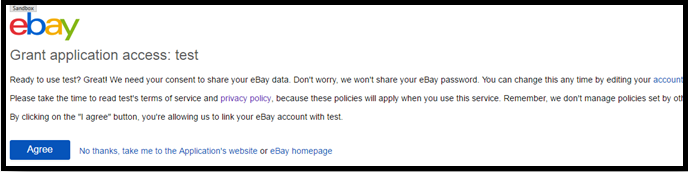
Sign in to your eBay account and then click the “Agree” button. Additionally, it will allow any of your client applications to use the token while making HTTP connections.

STEP 6:- Get a User Token

The procedure of creating the user token is now complete. Your browser will link you to a page that lists your user token. Just copy that newly generated token and use it where required.

Please keep in mind that this token will expire after 18 months. Hence, you might need to regenerate it after that time.

Recommended Read: How to create an eBay Sandbox Account?

In the End:

Prestashop, Opencart, Magento 2 and WooComerce are all compatible with KnowBand’s eBay Marketplace integrator. This clever method enables sellers to quickly begin selling on the eBay Marketplace. Moreover, KnowBand offers three months of free service for these integration modules. However, you can select the appropriate integrator module for your store. WooCommerce eBay Marketplace Integrator,

Opencart eBay Marketplace Integrator,

Magento 2 eBay and

Prestashop eBay Marketplace Integrator.

How to create Prestashop Module Web Service API?

This blog is all about how to create and use the Prestashop Webservices API. Prestashop has default Web Services tool available which allows accessing the store from remote applications.

Prerequisites

  1. You Prestashop store should have “module rewrite” enabled for apache.
  2. It is preferable to use SSL (https:) for web service calls, as it avoids the “man in the middle” type security issues.
  3. Check that the five methods GET, POST, PUT, DELETE and HEAD are supported on the server.

To ensure the security and efficiency of your Prestashop Web Services, it’s essential to use SSL (HTTPS) for all web service calls. This prevents “man in the middle” attacks, safeguarding your data during transmission. Additionally, verifying that your server supports the HTTP methods GET, POST, PUT, DELETE, and HEAD is crucial for seamless operation. By configuring these settings, you optimize your store’s performance and security, ensuring reliable access and management of your Prestashop resources through the API.

How to configure Web Services in the Prestashop?

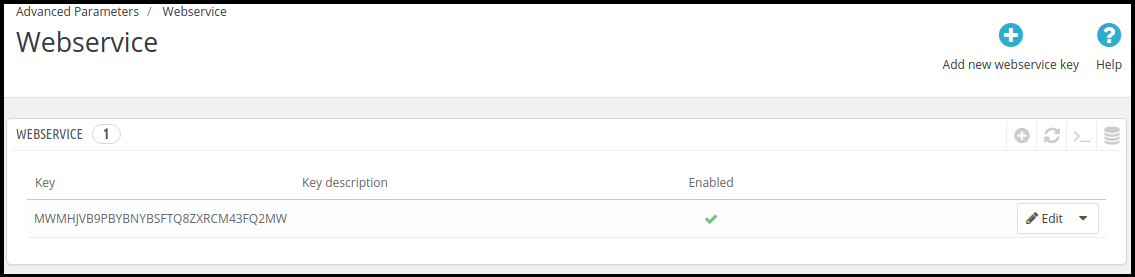
1. Login into the Prestashop Back-office.

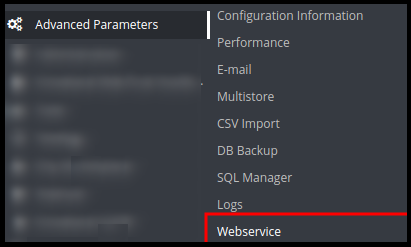
2. Navigate to Advance Parameters -> Web Services menu options to open the Web Services page.


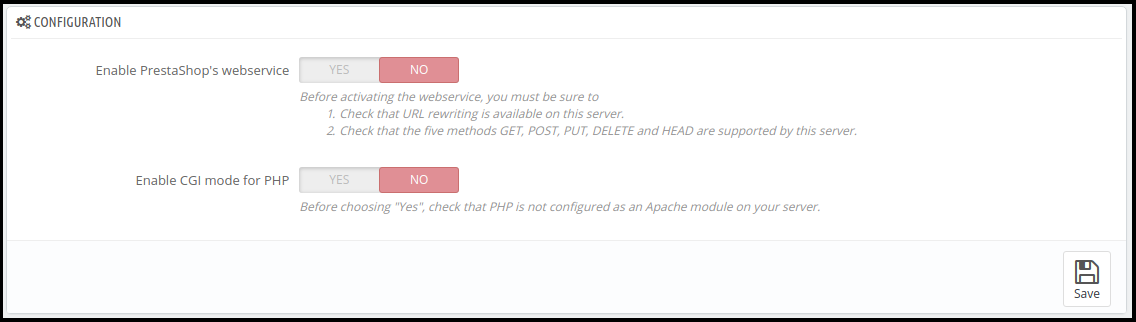
3. It will redirect to the Web Services page having the listing of available Web Services and the configuration form to configure the service.

4. The Configuration form has the following fields:

a) Enable Prestashop’s web service: Enable the setting to use web service in the Prestashop Store.

b) Enable CGI mode for PHP: Enable the setting to use PHP as CGI script instead of Apache module.

5. Click on the Save button to save the configuration. Now, you can use the Web Services in your Prestashop Store.

How to add/Update Web Services in the Prestashop?

1. Login into the Prestashop Back-office

2. Navigate to Advance Parameters -> Web Services menu options to open the Web Services page.

3. It will redirect to the Web Services page having a listing of available Web Services.

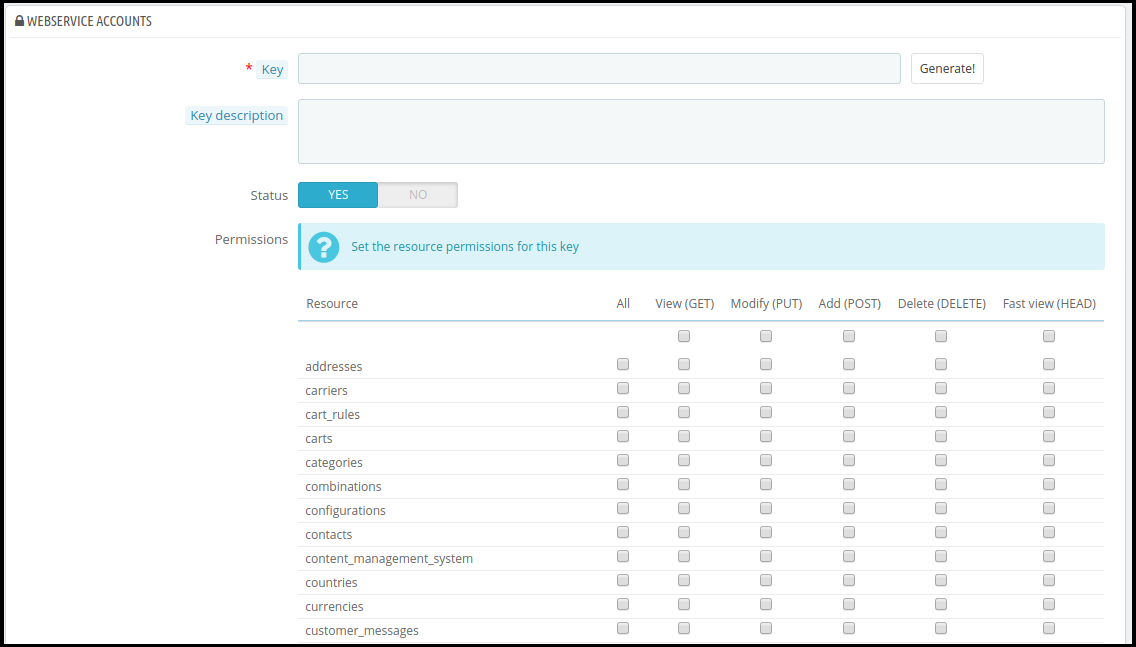
4. Click on the “Add new web service key” button to add new web service key to access only to the certain resources of the Prestashop store.

a) Key: This is a unique key. You can enter it manually or click on the Generate button to generate a random key for the Prestashop web service.

b) Key Description: You can provide the description regarding the key for better understanding.

c) Status: Enable the key to provide a grant to access the data using the key.

d) Permission: Provide the permission to access the data using the certain key. You can check the specific permission to grant access of the data like Add, Edit, delete or view. Here, we have checked the permission to Countries and Currency.

5. Click on the Save button to add the key to the web services.

How to the access the Web Service?

Once you have created the key for the web service and properly configured, you need to hit the following URL in your browser:

https://{store root path}/api/

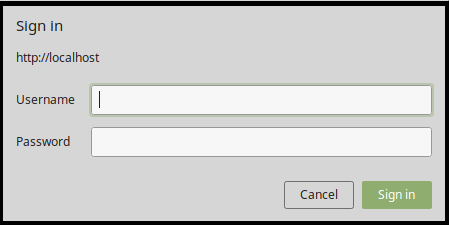
It will prompt you for username and password to access the resource.

a) Username: Enter the key of the web service which is generated in the above step. For Example MWMHJVB9PBYBNYBSFTQ8ZXRCM43FQ2MW

b) Password: It should be blank as no password required.

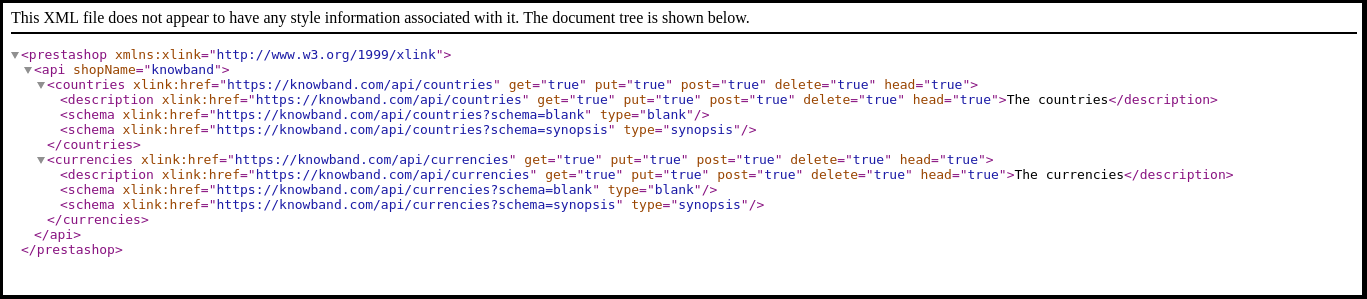
After sign in, you will access the list of the resources and all permitted CRUD options that you have configured in your Prestashop Store.

You are now successfully connected to the Prestashop web service.

a) To GET the list of entities for a particular resource:

https://shop_root_url/api/resouce

Example: https://www.knowband.com/api/customers to get a list of all customers.

b) To GET a specific customer by ID:

https://shop_root_url/api/customers/1

For Example: To get the detail of customer having ID 10

https://www.knowband.com/api/customers/10

Recommend Watch: 

How to create Prestashop Module Webservice API for Prestashop 1.7?

We will show you how to create a module to fetch customers. For this, we will register a hook addWebserviceResources of ServiceRequest for the resources instead of overriding getResources() function of ServiceRequest Class in Prestashop 1.7.

Creating custom web service APIs in Prestashop 1.7 involves using the WebserviceSpecificManagement class. This allows you to define specific functionalities and manage data processing. For instance, implementing the WebserviceSpecificManagementKbCustomer class lets you handle customer data efficiently. Therefore, this approach provides a flexible and robust solution for extending Prestashop’s capabilities, enabling tailored interactions with your store’s data. By leveraging these advanced customization options, you can create more dynamic and responsive eCommerce solutions that meet unique business needs.

1. Register addWebserviceResources hook in the module.

public function install() {

parent::install();

$this->registerHook('addWebserviceResources');

return true;

}

2. Add a hook listener to define the class and description. Set specific_management to true if you want to use WebserviceSpecificManagement instead of ObjectModel file.

public function hookAddWebserviceResources()

{

return array(

'kbcustomer' => array(

'description' => 'Knowband Custom Customer',

'specific_management' => true,

),

'kbaddress' => array(

'description' => 'Knowband Custom Address',

'class' => 'kbaddress'

)

);

}

3. Create WebserviceSpecificManagement class file as WebserviceSpecificManagementCLASSNAME which implements WebserviceSpecificManagementInterface

For Example – WebserviceSpecificManagementKbCustomer which is similar to /classes/webservice/WebserviceSpecificManagementImages.php.

You must have to include the functions which are defined in WebserviceSpecificManagementImages.php class. These are:

  • setObjectOutput
  • setWsObject
  • getWsObject
  • getObjectOutput
  • setUrlSegment
  • getUrlSegment
  • getContent
  • manage (where data is processed)

1. Now add the key having resource kbcustomer in the web service in the back-office.

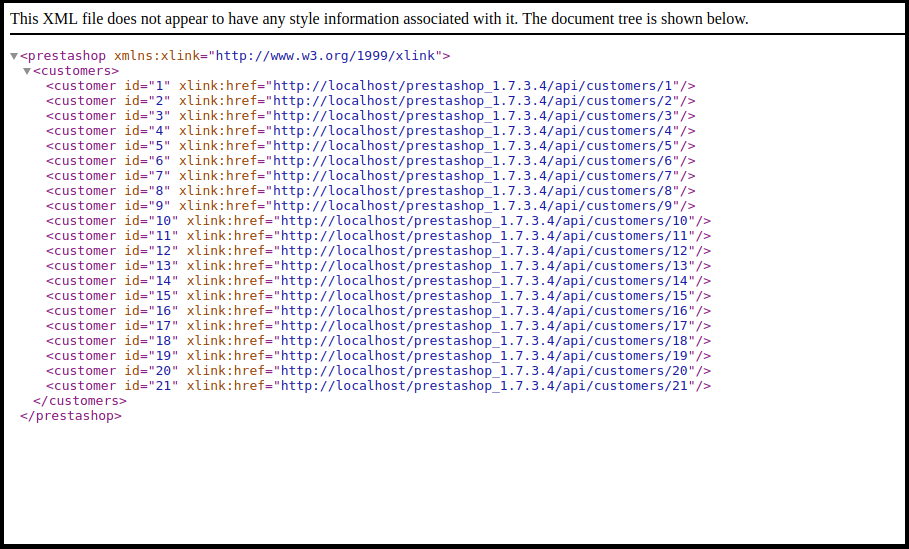
2. Now, visit the https://{youstore.com}/api/kbcustomer to see the response in XML. In the below example, we display the listing of all customer available in the store.

Add include_once(_PS_MODULE_DIR_.’YOURMODULENAME/classes/WebserviceSpecificManagementKbCustomer.php’);

in your module file.

class WebserviceSpecificManagementKbcustomer implements WebserviceSpecificManagementInterface

{

/** @var WebserviceOutputBuilder */

protected $objOutput;

protected $output;


/** @var WebserviceRequest */

protected $wsObject;


public function setUrlSegment($segments)

{

$this->urlSegment = $segments;

return $this;

}


public function getUrlSegment()

{

return $this->urlSegment;

}

public function getWsObject()

{

return $this->wsObject;

}


public function getObjectOutput()

{

return $this->objOutput;

}


/**

* This must be return a string with specific values as WebserviceRequest expects.

*

* @return string

*/

public function getContent()

{

return $this->objOutput->getObjectRender()->overrideContent($this->output);

}


public function setWsObject(WebserviceRequestCore $obj)

{

$this->wsObject = $obj;

return $this;

}


/**

* @param WebserviceOutputBuilderCore $obj

* @return WebserviceSpecificManagementInterface

*/

public function setObjectOutput(WebserviceOutputBuilderCore $obj)

{

$this->objOutput = $obj;

return $this;

}


public function manage()

{

$objects_products = array();

$objects_products['empty'] = new Customer();

$customer_list = Customer::getCustomers();

foreach ($customer_list as $list) {

$objects_products[] = new Customer($list['id_customer']);

}

$this->_resourceConfiguration = $objects_products['empty']->getWebserviceParameters();

$this->output .= $this->objOutput->getContent($objects_products, null, $this->wsObject->fieldsToDisplay, $this->wsObject->depth, WebserviceOutputBuilder::VIEW_LIST, false);

}

}

The below screenshot provide you the visual of the output:
If you want the output in JSON format then append &output_format=JSON at the end of the URL. For example: https://{yourstore.com}/api/kbcustomer&output_format=JSON

Output: {“customers”:[{“id”:1},{“id”:2},{“id”:3},{“id”:4},{“id”:5},{“id”:6},{“id”:7},{“id”:8},{“id”:9},{“id”:10},{“id”:11},{“id”:12},{“id”:13},{“id”:14},{“id”:15},{“id”:16},{“id”:17},{“id”:18},{“id”:19},{“id”:20},{“id”:21}]}
In the END!

With over 13 years of technical expertise, Knowband offers comprehensive app and web development services using the latest technologies, including various PHP frameworks and React. We provide more than 100 ready-to-use extensions for popular eCommerce platforms like Prestashop, Opencart, WooCommerce, and Magento 2.

For any queries, please feel free to reach us at support@knowband.com. Knowband is also a Premium Prestashop Partner and a Superher Seller providing more than 100 Prestashop modules to suit all your eCommerce needs.

Check our most popular One page Supercheckout module for Prestashop here.


Prestashop One Page Supercheckout Addon

The Prestashop One Page Supercheckout addon by Knowband makes checkout faster and easier by putting everything on one page, helping to reduce cart abandonment.

SHOP NOW