

OpenCart Smart AI Admin Assistant Extention User Manual
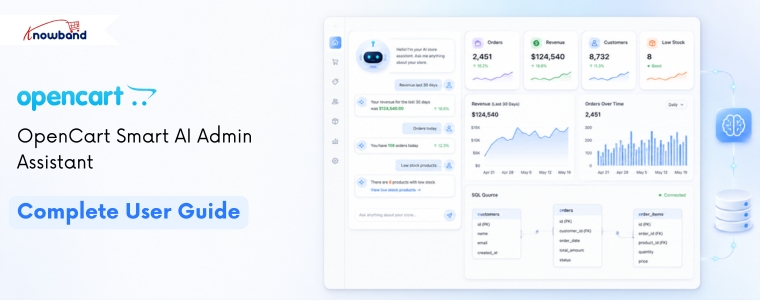
Learn how to configure and use the OpenCart Smart AI Admin Assistant. Connect your AI provider, customize settings, and get instant answers from your OpenCart store data through a built-in AI chat interface. Compatible with OpenCart 3.x.
1.0 Introduction
Every OpenCart store generates data every hour, orders arriving, stock moving, customers registering, carts being left behind, and revenue numbers shifting. All of it sits in the database. Getting to any specific figure means navigating to the right admin section, picking a date range, loading the report, and repeating the whole thing the next day.
The Knowband OpenCart Smart AI Admin Assistant removes that entirely. It places an AI chat interface inside your OpenCart admin panel. Type any store question in plain English and get a direct answer pulled from your live database in seconds. No SQL. No report pages. No developer in the loop.
This guide walks through every tab and setting so you can connect your AI provider, configure the assistant, and start querying your store data from day one. Compatible with OpenCart 3.x.
[Updated July 2, 2026] Analytics Dashboard Integration
Get a real-time view of your store’s performance right from the admin panel, revenue, orders, customers, and stock, all in one screen using the dashboard. Store owners can track trends, forecast revenue, spot slow-moving stock, and catch at-risk customers before they leave, with 34 customizable widgets you can arrange however works best for you.
1.1 Who Should Use This OpenCart AI Admin Chatbot
This admin assistant is built for:
- Store owners who run the same data checks every morning need a faster way to get there.
- Operations staff who want live answers on orders, stock levels, and revenue without loading report pages.
- Multi-admin stores where different team members need different levels of access to store data.
- Any merchant who wants OpenCart back office analytics powered by AI without relying on a developer.
2.0 Installation Guide
System Requirements
Before installing, confirm your setup meets the following:
- OpenCart 3.x
- PHP 7.2 or higher
- An active API key from OpenAI (ChatGPT), Anthropic (Claude), or Google (Gemini)
Installing the Extension
Step 1: Download the extension ZIP file from your account. Log in to your OpenCart admin panel.
Step 2: Go to Extensions, then Installer. Click the Upload button, select the ZIP file from your system, and click Open. OpenCart processes the upload and extraction on its own.
Step 3: Once the upload confirms, navigate to Extensions, then Extensions. Choose Modules from the category dropdown. Locate the module in the list and click the green Install button next to it.
Step 4: After installation completes, click the Edit button to open the configuration panel for the first time.
Step 5: If the extension does not show up in the list after installation, go to the Dashboard, click the blue cog icon at the top right, and select Refresh to rebuild the cache.
Common Installation Issues
Upload fails: File size exceeds the server limit. Ask your host to raise upload_max_filesize and post_max_size in PHP settings to at least 32 MB, then try uploading again.
Extension not visible after install: Head to the Dashboard and use the cog icon to clear the OpenCart cache. Then return to Extensions, then Modules and search again.
Configuration screen looks broken: Clear your browser cache with a hard reload and reset the OpenCart theme cache from the Dashboard cog menu.
3.0 Admin Panel Overview
The Knowband OpenCart Smart AI Admin Assistant has eight tabs across the top of the configuration screen:
- Settings: Core preferences, SQL visibility toggles, voice input, language, log retention, schema cache.
- AI Provider: Connect OpenAI ChatGPT, Anthropic Claude, or Google Gemini using your own API key.
- Widget Layout: Adjust how the chat widget looks inside the admin with a live preview on the right.
- Database Views: Choose which store data domains the AI is allowed to query.
- Access Control: Decide which employee profiles can open and use the assistant.
- Predefined Chips: One-tap question shortcuts for daily store data checks.
- Query History: A running log of every question asked with employee name, response time, and status.
- Sessions: Full conversation threads per employee, viewable any time.
4.0 Settings Tab
4.1 General Settings for the OpenCart Smart AI Admin Assistant

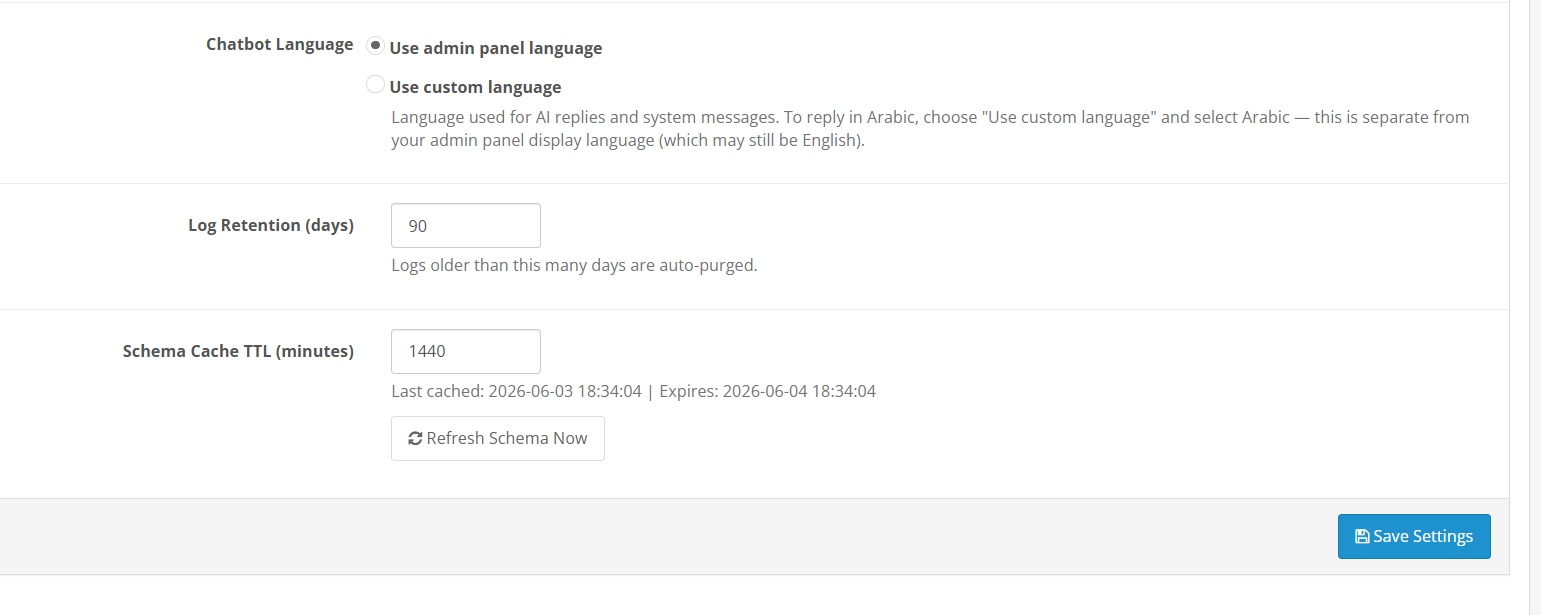
Enable Chatbot: The main on/off control for this back office assistant. Turning it off removes the chat widget from the admin panel completely without deleting any saved configuration or query history.
Enable Predefined Chips: Shows or hides the one-tap question buttons inside the chat widget. The chips appear as an expandable panel that any admin can open or close.
Chips Default State: Sets whether the chips panel is open or closed when the widget first loads. Collapsed keeps it tucked away until the admin opens it. Expanded shows the chips panel straight away.
Max Result Rows: The upper limit on how many data rows the AI returns for a single query. Range is 1 to 1000, default is 100. Push it higher for queries that need full datasets and keep it at 100 or below for quick daily checks.
Show SQL Query Toggle: Set to Yes, and the SQL query used to produce each answer appears in the chat below the result. Any admin can read exactly how the data was fetched without asking a developer.
Allow SQL Edit and Re-run: Set to Yes, and the SQL shown under an answer becomes editable in the chat. Change a date range, swap a product category, or shift a threshold and run it again without typing a new question from scratch.
Voice Input: Turns on the microphone icon in the chat input. Speak a question and the browser converts it to text via the Web Speech API. Functions best in Chrome on desktop.
4.2 Language Settings
Use Back-office Language: The assistant replies in whatever language the OpenCart admin panel is currently running. Switch the back office to French, and responses come back in French automatically.
Use Custom Language: Lock the response language to a specific choice regardless of what the admin panel is set to. Useful where staff work in a different language from the back office default.
4.3 Log and Cache Settings
Log Retention (days): The number of days query history stays in the system before old entries are deleted automatically. Default is 90 days. No manual cleanup is needed; the purge runs on its own.
Schema Cache TTL (minutes): The period the extension holds the cached database schema before refreshing it. Default is 1440 minutes. The schema is a map of the store database structure that the AI relies on to build accurate queries. The Settings page displays the last cached timestamp and the next expiry, so the status is always clear.
Refresh Schema Now: Rebuilds the schema cache on demand without waiting for the TTL cycle. Use this after adding a new extension, upgrading OpenCart, or making any structural change to the database.
Click Save Settings to apply all changes on this tab.
5.0 AI Provider Tab
5.1 Choosing Your Provider
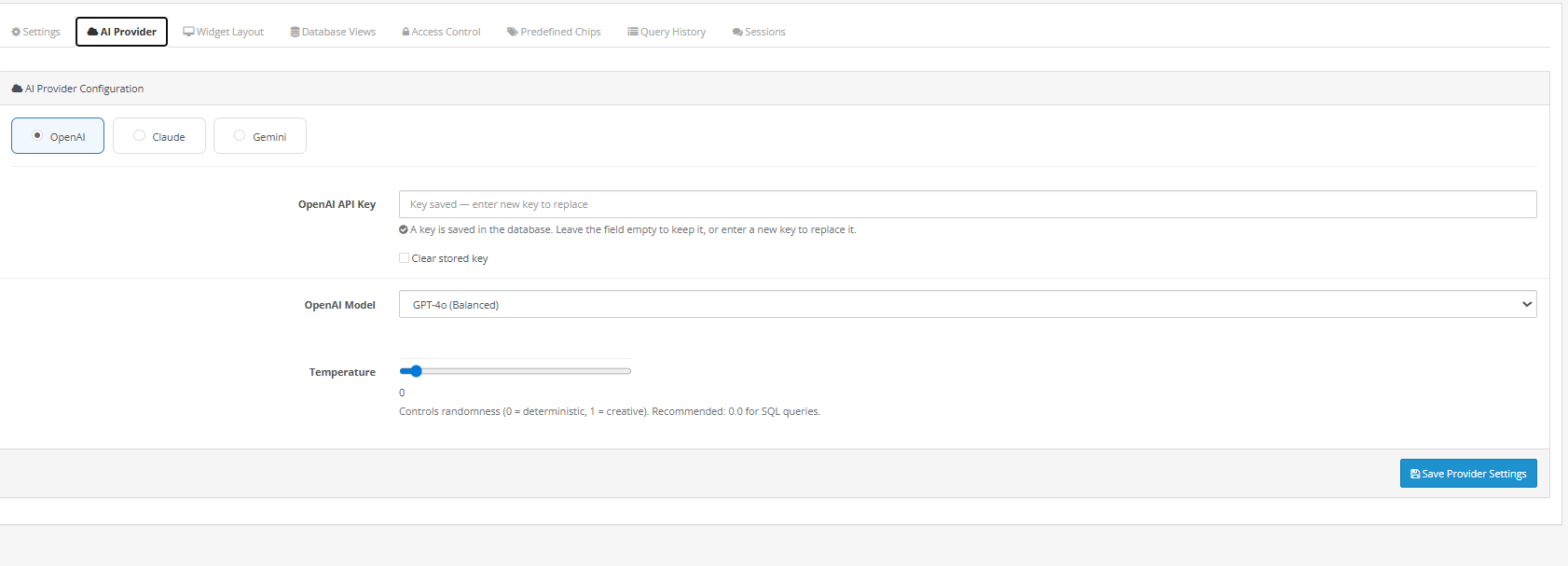
The AI Provider tab connects to an external AI model using your chosen provider. OpenAI (ChatGPT), Anthropic Claude, and Google Gemini are all supported. You bring your own API key, and it connects directly, no third-party relay, no separate subscription needed.
Click any provider button to load its settings below: the API key input, the model selector, and the temperature control. One provider is active at a time. Switching providers does not affect existing query history or configuration.
5.2 How to Get Your API Key
OpenAI
- Visit platform.openai.com and log in or register.
- Open the API Keys section from the account icon menu.
- Hit Create new secret key, give it a label, and save.
- Copy the key before leaving the page. OpenAI does not show it again. Paste it into the OpenAI API Key field.
Anthropic Claude
- Visit console.anthropic.com and log in or register.
- Go to API Keys in the left navigation.
- Click Create Key, name it, and copy it.
- Paste into the Claude API Key field. A direct link to the Anthropic console is also available in the module.
Google Gemini
- Visit aistudio.google.com and log in with a Google account.
- Click Get API key from the top left.
- Pick a project and generate the key.
- Copy and paste it into the Gemini API Key field.
5.3 Model Selection for the OpenCart Back Office Analytics Extension
OpenAI:
- GPT-4o Mini, quick turnaround, lower API cost, suited to routine daily admin questions.
- GPT-4o, stronger reasoning for queries that span multiple joined tables.
- GPT-5.5, the most capable tier for complex or layered analytical questions.

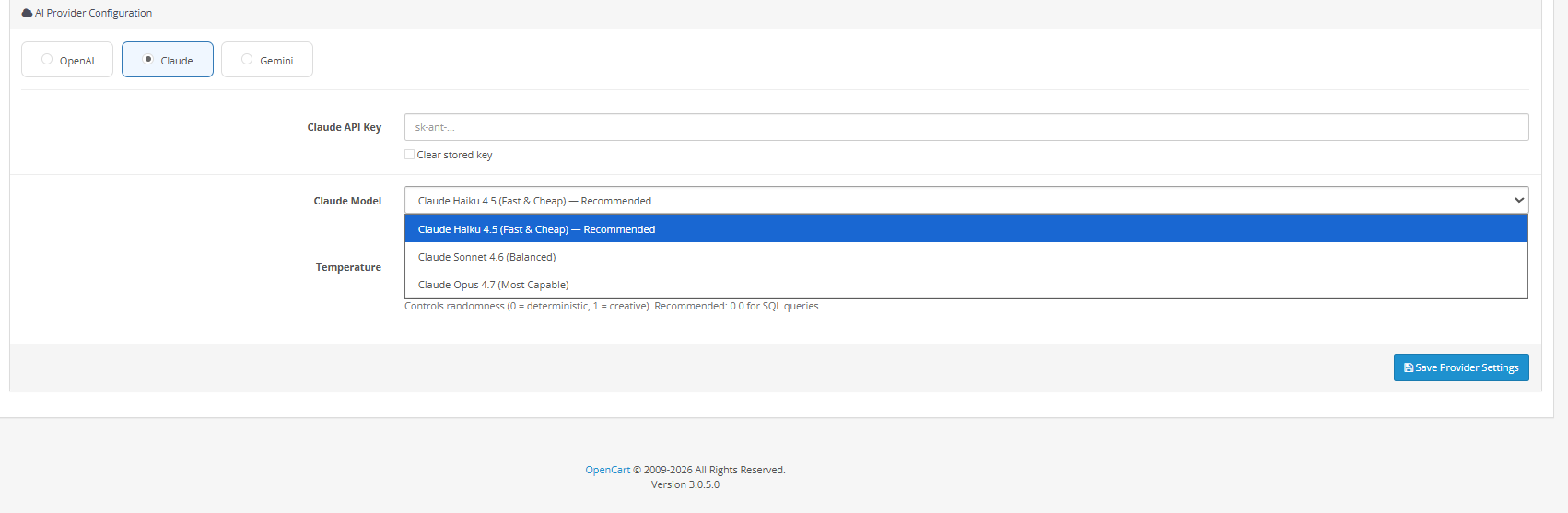
Anthropic Claude:
- Claude Haiku 4.5, fast and low-cost, works well for morning store checks.
- Claude Sonnet 4.6 is a useful middle point between speed and analytical depth.
- Claude Opus 4.7 is the best option when queries involve multiple data sources.
 Google Gemini:
- Gemini 3.5 Flash, fast and capable, the standard starting choice for most stores.
- Gemini 3.1 Flash-Lite, the cheapest per query, ideal when keeping API spend low matters.
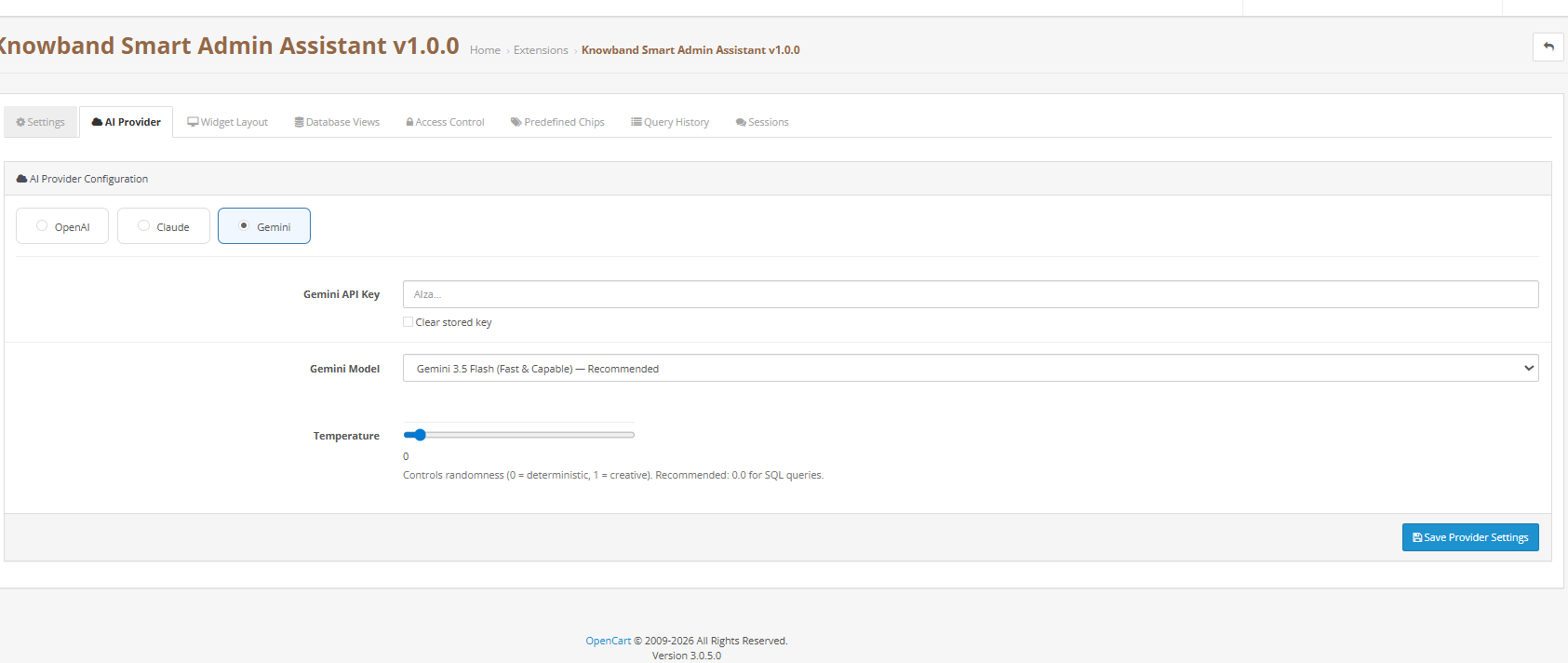
 5.4 Temperature Setting
Governs how consistent or varied the AI responses are. At 0, the answers are most precise. At 1, there is more phrasing variation. For store data queries, 0.3 is the practical starting point. Use 0.0 when strict factual precision is the priority.
Click Save Provider Settings to apply.
6.0 Widget Layout Tab

The Widget Layout tab controls the appearance of the chat widget inside the OpenCart admin. Every adjustment shows in the real-time preview panel on the right before anything is saved.
Position: The screen corner where the chat bubble appears. Bottom Right is the default.
Chatbot Name: The name in the widget header. Smart Admin Assistant by default.
Greeting Message: The first message shown when the widget opens. Default: Hello! Ask me anything about your store.
Bubble Icon: Swap out the default bubble image. Square PNG, 64×64 px, 2 MB limit.
Chatbot Avatar: The image shown beside each bot reply. Square PNG, 48×48 px, 2 MB limit.
Widget Width and Height: The size of the open chat panel in pixels. Default is 400 wide by 560 tall.
Colour Settings: Six colour controls, Header, Chat Bubble, User Message, Bot Message, Background, and Text. No CSS knowledge needed. Changes reflect in the preview immediately.
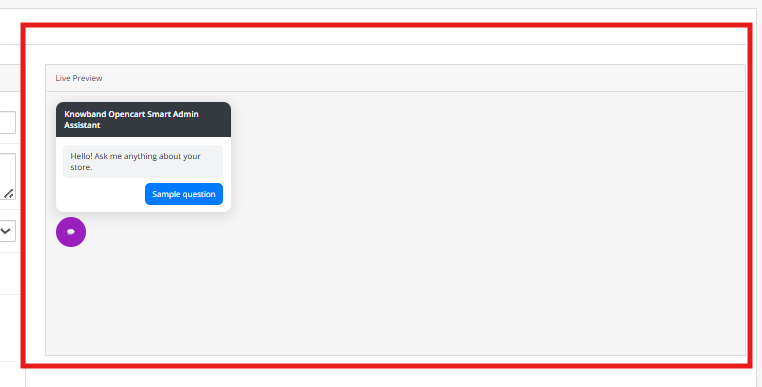
Click Save Layout to apply.
7.0 Database Views Tab
7.1 How Database Views Work in This OpenCart Admin AI Chatbot
A set of pre-built MySQL views was built for the OpenCart AI reporting extension that organises and simplifies the relevant data for each domain. Queries run against these views only; the AI has no path to raw tables, and all views are read-only. Store data cannot be changed, deleted, or written through the chat under any circumstances.
Unticking a view removes that domain from the assistant’s allowed query list. The view stays in the database intact and can be re-enabled at any point.
7.2 Available Database Views
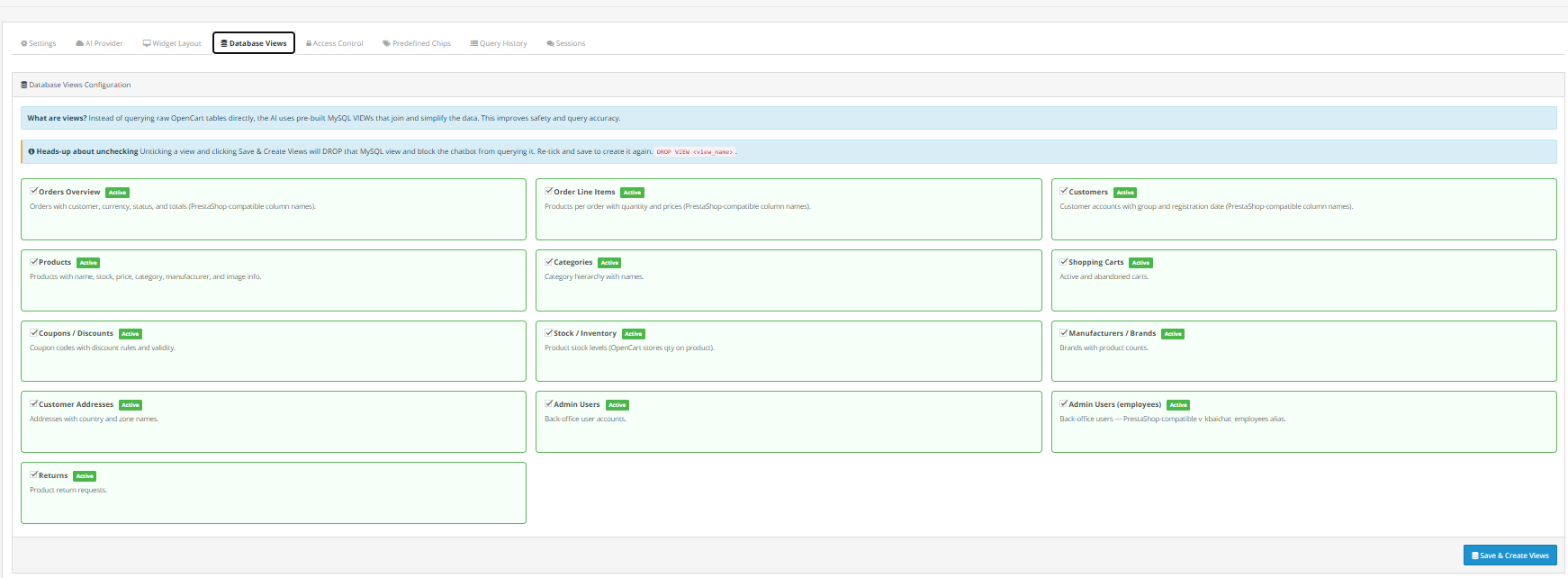
- Orders Overview: Orders joined with customer details, currency, status, and totals.
- Order Line Items: Individual product lines per order with quantities and prices.
- Customers: Full customer records with group, gender, and last visit date.
- Products: Catalog data with name, stock, price, category, and image info.
- Specific Prices / Product Discounts: Per-product and per-combination price overrides. Off by default.
- Categories: Category names and their hierarchy.
- Shopping Carts: Active and abandoned carts with customer and currency details.
- Cart Rules / Coupons: Discount rules with usage data and free shipping flag.
- Stock Availability: Stock levels per product and combination with readable names.
- Employees: Admin accounts and their profile data.
- Customer Addresses: Address records with country, state, and customer data resolved.
- Carriers / Shipping Methods: Active carriers with delivery delay text. Off by default.
- Manufacturers / Brands: Brand records with descriptions and product counts.
- Product Combinations / Variants: Variant data with stock, reference, and attribute names.
- Product Attributes and Values: Attribute groups like Colour and Size with their values.
Click Save and Create Views to apply. The Knowband extension builds the MySQL views for any domain switched on.
8.0 Access Control Tab
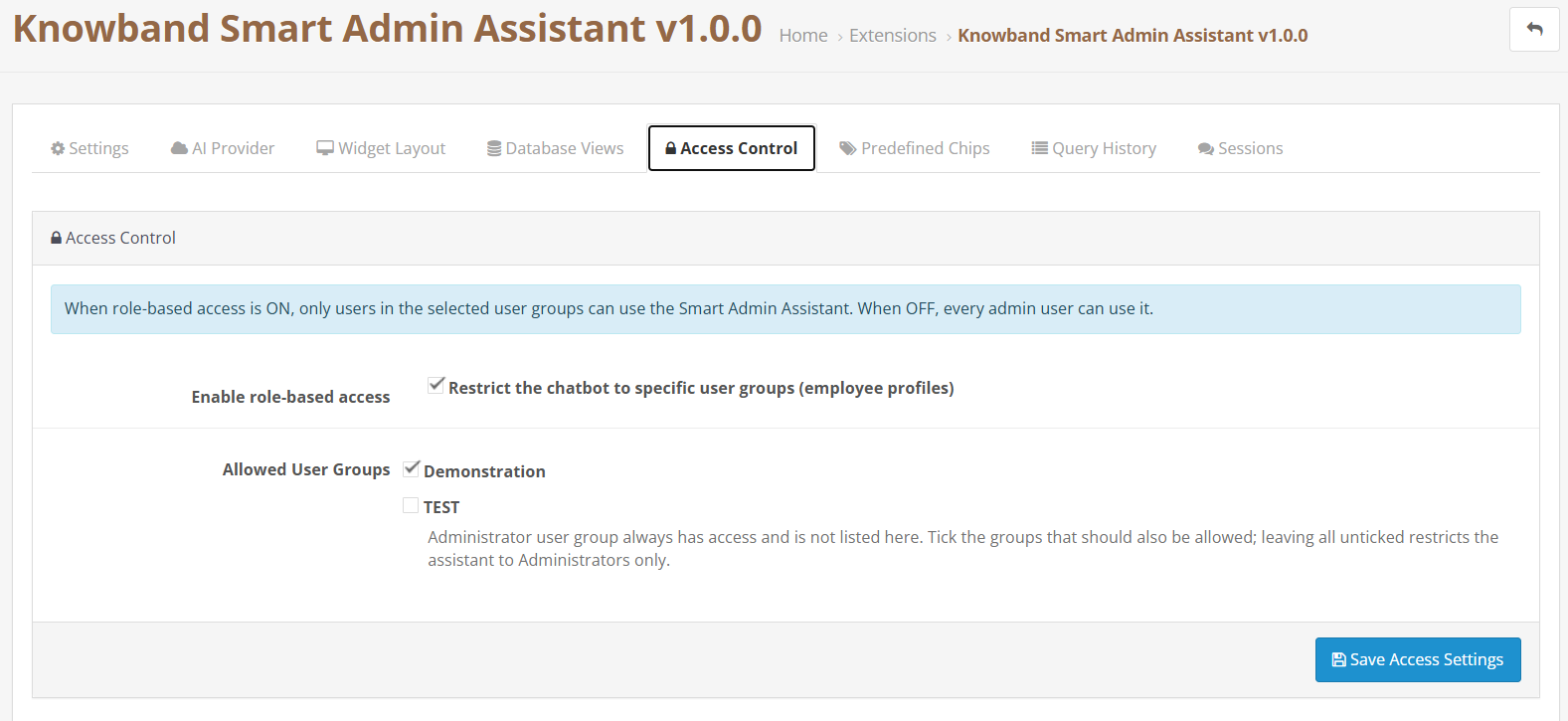
The Access Control tab sets which OpenCart admin staff can open the assistant.
Tick: Restrict the chatbot to specific employee profiles to switch role-based access on. When this is off, every logged-in admin can use the assistant without restriction.
When role-based access is active, a profile list appears below. SuperAdmin access is permanent and does not appear in the list. Tick any other profiles, Logistician, Salesman, Translator, or custom roles, that should have access. Profiles left unticked see no assistant when they log in. Leaving all profiles unticked while role-based access is on limits the assistant to SuperAdmin only.
Click Save Access Settings to apply.
9.0 Predefined Chips Tab
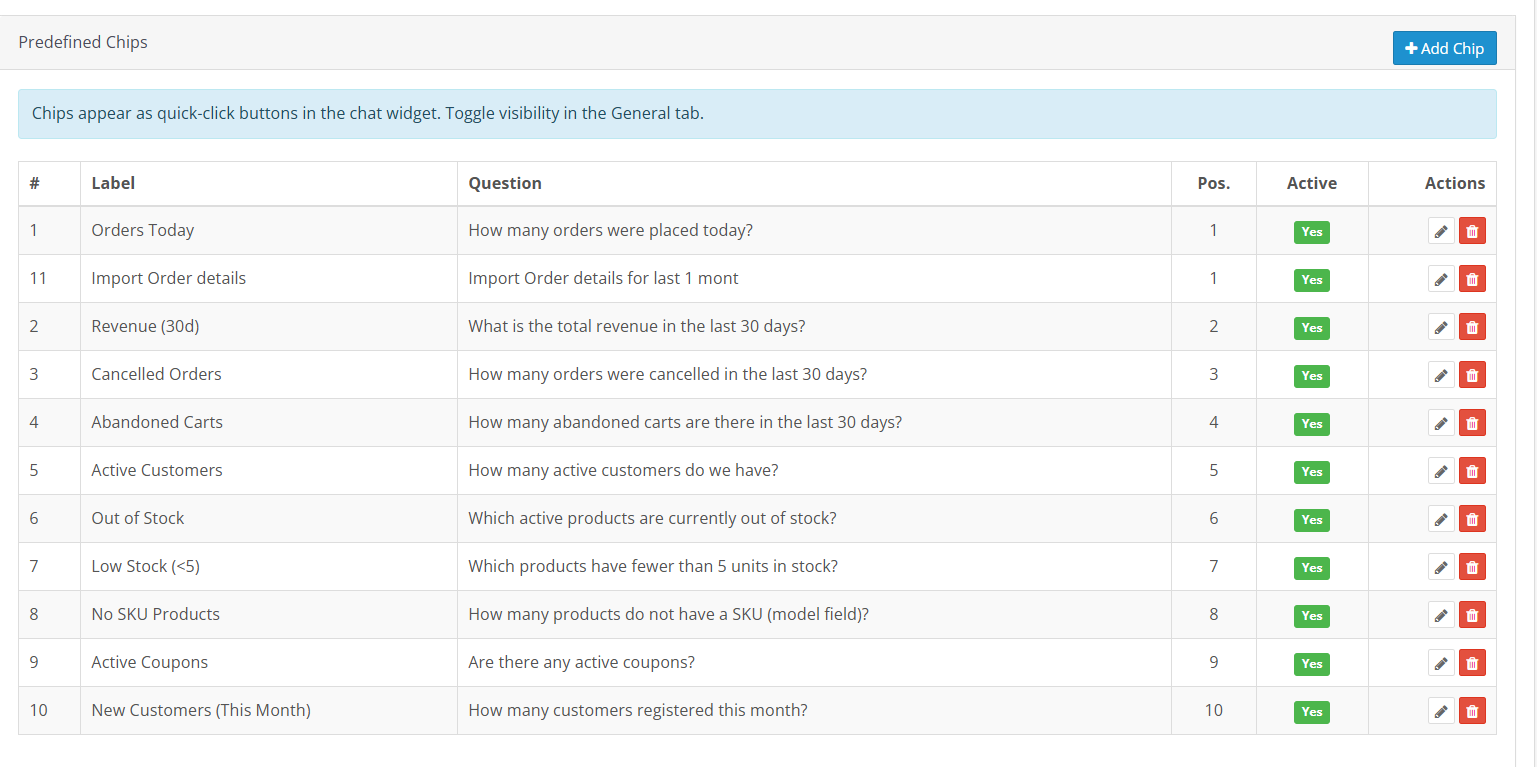
Predefined chips are question shortcuts built into the chat widget. Each chip sends a stored question to the AI the moment it is tapped, no typing, no navigation.
9.1 Default Chips in the OpenCart Order Insights Plugin
Ten chips come ready out of the box:
- Orders Today: How many orders were placed today?
- Revenue (30d): What is the total revenue in the last 30 days?
- Cancelled Orders: How many orders were cancelled in the last 30 days?
- Abandoned Carts: How many carts were abandoned in the last 30 days?
- Active Customers: What is the current active customer count?
- Out of Stock: Which products are at zero stock right now?
- Low Stock (under 5): Which products have fewer than 5 units left?
- No SKU Products: How many products are missing a SKU reference?
- Free Shipping Coupons: Which active coupons offer free shipping today?
- New Customers (This Month): How many customers registered this month so far?
9.2 Adding a Custom Chip
Click Add Chip to open the chip form.
Label: Short button text. Keep it under three words. For example: Weekly Revenue.
Question: The question the AI gets when this chip is tapped. Write it the same way you would type it into the chat directly. For example: What is the total revenue for the past 7 days?
Position: The chip’s position in the panel list. Lower numbers appear first.
Active: Yes displays the chip in the widget. No keeps it saved but hidden.
Click Save Chip to finish. Edit and Delete buttons appear on each row for future changes.
10.0 Query History Tab
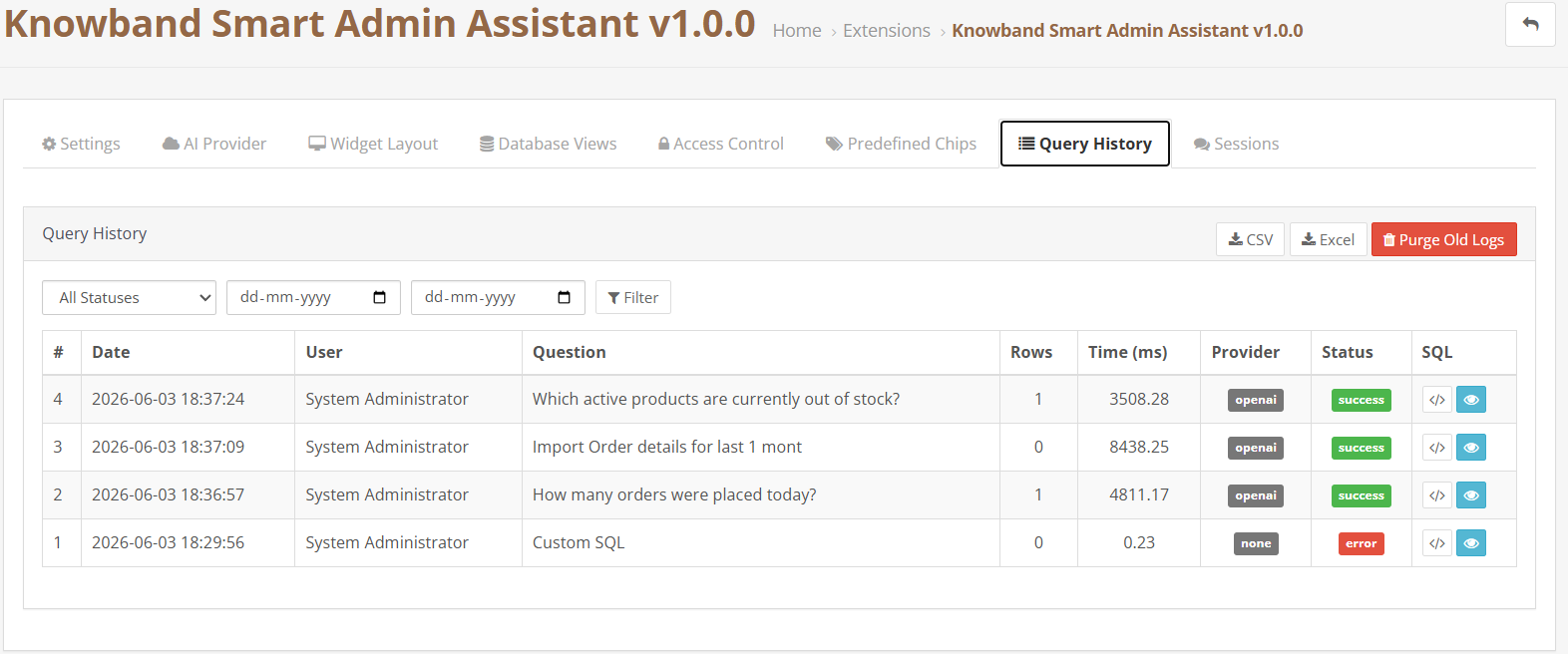
The Query History tab records every question sent through this tool. Each log entry shows:
- Date: The time the query was sent.
- Employee: Which admin account ran it.
- Question: The full text of what was asked.
- Rows: Number of data rows the query returned.
- Time (ms): How long the query took to run.
- Provider: The AI service that handled it, shown as a labelled badge.
- Status: Green for success, red for errors.
- SQL: The query that ran, visible inline.
Filter by status and date range at the top. Export visible results to CSV or Excel using the buttons above the table. Click Purge Old Logs to remove entries older than the Log Retention setting immediately.
11.0 Sessions Tab
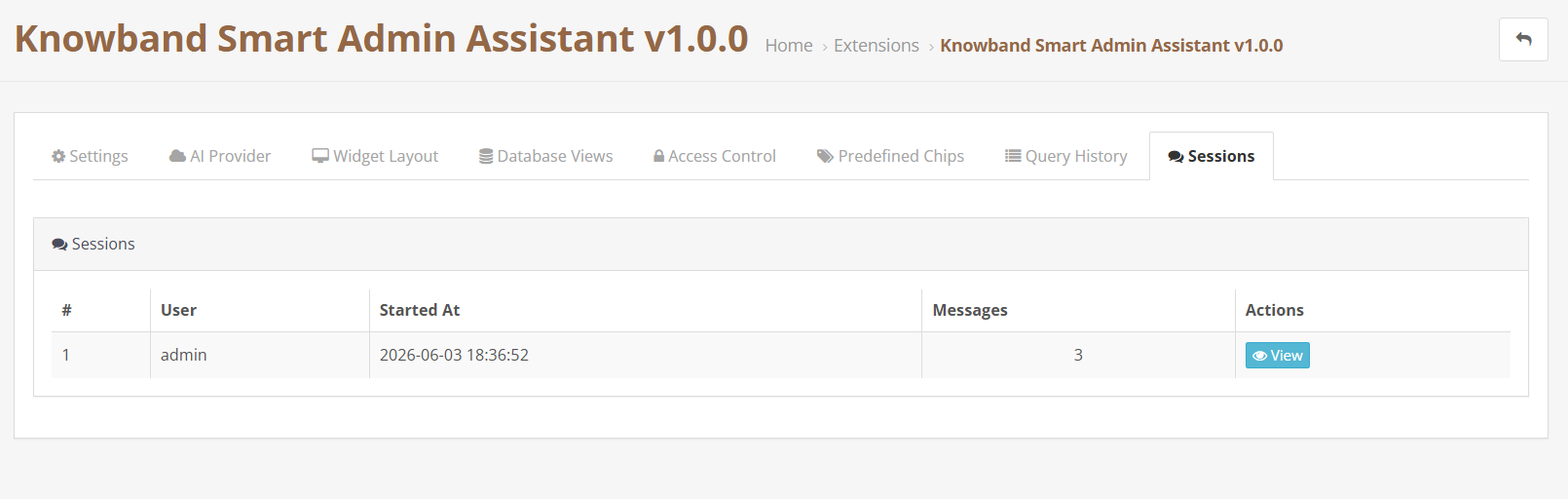
The Sessions tab holds the full conversation history per employee. Each row shows the employee name, session start time, and message count. Click View to open the complete thread, questions and responses in chronological order in a pop-up window. Useful for reviewing what data was accessed, checking how the assistant is being used, or continuing the thread from a previous session.
12.0 Analytics Dashboard
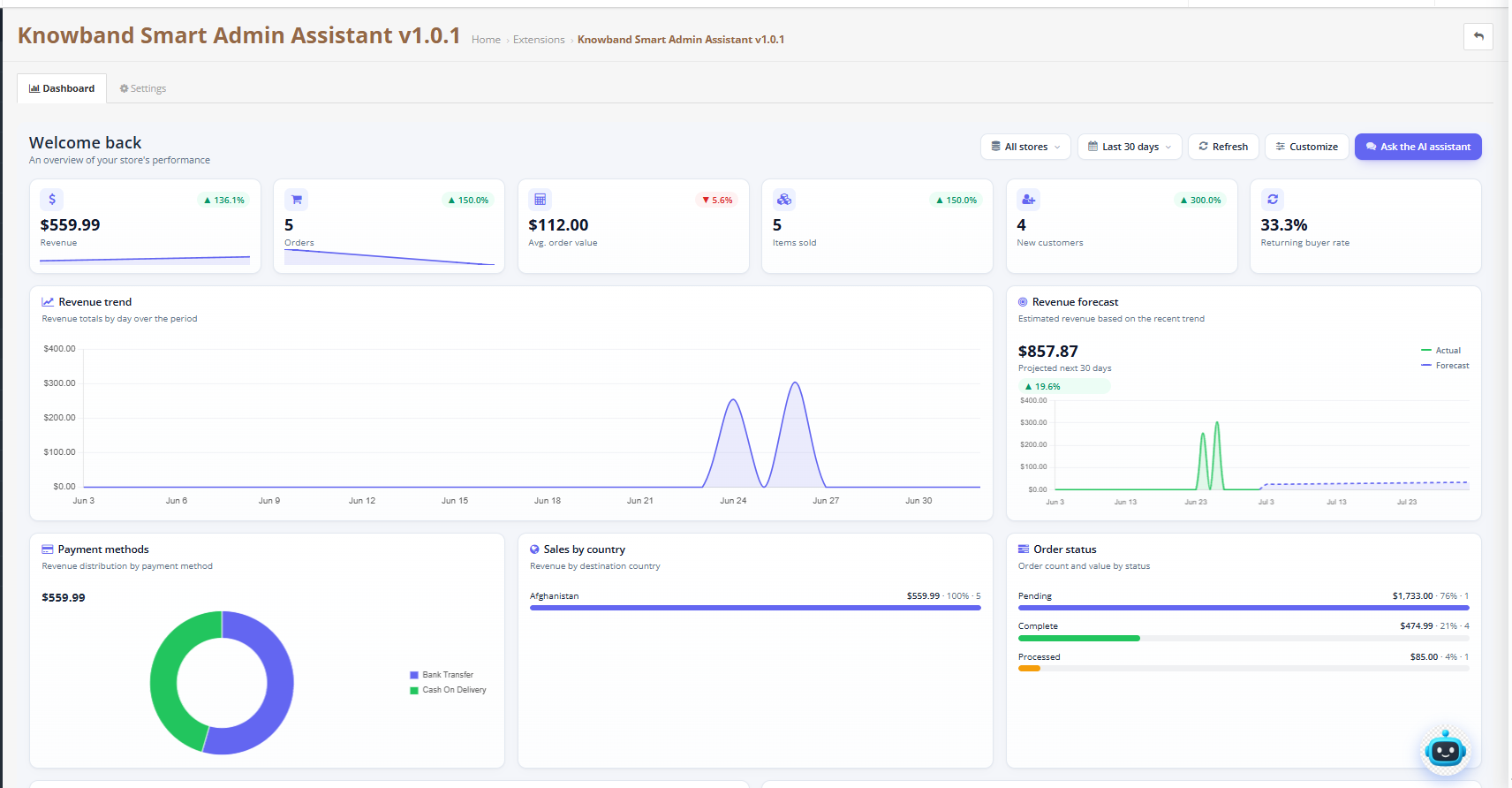
The Analytics Dashboard gives you a real-time overview of your store’s performance, including sales, orders, customers, and inventory, all from a single screen in your OpenCart admin panel. The dashboard is organised into three widget groups:
Key Metrics: KPI cards summarising revenue, orders, and customer activity
Charts & Trends: visual breakdowns of sales over time and by category
Lists & Tables: detailed rankings such as best sellers and low stock alerts
Every admin user can choose which widgets appear on their own dashboard and reorder them freely. Store-wide behavior, such as which order statuses count as revenue, is controlled centrally by an administrator in Settings → Analytics Dashboard Settings.
12.1 Analytics Dashboard Settings
Store owners can find the dashboard setting in Settings -> Analytics Dashboard Settings
This is the central OpenCart admin dashboard settings screen for Knowband Smart AI Admin Assistant. Every field here applies globally, to all admin users. Individual users can still personalise which widgets they see and how they’re arranged from the dashboard’s Customize panel. Use this section to configure how your OpenCart analytics dashboard calculates revenue, which time period it opens with, how it looks, and whether it replaces your OpenCart admin home page.
12.2 Dashboard Settings in Smart AI Admin Assistant
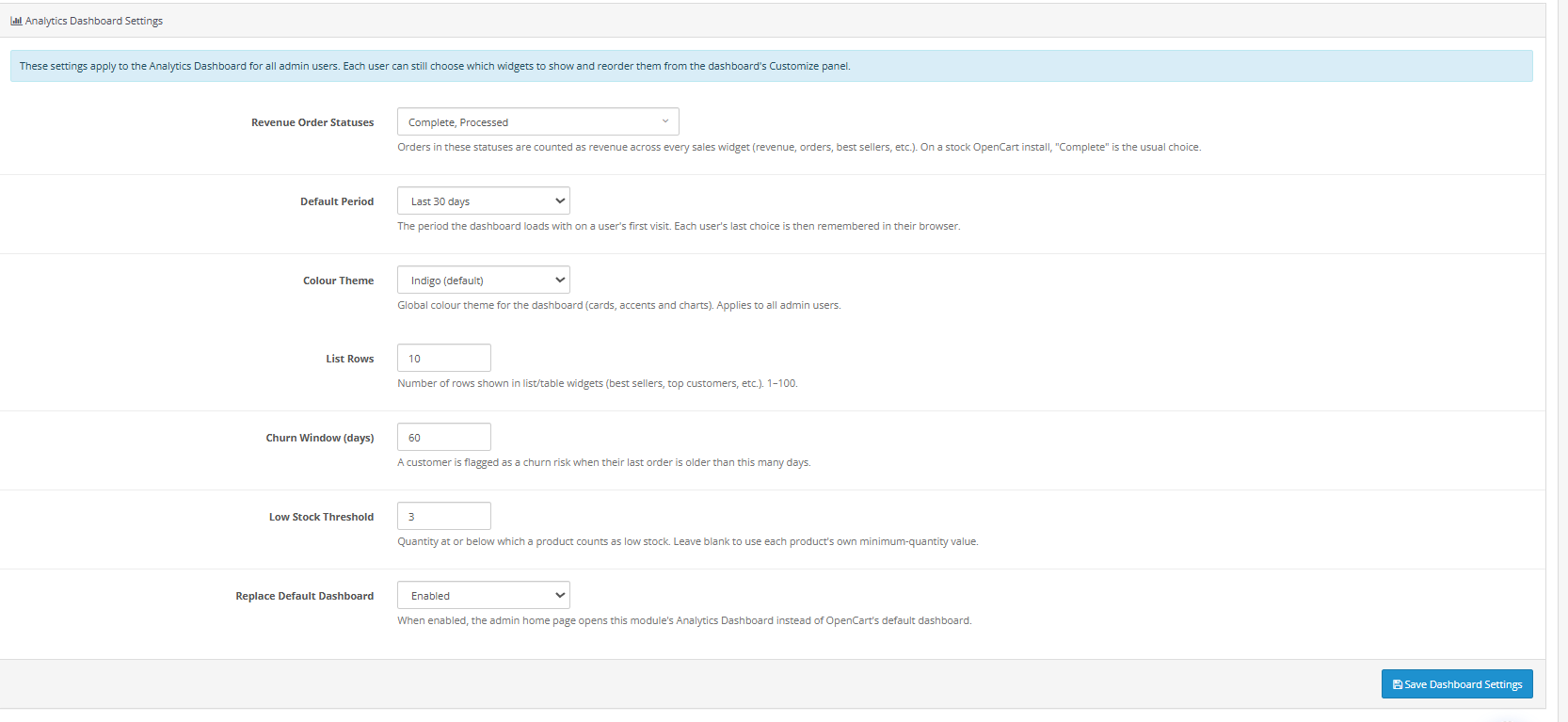
Revenue Order Statuses
Revenue Order Statuses: This field controls which OpenCart order statuses count as revenue across every sales widget on the dashboard, including Revenue, Orders, Average Order Value, Best Sellers, Top Customers, and Coupon Usage.
Default Period
The default period is the period in which you want your dashboard to show the analytical data. Options are included as Last 7 days, Last 30 days, Last 3 months, Last 6 months, Last 1 year
Colour Theme
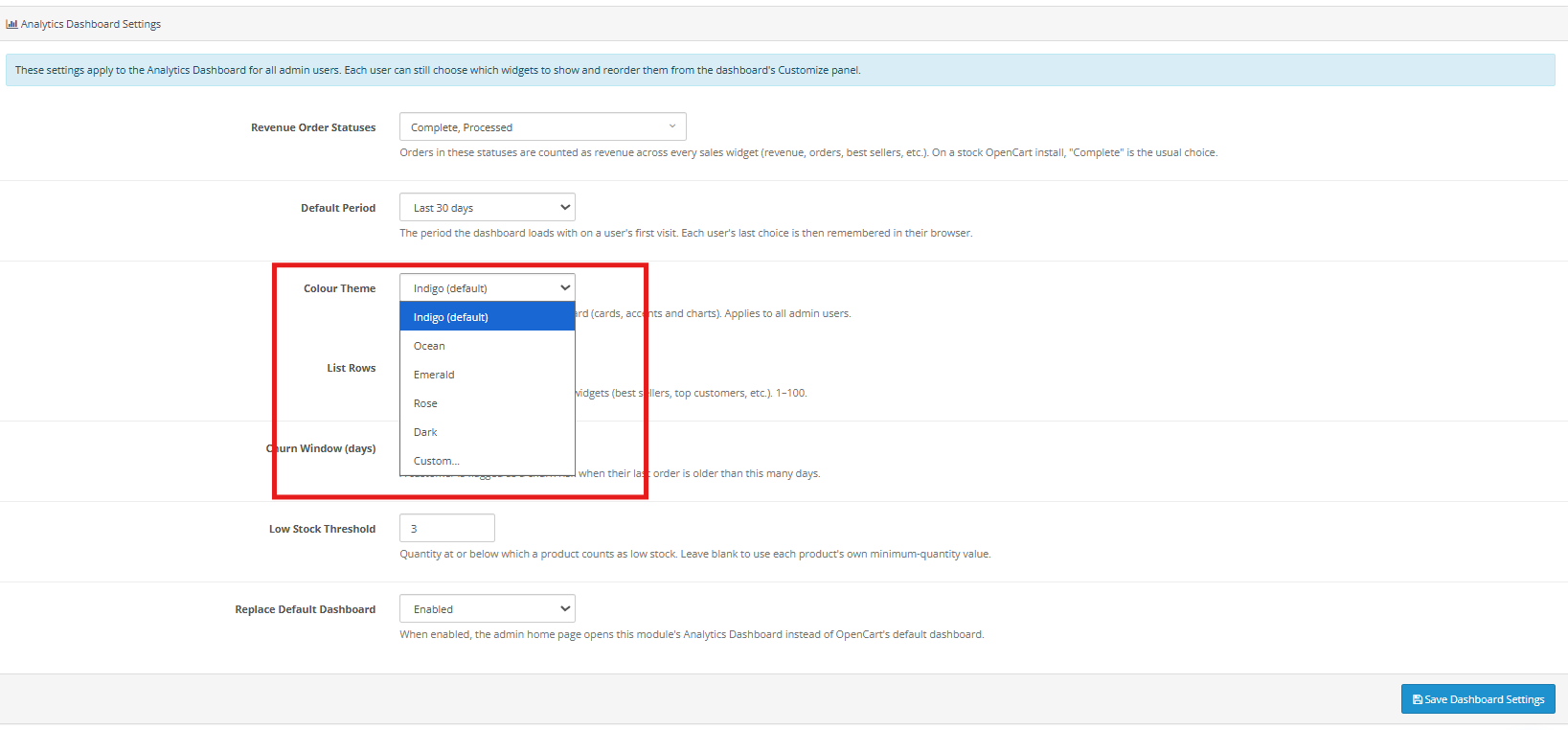
The colour theme is the theme of the dashboard which shows the analytics data. This module includes the Options like Indigo (default), Ocean, Emerald, Rose, Dark, and Custom.
List Rows
This feature controls how many rows are displayed in every list and table-style widget on the dashboard, including Best Sellers, Top Customers, Slow Movers, Reorder Suggestions, Churn Risk, Low Stock Alerts, Coupon Usage, and Brand Performance.
Churn Window
This defines the number of days of customer inactivity after which a customer is flagged in the Churn Risk widget, one of the key OpenCart customer retention tools on the dashboard.
Low Stock Threshold
This feature sets the product quantity at or below which a product is treated as “low stock” across the Low Stock, Low Stock Alerts, and Reorder Suggestions widgets, forming the basis of the dashboard’s OpenCart inventory management alerts.
Replace Default Dashboard
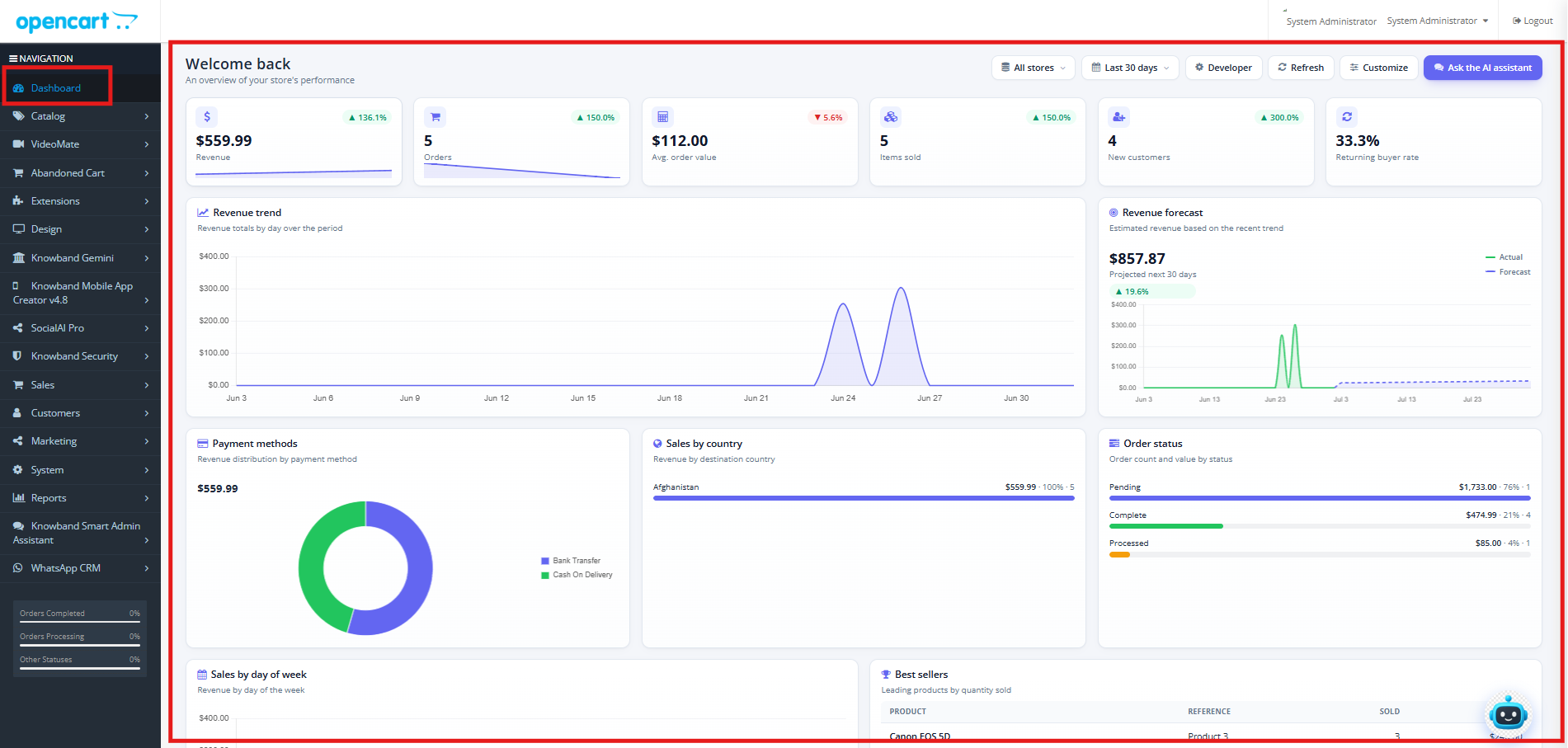
Store owners can enable the same to control whether the Analytics Dashboard should replace your opencart default dashbpard.
The admin home page automatically opens the Analytics Dashboard instead of OpenCart’s default dashboard the moment any admin user logs in. When set to Disabled, OpenCart’s standard dashboard remains the default landing page, and the Analytics Dashboard is accessed separately from the admin menu whenever needed.
5. Customising Your Dashboard
Each admin user can personalise their own dashboard layout independently by clicking on customisation on the dashboard.
Click Customise (widget library icon) on the dashboard.
Move or reorder any widget within its group (Key Metrics, Charts & Trends, Lists & Tables).
Close the panel, and now you will see the customised dashboard. You can click on Restore default to restore it to the original dashboard.
12.2 Key Metrics (17 widgets)
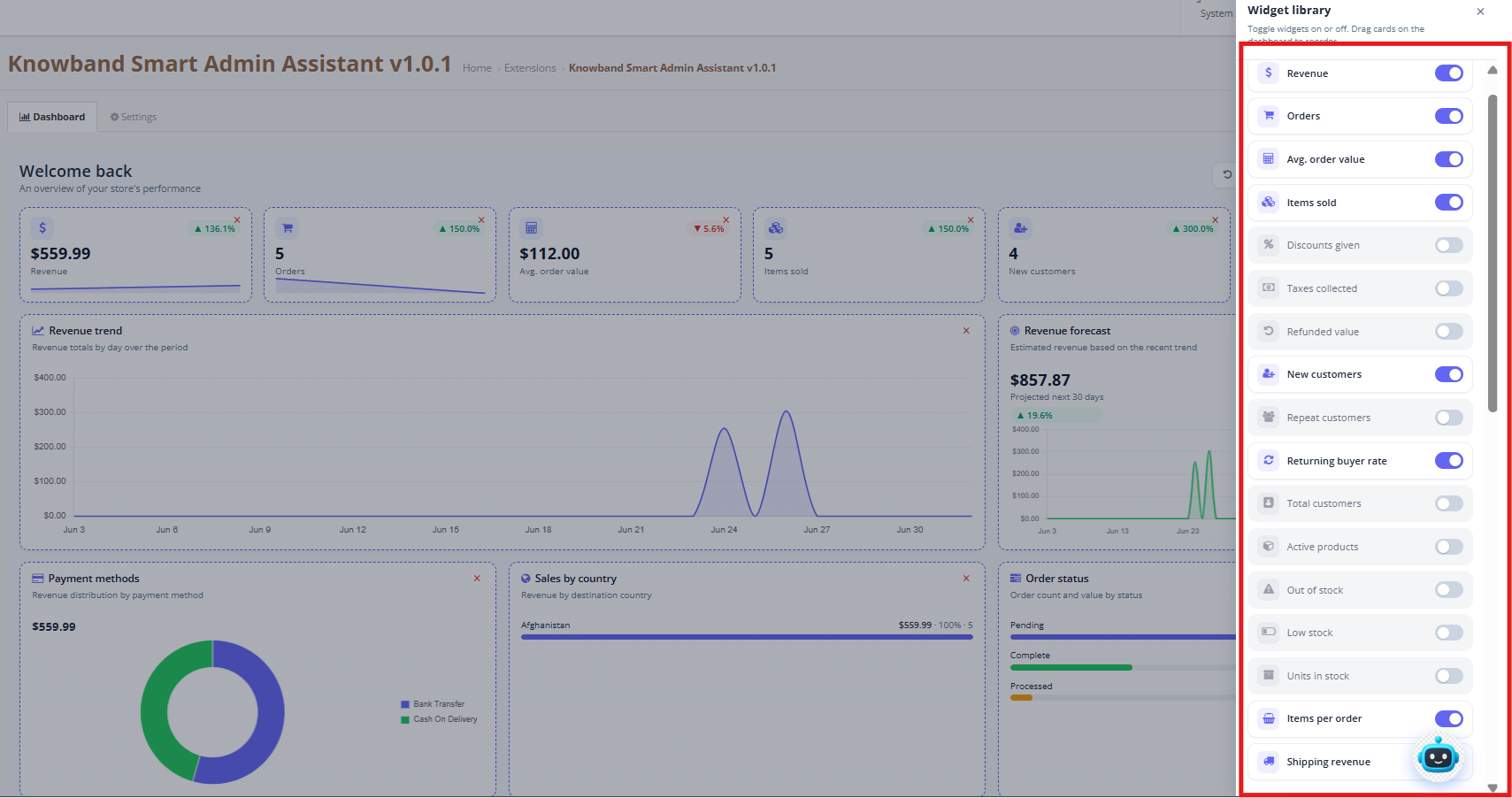
Revenue
Total order value for the selected period and order status chosen from the dashboard setting, with a daily trend graph and percentage change versus the previous period. This feature works as an OpenCart revenue report on the dashboard.
Orders
Total number of orders placed in the selected period, with a daily trend graph and percentage change, forming the base of the dashboard’s OpenCart order analytics.
Avg. Order Value
These values show the avgerage value per order, calculated on the basic total revenue divided by the total number of orders. Average order value provides store owners with a real-time check at a single glance. Instead of digging through spreadsheets, Excel, owners can instantly see if their pricing and marketing strategies are actually working.
Items Sold
This KPI metric shows the total units sold across all orders in the period that store admins have selected, which is useful for tracking sales volume independent of revenue.
Items per Order
This item per order metrics shows the items per order, so that store owners can have a idea of how he is selling items like individually or in bulk with OpenCart Analytics & Reporting Extension.
Discounts Given
The discount given option in the OpenCart AI Sales Analytics Plugin give the total value of coupon, voucher, and reward discounts applied during the selected period with per cent change from the previous analytics
Taxes Collected
The OpenCart AI Reporting Extension give the figure of total tax collected from orders in the period, useful for reconciliation and reporting.
Shipping Revenue
This feature gives the total shipping charges collected from customers on the orders during the selected periods, also show the percentage changes compared with the previous data.
Refunded Value
The total amount that is refunded will be marked as refunded in the selected periods, giving visibility into returns and lost revenue.
New Customers
Shows the total number of customers who registered during the selected period, calculated directly from new account sign-ups. This OpenCart Customer Analytics metric helps store owners gauge the real-time impact of acquisition campaigns, rather than waiting on a manual account export.
Repeat Customers
Counts customers who placed two or more orders within the selected period. This figure feeds directly into the dashboard’s OpenCart Customer Retention Dashboard, giving store owners a quick read on loyalty without cross-referencing order history manually.
Returning Buyer Rate
Shows the percentage/rate of buyers in the period who ordered more than once, which is calculated as repeat customers divided by total unique purchasers. This AI Assistant acts as an OpenCart Customer Analytics indicator; it shows store owners whether their retention strategy, from email marketing to loyalty programs, is actually converting first-time buyers into repeat business.
Total Customers
Total customers display every customer registered in the store to date, independent of the period selector. As a Real-Time Store Analytics snapshot, it always reflects the current customers the moment the dashboard loads, giving store owners an accurate data to check growth.
Active Products
Shows the number of products currently enabled and available for purchase in the storefront. This snapshot gives store owners an instant read on active catalogue size, useful when auditing inventory as part of the dashboard’s broader OpenCart Inventory Management toolkit.
Out of Stock
Flags-enabled products are currently sitting at zero quantity. As part of the OpenCart Inventory Management alert system, this widget lets store owners catch stockouts immediately, rather than discovering them after a lost sale.
Low Stock
Counts enabled products at or below the low-stock threshold configured in Analytics Dashboard Settings. This real-time alert gives store owners an early warning system for reordering, well before a product actually runs out.
Units in Stock
Totals the quantity across every enabled product in the store, giving a single figure for overall inventory volume. Store owners can use this widget alongside Low Stock and Out of Stock for a complete OpenCart Inventory Management picture in one glance.
12.4 Charts & Trends (9 widgets)
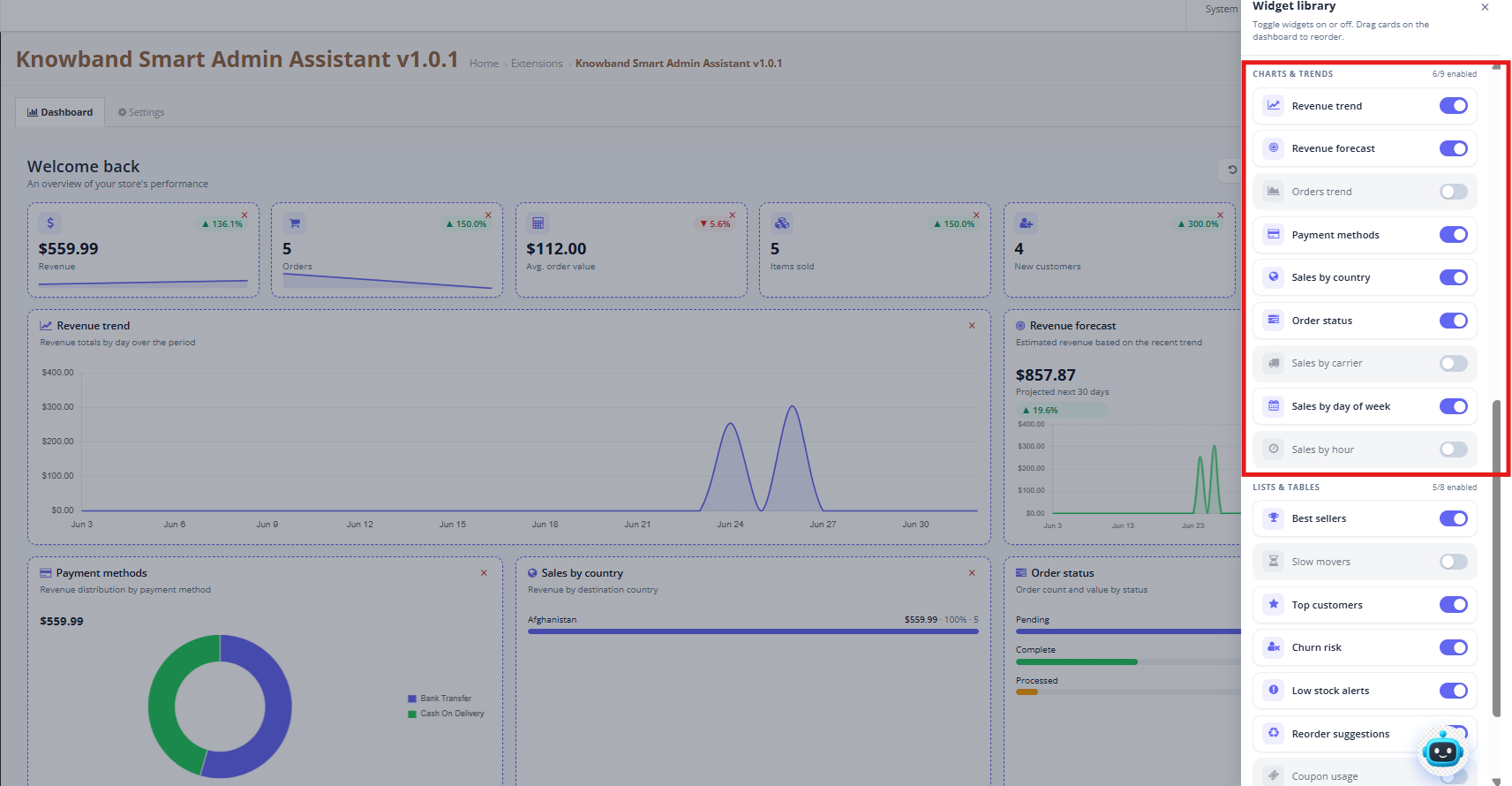
Revenue Trend
Plots revenue over time as a line chart, daily for periods up to six months and monthly for a full year. As a visual extension of the dashboard’s OpenCart Sales Report data, it helps store owners quickly spot spikes, dips, or seasonal patterns that raw numbers alone can hide.
Revenue Forecast
Analyses the last 90 days of trading and projects likely revenue for the next 30 days, using recent trend data rather than the selected period. This OpenCart Revenue Forecast widget helps store owners plan cash flow, stock orders, and marketing spend ahead of time, based on real sales momentum rather than guesswork.
Orders Trend
Charts order count over time using the same daily or monthly logic as Revenue Trend. It gives store owners a volume-based counterpart to the revenue chart, feeding into the dashboard’s wider OpenCart Order Analytics view of how order activity is moving.
Payment Methods
This chart shows how revenue splits across the payment options customers actually chose at checkout. If one method is quietly outperforming the rest, it’s worth understanding why, and if another barely gets used, that’s often a sign it needs more visibility or trust-building on the checkout page.
Sales by Country
A simple bar chart of revenue by shipping destination, but a genuinely useful one. It’s usually the fastest way to see where a store’s real strength lies geographically, which matters a lot if you’re weighing up new shipping zones or where to put the next ad budget.
Order Status
One bar list, every active status, revenue and order count side by side. It’s the quickest way to answer “where are things sitting right now,” whether that’s orders still processing, ones stuck pending, or ones already through to completion.
Sales by Carrier
Breaks revenue down by shipping method so you can see which carriers your customers end up using most. Worth checking every so often, especially when it’s time to renegotiate rates or decide if a new carrier option is actually needed.
Sales by Day of Week
Takes the whole selected period, not just last week, and groups total revenue by weekday. Patterns tend to show up here that aren’t obvious day to day, like a Thursday that consistently outsells everything else, which is handy to know when planning promotions or staffing.
Sales by Hour
Once you can see exactly when customers are most likely to buy, timing things like flash sales, email sends, or live support becomes a lot less guesswork and a lot more strategy.
12.4 Lists & Tables (8 widgets)
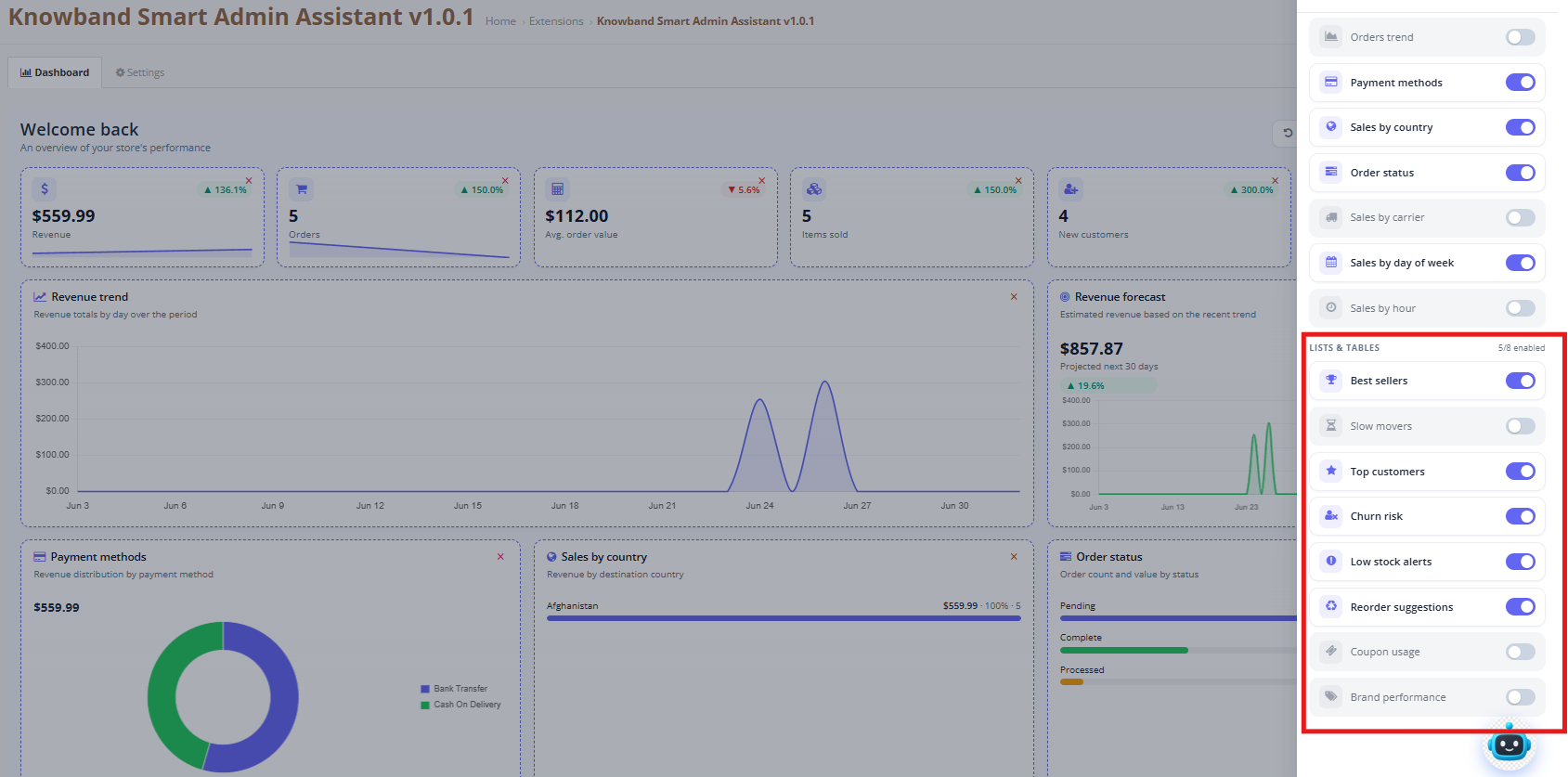
Best Sellers
Ranks products by units sold, with reference, quantity, and revenue shown side by side. As a key part of any OpenCart Sales Report review, this widget tells store owners exactly which products are carrying the business.
Slow Movers
Lists active products with the fewest sales in the selected period, helping store owners spot stock that needs a promotional push, a price adjustment, or removal from the catalog altogether.
Top Customers
Ranks customers by total revenue, alongside their order count, giving store owners a clear view of who to prioritize for loyalty perks, personal outreach, or account management as part of a broader OpenCart Customer Analytics strategy.
Churn Risk
Flags high-value customers who haven’t placed an order beyond the configured Churn Window, along with their lifetime value and last order date. This is the core of the dashboard’s OpenCart Customer Retention Dashboard, helping store owners win customers back before they’re gone for good.
Low Stock Alerts
Lists every product currently at or below the configured stock threshold, or already out of stock, with reference and quantity. This is a core OpenCart Inventory Management tool that gives store owners an early warning before a bestseller disappears from the shelf.
Reorder Suggestions
Calculates suggested reorder quantities for products sold in the last 30 days, based on current stock, units sold per day, and days of stock cover remaining. Store owners can use this feature to restock exactly the right amount, avoiding both overstocking and stockouts.
Coupon Usage
This shows every coupon redeemed during the selected period, along with number of uses and total discount value, so store owners can measure which promotions are actually driving orders versus which ones are just cutting into margin.
Brand Performance
Ranks manufacturers by revenue and units sold, rounding out the dashboard’s OpenCart Business Intelligence view of what’s actually driving the store, down to the brand level.
Rights Reserved.
12.0 Frequently Asked Questions
Q: What is the Knowband OpenCart Smart AI Admin Assistant, and how does it work?
This is an OpenCart Admin AI Chatbot that lets store admins ask plain-language questions and get answers from live store data instantly. It connects to the store database through pre-built read-only MySQL views, sends each question to the chosen AI provider, OpenAI, Anthropic Claude, or Google Gemini, which builds and runs a SQL query, then delivers the result in natural language. Compatible with OpenCart 3.x.
Q: Which AI providers work with the OpenCart back office analytics tool?
The Knowband OpenCart Smart AI Admin Assistant supports OpenAI (GPT-4o Mini, GPT-4o, GPT-5.5), Anthropic Claude (Haiku 4.5, Sonnet 4.6, Opus 4.7), and Google Gemini (Gemini 3.5 Flash, Gemini 3.1 Flash-Lite). Each provider connects via your own API key with no extra subscription. You pay only for what the AI actually processes.
Q: Can the OpenCart Smart AI Admin Assistant change or delete any store data?
No. The OpenCart AI sales analytics tool reads data only through pre-built MySQL views. No query sent through the chat can update, delete, or write anything back to the database. Every response is a read-only retrieval from your live store.
Q: What data can I query using the OpenCart admin AI chatbot?
Orders, customers, revenue, stock, abandoned carts, discount coupons, product combinations, employee accounts, shipping carriers, brands, and categories are all queryable. The Database Views tab governs which domains are active. Switch a domain on to allow it, switch it off to restrict it.
Q: How do predefined chips work in the OpenCart Smart Store Analytics tool?
Chips are one-tap question buttons in the widget. Tap one, and the saved question goes to the AI straight away. The default chip set covers orders, revenue, abandoned carts, low stock, out-of-stock items, active customers, new customers, cancelled orders, free shipping coupons, and products without a SKU. New chips can be added, edited, or removed from the Predefined Chips tab.
Q: What does the SQL visibility feature do in the OpenCart back office analytics tool?
Enable Show SQL Query Toggle, and the SQL behind each answer appears in the chat below the result. Turn on Allow SQL Edit and Re-run as well, and that SQL becomes editable directly in the chat. Change a date, a filter, or a threshold and run it again without asking a new question. This OpenCart AI sales analytics tool makes this accessible to any admin, not just those with SQL knowledge.
Q: How does role-based access control work in the OpenCart AI admin chatbot?
Open the Access Control tab and tick Restrict the chatbot to specific employee profiles. SuperAdmin access cannot be removed. For every other profile, Logistician, Salesman, Translator, or any custom role, tick the ones that should have access. Any profile left unticked will not see the assistant after logging in.
Q: What is the schema cache in the OpenCart back office analytics tool?
The schema cache holds the structural map of the store database so the AI can build queries accurately without reading the full database on every request. The first chat session builds it automatically. It refreshes based on the Schema Cache TTL setting. After installing a new extension, upgrading OpenCart, or making any database change, use Refresh Schema Now to rebuild it on the spot.
Q: How do I connect an AI provider to the OpenCart Smart AI Admin Assistant?
Go to the AI Provider tab. Click the provider you want: OpenAI, Anthropic Claude, or Google Gemini. For OpenAI, sign in at platform.openai.com, go to API Keys, and generate a new secret key. For Anthropic, sign in at console.anthropic.com, open API Keys, and create one. For Gemini, sign in at aistudio.google.com, click Get API key, and generate one for your project. Paste the key into the relevant field and save.
Q: Is the OpenCart Smart AI Admin Assistant compatible with OpenCart 3.x?
Yes. The Knowband OpenCart Smart AI Admin Assistant works on OpenCart 3.x. Visit the product page for current compatibility details and version notes.
13.0 Conclusion
The Knowband OpenCart Smart AI Admin Assistant delivers AI-powered OpenCart back office analytics to any OpenCart store without needing SQL knowledge, developer support, or third-party reporting platforms. Ask in plain English, get answers from live data, view the SQL behind each result, and refine it on the fly.
The Opencart AI Assistant for Admin is now available on OpenCart Marketplace. Try the demo now.
For support, custom requirements, or OpenCart development work, contact the Knowband team directly.