Running a PrestaShop store means juggling orders, inventory, promotions, and customers every single day, and in the middle of that routine, backing up the database is the task most owners postpone until it is too late. The Knowband Backup and Restore module is developed to close that gap. Rather than treating data protection as the task that you think that you will do later, it turns automatic store backup into a scheduled, hands-off routine that runs quietly in the background while you focus on running the business.
This PrestaShop backup and restore module combines a PrestaShop database backup module, a full PrestaShop store backup module, and a standalone restore script into a single, unified dashboard. Consequently, whether you need a quick database snapshot before an update, a complete files-and-database archive before a migration, or a scheduled cloud backup for PrestaShop that ships copies off-server automatically, the same interface handles all three, without switching between separate tools.
In addition, because disaster recovery for eCommerce depends on being able to restore quickly and not just back up reliably, the module ships with a restore engine, a restore-history log, and a password-gated standalone restore.php file so that you can restore your shop even if the back office itself becomes unreachable. The sections below walk through every tab, field, and setting so that you can configure the module correctly the first time, and troubleshoot it confidently if something does not go as planned.
Admin Panel of Prestashop Backup and Restore Module
In this section, you are going to learn about each tab in the Backup module so that you can configure it on your prestashop backend. We will first start with the Dashboard Functionality of the module.
1. Dashboard
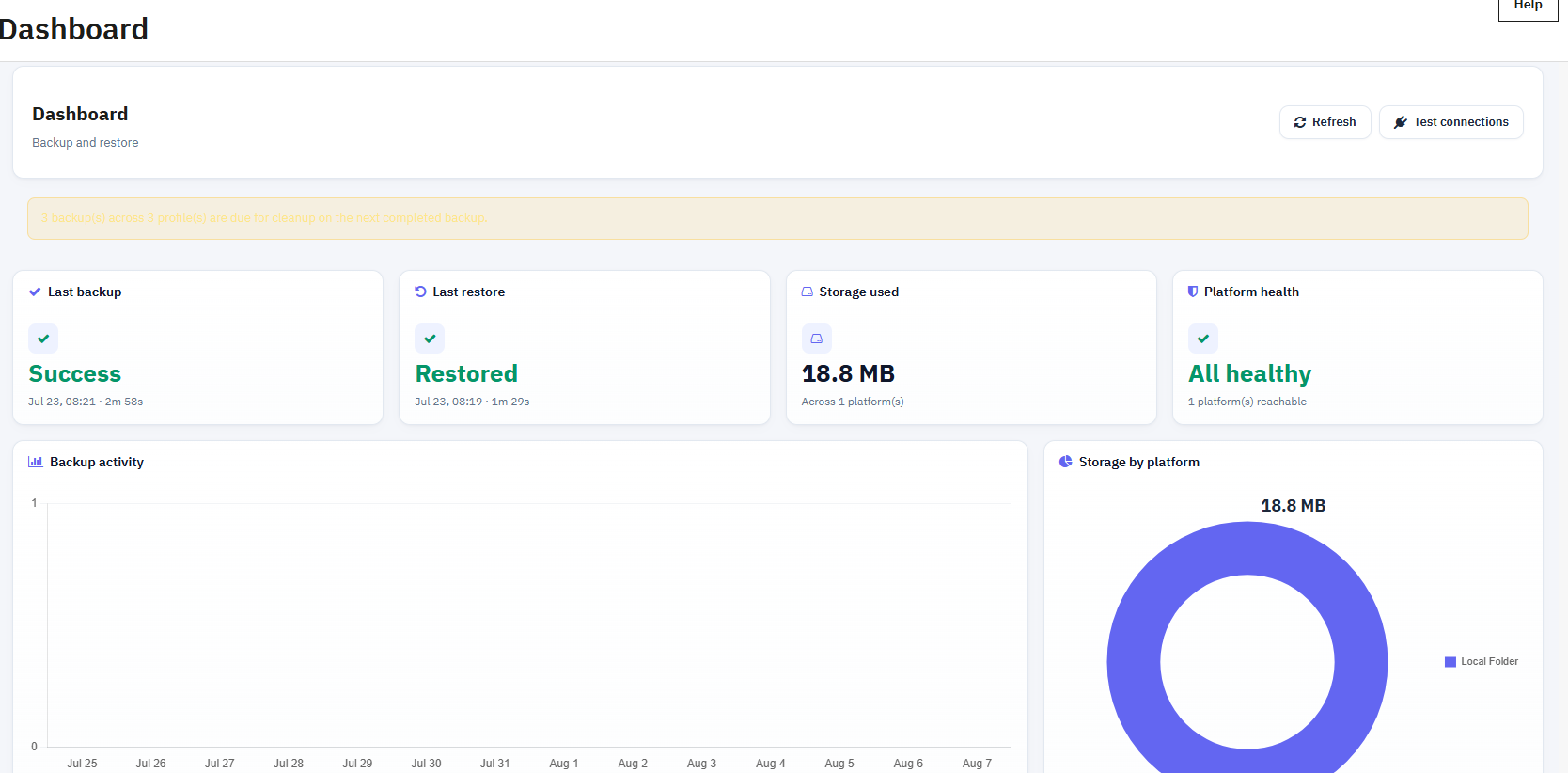
The Dashboard is the first screen you visit when you click on the Configure tab, and it is designed to answer one question at a glance: is my data currently protected? Rather than digging through logs, you get a summary of the last backup, the last restore, the storage consumed, and the health of every connected platform, all on a single dashboard page.
1.1 Status of Backup and Restore
- Last backup: Shows the outcome (Success, Failed, or Running) of the most recent backup job, along with the date, time, and how long the job took to complete.
- Last restore: Displays the same information for the most recent restore operation, so you can confirm a restore actually finished before relying on it.
- Storage used: The total disk space occupied by stored backup archives, broken down by how many platforms currently hold copies.
- Platform health: A quick reachability check across every configured storage platform (local, FTP/SFTP, S3-compatible, or OAuth cloud), flagged as healthy or unreachable.
Backup Activity
The backup activity shows the no, of backups that run over time, like per day. This feature also shows the failed activity that happened using the Prestashop File Backup Module.
Storage by Platform
Storage by platform shows the total space each connected storage platform is currently using, so you can see the data contained in each storage platform.
Latest backup composition
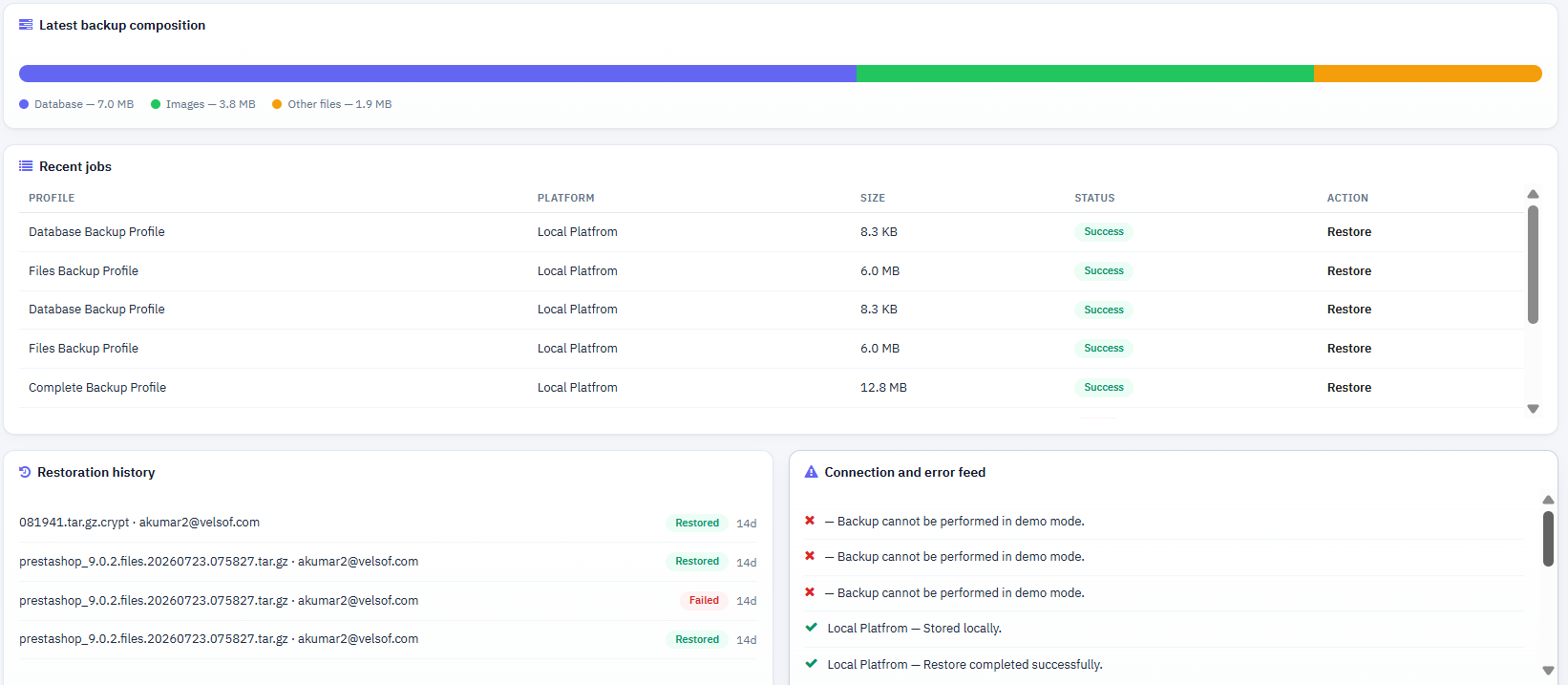
This latest backup composition breaks the newest storage data into database, images, and other files, showing the size of the data or media.
Recent Jobs
The latest backup runs with a direct Restore or Retry action, so you can act on a failure right from the dashboard.
Restoration History
Here you can see the recent restore attempts with result, status and timing, allowing you to confirm a restore genuinely finished before relying on it.
Connection and Error Feed
You can see the live error and status messages as they happen, giving you the exact cause of a failure without needing to check the Logs tab separately.
3. General Settings
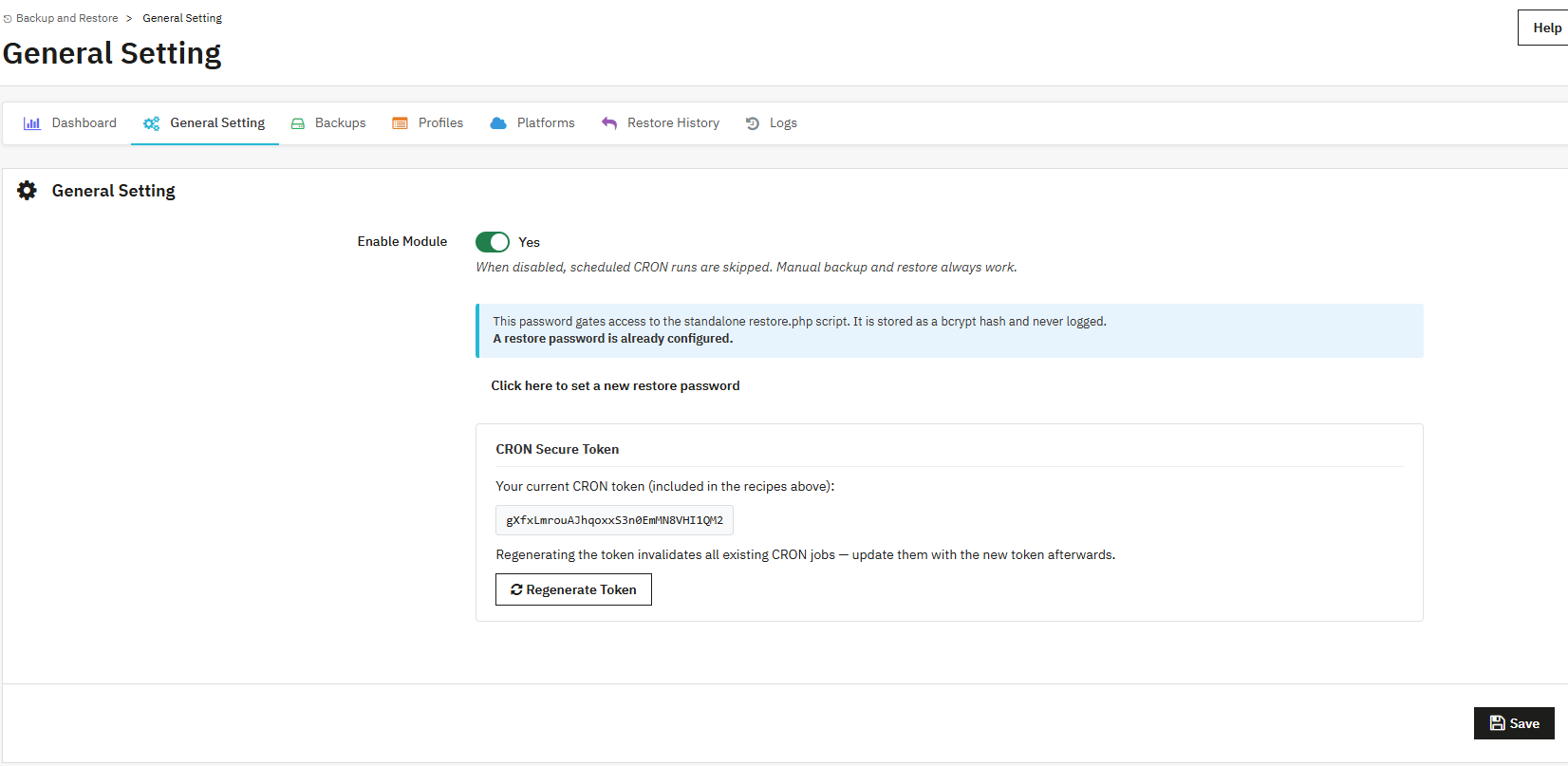
General Settings is where the module’s core behaviour is configured: whether it runs at all, how the standalone restore script is protected, and the exact CRON that your server, or a third-party scheduler,r should call. We will explore each feature one by one.
Enable Module: You can enable or disable the module just like other modules. When disabled, scheduled CRON runs are skipped entirely, though manual backup and restore from the back office continue to work normally.
- Restore Password: A password protecting the standalone restore.php script, stored as a bcrypt hash and never logged in string text. Required any time you restore outside the module interface.
- CRON Secure Token: A unique token embedded in every scheduled-backup URL and CLI command. Regenerating it invalidates all existing CRON jobs, so update every scheduler entry immediately afterwards.
- Standalone Restore Script: The direct URL (and server file path) for restore.php, which allows you to restore a backup even if the PrestaShop back office itself is inaccessible, provided you know the restore password.
- Scheduled Backup (CRON): Ready-to-copy Web URL, PHP CLI, and shell commands that trigger every enabled profile in one hit. Paste one of these into your hosting panel’s CRON manager or an external scheduler.
3. Backups
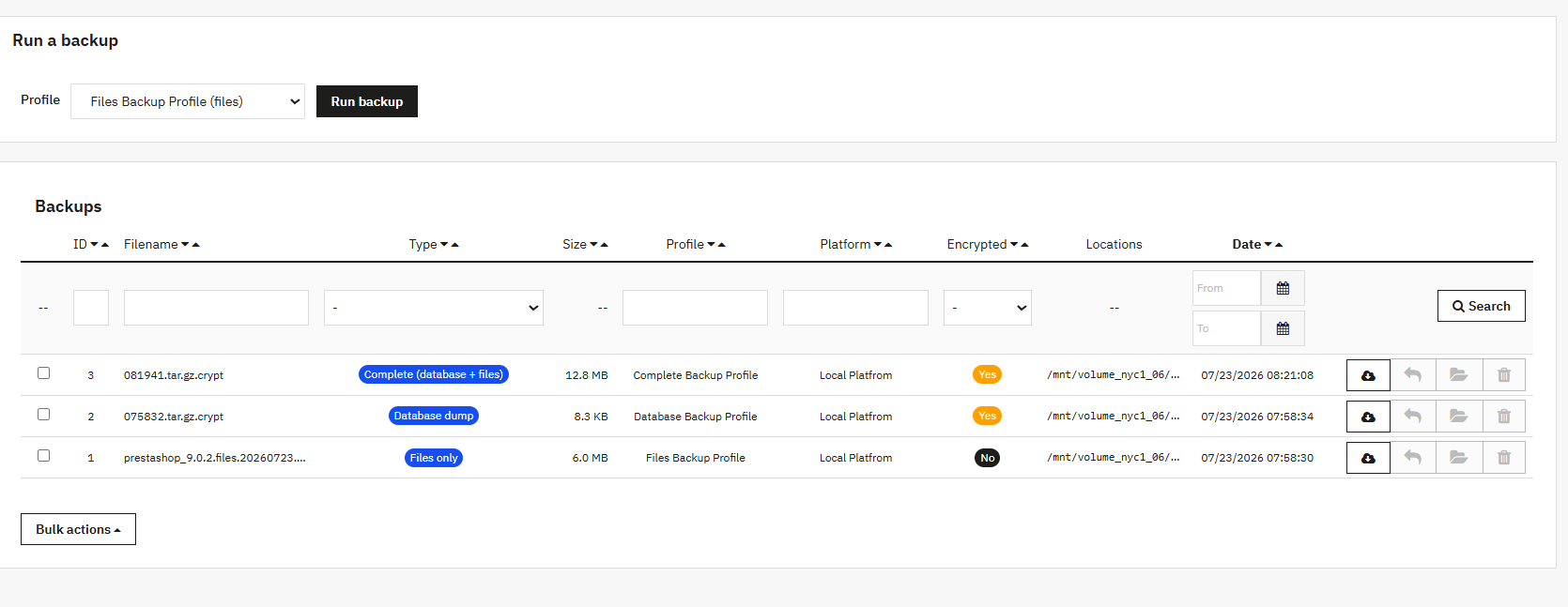
The Backups tab in Prestashop Database Backup Module is where you trigger a one-off job outside the regular schedule and review every archive the module has produced so far. Select a profile from the dropdown, click Run, and the module streams progress in place rather than forcing a page reload.
4.1 Backups Table
- ID: Identifier for the backup record, used internally when linking a restore action to its source archive.
- Filename: The archive’s actual filename on disk, typically timestamped (and suffixed .crypt when encryption is enabled) so successive backups never collide.
- Type: Database dump, Files only, or Complete (database + files), matching the Backup Type chosen on the profile.
- Size: Compressed size of the finished archive.
- Profile / Platform: Which backup profile generated the archive, and which storage platform is currently holding the copy.
- Encrypted: Yes/No flag indicating whether AES-256 encryption was applied before storage.
- Locations: The From/To file paths, useful when confirming a copy actually reached a remote destination and not just the local staging folder.
- Date: Timestamp the backup completed, used for sorting and for the retention rules configured on the platform.
5. Profiles
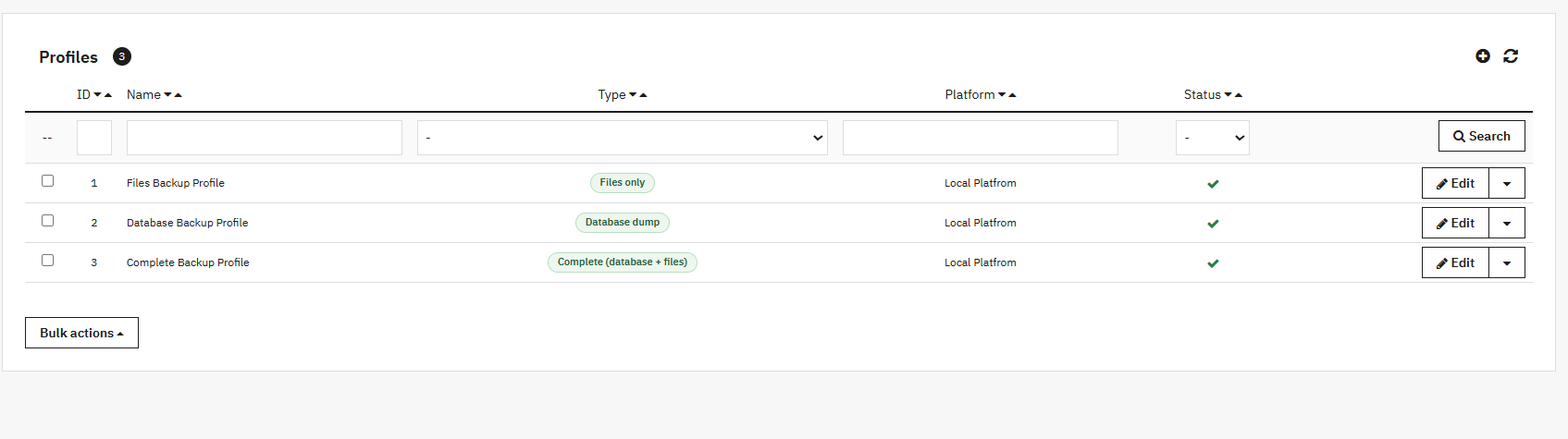
A profile is a saved backup configuration that you can reuse anytime. It stores your backup settings, including what to back up, where to store it, and who should receive backup notifications. You can create as many backup profiles as needed.
5.1 How to create Profiles in Prestashop Backup and Restore Module
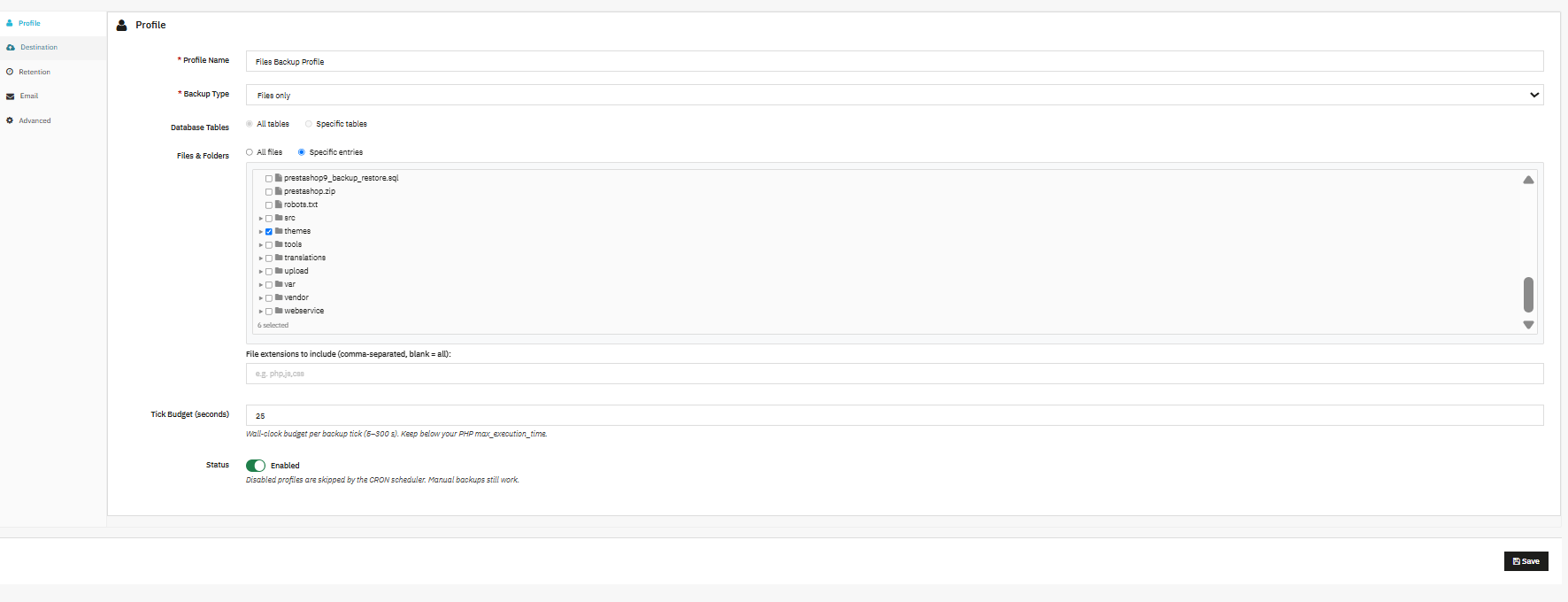
Profile Name: A name that you can choose so you can easily recognise this profile later in the dashboard, backup list, and restore history.
Backup Type: Store owners can choose what this profile backs up, like database and files both, Database tables only or just your store’s data. Store owners can also choose files/folders only, just your website files, no data.
Database Tables: Choose All tables to back up everything in the database, or pick Specific tables if you only need certain data, for example, orders and customers, but not logs.
Files & Folders: Choose All files to back up your entire site, or Specific entries to only back up selected folders. You can also use the exclude list below to skip folders like cache or temp files that just take up space.
Exclude these files or folders: Store owners can list any folders or files you want to skip, one per line, for example var/cache/ or img/tmp/. These will be skipped even if you selected “All files.”
File extensions to include: If you only want certain file types backed up, list them here (like php, js,css). Leave this blank to include every file type.
Tick Budget (second: Large backups can take a while, so the process runs in short batches called “ticks.” This setting controls how long each batch runs, between 5 and 300 seconds.
Status: You can enable the status of the profile so that it will not be skipped during the cron job. If you disable it so that it won’t run automatically, you can still start it manually anytime.
5.2 Destination

5.3 Email Notifications
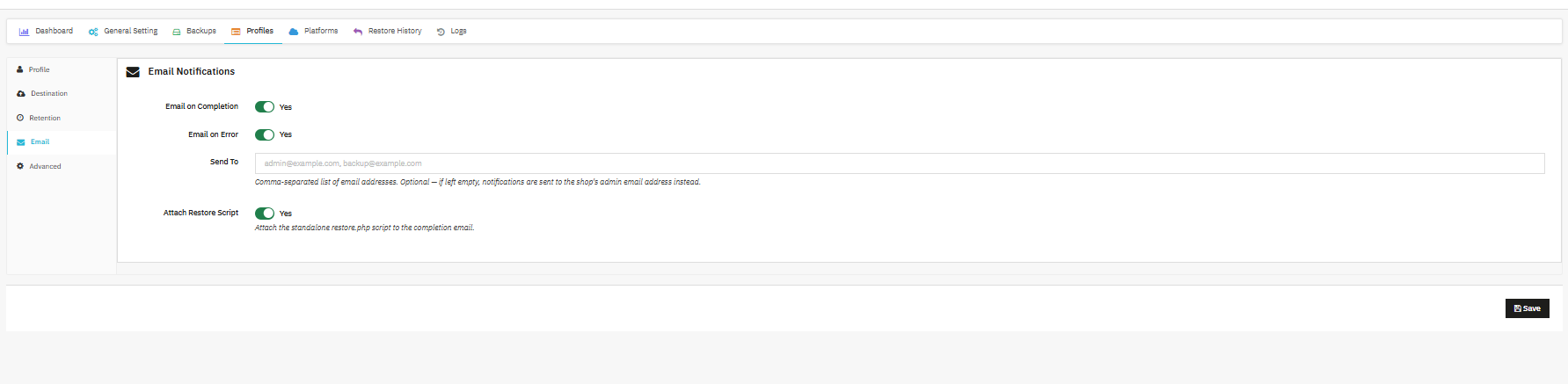
- Email on Completion / Email on Error: You can independently manage whether a notification is sent for successful jobs, failed jobs, or both.
- Send To: Comma-separated recipient list. You can leave blank to fall back to the shop’s admin email address automatically using the Prestashop Database backup and restore module.
- Attach Restore Script: When enabled, you can attach the standalone restore.php script to the completion email, so a copy is always on hand even if the server is later lost.
5.4 Advanced Settings
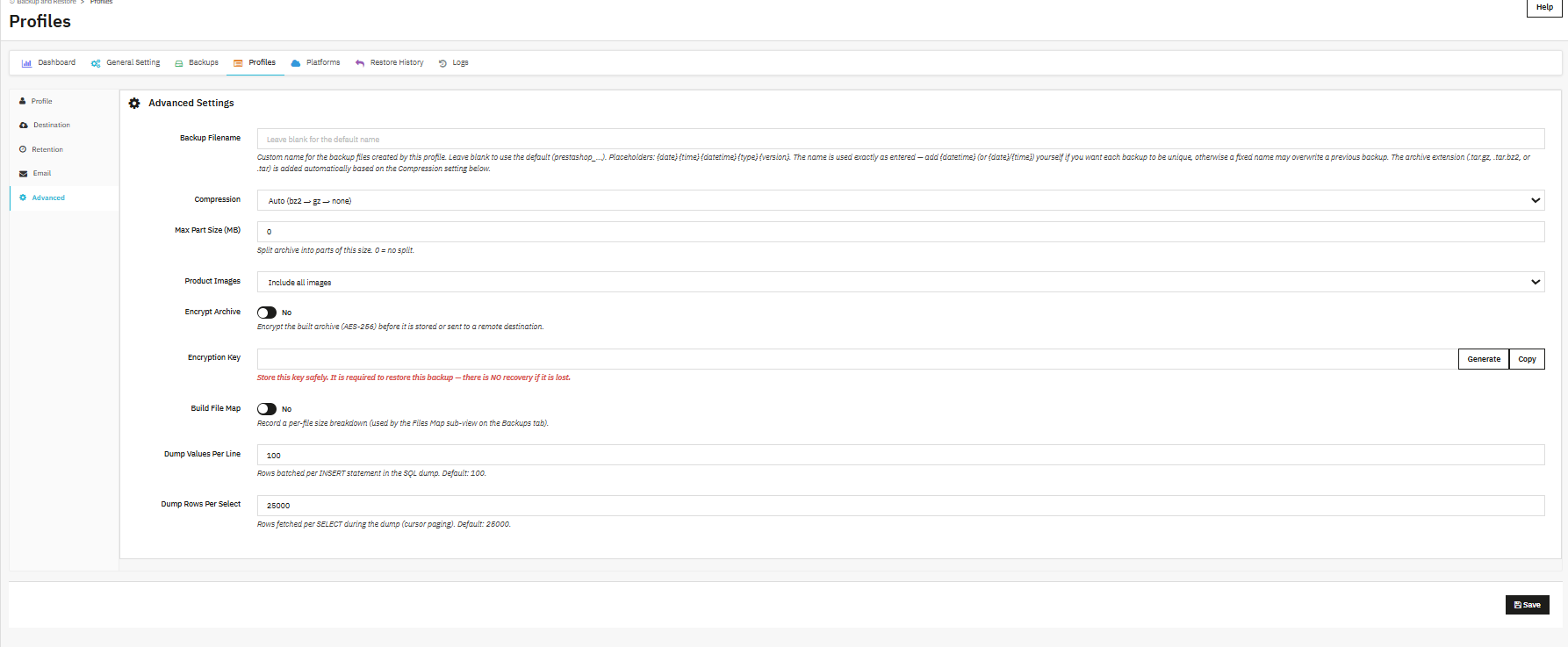
- Backup Filename: You can add custom naming using placeholders such as {date}, {time}, {datetime}, {type}, {version} for the data that you are backing up. Store owners can leave it blank for the default prestashop_… name, and remember that a fixed name without {datetime} will overwrite the previous backup rather than creating a new one.
- Compression: You can select the type of compression that you want in files like Auto (bz2 to gz to none)(it will automatically add the type), or a fixed format; it determines the archive extension (.tar.gz, .tar.bz2, or .tar) applied automatically.
- Max Part Size (MB): You can split the archive into parts of the given size; 0 disables splitting.
- Product Images: Store owners can choose to select products as well as source images, or can also choose to exclude the same.
- Encrypt Archive: This Backup and Restore module also applies AES-256 encryption to the backed up archive file before it is stored locally or shipped to a storage platform.
- Encryption Key: The key required to decrypt and restore this specific backup file as AES-256 is being applied on these files. There is no recovery mechanism if it is lost, so store it securely and separately from the server itself.
- Build File Map: Store owners can record a per-file size breakdown, which powers the Files Map sub-view for auditing exactly what a given archive contains.
- Dump Values Per Line: Admins can choose to add the rows batched per INSERT statement when writing the SQL dump.
- Dump Rows Per Select: Admins can choose the max. no. of rows fetched per SELECT during the dump via cursor paging (default 25000); lower this on memory-constrained servers with very large tables.
6. Platforms
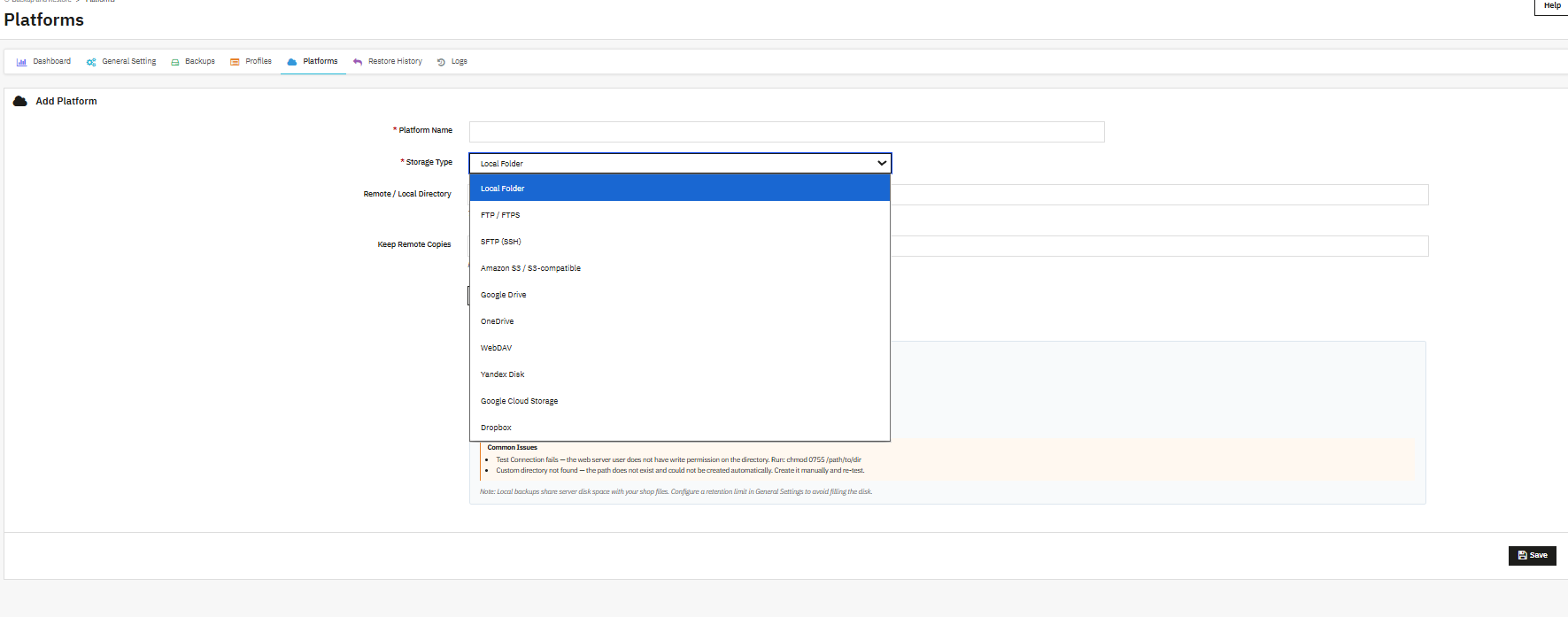
Platforms define where finished backups end up. Local storage is the simplest option, but the module’s real strength as a cloud backup module for PrestaShop shows once you connect FTP/SFTP, Amazon S3 and S3-compatible services (MinIO, Wasabi, Backblaze, Scaleway), Google Cloud Storage, or an OAuth-based cloud such as Google Drive, Dropbox, OneDrive, or Yandex. Storing a copy away from the origin server is, in practice, the single change that turns a backup routine into genuine disaster recovery for eCommerce.
- Platform Name: A friendly label used everywhere the platform is referenced: profiles, the backups table, and the dashboard’s health card.
- Storage Type: Local folder, FTP/SFTP, an S3-compatible service, Google Cloud Storage, or an OAuth cloud provider.
- Remote / Local Directory: Destination path for stored archives; defaults to modules/kbbackuprestore/backup/ when left blank. This field is locked once the platform is created, so set up a new platform if you need a different path later.
- Keep Remote Copies: Maximum number of archives retained on this platform; 0 keeps every copy indefinitely, which is convenient but worth monitoring against available storage.
7. Restore History
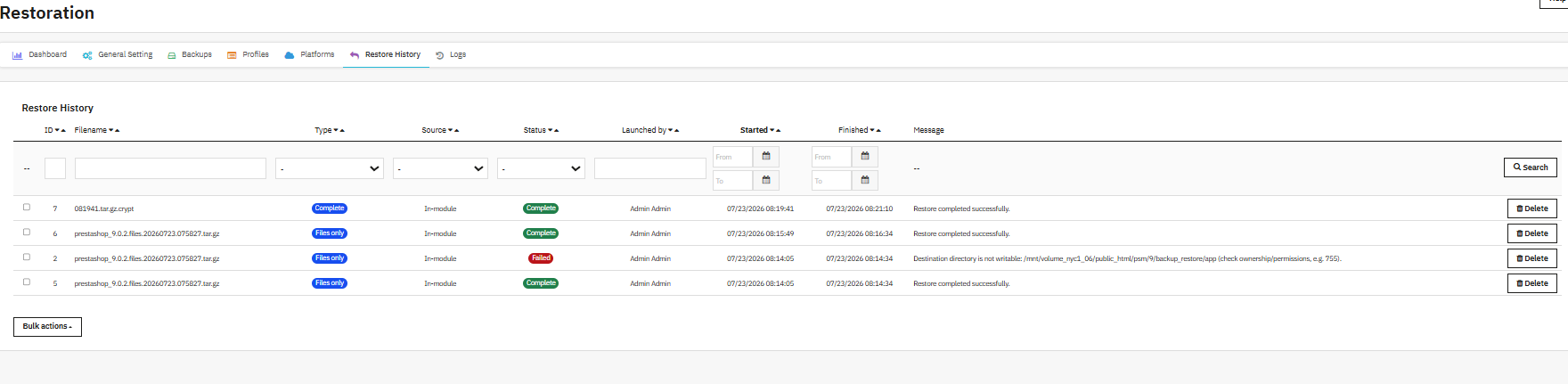
Every restore attempt, successful or not, is logged here, which matters most in the moment you actually need to restore your shop under pressure. Rather than trusting that a restore “probably worked,” you can confirm it against a timestamped, per-file record.
- ID / Filename / Type: Identifies the restore record and the exact archive that was restored, along with its backup type (Complete, Database, or Files only).
- Source: Where the restore was initiated from, typically in-module, though the standalone restore.php script logs here as well.
- Status: Complete or Failed, reflecting the outcome of the operation.
- Launched by: The admin user who triggered the restore, useful for accountability on stores with multiple back-office users.
- Started / Finished: Timestamps bounding the operation, from which the total duration can be derived.
- Message: The exact system message for the attempt, for example a permissions error on a specific path when a restore fails, or a plain confirmation when it succeeds.
8. Logs
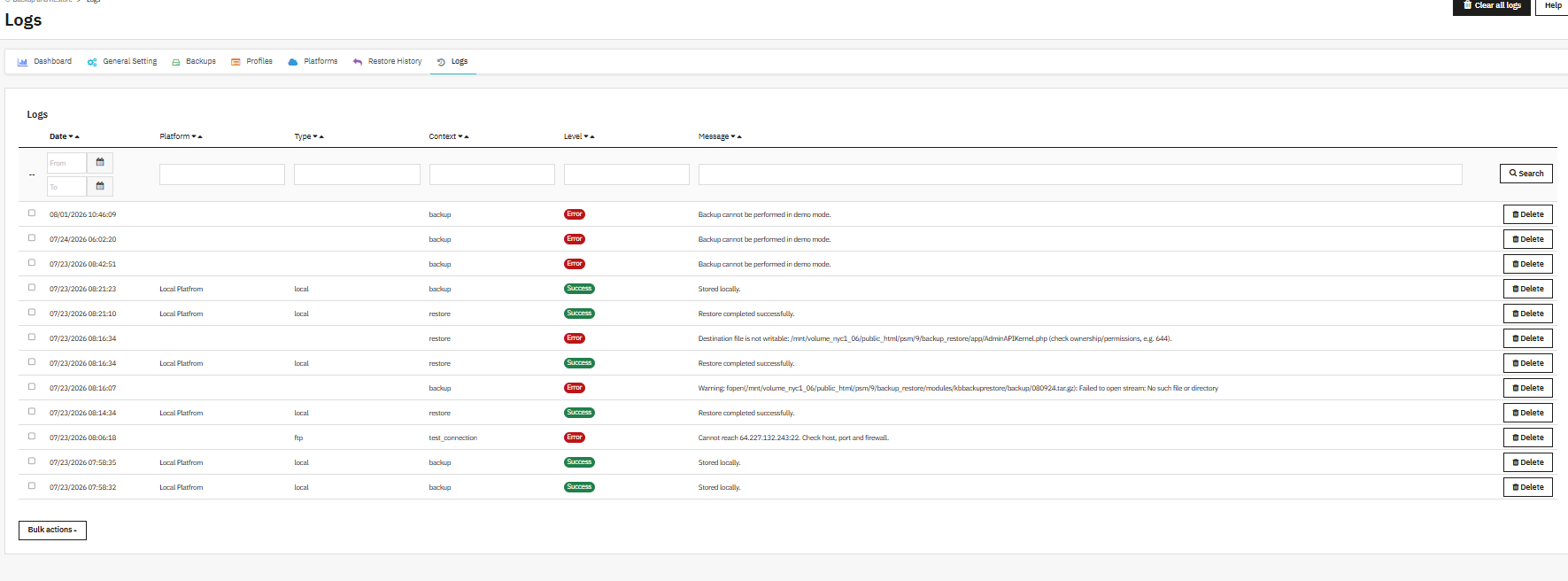
Logs in the Prestashop backup and Restore module are the tab that helps in checking first whenever the Dashboard’s Connection and Error Feed does not give you enough detail on its own. Every backup, restore, and connection test writes a row here, filterable by date, platform, type, and severity level.
- Date: Exact timestamp of the logged event.
- Platform: Which storage platform the entry relates to, when applicable; blank for events that occur before a platform is involved, such as a demo-mode restriction.
- Type: The underlying operation category, such as local, ftp, or another connector type.
- Context: The action being performed: backup, restore, or test_connection.
- Level: Success or Error, letting you filter noise out quickly when scanning for problems.
- Message: The full, unabridged system message, including file paths, permission codes, or network errors, which is typically enough to diagnose the issue without escalating further.
9. Conclusion
This user manual by Knowband covers every tab associated with the Knowband Backup and Restore module for PrestaShop, from the Dashboard through to the Logs tab, and it is worth bookmarking as a reference the next time you configure a new profile or platform.
If you run into a scenario this manual does not cover, an unusual storage provider, a permissions setup specific to your host, or a restore that behaves unexpectedly, the Knowband support team can assist directly, and reviewing the Logs tab before reaching out will generally speed up the diagnosis considerably.

In short, treat scheduled database backup and off-server copies as routine housekeeping rather than an emergency measure, and PrestaShop data protection becomes something you rarely have to think about, which, ultimately, is the point of the module.

