Pre-Requisites to Publish App on the Google Play Store

Although there are various app markets available nowadays, Google Play Store is the most popular and the largest of all. Google play not only allows you to distribute your app to a wide range of users but also allows you to manage the advertisement and selling of the app. Are you planning to publish an app on the Google Play store? Here, we have discussed some requirements for a seamless app submission on Play Store.

1. Create a Developer Account

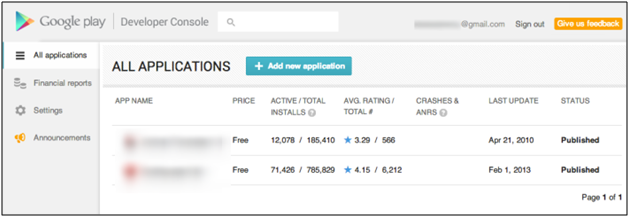
First of all, the user who is intending to go live with the Play Store needs to have a developer account to release the application. There is a one-time $25 payment required to open this account, which can only be done once. The user can follow the steps mentioned below to register as a developer using his/her Gmail account.
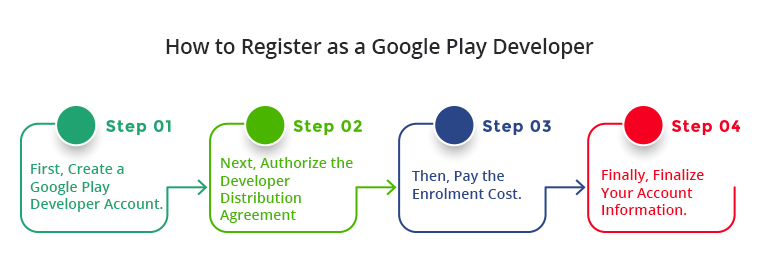
Steps to Create a Google Play Developer account

  1. First, create a Google Play Developer account.
  2. Next, authorize the Developer Distribution Agreement.
  3. Then, pay the enrolment cost.
  4. Finally, finalize your account information.

For Detailed Step-by-Step information, please visit the link
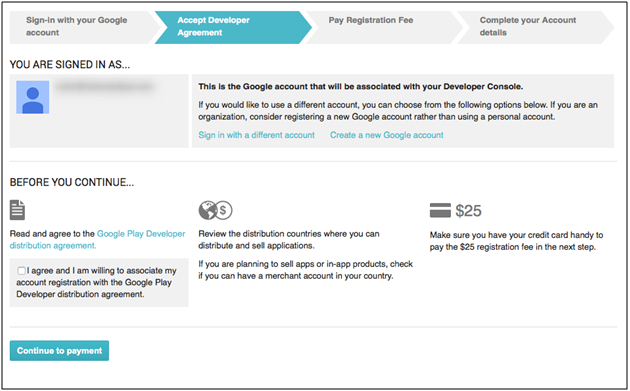
2. Pre-requisites for Publish App on the Google Play Store.
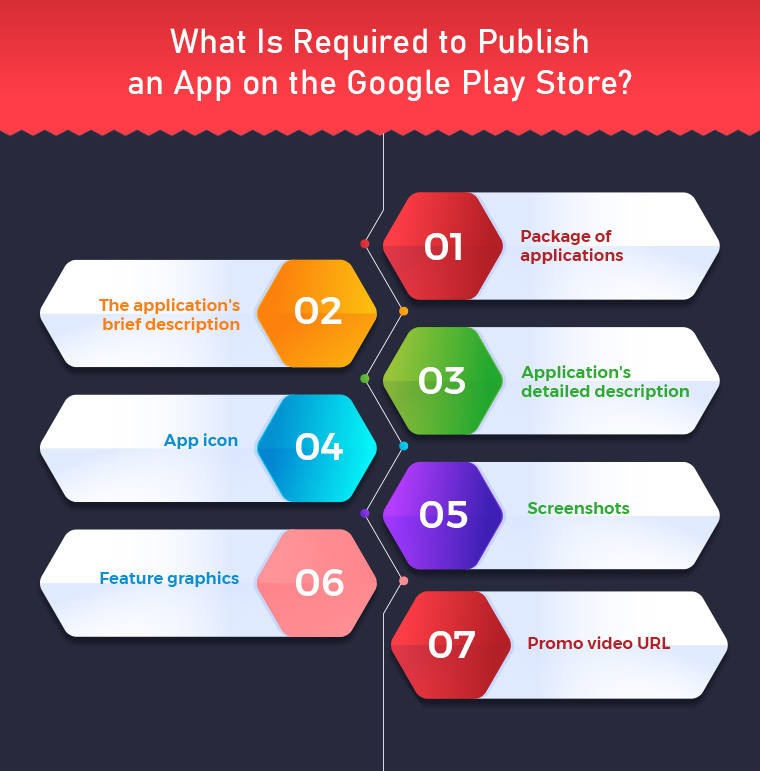
  1. Application Package:- apk file which is to be released on the Play Store.
  1. Short Description of the application: – The short description should not be more than 80 characters.
  1. Long Description of the application: – The long description should not be more than 4000 characters.
  1. App Icon:- Hi-resolution icon in png format. (512*512). Here, a few tips are discussed for making an effective app icon.
  1. Screenshots:- 8 different screenshots of the application with hints. The image should not be larger than (3480*3480) and must be in png format. Find an example here – https://play.google.com/store/apps/details?id=com.vel.barcodetosheet
  1. Feature Graphics: – Feature graphic of resolution 1024px(width) * 500px(height). A nice featured graphic usually attracts more users and get downloads for your app.
  1. Promo Video URL: – YouTube tutorial video showcasing the use of the application (if any). It should be 30 seconds to 2 minutes long.

 Recommended Read: How to publish your Android App on Google Play Store?

3. Releasing Application on Play Store

It’s time to publish the app in the store after getting everything prepared for submission of the app. The steps discussed below illustrate how you can distribute your app on the Play Store –

  • In the pop-up screen, enter the name of your application. Google allows 30 characters for the title of your Android application.
  • Now, you will be redirected to the Store Listing under the Store presence page, add the following details here:
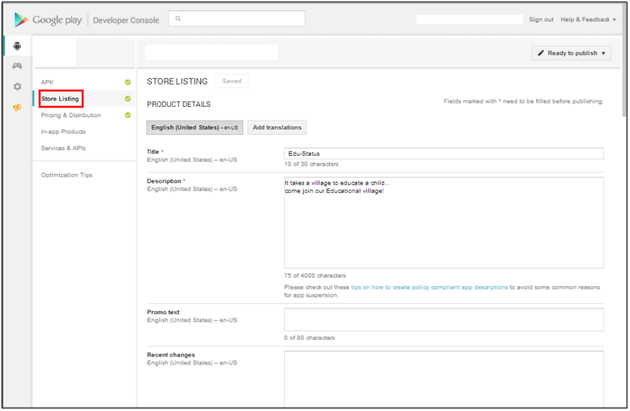
  1. Short App Description
  2. Long App Description
  3. App Icon
  4. App Screenshots
  5. Featured graphics
  6. YouTube Video
  7. On the store listing page itself, you will be asked to select the Application type whether it is an App or a Game.
  8. Select the category of your App or Game to which it belongs.
  9. Enter the contact details and privacy policy URL for the app. The privacy policy is mandatory for app distribution.
  10. Now click on the ‘Save Draft’ option and move to the ‘App Releases’ option under the ‘Release Management’ option.
  • Select Create Release option in the production tab if you want to release your application to production. The application can also be released under beta and alpha testing before being moved to production.
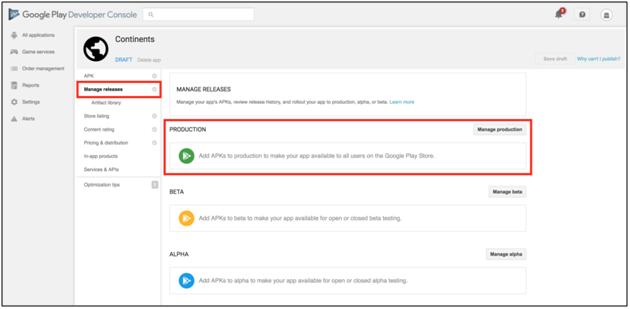
  • Select the Application Package to be uploaded to Play Store.
  • Update the release notes for the application and click on Save Draft.
  • As we have now uploaded the application package (APK), you can now apply for submitting a Content Rating for the application.
  • Now open Store Presence and select Content Rating.

  • Fill in the questionnaire and you will receive a content rating based on the entered details.
  • Now, move back to the ‘App Releases’ tab
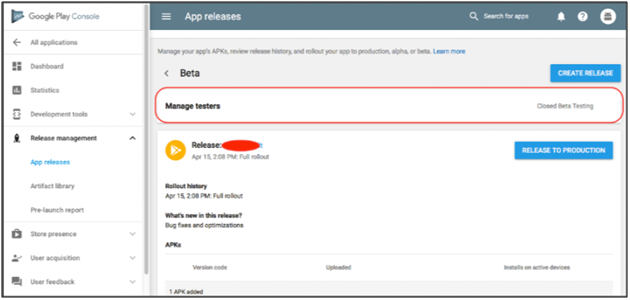
  • Under the Production track, select Manage
  • Click on the Review button at the bottom of the screen. You will be redirected to details of the application package and release note.
  • To release the application package on Play Store, select the option “Rollout to Production” to make the application available for release.

When Google has processed your request, you can download your application from the Play Store.

Recommended Read: What to do if Google Play Store rejects your App Submission?

Need An eCommerce Shopping App?
If you’re an eCommerce store owner and looking for native shopping apps for any of the following platforms:

PrestaShop Mobile App Builder

OpenCart Mobile App Builder

Magento 2 Mobile App Builder

WooCommerce Mobile App Builder

This readymade tool by Knowband will create and publish an app on the Google Play Store. The mobile app creator for iOS and Android securely connect your store with the mobile apps. The Android and iOS mobile apps automatically roll back any changes you make on the website. Therefore, flawlessly synchronised mobile apps manage the entire workload without the need for manual synchronisation. The plugin comes with 3 months of free support including a free cost app release.

Conclusion

These were some of the pre-requisites for the distribution of the app on the Google Play Store. You can also find detailed info about app publishing on Google Store. Once Google approves your app, your app will join the Play Store. However, Google frequently rejects apps for common reasons that are disregarded at the time of app submission. However, you can curb the reasons for rejection and republish it with ease. You can also create a perfect mobile app and publish the same, just keep above mentioned pre-requisites in your mind.

How to Publish your Android App on Google Play Store?

After spending a substantial amount of time developing an Android application, the next step is to publish your Android app on Google Play Store. Currently, there are more than 1 billion active users of Android. Publishing your app on the Google Play Store will make your reach prospective audience base at ease. If we look at the following statistics, the number of available applications in the Google Play Store from December 2009 to June 2024 is gradually increasing:

With such a huge no of apps available in the Play Store, publishing an android app would be quite beneficial for your business. If you are a newbie in the field of app development or this is your first-time publishing an Android App on Google Play Store, here are some useful tips on that:

Recommended Read: Pre-Requisites to Publish App on the Google Play Store

1. Create a developer account in Google Play Console

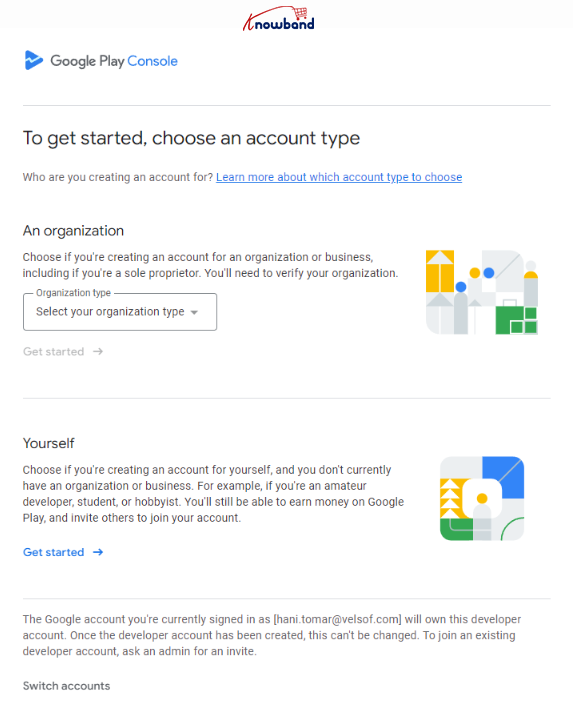
To begin with the app upload, the initial steps comes as creating a new developer account. Furthermore, there are 2 types of Google Play Console developer account: Individual and organizational.
Creating a new developer account starts with visiting the Google Play Developer Console sign-up page. You can only register a new Play Console developer account only if you have enabled 2-Factor authentication on your Gmail account.

Either you can select the option as an Individual registration, or if you are willing to register as a business, you can select the organization type from the dropdown list.

2. Submit the Details:

If you are registering into a new Play Console developer account, you are going to need a D-U-N-S number for your organization, A contact phone number and email address for Google Play users, A contact phone number and email address for Google, and a single time fee of $25 USD.

Once these details are submitted, you can get your Play Console Developer account approved within 3-5 business days.

3. Upload your app

Upload your android app with Add new application option.

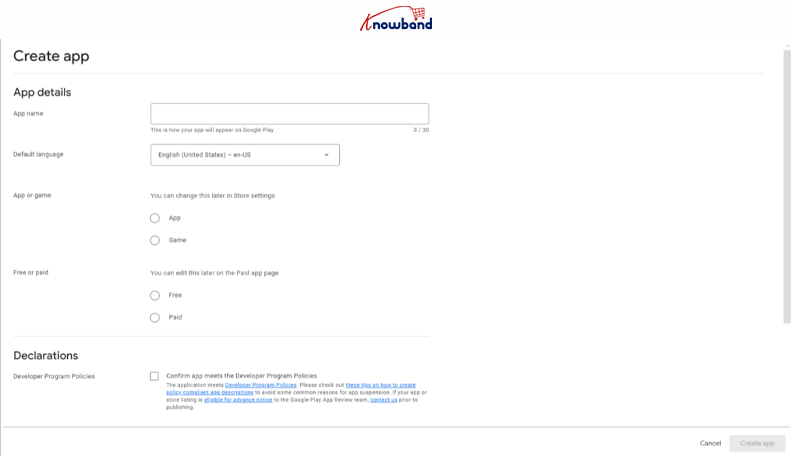
To submit a new app, click on the create app button shown in the above screenshot. Once done, you will have to fill in the basic details such as the App name, default language, selection between app and game, and the Play Console policy declarations.

Fill in the requested details and click on the create app button.

4. Set-up Your App:

Once the basic details are submitted, you will be redirected to the Play console account dashboard. For the next step, click on the dashboard tab visible in the side menu and visit the Set up your app section.

Here you will have to fill all the details that are mandatory to submit the app on the Play console. Start by one by one. Once you are done with the app content section, there comes the next step.

5. Enter Store listing details

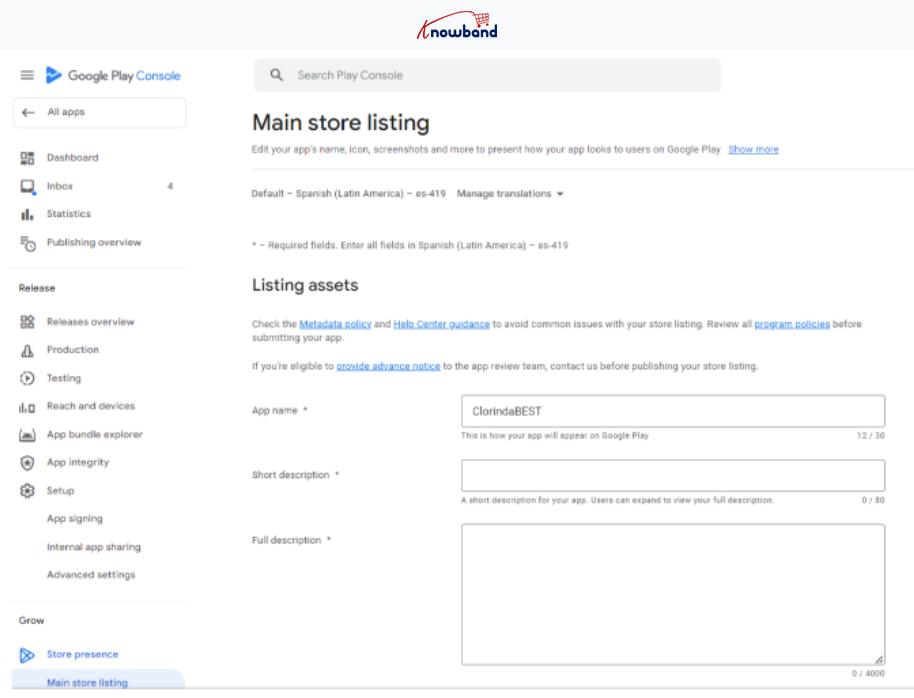
Your app page plays a very vital role in attracting Android users. Keep its details compact and precise. After uploading the APK file, go to the store listing page and add the following details related to your application:

  • Full description ( up to 4000 characters)
  • Short description( up to 12 to 80 characters)
  • App snapshots
  • Promo video
  • YouTube video URL (optional).
  • Chromebook Screenshots (Optional).

You can also provide details such as contact, category, and more. These store listing details can be updated whenever required.

6. Add pricing and distribution details

Now come pricing and distribution details. Enter the price of your app with the following steps:

  • Select whether your app is free or paid.
  • Select the targeted countries.
  • Check the boxes stating that your app complies with the content guidelines.

Save the details and further move on to the next step.

There are a few extra options are available that might not be mandatory while publishing the app, but they surely prevent your app from getting negative feedback. Also, you can manually filter non-compatible devices. So, use these options to curb any negativities and stay at the top of your game.

Recommended Reads: Alternatives to publishing your Android app on Google Play Store

Looking for native shopping apps for any of the following platforms as an owner of an online store?

Building Mobile Apps with PrestaShop

Mobile App Builder for OpenCart

Build Mobile Apps for Magento 2

Building Mobile Apps with WooCommerce

A Google Play Store App will be created and published using this ready-made tool from Knowband. Your store and the mobile apps are safely connected through the mobile app developer for iOS and Android. Any modifications you make on the website are automatically undone by the Android and iOS mobile apps. So, without the need for manual synchronization, flawlessly synchronized mobile apps handle the full task. The plugin includes a free app release and three months of unrestricted support.

Note: These steps are applicable only in case you have a registered account as “Organization” on the Play Console. If you have registered as an Individual, you will have to meet the closed testing requirements for app submission.
Check out our other article about “Google makes closed testing mandatory for the personal accounts“.
Once the closed testing is done, you can submit your Android app on Play console by following the same steps as mentioned in the article above.

In Conclusion

A well-crafted Google App page is a key to your app’s success. With the above-discussed points, it is quite clear that publishing an Android App on Google Play Store is a simple process and just requires a few minutes. So, go ahead, publish your app, and reap out benefits of the Google Play Store.

If your app somehow got rejected by Google regulators, don’t worry, we got you covered. There might be a few reasons behind Google declining your app which are discussed here along with proper solutions.

Knowband’s Mobile App Builder

Get the mobile app created for your store in few hours with Knowband Mobile App Builder Module.

SHOP NOW

At Knowband we provide no-code mobile app builders for Prestashop, Opencart, WooCommerce, and Magento 2 eCommerce platforms. Our apps come with a ton of richly loaded features that can help your business to grab the attention of your customers. If you have any queries/suggestions regarding app submission on the Play Console, feel free to reach out to our support team at support@knowband.com.


You can also find out: How to Publish your iOS App on Apple App Store?