OpenCart Extensions to prepare your store for Father’s Day

With Father’s Day just around the corner, website owners would be looking to prepare their store accordingly to capture high sales on the occasion. If you have an eCommerce website on the OpenCart platform and are also looking to boost Father’s Day sales, you can consider using the below-mentioned 8 OpenCart extensions.

1. Spin and Win

OpenCart Spin and Win module displays a gamified popup to your visitors as soon as they enter your website. Coming with multiple occasional themes, it lets you personalize the popup for the Father’s Day occasion as well.

Users get to spin the wheel and earn some exciting rewards but they need to provide their name and email address before they could spin it. This helps you grow your email subscribers and boosts user engagement.

Besides, by offering rewards which are usually the discount code, customers can be encouraged to shop by using the coupon code on the checkout. This increases your conversion rate.

You can make certain customizations to the popup and adjust the display settings as per your requirements.

2. Gift Card Manager

OpenCart Gift Card Manager adds a gift card section on your website and offers multiple pre-existing gift card templates for various occasions like Halloween, Christmas, New Year, etc. Similarly, you can create gift cards for Father’s Day too and boost sales.

Many online shoppers who find shopping a tedious task would find it comfortable to quickly purchase a gift card rather than spending hours in deciding what to gift.

You can create gift cards of different price values so that customers can purchase a gift card according to their budget. The module offers various customization features and also lets you track gift card orders.

3. Countdown Sales Timer

OpenCart Countdown Sales Timer extension places a timer on the header of your website through which your store visitors are informed about the upcoming sale. You can make use of this module to highlight Father’s Day sale as well.

A countdown timer keeps reminding customers how much time is left before the sale begins and creates an urgency to purchase. The look and feel of the timer can be customized and you can display it on multiple web pages.

4. Abandoned Cart

OpenCart Abandoned Cart extension helps you track the abandoned carts on your store and recover lost sales. The module provides you with an opportunity to convert the abandoned cart users into customers.

With many customers coming to your store on Father’s Day sale, you will surely witness a few abandoned carts. Failing to convert them could result in a loss in sales.

Thanks to the Abandoned Cart extension using which you can create an abandoned cart alert (setting a duration after which the cart is automatically marked abandoned) and remind those users about the pending items in their cart and even persuade them to complete the purchase by offering a discount code inside the email.

5. Price Alert

Many online shoppers would be hoping to see a price drop on some products during Father’s Day sale. With OpenCart Price Alert extension, you can ask customers to subscribe to price alert so that they are immediately informed and do not miss out on the opportunity to grab the product whenever the product price drops below.

This module helps you drive those users to your website and boost sales. So if you are looking to bring down the product price a bit on this Father’s Day, this extension would be of great help.

6. One Page Checkout

Customers crave convenience, and convenience at the checkout page is vital else it may lead to cart abandonment. Consumers do not like websites that offer a troublesome checkout experience. This is why it would be ideal to change your default checkout process with One Page Checkout for the coming Father’s Day.

OpenCart One Page Checkout extension simplifies your checkout process by converting the multi-step checkout process into a single page checkout. It offers various features such as Guest Checkout, Social Login, Multiple Layouts, Multiple Payment methods and Shipping support. Besides, it provides you with certain customization options to make your checkout smooth and user-friendly.

7. Accelerated Mobile Pages

Most of the consumers prefer mobile devices to shop online and your store is no exception. You will witness a majority of the traffic coming from hand-held devices on this Father’s Day. If your website takes time to load on mobiles, it can severely affect your conversions. This is where AMP proves beneficial.

OpenCart Accelerated Mobile Pages (AMP) extension converts the normal mobile pages of your website into AMP pages. It offers faster loading of web pages and reduces bounce rate by a significant margin.

The module aims to enhance the browsing/shopping experience of your mobile users and can make an impact on your sales.

8. Preferred Delivery Time

OpenCart Preferred Delivery is a perfect extension for the users who want to receive the product on a specific day.

There will be many customers who would want to receive their order specifically on Father’s Day. For such customers, you can place a preferred delivery tab on the checkout page where they can specify the desired date and time slot on which they want their product to get delivered. This ensures customers that their product reaches them at the right time.

For any kind of query or assistance with the above-mentioned modules, you can contact us at support@knowband.com and our support team will try to resolve your concerns to the earliest.
Prestashop Price Alert Addon – User Manual

Introduction of Prestashop Price Alert Notification Extension:

We always have seen that many visitors come to an online store, spend a lot of time and leave without buying anything. Probably they want to buy something but don’t buy just because of the high price. But you never know that high price is one of the reasons for the visitors to leave your store.

This Prestashop Price Alert Addon will help the e-merchants to know about the customer’s requirement in terms of product prices. This Price drop alert extension will let the customers set an optimum price that is being defined at the back end of the admin panel. Our Price Alert Module for Prestashop is also compatible with GDPR now.

Installation Guide of Prestashop Price Alert Addon:

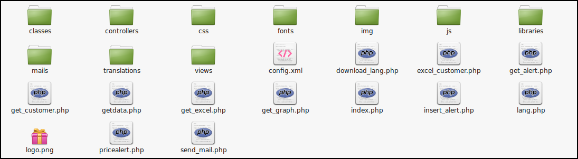
  • Folder structure of the Prestashop Price Alert plugin folder.

  • Copy the whole folder named as Price Alert into your module’s folder of the root directory of your PrestaShop store through FTP.
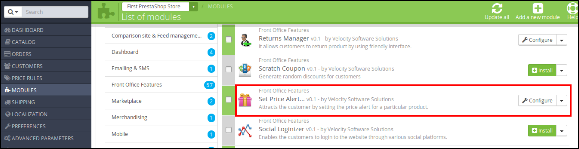
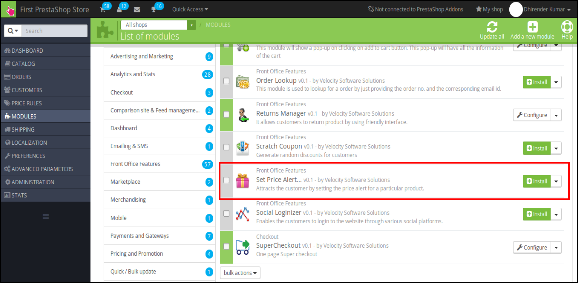
  • You will be able to find the price alert plug-in ready to be installed in the Modules in your PrestaShop store as shown below.

  • Click on the Install link to install the plugin.

Admin Module:

Here, the store owner can change the various settings of this plugin according to requirements, which will be reflected on the front end as well as in the admin panel.

To install this plug-in, please follow the following steps:

  • Add the whole plugin folder to the modules folder into the root directory of the PrestaShop Store.
  • After adding plug-in files, the system will list the plug-in on the module page.
  • Click on install/uninstall according to need.
  • Another way is, you can zip the whole folder and then click on Add New Module link displaying in the top right corner of module listing page as shown in below screen:

  • After installing, this Prestashop extension, Configure link will be displayed instead of Install link as shown in below screen:

  • Now, your module is ready to use and click on Configure link to configure the module.

Admin Interface:

After installing the plug-in into the store, the plug-in will provide the following interfaces:

  • General Settings
  • Email Setting
  • Product Price Alert
  • Customer Price Alert
  • Language Translator

Each interface is explained below.

General Settings:

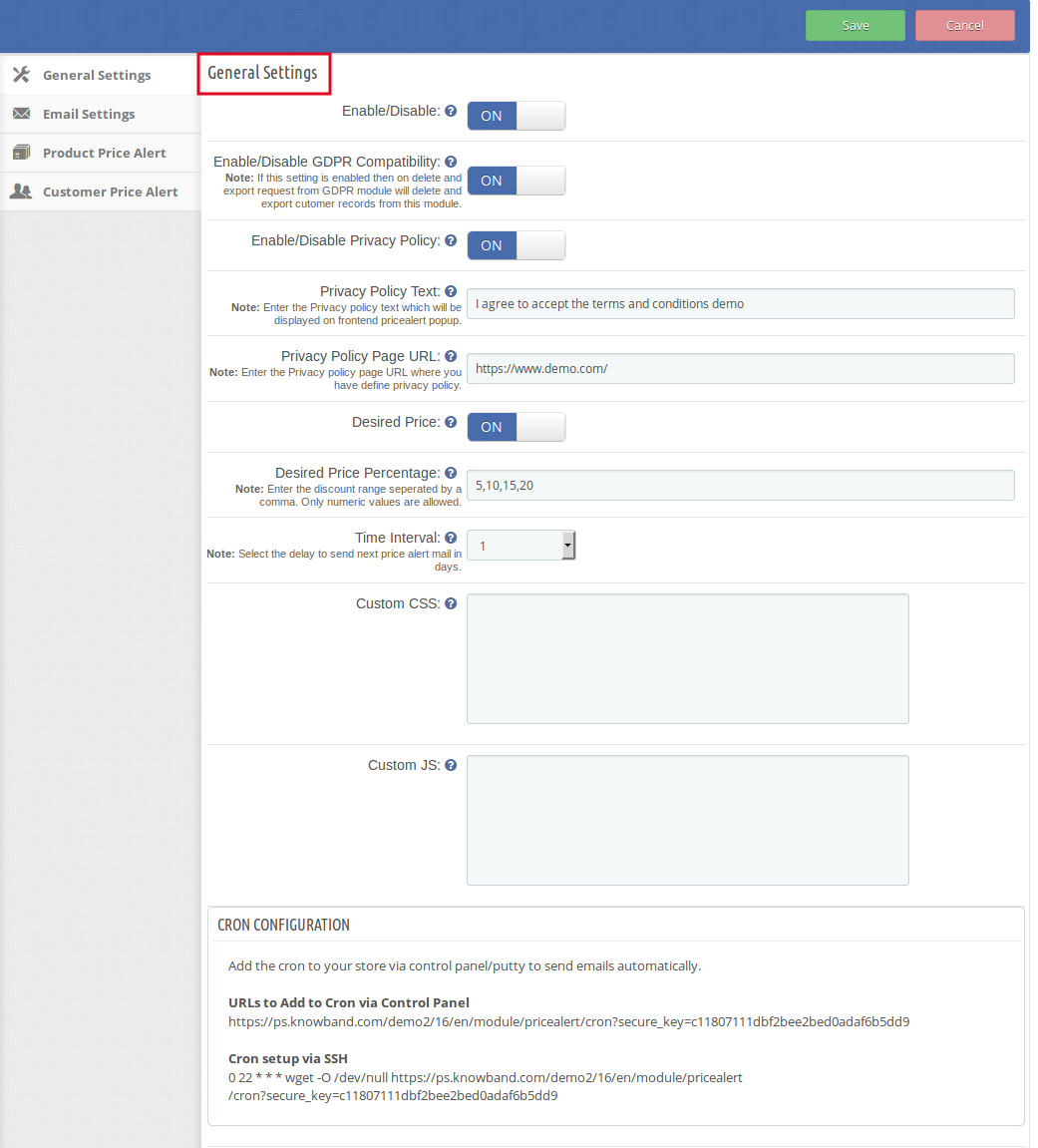
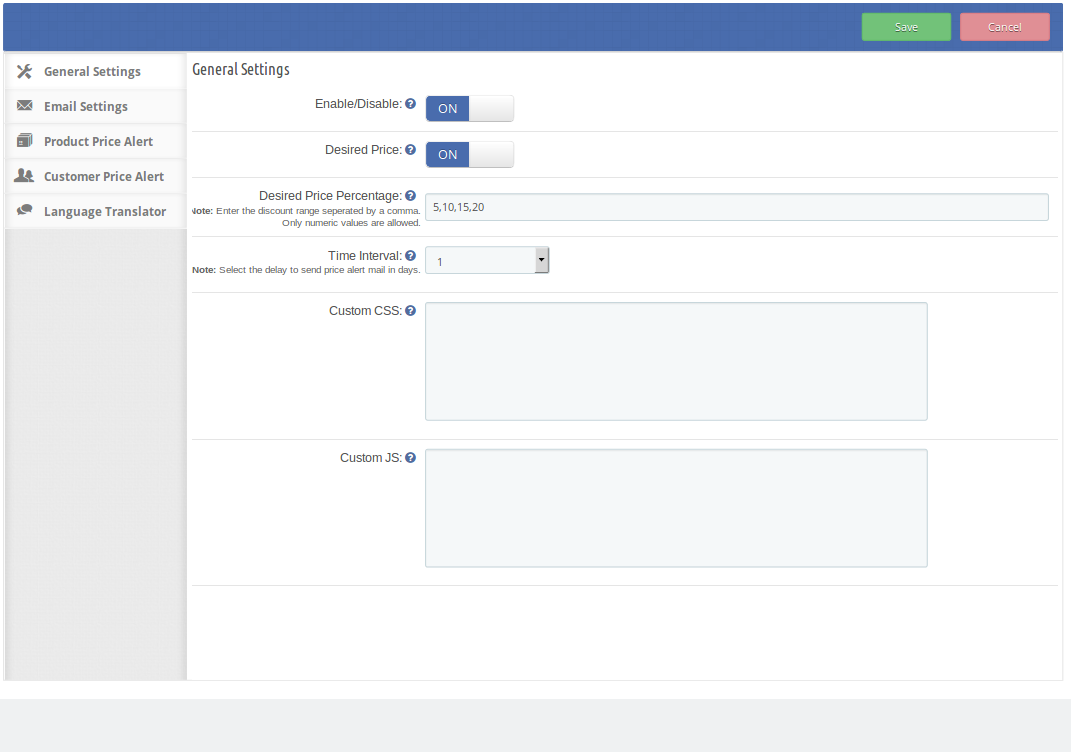
On clicking the configure link on module listing page, the system will open general settings tab by default as shown on the screen below:

Initially, the fields in the above form will be already filled with their default values.

  • Enable/Disable: Initially, this feature of Price drop alert extension is set to ON. the admin can enable/disable the extension by turning ON/OFF this setting.
  • Enable/Disable GDPR Compatibility: This field of the Prestashop price alert module allows the admin to enable/disable the GDPR compatibility. If this setting is enabled, then on delete and export request from GDPR module will delete and export the customers record from this module.
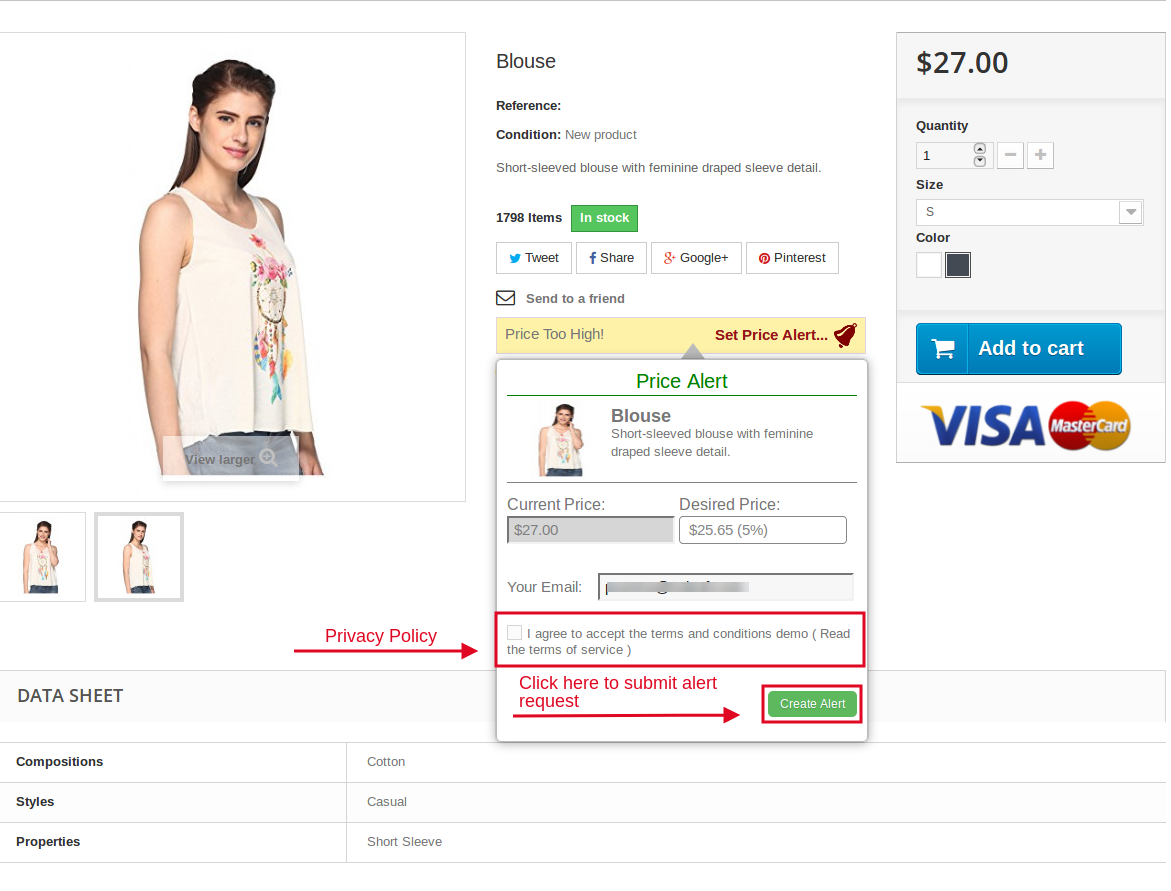
  • Enable/Disable Privacy Policy: This field of the price alert module offers the admin to enable/disable the privacy policy that would be displayed at the front end of the price alert popup if enabled.
  • Privacy Policy Text: The privacy policy text is fully customizable. The admin can enter his own choice of text.
  • Privacy Policy Page URL: This field of the Prestashop price alert addon allows the admin to enter the URL of the desired privacy policy page.

  • Enable/Disable the Desired Price: The admin can enable/disable the desired price option to the price alert block at the front-end by turning ON/OFF this setting.
  • Desired Price Percentage: Using this option, the admin can set the range of the desired price as they will be displayed at the front-end. The admin has to enter the numbers for the range separated by commas. The admin can enter as many values as desired.
  • Time Interval: This option sets the delay after which the email to notify the price drop of any product to the user will be sent. The delay has to be selected by the admin from the drop-down menu in days. By default, it will be set to 1 day.
  • Custom CSS & JS: This Alert for subscription extension allows the admin to change the look and feel of the extension according to his Prestashop store theme.

Email Setting:

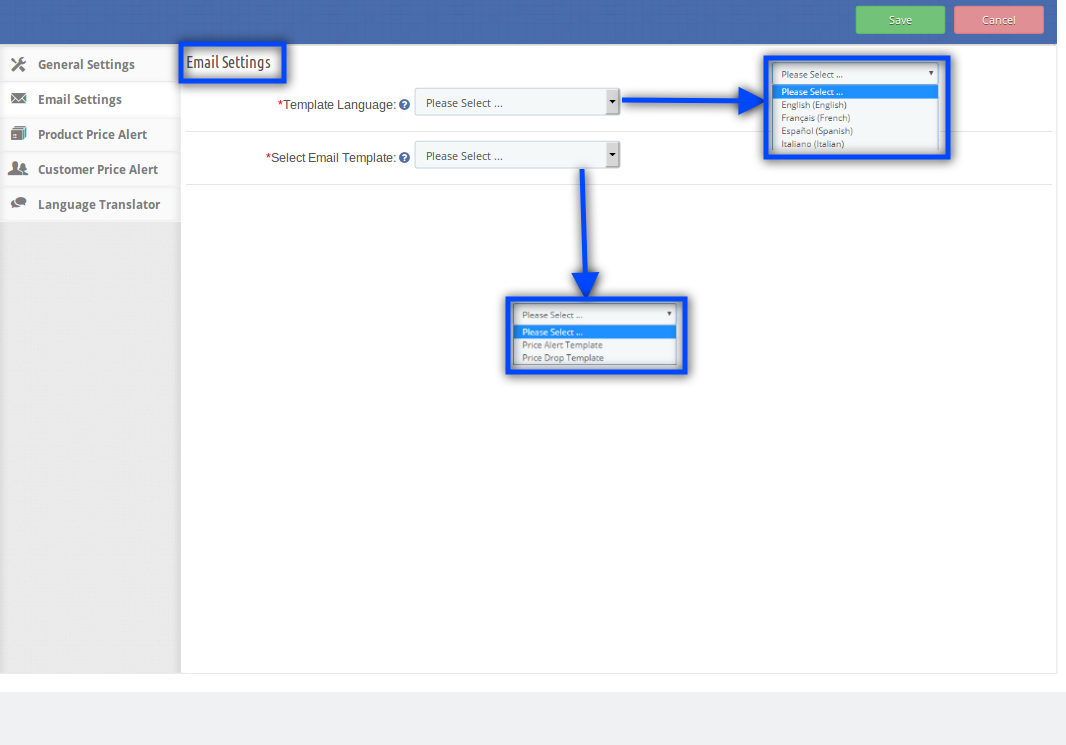
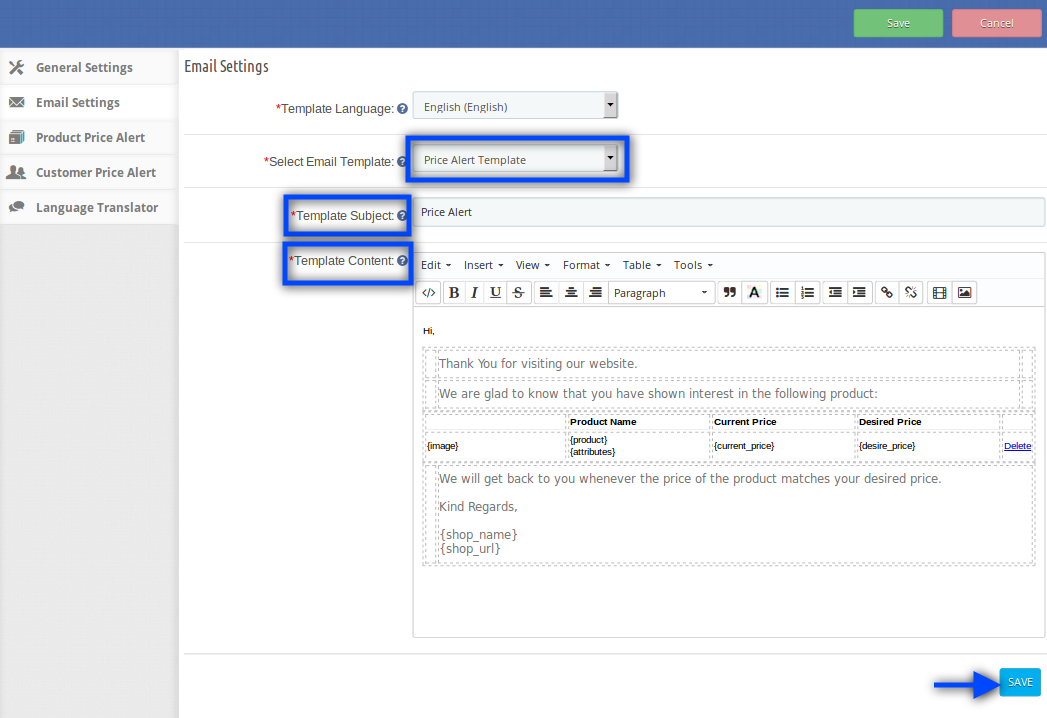
This field allows the admin to set the emails in any selected language for the following email templates:

  • Price Alert Template
  • Price Drop Template

1. Price Alert Template:  This field, the price drop alert extension contains ‘Template Subject’ & ‘Template Content’. The admin can edit the template subject and the content as well as per his/her choices. This is the initial email that will be sent to the customers when they set an alert for any particular product.

2. Price Drop Template: This is the email that will be sent to the customers when there is any price drop in the requested products. This field contains ‘Template Subject’ & ‘Template Content’. The admin can edit the respective fields as per his/her preferences.

Product Price Alert:

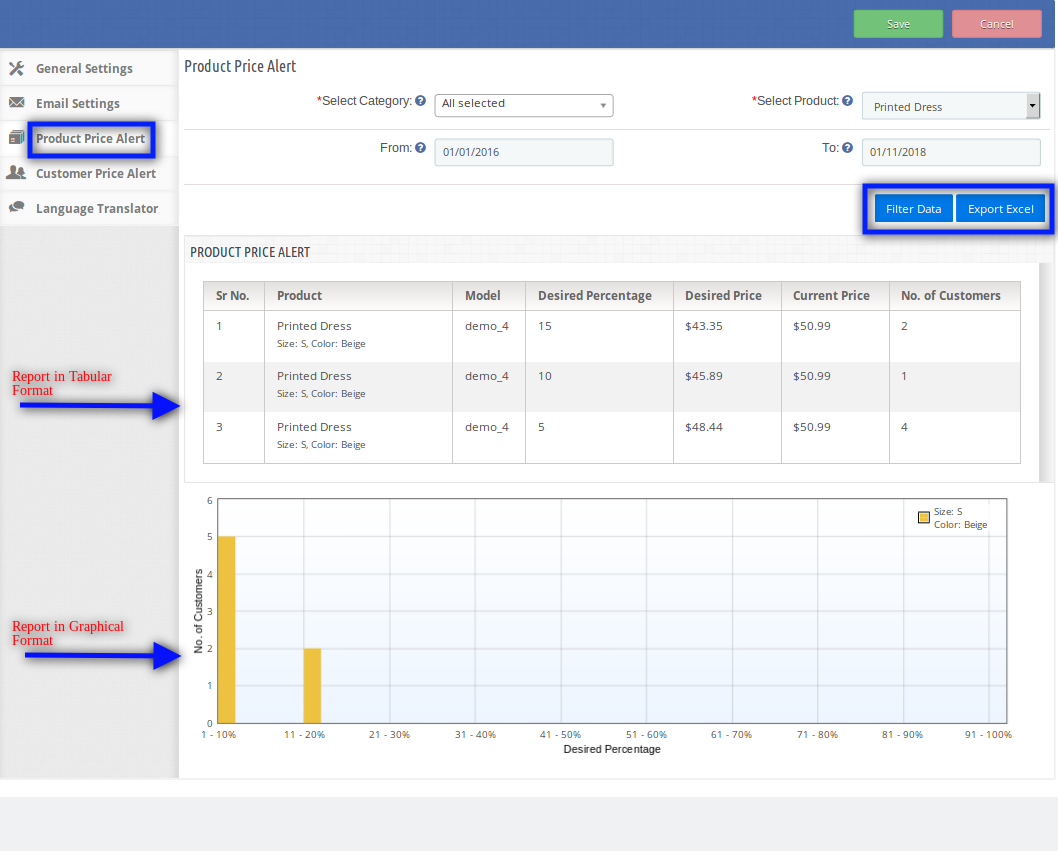
  • This field of Prestashop follow price extension offers the admin two options to view the product price alert details i.e. Filter Data and Export Excel. By default, the tab will display all the price alerts available in a well-formatted table and a form through which the admin can filter data or export it to an Excel file.
  • A graph along with the list of price alerts based on the filter data will also be displayed when the user filters the data by selecting the desired product and dates.
  • In this tab, you can see the on which product how many customers wants how much.

Customer Price Alert:

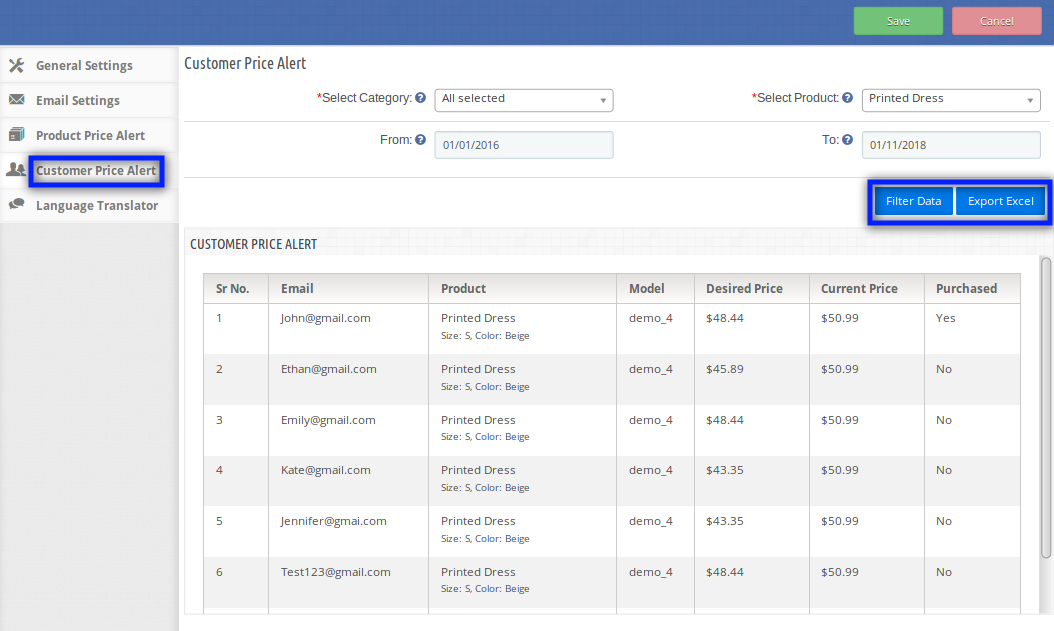
In this tab, the admin has two options i.e. Filter Data and Export Excel. By default the tab will display all the price alerts available in a well formatted table and a form through which the admin can filter data or export it to an Excel file.

The admin can set the filters and when clicks on Export Excel then a new excel file containing the filtered data is downloaded.

Language Translator:

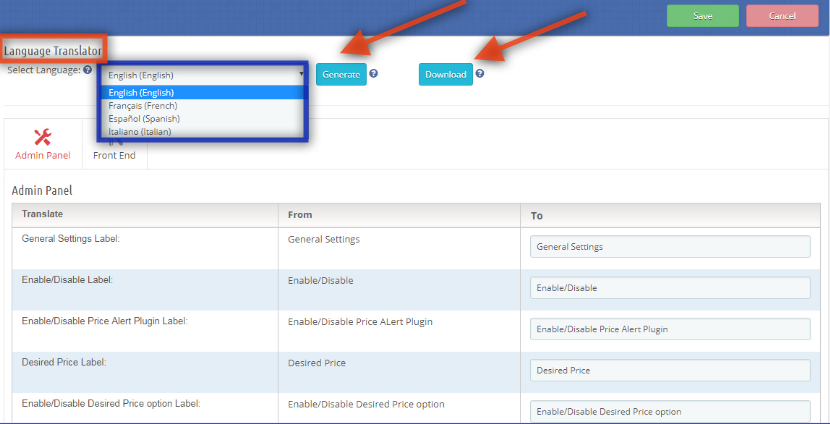
  • The Prestashop price watch extension offers the admin to translate the language in English, French, Spanish & Italian as well. The admin can generate the selected language and also download the language file just by clicking on ‘Generate’ & ‘Download’ option respectively.
  • By default, the automatically selected language is English.

Front End Module:

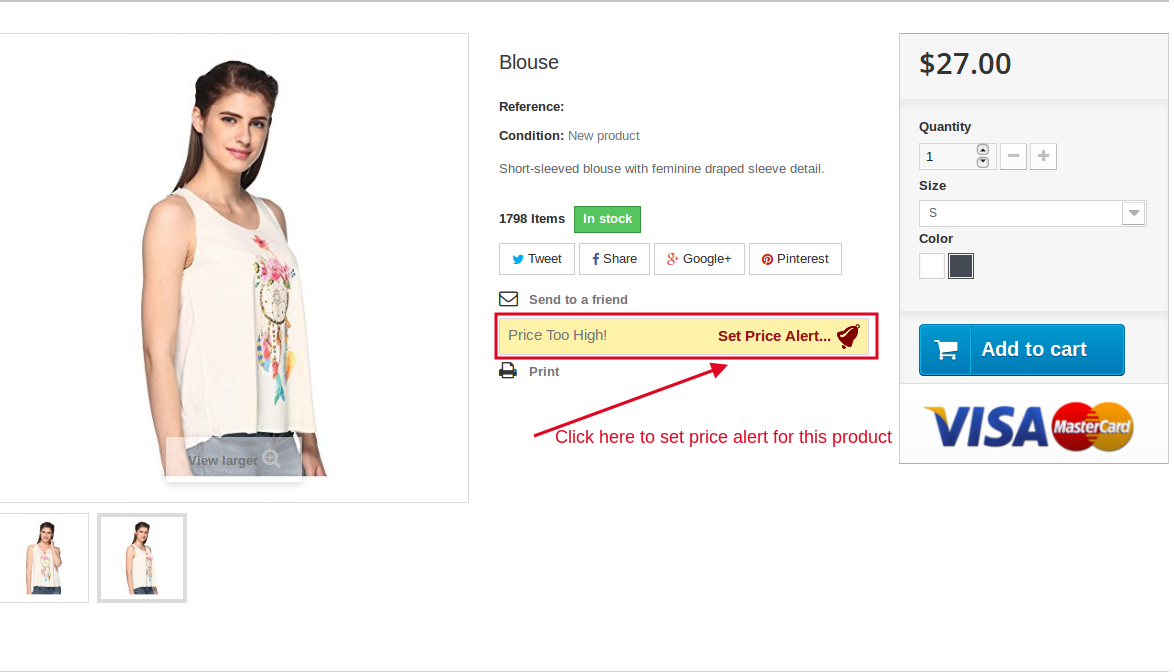
After enabling the Prestashop follow price extension the front-end user will see a price alert block on the product page. The block contains a link through which the user can set the price alert for the respective product.

The price alert block would appear as follows:

When the customer clicks on the ‘Set Price Alert’, a pop-up will appear with the form through which the price alert can be set by the user. The pop-up will appear as follows:

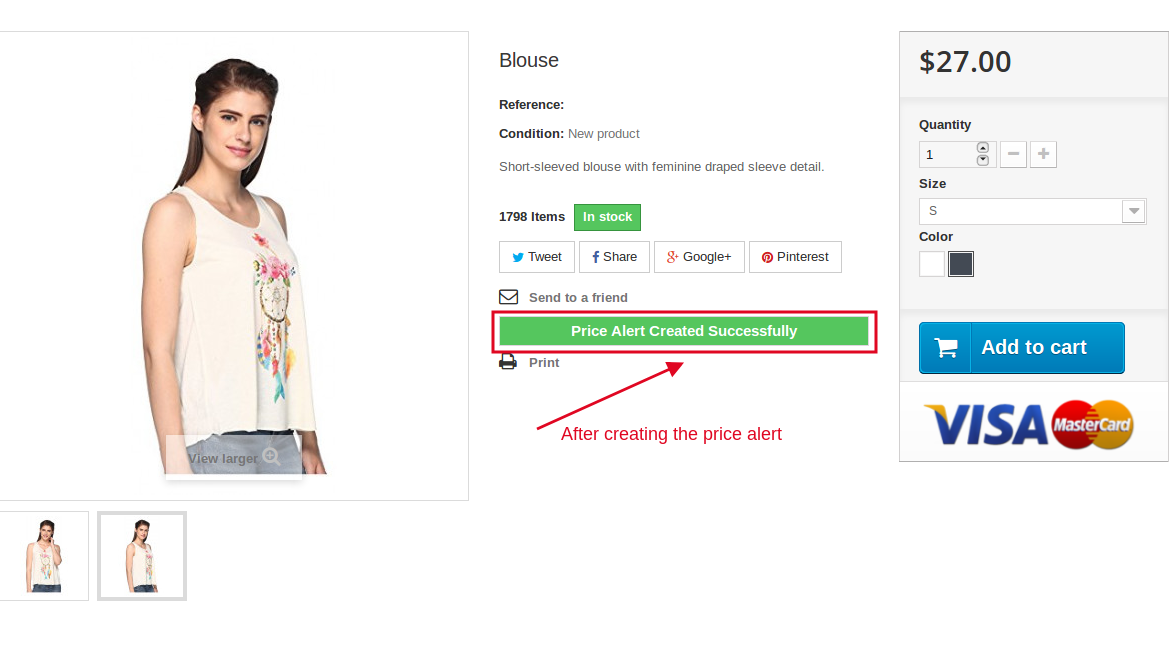
On clicking the ‘Create Alert’ button a price alert will be set for the entered Email on the respective product and the message showing the successful creation of the price alert will be displayed. A notification email will also be sent to the entered email.

There will be a case when a price alert for the entered email and the respective product already exist, in that case, the price alert will be updated and the updated email will be sent again to the email.

With the help of this Prestashop price alert addon, the customer will be able to set the price alert for the desired product. As they will be notified via an email when the subscribed product will be at the desired price. This price drop alert Prestashop module helps the admin in increasing the sale of the store and serves better user experience as well.

Recommendations :

Refresh home page of your store every time you enable/disable plugin. If the plugin is not working after installation then please check permissions on modules folder. The folder should be writable. Please make the folder permission to 755.

Module Link: https://www.knowband.com/prestashop-price-alert

Admin Demo: https://ps.knowband.com/demo2/16/admin1/index.php?controller=AdminLogin&token=aea1bb3fb1bab860c86c4db00ce5949e&redirect=AdminModules&demo_lang=en

Front Demo: https://ps.knowband.com/demo2/16/en/summer-dresses/13-nexaca-lorem.html

Watch Video tutorial here: https://www.youtube.com/watch?v=dczLM4v65_8

Get this Prestashop Price Alert Module on Addon Store as well. Visit:
https://addons.prestashop.com/en/price-management/18194-knowband-price-alert-notify-customers.html

Feel free to contact us at support@knowband.com for any query or custom change request as per your business requirement.

This Would Also Interest You

OpenCart Price Alert – User Manual

How to install OpenCart Price Alert plugin on your server

1. Download the zip from OpenCart & unzip into a folder. After unzip folder structure of Price alert plugin will be similar to shown in below screen.

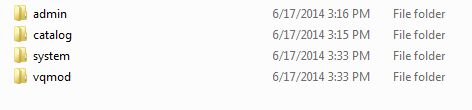
2. Open the upload directory and you will see following folder structure.

3. Login via FTP & Drag drop all the folders into your server root directory. You don’t have the change the default theme folder name to your theme folder name.
You must have VQMOD installed for this plug-in to work. IfVQMOD is not installed please download and install from the URL below:
https://code.google.com/p/vqmod/

4. You will find the plugin ready to be installed in the Modules of your OpenCart.

5. Click on Install link to install the plugin.

6. Delete the vqcache files from the vqmod/vqcache folder.

7. To access Price Alert, Click on Pricealert link which is just to the right of Report Menuas shown below.

8. On clicking Price alert link the module for plug in will open. It contains navigational bar at the top, menu at the left and main content in the center as shown below.

1. General Settings

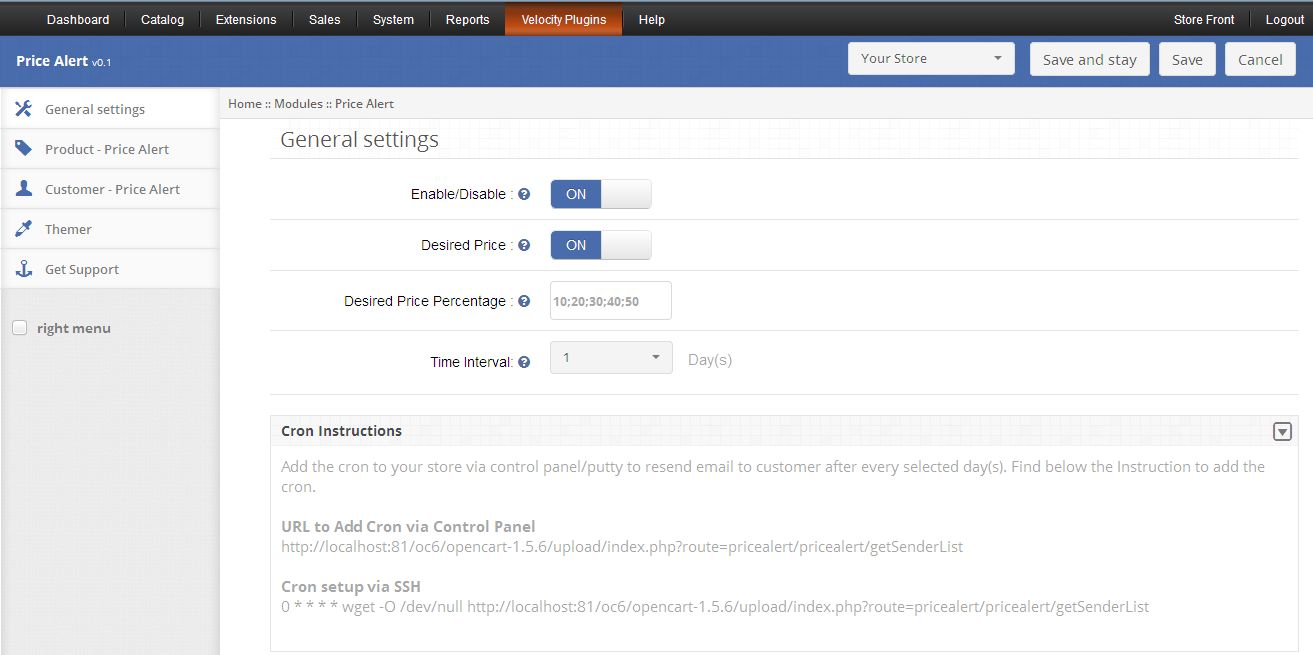
1. To enable the plug in, switch the enable button from OFF to ON which is just to the right of Enable/Disable label.

2. To enable Desired Price display on customer side, switch the button from OFF to ON which is just to the right of Desired Price label.

3. If you enable Desired Price then you must fill Desired Price Percentage field else error will come. You can give up to five percentage values here which will be shown to customers and these percentage must be separated by semicolon (;) as shown below:

4.E-mail Resend Days option enable admin to set number of days after which Price Alert will be send again to the customer. If its value is none then Price Alert will be sent only once, but if you set it to 4 days, then Price Alert will be sent repeatedly after every 4 days.

2. Product Price Alert Report

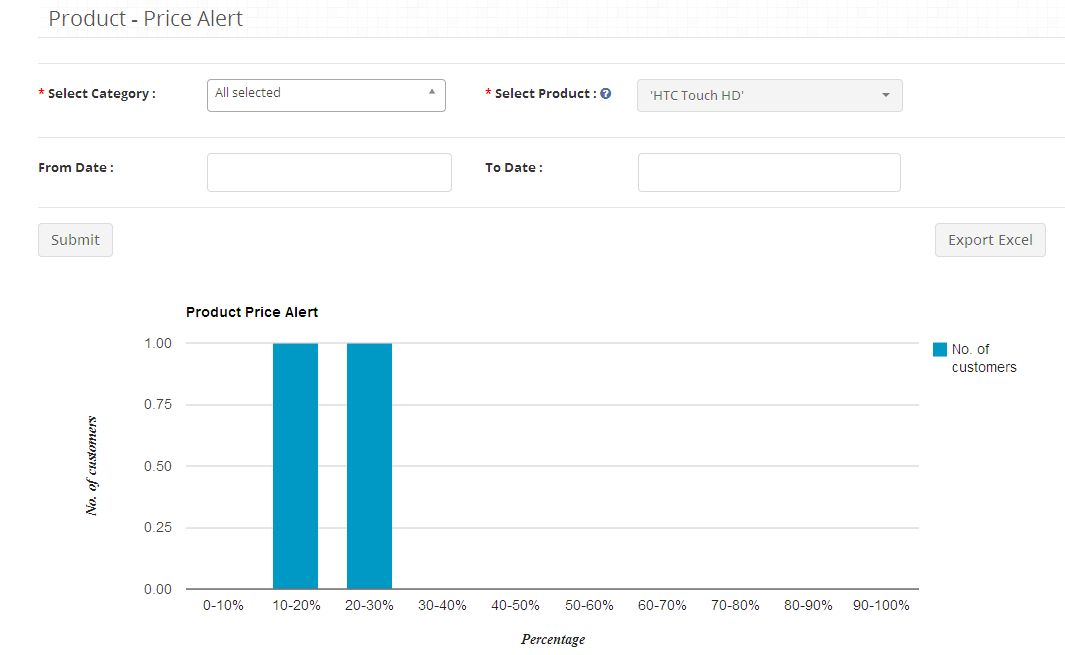
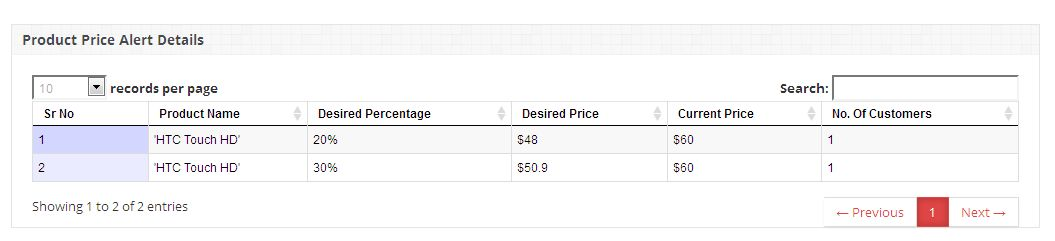
1. This tab shows admin, the Product Price Alert Report in tabular and chart form. Admin can set filter to fetch report for specific period of time or for a particular product.


2. You can also export the tabular report data in Excel format by clicking on export button.

3. Customer Price Alert Report

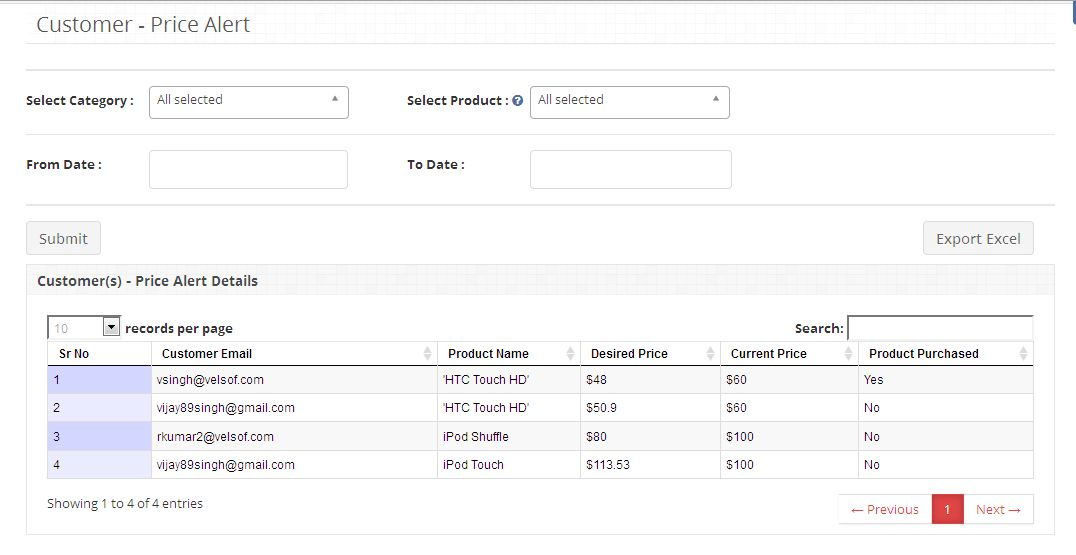
1. This tab shows admin, the Customer Price Alert Report in tabular form. Admin can set filter to fetch report for specific period of time or for a particular product.


2. You can also export the tabular report data in Excel format by clicking on export button.

4. Reports tab

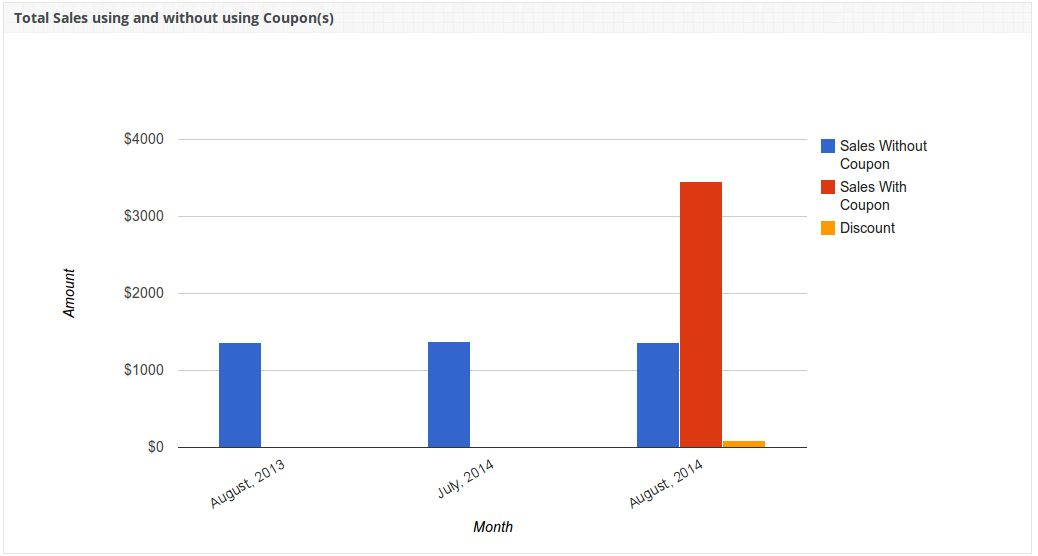
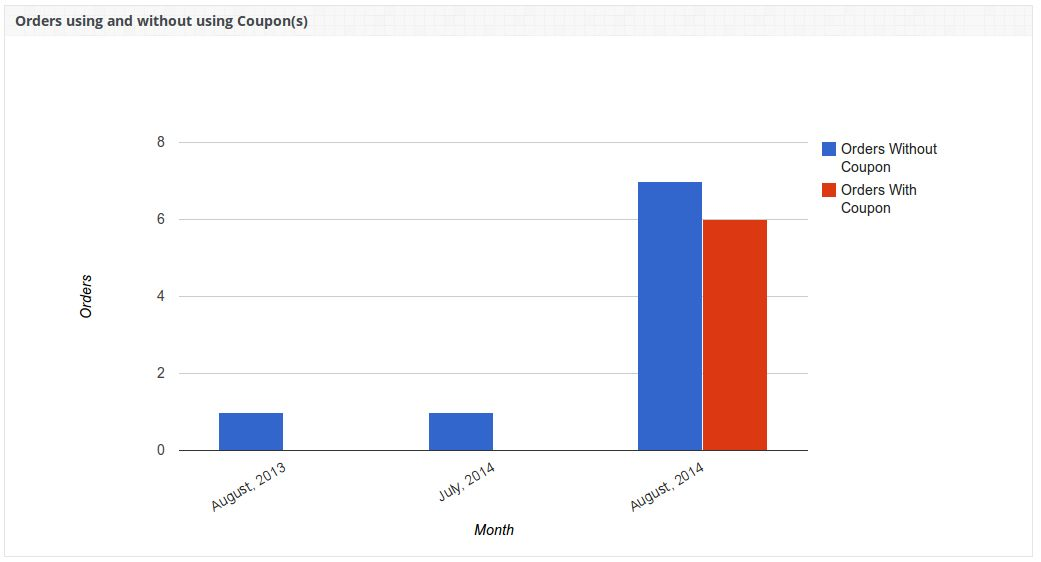
The Reports tab shows the following column graphs:
1.Total Sales using and without using coupons and total discount given.


2.Total Orders using and without using coupons.

CRON Setup (Email Setting)

For sending Price Alert via Email to all customers who have set Price Alerts, you must configure OpenCart and CRON as follow:
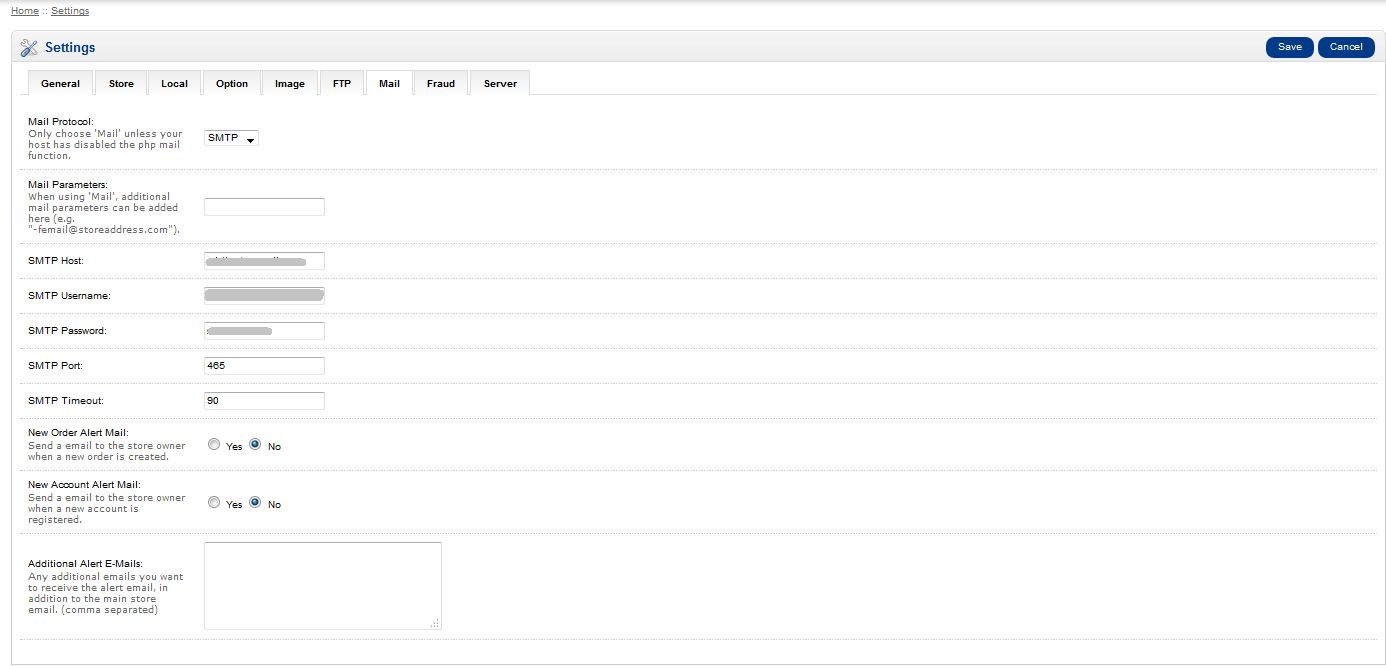
1.For setting up email on OpenCart open the Admin Panel and click on System->Settings.

2.After that click on Edit button against your store and then under mail setting, fill all required details and save.


3. You also need to set a CRON job for the following URL. We recommend you to run this CRON only once a day.
https:///index.php?route=pricealert/pricealert/getSenderList/

Customer Panel

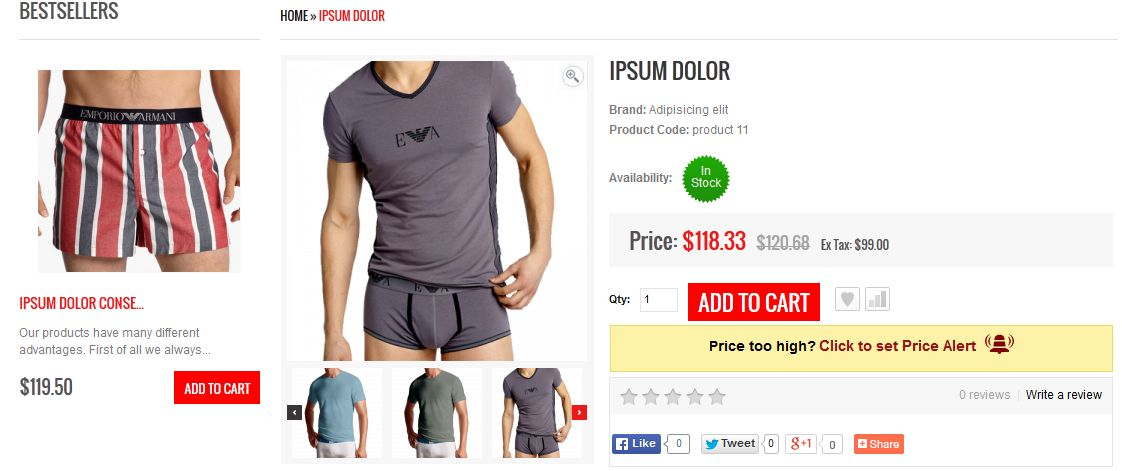
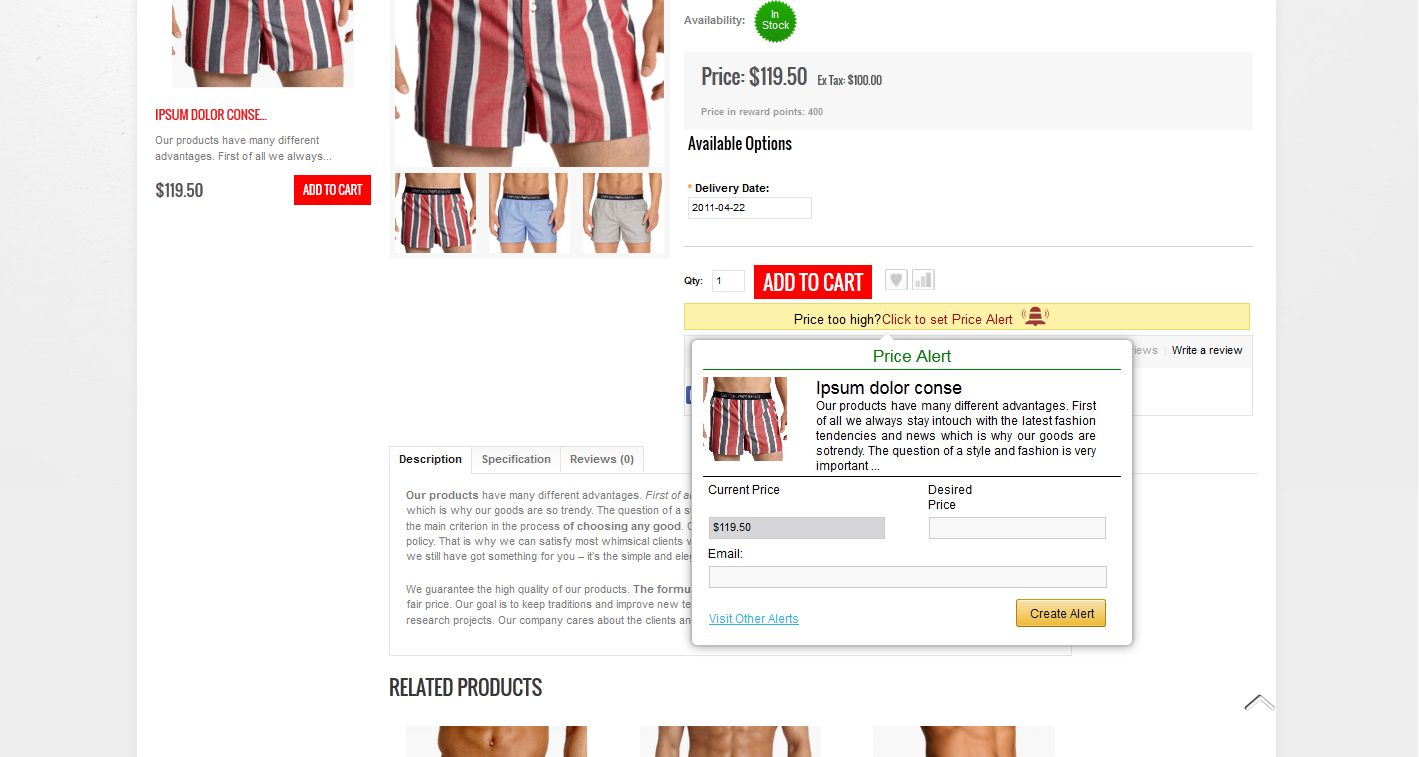
Customer will be able to create Price Alert for any product by clicking on Click to set Price Alert which will be there on every product page.


1. When customer will click on Click to set Price Alert a popup will be shown to him where he has to enter his email-id and desired price to set Price Alert.

2. On this popup when customer enters Desired Price text field then some predefined desired price values will be suggested to him. These values are predefined by Admin. Customer cannot enter his own desired price. He has to select any one from these suggestions. Admin can disable desired price field in that case, customer will only need to enter Email-id to create Price Alert.

3. Once customer clicks on Create Alert button after entering required fields, Price Alert will be created in his account for that product and a notification message will be shown to him. Now whenever admin will change price for that product then a Price Alert will be sent to that customer via Email only if his entered desired price is greater than or equal to new price. And in case admin has disabled desired price field then price alert will be sent to that customer, every time when there is any change in the price of that product.

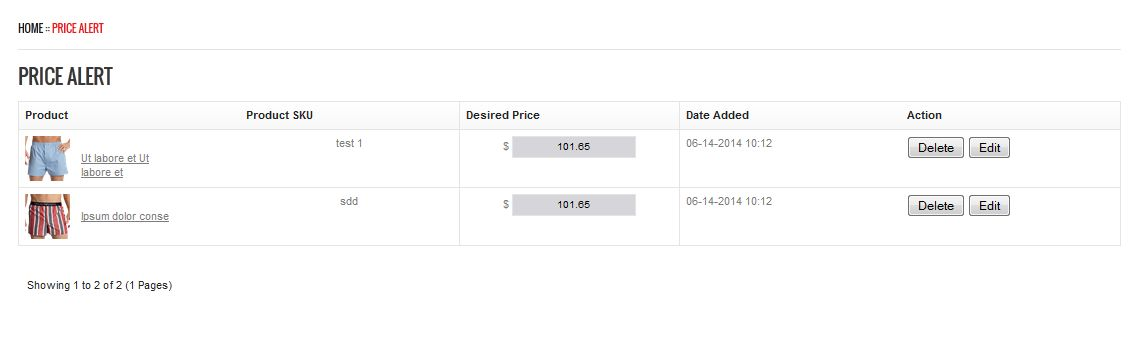
4. If customer is logged in then he can see all Price Alert created by him for different products by clicking on Visit Other Alerts link.

5. Customer can update or delete any Price Alerts.

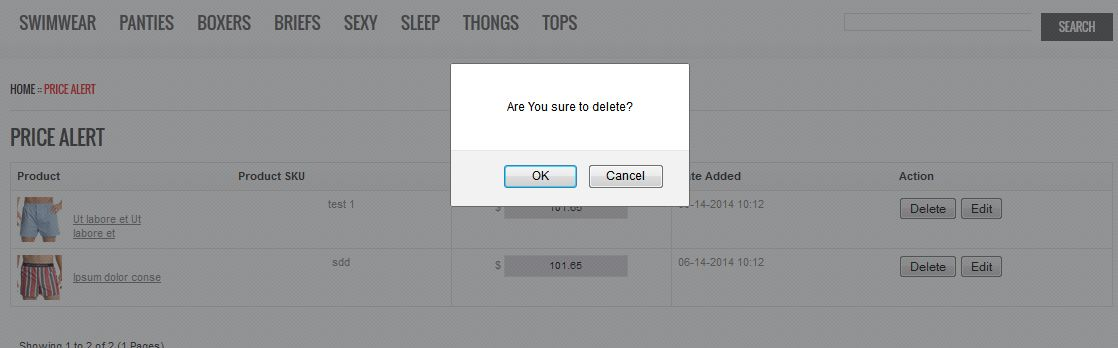
6. Customer can delete any Price Alert using Delete button against respective Price Alert.

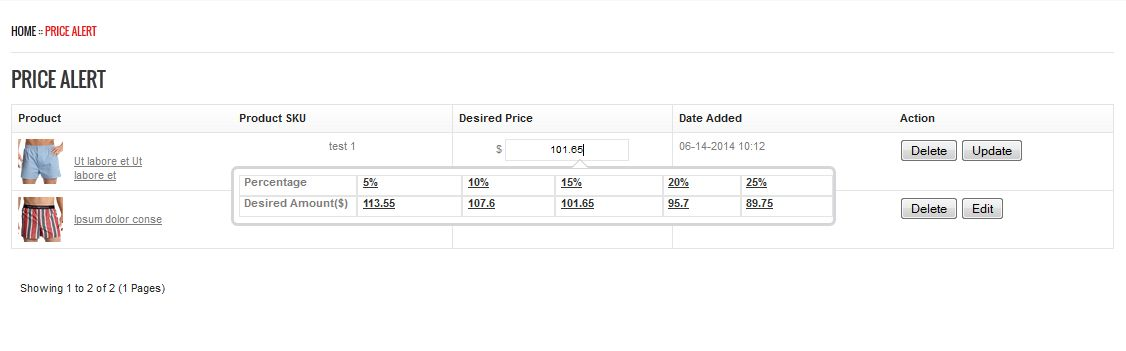
7. Customer can edit any Price Alert by clicking on Edit button, this will enable the Desired Price text field. Using this field he can change his Desired Price value. His changed price will be updated once he clicks on Update button as shown below.