Key Differences Between Gift Cards and Wallets in E-Commerce!

E-commerce businesses constantly seek new ways to enhance customer experiences, increase sales, and offer flexible payment solutions. Among these, gift cards and wallet systems have become two prominent tools. While both methods aim to simplify transactions and boost customer engagement, they serve distinct purposes. Understanding the differences between gift cards and wallets can help store owners decide which system to implement based on their business model and customer needs.

1. Nature of Use:

Gift Cards are primarily used for gifting purposes. Customers purchase gift cards with a set value, which they can either use themselves or give to someone else. Furthermore, these cards act as prepaid vouchers that can be redeemed in the store within a certain period. The user can apply the card during checkout, reducing or eliminating the need for immediate payment. Therefore, gift cards are commonly used for holidays, birthdays, or other special occasions.

Wallets, on the other hand, are virtual accounts where customers can store funds for future purchases. Unlike gift cards, wallets are not typically purchased as gifts. Instead, they provide a convenient way for regular shoppers to manage their spending on a particular site. Furthermore, customers can add money to their wallets at any time and use the stored balance to complete transactions quickly without entering payment details every time.

2. Flexibility and Customization:

Gift cards tend to have a one-time value assigned to them and are generally non-rechargeable. Once the gift card is redeemed, its balance is deducted and cannot be reused. The customer may need to purchase a new gift card if they want to gift or use this service again.

Wallet systems offer more flexibility here, as they allow users to top up their balance at any time. A customer can add funds to their wallet multiple times, and the balance can be used across several transactions. Moreover, the funds in the wallet can often be replenished using various payment methods, providing long-term utility for frequent shoppers.

3. Expiration and Validity:

A significant difference between gift cards and wallets is how they handle expiration.

Gift cards often come with an expiration date, meaning the customer must use the full value of the card within a certain period, typically ranging from a few months to a year. While expiration dates can help eCommerce stores by encouraging faster usage, they may cause frustration for customers if the gift card expires before they can use it.

Wallets, by contrast, usually have no expiration date. The balance stored in the wallet remains available indefinitely, providing customers with the freedom to use their funds whenever they choose. This can be a major selling point for customers who prefer not to feel rushed to use their balance before it expires.

4. Encouraging Customer Engagement:

Gift cards are a great way to attract new customers to your store. When a gift card is given, it introduces new potential buyers who may not have previously shopped at your store. Once these new customers redeem their gift cards, they may continue to shop with you if they find the experience satisfactory. However, gift cards are often a one-time transaction tool and may not directly encourage repeat business unless the customer decides to shop again without a gift card.

Wallet systems, on the other hand, are a powerful tool for fostering customer loyalty and repeat purchases. Since the wallet balance is tied directly to the customer’s account, it encourages them to return to the store and make more purchases. Additionally, businesses can incentivize wallet usage by offering cashback or rewards directly into the customer’s wallet, further boosting engagement and retention.

5. Financial Flow and Rechargeability:

One of the main differences between gift cards and wallets is how the funds flow.

Gift cards are prepaid, meaning the amount is fixed at the time of purchase, and the balance cannot be replenished once used. After a customer redeems the card, the transaction is complete, and they need to buy a new card for further usage.

Wallets, on the other hand, allow for continuous usage. Customers can recharge their wallets with funds at any time, making it more of an ongoing relationship between the customer and the store. This rechargeability feature is one of the biggest advantages of wallets, as it keeps the customer connected to your store for future transactions.

Now that we’ve explored the key differences between gift cards and wallets, let’s highlight how Knowband’s PrestaShop Gift Card Addon and PrestaShop Wallet Addon can help store owners leverage these two powerful tools.

Knowband’s PrestaShop Gift Card Addon

Offer customizable gift cards to your customers with the PrestaShop Gift Card module, perfect for boosting sales and customer engagement.

SHOP NOW

PrestaShop Gift Card Addon:

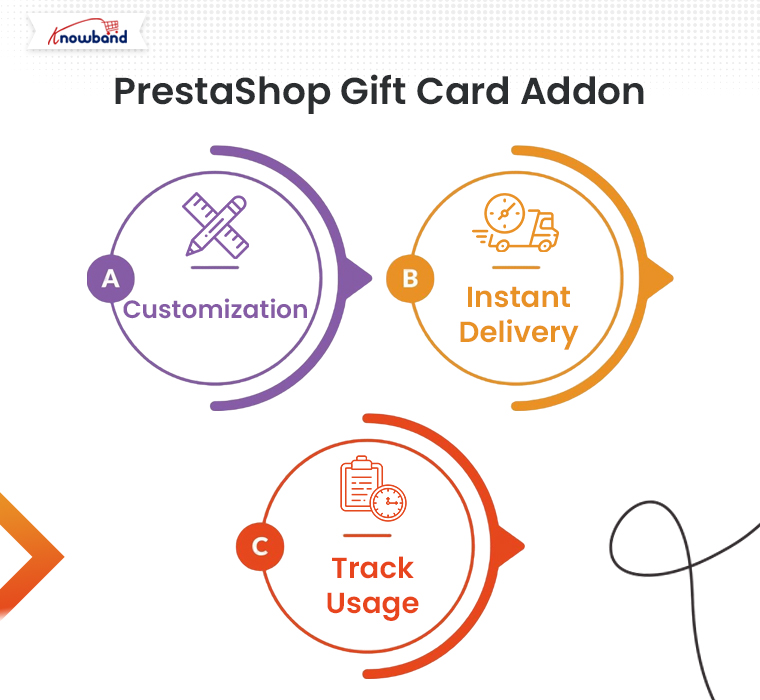
Knowband’s PrestaShop Gift Card Addon is designed to help store owners easily implement a gift card system on their PrestaShop store. With this addon, you can offer customizable gift cards for various occasions, allowing your customers to purchase and send them to their loved ones. The addon comes with features like:

Customization: Store owners can create and offer a wide variety of gift cards with different themes and designs for holidays, birthdays, and other special occasions.

Instant Delivery: Customers can send digital gift cards instantly via email, making it convenient for last-minute gifts.

Track Usage: Customers can easily track their gift card balance and view its validity right from their account.

By offering gift cards, you can attract new customers and boost sales during peak shopping seasons like Christmas or Black Friday.

Knowband’s PrestaShop Wallet Addon

Boost customer loyalty with the Prestashop Wallet module, allowing users to make hassle-free payments using a secure digital wallet in your store.

SHOP NOW

PrestaShop Wallet Addon:

Knowband’s PrestaShop Wallet Addon is an excellent solution for boosting customer retention and streamlining the checkout process. With this add-on, customers can add money to their wallets, making future purchases quicker and easier. The key features include:

Rechargeability: Customers can add funds to their wallets at any time, allowing them to use the balance across multiple transactions.

Faster Checkout: Wallet users can skip entering payment details at checkout, leading to a smoother shopping experience.

Incentives: Store owners can incentivize wallet use by offering cashback or store credits that are added directly to the customer’s wallet.

This addon is ideal for store owners who want to encourage repeat purchases and enhance customer loyalty.

You can also watch our video on “Knowband’s Free Gift Card Manager Addon for PrestaShop” here:

Prestashop Wallet System module_User Manual

1.1 Introduction

The Prestashop Wallet System module is an addon that enables the customer to make the payment for the product purchased at the time of check-out using the e-wallet system. Thus, simplifying the customer buying experience by providing them with a simple and easy-to-use digital payment method.

2. Installation Guide

The folder structure of the Prestashop Customer Wallet System module folder.

Copy the module folder under the “root_directory/modules/” of the admin store via FTP or use the Prestashop interface to upload the plugin.
Further, after copying, the Prestashop module will be listed on the module listing page in the admin panel as given in the below screen.

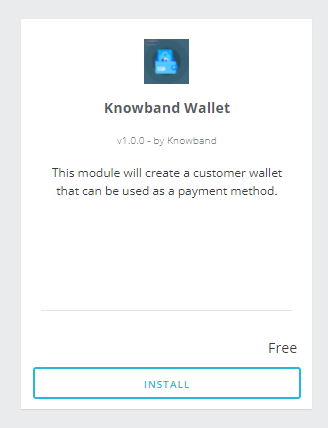
The admin will be able to find the Prestashop Wallet System ready to be installed in the Modules in the admin PrestaShop store as shown below.
Therefore, click on the Install link to install the plugin.

3. User Manual

This User Manual provides the admin with the guidelines of this Prestashop Wallet System Addon. In fact, this e-wallet module contains 2 interfaces:

  • Admin Interface
  • Front-End Interface

3.1 Admin Interface

To access this module, click on the “Wallet Module” button of Prestashop Customer Wallet Addon. Further, on clicking, the admin will get three different options:

  • General Settings
  • Customer Wallets
  • Orders

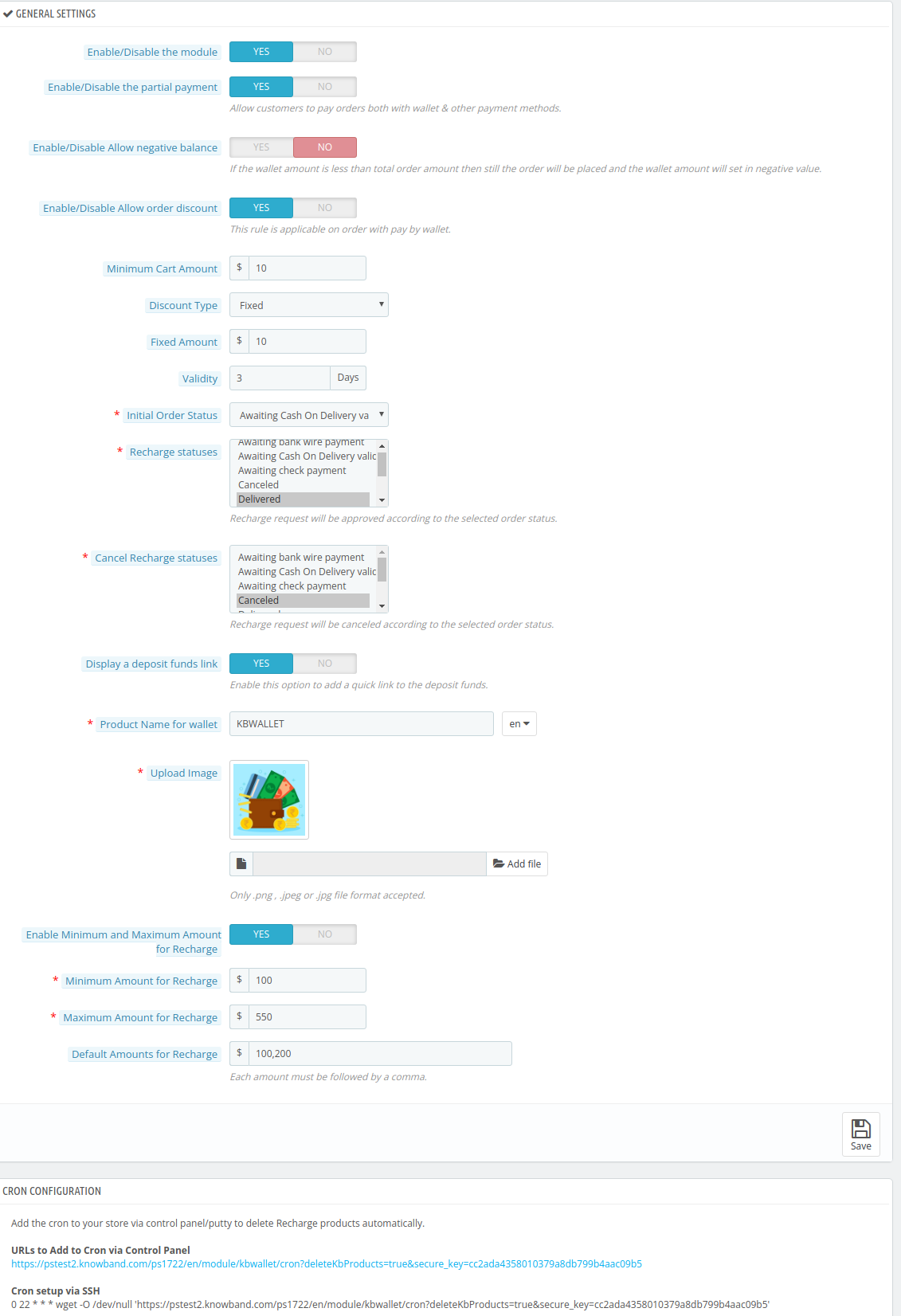
3.1.1 General Settings

3.1.1.1 Enable/Disable the Module

Using this button the admin can easily enable the Prestashop Customer Wallet plugin. In fact, the admin just needs to toggle from No to Yes.

Note: The default value will be “No.”

3.1.1.2 Enable/Disable the partial payment

This Prestashop Customer Wallet Addon will help the admin empower the customer to make a part payment using the digital wallet. In addition, the remaining payment is usable from the other payment options. In fact, to enable this option the admin just needs to switch the Enable button from No to Yes.

3.1.1.3 Activate/Deactivate Allow negative balance

Through this option, the admin can simply allow the negative balance in the e-wallet. Further, the default option selected here will be No. In fact, if the admin wants to enable it, he needs to toggle the button to Yes.

Note: If the wallet amount is less than the total order amount then still the order will be placed and the wallet amount will be set in negative value.

3.1.1.4 Enable/Disable Allow order discount

Using this option, the admin can either enable or disable the option to permit a discount on placing an order using the wallet. However, the customer will be able to enjoy the discounted price of the product only when they choose Wallet as their payment option.

In addition to this, if the admin enables it, he will get different options

3.1.1.5 Minimum Cart Amount

This will help the admin to set the minimum order amount on which the discount will be applicable. For Instance, $100.

3.1.1.6 Discount Type

Using the Prestashop customer wallet addon, the admin will be able to choose between two different types of discounts:

a. Fixed: For Instance $10

b. Percentage: For Instance 10%

On the basis of this, the customer will be able to reap the benefits of discounts under this e-wallet system plugin.

3.1.1.7 Validity

This option of Prestashop Customer wallet addon will help the admin to set the time period for which the discount will be valid.

3.1.1.8 Initial Order Status

The admin can choose the initial order status to display when the customer chooses to pay from the wallet. The following are the options:

  • Awaiting Bank Wire Payment
  • Awaiting Cash on Delivery Validation
  • Canceled
  • Awaiting Check Payment
  • Delivered
  • Mobile App Awaiting PayPal Payment
  • Mobile App PayPal Payment Accepted
  • On Back Order (Not Paid)
  • On Back Order (Paid)
  • Payment Accepted
  • Payment Error
  • Processing in Progress
  • Refunded
  • Remote Payment Accepted
  • Shipped
3.1.1.9 Recharge Statuses

Depending on the Order status, the admin can set the recharge statuses. The options available are:

  • Awaiting Bank Wire Payment
  • Awaiting Cash on Delivery Validation
  • Canceled
  • Awaiting Check Payment
  • Delivered
  • Mobile App Awaiting PayPal Payment
  • Mobile App PayPal Payment Accepted
  • On Back Order (Not Paid)
  • On Back Order (Paid)
  • Payment Accepted
  • Payment Error
  • Processing in Progress
  • Refunded
  • Remote Payment Accepted
  • Shipped
3.1.1.10 Cancel Recharge Statuses

Depending on the Order status, the admin can cancel the recharge statuses. The options available are:

  • Awaiting Bank Wire Payment
  • Awaiting Cash on Delivery Validation
  • Canceled
  • Awaiting Check Payment
  • Delivered
  • Mobile App Awaiting PayPal Payment
  • Mobile App PayPal Payment Accepted
  • On Back Order (Not Paid)
  • On Back Order (Paid)
  • Payment Accepted
  • Payment Error
  • Processing in Progress
  • Refunded
  • Remote Payment Accepted
  • Shipped
3.1.1.11 Display a deposit funds link

By utilizing this option, the admin can easily enable or disable the static quick link. If this option is enabled the customer will be able to recharge the wallet while staying on the product page.

3.1.1.12 Product Name for the wallet

As the option suggests, the admin can easily set the e-wallet name. For instance, PSWALLET.

3.1.1.13 Upload Image

By using this option of the Prestashop customer wallet plugin, the admin can easily upload and set the image for the e-wallet.

3.1.1.14 Enable Minimum and Maximum Amount for Recharge

This option will allow the admin to set the minimum and maximum range for recharging the e-wallet. To enable this feature Switch the option from No to Yes.

  • Minimum Amount for Recharge: For instance $100
  • Maximum Amount for Recharge: For instance $500

Note: If you disable this option, the admin needs to set the default values for digital wallet recharge. Moreover, the admin needs to keep in mind that he needs to separate the default recharge values by comma.

3.1.1.15 Executing Cron functionality

The admin can add the cron to the store via control panel/putty to delete Recharge products automatically.

3.2 Customer Wallets

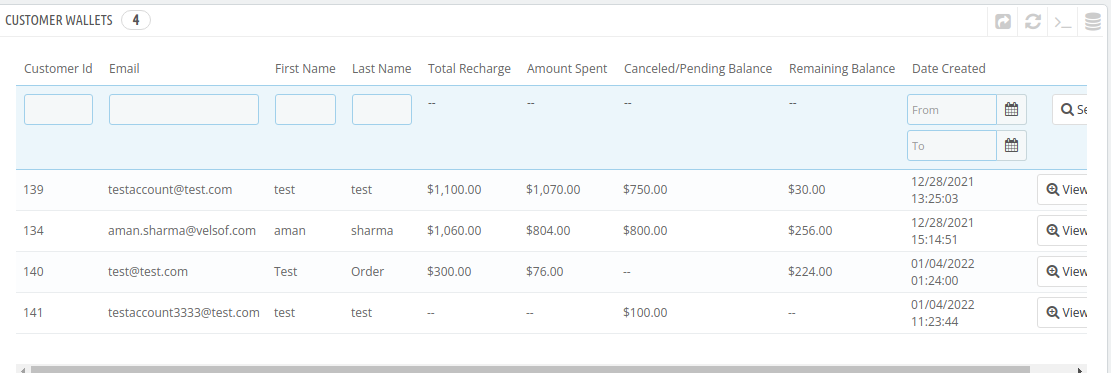
In this section of the Prestashop Customer Wallet System addon, the admin can track all the customers using the wallet. In fact, he can even view the following details of the customers:

  • Customer ID
  • Email
  • First Name
  • Last Name
  • Total Recharge
  • Amount Spent
  • Canceled/Pending Balance
  • Remaining Balance; and
  • Date Created

In fact, the admin can view a detailed report of every customer in this section. In addition, he can also edit the same. For instance, he can recharge the customer’s wallet. Further, he can even debit an amount from the same.

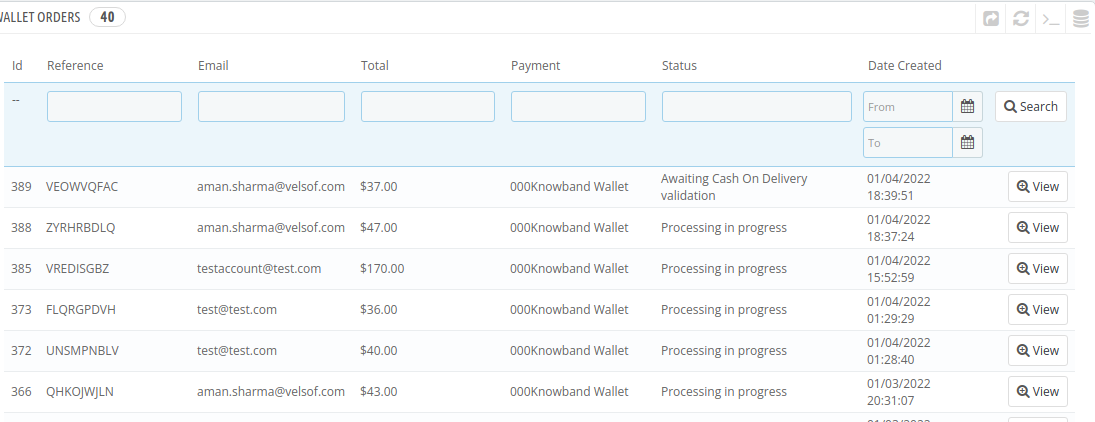
3.3 Wallet Orders

In this section of the Prestashop Customer Wallet Addon, the admin can view all the transactions made with the wallet. In addition, he can apply filters as per the date the orders were placed.

Please contact us at support@knowband.com for any query or custom change request as per your business requirement.