OpenCart Social Login extension adds the social login block on your website and allows your customers to sign-up/log in on your website through various social media networks such as Facebook, Instagram, Twitter, etc.
Online shoppers always look for an easy sign-up option on an eCommerce website No one likes to get involved in a lengthy registration process.
And today with the availability of multiple e-commerce websites, users do not mind leaving a site if it follows a lengthy and mandatory account creation.
This has been made easier with the introduction of social login. Almost every eCommerce website provides the social login option today. If you own a store on the OpenCart platform, you can also add the social login facility on your website with the help of the OpenCart Social Loginizer extension.
OpenCart Social Loginizerstreamlines the registration process on your OpenCart website and enhances the user experience by providing visitors with the facility to sign-up on your store with 8 social login options that include Facebook login, Google login, Instagram login, Twitter login, LinkedIn login, Yahoo Login, Amazon login and PayPal login.
Here are some of the reasons why you should try this OpenCart Social Login extension. This includes its features as well as benefits.
1. Multiple Social Login options
The OpenCart Social Media Login extension covers nearly all the major social media networks so that your visitors have several options to choose from and can select their preferred login option. The more options you provide, the more comfortable users will feel.
2. Place Social Login block on multiple places
With OpenCart Social Login module, you can place the social login block on multiple places on your website such as the Checkout Page, Product Page, etc. This is to help visitors to login from the same page they are present on and not asking them to come back to the registration page. For example, if the social login option is not present on the checkout page, it can compel your potential customers to abandon their cart.
You can also select the display position, for example, it can be placed on the top, bottom, right, or left.
3. Customizable Social Icons
The OpenCart Social Login extension lets you customize the social login icons. It has various styling options. You can choose the icon shape (circular, rectangular, etc) and also select some pleasing hower effect. There is also an option to customize the icon colour.
4. Get Insights into registrations made through Social Login
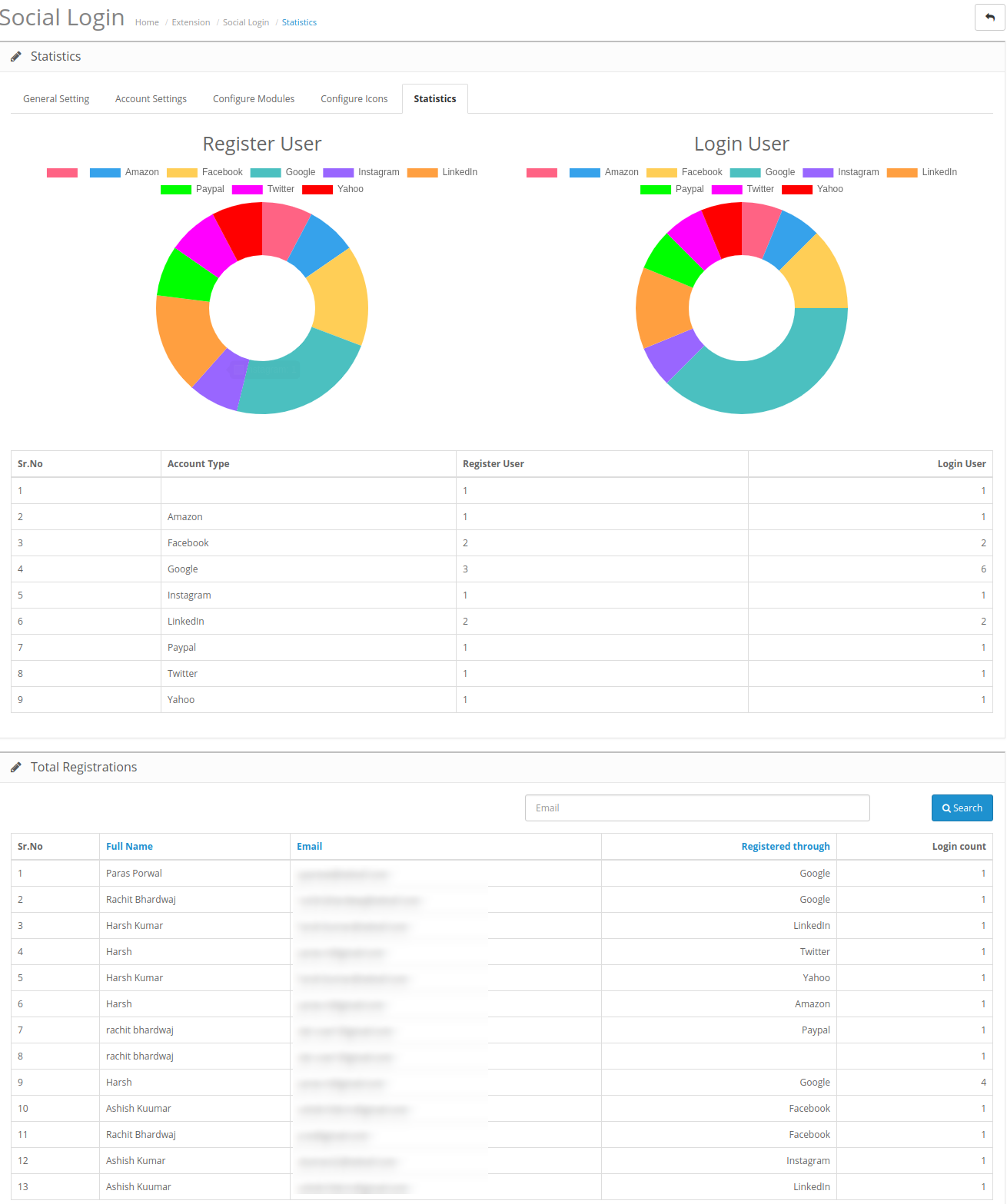
The social login extension for OpenCart offers pie chart analysis of the use of the social login options. The statistics display how many times users have opted for the social login option and how many users have been registered through it. It also displays which login option the user preferred along with their registration details like name and email address.
5. Seamless single click installation
The OpenCart Social Loginizer extension can be easily installed with a single click. You do not need any technical knowledge or assistance for installing this social media module onto your e-commerce website.
6. OpenCart Social Login encourages Quick Signup
The module ensures that users do not have to spend too much time on the registration task and can sign-up within one or two clicks. Quick signup also reduces the cart abandonment rate on your website. (When social login is placed on the checkout page!)
7. Helps in increasing the user registrations
With the social login facility, customers who are reluctant to register because of the lengthy registration process find it easy to sign-up. And with options such as Facebook login, Google login, Instagram login, users are more likely to signup as they are the widely used networks, that ultimately grow your email list.
For any kind of query or assistance, reach out to us at support@knowband.com and feel free to drop down your query below in the comment section as well.
For the long term growth and expansion of a business organization, it is important to take necessary steps in increasing the social media presence and reputation of your business organization. With a combined user base of more than a billion, these social media sites like Facebook, Twitter, Instagram and such others have the potential to take your business organization to far flung areas of the world. However, inspite of the huge business potential, very few business organizations are able to make the effective use of social media into their business. But, this scenario is going to change soon as this OpenCart Social Login extension has arrived in the bigger e- commerce arena. If you are still not sure about this Opencart social login extension, take a look at the various features that has brought this OpenCart social plugin to the fore- front of all business activity.
Easy customization of the social media icons and login options-
This Opencart social login extension has provided huge functionality to the store admin regarding management of the social media icons. Due to the effective availability of the drag and drop feature on the admin panel, store owners can easily decide about displaying their social media icons vertically or horizontally on their site. Further, they can make required changes in the text of the login link, social bar heading, position of the login options on the website and sorting of the social media icons without any complexity and hassle free environment of this Opencart social login extension.
Easy integration of the various social media sites-
With the help of this OpenCart social login extension, e- commerce organizations can effortlessly include any social media sites like Facebook, Twitter, Google+, Linked in or such others for getting increased customer attention and to improve their social image. Due to the availability of the multiple social Login options, customers can now easily login to their social media accounts and will not leave your site in the middle.
Flexibility to choose social media button of your choice-
In order to get maximum attention from your targeted customers, business organizations can choose the effective button size of their social media sites. The Opencart social login extension allows the admin to choose a larger size or a smaller size depending upon their website design and business requirements. Thus, in this way, you can increase the engagement of your site visitors on your social media options by making use of the effective button size on your e- commerce website.
So, it is time to include this wonderful e- commerce extension into your website so as to improve the social reach and reputation of your business organization among your targeted customers. With such a huge global customer base representing various ethnicity, region, languages and time zones, your business organization has a golden opportunity to establish itself as a reputed e- commerce organization in its business segment. Just purchase this Opencart social login extension for your OpenCart store from our e- commerce site, knowband and you will appreciate your spending by understanding its use in the long term business scenario.
OpenCart Social Login Extension offers your customers an easy and fast way of login through 8 most trusted social networks including Facebook, Twitter, Instagram, LinkedIn, etc. Opencart Social Media Login extension increases the customer registrations on your website and improves the user experience of your online store by allowing them instant access to your website. Social Login Opencart module helps to retain the customers and increases the number of visits on your website.
Allowing your customers to access your website through social accounts without creating a new account on the website improves their experience and encourages them to revisit your website. Opencart Social Login is one of the best extension for those who don’t want to spend time in providing their personal information to register on a website through a new account. Social Login for Opencart has a user-friendly interface and the extension is completely customizable.
1.1 Basic Features of this OpenCart Social Login extension
Social Login Opencart module offers website login through 8 most trusted social media networks including Facebook, Twitter, Instagram, LinkedIn, etc. rather than creating a new account on the particular website.
Opencart Social Login extension can be easily customizable including activating/deactivating the extension in a single click, activating/deactivating social media networks, size, and placement of social media icons on the website.
Opencart Google Login module is designed to match the needs and requirement of every OpenCart website and has a user-friendly interface.
The OpenCart Social Login plugin has a mobile responsive layout and it is desktop responsive also.
The store admin can easily activate or deactivate any social media network from the back office of Opencart Twitter Login extension according to one’s preferences and needs.
Opencart Google Login module is super easy to install and configure without having any coding or technical knowledge.
The online merchant can set the look and feel of social login buttons by configuring button color, hover settings and icon type.
Admin can set a different layout for various website pages.
The OpenCart Social Media Login extension provides statistics for analyzing the impact of social login options and registrations/login details.
2.0 Installation Steps for OpenCart Social Login extension
Purchase OpenCart Social Login extension from the Knowband website. You will receive these files after purchasing the OpenCart extension:
First, you will get a source code file of the OpenCart Social Login module in zipped file format.
User Manual of this Social Login OpenCart module.
Follow below-mentioned steps in order to install OpenCart Social Login module:
1. Unzip the received zip file. You will get the folders as shown in the following image:
2. Copy all the folders of the zip file in the Root Directory of OpenCart setup via FTP manager.
So, OpenCart Twitter Login extension is now successfully installed and ready to use at your store.
Now go to the admin menu and click on the extensions and thereby click on configure button next to OpenCart Twitter Login extension.
3.0 Admin Interface
The online store admin can configure the OpenCart Social Media Login extension after installing successfully. There will be multiple configuration options as mentioned below:
General Settings
Account Settings
Configure modules
Configure Icons
Statistics
3.1 General Setting
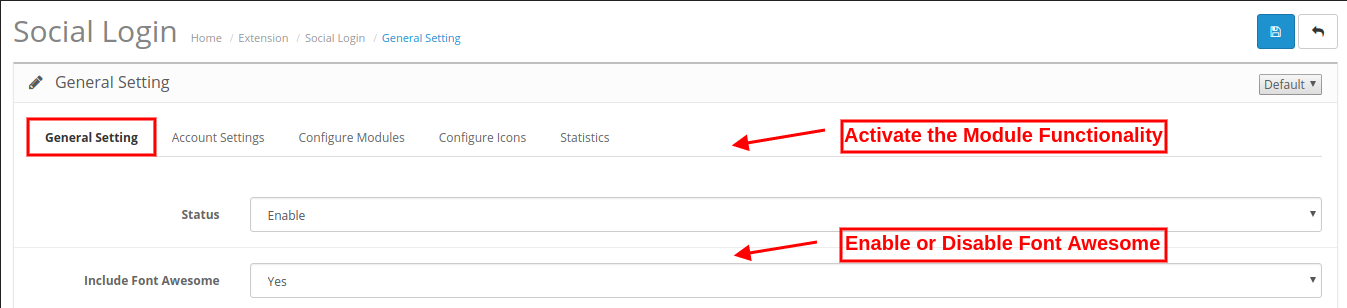
The online merchant can apply the basic settings from here. These are the available configuration options:
Status: The e-merchant can activate or deactivate the OpenCart Social Login extension functionality by enabling or disabling it.
Include Font Awesome: Font Awesome is a font and icon toolkit which is based on CSS and LESS. The online store owner can include it by selecting the “yes” option from the drop-down list.
3.2 Account Settings
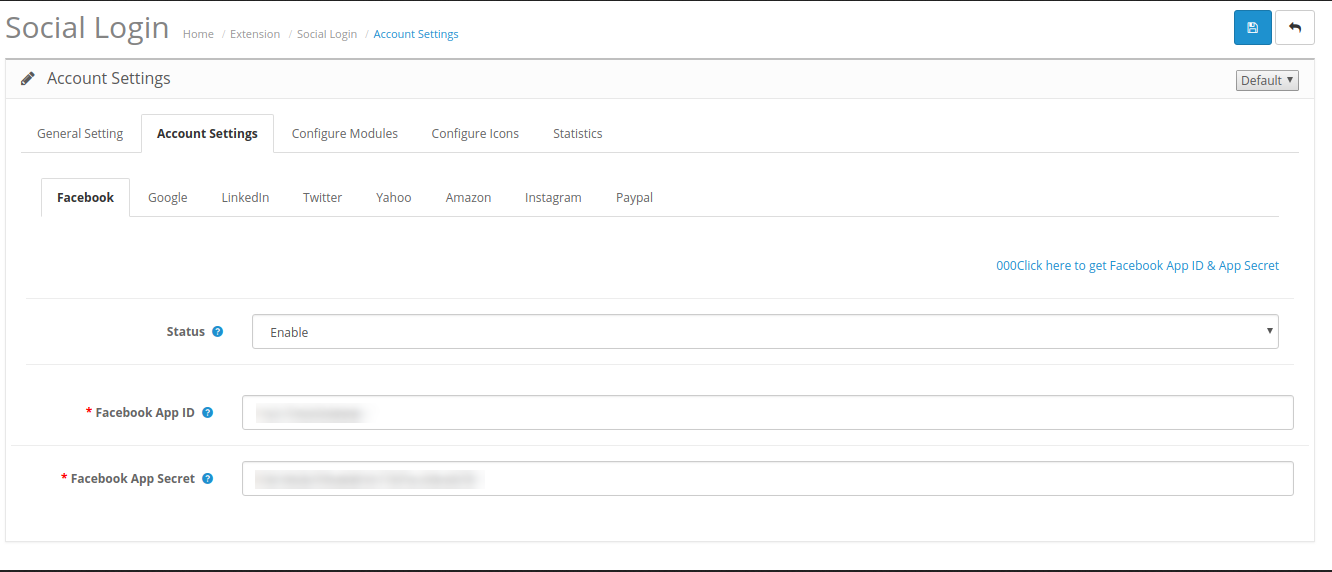
From here, the online merchant can set up the social login options. Admin can activate and set eight social login options from here.
3.2.1 Facebook
Status: The store merchant can show or hide Facebook login by enabling or disabling the settings from the OpenCart Social Login module admin interface.
Facebook App ID: Admin needs to enter the Facebook app ID and page ID in order to incorporate the Facebook login option.
Facebook App Secret: Here, the admin needs to enter Facebook App-Secret.
In Section 1, admin can view the steps to generate a Facebook app id and app secret.
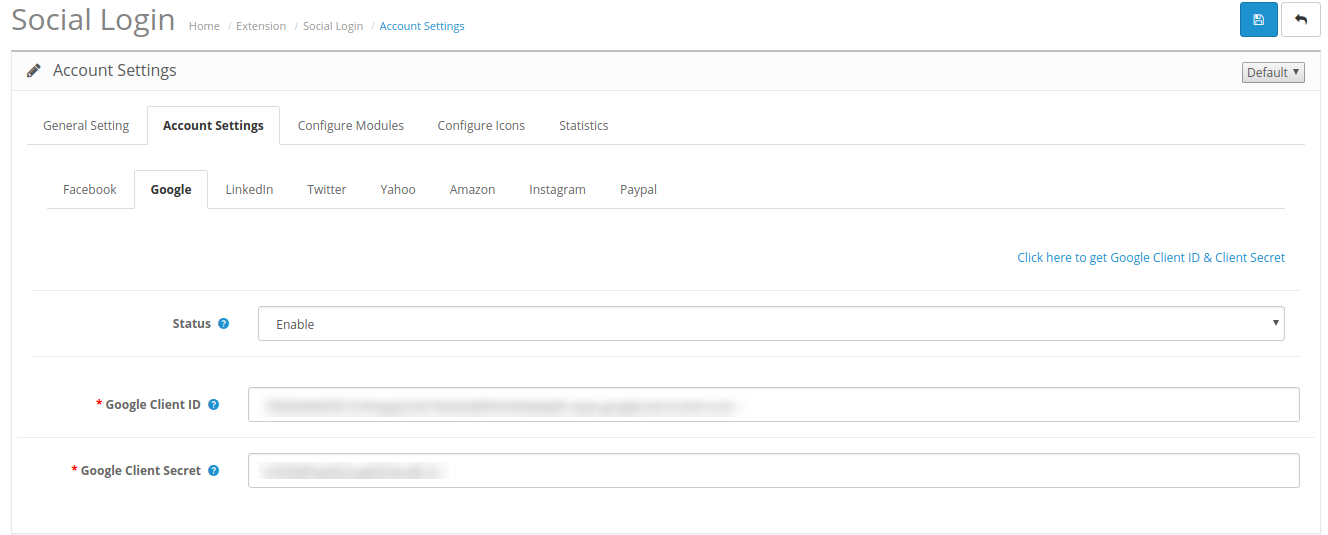
3.2.2 Google
Status: Admin can enable or disable the Google login option from the admin interface of Social Login OpenCart module.
Google Client ID: The e-merchant needs to enter Google Client-ID here.
Google Client Secret: Here, the admin needs to enter Google Client-Secret.
In Section 2, admin can view the method of generating Google client ID and client secret.
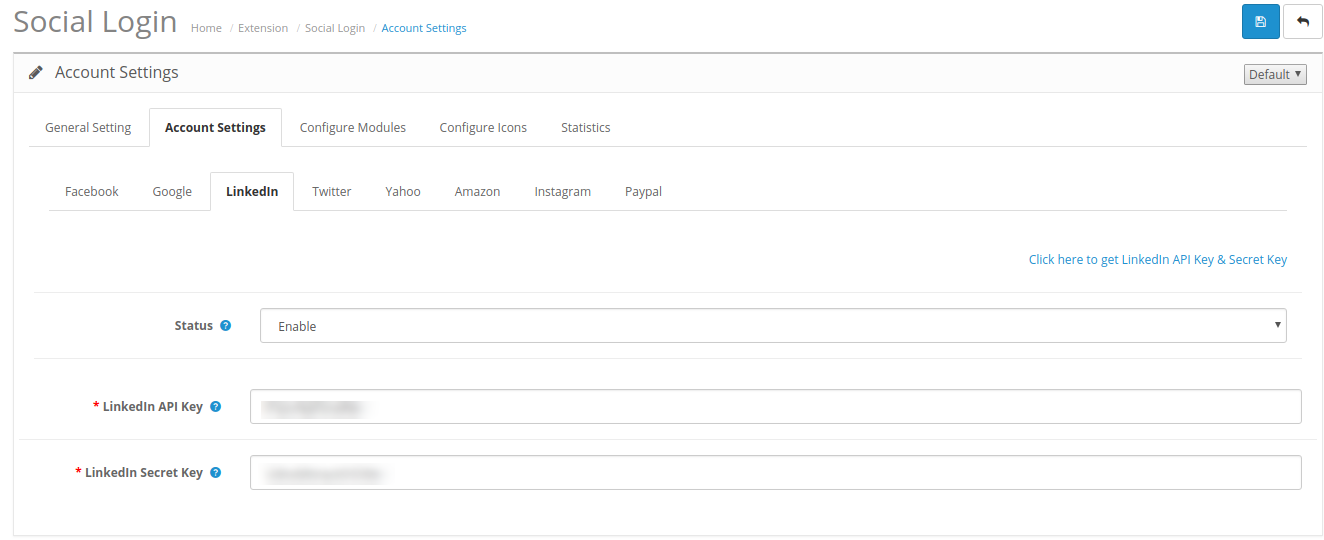
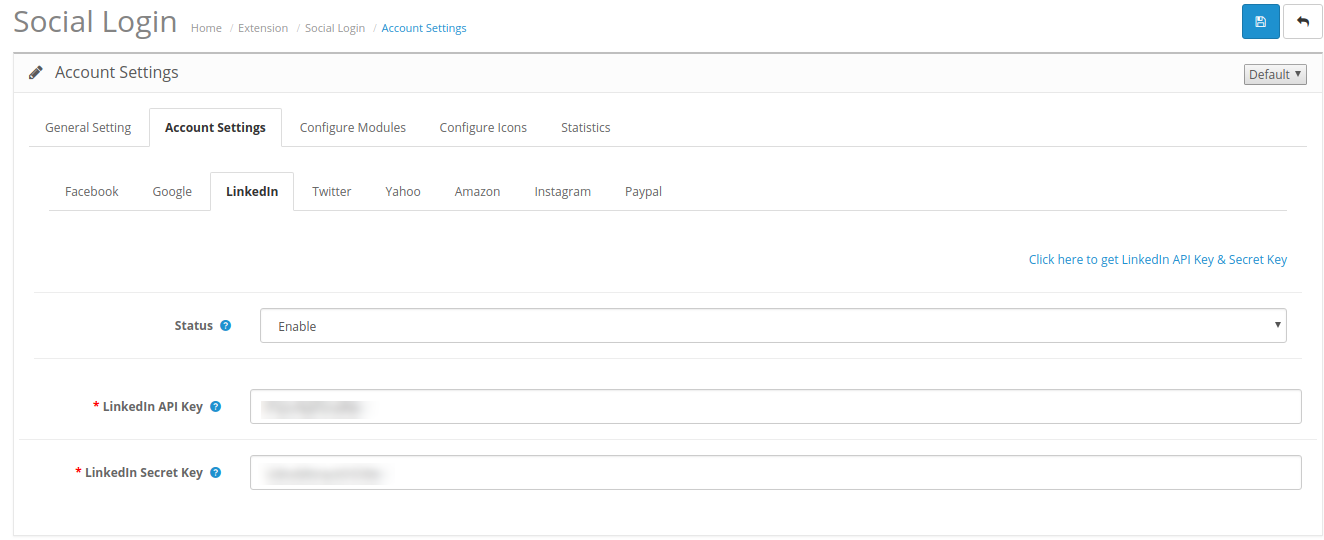
3.2.3 LinkedIn
Status: The store merchant can enable or disable the LinkedIn Login option from here.
LinkedIn API key: The admin needs to set up the LinkedIn API key.
LinkedIn Secret Key: Here, the admin needs to enter the LinkedIn Secret Key.
In Section 3, the admin can view the method of generating LinkedIn API key and secret key.
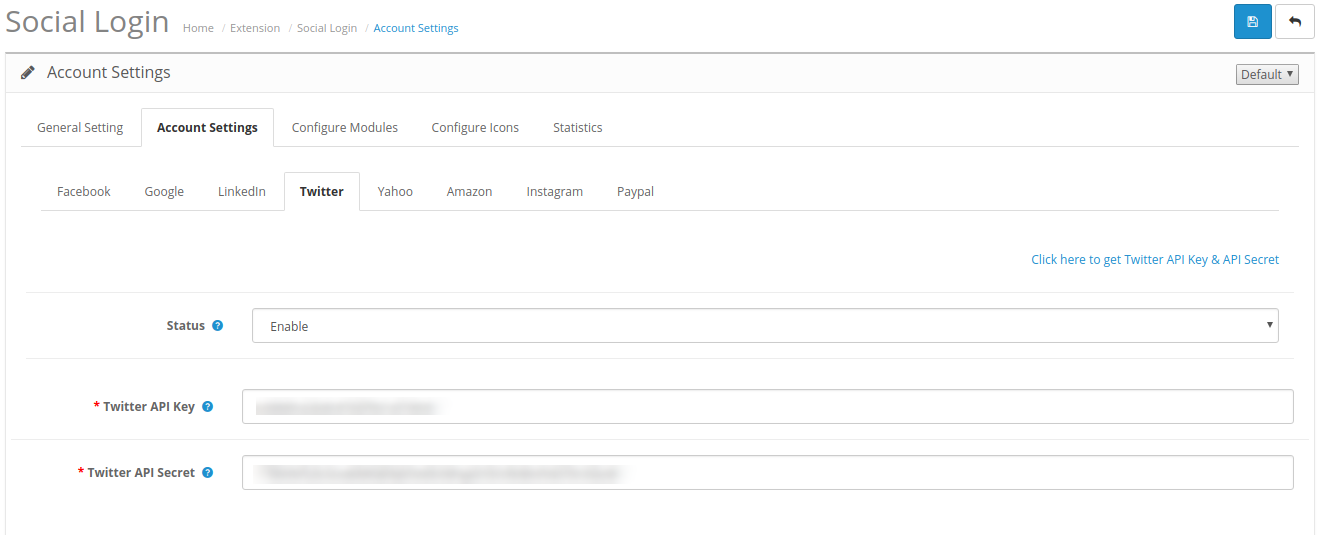
3.2.4 Twitter
Status: Admin can Enable or Disable the Twitter login option.
Twitter API Key: The admin needs to set the Twitter API Key.
Twitter API Secret: Here, the admin needs to set an API secret.
In Section 4, the admin can view the method of generating Twitter API key and API secret.
3.2.5 Yahoo
Status: The store merchant can Enable or Disable the Yahoo Login option.
Yahoo Consumer Key: Here, admin can enter Yahoo Consumer key.
Yahoo Consumer Secret: The admin needs to set Yahoo Consumer Secret.
In Section 5, the admin can view the steps for generating Yahoo consumer key and consumer secret.
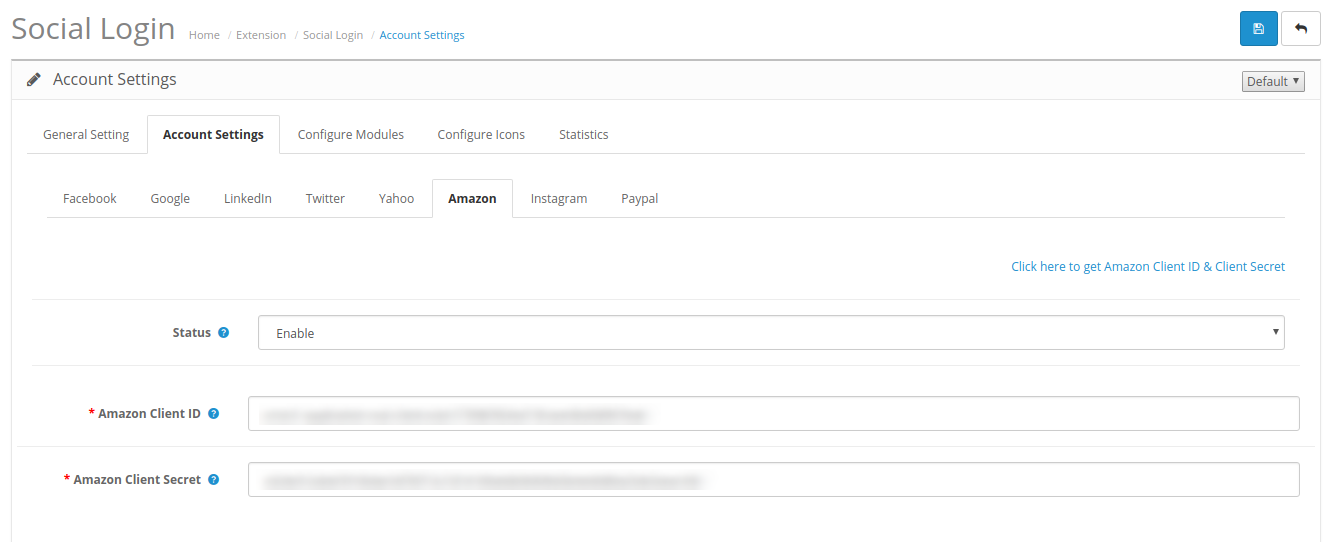
3.2.6 Amazon
Status: To Enable or Disable the Amazon Login.
Amazon Client ID: The admin needs to enter Amazon Client-ID.
Amazon Client Secret: Here, admin can enter Amazon Client-Secret.
In Section 6, the admin can view the method of generating Amazon client ID and client secret.
3.2.7 Instagram
Status: Admin can Enable or Disable the Instagram Login from the admin interface of this OpenCart Social Media Login extension.
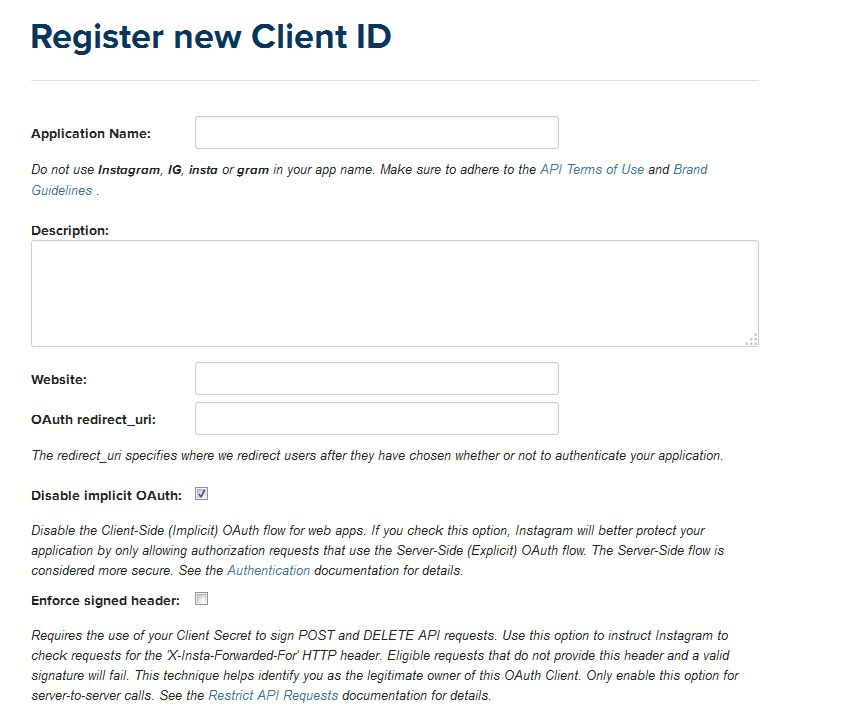
Instagram Client ID: The admin can enter Instagram Client-ID here.
Instagram Client Secret: Here, the admin needs to enter Instagram Client-Secret.
In Section 7, the admin can view the method of generating an Instagram client ID and client secret.
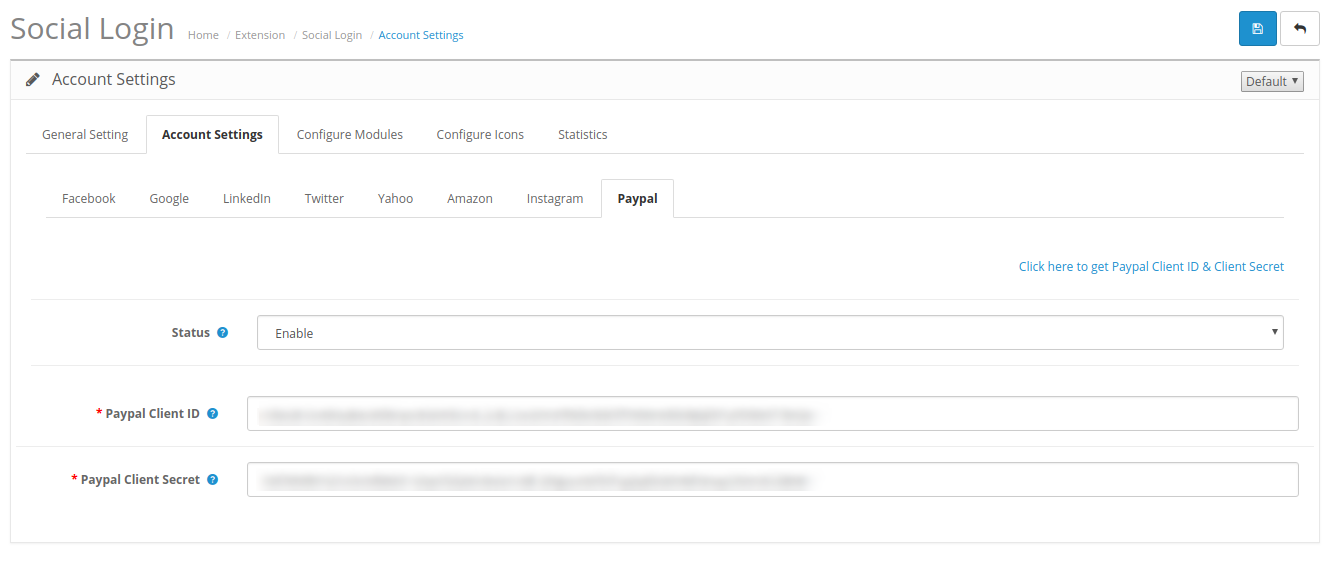
3.2.8 Paypal
Enable/Disable: The online merchant can Enable or Disable the PayPal Login from the OpenCart Facebook Login extension admin interface.
Paypal Client ID: The admin needs to enter Paypal Client-ID.
Paypal Client Secret: Here, the admin needs to enter Paypal Client-Secret.
In Section 8, the admin can view the method of generating Paypal client ID and client secret.
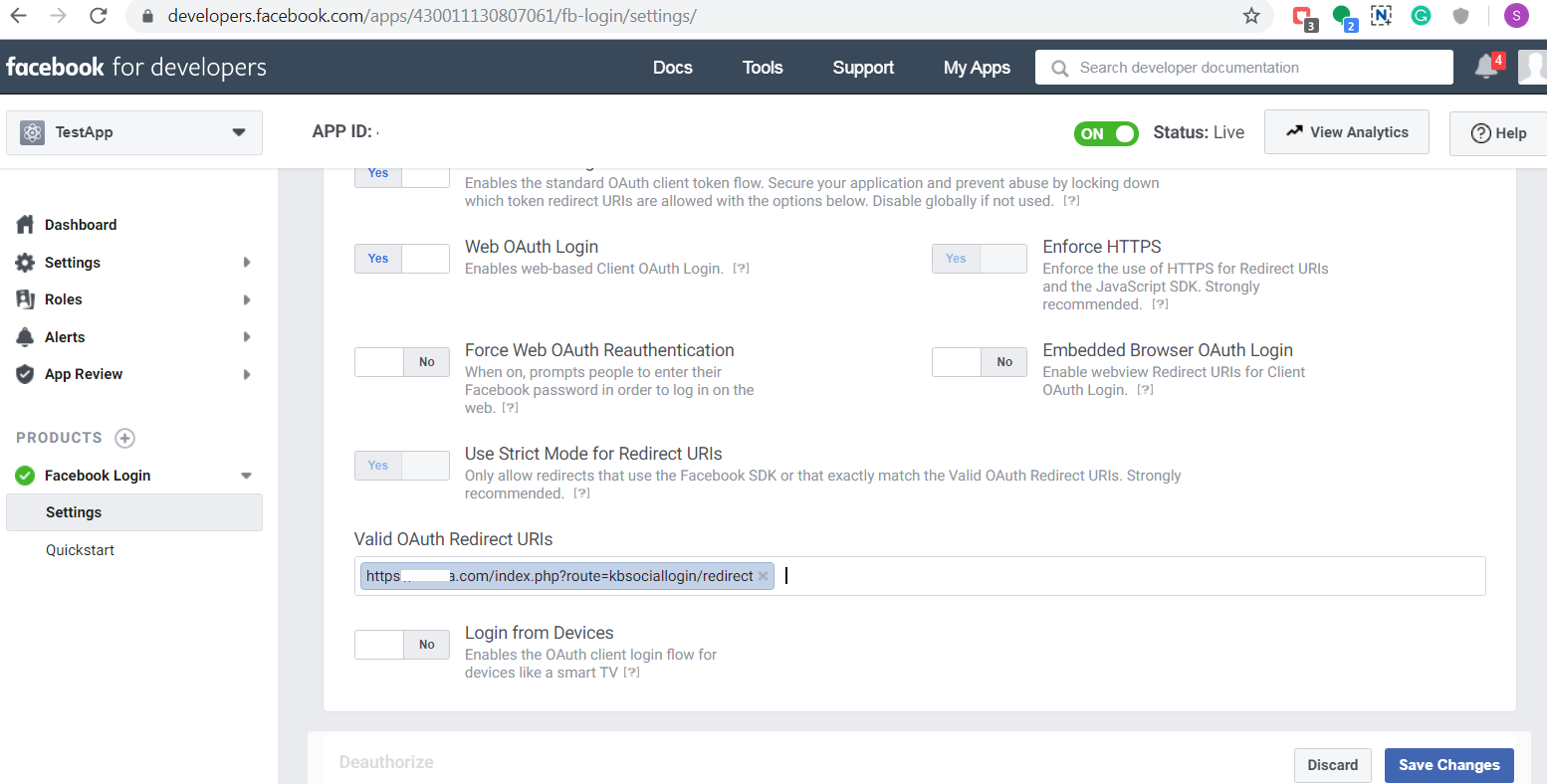
1. Steps to Generate Facebook App details:
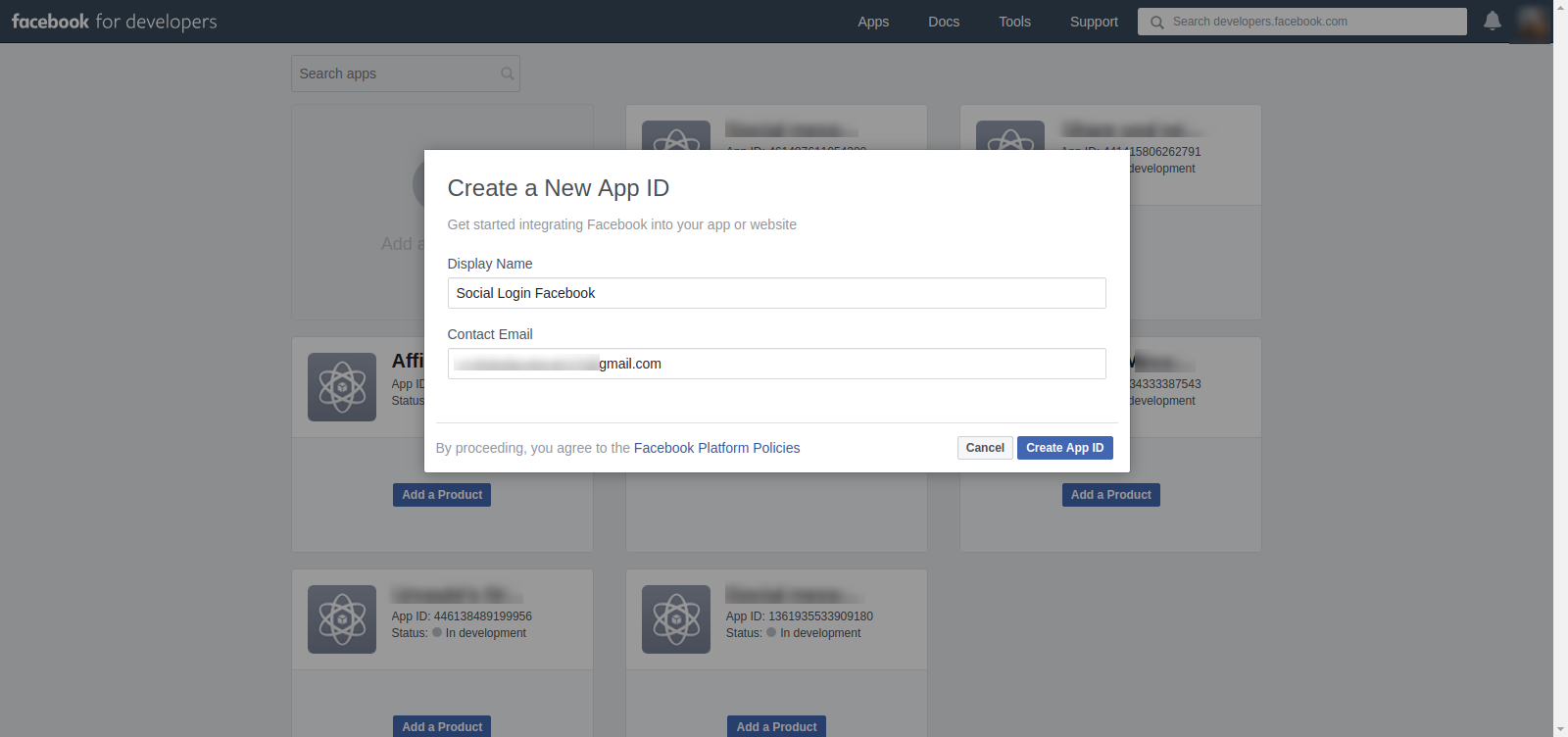
Go to the link https://developers.facebook.com/apps/ or you can directly click on the message available at Facebook configuration page which is “Click here to get Facebook App ID & App Secret”.
Click on Add a new App.
Enter the required Details.
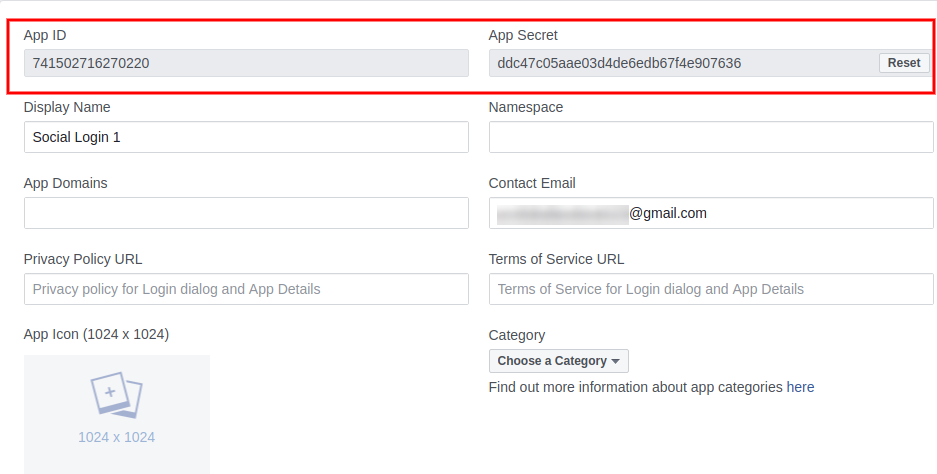
After security check, go to settings>basic. Here you will get the App ID and App Secret.
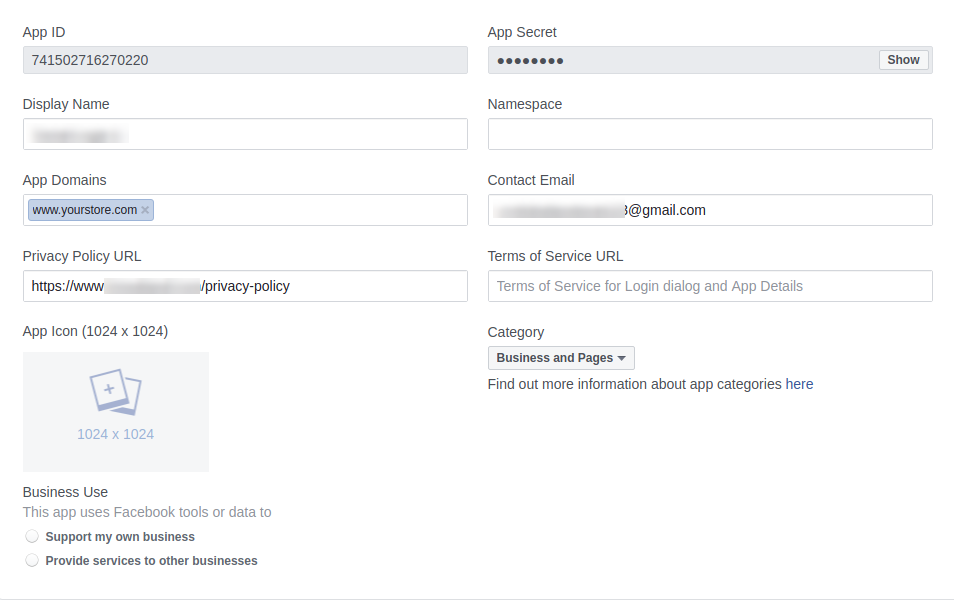
Now enter the App Domain, privacy policy URL and save changes.
Now, go to the Status & Review tab from the left menu and make the Application Live.
2. Steps to get Google App details:
Go to Google Developers Console: https://console.developers.google.com/project
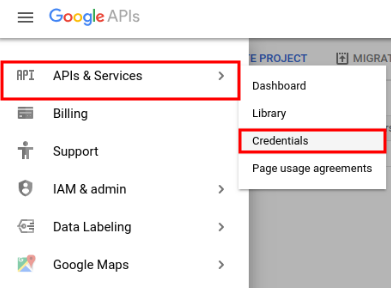
Now click API and Services-> Credentials from left menu.
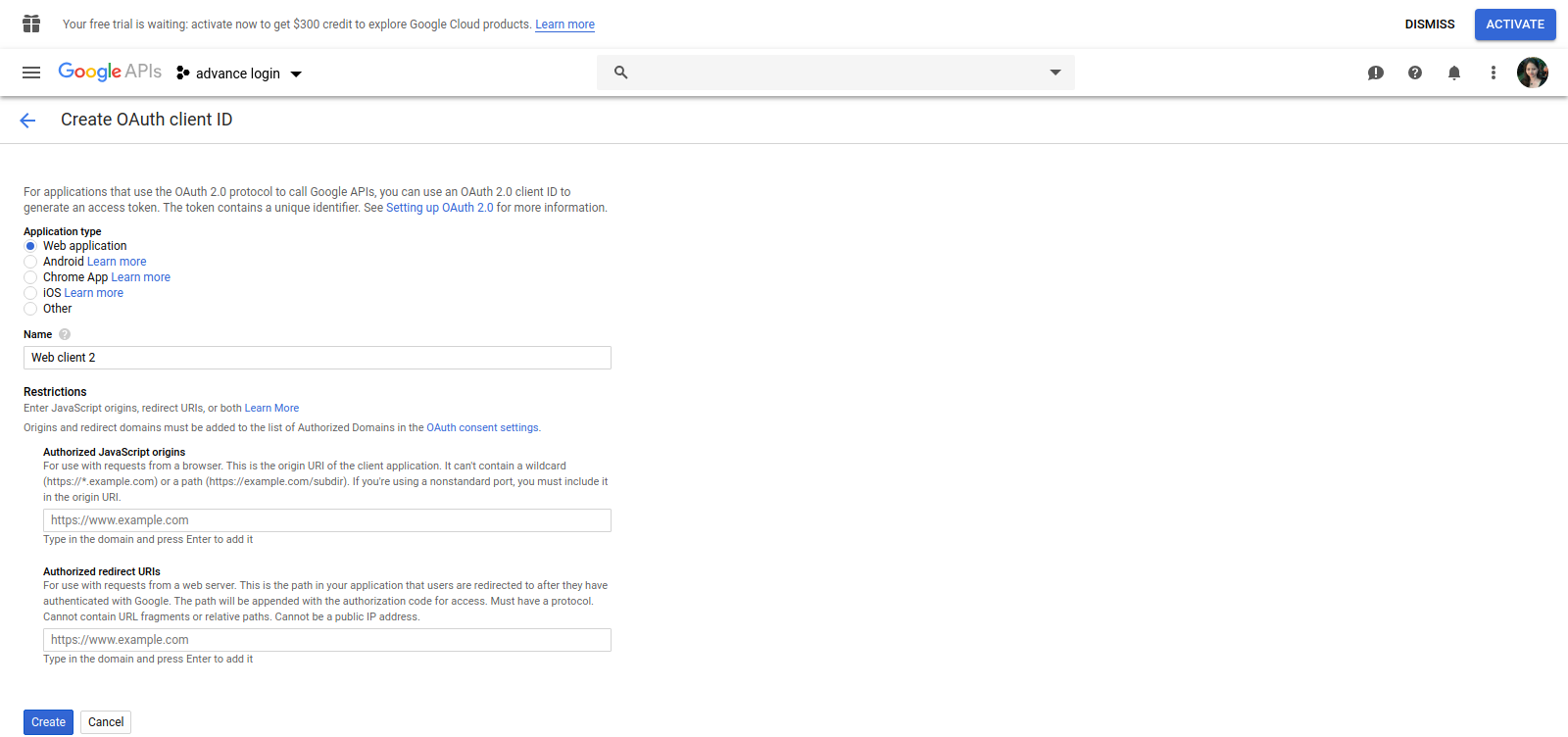
Click Create New Client ID button from the right panel of the screen.
Fill the pop-up form with below details:
Application Type: Web Application.
Authorized JavaScriptorigins: Your store domain name. (https://www.example.com)
Authorized redirect URI: URI of SNSLogin redirect page.
(https:// www.example.com/index.php?route=kbsociallogin/redirect).
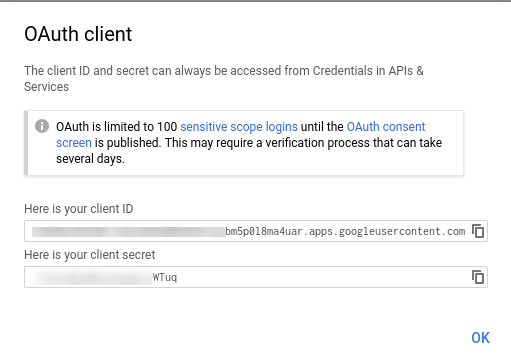
Now click Create Client ID button to get your Client ID and Client Secret Key for OpenCart Social Login.
3. Steps to get LinkedIn App details:
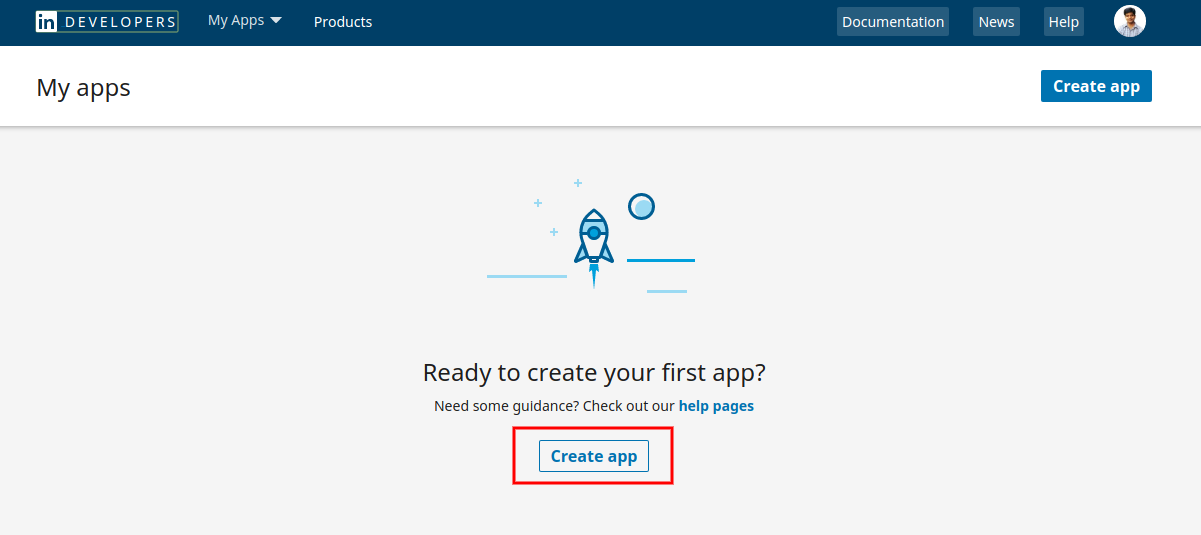
Go to https://www.linkedin.com/developers/apps
Click on Create App.
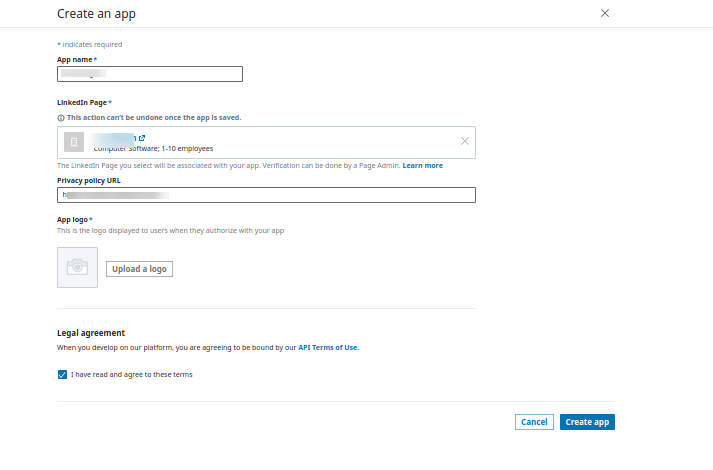
Fill the form to register a new application. The website URL must be your Store URL like https://www.example.com.
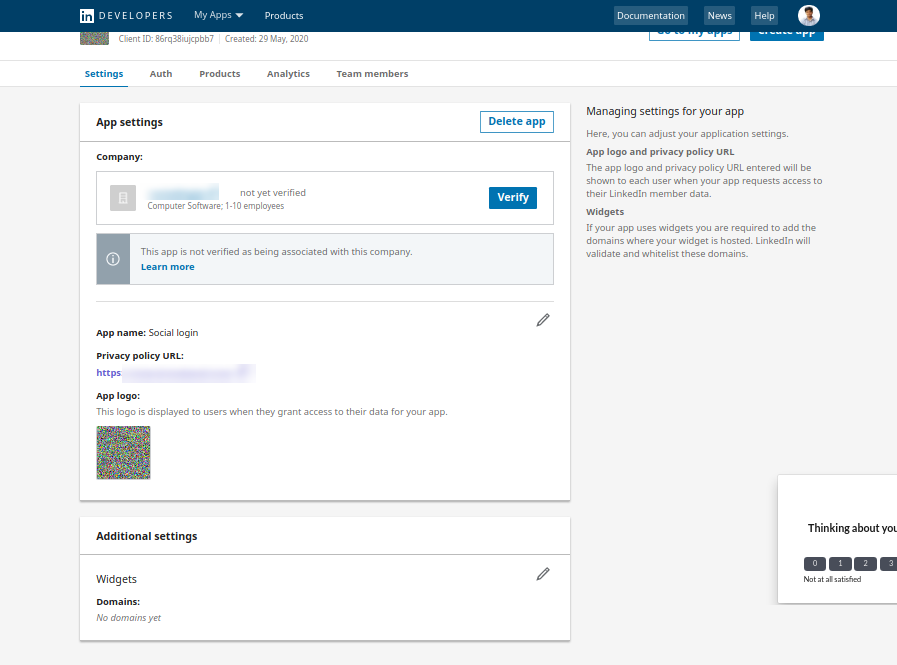
Click on the create app button.
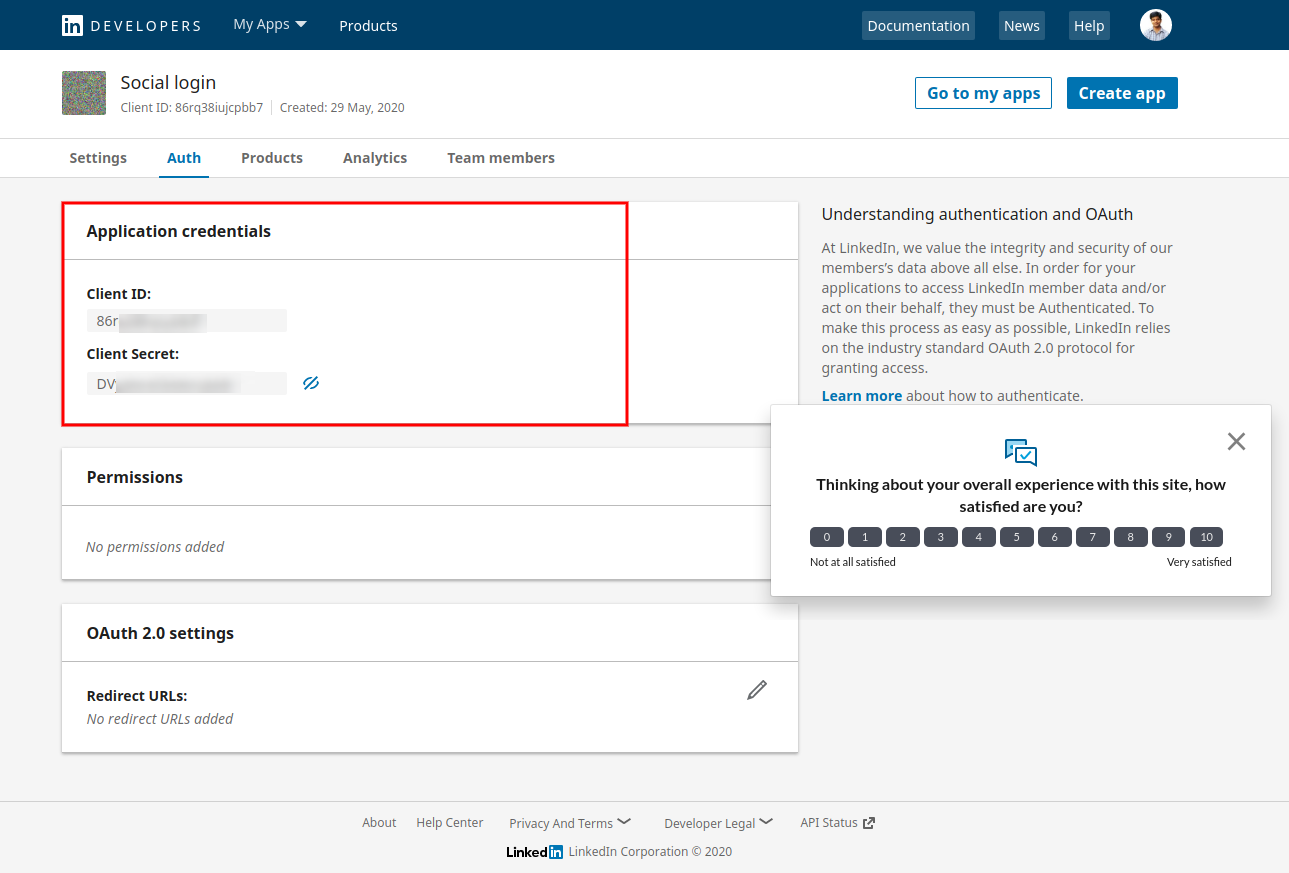
In the auth section, the online merchant can view the app Id and secret as shown below:
4. Steps to get Twitter App details:
Go to https://dev.twitter.com/apps
Click Create New App button.
Enter the Application Details as follows:
1. Application Name: Name of your Application.
2. Description: 10 to 200 characters description of your application.
3. Website: Your store URL.
4. Callback URL: SNSLoginresirect page URL of your store.
(https:// www.example.com/index.php?route=kbsociallogin/redirect).
Now, Click Yes, I agree and then click Create your Twitter application.
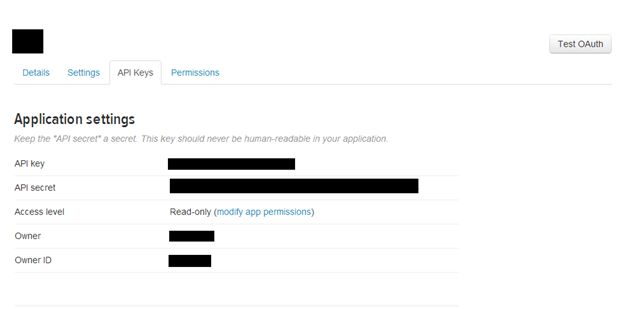
Now, select the API Keys from the menu below your Application Name and copy your API Key and API Secret for OpenCart Social Login.
5. Steps to get Yahoo App details:
Go to Yahoo Developer Network (https://developer.apps.yahoo.com/projects).
Click Create a Project.
Fill the required details as per instructions. Home URL will be your Store URL.
Click Create Project button.
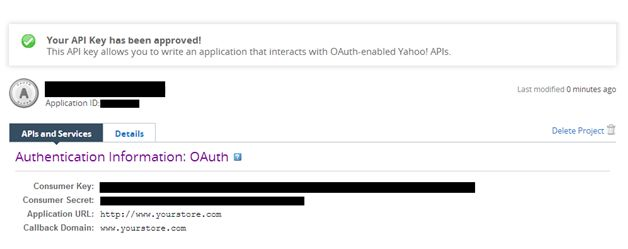
Copy your Consumer Key and Consumer Secret for OpenCart Social Login extension.
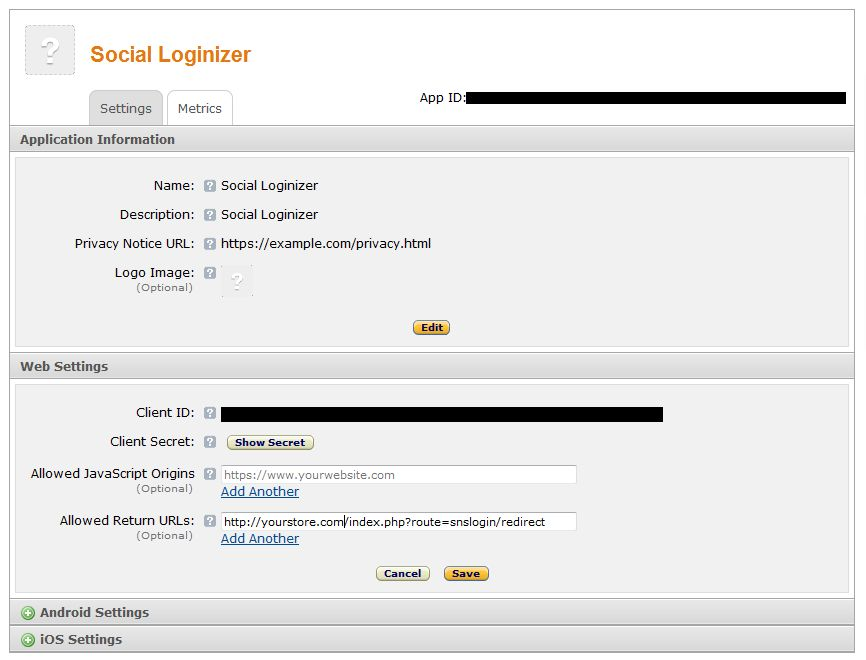
Go to Amazon Developer Network (https://login.amazon.com/manageApps).
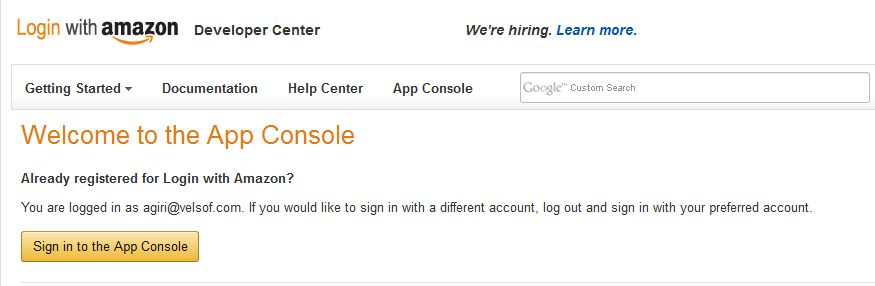
Click on Sign in to App Console button.
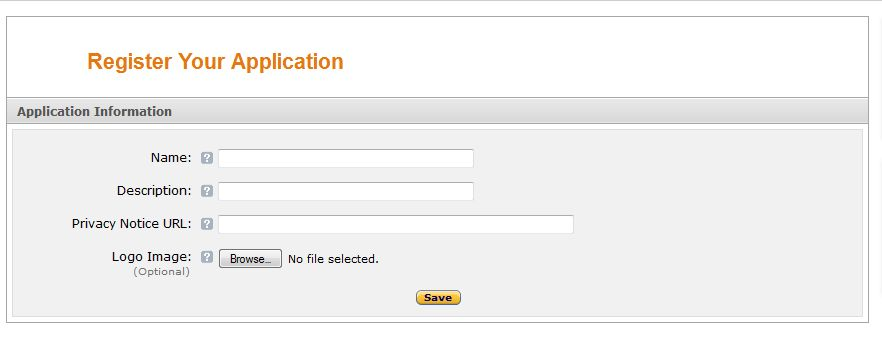
After successful login to App Console click on Register new application button in the top right of the page and you will be redirected to the following page.
Enter the Application Details as follows:
Name: Name of your Application.
Description: Description of your application.
Privacy Notice URL: Url of privacy policy page of your store.
Logo Image: Select optional logo image of your store.
Click the Save button.
Now click on Web Settings to get your client id and secret for Social Login OpenCart module.
Allowed Return URL: SNSLogin redirects page URL of your store.
(https:// www.example.com/index.php?route=kbsociallogin/redirect)
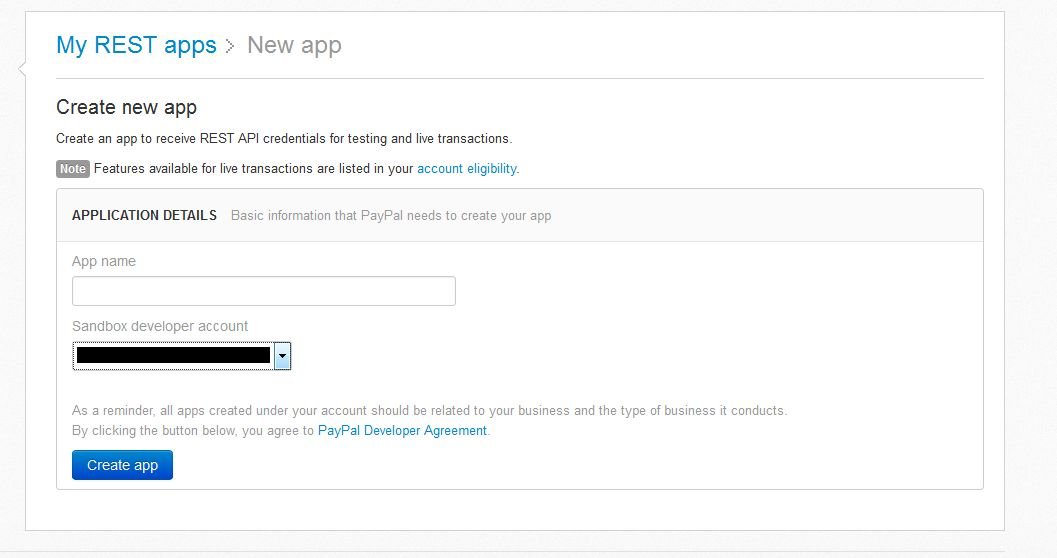
Go to Paypal Developer Network (https://developer.paypal.com/webapps/developer/applications/myapps).
Click on Create App button.
Now enter the name of your Application and click Create App Button.
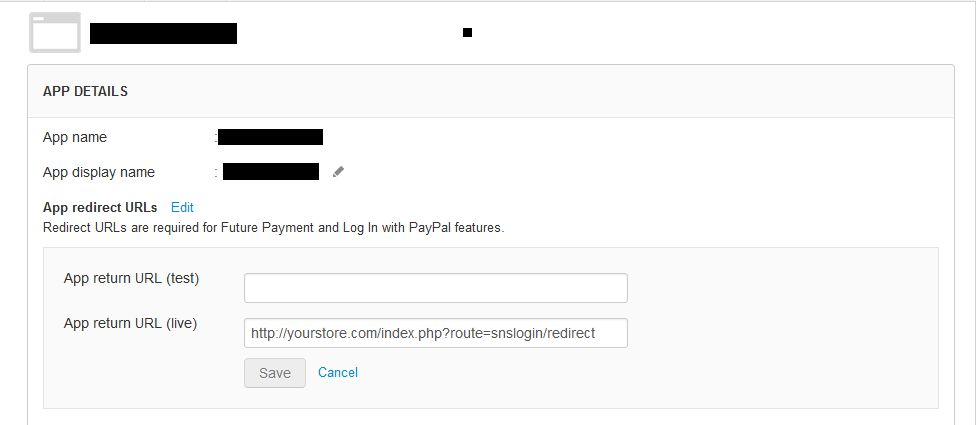
Set App return URL (live) as SNSLogin redirect page URL of your store.
(https:// www.example.com/index.php?route=kbsociallogin/redirect).
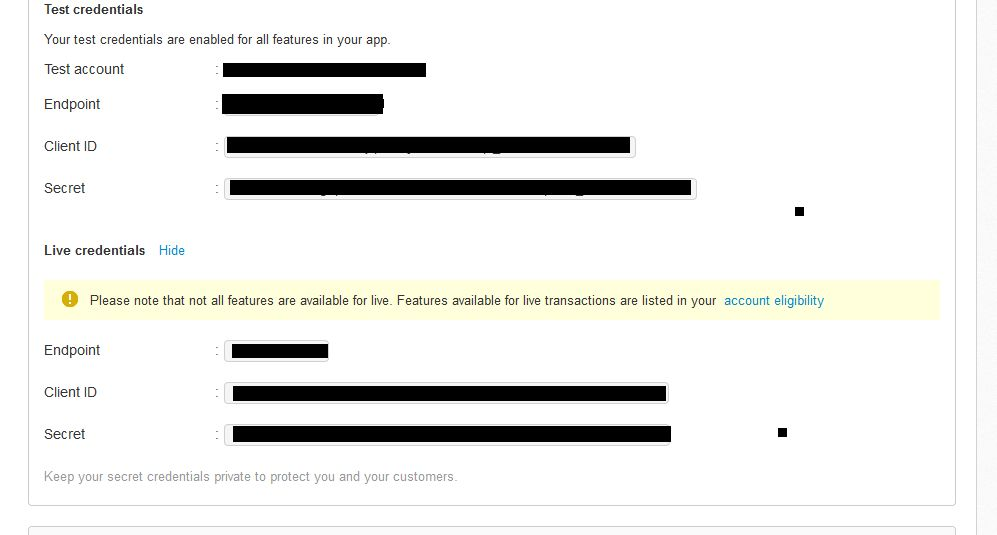
Copy and paste live credentials to admin panel of OpenCart Social Login extension.
3.3 Configure Modules
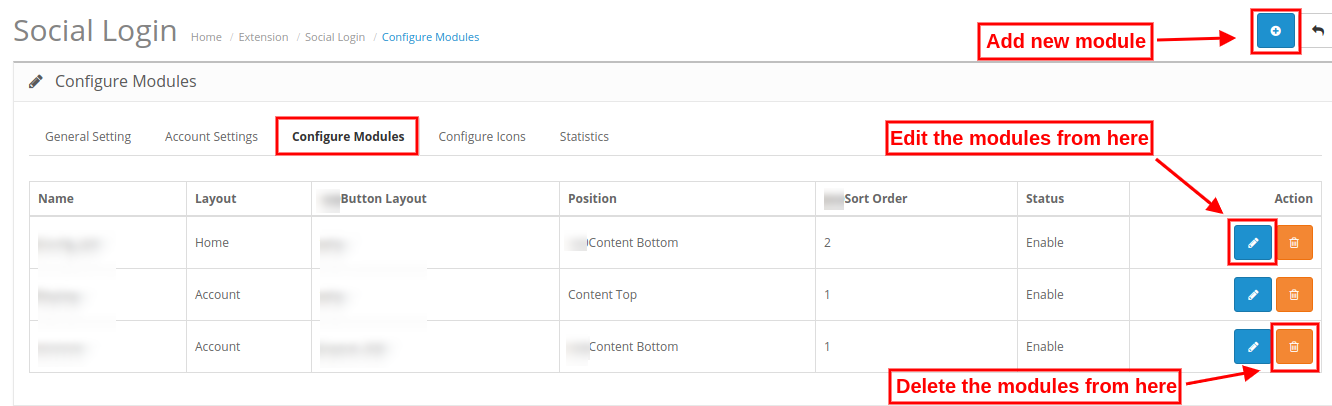
Here, the online merchant can set the social login icons on different pages and apply other related settings. Admin can add, delete and update different social login modules. The customization options are described below:
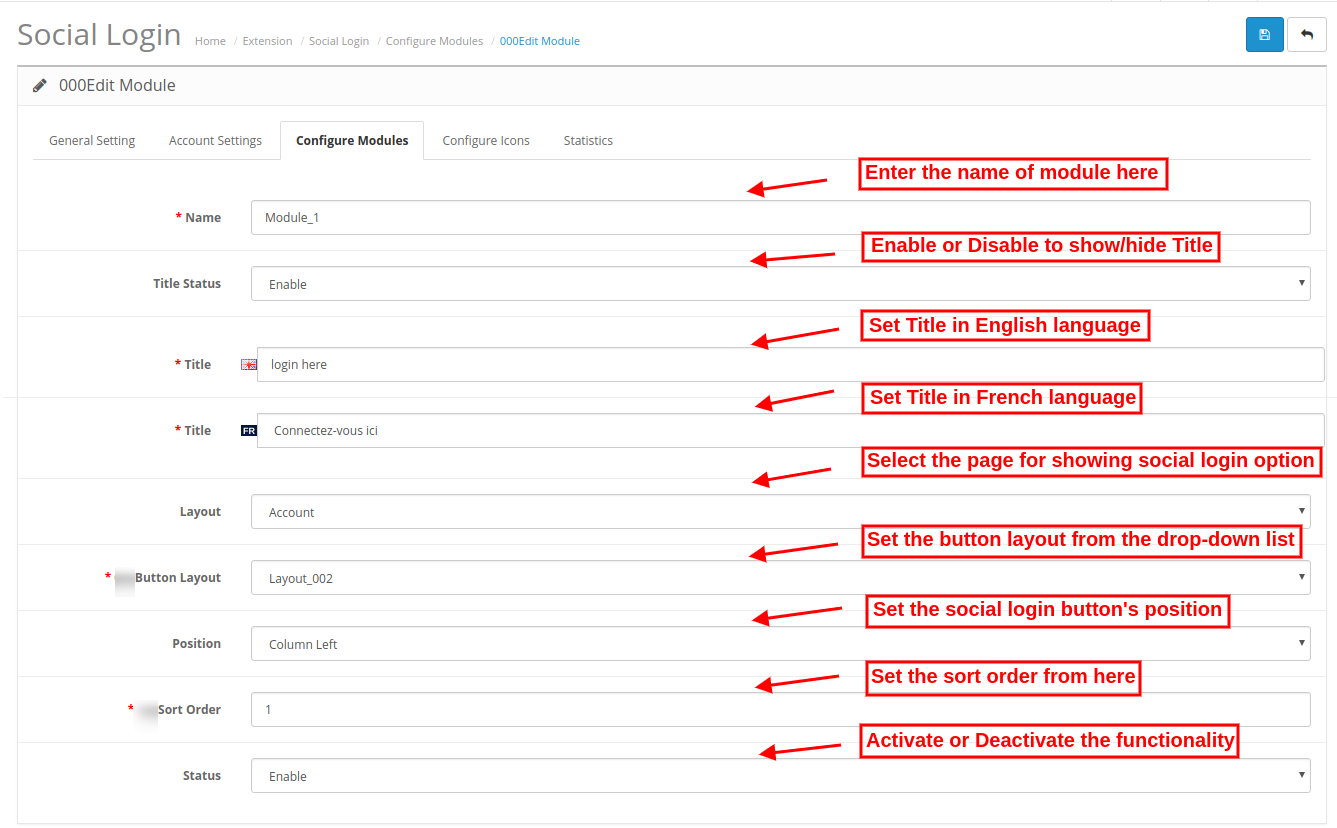
Steps to add a new module:
Module name: Admin can set the name of the social login module.
Title Status: The e-merchant can activate or deactivate this option to show or hide the module title.
Title: Admin can set the module title in different languages.
Layout: The e-merchant can select the layout from the drop-down list available at the admin interface of this OpenCart Facebook Login extension.
Button Layout: The e-merchant can select the button layout from the available options in the drop-down list.
Position: The online seller can select the position for showing social login options. The Social Login Options for OpenCart allows showing login options in the content top, content-bottom, content left and content right.
Sort Order: Admin can set the sort order for the social icons.
Status: The store merchant can activate or deactivate this module from the admin interface.
3.4 Configure Icons
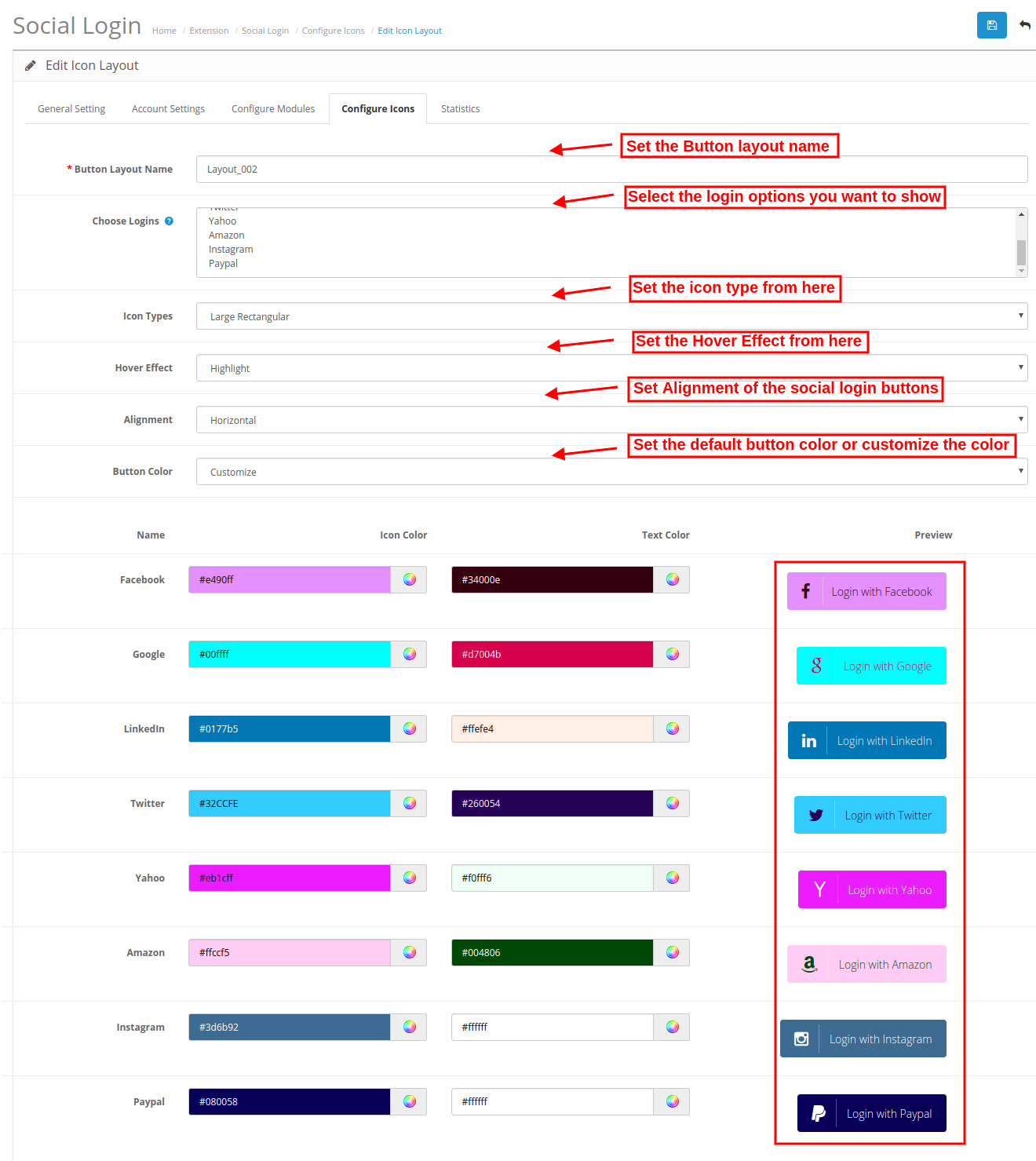
The online store merchant can create layouts for social login icons. The OpenCart Twitter Login extension allows the store merchant to add, delete and edit the layout from the admin interface.
Button Layout name: Admin can set the button layout name from here.
Choose Logins: The store admin can select from the 8 social options which he wants to display in this layout.
Icon Types: Admin can set the icon type from here. The icon can be Small Circular, Small rectangular, small rounded, large rounded and large rectangular.
Hover Effect: Admin can set the hover effect from here. The Social Login OpenCart module can zoom, highlight and rotate the social login icons.
Alignment: The store merchant can set the alignment as horizontal or vertical.
Button Color: Admin can select the default button color or customize the button color for each icon from the Social Login OpenCart module admin interface.
3.5 Statistics
In this section, the online merchant can view the statistics of user registration and login. The admin can view the list for getting the details that how many customers login/registered from every social login option. The OpenCart Twitter Login extension also shows the total registration in the website using any social media options along with the name and email id details.
4.0 Front-End Interface
The online users can view the multiple social login options on the website pages. The admin can show different social login options on all the website pages if he wishes to do so.
The customers can log in/signup from any of the social login option available on the website page.
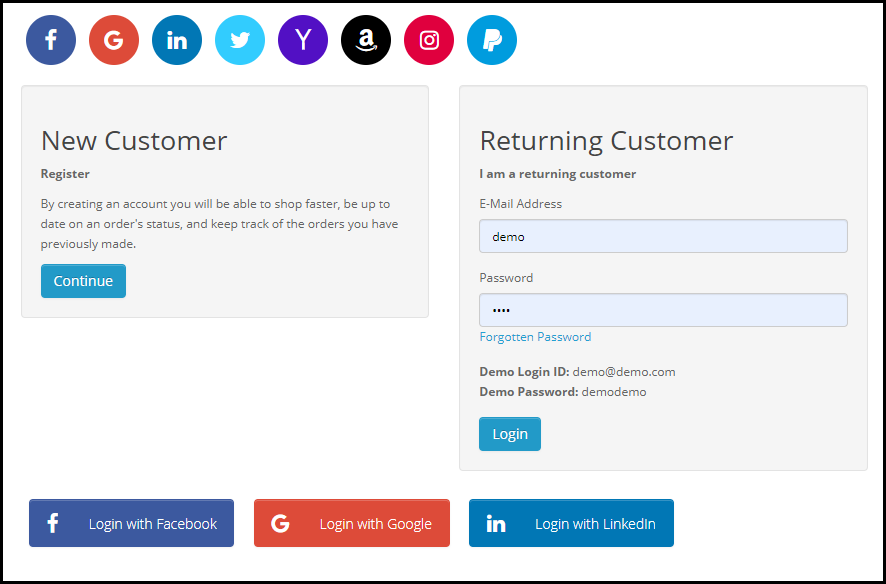
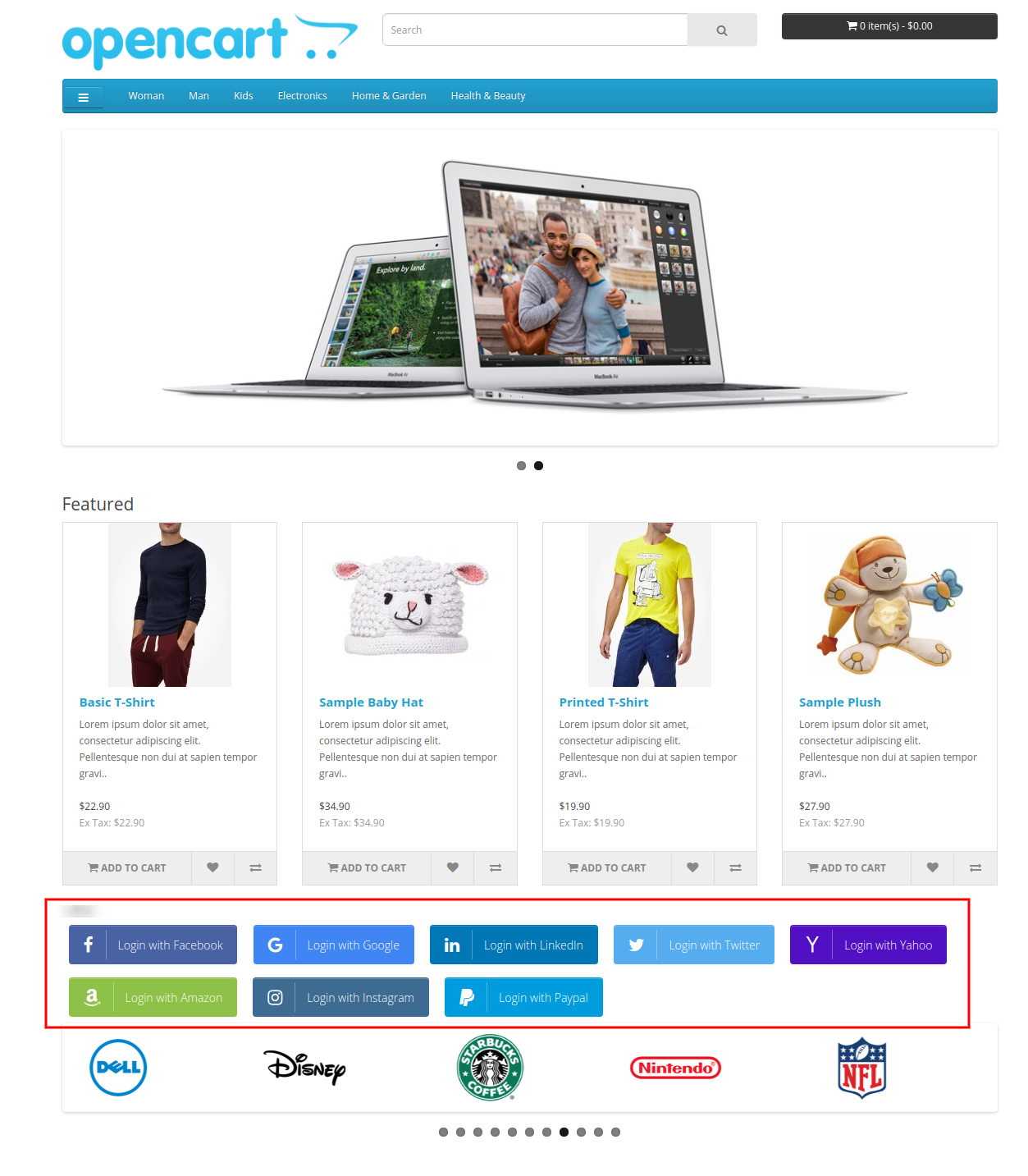
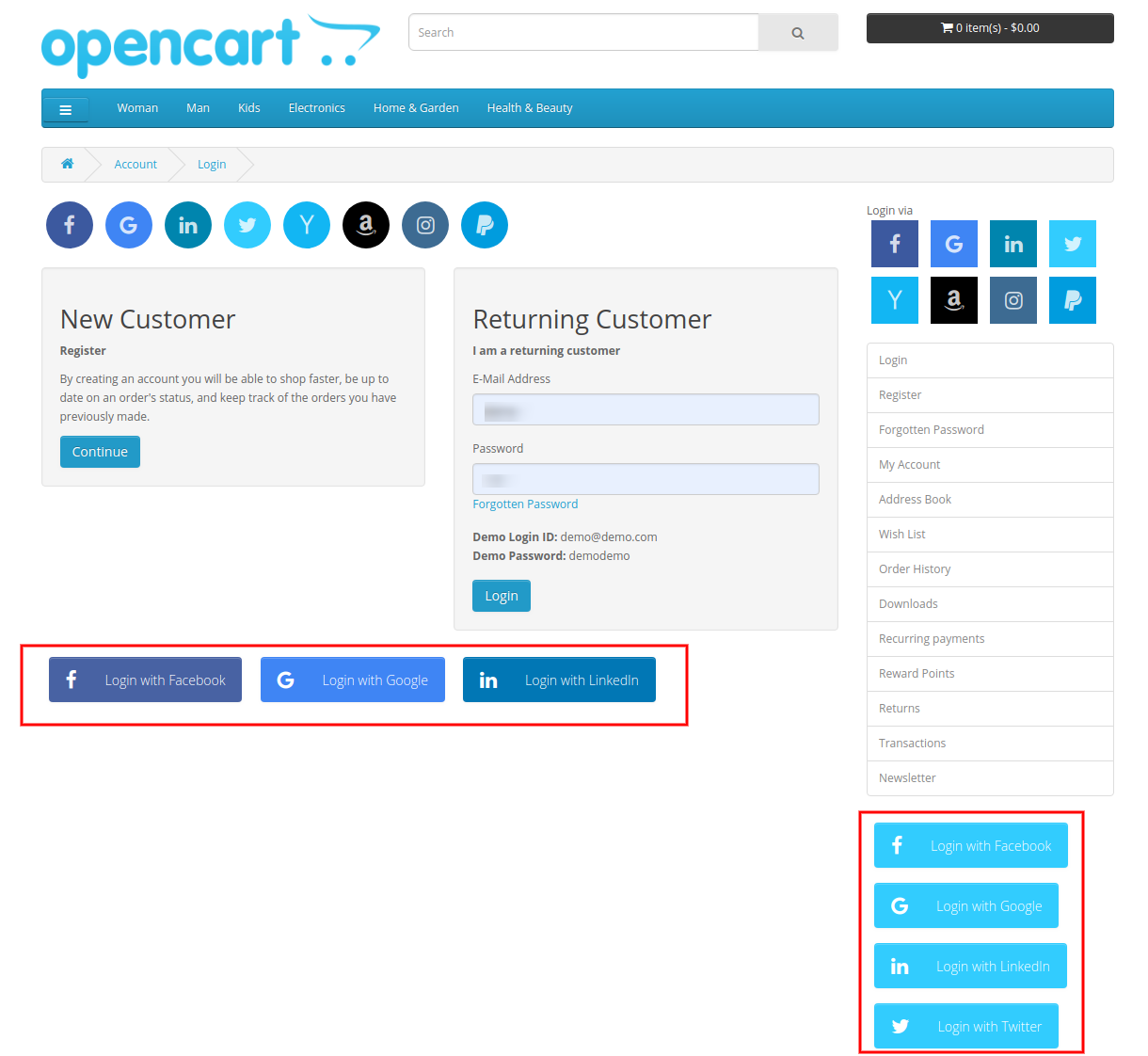
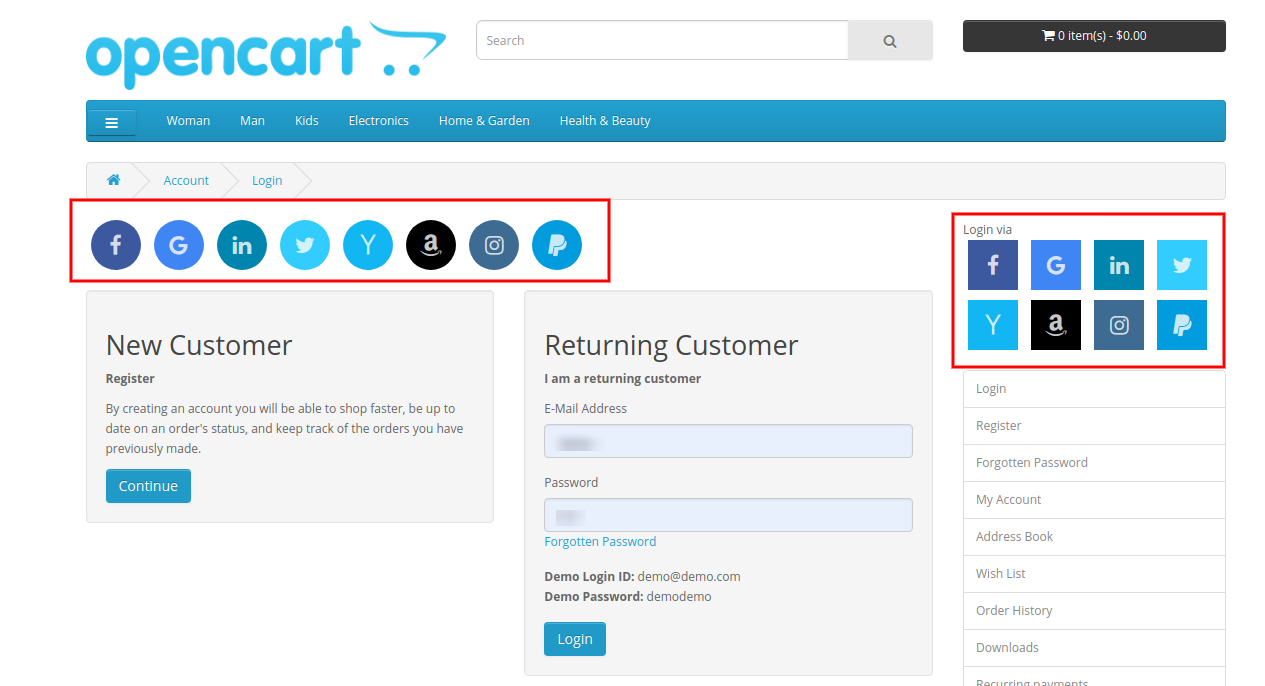
Home Page will display as below mentioned image while using large rectangular icon with zoom effect.
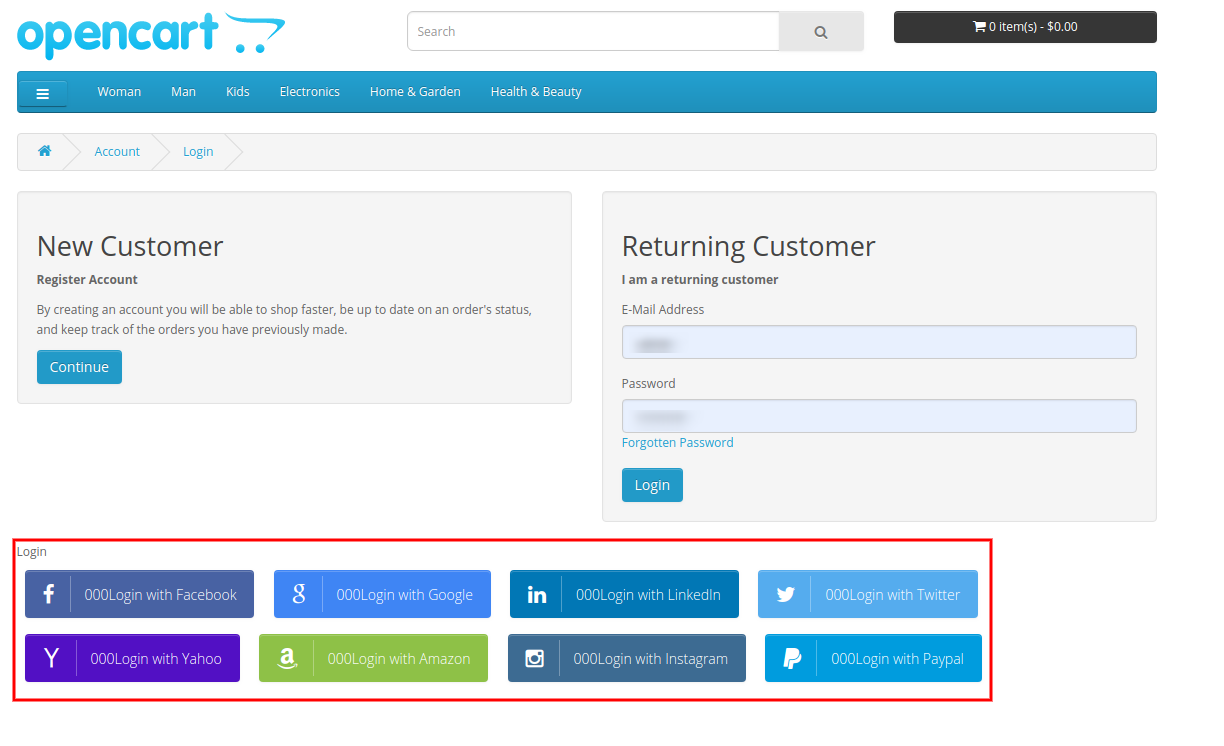
Large Rectangular Icon with Highlight Effect and Large Rectangular Icon with Highlight Effect, customized button color will look as below mentioned image.
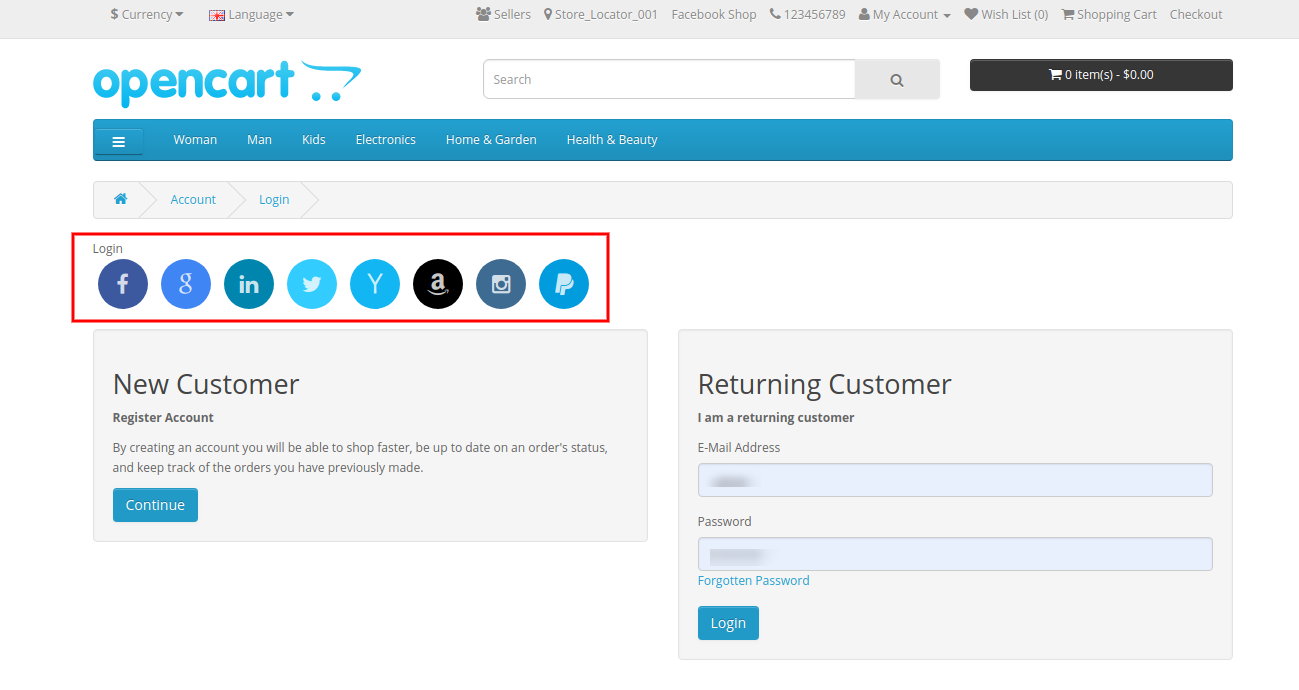
Small circular icon with a rotating effect and small rectangular icon with highlight effect will be displayed as below mentioned image:
This way, the customers don’t need to login/register via a lengthy process. They just need to click on social login buttons and easily login/register.
For more details about this OpenCart Social Login extension, visit here: