Getting consistent, purchase-ready traffic to your store is hard. You can spend weeks fine-tuning your social ads or pouring money into influencer campaigns, and still not see the returns you were hoping for.
For stores built on PrestaShop or OpenCart, tapping into Google Shopping isn’t always easy. Introducing the PrestaShop Google Shopping Module and OpenCart Google Shopping Extension are built specifically to handle that connection, and from what merchants report, they do it well.
Not all website visitors are the same. Someone casually browsing is very different from someone who typed “buy waterproof hiking boots size 11” into Google. That second person is ready to buy, they just need to decide where.
Google Shopping puts your products in front of people like that. They’ve already made up their mind about what they want. Now they’re comparing prices and checking availability. That’s why Google Shopping tends to convert better than most other paid advertising options.
And because your product image, price, and store name show up before anyone even clicks, you’re only attracting people who are genuinely interested. For PrestaShop and OpenCart store owners who want to use their ad budget wisely, this kind of targeted traffic really helps.
🛍️ Also on PrestaShop?
Sync Smarter, Sell Faster: PrestaShop Google Shopping Integration Module by Knowband
Automatically sync your product catalog with Google Merchant Center, track performance with UTM parameters, and reach millions of high-intent shoppers.
The Knowband PrestaShop Google Shopping Module and the Knowband OpenCart Google Shopping Plugin were both developed to solve the same core problem: listing your product catalogue into Google Merchant Centre cleanly, accurately, and without constant manual work. And that problem is bigger than it sounds.
Feed management, when done manually, is a genuine headache. As the Prices change, Stock runs out, New variants get added it gets very difficult to synchronise all the changes to Google merchant. If your feed doesn’t reflect those changes quickly, you end up with disapproved products from Google, confused shoppers clicking on listings that are out of stock, and in worse cases, policy violations that can affect your entire Merchant Centre account.
Knowband’s Prestashop Google Shopping Integration Module solution handles all of that automatically, syncing price and inventory in real time, mapping categories correctly, and generating feeds that meet Google’s requirements without you having to manage it by hand.
Google Merchant Centre Integration: This Google Shopping Integrations connect your store to Google Merchant Centre through a straightforward setup process. Since no technical knowledge or coding is required, your product data syncs reliably.
Product Feed Generation: You can also generate a Google Shopping product feed in XML or CSV format. Furthermore, you can choose between real-time or scheduled updates, so your listings stay current while reducing manual work.
Category & Attribute Mapping Store admins can also map your store categories to Google Product Categories and match product attributes like GTIN, MPN, brand, availability, and condition. As a result, your products get approved faster and listed more accurately.
Multi-Country & Multi-Language Support You can set up separate feeds for different countries, languages, and currencies. Furthermore, this way, you can reach international audiences and run Google Shopping Ads across multiple markets with ease.
Start Selling on Etsy from Your Prestashop Store
Now selling on Etsy is easy with Knowband’s Prestashop Etsy Marketplace Module.
Cron-Based Synchronisation Using this Knowband Prestashop Google Shopping Module, schedule automatic feed updates via cron jobs to keep pricing, stock levels, and product details consistently accurate. Furthermore, this helps avoid disapproval caused by outdated information.
Product Filtering Store admins can also choose which products appear in your feed by filtering on category, price range, stock status, or specific product IDs. That way, only the right products get submitted to Google Shopping.
Final Thoughts
Google Shopping isn’t a magic solution, but it’s one of the more reliable growth channels available to eCommerce stores today, especially for merchants on PrestaShop and OpenCart who want to drive direct traffic without being tied to marketplace fees. The Knowband PrestaShop Google Shopping Module and Knowband OpenCart Google Shopping Plugin take care of the technical side of that equation: feed generation, real-time syncing, category mapping, and Merchant Centre compatibility.
From there, it’s about building on that foundation, optimising your product data, testing campaign structures, and paying attention to what the numbers are telling you. Done consistently, it’s the kind of channel that compounds. And for stores that are serious about growing on their own terms, that’s exactly what you want.
Are you struggling to increase the visibility of your OpenCart store? Want to attract more customers and boost your sales? The solution lies in listing your products on Google Merchant Console.
By integrating your store with Google Merchant Center, you can display your products on Google Shopping, reaching millions of potential buyers.
Therefore, we’ll explore how Knowband’s OpenCart Google Shopping Integration Module can help you grow your business its features and benefits, and why it’s a must-have tool for every OpenCart store owner.
Introducing Google Shopping for eCommerce?
Google Shopping is a platform where users can search for products and compare prices from different online stores. Furthermore, when you list your products on Google Shopping, they appear in Google search results and in the Shopping tab. This not only increases your store’s visibility but also drives more potential customers to your website.
To display your products on Google Shopping, you need to create a product feed and submit it to Google Merchant Center. This is where the OpenCart Google Shopping Integration Extension helps by automating the process for the Opencart eCommerce merchants.
Why Do You Need OpenCart Google Shopping Integration?
Manually adding and updating product feeds in Google Merchant Center can be time-consuming and complex. However, the OpenCart Google Shopping Integration Plugin simplifies this by automatically syncing your store’s products with Google Shopping.
Automated Feed Submission: No need to manually upload product details. The extension syncs your product feed with Google Merchant Center.
Increased Sales & Traffic:Your products get listed on Google Shopping, bringing more traffic and potential buyers.
Error-Free Listings: The module ensures that product data is submitted in the correct format, reducing errors and feed rejection.
Real-Time Synchronization: Any changes you make in your store (price, stock, descriptions) are automatically updated in Google Shopping.
Key Features of OpenCart Google Shopping Integration Module
The OpenCart Google Shopping Module comes with powerful features that make selling on Google Shopping easier.
1. Easy Product Feed Generation: The Knowband module generates Google Shopping Feeds for OpenCart, which includes all product details like title, description, price, and images.
2. Automatic & Manual Sync Options: With the OpenCart Google Shopping Connector, you can schedule automatic feed updates or manually sync whenever needed.
3. Advanced Filtering Options: The OpenCart Google Shopping Synchronizer allows you to select specific products, categories, or brands to include in the feed.
4. Multi-Language & Multi-Currency Support: Sell internationally? No problem! The extension supports multiple languages and currencies.
5. Feed Optimization: The module ensures your product feed follows Google’s guidelines, improving your chances of getting approved.
How to Use OpenCart Google Shopping Integration Plugin?
Setting up OpenCart Google Shopping Feed Integration Extension is easy. Follow these steps:
Free vs. Paid Google Shopping Integration Modules:
If you are looking for a Free Google Shopping Opencart Synchronization Module, we have got you covered at Knowband. While our free Opencart Google Shopping Connector module offers basic functionality, premium OpenCart Google Shopping Merchant Free Extensions come with advanced unlocked features.
Furthermore, the paid OpenCart Google Shopping Integration Extension is a better investment if you want seamless integration and long-term benefits.
Conclusion!
Integrating your OpenCart store with Google Shopping is one of the best ways to boost sales and reach more customers. Moreover, the OpenCart Google Shopping Integration Module simplifies the process by automating product feed submissions and ensuring real-time updates.
If you haven’t started using the Opencart Free Google Shopping Synchronization Module, now is the time! Enhance your store’s visibility, drive more traffic, and increase your sales with the OpenCart Google Shopping Module.
Would you like to see a demo of the Opencart Google Merchant Centre Connector in action? Get started today and grow your online business!
In today’s competitive eCommerce landscape, getting your products in front of potential customers is crucial for success. One of the most effective ways to increase your online visibility is through Google Shopping, which allows retailers to display their products directly in Google’s search results. Furthermore, if you’re running an OpenCart store, integrating your product catalog with Google Shopping can be made simple with the Knowband OpenCart Google Merchant Feeds Plugin.
In this guide, we’ll walk you through everything you need to know about integrating your OpenCart store with Google Shopping using the Knowband extension. Whether you’re a novice or an expert, this guide will help you streamline your product listings and increase your chances of getting your products noticed on Google Shopping.
About Google Merchant Console?
Before we dive into the integration, let’s first understand what Google Shopping is. Essentially, Google Shopping is a service that allows businesses to display their products in the form of ads. These ads appear in Google search results and on the Google Shopping platform, providing customers with a visual, product-based search experience.
Using Google Shopping, your products can appear with images, prices, and merchant details, increasing the chances of catching customers’ attention. But to tap into this lucrative marketing channel, your product feed needs to be properly integrated with Google Merchant Centre, where Google will assess your products before making them live.
Benefits of Google Shopping for OpenCart Store Owners!
Increased visibility: Your products can appear directly in Google’s search results, putting them in front of more potential customers.
Targeted advertising: Google Shopping allows you to target specific audiences based on location, interests, and browsing habits.
Visual appeal: Google Shopping ads feature product images, prices, and descriptions, which can capture customers’ attention more effectively than text-based ads.
Higher conversion rates: Because Google Shopping ads provide detailed product information upfront, they attract more qualified leads, which can result in higher conversion rates.
The Challenges of Manual Integration!
While Google Shopping is a powerful tool for eCommerce businesses, manually integrating your product catalog with Google Merchant Centre can be tedious. Therefore, you need to create a product feed that includes all the relevant details such as product titles, descriptions, prices, availability, and images. On top of that, you must ensure that your feed meets Google’s strict guidelines.
Without an automated solution, keeping your product feed up to date can become a full-time job. This is where the Knowband OpenCart Google Shopping Feed Integration Extension becomes essential for your store.
Why Choose Knowband OpenCart Google Shopping Connector Plugin?
The Knowband OpenCart Google Shopping Connector is designed to make Google Shopping feed management simple and efficient. Furthermore, it automates the process of synchronizing your product feed with Google Merchant Centre, ensuring that your listings are always up to date with the latest prices, inventory levels, and other essential product information.
Automated Sync: The extension allows for the automatic synchronization of your product catalog with Google Merchant Centre. This saves you time and ensures that your Google Shopping listings reflect real-time information about your products.
Error Handling: The Google Merchant Feed for Opencart automatically detects and corrects errors in your product feed to ensure that it complies with Google’s strict feed requirements.
Customizable Feeds: You can create custom product feeds based on specific categories, brands, or other attributes, giving you full control over which products you list on Google Shopping.
Multi-language and Multi-currency Support: The OpenCart Google Shopping Synchronizer supports multi-language and multi-currency stores, making it ideal for global businesses.
User-Friendly Interface: The plugin offers an easy-to-use admin panel that allows store owners to configure the feed settings without any technical expertise.
Key Features of the Knowband OpenCart Google Shopping Integration Module!
The Knowband OpenCart Google Shopping Integration Extension offers a range of features that streamline the process of listing your products on Google Shopping:
Real-Time Synchronization: Automatically sync product data, including prices, availability, and other key details, between your OpenCart store and Google Merchant Centre.
Product Filter Options: The Opencart Google merchant console integration plugin provides the ability to filter products based on categories, availability, and other parameters to help you select what you want to list on Google Shopping.
Error Logging and Reporting: The extension logs any issues with the feed and helps you quickly resolve them.
Bulk Upload: Upload thousands of products to Google Shopping in one go with the OpenCart Google Merchant Centre Connector.
SEO-friendly: The module generates SEO-optimized product feeds, improving your product visibility in search results.
Knowband’s OpenCart Google Shopping Integration Module
Discover Knowband’s OpenCart Google Shopping Integration to easily sync your products with Google Shopping and boost your online visibility and sales.
One of the most attractive features of the Knowband Opencart Google Shopping Merchant Free Extension is that it offers a free version. This Opencart Free Google Shopping synchronization module provides basic functionality, enabling you to get started with Google Shopping without a major investment. Moreover, for store owners looking to explore Google Shopping for the first time, this Free Google Shopping integration module for Opencart is an excellent option to test the waters.
Conclusion!
Integrating your OpenCart store with Google Shopping can unlock tremendous growth opportunities for your eCommerce business. With the Knowband OpenCart Google Shopping Connector Plugin, the process becomes effortless, allowing you to focus on other aspects of your business while your product listings are kept up-to-date in Google Shopping.
Whether you are using the Opencart Free Google Shopping synchronization module or opting for the paid version, this extension offers a comprehensive solution for getting your products in front of more potential customers through Google Merchant Listings.
OpenCart Google Shopping Integration Plugin by Knowband offers an excellent and fully-functional integration solution to the OpenCart store admin. Further, he can list and display their products on Google sponsored ads. In fact, the most advanced OpenCart Google Shopping Integration module offers an easy way to display your products on Google Shopping. Moreover, get thousands of new customers on your online shop.
[Important Update]Google Merchant API Update (July 1, 2026)
The OpenCart Google Shopping module has been updated to use the Google Merchant API for product synchronization and store authentication with Google Merchant Center, replacing the previous integration built on the Content API for Shopping (deprecated).
Improved reliability for Google Shopping feed sync and product data upload
Modern OAuth-based authentication aligned with Google’s current API standards
Required migration – the Content API for Shopping will cease operating on 18 August 2026, making migration essential for any business relying on API-based product management
Continued Google Merchant Centre compatibility, avoiding feed disruption, sync errors, or product listing removal after the shutdown deadline
Access to newer capabilities such as improved product data management for Google Shopping ads and free listings
1.1 Merchant Benefits of Knowband’s OpenCart Google Shopping Integration Plugin:
OpenCart Google Shopping Marketplace Integration allows the store admin to well-rank their products on Google Shopping in the shortest time.
OpenCart Google Shopping Marketplace Integration Module makes it easier for the store admin to connect the store and list the products.
The OpenCart Google Shopping Marketplace Integration Extension makes it easier to set up the connection. Further, this happens in a few simple steps.
OpenCart Google Shopping Marketplace Integration Plugin offers profile-based product upload. Thus, the products can list in bulk and inventory is manageable with ease.
With the help of the Google Shopping OpenCart Integration, the store admin can map the categories of the OpenCart with the category of Google Shopping.
Multiple categories of OpenCart are mappable with a single category of Google Shopping via Google Shopping OpenCart API Integration.
The admin can remove the category at a single click from the back-end of the OpenCart Google Shopping API Integration.
The attributes of the products are mappable with the attribute of Google Shopping with the help of the Google Shopping OpenCart Connector.
OpenCart Google Shopping synchronization module can upload thousands of products in one go. In fact, the products of the mappable category can upload in bulk.
The inventory is manageable from the back-end of the admin interface of the OpenCart Google Shopping Integration plugin. Further, the products can remove easily.
OpenCart Google Shopping Connector allows the merchants to create feeds and schedule their uploads.
The admin can set the country and the corresponding language for feed.
The Google Shopping integration module allows for easy integration. In fact, the admin can download the feed file and upload it to Google Merchant Center.
In case the admin is not comfortable with a cron job, the admin can get manual synchronization. Additionally, the synchronization happens page-wise with the help of Google shopping OpenCart integration.
The audit report offered by the OpenCart Google Shopping feed synchronization extension allows the admin to keep a track of the various task being performed in the back-end.
The admin can see the errors that occurred while product listing with the help of the OpenCart to Google Shopping Synchronization.
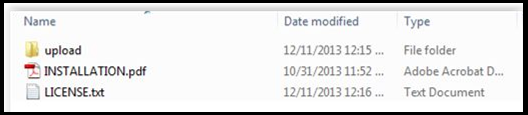
1. Download the zipped file of the OpenCart Google Shopping module from OpenCart & unzip it into a folder. Further, after unzipping the folder structure of the Google Shopping plug-in will be similar to shown in the below screen.
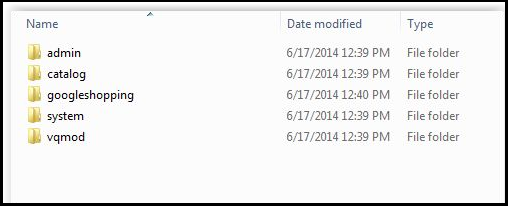
2. Open the upload directory & you will see the following folder structure.
3. Login via FTP & Drag-drop all the folders into your server root directory.
4. Give write permission (775 OR 777) to the google shopping folder and its subsequent folders. the google shopping folder can be one of the locations mentioned below.
system/google shopping
5. The OpenCart Google Shopping extension is now ready to be installed in your OpenCart store.
6. Click on the Install link to install the OpenCart Google Shopping Synchronization plug-in.
7. To access the Google Shopping plugin, Click on the edit button in of OpenCart Google Shopping module as shown below.
8. On clicking, the edit button, the admin interface of the OpenCart Google Shopping module will open. In fact, it contains 7 different tabs as mentioned below:
3.0 Admin Interface
The OpenCart Google Shopping Integration plugin offers several configuration options that allow the store admin to connect their store. Moreover, list their products. Further, the various customization tabs offered by the Google Shopping OpenCart Integration extension includes:
Connection Settings
General Settings
Profile Management
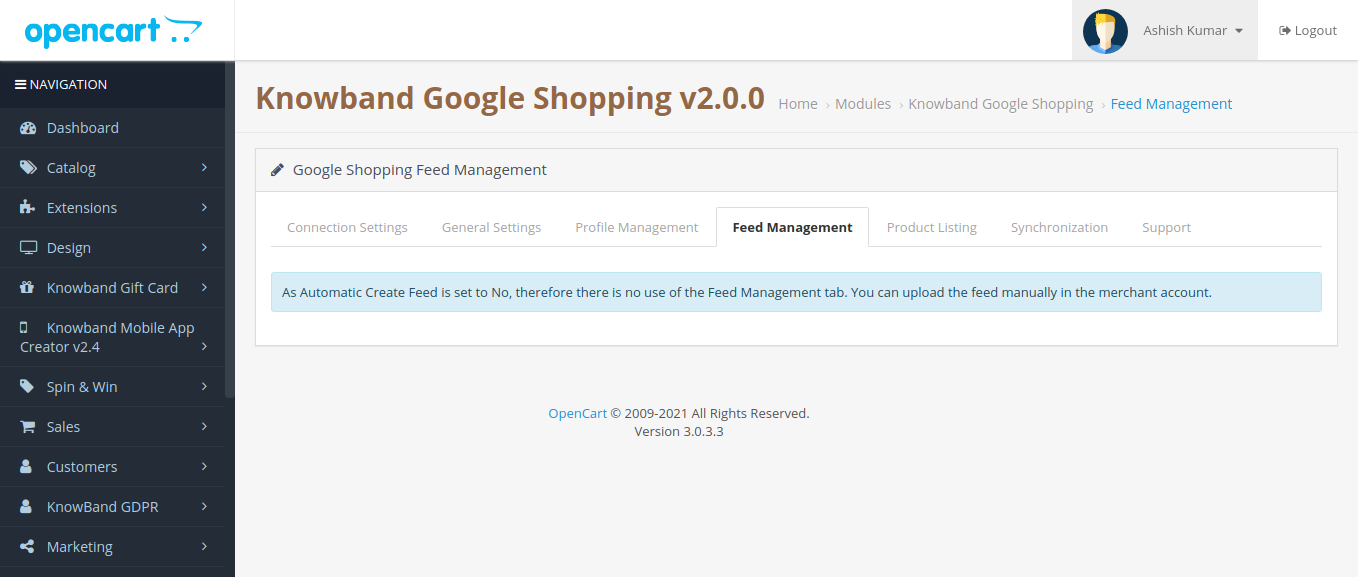
Feed Management
Product Listing
Synchronization
Lets us discuss the various tabs one by one.
3.1 Connection Settings
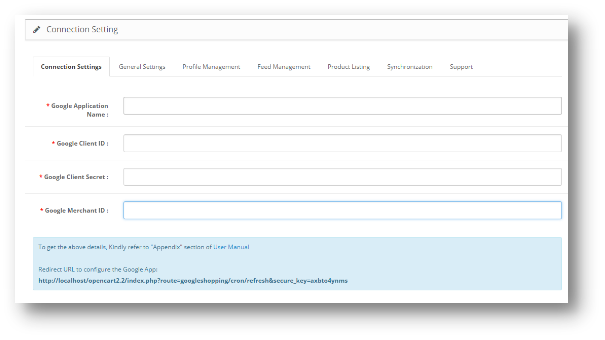
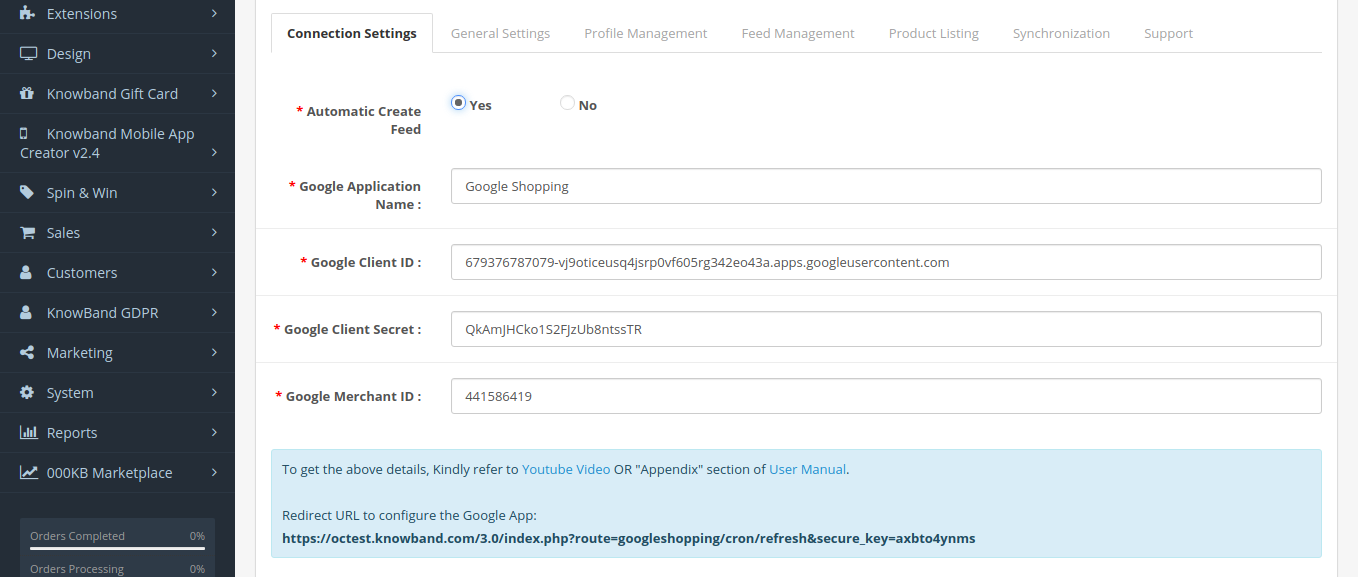
On the connection settings page, there is an option provided “Automatic Create Feed Yes, No.
If it’s set to Yes, then only the connection settings field will display. Moreover, If it’s set to No, Fields will hide there is no need to add the Google Credentials.
Google Application Name: Enter the name of the project/application that you created for Google Shopping. (See Appendix)
Google Client ID: Enter the Client ID that will authenticate the connection between the store and Google Merchant. By default empty but required field. (See Appendix A)
Google Client Secret: Enter the client secret to set up the connection. By default empty but required field. (See Appendix A)
Google Merchant ID: By default empty but required field. Here, you will provide the merchant ID of your Google merchant center account.
3.2 General Settings
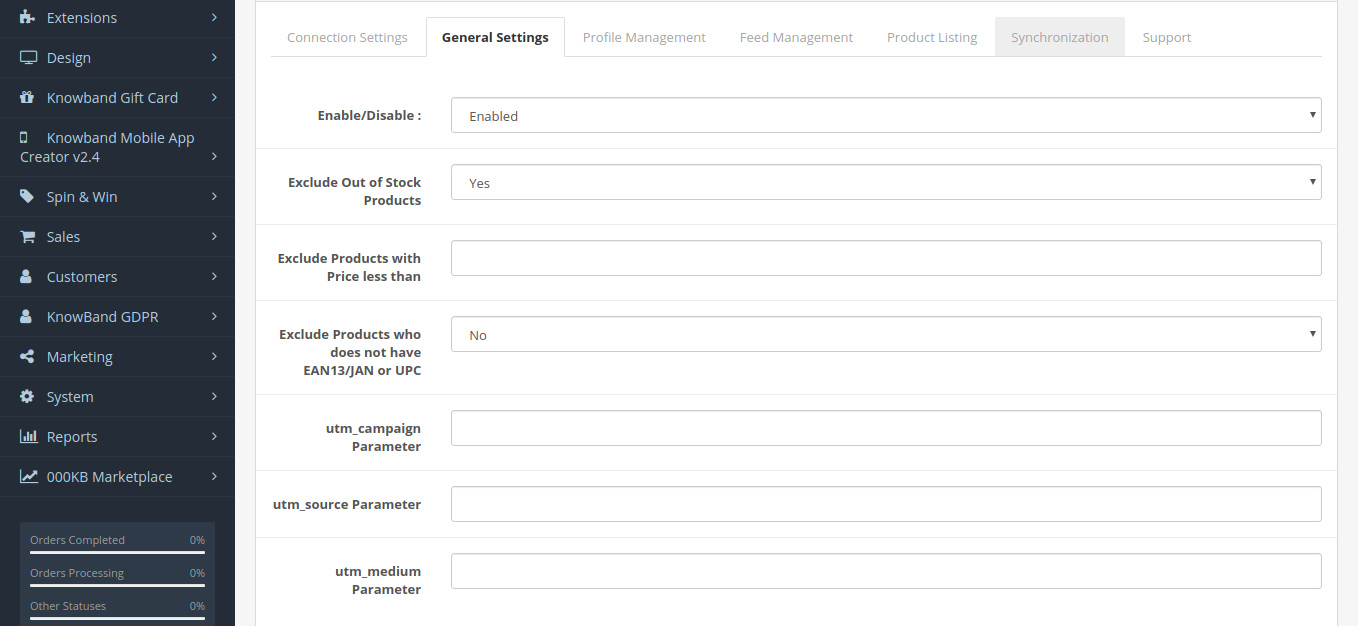
The General Settings tab of the Google Shopping OpenCart Integration plugin allows the admin to make some basic changes and authenticate the OpenCart Google Shopping integration.
Enable/Disable: Enable/disable the OpenCart Google Shopping integration plugin by selecting the options from the drop-down menu.
Image Size of Product: Select the default size of the images from the drop-down menu.
Exclude Out of Stock Products: Select Yes from the drop-down menu if you want to exclude the out-of-stock products. In fact, if yes is selected, then, the products that are not in the inventory will not display in the Google search results.
Exclude Products with Price Less than This field enables you to exclude the products whose price is below a specified limit. For instance, if the admin enters the amount ‘X’ here, then, any product whose price is below ‘X’ will not display in the Google Shopping results.
Exclude Products that do not have EAN13/JAN or UPC: If you want to exclude the products that do not have EAN13/JAN or UPC, then, select Yes.
Sync Type: Select the type of synchronization from the drop-down menu.
Utm_campaign, Utm_source, Utm_medium Parameter: Enter the UTM for tracking the performance.
Select your Default Language: Select the default language that you want to use for feed synchronization. Therefore, the OpenCart Google Shopping Feed synchronization extension offers multi-lingual support.
3.3 Profile Management
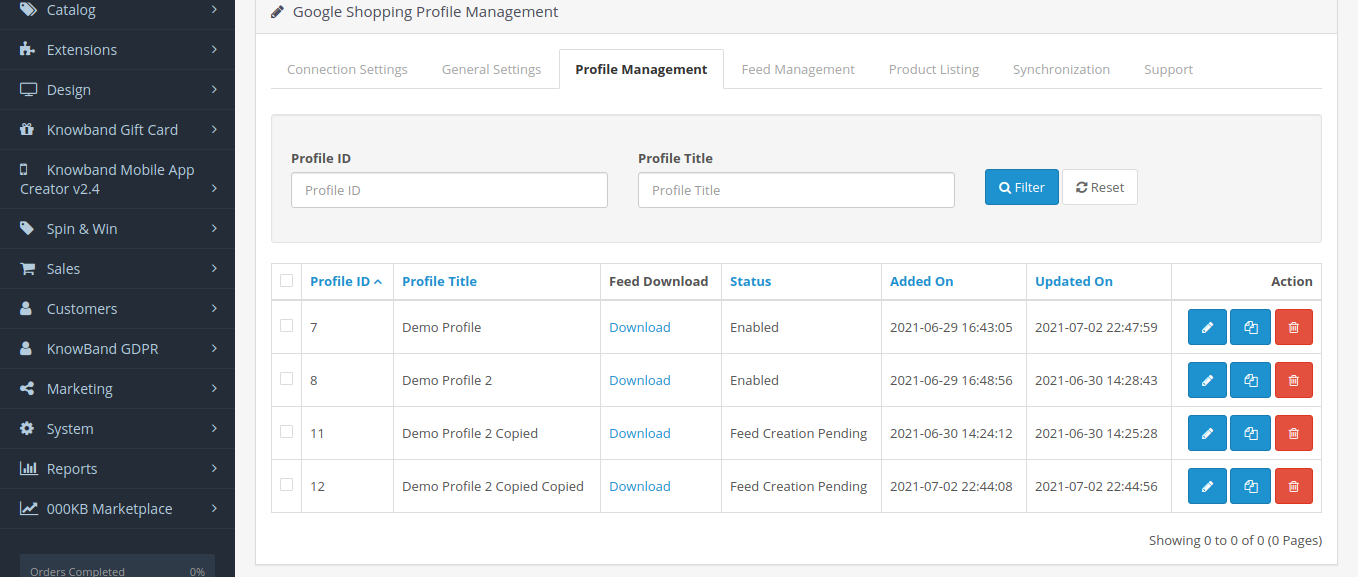
In the “Profile Management” tab clicking on the copy link again, the profile will copy the profile data. However, the profile will be disable. Store category will also not be copied. Further, once the store category will be selected in the copied profile the status will change to enabled.
3.3.1 How to Create New Profiles?
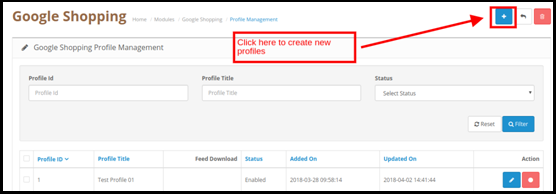
To create a new profile, click on the ‘+’ sign on the top right position of the admin interface of the OpenCart Google Shopping Feed synchronization plugin.
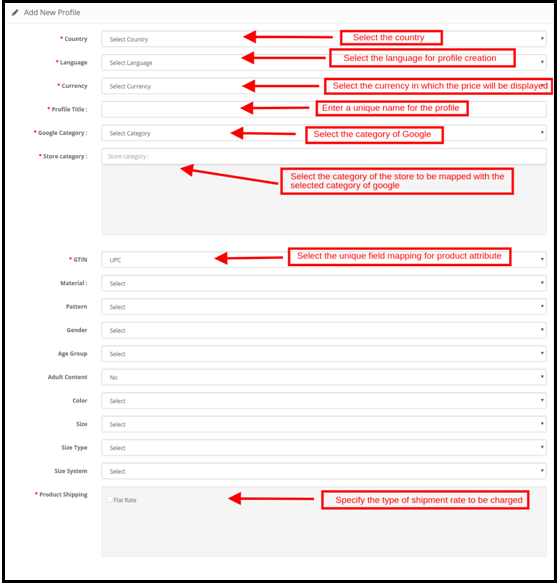
On clicking, you’ll head to the profile creation page. Further, the various fields are discussed in detail below:
Country: Select the country where you want to showcase the products of the profile in the Google Shopping section.
Language: Select the language for profile creation.
Currency: Select the currency in which you want the price of the products to display.
Profile Title: Enter a title for the respective profile.
Google Category: Select the category of Google that is to map with the categories of the OpenCart store.
Store Category: OpenCart Google Shopping connector offers one-to-many category mapping. In fact, select the categories of the store that you want to map with the selected category of Google.
GTIN: Select the unique field mapping for the product attributes. Furthermore, the Google Shopping OpenCart connector will identify the products according to the mappable attribute.
Material: Select the material of the product from the drop-down list.
Pattern: Choose the pattern from the list.
Gender: Select the Gender for which the product is intended. In fact, the various options list in the drop-down list.
Age Group: Select the expected age group of the users of the product.
Adult Content: Specify if the product has any adult content or not.
Color: The color attribute describes the color of the product. Further, these attributes help create accurate filters and narrow down the search results.
Size: The size attribute specifies the standardized size of the product.
Size Type: The attribute describes the cut of your product. In fact, this helps create accurate filters.
Size System: With this attribute, you can explain which country’s sizing system your product uses.
Product Shipping: Select the type of shipping rate that is to be charged.
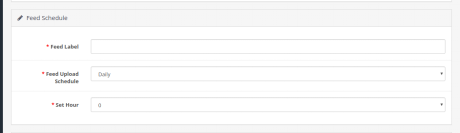
In addition, the Feed Schedule option is now provided under the profile creating a page. Further, no need to create the feed separately under the Feed Management tab.
Feed Label: Enter a unique name for the feed.
Feed Upload Schedule: Select the schedule for the feed synchronization.
Set Hour: Set the Hours of the days for the feed upload schedule.
3.3.2 How to Edit/Delete the Profiles?
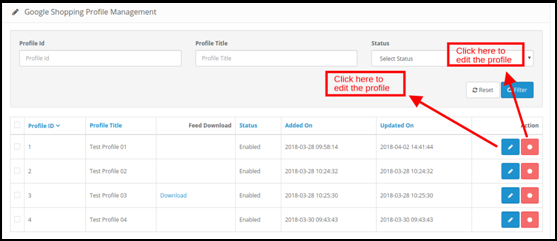
The admin can easily edit or delete the profiles from this section of the OpenCart Google Shopping integrator. In fact, to do so, click on the ‘Edit’ or ‘Delete’ button corresponding to each profile.
3.4 Feed Management
The Google Shopping OpenCart integrator offers a user-friendly interface to manage the feeds. Further, the admin can create feeds and sync the same with the Google Merchant Center with the least hassle.
3.4.1 How to Create new Feeds?
If the Automatic Create Feed is set to No, then in the “Feed Management”, Show the message “As Automatic Create Feed is set to No, therefore there is no use of the Feed Management tab. In fact, you can upload the feed manually in the merchant account”.
If the Automatic Feed is set to No, then the Feed URL will be generated so that customers can copy the feed URL & create the feed in the Google Merchant account manually.
Synchronize the feeds by executing cron in the synchronization section of the OpenCart Google Shopping integration plugin. (See Section 3.)
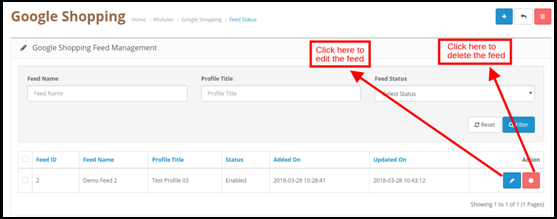
3.4.2 How to Edit/Delete Feeds?
To edit/delete the feeds, click on the Edit or Delete corresponding to each feed as shown in the image below:
3.4 Product Listing
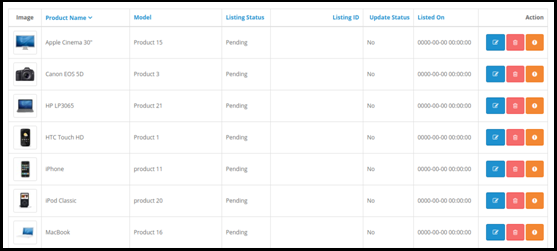
The product listing is available in this tab of the Google Shopping OpenCart integrator.
You can renew or remove the products by clicking the ‘Relist’ or ‘Remove’ button corresponding to each product.
The admin can even view the errors that occurred while product listing by clicking on the ‘View Error’ button.
The listing status specifies the status of the products. The status of the products can be synced from Google Shopping by executing cron in the Synchronization tab of the Google Shopping OpenCart connector. (See Section 3.5)
3.5 Synchronization
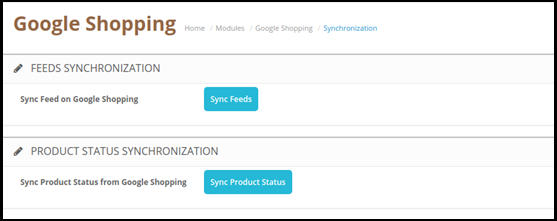
The cron jobs offered by the OpenCart Google Shopping feed integration module allow the admin to keep everything up-to-date without any manual synchronization.
Feed Synchronization: This cron job allows the admin to sync the feeds on Google Shopping.
Product Status Synchronization: Product Status CRON will also give the message that “This functionality is not available as Automatic Create Feed is selected NO in the Connection Settings Tab”. In case, the Automatic Create Feed is set to Yes, then it will synchronize the Product Status from Google Merchant to the Knowband module.
Appendix
How to Create Google Shopping Account?
Before uploading your products on Google shopping, you must have your Google merchant account. If you don’t have then please follow the below URL:
Follow the instructions given on the above URL and create your account.
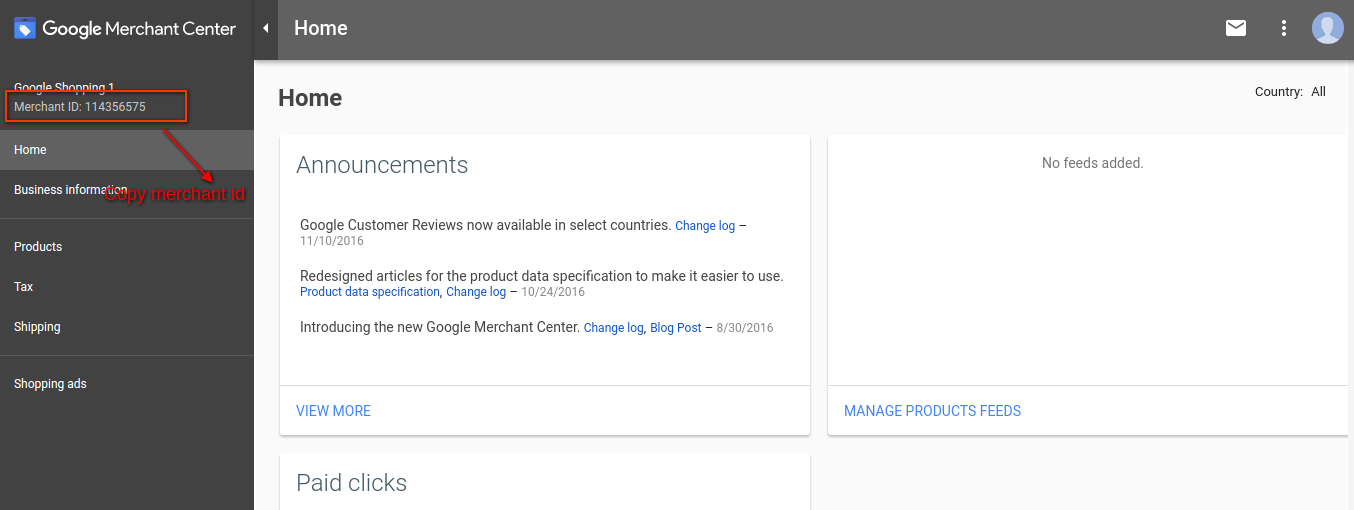
After creating your account, you will head to your merchant center homepage as shown in below screen:
Copy your merchant id highlighted in the above screen and save it in module configurations.
Verify your Website for Google Merchant Account
This verification process is a compulsory process to upload your products to Google Shopping. If you do not verify your site then the module will not be able to upload products and may result in an error.
To verify your website, please follow the below instructions:
Step 1: Go to the “Business Information” tab in your Google Merchant Account.
Step 2:Under the “About Your Business” tab, provide the URL of your store. For example, https://www.example.com. Save URL.
Step 3:After saving a website URL, Under the “Website” tab, click on the “Claim Your Website” link. Furthermore, this will show you the link to an HTML file. Hence, download this file and upload it to your root directory of the store.
Step 4:After uploading the HTML file, execute the URL given by Google in step 3.
Step 5:Click on the “Verify & Claim” link.
How to get Client ID and Secret
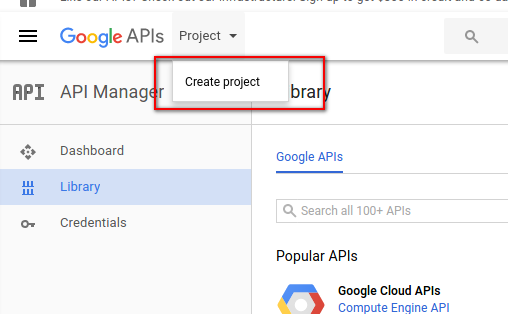
To get a Google client id and secret you need to create a project in a Google developer account. Further, please go to the below URL to sign in to the Google developer account.
On the above URL, create a project by clicking the link shown in below screen:
Step 1:Name your Project Name. In addition, click on the “Create” link. Furthermore, after creating a project, Google will redirect to the same page and your new project will be selected.
Step 2:Go to the library tab, search for “Content API for Shopping ”. Furthermore, enable this API for this project.
Step 3:Click on the “Credentials” tab. Therefore, this tab will show 3 tabs.
Stage 4:Set your application name in “OAuth Consent Screen” and save it.
Step 5:Click on the “Credentials” tab. Moreover, click on the “Create Credentials” button.
Step 6:After clicking the “Create Credentials” button, Google will be shown credentials type options. In fact, choose “OAuth client ID”.
Step 7: Set application type as “Web Application”.
Step 8: Set the “Authorized Redirect URIs” field. Further, your redirect URI is given on the module configuration page. Additionally, please copy from there and paste it into this field.
Step 9:Click on the “Create” button. After saving credentials, Google will generate the client id and secret for you. Copy and paste them into the corresponding field in module configuration.