Magento 2 Gift Card Manager Extension- User Manual

1.0 Introduction

Let your customers purchase gift cards for their friends and family. The store admin can create multiple Gift Cards for special occasions like Birthday, Anniversary, Valentine Day, Friendship Day, Fathers Day etc so that as per the need customers can select the gift cards for their dear ones.

Gift Card offers the following benefits:

1) Encourage customers to spend more
2) Lower return rates
3) Make last-minute shopping possible
4) Generate revenue in advance of sales
5) More convenient

Knowband offers Magento 2 Gift Card Module which provides a flexible way for your customers to purchase a gift for someone from your store. This feature-rich Magento 2 Gift Card Extension allows the online merchant to create multiple templates for gift cards and sell the gifty cards easily. The online store merchant can set the gift card amount from the admin interface and the customers can select the preferred gift card for sending to their loved ones.

1.1 Features of Magento 2 Gift Card Manager Extension:

  1. With the help of this Magento 2 Gift Card Manager Addon by Knowband, the Online retailer can easily incorporate the Gift card functionality in their store.
  2. Magento 2 Gift Module provides an option for the merchant to link the Gift Card option to the Header, Footer, My Account and Left Side on the Front-end as per the requirement.
  3. The Admin can select the Gift Card order status in which the gift card orders will be marked as delivered and the Gift Card code will be generated.
  4. Magento 2 Gift Card Vouchers Extension allows the store owner to set the Gift Card delivery gap in the number of days.
  5. By using the responsive Knowband Magento 2 Gift Card Manager Extension, the eCommerce retailer can set the prefix for the voucher code of the gift card.
  6. The Magento 2 Gift Card Module allows the admin to create N number of interactive gift card interfaces for various occasions including Birthdays, Halloweens, New Year, Christmas, Feast, Holidays or any other special event.
  7. Knowband’s Magento 2 Gift Module enables the e-merchants can customize the gift card products in a few simple steps. They can fix the Product amount, validity duration and other terms at a few button clicks.
  8. The Store Admin can enable the Free Shipping option as per the need from the back-end of the Gift Card for Magento 2.
  9. Magento 2 Gift Card Vouchers offers the readymade email template and he/she can customize the email template as per the requirement.
  10. The Store admin even gets an option to keep track on the orders received for the gift card from the back-end. It involves the recipient email, date of sending as well as the status of the gift cards.
  11. Magento 2 Send Gift Card Extension is Mobile responsive.
  12. With the help of this Magento 2 Gift Card Extension, the Store admin has a chance to acquire new customers while retaining the existing customers.
  13. Magento Gift Voucher is easy to use and install.
  14. Magento Gift Card Manager Module is fully customizable.

Technology for Development

Language: PHP
Frame Work: Magento

2. Installation

After purchasing Magento 2 Gift Card Extension, the store admin will get following files:

1.Knowband_Giftcardmanager.zip which contain source code of the Magento 2 Send Gift Card Extension.
2. User Manual which includes all the details and helps regarding an extension.
3. Follow the following steps to install Magento 2 Gift Vouchers extension:

The steps to install the Magento 2 Gift Card Module are mentioned below:

1. Buy the Magento 2 Gift Card Manager module from Knowband. You can download the extension package.
2. The package has a zipped file that contains the user manual and the source code of Magento 2 Gift Card Extension. Unzip the package.
3. Create a folder{Magentoroot}/app/code/Knowband/Giftcardmanager
php -f bin/magento module: enable –clear-static-content Knowband_Giftcardmanager
4. Upload the extracted content in the above folder via FTP manager (like Filezilla or WinSCP – download here: https://filezilla-project.org/).
5. Now run below commands to install the plugin:

php -f bin/magento module: enable –clear-static-content Knowband_Giftcard
php -f bin/magento setup:upgrade
php -f bin/magento setup:di:compile
php bin/magento setup:static-content:deploy

6. The extension is now installed and ready for use. In Admin Panel go to “Knowband > Gift Card Manager”

You can now configure and use the Knowband Magento 2 Gift Card for product module.

3.0 Admin Panel

After installing Magento 2 Gift Card Manager Extension in the Magento store, the store owner can make the changes without any hassles. There are following ways in which admin will interact with Magento 2 Gift Card Vouchers module functionality:

1. Module Configuration
2. Gift Card Template
3. Gift Card Products
4. Gift Card Orders

Each interface has been explained with proper detailing in following sections.

3.1.1 Module Configuration

After clicking on the Gift Card Module, the system will open Module Configuration tabs by default.

In the Module Configuration tab of Magento 2 Gift Card Extension by Knowband, online sellers can enable Gift Card functionality and set the delivery gap, gift card prefix and more. Screenshot of the Module Configuration tab shown below:

Initially, fields in the above form will be already filled with their default values.

1. Enable the Extension:  Initially, this will be “OFF”. Admin can enable/disable Magento 2 Gift Card Extension by turning ON/OFF this setting.

2. Enable Header Link: In this section, the online retailer can enable the display of the gift card option on the header.

Front End Preview:

3. Enable Left Link: By using the Magento 2 Gift Voucher Extension, the admin has can enable display of gift card link on the left side of the screen by clicking the button.

Front End Preview:

4. Enable My Account Link: The Admin can enable/disable Gift Card link in the Footer section as per the business requirement.

Front End Preview:
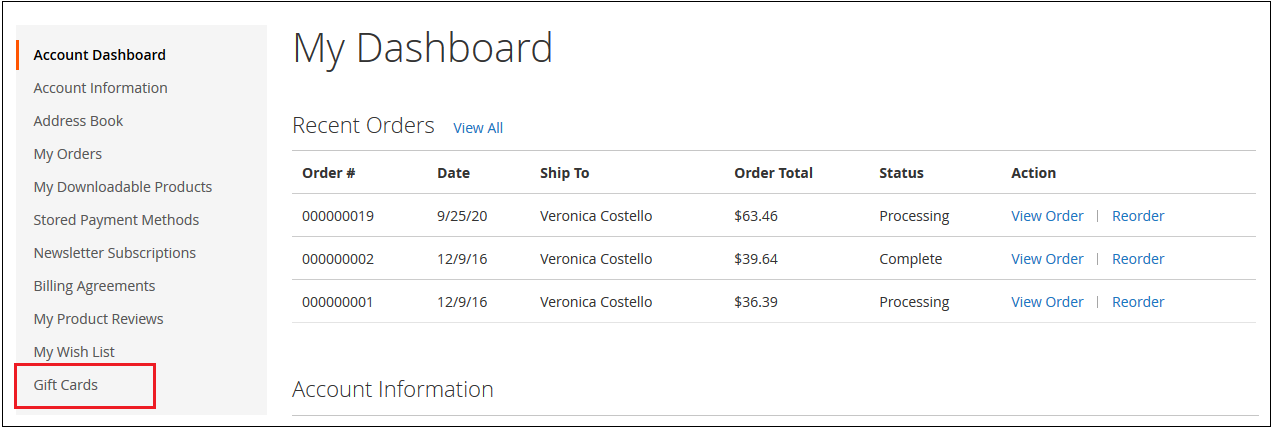
5. Enable Footer Link: The admin can enable the display of the gift card option in the My Account section.

Front End Preview:

6. Gift Card Prefix: In this option Magento 2 Gift Module the admin can set the prefix for the voucher code of the gift vouchers from here. The code can be entered in the format Ex: KB******

7. Gift Card Order Status: In this field of the Magento 2 Gift Cards module the admin can the default order status for the gift card orders.

As soon as the admin updates the order status for the Gift Card order, the gift card will be sent to the recipient via email.

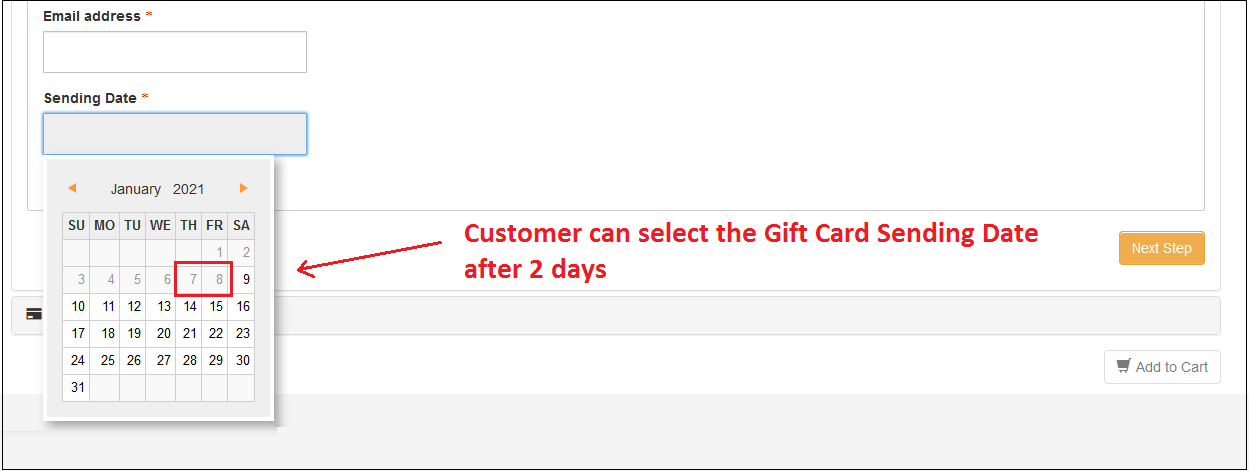
8. Minimum Gift Card Delivery Gap: This field of Magento 2 Gift Card Voucher Module allows the Store admin to enable the Voucher to send data after the specific no of days.

Ex: If gift card window values are set to 2 from the admin panel. These changes will reflect the Front End and the user will be able to select the send date after two days of the current date.

Admin Panel:

Front End Settings:
3.1.2 Email Settings

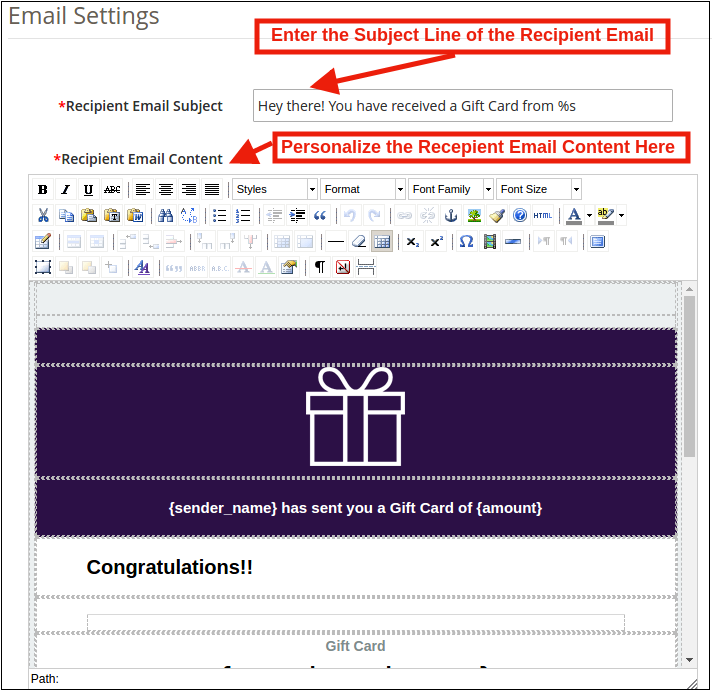
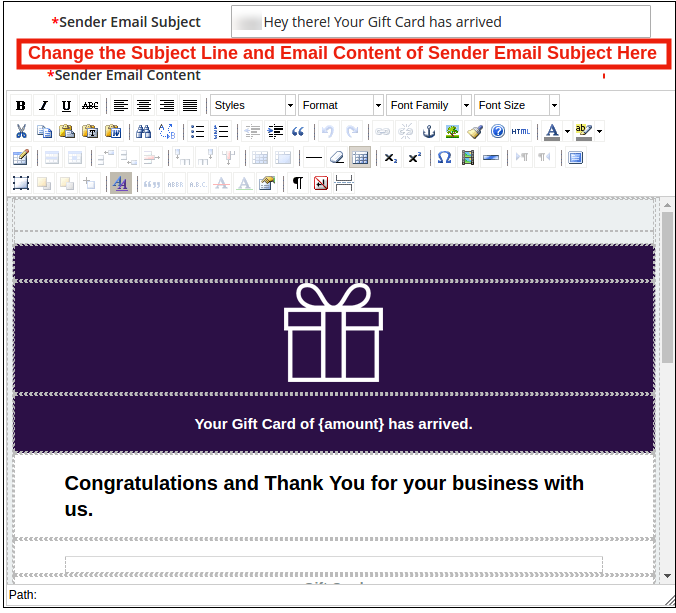
The customer gets an option to print the gift cards or else they can be sent to the receiver via email. The Magento 2 Gift module by Knowband offers default email templates that can be personalized as per the requirement of the store admin.

Recipient Email Settings:
Sender Email Settings:
3.1.3 PDF Settings

Magento 2 Send Gift Card Module also sends a PDF with along with the image, voucher code, voucher expiry date and voucher value. Users can also get the printout of the PDF.

Apart from this, the store admin can change the Gift Card prefix and update the PDF content to make it more attractive from the back-end.

3.1.4 Cron Setting

In this tab, the eCommerce store admin can run the CRON manually or automatically.

The Admin can run the CRON to your store via the control panel to send gift card vouchers automatically.

URLs to Add to Cron via Control Panel 

https://ma2testing.knowband.com/ma218/giftcard/index/cron/secure_key/20da59b52ef8b049dc21dfa5bdcc4c72/?SID=qbtfepld8dfkau56tf2lm4gj17
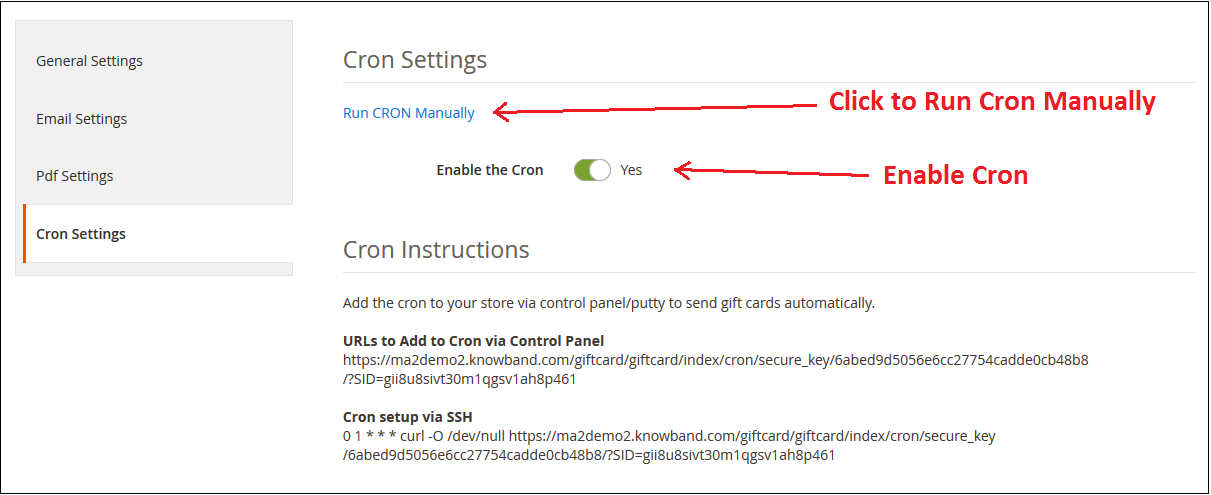
Cron setup via SSH 

0 1 * * * curl -O /dev/null https://ma2testing.knowband.com/ma218/giftcard/index/cron/secure_key/20da59b52ef8b049dc21dfa5bdcc4c72/?SID=qbtfepld8dfkau56tf2lm4gj17

3.2 Gift Card Template

This tab shows already added Gift card templates. The admin can customize these Gift card template as per their desires. Other than this, the store merchant can edit or delete the Gift card template.

3.2.1 How to customize the template of the gift card?

3.2.1.1 Add New Gift Card Template

There is a ‘ADD NEW‘ button present on the top right corner of gift card template tab of Magento 2 Gift Card Manager Module. The store merchants can easily add new Gift Card template sets whenever they need by clicking on the button. Further details about its functionality are described in the next section.

For creating new Gift Card template, ‘Add New’ option is used. By clicking on this, the module will redirect store merchants to the gift card template configuration form as displayed in the below screen:

1. Template Name: In this option of Magento 2 Gift Voucher Extension the admin can enter the name of the New Gift Card Template like: Happy Friendship Day.

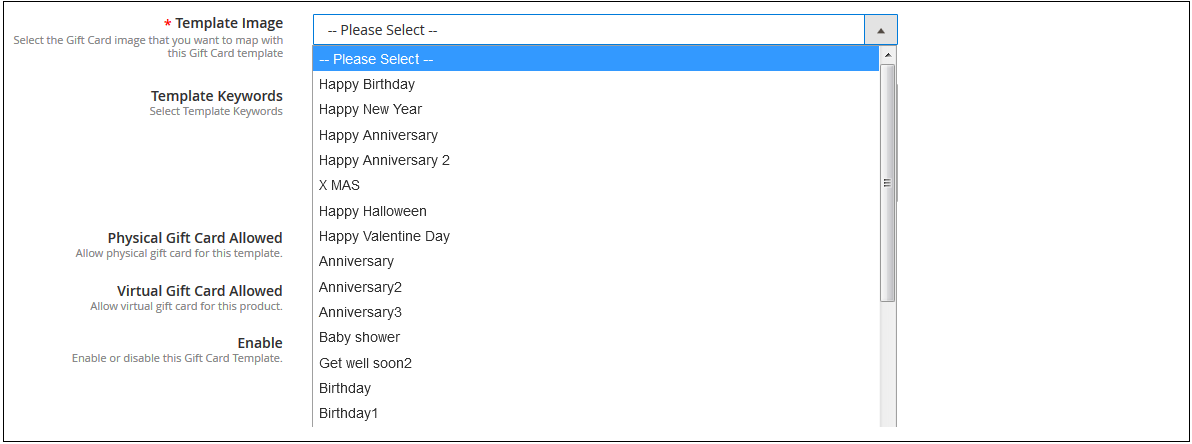
2. Template Image: Magento 2 Send Gift Card Extension by Knowband allows the store admin to select the image or the layout of the gift cards that will be shown in the front-end.

The images for the various occasions can be saved in the back-end of the Magento 2 Gift Card Extension. The admin selects the occasion in order to find the image as shown below:
The store admin can even view the images for the various events has been saved for the same.

As you click on the ‘View Image’, you’ll be redirected to the page below.

The list showcases all the gift cards that have been created and saved. You can view the complete image or even delete it if required.

In order to create new images, click ‘Add New Image’ as shown below.

You can enter the image name and the text of the image to be shown on the gift card. Even the background image and color, as well as font color, can be changed at a button click. Preview the final image before making it live on the website.
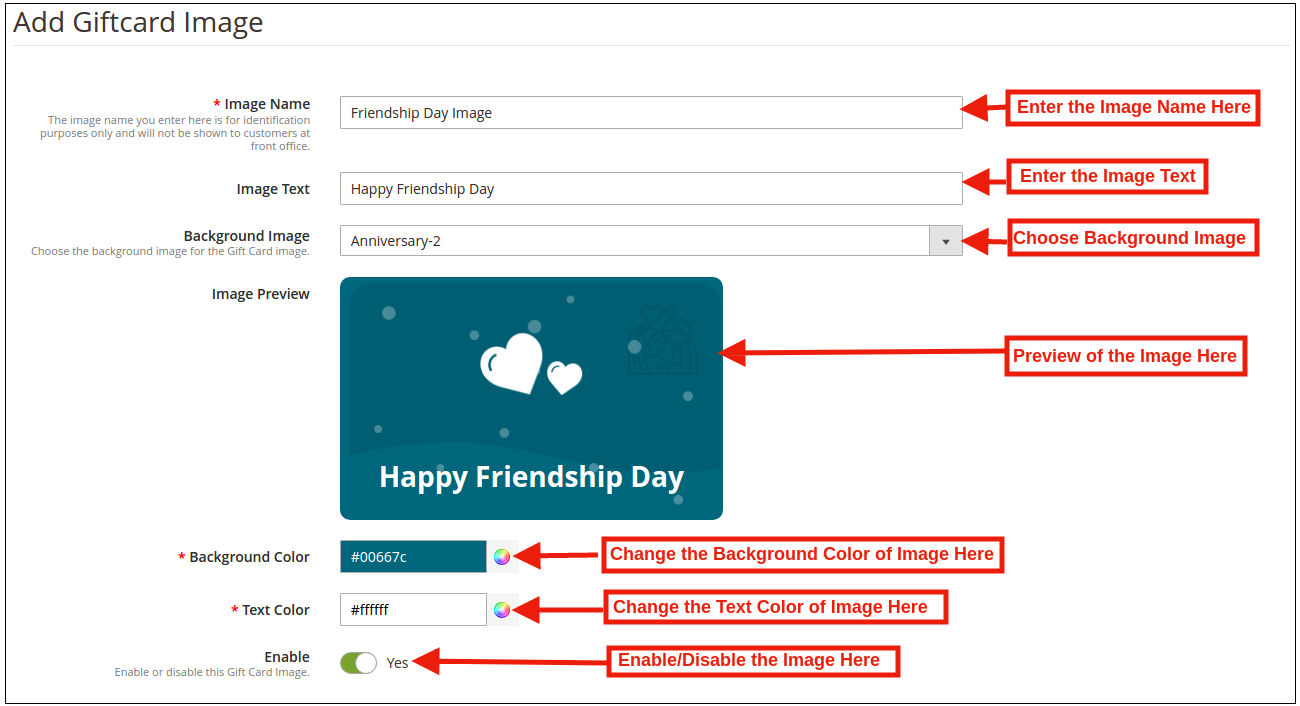
3. Template Keywords: This option includes the list of the Keyword in this dropdown list the store admin can select the template keywords.

4. Physical Gift Card Allowed: The Magento 2 Gift Card Voucher module by Knowband allows the store admin to enable the physical gift card option for the particular gift template.

5. Virtual Gift Card Allowed: The Online retailer can enable the Virtual gift card functionality will allow the e-cards.

6. Enable: Initially, this option will be ‘ON’. The Store admin can enable/disable the settings as per the need.

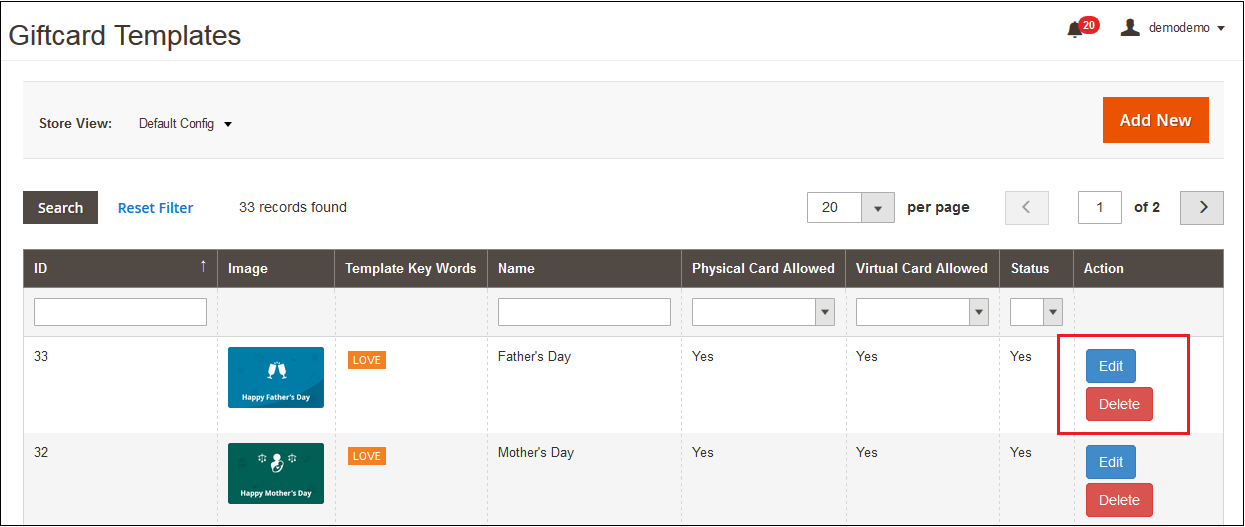
3.2.1.2 Edit Gift Card Template

Magento 2 Gift Module allows the online retailer to edit or delete the gift card template as per the need. The screenshot is shown below:
3.3 Gift Card Product

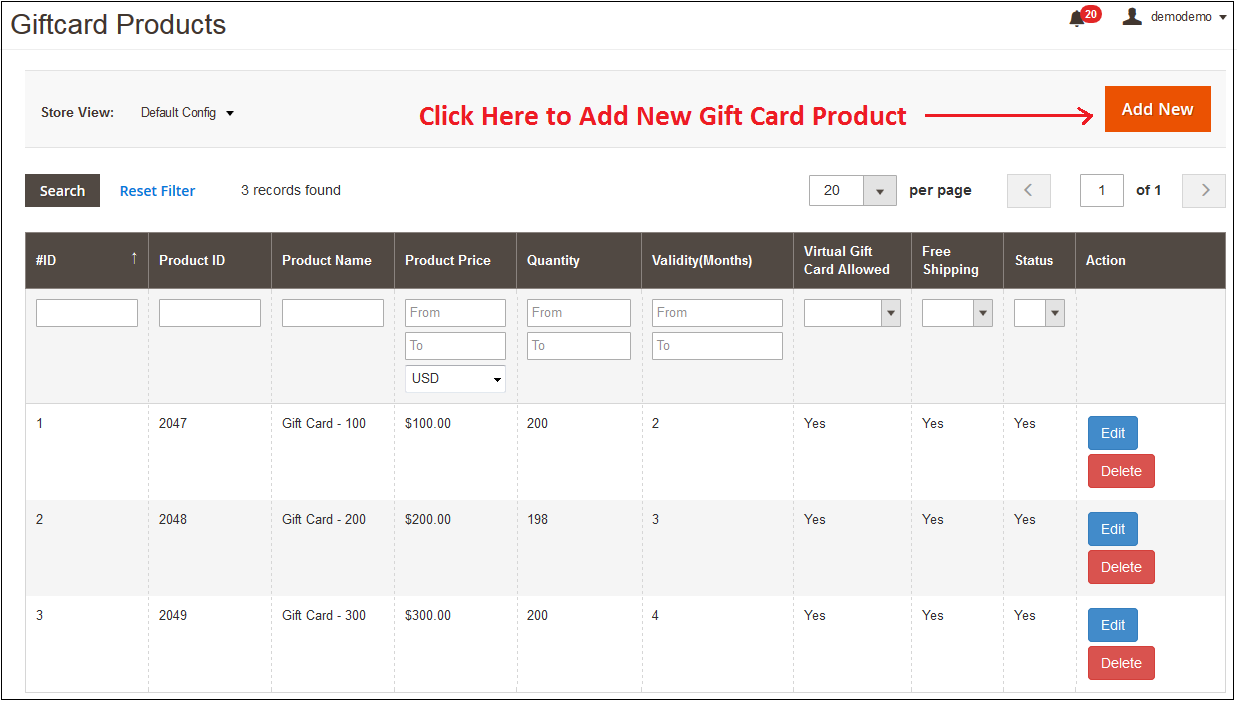
In this tab of Magento 2 Gift Voucher Module allows the store admin to add the Gift Cards product of different values like: product name, product price, quantity and more or edit the already added product from the back-end.

3.3.1 How to customize the Product of the gift card?

3.3.1.1 Add New Gift Card Product

Magento 2 Gift Card Manager Module allows the store admin to add the new Gift Card template by clicking on the ‘ADD NEW’ button present on the top right corner of gift card template tab of Gift Module.
Fill out the information that you need to provide for creating the product.
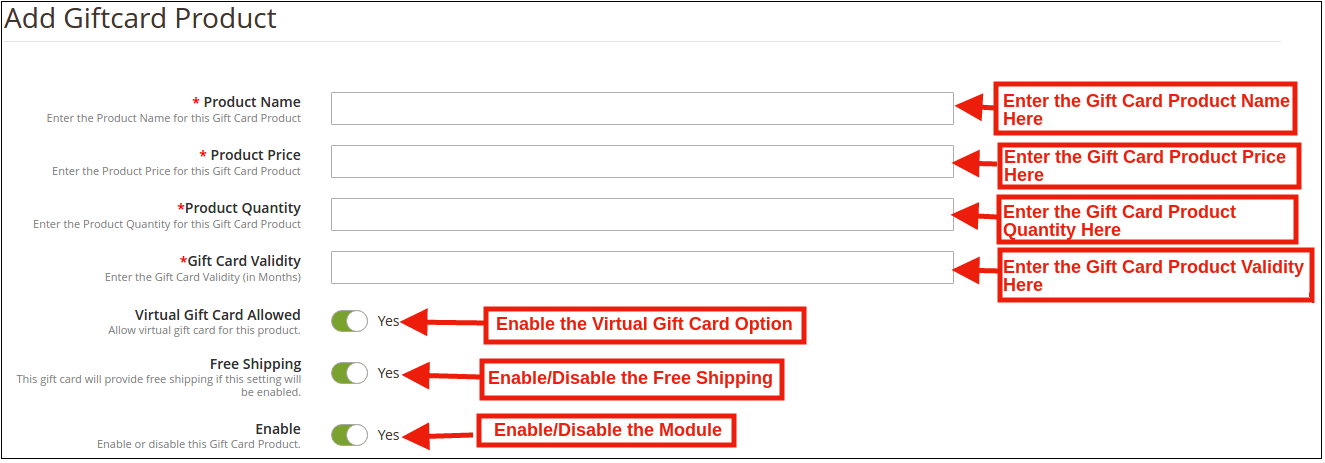
  • Product Price: Magento 2 Gift Card Manager Module by Knowband allows the store admin to enter the price of the product.
  • Product Name: Enter the name of the product here. It can be Happy Anniversary, Happy Birthday, Merry Christmas or any other.
  • Product Quality: In this tab of Magento 2 Send Card Module the admin can enter the product quality of this gift card product.
  • Gift Card Validity: The validity period in months of the gift card can be entered here by using this Magento 2 Gift Module.
  • Virtual Gift Card Allowed: Enable e-card by switching on the button.
  • Free Shipping: The Magento 2 store admin can even allow free shipping to the customer.
  • Enable: The Magento 2 Send Gift Card Extension can be enabled or disabled from here.

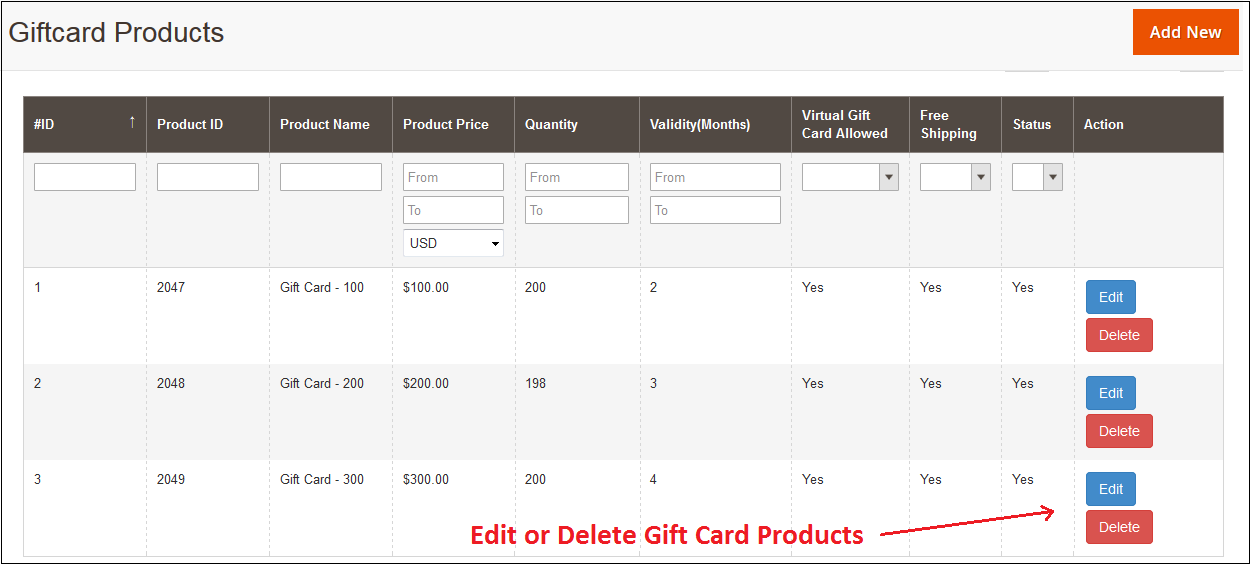
3.3.1.2 Edit and Delete Gift Card Product

The admin even gets an option to edit the gift card product or delete from the section shown below:
3.4 Gift Card Orders

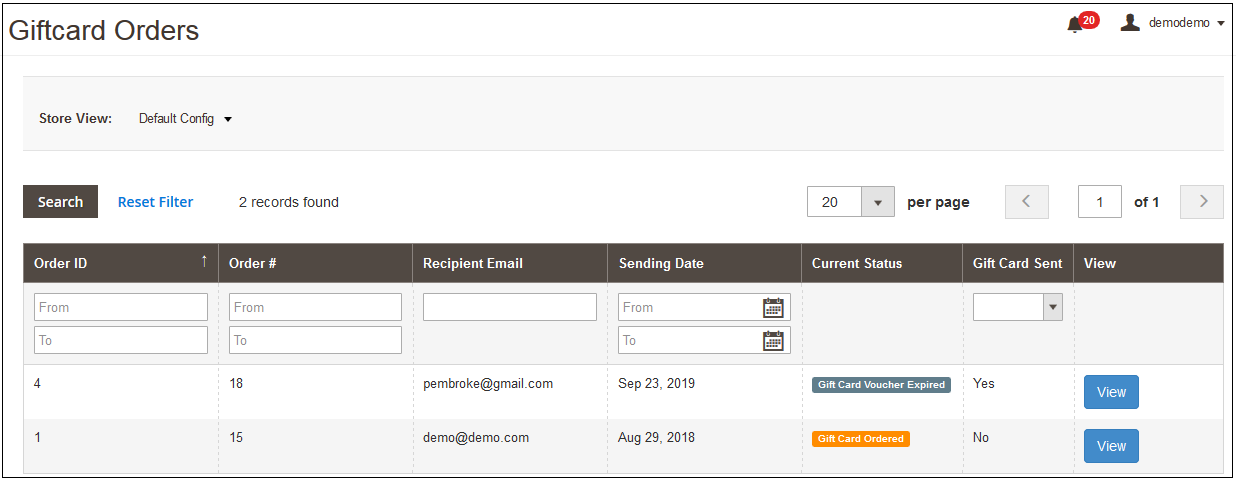
In this Gift Card Order, tab provides the store admin an option to view the entire list of the orders received for the gift cards. It involves the recipient email, date of sending as well as the status of the gift cards.

In the ‘Gift Card Order’ tab go to the ‘View’ button in the right section. In this section shows the entire information about the order.
4.0 Front End

Magento 2 Gift Voucher Module adds a Gift Card link on storefront end in the Header, Footer, Left and My Account section of the module. By accessing this gift card link customers can browse the gift cards.

This link redirects the user gift card page of the site.

Gift Card Front End Header Link Preview:

Gift Card Front End Left Link Preview:

Gift Card Front End Footer Link Preview:

Gift Card Front End My Account Link Preview:

After clicking on the Gift Card link module redirect the following page:
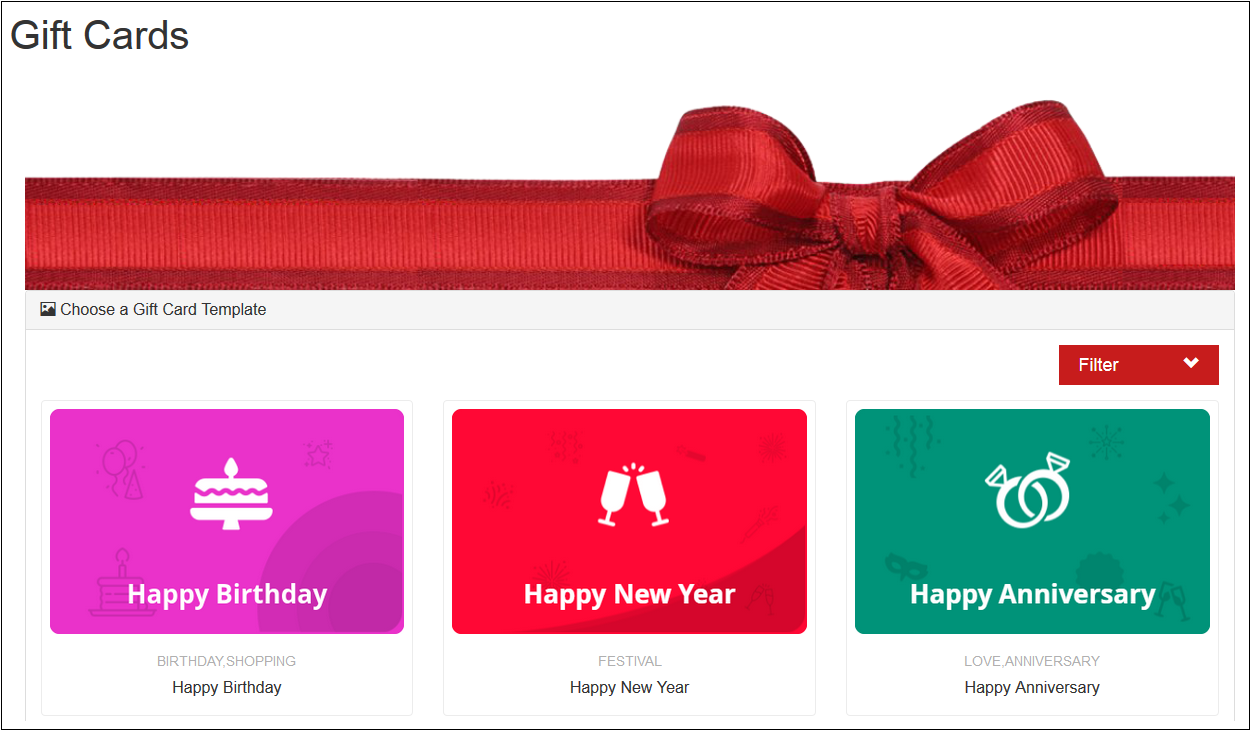
Shopping for the same is easy. The customers can select the card for the different occasion. For instance, he chooses the Happy Birthday card. All he needs to do is to click on the card.

They can print the card or send it via email. The sender and receiver name along with the message can be mentioned in the section as shown below.
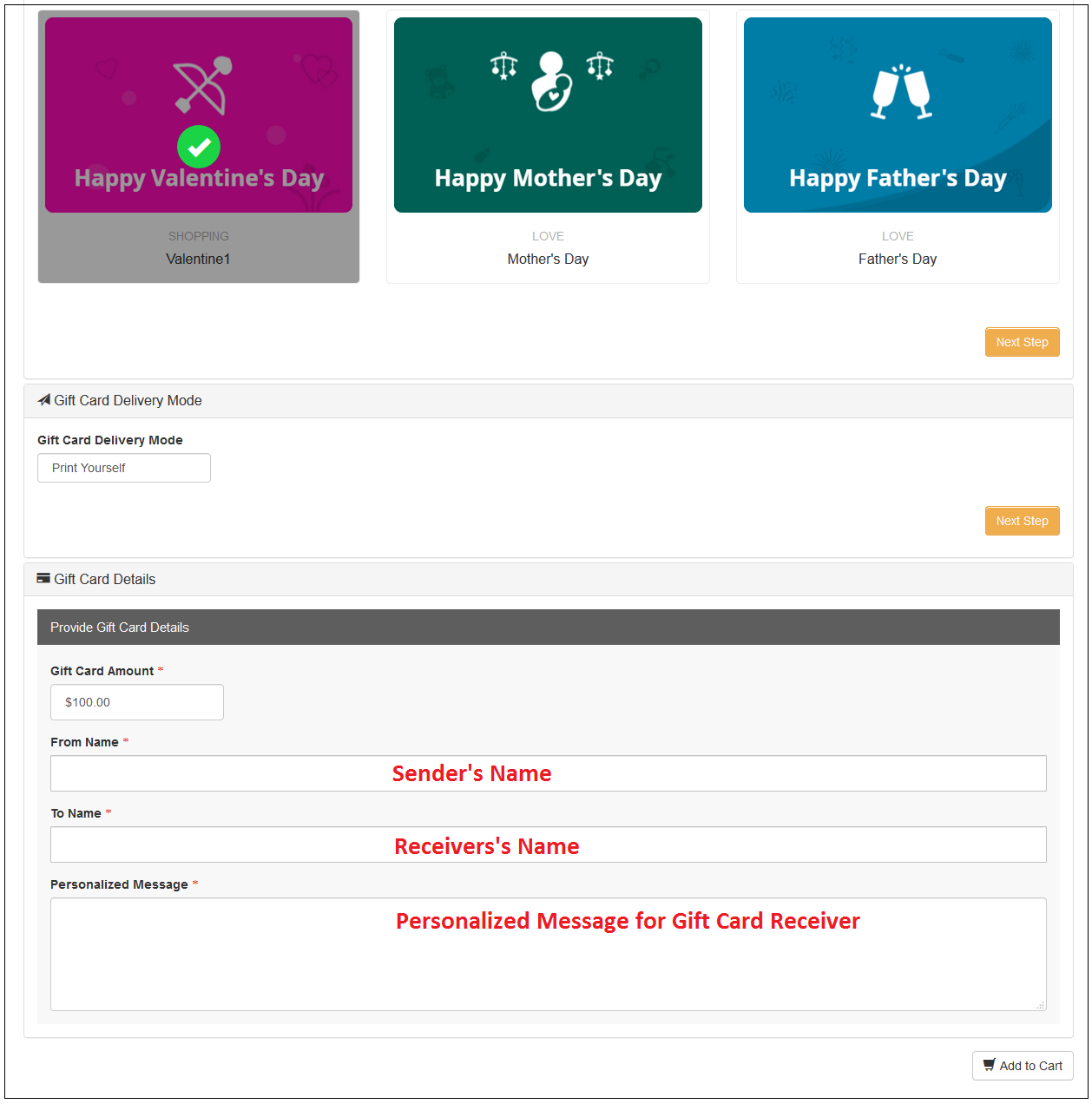
Add the product to the shopping cart and proceed to the checkout page. The gift card will then be sent to the receiver.

This way, the online store admin can easily offer the facility to purchase gift cards from the website. The online merchant can set the gift card amount and also create multiple gift card templates for various occasions. Magento 2 Gift Card Manager plugin is highly customizable and offers smooth functioning. The eCommerce store merchant can show gift card options on the left side, show as a header/footer link and also show the Gift card option on my account link. The Magento 2 Gift Card Manager plugin allows the store merchant to select the order status on which he wants to send gift card.

The online merchant can also set a delivery days gap after which the gift card will be delivered. The Magento 2 Gift Card Manager Module allows sending the gift card email to the gift card sender as well as the receiver.  Admin can also send a pdf document that can be printed by the customers. So the store admin can get more profit and the online users can purchase gift cards and share it with their loved ones easily.

For more details about this Magento 2 Gift Voucher extension, you can visit here:

Magento 2 Gift Card module link

Magento 2 Gift Card Module Admin Demo
Magento 2 Gift Card Manager Extension Front-end Demo

Magento 2 Gift Card Manager Module Youtube video

PrestaShop Gift Card Manager Extension- User Manual

1.0 Introduction

The digital gift card is a pleasant commodity to buy, sell, and receive! Whoever bought the digital gift card, saves time, fuel, and efforts to find the right thing to gift. Whoever receives it, find lucky enough to save from getting the wrong thing. Finally, whoever sells it, find cash upfront for an unsold thing! If you are looking for a perfect e-gift card addon, then, KnowBand PrestaShop gift card manager module helps you send the gift card to anyone without any hassle. With easy customer acquisition, the e-merchants can now double their revenue

The PrestaShop gift card manager Addon by Knowband allows the PrestaShop store owners to manage the gift cards according to the need. This PrestaShop gift card voucher addon is an effortless way to engage more customers with the website. The pre-paid vouchers can help the e-merchants aid the purchase intention of the store visitors and easily convert them into paying leads.

This PrestaShop gift card addon gives the flexibility to a customer to buy the gift card online and send Gift vouchers to friends via email on a specific date and time. The sender can print a gift card for giving it in person. It provides the functionality to create a personalized image gift card. Online shoppers can order gift cards for special occasions for their near and dear ones.

How Gift Card can help you to boost sales in your store?

  • 81% of online buyers prefer to buy a gift card for a birthday, anniversary, holiday season, or festival.
  • 38% of adults buy a gift voucher for a friend’s birthday.
  • One of the biggest selling days of the gift card is Father’s Day. In contrast, only 24,7% of moms wish to get a gift card for Mother’s Day, putting above homemade stuff, greeting cards, and dinner.
  • 12% of buyers will buy gift cards for Wedding wishes and presents.

These are major facts that can prove the importance of the Gift card.

Prestashop gift card addon by Knowband has rich functionality that can help the admin to increase the revenue by selling gift cards.

1.1 Benefits for merchant

The store owner can increase customer engagement and the number of potential buyers on his/her PrestaShop store as well as boost their revenue. The following are the benefits for the merchant:

  • The store admin can add multiple gift cards in a matter of moments from the backend of the PrestaShop gift card addon.
  • PrestaShop gift manager addon by Knowband allows the store admin to set the card amount, validity period and other conditions that can be set from the backend of the PrestaShop send gift card module.
  • The PrestaShop store admin even gets easy options to change and edit the look and feel of the cards that will be shown in the front-end.
  • With the help of the PrestaShop gift voucher addon, the store admin can easily add the gift card templates according to the need.
  • The orders for the gift cards is trackable at a button click from the admin interface of the PrestaShop gift card manager module.
  • Knowband PrestaShop gift card addon enables the store merchant to show the gift card buttons on which page they want to show.
  • Even the email template for sending the gift cards and its PDF format to the recipient is customizable in a few easy steps from the backend of the PrestaShop gift card addon.
  • This PrestaShop send gift card module increases conversions especially for occasions like holidays.
  • PrestaShop Gift Card Manager addon by Knowband allows you to earn more revenue, get new customers by sending online gift cards, and offer discounts on the vouchers.

1.2 Benefits of customer

  • Customers can easily buy a gift card for their loved ones.
  • This PrestaShop gift card module by Knowband is best for those customers who are helpless for selecting a gift.
  • Customers can send a gift card with a custom image that the sender can upload while making the gift card purchase.
  • PrestaShop gift card add-ons allow online buyers to send the gift cards to their loved ones on the desired date and time.
  • The receiver of the Gift Card can redeem the amount partially while purchasing in the store.

2.0 Installation

After purchasing the PrestaShop gift card module from the store and you’ll get the following files.

1. The zipped file that consists of the source code of the module

2. User Manual

Follow the following steps to install the PrestaShop gift card manager extension:

Extract the “kbgiftcard.zip” zip file.

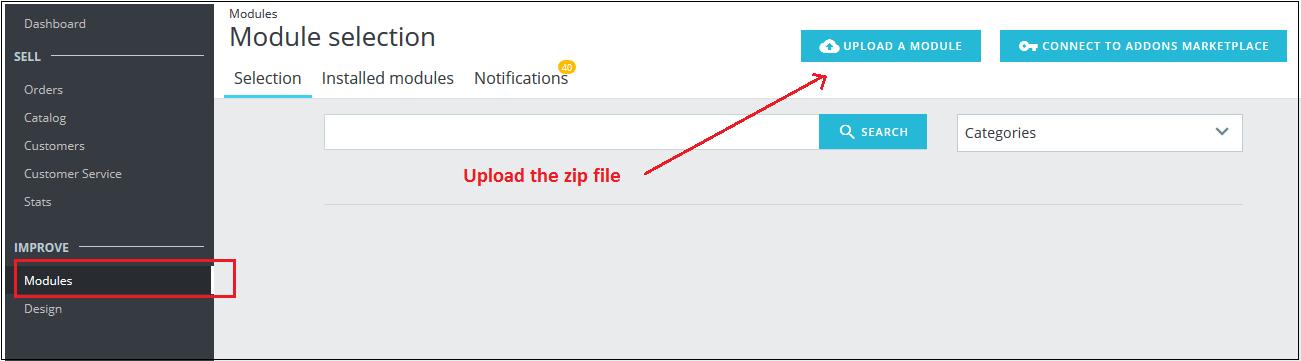
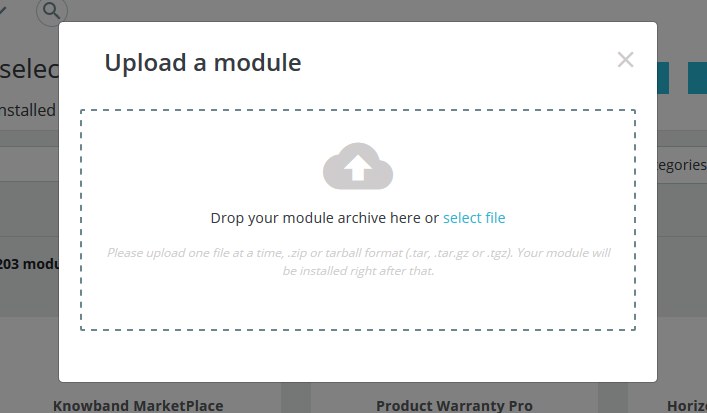
Go to the “Modules” section and click on the “Upload a Module” button. Select the “kbgiftcard.zip” file.

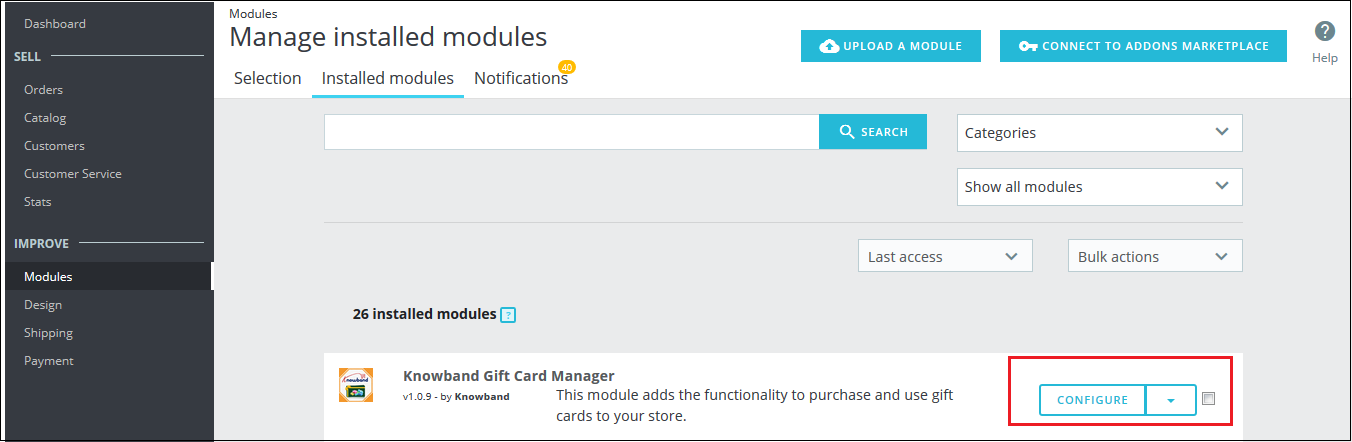
The PrestaShop gift card module is now ready for configuration. You can find that in Store Admin -> Modules. It would be shown as below –

You may even search for the module in the admin modules list by using the following details –

Keyword – Gift Card Manager

Category – Pricing and Promotion

Filter By – Installed & Not Installed / Enabled & Disabled

3.0 Admin Interface

The admin can enable and configure the PrestaShop Gift Card module by Knowband easily in a few simple steps. The admin interface of the addon has four customization options. They are below:

  • Module Configuration
  • Gift Card Templates
  • The Gift Card Products
  • Gift Card Orders


The various options are below in detail:

3.1 Module Configuration

The ‘Module configuration’ tab of the PrestaShop gift voucher addon offers the four features to admin that are below:

  • Configuration
  • Email Settings
  • PDF Settings
  • Cron Settings

The following features are available in detail below:

3.1.1 Configuration Tab

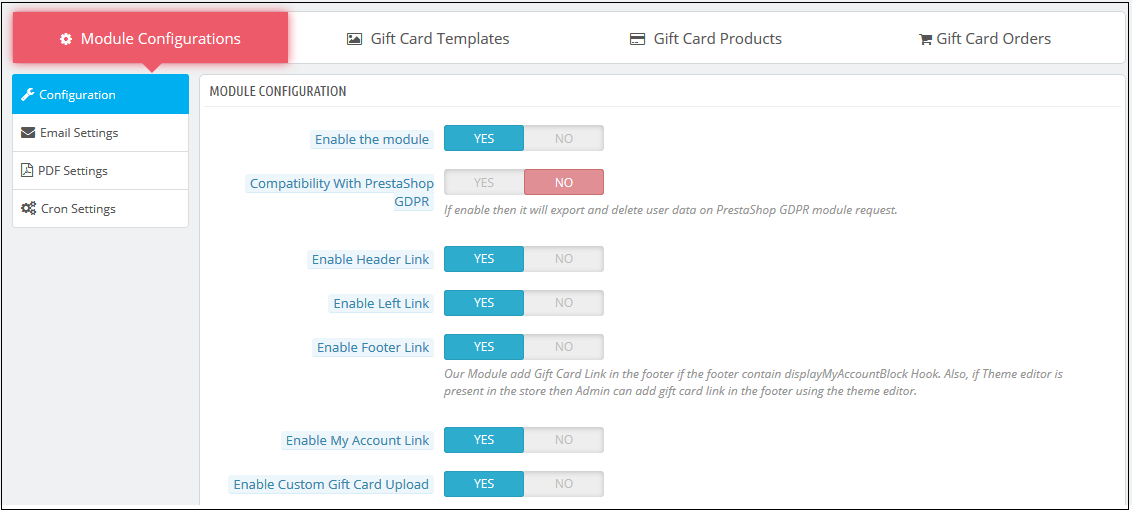
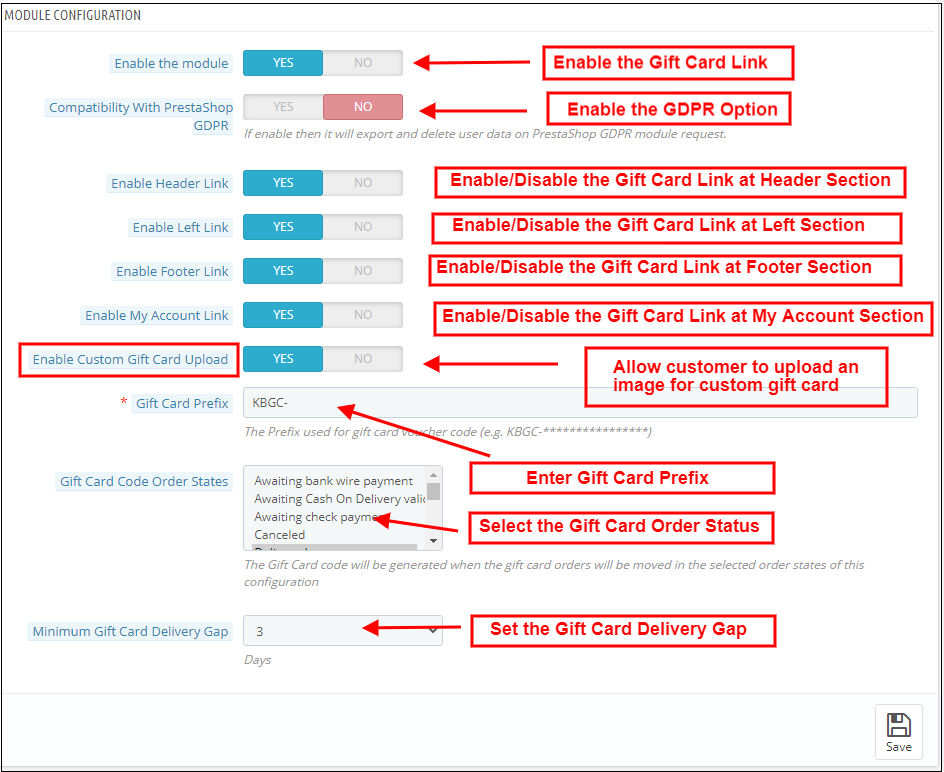
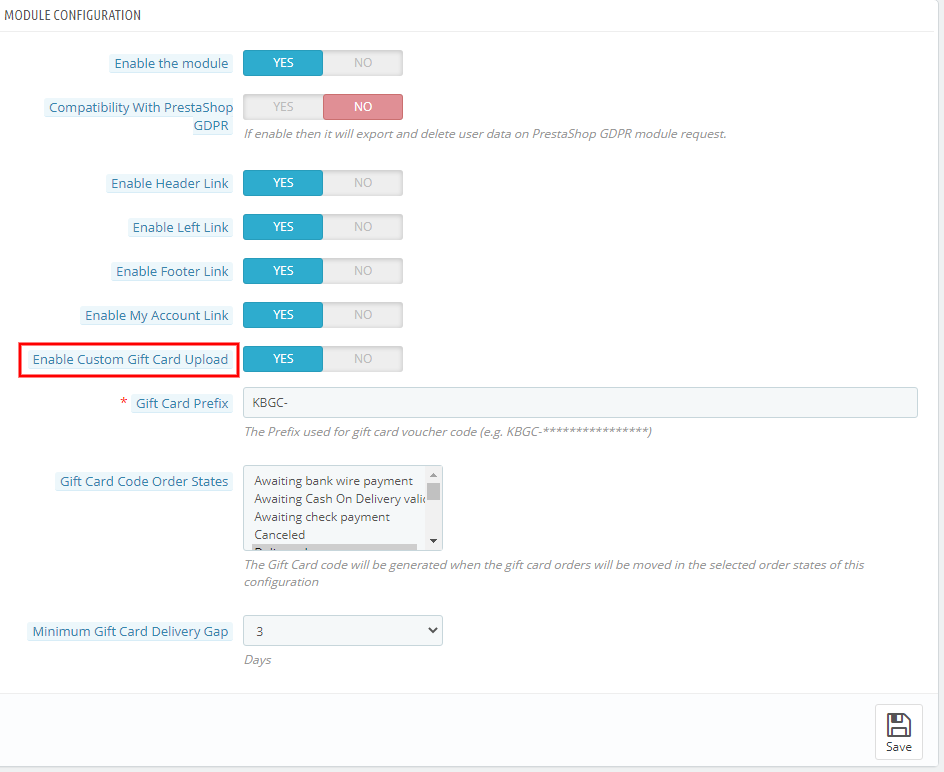
When the admin comes to the configuration tab of the PrestaShop gift card extension. The  configuration tab shows the multiple features that are shown below:

1. Enable the module: When the admin comes to the configuration tab of the PrestaShop gift voucher addon, he/she needs to enable the same from the backend. This happens with a button toggle as shown below.

2. Compatibility with PrestaShop GDPR: If the admin enables the settings, then the customers can access their GDPR rights to delete or export the customer data from their store

Note: If you are using the official GDPR module then you must need to enable this setting. The main purpose of this feature is to export and delete user data on the PrestaShop GDPR module request. It is also compatible with PrestaShop GDPR Module developed by Knowband.

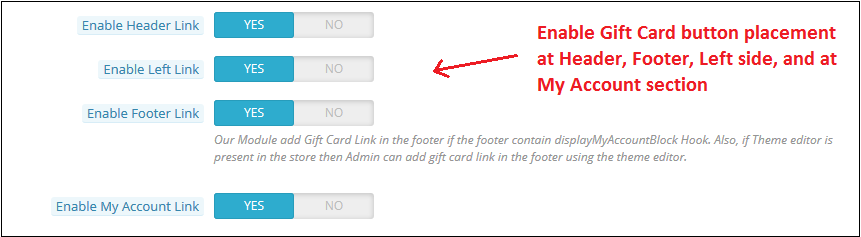
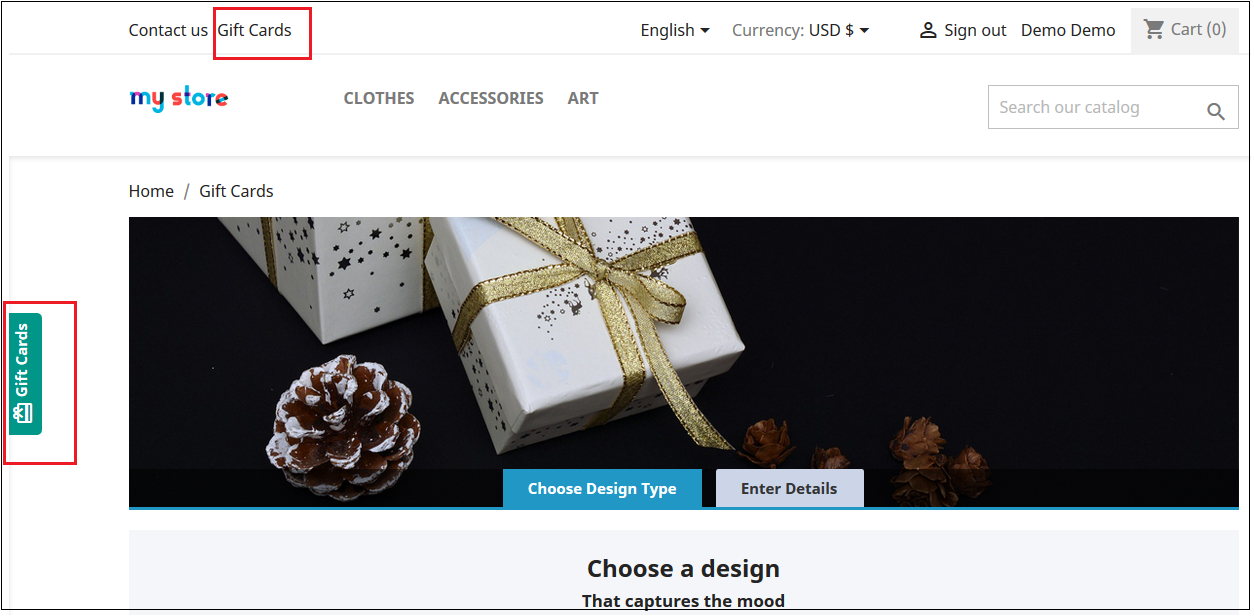
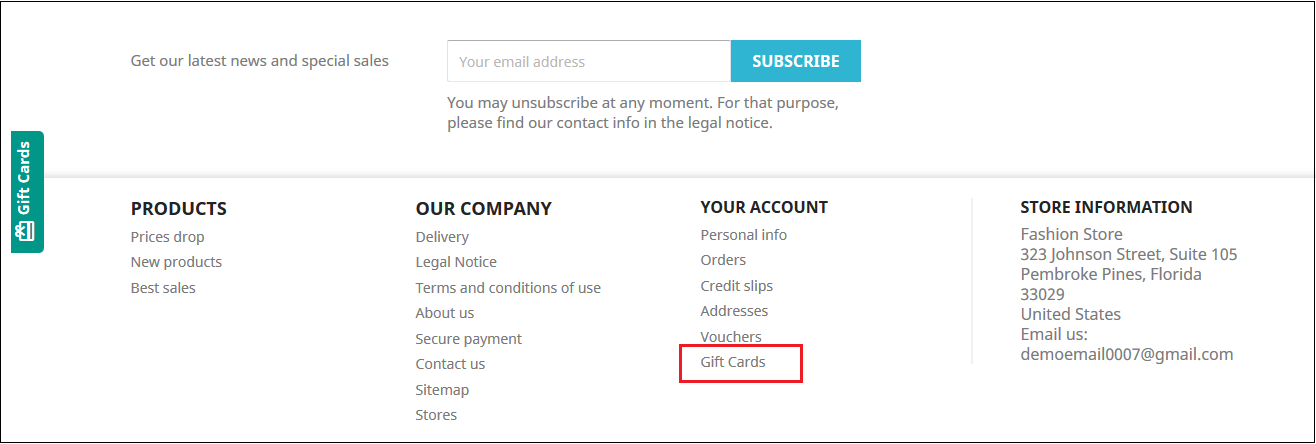
The link to the eCommerce gift cards can place on the web pages as per the requirement. The admin can enable or disable the link at the header or footer. It is placeable at the left side of the website where the visitors pay maximum attention. In addition, the option to redirect the customers to the ‘Gift card page’ can be provided in the ‘My Account’ page of the registered customers.

The links will be shown in the front-end of the website as shown below:

In the header & At the left side of the web page

In the footer

My Account Page

3. Enable Custom Gift Card Upload: If the admin enables this, the Gift Card Module allows users to upload an image to personalize a custom Gift cards.

4. Gift Card Prefix: In this option PrestaShop gift card addon the admin can set the prefix for the voucher code of the pre-paid gift card from here. The code enters in the format KBGC – ******

5. Gift Card order Status: The admin gets an option to select the status of the orders. The gift card code will be generated when the order is moved in any of the selected order states.

6. Minimum Gift Card Delivery Gap: The PrestaShop gift voucher allows the store admin to specify the minimum duration of the day. Further,  when the order places and the day of the gift card delivery.

3.1.2 Email Setting

The customer gets an option to print the gift cards or else they can be sent to the receiver via email. The PrestaShop gift card module by Knowband offers default email templates that can be personalized as per the requirement of the store admin.

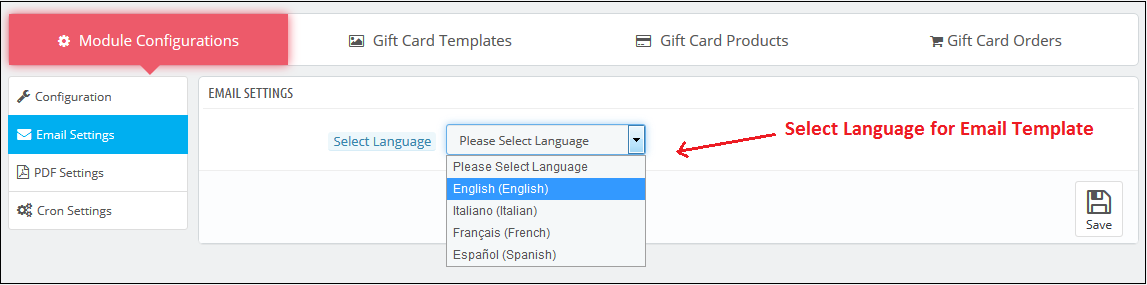
In addition, the PrestaShop gift voucher module offers multi-lingual support. The emails can be sent in various languages. The admin can select the desired language from the drop-down list.

Once the language is selected, the entire email right from the subject line to the content can be edited and personalized as per the requirement.

3.1.3 PDF Setting

The buyer can print the PrestaShop gift voucher module in PDF format. The PDF file of the Gift voucher can be printed in different languages. The admin can edit the content of the file. The changes made in the backend will be reflected in the PDF.

The admin needs to select the language as done in the email settings.

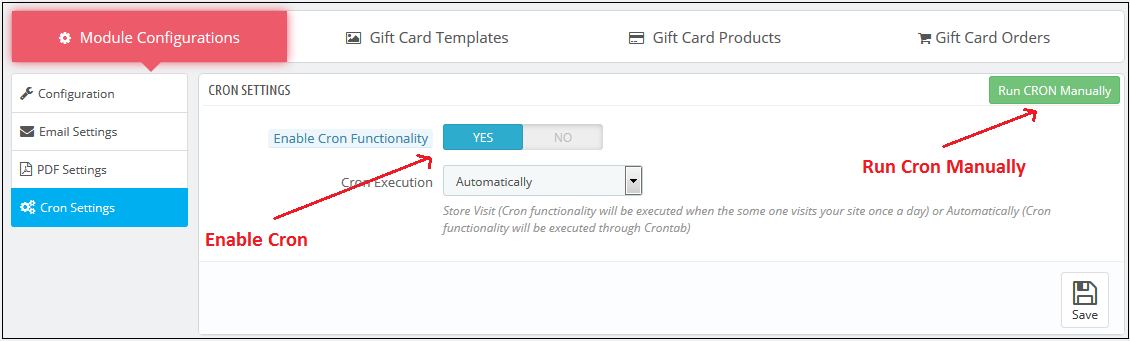
3.1.4 Cron Setting

You can add the Cron to your store via the control panel to send gift card vouchers automatically.

3.2 How to customize the template of the gift card?

3.2.1 Add New Gift Card Template

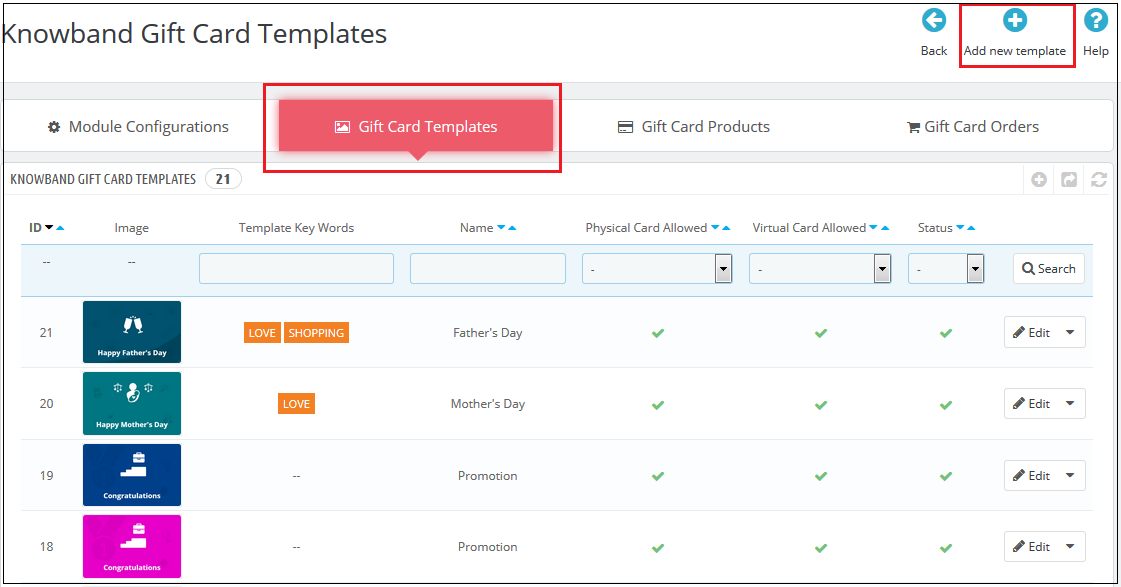
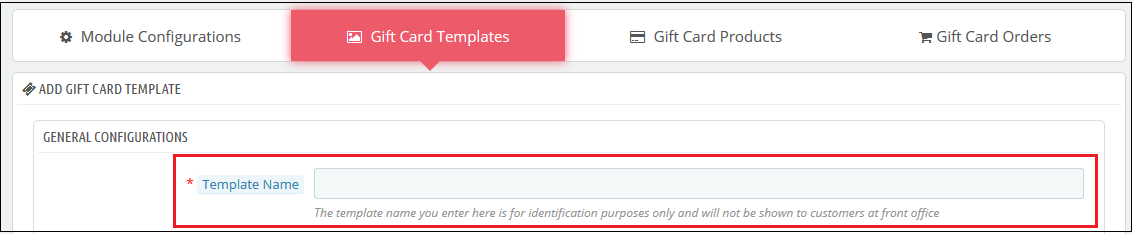
To create the new templates for the PrestaShop gift card manager addon, go to the Gift Card template tab and then click the ‘Add New Template’ option or ‘+’ sign at the top right side of the module.

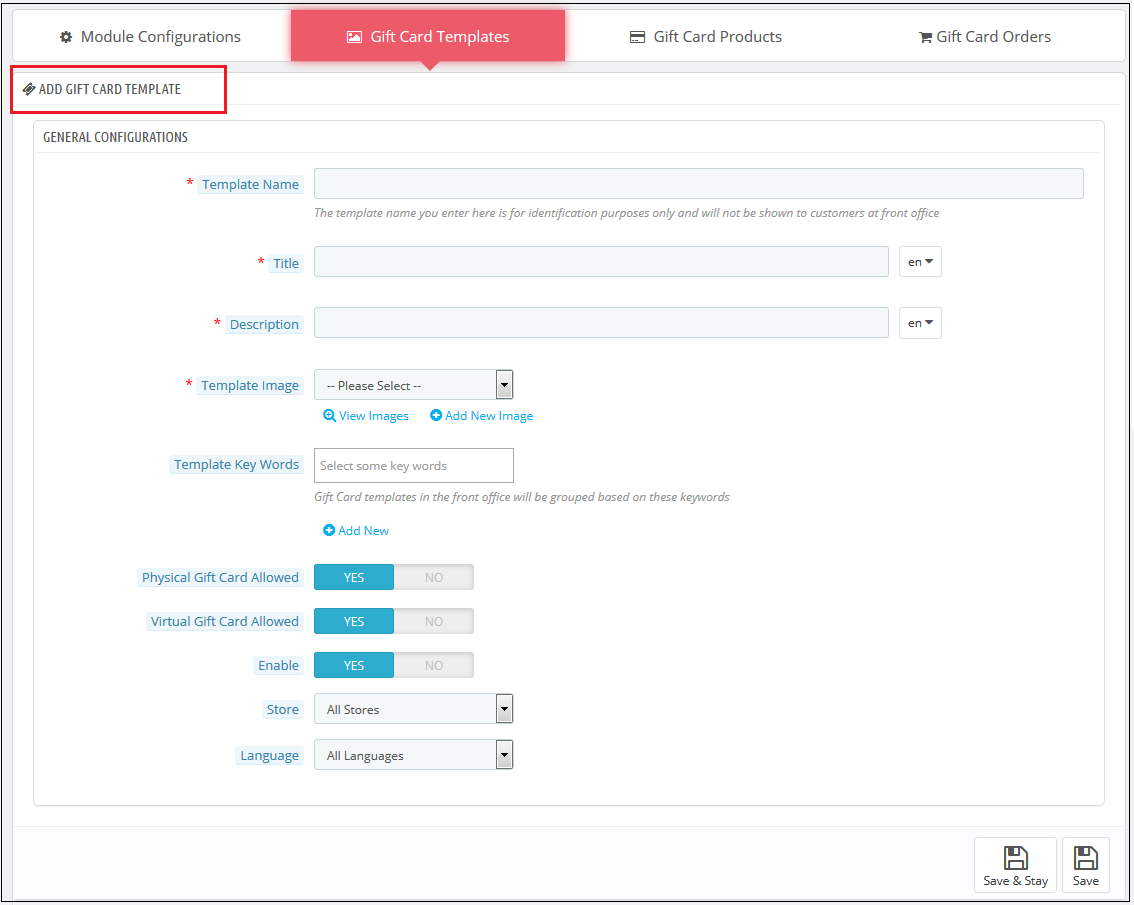
Fill up the information to create the template as shown in the image:

1.  Template Name: The PrestaShop send gift card addon allows the store admin to name the template in this section.

2. Title and Description: With PrestaShop Gift Card Module, the admin can add a title and description for the Gift Card template.

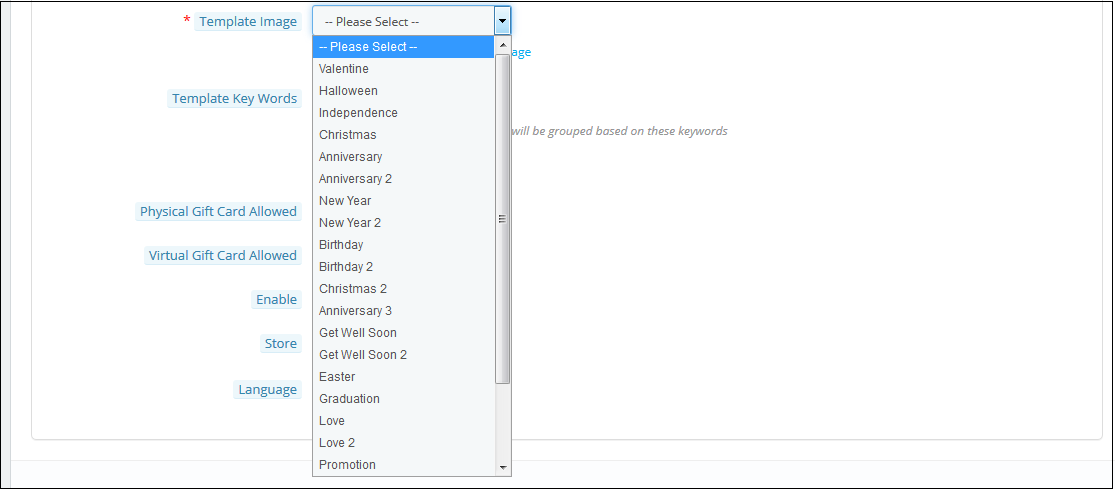
3. Template Image: The admin can select the image or the layout of the gift cards that will be shown in the front-end of the eCommerce site.

The images for the various occasions can be saved in the back-end of the PrestaShop gift card addon. The admin selects the occasion to find the image as shown below:

The store admin can even view the images for the various events that have been saved or can create a new image for the same.

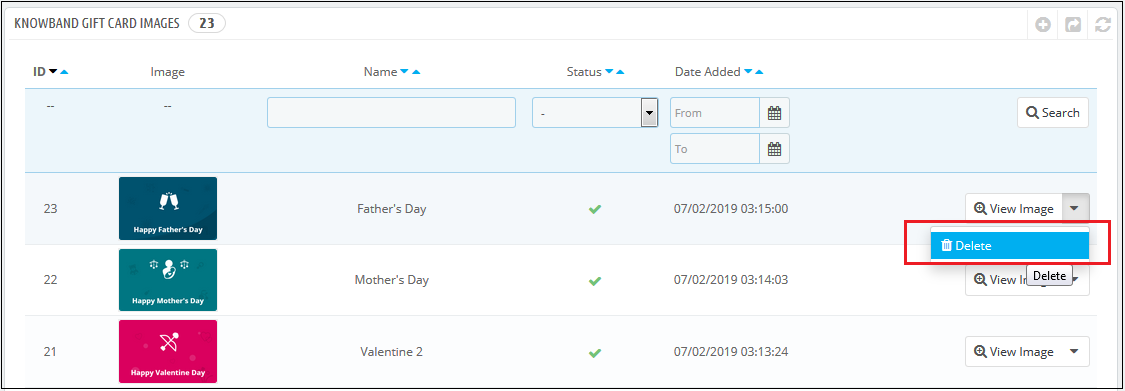
As you click on the ‘View Image’, you’ll head to the page below.

The list showcases the entire images that were created and saved. You can view the complete image or even delete it if is necessary.

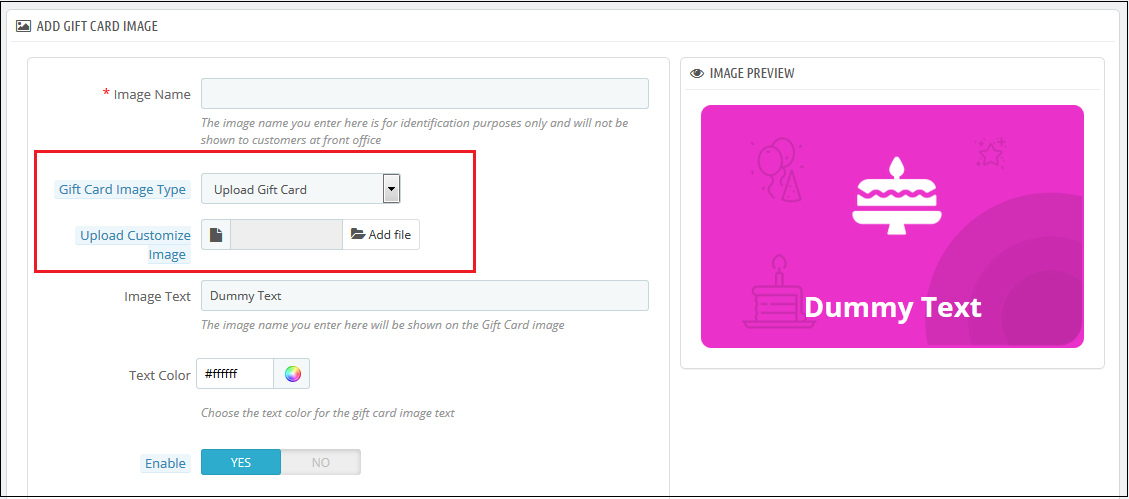
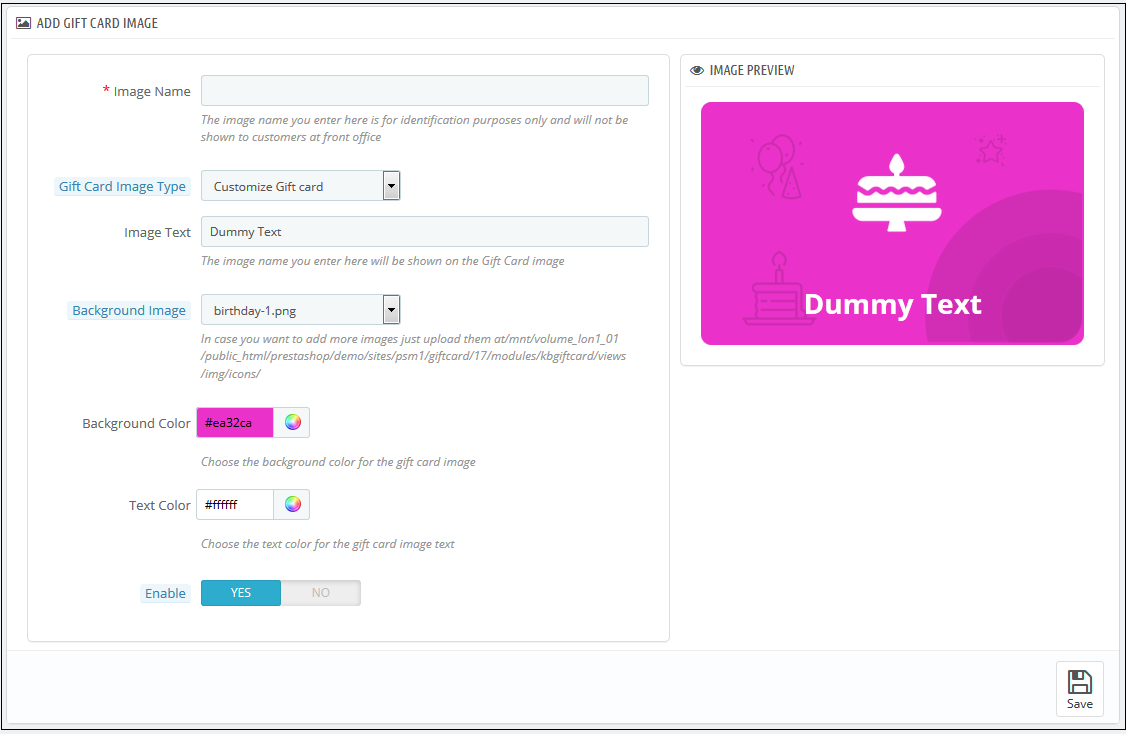
To create new images, click ‘Add New Image’ as shown below. The admin can choose a Gift Card Image Type. The store admin can customize the gift card or upload custom images also.

You can enter the image name and the text of the image to be shown on the gift card. Even the background image and color, as well as font color, can be changed at a button click. Preview the final image before making it live on the website.

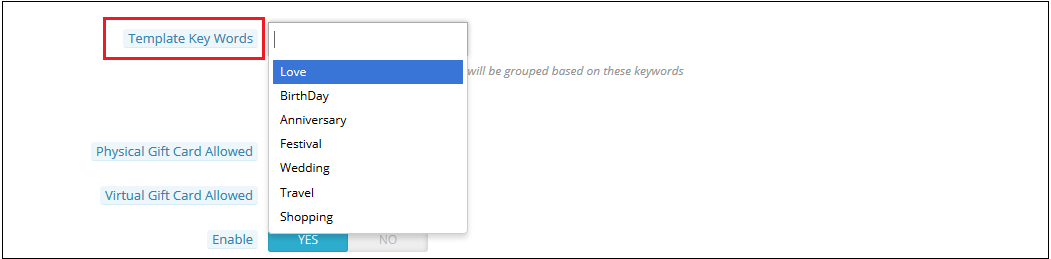
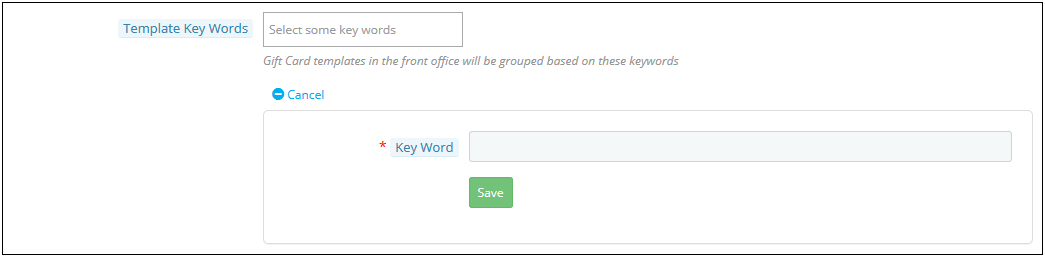
4. Template Keywords: The keywords of the gift cards can be selected from the list as shown below.

To create new keywords, click on ‘Add New’.

The admin can enter the keywords and save them here.

5. Physical Gift Card Allowed: The PrestaShop gift card manager addon by Knowband allows the store admin to enable the physical gift card for this template.

6. Virtual Gift Card Allowed: The functionality will allow the e-cards.

7. Enable: The functionality can enable or disable the template.

8. Stores: The PrestaShop gift voucher module is multi-store compatible. The admin can either enable the functionality in all the stores or can select anyone from the drop-down list.

9. Languages: The admin can select the desired language for the template from the drop-down list.

3.2.2 Edit Gift Card Template

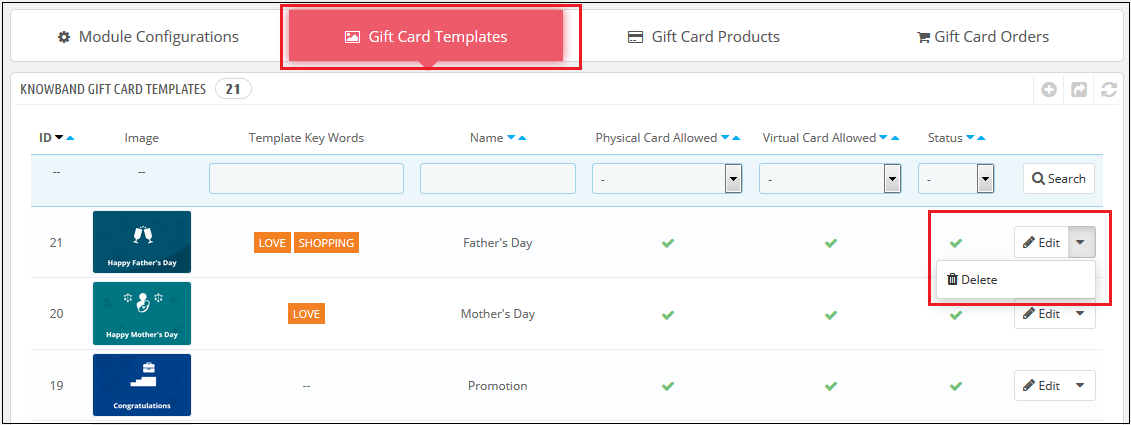
The admin even gets an option to edit the template or delete from the section shown below:

3.3 How to customize the gift cards product?

3.3.1 Create New Conditions for the gift vouchers

The e-merchants can customize the pre-paid gift card products in a few simple steps.

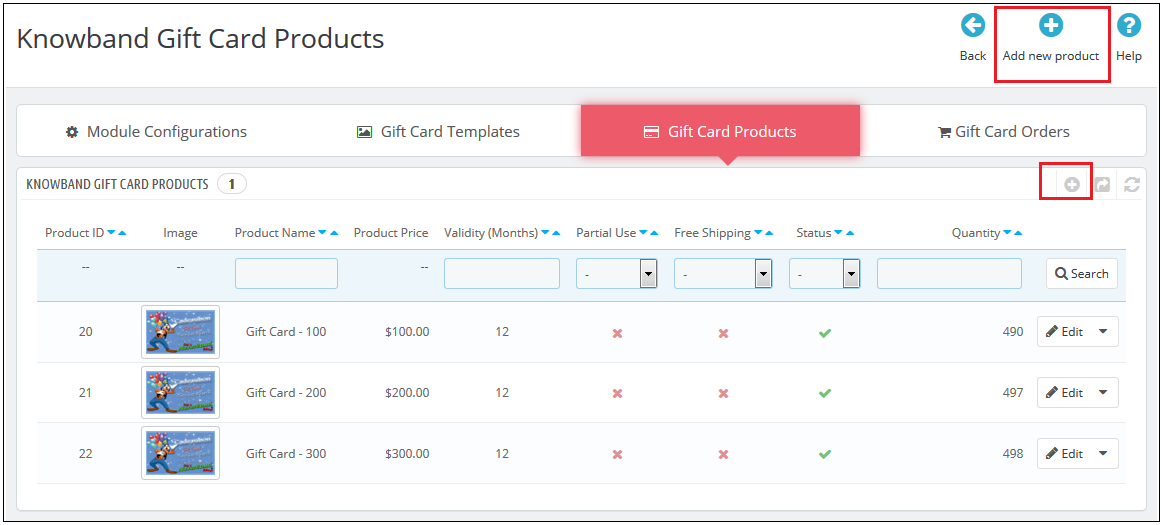
In the ‘Gift Card Product’ tab go to the ‘Add New Product’ or click on the ‘+’ sign in the top right section.

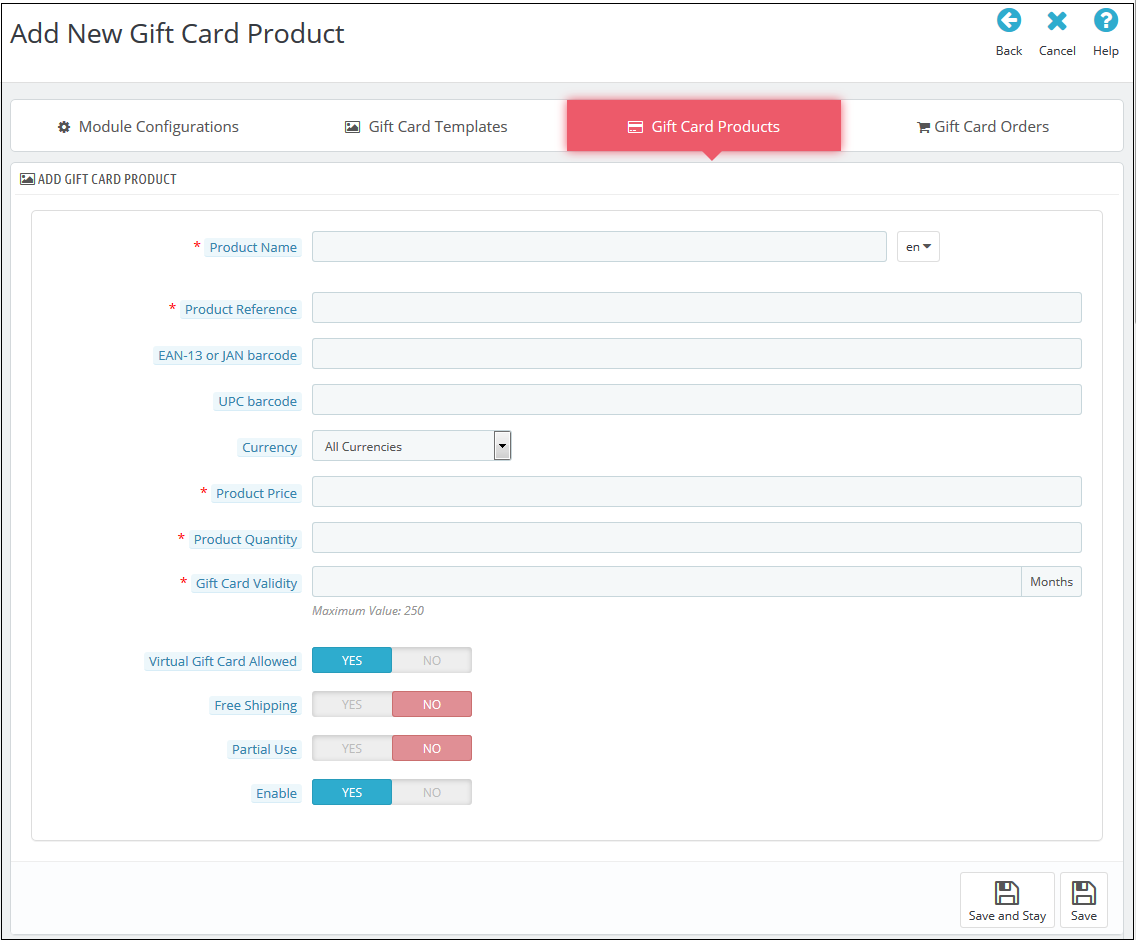
Below is the information that you need to provide for creating the product.

Product Name: Enter the name of the product here. It can be Happy Anniversary, Happy Birthday, Merry Christmas, or any other.

Product Reference: This includes the unique reference id. The admin can enter the internal reference code as per the requirement.

EAN-13 or JAN barcode: This product code is widely used internationally, but is specifically included for Europe and Japan. It is a super-set of UPC code and will be acceptable in North America.

UPC barcode: This product code is acceptable in almost all countries.

Currency: The admin can select the currency for the card from the drop-down list.

Product Price: The gift card amount enters here.

Gift Card Validity: The validity period in months of the gift card enters here.

Virtual Gift Card Allowed: Enable e-card by switching on the button.

Partial Use: The eCommerce seller can even allow partial use of the voucher amount.

Enable: The admin can enable or disable the PrestaShop gift voucher module from here.

3.3 Track the order for the gift cards of the site

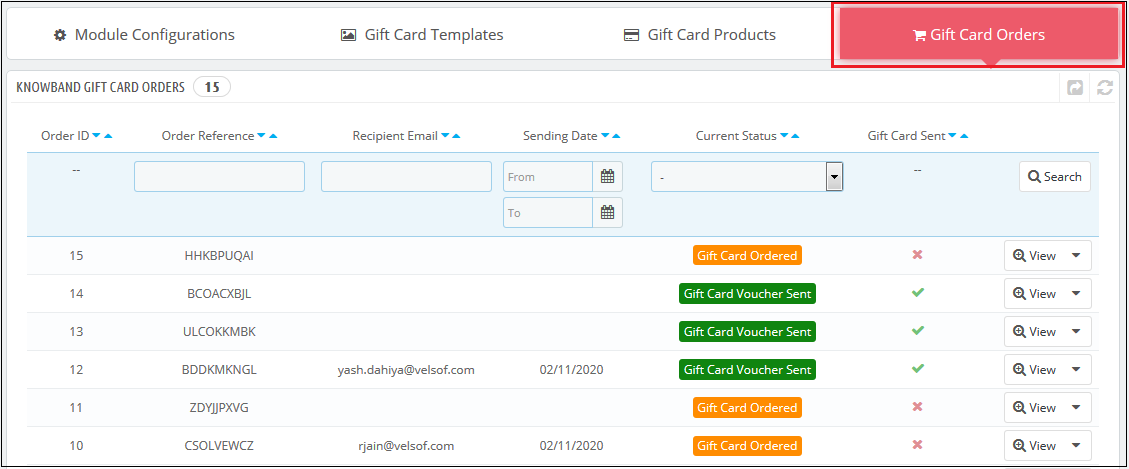
The Gift Card Order tab provides the entire list of the orders received for the gift cards. It involves the recipient email, date of sending as well as the status of the gift cards.

In the ‘Gift Card Order’ tab go to the ‘View’ button in the right section. This section shows the entire information about the order.

4.0 Website UI

The links to the gift cards page can be viewed in the front end as opted by the store admin. Once the store visitors click on the link, they will head to the gift card page of the site.

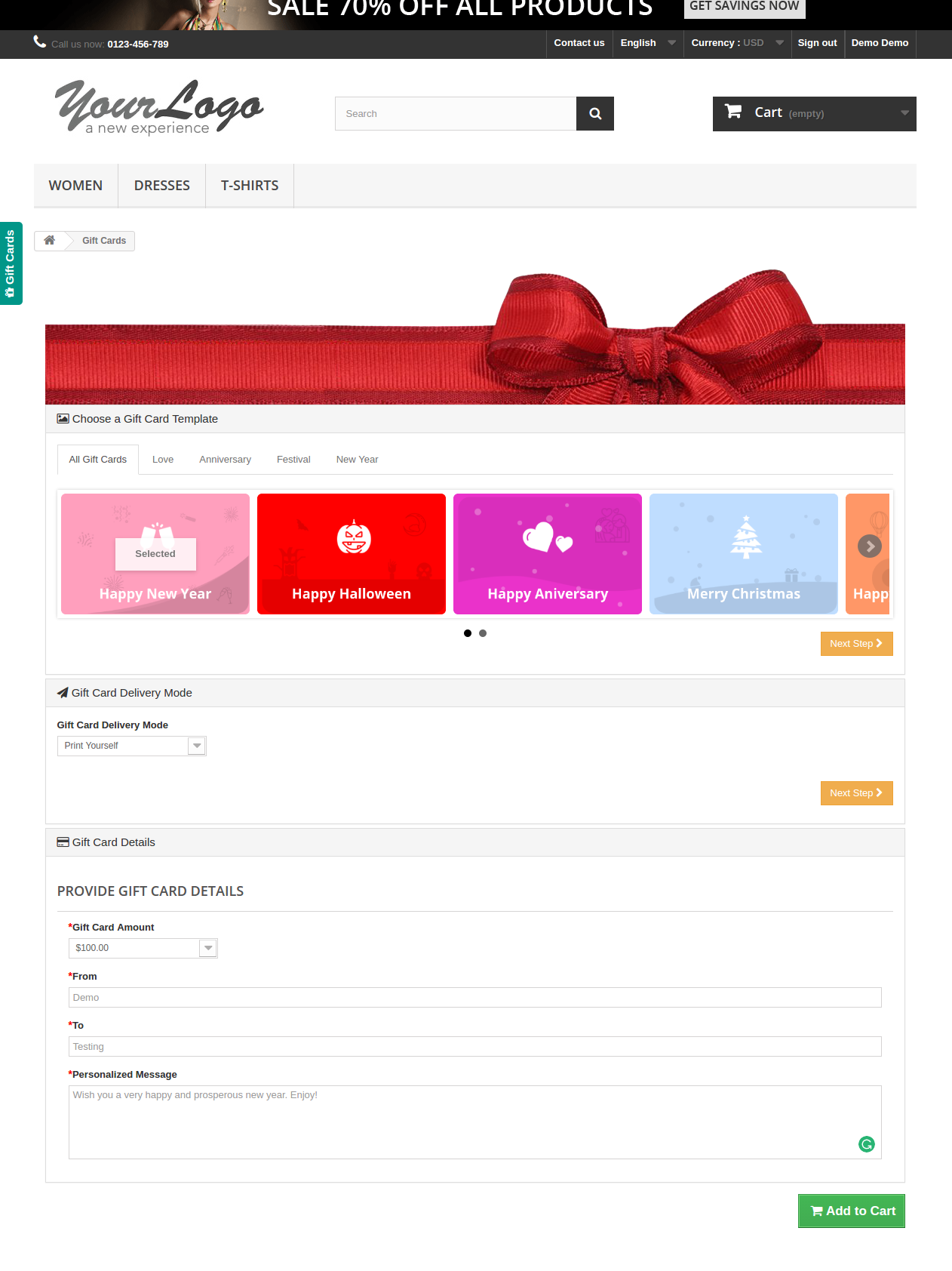
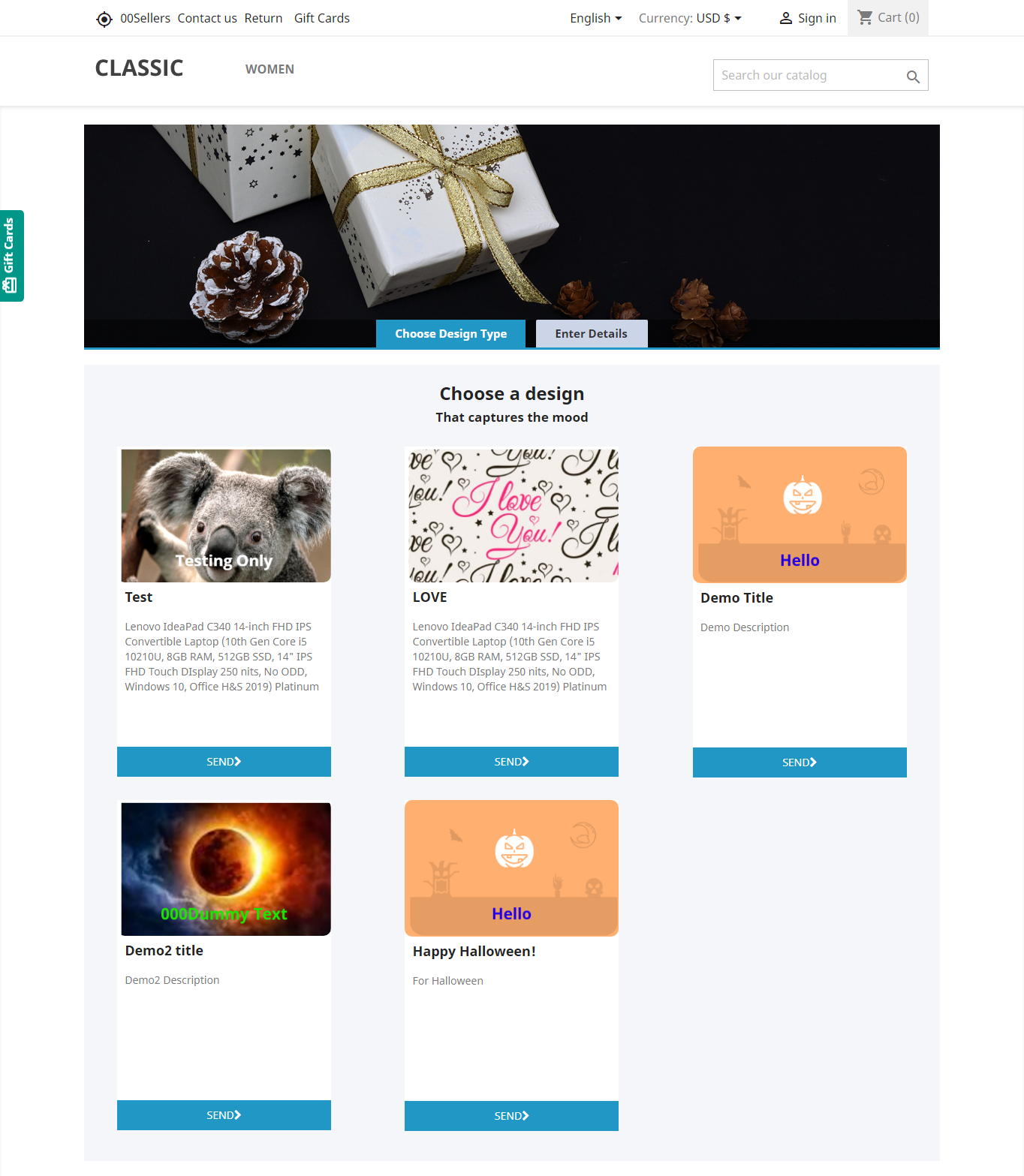
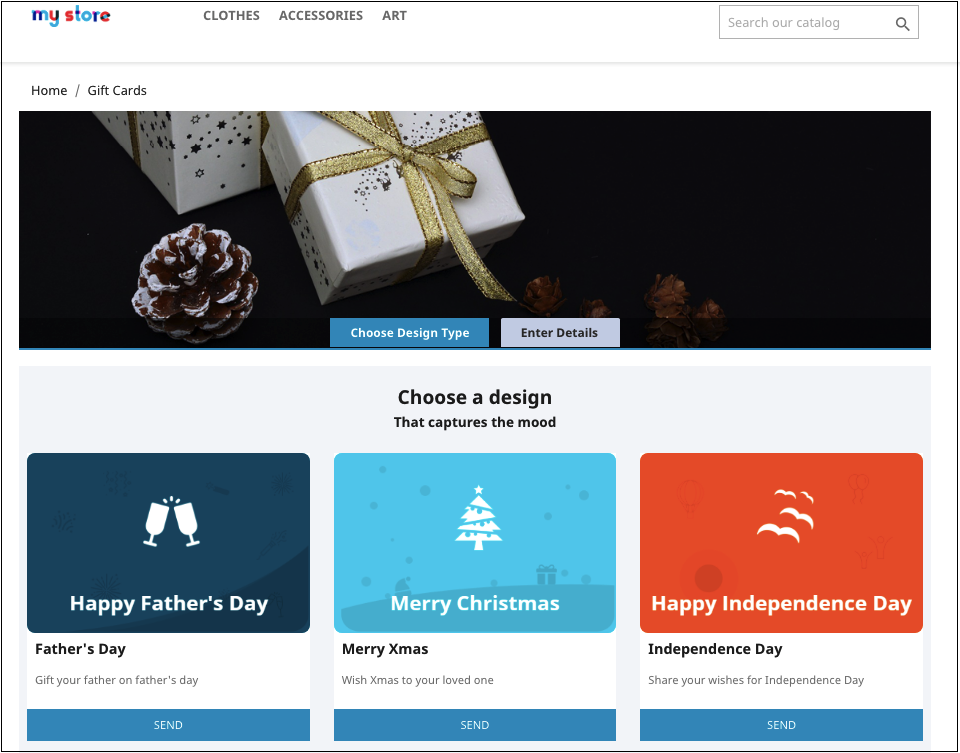
The PrestaShop gift card manager addon by Knowband is the front-end of the website will be shown very similarly to the image below:


Shopping for the same is easy. The customers can select the card for different occasions. For instance, he chooses the Happy Halloween card. All he needs to do is to click on the Send button of the card.

The customer will head to the ‘Enter Details’ page where he can add all the needful details.

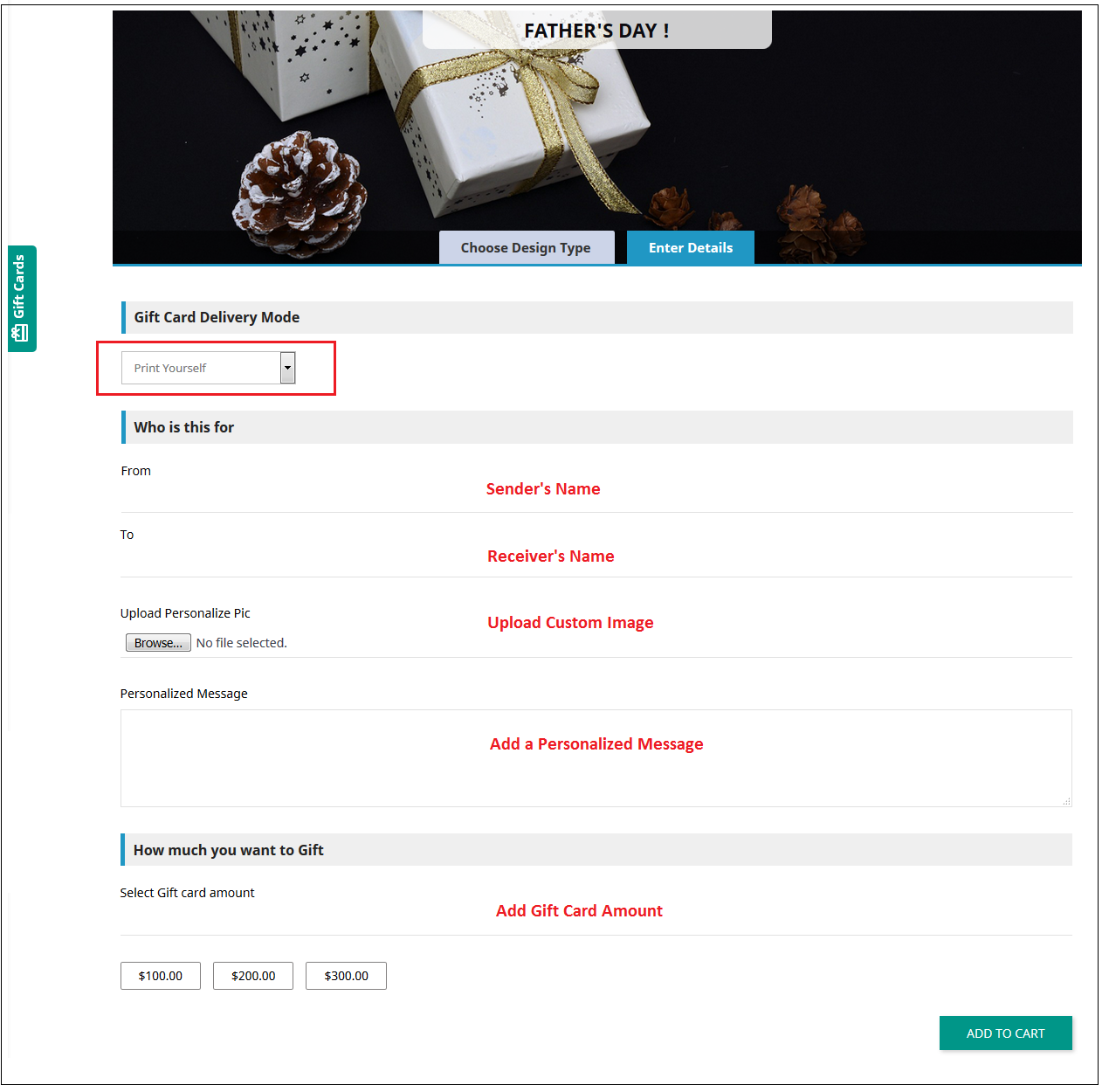
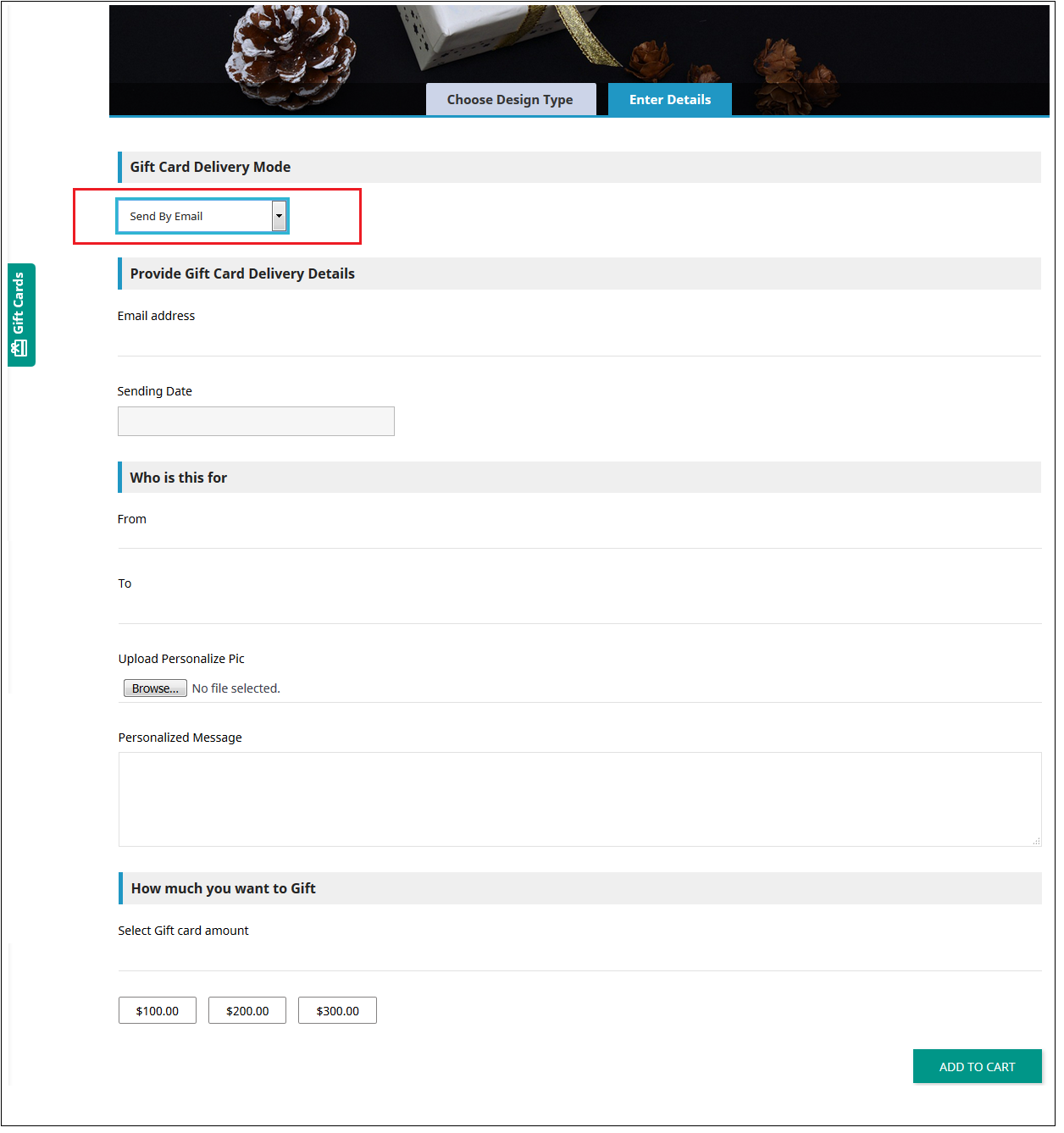
He can print the card or send it via email. The sender and receiver names along with the message can be mentioned in the section as shown below.

Upload Image: The sender can upload a custom image for a Personalised Gift Card.

Print By Yourself: Insert the details to print the gift card.

Send via email: Add the email address of the receiver, upload a custom image, and a note for your loved one.

Add the product to the shopping cart and proceed to the checkout page. The gift card will then be sent to the receiver.

Now you want to buy gift cards for your near and dear ones this PrestaShop addon is a way to connect with you with just one click. KnowBand PrestaShop Gift Card Module helps you engage more customers to your store.

Tutorial: Watch the Video Guide

To help you set up and use the PrestaShop Gift Card Manager Module, we have created a detailed YouTube tutorial. The video explains the installation process, configuration options, and how to manage gift cards step by step.

Watch the tutorial here:

Module Link: https://www.knowband.com/prestashop-gift-card

Video Link: https://www.youtube.com/watch?v=hLQWuBfvnRE
Admin Demo Link: https://psm.knowband.com/demo/?module=giftcard&demo=admin&referrer=kb&lang=en
Font End Demo Link: https://psm.knowband.com/demo/?module=giftcard&demo=front&referrer=kb&lang=en
Addon Store Link: https://addons.prestashop.com/en/wishlist-gift-card/29376-knowband-gift-card-manager.html

Please contact us at support@knowband.com for any query or custom change request as per your business requirement.