7 Ways to Increase Average Order Value

Every brand wants its customers to shop more. When they will shop more, you will have more sales, and hence more money. This will ultimately result in a higher average order value.

Online businesses often look for ways to increase the average order value on their store. There are some smart tactics which we will discuss in this article that will help you generate more sales from an order.

What is Average Order Value?

Average order value is defined as the average amount spent per order on your website/store.

How to Calculate the Average Order Value?

To calculate your store’s average order value, you simply divide the total revenue generated by the total number of orders. For example, a shopper purchasing three pieces of denim worth $12, $18, and $21 will set the average order value to be $17.

How to Increase Average Order Value?

Let’s try to understand what steps you can take to increase the average order value on your website.

1. Set a Free Shipping Threshold

Free shipping threshold is one of the best and the popular ways to increase the average order value on your store. For example, free shipping or orders above $100.

How to get benefited from this? Okay, once you have calculated your average order value, increase the bar. Let’s say the calculated AOV is $85, set the value to $100 for a customer in order to get free shipping. A 15-25% increase is considered to be ideal.

Now imagine, a shopper comes to your store, adds the product worth $85 or nearby to his/her cart, at the checkout, he/she will be encouraged to shop for extra $15 to avail the free shipping facility.

With our One Page Checkout module, you can place a free shipping barrier on the top of your checkout page, set a threshold from the backend configurations, following which shoppers would be displayed how much more do they need to spend to receive free shipping on their order.

2. Increase Average Order Value by offering Discount

This might put you in confusion at first as to how offering discount can lead to an increase in the average order value when it actually reduces the price.

So, the tactic here is whenever you are offering a discount to your customers, set a minimum spend limit such that the AOV after discount remains more than the current calculated AOV, and at the same time, your profit margin is not much compromised.

For example, if the AOV is $50 currently, offer a $5 discount on orders above $65. You can increase the discount value for higher value orders.

3. Upsell and Cross-sell

E-commerce businesses rely mostly on Upselling and Cross-selling to increase their store’s average order value. You should replicate the same.

To be specific about these two terms, cross-selling involves products that complement the existing product (the product which the customer is buying). For example, if a person is purchasing a smartphone, a mobile case and a screen guard would fit well with the purchase. So, instead of just buying the phone, the person would most likely purchase all the three, and hence the order value will go up.

Upselling, on the other hand, involves products that are either a better version of the current product or has more benefits, which obviously means it would come at a slightly higher cost. People do not hesitate to spend a bit extra if they can get more features and better quality, ultimately resulting in the higher-order value.

Many popular eCommerce brands use terms like “Frequently bought together”, “Related Products”, “Similar Products”, “You may also like”, etc. to represent cross-selling and Upselling.

Related: A complete guide to Cross-selling and Upselling in eCommerce

4. Offer Bundle Deals

Providing a bundle of products is also one of the smartest ways to increase your average order value. For example, you can run deals like buy 2 and get 1 free or something like if a shirt is priced at $40, you can offer- buy 2 at worth $75 or buy 3 at $110.

When shoppers see that they can get a bundle of three at a lesser cost than the sum of their separate individual cost, they are likely to spend on buying the package. Just make sure that you are still able to make some profit out of it.

5. Launch a Loyalty Program

Customer loyalty programs can be very effective when it comes to increasing the average order value on your website.

The benefit of having a loyalty program is that it ensures repeat purchases. Besides, you can also improve the customer retention rate on your store.

Every time you reward something to a user on their purchase, you encourage them not only to return to your store but also push them to spend more.

It is very obvious that when customers have loyalty points in their wallet, more often than not they will spend or redeem them on higher purchase.

6. Provide Gift Cards

Gift Cards are a valuable asset for your brand and can help you achieve more sales and higher average order value.

If the AOV is $50, you can offer your customers a gift card of $5 on orders above $70 or $80. Besides, you can also set the gift card threshold, which obviously should be more than the current AOV. For example, shoppers can redeem the gift card on a purchase made over $80.

In this case, setting a minimum spend amount also becomes important because it can make customers purchase a product of the same amount as that of the gift card, which will give you no profit.

Well, even if you decide not to set the threshold, it is commonly seen that the customers usually spend the gift card amount on purchasing an expensive product.

Related: Why Digital Gift Cards are important to your eCommerce Business?

7. Run a Limited-Time Deal

Limited-time deals not only create urgency but provide you with an excellent opportunity to increase the average order value on your website.

For example, you can run a limited-time offer on your website where customers would be able to claim a few benefits like free shipping, a gift card, a coupon code for next purchase, or anything that is beneficial for them.

But for that to happen, customers would have to shop within that limited time and also match the terms and conditions defined, which could be anything like shopping for a certain amount, certain quantity of products, etc.

When shoppers know they have limited time to shop and avail the benefits, they act quickly.

Final Thoughts

That’s it. These are the seven best ways to increase the average order value on your website. High average order value is an indication that your business is performing exceedingly well. It also reflects higher revenue.

Taking a quick look back, it includes setting a free shipping threshold, offering a discount, encouraging Upselling and cross-selling, offering bundle deals, launching a loyalty program, providing gift cards, and running a limited-time deal.

Were these tips helpful for you? Do let me know in the comments below, and if you have some more points to add, do not forget to mention them.
Opencart Free Shipping Manager extension- User Manual

1.0 Introduction

Opencart Free Shipping Manager module is a feature-rich module which allows the online merchant to offer free shipping to the online users. The store merchant can apply conditions and rules for free shipping benefits.

The online users can show a free-shipping block on the cart summary page. Opencart Free Shipping Manager plugin allows admin to set the minimum order amount and weight for availing free shipping. By offering free shipping to online users, admin can increase sales and reduce cart abandonment cases.

Admin can also select countries where he wants to implement any free shipping rule. This way, online users can shop for their desired products without paying any shipping charges.

1.1 Features offered by Opencart Free Shipping Manager plugin

  • As a store merchant, you can offer free shipping to the consumers.
  • This Opencart Free Shipping Manager module allows setting terms and conditions for offering free shipping. Admin can add multiple free shipping rules.
  • The Free Shipping Price module for OpenCart allows setting the minimum order price and order weight for availing the discount.
  • Admin can also set the look and feel of the shipping block OpenCart module admin interface.
  • Admin can enable or disable any free shipping rule anytime. There is an option to select countries from the list for offering free shipping.
  • Free Shipping Price module for OpenCart provides an option to the store admin for setting the priority of free shipping rules.
  • Online consumers can check the cart summary page for getting exact detail for meeting the free shipping conditions.
  • The OpenCart Free Shipping extension is multilingual compatible and also compatible with all the OpenCart themes.

2.0 Installation Steps

Purchase Opencart Free Shipping Manager plugin from the Knowband store. You will receive these files after purchasing it:

  • First, you will get a source code zipped file.
  • User Manual

Follow below-mentioned steps to install Free Shipping Price module for OpenCart:

1. Unzip the received zip file. You will get the folders.

2. Copy all the folders of the zip file in the Root Directory of OpenCart setup via FTP manager.

3. There will be a file named kbpdf_free_Shipping.ocmod.xml (In case of Openvar v3.0.x file name would be kbfree_shipping.ocmod.zip). Upload the same file from the page “Admin -> Extension -> Extension Installer -> upload”.

So, the OpenCart Free Shipping Manager extension is now successfully installed and ready to use at your store.

3.0 Admin Settings

After installing the OpenCart free shipping module, the e-merchant can apply the settings for offering free shipping.
There are following sections available to the admin interface:

  • Module Configuration
  • Free Shipping

3.1 Module Configuration

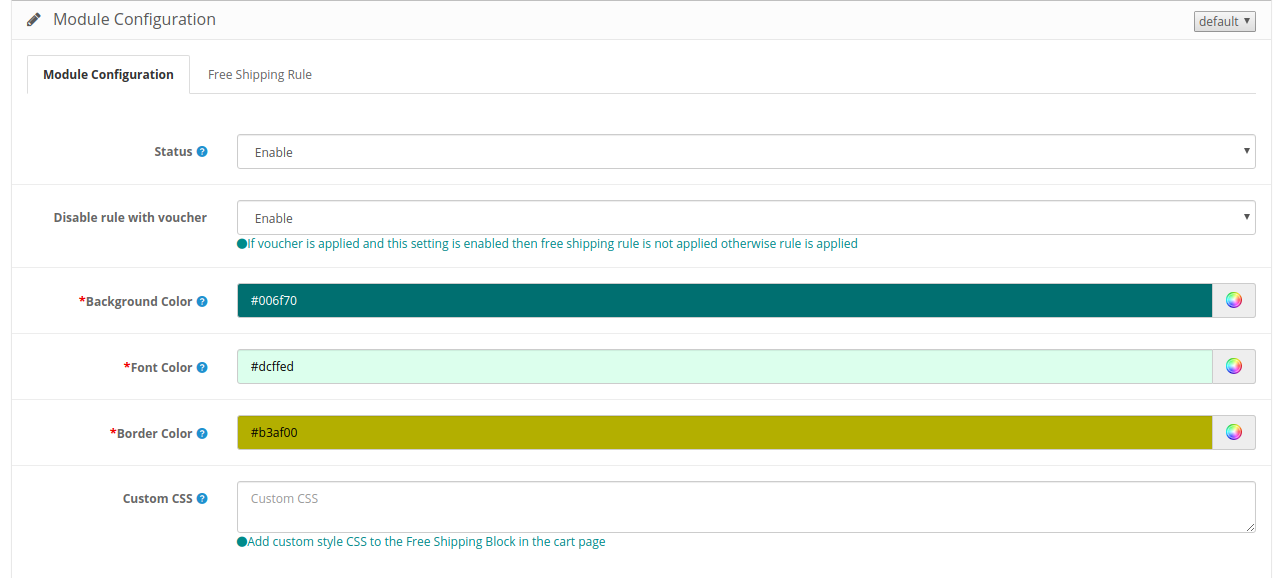
In the module configuration section, the online merchant can set up a general configuration of the Opencart Free Shipping Manager module.

Check the customization options here:

  • Status: Activate or deactivate the module functionality from here.
  • Disable rule with voucher: Once this setting is disabled, the free shipping offer will not be applicable even when the voucher is applied.
  • Background Color: Select the background color.
  • Font color: Choose the font color from here.
  • Border Color: Select the border color here.
  • Custom CSS: Enter the Custom CSS code here.

 3.2 Free Shipping

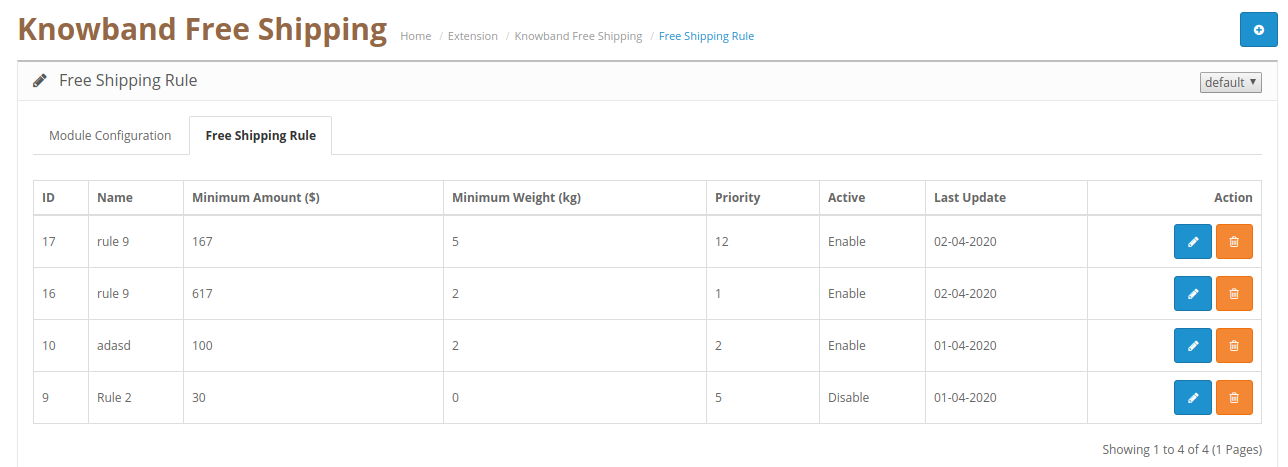
In the free shipping rule section, the online merchant can set up free shipping rules. The OpenCart free shipping module allows creating multiple free shipping rules.


3.2.1 Steps to add new Free Shipping Rule

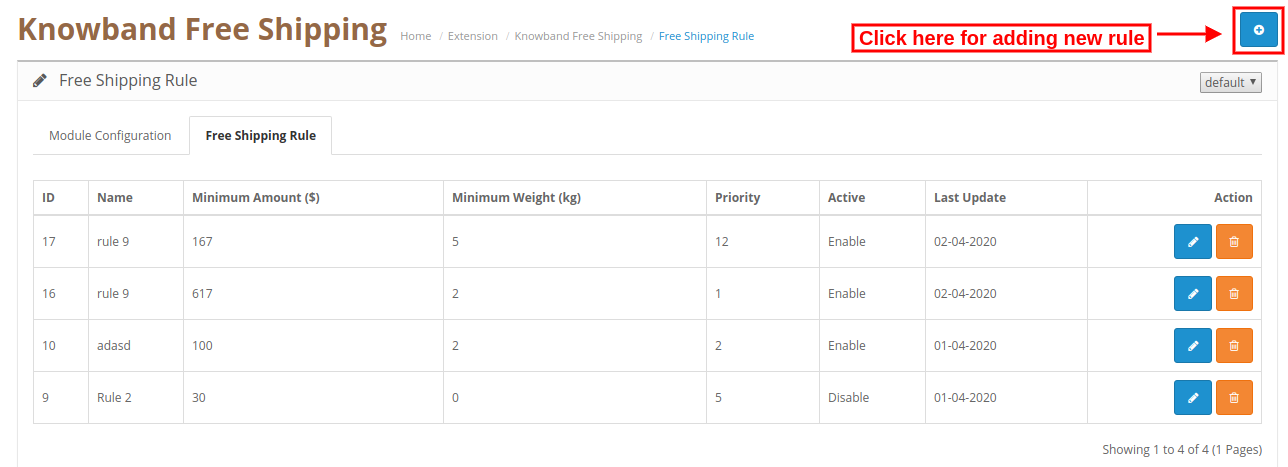
Admin can add new rules from the admin interface. For adding a new rule, the admin needs to click on the “+” button.

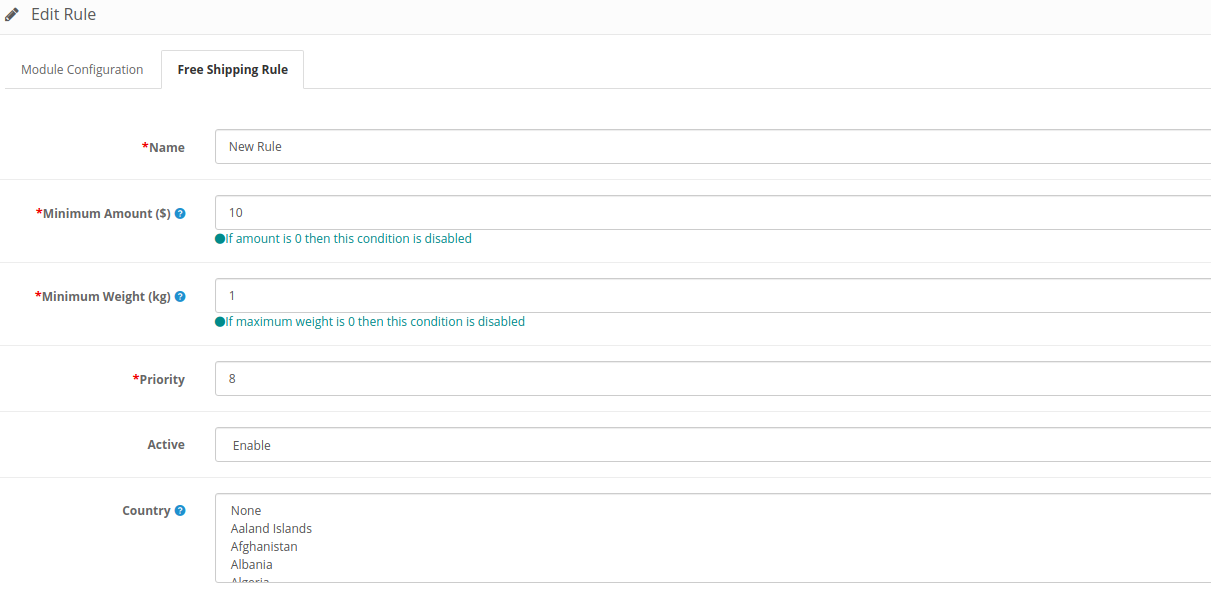
After clicking on this button, enter these details as shown below:

  • Name: Enter Rule name here.
  • Minimum amount: Set the minimum amount for availing free shipping.
  • Minimum Weight: Enter the minimum weight of the overall order for which you can offer free shipping. If the maximum weight of the order is 0 then this condition will not work.
  • Priority: Admin can set the priority of the free shipping rule.
  • Activate: Activate the rule from here.
  • Country: Admin can select the country from the list for which he doesn’t want to implement any particular rule.

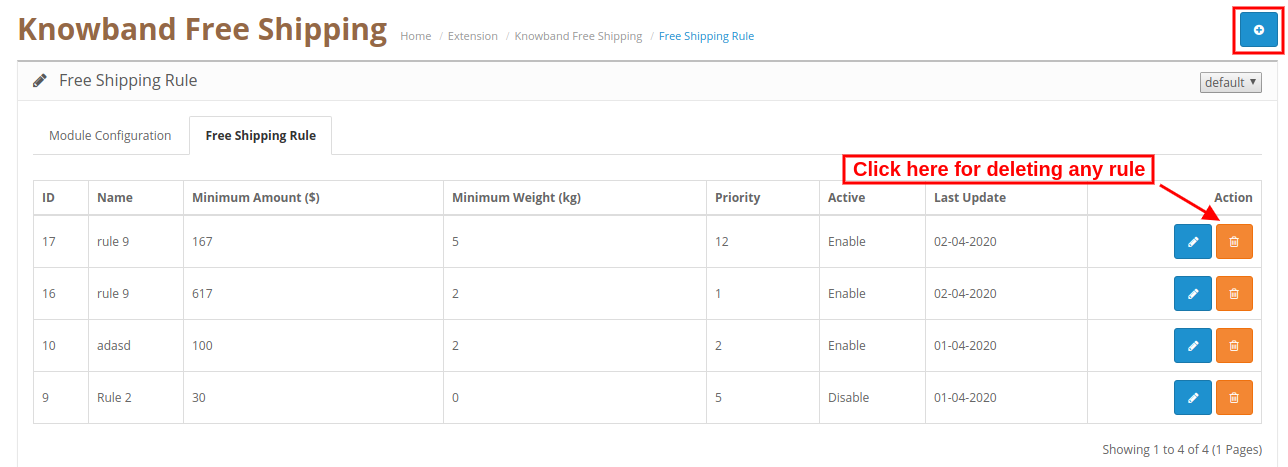
3.2.2 Steps to Delete free Shipping Rule

Admin can click here for deleting any free shipping rule. Check the below screenshot for more details:

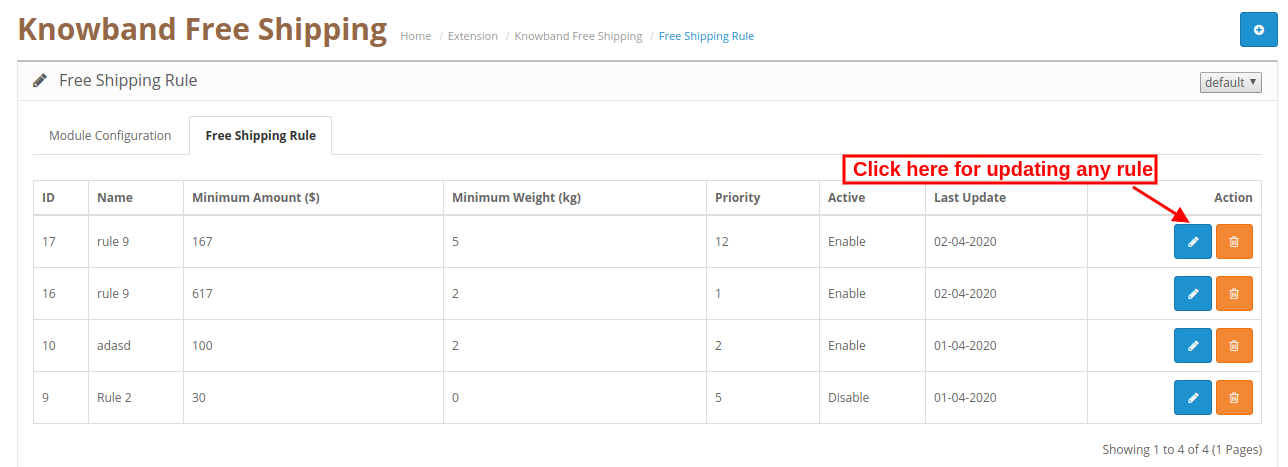
3.2.3 Steps to Update free Shipping Rule

Admin can click here for updating any free shipping rule. Check this screenshot:

4.0 Website UI

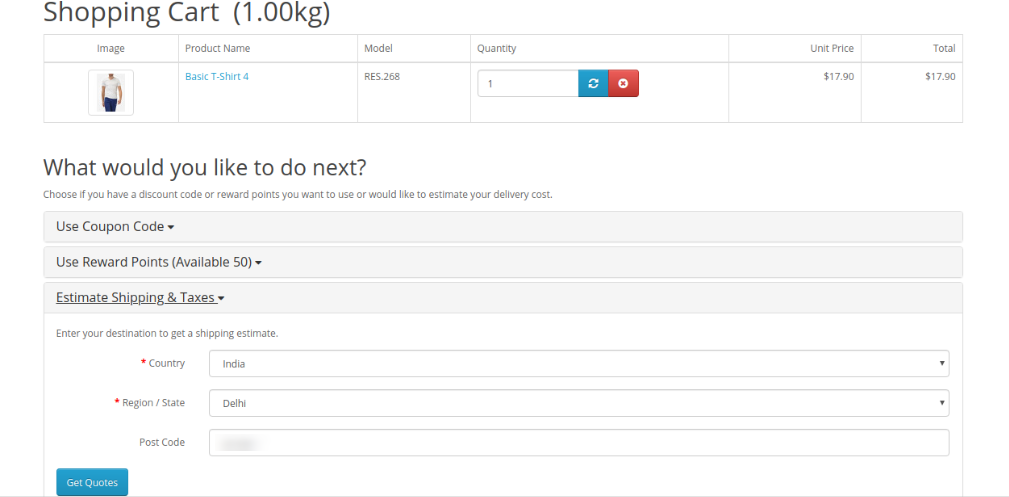
In the website front-end interface, the online users can view the impact. After adding any product in the cart, online users can select the “Estimated Shipping and taxes” option and enter country and area details here. Check the below-mentioned screenshot:

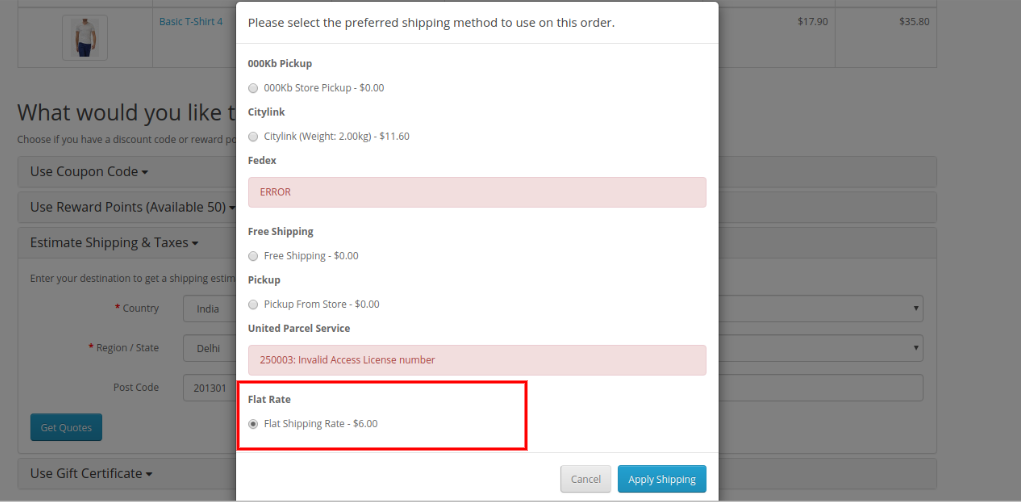
After submitting all details, online users can select shipping fat rates as shown below:

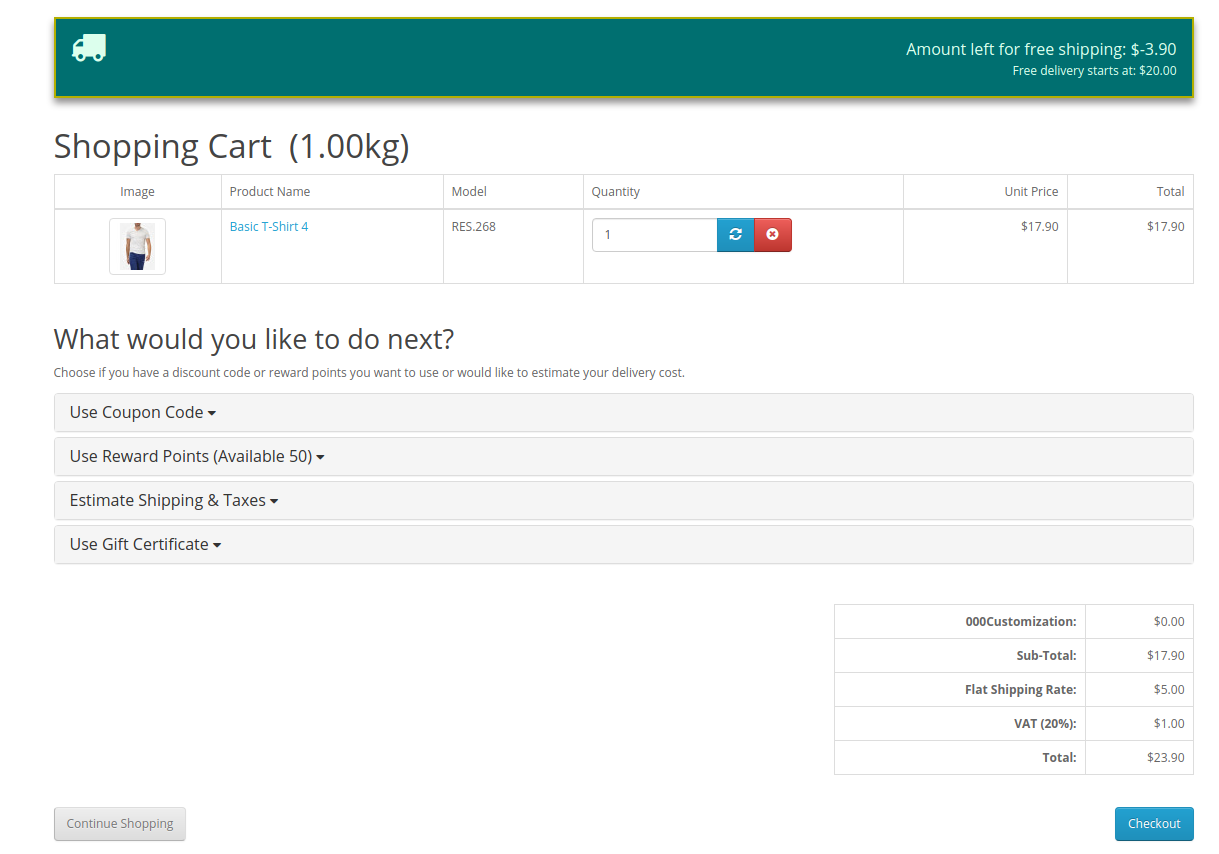
After selecting shipping flat rates and clicking on apply shipping, the online users can view a free shipping block on the cart review page. They can get exact information about the remaining amount for availing free shipping.

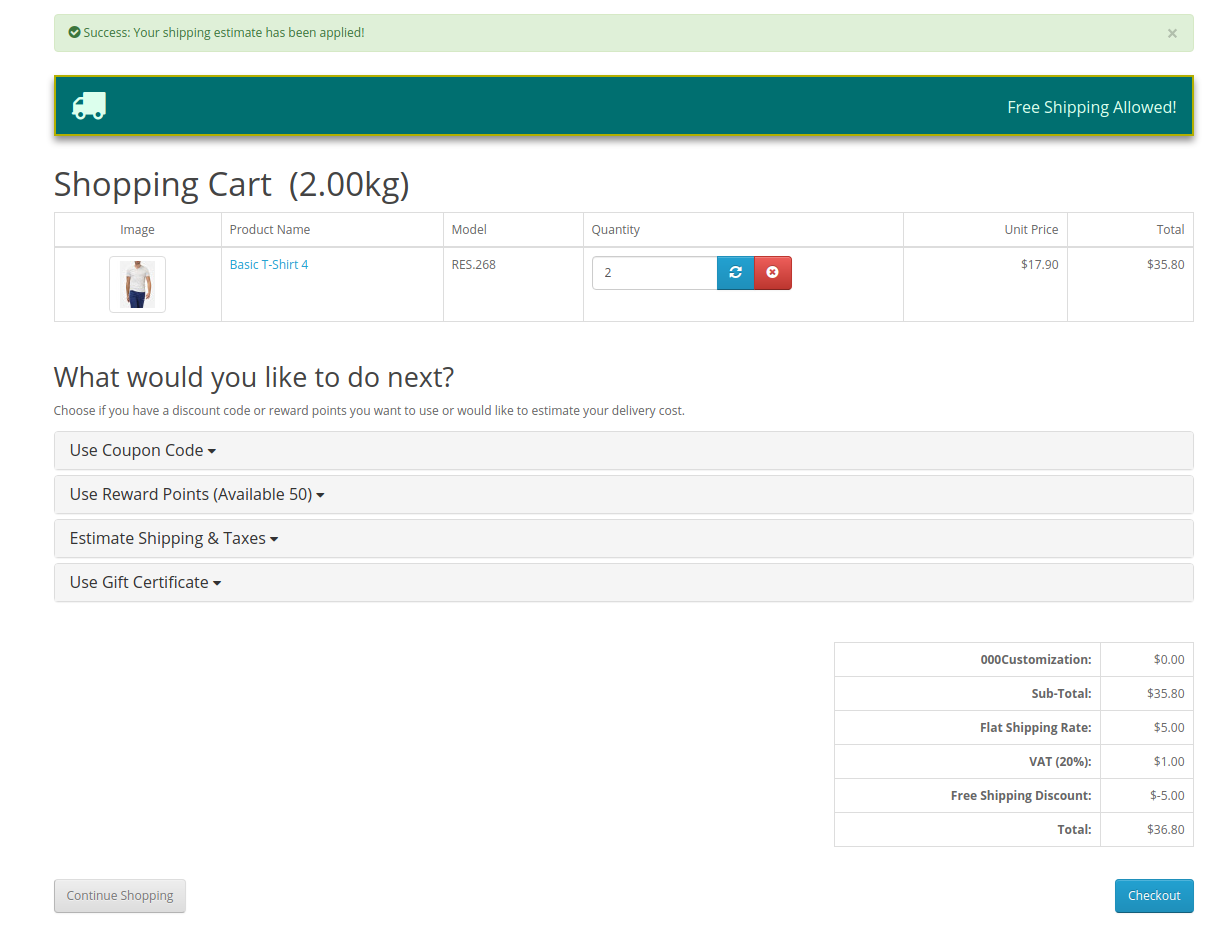
As shown here, $3.90 remaining for availing free shipping. After adding another product, online users can view the free shipping message as shown below:

The online users can avail free shipping only if they fulfill all the conditions applied by store admin.

This way, the online users can avail free shipping while shopping for their desired products from your online store.

How to calculate Free Shipping based on final Total Price in Prestashop ?

After reading this blog we will be able to calculate Free Shipping based on the final Total Price of the Cart.

Problem Statement

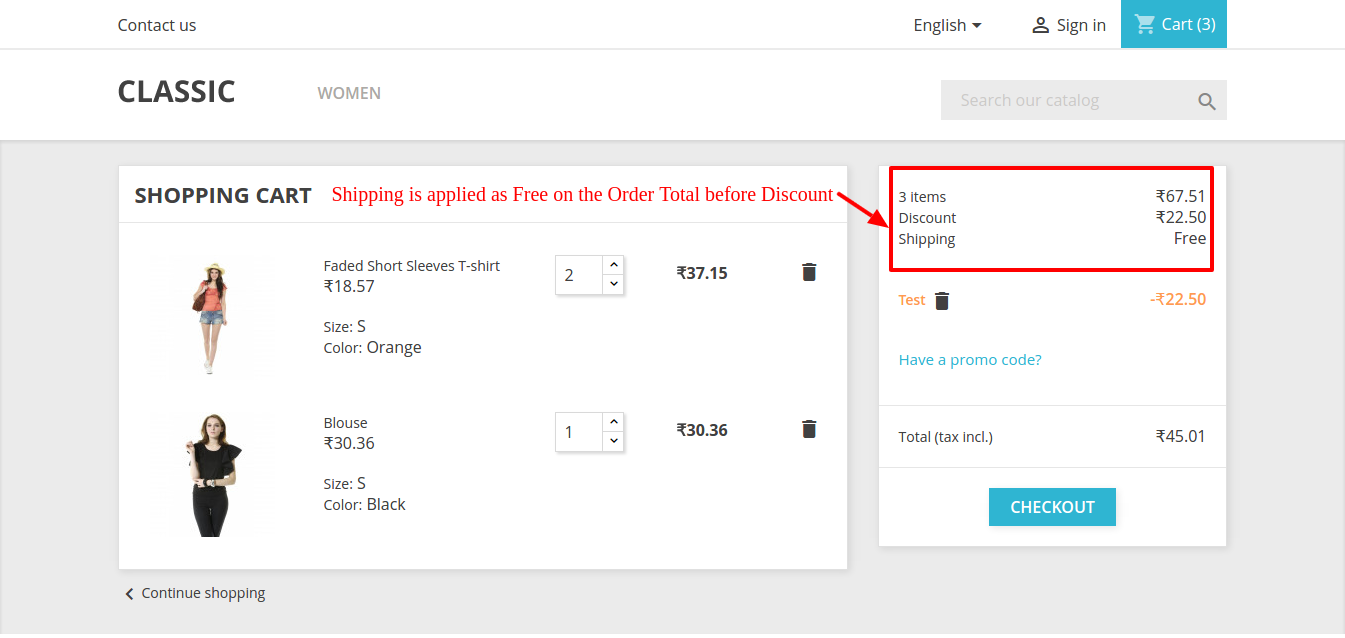
Presently, when we add products into the cart and move to the checkout section to avail of discount and shipping then we see that the discount applies after shipping.
Let’s say,

  • Cart total amount is $100 which avail Free Shipping and some discount of 5% is also added
  • Then after the discount Total Amount of the cart is set to below $100 but still, Free Shipping applies which should not happen. Free Shipping must apply to the Final Total amount of the cart after the discount.
  • This is the default process of Prestashop. Refer to the screenshot below where shipping must be Free if Order Total is > 50 but it has applied Free Shipping while Order Total is < 50 after discount –

Recommended Read: Free Shipping Strategies: Why to Offer? How to Offer? When to Offer?

Why the current issue is there?

The current issue is there because the shipping amount is being calculated on the Order Total amount which is set into the Cart before applying the discount. You can check the lines of code below where Order Total without discount amount is being used to calculate shipping –

$shipping_cost += $carrier->getDeliveryPriceByPrice($the_total_price, $id_zone, (int)$this->id_currency);

Requirement

We need to modify the below-mentioned file to fix the same. We will be overriding the corresponding lines of the class file to avoid any changes in Core files.

Below is the list of class files which will be overridden-

1. Root dir\classes\Cart.PHP

Procedure to Solve the issue-

Follow the below-mentioned steps –

1. Rewrite function getPackageShippingCost

2. After the line given below –

// Order total in default currency without fees $order_total = $this->getOrderTotal(true, Cart::BOTH_WITHOUT_SHIPPING, $product_list);

3. Add the following statement –

$listeDiscounts = $this-&gt;getCartRules();
$total_discounts = 0;
if (is_array($listeDiscounts)) {
if (isset($listeDiscounts[0]['value_real']))
$total_discounts = $listeDiscounts[0]['value_real'];
}
$price_to_apply_shipment = floatval($order_total) - floatval($total_discounts);

<strong>Recommended Read: </strong><a href="https://www.knowband.com/blog/opencart-blog/best-free-shipping-manager-extension-opencart-store/">Best Free Shipping Manager Extension for OpenCart Store</a>

4. Replace the lines mentioned below –

Replace this line

$check_delivery_price_by_price = Carrier::checkDeliveryPriceByPrice($row['id_carrier'], $total_order, (int)$id_zone, (int)$this->id_currency);

With

$check_delivery_price_by_price = Carrier::checkDeliveryPriceByPrice($row['id_carrier'], $price_to_apply_shipment, (int)$id_zone, (int)$this->id_currency);

————AND—————–

Replace this line

$shipping_cost += $carrier->getDeliveryPriceByPrice($the_total_price, $id_zone, (int)$this->id_currency);

With

$shipping_cost += $carrier->getDeliveryPriceByPrice($price_to_apply_shipment, $id_zone, (int)$this->id_currency);

5. Clear the cache and run.

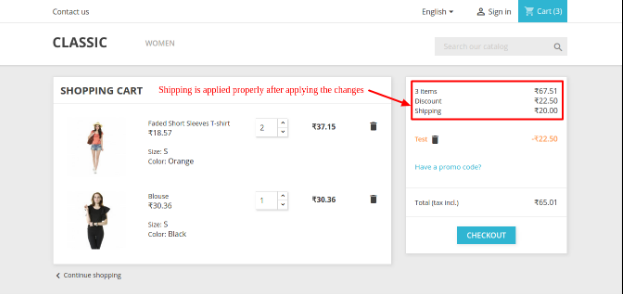
Refer to the screenshot below after applying changes to the code –

After following the above procedure, you will be able to calculate Shipping on the Final Total amount of the Cart.

Conclusion

When it comes to online buying, the whole pricing structure plays a crucial role for the customers. One of the factors that might make or break your conversions is the availability of free shipping. One method for determining the shipping options and costs on an eCommerce website is the Free shipping Manager Addon by Knowband. One of the most important requirements for increasing average sales is providing openness in the transaction.

The shops that used this free shipping module boosted site traffic, revenue, and conversion rates. With the help of this free shipping plugin, store administrators can define the guidelines and conditions for shipping costs. Even better, this feature can be added or removed from the website by the store administrator.

The threshold over which free shipping is offered can be set by online retailers. As a result, it even encourages customers to make larger purchases in order to qualify for free shipping. To know further about the functionality of the Free Shipping Module, feel free to contact us at support@knowband.com