Magento Ajax Cart Extension – User Manual

Introduction of Magento Ajax Cart Extension:

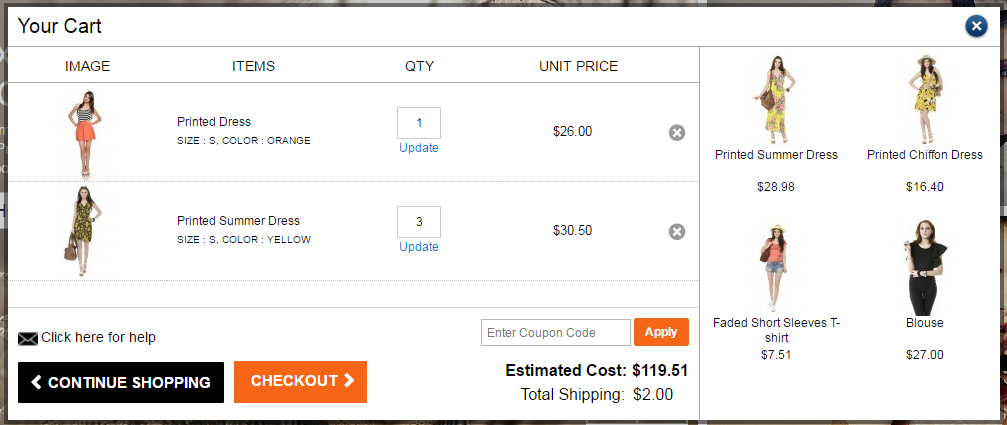
Ajax Cart is an addon which (when enabled) replaces the default “Add To Cart” action with the module’s custom action. After enabling this Magento Ajax Cart Extension, whenever a customer clicks on the “Add To Cart” button, the user is not redirected to the view cart page instead a popup is displayed. In the popup, items are shown. Cart items can be removed, updated, edited from the Ajax add to cart extension. Coupons can be also applied on Magento popup cart extension and user can checkout from there. The merchant can also show his/her banners or show the best-selling products on Magento popup cart page with the help of this Magento plugin.

Installation of Magento Ajax Cart Extension:

  • Follow the following steps for installing Magento Ajax Cart Extension:
  • Download the extension package.
  • Unzip the package on your root folder of Magento setup via FTP manager (like Filezilla or WinSCP – download here)
Magento Ajax Cart Extension User Manual | KnowBand

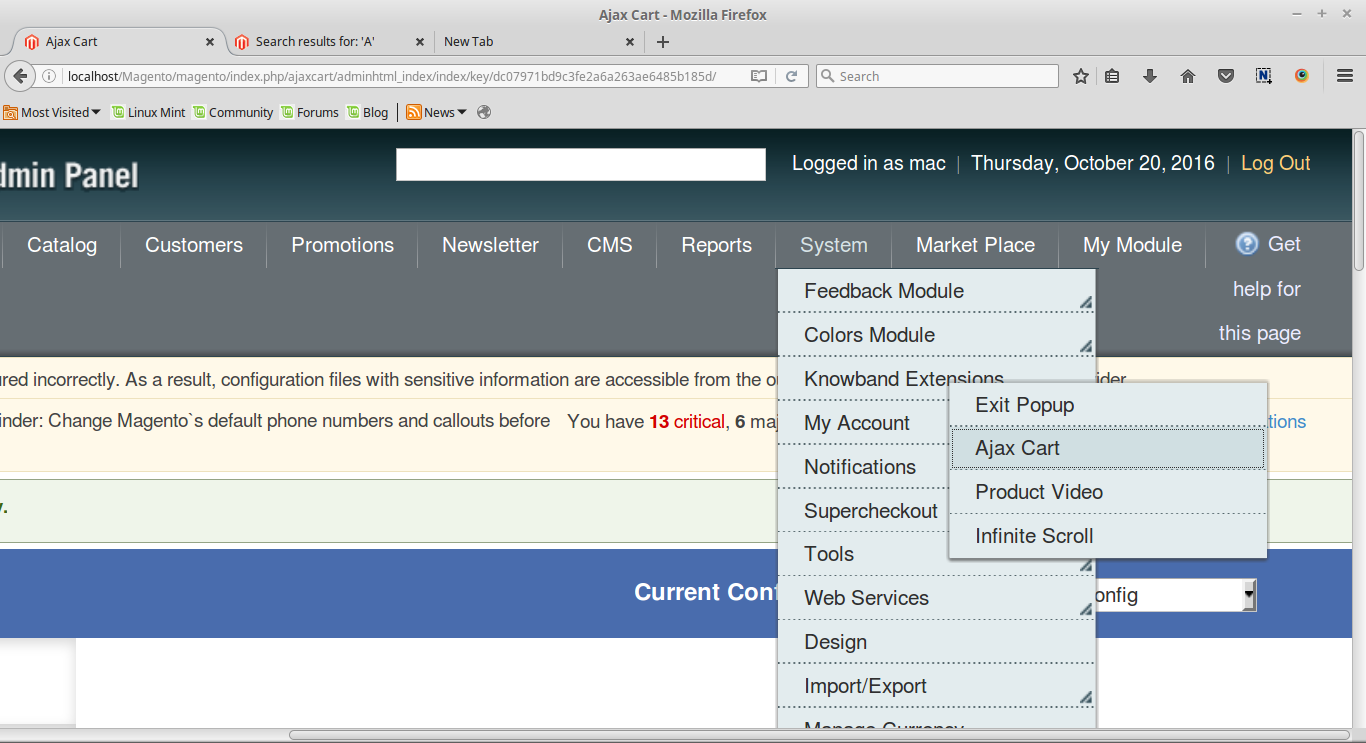
  • In Admin Panel go to “System > Knowband Extensions > Ajax Cart”.
  • That is all – Your system is ready.

User Manual

This User Manual Guide users through the Admin Module/Store Front settings and features of the Magento Ajax Cart Extension by Knowband.

Admin Panel Setting of Magento Ajax Cart Extension

Admin Panel Settings of the Magento ajax cart popup extension contains the 3 tabs for settings.

1. General Settings of Magento Ajax Cart Extension

The General Settings of the Magento popup cart module has following options:
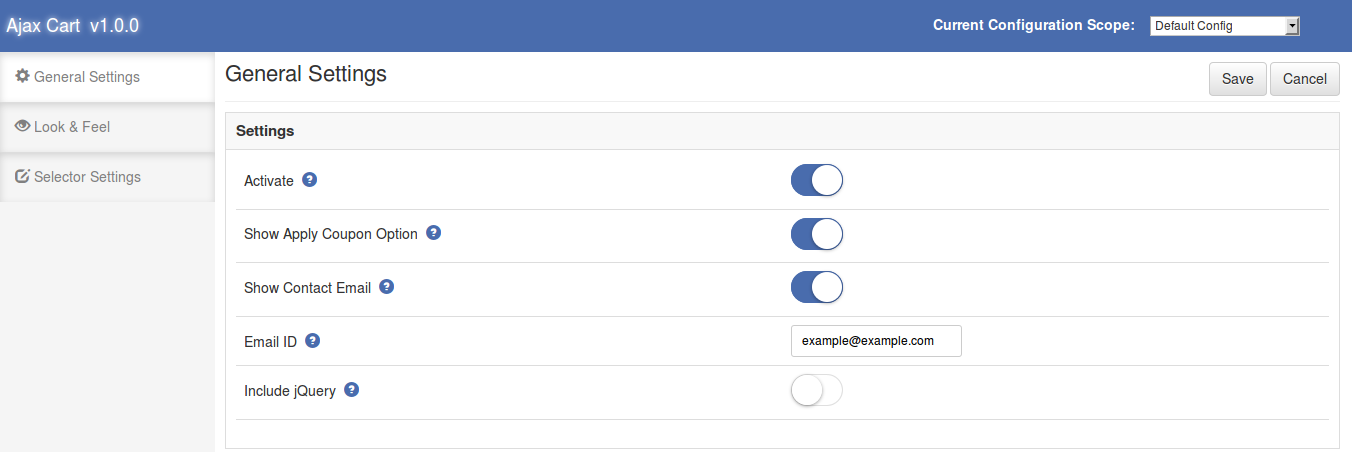
  • Activate: Enables or Disables the Magento plugin. Switch it on to enable the Magento pop-up cart module.
  • Show Apply Coupon Option: This option of the Magento ajax cart extension allows the admin to show or hide the apply coupon division on the pop-up window shown on the front website.
  • Show Contact Email: Switch on this option of Magento Ajax Cart Extension to show the Contact Email option on the pop-up cart.
  • Email ID: This field of Magento add to cart popup extension offers the admin to set the default email id for the contact email option shown on the front. By default, the email id of the store admin will be filled in the field.
  • Include jQuery: This option of the Magento add to cart ajax popup allows us to include jQuery in our Magento module.

2. Look and Feel of Magento Ajax Cart Extension

This tab of Ajax add to cart extension is used to customize the pop-up window shown in the front.
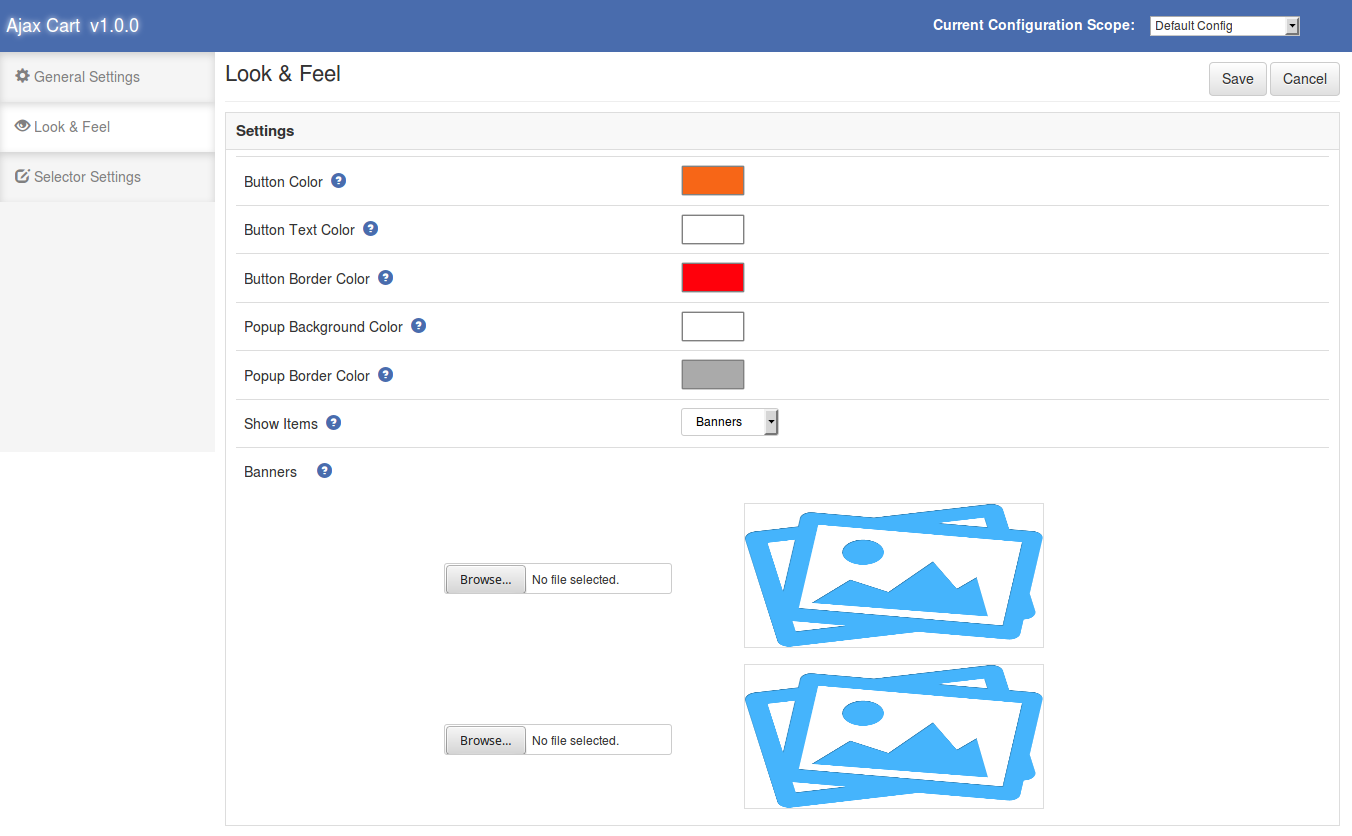
  • Button Color: This option of Magento cart popup extension changes the background color of the checkout button.
  • Button Text Color: Color of the text shown inside the checkout button on the pop-up. The admin can change the text color of this Magento ajax cart popup extension button.
  • Button Border Color: Color of the border of the button can be changed using this option of Magento add to cart popup extension.
  • Popup Background Color: Background color of the main pop-up window is set from this Magento add to cart ajax popup module.
  • Popup Border Color: Background color of the main pop-up window is set from this field of Ajax add to cart extension.
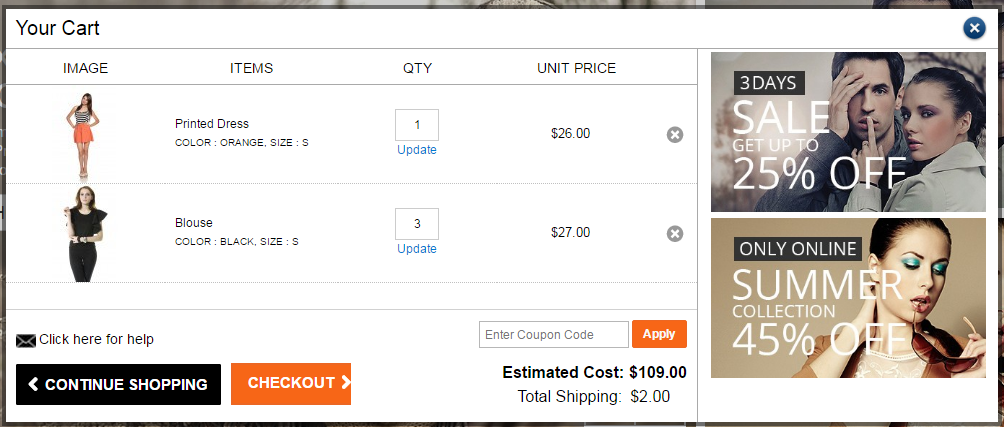
  • Show Items: This option of the Magento Ajax Cart Extension is to show the banners or the top selling items on the front pop-up window. When this option is selected as “None”, no item is shown on the pop-up. If this option is selected as “Top Selling” then 4 most top-selling products are shown on the right panel on pop-up window and if selected as “Banners” then a decision is shown from where we can choose the banners to show on the front of this Magento extension.

3. Selector Settings of Magento Ajax Cart Extension

Selector Settings tab of the Magento add to cart ajax popup is used to make the module work in case checkout buttons have different class names. The field of Magento plugin has the following options:
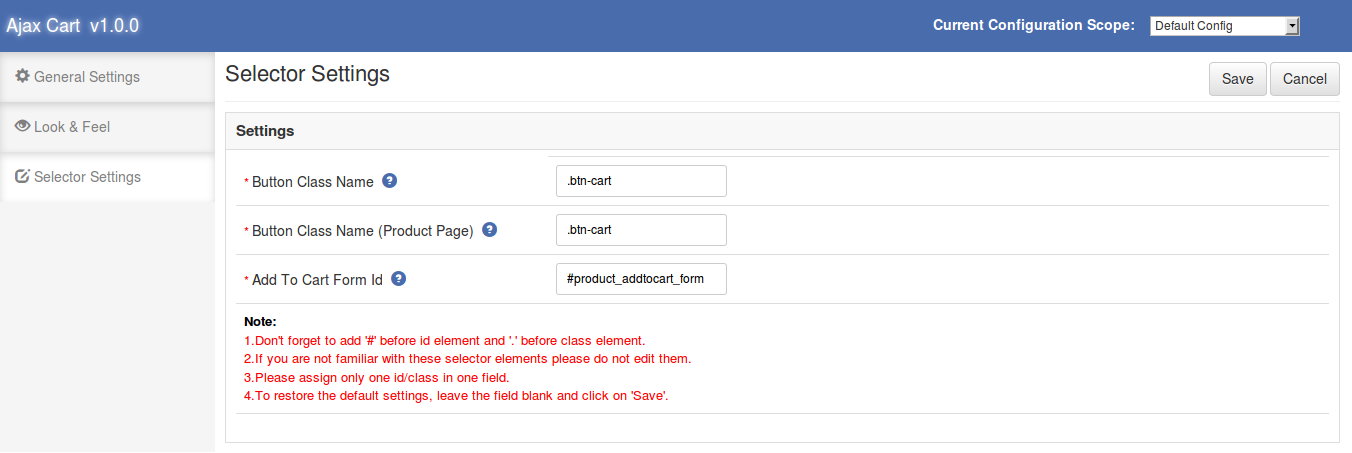
Button Class Name: By default this field of Magento pop-up cart extension is auto-filled. If the Magento module still does not work then we have to enter the correct class name for the checkout buttons shown on the front site (except product view page). To get the class name of the button right click on the “Add to cart” button and click on “Inspect Element”.
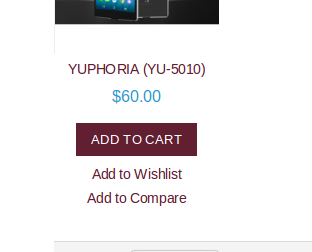
When the inspector opens find the class name inside “button” tag.

Take a look at following image.
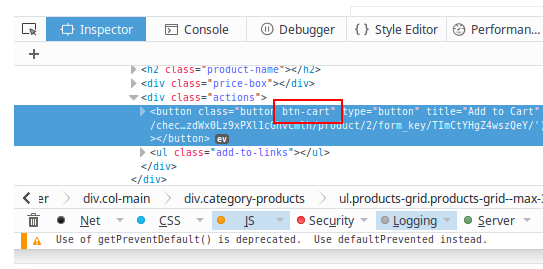
  • Button Class Name (Product Page): This field of Magento popup cart is also filled by default. To get the class name of the “Add to cart” button shown on product view page. Go to the product view page of Magento Ajax Cart Extension and follow the same process as shown above.
  • Add To Cart Form Id: This field of Magento Ajax Cart Extension is also filled by default. To change the form id of the Magento Ajax Cart Extension, Go to the product view page and right click on the “add to cart” button then click on the “Inspect Element”. When inspector opens to find the form as shown in the below image.
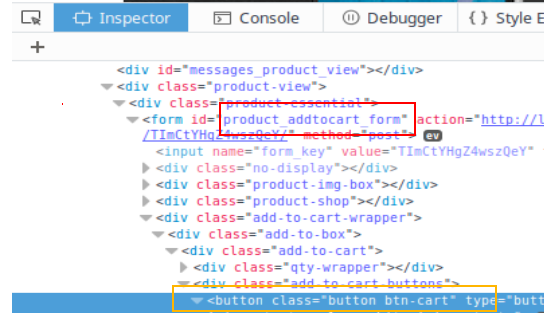
 

Yellow box is the location of the “Add to cart” button and the red box is the location to find the id of the form.

Store Front End of Magento Ajax Cart Extension:

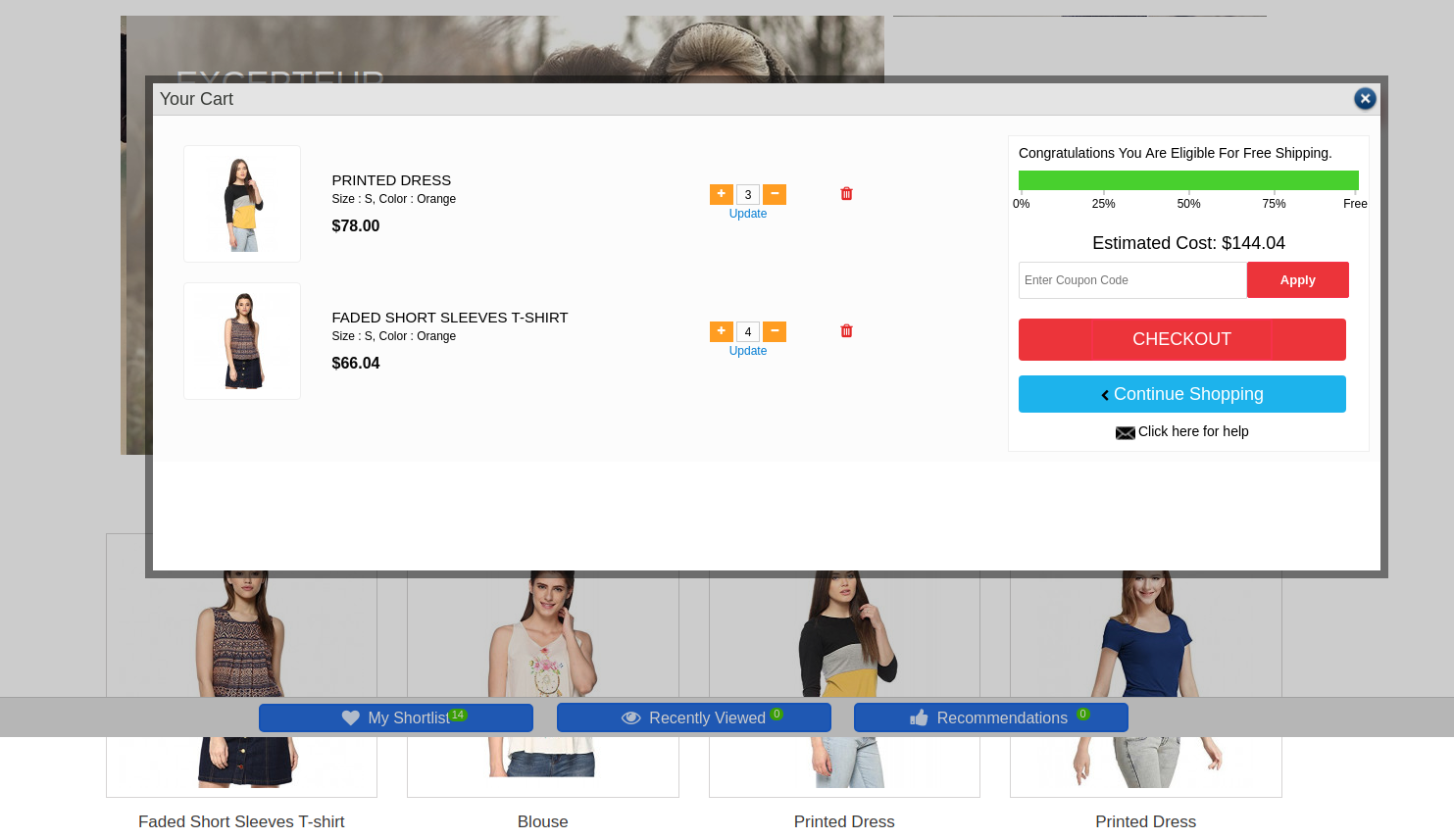
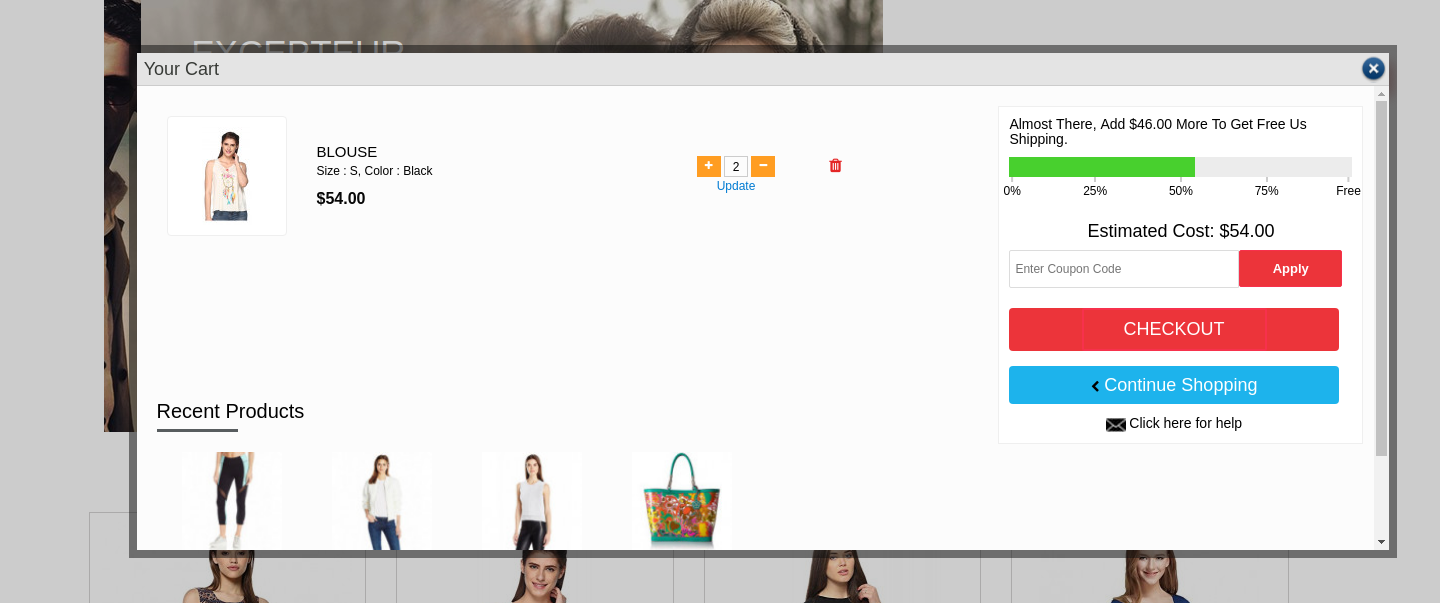
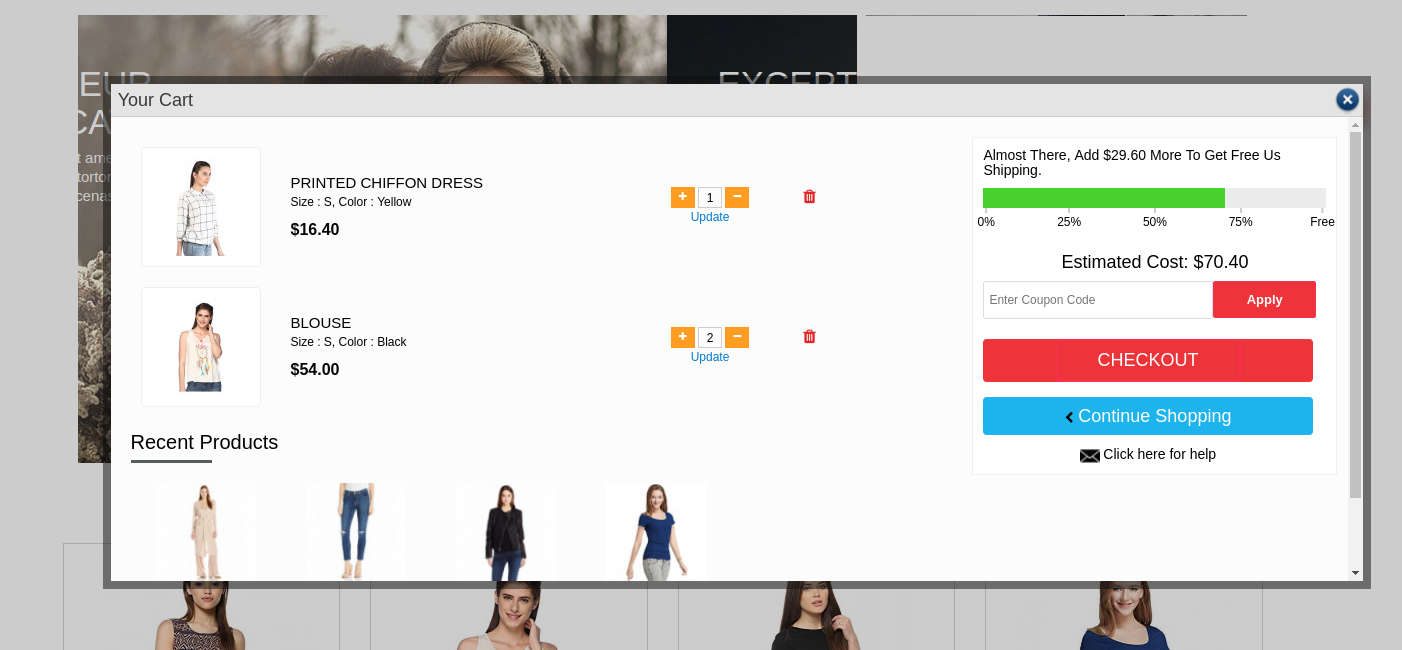
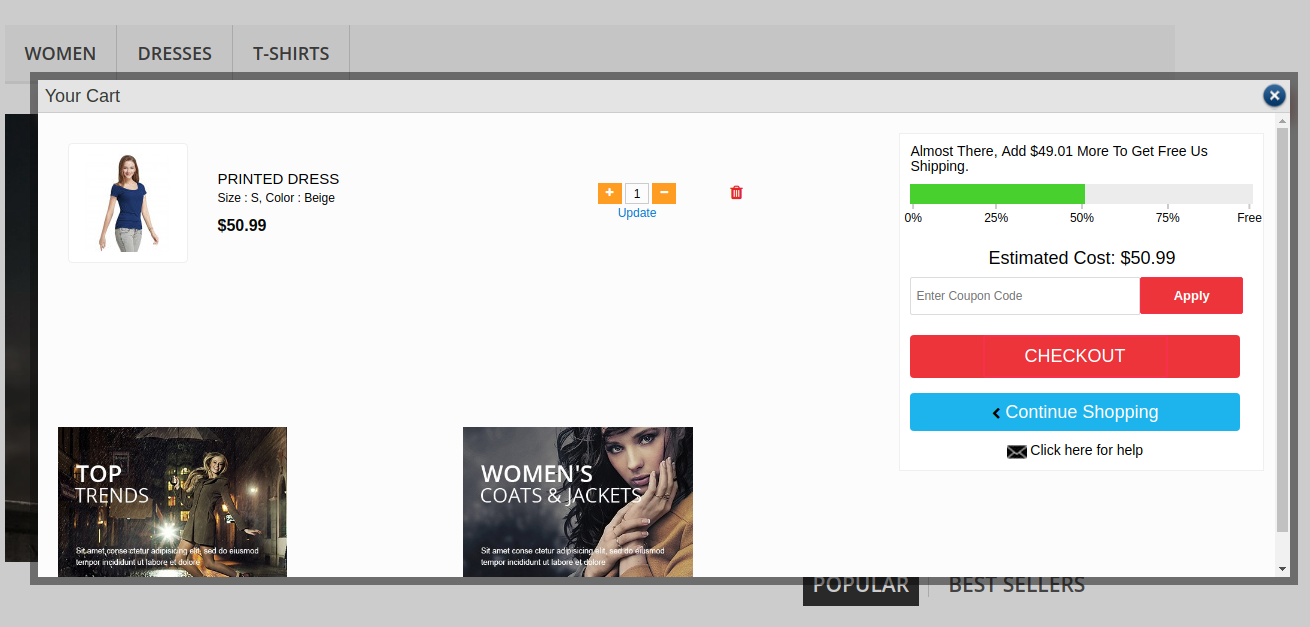
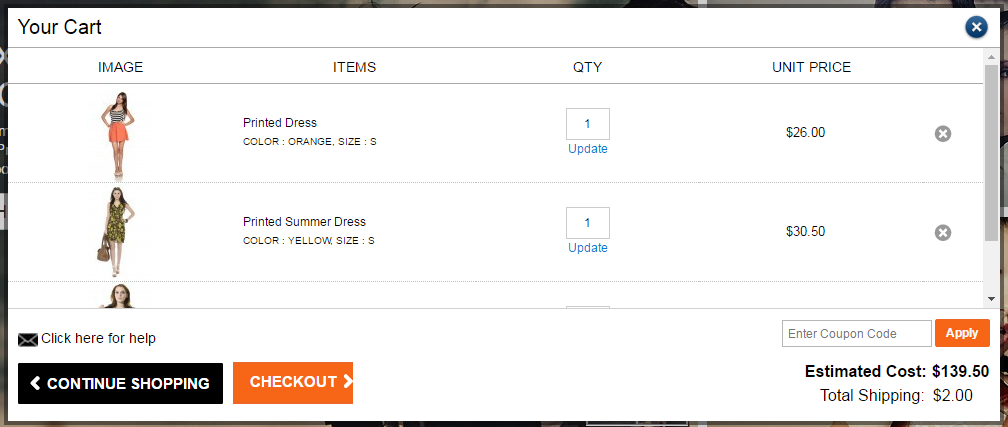
When the Magento add to cart ajax popup module is enabled and the user clicks on the “Add to cart” button, a pop-up is opened. The product is added to the cart and sown in the pop-up. The Magento Ajax Cart Extension allows us to update product quantity or remove them from the cart. From the popup, the user can go to checkout and apply for the coupon also.
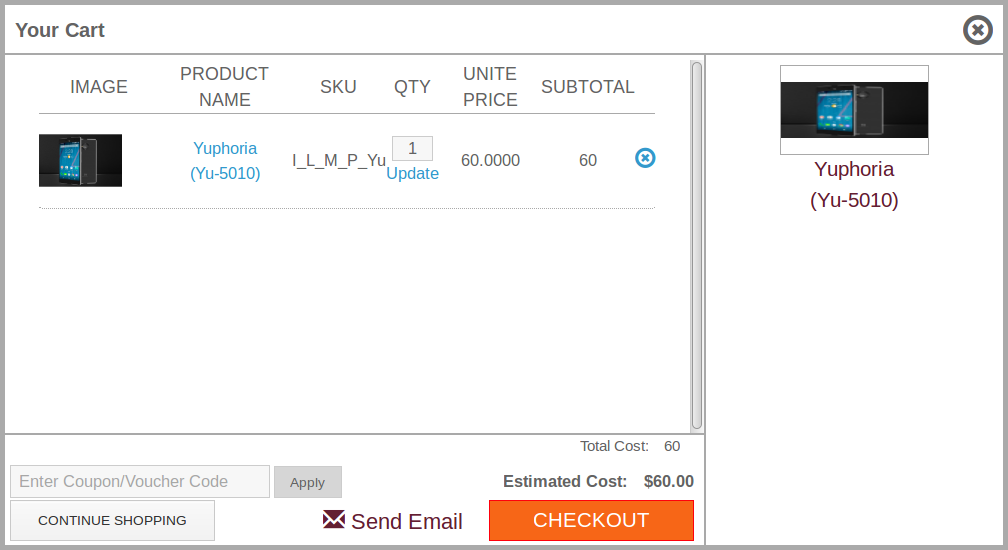
  • To update the quantity of the product enter the quantity in the input field and click on the update link of the Magento Extension.
  • To remove a product from the pop-up, click on the cross icon shown in front of every product row.
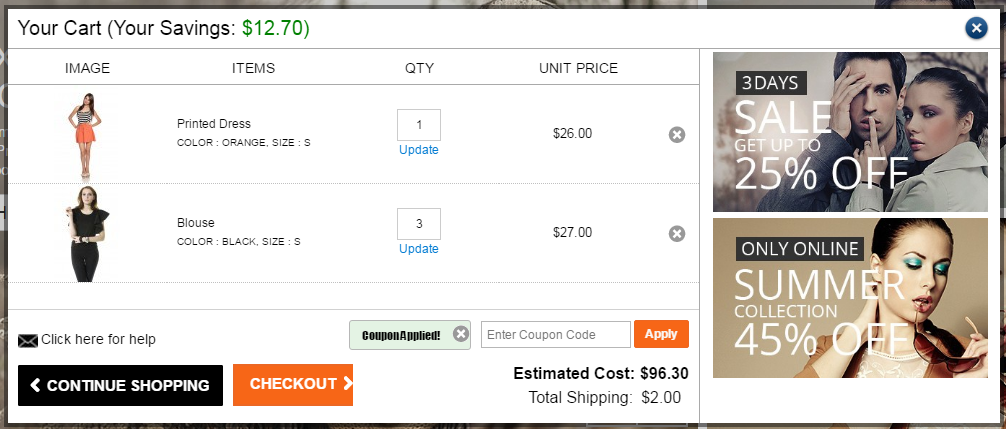
  • To apply the coupon, switch on the “Show Apply Coupon” option from admin panel of the Magento cart popup extension and the coupon division will be visible on the front pop-up cart. Enter the coupon code in the input field of the Magento Ajax Cart Extension and click on the “Apply” button.
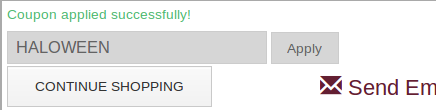
To send mail for any help or suggestions, click on the “Send Email” option. A window will open, from where the user can send email to the admin.

Watch the video tutorial of Magento Ajax Cart Extension here:

Click here for Admin Demo of Magento Ajax Cart Extension and Front Demo of Magento Ajax Cart Extension.

Prestashop Ajax Cart Plus Addon – User Manual

1.0 Introduction

Prestashop Ajax Cart Plus Addon provides an interactive and useful interface/pop-up for Shopping Cart where users will be able to view shopping cart items.along with Related items, New Arrivals, Best Sellers or Promotional banners. Pop-up will also provide the option to apply coupon/gift voucher to check the estimate of the cart. Pop-up will appear when user adds the products into cart from Home Page/Product Page/Category Page etc

Prestashop Ajax cart pop up is fully customizable, the addon offers multiple customization options like look and feel and Custom CSS for advance admin to customize the pop up.

This interactive and informative Ajax cart pop up is a good way to influence the buying impulse of the customers and often leads to conversions.

1.1 Features of Prestashop Ajax Cart+ Addon

  1. Prestashop add to cart popup addon adds a well-organized & optimized Ajax based shopping cart popup on your store.
  2. Very easy to use and intuitive backend: No technical knowledge required
  3. Option to show Related Items, New Arrivals, Best sellers and Promotional banners on the pop up itself
  4. Option for the admin to show the contact information on the Responsive pop up
  5. Prestashop pop up cart Addon provides options for customizing the look and feel of pop up from back-end itself.
  6. Customize the Ajax cart pop up using Custom CSS
  7. Ready Made Ajax Cart Pop up Templates. The admin can select from two templates and set AJAX cart layout.
  8. Option to Enable/Disable the Ajax cart pop up on Mobile Devices.
  9. Option to disable the popup only for mobile devices.
  10. Does not conflict with any other PrestaShop module.
  11. View Cart products, Update cart quantity, Delete cart products, Apply coupon without going to cart page.
  12. Button to visit checkout page directly from the popup.
  13. Ajax enabled cart for effortless interaction.
  14. Prestashop add to cart popup addon provides Multiple Lingual Support.
  15. Prestashop pop up cart Addon is Multi-Store Compatible.
  16. Mobile, Tablet and Desktop responsive design. It adapts to most of the screen sizes and devices.
  17. Prestashop Ajax Cart Addon works with all the PrestaShop themes: do not conflict with any other Prestashop addons

1.2 Benefits of Prestashop Ajax Cart Addon to Merchants

  1. The interactive Ajax based pop up ensures high impact on direct sales.
  2. Fully customizable Ajax cart pop up.
  3. Promote Offers & Banners on Shopping Cart
  4. Show Related Products & Increase Conversion & Average order Size
  5. Increase Customer Trust: Offers them smooth navigation to the checkout page.
  6. Simple & Elegant Admin Panel

1.3 Customer Benefits

  1. View cart products, Update cart quantity, Delete cart products, Apply coupon without going to cart page
  2. View Cart estimated cost and shipping cost before going to the checkout page.
  3. Prestashop Ajax Cart Addon Offers smooth flow to the checkout page
  4. Single Button Click to visit checkout page directly from the popup.
  5. Ajax enabled cart for effortless interaction.
  6. Mobile responsiveness of Prestashop pop up cart Addon makes it usable on mobile devices too.

2.0 Installation Guide for Prestashop add to cart popup addon

After purchasing Prestashop Ajax Cart+ addon, you will get following files as listed below:

1. Compressed File in ZIP format (contains source code of the addon)

2. User Manual

Follow the following steps to install the extension:

  1. Unzip the compressed file. It would contain files and folders as shown below –

  1. Copy all the files and folders of unzipped folder into your store “modules” directory on the path – Root Directory/modules/.
  2. Now this Prestashop add to cart popup addon is ready to be installed on your store and you can find that in Store Admin -> Modules and Services. It would be shown as below –

4. Click on “Install” button to install the addon. It would show a pop-up for your confirmation. Click on “Proceed with the installation” option. This step will install the addon and show notification – “Module(s) installed successfully”.

3.0 How to configure Prestashop Ajax Cart Addon?

This Prestashop pop up cart Addon is configurable and Store Owner or Admin can setup or configure this addon through Admin Panel of store. There are following sections available to configure this addon –

  • General Settings
  • Customizer
  • FAQs
  • Suggestions
  • Other Plugins

Each section is explained below.

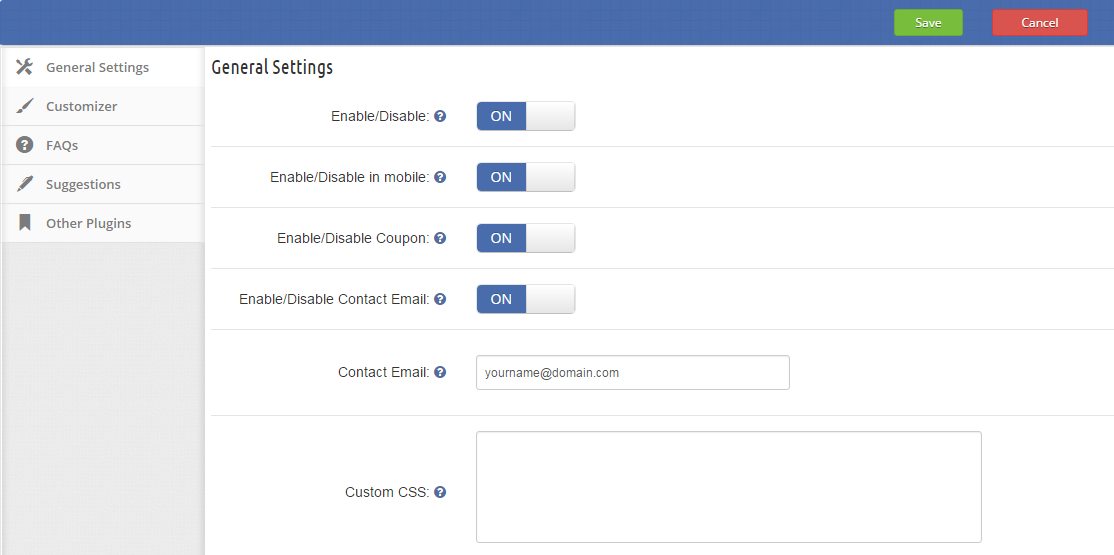
3.1 General Settings

You have to follow steps given below to update general settings of this Prestashop add to cart popup module –

  • Go to the Addon and Services -> Addon and Services
  • It would list all the addons of store. Find ‘Ajax Cart+’ in addons list.
  • Now click on ‘Configure’ button given corresponding to the ‘Ajax Cart+’ addon.
  • It would redirect Store Owner or Admin to a new page as shown below –

  • Update the values of given fields corresponding to ‘General Settings’ as per need.
  • Now click on ‘Save’ and it would validate and save the provided values.
  • That’s it.

This form contains following input fields which Store Owner or Admin can update –

  • Enable/Disable – Initially, this will be “OFF”. Admin can enable/disable addon by turning it ON/OFF
  • Enable/Disable in mobile – Initially, this will be “OFF”. Admin can enable/disable the addon in mobiles by turning it ON/OFF.
  • Enable/Disable Coupon – Coupon input box will be shown on front Ajax Cart pop-up if this is set to ‘ON’.
  • Enable/Disable Contact Email – Contact Email will be shown on Ajax Cart pop-up if this is set to ‘ON’.
  • Contact Email – Input box to provide contact email.
  • Custom CSS – Text area field to add CSS in popup.

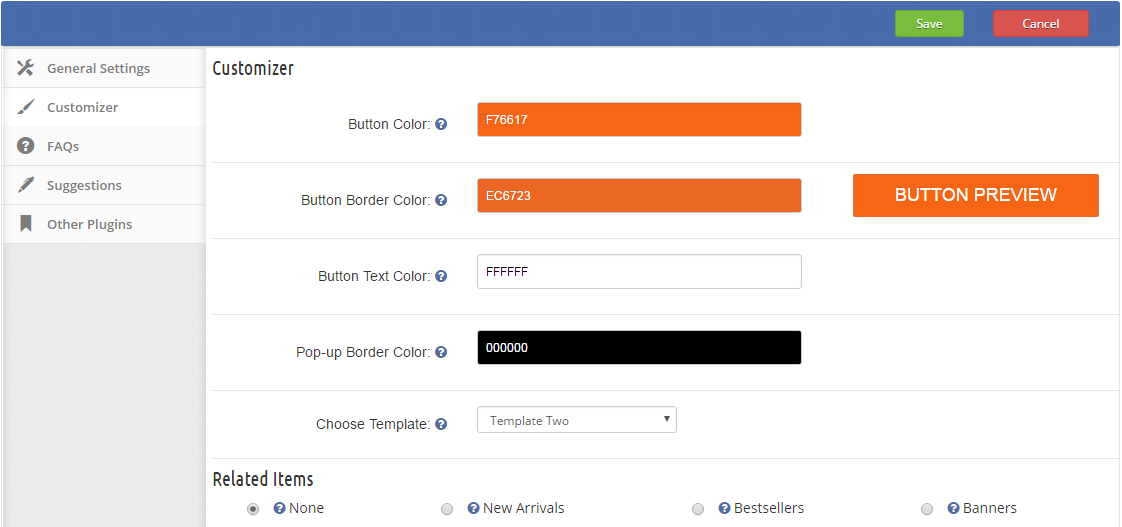
3.2 Customizer

You have to follow steps given below to customize Ajax Cart Pop-up appearance on store front –

  • Goto the Addon and Services -> Addon and Services
  • It would list all the addons of store. Find ‘Ajax Cart+’ in addons list.
  • Now click on ‘Configure’ button given corresponding to the ‘Ajax Cart+’ addon.
  • It would redirect Store Owner or Admin to a new page as shown below –
  • Update the values of given fields corresponding to ‘Customizer’ section as per need.
  • Now click on ‘Save’ and it would validate and save the provided values.
  • That’s it.

This form contains following input fields which Store Owner or Admin can update –

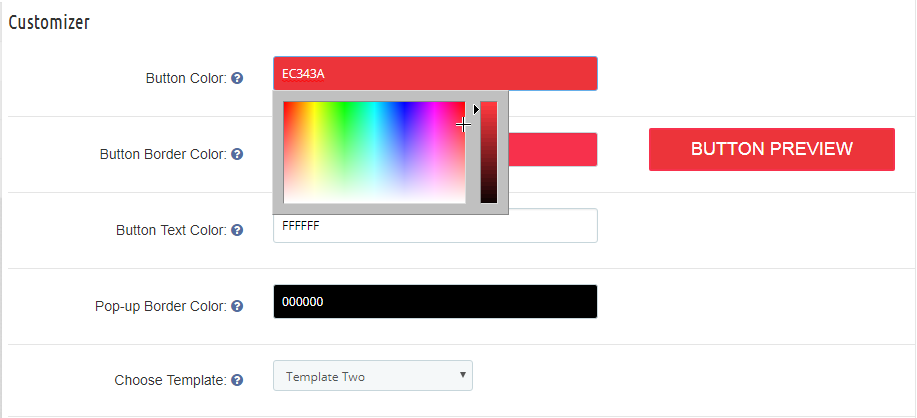
  • Button Color – Input box to set the pop-up button color. Clicking on the input box will open a color pallet to choose the button color.

  • Button Border Color – Input box to set the button border color. Clicking on the input box will open a color pallet(shown below) to choose the button border color.

  • Button Text Color – Input box to set the pop-up button text color. Clicking on the input box will open a color pallet to choose the button text color.
  • Pop-up Border Color – Input box to set the pop-up border color. Clicking on the input box will open a color pallet to choose the pop-up border color.
  • Choose Template – There are two templates of the pop up, admin can any one of them.
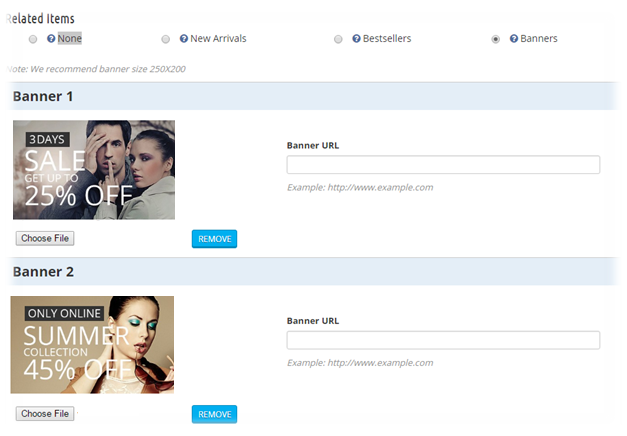
  • Related Items – Admin can select the option which he wants to display in pop-up with cart like Recent Items, New Items OR banners. Addon is having option to display up to two banners.

To add the banner, choose the Banners option. Select the banner which you want to display & provide the URL of the web page where you wish to redirect the user.

4.0 Website Front-end Interface

Template One Without any Suggestion

Template one with New Arrival Suggestions

Template One with Best Seller Items

Template One with banners

Cart with New Products

Cart with Banners

Cart when coupon applied

Cart without Banners & Related Products

For giving an optimized and user-friendly interface to your customers, the store owners can easily implement this Prestashop Ajax Cart to their eCommerce store. With this addon, you can easily trigger the purchase decisions of your customers and hence increase the direct sales of your store. The addon features a direct button to the checkout page from the ajax cart popup which allows the customers to complete their transactions easily and effortlessly. No need to wait anymore, buy this Prestashop Ajax Cart module on the Addon Store