Prestashop Store Locator and Pickup addon- User Manual

1.0 Introduction

Prestashop Store Locator and Pickup addon by Knowband allows the store admin to provide an option to display the store in a particular location. With the Prestashop store location addon, the store visitors can find the closest store that has the products of their choice. The admin can display a store locator on the website with some additional details like distance, contact number, name, and timing. They can check the nearest store and select the one from where they want to pick up the product.

This Prestashop store locator and pickup addon offer a user-friendly interface and the admin can easily configure this Prestashop pick-up module. The admin can select multiple stores that are to be shown in the store locator. The Prestashop store locator and pickup addon allow the admin to set the minimum and the maximum number of days within which the product pickup will be initiated. The customers can easily check the nearest store and view the details also. They can pick up the product if they wish to. Thus they can get the product with greater and minimal time.

1.1 Features

  1. The store owner can activate the store locator and pickup functionality just by a button toggle.
  2. The e-merchant can set an image as a Google map marker and the zoom level of the map. The Prestashop plugin allows the admin to show contact numbers also.
  3. The Customer can search the store by providing the distance in km or miles
  4. The Prestashop store admin has an option to show the store locator on the homepage.
  5. The store admin can add multiple stores and show them on the Google map. The admin can also select the default store.
  6. The online merchant shows a “Get Directions” link on which customers can click for viewing the store directions.
  7. The Prestashop store locator add-on allows showing store URLs on the Google maps store locations. Customers can view the website link with the store details on Google map.
  8. The online merchant can also show store images along with the physical store list.
  9. Admin can apply country restrictions by enabling this feature from the Prestashop in-store pickup addon admin interface.
  10. The Prestashop in-store pickup addon allows selecting the banner image and showcases it on the store locator page.
  11. The store merchant can enable or disable the functionality of showing the date calendar on the checkout page while selecting in-store pickup functionality.
  12. Prestashop in-store pickup addon allows the e-merchant to set the maximum pickup days.
  13. The online store owner can set the date and time format.
  14. The e-merchant can enable the settings to display the pick-up time slot.
  15. The admin can set the minimum hours for which the customer has to wait for the pickup of the ordered product.
  16. The Prestashop store locator and pickup addon have a ready-made email template for sending an email notification to the pick-up stores about the order.
  17. The PrestaShop Google Maps Store Locator plugin allows the admin to download a sample file in CSV format. The admin can also upload the CSV file to import store contacts.
  18. The admin can download the delivery slip from the admin panel of this Prestashop store locator and pickup addon.
  19. The Prestashop store locator and pickup addon are Multi-lingual compatible.
  20. It is very easy to install, configure and activate this Prestashop store locator and pickup addon.
  21. The product will be delivered to the selected store. The customer can pick up the product from the store.
  22. The address of delivery will be the selected store’s address.
  23. This Prestashop Store Locator and Pickup plugin are fully compatible with the Prestashop default checkout page.
  24. [New]: The store admin can allow customers to search the store as they move the Google map.
  25. [New]: PrestaShop Google Maps Store Locator plugin allows admin to enable all the stores to display.

2.0 Installation Guide

Once you purchase the Prestashop store locator and pickup addon from the store you’ll get these files:

1. The zipped file consists of the source code of this Prestashop pick-up module.

2. User Manual

Follow the following steps to install the PrestaShop Google Maps Store Locator plugin:

  • First of all, you need to unzip the zipped file. It includes some files and folders.
  • After that, you need to copy the overall content of the folder and paste them into the “Modules” folder of the store’s directory. You can follow the path – Root Directory/modules/.

3. Now you can install the Prestashop Store locator addon. You can find that in Store Admin -> Modules and Services. It would be shown as below –

Store locator installation

Now you just need to click on the “Install” button to install this Prestashop module. A confirmation pop-up will be shown. Click on the “Proceed with the installation” option. This step will install the module and show notification – “Module(s) installed successfully”.

3.0 User manual

The eCommerce store admin can now configure this PrestaShop store locator and pickup addon. The admin will get the following configuration option:

  • General settings
  • Pickup Time Settings
  • E-mail notification
  • Import Store’s contact
  • Download delivery slip

3.1 General settings

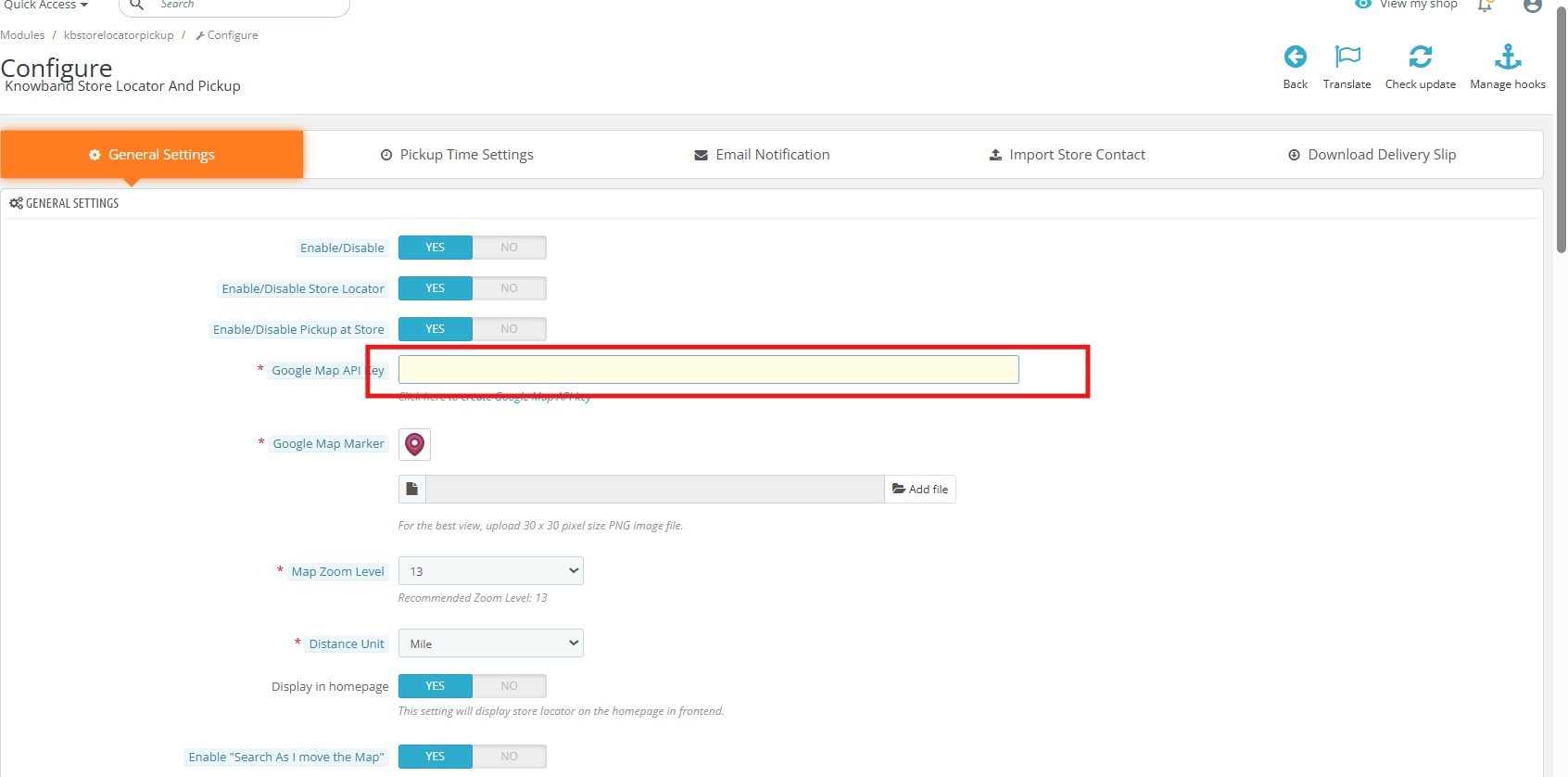
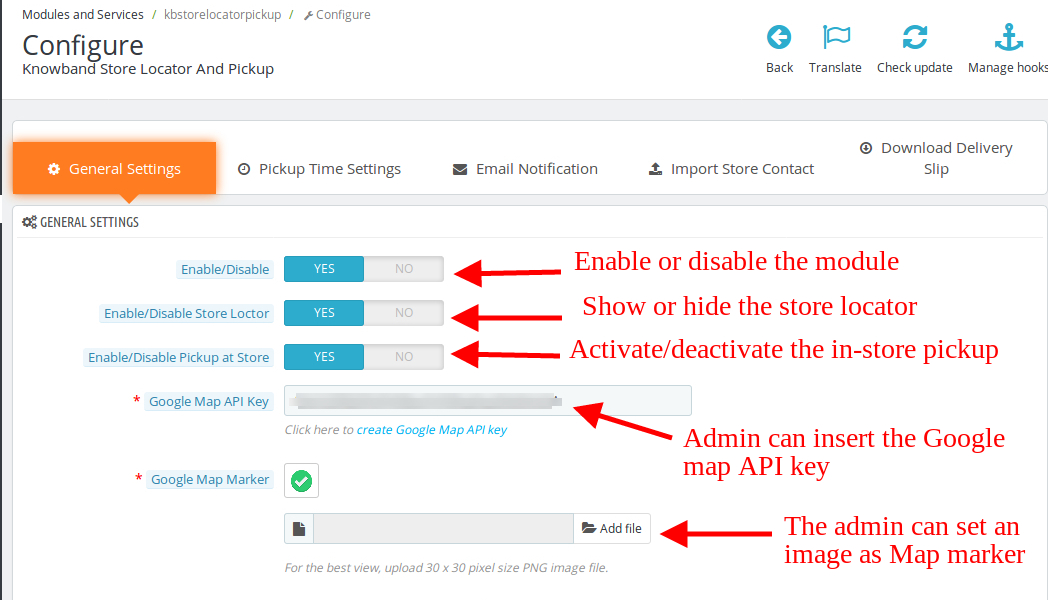
This General Settings page offer various configuration options as shown below:
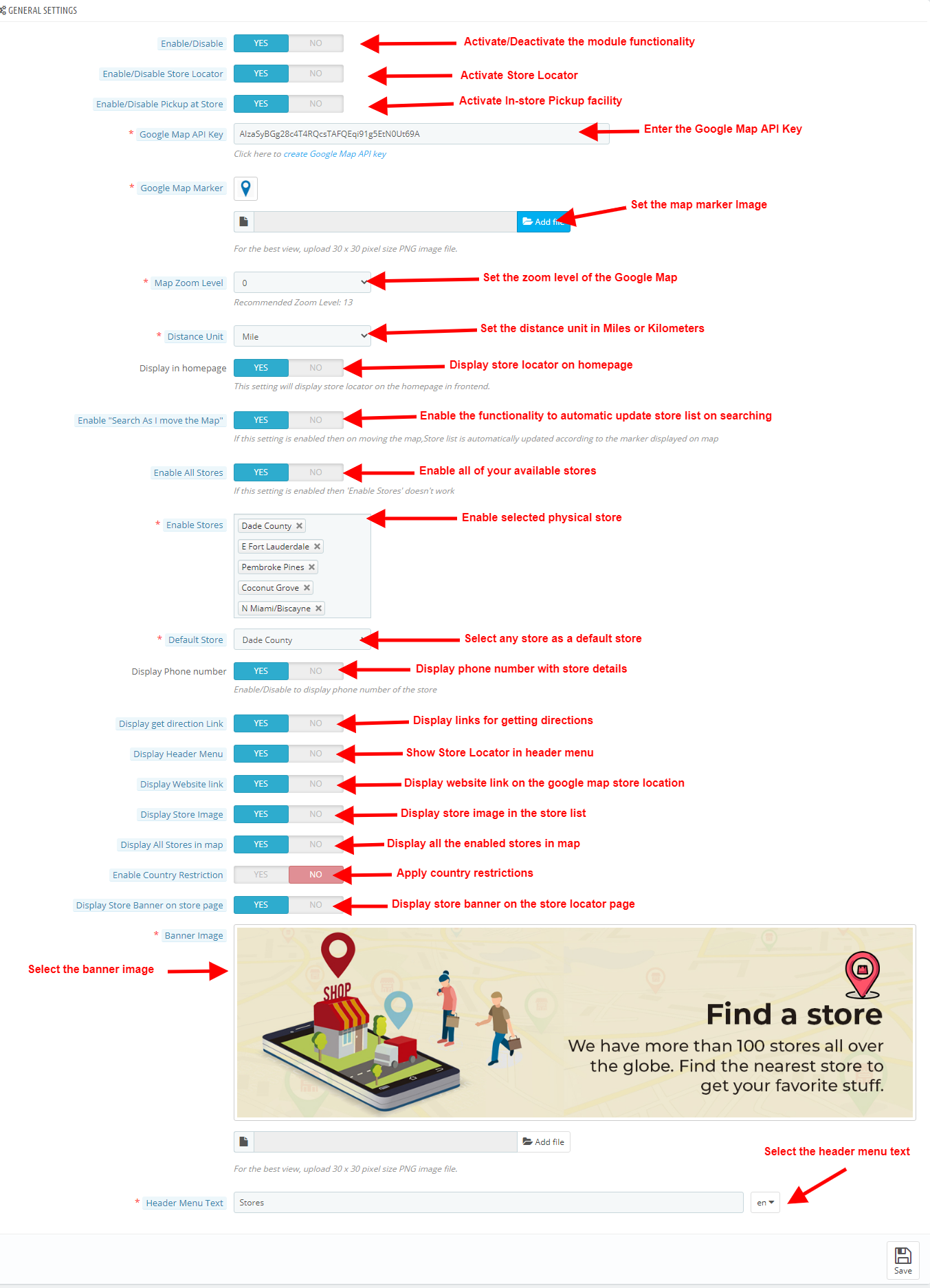
  • Enable/Disable: The eCommerce store admin can activate or deactivate the store locator and pick-up plugin anytime just by toggling this button.
  • Enable/Disable Store Locator: The Prestashop Store locator addon allows the admin to enable or disable the store locator in the front-end. By default, it will be enabled.
  • Enable/Disable the Pickup at Store: The admin can activate the pickup from the store just by toggling this button.
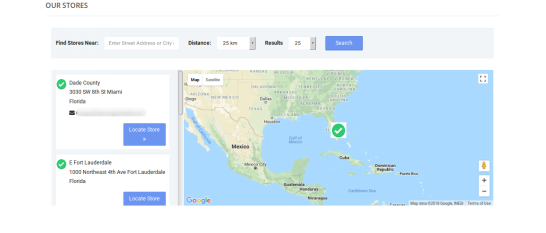
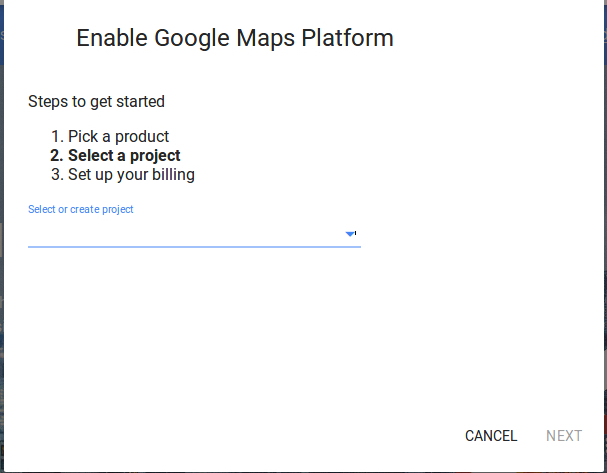
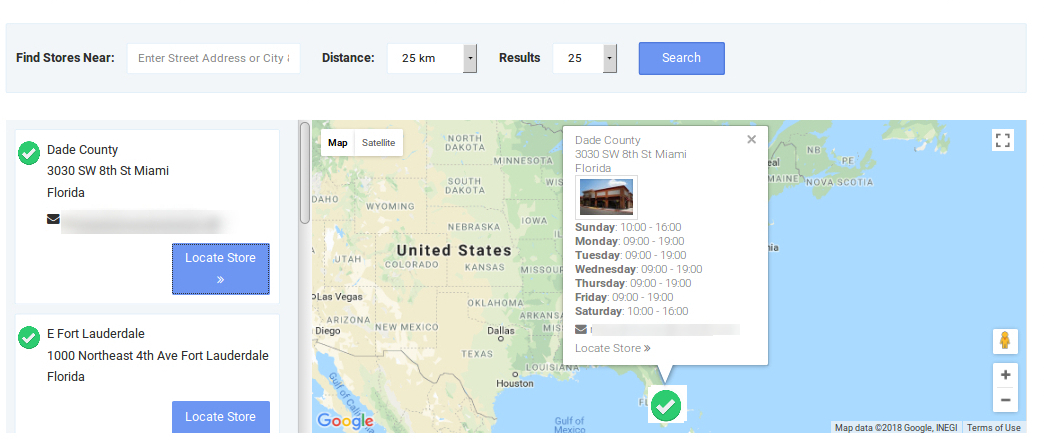
  • Google Map API Key: Enter the Google map API key in this section. A link is provided for generating an API key. Visit 3.1.1 for viewing the process of generating the Google map API key. In the front-end, the store locator will be displayed like the below-mentioned image:
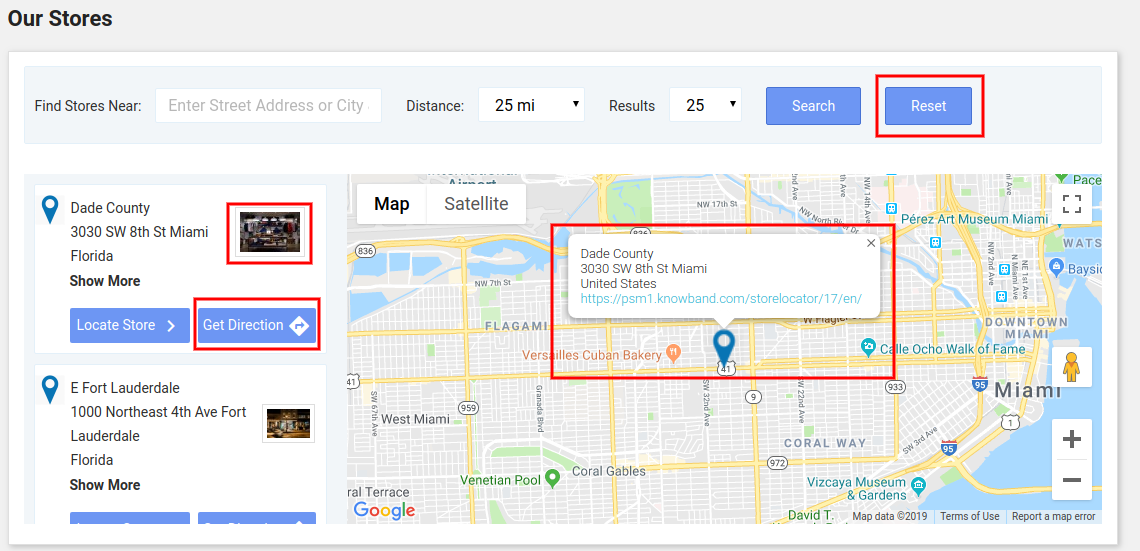
  • Google Map Marker: The PrestaShop Google Map Store Locator plugin allows the admin to set an image as a Google map marker.
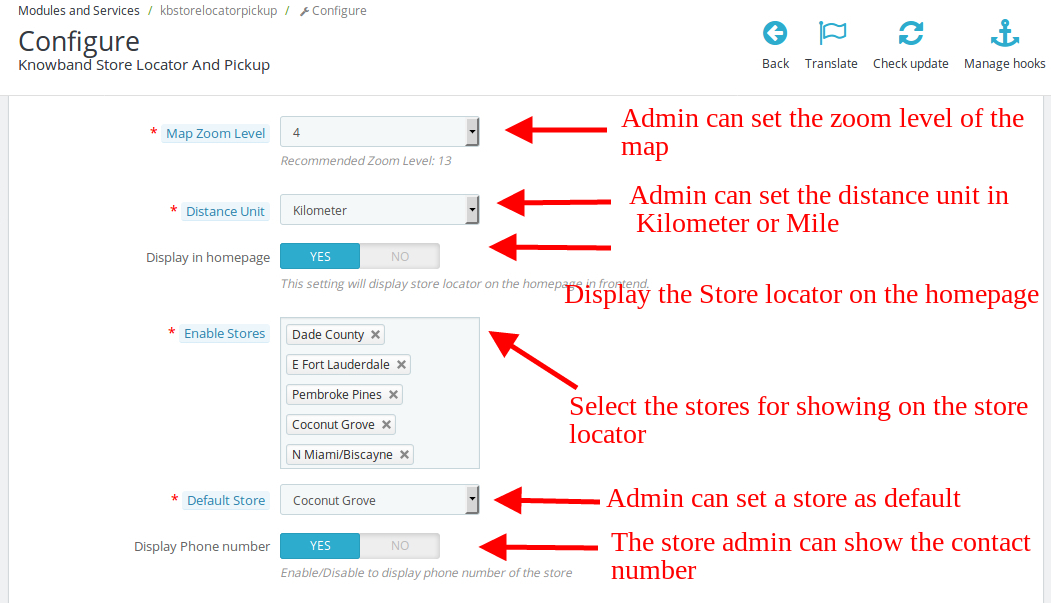
  • Map Zoom Level: The eCommerce store admin can set the zoom level of the map.
  • Distance Unit: The PrestaShop Google Maps Store Locator plugin allows the admin to set the unit of distance measure as Kilometers and miles.
  • Enable “Search As I move the Map”: Prestashop Store locator addon shows the list of available stores customers when they move the Google map to a different location.
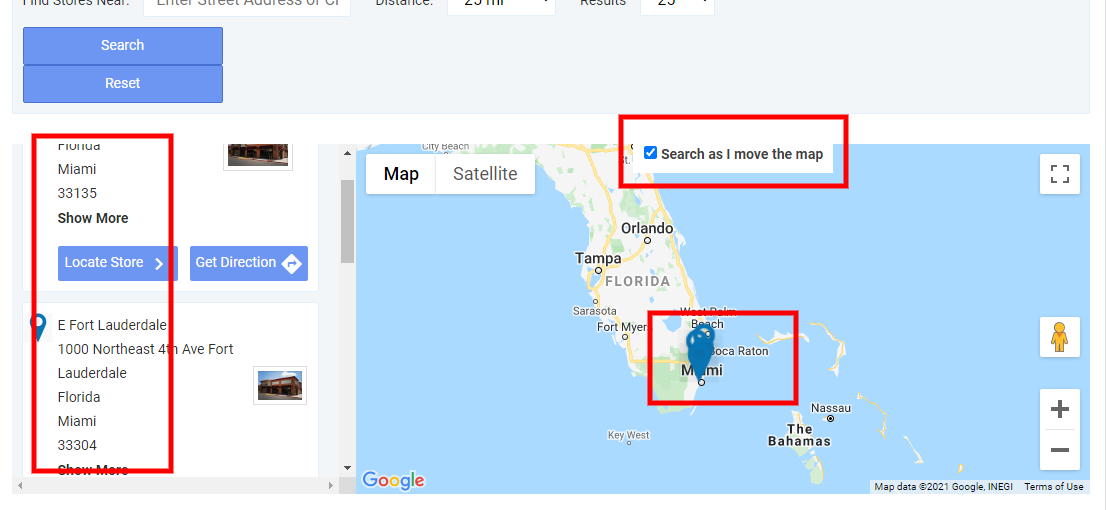
  • Display on the homepage: The admin can display the store locator on the homepage by enabling this setting.
  • Enable All Stores: This feature allows the admin to enable all of his available stores.
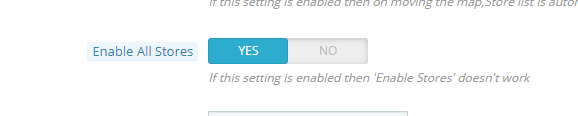
  • Enable Stores: The admin can select the stores to display on the Google map. Select the stores that you want to display in the locator in this section.
  • Default Store: The Prestashop store locator and pickup addon allow the admin to set a store as the default store. Select the store from the drop-down list in this section.
  • Display Phone number: The Prestashop pick-up module allows the admin to show the contact number of the store. Enable this option to display the phone number.
  • Display Get Direction Link: Enable the option if you want to show the “Get Direction” link. The customers can view the directions for visiting the physical store.
  • Display header menu: The store admin can showcase a header menu on the front-end.
  • Display Website Link: Enable this setting if you want to show the website link on the google map along with the store locations.
  • Enable Country Restrictions: Apply country restrictions if you don’t want to show store locator functionality in all the countries.
  • Display Store Image: Enable the settings for displaying store images along with the store details in the physical store list.
  • Display Store Banner on the Store page: Show or hide store locator banner image by enabling/disabling the option. Admin can also select the banner image for showing on the store locator page.
  • Header Menu Text: The store admin can set the header menu text.

3.1.1 How to generate the Google Map API key?

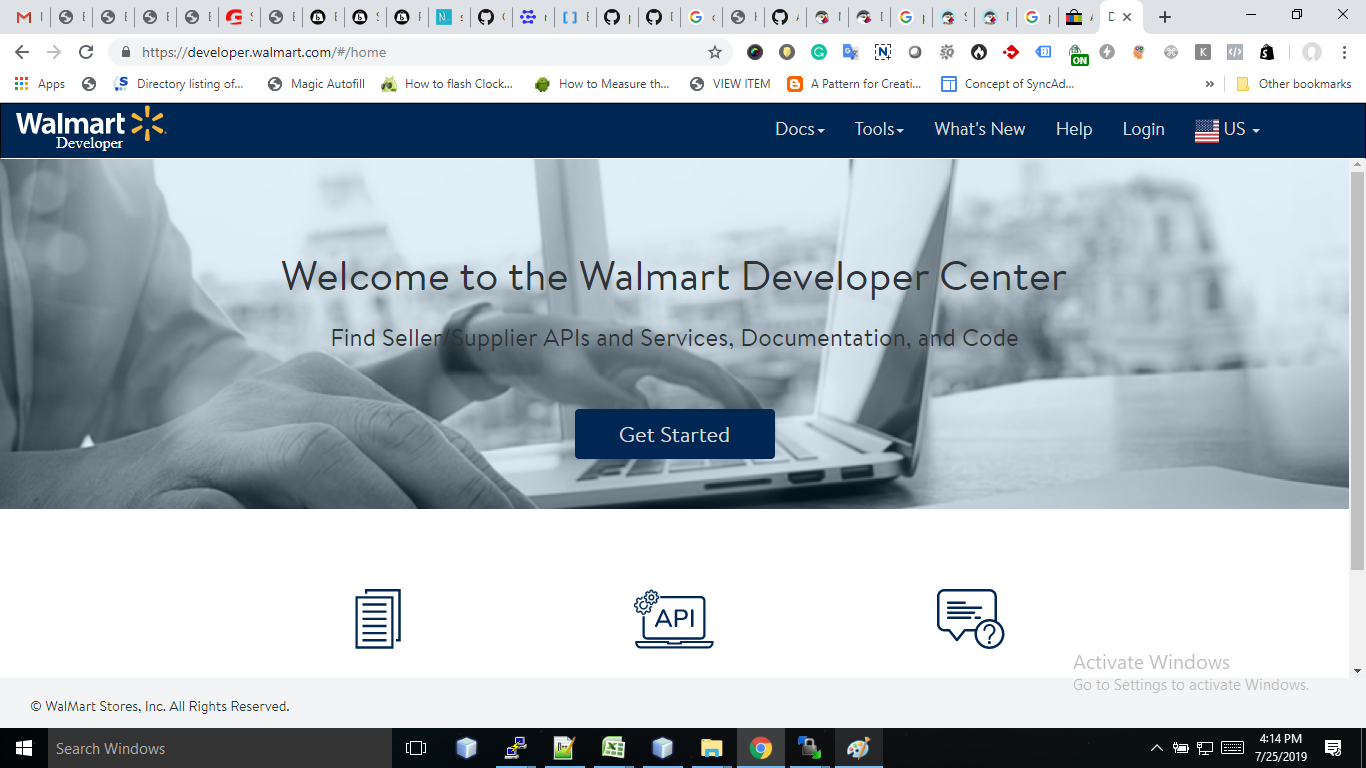
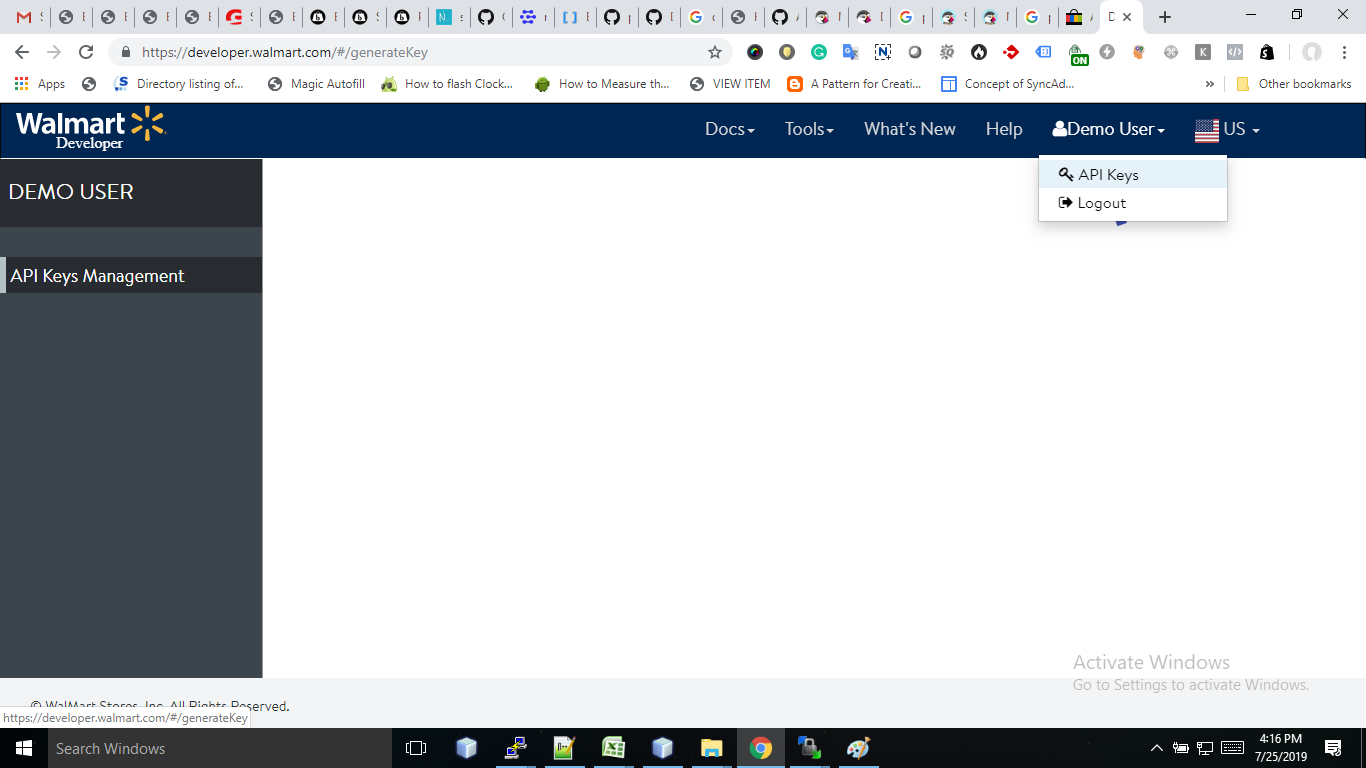
Step 1: Access the Google Cloud Platform Console

  • Visit the official Google Cloud Platform Console.

  • Sign in using your existing Google account. You’ll be prompted to create an account if you haven’t done so already.

Step 3: Finalize and Select the Project

  • Click “Create” to generate the new project.

  • After creation, click the project dropdown again.

  • Select your newly created project from the list to make it active.

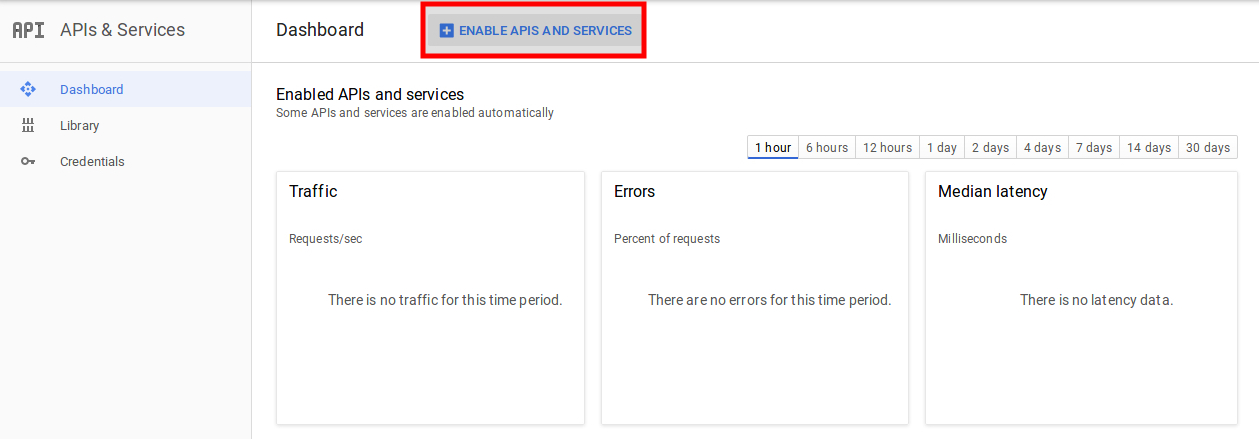
Step 4: Enable the Maps JavaScript API
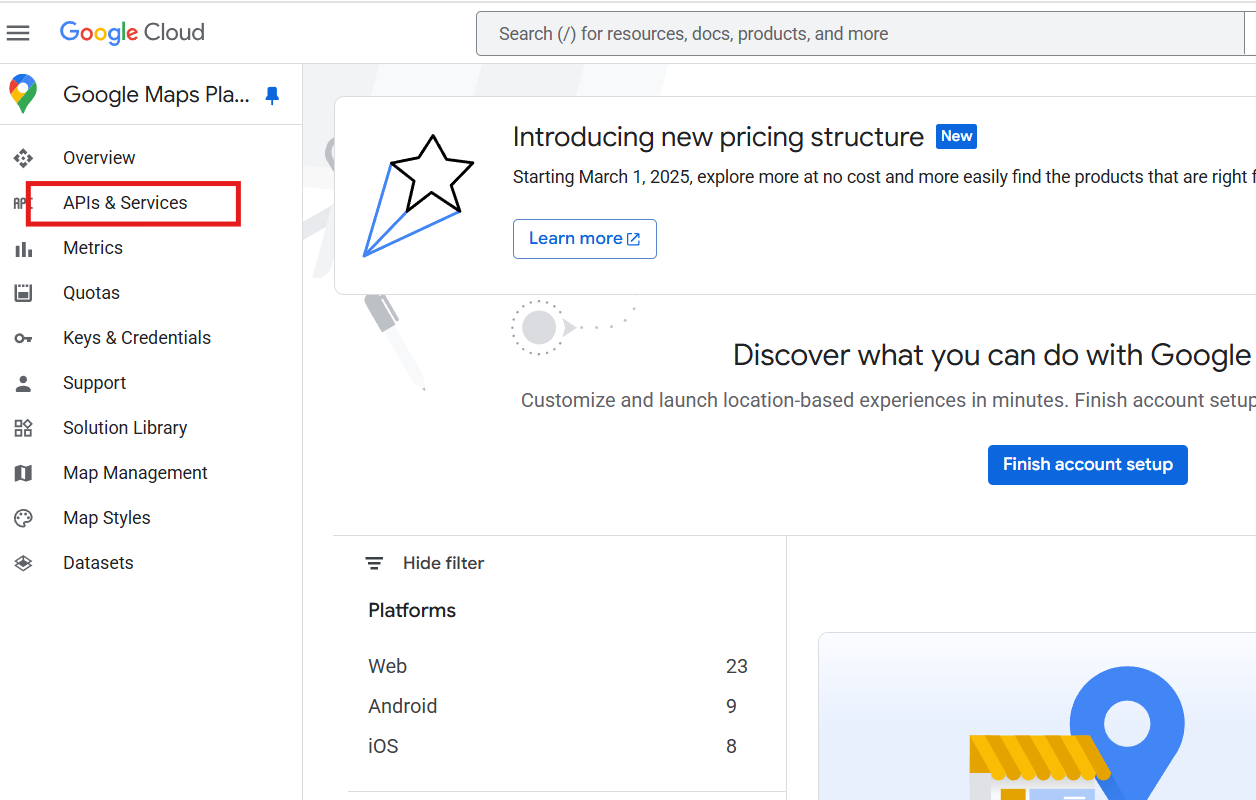
  • In the left sidebar, navigate to:
    APIs & Services > Library

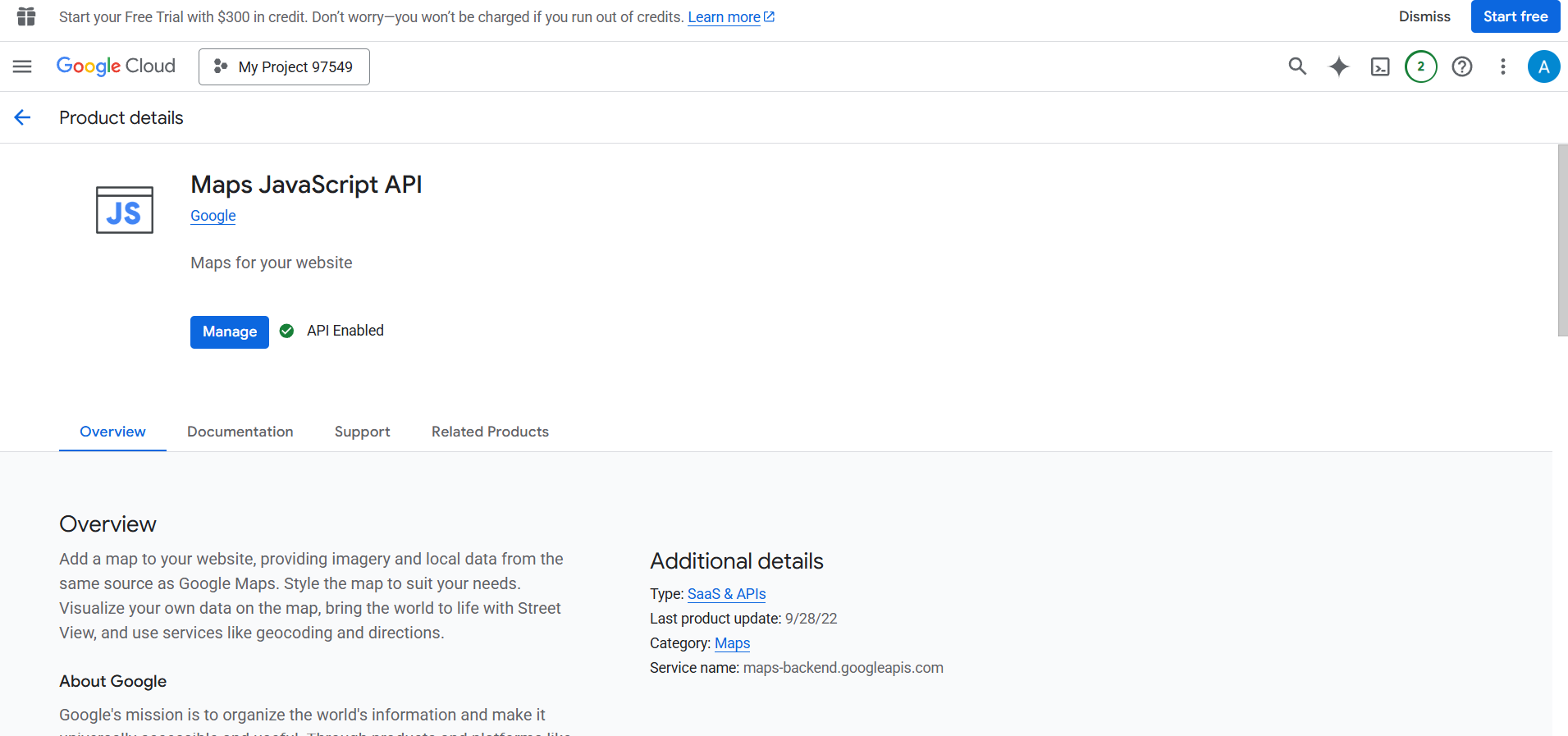
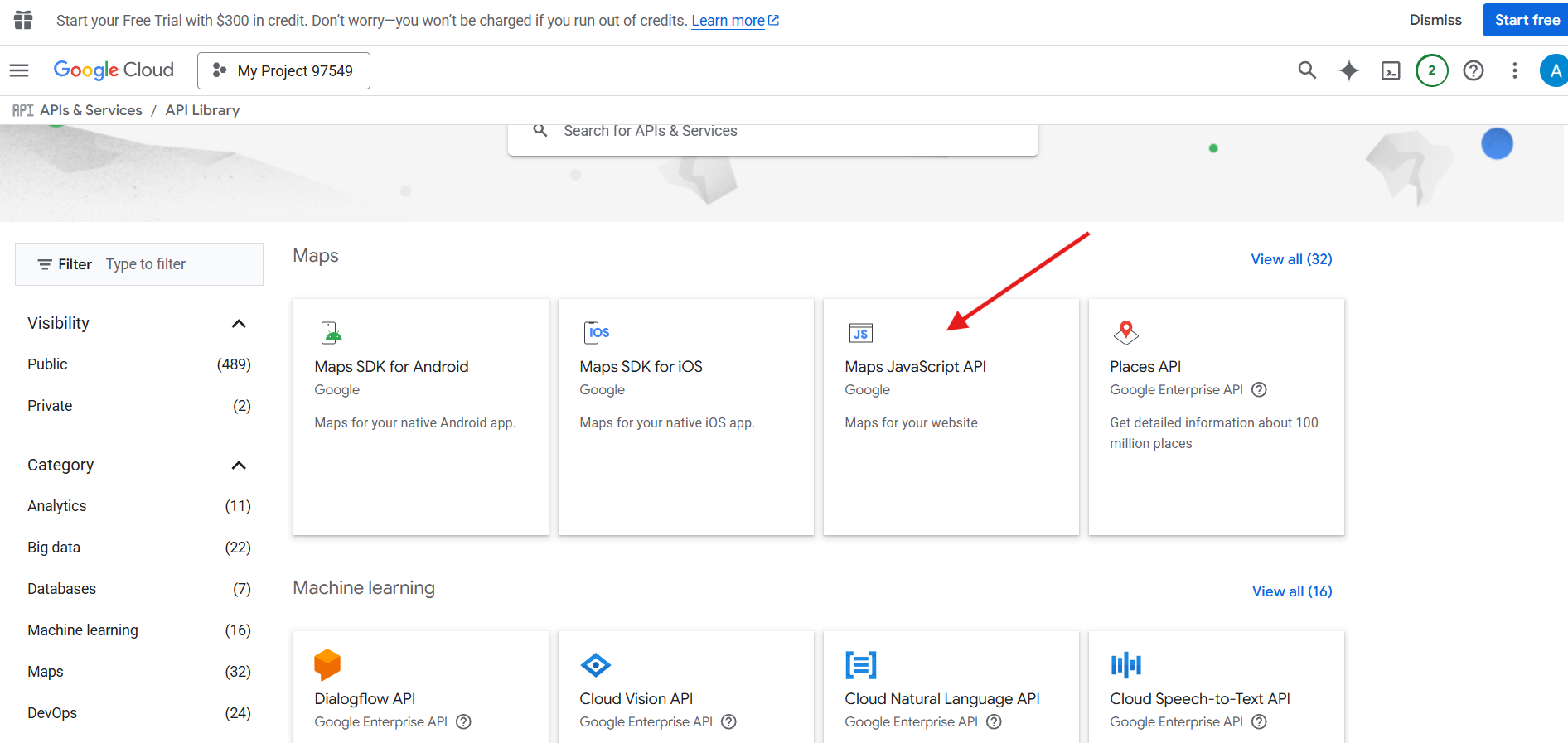
  • Use the search bar to type “Maps JavaScript API”.

  • Locate the Maps JavaScript API from the search results (usually listed as the third option).

  • Click on it, then click the blue “Enable” button on the API overview page.
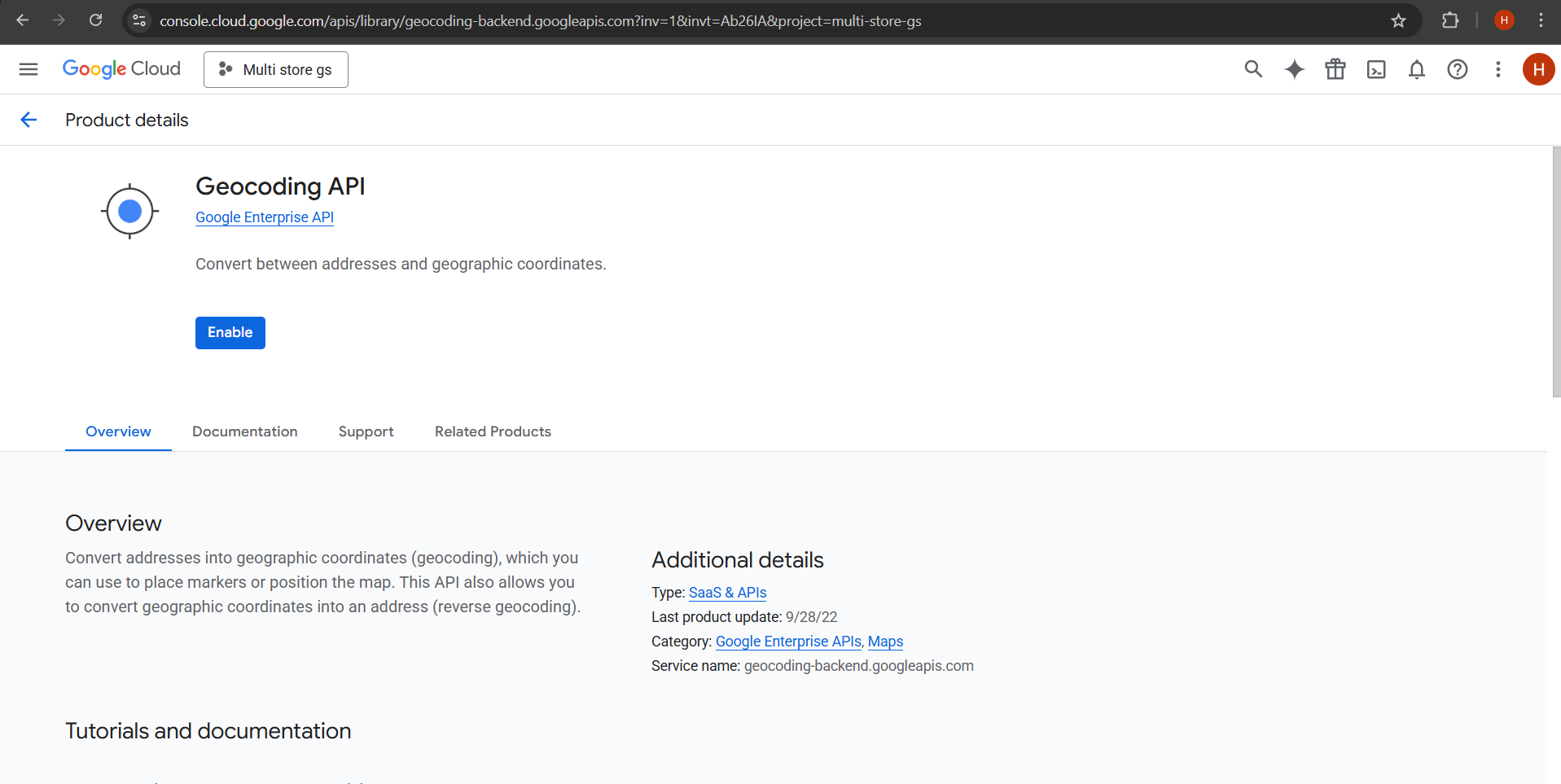
  • Use the search bar again to type “Geocoding API.”

  • Click on it from the results.

  • On the overview page, click “Enable.”

  • Hold or wait briefly as the API setup completes for your project
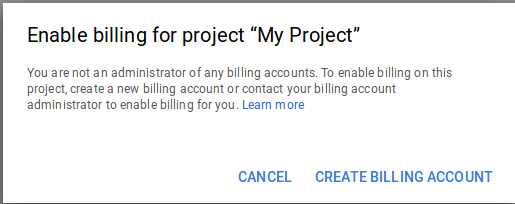
Step 5: Set Up a Billing Account

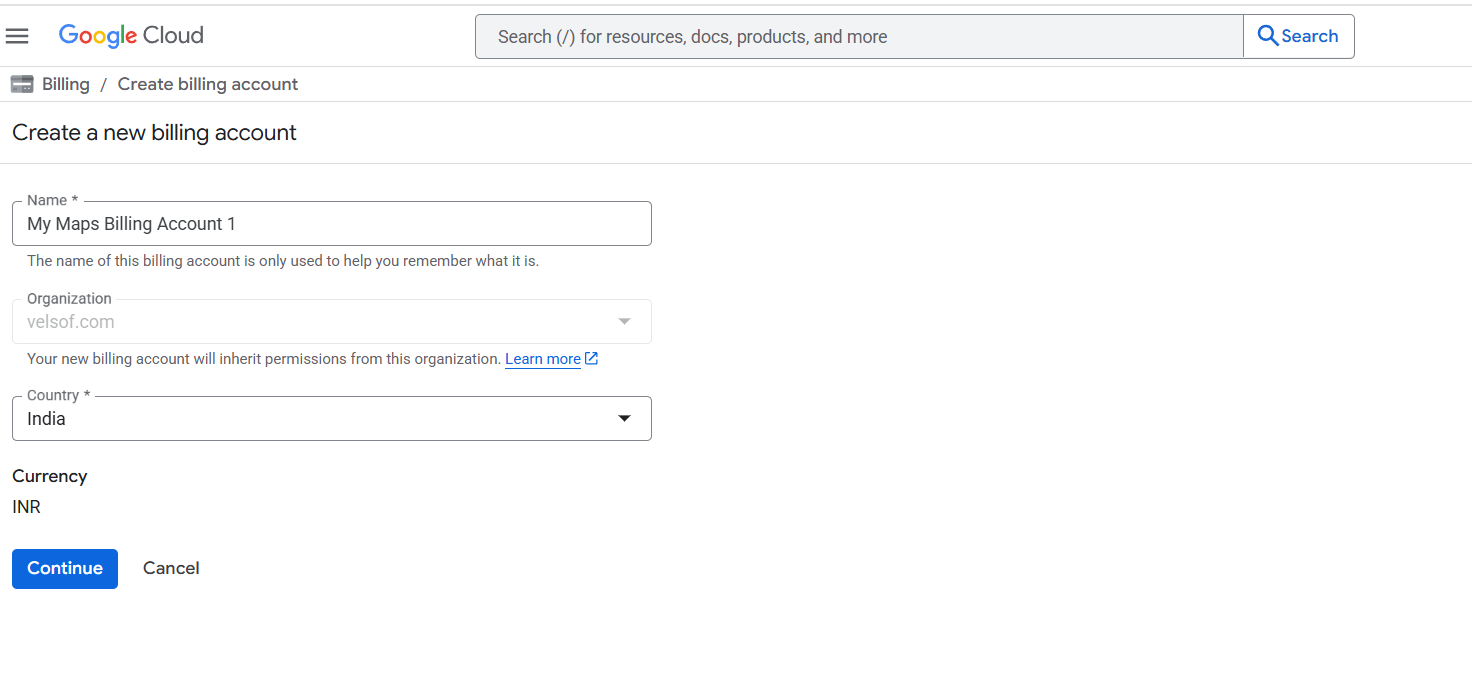
Important: Google Maps APIs require an active billing account, even for free-tier usage.

  • Navigate to Billing in the left-hand menu.

  • Ensure your Google Cloud project has a properly configured billing account.

  • After successfully linking billing, you can proceed to generate API credentials.
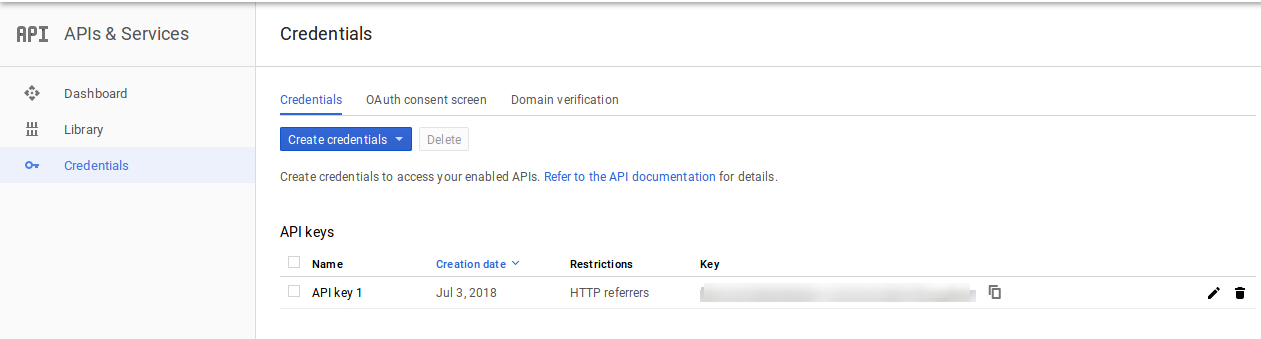
Step 6: Go to the Credentials Section

After enabling the API, go to the left sidebar.

Navigate to APIs & Services > Credentials.

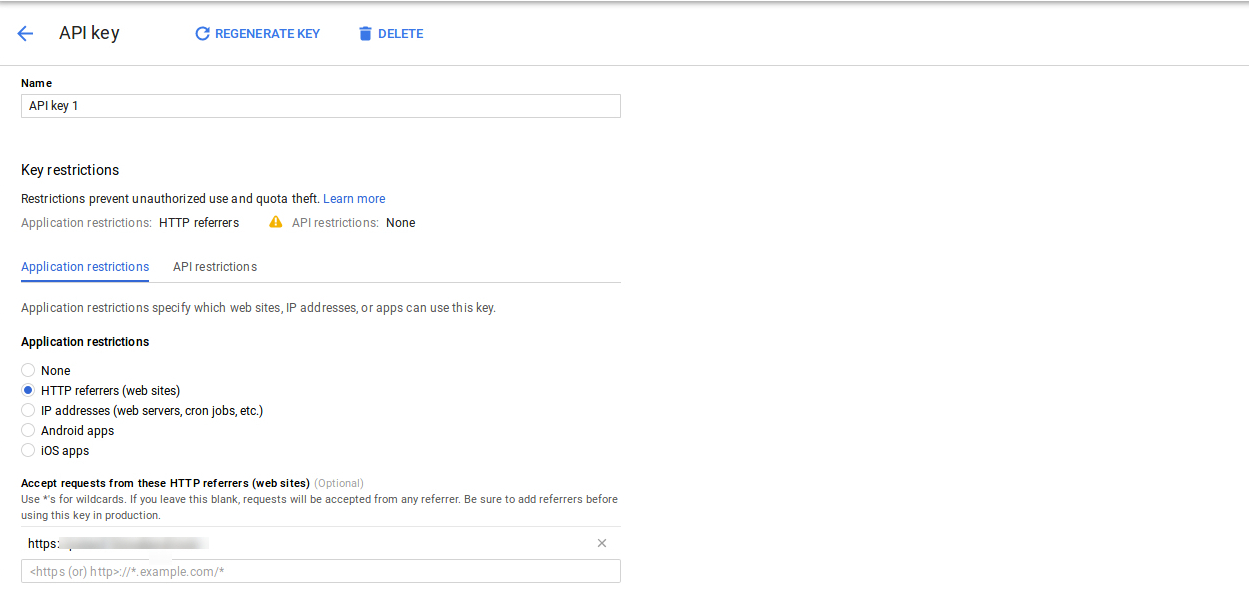
Step 7: Create a New API Key

Step 8: Hit the ‘+ CREATE CREDENTIALS’ option in the upper section of the interface
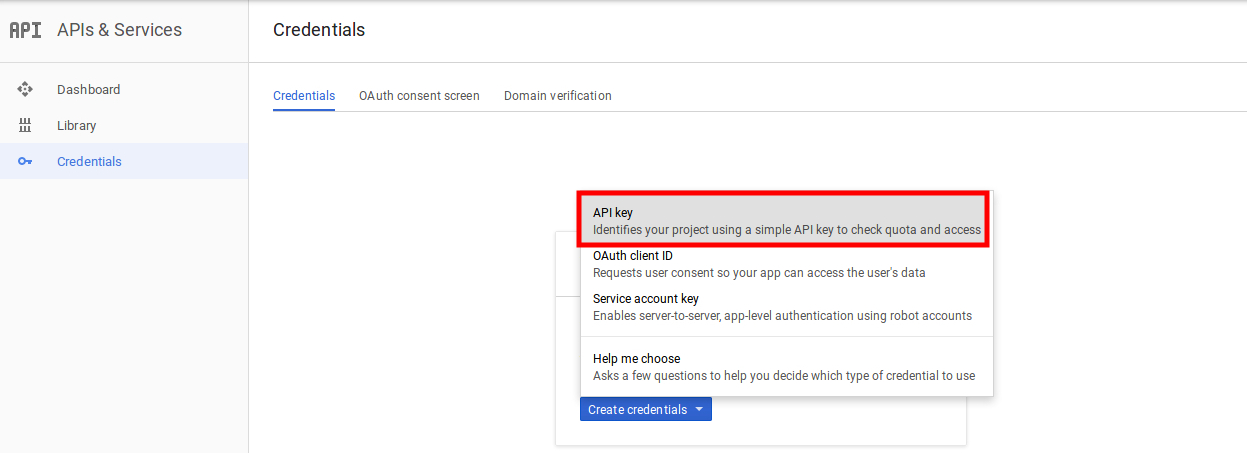


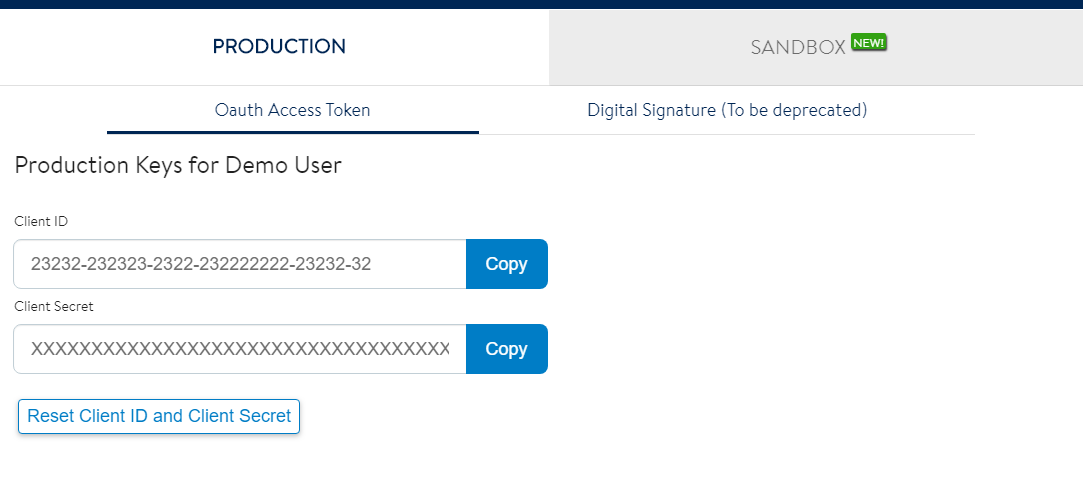
Step 9: Click the copy icon next to the key to copy it to your clipboard.
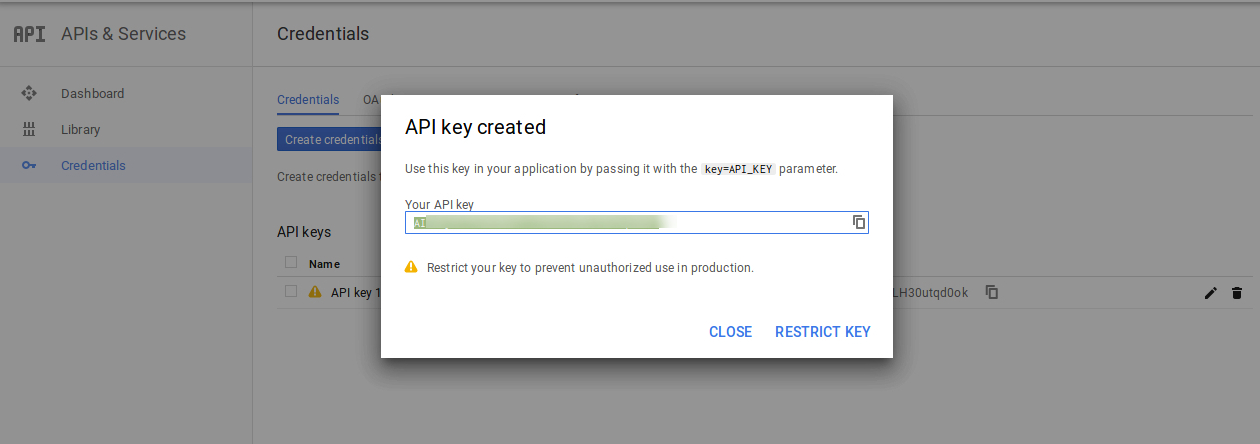
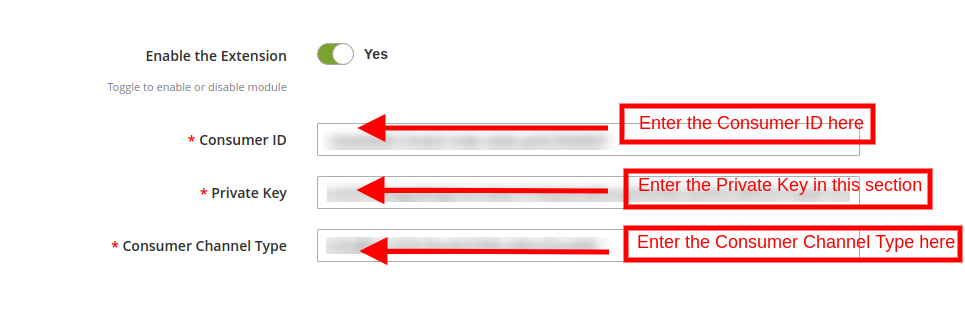
Step 10: You can now use this key in the Prestashop Store Locator API Field.
3.2 Pickup Time Settings

The various fields of this interface are discussed below:
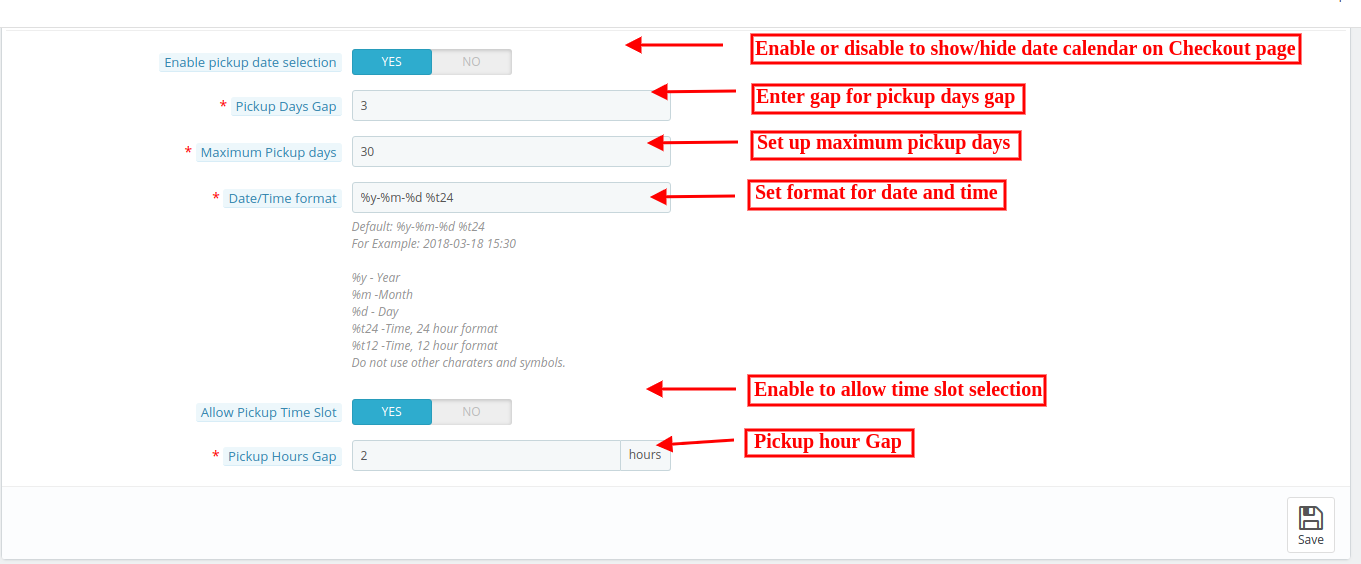
  • Enable Pickup Date Selection: Enable the option if you want to show the date calendar on the checkout page for in-store pickup.
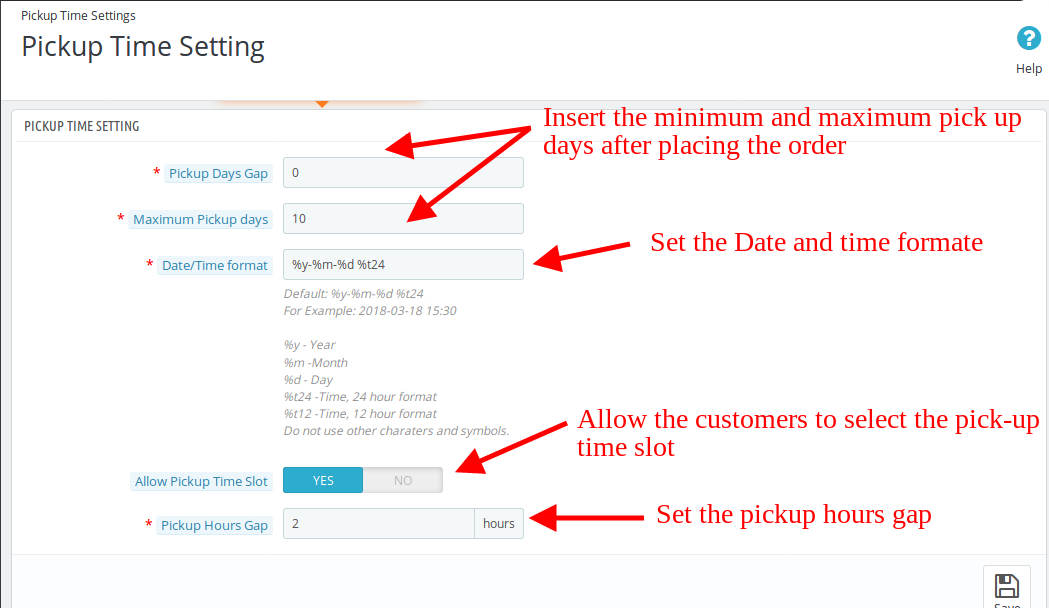
  • Pickup Days Gap: The admin can set the minimum days after which the customer can pick up their package from the store.
  • Maximum pickup days: In this option, the admin can set the Maximum days within which customer has to pick up their package from the store.
  • Date-time format: The eCommerce store admin can set the format of the pickup date and time.
  • Allow Pickup Time Slot: Enable to display the pick-up time slot.
  • Pickup Hours Gap: the admin can set the minimum hours for wait after placing the order. This time will be the last time for which the customers need to wait after placing their order. After the provided time they can pick up their package.

3.3 E-mail Notification

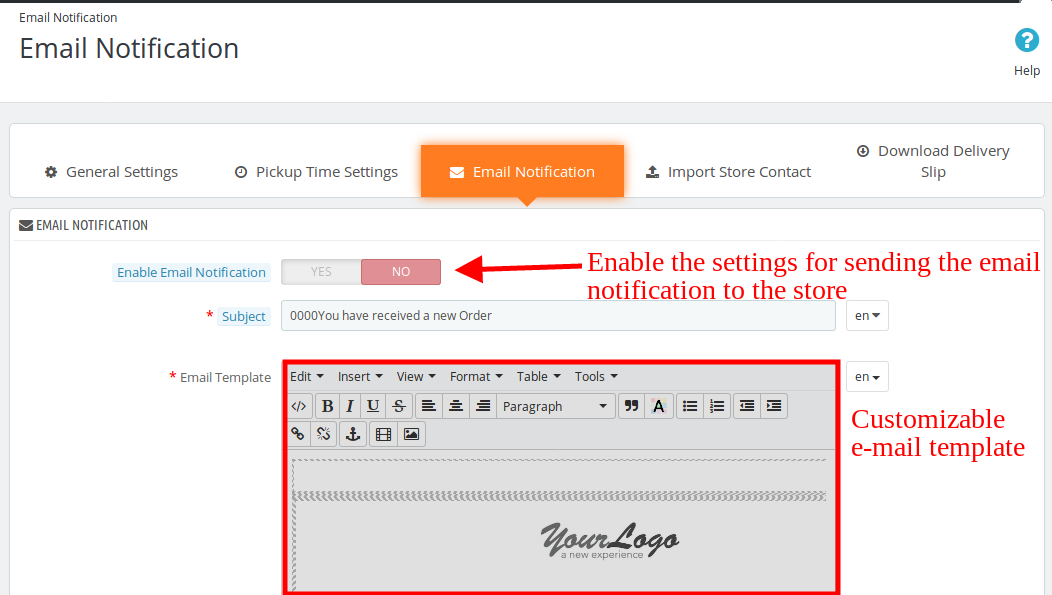
The store admin can send an email to notify the pickup store of the orders. Ready to send email templates to make this easy for the store admin to inform the pickup stores about the order.

  • Enable Email Notification: The eCommerce store admin can enable this option for sending e-mail notifications to notify the pick-up store about the order. The admin can set the subject line. Customizable email templates are available for sending the email to the stores. The ready-made email template automates the process.
3.4 Import Store’s Contact

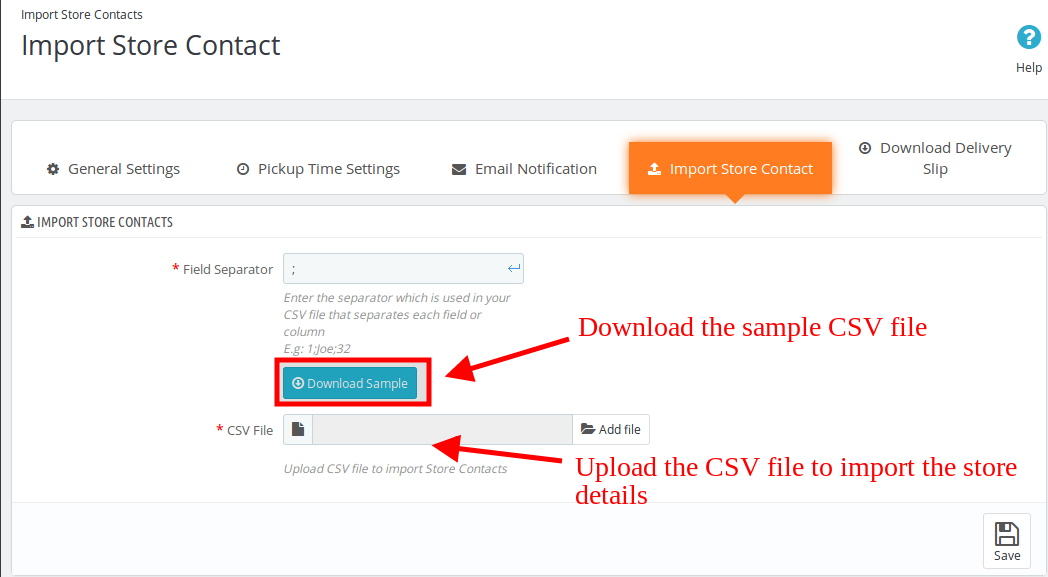
The store admin can download a sample file in CSV format. The store owner can download the sample file and insert all the details in this file. The admin can upload this file to import the store details.

  • Field separator: The Prestashop pick-up module allows the admin to set the field separator for separating the fields in the CSV file. The separators can be a semi-colon, comma, or others. Using commas is recommended. The admin can download the sample CSV file from the admin panel. They can enter their data in the downloaded sample and upload the CSV file to import store contacts.
3.4.1 How to create new stores?

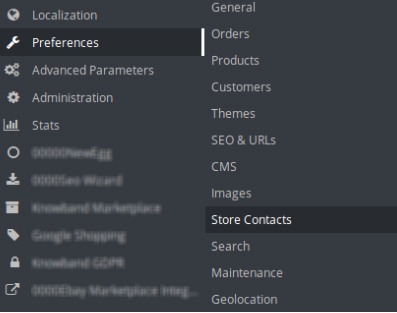
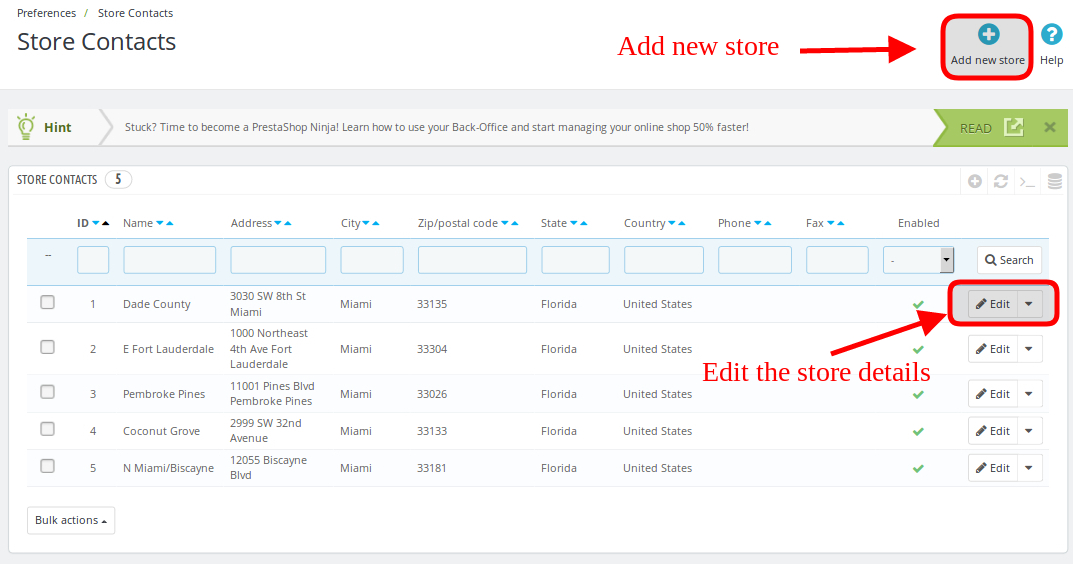
The store admin can also create new stores from the admin panel. The Prestashop store locator addon allows the admin to add, delete and edit the store-related details.
The admin can view the list of all the stores and also can add new stores easily from the admin panel.
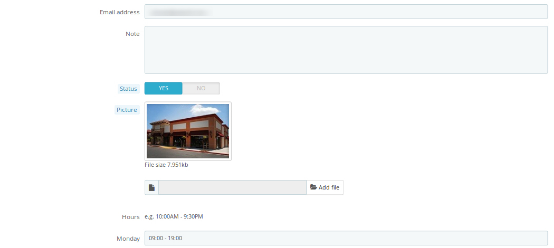
The store admin can easily add a store from the admin panel. After clicking on the “add new store” button, a screen will be shown like below:
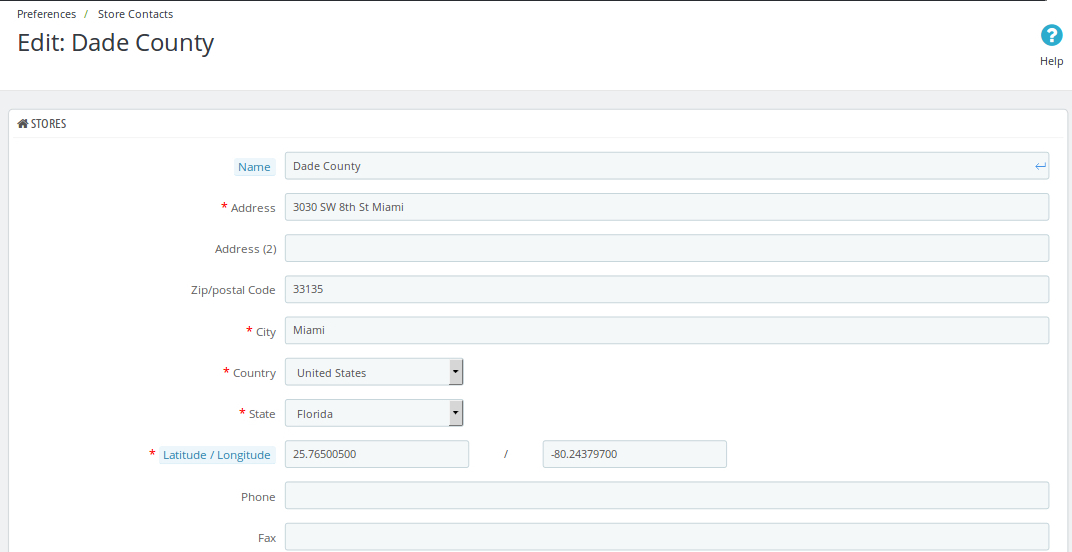
The store admin can easily add store name, full address of the store, and contact details also. The Prestashop pick-up module allows the admin to set the picture, status, and timing also.
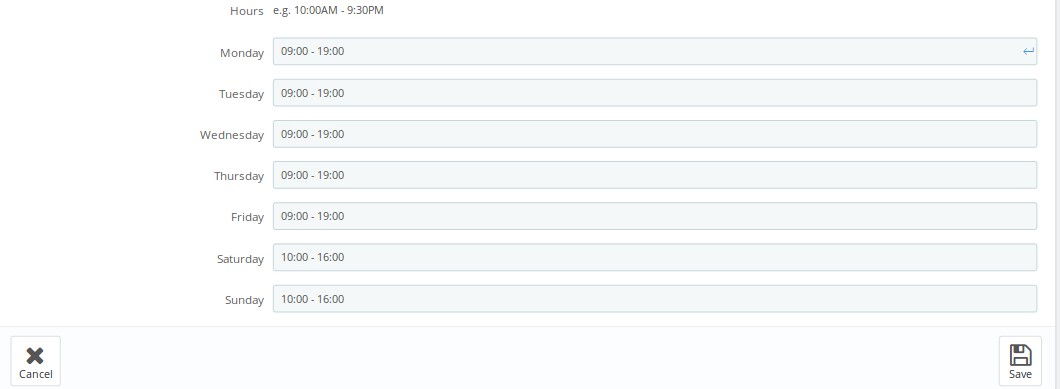
The admin can easily insert the working hours of the store.
The customers can view the store on the front-end like this:

3.5 Download delivery slip

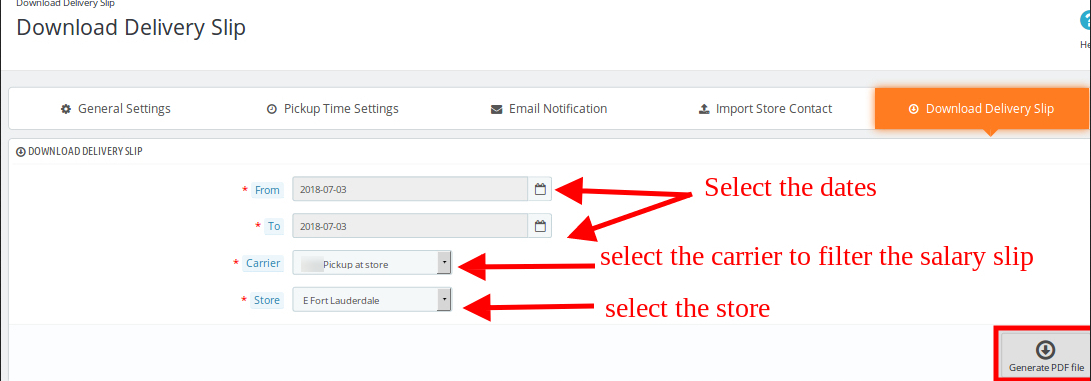
The Prestashop store locator and pickup addon allow the admin to download the delivery slip by inserting the dates. The eCommerce store owner can select the carrier to filter the delivery slip. The admin can download the PDF file just by clicking the “Generate PDF file” button.
4.0 Front-end Interface

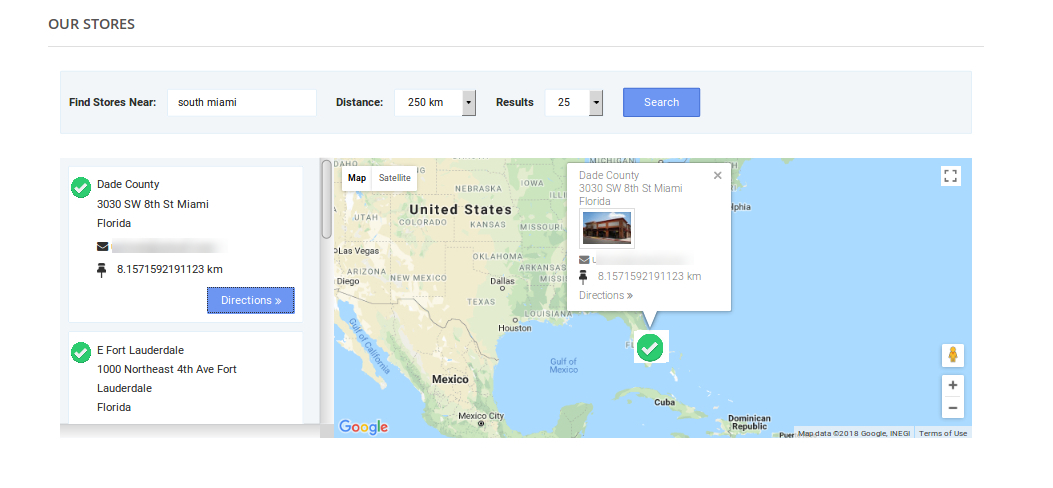
The customers can easily view the nearest store and pick up the product. They can view the contact details, name, distance, and timings also. The customers can get the product faster and without paying the shipping charges.

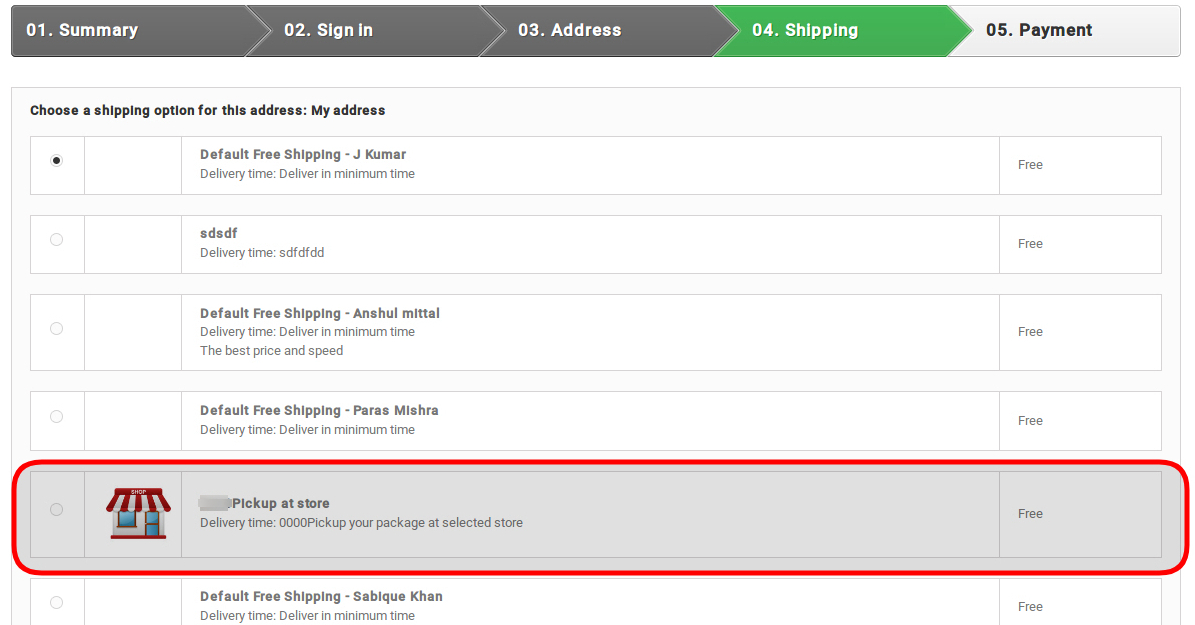
They can select the Pickup option:
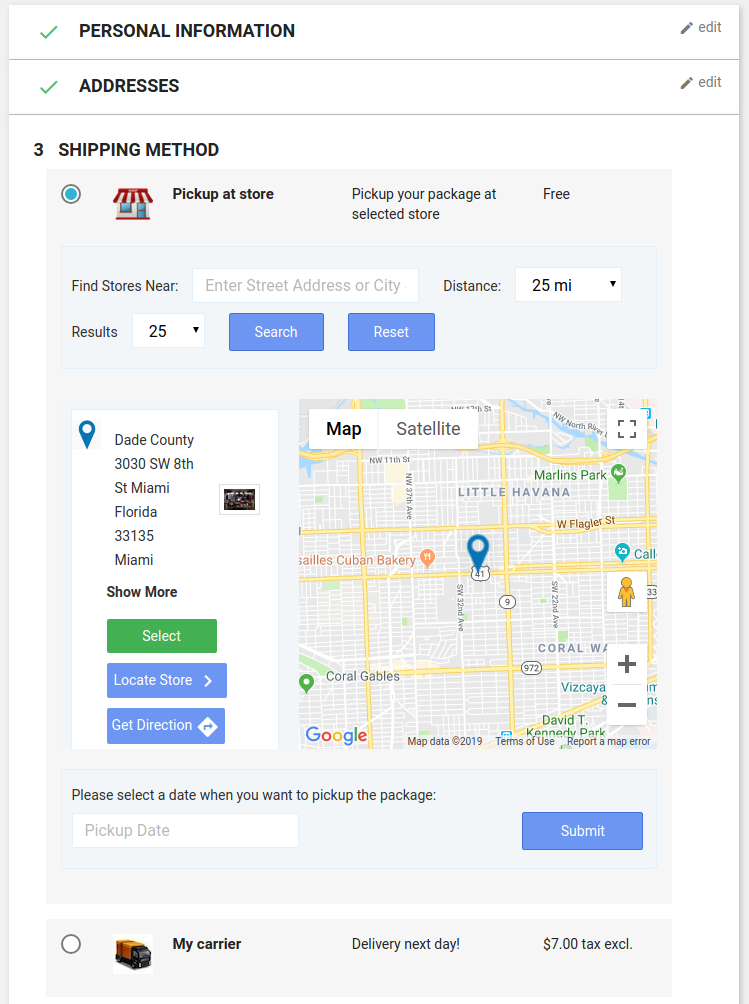
After clicking the Pickup at store option the customers can view the store locator.

Store locator at Homepage:

If the store admin enables the settings to show the store locator on the homepage then the store locator will be displayed like the above-mentioned image:

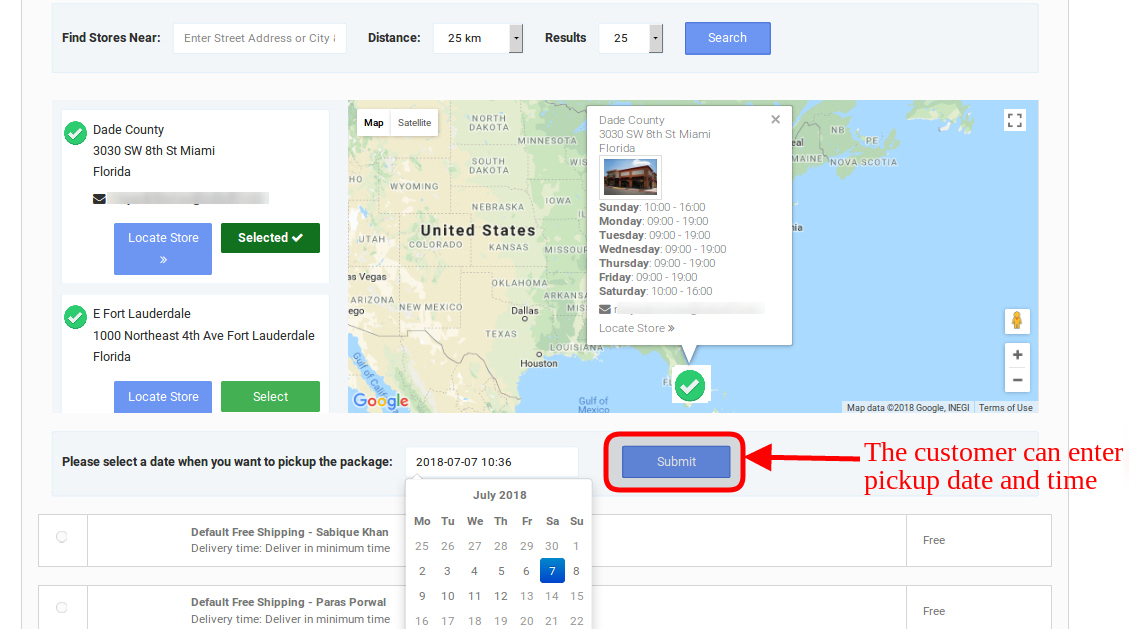
The customers can place their pickup orders easily. The customers can select the date and time to pick up the ordered product.
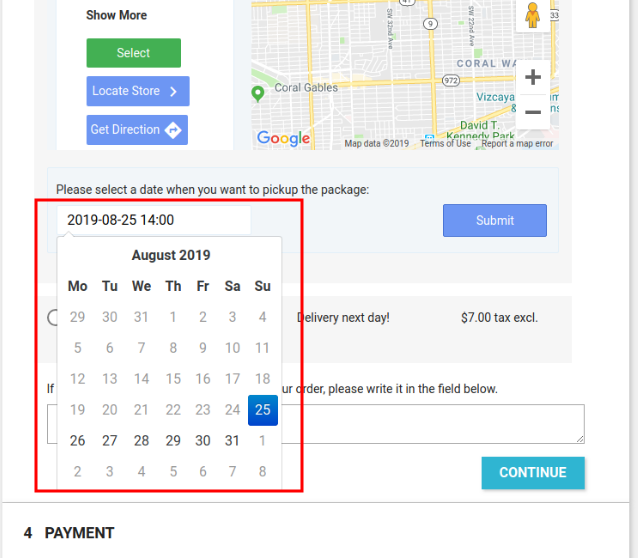
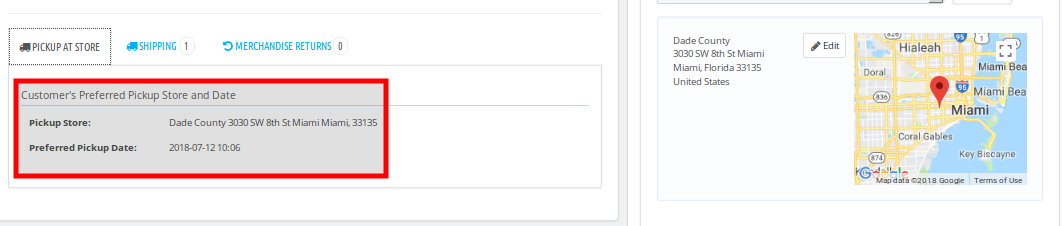
The admin order details will be shown like the below image:
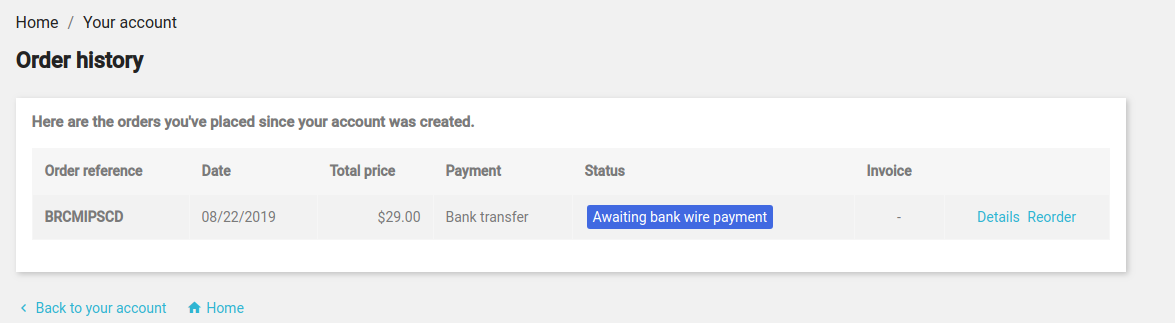
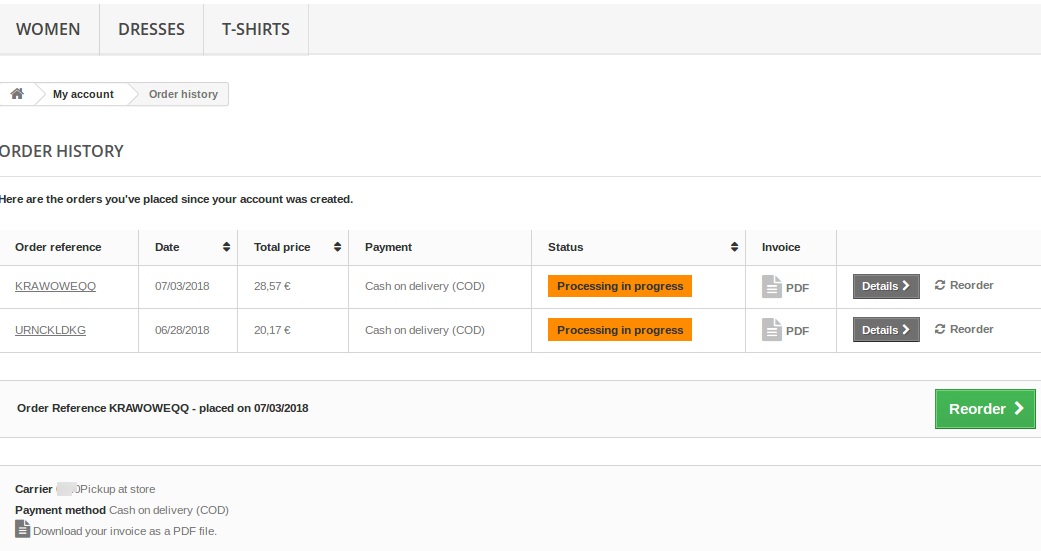
The order details will be displayed like the below-mentioned image:
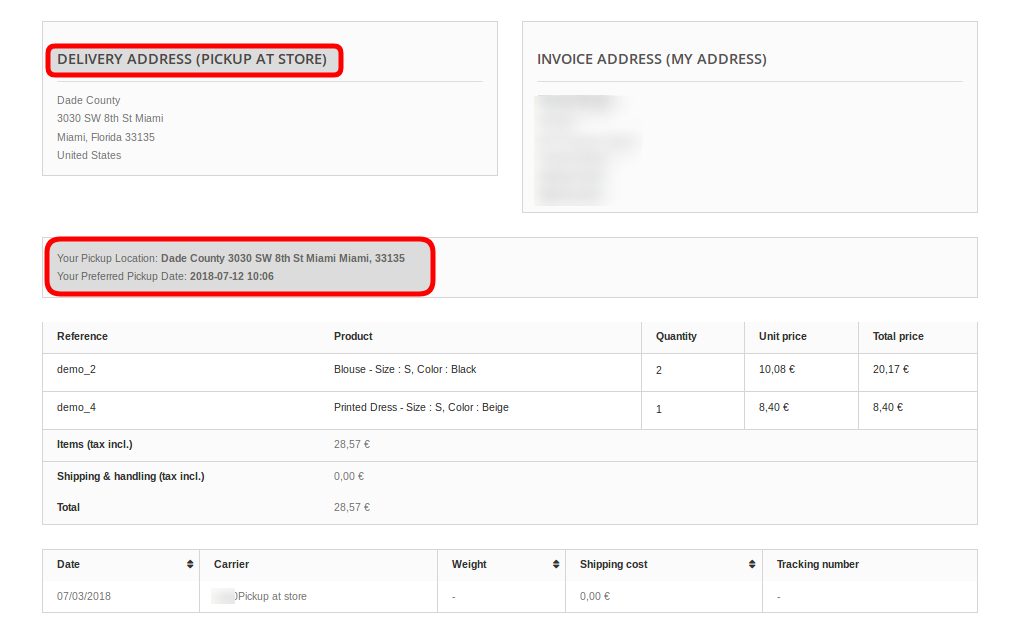
The eCommerce store admin can download the PDF file of the invoice.

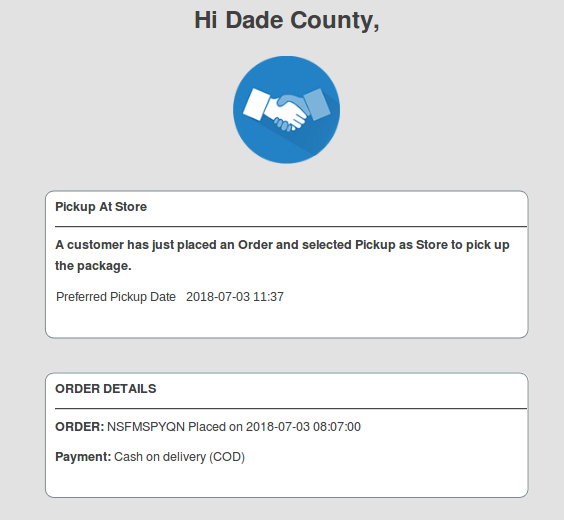
One email will go to the store for notifying it about the pickup order.
This way, the online store admin can offer an in-store pickup facility using Prestashop Store Locator and Pickup Addon. This PrestaShop Google Maps Store Locator plugin is highly customizable and offers smooth functioning. The online store merchant can show unlimited physical stores on the Google map and provide various details of the stores. The online users can view the physical store details on the website homepage and check the store details like store name, address, contact number, and email id details.

The eCommerce store admin can set the delivery days gap, pickup delay, and date-time format. The online store merchant can allow customers to select a suitable store for product delivery and pick the product from the physical store. The online merchant can send the email notification to the store for informing the physical store owner regarding any in-store pickup offer. The customers can get product delivery without any shipping charges and the admin doesn’t need to send the product to the customer’s address.

For additional guidance, please refer to the tutorial video available below, which provides a step-by-step walkthrough of this module.

For more Prestashop Addons please visit Knowband.

Knowband Prestashop in-store pickup addon Module Link.

Prestashop store pick up plugin admin demo link.

Knowband Prestashop Store locator addon front demo link.

Prestashop Store locator addon User manual link.

Knowband Prestashop Store locator addon store link.

Please contact us at support@knowband.com for any query or custom change request as per your business requirement.
Prestashop Store Locator y Pickup addon- Manual de usuario

1.0 Introducción

Localizador de tiendas Prestashop y complemento de recogida por Knowband le permite al administrador de la tienda proporcionar una opción para mostrar la tienda en una ubicación particular. Con el complemento de ubicación de la tienda Prestashop, los visitantes de la tienda pueden encontrar la tienda más cercana que tenga los productos de su elección. El administrador puede mostrar un localizador de tiendas en el sitio web con algunos detalles adicionales, como la distancia, el número de contacto, el nombre y el tiempo. Pueden consultar la tienda más cercana y seleccionar la desde donde quieren recoger el producto.

Este localizador de tiendas Prestashop y complemento de recogida ofrece una interfaz fácil de usar y el administrador puede configurar fácilmente este complemento de Prestashop. El administrador puede seleccionar múltiples tiendas que se mostrarán en el localizador de tiendas. El localizador de tiendas Prestashop y el complemento de recolección permiten que el administrador establezca el mínimo y el número máximo de días dentro de los cuales se iniciará la recolección del producto. Los clientes pueden consultar fácilmente la tienda más cercana y ver los detalles también. Pueden recoger el producto si lo desean. Por lo tanto, pueden obtener el producto con mayor y mínimo tiempo.

Características 1.1

  1. El propietario de la tienda puede activar el localizador de tiendas y la función de recolección simplemente presionando un botón.
  2. El e-comerciante puede establecer una imagen como un marcador de mapa de Google y el nivel de zoom del mapa. El complemento de Prestashop le permite al administrador mostrar el número de contacto también.
  3. El cliente puede buscar en la tienda proporcionando la distancia en km o millas
  4. El administrador de la tienda de Prestashop tiene una opción para mostrar el localizador de tiendas en la página de inicio.
  5. El administrador de la tienda puede agregar varias tiendas y mostrarlas en el mapa de Google. El administrador también puede seleccionar la tienda predeterminada.
  6. El complemento de recolección en la tienda de Prestashop le permite al comerciante electrónico establecer los días máximos de recolección.
  7. El propietario de la tienda en línea puede establecer el formato de fecha y hora.
  8. El e-comerciante puede habilitar la configuración para mostrar la ranura de tiempo de recogida.
  9. El administrador puede establecer las horas mínimas que el cliente debe esperar para recoger el producto solicitado.
  10. El localizador de tiendas Prestashop y el complemento de recolección tienen una plantilla de correo electrónico lista para enviar una notificación por correo electrónico a las tiendas de retiro sobre el pedido.
  11. El complemento del localizador de tiendas PrestaShop Google Maps Store le permite al administrador descargar un archivo de muestra en formato CSV. El administrador también puede cargar el archivo CSV para importar contactos de la tienda.
  12. El administrador puede descargar el comprobante de entrega desde el panel de administración de este localizador de tiendas Prestashop y el complemento de recolección.
  13. El localizador de tiendas Prestashop y el complemento de recogida son multilingües compatibles.
  14. Es muy fácil de instalar, configurar y activar este localizador de tiendas Prestashop y el complemento de recolección.
  15. El producto será entregado a la tienda seleccionada. El cliente puede recoger el producto de la tienda.
  16. La dirección de entrega será la dirección de la tienda seleccionada.

2.0 Guía de instalación

Una vez que compre el localizador de tiendas Prestashop y el complemento de recolección de la tienda, obtendrá estos archivos:

1. El archivo comprimido que consiste en el código fuente de este complemento de Prestashop.

2. Manual de usuario

Siga los siguientes pasos para instalar el complemento del localizador de tiendas PrestaShop Google Maps:

  • En primer lugar, debe descomprimir el archivo comprimido. Incluye algunos archivos y carpetas.
  • Después de eso, debe copiar el contenido general de la carpeta y pegarlos en la carpeta "Módulos" del directorio de la tienda. Puedes seguir el camino

3. Ahora puedes instalar el Módulos y servicios. Se mostraría como a continuación

Ahora solo debes hacer clic en "Instalar"botón para instalar este módulo de Prestashop. Se mostrará una ventana emergente de confirmación. Haga clic en"Proceda con la instalaciónn "opción. Este paso instalará el módulo y mostrará la notificación Módulo (s) instalado (s) con éxito“.

3.0 Manual de usuario

El administrador de la tienda de comercio electrónico ahora puede configurar este localizador de tiendas Prestashop y complemento de recolección. El administrador obtendrá la siguiente opción de configuración:

  • Configuración general
  • Configuraciones de tiempo de recogida
  • Notificación por correo electrónico
  • Importar contacto de la tienda
  • Descargar el albarán

Configuración general de 3.1

En esta página de Configuración general, ofrece varias opciones de configuración, como se muestra a continuación:

  • Habilitar deshabilitar: El administrador de la tienda de comercio electrónico puede activar o desactivar el localizador de tiendas y el complemento de recogida en cualquier momento con solo alternar este botón.
  • Activar / desactivar el localizador de tiendas: El complemento localizador de tiendas Prestashop le permite al administrador activar o desactivar el localizador de tiendas en el front-end. Por defecto, estará habilitado.
  • Habilite / deshabilite la recolección en la tienda: El administrador puede activar la recolección desde la tienda simplemente al alternar este botón.
  • Clave de la API de Google Map: Ingrese la clave API del mapa de Google en esta sección. Se proporciona un enlace para generar una clave API.

En el front-end, el localizador de tiendas se mostrará como la imagen mencionada a continuación:

3.1.1 ¿Cómo generar la clave de la API de Google Map?

El administrador de la tienda de comercio electrónico puede generar la clave API de Google siguiendo estos pasos:

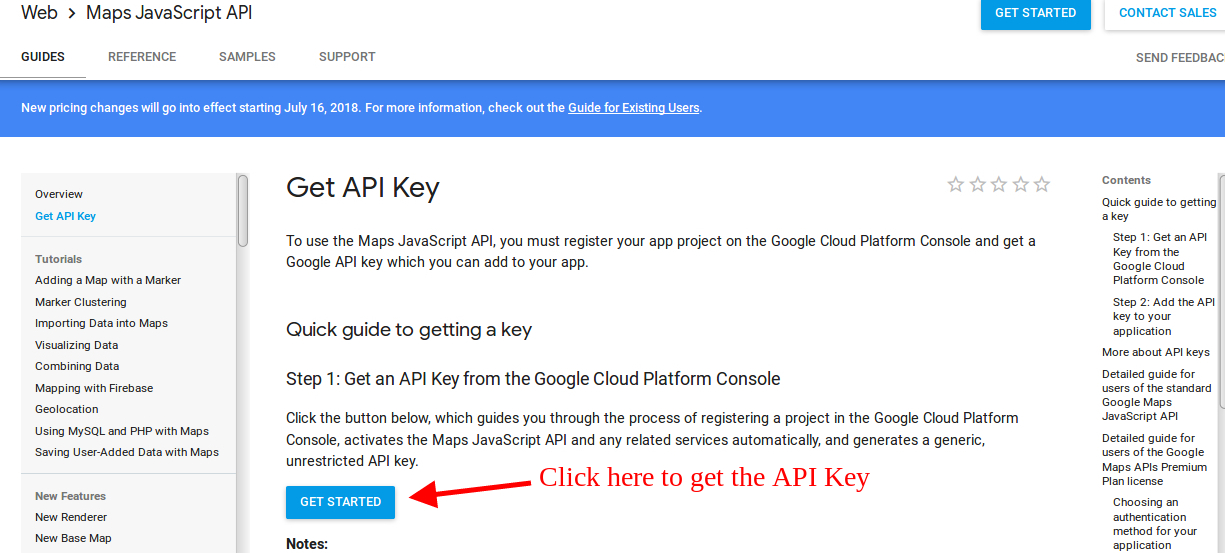
  • Haga clic en el botón "Comenzar": El administrador puede hacer clic en este botón para obtener la clave API del mapa de Google.

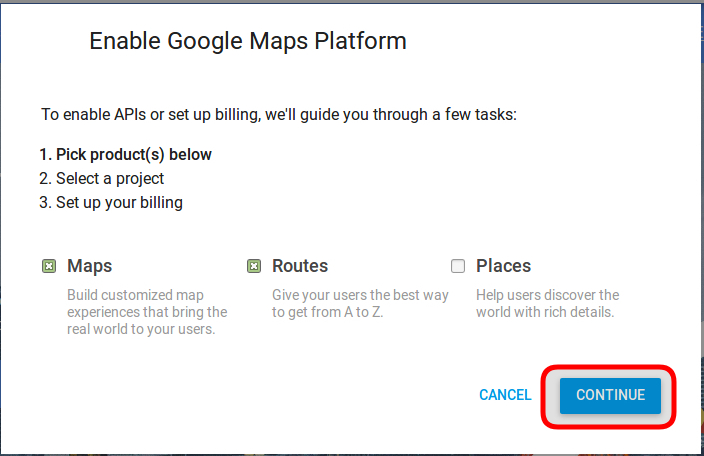
  • Recoge los productos: Cuando el administrador haga clic en el botón "Comenzar", se mostrará esta ventana emergente.

  • Selección de proyecto: El administrador de la tienda de comercio electrónico puede seleccionar o crear un proyecto.

1. Seleccione un proyecto:

2. Crea un nuevo proyecto:

  • Configura la facturación: El administrador de la tienda de comercio electrónico ahora puede configurar la facturación.

Después de facturar, el administrador de la tienda puede obtener su clave API de mapa de Google.

Sobre el Página de credenciales, consigue un Clave API:

El administrador de la tienda puede seleccionar la opción clave de API:

El administrador puede seleccionar la opción restringir clave en el cuadro de diálogo para establecer una restricción del navegador en la clave API.

En el Sección de restricción clave, el administrador de la tienda puede seleccionar Referencias de HTTP (sitios web), luego siga las instrucciones en pantalla para establecer referencias.

De esta forma, el administrador puede configurar la clave de la API del mapa de Google.

  • Google Map Marker: El complemento PrestaShop Google Map Store Locator le permite al administrador establecer una imagen como un marcador de mapa de Google.

  • Nivel de zoom del mapa: El administrador de la tienda de comercio electrónico puede establecer el nivel de zoom del mapa.
  • Unidad de distancia: El complemento del Localizador de tiendas de Google Maps de PrestaShop permite al administrador establecer la unidad de medida de distancia como Kilómetros y millas.
  • Mostrar en la página de inicio: El administrador puede mostrar el localizador de tiendas en la página de inicio habilitando esta configuración.
  • Habilitar tiendas: El administrador puede seleccionar las tiendas para mostrar en el mapa de Google. Seleccione las tiendas que desea mostrar en el localizador en esta sección.
  • Almacén predeterminado: El localizador de tiendas Prestashop y el complemento de recolección permiten que el administrador establezca una tienda como la tienda predeterminada. Seleccione la tienda de la lista desplegable en esta sección.
  • Mostrar número de teléfono: El módulo de recogida de Prestashop le permite al administrador mostrar el número de contacto de la tienda. Habilite esta opción para mostrar el número de teléfono.
  • Mostrar el menú del encabezado: El administrador de la tienda puede mostrar un menú de encabezado en el front-end.

  • Texto del menú del encabezado: La tienda

Configuraciones de 3.2 Pickup Time

Los diversos campos de esta interfaz se tratan a continuación:

  • Gap Days Gap: El administrador puede establecer los días mínimos después de los cuales el cliente puede recoger su paquete de la tienda
  • Días máximos de recogida: En esta opción, el administrador puede establecer los días Máximos dentro de los cuales el cliente debe retirar su paquete de la tienda.
  • Formato de fecha y hora: El administrador de la tienda de comercio electrónico puede establecer el formato de la fecha y hora de recolección.
  • Permitir intervalo de tiempo de recogida: Habilitar para mostrar la ranura de tiempo de recogida.
  • Brecha de Horas de Recogida: el administrador puede establecer las horas mínimas de espera después de realizar el pedido. Esta vez será el menos tiempo para el cual los clientes deben esperar después de realizar su pedido. Después del tiempo proporcionado, pueden recoger su paquete.

Notificación por correo electrónico 3.3

El administrador de la tienda puede enviar un correo electrónico para notificar a la tienda de recolección de los pedidos. Listo para enviar plantillas de correo electrónico para que el administrador de la tienda pueda informarles fácilmente sobre el pedido.

  • Habilitar notificación por correo electrónico: El administrador de la tienda de comercio electrónico puede habilitar esta opción para enviar notificaciones por correo electrónico para notificar a la tienda de retiro sobre el pedido. El administrador puede establecer la línea de asunto. Las plantillas de correo electrónico personalizables están disponibles para enviar el correo electrónico a las tiendas. La plantilla de correo electrónico ya hecha automatiza el proceso.

Contacto de 3.4 Import Store

El administrador de la tienda puede descargar un archivo de muestra en formato CSV. El propietario de la tienda puede descargar el archivo de muestra e insertar todos los detalles en este archivo. El administrador puede cargar este archivo para importar los detalles de la tienda.

  • Separador de campo: El administrador de complemento Prestashop puede configurar el separador de campo para separar los campos en el archivo CSV. Los separadores pueden ser punto y coma, coma u otros. Se recomienda usar comas. El administrador puede descargar el archivo CSV de muestra desde el panel de administración. Pueden ingresar sus datos en la muestra descargada y cargar el archivo CSV para importar los contactos de la tienda.

3.4.1 ¿Cómo crear nuevas tiendas?

El administrador de la tienda también puede crear nuevas tiendas desde el panel de administración. El complemento localizador de tiendas Prestashop le permite al administrador agregar, eliminar y editar los detalles relacionados con la tienda.

El administrador puede ver la lista de todas las tiendas y también puede agregar nuevas tiendas fácilmente desde el panel de administración.

El administrador de la tienda puede agregar fácilmente una tienda desde el panel de administración. Después de hacer clic en el botón "agregar nueva tienda", se mostrará una pantalla como la siguiente:

El administrador de la tienda puede agregar fácilmente el nombre de la tienda, la dirección completa de la tienda y los detalles de contacto también. El complemento Prestashop le permite al administrador configurar la imagen, el estado y el tiempo también.

El administrador puede insertar fácilmente las horas de trabajo de la tienda.

Los clientes pueden ver la tienda en el front-end de esta manera:

3.5 Descargar el albarán de entrega

El localizador de tiendas Prestashop y el complemento de recolección permiten que el administrador descargue la hoja de entrega insertando las fechas. El propietario de la tienda de comercio electrónico puede seleccionar el operador para filtrar el albarán de entrega. El administrador puede descargar el archivo PDF simplemente haciendo clic en el botón "Generar archivo PDF".

Interfaz de usuario 4.0

Los clientes pueden ver fácilmente la tienda más cercana y recoger el producto. También pueden ver los detalles de contacto, el nombre, la distancia y los tiempos. Los clientes pueden obtener el producto más rápido y sin pagar los gastos de envío.

Pueden seleccionar la opción Recogida:

Después de hacer clic en la opción Recoger en la tienda, los clientes pueden ver el localizador de la tienda.

Localizador de tienda en la página de inicio:

Si el administrador de la tienda permite que la configuración muestre el localizador de tiendas en la página de inicio, el localizador de tiendas se mostrará como la imagen mencionada anteriormente:

Los clientes pueden realizar su pedido de recogida fácilmente. Los clientes pueden seleccionar la fecha y la hora para recoger el producto pedido.

Los detalles de la orden de administrador se mostrarán como la imagen de abajo:

Los detalles del pedido se mostrarán como la imagen mencionada a continuación:

los

Se enviará un correo electrónico a la tienda para notificarlo sobre la orden de recogida.

Para obtener más Complementos de Prestashop por favor visite Knowband.

Knowband Prestashop add-on pickup addon Module Link.

El enlace de demo del administrador de la tienda de Prestashop. Knowband Prestashop Store locator addon front demo link.

Prestashop Store locator addon Enlace de manual de usuario.

Knowband Prestashop Store locator addon addon store link.

Por favor support@knowband.com para cualquier consulta o solicitud de cambio personalizada según los requisitos de su empresa.

Addon et localisateur de magasins Prestashop – Manuel de l'utilisateur

1.0 Présentation

Ajout de localisateur et de ramassage de magasin Prestashop par Knowband permet à l'administrateur du magasin de fournir une option pour afficher le magasin dans un endroit particulier. Avec l’addon d’emplacement de magasin Prestashop, les visiteurs du magasin peuvent trouver le magasin le plus proche des produits de leur choix. L'administrateur peut afficher un localisateur de magasin sur le site Web avec des détails supplémentaires tels que la distance, le numéro de contact, le nom et le calendrier. Ils peuvent vérifier le magasin le plus proche et sélectionner celui dans lequel ils souhaitent récupérer le produit.

Ce localisateur de magasin Prestashop et addon offre une interface conviviale et l'administrateur peut facilement configurer cet addon Prestashop. L'administrateur peut sélectionner plusieurs magasins à afficher dans le localisateur de magasin. Le localisateur de magasin Prestashop et l’addon de ramassage permettent à l’administrateur de définir le nombre minimum et maximum de jours pendant lesquels le ramassage du produit sera initié. Les clients peuvent facilement vérifier le magasin le plus proche et voir également les détails. Ils peuvent récupérer le produit s'ils le souhaitent. Ainsi, ils peuvent obtenir le produit avec un temps plus grand et minimal.

Caractéristiques 1.1

  1. Le propriétaire du magasin peut activer le localisateur de magasin et la fonctionnalité de ramassage en actionnant simplement un bouton.
  2. Le e-commerçant peut définir une image en tant que marqueur de carte Google et le niveau de zoom de la carte. Le plugin Prestashop permet à l'administrateur d'afficher également le numéro de contact.
  3. Le client peut effectuer une recherche dans le magasin en indiquant la distance en km ou en miles
  4. L'administrateur du magasin Prestashop a la possibilité d'afficher le localisateur de magasin sur la page d'accueil.
  5. L'administrateur du magasin peut ajouter plusieurs magasins et les afficher sur la carte Google. L'administrateur peut également sélectionner le magasin par défaut.
  6. L'addon de ramassage en magasin Prestashop permet au marchand en ligne de définir le nombre maximal de jours de ramassage.
  7. Le propriétaire de la boutique en ligne peut définir le format de date et d’heure.
  8. Le commerçant en ligne peut activer les paramètres pour afficher la plage horaire de collecte.
  9. L'administrateur peut définir les heures minimales pendant lesquelles le client doit attendre le ramassage du produit commandé.
  10. Le localisateur de magasin Prestashop et l’addon de collecte ont un modèle de courrier électronique prêt à l’emploi pour envoyer une notification par courrier électronique aux magasins d’enlèvement au sujet de la commande.
  11. Le plug-in PrestaShop Google Maps Store Locator permet à l'administrateur de télécharger un fichier d'exemple au format CSV. L'administrateur peut également télécharger le fichier CSV pour importer les contacts du magasin.
  12. L'administrateur peut télécharger le bordereau de livraison à partir du panneau d'administration de ce localisateur de magasin Prestashop et de cet addon de collecte.
  13. Le localisateur de magasin Prestashop et l’addon de ramassage sont compatibles avec plusieurs langues.
  14. Il est très facile d'installer, configurer et activer ce localisateur de magasin Prestashop et cet addon de ramassage.
  15. Le produit sera livré au magasin sélectionné. Le client peut récupérer le produit dans le magasin.
  16. L'adresse de livraison sera l'adresse du magasin sélectionné.

Guide d'installation 2.0

Une fois que vous avez acheté le localisateur de magasin Prestashop et l’addon de ramassage du magasin, vous obtenez ces fichiers:

1. Le fichier compressé constitué du code source de cet addon Prestashop.

2. Manuel utilisateur

Suivez les étapes suivantes pour installer le plug-in PrestaShop Google Maps Store Locator:

  • Tout d'abord, vous devez décompresser le fichier compressé. Il comprend des fichiers et des dossiers.
  • Après cela, vous devez copier le contenu global du dossier et les coller dans le dossier "Modules" du répertoire du magasin. Vous pouvez suivre le chemin

3. Maintenant, vous pouvez installer le Modules et services. Il serait montré comme ci-dessous

Il ne vous reste plus qu'à cliquer sur "installer"bouton pour installer ce module Prestashop. Une fenêtre de confirmation apparaîtra. Cliquez sur"Procéder à l'installationn "option. Cette étape va installer le module et afficher la notification Module (s) installé avec succès“.

3.0 Mode d'emploi

L'administrateur du magasin de commerce électronique peut maintenant configurer ce localisateur de magasin Prestashop et cet addon de collecte. L'administrateur aura l'option de configuration suivante:

  • Paramètres généraux
  • Paramètres de l'heure de ramassage
  • E-mail de notification
  • Contact du magasin d'importation
  • Télécharger le bon de livraison

Paramètres généraux 3.1

Dans cette page Paramètres généraux, vous trouverez diverses options de configuration, comme indiqué ci-dessous:

  • Activer désactiver: L'administrateur du magasin de commerce électronique peut activer ou désactiver le localisateur de magasin et le plug-in de ramassage à tout moment simplement en basculant ce bouton.
  • Activer / désactiver le localisateur de magasin: L'addon de localisateur de magasin Prestashop permet à l'administrateur d'activer ou de désactiver le localisateur de magasin dans le front-end. Par défaut, il sera activé.
  • Activer / désactiver le ramassage au magasin: L'administrateur peut activer le ramassage dans le magasin simplement en basculant ce bouton.
  • Clé d'API Google Map: Entrez la clé de l'API Google Map dans cette section. Un lien est fourni pour générer une clé API.

Dans le front-end, le localisateur de magasin sera affiché comme l’image mentionnée ci-dessous:

3.1.1 Comment générer la clé d'API Google Map?

L'administrateur du magasin de commerce électronique peut générer la clé API Google en procédant comme suit:

  • Cliquez sur le bouton "Commencer": L'administrateur peut cliquer sur ce bouton pour obtenir la clé de l'API Google Map.

  • Ramasser les produits: Lorsque l'administrateur clique sur le bouton "Commencer", cette fenêtre s'affiche.

  • Sélection du projet: L'administrateur du magasin de commerce électronique peut sélectionner ou créer un projet.

1. Sélectionnez un projet:

2. Créez un nouveau projet:

  • Configurez la facturation: L'administrateur du magasin de commerce électronique peut maintenant configurer la facturation.

Après la facturation, l'administrateur du magasin peut obtenir sa clé API Google Map.

Sur le Page d'informations d'identification, obtenez un Clé API:

L'administrateur du magasin peut sélectionner l'option de clé API:

L'administrateur peut sélectionner l'option de clé de restriction dans la boîte de dialogue pour définir une restriction de navigateur sur la clé API.

dans le Section de restriction de clé, l'administrateur du magasin peut sélectionner Référents HTTP (sites Web), puis suivez les instructions à l'écran pour définir des référents.

De cette façon, l'administrateur peut définir la clé de l'API Google Map.

  • Google Map Marker: Le plug-in PrestaShop Google Map Store Locator permet à l'administrateur de définir une image comme marqueur de carte Google.

  • Niveau de zoom de la carte: L'administrateur du magasin de commerce électronique peut définir le niveau de zoom de la carte.
  • Unité de distance: Le plug-in PrestaShop Google Maps Store Locator permet à l'administrateur de définir l'unité de mesure de distance en kilomètres et en miles.
  • Afficher sur la page d'accueil: L'administrateur peut afficher le localisateur de magasin sur la page d'accueil en activant ce paramètre.
  • Activer les magasins: L'administrateur peut sélectionner les magasins à afficher sur la carte Google. Sélectionnez les magasins que vous souhaitez afficher dans le localisateur de cette section.
  • Magasin par défaut: Le localisateur de magasin Prestashop et l’addon de collecte permettent à l’administrateur de définir un magasin comme magasin par défaut. Sélectionnez le magasin dans la liste déroulante de cette section.
  • Afficher le numéro de téléphone: Le module de prise en charge Prestashop permet à l'administrateur d'afficher le numéro de contact du magasin. Activez cette option pour afficher le numéro de téléphone.
  • Afficher le menu d'en-tête: L'administrateur du magasin peut afficher un menu d'en-tête sur le front-end.

  • Texte du menu d'en-tête: Le magasin

Paramètres de l'heure de ramassage 3.2

Les différents champs de cette interface sont discutés ci-dessous:

  • Écart des jours de ramassage: L'administrateur peut définir les jours minimum après lesquels le client peut récupérer son colis dans le magasin.
  • Maximum de jours de ramassage: Dans cette option, l'administrateur peut définir le nombre maximum de jours pendant lesquels le client doit récupérer son colis dans le magasin.
  • Format date-heure: L'administrateur du magasin de commerce électronique peut définir le format de la date et de l'heure de ramassage.
  • Autoriser l'emplacement de l'heure de ramassage: Activer pour afficher le créneau horaire
  • Écart des heures de ramassage: L'administrateur peut définir les heures minimum d'attente après avoir passé la commande. Ce délai sera le délai minimum pour lequel les clients doivent attendre après avoir passé leur commande. Après le temps imparti, ils peuvent récupérer leur colis.

Notification par courrier électronique 3.3

L'administrateur du magasin peut envoyer un courrier électronique pour informer le magasin de ramassage des commandes. Prêt à envoyer des modèles d'e-mail pour faciliter la tâche à l'administrateur du magasin pour informer les magasins de ramassage de la commande.

  • Activer la notification par courrier électronique: L'administrateur du magasin de commerce électronique peut activer cette option pour envoyer les notifications par courrier électronique afin d'informer le magasin de collecte de la commande. L'administrateur peut définir la ligne d'objet. Des modèles d'e-mail personnalisables sont disponibles pour envoyer l'e-mail aux magasins. Le modèle de courrier électronique prêt à l'emploi automatise le processus.

Contact de 3.4 Import Store

L'administrateur du magasin peut télécharger un exemple de fichier au format CSV. Le propriétaire du magasin peut télécharger le fichier exemple et insérer tous les détails dans ce fichier. L'administrateur peut télécharger ce fichier pour importer les détails du magasin.

  • Séparateur de champ: L'admin addon de Prestashop peut définir le séparateur de champs pour séparer les champs du fichier CSV. Les séparateurs peuvent être des points-virgules, des virgules ou autres. L'utilisation de virgules est recommandée. L'administrateur peut télécharger l'exemple de fichier CSV à partir du panneau d'administration. Ils peuvent entrer leurs données dans l'exemple téléchargé et télécharger le fichier CSV pour importer les contacts du magasin.

3.4.1 Comment créer de nouveaux magasins?

L'administrateur du magasin peut également créer de nouveaux magasins à partir du panneau d'administration. L'addon localisateur de magasin Prestashop permet à l'administrateur d'ajouter, de supprimer et de modifier les informations relatives au magasin.

L'administrateur peut afficher la liste de tous les magasins et peut également ajouter de nouveaux magasins facilement à partir du panneau d'administration.

L'administrateur du magasin peut facilement ajouter un magasin à partir du panneau d'administration. Après avoir cliqué sur le bouton "ajouter un nouveau magasin", un écran apparaîtra comme ci-dessous:

L'administrateur du magasin peut facilement ajouter le nom du magasin, l'adresse complète du magasin et les coordonnées. L'addon Prestashop permet à l'administrateur de définir l'image, le statut et le timing.

L'administrateur peut facilement insérer les heures de travail du magasin.

Les clients peuvent voir le magasin sur le front-end comme ceci:

3.5 Télécharger le bon de livraison

Le localisateur de magasin Prestashop et l’addon de collecte permettent à l’administrateur de télécharger le bordereau de livraison en insérant les dates. Le propriétaire du magasin de commerce électronique peut sélectionner le transporteur pour filtrer le bordereau de livraison. L'administrateur peut télécharger le fichier PDF en cliquant simplement sur le bouton "Générer un fichier PDF".

Interface frontale 4.0

Les clients peuvent facilement voir le magasin le plus proche et ramasser le produit. Ils peuvent également afficher les coordonnées, le nom, la distance et les horaires. Les clients peuvent obtenir le produit plus rapidement et sans payer les frais d'expédition.

Ils peuvent sélectionner l'option de ramassage:

Après avoir cliqué sur l'option de ramassage en magasin, les clients peuvent voir le localisateur de magasin.

Store locator à la page d'accueil:

Si l'administrateur du magasin permet aux paramètres d'afficher le localisateur de magasins sur la page d'accueil, le localisateur de magasins sera affiché comme l'image mentionnée ci-dessus:

Les clients peuvent facilement passer leur commande de ramassage. Les clients peuvent sélectionner la date et l’heure pour ramasser le produit commandé.

Les détails de la commande admin seront affichés comme ci-dessous image:

Les détails de la commande seront affichés comme ci-dessous image mentionnée:

le

Un email sera envoyé au magasin pour l'aviser de la commande de ramassage.

Pour plus Addons Prestashop s'il vous plaît visitez Knowband.

Connaître Module complémentaire de ramassage en magasin Prestashop.

Lien pour le plug-in d'administration de magasin Prestashop. Savoir-faire Lien de démonstration avant-propos de Prestashop Store.

Prestashop Store locator addon Lien du manuel d'utilisation.

Knowband Prestashop Store localisateur addon lien de magasin.

S'il vous plaît support@knowband.com pour toute requête ou demande de modification personnalisée selon vos besoins professionnels.

Prestashop Store Locator und Pickup Addon – Benutzerhandbuch

1.0 Einführung

Prestashop Store Locator und Pickup Addon Mit Knowband kann der Geschäftsadministrator eine Option zum Anzeigen des Geschäfts an einem bestimmten Ort bereitstellen. Mit dem Prestashop Store Location Addon können die Ladenbesucher das nächstgelegene Geschäft mit den Produkten ihrer Wahl finden. Der Administrator kann auf der Website einen Filialfinder mit einigen zusätzlichen Details wie Entfernung, Kontaktnummer, Name und Timing anzeigen. Sie können das nächstgelegene Geschäft prüfen und das auswählen, von wo sie das Produkt abholen möchten.

Dieses Prestashop Store Locator und Pickup Addon bietet eine benutzerfreundliche Oberfläche und der Admin kann dieses Prestashop Addon einfach konfigurieren. Der Administrator kann mehrere Geschäfte auswählen, die im Filialfinder angezeigt werden sollen. Der Prestashop Store Locator und das Pickup Addon erlauben es dem Administrator, die minimale und die maximale Anzahl an Tagen festzulegen, in denen die Produktabholung gestartet wird. Die Kunden können den nächsten Laden leicht überprüfen und die Details auch ansehen. Sie können das Produkt bei Bedarf abholen. So können sie das Produkt mit größerer und minimaler Zeit erhalten.

1.1 Eigenschaften

  1. Der Filialbesitzer kann die Filialsuche und Abholfunktion nur durch einen Schalter aktivieren.
  2. Der E-Merchant kann ein Bild als Google-Kartenmarkierung und die Zoomstufe der Karte festlegen. Mit dem Prestashop-Plugin kann der Administrator auch die Kontaktnummer anzeigen.
  3. Der Kunde kann das Geschäft durchsuchen, indem er die Entfernung in km oder Meilen angibt
  4. Der Prestashop-Store-Administrator verfügt über eine Option zum Anzeigen des Store-Locators auf der Startseite.
  5. Der Geschäftsadministrator kann mehrere Geschäfte hinzufügen und sie auf der Google-Karte anzeigen. Der Administrator kann auch den Standardspeicher auswählen.
  6. Prestashop In-Store Pickup Addon erlaubt dem E-Händler, die maximalen Abnahmetage festzulegen.
  7. Der Besitzer des Online-Shops kann das Datums- und Uhrzeitformat festlegen.
  8. Der E-Händler kann die Einstellungen aktivieren, um den Abholzeitschlitz anzuzeigen.
  9. Der Administrator kann die Mindeststunden festlegen, die der Kunde auf die Abholung des bestellten Produkts warten muss.
  10. Der Prestashop Store Locator und das Pickup Addon haben eine vorgefertigte E-Mail-Vorlage zum Senden einer E-Mail-Benachrichtigung an die Abholshops über die Bestellung.
  11. Mit dem PrestaShop Google Maps Store Locator-Plugin kann der Administrator eine Beispieldatei im CSV-Format herunterladen. Der Administrator kann auch die CSV-Datei hochladen, um Geschäftskontakte zu importieren.
  12. Der Administrator kann den Lieferschein aus dem Admin-Panel dieses Prestashop Store-Locators und Pickup-Addons herunterladen.
  13. Das Prestashop Store Locator und Pickup Addon ist mehrsprachig kompatibel.
  14. Es ist sehr einfach diesen Prestashop Store Locator und Pickup Addon zu installieren, zu konfigurieren und zu aktivieren.
  15. Das Produkt wird an das ausgewählte Geschäft geliefert. Der Kunde kann das Produkt im Laden abholen.
  16. Die Lieferadresse ist die Adresse des ausgewählten Geschäftes.

2.0 Installationsanleitung

Sobald Sie den Prestashop Store Locator und das Pickup Addon aus dem Store gekauft haben, erhalten Sie folgende Dateien:

1. Die gezippte Datei, die aus dem Quellcode dieses Prestashop-Addons besteht.

2. Benutzerhandbuch

Befolgen Sie die folgenden Schritte, um das PrestaShop Google Maps Store Locator-Plugin zu installieren:

  • Zuallererst müssen Sie die gezippte Datei entpacken. Es enthält einige Dateien und Ordner.
  • Danach müssen Sie den gesamten Inhalt des Ordners kopieren und in den Ordner "Module" des Geschäftsverzeichnisses einfügen. Sie können dem Pfad folgen

3. Jetzt können Sie das installieren Module und Dienstleistungen. Es würde wie folgt gezeigt werden

Jetzt müssen Sie nur auf "klickeninstallieren"Schaltfläche, um dieses Prestashop-Modul zu installieren. Ein Bestätigungs-Popup wird angezeigt. Klicken Sie auf"Fahren Sie mit der Installation fortn "Option. Dieser Schritt wird das Modul installieren und Benachrichtigung anzeigen Module wurden erfolgreich installiert“.

3.0 Benutzerhandbuch

Der eCommerce-Shop-Administrator kann nun diesen Prestashop-Store-Locator und das Pickup-Addon konfigurieren. Der Administrator erhält die folgende Konfigurationsoption:

  • Allgemeine Einstellungen
  • Aufnahmezeiteinstellungen
  • E-Mail-Benachrichtigung
  • Kontakt des Geschäftes importieren
  • Lieferschein herunterladen

3.1 Allgemeine Einstellungen

Auf dieser Seite mit den allgemeinen Einstellungen können Sie verschiedene Konfigurationsoptionen wie unten gezeigt auswählen:

  • Aktivieren deaktivieren: Der eCommerce-Shop-Administrator kann den Store-Locator und das Pick-up-Plugin jederzeit aktivieren oder deaktivieren, indem Sie einfach diese Schaltfläche aktivieren.
  • Filialfinder aktivieren / deaktivieren: Das Prestashop Store-Locator-Addon ermöglicht es dem Administrator, den Filialfinder im Frontend zu aktivieren oder zu deaktivieren. Standardmäßig ist es aktiviert.
  • Aktivieren / Deaktivieren der Abholung im Geschäft: Der Administrator kann die Abholung vom Geschäft aktivieren, indem Sie einfach diese Schaltfläche aktivieren.
  • Google Map-API-Schlüssel: Geben Sie den Google Map API-Schlüssel in diesem Abschnitt ein. Ein Link wird zum Generieren eines API-Schlüssels bereitgestellt.

Im Front-End wird der Filialfinder wie im folgenden Bild angezeigt:

3.1.1 Wie generiere ich den Google Map API Schlüssel?

Der eCommerce-Shop-Administrator kann den Google API-Schlüssel mithilfe der folgenden Schritte generieren:

  • Klicken Sie auf den Button "Los geht's": Der Administrator kann auf diese Schaltfläche klicken, um den Google Map-API-Schlüssel zu erhalten.

  • Holen Sie die Produkte ab: Wenn der Administrator auf die Schaltfläche "Erste Schritte" klickt, wird dieses Popup angezeigt.

  • Projektauswahl: Der eCommerce-Shop-Administrator kann ein Projekt auswählen oder erstellen.

1. Wählen Sie ein Projekt:

2. Erstellen Sie ein neues Projekt:

  • Richten Sie die Abrechnung ein: Der eCommerce-Store-Administrator kann nun die Abrechnung einrichten.

Nach der Abrechnung kann der Store-Administrator seinen Google Map API-Schlüssel erhalten.

Auf dem Anmeldeinformationen Seite, Erhalten eine API-Schlüssel:

Der Geschäftsadministrator kann die API-Schlüsseloption auswählen:

Der Administrator kann die Option zum Einschränken des Schlüssels im Dialogfeld auswählen, um eine Browsereinschränkung für den API-Schlüssel festzulegen.

In dem Hauptbeschränkungsabschnitt, kann der Store-Administrator auswählen HTTP-Verweise (Websites), befolgen Sie dann die Anweisungen auf dem Bildschirm, um Referrer festzulegen.

Auf diese Weise kann der Administrator den Google Map API-Schlüssel festlegen.

  • Google Map-Markierung: Mit dem PrestaShop Google Map Store Locator-Plugin kann der Administrator ein Bild als Google-Kartenmarker festlegen.

  • Karte Zoomstufe: Der E-Commerce-Shop-Administrator kann die Zoomstufe der Karte festlegen.
  • Distanzeinheit: Mit dem PrestaShop Google Maps Store Locator-Plugin kann der Administrator die Maßeinheit für die Entfernung als Kilometer und Meilen festlegen.
  • Anzeige auf der Homepage: Der Administrator kann den Store Locator auf der Startseite anzeigen, indem er diese Einstellung aktiviert.
  • Geschäfte aktivieren: Der Administrator kann die Geschäfte auswählen, die auf der Google-Karte angezeigt werden sollen. Wählen Sie die Filialen aus, die Sie in diesem Abschnitt im Locator anzeigen möchten.
  • Standardspeicher: Der Prestashop-Store-Locator und das Pickup-Addon ermöglichen es dem Administrator, einen Store als Standardspeicher einzurichten. Wählen Sie das Geschäft in der Dropdown-Liste in diesem Abschnitt aus.
  • Telefonnummer anzeigen: Das Prestashop-Pickup-Modul ermöglicht dem Administrator, die Kontaktnummer des Geschäfts anzuzeigen. Aktivieren Sie diese Option, um die Telefonnummer anzuzeigen.
  • Kopfmenü anzeigen: Der Store-Administrator kann ein Header-Menü im Frontend anzeigen.

  • Kopfmenü Text: Das Geschäft

3.2-Aufnahmezeiteinstellungen

Die verschiedenen Felder dieser Schnittstelle werden im Folgenden diskutiert:

  • Pickup Tage Lücke: Der Administrator kann die Mindesttage festlegen, nach denen der Kunde sein Paket vom Geschäft abholen kann
  • Maximale Abholtage: In dieser Option kann der Administrator die maximalen Tage festlegen, innerhalb derer der Kunde sein Paket vom Geschäft abholen muss.
  • Datum-Uhrzeit-Format: Der eCommerce-Shop-Administrator kann das Format des Abholdatums und der Abholzeit festlegen.
  • Pickup-Zeitfenster zulassen: Aktivieren, um den Aufnahmezeitschlitz anzuzeigen.
  • Pickup Stunden Lücke: Der Administrator kann die Mindeststunden für die Wartezeit nach der Bestellung festlegen. Diese Zeit ist die Mindestzeit, auf die die Kunden nach der Bestellung warten müssen. Nach der angegebenen Zeit können sie ihr Paket abholen.

3.3-E-Mail-Benachrichtigung

Der Shop-Administrator kann eine E-Mail senden, um das Pickup-Geschäft über die Bestellungen zu informieren. Bereit zum Senden von E-Mail-Vorlagen, damit der Filialadministrator die Übernahmesysteme über die Bestellung informieren kann.

  • E-Mail-Benachrichtigung aktivieren: Der eCommerce-Shop-Administrator kann diese Option aktivieren, um die E-Mail-Benachrichtigungen zu senden, um den Abholspeicher über den Auftrag zu informieren. Der Administrator kann die Betreffzeile festlegen. Anpassbare E-Mail-Vorlagen sind verfügbar, um die E-Mails an die Filialen zu senden. Die vorgefertigte E-Mail-Vorlage automatisiert den Vorgang.

3.4 Import Store-Kontakt

Der Shop-Administrator kann eine Beispieldatei im CSV-Format herunterladen. Der Ladenbesitzer kann die Beispieldatei herunterladen und alle Details in diese Datei einfügen. Der Administrator kann diese Datei hochladen, um die Geschäftsdetails zu importieren.

  • Feldtrenner: Der Prestashop Addon Admin kann das Feldtrennzeichen für die Trennung der Felder in der CSV-Datei festlegen. Die Trennzeichen können Semikolon, Komma oder andere sein. Es wird empfohlen, Kommas zu verwenden. Der Administrator kann die CSV-Beispieldatei über das Admin-Steuerfeld herunterladen. Sie können ihre Daten in das heruntergeladene Beispiel eingeben und die CSV-Datei hochladen, um Geschäftskontakte zu importieren.

3.4.1 Wie erstelle ich neue Geschäfte?

Der Shop-Administrator kann auch neue Shops über das Admin-Steuerfeld erstellen. Das Prestashop Store Locator Addon ermöglicht es dem Administrator, die Filialdetails hinzuzufügen, zu löschen und zu bearbeiten.

Der Administrator kann die Liste aller Geschäfte anzeigen und neue Geschäfte einfach über das Admin-Steuerfeld hinzufügen.

Der Shop-Administrator kann problemlos einen Shop im Admin-Bereich hinzufügen. Nach dem Klick auf die Schaltfläche "Neuen Shop hinzufügen" wird ein Bildschirm wie folgt angezeigt:

Der Geschäftsadministrator kann problemlos den Geschäftsnamen, die vollständige Adresse des Geschäfts und die Kontaktdaten hinzufügen. Mit dem Prestashop-Addon kann der Administrator auch Bild, Status und Timing einstellen.

Der Administrator kann die Arbeitszeit des Geschäfts einfach eingeben.

Die Kunden können den Laden auf dem Frontend wie folgt sehen:

3.5 Lieferschein herunterladen

Der Prestashop Store Locator und das Pickup Addon erlauben es dem Admin, den Lieferschein herunterzuladen, indem die Daten eingefügt werden. Der Eigentümer des E-Commerce-Geschäfts kann den Träger auswählen, um den Lieferschein zu filtern. Der Administrator kann die PDF-Datei herunterladen, indem er einfach auf die Schaltfläche "PDF-Datei erstellen" klickt.

4.0-Front-End-Schnittstelle

Die Kunden können das nächste Geschäft leicht ansehen und das Produkt abholen. Sie können auch die Kontaktdaten, Namen, Entfernung und Zeiten sehen. Die Kunden können das Produkt schneller und ohne Zahlung der Versandkosten erhalten.

Sie können die Option Abholung auswählen:

Nach Klicken auf die Option Abholung bei Geschäft können die Kunden den Filialfinder anzeigen.

Filialsuche auf der Homepage:

Wenn der Store-Administrator den Shop-Locator auf der Startseite anzeigt, wird der Store-Locator wie oben abgebildet angezeigt:

Die Kunden können ihre Abholbestellung einfach aufgeben. Die Kunden können Datum und Uhrzeit für die Abholung des bestellten Produkts auswählen.

Die Details der Admin-Bestellung werden wie folgt angezeigt:

Die Bestelldetails werden wie unten gezeigt angezeigt:

Das

Eine E-Mail wird an den Laden geschickt, um sie über den Abholauftrag zu informieren.

Weitere Prestashop Addons Bitte besuchen Sie Knowband.

Knowband Prestashop In-Store Pickup Modul Link.

Prestashop store Abholung Plugin Admin Demo Link. Knowband Prestashop Store Locator Addon Frontdemo Link.

Prestashop Store Locator Addon Benutzerhandbuch Link.

Knowband Prestashop Store Locator Addon Addon Store Link.

Bitte support@knowband.com für jede Abfrage oder benutzerdefinierte Änderungsanforderung gemäß Ihrer Geschäftsanforderung.

Prestashop Store Locator and Pickup addon- Manuale utente

1.0 Introduzione

Prestashop Store Locator e Pickup addon by Knowband consente all'amministratore del negozio di fornire un'opzione per visualizzare il negozio in una determinata posizione. Con l'addon della posizione del negozio Prestashop, i visitatori del negozio possono trovare il negozio più vicino che ha i prodotti di loro scelta. L'amministratore può visualizzare uno store locator sul sito Web con alcuni dettagli aggiuntivi come distanza, numero di contatto, nome e tempistica. Possono controllare il negozio più vicino e selezionare quello da cui vogliono ritirare il prodotto.

Questo store locator Prestashop e addon pickup offre un'interfaccia user-friendly e l'amministratore può facilmente configurare questo add-on di Prestashop. L'amministratore può selezionare più negozi che devono essere mostrati nello store locator. Lo store locator di Prestashop e il componente aggiuntivo di ritiro consentono all'amministratore di impostare il numero minimo e il numero massimo di giorni entro i quali verrà avviato il ritiro del prodotto. I clienti possono facilmente controllare il negozio più vicino e visualizzare anche i dettagli. Possono ritirare il prodotto se lo desiderano. In questo modo possono ottenere il prodotto con un tempo maggiore e minimo.

Caratteristiche 1.1

  1. Il proprietario del negozio può attivare la funzione di ricerca dello store e di ritiro semplicemente premendo un pulsante.
  2. L'e-merchant può impostare un'immagine come un indicatore della mappa di Google e il livello di zoom della mappa. Il plug-in Prestashop consente all'amministratore di mostrare anche il numero di contatto.
  3. Il Cliente può cercare nel negozio fornendo la distanza in km o miglia
  4. L'amministratore del negozio Prestashop ha un'opzione per mostrare lo store locator sulla homepage.
  5. L'amministratore del negozio può aggiungere più negozi e mostrarli sulla mappa di Google. L'amministratore può anche selezionare il negozio predefinito.
  6. Il componente aggiuntivo di ritiro in negozio di Prestashop consente all'e-merchant di impostare i giorni massimi di ritiro.
  7. Il proprietario del negozio online può impostare il formato di data e ora.
  8. L'e-merchant può abilitare le impostazioni per visualizzare l'intervallo di tempo di prelievo.
  9. L'amministratore può impostare le ore minime per le quali il cliente deve attendere il ritiro del prodotto ordinato.
  10. Lo store locator di PrestaShop e l'addon di ritiro hanno un modello di email pronto per inviare una notifica via email ai negozi di ritiro sull'ordine.
  11. Il plug-in Locator di Google Maps Store Locator di PrestaShop consente all'amministratore di scaricare un file di esempio in formato CSV. L'amministratore può anche caricare il file CSV per importare i contatti del negozio.
  12. L'amministratore può scaricare la ricevuta di consegna dal pannello di amministrazione di questo store locator di Prestashop e del componente aggiuntivo di ritiro.
  13. Il localizzatore di negozi Prestashop e il componente aggiuntivo di ritiro sono compatibili multilingue.
  14. È molto facile installare, configurare e attivare questo store locator di Prestashop e addon pickup.
  15. Il prodotto verrà consegnato al negozio selezionato. Il cliente può ritirare il prodotto dal negozio.
  16. L'indirizzo di consegna sarà l'indirizzo del negozio selezionato.

Guida all'installazione di 2.0

Una volta acquistato lo store locator di Prestashop e il componente aggiuntivo di ritiro dal negozio, otterrai questi file:

1. Il file zippato costituito dal codice sorgente di questo add-on di Prestashop.

2. Manuale utente

Segui i seguenti passaggi per installare il plug-in Locator di Google Maps Store PrestaShop:

  • Prima di tutto, devi decomprimere il file zippato. Include alcuni file e cartelle.
  • Successivamente, è necessario copiare il contenuto generale della cartella e incollarli nella cartella "Modules" della directory del negozio. Puoi seguire il percorso

3. Ora puoi installare il Moduli e servizi. Sarebbe mostrato come sotto

Ora devi solo cliccare su "Installazione"per installare questo modulo Prestashop. Verrà visualizzato un pop-up di conferma. Fare clic su"Procedere con l'installazionen ". Questo passo installerà il modulo e mostrerà la notifica Modulo (i) installato con successo“.

3.0 Manuale dell'utente

L'amministratore del negozio eCommerce ora può configurare questo locator di deposito Prestashop e addon pickup. L'amministratore otterrà la seguente opzione di configurazione:

  • Impostazioni generali
  • Impostazioni del tempo di ritiro
  • E-mail di notifica
  • Importa il contatto del negozio
  • Scarica la ricevuta di consegna

3.1 Impostazioni generali

In questa pagina Impostazioni generali offri varie opzioni di configurazione come mostrato di seguito:

  • Attiva / Disattiva: L'amministratore del negozio eCommerce può attivare o disattivare lo store locator e il plug-in in qualsiasi momento semplicemente attivando questo pulsante.
  • Abilita / Disabilita Trova negozio: L'addon locator di Prestashop Store consente all'amministratore di abilitare o disabilitare lo store locator nel front-end. Per impostazione predefinita, sarà abilitato.
  • Abilita / Disabilita il ritiro in negozio: L'amministratore può attivare il ritiro dal negozio semplicemente attivando questo pulsante.
  • Chiave API Mappa Google: Inserisci la chiave API della mappa di Google in questa sezione. Viene fornito un collegamento per la generazione di una chiave API.

Nel front-end, lo store locator verrà visualizzato come l'immagine qui sotto:

3.1.1 Come generare la chiave API di Google Map?

L'amministratore del negozio eCommerce può generare la chiave dell'API di Google seguendo questi passaggi:

  • Fai clic sul pulsante "Inizia": L'amministratore può fare clic su questo pulsante per ottenere la chiave API della mappa di Google.

  • Ritirare i prodotti: Quando l'amministratore farà clic sul pulsante "Guida introduttiva", verrà visualizzato questo popup.

  • Selezione del progetto: L'amministratore del negozio eCommerce può selezionare o creare un progetto.

1. Seleziona un progetto:

2. Crea un nuovo progetto:

  • Imposta la fatturazione: L'amministratore del negozio eCommerce ora può impostare la fatturazione.

Dopo la fatturazione, l'amministratore del negozio può ottenere la chiave API della mappa di Google.

Sulla Pagina delle credenziali, prendi un Chiave API:

L'amministratore del negozio può selezionare l'opzione chiave API:

L'amministratore può selezionare l'opzione chiave restrizione dalla finestra di dialogo per impostare una restrizione del browser sulla chiave API.

Nel Sezione restrizione chiave, l'amministratore del negozio può selezionare Referrer HTTP (siti Web), quindi seguire le istruzioni visualizzate per impostare i referrer.

In questo modo l'amministratore può impostare la chiave API della mappa di Google.

  • Google Map Marker: Il plug-in Locator di Google Map Store di PrestaShop consente all'amministratore di impostare un'immagine come indicatore della mappa di Google.

  • Livello di zoom della mappa: L'amministratore del negozio eCommerce può impostare il livello di zoom della mappa.
  • Unità di distanza: Il plug-in Locator di Google Maps Store Locator di PrestaShop consente all'amministratore di impostare l'unità di misura della distanza come chilometri e chilometri.
  • Mostra sulla homepage: L'amministratore può visualizzare lo store locator sulla homepage abilitando questa impostazione.
  • Abilita negozi: L'amministratore può selezionare i negozi da visualizzare sulla mappa di Google. Selezionare i negozi che si desidera visualizzare nel localizzatore in questa sezione.
  • Archivio predefinito: Lo store locator di Prestashop e il componente aggiuntivo di ritiro consentono all'amministratore di impostare un negozio come archivio predefinito. Seleziona il negozio dall'elenco a discesa in questa sezione.
  • Visualizza numero di telefono: Il modulo di prelievo Prestashop consente all'amministratore di mostrare il numero di contatto del negozio. Abilitare questa opzione per visualizzare il numero di telefono.
  • Visualizza il menu dell'intestazione: L'amministratore del negozio può mostrare un menu di intestazione sul front-end.

  • Testo del menu testata: Il negozio

Impostazioni del tempo di ritiro 3.2

I vari campi di questa interfaccia sono discussi di seguito:

  • Gap Pickup Days: L'amministratore può impostare i giorni minimi dopo i quali il cliente può ritirare il pacco dal negozio
  • Giorni di ritiro massimi: In questa opzione, l'amministratore può impostare i giorni massimi entro i quali il cliente deve ritirare il pacco dal negozio.
  • Formato data-ora: L'amministratore del negozio eCommerce può impostare il formato della data e dell'ora di ritiro.
  • Consentire lo slot del tempo di ritiro: Abilitare per visualizzare lo slot del tempo di raccolta.
  • Gap Pickup Hours: l'amministratore può impostare le ore minime di attesa dopo aver effettuato l'ordine. Questa volta sarà il periodo meno lungo per il quale i clienti dovranno attendere dopo aver effettuato l'ordine. Dopo il tempo previsto possono ritirare il pacco.

Notifica e-mail 3.3

L'amministratore del negozio può inviare una e-mail per notificare il ritiro per gli ordini. Pronto a inviare modelli di e-mail per facilitare l'amministratore del negozio a informare i negozi di ritiro sull'ordine.

  • Abilita notifica via email: L'amministratore del negozio eCommerce può abilitare questa opzione per l'invio delle notifiche via e-mail per notificare al negozio di ritiro l'ordine. L'amministratore può impostare la riga dell'oggetto. Sono disponibili modelli e-mail personalizzabili per inviare l'e-mail ai negozi. Il modello di posta elettronica pronto per l'uso automatizza il processo.

Contatto 3.4 Import Store

L'amministratore del negozio può scaricare un file di esempio in formato CSV. Il proprietario del negozio può scaricare il file di esempio e inserire tutti i dettagli in questo file. L'amministratore può caricare questo file per importare i dettagli del negozio.

  • Separatore di campo: L'amministratore del componente aggiuntivo Prestashop può impostare il separatore di campo per separare i campi nel file CSV. I separatori possono essere punti e virgola, virgola o altri. Si consiglia di utilizzare le virgole. L'amministratore può scaricare il file CSV di esempio dal pannello di amministrazione. Possono inserire i loro dati nel campione scaricato e caricare il file CSV per importare i contatti del negozio.

3.4.1 Come creare nuovi negozi?

L'amministratore del negozio può anche creare nuovi negozi dal pannello di amministrazione. L'addon locator di Prestashop Store consente all'amministratore di aggiungere, eliminare e modificare i dettagli relativi al negozio.

L'amministratore può visualizzare l'elenco di tutti i negozi e anche aggiungere nuovi negozi facilmente dal pannello di amministrazione.

L'amministratore del negozio può aggiungere facilmente un negozio dal pannello di amministrazione. Dopo aver fatto clic sul pulsante "aggiungi nuovo negozio", verrà visualizzata una schermata come di seguito:

L'amministratore del negozio può facilmente aggiungere il nome del negozio, l'indirizzo completo del negozio e i dettagli di contatto. L'addon di Prestashop consente all'amministratore di impostare anche l'immagine, lo stato e i tempi.

L'amministratore può facilmente inserire gli orari di lavoro del negozio.

I clienti possono visualizzare lo store sul front-end in questo modo:

3.5 Scarica la bolla di consegna

Lo store locator di PrestaShop e l'addon di ritiro consentono all'amministratore di scaricare la ricevuta di consegna inserendo le date. Il proprietario del negozio eCommerce può selezionare il corriere per filtrare la bolla di consegna. L'amministratore può scaricare il file PDF semplicemente facendo clic sul pulsante "Genera file PDF".

Interfaccia 4.0 front-end

I clienti possono facilmente visualizzare il negozio più vicino e ritirare il prodotto. Possono anche visualizzare i dettagli del contatto, nome, distanza e tempi. I clienti possono ottenere il prodotto più velocemente e senza pagare le spese di spedizione.

Possono selezionare l'opzione di ritiro:

Dopo aver fatto clic sull'opzione Ritiro presso il negozio, i clienti possono visualizzare lo store locator.

Store locator presso Homepage:

Se l'amministratore del negozio abilita le impostazioni a mostrare lo store locator sulla homepage, lo store locator verrà visualizzato come l'immagine sopra menzionata:

I clienti possono inserire facilmente il loro ordine di ritiro. I clienti possono selezionare la data e l'ora di ritiro del prodotto ordinato.

I dettagli dell'ordine amministratore verranno mostrati come nell'immagine seguente:

I dettagli dell'ordine verranno visualizzati come l'immagine qui sotto:

Il

Una e-mail sarà inviata al negozio per notificarla sull'ordine di ritiro.

Per ulteriori Addons di Prestashop per favore visita Knowband.

Knowband Prestashop in-store pickup addon Module Link.

Prestashop store raccoglie plugin demo link di amministrazione. Knowband Link per la demo frontale del frontatore di Prestashop Store locator.

Link sul sito di Prestashop Store locator link utente.

Localizzatore di Knowband Prestashop Localizzatore di addon addon store link.

per favore support@knowband.com per qualsiasi richiesta o richiesta di modifica personalizzata in base ai requisiti aziendali.

Prestashop Store Locator and Pickup addon- User Manual

1.0 Wprowadzenie

Prestashop Store Locator and Pickup addon by Knowband pozwala administratorowi sklepu zapewnić opcję wyświetlania sklepu w określonej lokalizacji. Dzięki dodatkowi lokalizacji sklepu Prestashop odwiedzający sklep mogą znaleźć najbliższy sklep z wybranymi produktami. Administrator może wyświetlić lokalizator sklepu na stronie z dodatkowymi danymi, takimi jak odległość, numer kontaktowy, nazwa i czas. Mogą sprawdzić najbliższy sklep i wybrać ten, z którego chcą odebrać produkt.

Ten lokalizator sklepu Prestashop i dodatek do pobrania oferuje przyjazny dla użytkownika interfejs, a administrator może łatwo skonfigurować ten dodatek Prestashop. Administrator może wybrać wiele sklepów, które mają być wyświetlane w lokalizatorze sklepu. Lokalizator sklepu Prestashop i dodatek do pobrania umożliwiają administratorowi ustawienie minimalnej i maksymalnej liczby dni, w których rozpocznie się odbiór produktu. Klienci mogą łatwo sprawdzić również najbliższy sklep i zobaczyć szczegóły. Mogą odebrać produkt, jeśli zechcą. Dzięki temu mogą uzyskać produkt o większym i minimalnym czasie.

Cechy 1.1

  1. Właściciel sklepu może aktywować lokalizator sklepu i funkcję pobierania za pomocą przełącznika przycisku.
  2. E-sprzedawca może ustawić obraz jako znacznik mapy Google i poziom powiększenia mapy. Wtyczka Prestashop pozwala również administratorowi wyświetlać numer kontaktowy.
  3. Klient może przeszukać sklep podając odległość w kilometrach lub milach
  4. Administrator sklepu Prestashop ma opcję wyświetlenia lokalizatora sklepu na stronie głównej.
  5. Administrator sklepu może dodawać wiele sklepów i wyświetlać je na mapie Google. Administrator może również wybrać domyślny sklep.
  6. Dodatek do odbioru w sklepie Prestashop pozwala e-handlowcowi ustawić maksymalne dni odbioru.
  7. Właściciel sklepu internetowego może ustawić format daty i czasu.
  8. E-sprzedawca może włączyć ustawienia wyświetlania czasu odbioru.
  9. Administrator może ustawić minimalne godziny, w których klient musi czekać na odbiór zamówionego produktu.
  10. Lokalizator sklepu Prestashop i dodatek do pobierania mają gotowy szablon wiadomości e-mail umożliwiający wysłanie powiadomienia e-mail do sklepów z odbiorcami o zamówieniu.
  11. Wtyczka PrestaShop Google Maps Store pozwala administratorowi pobrać przykładowy plik w formacie CSV. Administrator może również przesłać plik CSV w celu zaimportowania kontaktów ze sklepu.
  12. Administrator może pobrać potwierdzenie dostawy z panelu administracyjnego tego lokalizatora sklepu Prestashop i dodatku do pobierania.
  13. Lokalizator sklepu Prestashop i dodatek do pickupa są kompatybilne z wieloma językami.
  14. Jest bardzo łatwy w instalacji, konfiguracji i aktywacji tego lokalizatora sklepu Prestashop i dodatku do pobierania.
  15. Produkt zostanie dostarczony do wybranego sklepu. Klient może odebrać produkt ze sklepu.
  16. Adres dostawy będzie adresem wybranego sklepu.

Przewodnik instalacji 2.0

Po zakupie lokalizatora sklepu Prestashop i dodatku do pobrania ze sklepu otrzymasz następujące pliki:

1. Spakowany plik składający się z kodu źródłowego tego dodatku Prestashop.

2. Instrukcja obsługi

Wykonaj następujące kroki, aby zainstalować wtyczkę PrestaShop Google Maps Store:

  • Przede wszystkim musisz rozpakować spakowany plik. Zawiera niektóre pliki i foldery.
  • Następnie należy skopiować ogólną zawartość folderu i wkleić je do folderu "Moduły" w katalogu sklepu. Możesz podążać ścieżką

3. Teraz możesz zainstalować Moduły i usługi. Zostanie to pokazane poniżej

Teraz wystarczy kliknąć "zainstalować"aby zainstalować ten moduł Prestashop, pojawi się okienko z potwierdzeniem."Kontynuuj instalacjęn "opcja. Ten krok spowoduje zainstalowanie modułu i wyświetlenie powiadomienia Moduły zainstalowane pomyślnie“.

3.0 Instrukcja obsługi

Administrator sklepu eCommerce może teraz skonfigurować ten lokalizator sklepu Prestashop i dodatek do pobierania. Administrator otrzyma następującą opcję konfiguracji:

  • Ustawienia główne
  • Ustawienia czasu odbioru
  • Powiadomienie e-mail
  • Kontakt z Import Store
  • Pobierz dowód dostawy

3.1 Ustawienia ogólne

Na tej stronie Ustawienia ogólne znajdują się różne opcje konfiguracji, jak pokazano poniżej:

  • Włącz / wyłącz: Administrator sklepu eCommerce może aktywować lub dezaktywować lokalizator sklepu i wtyczkę pick-up w dowolnym momencie, tylko poprzez przełączenie tego przycisku.
  • Włącz / wyłącz Lokalizator sklepu: Dodatek lokalizatora Prestashop Store umożliwia administratorowi włączanie lub wyłączanie lokalizatora sklepu w interfejsie użytkownika. Domyślnie będzie włączony.
  • Włącz / wyłącz odbiór w sklepie: Administrator może aktywować odbiór ze sklepu po prostu przełączając ten przycisk.
  • Klucz API Map Google: Wprowadź klucz interfejsu API mapy Google w tej sekcji. Zapewnione jest łącze do generowania klucza API.

W interfejsie wewnętrznym lokalizator sklepu zostanie wyświetlony tak jak na poniższym obrazku:

3.1.1 Jak wygenerować klucz API Map Google?

Administrator sklepu eCommerce może wygenerować klucz Google API, wykonując następujące czynności:

  • Kliknij przycisk "Rozpocznij": Administrator może kliknąć ten przycisk, aby uzyskać klucz API mapy Google.

  • Odbiór produktów: Kiedy administrator kliknie przycisk "Rozpocznij", pojawi się to okienko.

  • Wybór projektu: Administrator sklepu eCommerce może wybrać lub utworzyć projekt.

1. Wybierz projekt:

2. Utwórz nowy projekt:

  • Skonfiguruj rozliczenia: Administrator sklepu eCommerce może teraz skonfigurować rozliczenia.

Po rozliczeniu administrator sklepu może uzyskać klucz API mapy Google.

Na Strona z danymi logowania, zdobądź Klucz API:

Administrator sklepu może wybrać opcję klucza API:

Administrator może wybrać opcję klucza ograniczenia w oknie dialogowym, aby ustawić ograniczenie przeglądarki dla klucza API.

w Sekcja ograniczeń kluczowych, administrator sklepu może wybrać Odsyłające HTTP (strony internetowe), a następnie postępuj zgodnie z instrukcjami wyświetlanymi na ekranie, aby ustawić stronę odsyłającą.

W ten sposób administrator może ustawić klucz API mapy Google.

  • Znacznik mapy Google: Wtyczka lokalizatora PrestaShop Google Map Store pozwala administratorowi ustawić obraz jako znacznik mapy Google.

  • Poziom powiększenia mapy: Administrator sklepu eCommerce może ustawić poziom powiększenia mapy.
  • Jednostka odległości: Wtyczka PrestaShop Google Maps Store Locator umożliwia administratorowi ustawienie jednostki miary odległości jako Kilometrów i mil.
  • Wyświetl na stronie głównej: Administrator może wyświetlić lokalizator sklepu na stronie głównej, włączając to ustawienie.
  • Włącz składowanie: Administrator może wybrać sklepy do wyświetlenia na mapie Google. Wybierz sklepy, które chcesz wyświetlić w lokalizatorze w tej sekcji.
  • Domyślny magazyn: Lokalizator sklepu Prestashop i dodatek do pobrania umożliwiają administratorowi ustawienie sklepu jako sklepu domyślnego. Wybierz sklep z rozwijanej listy w tej sekcji.
  • Wyświetl numer telefonu: Moduł odbioru Prestashop pozwala administratorowi wyświetlić numer kontaktowy sklepu. Włącz tę opcję, aby wyświetlić numer telefonu.
  • Wyświetl menu nagłówka: Administrator sklepu może pokazać menu nagłówkowe na front-end.

  • Tekst menu nagłówka: Sklep

Ustawienia czasu odbioru 3.2

Różne pola tego interfejsu omówiono poniżej:

  • Pickup Days Gap: Administrator może ustawić minimalne dni, po których klient może odebrać paczkę ze sklepu
  • Maksymalne dni odbioru: W tej opcji administrator może ustawić Maksymalne dni, w których klient musi odebrać paczkę ze sklepu.
  • Format daty i czasu: Administrator sklepu eCommerce może ustawić format daty i godziny odbioru.
  • Zezwalaj na slot czasu pobrań: Włącz, aby wyświetlić przedział czasowy odbioru.
  • Pickup Hours Gap: administrator może ustawić minimalne godziny oczekiwania po złożeniu zamówienia. Tym razem będzie to najmniej czasu, w którym klienci muszą czekać po złożeniu zamówienia. Po wyznaczonym czasie mogą odebrać paczkę.

Powiadomienie e-mailem 3.3

Administrator sklepu może wysłać wiadomość e-mail, aby powiadomić punkt przyjmowania zamówień o zamówieniach. Gotowy do wysłania szablonów wiadomości e-mail, aby ułatwić administratorowi sklepu informowanie punktów odbioru o zamówieniu.

  • Włącz powiadomienia e-mail: Administrator sklepu eCommerce może włączyć tę opcję do wysyłania powiadomień e-mail, aby powiadomić sklep pick-up o zamówieniu. Administrator może ustawić wiersz tematu. Konfigurowalne szablony wiadomości e-mail są dostępne do wysyłania wiadomości e-mail do sklepów. Gotowy szablon wiadomości e-mail automatyzuje proces.

3.4 Import Store Contact

Administrator sklepu może pobrać przykładowy plik w formacie CSV. Właściciel sklepu może pobrać przykładowy plik i wstawić wszystkie szczegóły w tym pliku. Administrator może przesłać ten plik, aby zaimportować szczegóły sklepu.

  • Separator pól: Dodatkowy administrator Prestashop może ustawić separator pól do oddzielania pól w pliku CSV. Separatory mogą być średnikami, przecinkami lub innymi. Zaleca się używanie przecinków. Administrator może pobrać przykładowy plik CSV z panelu administracyjnego. Mogą wprowadzić swoje dane w pobranej próbce i przesłać plik CSV w celu zaimportowania kontaktów do sklepu.

3.4.1 Jak tworzyć nowe sklepy?

Administrator sklepu może również tworzyć nowe sklepy z panelu administracyjnego. Dodatek lokalizatora Prestashop Store pozwala administratorowi dodawać, usuwać i edytować szczegóły dotyczące sklepu.

Administrator może przeglądać listę wszystkich sklepów, a także może łatwo dodawać nowe sklepy z panelu administracyjnego.

Administrator sklepu może łatwo dodać sklep z panelu administracyjnego. Po kliknięciu przycisku "dodaj nowy sklep" pojawi się ekran jak poniżej:

Administrator sklepu może łatwo dodać nazwę sklepu, pełny adres sklepu i dane kontaktowe. Dodatek Prestashop umożliwia administratorowi także ustawienie obrazu, statusu i czasu.

Administrator może łatwo wstawiać godziny pracy sklepu.

Klienci mogą przeglądać sklep na front-endie w następujący sposób:

3.5 Pobierz dowód dostawy

Lokalizator sklepu Prestashop i dodatek do pobrania umożliwiają administratorowi pobranie dowodu dostawy poprzez wstawienie dat. Właściciel sklepu eCommerce może wybrać operatora, aby odfiltrować dowód dostawy. Administrator może pobrać plik PDF, klikając przycisk "Generuj plik PDF".

Interfejs przedni 4.0

Klienci mogą łatwo zobaczyć najbliższy sklep i odebrać produkt. Mogą również wyświetlać dane kontaktowe, nazwisko, odległość i czasy. Klienci mogą uzyskać produkt szybciej i bez ponoszenia kosztów wysyłki.

Mogą wybrać opcję odbioru:

Po kliknięciu opcji Pickup at store klienci mogą zobaczyć lokalizator sklepu.

Zapisz lokalizator na stronie głównej:

Jeśli administrator sklepu zezwala na wyświetlanie ustawień lokalizatora sklepu na stronie głównej, to lokalizator sklepu będzie wyświetlany tak, jak na powyższym obrazku:

Klienci mogą łatwo złożyć zamówienie odbioru. Klienci mogą wybrać datę i godzinę odbioru zamówionego produktu.

Szczegóły zlecenia administratora zostaną wyświetlone jak na poniższym obrazku:

Szczegóły zamówienia będą wyświetlane jak na poniższym obrazku:

The

Jeden e-mail zostanie wysłany do sklepu w celu powiadomienia go o poleceniu odbioru.

Aby uzyskać więcej Prestashop Addons odwiedź Knowband.

Knowband Prestashop w sklepie pickup addon Module Link.

Prestashop Store podnieś link do demo admin admina. Knowband Prestashop Store lokalizator addon przedni link demo.

Prestashop Store locator addon Link do instrukcji obsługi.

Knowband Prestashop Store lokalizator addon addon store link.

Proszę support@knowband.com dla dowolnego zapytania lub niestandardowej prośby o zmianę zgodnie z wymaganiami biznesowymi.

Prestashop Store Locator e Pickup addon – Manual do Usuário

1.0 Introdução

Localizador de lojas Prestashop e addon de retirada por Knowband permite que o administrador da loja forneça uma opção para exibir a loja em um determinado local. Com o addon de localização da loja Prestashop, os visitantes da loja podem encontrar a loja mais próxima que tenha os produtos de sua escolha. O administrador pode exibir um localizador de lojas no site com alguns detalhes adicionais, como distância, número de contato, nome e tempo. Eles podem verificar a loja mais próxima e selecionar aquele de onde eles querem pegar o produto.

Este localizador de lojas Prestashop e addon pickup oferece uma interface amigável e o administrador pode facilmente configurar este addon Prestashop. O administrador pode selecionar várias lojas que devem ser mostradas no localizador de lojas. O localizador de lojas Prestashop e o addon de recebimento permitem que o administrador defina o número mínimo e máximo de dias em que o recebimento do produto será iniciado. Os clientes podem facilmente verificar a loja mais próxima e ver os detalhes também. Eles podem pegar o produto se quiserem. Assim, eles podem obter o produto com um tempo maior e mínimo.

Características 1.1

  1. O dono da loja pode ativar o localizador de lojas e a funcionalidade de coleta apenas por um botão de alternância.
  2. O e-comerciante pode definir uma imagem como um marcador de mapa do Google e o nível de zoom do mapa. O plugin Prestashop permite que o admin mostre o número de contato também.
  3. O cliente pode pesquisar a loja, fornecendo a distância em km ou milhas
  4. O administrador da loja Prestashop tem uma opção para mostrar o localizador de lojas na página inicial.
  5. O administrador da loja pode adicionar várias lojas e mostrá-las no mapa do Google. O administrador também pode selecionar o armazenamento padrão.
  6. O add-on pickup Prestashop na loja permite que o comerciante eletrônico defina os dias máximos de coleta.
  7. O proprietário da loja on-line pode definir o formato de data e hora.
  8. O e-comerciante pode ativar as configurações para exibir o horário de atendimento.
  9. O administrador pode definir as horas mínimas para as quais o cliente deve aguardar pelo recebimento do produto solicitado.
  10. O localizador de lojas Prestashop e o complemento de recebimento têm um modelo de e-mail pronto para enviar uma notificação por e-mail para as lojas de coleta sobre o pedido.
  11. O plug-in PrestaShop Google Maps Store Locator permite que o administrador baixe um arquivo de amostra no formato CSV. O administrador também pode carregar o arquivo CSV para importar contatos da loja.
  12. O administrador pode baixar o recibo de entrega no painel de administração deste localizador de lojas Prestashop e addon de recebimento.
  13. O localizador de lojas Prestashop e o addon de recebimento são compatíveis com vários idiomas.
  14. É muito fácil instalar, configurar e ativar este localizador de lojas Prestashop e addon de recebimento.
  15. O produto será entregue na loja selecionada. O cliente pode retirar o produto da loja.
  16. O endereço de entrega será o endereço da loja selecionada.

2.0 Guia de Instalação

Depois de adquirir o localizador de lojas Prestashop e o addon de retirada da loja, você obterá esses arquivos:

1. O arquivo compactado que consiste no código-fonte desse complemento Prestashop.

2. Manual do usuário

Siga os seguintes passos para instalar o plugin PrestaShop Google Maps Store Locator:

  • Primeiro de tudo, você precisa descompactar o arquivo zipado. Inclui alguns arquivos e pastas.
  • Depois disso, você precisa copiar o conteúdo geral da pasta e colá-los na pasta "Módulos" do diretório da loja. Você pode seguir o caminho

3. Agora você pode instalar o Módulos e Serviços. Seria mostrado como abaixo

Agora você só precisa clicar em "Instalar"botão para instalar este módulo Prestashop. Um pop-up de confirmação será mostrado. Clique em"Continue com o installation "opção. Esta etapa irá instalar o módulo e mostrar a notificação Módulo (s) instalado (s) com sucesso“.

3.0 Manual do usuário

O administrador da loja de e-commerce agora pode configurar este localizador de lojas Prestashop e o complemento de recebimento. O administrador receberá a seguinte opção de configuração:

  • As definições gerais
  • Configurações de tempo de coleta
  • E-mail de notificação
  • Importar contato da loja
  • Baixar comprovante de entrega

Configurações gerais do 3.1

Nesta página de configurações gerais, ofereça várias opções de configuração, conforme mostrado abaixo:

  • Habilitar desabilitar: O administrador da loja de comércio eletrônico pode ativar ou desativar o localizador de lojas e o plug-in de coleta a qualquer momento apenas com a ativação deste botão.
  • Ativar / desativar o localizador de lojas: O addon de localizador de lojas Prestashop permite ao administrador ativar ou desativar o localizador de lojas no front-end. Por padrão, ele será ativado.
  • Ativar / desativar a coleta na loja: O administrador pode ativar o pickup da loja apenas por alternar este botão.
  • Chave da API do Google Maps: Digite a chave da API do Google Maps nesta seção. Um link é fornecido para gerar uma chave de API.

No front-end, o localizador de lojas será exibido como a imagem abaixo:

3.1.1 Como gerar a chave da API do Google Map?

O administrador da loja de comércio eletrônico pode gerar a chave da API do Google seguindo estas etapas:

  • Clique no botão "Começar": O administrador pode clicar neste botão para obter a chave da API do Google Maps.

  • Pegar os produtos: Quando o administrador clicar no botão "Get Started", este pop-up será exibido.

  • Seleção de projetos: O administrador da loja de comércio eletrônico pode selecionar ou criar um projeto.

1. Selecione um projeto:

2. Crie um novo projeto:

  • Configure o faturamento: O administrador da loja de comércio eletrônico agora pode configurar o faturamento.

Após o faturamento, o administrador da loja pode obter sua chave de API do Google Maps.

No Página de credenciais, pegue um Chave API:

O administrador da loja pode selecionar a opção de chave de API:

O administrador pode selecionar a opção de restrição de chave na caixa de diálogo para definir uma restrição do navegador na chave da API.

No Seção de restrição de chave, o administrador da loja pode selecionar Referenciadores HTTP (sites da Web), siga as instruções na tela para definir os referenciadores.

Dessa forma, o administrador pode definir a chave da API do Google Maps.

  • Marcador de mapa do Google: O plugin PrestaShop Google Map Store Locator permite ao administrador definir uma imagem como um marcador de mapa do Google.

  • Nível de zoom do mapa: O administrador da loja de comércio eletrônico pode definir o nível de zoom do mapa.
  • Unidade de Distância: O plug-in PrestaShop Google Maps Store Locator permite que o administrador defina a unidade de medida de distância como Quilômetros e milhas.
  • Exibir na página inicial: O administrador pode exibir o localizador de lojas na página inicial ativando essa configuração.
  • Ativar lojas: O administrador pode selecionar as lojas para exibir no mapa do Google. Selecione as lojas que você deseja exibir no localizador nesta seção.
  • Armazenamento Padrão: O localizador de lojas Prestashop e o addon de recebimento permitem que o administrador defina uma loja como a loja padrão. Selecione a loja na lista suspensa nesta seção.
  • Mostrar número de telefone: O módulo de captação Prestashop permite ao administrador mostrar o número de contato da loja. Ative esta opção para exibir o número de telefone.
  • Exibir menu de cabeçalho: O administrador da loja pode mostrar um menu de cabeçalho no front-end.

  • Texto do menu de cabeçalho: A loja

Configurações de tempo de coleta do 3.2

Os vários campos dessa interface são discutidos abaixo:

  • Dias de retirada: O administrador pode definir os dias mínimos após os quais o cliente pode retirar seu pacote da loja
  • Máximo de dias de coleta: Nesta opção, o administrador pode definir os dias máximos dentro dos quais o cliente deve retirar seu pacote da loja.
  • Formato de data e hora: O administrador da loja de comércio eletrônico pode definir o formato da data e hora da coleta.
  • Permitir slot de tempo de coleta: Ative para exibir o intervalo de tempo de captação.
  • Intervalo de Horas de Coleta: o administrador pode definir as horas mínimas de espera após o pedido. Desta vez será o menor tempo para o qual os clientes precisam esperar após fazer o pedido. Após o tempo previsto, eles podem pegar o pacote.

Notificação de e-mail 3.3

O administrador da loja pode enviar um email para notificar a loja de coleta para os pedidos. Pronto para enviar modelos de e-mail para tornar mais fácil para o administrador da loja informar as lojas de retirada sobre o pedido.

  • Ativar notificação por email: O administrador da loja de comércio eletrônico pode ativar essa opção para enviar as notificações por e-mail para notificar a loja de retirada sobre o pedido. O administrador pode definir a linha de assunto. Modelos personalizáveis ​​de e-mail estão disponíveis para enviar o e-mail para as lojas. O modelo de email pronto automatiza o processo.

Contatos de 3.4 Import Store

O administrador da loja pode fazer o download de um arquivo de amostra no formato CSV. O dono da loja pode baixar o arquivo de amostra e inserir todos os detalhes neste arquivo. O administrador pode carregar este arquivo para importar os detalhes da loja.

  • Separador de campo: O addon do Prestashop admin pode definir o separador de campo para separar os campos no arquivo CSV. Os separadores podem ser ponto-e-vírgula, vírgula ou outros. É recomendável usar vírgulas. O administrador pode fazer o download do arquivo CSV de amostra a partir do painel de administração. Eles podem inserir seus dados na amostra transferida por download e fazer o upload do arquivo CSV para importar os contatos da loja.

3.4.1 Como criar novas lojas?

O administrador da loja também pode criar novas lojas no painel de administração. O addon de localizador de lojas Prestashop permite que o administrador adicione, exclua e edite os detalhes relacionados à loja.

O administrador pode ver a lista de todas as lojas e também pode adicionar novas lojas facilmente a partir do painel de administração.

O administrador da loja pode adicionar facilmente uma loja no painel de administração. Depois de clicar no botão "adicionar nova loja", uma tela será mostrada como abaixo:

O administrador da loja pode adicionar facilmente o nome da loja, endereço completo da loja e detalhes de contato também. O addon Prestashop permite ao administrador definir a imagem, status e tempo também.

O administrador pode inserir facilmente o horário de funcionamento da loja.

Os clientes podem ver a loja no front-end assim:

Deslize de entrega do 3.5 Download

O localizador de lojas Prestashop e o addon de recebimento permitem que o administrador baixe o comprovante de entrega inserindo as datas. O proprietário da loja de comércio eletrônico pode selecionar a operadora para filtrar a nota de entrega. O administrador pode baixar o arquivo PDF apenas clicando no botão "Gerar arquivo PDF".

Interface 4.0 Front-end

Os clientes podem visualizar facilmente a loja mais próxima e retirar o produto. Eles podem ver os detalhes de contato, nome, distância e horários também. Os clientes podem obter o produto mais rapidamente e sem pagar as despesas de envio.

Eles podem selecionar a opção Pickup:

Depois de clicar na opção Captura na loja, os clientes podem ver o localizador de lojas.

Localizador de lojas na página inicial:

Se o administrador da loja permitir que as configurações mostrem o localizador de lojas na página inicial, o localizador de lojas será exibido como a imagem acima mencionada:

Os clientes podem fazer seu pedido de retirada com facilidade. Os clientes podem selecionar a data e a hora para retirar o produto pedido.

Os detalhes do pedido de administrador serão mostrados abaixo da imagem:

Os detalhes do pedido serão exibidos como a imagem abaixo mencionada:

o

Um e-mail será enviado para a loja para notificá-lo sobre o pedido de retirada.

Para mais Addons Prestashop por favor visite Knowband.

Banda de conhecimento Acessório add-in de captação na loja Prestashop Module Link.

Prestashop loja pegar plug-in plugin demo link. Banda de conhecimento Prestashop Localizador de lojas addon front demo link.

Prestashop Store locator addon Link do manual de usuário.

Knowband Prestashop Localização da loja addon addon store link.

Por favor support@knowband.com para qualquer consulta ou solicitação de alteração personalizada de acordo com seus requisitos de negócios.

How to Enable Auto Closure of Issues via SVN Commit in Redmine

Step1: Setup Instructions for Repositories in SVN

Goto Redmine > Administration > Settings > Repositories and make sure the settings are as shown below:

Fetch commits automatically

When you enable this option the applicatiojn automatically starts retrieving the revisions when the user tries to access the repository page

Default value is: Yes

You can disable this option and automate the call to Repository#fetch_changesets using cron to regularly retrieve the revisions for all of the repositories in the background.

For Velocity: We have not disabled it and at the same time put up an automatic fetch whenever a new commit is made. To know how the same has bene done, please read further. 

Example:

ruby script/runner “Repository.fetch_changesets” -e production

For Redmine 2.x:

ruby script/rails runner “Repository.fetch_changesets” -e production

For Redmine 3.x:

bin/rails runner “Repository.fetch_changesets” -e production

You can setup the automatic call from post-commit (for SVN) and post-receive (for GIT) hook and make the changesets being fetched after each commit. Please note that running the above statement would fetch details for each reporsitory added in any project in Redmine so in case you have large number of such repositories added in the projects then it becomes a time consuming process. For me it was around 10 seconds for 1 repository. I have more than 100 repositoties for various projects so unnecessarily waiting for each fetch everytime a commit is made in any repo does not make sense

You can fetch all the repositories via browser using the following URL:

http : / /<redmine url>/sys/fetch_changesets?key=<your service key>

To fetch only one repository via browser use the following URL: (Fetching only the repository for which the commit was made is far more efficient and less time consuming.

Until you fetch the repository the Tasks in Redmine will not be closed.

Project identifier can either be the number of the project, e.g. id=1 or the identifier name that you gave the project, e.g., id=mobileapp

http : / /<redmine url>/sys/fetch_changesets?key=<your service key>?id=<project identifier>&key=<your service key>

Example: https://www.myredmineurl.com/sys/fetch_changesets?id=mypid&&key=djdj57FGDJmkj67

Read more about post-commit scripts: https://www.redmine.org/projects/redmine/wiki/HowTo_setup_automatic_refresh_of_repositories_in_Redmine_on_commit

Enable WS for repository management

This option should be activated only if you installed the script for automatic SVN repository creation. Default: No. But in order to autofetch each repository on commit, please enable this even if you do not want to create SVN repo automatically.

Repository management WS API key

A secret key for repository management WS. This will be used in fetching each repository secretly.

Maximum number of revisions displayed on file log

It provides a way to limit the amount of revisions which are retrieved from the SCM for a certain, browsed path.

Referencing issues in commit messages

When fetched from the repositories, commit messages are scanned for referenced or fixed issue IDs.
These options lets you define keywords that can be used in commit message to reference or fix issues automatically, and the status to apply to fixed issues.

Default keywords are:

  • for referencing issues: refs:, references:, IssueID: (capital and small matters)
  • for fixing issues: fixes:, closes:

There’s no default status defined for fixed issue. You’ll have to specify it if you want to enable auto closure of issues.
If you want to reference issues without using keywords, enter a single star: * in the Referencing keywords (Administration/Repository) setting. In this case, any issue ID found in the message will be linked to the changeset.

Example of a working commit message using default keywords:

This commit refs #1, #2 and fixes #3

This message would reference issues 1 and 2 and automatically fix issue 3.
After a keyword issue IDs can be separated with a space, a comma or &.

The keywords are caseinsensitive and at least one blankspace or colon is needed between the keyword and the first hash to produce
a match. More examples that will produce the same result as the example above:

This commit refs:#1, #2 and fixes #3
This commit Refs  #1, #2 and fixes #3
This commit REFS: #1, #2 and fixes #3

Enable time logging

Allows time logging directly from commit messages. This only makes sense if you activated the “Time tracking” module in said project. In this case, you can add special words in your commit message to indicate the time you spent on an issue.

The basic syntax for doing that is : @<time>, where time consists in a number of hours or minutes.

Here’s a list of many valid commit messages that would work if you want to say you spent N hours on issue 1234:

Implement feature #1234 @2

Implement feature #1234 @2h
Implement feature #1234 @2hours
Implement feature #1234 @15m
Implement feature #1234 @15min
Implement feature #1234 @3h15
Implement feature #1234 @3h15m
Implement feature #1234 @3:15
Implement feature #1234 @3.25
Implement feature #1234 @3.25h
Implement feature #1234 @3,25
Implement feature #1234 @3,25h

Activity for logged time

This is the type of activity that should be used when detecting there’s a log time in a commit message (see above).


Step2: Making changes in the Project

2. Ensure that you are able to commit and update the Project Repository which you intend to access from the server where Redmine is installed.

For Velocity: For Velocity there is a generic user: velsofsvn which is added to all the repositories and this is the user used on Redmine server to refresh the repository listings when commits happen. So check if this user has access to the repository being setup for auto closure of issues via SVN. In case facing issues with access check if the IP restrictions are there in the repository on Assembla/SVN host.

2. Goto your Project as a system admin and there goto Settings > Modules. Enable Repository Module.

3. Fill in the below shown form in the Repository module for that project:

Identifier: Any name you wish

URL: URL of the Assembla repository. Example: https://subversion.assembla.com/svn/protocol.cdms/trunk

Login: Username which has access to the above repository. For Velocity: velsofsvn

Password: Password which has access to the above repository. For Velocity: Password here:  https://docs.google.com/spreadsheets/d/1DuvyfZgCx125Mv04mhCgXqrOcTW7BQPtSGPbvO9pu-g/

4. Once you have completed Step #3, the Repository will start showing like the way shown below:


Step3: Making changes in Assembla SVN

5. To access to this page, you must be an owner or a member with ALL permissions (learn more about roles and permissions). To get here, go to your Assembla SVN repository > Settings > General Settings.

Trigger URL:
This feature calls a specific URL after each commit. Our server sends a request to the remote service specified in the URL. The result will depend on what a user sets this service to do under this specific URL. GET URL after each commit can be used to trigger a build for example.

Here in Trigger URL you have to put in the url dicussed above for Auto Fetching a particular Repository:

Example: https://www.myredmineurl.com/sys/fetch_changesets?id=mypid&&key=djdj57FGDJmkj67

That is it. You should be up and running.

Magento Gift Card Manager Extension- User Manual

1.0 Introduction Magento Gift Card Manager Extension.

Gift cards have become a major factor of eCommerce businesses. Knowband provides the Magento Gift Cart Manager Extension that allows the Magento store owner to offer gift cards to their customers. Magento gift voucher extension is a module that enables the admin to acquire new online consumers while retaining the existing customers.

This Magento gift card extension by Knowband gives the flexibility to a customer to buy the gift card online and send the Gift voucher to their friends via email on a specific date and time. The online shoppers can order the gift cards for the special occasions for their near and dear ones.

1.1 Features of the Magento Gift Card Manager Extension

  • By using the Magento gift card manager extension, the eCommerce store merchant can offer the e-gift card option to their store visitors.
  • Magento store owner can place the link for Gift Card anywhere in the front-end of the website.
  • Knowband’s Magento send gift card manager extension allows the admin to fix the minimum duration within which the gift card is delivered to the end-user after the order for the same is placed.
  • Magento gift card module by Knowband enables the admin to set the prefix for the Gift card.
  • With the help of Magento gift voucher extension, the online store owners can customize the readymade email template subject and content as per desires.
  • Magento gift card extension by Knowband offers the PDF customization option to the admin where they can change the Gift card prefix and content.
  • The Store admin can run the cron for implementing the changes automatically.
  • Magento gift card extension by Knowband allows the store admin to add, edit or delete the gift card template.
  • The online merchants can add the N number of gift card templates for various occasions including Anniversary, Birthdays, Holidays or any other special event. The default gift card designs or templates can be edited, disabled or deleted as required.
  • The store admin even gets an option to keep a track on the orders received for the gift card from the back-end of the Magento gift card manager extension.
  • Magento gift voucher extension helps the admin to increase the customer retention.
  • Knowband’s Magento send gift card extension is easy to install and configure.
  • Magento gift card extension is fully mobile responsive.

1.2 Magento Gift Card Manager Benefits for Customers:

1. Magento Gift card extension by Knowband save the valuable time of the customers. They can get the gift cards for the different occasion in case they are finding it hard to choose a tangible gift from the store.

2. The gift card option incorporated by Magento gift card module by Knowband is best for those customers who find it hard to select a gift for any occasion.

2.0 Installation

After purchasing the Magento gift card module from the store and you’ll get following files.

1. The zipped file that consists of the source code of the module
2. User Manual

Follow the following steps to install the Magento gift card manager extension:

1. The folder structure of the Gift Card Manager.

2. Copy all the folders of the zipped file and paste them into Magento root directory and clear the cash cache (if enabled).

3. You will be able to find the “Gift Card Manager” option inside the “System > Knowband Extensions > Gift Card Manager”.

4. You can now configure the Magento Gift Card Manager as per your requirements and check its working in the front end.

3.0 Admin Panel

After installing Magento Gift Card Manager Extension in the Magento store, the admin gets a number of configuration options. There are following sections available to admin interface:

1. Module Configuration
2. Gift Card Template
3. Gift Card Products
4. Gift Card Orders

Let us discuss the various customization options of Magento gift voucher extension.

3.1.1 Module Configuration

The Module configuration tab of Magento gift card manager module by Knowband offers the basic configuration options to the store admin. The Module Configuration tab is discussed below.

1. Enable the module: Initially, this Magento Gift voucher extension is disabled. The store admin can enable this option and offers their customer Gift card option. This can be done by toggling the button as shown below.

2. Enable Header Link: The Store admin can enable the button to display the gift card link in the header of the webpage.

Front End Preview: 

3. Enable Left Link: In this section, the online retailer can enable the display of the link on the left side of the site.

4. Enable Footer Link: The admin can enable the display of the Gift cards link at the footer of the site.

Front End Preview:

5. Enable My Account Link: The admin can enable the Gift card link in My Account page.

Front End Preview:

6. Gift Card Prefix: With this option of Magento gift card extension, the admin can set the prefix for the voucher code of the pre-paid gift card from here. For example, the code can be entered in the format KBGC – ******

7. Gift Card order Status: The admin gets an option to select the status of the orders.

8. Minimum Gift Card Delivery Gap: Knowband Magento gift voucher allows the store admin can specify the minimum duration of the day when the order was placed and day of the gift card delivery.

3.1.2 Email Setting

In this tab, the admin can customize the gift card email template as desires. This Magento gift card extension by Knowband offers default email templates. The entire email right from the subject line to the content can be edited and personalized as per the requirement.

This Magento gift card manager extension offers the two Email templates option.

  • Recipient Email Template
  • Sender Email Template

Recipient Email Template: In this section, the store admin can enter the subject line of the email and content as per the requirement.

Sender Email Content: In this section of Magento gift card extension, the store merchant can customize the email content as per the business requirement.

3.1.3 PDF Setting

The admin can enable the customers to download the gift card in PDF format. Magento gift voucher module offers the PDF Settings option to the admin. The buyer can print the gift cards in PDF format with the help of Magento gift card manager module. The admin can change the Gift Card prefix and PDF content from the back-end and the changes will be reflected in the PDF.

3.1.4 Cron Setting

The admin can execute the cron manually by clicking on the button shown in the image below.

Or else, the eCommerce store admin can enable automatic execution of the cron option by toggling the button as shown below.

3.2 Gift Card Template

This tab lists out the default Gift card template. Admin can customize these Gift card template as per their desire. Other than this, the store merchant can edit or delete the Gift card template.

3.2.1 How to Edit and Delete Gift Card Template?

The admin even gets an option to edit the template or delete it. This can be done by clicking on the Edit or Delete button respectively as shown below:

3.2.2 How to Add New Gift Card?

In order to create the new templates for the Magento gift card manager extension, go to the Gift Card template tab and then click on ‘Add New’ option at the top right side of the module.

Fill-up the information in order to create the template as shown in the image:

1. Template Name: In this section of Magento send gift card extension, enter the name of the Gift Card template.

2. Template Image: The admin can select the image or the layout of the gift cards that will be shown in the front-end of the eCommerce site.

The images for the various occasions can be saved in the back-end of the Magento gift card manager extension by Knowband.

3.2.3 How to customize the template of the gift card?

3.2.4 View Gift Card Template Images

The store admin can even view the images for the various events has been saved or can create a new image for the same.

As you click on the ‘View Images’ you’ll be redirected to the page below.

The list showcases the entire images that were created and saved. You can view the complete image or even delete it if required.

In order to create new images, click ‘Add New Image’ as shown below.

3.2.2 Add Gift Card Template Image

You can enter the image name and the text of the image to be shown on the gift card. Even the background image and color, as well as font color, can be changed at a button click. Preview the final image before making it live on the website.

3.Template Keywords: The Magento gift card extension allows the admin to select the keywords of the gift cards.

4. Physical Gift Card Allowed: Enable this button if you want to offer the gift cards in physical form. If this functionality is enabled, then, the admin can allow the customers to send the gift card in physical form to the recipient.

5. Virtual Gift Card Allowed: The online retailer can enable the Virtual gift card functionality. This will allow the customers to download the e-cards.

6. Enable: Toggle this button to enable or disable the Gift card template.

3.3 Gift Card Product

Magento gift card template allows the e-merchants to customize the pre-paid gift card products in few simple steps.

3.3.1 How to Edit and Delete Gift Card Product?

The admin even gets an option to edit/delete the gift card product from the section shown below:

3.3.2 How to Add New Gift Card Product?

In order to create the new gift card product for the Magento gift card manager extension, go to the Gift Card template tab, then, click the ‘Add New’ option at the top right side of the module.

Listed below is the information that you need to provide for creating the product.

Product Name: Enter the name of the product here. It can be Happy Anniversary, Happy Birthday, Merry Christmas or any other.

Product Price: Enter the amount allowed in the gift card in this section.

Product Quality: Enter the product quality of this gift card product.

Gift Card Validity: The validity period in months of the gift card can be entered here.

Virtual Gift Card Allowed: Enable e-card by switching on the button.

Free Shipping: The eCommerce seller can even allow free shipping to the customer.

Enable: Gift Card Product can be enabled or disabled from here.

3.4 Gift Card Orders

The Gift Card Order tab provides the entire list of the orders received for the gift cards. It involves the recipient email, date of sending as well as the status of the gift cards.

In the ‘Gift Card Order’ tab go to the ‘View’ button in the right section. In this section shows the entire information about the order.

4.0 Website UI

The links to the gift cards page can be viewed in the front end as opted by the store admin.

Once the store visitors click on the link, they will be redirected to the gift card page of the site.

Now, the Customer can buy the gift card and add the product to the shopping cart and proceed to the checkout page. The gift card will then be sent to the receiver.

For more details about this Magento Gift Voucher extension, you can visit here:

Magento Gift Card extension link

Magento Gift Card extension Admin Demo

Magento Gift Card Manager Extension Front-end Demo

Magento 2 Walmart Integration Extension – User Manual

 1.0 Introduction

Knowband, one of the leading names in the field of eCommerce solution provider, offers the best solution to go for multi-channel selling to the Magento 2-based e-merchants. If you are planning to sell your products on the popular Walmart marketplace, then, Knowband’s Magento 2 Walmart Integrator is the smartest solution for the same. Walmart Magento 2 API integrator connects the two sites and allows automatic inventory, shipment and sales management.

1.1 Admin Features of Magento 2 Walmart Integration Module by Knowband:

  • Magento 2 Walmart Integrator is easy to understand and use.
  • Walmart Magento 2 integrator offers real-time synchronization and makes inventory and order management a cinch for the store admin.
  • Magento 2 Walmart integration module allows the admin to list the products in bulk at the marketplace.
    The bulk upload can be done by creating profiles in the back-end of the Magento 2 Walmart integrator.
  • Via the profiles created in the Walmart Magento 2 integrator, the admin can update the products details and manage the inventory. The cron jobs allows the admin to remove or relist the already listed products.
  • The admin can add Number of shipping option or map shipment carrier for the store with that of the marketplace from the back-end of the Magento 2 Walmart API integrator. The sellers can even fix and update the shipping lag time with the help of Walmart Magento 2 synhronization addon.
  • Walmart Magento 2 API Integration plugin offers cron jobs with the help of which allows the admin to sync the orders with the Magento 2 store and process them from a single interface.
  • Magento 2 Walmart connector even updates the order status the help of cron options.
  • Walmart Magento 2 connector even offers an easy interface to manage the feed status.
  • The admin can offer promotional deals to the marketplace customers with the help of Walmart Magento 2 API integrator.
  • The automated approach of the Magento 2 Walmart Integrator allows the e-merchants to upload the tax code in one go.
  • The audit log of Magento 2 Walmart integrator allows the admin to track the status of the various jobs running the back-end.
  • The sellers can reprice their products and win the buy box. Magento 2 Walmart integrator offers buy box report to the store admin.
  • The admin interface of the Walmart Magento 2 integrator offers complete sales report.
  • The admin can easily track the errors occurred while product listing and rectify the same from the admin interface of Magento 2 Walmart Integration extension.

2.0 Installation

Follow the following steps in order to install Magento 2 Walmart Integrator at your store:

  1. Download the Magento 2 Walmart Integrator from Knowband store.
  2. You’ll receive a zipped file containing the user manual as well as the source code of Walmart Magento 2 Integration Plugin. Unzip the package.
  3. Create a folder {Magento root}/app/code/Knowband/Walmart
  4. Upload the extracted content in the above folder via FTP manager (like Filezilla or WinSCP – download here: https://filezilla-project.org/).
  5. Add the  “knowband/walmart-api”: “1.0.0”  in the root composer file.

  • php -f bin/magento module:enable –clear-static-content Knowband_Walmart
  • php -f bin/magento setup:upgrade
  • php -f bin/magento setup:di:compile
  • php bin/magento setup:static-content:deploy

6. In Admin Panel go to the main menu -> Knowband -> Walmart Integrator.

7. The Magento 2 Walmart integration extension is now ready for use.

This User Manual will guide the users through the Magento 2 Walmart Integrator configuration and settings.

2.1 How to configure Walmart Magento Integration extension?

To configure the Walmart Marketplace Integrator, store admin needs to get the Client ID and Client Secret. In order to obtain Walmart Client ID, and Client Secret, follow the process given below:

1. Go to https://developer.walmart.com/

2. Select the Login type.

3. Log in using your Credentials.

4. Click on your account and select “API Keys“.

5. Now you can get the New “Client ID” and “Client Secret” from here.

3.0    Admin Interface

The admin interface of Magento 2 Walmart integrator offers 10 configuration tabs as mentioned below:

1. General Settings
2. Profiles Management
3. Shipping Carrier Mapping
4. Promotions
5. Shipping Override
6. Products Listing
7. Manage Lag Time
8. Attributes Mapping
9. Orders Settings
10. Orders Listing
11. Feed Status
12. BuyBox Reports
13. Synchronization
14. Tax Code
15. Audit Log

3.1 General Settings

The connection between the store and the marketplace can be setup from the General Settings Tab of Walmart Magento 2 integration plugin. The various input fields are mentioned below:

1. Enable the Extension
Enable this button in order to establish the connection between the marketplace and the Magento 2 site.

2. Consumer ID
Enter the Walmart Consumer ID obtained from the seller’s account in this section. This will authenticate the connection being established between the Magento store and Walmart Marketplace.

3. Private Key
Copy the Private Key from your Walmart seller’s account and paste it in this section. It is mandatory for authenticating the integration between the Magento store and Walmart Marketplace.

4. Consumer Channel Type
Enter the Consumer Channel Type in the field to complete the setup.

Click on the ‘Save Settings’ to complete the setup.

3.2 Profile Management

The Magento 2 Walmart Integration extension offers profile-based listing option that enables bulk inventory upload. The Profile Management tab of Walmart Magento 2 integrator offers a user-friendly interface to manage the profiles with ease.

The store admin can view the profiles that are created as shown in the image below:

3.2.1 How to create new profiles?

In order to create new profile, click on the ‘Add New’ button at the top right section of Magento 2 Walmart Integrator. This will redirect you to the profile creation tab as shown in the image below:

Profile Title: Input a unique name for the profile.

Walmart Default Language: The Magento 2 Walmart synchronization extension offers multi-lingual compatibility. Select the default language for your Walmart shop from the drop-down menu.

Walmart Category: Select the Walmart category from the drop-down list with which you want to map the Magento 2 store category.

Store Categories: Check the categories of the store that you want to map in the category of Walmart.

Barcode Identifier: Select the product field from the drop-down menu that has Barcode identifier.

Product Brand Identifier: Select the product field from the product field that has brand identifier from the drop-down.

Product Manufacture Identifier: Select the product field from the list that has product manufacturer identifier.

Customized Product Title: Product title can be customized by using the pre-defined place holders.

  • {id_product} for Product ID
  • {product_title} for Product title
  • {country_of_manufacture} for Country of Manufacturer
  • {sku} for Product SKU
  • {weight} for Product Weight
  • {short_description} for Product Short Description
  • {price} for Product Price

Shipping Override: Sync the shipping overrides created in the Shipping Overrides tab of the Walmart Magento 2 connector by executing cron (See Section 3.). Enter the shipping overrides in this section that you want to enable with that particular profile.

Custom Pricing: Magento 2 Walmart connector allows the store admin to list the products at custom prices. Enable this button for the changing the price of the product at the marketplace without changing it’s base cost from the eCommerce store.

If enabled, the admin will be able to increase or decrease the cost of the products by a fixed or percentage amount.

Select whether you want to increase or decrease the cost of the products from the drop-down list.

Select whether you want to increase/decrease the price by a Fixed amount or Percentage amount.

Enter the amount by which you want to change the price of the products.

Product Tax Code: Enter the product tax code in this section.

Attribute Mapping: Map Walmart Marketplace Attributes to Store Attributes to list products variations on Walmart. The attribute section include the attributes of the selected category as shown in the image below. Map the ones that you feel is mandatory.

3.2.1 How to Edit/delete the Profiles?

The list of the created profiles will listed in the Profile Management tab of Walmart Magento2 integrator. The admin can edit the profiles by clicking on the ‘Edit’ button corresponding to each profile.

In order to delete the profile, click on the ‘Delete’ button corresponding to each profile.

3.2.2 How to View the Mapped Category of the profiles?

In case you want to view the mapped category, click on the ‘View Mapped Category’ link corresponding to each profile as shown in the image below:

This will redirect you to the interface of the Walmart Magento 2 integration module where you can view the entire list of mapped category.

The admin even gets an option to edit or delete the mapping by clicking on the Edit and Delete button respectively as shown in the image below:

3.2.2.1 How to Map New Category in the profile?

Additionally, the store admin even gets an option to map new categories. In order to map new category, click on Add New button at the top right section of Walmart Magento 2 Integrator.

This will redirect you the category mapping page. The various fields of this mentioned below:

Walmart Category: Select the Walmart Category that you want to map with the store’s category from the drop-down menu.

Store Categories: Check the categories that you want to map with the selected category of Walmart.

Attribute Mapping: The attributes of the selected Walmart category will be listed in this section. You can map the attributes as per your business requirement.
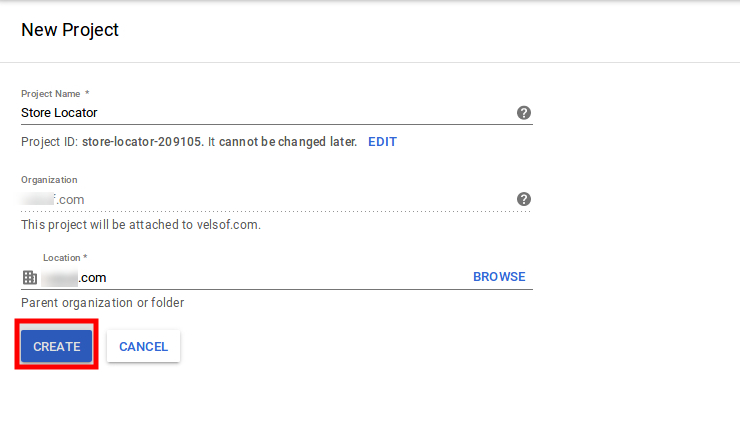
3.3 Shipment Carrier Mapping

The admin can map the shipment carrier of the store with that of the marketplace with the help of Magento 2 Walmart integration module. This can be done just by selecting the options from the drop-down list.


3.4 Promotion

Magento 2 Walmart Integration plugin allows the admin to create promotions for the marketplace customer. The store owner can fix the rule and enable/disable the same from the back-end of the Walmart Magento 2 integration plugin.

3.4.1 How to create new Promotions for Walmart?

You can create new promotions by clicking on the Add New link at the top right section of the Magento 2 Walmart integrator. This will redirect your to the promotion creation page. The various fields of the tab are discussed below:

Promotions Details: Provide a details of the promotion. This will be displayed as the name of the deal.

Price Type: Select the type of the promotion that you are offering. It may be a clearance sale or price reduction offer.

Discount Type: Select the type of discount that you are offering. It can be a Fixed or Percentage discount.

Discount: Enter the discount amount in this field.

Promotion Start and End Date: Select the start and the end date for the validity of promotion.

Promotion Type: Select the type of promotion that you are offering. You may offer it to all the products, based on profile and products

3.4.1 How to edit/delete Promotions for Walmart?

The promotions created by the admin is listed in the Promotions tab of Walmart Magento 2 integrator. The admin can edit or delete the same by clicking on Edit or Delete button respectively as shown below:

3.5 Shipping Override

The admin gets an option to create N number of shipping overrides in this tab of Walmart Magento 2 synchronization plugin.

3.5.1 How to add Shipping Templates?

Follow the steps mentioned below to add Shipping Overrides:

To create new shipping override, click on ‘Add New’ at the top right section of Magento 2 Walmart synchronization extension.

The various field of this tab are discussed below

Shipping Override Title: Enter a unique name for the Shipping Override Title in this section.

Shipping Allowed: Enable the button if you want to allow shipping.

Shipping Method: Walmart allows 6 types of shipping methods. Admin can easily configure the shipping methods as per the requirement from the admin panel of the Walmart Integration module. Shipping methods offered by Walmart are – VALUE, STANDARD, EXPEDITED, FREIGHT, ONE_DAY, FRIGHT_WITH_WHITE_GLOVE. Kindly refer to the below article for the details:

https://marketplace.walmart.com/knowledgebase/articles/Article/Shipping-Standards-For-Marketplace-Sellers

Shipping Region: Admin can select the region in which he wants to enable the respective shipping override.

Shipping Price: As per the selected shipping method and shipping region admin can set the shipping cost for the different shipping methods and regions.

3.5.2 How to Edit/Delete the existing Shipping Override?

Click on the “Edit or Delete” button corresponding to each Shipping Method in order to edit or delete the same.

3.6 Products Listing

The Product Listing tab of Magento 2 Walmart integration module shows the list of all the products listed on Walmart Marketplace along with their statuses. In order to sync the product in the Walmart Marketplace, execute the Product Cron in the Synchronization tab. (See Section 3.15)


The admin can even renew or remove the products from this tab of Walmart Magento 2 integration plugin without visiting walmart.com.

3.6.1 Product Renewal

The admin can renew the expired product on Walmart Marketplace by clicking on the “Renew” action corresponding to each product.

After setting up a product for renewal, action “Renew” will be replaced with “Halt” action. This action is used to stop product renewal in case needed.

3.6.2 Product Listing Deletion

This option allows admin to delete product listing from Walmart Marketplace. Click on “Delete” action given corresponding to each product listing. After setting up a product for deletion, action “Delete” will be replaced with “Relist” action.

3.7 Attribute Mapping

The Attribute mapping tab of Magento 2 Walmart connector allows the admin to map the attribute of their Magento store attributes with the Walmart marketplace.

The mapped attributes are listed in this tab as shown in the image below:

3.7.1 How to Map New Attributes?

In order to map new attributes, click on the Add New button on the top of the page. This will open up attribute mapping tab. The various fields of this tab are discussed below:

Walmart Category: Select a category of Walmart. The attribute mapping will be done for the selected category.

Attribute: Select the attribute of the Walmart that you want to map with the marketplace.

Attribute Mapping: This drop-down list includes the attributes of Magento 2 store. Select the one that you want to map with the selected attribute of the Walmart.

3.7.2 How to Delete Mapped Attributes

In order to delete the mapped attributes, click on the Delete button next to the mapped attributes on the Walmart Attribute Mapping tab.

3.8 Order Settings

Order Settings tab of Magento 2 Walmart integration plugin helps the admin fix the order statuses and sync the same with Walmart Marketplace. This is done by capturing orders details from Walmart Marketplace. For mapping the orders from the Walmart Marketplace to the Magento store, you need to execute the Order cron in the Synchronization tab. (See section 3.15.)

The various fields are discussed below:

Order Current State: Choose a default status of the order from the drop-down.

Order Shipped State: Select an order state for the orders that are shipped. Select the order status from the drop-down list.

Order Acknowledge State: Select the order status once the order is acknowledged by the admin of the Magento store.

Order Cancel State: In case of order cancellation admin can sync the order status by using the Order Cancel state.

Note – Once the status of the order is changed in the Magento store, run the ‘Update Order Status to Walmart’ cron. This will sync all the changes to the marketplace.

3.9 Order Listing

The orders received from the Walmart store can be sync with Magento 2 store by executing cron in the back-end of the Magento 2 Walmart integration extension. The received orders can be viewed in the Order Listing tab of the admin interface of Walmart Magento 2 integration extension. For this, the store owner needs to run the ‘Sync Order Listing from Walmart’ cron from the Synchronization tab. (See Section 3.15)

Once the cron is executed, the entire orders will be synced to the Magento store. These orders can then be processed by clicking on the ‘View Order’ button as shown below:

3.10. Feed Status

For every cron is executed in the back-end of the Magento 2 Walmart integration module, a Feed will be created in this tab. You can view the status of the feeds by clicking on the ‘View’ button as shown in the image below:

3.11. BuyBox Report

This tab of the Walmart Magento 2 Integration includes the BuyBox report of Walmart. The store owners can get the BuyBox report by executing cron in the admin interface of Walmart Magento integrator. See Section 3.15, in order to sync the Buy Box report from the walmart.com.

The Walmart Magento 2 integrator even allows the e-merchants to reprice the products in order to win the Buy Box.

To reprice the product, click on ‘Repricing’ option corresponding to the respective product as shown in the image below:

As you click here, a popup will appear. Here are the fields offered in the popup.

Enable Repricing: Select ‘Yes’ from the drop-down menu if you want to reprice the product.

Minimum and Maximum Price: Enter the minimum and maximum price of the product in the respective sections.

Once the repricing is done, sync the same with the marketplace by executing cron in the back-end of the Magento 2 Walmart Integrator. (See section 3.15)

3.12 Manage Lag Time

Lag time refers to the time between the order placement and order shipment. The admin can update the lag time of the products and sync it with the marketplace with the help of the cron offered by Walmart Magento 2 API integration. In order to fix the lag time, click on the Update Shipping Lag Time button as shown in the image below:


As you click on the link, a popup will appear as shown below:

Enter the lag time in days and click on the Update button. This will update the shipping lag time at walmart.com.
3.13 Tax Code

This tab of Magento 2 Walmart API integrator lists out the tax code of all the products listed at the marketplace.

3.14. Sales Report

This section of Walmart Magento 2 API integrator offers the complete sales report of the Walmart shop in both graphical and tabular form as shown in the image below:

3.15. Synchronization

This tab synchronizes all the settings and changes done in the other tabs of the Module. The synchronization between the Magento 2 Store and Walmart Marketplace and vice-versa can be done from the ‘Synchronization‘tab.

The various cron jobs to synchronize the settings between Magento Store and Walmart Marketplace are shown below:

3.15.1 How to sync Feed Status from Walmart Marketplace to Magento store?

The status of the feeds can be synced with the Magento 2 store by clicking on the ‘Sync Feed Status’ in this tab of Magento 2 Walmart Integration Extension.


 It would perform following actions –

  • Every time a cron is executed, a feed is created. This cron updates the feeds.

3.15.2 How to list the Products at Walmart Marketplace?

The product listed in the Products Listings tab will be synced with Walmart by clicking on  ‘Sync Products Listing’ cron options offered by Magento 2 Walmart Integrator.

It would perform following actions –

  • The cron will list the products to the Walmart marketplace.
  • It will add products on the Walmart Marketplace with the mandatory product details like Description, Price, Quantity, Image etc.

3.15.3 How to sync Inventory to Walmart Marketplace?

The inventory or product quantity can be updated at walmart.com by executing the ‘Sync Inventory’ cron.

It would perform following actions –

  • This action will update the quantity of each product listed on Walmart Marketplace.
  • The change in the product quantity at the Magento 2 store is synced with the marketplace by executing this cron.

3.15.4 How to sync price of the products with Walmart Marketplace? 

The Sync product price cron allows the store admin to sync the updated product prices to the Walmart marketplace.

It would perform following actions –

  • The cron job changes the price of the products at the marketplace.
  • The change in the price at the eCommerce site is reflected at the marketplace with the help of this cron.

3.15.5 How to sync Walmart Orders with Magento 2 store?

This cron will sync the Orders from Walmart Marketplace to Magento store.

3.15.6 How to Update Order Status at walmart.com?

The ‘Sync Order Status’ cron will update the order status as per the changes made from the Magento store on Walmart marketplace.

3.15.7 How to Synchronize the Shipping Lag Time?

Click on ‘Sync Shipping Lag Time’ of the synchronization tab of Magento 2 Walmart Integrator. This will sync the respective lag time of the products with walmart.com.

3.15.8 How to Synchronize the Buy Box status from Walmart?

The admin can sync the buy box status from Walmart by clicking on ‘Sync Walmart BuyBox’. This will update the status of the BuyBox for the respective products.

3.15.9 How to Synchronize the change in price of the Buy Box items on Walmart?

The admin can reprice the products and sync the revised products at the marketplace by executing Sync Repricingcron in this tab of Magento 2 Walmart Integrator.

3.16 Audit Log

The admin can view all the jobs occurred in the Audit Log tab of Magento 2 Walmart Integrator. The status of the jobs can be viewed in this tab.