

Creador de aplicaciones móviles PrestaShop – Manual del usuario
Get Flutter Android and iOS apps for your PrestaShop website and start selling your products on mobile apps!
1.0 Introduction
This is the user guide for the advanced, ready-to-use Flutter mobile app solution from PrestaShop Mobile App Builder. This is an e-commerce website plugin designed and built to create perfect, outstanding Android and iOS shopping apps for you.
1.1 PrestaShop Mobile App Builder: A brief introduction
PrestaShop Mobile App Builder is the most advanced and automated solution for bringing your online business to the mobile platform. It transforms your entire website into a standout mobile app, allowing you to sell products on mobile devices alongside your traditional website. The app’s functionality and operation perfectly match the website and work flawlessly on both Android and iPhone devices. Our PrestaShop Mobile App Builder is a pre-configured framework designed by experts and professionals to create a pair of Flutter e-commerce apps. These apps can put all your store’s products at your user’s fingertips, boosting sales and revenue. So, if you’re a PrestaShop store owner looking for a complete mobile app solution, this is your best opportunity. Read the full article for comprehensive information on PrestaShop mobile app development. Furthermore, our PrestaShop Mobile App Builder extension is fully compatible with the Multi-Vendor Marketplace add-on. You can integrate your entire marketplace listings into the same mobile apps. We even offer a combined package of our PrestaShop Mobile App Builder with the PrestaShop Multi-Vendor Marketplace in PrestaShop Advanced Marketplace with Mobile App . Furthermore, the following benefits of PrestaShop Mobile App Maker would compel you to choose this Flutter app solution:
- A no-code mobile app solution.
- User-friendly administration panel with full access.
- 3 months of free support
- Totally Flutter Solutions (Android and iOS)
- 100% synchronization between your apps and website
- Highly customizable with design and functionality control.
- Increase user engagement with practical marketing tools.
- Increase your store’s traffic and revenue.
1.2 First-level functions of PrestaShop Mobile App Builder:
Here is a list of some of the key features you will get in your apps with Prestashop Mobile App Builder:
- Customizable home screen design (full flexibility)
- Store brand
- WhatsApp chat support (24 * 7)
- Google and Facebook login
- OTP and fingerprint login
- Tablet and mobile device stand
- Android 4.2 and so on. Android version support.
- iOS 9 and so on iOS version support
- Automatic inventory update
- Multiple color and font options
- Multilingual and RTL (right-to-left) support
- Multi-currency support
- All types of product support
- Website payment method supported in the applications
- Website submission method supported in applications
- Unlimited Push Notifications
- Options for sharing the product on social media
- Multiple filtering and sorting options
- Wishlist functionality
- Coupons/vouchers from the website that are compatible with the applications.
- Simplified payment screen
- Real-time order tracking
- Seamless accordion menu
- Clear display of products and categories
Latest version updates for PrestaShop mobile apps:
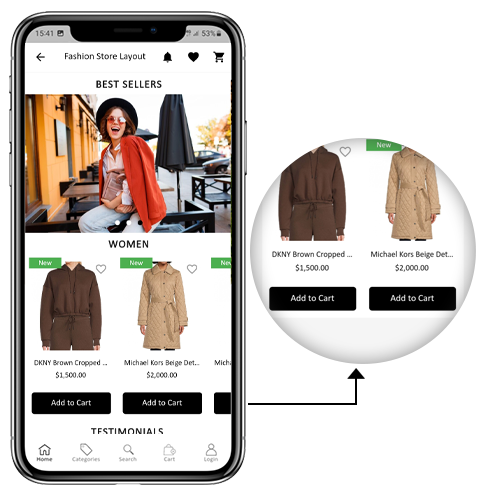

a) “Add to cart” button on the home screen and category
The PrestaShop mobile app has become more user-friendly for online shoppers with a built-in “Add to Cart” button for products on the Home and Category screens. This allows users to quickly add products to their cart with a single tap. The Add to Cart button is also available on the mobile app’s Category screen. Users can simply scroll down to browse products and continue adding items to their cart by tapping the Add to Cart button.
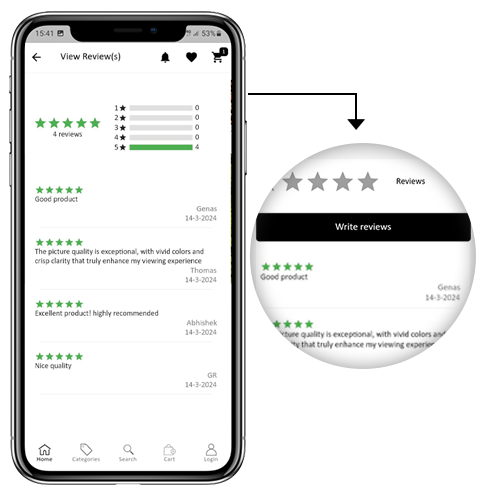
b) Product reviews in the app
Our PrestaShop mobile app now supports the default PrestaShop product review module. Users can now post product reviews on the website, and these reviews will also appear in the app. Furthermore, users can view all reviews within the app and write their own.
c) Related products in the application
PrestaShop Mobile App Builder now supports the automatic related products module. Related products can be displayed on the product page of both the website and the mobile app. This support can be used as a perfect tool to enhance cross-selling for your business.
> Explore products related to PrestaShop
d) Offline mode accessibility: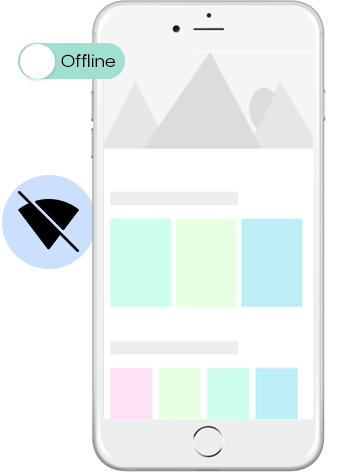

Mobile e-commerce apps with this extension will now also function offline, meaning without an internet connection. Users can browse the pages at any time, just as they were loaded while they were online. Categories, products, shopping cart screen, etc.
> Explore PrestaShop Image Search
e) Compliance with the GDPR:
Ahora, las apps con PrestaShop Mobile App�  Builder cumple totalmente con las regulaciones GDPR de la UE. Ofrecerá más control a los usuarios de la aplicación sobre sus datos personales almacenados. El administrador de la tienda puede simplemente configurar la configuración de GDPR para que funcione en la aplicación y lo mismo se mostrará en varias pantallas de la aplicación, como registro, inicio de sesión, pago, pago, etc. Los compradores en línea incluso tienen derecho a solicitar al comerciante de la tienda que elimine su información personal.
�> Explorar�Módulo PrestaShop RGPD
f) Compatibilidad con Spin & Win (suscripción de correo electrónico gamificada):
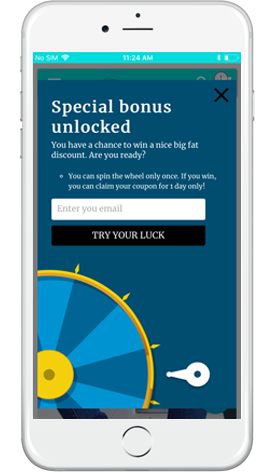
PrestaShop Mobile App Creator también es compatible con la extensión PrestaShop Spin & Win. La ventana emergente de suscripción de correo electrónico gamificado se utiliza para ofrecer una ventana emergente interactiva de rueda giratoria que se puede programar para mostrar la entrada o salida en la tienda web. Ahora, con esta integración, la misma ventana emergente se mostrará automáticamente en las aplicaciones. Solo necesita instalar la extensión en su sitio web.
�> Explorar�Módulo Spin Win de PrestaShop
Esta lista no termina aquí. Conozca más sobre las características en detalle de�esta página.
Demostración de la aplicación móvil PrestaShop 2.0
KnowBand comprende su preocupación por su incertidumbre para buscar la solución y para frenar la misma, ha ofrecido una demostración gratuita para todos los propietarios de tiendas de comercio electrónico. Los comerciantes pueden ver nuestra tienda de demostración en funcionamiento en la aplicación móvil e incluso su tienda en funcionamiento en nuestras aplicaciones de demostración.
2.1 Ver nuestra tienda de demostración trabajando en aplicaciones
¿Quieres ver las características de la aplicación de comercio electrónico? Hemos integrado nuestra tienda de demostración con la aplicación donde puede explorar la aplicación completamente funcional y ver todas sus características. Simplemente siga las siguientes instrucciones:
Paso 1:Descargue e instale la aplicación móvil Nautica PrestaShop desde cualquiera de las tiendas de aplicaciones en su dispositivo móvil. Aquí están los enlaces para descargar aplicaciones de demostración:
Apple App Store – https://testflight.apple.com/join/PAcL7EEE
Google Play Store– https://play.google.com/store/apps/details?id=com.velsof.prestashopgenericapp&pli=1
Paso 2:Abra la aplicación Nautica PrestaShop y presione el botón ver demostración. ¡Eso es todo! Verá nuestra tienda de demostración ejecutándose en la aplicación de demostración. Puedes navegar por el mismo, comprobar todas las funcionalidades, crear un pedido, etc.Nota: �Para acceder al panel de administración de KnowBand Mobile App Builder en nuestra tienda de demostración, visite�esta página.
2.2 Ver su tienda trabajando en aplicaciones de demostración
¿No satisfecho? ¿Quieres probar tu tienda en las aplicaciones de demostración? Bueno, te cubrimos con todo. También puede experimentar su tienda en nuestra aplicación de demostración sin ningún costo. Solo 3 pasos son todo lo que necesita seguir para lo mismo:
Paso 1:�Descargar e instalar�Creador de aplicaciones móviles PrestaShop GRATISConéctalo e instálalo en tu tienda.
Paso 2:Instale las aplicaciones de demostración (enlaces en la sección anterior) en su dispositivo móvil. Abra la aplicación e ingrese la URL de su tienda.
Paso 3:Toque “Ver su tienda” y comience a experimentar su tienda en aplicaciones de demostración.
Paso 4: Introduzca la URL de su tienda en el cuadro que aparece. Ejemplo: https://www.ejemplo.com/
Nota: �Esta versión gratuita de Mobile App Builder es solo para fines de demostración y no se proporcionarán archivos APK/IPA con este módulo. Para obtener sus propios archivos APK/IPA, debe comprar la versión paga de�Creador de aplicaciones móviles PrestaShop.
3.0 Cree su aplicación móvil PrestaShop en 3 simples pasos
Esperamos que le haya gustado la demostración de nuestras aplicaciones móviles PrestaShop y haya encontrado lo que estaba buscando. Entonces, este es el momento de obtener un par de aplicaciones de Flutter para tu tienda. El proceso para crear una aplicación móvil de comercio electrónico es tan simple como podría ser. Simplemente siga 3 pasos simples y su aplicación estará lista en 1-2 días hábiles.
Paso 1: Módulo de instalación en su sitio web Descargue Prestashop Mobile App Builder e instálelo en su tienda.
Paso 2: Comparta las especificaciones de su aplicación Comparta los detalles/requisitos de su aplicación en nuestroformulario de requisitos previos.
Paso 3: Obtenga sus aplicaciones en 1-2 días Nuestros desarrolladores expertos y profesionales crean sus aplicaciones que coinciden exactamente con los detalles compartidos. Nos pondremos en contacto con usted con archivos APK/IPA en 1-2 días.
Nota: Puede publicar estos archivos APK/IPA en las respectivas tiendas de aplicaciones. Consulte los siguientes enlaces para lo mismo:
¿Cómo publicar una aplicación en Google Play Store?
¿Cómo publicar una aplicación en la App Store de Apple?
¿Sigue siendo un problema? Díganos, publicaríamos las aplicaciones para usted. Además, para cualquier consulta y sugerencia, por favor contáctenos en�[email protected].
Instalación de 4.0 módulo
Una vez que haya comprado el módulo PrestaShop�Mobile App Builder, obtendrá los siguientes archivos que se enumeran a continuación: 1. Archivo comprimido en formato ZIP (contiene el código fuente del complemento)2. Manual del usuario Ahora, puede continuar con el proceso de instalación adicional de las siguientes dos maneras:
Instalación del módulo mediante FTP Detalles
Instalación del módulo usando los detalles del administrador
5.0 Pantallas del panel de administración
Una vez que PrestaShop Mobile App Maker se haya instalado con éxito en su sitio web, es hora de configurar el Panel de administración de PrestaShop Mobile App Creator. Una vez que haga clic en la opción “Configurar” en KnowBand Mobile App Builder, obtendrá la siguiente pestaña con interfaces amigables. Vamos a reducirlos uno por uno.
Configuración general de 5.1
La pestaña Configuración general tiene que ver con la configuración requerida para ejecutar su aplicación móvil en los dispositivos del usuario. Esta pestaña contiene todas las opciones generalizadas necesarias para sincronizar la aplicación.
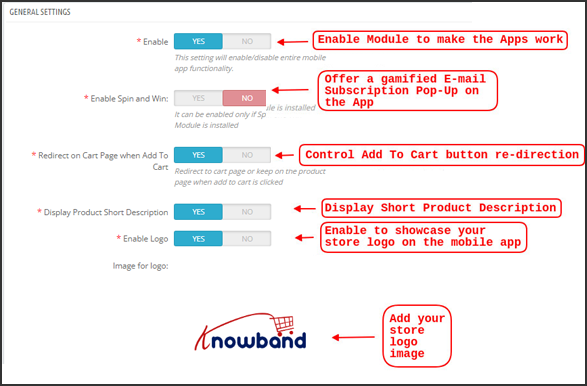
a) Habilitar complemento:Habilite el complemento PrestaShop Mobile App Creator para que su aplicación móvil funcione en los dispositivos de los usuarios.
b) Habilite Girar y ganar:Habilite para mostrar una ventana emergente de rueda giratoria gamificada en la pantalla de inicio cada vez que cualquier usuario abra la aplicación. Se puede utilizar para ofrecer descuentos/ofertas y capturar sus correos electrónicos a cambio con fines de marketing. Para que esta funcionalidad funcione, debe instalar el módulo Spin and Win de Knowband en su sitio web. Nota: el módulo Spin and Win solo funcionará en caso de que haya instalado el complemento en su tienda.
c) Redirigir en la página del carrito cuando se agrega al carrito:�Esta funcionalidad le permite controlar la navegación del botón “Agregar al carrito”. Puede redirigir a sus usuarios al carrito de compras o mantenerlos en la página del producto cada vez que presionen el botón Agregar al carrito. Esto aumenta las posibilidades de compras adicionales.
d) Mostrar descripción breve:Habilite la visualización de la descripción breve del producto en la pantalla del producto junto con la descripción completa y otros detalles.
e) Seleccionar diseño:Elija el diseño de página de inicio deseado para su aplicación PrestaShop. Puede crear múltiples diseños de pantalla de inicio en el backend según varios festivales y temas y usarlos según los requisitos de su tienda.
f) Color del botón de la aplicación:Elija el color de botón deseado para su aplicación móvil PrestaShop.
g) Color del tema de la aplicación:Elija el color de tema deseado para su aplicación móvil PrestaShop.
h) Imagen para logotipo:Cargue la imagen del logotipo de su tienda para que se muestre en el encabezado superior de la aplicación. Esto promocionó su marca entre los compradores móviles de todo el mundo.
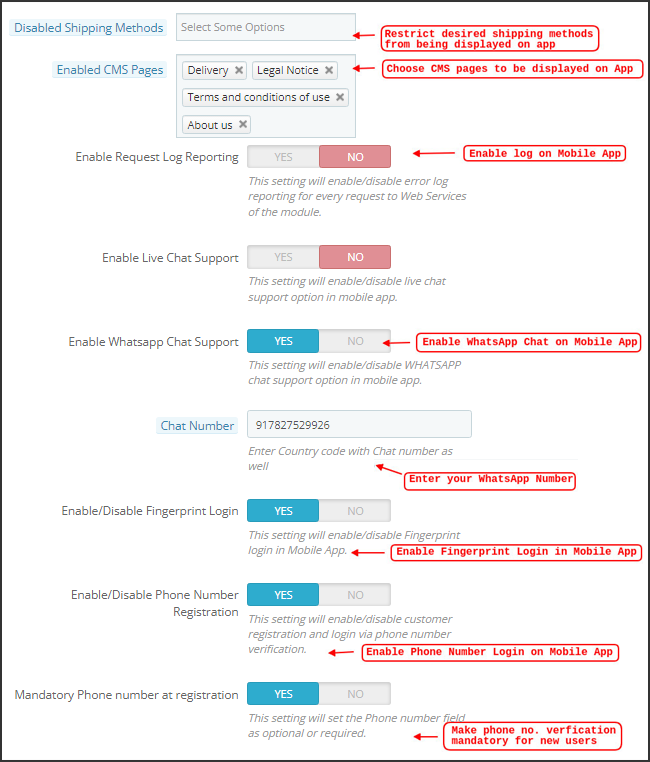
i) Métodos de envío deshabilitados:Elija los métodos de envío deseados que no desea que se muestren en su aplicación móvil PrestaShop.
j) Páginas CMS habilitadas:Elija las páginas de CMS deseadas para que se muestren en las aplicaciones móviles.
k) Habilitar informes de registro de solicitudes:Habilite el inicio de sesión en las aplicaciones móviles para obtener detalles de cualquier comportamiento anormal de su aplicación.
l) Habilitar el soporte de chat de WhatsApp:Habilite la opción de chat de WhatsApp en sus aplicaciones móviles de PrestaShop. Los usuarios pueden contactarlo directamente a su número de WhatsApp ingresado en el backend.
m) Habilitar/deshabilitar el registro del número de teléfono:Habilite la opción de inicio de sesión con número de teléfono en su aplicación móvil PrestaShop y permita que sus usuarios se autentiquen con la verificación OTP.
n) Habilitar la codificación de URL de los enlaces de imágenes:Habilite esta función para admitir caracteres que no sean ASCII en la aplicación.
5.2 Configuración de notificaciones automáticas
PrestaShop Mobile App Creator para Android/iOS aprovecha el poder de las notificaciones automáticas utilizando los servicios principales de Google para las notificaciones automáticas en dispositivos móviles. Trae esta práctica herramienta de marketing para captar la atención inmediata del usuario y aumentar las ventas. Resaltar sus promociones y ofertas diarias está a solo un mensaje de distancia con su aplicación móvil PrestaShop. Tanto las notificaciones automáticas como las personalizadas están disponibles con PrestaShop Mobile App Maker.
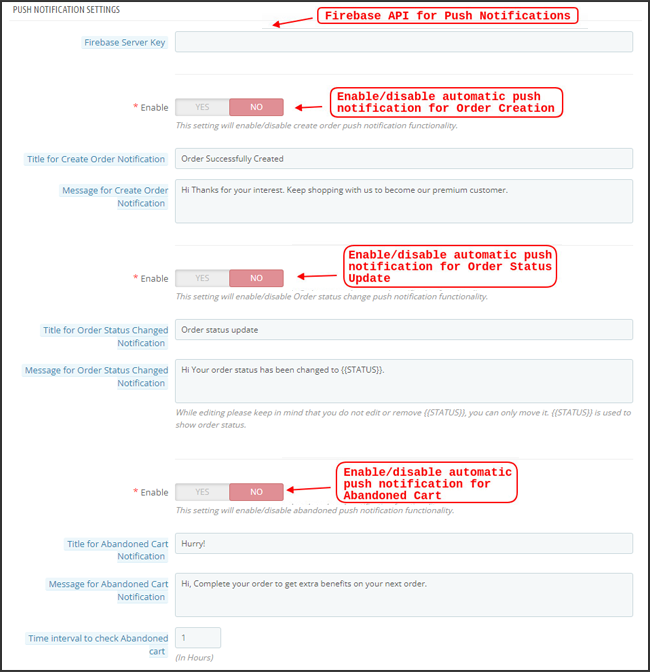
a) Clave del servidor Firebase:�Firebase Server Key se usa para configurar las notificaciones automáticas para la aplicación. Esta clave garantiza que todos los usuarios de su aplicación en todo el mundo reciban las notificaciones. Puede omitir esta configuración para la versión gratuita del módulo, ya que se configuraría en su aplicación final con la versión paga del módulo.
b) Habilitar/deshabilitar la notificación de creación de pedidos:Habilitar/deshabilitar notificaciones automáticas enviadas a los usuarios de la aplicación para la creación exitosa de pedidos.�> Título y Mensaje para Notificación Push:�Ingrese el título y el mensaje en la configuración de notificación automática para la creación exitosa del pedido.
c) Enable/disable order status change notification: Enable/disable the automatic notification sent to app users for any updates on the delivery status of their previous order. > Title and Message for Push Notification: Enter the title and message in the automatic notification settings for each time there is an update on the delivery status of the previous order.
d) Enable/Disable Abandoned Cart Notification: Enable/disable automatic notifications sent to users who have abandoned their cart without completing a purchase. > Title and Message for Push Notification: Enter the title and message for the automatic notification to abandoned cart app users.
e) Time interval: Interval (in hours) for sending Push Notifications to application users who have abandoned their cart without a successful purchase.
5.3 Push notification history
This tab contains the history of all types of automated notifications sent to each user, along with related details. The merchant can view all previously sent notifications. This tab also allows for the creation of custom notifications to users from the backend. This enables users to easily be informed about any details or discounts related to the store through manually sent notifications.
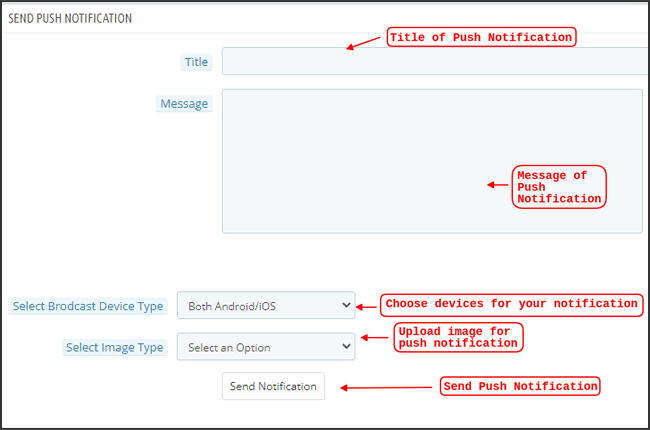
Send notification:
This option allows you to send manual notifications to app users based on your preferences. You can configure the title, message, landing page, image, and other details of your chosen notification, as shown below:
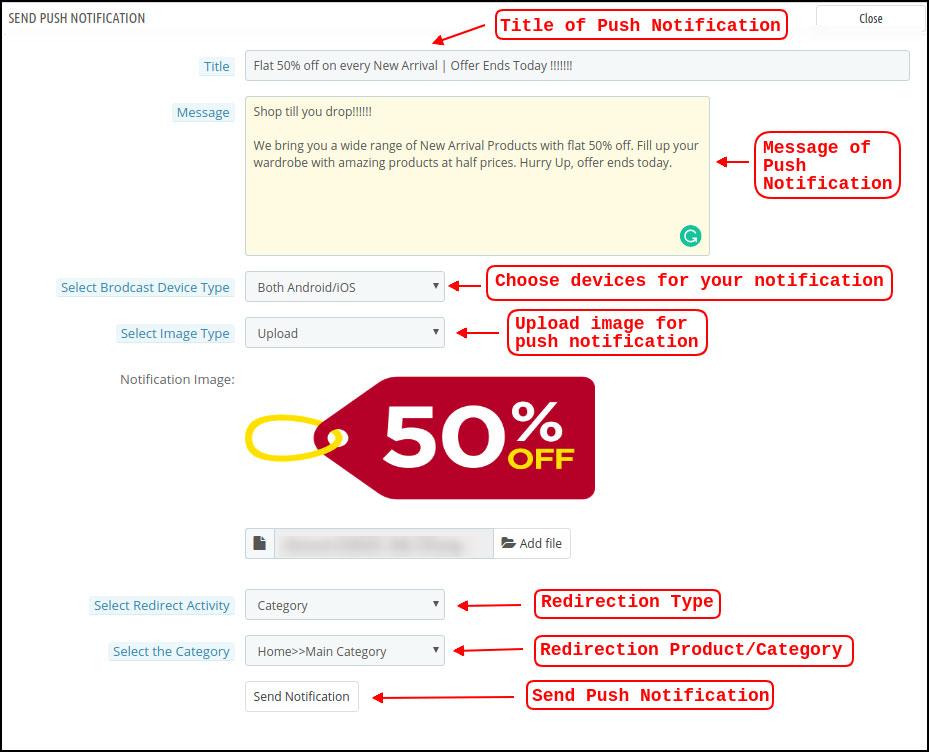
a) Push Notification Title: The title of your manual automatic notification that will be sent to application users.
b) Push Notification Message: The message of your manual notification that will be sent to the application users.
c) Device type: You can choose the users on Android/iOS or both to whom your manual automatic notification will be sent.
d) Image type: You can upload any image/banner you want, justifying your notification. The banner image can be uploaded or used via an existing URL.
e) Notification Image: The store administrator gets a preview of the notification image and analyzes how it will look in the user’s applications.
f) Image URL: The actual URL of the notification image that will be sent to the application users.
g) Actividad de Redirección:�Puede elegir la redirección de su notificación eligiendo desde Pantalla de inicio/Cualquier categoría/Cualquier producto aquí. Independientemente de lo que configure, sus usuarios serán redirigidos a lo mismo al tocar la notificación automática.
h) Seleccione la Categoría/Producto:Puede elegir cualquier pantalla de categoría/producto relevante para su notificación.
i) Enviar Notificación:�Una vez que haya creado y obtenido una vista previa de su notificación, es hora de enviarla a sus aplicaciones.
Métodos de pago 5.4
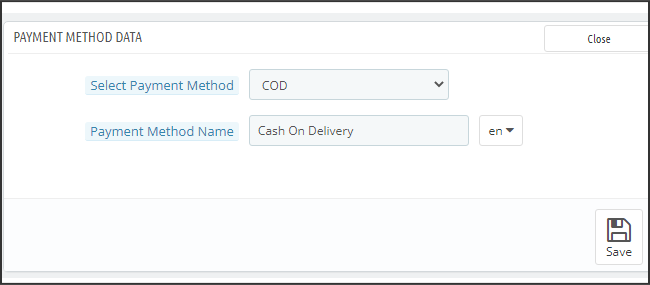
PrestaShop Mobile App Creator para Android e iOS admite todo tipo de métodos de pago de sitios web en las aplicaciones de Android e iOS. Además, ofrece la opción de pago COD y la flexibilidad de agregar también otros métodos de pago Web-View. De forma predeterminada, solo hay un método de pago contra reembolso en nuestra aplicación móvil. Sin embargo, si desea agregar los mismos métodos de pago que en su tienda PrestaShop, deshabilite el método COD desde el back-end del módulo. Después de deshabilitar el método COD, todos los métodos de pago que están disponibles en su sitio web aparecerán bien en sus aplicaciones móviles.
Diseño de página de inicio de 5.5
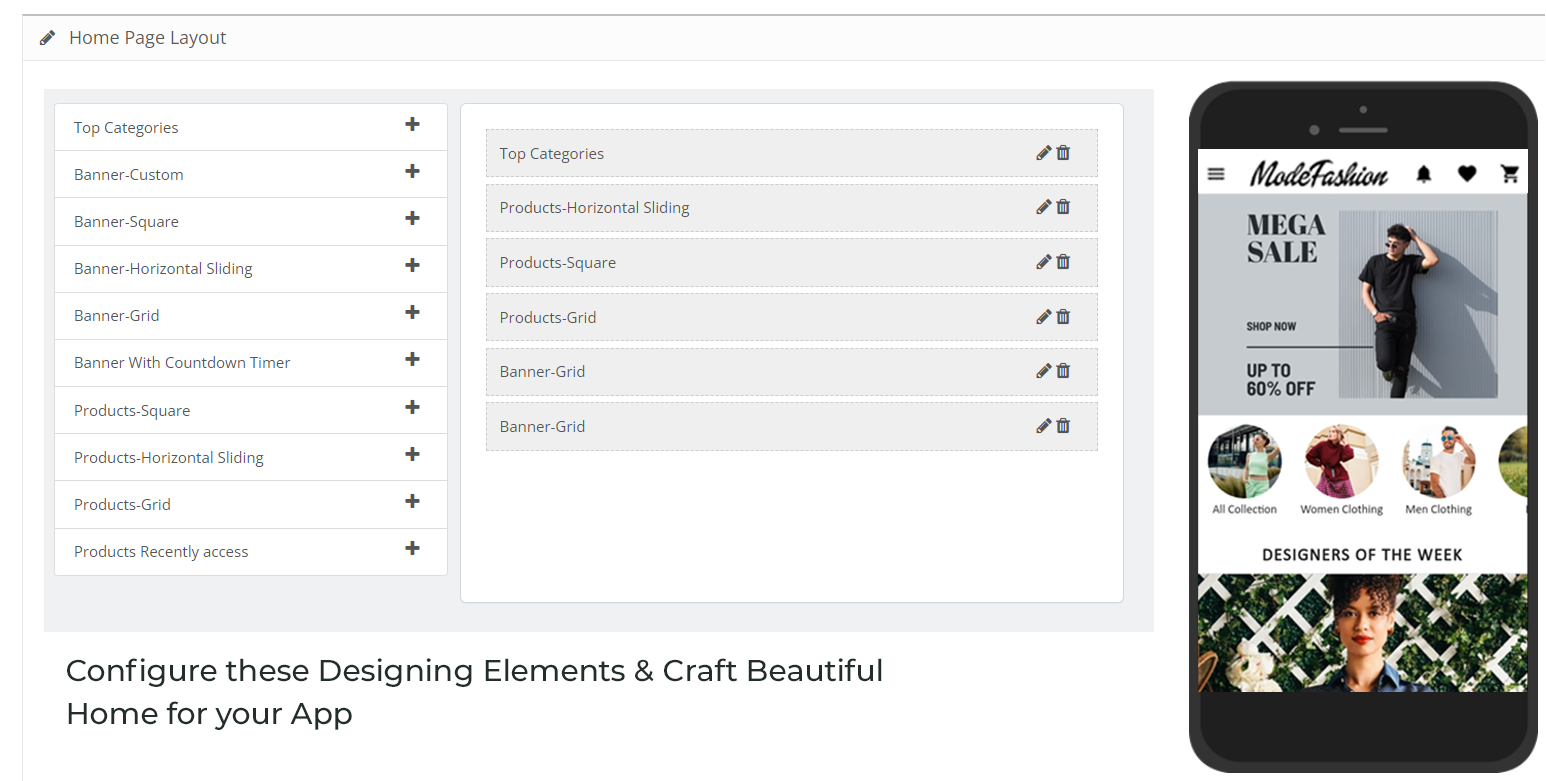
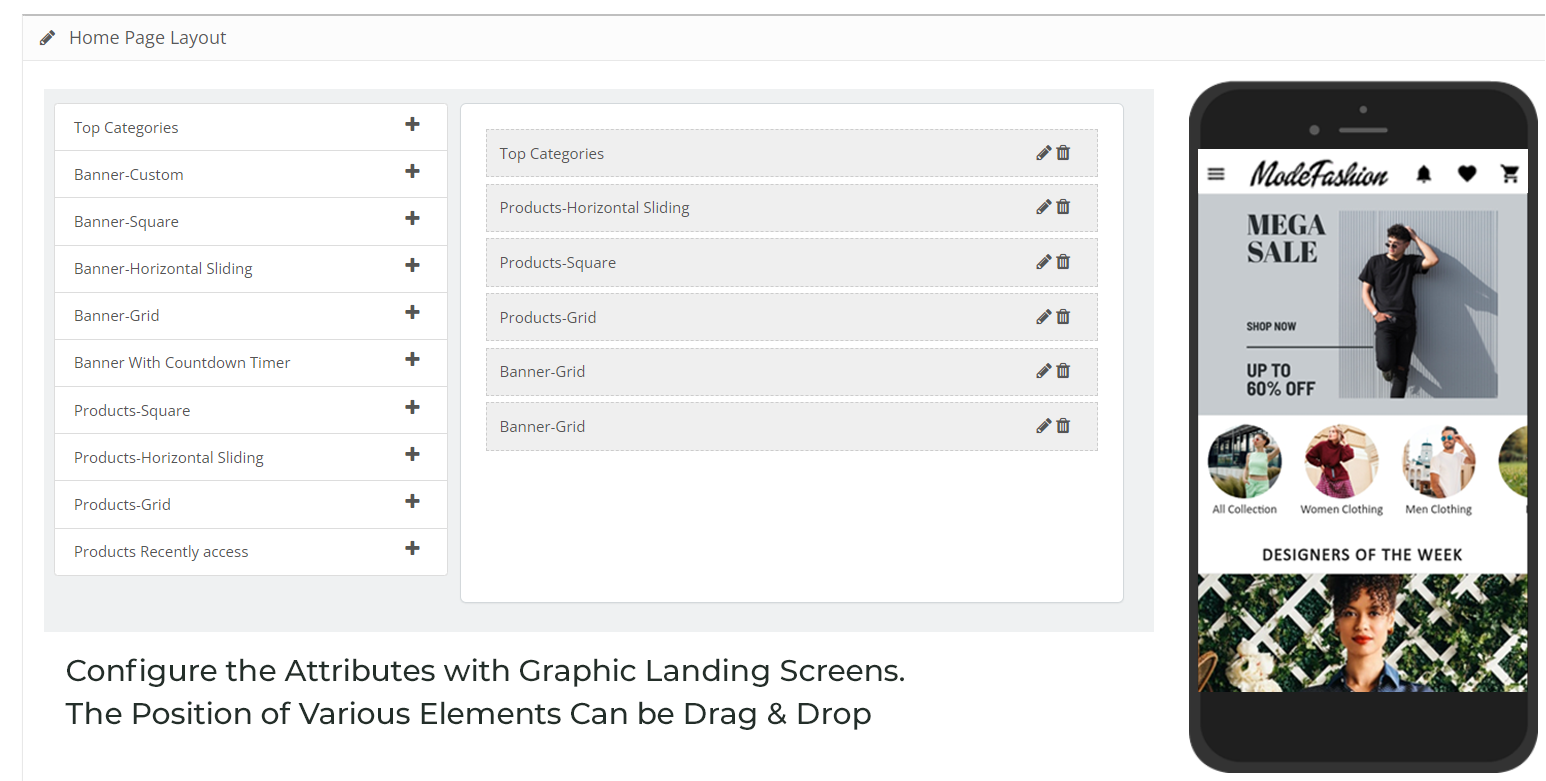
Esta es una de las funcionalidades más sorprendentes del complemento PrestaShop Mobile App Builder para diseñar y crear múltiples diseños de pantalla de inicio utilizando varios atributos/elementos de diseño. Esta pestaña contiene la lista de todos los diseños de la pantalla de inicio configurados anteriormente en función de varios temas y fuentes, como se muestra en la siguiente instantánea:
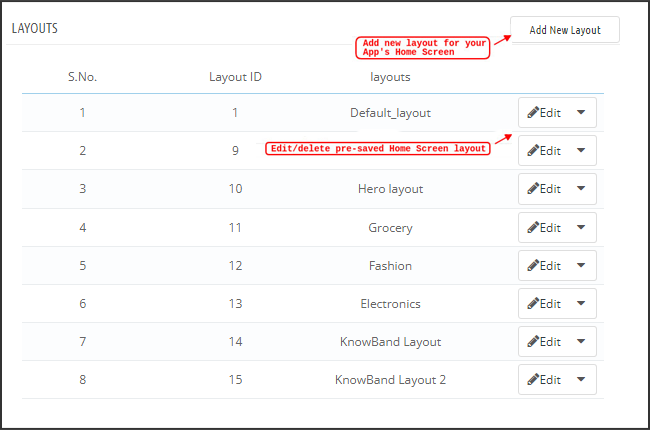
Para configurar los diseños de la página de inicio, los siguientes elementos están disponibles en el back-end:
- Principales categorías
- Banner cuadrado
- Pancarta Deslizante Horizontal
- Banners de cuadrícula
- Bandera de cuenta regresiva
- Productos de rejilla
- Productos Deslizantes Horizontales
- Productos accedidos recientemente
El comerciante de la tienda puede configurar y usar cualquiera de estos atributos para crear y guardar múltiples diseños. Estos diseños se pueden utilizar según el tema y los requisitos. Además, la posición de varios elementos se puede modificar con solo una simple funcionalidad de arrastrar y soltar.
Principales categorías:
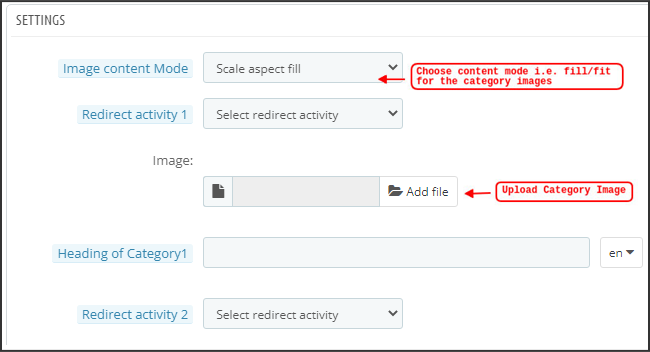
Las principales categorías se muestran en forma de pequeños cuadrados en la pantalla de inicio y se pueden configurar incluyendo su imagen y categorías/productos de destino. PrestaShop Mobile App Maker ofrece un máximo de 8 categorías en las que un mínimo de 4 son obligatorias.
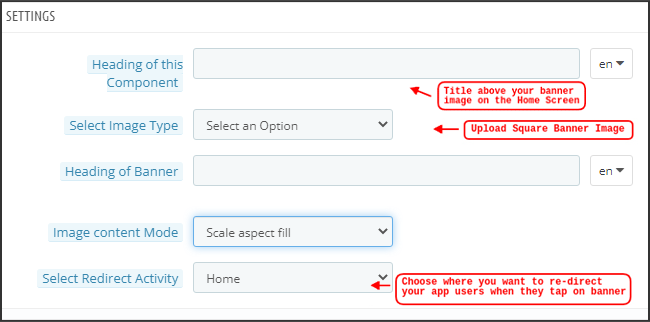
Banner cuadrado:
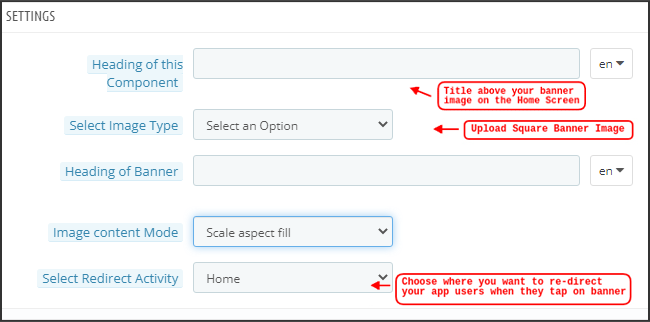
Otro atributo es la lista de Banner cuadrado que se utiliza para ofrecer un banner de forma cuadrada en la pantalla de inicio de la aplicación. Puede personalizar el banner eligiendo la imagen y la pantalla de inicio correctas para el mismo.
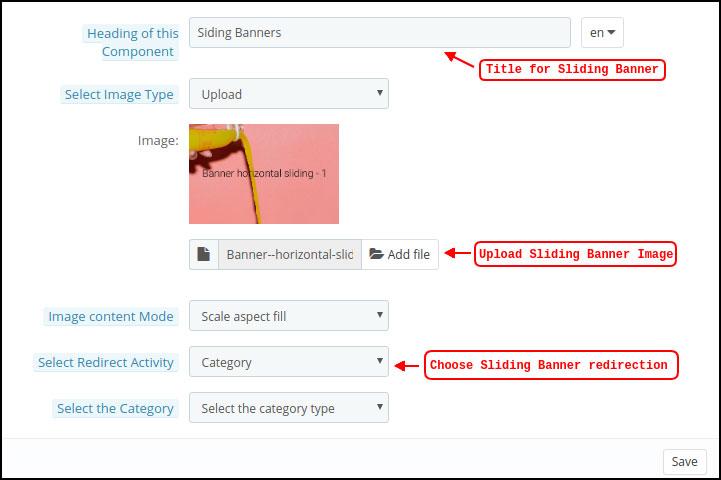
Pancarta Deslizante Horizontal:
These are available in a horizontal sliding rectangle format and can be fully customized from the backend.
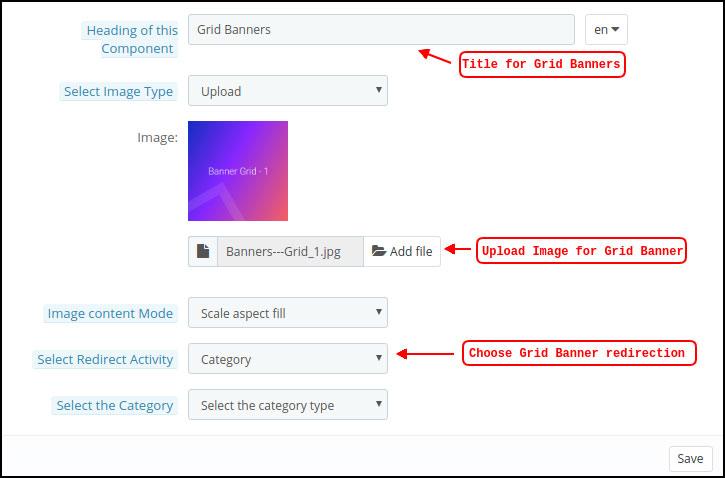
Grid banners:
These are square banners that appear on the home screen in a grid pattern. You can set up as many banners as you like on the home screen and customize their image and landing page accordingly.
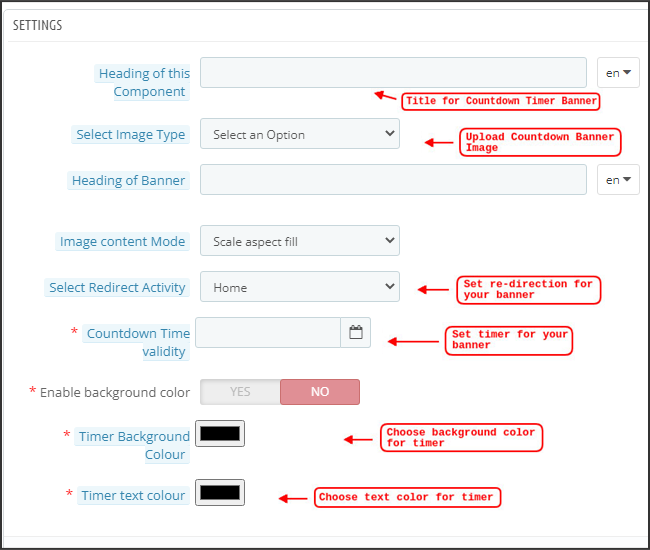
Countdown timer banner:
The PrestaShop mobile app builder offers a banner with a countdown timer. You can customize the banner image and home screen, and set the timer until you want the banner to appear. Once the timer expires, the banner will automatically disappear.
Square products:
Regarding banners, PrestaShop Mobile App Creator offers products to display on the home screen in the form of square listings.
horizontal sliding products
You can add products as horizontal sliders. The selected products can be from any specific category or other featured categories such as bestsellers, featured products, etc.
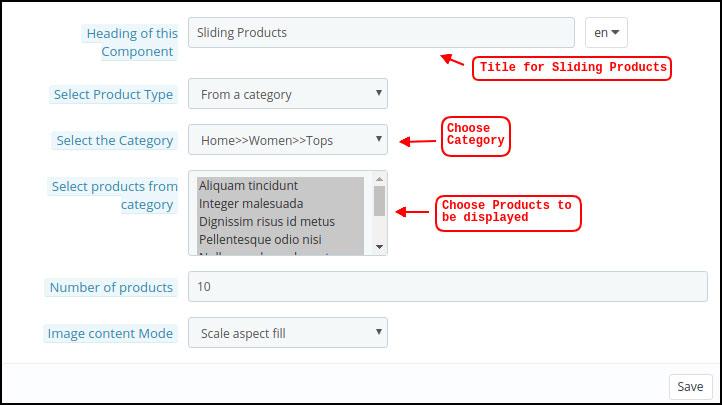
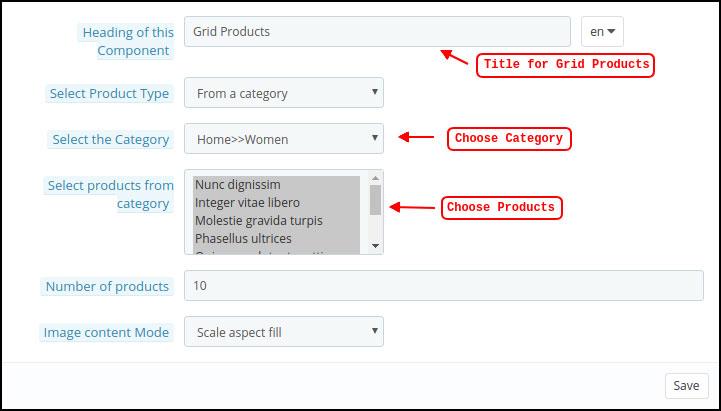
Grid products:
Products can also be added to the home screen as grid listings. Products can be chosen from any category.
Recently accessed products:
PrestaShop Mobile App Creator provides a Recent Tab element that displays recently viewed products. You can simply add this element to your design to show the same information on the home screen.
Note: The store administrator can add up to 20 items while designing a layout in the backend panel.
5.6 GDPR Compliance
PrestaShop Mobile App Builder offers GDPR compliance for mobile applications. The store administrator can simply add a few clicks to the admin panel, and the applications will be GDPR compliant.
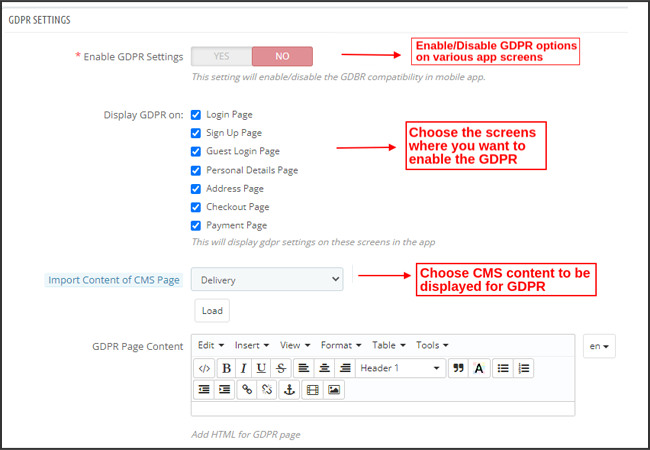
a) Enable GDPR settings: Enable this tab to provide GDPR compliance across multiple application screens.
b) Display GDPR on: Choose the application screens where you want to activate GDPR options.
c) Import content from CMS page: Choose the CMS page whose content should be added for the GDPR option.
6.0 mobile application screens
6.1 Home Screen
Your PrestaShop mobile app’s home screen will be exactly as you envision it. PrestaShop Mobile App Maker offers complete flexibility for designing and creating home screens. Using multiple banners (Square, Grid, Slider), products (Square, Grid, Slider), a countdown timer banner, and a recent products tab in the backend, you can design intuitive layouts for your home screen. The following options are available on your app’s home screen:
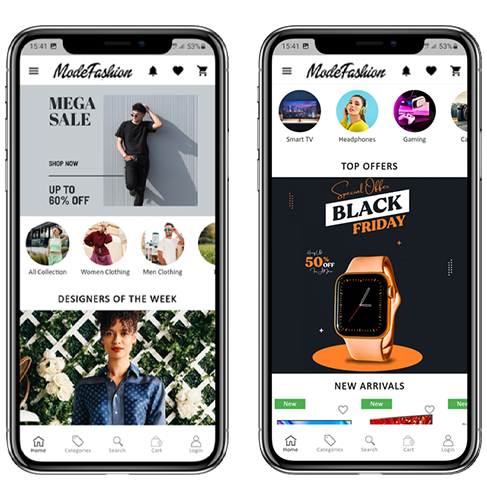
Además, el posicionamiento de varios elementos de diseño también se puede modificar según el requisito.
1. Diseños dinámicos:
Usando varios elementos, puede crear y guardar varios diseños en el backend y reutilizarlos según varios eventos y festivales. Puede diseñar y crear la pantalla de inicio de su aplicación de forma dinámica.
2. Logotipo de la marca:
El logotipo de su tienda está representado en la sección central izquierda del encabezado superior de su aplicación móvil PrestaShop. El logotipo es totalmente configurable desde el backend del módulo y se puede habilitar/deshabilitar, incluidos los cambios de imagen.
3. Buscar:
La opción de búsqueda permite a los compradores de aplicaciones móviles obtener fácil y rápidamente lo que desean. En su aplicación móvil PrestaShop, la búsqueda de productos se realizará de dos formas: La opción de búsqueda se puede encontrar en el diseño de la barra de pestañas inferior de la aplicación móvil PrestaShop.
�> Con Texto:Los usuarios de su aplicación pueden buscar los productos deseados simplemente escribiendo algunas palabras clave relacionadas. La aplicación móvil de PrestaShop mostrará resultados relevantes para esa palabra clave.
4. Bolsa de lista de deseos:
La bolsa de la lista de deseos se muestra en el encabezado superior de su aplicación móvil PrestaShop que contiene todos los productos marcados. Los usuarios de la aplicación pueden guardar sus productos deseados en una bolsa de lista de deseos para futuras compras.
5. Carrito de compras:
El carrito de compras está disponible en la esquina superior derecha de la pantalla de inicio de la aplicación. Los usuarios pueden conocer los productos agregados a su carrito desde allí.
6. WhatsApp
En la parte inferior derecha de la pantalla de inicio, hay una opción de chat en vivo entre el vendedor y el comprador. Los compradores de la aplicación móvil pueden enviarle un mensaje de forma fácil y directa con su consulta y usted puede resolverla al instante.
6.2 Menú Acordeón (Barra de Navegación)
Las aplicaciones móviles de PrestaShop para Android e iOS presentan una categorización adecuada de los productos que está disponible en el sitio web. Los compradores móviles pueden buscar fácilmente productos de múltiples categorías. Todas las páginas de CMS también están disponibles en el Menú Acordeón. Proporciona las siguientes opciones:
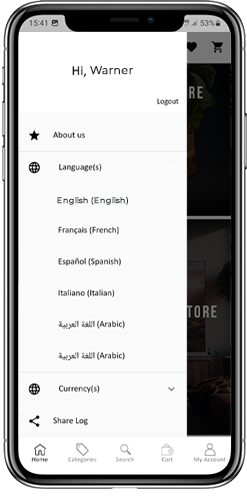
1. Mi cuenta
La pantalla Mi cuenta contiene toda la información del usuario, como detalles personales, direcciones de envío y detalles del pedido. Los compradores pueden ver toda la información relacionada con ellos y también pueden actualizar los datos personales y las contraseñas de inicio de sesión.
2. Categorías
Estas categorías son las mismas que en su sitio web. Puede mapearlos en consecuencia y ofrecer una categorización de 3 niveles a los usuarios de su aplicación para una navegación sin problemas.
3. Páginas CMS
Here you’ll find several CMS pages, such as About Us, Contact Us, Terms and Conditions, etc., available on your website. You can choose whichever one you want from the PrestaShop Mobile App Builder backend to display in your mobile app.
4. Language(s)
The language option allows users to view the PrestaShop Mobile application in their native language. All available languages are displayed only in this option.
5. Coin(s)
All currencies available on your e-commerce website are also displayed in the PrestaShop mobile app. Shoppers can view and purchase the product price in their preferred currency.
6. Log in/Log out
Your users can easily log in or out of the PrestaShop mobile app with this option.
6.3 Category Screen:
All subcategories, main categories, and other associated categories are available in your PrestaShop mobile app. The category screen is designed with a clutter-free layout in two basic views: Grid and List. The product image, name, price, and discount are displayed in all listings, with an option to add them to the wishlist. Mobile apps built with the PrestaShop Mobile App Builder feature layered navigation that simplifies product searches. The following options are available on the category screens:
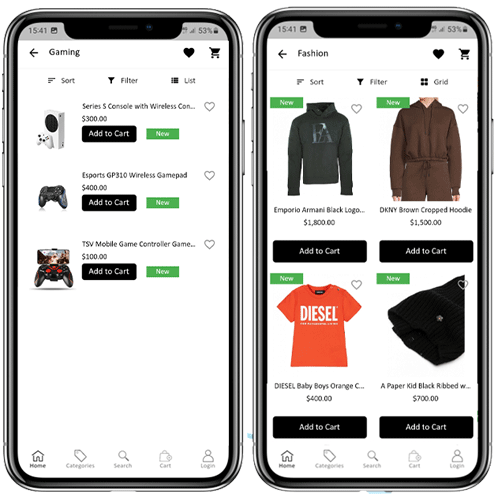
1. Sort:
This option allows shoppers to select the desired order in which the product price will be sorted within the category. Two sorting orders are available in your apps: Price: Low to High and Price: High to Low.
2. Filter:
The product filtering option simplifies product searches. App users can filter products in their PrestaShop mobile app based on various attributes such as size, color, composition, condition, manufacturer, price, and more. Users can find their favorite products in minutes using these filters.
6.4 Product Display:
The product display in your PrestaShop mobile app is simple and engaging. It shows multiple images of the same product along with its name and price. Product availability is also displayed as “In stock” or “Out of stock” depending on the inventory status. It also includes the following additional options:
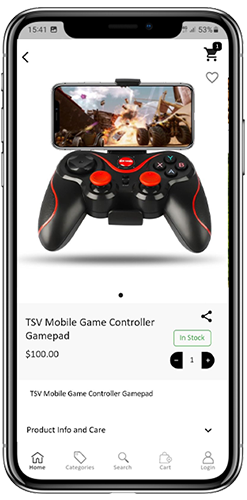
1. Product options:
All product-related options, such as size, color, etc., are displayed on this screen. These product options are the same as those available on the website.
2. Brief description
Users can read the brief description of your product to make a decision quickly.
3. Product Information and Care
Full product information is available on the website and is displayed here. App users can find complete product details here.
4. Add to wishlist:
Mobile app users can directly mark the product as a favorite simply by tapping “Add to Wishlist” at the bottom left of the product screen.
5. Add to cart:
The “Add to cart” button adds the product directly to the cart, allowing users to proceed with their purchase.
6. Social exchange of products:
There is an option on this screen to share your product across multiple social media platforms, including Bluetooth and email. App users can share products with friends and family on these platforms and attract repeat users to your app.
6.5 Wishlist Screen:
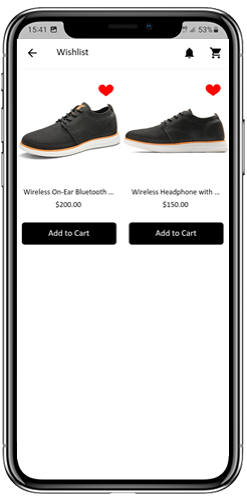
Your PrestaShop Mobile App Creator would have a wishlist shopping cart that allows users to mark products for future purchases. Users can view the list of all marked products from here. You have two options:
1. Add to cart:
App users can add the marked product directly to the shopping cart by choosing the Add to Cart option.
2. Remove from wishlist:
Users can even remove any product from their wish list if they don’t feel like buying it.
6.6 login screen
PrestaShop Mobile App Creator offers several one-touch login options and makes the login/registration process smoother:
1. Log in
Application users can authenticate and access applications using email login credentials.
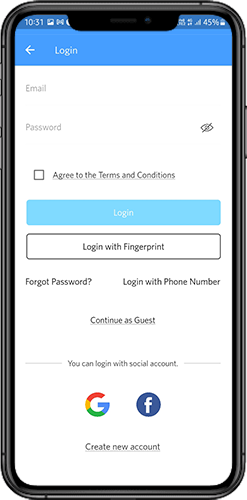
2. Register
All new users of the application can register and create their account in the store directly from the mobile app. The PrestaShop mobile app registration form only requests relevant details.
3. Log in with phone number
Their mobile app features an easier and more robust phone number login option that makes it easier for users to verify the OTP and login app.
4. Log in with a fingerprint
Its users also have the option to log in with fingerprint authentication. This allows users to access applications in seconds.
5. Log in with Facebook
Users can log into the application using their Facebook account credentials.
6. Sign in with Google
Users can log in to the application using their Google account credentials.
6.7 Shopping cart screen:
The shopping cart screen in your PrestaShop mobile app will display all the products in the shopping cart. App users can see the product name, quantity, total price, and shipping cost. This screen has the following options:
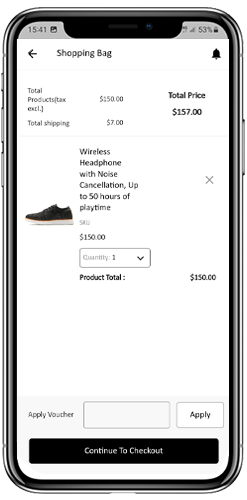
This option allows users to obtain discounts and offers by entering valid coupons and vouchers that are running on their website.
2. Total price of the product
Users can view the total cost of their shopping bag here. It updates automatically with any changes in quantity or additions of products.
3. Update product quantity
App users can even update the product quantity with the “Update Quantity” option.
4. Remove product
App users can simply remove the product from the cart by tapping the “Remove” option.
5. Continue to payment
Users of the front-end mobile application can proceed to checkout and payment by simply tapping the “Continue to Payment” option. This will redirect them to the payment screen.
6.8 Payment Process
The Prestashop mobile app generator features a simplified checkout process. Front-end mobile app users can select shipping details, billing details, order numbers, order comments, and more during the mobile app’s checkout process.
Android and iOS app users only need to follow a few simple steps to place their orders. 1. Customers can select the desired product and add it to their shopping cart. After clicking on the shopping cart icon, they can also select the desired quantity. Additionally, users of the mobile app can view the total quantity of products and shipping costs. Customers also have the option to apply any vouchers or coupon codes at the bottom of the same page. 2. After clicking the “Proceed to Checkout” option, users can review their order and view various details, such as the product price, shipping cost, shipping address (which can be edited on the same page), order summary (number of products), total price, etc. Customers can also select their preferred shipping method on the same page. Users can also add any special requests or requirements in the order comments section at the bottom of the screen.
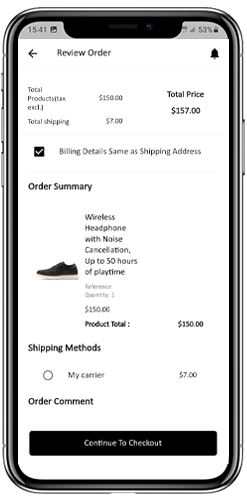
- The user will be redirected to the payment method screen after clicking the continue payment option.
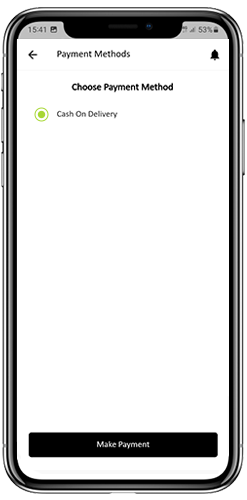
On this screen, users can select from all the website’s payment options. By default, the shopping app offers cash on delivery as a payment method.
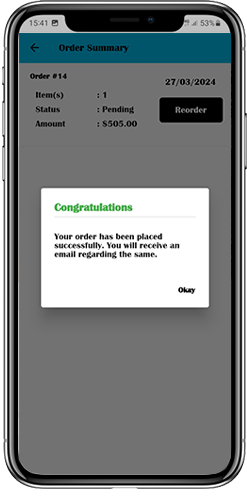
- When the user completes the payment process, they will be redirected to the order summary screen, where they can view the order status, order number, amount, etc. Users of the front-end mobile application will also receive the order confirmation pop-up message on their mobile phone screens.
6.8 My Account Screen
The My Account screen in the Android/iOS e-commerce app allows users to view complete account details, including a list of past orders. The My Account screen offers the following options:
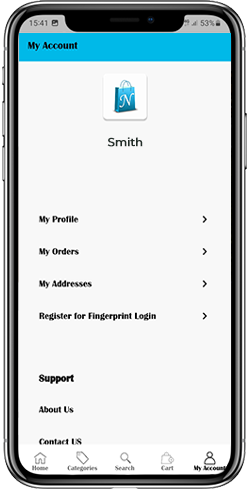
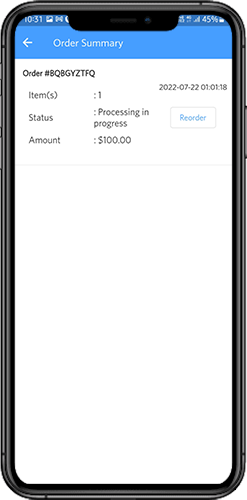
Users are shown complete details of the order they placed earlier. The order shipment date, order reference, price, and delivery status are displayed.
2. Update Profile
Users can also update their previously saved profile details, such as first or last name, phone number, and password.
3. Shipping address(es)
App users can view the complete list of saved shipping addresses. A new shipping address can also be added from here.
4. Order Details
App users can view the full list of previously placed app orders.
5. Reordering function
There is a direct reorder option available by clicking the “Reorder” button. All previous orders will be added to the cart with just one click.
6.10 Order Details Screen
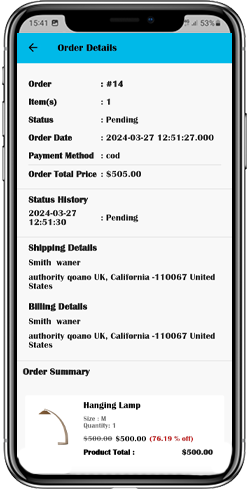
The PrestaShop e-commerce application’s order details screen provides comprehensive order information, including the shipping address, product summary, shipping and payment methods, and a summary of the total cost. Users can even track the delivery of previously placed orders directly from this screen.
7.0 Video Tutorials
8.0 Advanced PrestaShop Marketplace with mobile application
KnowBand’s PrestaShop Marketplace transforms your website into a complete online marketplace. The PrestaShop Mobile App Builder is fully compatible with the PrestaShop Marketplace extension . This means you can bring the entire marketplace listings directly into your PrestaShop mobile apps. So, launch a couple of Marketplace-compatible mobile apps with KnowBand and attract a large base of sellers and customers to your store. When a user clicks on the Seller option, they are redirected to the mobile store’s Seller page. There, they can view the marketplace’s seller listings along with their ratings. Customers can click on a seller’s name to view their profile and the products they offer. Sellers can log in with their username and password and are then redirected to the dashboard. Learn more about PrestaShop Marketplace with a mobile app on this page . The Android & iOS Mobile App Builder for PrestaShop is also available in the official PrestaShop Add-ons Store
- AuctionX – Manual de usuario completo del módulo de subastas de PrestaShop
- Manual de usuario del módulo de punto de venta de PrestaShop
- OpenCart SEO Audit Manager User Manual
- Auditoría SEO de PrestaShop: Manual de usuario completo
- Extensión de copia de seguridad y restauración de OpenCart: Manual de usuario completo