OpenCart Product Availability Check by Zipcode Extension – User Manual

1.0 Introduction

Is there a way to reduce cart abandonment and improve user experience on the website? Knowband’s OpenCart Product Availability Check by Zipcode Extension allows the customer to check product availability on their specific location via zip code search. Customers who are there to shop at your online store generally don’t have any idea about product availability in their region. Consequently, they go through a bad shopping experience at the time of checkout process when they get to know that the product is unavailable on their location. This way they are compelled to drop their cart contributing abandonment rates.
OpenCart Product Postal Code Validator Module incorporates a simple Product zipcode validator on the product page so that the customers can find whether the product can be shipped to their location or not. Moreover, if the product delivery is available on their postal code, OpenCart Product Availability module will show the delivery days and date in advance to the user. This overall functionality improves both the user experience and interface of the online shop.

1.1 Striking Features of Availability check by zipcode module for OpenCart

OpenCart Product Availability Check by Zipcode module offers different customizable features which can be set as per business requirements. No coding is required and the store owner can display product availability check by zipcode result on the frontend over the product pages. Let us quickly take a tour of its features.

1.OpenCart Product Availability Check by Zipcode Extension helps to control cart abandonment rates just by allowing customers to enter their zip code and checking the product availability at their location.

2. This OpenCart extension displays a Product zipcode validator block on the product page letting customer check product availability without going to the checkout page.

3. With OpenCart Product Postal Code Validator extension, admin can add unlimited global zones and multiple zip codes inside those zones.

4.OpenCart product zipcode validator gives an effortless way to add and map as many zip codes in various zones by directly uploading CSV file for bulk number of zip codes.

5.OpenCart Product Availability module lets admin map bulk number of products in different global zones or they can upload CSV file directly for bulk upload.

6. With OpenCart product zipcode validator, admin can exclude all those products for which the product shipping or delivery is unavailable. Customers can directly perform checkout for such products.

7.OpenCart zipcode validator module displays the advanced delivery days and date on frontend only when the product delivery is available for the specific zip code.

8.OpenCart product zipcode validator enables and shows the Add to Cart button on frontend only in case if the product delivery is applicable on that specific zip code.

9. Store admin can enable the zipcode validator module for specific products only using this OpenCart extension. For other products, the standard checkout is shown on the frontend.

10.OpenCart zipcode extension can be quickly enabled or disabled from the back-office.

11.No technicalities are involved in the install and configuration of OpenCart Availability check by zip code module.

12. The existing global zones, zip codes, product zone mappings can be enabled, disabled or deleted as per requirements.

13.OpenCart Product Postal Code Validator extension allows admin to edit and modify Product-Zone Mapping from the back-office.

14.OpenCart Product Availability Check by Zipcode Extension provides compatibility with multiple stores.

What’s New in the Recent Enhancement:

The latest update to Knowband’s Opencart Product Availability Check by Zipcode module introduces a new feature that allows store admins to enable or disable the zipcode verification pop-up on the front-end. This flexible option enhances user experience by offering seamless control over the visibility of the zipcode verification process.

2.0 Installation Guide of OpenCart Product Postal Code Validator Extension

Before starting the installation process, you have to buy the OpenCart Product Availability Check by Zipcode module from the Knowband store. Once purchased, you will receive the following files on your registered email.

  • The source code of OpenCart Product Availability Check by Zipcode module in zipped file format.
  • User Manual of OpenCart Product Availability Check by Zipcode extension.

Now in order to install this OpenCart zipcode validator for your online store, follow the given steps:

1. Unzip the zip file. You will get the folders as shown in the image below

OpenCart Product Availability Check by Zipcode Extension

2. Copy all the folders of the zip file in the Root Directory of OpenCart setup via FTP manager.

So, the OpenCart Product Availability module is now successfully installed and is ready to use at your store.

OpenCart Product Availability Check by Zipcode Extension

Check products are available in your area by entering your zip code with the OpenCart Product Availability Check by Zipcode module from Knowband.

SHOP NOW

3.0 Admin Interface of OpenCart Product Availability Check by Zipcode module

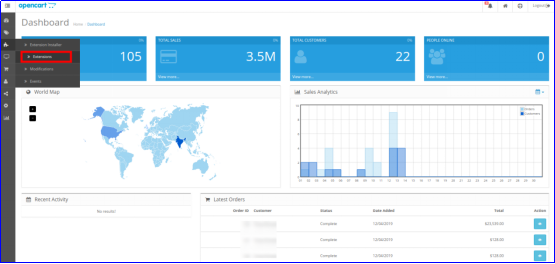
Just after the successful installation of the product availability check module for your OpenCart website, you can create as many product zipcode mappings and configure them as per your business requirements. Navigate the settings in the given order: Admin Panel > Extensions > Modules > Product Availability Check By Zipcode.
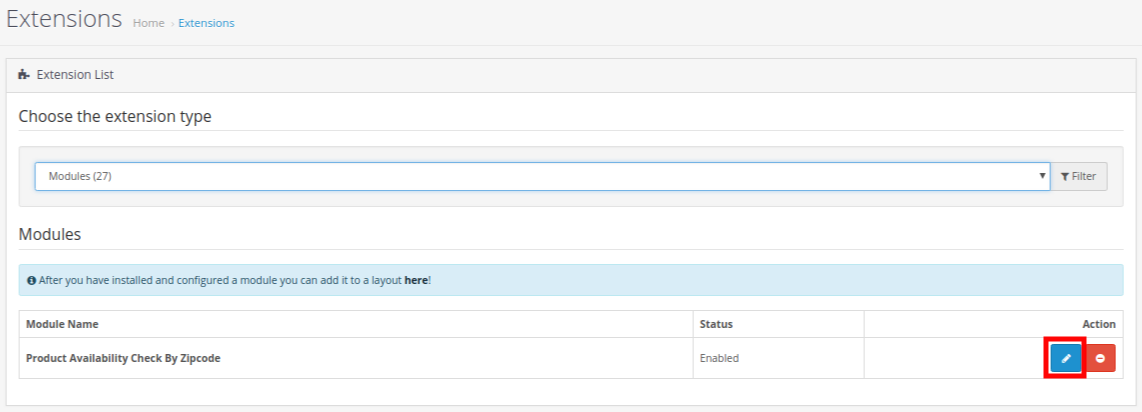
The simple to understand admin interface of OpenCart Product Postal Code Validator extension is divided into three broad sections namely:

1.Module Configuration Settings
2.Global Zones
3.Product Zone Mapping

Each of these sections has been discussed in detail below.

3.1 Module Configuration Settings

Under the Module Configuration Settings of OpenCart Product Postal Code Validator module, you will find the basic settings of global zones and product zone mapping which looks as shown below:

  • Enable/Disable module: This option will enable or disable the complete functionality of OpenCart product zipcode validator.
  • Display Delivery Date: You can show or hide the delivery days and delivery date under the product availability check result in advance. The delivery estimation is only applicable when the product is available on that particular postal code.
  • Display Zipcode Popup: The Opencart admin can enable/disable the zipcode pop-up on the storefront with this option.
  • Check Cart: If this option is enabled, then Add to Cart button is shown only when the product is available on that specific postal code. If the product is unavailable on this location, the Add to cart button will not be shown to the user.
  • Module Only For Mapped Product: You can enable or disable the module for mapped products. If this module is enabled for the mapped products, then the customer can perform checkout for all other products as well.
  • Disabled Products: Using this option of Product zip code validator module, you can restrict the product availability check for specific products of their store.
  • Custom CSS: In the following text field, the store admins can add custom CSS to modify the look and feel at their convenience.
  • Custom JS: We have provided this particular text filed  for allowing the admin to add custom JS.

3.2 Global Zones

Under this section of OpenCart Product Availability Check by Zipcode module, admin can create multiple global zones for their store. Under those global zones, they can add and map as many zip codes or postal codes where they will deliver their product or services. The interface looks like:
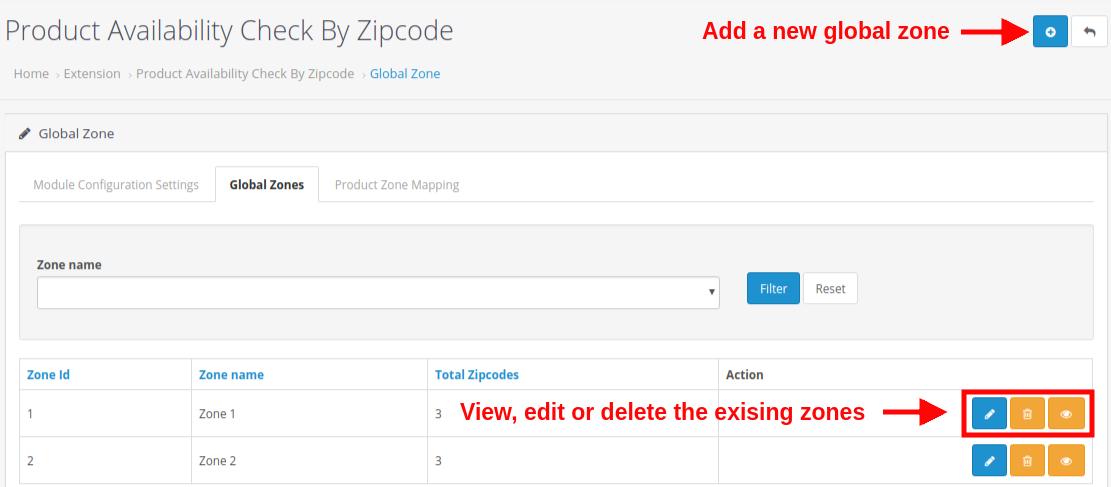
You can create as many global zones for your store by clicking on the “+” button. Moreover, you also have the flexibility to edit or delete the existing zones using the Edit or Delete button respectively. To check all the zip codes mapped in a zone, click on the View button.
Additionally, you can check the total number of zip codes that have been mapped in a particular zone.

Each of these actions has been discussed in detail below:

3.2.1 Add a New Zone

The above image shows the interface to add/create a new zone for your store. This is the manual way to add a global zone, where you have to manually list all the zip codes, and mark enable/disable status corresponding to those zones. To add a new global zone, fill the following fields:
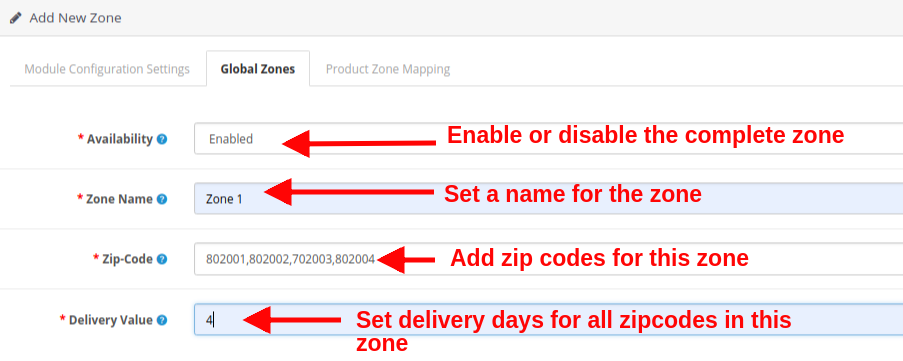
  • Availability: This option will enable or disable the complete zone. All the zip codes mapped in this zone will be all enabled or disabled.
  • Zone Name: This option will help you to set a name for the zone.
  • Zip-Code: Using this option, you can map as may zip codes in this zone. For adding multiple pin codes, separate them using a comma ‘,’ like 802001,802002,702003,802004
  • Delivery Value: This option will set the delivery days for all the zip codes under this zone.

3.2.2 Edit the Zone Name

If you want to change the name of the global zone, set using this option:
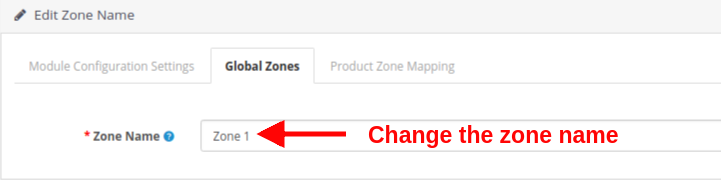
  • Zone Name: This option lets you specify the desired zone name.

3.2.3 View the Global Zone

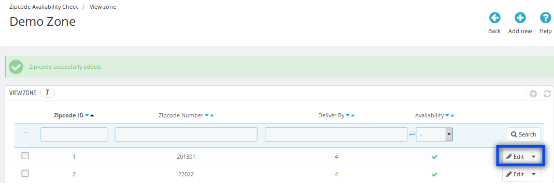
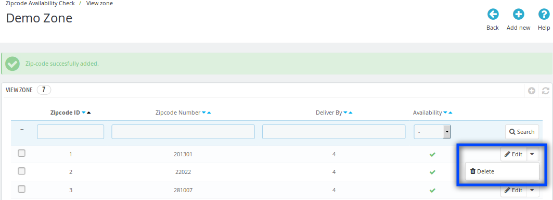
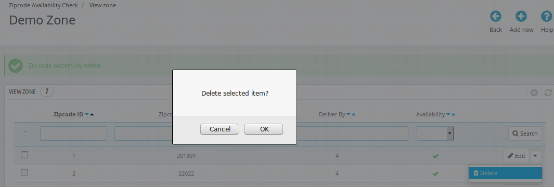
A list of existing zones is displayed on this interface. You can view, or delete the existing zipcodes under a zone. Also, you can directly add new zip codes from this section of the admin interface. Each of these options has been discussed in the next sections.

3.2.3.1 Add New Zip Code

There are two ways to add new zip codes:

1. Manual Filling
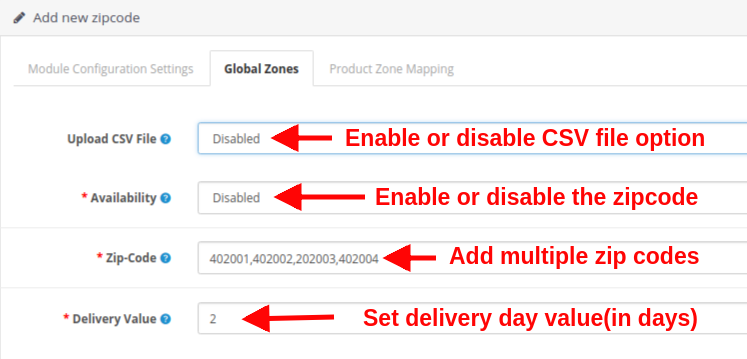
When you choose to manually add the zip codes in a particular zone, you have to set the following fields:

  • Upload CSV File: Enable or disable the upload CSV file option as per your business requirements. If disabled, you will be shown the below interface.
  • Availability: With this option, you can set the availability status of the product for the configured Zip-Code.
  • Zip-Code: This option will allow you to add multiple zip codes using a comma. Eg. 402001,402002,202003,402004
  • Delivery Value: Set a positive integer value as the delivery days for the configured zip codes.
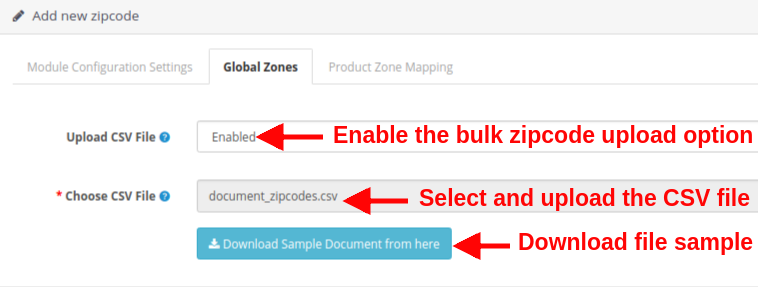
2. Bulk Upload(using CSV file)
This option is useful when you have a large number of zip-codes to add for product delivery at your store. You have to configure the following options:

  • Upload CSV File: To use bulk zip code upload option, enable this option. This option allows you to upload CSV file for adding a large number of zip-codes for your store.
  • Choose CSV File: With this option, you can select and upload the CSV file from the local computer.
  • Download Sample Document: This option is provided as the CSV file reference. You can download a sample file from here and see the format to list the zip code details.
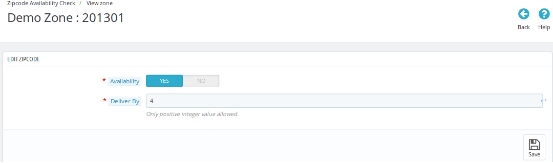
3.2.3.2 Edit Existing Zipcode
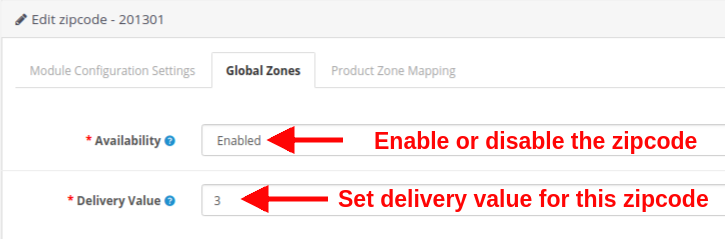
To edit a particular zip code, you have to set the following fields:

  • Availability: With this option, you can set the availability status of the product for the configured Zip-Code.
  • Delivery Value: Set a positive integer value as the delivery days for the configured zip codes.

3.3 Product Zone Mapping

Under this tab of OpenCart Product Availability module, you can add or create as many product zone mapping for your store. You can map the products to all specific zones where you want to allow delivery of those products.
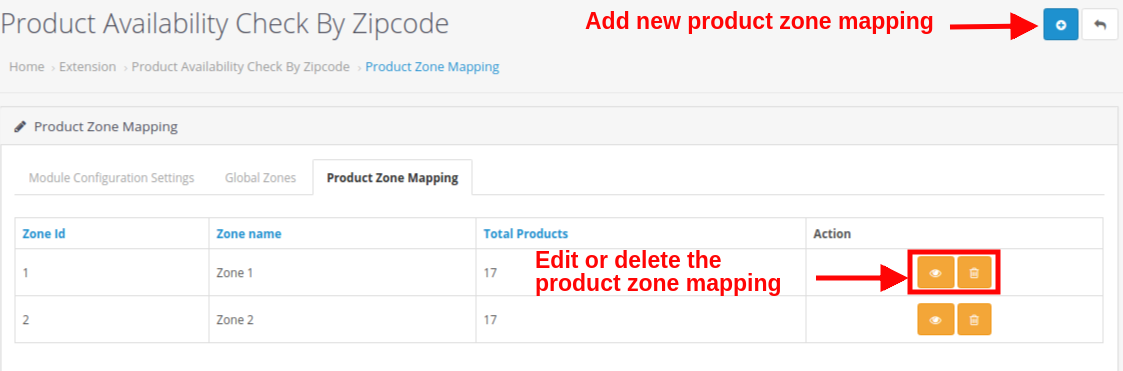
Here you can add new product zone mappings for your store. Also, the ‘Edit’ and ‘Delete’ button allows you to edit and delete the existing product zone mappings. Each of these actions has been discussed in detail, below.

3.3.1 Add New Product Zone Mapping

There are two ways to add new product zone mappings:

1. Manual Filling

When you choose to manually add the product zone mappings, you have to set the following fields:
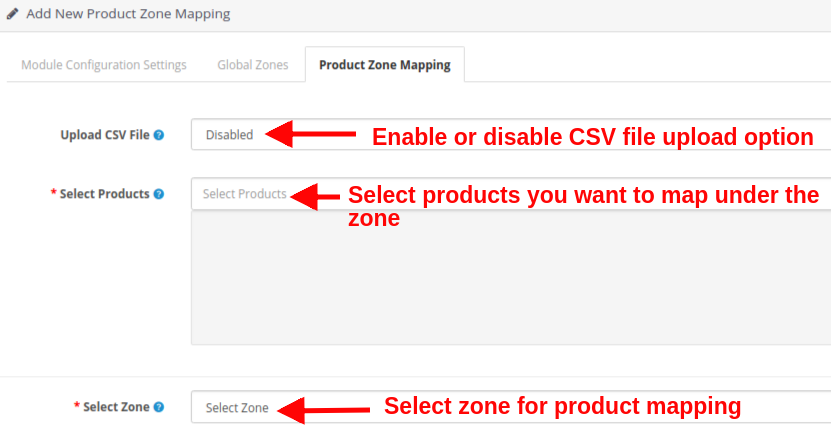
  • Upload CSV File: Enable or disable the upload CSV file option as per your business requirements. When you are manually adding the product mappings, set this option as disabled.
  • Select Products: This option allows you to select all the products which you want to map in a specific zone.
  • Select Zones: This option allows you to set the zone for which you are mapping the products.

2. Bulk Upload(using CSV file)
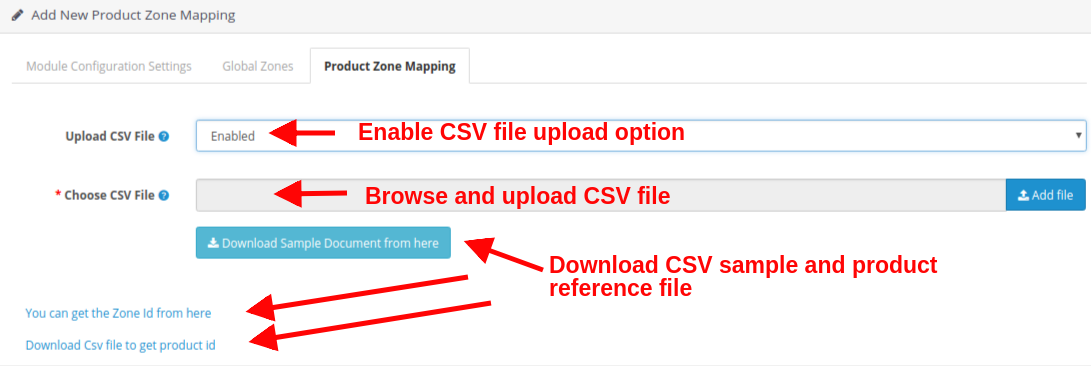
  • Upload CSV File: Enable or disable the upload CSV file option as per your business requirements. When you are manually adding the product mappings, set this option as disabled.
  • Choose CSV file: Browse and select the CSV file to add a large number of product zone mappings in bulk.
  • Download Sample Document: This option is provided as the CSV file reference. You can download a sample file from here and see the format to list the product zone mapping details.
  • Get the Zone Id: By clicking this link, you will see the list of zones with their name and ID.
  • Download CSV file for product Id: By clicking this link, you can download the CSV file to get the product ID.

3.3.2 View Existing Product Zone Mapping
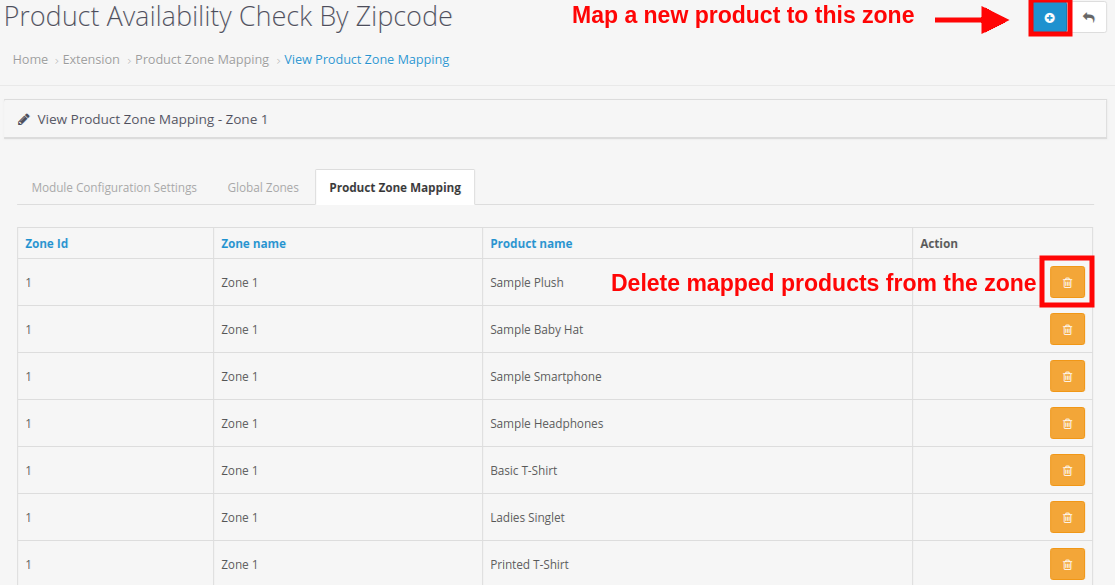
The above-provided interface shows you the complete list of product zone mappings. You can delete any product mapping for the selected zone and you can even add a new product mapping in this zone by clicking the ‘+’ button at the top right corner of the screen. As you will click the Add Product Mapping button, you will see the below interface:
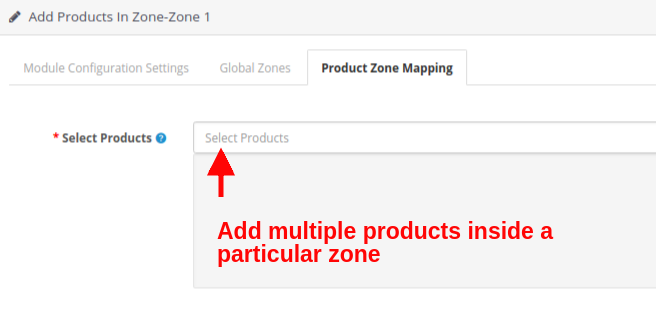
Select Products: Using this option, select the products that you want to map in this zone.
Note: Remember to click on the “Save” button shown at the top right corner of the admin panel to save the configured settings.

3.4.0 ZipCode Request:
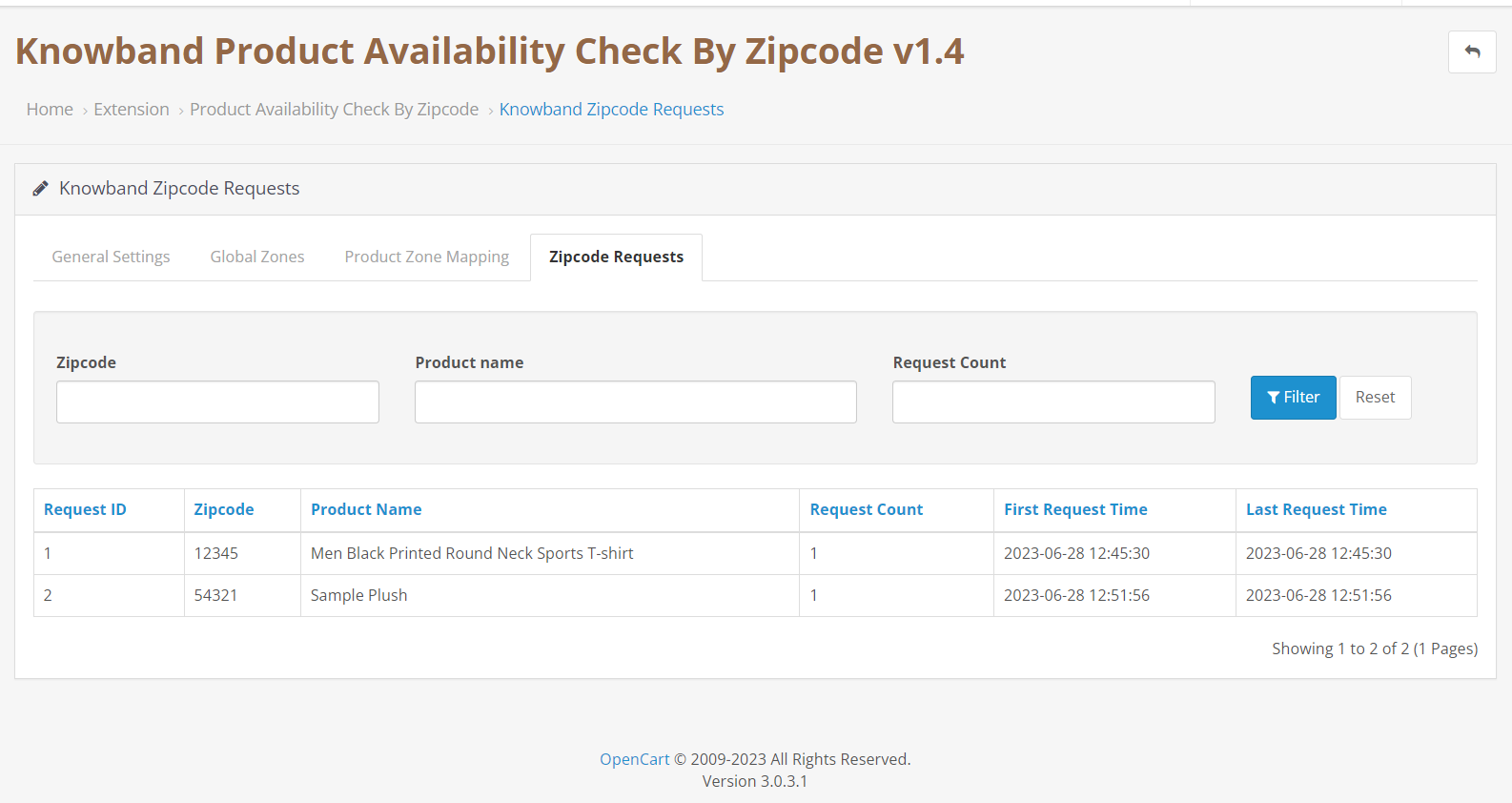
In case the customer will check the product availability by Zipcode and the product is not deliverable to that particular area, the zipcodes along with product name, request count (will depend on how many customers has checked the product for that particular location), and first & last request time will be automatically listed here.

4.0 Front Interface of OpenCart Product Availability Check by Zipcode Extension

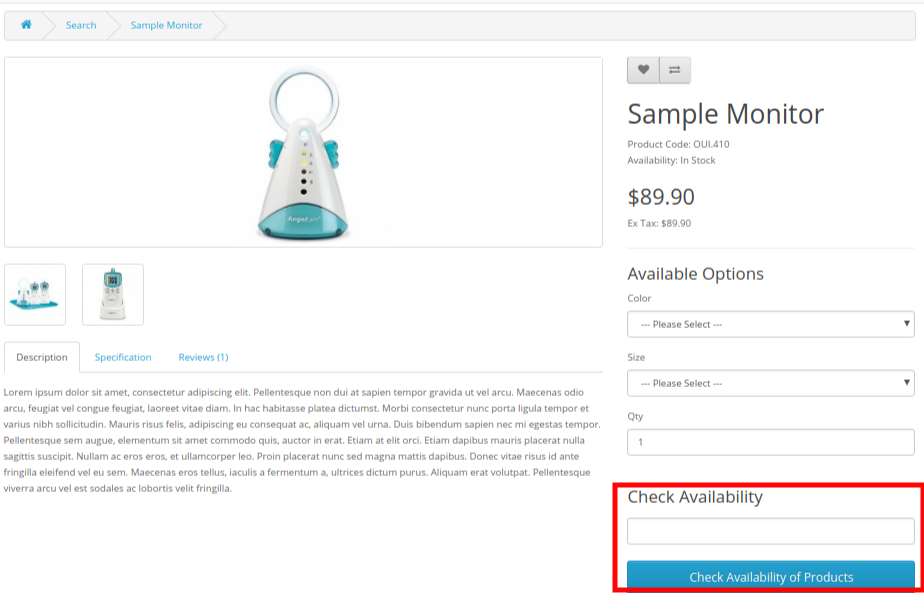
After you have successfully configured the settings of OpenCart Product Postal Code Validator Module and have mapped the products to global zones, you will see a product availability check block on the product pages of the site. For products, the Product zipcode validator is enabled, you will find this availability check block on the frontend.

  • The customers have to simply enter their zip code or postal code where they want the product to deliver. This ensures whether the product shipping is available on their specific location or not.
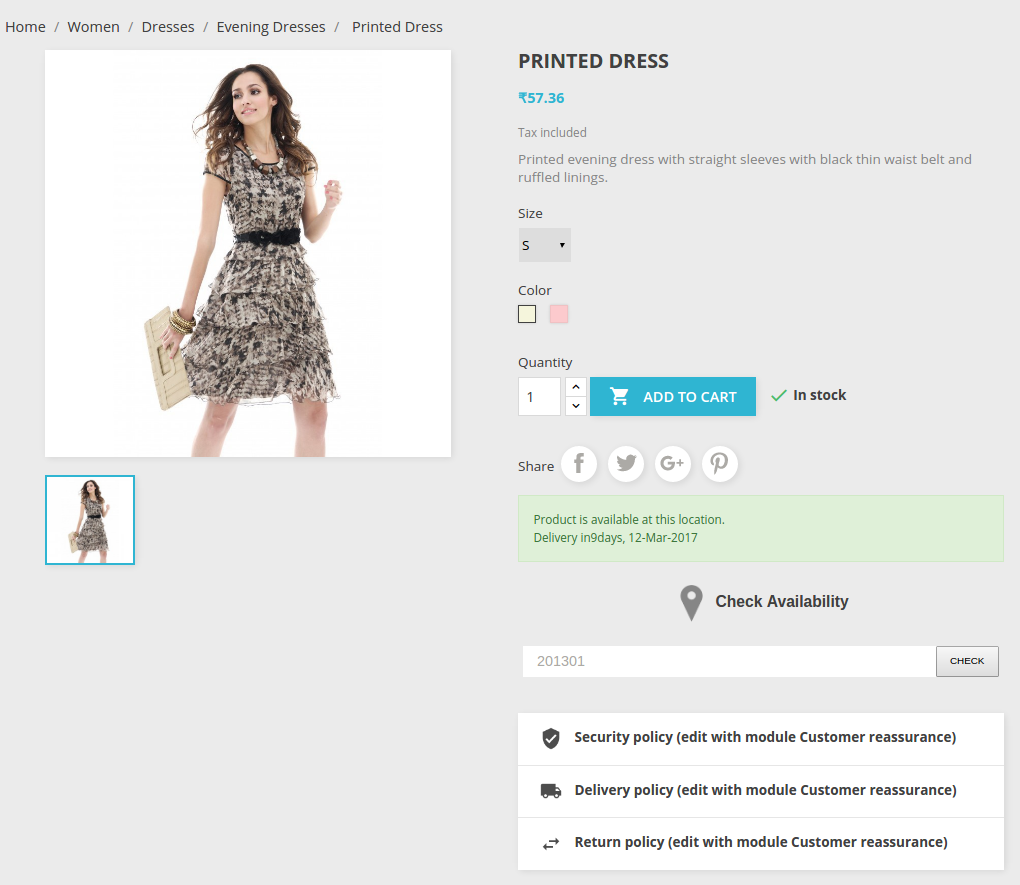
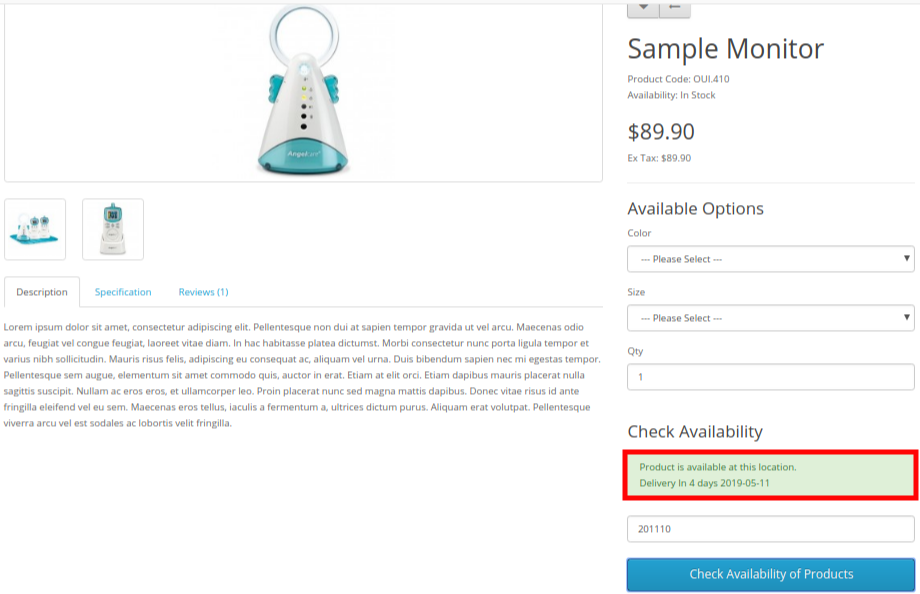
  • If the product is available on their provided zipcode, it will show a success message along with the delivery days and date information.
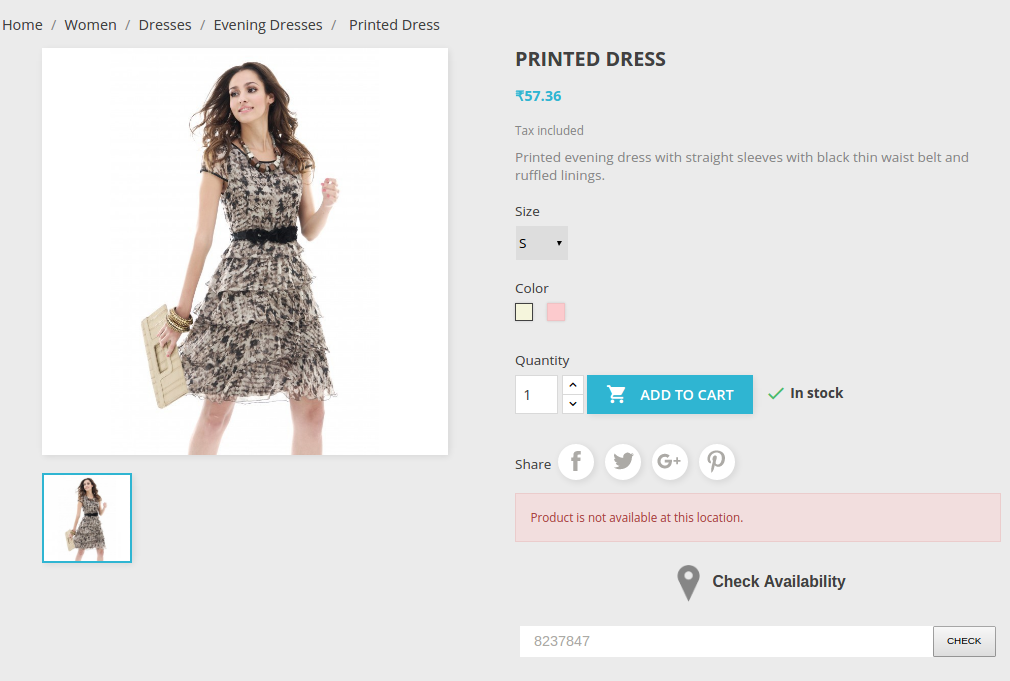
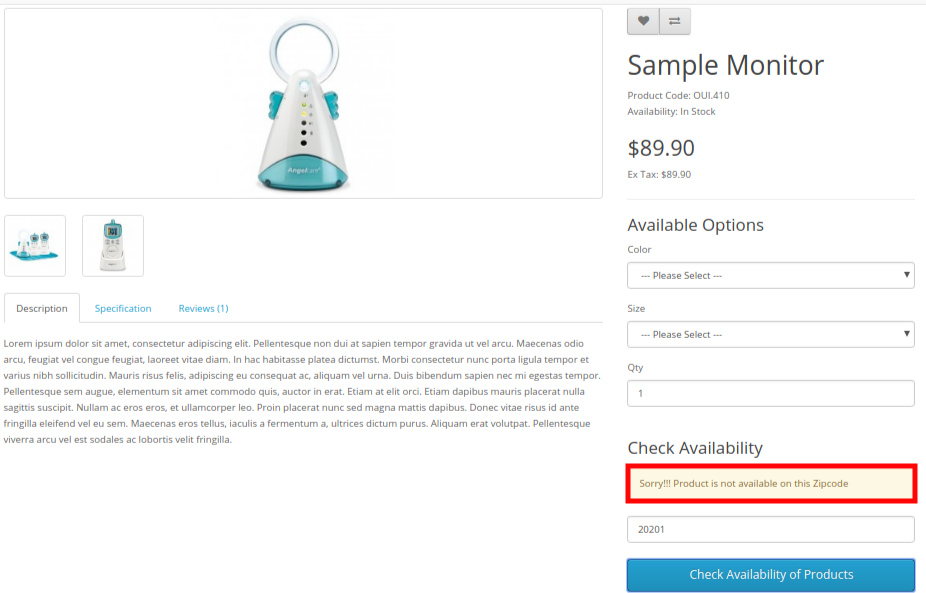
  • In case the product is unavailable on their zip code, they will see a message like “Product is Unavailable” as shown in the image below.
Important: The “Add to Cart” button on product pages will be only shown in two cases:

  1. Product Delivery is available for the entered zip code.
  2. The product has been restricted from the OpenCart product zipcode validator

Also, you can check our OpenCart Preferred delivery date and time extension which provides a facility for preferred delivery to online buyers.

OpenCart Preferred Delivery Date and Time Extension

Allow customers to choose their preferred delivery time slots easily with the OpenCart Preferred Delivery Time Slot module by Knowband.

SHOP NOW

5.0 Tutorial of OpenCart Product Zip Code Availability

To help you easily understand the installation, configuration, and working of the OpenCart Product Availability by Zip Code Extension, Knowband provides a detailed step-by-step tutorial along with a video guide.

Watch the Tutorial Video

We recommend watching the complete tutorial video to quickly learn how the module works on both the admin panel and frontend. The video demonstrates module installation, configuration of zip codes and zones, product mapping, and live product availability checks on the storefront.

Watch this complete tutorial video on our YouTube channel to get a clear and visual walkthrough of all features and settings.

6.0 Recommendations

Recommended OpenCart Modules

To enhance your OpenCart store and streamline content creation and management, we recommend the following Knowband modules:

1. VideoMate – Video Manager Extension Opencart

VideoMate is a powerful OpenCart module designed to integrate video content seamlessly into your store. It allows you to:

  • Add tutorial, Instagram reels, youtube shorts or demo videos to product pages, home page & category pages.
  • Engage customers with step-by-step video instructions.
  • Increase conversion rates by providing clear, visual product guidance.
  • This extension is perfect for merchants who want to create rich, interactive shopping experiences directly on their product pages.

2. AI Content Generator & Translator for OpenCart

AI Content Generator is an OpenCart module that helps store owners automatically generate product descriptions, blog posts, and other website content. Key features include:

  • AI-generated, SEO-friendly product descriptions & meta details.
  • Automatic content updates for large product catalogues.
  • Customizable tone and style for marketing or instructional content.

This module is ideal for saving time, maintaining content consistency, and improving your store’s search engine visibility.

7.0 Knowband Support

Knowband is committed to providing reliable and timely support to ensure smooth module usage and performance.

If you face any issues during installation, configuration, or usage of Knowband’s OpenCart Product Availability by Zip Code Extension, or if you have custom requirements, feel free to contact our support team. Our experts are always ready to assist you.

Email: support@knowband.com
Prestashop Product Availability Check By Zipcode – User Manual

1.0 What is Product Availability Check By Zipcode?

As you know that after finding a suitable product, the customer wants to know the availability of the same in a particular region.

By this Prestashop Availability Check by Zipcode Addon, the customer can check the availability of the product in a particular location using its Zipcode. This Prestashop zipcode validator will ease the work of the customers to check the availability of the product in any particular area before placing an order.

2.0 Product Availability Check By Zipcode

2.1 Introduction

This Prestashop Zipcode addon has a functionality through which the customers can check the availability of the products in a particular region.

The Prestashop Zipcode validator addon provides lots of enticing features which are as follows:

  • Prestashop zipcode addon allows the customer can check the availability of a product at any location using Zip-code.
  • A popup will be displayed on the frontend of the PrestaShop store when the user visits the website.
  • With the help of this Prestashop zip code validator module, the admin can easily map Zones with Zip-codes by uploading a CSV file.
  • This zip code validator module offers the admin to easily map Zones with the Product by uploading the CSV file.
  • The Prestashop Product Availability module helps in displaying the Delivery date, Success message, and Failure message on the front end.
  • The product availability check PrestaShop module lets the admin Enable/Disable the availability of the product for a specific Zip-code at any time.
  • The product availability check by zipcode Prestashop module allows the admin to map multiple Products with multiple Zones.
  • This Prestashop Postal Code Validator module offers to add the multiple Zip-codes with Zones by comma separated values.
  • The Prestashop Postal Code Validator Addon provides the admin to search, delete, or even modify Zones.
  • The product zipcode validator module allows the admin to search, delete, modify Zip-codes.
  • The Prestashop product zipcode validator plugin offers the admin can search, delete Product-Zone Mapping.
  • This Prestashop Availability check by zipcode module allows the admin to add Custom CSS and Custom JS at Product Page of the front end to change the look and feel of the box.
  • Prestashop Product Postal Code Validator allows the admin to disable product availability check for specific products.
  • With autofill feature of Prestashop product zipcode validator, the user need not fill zipcode field for every product on the store. Once the zipcode is entered for a product, it will automatically show availability for every product they visit.

2.2 Installation Manual:

Follow the following steps for installing the Product Availability Check By Zipcode addon:

  • Download the Prestashop zipcode validator package.
  • Unzip the package in your modules folder of Prestashop setup via FTP manager (like Filezilla or WinSCP – download here).
  • In the admin Panel go to “Modules and Services> Product Availability Check By Zipcode >Install”.

Figure 1 .1- Product Availability Check by Zipcode – Install (Version 1.6.x.x)

Figure 1 .2- Product Availability Check by Zipcode – Install (Version 1.7.x.x)

  • That is all – Your system is ready.
  • Click ‘Configure’ to edit settings of this Prestashop zipcode module.

3.0 User Manual:

This User Manual will guide the the admin through the Module/Store Front settings of the Prestashop zipcode validator module and the various features of the Prestashop Product Availability Check By Zipcode Addon.

4.0 The Admin Interface:

After installation, when the the admin clicks on Configure, a screen will be displayed where he/she can configure general settings of this product zipcode validator module.

4.1 Configure Product Availability Check By Zipcode Setting:

Following are the steps to configure this Prestashop Zipcode module –

  1. Go to Modules and Services.
  2. Search module ‘Product Availability Check By Zipcode ’ .
  3. Click on ‘Configure’ button.


Fields:

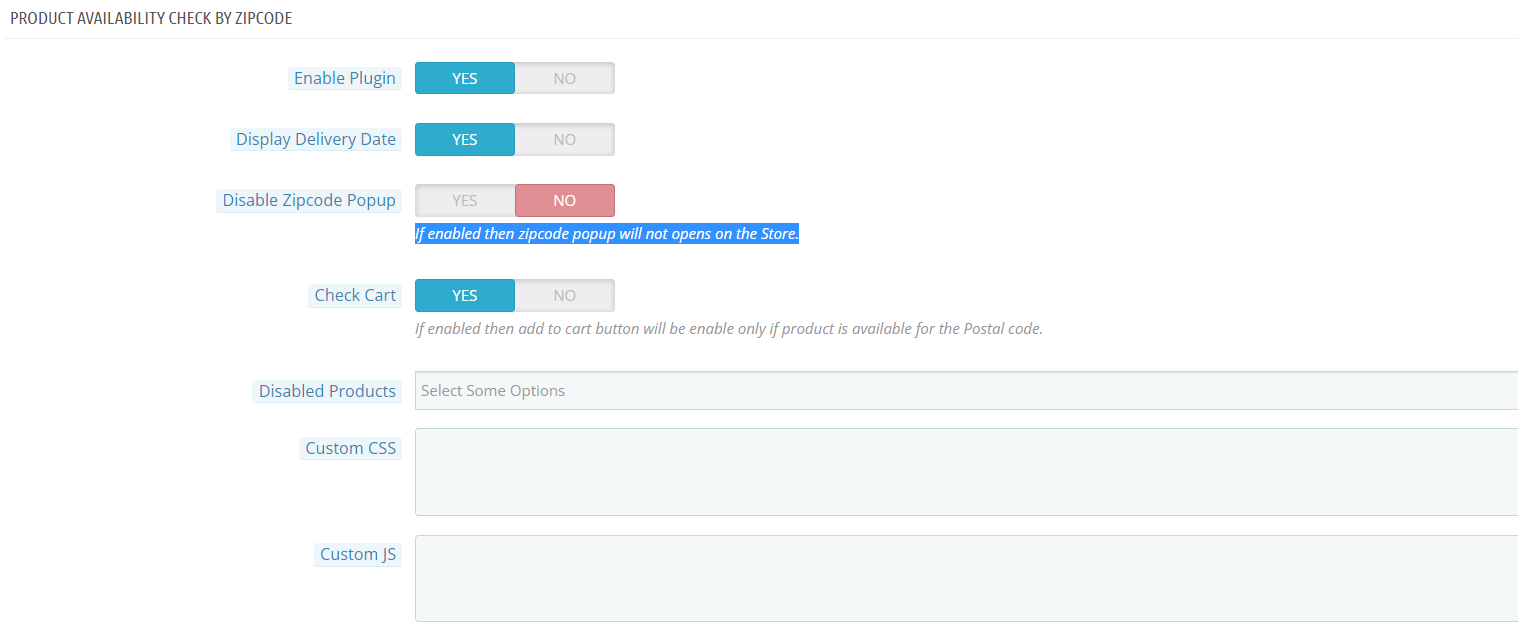
  • Enable: By default, this setting of the product availability check Prestashop module will be OFF. Whole Prestashop zipcode validator module functionality depends on this toggle button. When it is enabled, a text field to check product availability will be displayed on the product page on the front end of the product zipcode validator module.
  • Display Delivery Date: This field of the Prestashop Postal Code Validator Module is offered to the admin to display the delivery date of the products. The admin just needs to turn on the setting to display the delivery date. But, if he doesn’t want to show the delivery date, then he can set the toggle button on OFF mode.
  • Display Zipcode Popup – If this option is enabled then the module popup doesn’t appear on the front.
  • Check cart: Check cart feature restricts the visitor to go to the checkout page if any of the product is not available in the zip code entered by the customer in the address field.
  • Disabled Product: The store admin can restrict zipcode check functionality for particular products using this option.
  • Custom CSS: This field of Prestashop Prestashop product zipcode validator is offered to the admin to add custom CSS to the product page if required.

        Note: Enter CSS content excluding <style> — inner content– </style> Tags (only write inner content).

  • Custom JS: The admin can use this option of the Prestashop Zipcode module to add custom JS on the product page if required. (Only in version 1.6.x.x).

       Note: Enter JS content excluding <script> –inner content– </script> Tags (only write inner content).

  • Save: By clicking this button, this Prestashop Zipcode module will save setting into the database and return back with success message.

4.2. Zipcode Availability Check:

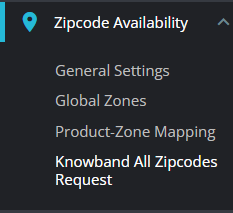
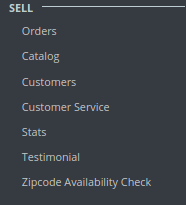
After installing the product zipcode validator module, a separate menu (named “Zipcode Availability Check”) will be added at the end of menu listing as shown below.

.

Figure 3.1 – Product Availability Check by Zipcode – Menu Tabs(1.6.x.x)

Figure 3.2 – Product Availability Check by Zipcode – Menu Tabs(1.7.x.x)

In this tab of the Prestashop zipcode validator module, there will be 3 sub-tabs described below.

4.3. Global Zones:

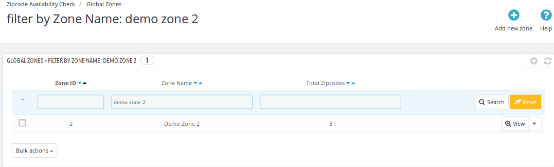
This tab of the Prestashop Postal Code Validator Addon contains the list of zones that are created by the the admin by adding new zones from ‘Add new Zone’ button appears at the top right of the page. The admin can perform operations like searching the zone, view a zone, delete zones, edit zones and add a new zone in the image mentioned below.

Following are the steps-

  1. Hover on ‘Zipcode Availability Check ’ menu.
  2. Go to ‘Global Zones ’.

Figure 4 – Product Availability Check by Zipcode – Global Zone

The image below would be displayed when the admin searches any zone.

Figure 5 – Product Availability Check by Zipcode – Search Global Zone

4.3.1 Add New Global Zone:

In this field of the Prestashop zipcode addon admin can add a new Global Zone and the image mentioned below will display when the admin clicks on the ‘Add New‘ button.

Following are the steps –

  1. Hover on ‘Zipcode Availability Check’ menu.
  2. Go to ‘Global Zones’.
  3. Click on ‘Add new zone’.

Figure 6.- Product Availability Check by Zipcode – Add New Zone

Fields:

  • Availability: By default, this setting of the zipcode validator module will be ON/enabled. When the admin disables this button then the product will not be available at added zipcode location.
  • Zone Name: In this field of Prestashop Availability check by zipcode, the admin can define zone names according to his/her understanding.
  • NOTE: Zone name must be unique.
  • Zip-code: This is text-area Field. In this field of Prestashop product zipcode validator module, the admin can enter multiple Zip-codes here separated by the comma (,). Ex- 201301, 983923, 345453
  • Deliver By: This is the estimated day of product delivery. The Prestashop zipcode addon offers the the admin to configure the number of days of delivery. When the customer will enter the zip code, a message will be showen with the estimated delivery date.

4.3.2. Edit Global Zone:

The admin can edit a particular Global Zone.

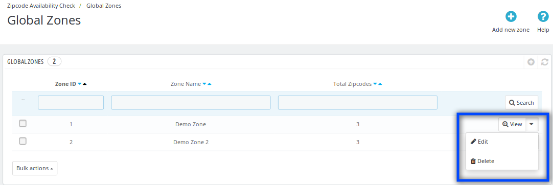
Figure 7.1 – Product Availability Check by Zipcode – Edit Button

Following are the steps to Edit Zone –

  • Hover on ‘Zipcode Availability Check’ menu.
  • Go to ‘Global Zones’.
  • Click on ‘Edit’.

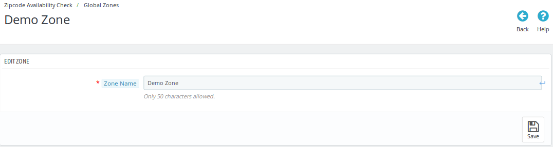
The image mentioned below will be displayed when the admin clicks on the ‘Edit‘ button.

Figure 7.2 – Product Availability Check by Zipcode – Edit Zone

Fields:

  • Zone Name: The Prestashop Postal Code Validator Addon offers the admin to define the zone names according to his/her understanding.

4.3.3. Delete Global Zone:

The admin can delete a particular Global Zone.

Following are the steps to Delete Zone –

  1. Hover on ‘Zipcode Availability Check ’ menu.
  2. Go to ‘Global Zones ’.
  3. Click on ‘Delete ’.
  4. Click on ‘OK ’.

Note: If Admin delete a zone then all the zip-codes in that zone will also be deleted.

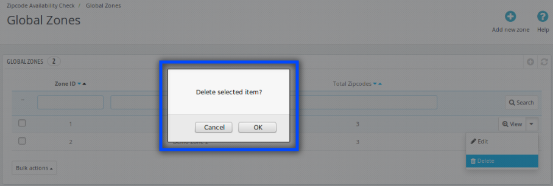
The image mentioned below will display when the admin clicks on the ‘Delete’ button.

Figure 8.1- Product Availability Check by Zipcode – Delete Zone

4.3.4. View Global Zone

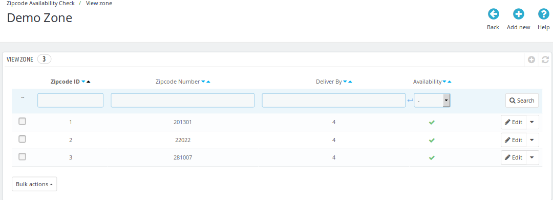
This field of Prestashop Product Availability module lets the the admin view a particular Zone by clicking on ‘View ’. Each zone contains a list of zip-codes with their number of days of delivery and availability status. The admin can perform the search, edit and delete operations in this list of the product availability check Prestashop module.

Following are the steps to View Zone –

  1. Hover on ‘Zipcode Availability Check’ menu.
  2. Go to ‘Global Zones’.
  3. Click on ‘View’.

Figure 9 – Product Availability Check by Zipcode – Delete Zone

4.3.4.1. Add new Zipcodes:

In this field of Prestashop Postal Code Validator Addon, the admin can add more zipcodes in a particular Zone by clicking on ‘Add new’ button to a particular zone.

Following are the steps to add new Zone –

  1. Hover on ‘Zipcode Availability Check’ menu.
  2. Go to ‘Global Zones’.
  3. Click on ‘View’ for a particular Zone.
  4. Click on ‘Add new’.

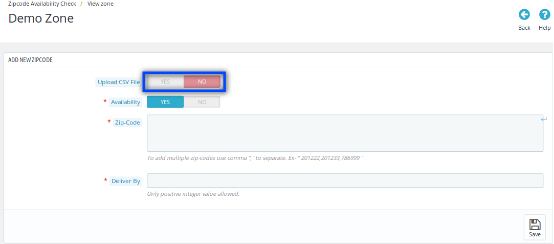
When ‘Upload CSV File’ option is Disabled:

Figure 10.1- Product Availability Check by Zipcode – Add new Zipcodes

Fields:

  • Availability: By default, this setting of the product availability check by zipcode Prestashop addon will be ON. When the admin disables this button, then the product will not be available at added zipcode location.
  • Zone Name: This Product Availability Check by Zipcode module lets the the admin define zone names according to his/her understanding.
  • NOTE: Zone names must be unique.
  • Zip-code: This is text-area Field. In this field of Prestashop Postal Code Validator plugin, the admin can enter multiple Zip-codes here by the comma (,) separated. Ex- 201301, 983923, 345453.
  • Deliver By: In this field of Prestashop product zipcode validator module, the admin can configure the number of days of the delivery.

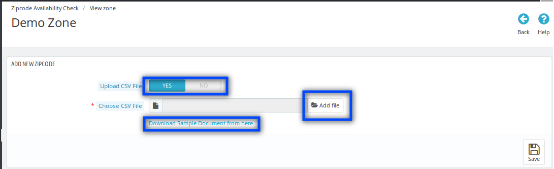
When Upload CSV File option is enabled:

Figure 10.2 – Product Availability Check by Zipcode – Add New Zone

Field:

  • Upload CSV File: By enabling this option of the Prestashop zipcode validator module, Choose CSV file Option with a link to download the sample ‘.csv ‘ file will be displayed.
  • Add File: In this field of Prestashop product zipcode validator module, the admin can choose the CSV file by clicking on Add file option.
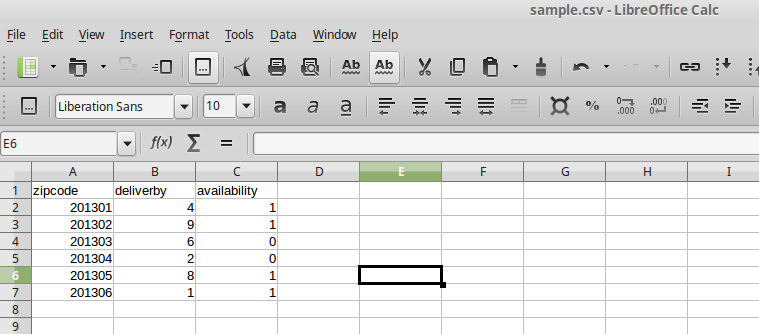
  • Download Sample Document from here: When the admin clicks on this link, this file will be downloaded.

Figure 11 – Product Availability Check by Zipcode – Download Sample (Add New Zone)

4.3.4.2. Edit Zip-codes:

This Prestashop Product Availability addon offers the admin to edit the particular zip code. This can be done just by clicking on ‘Edit’ option of that particular zip code. The image mentioned below will be displayed when the admin clicks on ‘Edit’ button of a particular zip-code from ‘View Global Zones’ page.

Figure 12- Product Availability Check by Zipcode – Edit Zipcodes

Field:

  • Availability: By default, this setting of the product availability check by zipcode Prestashop addon will be OFF. When the admin enables this toggle button, then the products added to the ‘Product Details Tab’ will be available at this location. But if the admin sets the option to NO, then the product mapped to that particular zip code will not be available.
  • Delivery By: In this field of product availability check Prestashop addon, the admin can edit the day of delivery to that particular zipcode just by entering any positive integer value.

4.3.4.3. Delete Zipcode

This Prestashop Availability check by zipcode allows the admin to delete a particular Zipcode.

Figure 13- Product Availability Check by Zipcode – Delete Button

The image mentioned below will be displayed when the admin clicks on the ‘Delete‘ button of the zipcode validator module.

Figure 13.2- Product Availability Check by Zipcode – Delete Zipcodes

4.4. Product-Zone Mapping:

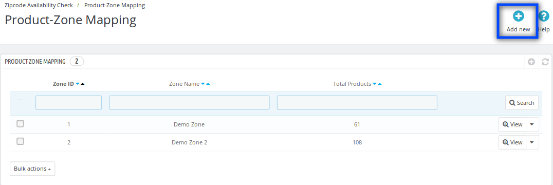
This tab of Prestashop Product Availability Check by Zipcode module contains the list of the zones which are mapped with some products. The admin can search, view, delete and can map (add) new Products with Zones.

The admin can view the products which are mapped to a particular zone by clicking on ‘View‘ button of the Prestashop Availability check by zipcode module.

Figure 14- Product Availability Check by Zipcode – Product Zone Mapping

4.4.1 Add new Product-Zone Mapping

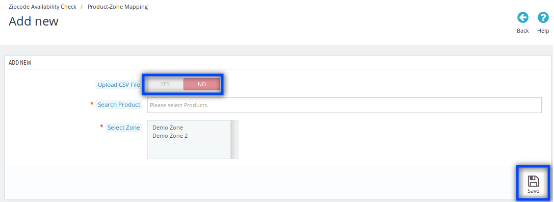
When the admin clicks on ‘Add New’ button of the ‘Product-Zone Mapping Tab‘ then the image mentioned below will be displayed.

When ‘Upload CSV File’ option is disabled:

Figure 15.1- Product Availability Check by Zipcode – Add New Product Zone Mapping

Fields:

  • Upload CSV File: In this field of Prestashop zipcode addon, the admin can upload a CSV file to add the large number of Zip-codes.
  • Search Product: In this field of Prestashop Zip code addon, the admin can select and enter any searched product/multiple products.
  • Select Zone: This is a multiple-select drop-down. In this field of zipcode validator module, the admin can select zones from this drop-down.


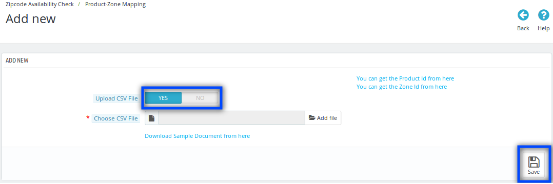
When Upload CSV File option is enabled

Figure 15.2- Product Availability Check by Zipcode – Add New Product Zone Mapping

Fields:

  • Upload CSV File: By enabling this field of the Prestashop Postal Code Validator Module, Choose CSV File option will be displayed with a link to Download Sample Document from here.
  • Choose File: In this field of product availability check by zipcode Prestashop addon, the admin can choose a file by clicking on Add File option.
  • Download CSV file format from here: In this field of Prestashop Product Availability addon, when the admin clicks on this link, file inside the image mentioned below will be downloaded.

Figure 16- Product Availability Check by Zipcode – Document Sample (Add New Product-Zone Mapping)

  • You can get the Product ID from here: In this field of Prestashop Zipcode plugin, when the admin clicks on this link the admin will be redirected to Products Listing Page of the admin panel.
  • You can get the Zone ID from here: After clicking on this link of the Prestashop zipcode addon, the admin will be redirected to Global Zones Page of the admin panel.

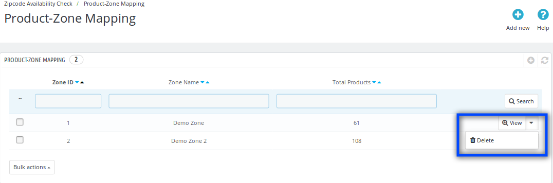
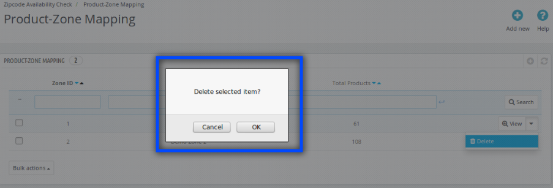
4.4.2 Delete Product-Zone Mapping

This field of zipcode validator module allows the admin to delete zone which is mapped with the products.

Figure 17.1- Product Availability Check by Zipcode – Delete Button

Following are the steps to Delete Zipcode-

  1. Hover on ‘Zipcode Availability Check’ menu.
  2. Go to ‘Product-Zone Mapping’.
  3. Click on ‘Delete’.
  4. Click on ‘OK’.

The image mentioned below will be displayed when the admin clicks on the ‘Delete’ button.

Figure 17.2- Product Availability Check by Zipcode – Delete Product-Zone Mapping

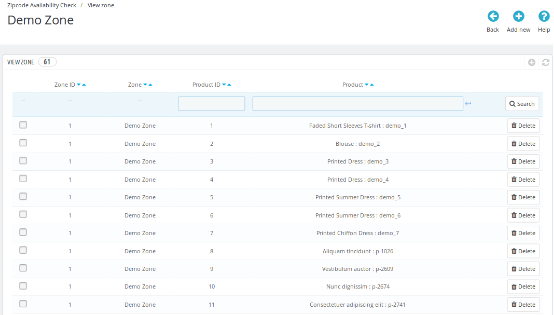
4.4.3 View Product-Zone Mapping

When the admin clicks on the View Button of the Prestashop Availability check by zipcode plugin, then the list of products mapped with that selected zone will be displayed. The admin can search and delete any product.

Figure 18- Product Availability Check by Zipcode – View Product-Zone Mapping

4.4.3.1. Delete Product

The admin can delete a particular product which is mapped to a zone.

Following are the steps to Delete Zipcode –

  1. Hover on ‘Zipcode Availability Check’ menu.
  2. Go to ‘Product-Zone Mapping’.
  3. Click on ‘View’ for a particular zone.
  4. Click on ‘Delete’ for a particular product.
  5. Click on ‘OK’.

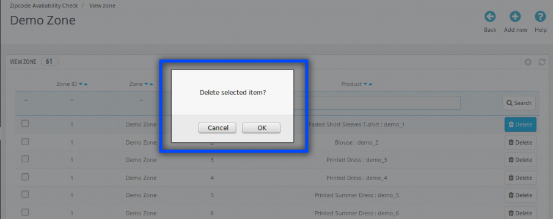
The image mentioned below will be displayed when the admin clicks on the ‘Delete‘ button.

Figure 19- Product Availability Check by Zipcode – Delete Product

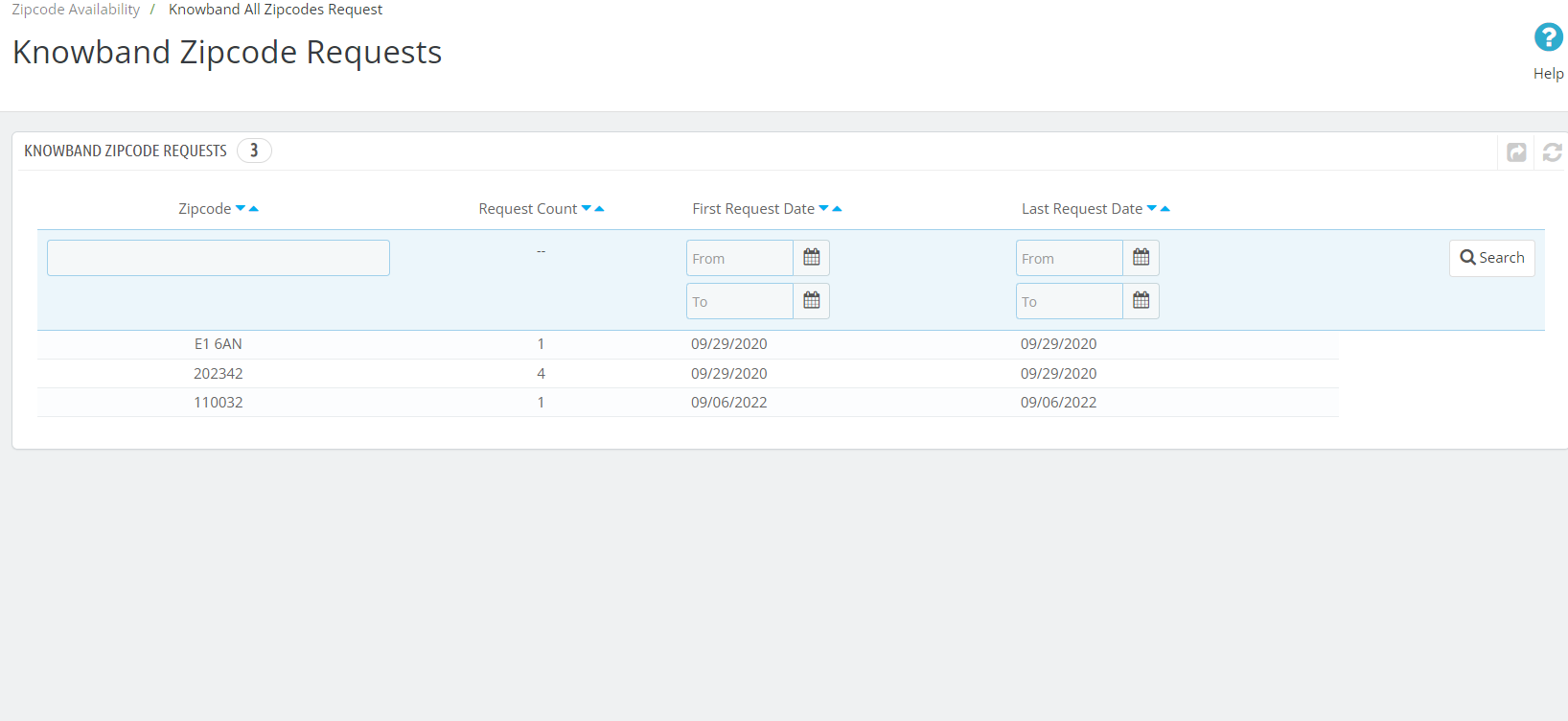
4.5. Knowband All Zipcode Request:

Using this option the Admin can see the product availability requested under the specific Zipcode area.

5.0 Front End Interfaces:

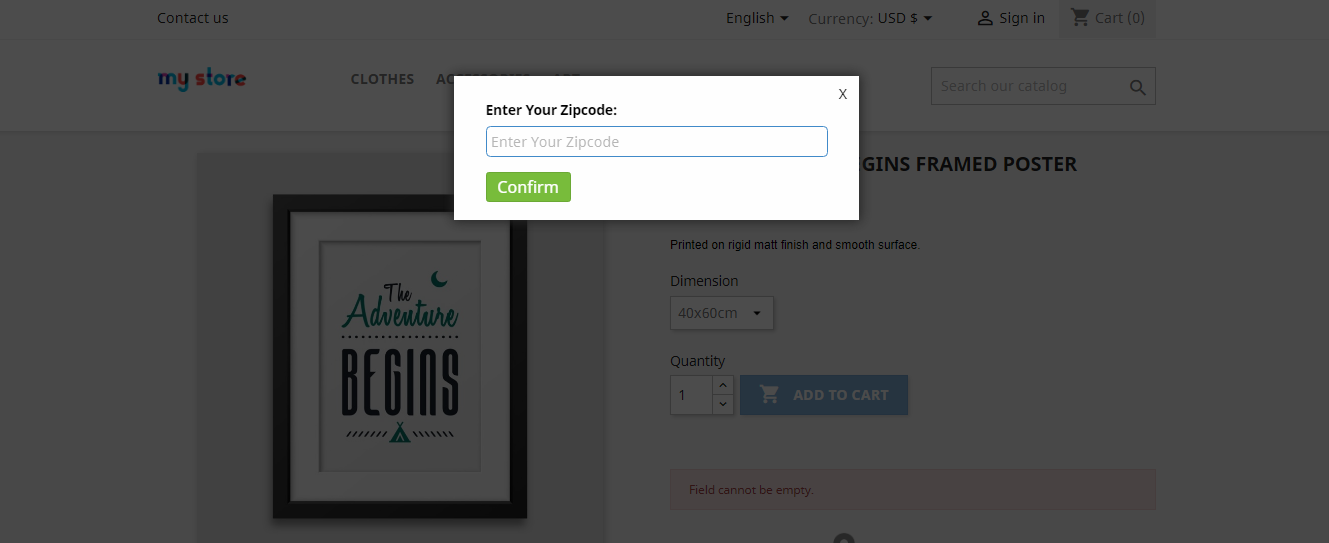
If the Prestashop zipcode validator module is enabled, then the customer can check the availability of a product in a particular location by entering the Zip-code of the region. The customer will see a popup on the screen when he/she visits the website as displayed in the picture below:

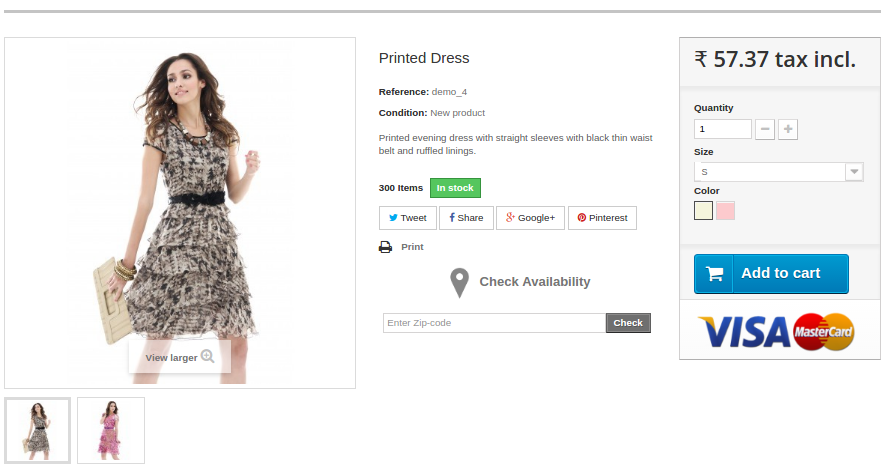
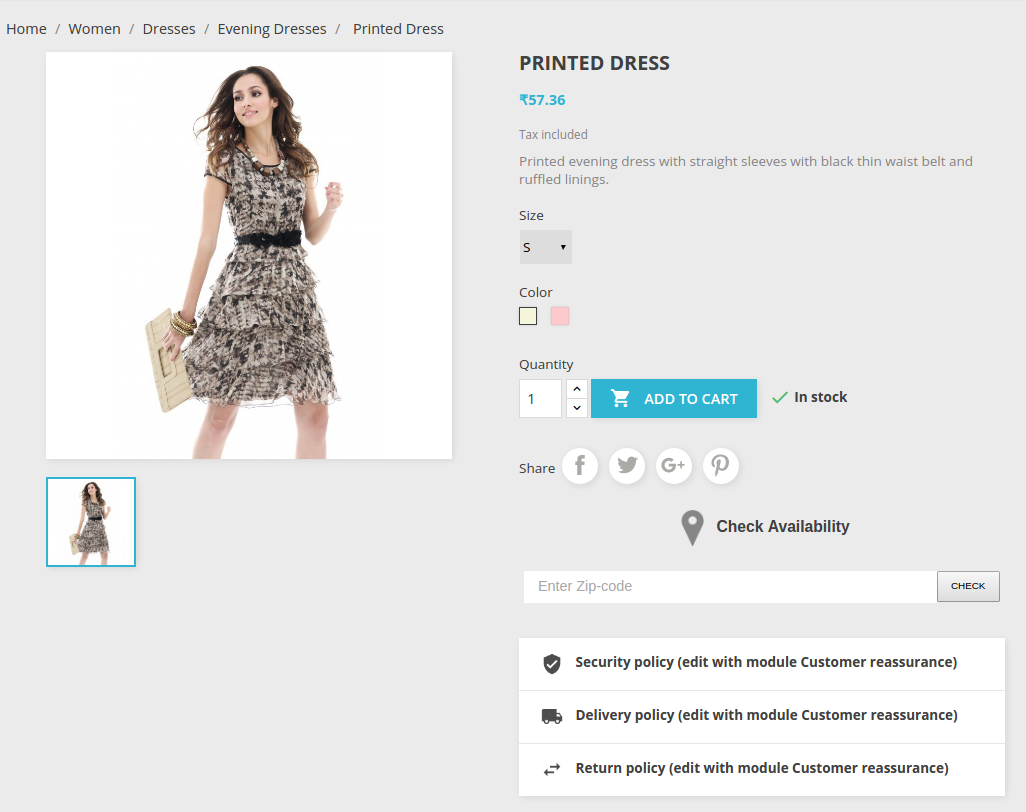
On the frontend, the image mentioned below will be displayed.

Figure 19.1- Product Availability Check by Zipcode – Product Page(Version 1.6.x.x)

Figure 19.2- Product Availability Check by Zipcode – Product Page(Version 1.7.x.x)

5.1 On Success:

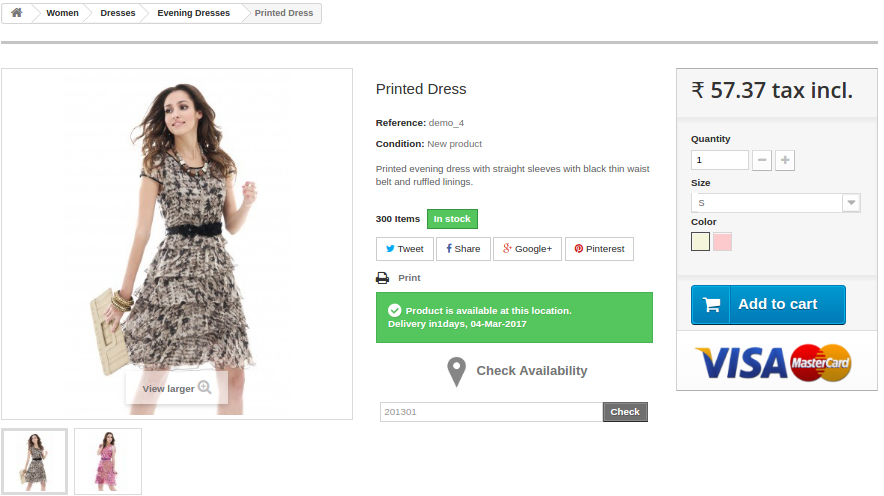
If the product is available then the image mentioned below will be displayed.

Figure 20.1- Product Availability Check by Zipcode – Success Product Page(Version 1.6.x.x)

Figure 20.2- Product Availability Check by Zipcode – Success Product Page(Version 1.7.x.x)

5.2 On Failure:

If the product is not available then the image mentioned below will be displayed.

Figure 21.1- Product Availability Check by Zipcode – Failure Product Page(Version 1.6.x.x)

Figure 21.2- Product Availability Check by Zipcode – Failure Product Page(Version 1.7.x.x)

5.3 Invalid Value:

If the customer enters some invalid Zip-code values, then the image mentioned below will be displayed.

Figure 22.1- Product Availability Check by Zipcode – Invalid value Product Page(Version 1.6.x.x)

Figure 22.2- Product Availability Check by Zipcode – Invalid Value Product Page(Version 1.7.x.x)

Find more details about this Prestashop Zipcode Validator Module below:

Prestashop Product Zipcode Validator Module Link: https://www.knowband.com/product-availability-check-by-zipcode

Prestashop Product Postal Code Validator Module Admin Demo: https://ps.knowband.com/demo4/16/admin1/index.php?controller=AdminLogin&token=ffa17b0c72ff8c0ab7cf3e344c5ae4fc&redirect=AdminModules&demo_lang=en

Prestashop Zipcode Addon Front Demo: https://ps.knowband.com/demo4/16/en

Prestashop Product Availability Check by Zipcode Addon Store Link: https://addons.prestashop.com/en/international-localization/26566-knowband-product-availability-check-by-zip-code.html

Watch how this Prestashop Product Availability addon works below:

Also, explore more Prestashop addons for your Prestashop website.

For additional guidance, please refer to the tutorial video available below, which provides a step-by-step walkthrough of this module.

For additional guidance, please refer to the tutorial video available below, which provides a step-by-step walkthrough of this module.