The enforcement date of the GDPR is approaching. Yet, most of the businesses are still struggling to make their online store GDPR compliance. In order to make it easier for the Prestashop store owners to meet the GDPR requirements, Knowband has developed the Prestashop GDPR Addon – Rights of the Individual. As per the suggestions of our valuable customers and by referring the discussions on the various forums, we have added some additional features to the Prestashop GDPR Addon. We will release the new version of the Prestashop GDPR Module on May 23, 2018. In order to give a glimpse of the new features to our valuable customers, we are sharing the details and interface design here.
New features of Prestashop GDPR Module
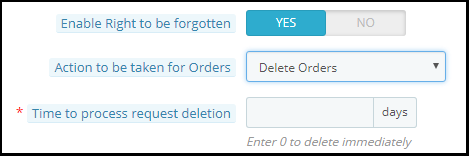
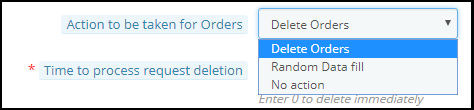
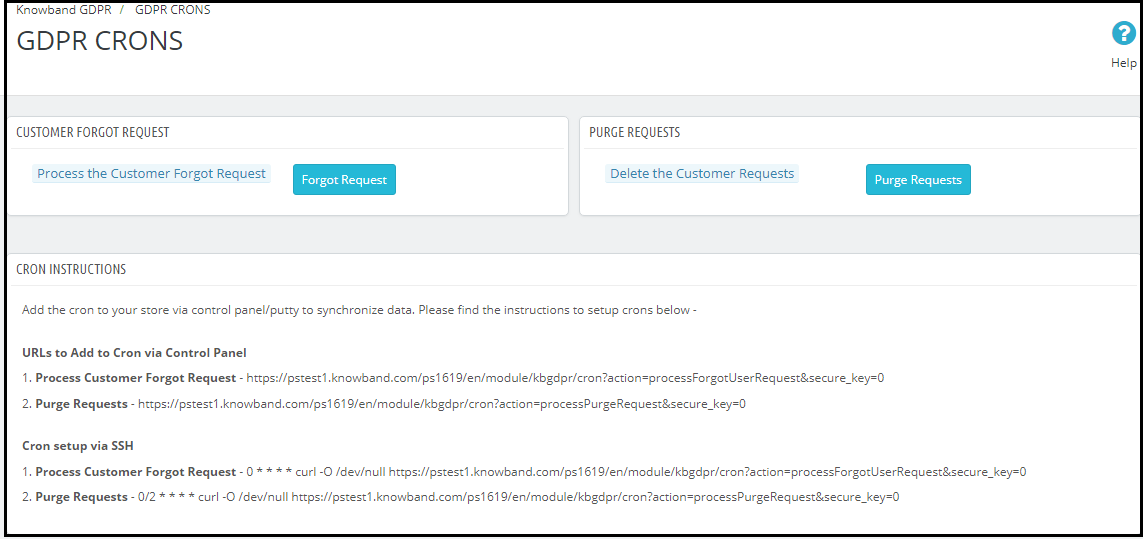
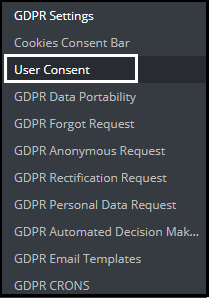
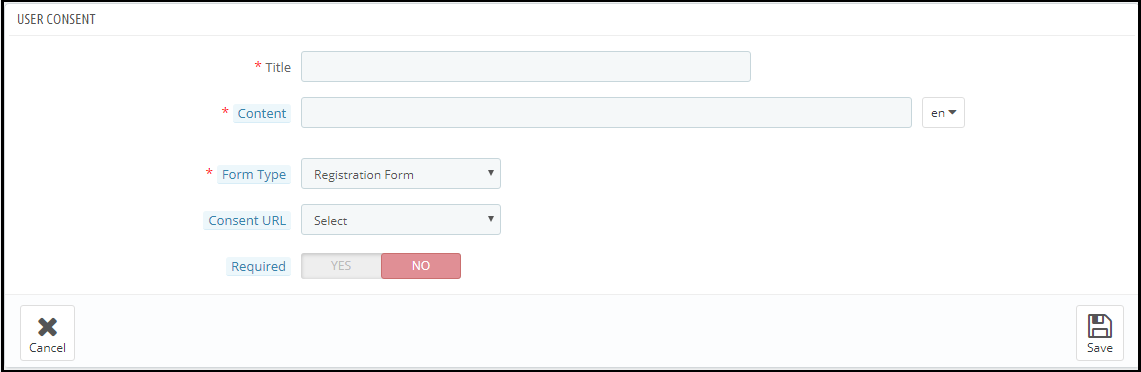
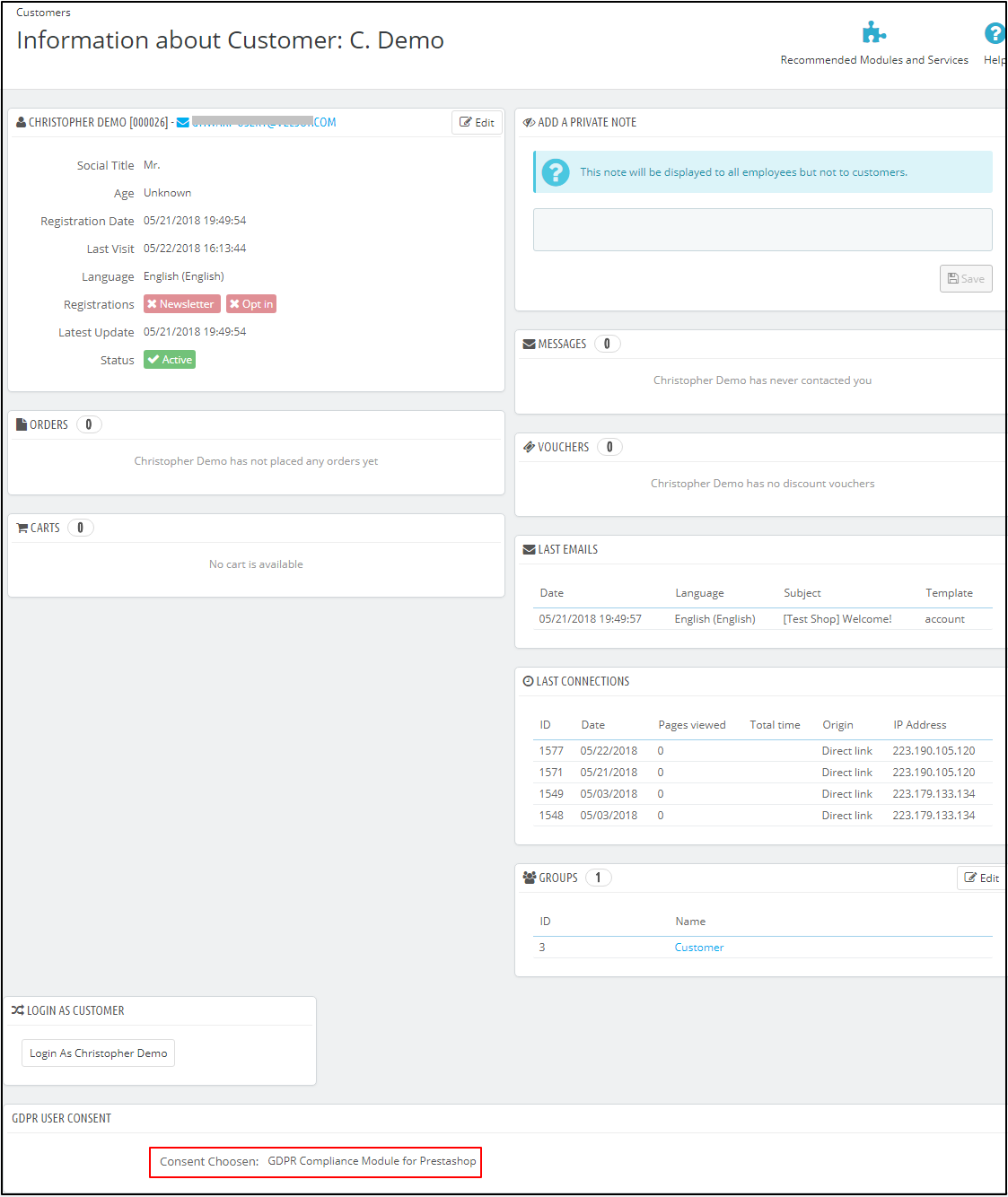
The purpose of these features is to provide additional control to the Prestashop store admin to comply with the GDPR directives. Please find the details of the new features below:Right to be forgottenAdmin has the advanced options to process the data deletion request.Now, admin can select the options like Delete Order, Random data fill or No Action.Delete Order: If the Delete Order option is selected then on requesting for the Data Deletion the order details will be deleted.Random Fill: If the Random Data Fill option is selected then on requesting for the Data Deletion the personal details of the customer will be anonymized. It will help the store admin to keep the statistics of the order and product sale.No action: If the No action option is selected then on requesting for the Data deletion previous order details will remain untouched.Time to process request deletion: Admin can select the option to delete the customer data immediately or after some days. If the admin would like to delete the customer data after some days then admin need to specify the number of days. (Make sure to delete the customer data within 30 days of the request)Deletion of the customer data from Back-office: In order to handle the data deletion requests which have been received through other sources like email, the Prestashop GDPR module provides an interface to the admin to delete the customer data. Follow the steps listed below to complete the data deletion action:
Go to the GDPR Forgot Request Tab
Click on the Delete Customer’s Data option as highlighted in the screenshot
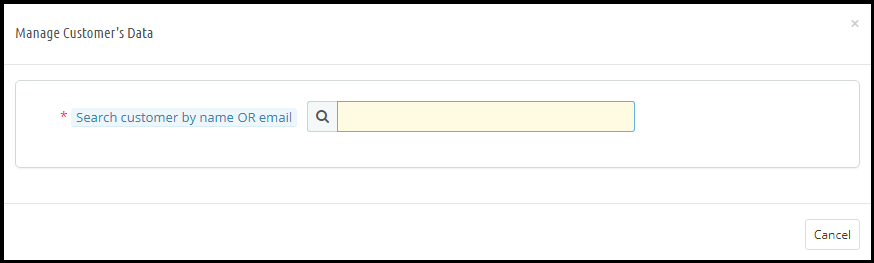
On clicking the Delete Customer’s Data a new tab will open. Please refer to the attached screenshot.
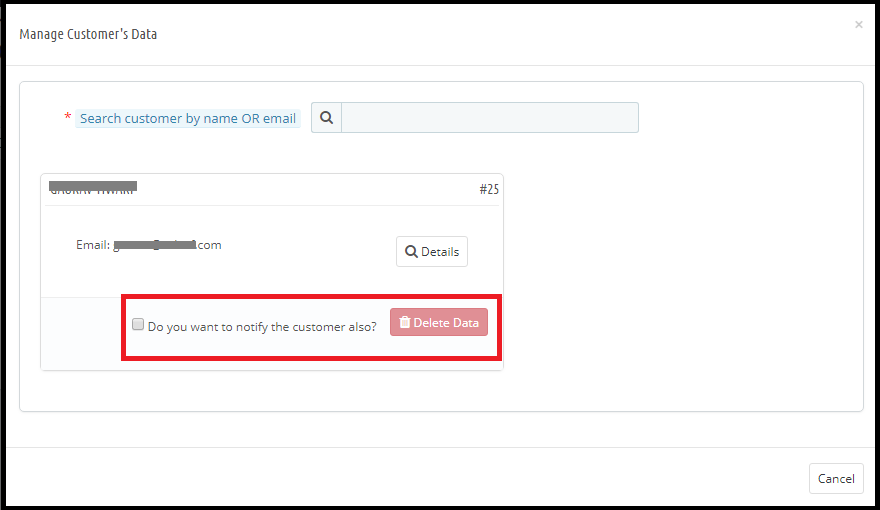
Admin needs to enter the customer name or the email id to find the customer details. The details will appear like.
From here, admin can check the customer details and also select the option to delete the customer data. Admin can also notify the customer regarding the data deletion through email.Note: As of now, the Prestashop GDPR Compliance Module by Knowband does not keep the record of the data deletion requests processed from the back-office.Purge request day: This option allows the store admin to define the data retention period for the GDPR requests. As per the number of days defined by the admin GDPR request log will get deleted automatically (cron setup for the data deletion).Cron setup: To enable the option to delete the customer data after a specified day and the purge request day, the admin has the options to set up the cron.User Consent: The user consent option allows the store admin to display the checkboxes on the Signup and Contact form.Please refer to the attached screenshot:Title: This is for the internal use. The title of the consent box will appear in the back-office details.Content: The text entered here will be displayed to the user at the front-end.Form Type: Admin can select the Registration Form or the Contact form to display the additional information.Consent URL: Admin can add the link to the Privacy Page or Terms and Conditions page.Required: Admin has the choice to make the field a mandatory filed.After enabling the checkboxes on the registration form the store admin can record the customer permission. To check the customer permission customer need to go to the Customers section. Here at the bottom of the page Under the GDPR Consent – the permission of the customer will be listed. Please refer to the attached screenshot (as per the title entered by the store admin the user consent will be recorded)Tips for updating the Module URL:In order to generate the SEO friendly URL for any third party module page. Please follow the below steps:
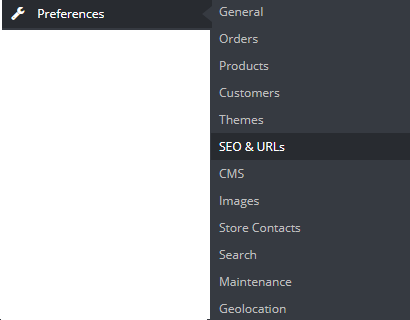
Navigate to the Preferences >> SEO & URLs
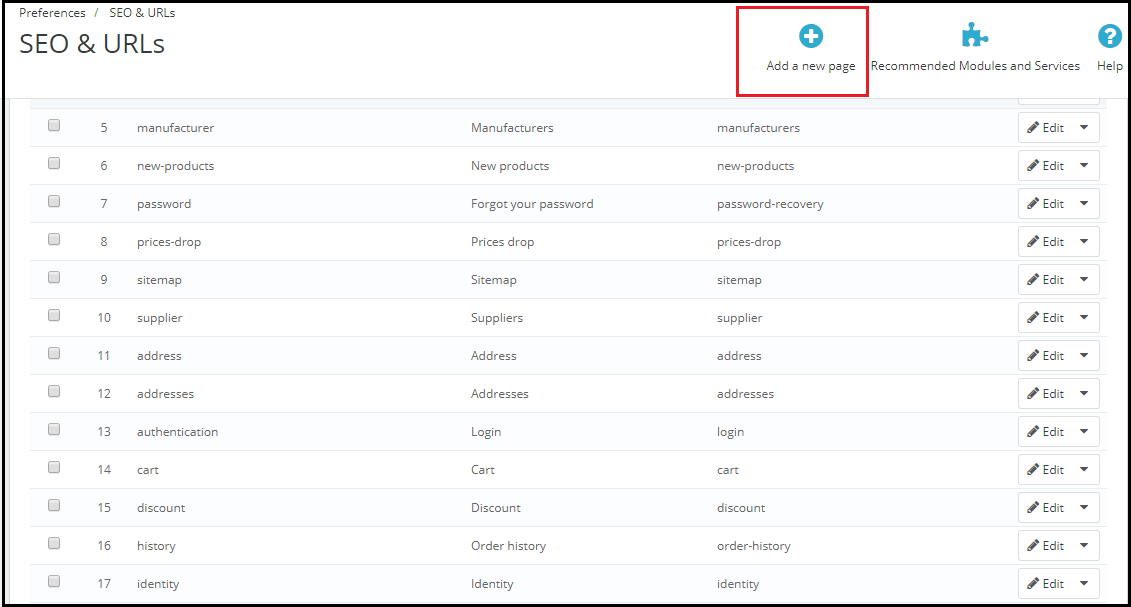
Click on the Add New Page.
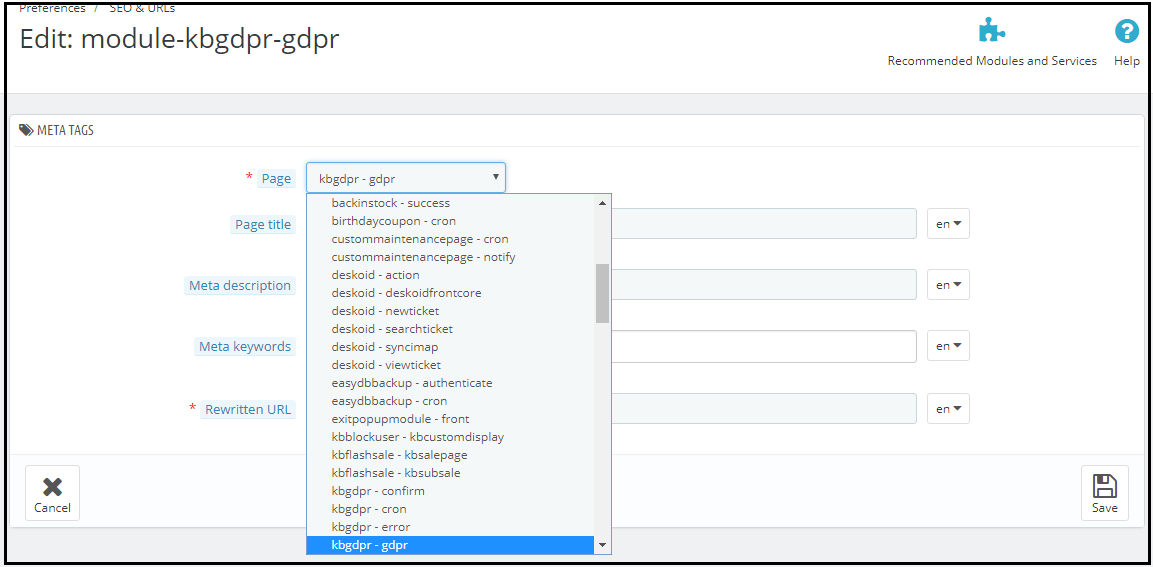
Select the “Modules Page” from the Drop-down (in case of Knowband GDPR Module select the kbgdpr – gdpr)
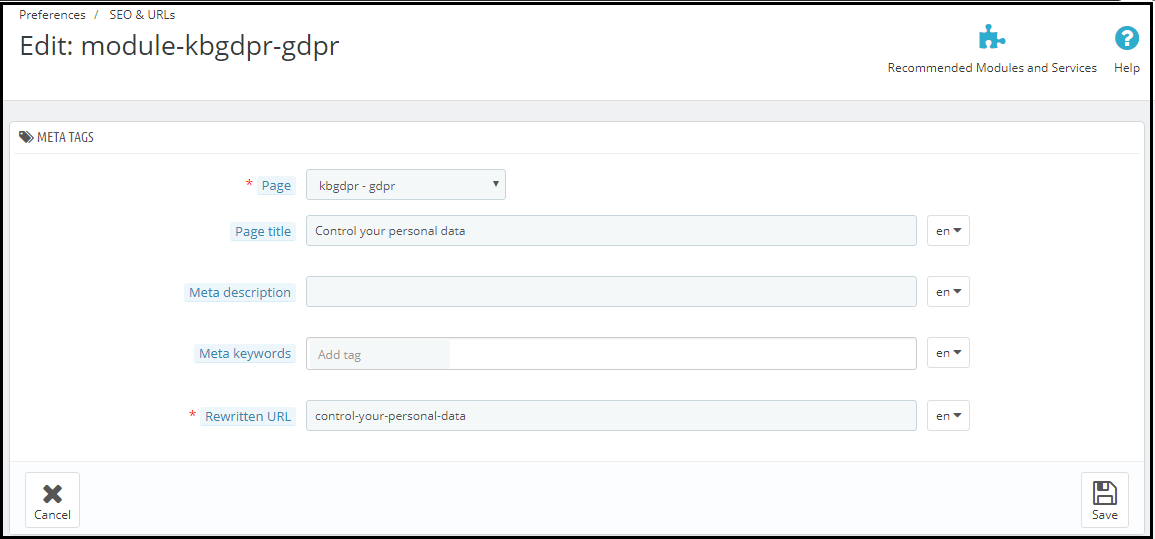
Now enter all the required details and save the changes.
5) Here is your updated URL of the page.5 must have Prestashop Extensions to increase the Average Order Value.
Making a sense of urgency by displaying the count-down time to avail the offer is one of the popular trick used by the online businesses. This encourages the customer to place their orders to get the advantage of the offer. The flash sale timer addon is the best way to achieve the same. By using this module admin can display the countdown timer on the selected product or category. Click here to get this addon.
As per the business requirement sometimes COD option is required on the website. To achieve this goal the store admin can use the Cash on Delivery Addon with Fee. By using this addon store admin can offer COD payment option to the customer and add a minimal fee for the service. Click here to get this addon.
Admin can offer the free products over a fixed order value. Offering freebie helps to encourage the customer to shop more and increase the cart total. Gift the product addon helps the store admin to set a minimum cart value over which the customer will be able to select the free gift. Click here to get this addon.
Cross-selling and Upselling are the important factors to increase the averageorder value. By showing the similar products at a higher price or related products you can encourage the customer to buy more. The automatic related products addon allows the store admin to display the related products based on the multiple criteria like manufacturer, color etc. Click here to get this addon.
The Free shipping option puts a psychological effect in the customer’s mind. eCommerce store can offer the free shipping over a fixed cart value. In order to get the free shipping customer will buy more products and it will help you to increase the revenue. Click here to get this addon.
The General Data Protection Regulation (GDPR) is a replacement for the European Union Data Protection Directive which will be enforced on May 25, 2018. The new directives have been passed, as per the new technologies and business advances; a new approach to protection of the personal data has been introduced.
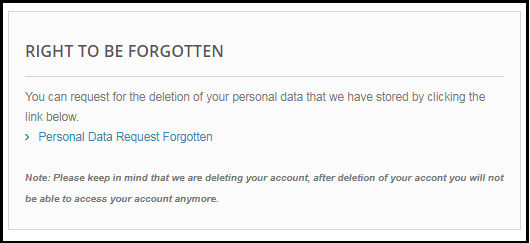
GDPR provides more control to the customers to control their personal data. Customers have the right to request for the deletion of the data. It is mandatory for the store admin to honor the customer request within 30 days. The Prestashop GDPR addon – Data deletion and data anonymization allows the store admin to provide an interface to the customer so that they can request for the deletion of the data under the GDPR directives.
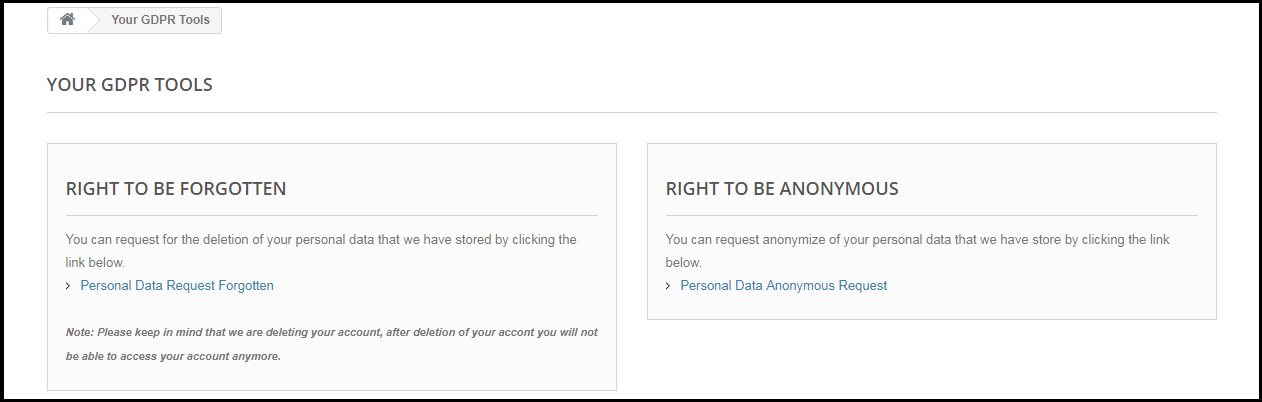
The customer-end interface of the Prestashop GDPR Module –
As per the requirement, the admin has the choice to enable/disable any of these rights.
Installation of Prestashop GDPR Module
After placing your order for the Prestashop GDPR module you can download the zip file of the module. This zip file contains:
1) GDPR.zip (source code of the module)
2) User Manual
In order to install the extension in your Prestashop store follow the below-mentioned steps:
1) Unzip the gdpr.zip file.
2) Copy the entire content, that is, the files and folders of the unzipped folder. Paste the same into the “Modules” folder of your store’s directory. Follow the below-mentioned address path – Root Directory/modules/.
3) The Prestashop GDPR plugin is all set to be installed in the store. Go to the Store Admin and then to ‘Modules and Services’.
4) Click on the “Install” button just next to your module. It would show a pop-up for your confirmation. Click on “Proceed with the installation” option. This step will install the module and show notification – “Module(s) installed successfully”.
5) Once the installation is complete, you will get the access to the admin interface of the module by clicking on the “Configure” button.
Admin Interface of Prestashop GDPR Addon
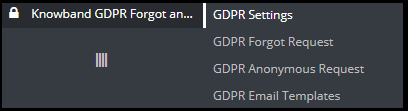
In the admin section of the Prestashop GDPR Customer rights module following options are available:
1) GDPR Settings
2) GDPR Forgot Request
3) GDPR Anonymous Request
4) GDPR Email Templates
GDPR Settings
The GDPR Settings tab of the Prestashop GDPR Addon allows the store admin to enable the rights of the customer. The Settings tab of the Prestashop GDPR module has the following options:
1) Enable the Plugin:
As per the requirement, admin can Enable/Disable the data deletion and data anonymization option for the customer.
2) Maximum request per day:
The customer can request for the deletion of the data, the admin can set the limit for the requests by each user on daily basis. It will be recommended to set the maximum requests per day to a minimum number to avoid the spam requests.
3) Data anonymization request:
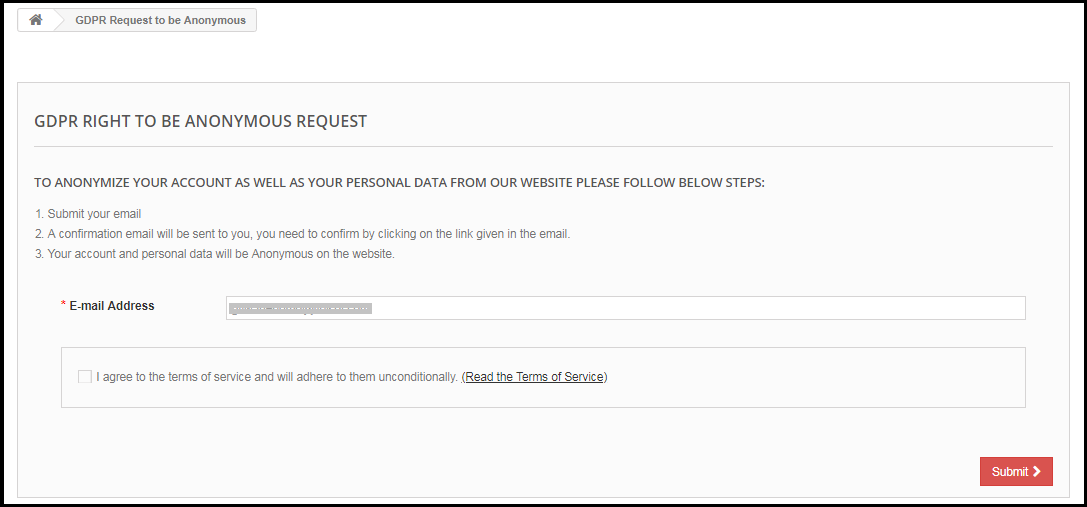
If the setting for the Right to be Anonymous is enabled from the admin panel of the Prestashop GDPR addon – data deletion and data anonymization, then the customer will be able to make a request for data anonymization. As soon as the customer will request for the data anonymization a confirmation email will be sent to the customer. As per the customer’s confirmation, customer details will be anonymized. Admin has the choice to anonymize the personal details of the customer like Name and email-id. The admin has the option to override the changes to the previous orders.
Enable the Data anonymization settings:
If the data anonymization settings are enabled from the admin interface of the Prestashop GDPR module then the customer will be able to request for the data anonymization and in this case, only customer name will be replaced by the random name.
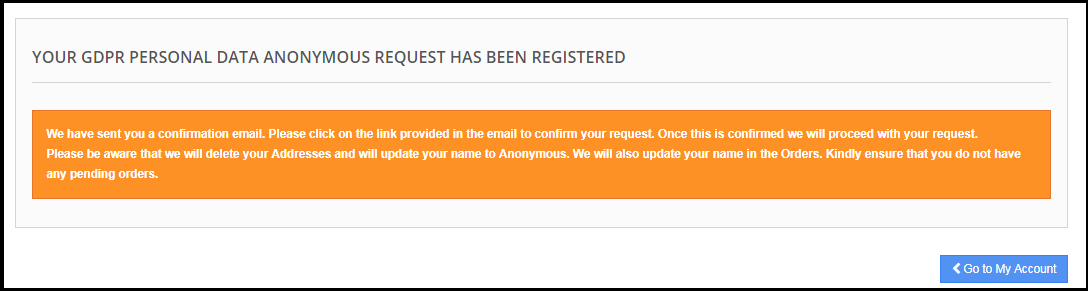
If a customer request for the Data anonymization, then a confirmation email will be sent to the registered email address and the customer will be requested to confirm the request.
Email confirmation:
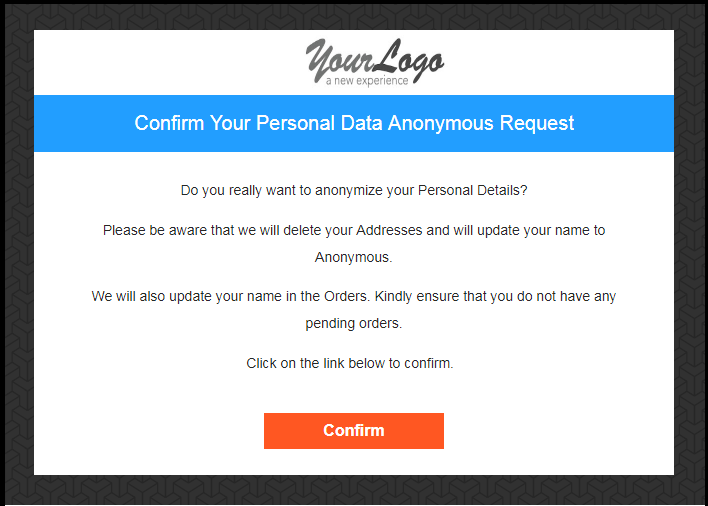
After requesting for the data anonymization customer will receive an email with a request to confirm the data anonymization request.
Note:
In case you are using the third-party services and sharing the customer data with third-party, then you need to make the required changes as per the procedure followed by the service provider. This GDPR module will anonymize the data which you have stored in your database only. The data anonymization process is just like the data deletion request.
4) Enable to update information in Order:
If a customer requests to make his/her information anonymous then admin can select the option to enable/disable the changes to the previous orders. If this setting is enabled from the admin interface of the Prestashop GDPR addon then the previous order details will be overridden.
5) Enable to generate Fake Email ID:
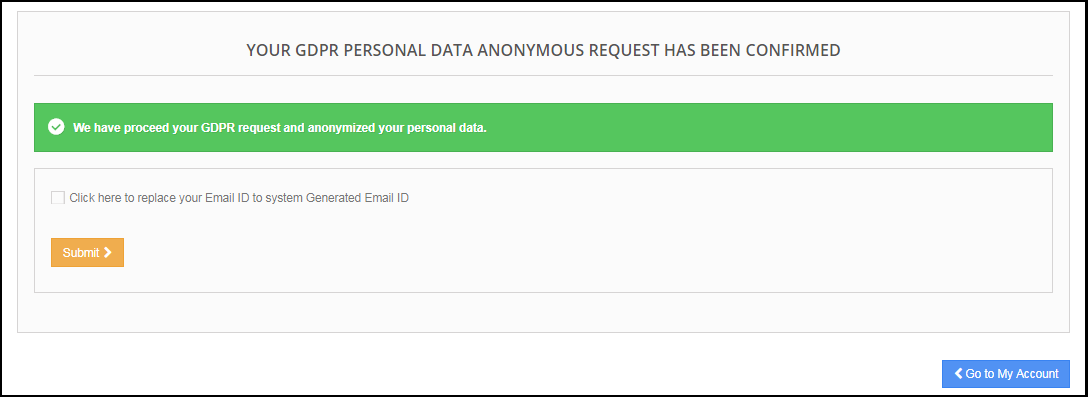
Admin has the choice to enable the settings to replace the customer’s email id by the system generated email-id. If the customer would like to anonymize his/her email id then they can submit the request for email id anonymization.
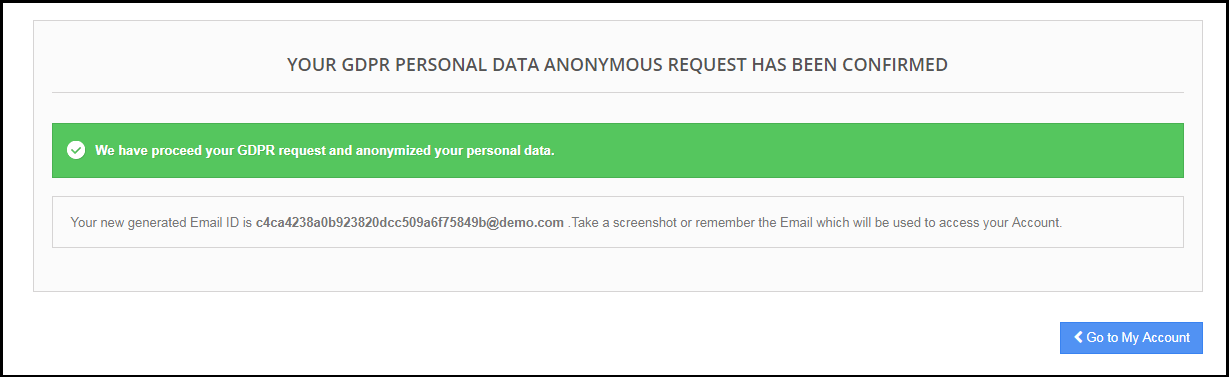
If the customer submits the request to anonymize the email id also. Then the customer email id will be replaced by a system generated an email.
The customer can save the system generated email id to access his/her account.
6) Enable right to be Forgotten:
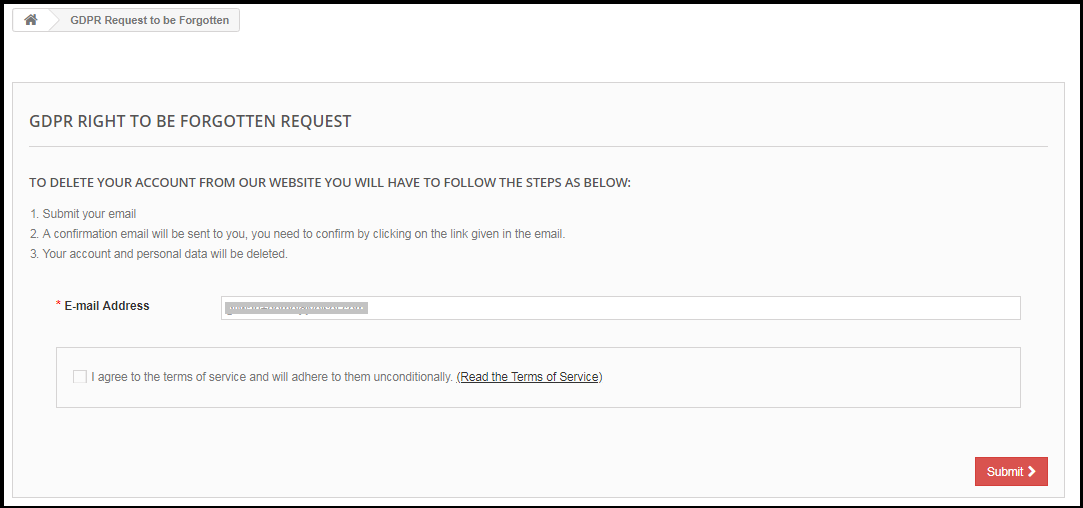
The new GDPR Directives allow the customer to erase their personal data. By using the Prestashop GDPR Addon module by Knowband, the admin can provide an interface to the customers to raise requests for the data deletion.
The data deletion report request interface for the customer will be as below:
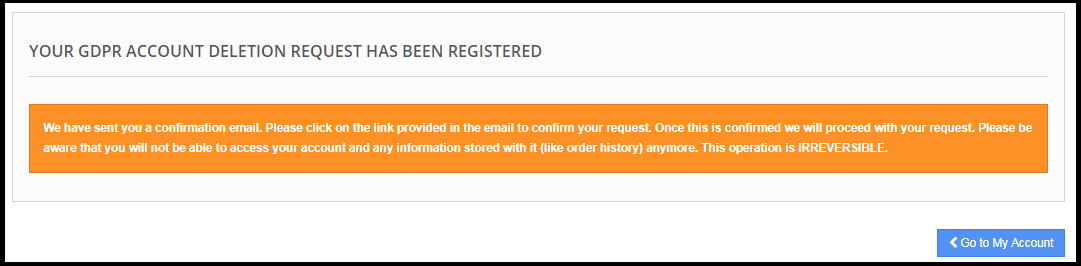
After requesting for the Account deletion the customer will be notified that an email with the confirmation request has been sent to the registered email id.
Note:
1) It is recommended to consult with your legal team before enabling this setting. After deleting the customer’s personal data it cannot be retrieved. Admin has the option to enable the delete order setting which has been explained in the next topic.
2) In case you are sharing the customer data with third-party service providers then you need to delete the customer data manually. As of now, this module does not support the feature to delete the data shared with the third-party service providers.
Example: If you are using MailChimp for sending promotional emails then you have to delete the customer details from MailChimp list manually.
9) Enable to Delete Orders:
If a customer has requested for the data deletion request under the GDPR, then the admin has the choice to delete the personal data of the customer along with the previous order details. If this setting is not enabled from the admin interface of the GDPR module then only personal data will be deleted and order information will remain as it is.
Note:
It is recommended to consult with your legal team before enabling the order deletion settings. The order details deleted from the system cannot be retrieved.
8) Enable Store Policy Acceptance:
If a customer would like to raise a request under GDPR rights then admin can add the condition to accept the Privacy Policy link before requesting for the Account Deletion or Data Anonymization. The admin interface of the Prestashop General data Protection Regulation addon allows the store admin to enable the setting so that for each request customer need to accept the terms and policy.
9) Store Policy Page:
Admin can add the URL of the page on which all the Terms and Conditions are listed. The customer can check the Terms and Conditions by clicking the link available with the message at the time of raising the request.
10) Display Header Menu
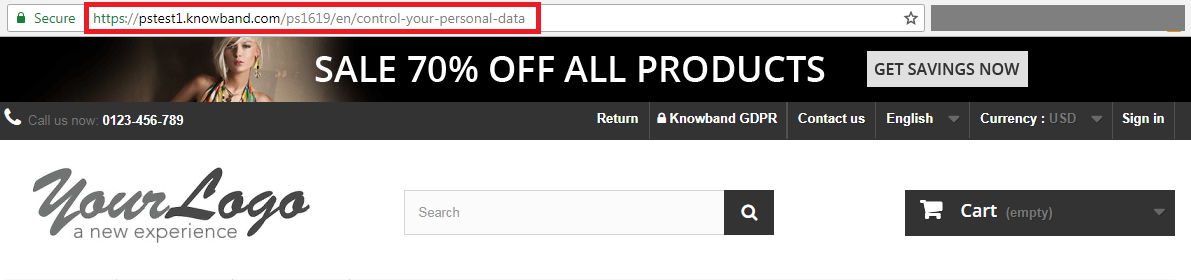
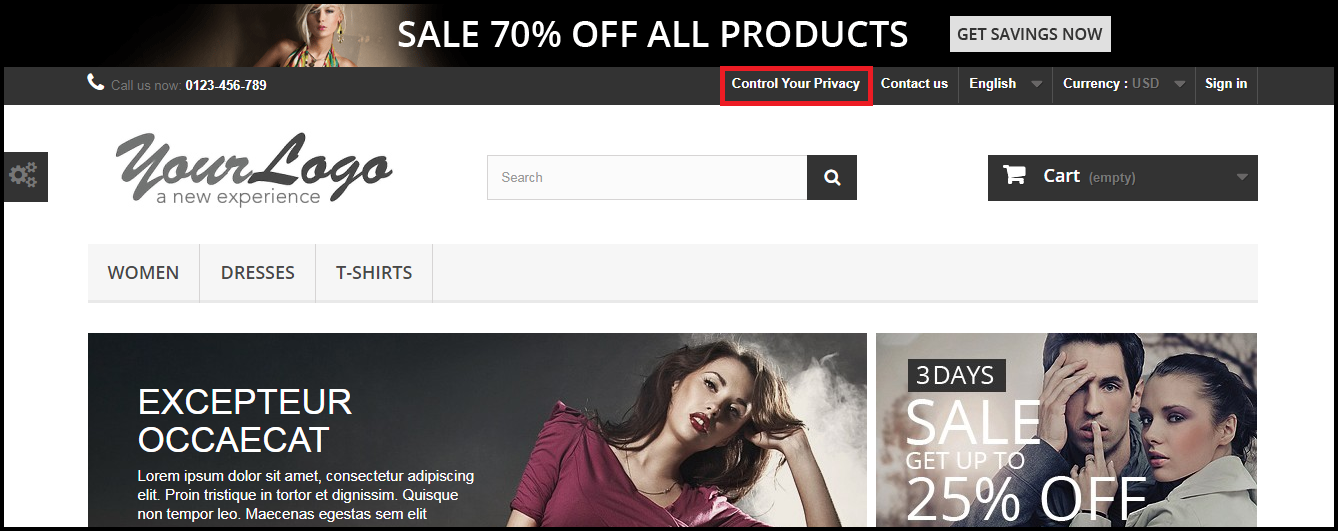
Display Header Menu option of the Prestashop GDPR compliance addon allows the store admin to display the GDPR option in the header section of the website. By enabling “Display Header Menu” setting of the Prestashop GDPR addon, store admin can allow the guest users to access the GDPR rights.
11) Header Menu Text
Admin can define the text for the Header Menu.
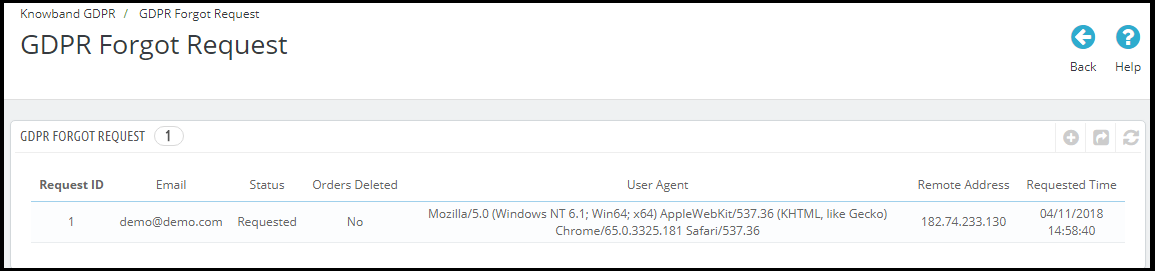
GDPR Forgot Request
The Prestashop GDPR Addon keeps the log of all the data deletion requests. This log is helpful for the admin to verify that the customer details have been deleted or not. Admin can also use this log to remove the customer data from the third-party service providers.
Note:
As soon as a customer request for the deletion of his/her details a confirmation email will be sent to the customer. As per the customer’s confirmation, the details of the customer will be deleted from the system.
The Prestashop GDPR Module allows the admin to exclude the previous orders so that only the personal details of the customer will be deleted but order details will be saved for the future reference. Please use this setting carefully because the data deleted once cannot be retrieved. It is strongly recommended to consult with your legal team to make sure how to use this setting.
The Prestashop GDPR Module only deletes the customer data from the store database. If you share the customer data with the third-party service providers (eg. MailChimp) or store it on the third-party platform (eg. Google Drive) then you need to delete the customer data from these platforms manually.
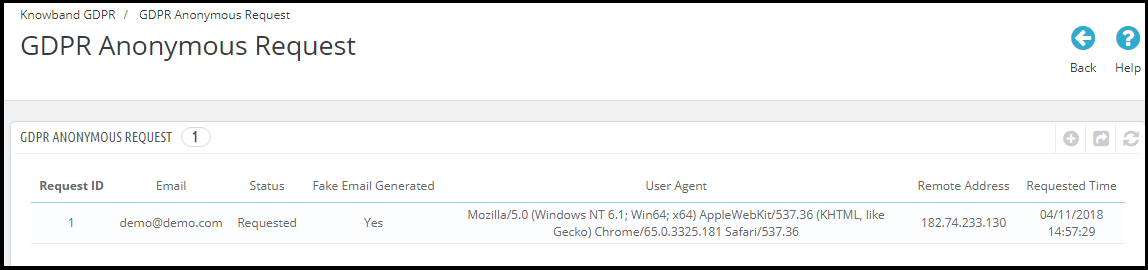
GDPR Anonymous Request
The Prestashop GDPR Addon keeps the log of the Data Anonymization requests. Admin can use this log to verify the status of the data anonymization requests.
GDPR Email Templates
The Prestashop GDPR Addon by Knowband allows the admin to send following emails to the customer on raising a request under the GDPR.
Confirm Your GDPR Account Deletion Request
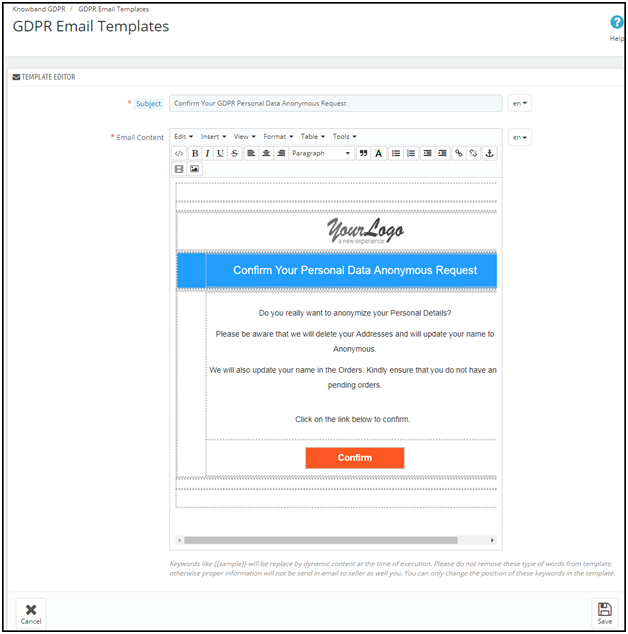
Confirm Your GDPR Personal Data Anonymous Request
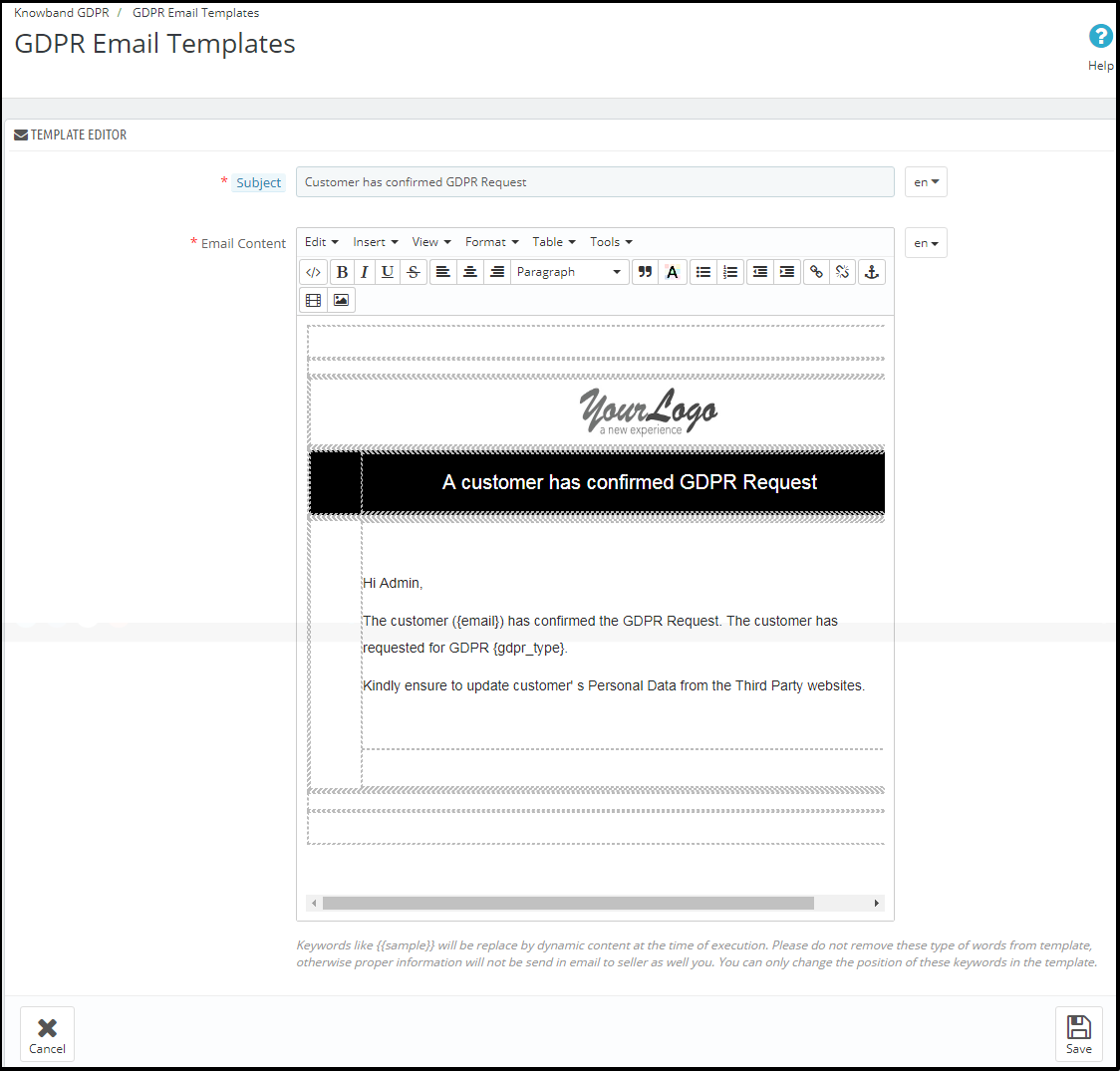
Customer has confirmed GDPR Request
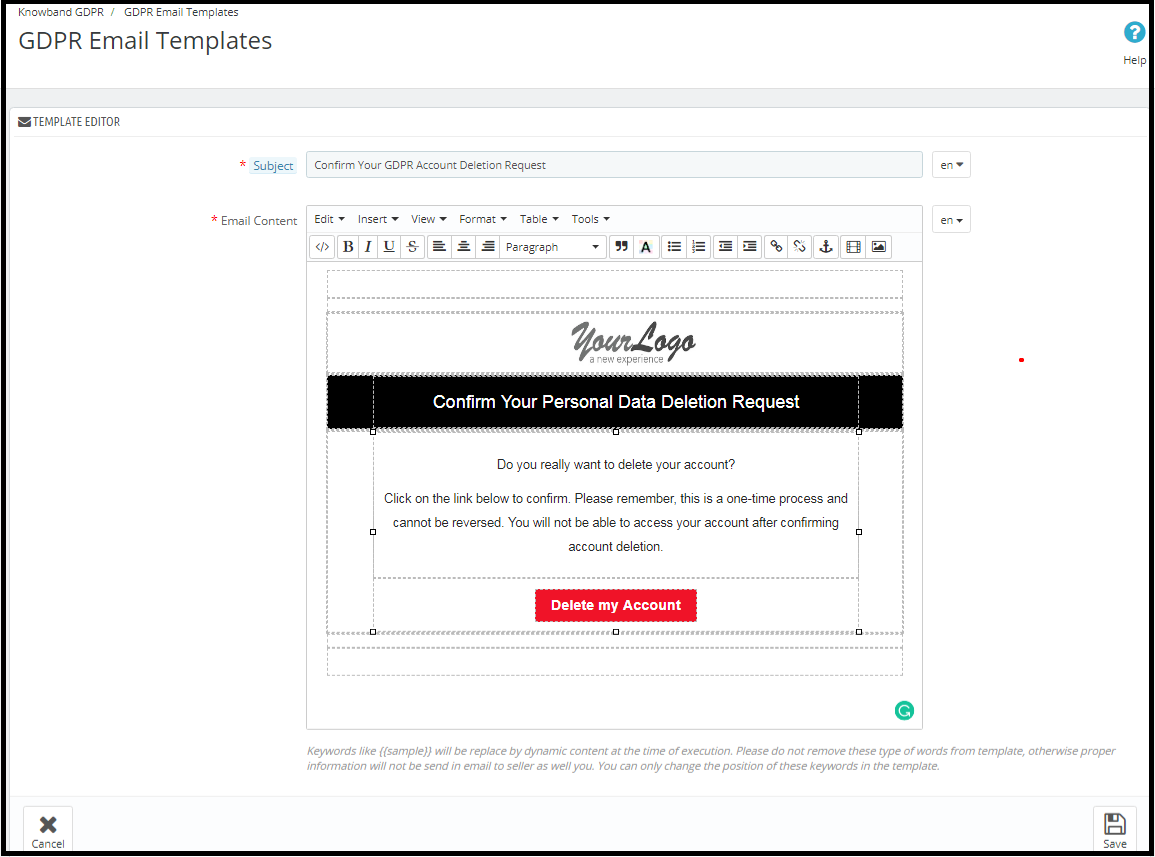
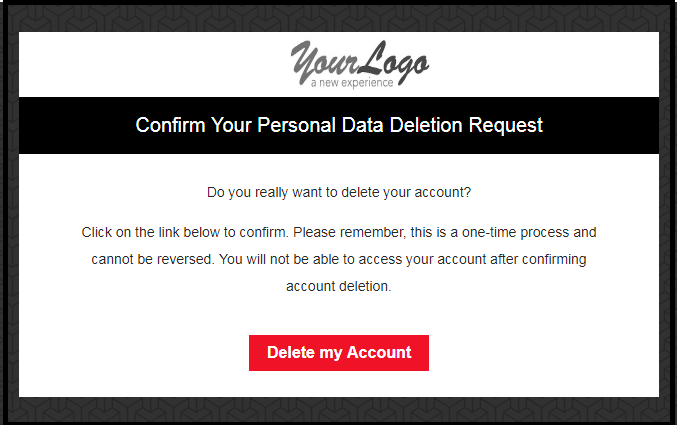
Confirm Your GDPR Account Deletion Request
Admin can update the Subject line and the email text by using the GDPR Email Template Settings.
The default format of the email template is as below:
Confirm Your GDPR Personal Data Anonymous Request
Admin can update the Subject line and the email text by using the GDPR Email Template Settings.
the default format of the email template is as below:
Customer has confirmed GDPR Request
Note: The purpose of these features is to help you to meet with the GDPR requirements. Installing this module only does not guarantee merchant sites’ compliance with the new obligations imposed by the GDPR. It is your responsibility to put in place all the necessary measures to ensure you comply.
The General Data Protection Regulation (GDPR) is a replacement for the European Union Data Protection Directive which will be enforced on May 25, 2018. The new directives have been passed, as per the new technologies and business advances; a new approach to protection of the personal data has been introduced.
The Prestashop GDPR Module – Right to access and data portability helps the store admin to manage the data access and data portability requests of the customers. By using the Prestashop GDPR Module by Knowband admin can provide an interface to the customers so that they can request for their personal information and if the required customer can also download the data as a CSV file.
To enable the GDPR Rights for the customers, download the zip file of the module from the Downloads section of your Knowband account.
1) GDPR.zip (source code of the module)
2) User Manual
In order to install the extension in your Prestashop store follow the below-mentioned steps:
1) Unzip the gdpr.zip file.
2) Copy the entire content, that is, the files and folders of the unzipped folder. Paste the same into the “Modules” folder of your store’s directory. Follow the below-mentioned address path – Root Directory/modules/.
3) The Prestashop GDPR plugin is all set to be installed in the store. Go to the Store Admin and then to ‘Modules and Services’.
4) Click on the “Install” button just next to your module. It would show a pop-up for your confirmation. Click on “Proceed with the installation” option. This step will install the module and show notification – “Module(s) installed successfully”.
5) Once the installation is complete, you will get the access to the admin interface of the module by clicking on the “Configure” button.
1.2.0 Front-end interface of the Prestashop GDPR Module:
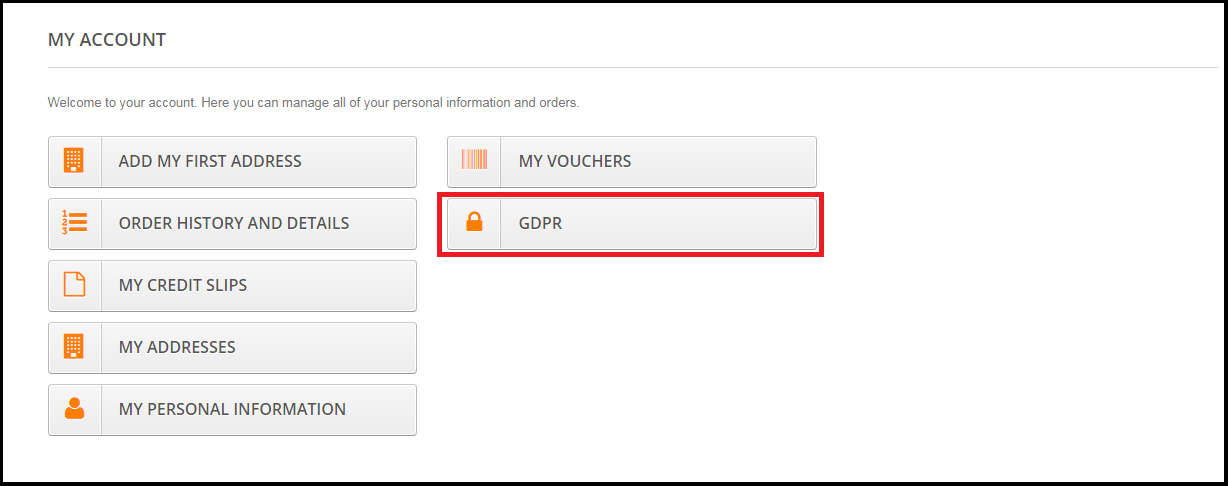
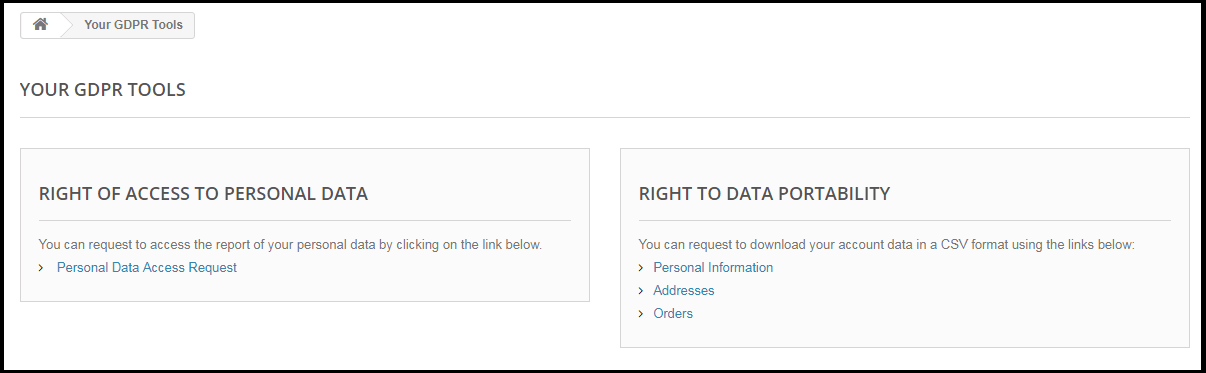
Customers will be able to access the GDPR rights by navigating to the My account section. Here, a separate tab GDPR will be visible to the customers. By using the GDPR tab customers can access their GDPR rights – Right to access and Right to data portability.
On clicking the GDPR tab the customer will be redirected to the GDPR tools page, from here customer can request for their personal data and also download their personal details like personal information, addresses and orders.
The Prestashop GDPR Module – Right of access and data portability, allows the store admin to enable the GDPR settings for the guest users so that guest users can also request for the details of their personal data. If the GDPR rights are enabled for the guest user then it will appear in the header section. Please refer to the attached screenshot.
1.3.0 Admin Interface of Prestashop GDPR Addon – Right to access and data portability:
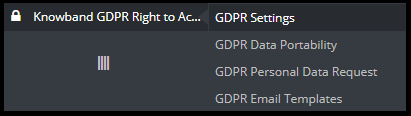
The admin section of the Prestashop GDPR addon has the following options:
1) GDPR Settings
2) GDPR Data Portability
3) GDPR Personal Data Request
4) GDPR Email Templates
1.3.1 GDPR Settings:
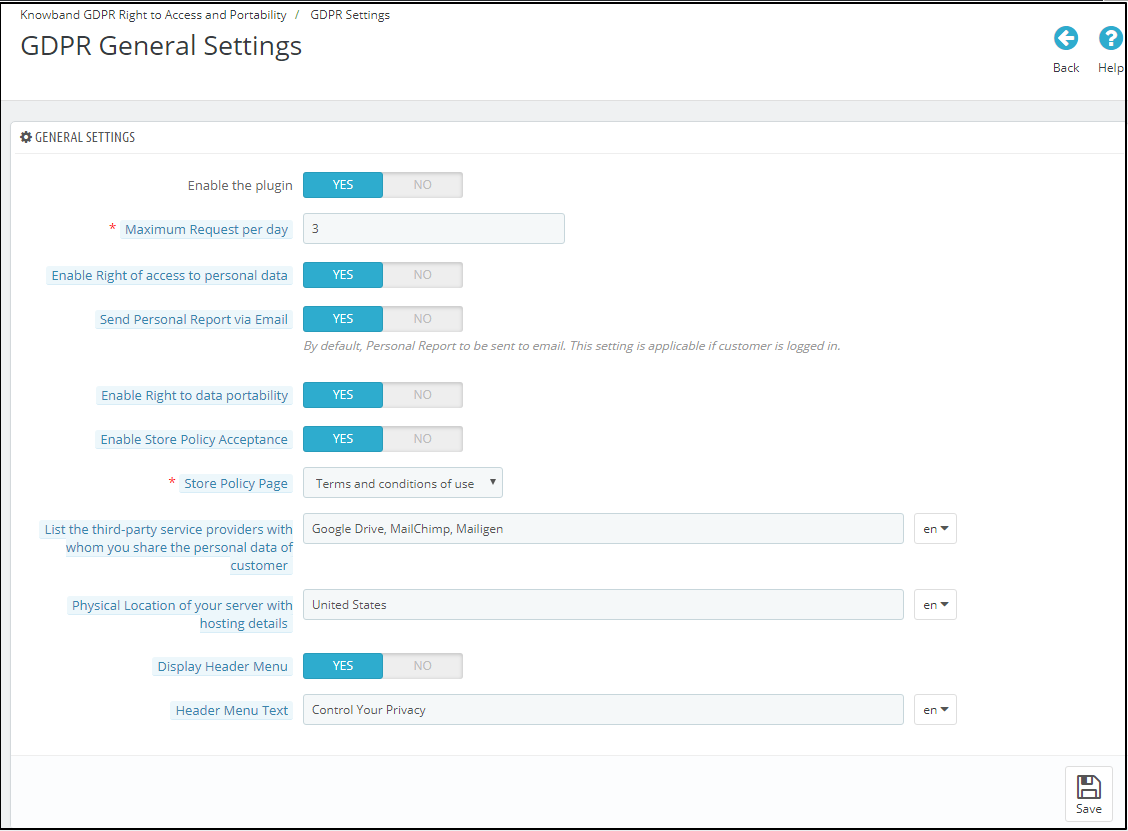
The GDPR Settings tab of the Prestashop GDPR Addon – Rights to access and data portability has the following options. Please refer to the attached screenshot below:
a)Enable the Plugin:
Admin can enable the customer rights by using the Enable the plugin toggle button.
b) Maximum request per day:
Admin has the options to set the max limit for the Personal data request.
c) Enable Right of access to personal data:
The right of access to personal data allows the customers to request for the personal data. Admin has the option to display the report immediately or admin can enable the setting to send the GDPR Personal data report over email.
d) Send Personal report via email:
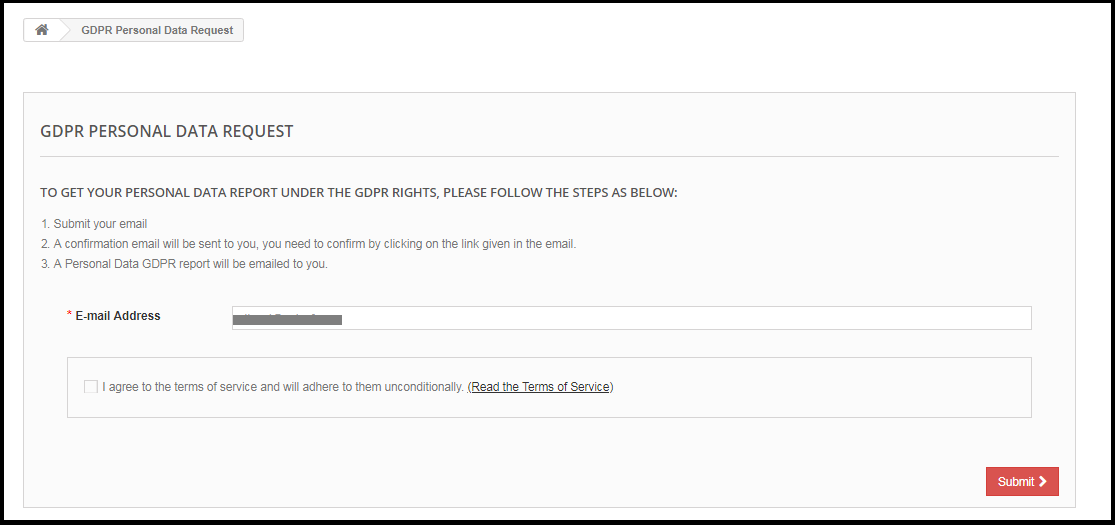
If this setting is enabled then the Personal data report will be sent via the email. Steps for the request for the personal data are listed below:
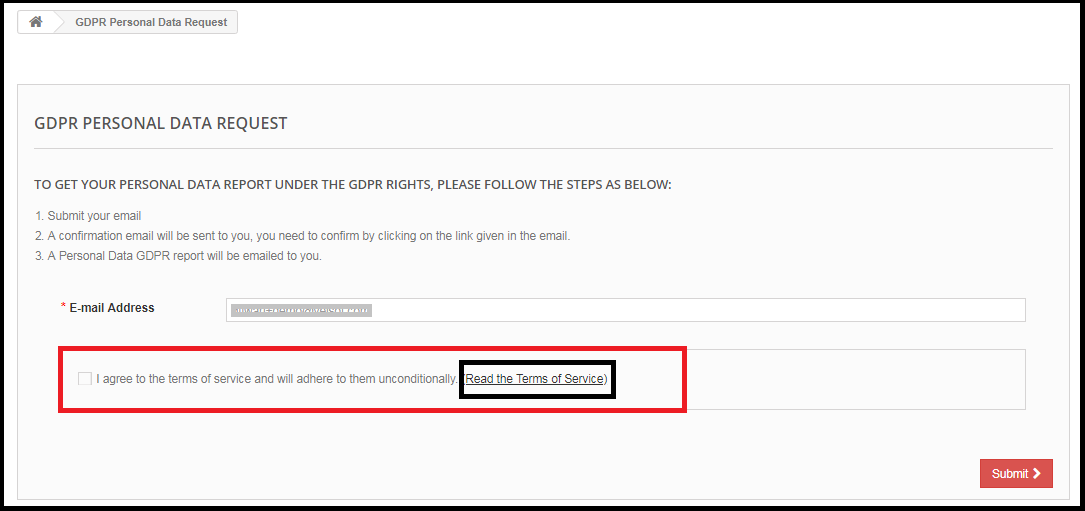
Step-1:
Request for the GDPR Personal Data report – Prestashop GDPR Addon
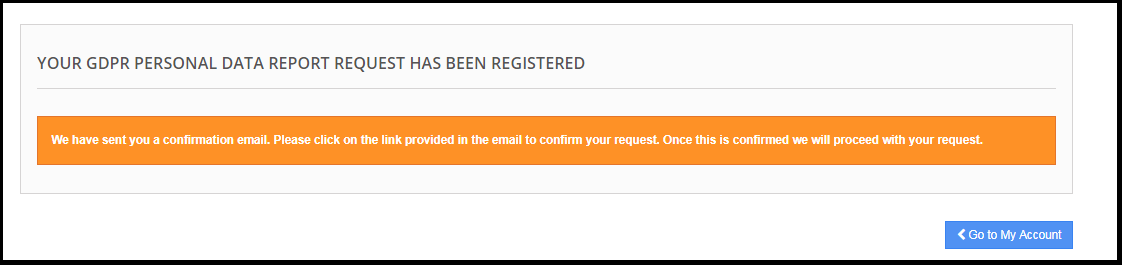
Step: 2
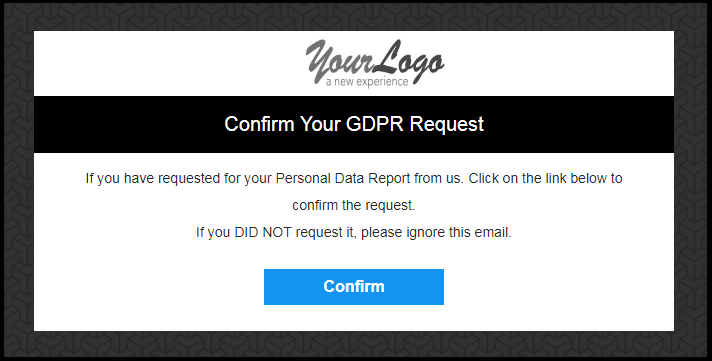
Confirm the GDPR Request.
Step: 3
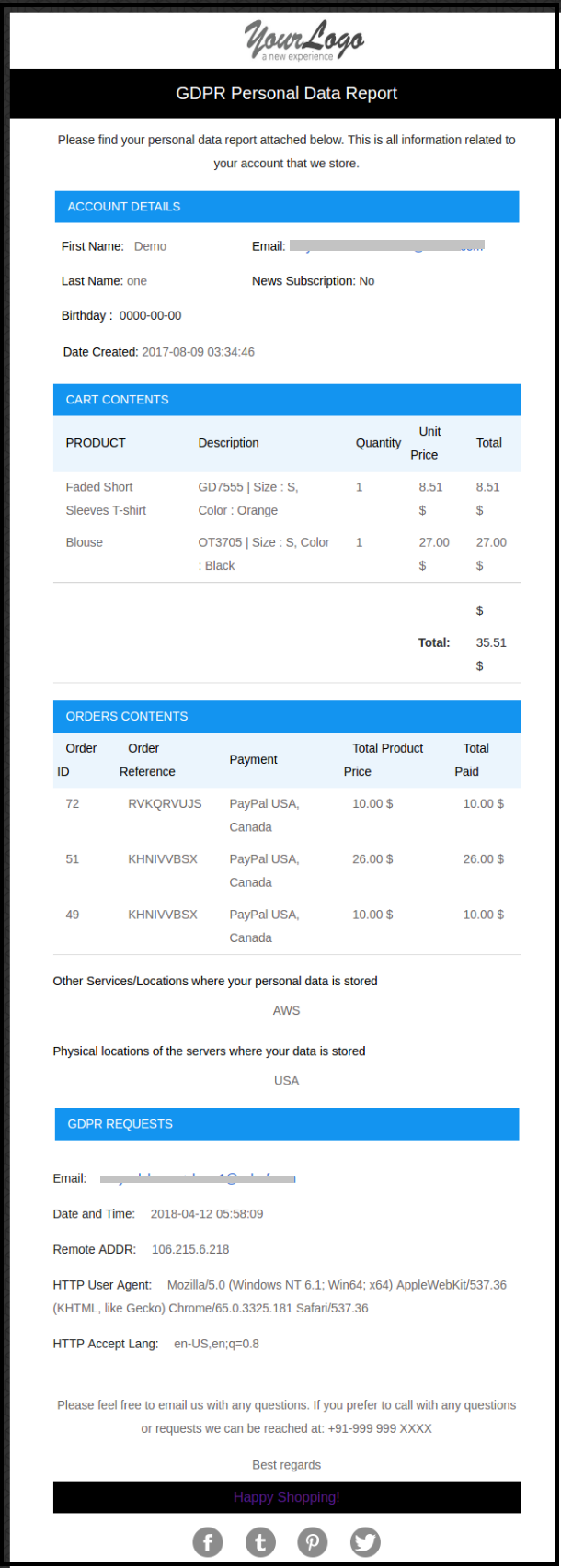
As soon as the customer will confirm the GDPR Personal Data Request, an email with the customer details will be sent to the customer.
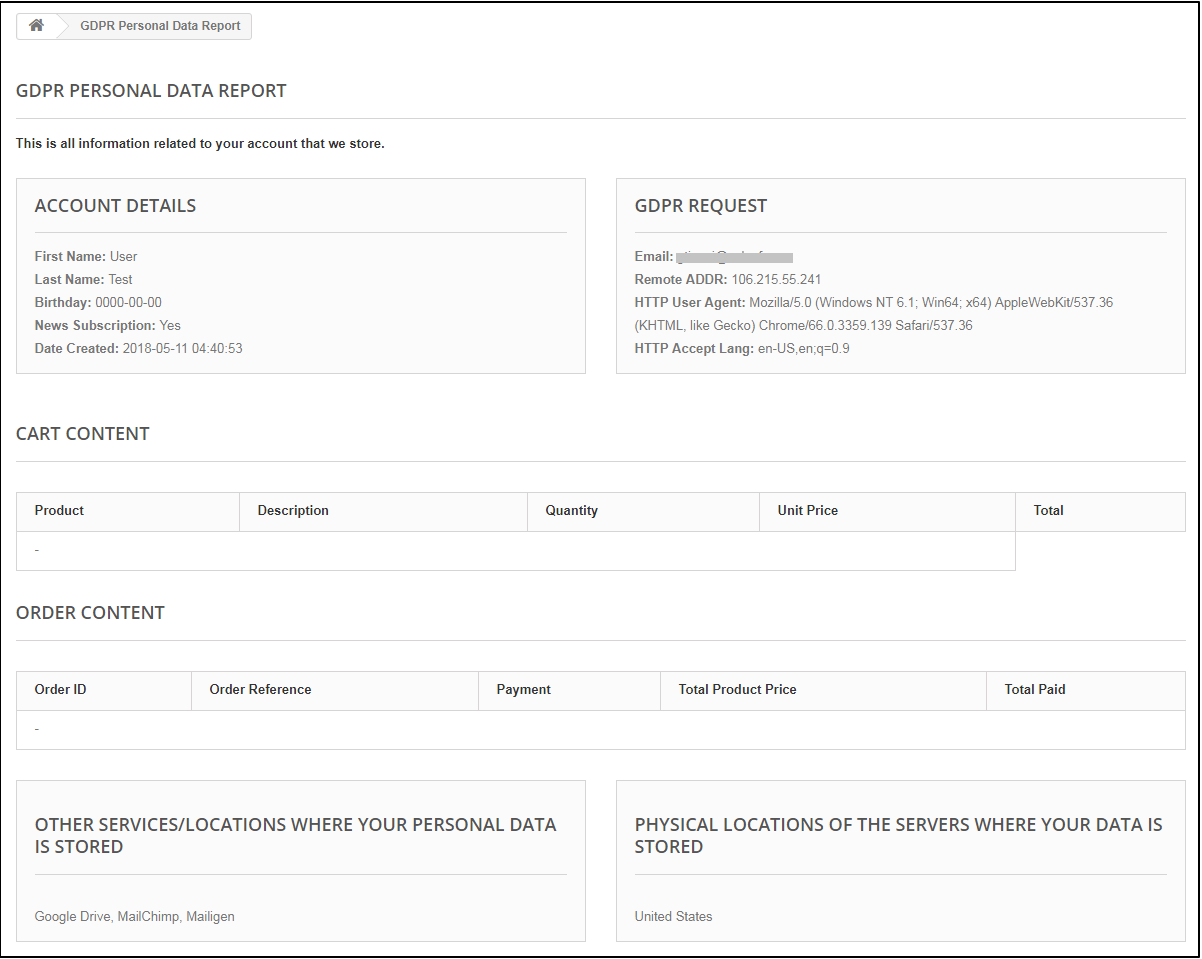
If the Send Personal Report via Email setting is disabled then the personal data report will be displayed immediately. Please refer to the attached screenshot.
e) Enable Right to Data Portability:
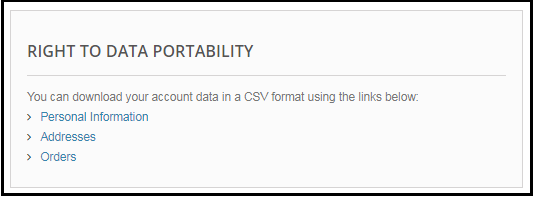
Right to data portability allows the customers to download their personal information which they have provided to the data controller.
The Prestashop GDPR addon – Right to access and data portability allows the store admin to provide an interface to the customers so that they can easily download their data like personal details, addresses and orders.
In case the customer is logged in then he/she can directly download the report. For the guest users, it is mandatory to verify the data download request only after successful verification the guest user will be able to download the data.
Personal Information Report example:
f) Enable Store Policy Acceptance:
If a customer would like to raise a request under GDPR rights then admin can add the condition to accept the Terms and Conditions before requesting for the GDPR request for the Personal Data. The admin interface of the Prestashop GDPR addon allows the store admin to enable the setting so that for each request customer need to accept the terms and policy.
g) Store Policy Page:
Admin can add the URL of the page on which all the Terms and Conditions are listed.
h) Services/ Other locations where you store customer data:
Admin can list all the third-party service providers’ details to share the details with the customer.
i) Physical locations of servers where you host your website and other data:
Admin can define the physical server location of the server where the data has been stored.
j) Display Header Menu:
If the admin would like to enable the GDPR rights for the guest users then admin can enable the Display Header Menu setting. Admin has the choice to update the text for the GDPR rights, this text will be visible in the header section of the website and customers can access their rights by using this interface.
k) Header Menu Text:
Admin can define the text for the Header Menu.
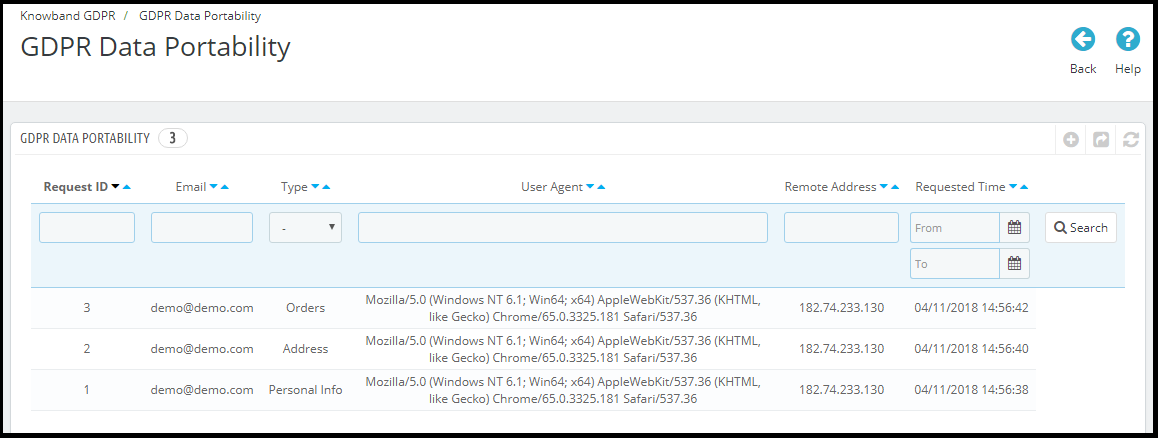
1.3.2 GDPR Data Portability
The Prestashop GDPR Module – Right to access and data portability, keeps the log of all the GDPR data portability requests processed.
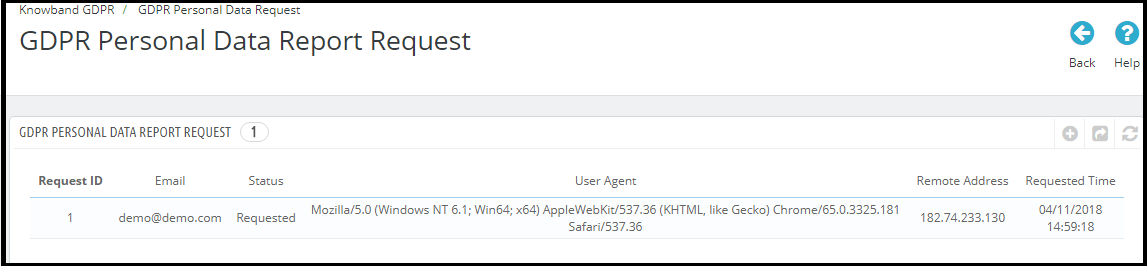
1.3.3 GDPR Personal Data Report Request
The Prestashop GDPR Addon – Right to access and data portability, keeps a log of all the personal data requests processed.
1.3.4 GDPR Email Templates
The Prestashop GDPR Addon by Knowband allows the admin to send following emails to the customer on raising a request under the GDPR.
Customer has requested for GDPR
Your GDPR Personal Data Report
Confirm Your GDPR Personal Data Portability Request
Customer has confirmed GDPR Request
Note: The purpose of these features is to help you to meet the GDPR requirements. Installing this module only does not guarantee merchant sites’ compliance with the new obligations imposed by the GDPR. It is your responsibility to put in place all the necessary measures to ensure you comply.