Upsell and Cross-sell strategies are important for online stores for better sales. The emergence of eCommerce has changed the process of buying and selling. Besides the complexities of modern eCommerce, some selling strategies like Upsell and Cross-sell are still the same. In this blog, we will try to understand the benefits of these Upsell and Cross-sell strategies and other related points.
What is Upselling?
Getting the customer to spend more money than the amount they have planned at the time of the sale process is called Upselling. There are certain ways to do it. Let’s get more clarity on this strategy with the help of an example.
For instance,
You could offer customers add-ons to the item they are purchasing on the checkout page. In case you are purchasing a subwoofer, you could offer two subwoofers at a 20% discount. Along with that, you can offer an option of gift wrapping the item for an additional fee after all increasing the average order value is what matters the most at the end of the day.
What is Cross-selling?
According to Shopify, Cross-selling is defined as ” a sales technique that is used to attain a customer to spend more by buying a product related to the one you already bought”.
Upselling and Cross-selling are two different strategies, so don’t get confused. If we define these strategies in simple words then, upselling involves selling an expensive item or upgrade to a customer whereas cross-selling is about offering an additional complimentary product.
How important are Upsell and Cross-sell strategies for eCommerce?
Upselling and Cross-selling are strategies that offer great benefits, one of them is higher sales.
Upsell and Cross-sell strategies raises customer retention
To solve issues, customers purchase products as well as services leaving aside impulse buys. Although they are aware of the problem, however, might not be aware of the best solution to the problem.
Upselling or Cross-selling when done right helps buyers find more value than what they were expecting. Further, these strategies can lead to an increase in revenues up to 43% and even improve customer retention.
Upselling and cross-selling increase average order value as well as lifetime value
Cross-selling and upselling increase your average order value. These strategies even help in creating revenue and profit at a very low incremental cost.
As per the marketing metric study reports, the probability of selling to an existing customer is 60-70%. Furthermore, the chances of selling a new prospect are 5-20%. Moreover, upselling to customers who are already existing is an extremely cost-efficient way to increase lifetime value.
Knowband modules that can help in upselling and cross-selling
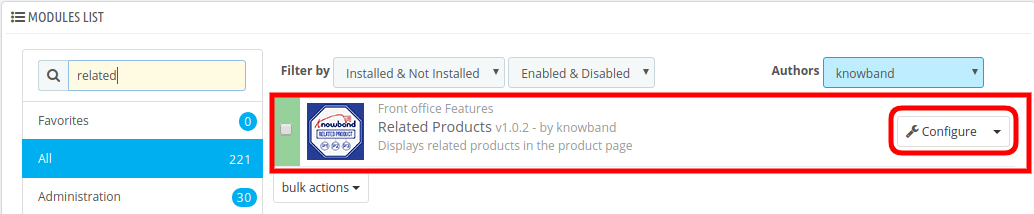
Related Products Module
Related Products Module permit store admin to showcase the related product items depending upon the product items that are available in the cart. Furthermore, Knowband offers the module for different eCommerce platforms that are listed below.
Gift the Product is another great way of attracting more customers and increasing sales. This module makes your customers feel special by providing them a gift while they are completing checkout and the most essential thing is, gift of the buyer depends upon the total cart value. Platforms of which Knowband offers this module listed below.
Knowband provides Gift the product module for different eCommerce platforms.
Gift cards are similar to prepaid debit cards with money for future usage. Furthermore, Gift cards used in both ways- online and in person. Moreover, there are eCommerce platforms that offer Gift cards on their eCommerce store with fixed as well as custom amount options.
Final Thoughts on Upsell and Cross-sell strategies
Before wrapping up, there are a few tips that we would like to share with you. The first tip, use Cross-selling more on the checkout page. This way customers can tap into impulse buying. The second tip, avoid bombarding customers with too many choices as this can distract them and they will end up abandoning their cart.
In case you find any issue with above mentioned Knowband modules, feel free to write us at support@knowband.com. Along with efficient modules, Knowband provides efficient post-sales support to the customers. Moreover, we are available 24*7 to resolve your queries.
The online store merchant can now grab customer’s focus and improve website sales by using PrestaShop product cross-selling module. Knowband offers PrestaShop Automatic Related Product addon which allows the online sellers to display related products on various website pages. This advance related product extension provides an option to set specific conditions for showing appropriate similar products on each page.
The store admin can set the methods and filters for displaying the products as similar products. The PrestaShop Automatic Related Product addon allows the admin to show the related product column on the left, right or page bottom. Online customers can view similar products and get the right product of their choice. Thus, the admin can improve sales and conversion rate also just by using this Prestashop Automatic Related Product addon.
What’s New in V2.0.1.
Random product display: Now you can showcase your products in a more dynamic way by displaying them in random orders with Prestashop Related Product Addon.
Related products on super-checkout: We have added related products on the super-checkout page to increase cross-selling opportunities.
Sorting functionality for related products: You can now sort related products by various criteria, such as price or popularity, name, etc.
Brand slider on the home page: Now, the Presta admins can also add brand sliders on the home page to highlight your brand and products.
Multiple tabs on the home page: You can now organize your products better by displaying them on multiple tabs, such as top products, new products, best products, and user history products.
Customization options for slider: Prestashop sellers can customize the slider’s background color, height, width, and other settings to match your website’s design.
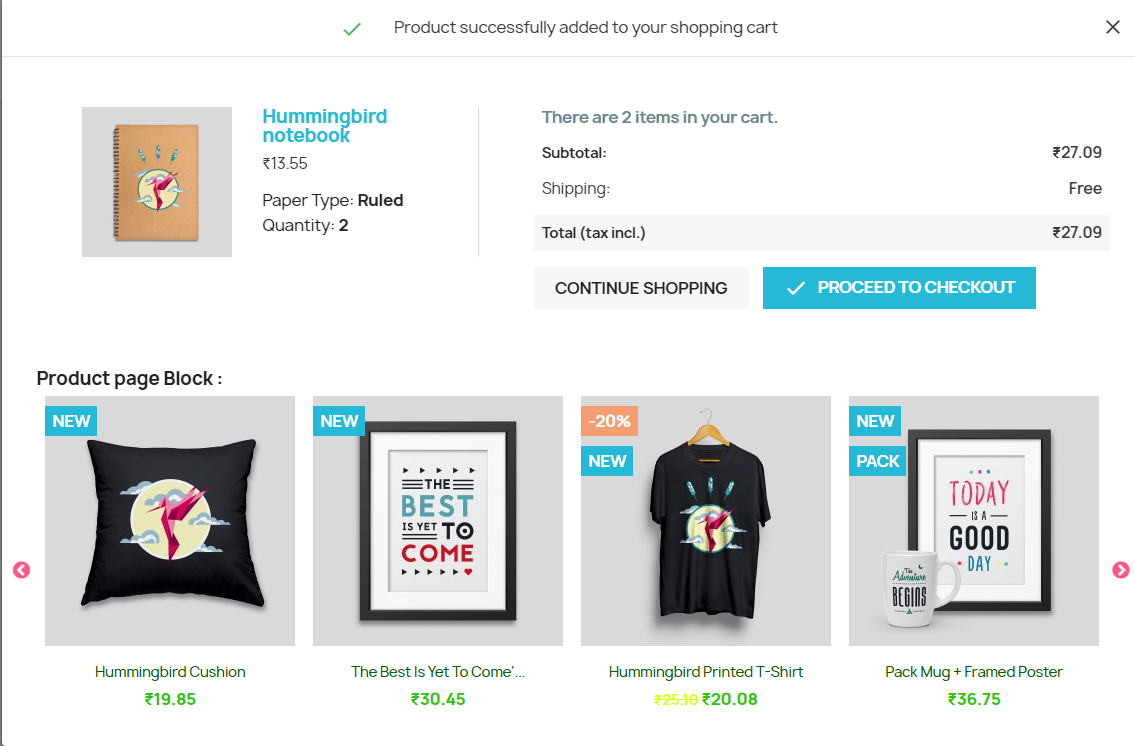
Related products on add to cart popup: We have added related products on the add-to-cart popup to increase upselling opportunities.
Additional methods on product and category pages: You can now display discounted products, products with the same brand, and rule-based related products on the product page, and child categories, same category feature products, subcategories new products, and rule-based related products on the category page.
Flexible display options for related products: You can choose to display related products either in a slider view or a 2-column list view.
Prestashop-related product module is now compatible with Prestashop v8.0.x.
1.1 Benefits for Merchants
This Prestashop product cross-selling module helps the admin to increase the customer’s average cart value by showing similar products.
There are higher chances of conversions if a store visitor finds the desired product in a similar product block.
The store admin can display perfect similar products in order to increase sales and offer a better store experience to the customers.
PrestaShop Similar products module allows setting the related product block position according to their preference.
There are multiple conditions available for showing similar products in an advanced way.
This PrestaShop alike product module provides an option to hide the out-of-stock products and show only available products as similar products.
With the help of this PrestaShop-related products plugin, the admin can reduce the bounce rate by engaging the customers.
Prestashop related products module allows the eCommerce store admin to show new arrivals as similar products in order to promote new products.
The e-merchant can show those products on which he wants to grab the customer’s attention. The Prestashop Automatic Related Product module allows the eCommerce store admin to display the related products on different website pages.
Compatible with Prestashop v8.0.x.
1.2 Features of the PrestaShop Automatic Related Product Addon
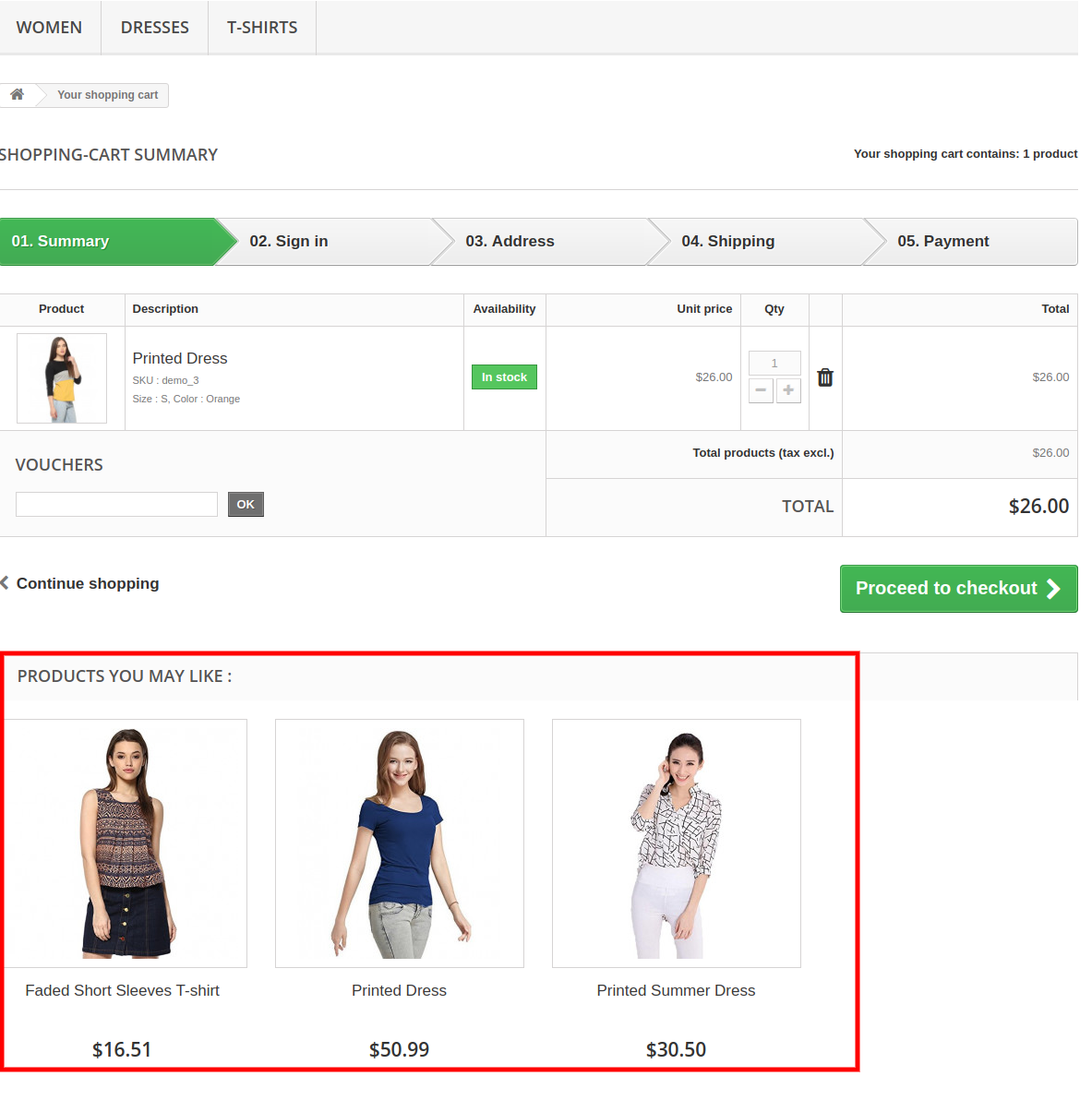
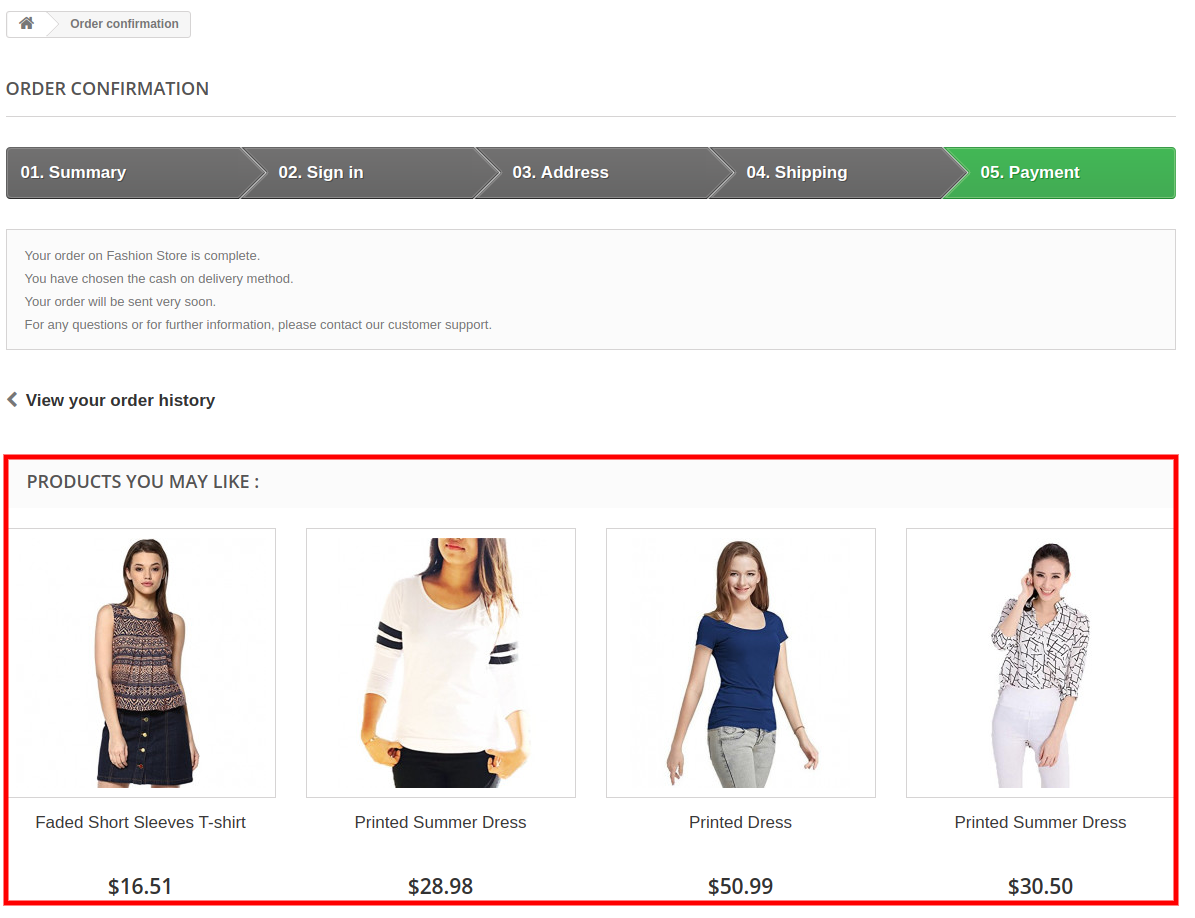
Admin can show related products on various website pages like homepage, product pages, category pages, cart page, manufacturer pages and order confirmation page with the help of this Prestashop product cross-selling addon.
The admin has the option to show available products as related products. The out of stock products won’t be displayed as related products. The Prestashop similar products addon provides an option to show only in-stock products in the related products list.
The online seller can enter a related product block title. The PrestaShop related products module allows the admin to set block titles in various languages.
The PrestaShop advance related product extension provides various methods for showing the related products. The store merchant can display top-visited products, bestsellers, and new products or use user history for showing the related products.
The maximum number of the related product to display on different pages can be fixed from the admin interface of this Prestashop similar products addon.
The PrestaShop related products addon allows the admin to set the method priority and different filters for showing related products.
The PrestaShop related products addon is fully mobile responsive.
Related products extension is multi-store compatible and offers multi-lingual support.
2.0 Installation Steps
The admin will get the below-mentioned files after purchasing the Automatic Related Product addon:
1. The zipped file that consists of the source code of this Automatic Related Product addon.
2. User Manual
Follow these steps to install the Prestashop Automatic Related Product addon:
The admin needs to unzip the zipped file. This file includes some files and folders.
After that, admin can copy the overall content of the folder and paste them into the “Modules” folder of the store’s directory. The admin can follow the path – Root Directory/modules/.
3. Now, the store owner can install the Automatic Related Product addon. As an eCommerce store owner, you can find that in Store Admin -> Modules and Services. It would be shown as below:
Now you just need to click on “Install” button to install this Prestashop Automatic Related Product addon easily. A confirmation pop-up will be shown. Click on “Proceed with the installation” option. This step will install the Automatic Related Product addon and show notification – “Module(s) installed successfully”.
3.0 Admin Interface
There are various customization options. The store admin can apply the settings and show the similar products on various website pages. These are the customization options:
Basic Settings
Home Page Settings
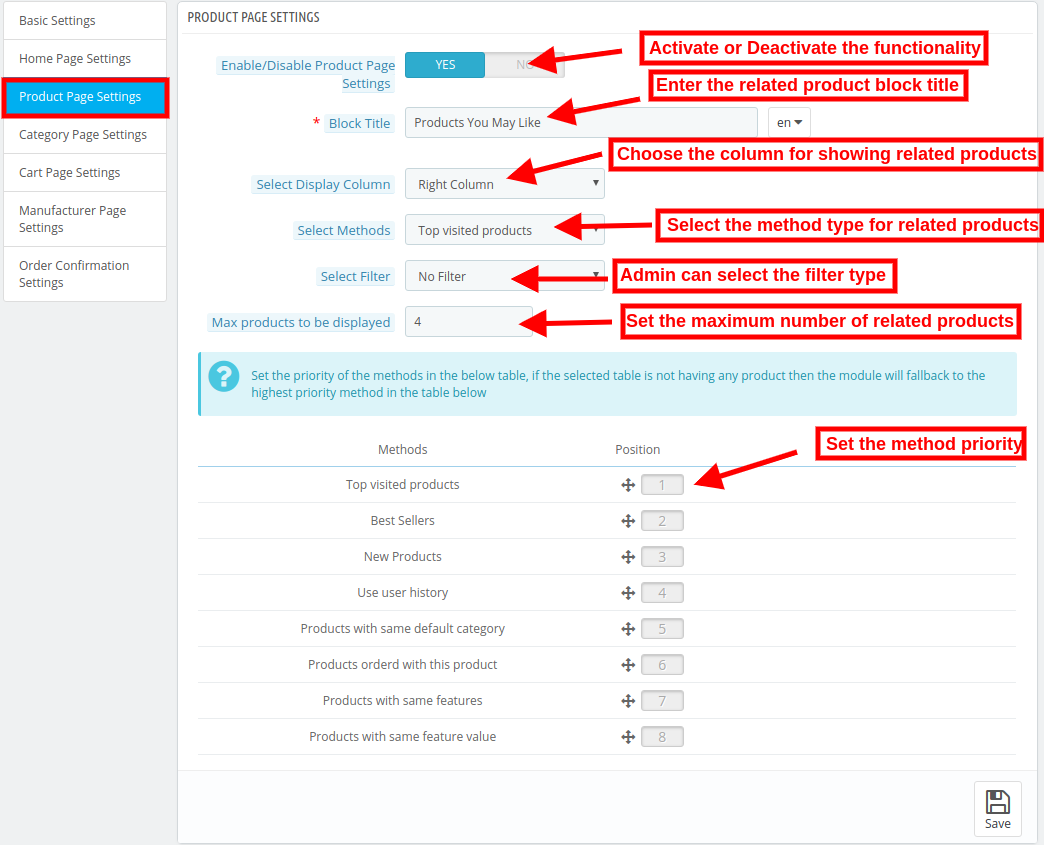
Product Page Settings
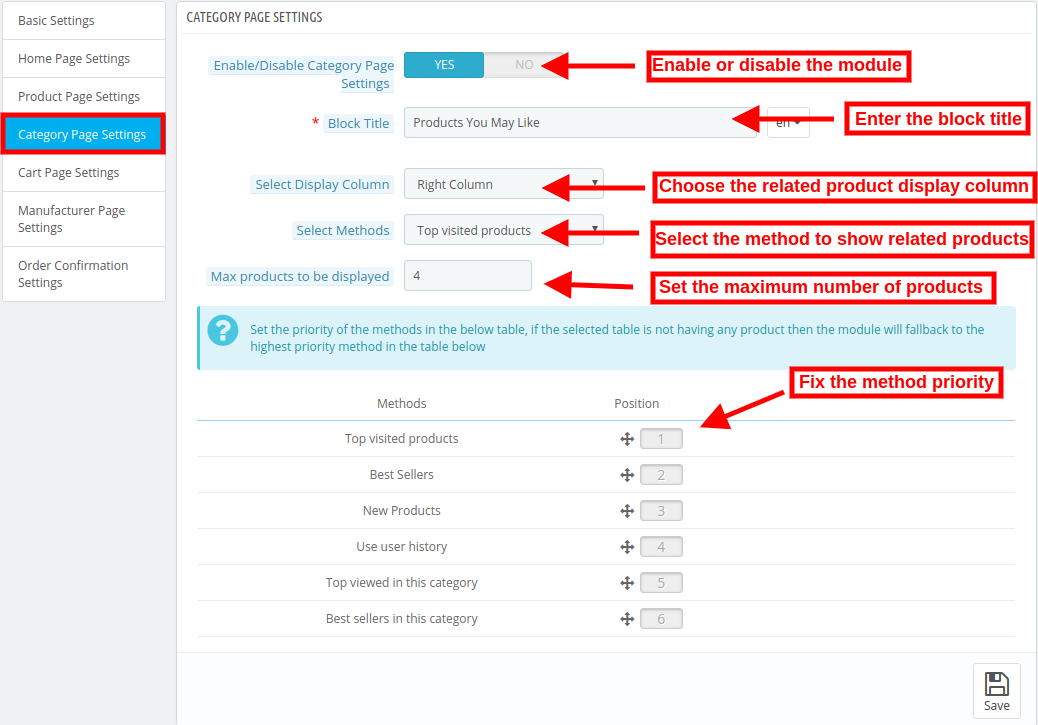
Category Page Settings
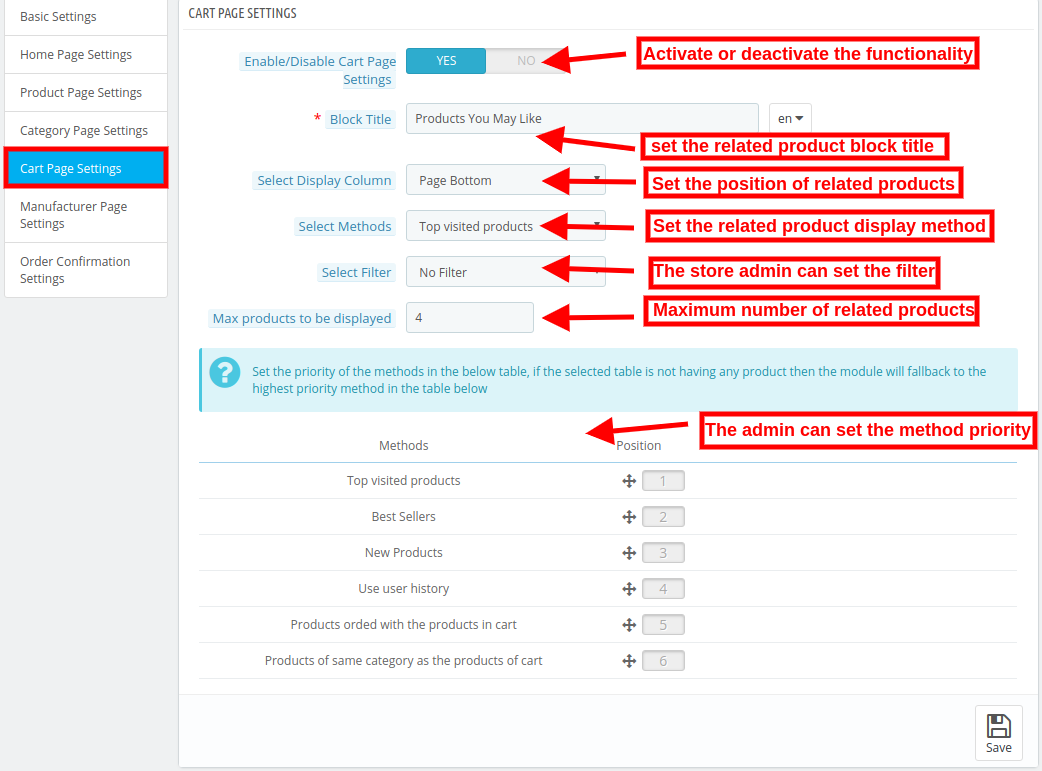
Cart Page Settings
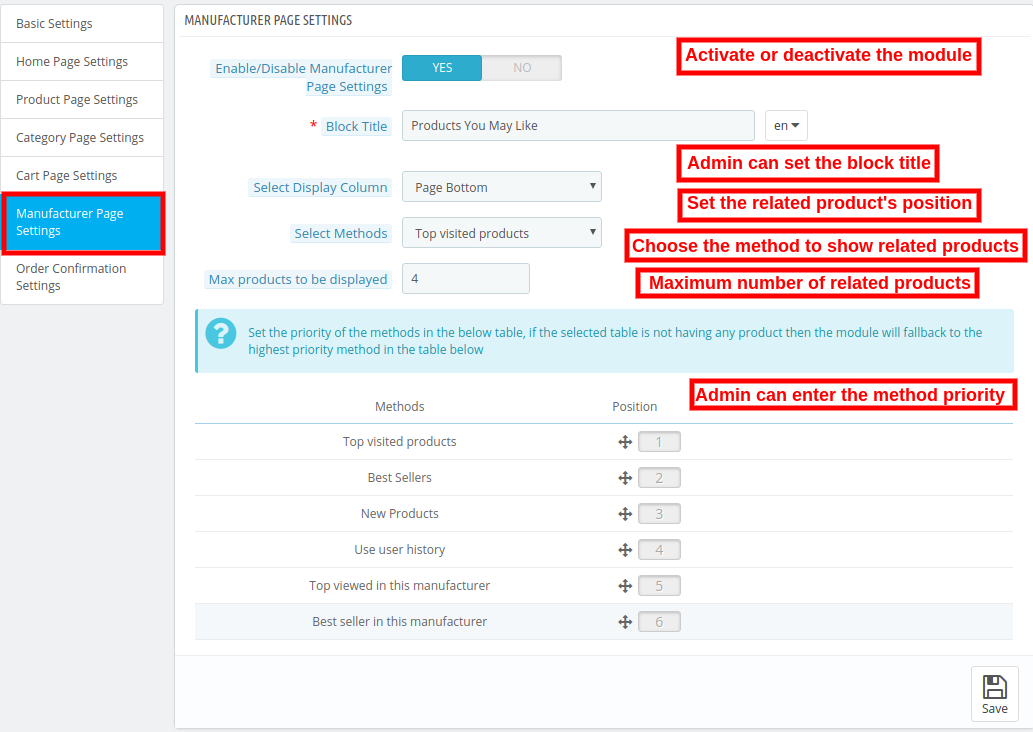
Manufacturer Page Settings
Order Confirmation Settings
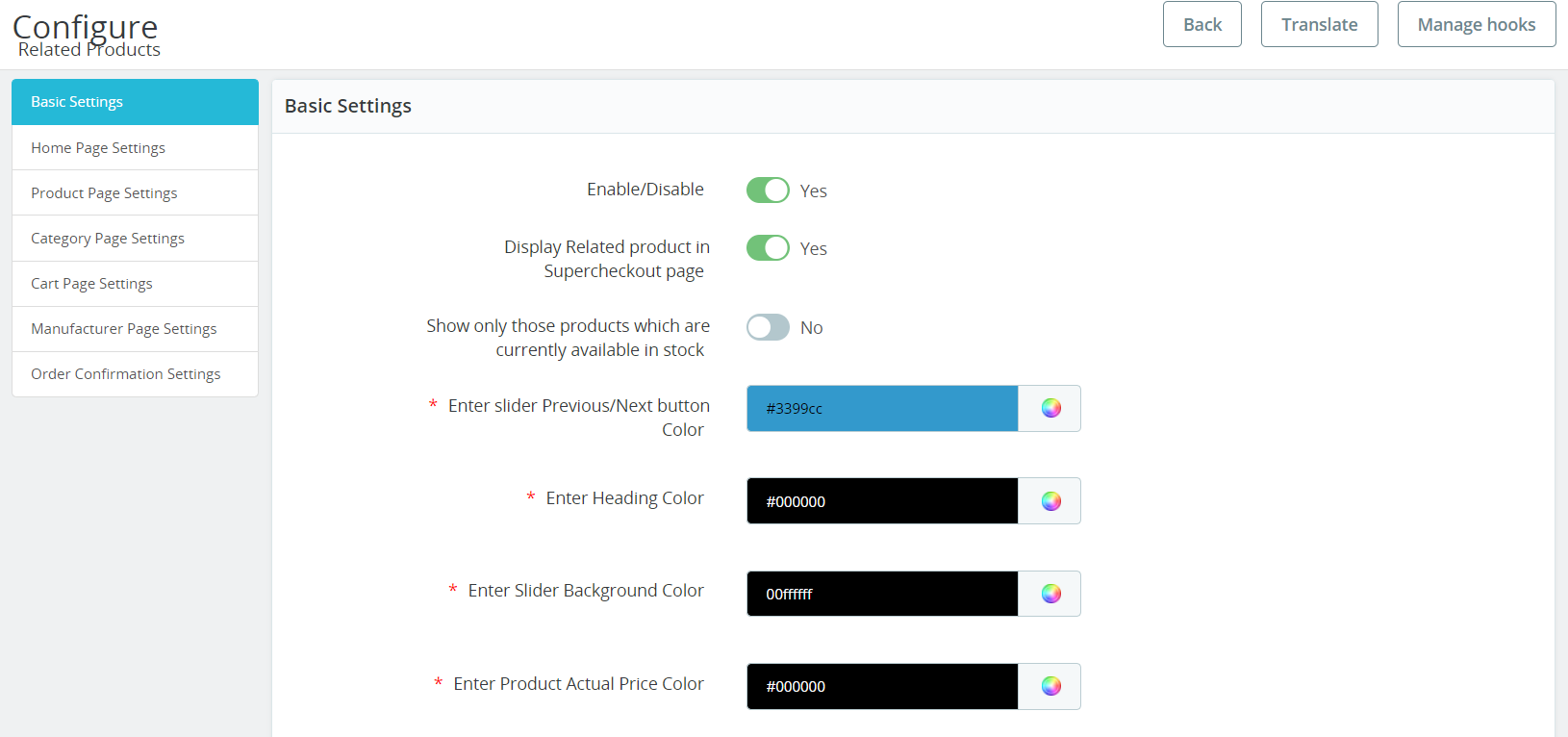
3.1 Basic Settings
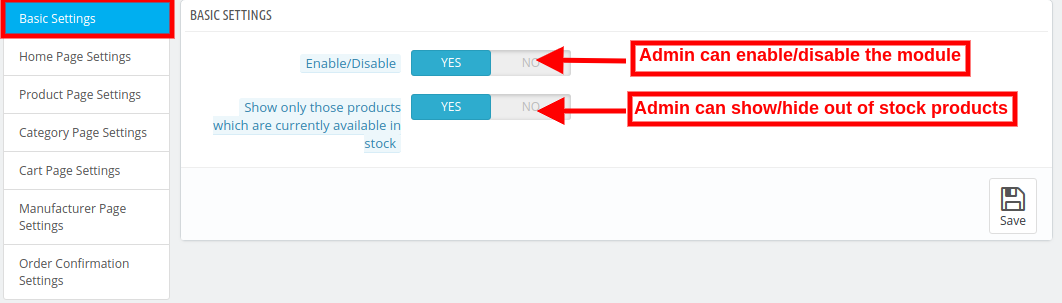
1. Enable/Disable: The store admin can activate or deactivate the functionality just by toggling the button. The Prestashop similar products addon can be activated or deactivated easily from the admin interface.
2. Display Related Products on the Super checkout Page: With the help of this option, the admins can show/hide related products on the One Page checkout page. Not only it will help the customers to get a better UI but also will help in cross-sales.
3. Show only those products which are currently available in stock: The e-Commerce store admin can enable the menu option if he wants to show only in-stock products as related products. Prestashop Automatic Related Product addon provides an option to show all the products or in-stock products as related products.
4. Enter Slider Previous/Next Button Color: You can choose the button color of the previous/next button (for the product slider only).
5. Enter Heading Color: With the following option, the admins can change the related product text heading color.
6. Enter Slider Background color: The following option will manage the slider’s background color.
7. Enter the Product’s Actual Price Color: From here, you can easily manage the color of the actual prices of related products.
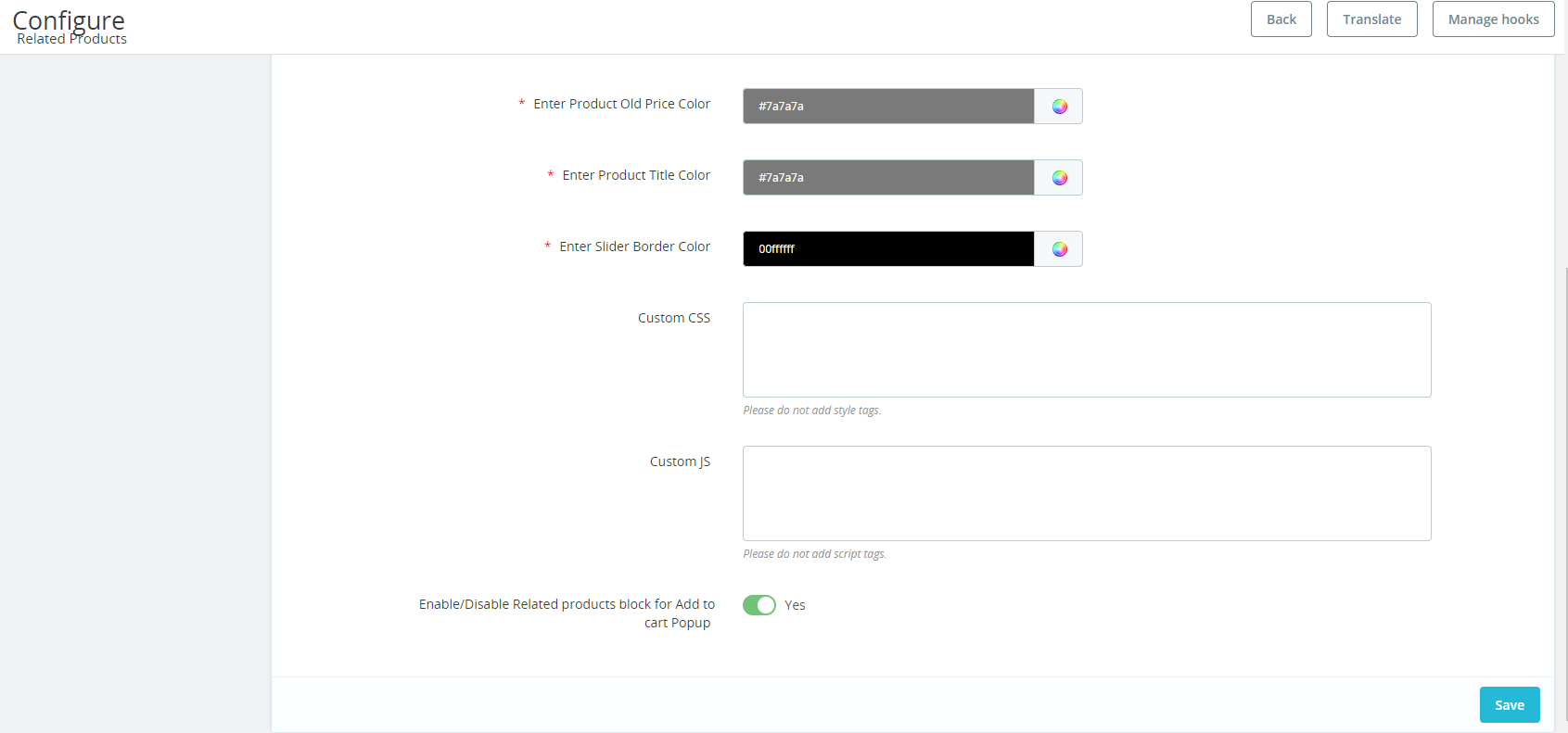
8. Enter product’s Old Price color: The following option can be used for changing the color of the old price of related products.
9. Enter Product Title Color: You can manage the product title’s color from the following option.
10. Enter Slider Border Color: The following option will manage the Related Products slider’s border color.
11. Custom CSS: Now, Prestashop Related product module allows the Prestashop admins to add customized CSS for making their related product blog sound. While adding custom CSS, the admins cannot include the style tag in the same.
12. Custom JS: In case you want to add custom JavaScript, you can add the same in the following text field. Also, the Prestashop admins cannot include JS tags in the following text field.
3.2 Home Page Settings
1. Display Related Product in List View (with 2 Columns): If you enable the following option then instead of slider view, the related products will appear in the list view.
2. Enable/Disable Brand Slider on Home Page: You can show/hide the brand slider on the home page (only if enabled).
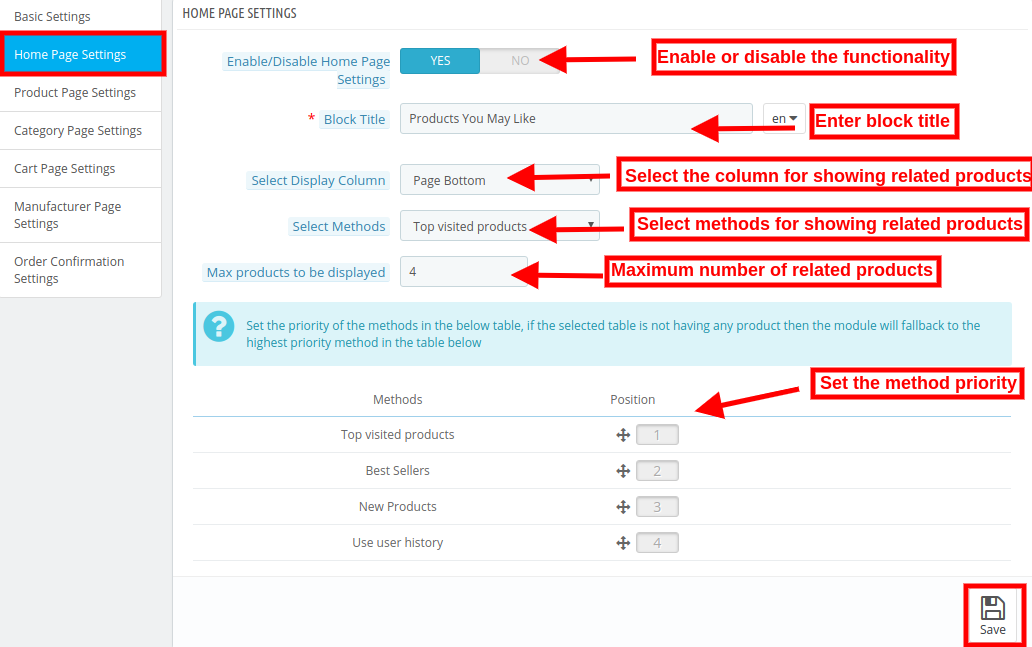
3. Enable/Disable Homepage settings: The eCommerce store admin can activate or deactivate the homepage settings by clicking on this option from the admin interface Prestashop-related products module.
4. Enable/Disable Multitab for Home Page: If Enabled then a Multitab with Top Visited products, New products, Best seller Products, and User History Products are displayed instead of the Home Page Slider.
5. Select Methods: In the following option, the admins can add the methods based on which they want to show top sellers, new, or most visited products.
6. Disabled Priority Settings: The admins can enable/disable the priority settings with the help of the following button.
7. Display Products in Random order: If you will enable the following button, the related products will appear in a random order every time.
8. Display Sorting for Products: If the following option is enabled, the customers will get the sorting options on the related product slider.
9. Block Title: You can enter the name of the title that will appear on the front end (home page) above related products.
10. Show Home Block Title on Front: The admins can show/hide the home block title on the front end with the following button.
11. Select Display Column: Select the column in which the related products need to be displayed. Here, you can choose if you want to show the products on the page bottom, left column, or right column.
12. Select Methods: In the following option, the admins can add the methods based on which they want to show top sellers, new, or most visited products.
13. Choose Specific Products: Here you can map all the products that you want to add as related products on the front end. Once you will start typing the name, you can find all the suggestions related to the entered text.
14. Max Products to be Displayed: The Prestashop retailers can enter the maximum number of related products they want to show on the front end.
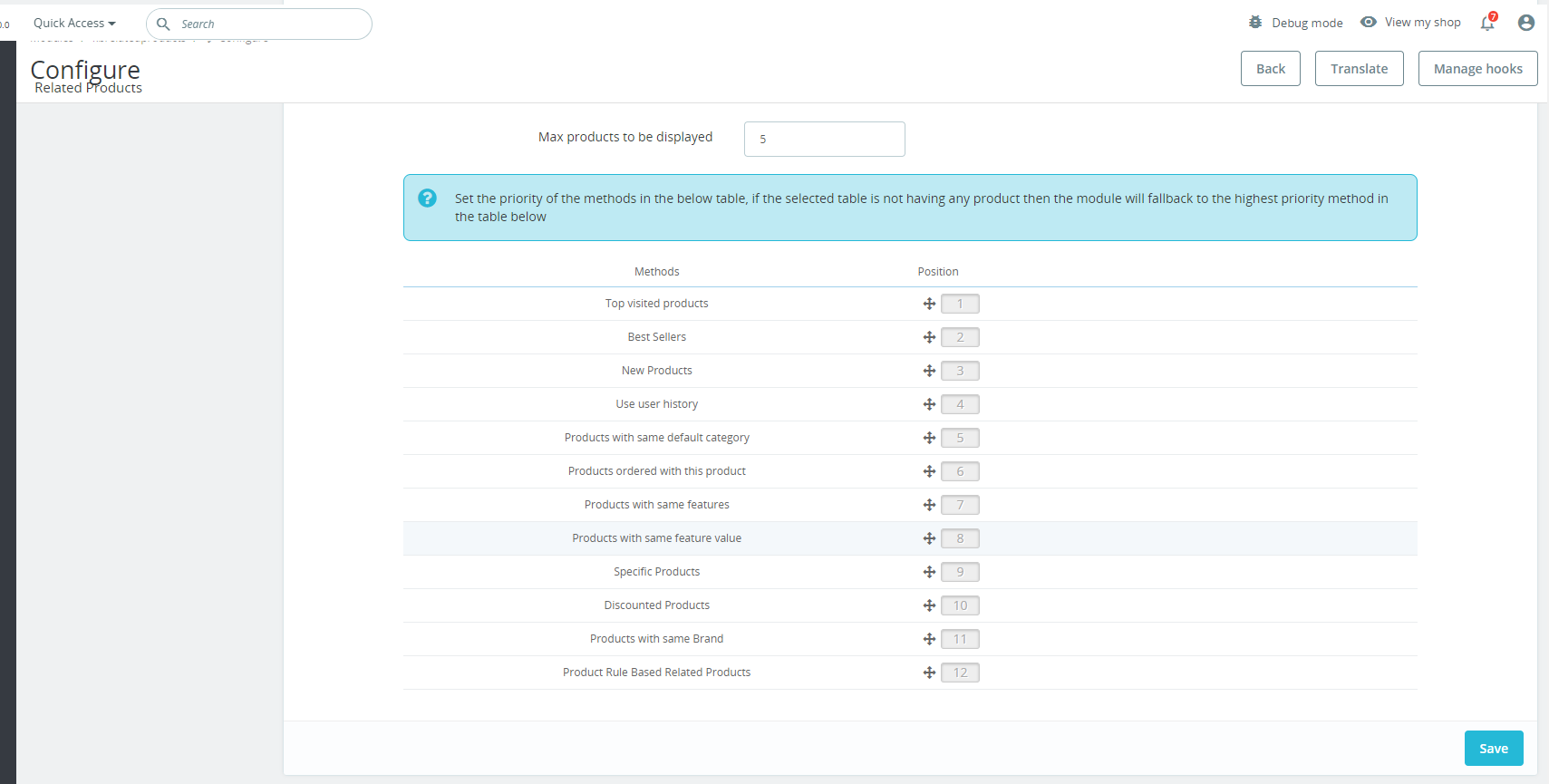
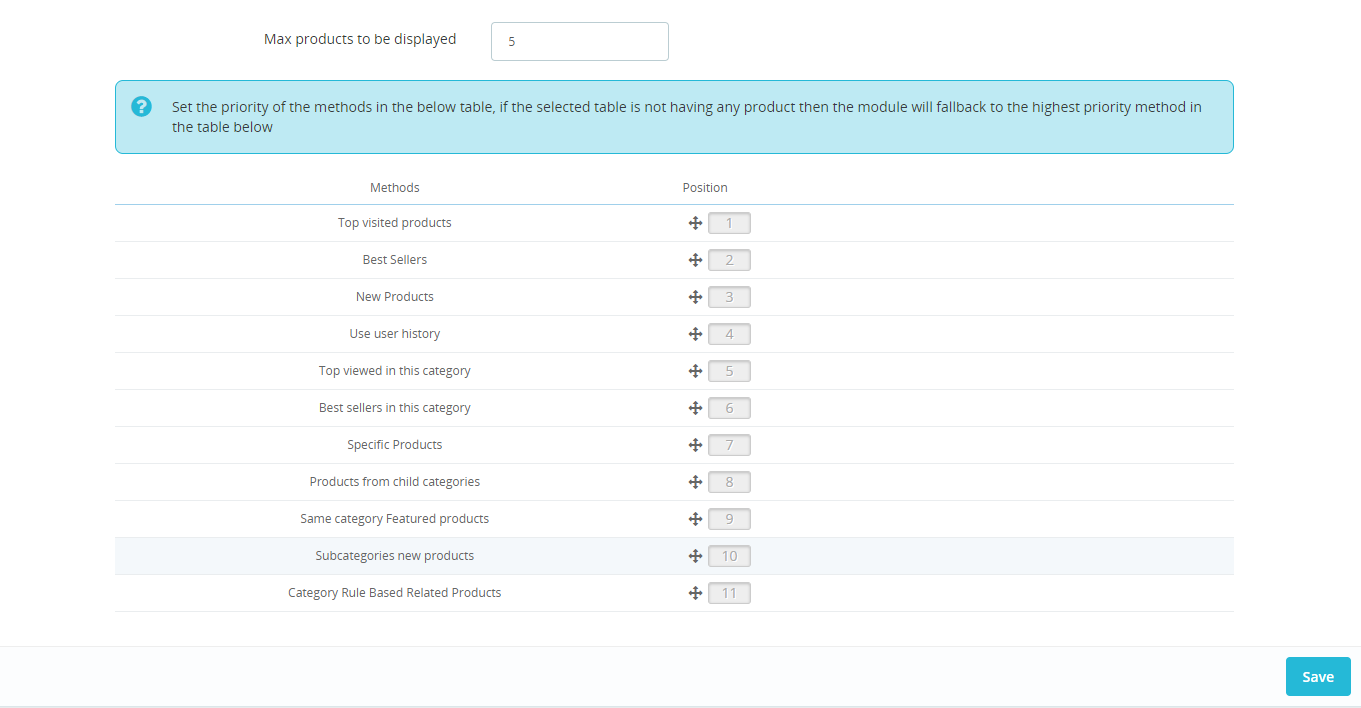
The store admin can also set the priority of the methods. The related product of higher priority will be selected first.
3.3 Product Page Settings
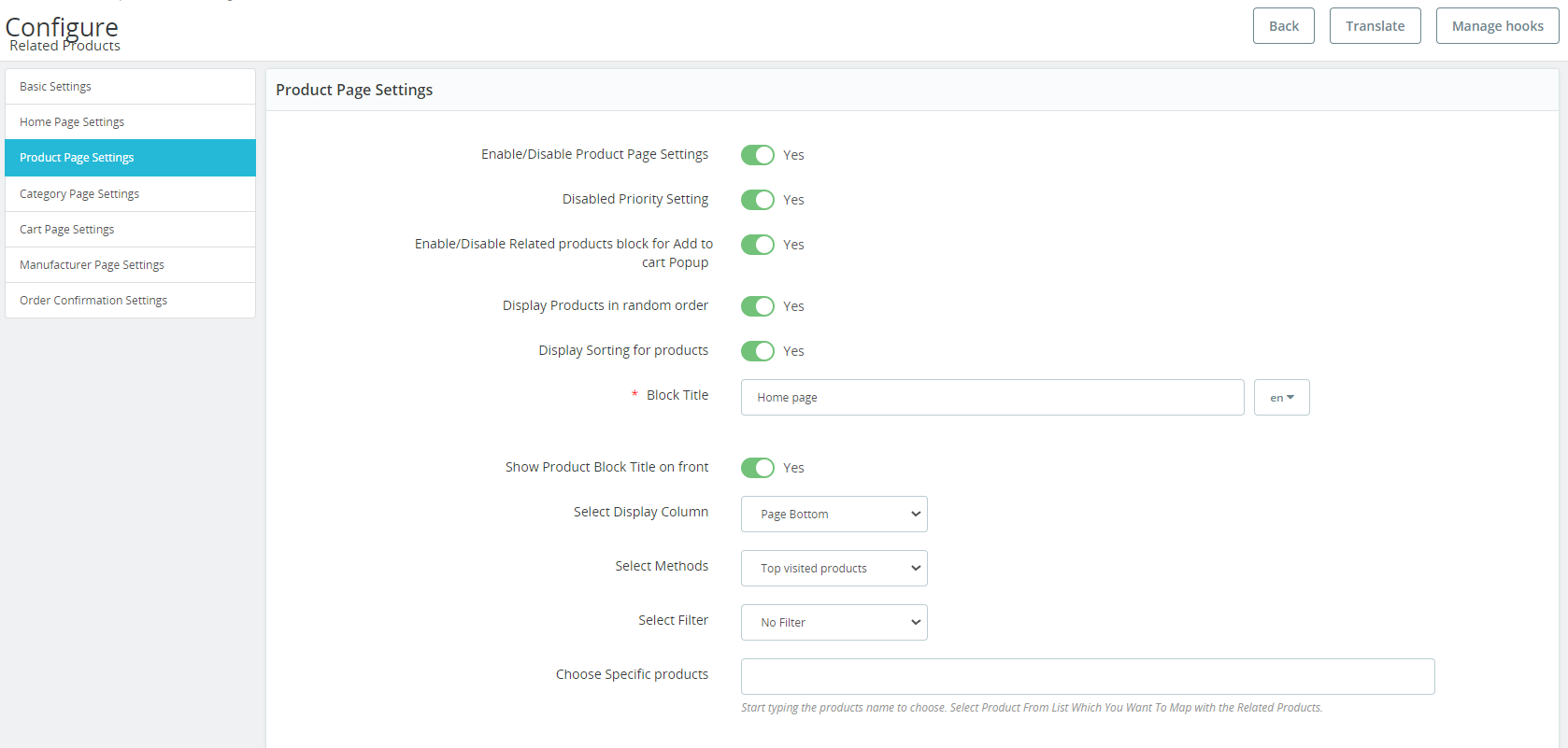
1. Enable/disable Product Page Settings: The store owner can activate or deactivate the product page settings just by a button toggle.
2. Disabled Priority Setting: The admins can enable/disable priority settings from here.
3. Enable/Disable Related products Block for Add to Cart Pop up: If the following option is enabled, the related product blog will appear on the pop-up while adding the product to the cart.
4. Display products in random order: Knowband Prestashop Related products module allows the admins to display/hide products in random order. The admins can simply manage the same from this particular button.
5. Display Sorting for Products: If the following option is enabled, the customers will get the sorting options on the related product slider on the product page.
6. Block Title: From this option, the admin can manage the block title for the related products on the product page.
7. Show Product Block Title on Front: This option will show/hide the Home Block title on the front for the product page only.
8. Select Display Column: Select the column in which the related products need to be displayed. Here, you can choose if you want to show the products on the page bottom, left column, or right column.
9. Select Methods: In the following option, the admins can add the methods based on which they want to show top sellers, new, or most visited products.
10. Select Filter: Select the filter based on which the products on the front will be displayed.
11. Choose Specific Order: Here you can map all the products that you want to add as related products on the front end. Once you will start typing the name, you can find all the suggestions related to the entered text.
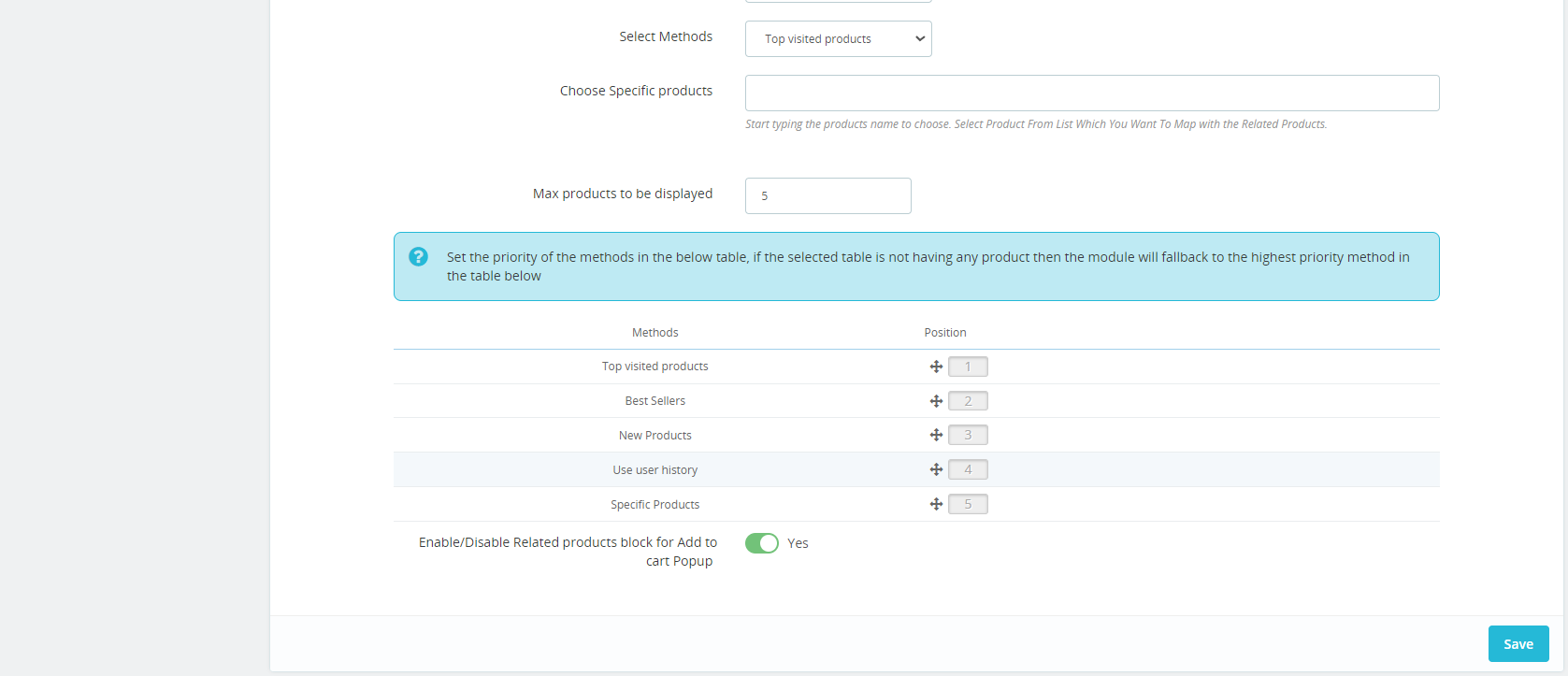
12. Max products to be displayed: Admin can select the maximum number of products to display as related products.
The store admin can set the priority of the methods. if there is no product on the higher priority method, then the Prestashop product cross-selling module will show the product from the lower priority.
3.4 Category Page Settings
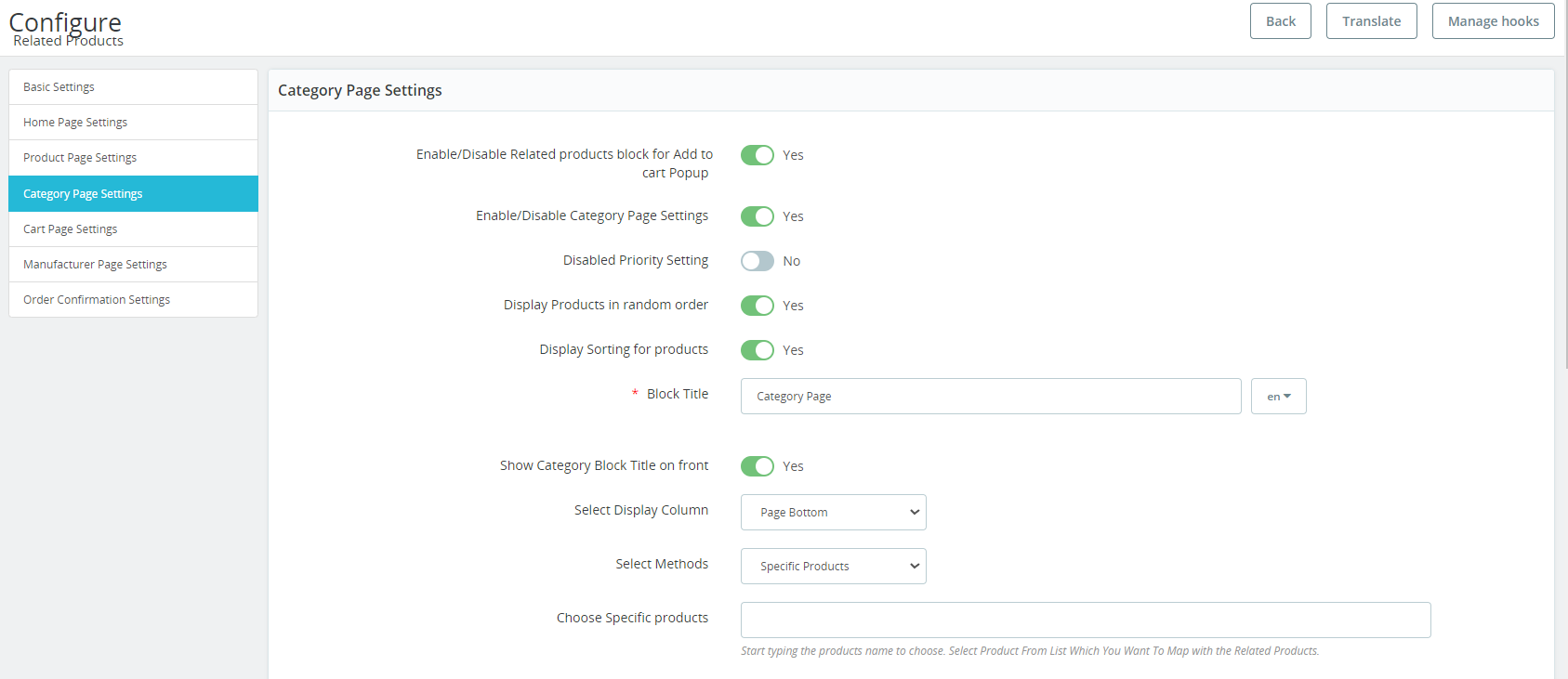
1. Enable/Disable Related Products Block for Add to Cart Popup: If the following option is enabled, the related product blog will appear on the pop-up while adding the product to the cart.
2. Enable/Disable Category Page Settings: The store admin can enable or disable the category page settings from the admin interface.
3. Disabled Priority Setting: The admins can enable/disable priority settings for the category page from this particular option.
4. Display Products in Random Order: In case you want to show random related products every time, you can keep this option enabled.
5. Display Sorting for Products: If the following option is enabled, the customers will get the sorting options on the related product slider.
6. Block Title: With the help of this particular text field, the admins can manage the block title for the related products on the category page.
7. Show Category Block Title on the Front: Show/hide the home block title on the front for category pages with this option.
8. Select Display Column: You can manage the display column from this option. Further, you can select the options such as bottom, column left, and column right for showing the related products title.
9. Select Methods: The Prestashop admins can manage the methods based on what they want to show the related products. For example, the admin can select methods for most visited products, top-selling products, new products, or products from categories or subcategories, etc.
10. Choose Specific Products: Here you can map all the products that you want to add as related products on the front end. Once you will start typing the name, you can find all the suggestions related to the entered text.
11. Max Products to be Displayed: You can enter the maximum number of the related products you want to display on the category page.
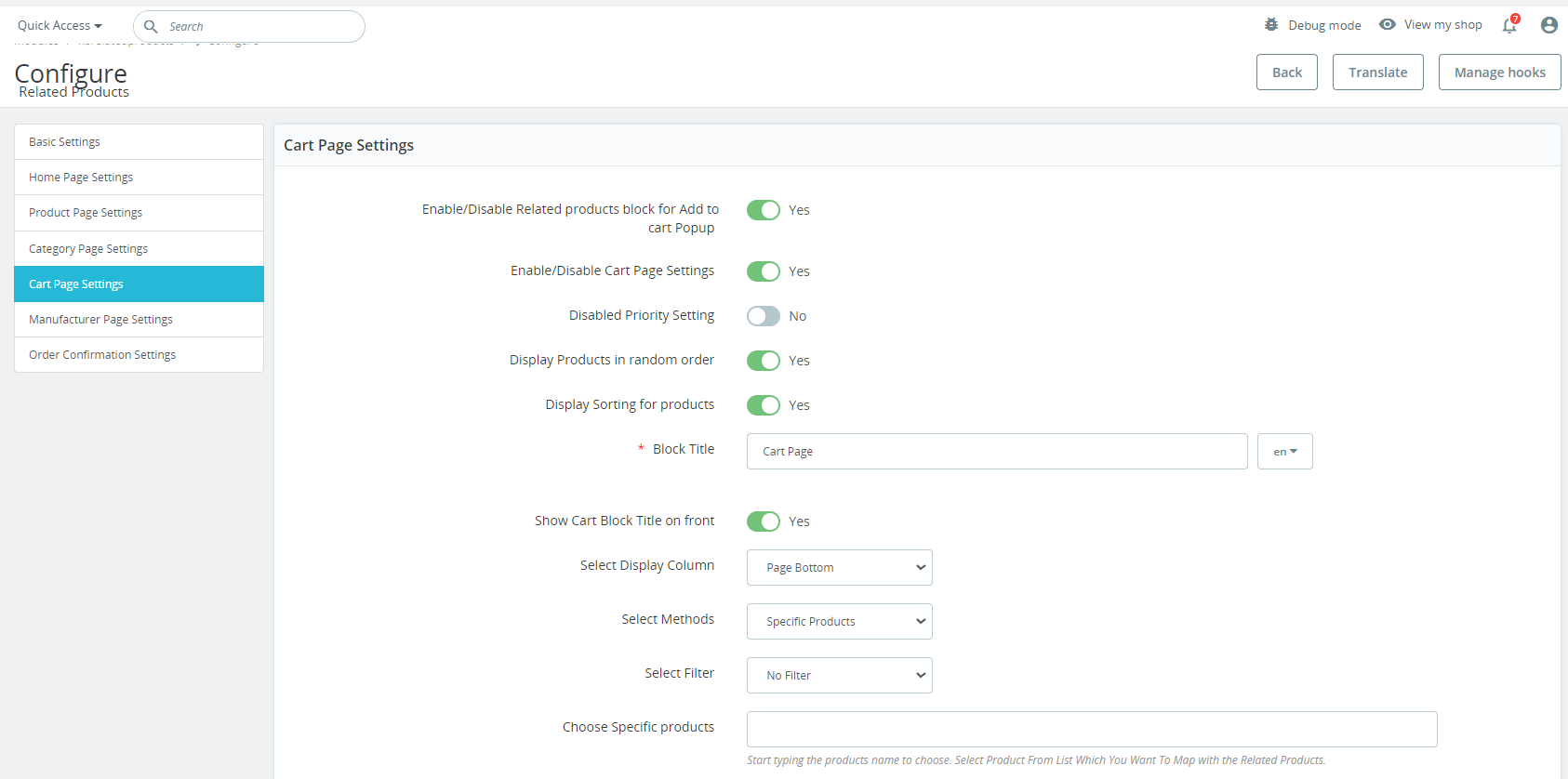
3.5 Cart Page Settings
1. Enable/Disable Related Products block for add to cart popup: If the following setting is enabled, the related products will appear on the add-to-cart pop-up.
2. Enable/Disable Cart Page Setting: This button will enable/disable the related products on the cart page.
3. Disabled Priority Setting: Like cart page settings, this option can be used for making the priority setting work.
4. Display Products in Random Order: In case you want to show off the related products in random order, you can use this particular option.
5. Display Sorting for Products: If you enable this option, the users can sort the products on the slider.
6. Block Title: The admin can manage the related products block title for the cart page from this particular text field.
7. Show Cart Block Title on Front: From here, the admin can show/hide the cart block title on the front end.
8. Select Display Column: You can choose and manage the location of the related product blog from this option.
9. Select Display Column: You can manage the display column from this option. Further, you can select the options such as bottom, column left, and column right for showing the related products title.
10. Select Methods: The Prestashop admins can manage the methods based on what they want to show the related products. For example, the admin can select methods for most visited products, top-selling products, new products, or products from categories or subcategories, etc.
11. Choose Specific Products: Here you can map all the products that you want to add as related products on the front end. Once you will start typing the name, you can find all the suggestions related to the entered text.
12. Max products to be displayed: the admin can fix the maximum products count for displaying on the category page.
The store admin can also set the priority of every method easily from the admin interface. the Prestashop related products module picks the product from the lower method if no product will be available on the higher method.
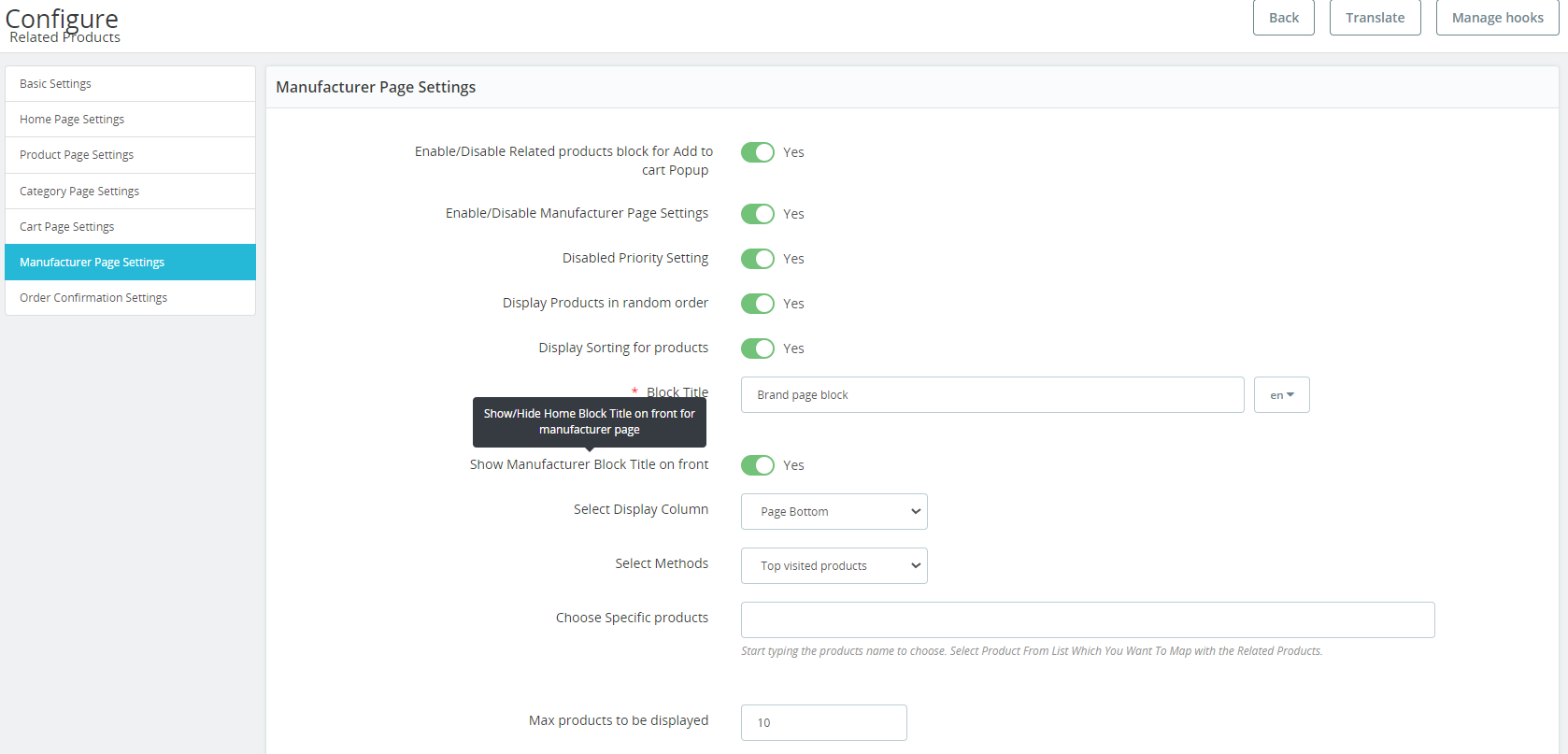
3.6 Manufacturer Page Settings
1. Enable/Disable Related Products Block for add to cart pop-up: If the following setting is enabled, the related products will appear on the add-to-cart pop-up on the manufacturer page.
2. Enable/Disable manufacturer Page Settings: The store admin can enable or disable the manufacturer page settings from the admin interface of this Prestashop alike product addon.
3. Disabled Priority Setting: This option can be used for making the priority setting enabled or disabled.
4. Display Products in Random Order: In case you want to show off the related products in random order to your visitors, you can use this particular option. If this option is enabled, all the related products will appear in random form every time.
5. Display Sorting for Products: If you enable this option, the users can sort the products on the related product slider.
6. Block Title: The PrestaShop related products plugin allows the admin to set the related products block title in multiple languages.
7. Show Manufacturer Block Title on front: This feature lets the admin to enable or disable the module tab heading and also the heading text can be customized.
8. Select Display Column: The PrestaShop related products plugin allows the admin to show the related products in various positions like the left column, the right column of product or page bottom.
9. Select Methods: There are various methods to select from. The admin can show the related products as per Bestsellers, Top visited products, New Products, Use user history, Top viewed by this manufacturer, Bestseller in this manufacturer.
10. Choose Specific Products: For this option, you can add specific products just by entering the name and the related products will appear based on the same.
11. Max products to be displayed: The Prestashop related products addon allows the store admin to fix the maximum products count for displaying on the category page.
The store admin can also set the priority of every method easily from the admin interface. the Prestashop product cross-selling module picks the product from the lower method if no product will be available on the higher method.
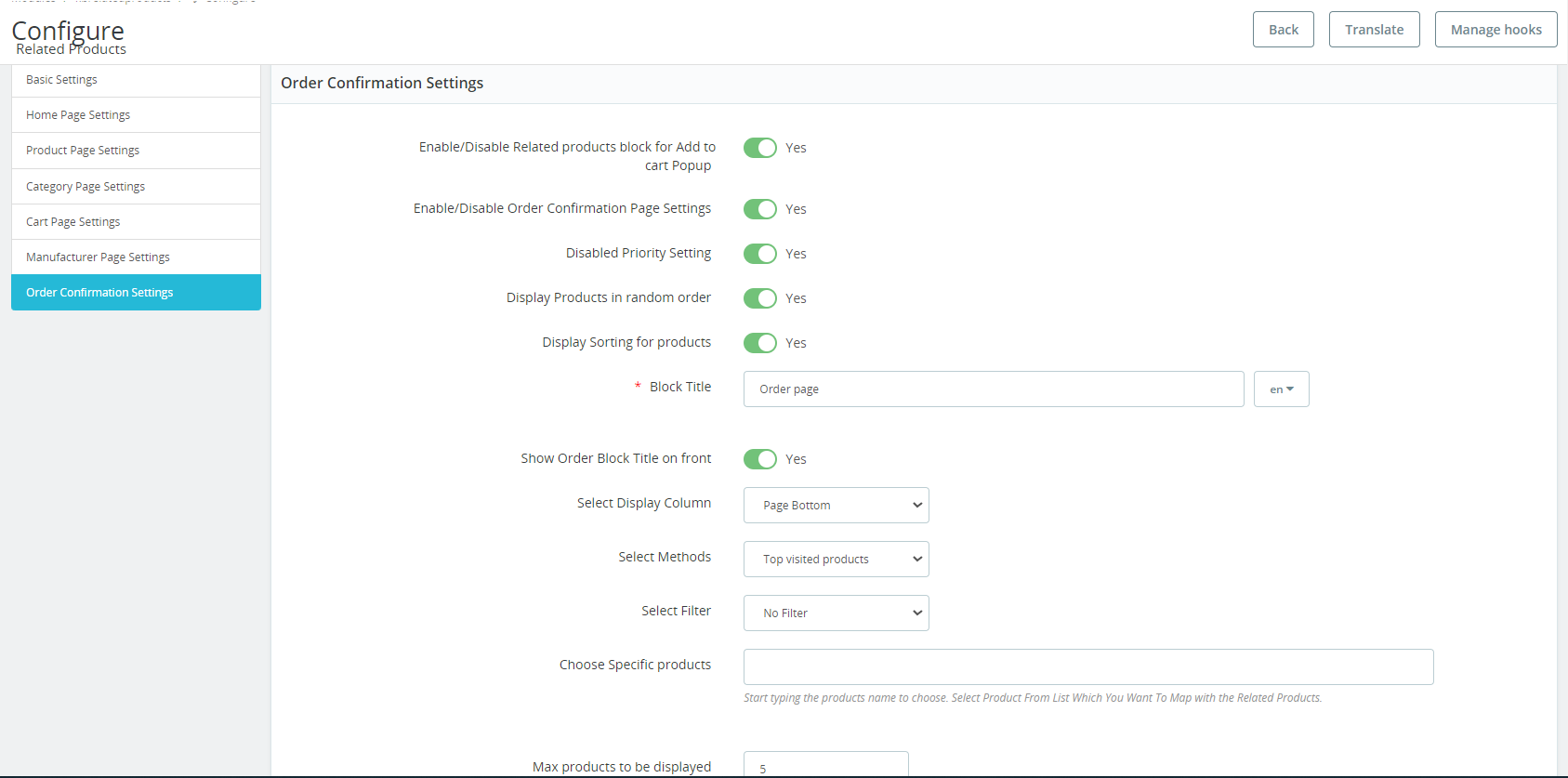
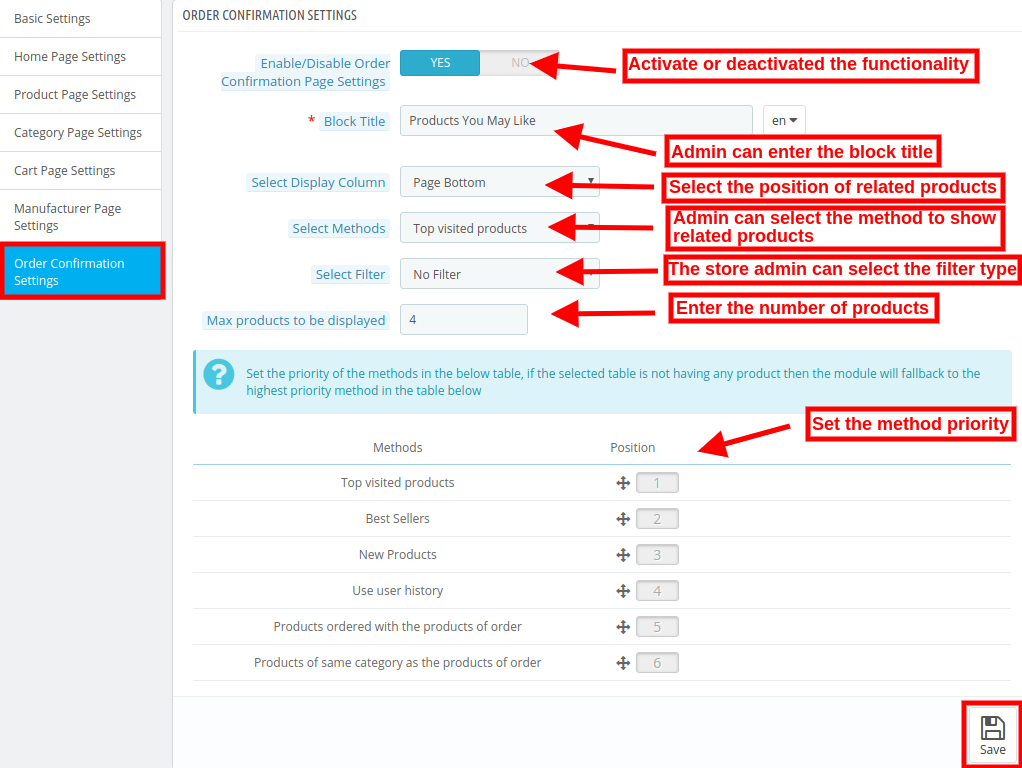
3.7 Order Confirmation Settings
1. Enable/Disable Related Products Block for Add to Cart Pop-Up: If you have enabled the following setting, the related products will appear on the add-to-cart pop-up on the Order Confirmation page.
2. Enable/Disable Order Confirmation Page Settings: The store admin can enable or disable the Order Confirmation Page settings from the admin interface.
3. Disabled Priority Setting: The admin can enable/disable priority settings from here.
4. Display Products in Random Order: Using this option, the admins can show related products in random order to the visitors. If this option is enabled, all the related products will appear in random form every time.
5. Display Sorting for Products: If you enable this option, the users can sort the products on the related product slider.
6. Block Title: The Prestashop related products plugin allows the admin to set the related products block title in multiple languages.
7. Show Order Block Title on front: This feature lets the admin to enable or disable the module tab heading and also the heading text can be customized.
8. Select Display Column: The Prestashop related products addon allows the admin to show the related products in various positions like the left column, the right column of product or page bottom.
9. Select Methods: There are various methods to select from. The admin can show the related products as per Top visited products, Best Sellers, New Products, Use user history, Products ordered with the products of order and Products of the same category as the products of the order.
10. Select filter: The store admin can select the filters like no filter, keyword, attribute.
11. Choose Specific Products: For this option, you can add specific products just by entering the name and the related products will appear based on the same.
12. Max products to be displayed: The admin can fix the maximum products count for displaying on the category page. The store admin can also set the priority of every method easily from the admin interface. The Prestashop Automatic Related Product addon picks the product from the lower method if no product will be available on the higher method.
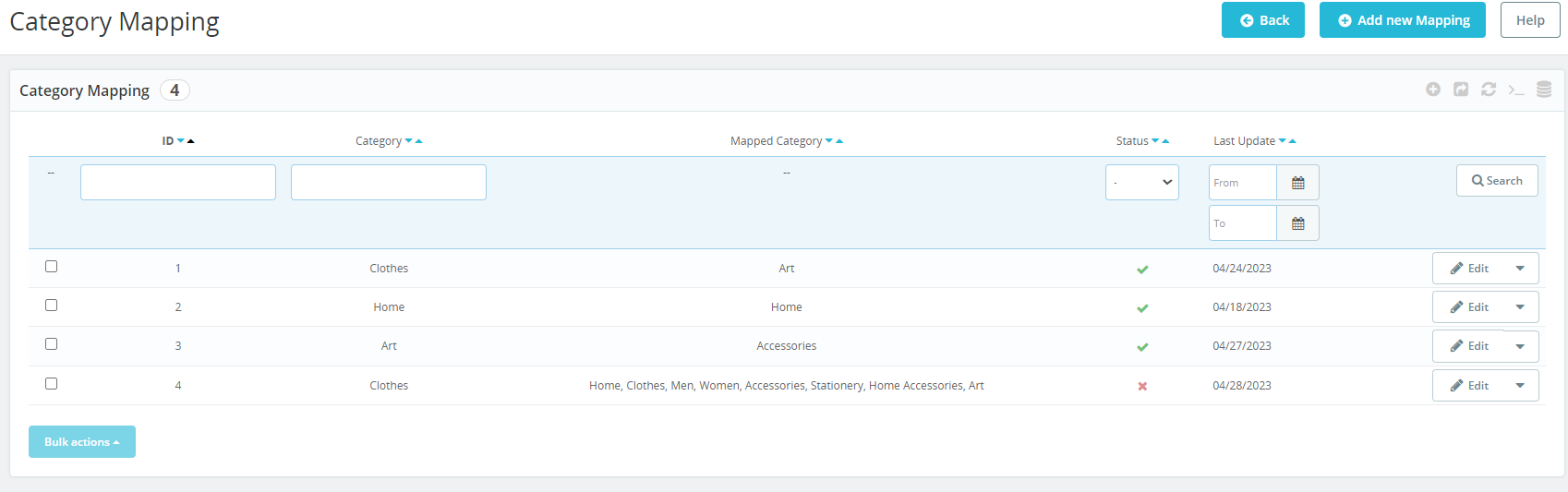
Category Mapping:
Store Admin can Create, Edit and Delete new Category rules under the Category Mapping tab.
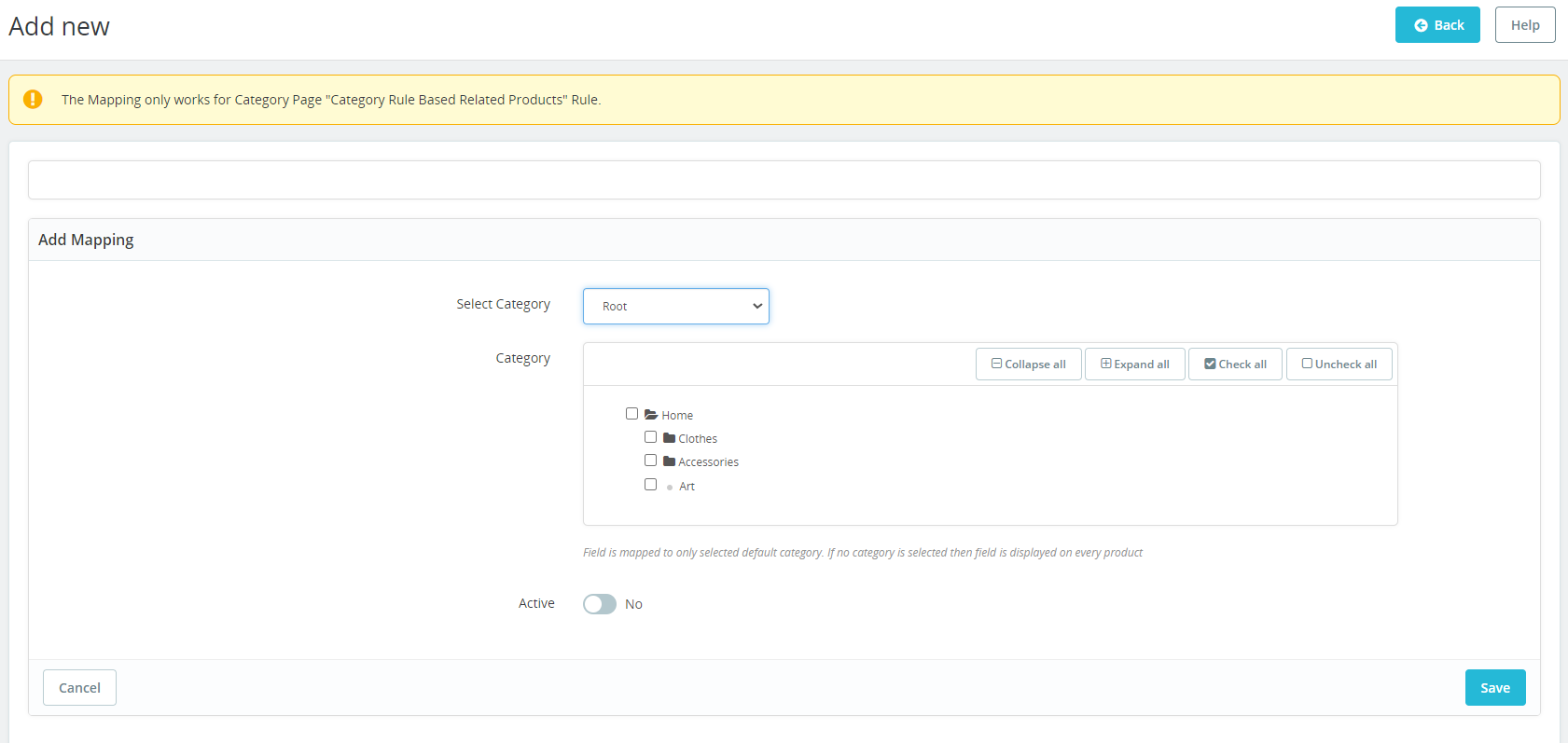
After clicking on the Add new Mapping button, a new mapping form will be open with following fields :
The admin has the ability to create rules for category pages by mapping multiple categories to a specific category. This means that on the designated category page, all products from the mapped categories will be displayed. This provides greater control and flexibility to the admin in curating product displays and enhancing the user experience on the website.
4.0 Front-end Interface
The customers can view the related products as shown in the below-mentioned images.
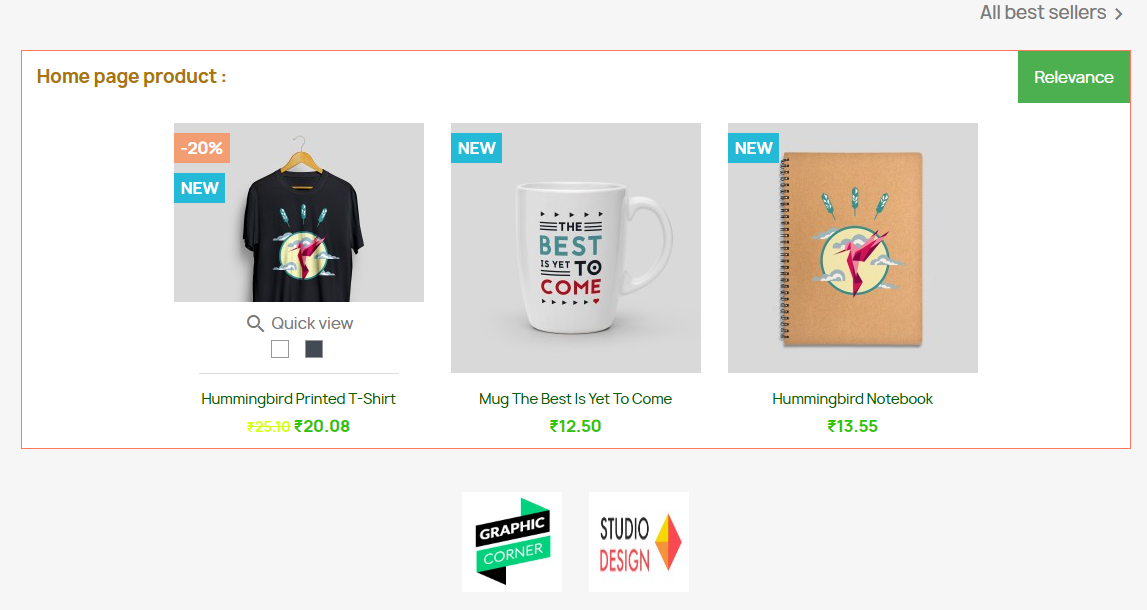
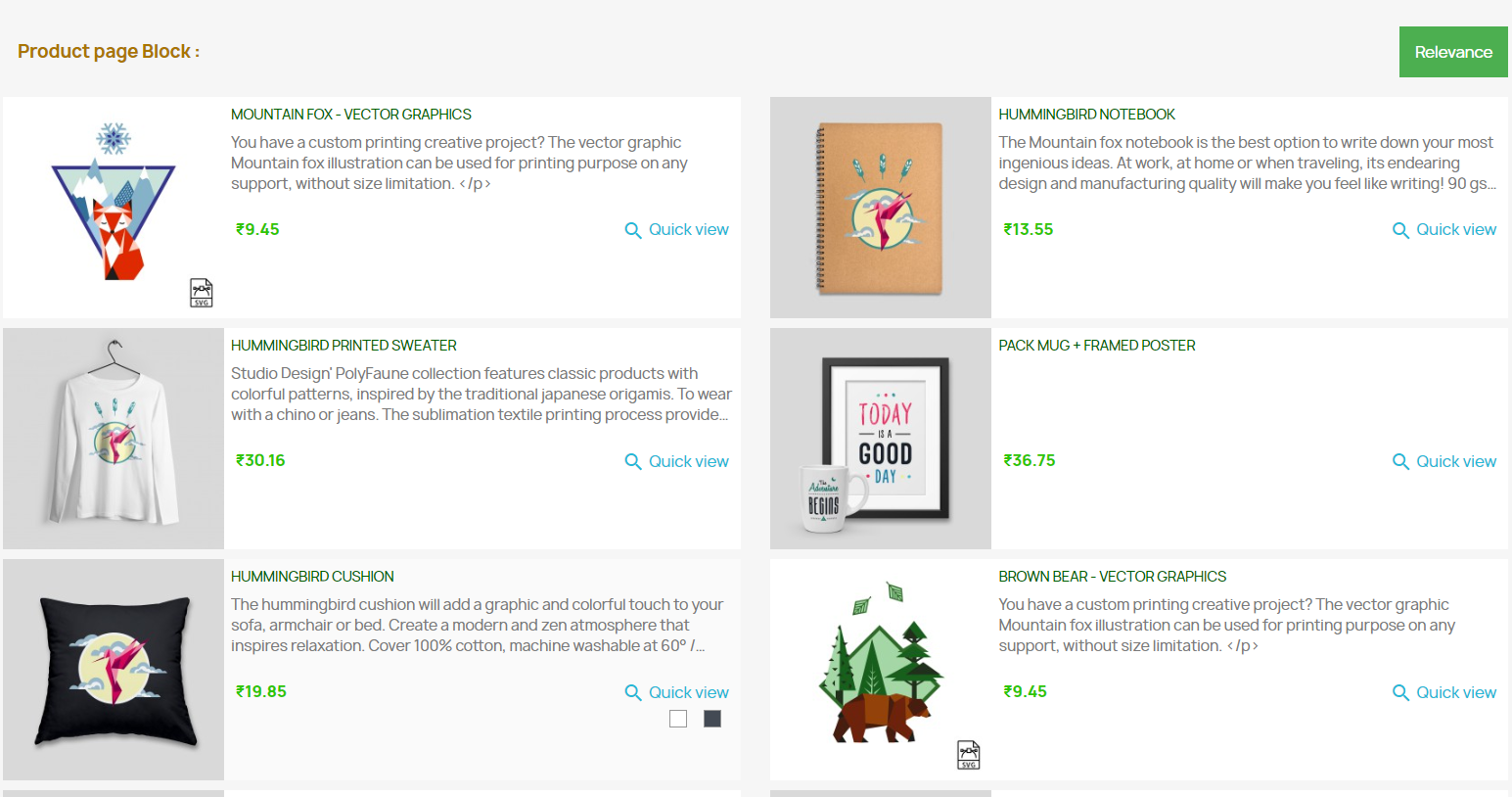
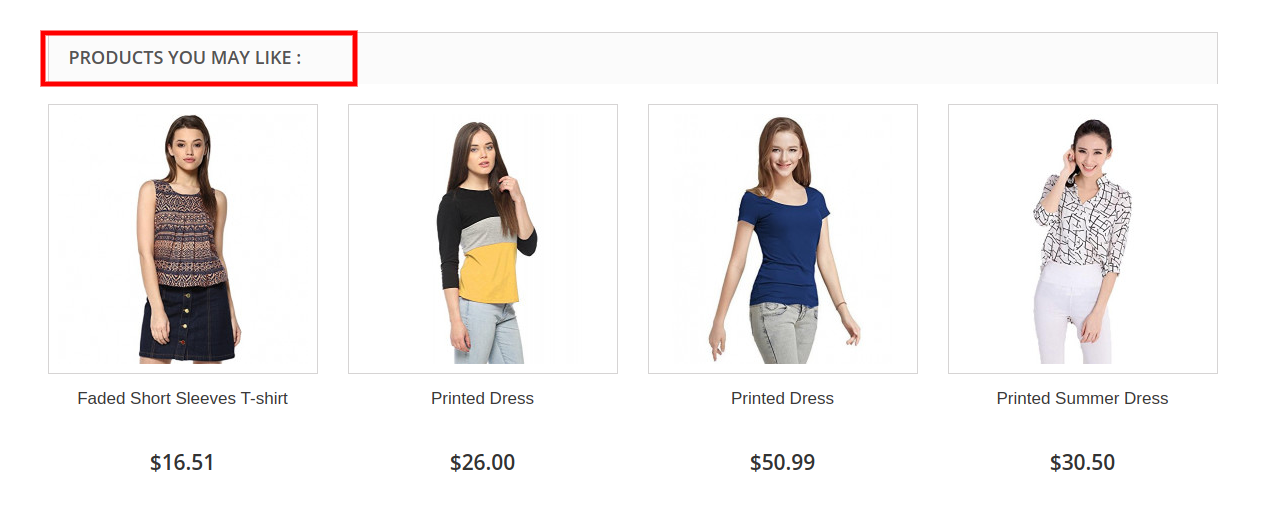
At the home page the related products will be displayed like the below image:
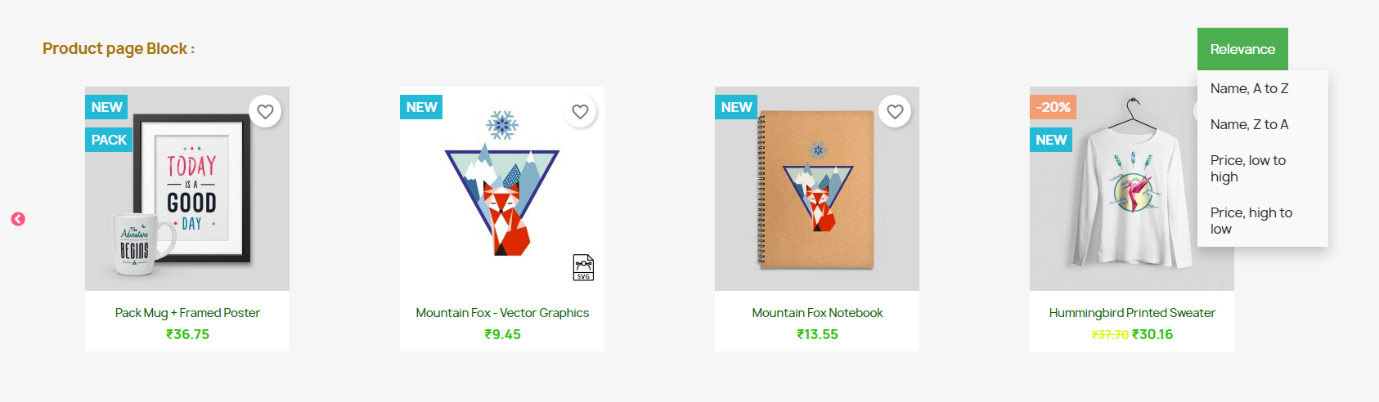
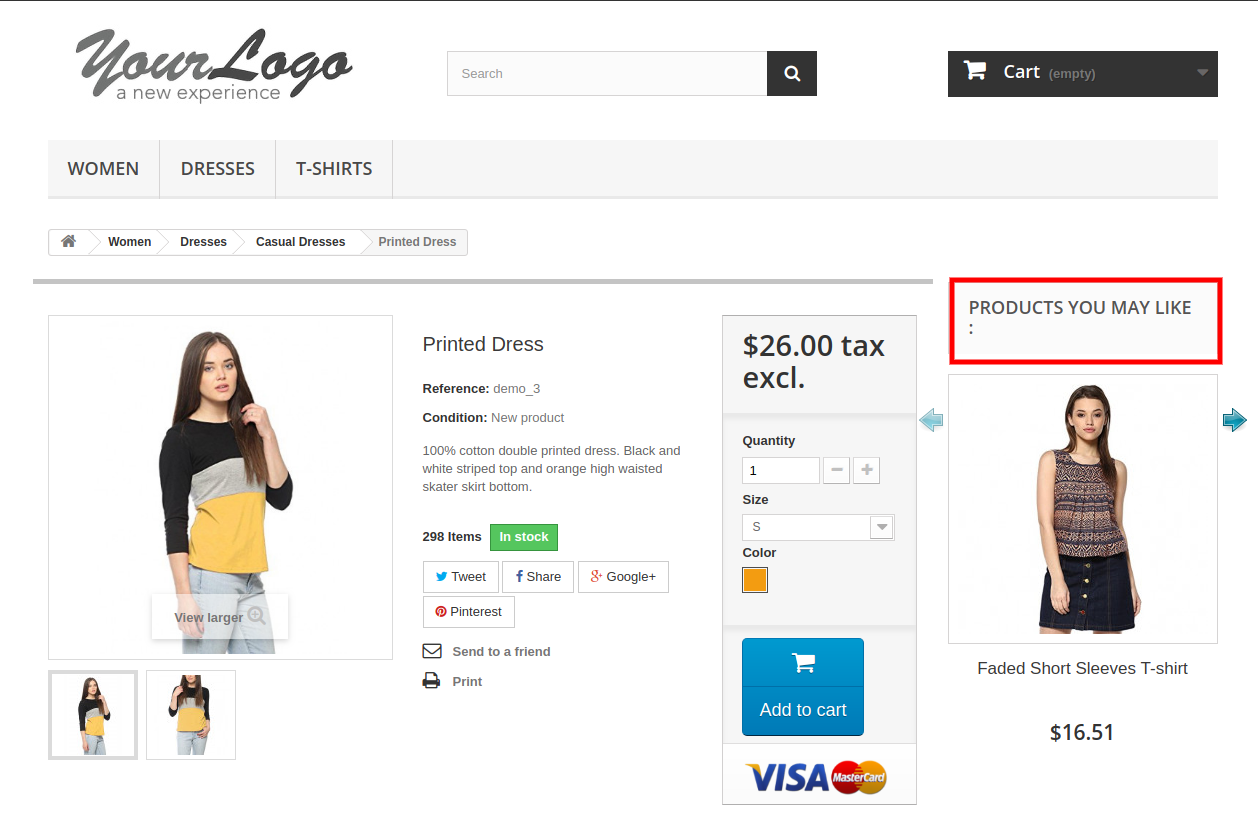
The customers can also view the related products on the product page:
Similar products will display on add to cart pop up too:
This way, the online store admin can showcase related products on different website pages like homepage, product pages, category pages, cart page, manufacturer page and order confirmation pages also. This way, the e-merchant can grab the customers attention on those products which he wants them to purchase. The Prestashop Automatic Related Product module allows the eCommerce store admin to implement this functionality to showcase related products on the website pages without any code changes. The eCommerce store admin can configure this Prestashop similar products addon according to their requirements and showcase the related products on the website pages easily. The customers can also view the related products and select the best one for themselves. The Prestashop similar products addon shows related products which increase the cart value of the customers.
Kupiec sklepu internetowego może teraz skupić uwagę klienta i poprawić sprzedaż strony internetowej dzięki modułowi sprzedaży krzyżowej PrestaShop. Oferty Knowband Automatyczny produkt pokrewny PrestaShop dodatek, który umożliwia sprzedawcom internetowym wyświetlanie powiązanych produktów na różnych stronach internetowych. To rozszerzenie produktu związane z wyprzedzeniem umożliwia ustawienie określonych warunków wyświetlania odpowiednich podobnych produktów na każdej stronie.
Administrator może ustawić metody i filtry wyświetlania produktów jako podobnych produktów. Automatyczny dodatek do produktu pokrewnego PrestaShop pozwala administratorowi wyświetlać pokrewną kolumnę produktu po lewej, prawej lub na dole strony. Klienci online mogą przeglądać podobne produkty i wybrać odpowiedni produkt. W ten sposób administrator może również poprawić sprzedaż i współczynnik konwersji.
Korzyści 1.1 dla handlowców
Ten moduł sprzedaży krzyżowej pomaga administratorowi zwiększyć średnią wartość koszyka klienta, pokazując podobne produkty.
Istnieje większa szansa na konwersję, jeśli użytkownik sklepu znajdzie żądany produkt w podobnym bloku produktu.
Administrator sklepu może wyświetlać perfekcyjnie podobne produkty, aby zwiększyć sprzedaż i zaoferować klientom lepsze wrażenia w sklepie.
Moduł podobnych produktów umożliwia ustawienie odpowiedniej pozycji bloku produktu zgodnie z ich preferencjami.
Dostępnych jest wiele warunków umożliwiających wyświetlanie podobnych produktów w sposób zaawansowany.
Ten sam moduł produktu PrestaShop oferuje opcję ukrywania niedostępnych produktów i pokazywania tylko dostępnych produktów jako podobnych produktów.
Dzięki tej wtyczce produktów pokrewnych PrestaShop administrator może zmniejszyć współczynnik odrzuceń, angażując klientów.
Administrator może pokazywać nowo przybyłych jako podobne produkty w celu promowania nowych produktów.
Sprzedawca może pokazać produkty, na które chce zwrócić uwagę klienta.
Cechy 1.2 automatycznego dodatku do produktu pokrewnego PrestaShop
Administrator może wyświetlać powiązane produkty na różnych stronach internetowych, takich jak strona główna, strony produktów, strony kategorii, strona koszyka, strony producenta i strona potwierdzenia zamówienia.
Administrator ma opcję wyświetlania dostępnych produktów jako powiązanych produktów. Produkty niedostępne w magazynie nie będą wyświetlane jako produkty powiązane.
Sprzedawca internetowy może wprowadzić powiązany tytuł bloku produktu. Moduł produktów pokrewnych PrestaShop pozwala administratorowi ustawić tytuł bloku w różnych językach.
Rozszerzenie produktów związanych z zaliczką PrestaShop zapewnia różne metody wyświetlania powiązanych produktów. Sprzedawca sklepu może wyświetlać najczęściej odwiedzane produkty, bestsellery, nowe produkty lub korzystać z historii użytkownika do wyświetlania powiązanych produktów.
Maksymalna liczba powiązanych produktów do wyświetlenia na różnych stronach może być ustalona z poziomu interfejsu administratora.
Dodatek do produktów pokrewnych PrestaShop pozwala administratorowi ustawić priorytet metody i różne filtry do wyświetlania powiązanych produktów.
Dodatek do produktów pokrewnych PrestaShop jest w pełni mobilny.
Rozszerzenie produktów pokrewnych jest kompatybilne z wieloma sklepami i oferuje wsparcie w wielu językach.
Etapy instalacji 2.0
Administrator otrzyma poniższe pliki po zakupie dodatku Automatyczny produkt powiązany:
1. Spakowany plik składający się z kodu źródłowego tego dodatku do automatycznego produktu pokrewnego.
2. Instrukcja obsługi
Wykonaj następujące kroki, aby zainstalować dodatek Automatyczny produkt powiązany:
Administrator musi rozpakować spakowany plik. Ten plik zawiera niektóre pliki i foldery.
Następnie administrator może skopiować ogólną zawartość folderu i wkleić je do "Moduły"folder katalogu sklepu. Administrator może podążać ścieżką Katalog główny / moduły /.
3. Teraz właściciel sklepu może zainstalować Store Admin -> Moduły i usługi. Zostanie to pokazane poniżej:
Teraz wystarczy kliknąć "zainstalować", aby łatwo zainstalować dodatek do Automatycznego Podobnego Produktu, pojawi się okienko z potwierdzeniem, kliknij opcję" Kontynuuj instalację ". W tym kroku zostanie zainstalowany dodatek do Automatycznego powiązanego produktu i powiadomienie Moduły zainstalowane pomyślnie“.
Interfejs administracyjny 3.0
Dostępne są różne opcje dostosowywania. Administrator sklepu może zastosować ustawienia i wyświetlić podobne produkty na różnych stronach internetowych. Oto opcje dostosowywania:
Podstawowe ustawienia
Ustawienia strony głównej
Ustawienia strony produktu
Ustawienia strony kategorii
Ustawienia strony koszyka
Ustawienia strony producenta
Zamów ustawienia potwierdzenia
Podstawowe ustawienia 3.1
1. Włącz / wyłącz: Administrator sklepu może aktywować lub dezaktywować funkcjonalność po prostu przełączając przycisk.
2. Pokaż tylko te produkty, które są obecnie dostępne w magazynie: Administrator może włączyć opcję menu, jeśli chce wyświetlać tylko produkty w magazynie jako produkty powiązane.
Ustawienia strony głównej 3.2
1. Włącz / wyłącz ustawienia strony głównej: Administrator sklepu eCommerce może aktywować lub dezaktywować ustawienia strony domowej, klikając tę opcję.
2. Tytuł bloku: Właściciel sklepu może wprowadzić tytuł powiązanego bloku produktów. Dodatek do produktu pokrewnego PrestaShop pozwala administratorowi sklepu na wpisanie tytułu bloku w różnych językach.
3. Wybierz wyświetl kolumnę: Właściciel sklepu może wyświetlać powiązane produkty w różnych kolumnach, np. Na dole strony, w lewej kolumnie lub w prawej kolumnie.
4. Wybierz metody: Dostępne są różne metody, takie jak administrator może wyświetlać najczęściej odwiedzane produkty, bestsellery, nowe produkty, historię użytkowników.
5. Maksymalne produkty do wyświetlenia: Właściciel sklepu może ustawić maksymalną liczbę produktów do wyświetlenia na stronie głównej witryny.
Administrator sklepu może również ustawić priorytet metod.
Ustawienia strony produktu 3.3
1. Włącz / wyłącz Ustawienia strony produktu: Właściciel sklepu może aktywować lub dezaktywować ustawienia strony produktu za pomocą przełącznika przycisku.
2. Tytuł bloku: Administrator może wprowadzić tytuł bloku powiązanych produktów w różnych językach.
3. Wybierz kolumnę Wyświetl: Administrator sklepu może wyświetlać powiązane produkty w lewej kolumnie, prawej kolumnie lub na dole strony.
4. Wybierz metodę: Administrator może wybrać metodę, która ma być wyświetlana na front-end. Istnieją różne metody, takie jak administrator może wyświetlać najczęściej odwiedzane produkty, bestsellery, nowe produkty, produkty oparte na historii użytkownika, produkty o tej samej kategorii domyślnej, produkty zamawiane z tym produktem, produkty o tej samej funkcji i produkty o tej samej wartości funkcji.
5. Wybierz filtr: Administrator sklepu może wybrać filtr, zgodnie z którym wyświetlane będą produkty z przodu. Tutaj administrator może wybrać filtr, słowa kluczowe i atrybut.
6. Maksymalne produkty do wyświetlenia: Administrator może wybrać maksymalną liczbę produktów do wyświetlenia jako produkty powiązane.
Administrator sklepu może ustawić priorytet metod. jeśli nie ma produktu w metodzie o wyższym priorytecie, moduł wyświetli produkt z niższym priorytetem.
Ustawienia strony kategorii 3.4
1. Włącz / wyłącz ustawienia strony kategorii: Administrator sklepu może włączyć lub wyłączyć ustawienia strony kategorii z poziomu interfejsu administratora.
2. Tytuł bloku: Rozszerzenie produktu związane z zaliczką PrestaShop umożliwia administratorowi ustawienie tytułu bloku powiązanych produktów w wielu językach.
3. Wybierz wyświetl kolumnę: Rozszerzenie produktu związane z zaliczką PrestaShop pozwala administratorowi wyświetlać powiązane produkty w różnych pozycjach, takich jak lewa kolumna, prawa kolumna produktu lub strona na dole.
4. Wybierz metody: Istnieją różne metody do wyboru. Administrator może wyświetlać powiązane produkty według Bestsellerów w tej kategorii, najczęściej odwiedzanych produktów, bestsellerów, nowych produktów, historii użytkownika lub Najlepiej oglądanych w tej kategorii.
5. Maksymalne produkty do wyświetlenia: Właściciel sklepu internetowego może ustalić maksymalną liczbę produktów do wyświetlania na stronie kategorii.
Administrator sklepu może również łatwo ustawić priorytet każdej metody z poziomu interfejsu administratora. Moduł wybiera produkt z niższej metody, jeśli żaden produkt nie będzie dostępny w wyższej metodzie.
Ustawienia strony koszyka 3.5
1. Włącz / wyłącz ustawienia strony kategorii: Administrator sklepu może włączyć lub wyłączyć ustawienia strony koszyka z poziomu interfejsu administratora.
2. Tytuł bloku: Rozszerzenie produktu związane z zaliczką PrestaShop umożliwia administratorowi ustawienie tytułu bloku powiązanych produktów w wielu językach.
3. Wybierz wyświetl kolumnę: Rozszerzenie produktu związane z zaliczką PrestaShop pozwala administratorowi wyświetlać powiązane produkty w różnych pozycjach, takich jak w
4. Wybierz metody: Istnieją różne metody do wyboru. Administrator może wyświetlać powiązane produkty według bestsellerów, najczęściej odwiedzanych produktów, nowych produktów, historii użytkownika, produktów zamawianych z produktami w koszyku, produktów tej samej kategorii co produkty koszyka.
5. Wybierz filtr: Administrator sklepu może nie wyświetlać filtru, słowa kluczowego lub filtru atrybutów.
6. Maksymalne produkty do wyświetlenia: administrator może ustalić maksymalną liczbę produktów do wyświetlania na stronie kategorii.
Administrator sklepu może również łatwo ustawić priorytet każdej metody z poziomu interfejsu administratora. moduł wybiera produkt z niższej metody, jeśli żaden produkt nie będzie dostępny w wyższej metodzie.
Ustawienia strony producenta 3.6
1. Włącz / wyłącz ustawienia strony producenta: Administrator sklepu może włączyć lub wyłączyć ustawienia strony producenta z poziomu interfejsu administratora.
2. Tytuł bloku: Wtyczka Powiązane produkty PrestaShop pozwala administratorowi ustawić tytuł powiązanych produktów w wielu językach.
3. Wybierz wyświetl kolumnę: Wtyczka produktów powiązanych PrestaShop pozwala administratorowi wyświetlać powiązane produkty w różnych pozycjach, takich jak lewa kolumna, prawa kolumna produktu lub strona na dole.
4. Wybierz metody: Istnieją różne metody do wyboru. Administrator może wyświetlać powiązane produkty według bestsellerów, najczęściej odwiedzanych produktów, nowych produktów, historii użytkowników, najlepszych oglądanych przez tego producenta, bestsellerów tego producenta.
5. Maksymalne produkty do wyświetlenia: administrator może ustalić maksymalną liczbę produktów do wyświetlania na stronie kategorii.
Administrator sklepu może również łatwo ustawić priorytet każdej metody z poziomu interfejsu administratora. moduł wybiera produkt z niższej metody, jeśli żaden produkt nie będzie dostępny w wyższej metodzie.
3.7 Ustawienia potwierdzenia zamówienia
1. Włącz / wyłącz Ustawienia strony potwierdzenia zamówienia: Administrator sklepu może włączyć lub wyłączyć ustawienia strony potwierdzenia zamówienia z poziomu interfejsu administratora.
2. Tytuł bloku: Moduł umożliwia administratorowi ustawienie tytułu bloku powiązanych produktów w wielu językach.
3. Wybierz wyświetl kolumnę: Moduł pozwala administratorowi wyświetlać powiązane produkty w różnych pozycjach, takich jak lewa kolumna, prawa kolumna produktu lub strona na dole.
4. Wybierz metody: Istnieją różne metody do wyboru. Administrator może wyświetlać powiązane produkty według najczęściej odwiedzanych produktów, bestsellerów, nowych produktów, historii użytkownika, produktów zamawianych z produktami zamawianymi i produktów tej samej kategorii co produkty zamówienia.
5. Wybierz filtr: Administrator sklepu może wybrać filtry, takie jak brak filtra, słowo kluczowe, atrybut.
6. Maksymalne produkty do wyświetlenia:?The admin can fix the maximum products count for displaying on the category page.
Administrator sklepu może również łatwo ustawić priorytet każdej metody z poziomu interfejsu administratora. moduł wybiera produkt z niższej metody, jeśli żaden produkt nie będzie dostępny w wyższej metodzie.
Interfejs przedni 4.0
Klienci mogą wyświetlać powiązane produkty, jak pokazano na poniższych obrazkach.
Na stronie głównej powiązane produkty będą wyświetlane jak na poniższym obrazku:
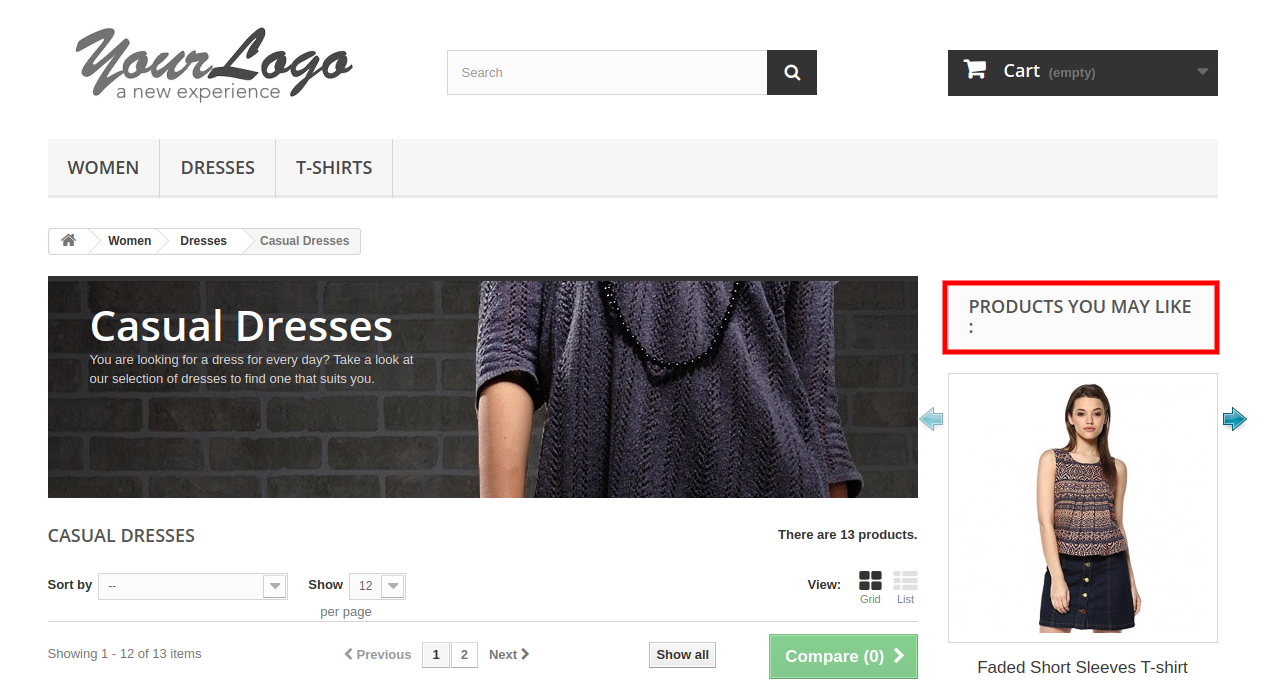
Podobne produkty będą wyświetlane na stronach kategorii, jak pokazano poniżej:
Klienci mogą również wyświetlać powiązane produkty na stronie produktu:
Podobne produkty zostaną wyświetlone na stronie koszyka, jak pokazano poniżej:
Klienci mogą również zobaczyć podobny produkt na stronie potwierdzenia zamówienia: