1. 0 Introduction
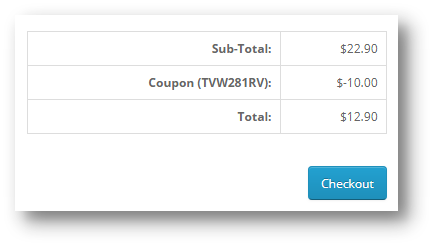
In the present time, the Online shoppers are always looking for exciting shopping offers and deals that can give them ample reasons to indulge in online shopping. If you have this Knowband Opencart Scratch Coupon extension that displays a scratch coupon on the front-end where the store visitors can scratch the coupon with their mouse and win alluring discounts.
The Opencart Extensions enable the store owner to allow the system to give discount coupons to endpoint customers and analyze the customer’s need by tracking discount coupons. As we know that customers attract to any shopping sites on the base of attractive offers and various type discounts. So, with keep in mind these points, this Opencart coupon email extension will generate discount coupon on the front end to all visited customers, based on defined discount criteria by the Opencart store owner.
1.1 Benefits for the store owner
1. The Opencart coupon email plugin can be installed and customized without any hassle.
2. The Opencart scratch coupon module allows the online merchant to enable/disable it with a by toggling the button.
3. The mouse cursor is used to scratch the coupon on the front end.
4. The Opencart scratch card enables the Opencart store admin can send a personalized email with the coupon code.
5. The Admin can add the own rules and he/she can be customized as per requirement. For example, the shipping cost to be added or not.
6. The Store admin can track the use of the coupon codes and more with the help of Opencart Scratch Coupon pop up module.
7. The Opencart coupon generator module by Knowband allows the eCommerce merchant to set the discount amount, the eligible time period to avail coupon code and much more.
8. The Opencart scratch card pop up by Knowband allows the e-merchant to customize the messages on the scratch card, button text and input field from the back-end of the Opencart plugin.
9. The Admin has an option to customize the look, feel, and text of the front block from back-end itself.
10. The Opencart Scratch Coupon module provides free technical support and assistance.
11. The Opencart scratch coupon extension by Knowband is compatible with various types of online stores and themes.
12. The Opencart Scratch Coupon pop up module offers free technical support service and updates.
13. The Opencart scratch card can be installed and configured in a seamless manner.
1.2 Benefits for the Customer:
1- This Opencart scratch coupon extension by Knowband give the attractive offer to the customer.
2- This Opencart scratch coupon pop up module is mobile responsive and enables the customers to scratch the coupon on their mobile phones and desktop.
2.0 Installation
After purchasing the Knowband Opencart scratch coupon pop up plugin you will get following files as listed below:
1. Compressed File in ZIP format (contains source code of the module)
2. User Manual
How to install OpenCart Scratch Coupon plugin on your server
1. Folder structure of the Opencart scratch coupon module folder.
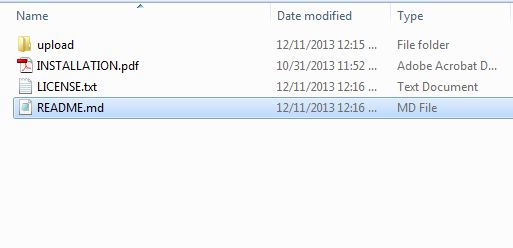
You must have VQMOD installed for this plug-in to work. IfVQMOD is not installed please download and install from the URL below:
https://code.google.com/p/vqmod/
3. Select all the folder and drag and drop them to the root directory of your OpenCart store through FTP.
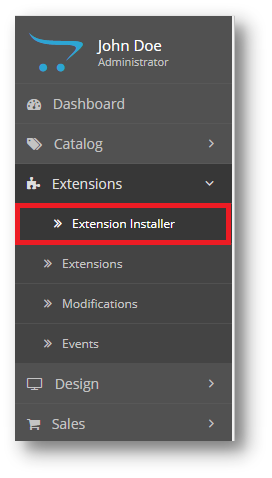
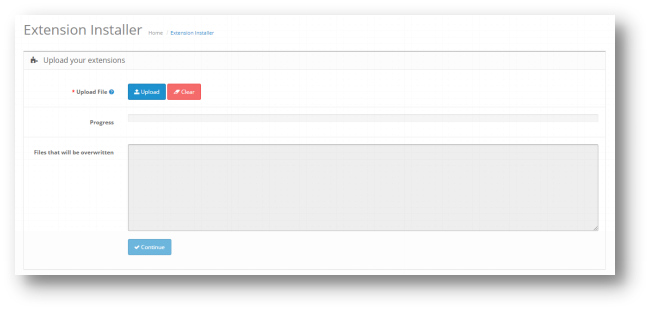
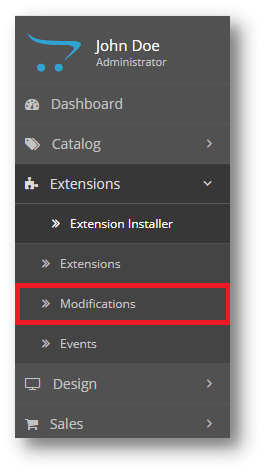
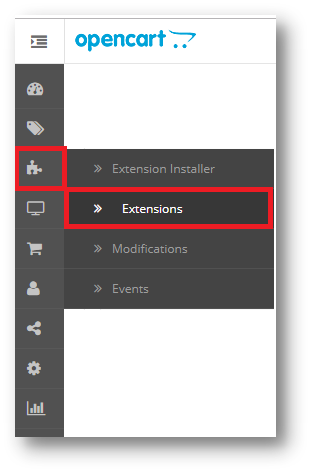
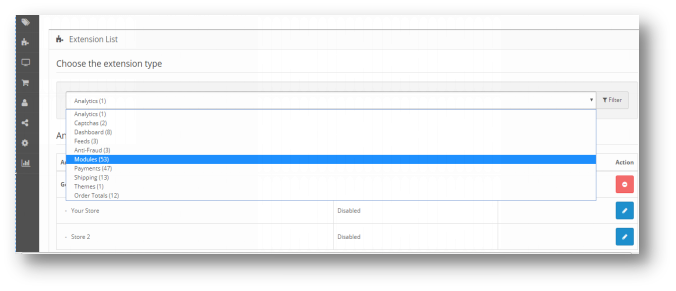
4. You will be able find the Opencart coupon email extension plug-in ready to be installed in the Modules in your OpenCart store as shown below.
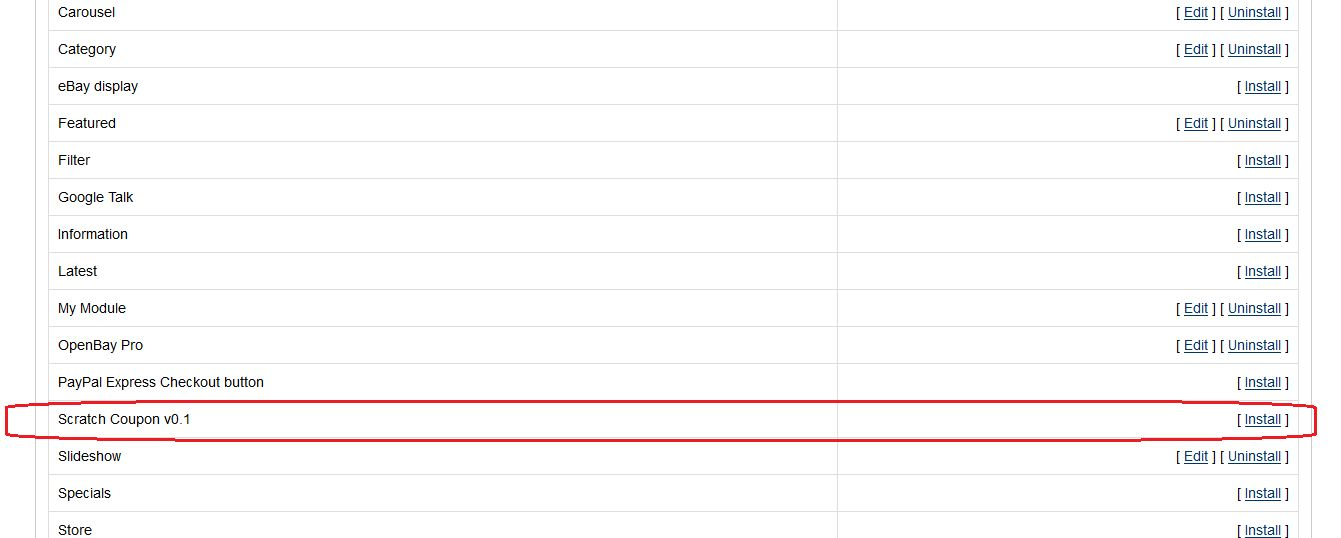
5. Click on the Install link to install the Opencart scratch coupon pop up module. This will also add a dropdown option in your menu bar which will list all plug-ins by Velocity installed on your store for fast navigation. This dropdown also has a message box, using which we can inform you about new launched plug-in or new update.
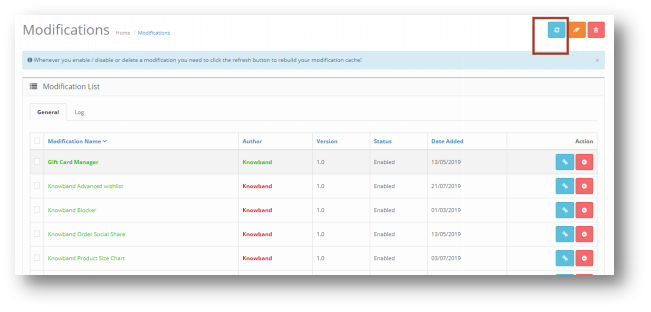
6. Delete the Vqcache files from the vqmod/vqcache folder.
7. To access Smart Sort Order Opencart extension click on edit button in module section.
8. On clicking edit button the Opencart coupon generator extension for Opencart plug-in will open. It contains navigational bar at top, menu at left and main content at center as shown below.
3.0 Admin Module
After installing Opencart scratch coupon extension into store, the Opencart extension will provide following interface:
1.General Settings
2.Report Analysis
3.Get Support
Each interface is explained below:
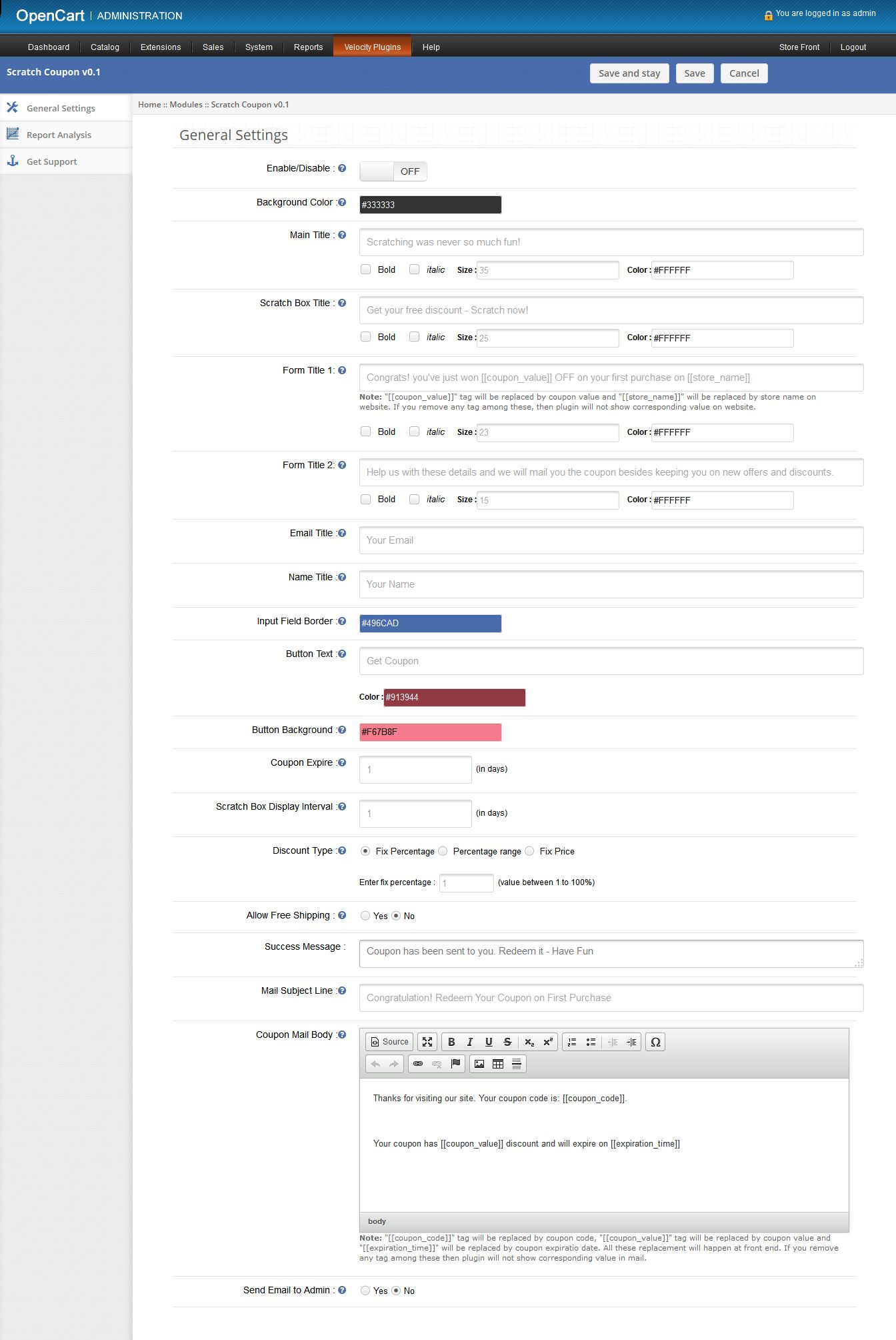
On clicking on edit link on module listing page, the system will open general settings tabs by default as shown in the screen below:
3.1 General Settings
On clicking on edit link on Opencart module listing page, system will open general settings tabs by default as shown in screen below:
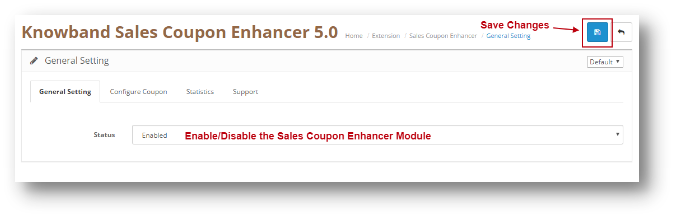
1. Enable/Disable: Initially, this will be “OFF”. User can enable/disable Opencart scratch coupon extension functionality by turning ON/OFF this setting.
2. Background Color: This field will be used to define background color of scratch coupon box on front end. On clicking this input, a color picker will pop up from where user can change the color of background color. There is no option to blank this field.
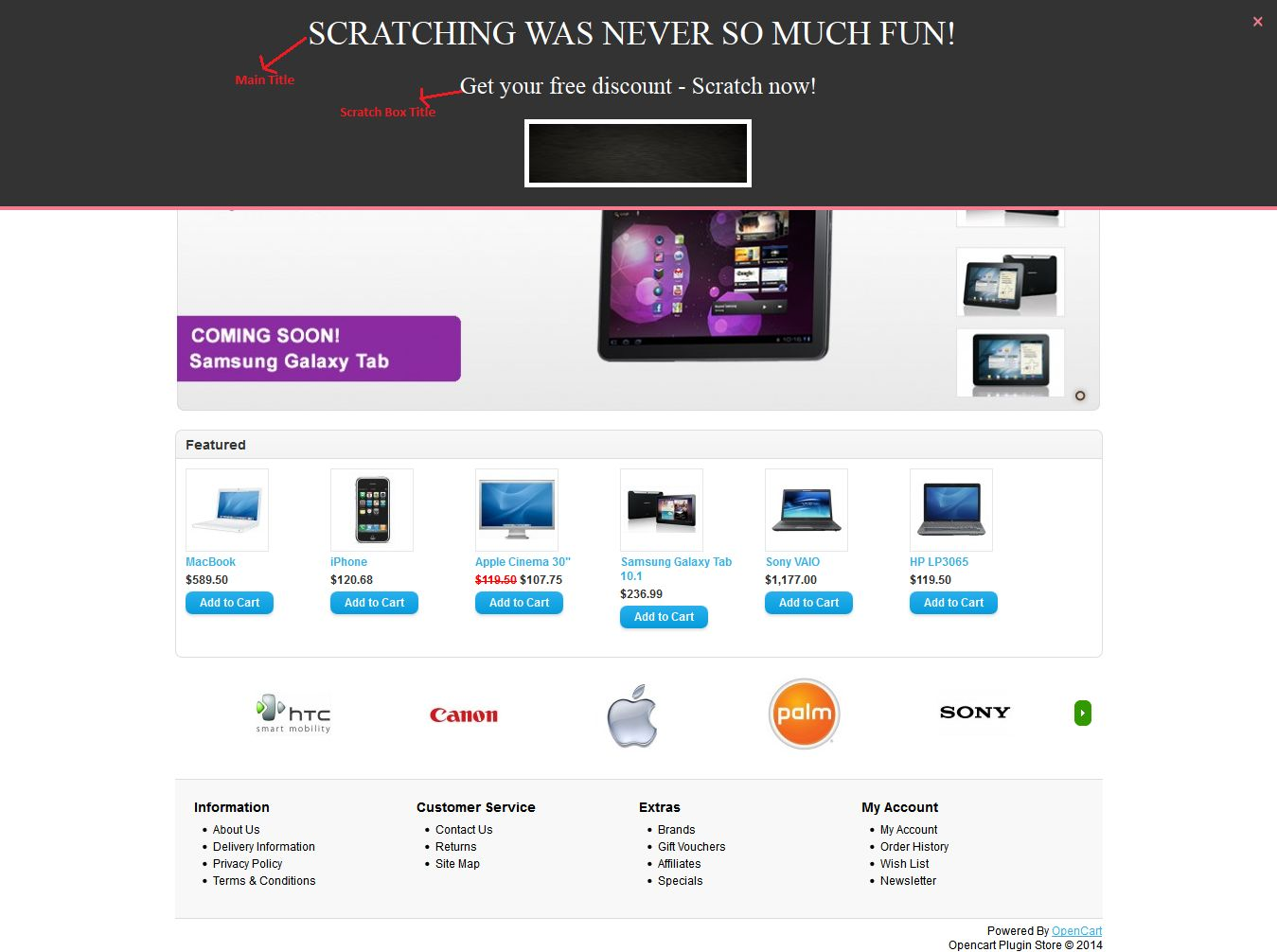
3. Main Title: Mandatory. This is the title showing on the top of the coupon box on front. User can make this title stylish as setting following options:
- Bold: To darken the title.
- Italic: to italic the title
- Size: to increase/decrease the size of the title.
- Color: To set the color of the title.
4. Scratch Box Title: Mandatory. This title will be show just above the scratch area on front end.User can also make stylish this title with style options.
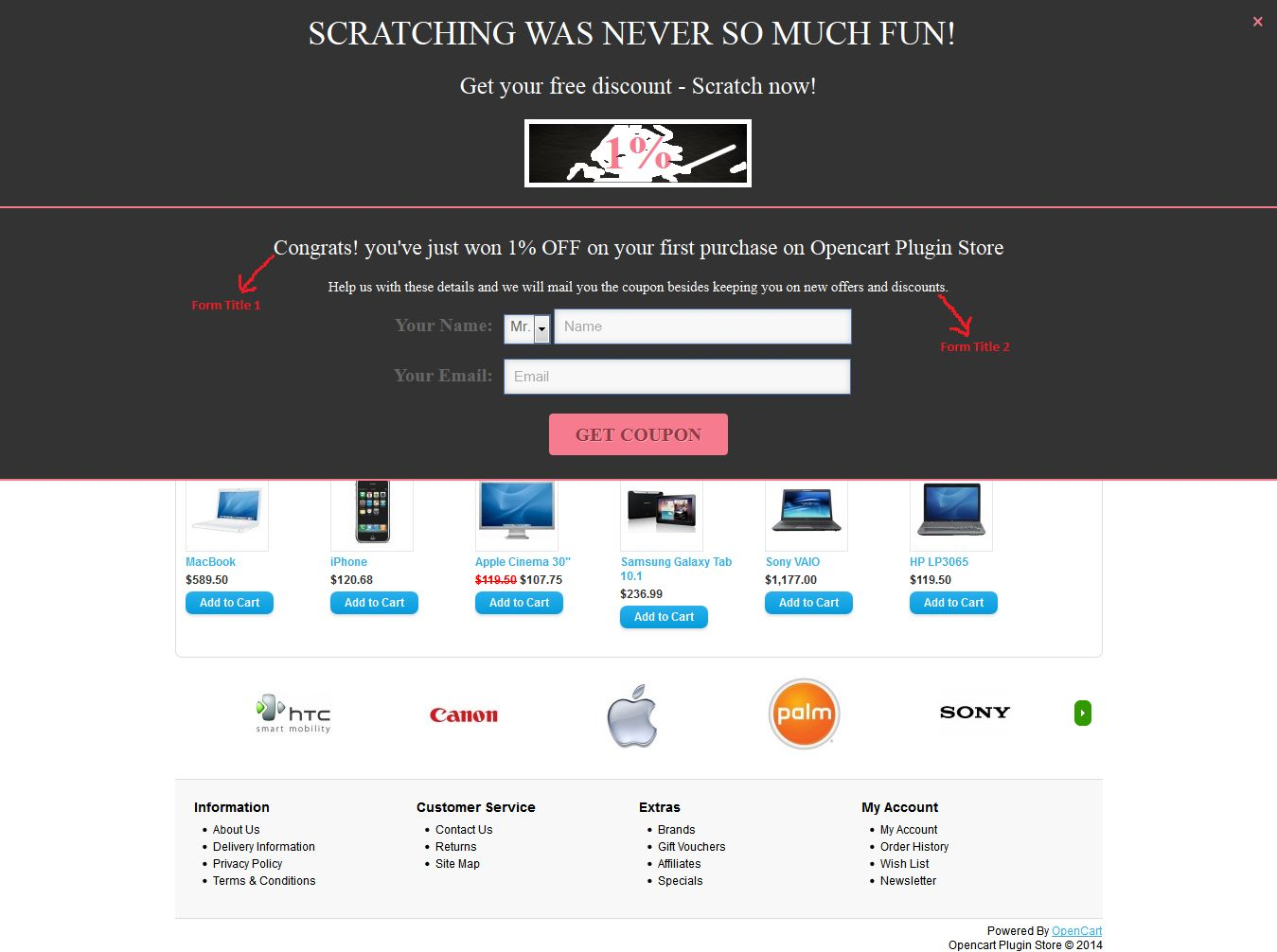
5. Form Title 1: Mandatory. After little scratching of discount, Opencart scratch card module will open a form to submit name and email id to get coupon. This title will be shown on top of this opened box.
6. Form Title 2: Mandatory. This title will be displayed just above the email input form and below the After Scratch Title on front end. User can also stylish this title with various style options.
7. Email Title: Mandatory. In this field user can set name of the email input field, showing with “email input” on front.
8. Name Title: Mandatory. In this field user can set the name of name input field, showing with “name input” on front.
9. Input Border Field: Use to style the border of input fields on front end. We recommend that use opposite color of background color to clearly show the input fields on front end.
10. Button Text: Mandatory. Here user can set the title of button. User can also change the color of button text by setting the color into corresponding color field.
11. Button Background Color: Mandatory. Here user can set the background color of button. This color will also be used for setting the color of separator between scratch coupon box and input form box. Also use for setting color of close(X) button, which will be used for close the coupon box on front end.
12. Coupon Expire: Mandatory and must be number greater than 0. This field will be used for defining the expiration date of coupons. In this field, user can set after how many days coupon will be expired. The expiration date will be set at the time of coupon generation.
13. Scratch Box Display Interval: Mandatory and must be number greater than 0. This field will be used to, after how many days; scratch box will be displayed again on the same system.
14. Discount Type: Mandatory. Here user can set the type of discount to customers. There are three options to set the discount type. They are as follow:
a. Fix Percentage: By default, this option will be selected. Here user can set the fix percentage discount. Fix percentage value will lie between 1 and 100. On front end,each coupon will have fix discount percentage.

b. Percentage Range: On selecting this option. Two inputs will be shown as shown in screen below:
Here user can set the range of percentage. By setting this option, plug-in will randomly generate discount within percentage range on front end.

c. Fix Price: If user set fix amount discount instead of percentage. Then this option will fulfill this need. Here user can set fix amount in USD.
15. Allow Free Shipping: By default No will be selected. On selecting Yes. Free shipping will be allowed on the generated coupons.
16. Success Message: Mandatory. This message will be shown after sending coupon to corresponding customer.
17. Mail Subject Line: Mandatory. Use to set the subject line of coupon mail send to customers.
18. Mail Body: Mandatory. Mail body of coupon.
19. Send Email to Admin: By default “No” will be selected. This option will enable Opencart scratch coupon extension to send same email to admin or not.
3.2 Report Analysis tab
In this tab, Opencart generate coupon extension will show the coupons and discount statistics in graphical form. With the help of these statistics, user will able to analysis customers need in form of discounts and time as shown in screen below:
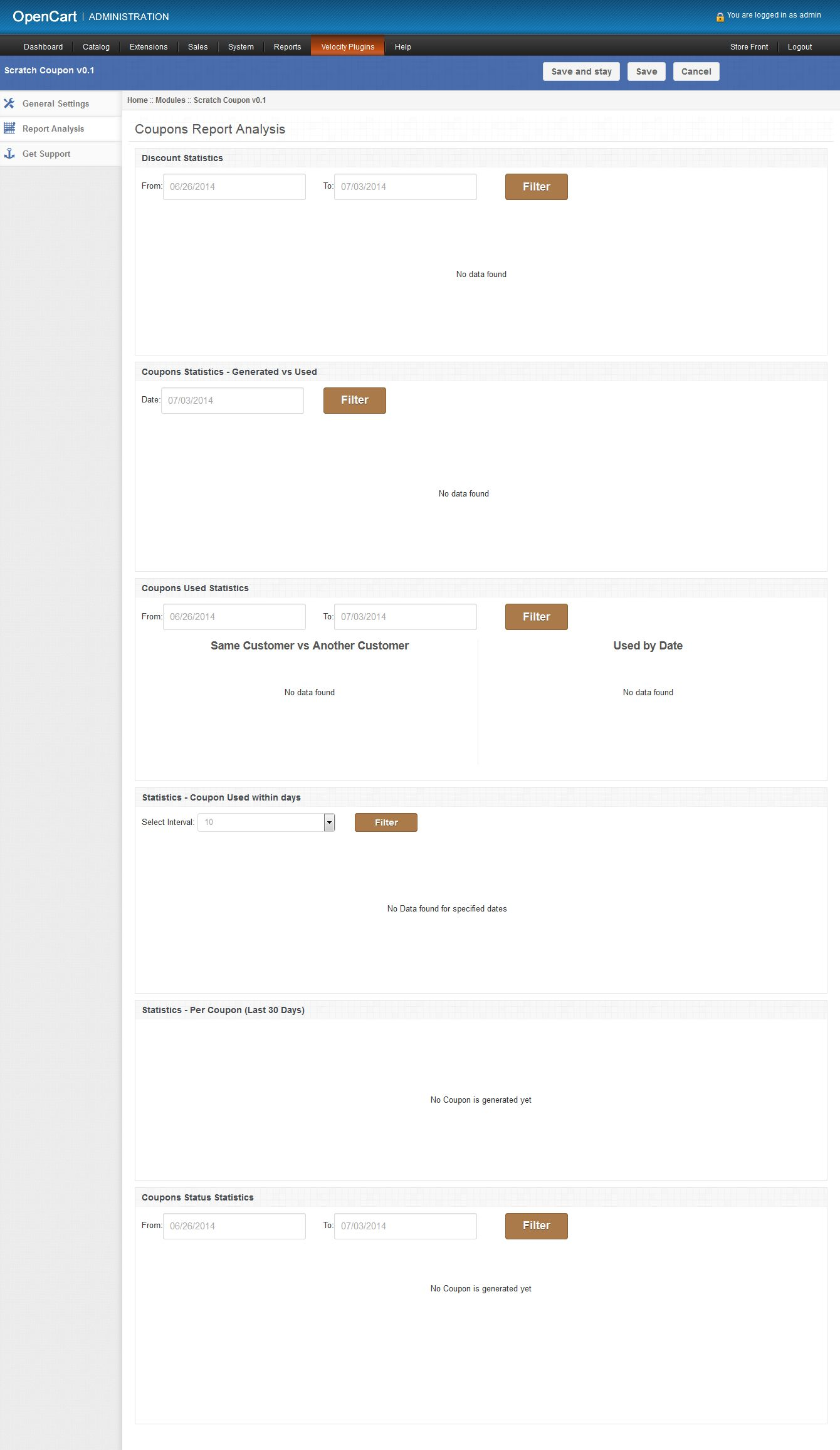
There are following graphs will be shown into this tab:
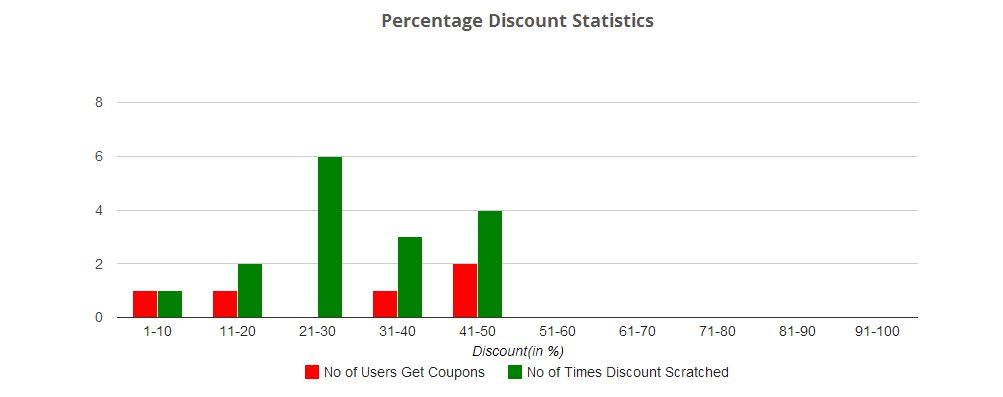
1. Discount Statistics: In this, Opencart scratch coupon pop up plugin will show, how many number of customers applied for which discount range and how many times coupon is scratched for which discount range. As there are two types of discount: percentage and fixed amount; in a system. The opencart extension will show a separate graph for both discount types as follows:
a. Percentage discount statistics: This will be a bar graph, in which discount interval will be of 20% upto 100%. Below is the sample screen of this statistics:
b. Fixed Amount discount statistics: This will also be a bar graph, in which discount interval will be of $20 and 6 intervals will be shown. Below is the sample screen of this statistics:
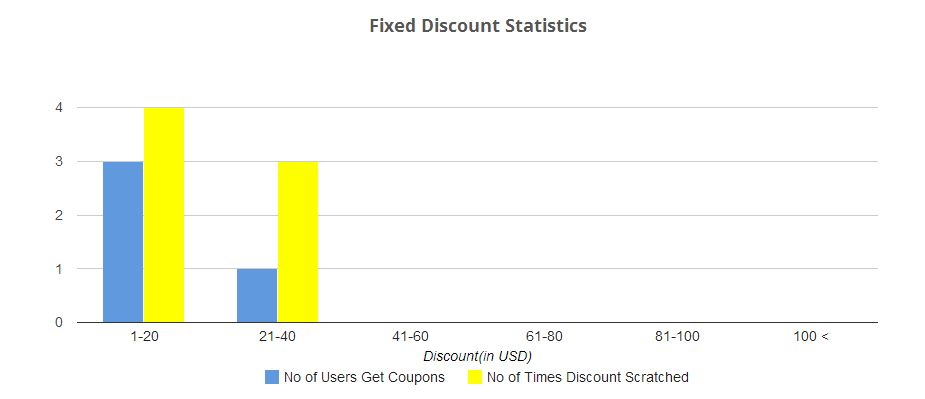
With the help of these above two graphs, the user can track the customer’s needs in terms of discounts. Information gathers in these statistics will be helpful in attracting more customers by offering preferred discounts and increase store sales. The user can also filter these graph by selecting dates.
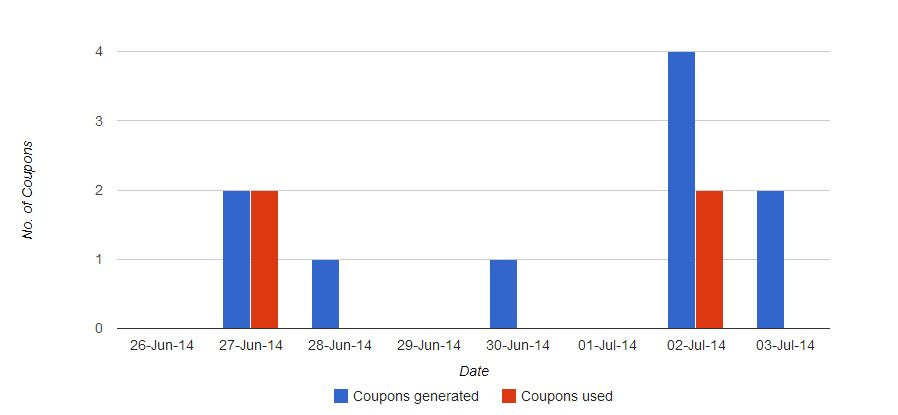
2. Coupon Statistics Generated Vs Used: This will be bar graph and will show the coupons generated and same coupons used within last 7 days. This graph will be helpful to analyze the customers that the customers used the coupons on the same day or on another day. The user can also filter graph by selecting a date. Following is the sample screenshot of statistics:
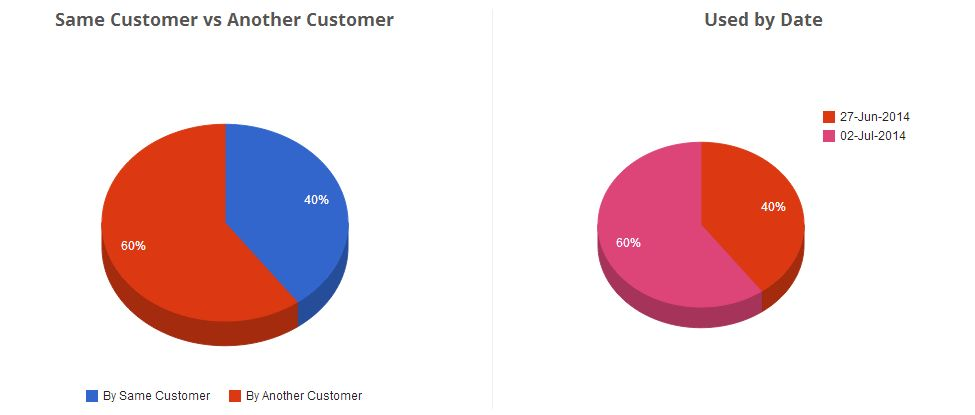
3. Coupon Used Statistics: In this, Opencart scratch coupon extension will show that how many coupons used in term of percentage on the date and how many coupons in terms of percentage will be used by same customer and another customer. Data will be shown in the form of the pie chart. By default, Opencart module will show last 7 days statistics. The following screen is shown below as a sample:
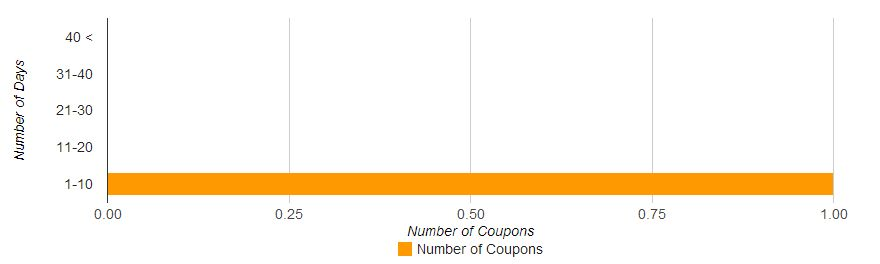
4. Coupon Used within days: This bar graph will help the user to analyze that, in how many days coupon is used after assigning to the customer. By default, Opencart coupon email extension will show coupons within the interval of 10 days. The user can increase days interval by selecting interval from drop-down menu. Below is the sample screenshot of this statistics:
5. Statistics- Per Coupon (Last 30 Days): Here Opencart scratch card will show each coupon statistics in a tabular format.Opencart plugin will show only last 30 days data. This tabular format will show following data:
- Coupon: Coupon code
- Assignee Name: Name of the customer to which coupon is assigned.
- Assignee Email: Email id of the customer on which coupon sent.
- Gender: Show gender (M/F) of customers.
- Assigned date: On which date coupon was assigned to the corresponding customer.
- Expire Date: On which date coupon will expire.
- Used By: Email id of the customers who will use this coupon. If the coupon is not used yet, then this will show NA.
- Used Date: Date on which coupon was used. If not used, then this will show NA.
- Status: Status of the coupon.
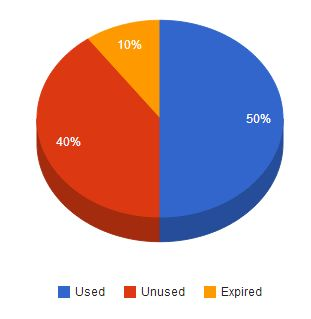
6. Coupon Status Statistics: Here Opencart scratch coupon module will show status of coupons generated within last 7 days in form of a pie graph. Coupon statuses are: Used, Unused and Expired. If coupon of any status not find, then Opencart extension will not show it in pie graph. Following is the sample screenshot of this statistics:
3.3 Get Support tab
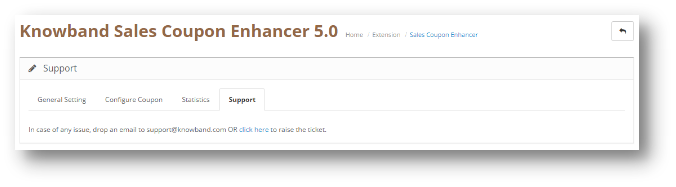
If user have found any issue regarding and wants any type of support, then via this link, the user can create the ticket for any query on our helpdesk support.
Scratch Coupon description
On front, the Knowband Opencart scratch coupon extension will only be displayed on home page after enabling it from admin panel. This scratch coupon box will show on top of the homepage. Following is the screen of scratch coupon box with default values:
After scratching coupon area above 30%, an input form will be open just below the coupon box as shown in screen below:
After providing name and email into form, Opencart scratch coupon module will send the coupon with discount showing in above screen to the corresponding customer. After sending email to the customer, a success message will be displayed as shown in below screen:

The above message will disappear after 5 seconds and next discount will be shown on the same system after defined (set through admin panel ) days
Tracking Information
On the front end, this Opencart coupon email extension by Knowband will track following information to create analysis reports in the form of graphs:
1. Discount Scratch Tracking: Whenever customer scratches discount upto 10% of the scratchable area, then Opencart coupon generator extension will track that event and save into DB, after that disable the tracking process until the browser will not reopen again on the same system.
2. Coupon Tracking: To get a coupon of scratched discount, the customer must have to provide his name and email. After providing it, Opencart scratch card pop up will generate a coupon randomly and send it to the corresponding customer. After sending, Opencart extension will save coupon data and to which customer this coupon is assigned into the database.
3. Send Email to Admin: If store owner allows email to admin, then Opencart scratch coupon pop up extension will also send the same email to admin.
4. Enable discount coupon again: After sending coupon to customer, Opencart Scratch Coupon plug-in will not re-generate discount on the same system till days defined by the store owner in the admin panel.
You can try Knowband’s Opencart scratch coupon extension for on your Opencart store. Opencart generate coupon module helps you increase customer engagement to your store and give the better user experience to your eCommerce customer.
Module Link: https://www.knowband.com/opencart-scratch-coupon
Admin Demo link: https://ocdemo.knowband.com/?url=admin/index.php?route=module/scratch_coupon&token=a261b78f42e6ddd5a8dbd9a17bd60825
Front demo Link: https://ocdemo.knowband.com/?url=index.php?route=common/home
Please contact us at support@knowband.com for any query or custom change request as per your business requirement.