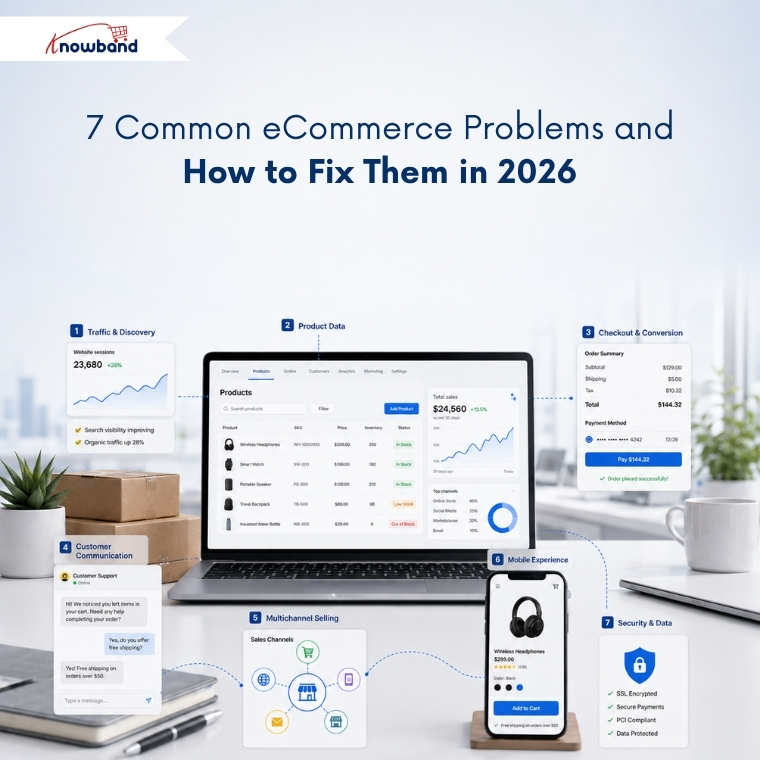
7 Common eCommerce Problems and How to Fix Them in 2026

Running an eCommerce store comes with a wide range of challenges. Poor product data can hurt search visibility, weak discovery can limit the impact of conversion efforts, and slow support can turn interested shoppers into lost customers. These issues are closely connected, so the key is to identify which problem is costing your store the most and address it first. Together, even small gaps across these areas can have a significant impact on revenue.

This guide breaks these challenges into seven categories. Each section explains what the problem is, why it happens, and how to fix it. So, you can use these insights to support business decisions.
1. Traffic and Discovery Problems

What are eCommerce discovery problems?

Discovery problems occur when shoppers who want your product never reach your store. Rankings drop, category pages stop getting indexed, or the product appears in Google but never inside an AI-generated answer.

Sudden Traffic Drop: There could be several reasons for traffic to fall, which include SEO problems, indexing problems, broken links, search rankings, and optimization of pages. It is important that merchants check their site to see any problems related to search engine optimization. OpenCart store merchants can consider getting an OpenCart SEO audit done.

Why discovery fails

Search now runs on two separate tracks, and most stores are only optimised for one. Traditional organic results still reward crawlability, internal linking, and content depth. AI-powered search, however, looks for something different. It depends on structured, machine-readable product facts that a model can quote with confidence.

A product page can therefore rank on page one and remain invisible inside an AI shopping recommendation. The model found no clean price, no reliable availability status, and no extractable specification, so it recommended a competitor it could read instead.

How to fix discovery problems

Start by checking your website’s indexation status in Google Search Console. Identify which URLs Google excluded, and fix the underlying cause rather than resubmitting the sitemap. In many cases, faceted navigation creates thousands of similar URLs that compete with each other. Duplicate category paths pointing to the same product are another common cause of indexing problems.

Next, focus on making your product data easier for search engines and AI systems to understand. Every product needs valid Product schema, a resolvable price, an accurate availability field, and specification data in structured fields rather than buried in description HTML. Running a proper AI crawler and indexing audit shows you what the machines actually retrieve, and adding an llms.txt file that points AI crawlers to your product data closes the remaining gap.

2. Product Data and Catalog Problems

What is poor product data quality?

Poor product data quality means product information is incomplete, inconsistent across channels, or factually wrong. Missing attributes, conflicting specifications, duplicate SKUs, and stale inventory all belong in this category.

Why product data breaks

Product catalogs naturally become outdated over time, often without merchants noticing. A supplier changes a specification without notice, a bulk update runs without validation, or a product variant becomes disconnected from its parent listing. Since these issues rarely trigger immediate errors, they often go unnoticed.

The cost is documented and large. Akeneo research found that 66%of shoppers have abandoned a purchase because product information was missing or inaccurate, and 43% returned a product in the past year because pre-purchase information turned out to be incorrect. Salsify’s 2025 consumer research adds that 54% abandon when product information is inconsistent across the websites they check.

These numbers represent customers who already found your store. They were interested in buying but left because they couldn’t confidently verify the product’s details, compatibility, or suitability.

How to fix catalog data problems

Instead of measuring catalog completeness by product, measure it by individual attributes. For example, a catalog reporting 95% completeness overall can still hold zero dimension data in the categories that generate the most returns.

Always validate before importing rather than after. Bulk transfers that run on saved profiles with a full transfer log make every error traceable to a specific run, which manual CSV work never does. For stores handling frequent bulk updates, reusable import profiles with validation and detailed transfer logs help prevent the same mistakes from happening again.

3. Conversion and Checkout Problems

What is cart abandonment?

Cart abandonment is when a shopper adds a product to the cart and leaves without completing payment. According to Baymard Institute’s meta-analysis of 50 studies, the documented average cart abandonment rate is 70.22%, meaning roughly seven in ten carts never become orders.

Why shoppers abandon checkout

Baymard’s data separates the causes cleanly. Unexpected extra costs revealed late in the flow account for 48% of abandonment, making it the largest single cause by a wide margin. Forced account creation causes 26%, and a long or complicated checkout causes a further 22%.

None of those three is a market condition or a competitor problem. Each one is a design decision the merchant controls, which is why the rate moves when stores address them.

How to reduce cart abandonment

Show the full cost, shipping and tax included, before the shopper reaches payment. Offer guest checkout and move account creation to the post-purchase confirmation, when the customer is satisfied rather than impatient. Compress the flow so progress and order total stay visible in a single view, which is the core argument for a one page checkout for PrestaShop.

Baymard estimates that checkout design improvements alone could deliver an average conversion uplift of 35.26%, equivalent to roughly 260 billion dollars in recoverable orders across the US and EU.

4. Customer Communication and Retention Problems

What are eCommerce communication problems?

Communication problems appear when a store cannot answer a shopper quickly enough to keep the sale, or cannot reach a customer again after they leave. Support backlogs, ignored recovery emails, and repetitive pre-sales questions all belong here.

Why communication breaks down

Support volume grows with catalog size, while support headcount often remains unchanged. The same handful of questions repeat indefinitely: shipping timelines, return windows, sizing, compatibility, and restock dates. A human answers each one, usually several hours after the shopper asked and well after the purchase decision has moved on.

Recovery messaging carries a related problem. Abandoned cart emails still perform reasonably well on open rate, but inbox competition means the reminder often gets read after the intent has cooled.

How to fix communication problems

Automate the repetitive layer first. An AI assistant answering shipping, return, and product queries from live store data removes the questions that never required a person, which frees the team for the ones that do.

For recovery, move to a channel with faster read behaviour. Merchants have been shifting cart recovery from email toward WhatsApp for this reason, because a message read within minutes outperforms one read the following day.

5. Channel Expansion Problems

What are multichannel selling problems?

Multichannel selling problems arise when a store lists on marketplaces or shopping feeds and cannot keep catalog, pricing, and inventory consistent across them. Oversells, rejected feed items, and visible price mismatches follow.

Why channels drift apart

Each channel enforces its own taxonomy, attribute requirements, and image rules. A product that passes validation on your own store fails on Google Shopping for a missing GTIN, or fails on a marketplace because the category mapping is wrong.

Manual listing makes drift inevitable. Once a price gets updated in one place and forgotten in another, any shopper comparing the two learns only that your store is careless.

How to fix channel consistency

Treat your store catalog as the single source of truth and push data outward from it, never sideways between channels. Automated product feed synchronisation then keeps price and stock aligned on a schedule instead of relying on memory.

Treat feed rejections as free diagnostics. When Google refuses an item for a missing attribute, that same gap is usually costing you conversions on your own site too. Merchants weighing a new channel will find the practical considerations before selling on Etsy a useful check before committing.

6. Mobile Experience Problems

What is the mobile conversion gap?

The mobile conversion gap describes the difference between how much traffic arrives on mobile and how much revenue it produces. Mobile carries the clear majority of eCommerce sessions while converting at roughly half the desktop rate.

Why mobile underperforms

Friction a desktop user tolerates becomes a dealbreaker on a phone. Long forms, tap targets built for a mouse pointer, slow largest contentful paint, and limited payment options each cost a measurable share of completions.

Responsive design solved layout without solving interaction. A checkout designed for desktop and scaled down to fit a phone still asks for the same fifteen fields.

How to close the mobile gap

Fix Core Web Vitals on mobile first, since that is where failures concentrate. Reduce checkout fields, enable autofill, and add Apple Pay and Google Pay as payment options.

Reducing checkout steps on OpenCart returns roughly twice the gain on mobile that it does on desktop. Stores with meaningful repeat purchase rates should also review how app-first competitors win returning customers, because a dedicated app removes the friction rather than managing it.

7. Security, Spam, and Data Integrity Problems

What are eCommerce security problems?

eCommerce security problems cover unauthorised access to customer data, payment fraud, and automated abuse such as bot registrations, spam form submissions, and credential stuffing.

Why stores get targeted

Online stores hold precisely what attackers want: payment details, addresses, and credentials that customers reuse elsewhere. Smaller merchants attract attention because they maintain security controls less consistently and monitor them less frequently.

Spam is the more common daily problem. Fake registrations fill the customer table, junk form submissions consume support time, and bot traffic can also distort the analytics that inform key business decisions.

How to reduce exposure

Update the platform and every installed extension on a schedule rather than after something breaks. Enforce HTTPS across the store, restrict admin access by role, and keep off-site backups you have tested restoring at least once. A dedicated security module covers the layers that otherwise get forgotten.

Secure the frontend as well. Stopping bots and fake registrations at the form layer protects both the customer database and the reporting you make decisions from, and well-designed forms reduce abandonment on registration and contact pages at the same time.

Turning Store Data Into Decisions

Every problem above stays invisible until you measure it. Most merchants still export order data into spreadsheets, which means the insight arrives weeks after the loss and after the pattern has already changed.

Query the store directly instead. Getting answers from your store data without writing SQL turns weekly reporting into a two-minute question, and smart store analytics identifies which of these seven categories is costing the most right now.

Track four numbers weekly: abandonment rate split by device, feed rejection count, attribute completeness by category, and support tickets grouped by question type.

Where to Start

Work in order of measurable loss rather than in order of visibility.

For most stores, that means checkout first, catalog data second, and discovery third. The first two help convert visitors you have already acquired, which makes them the cheapest available wins. Discovery brings new visitors in, and filling a leaking bucket rarely ends well.

Knowband builds modules across all seven areas for PrestaShop, OpenCart, Magento, and Shopify, covering checkout optimisation, catalog import and export, marketplace integrations, mobile apps, and customer engagement.

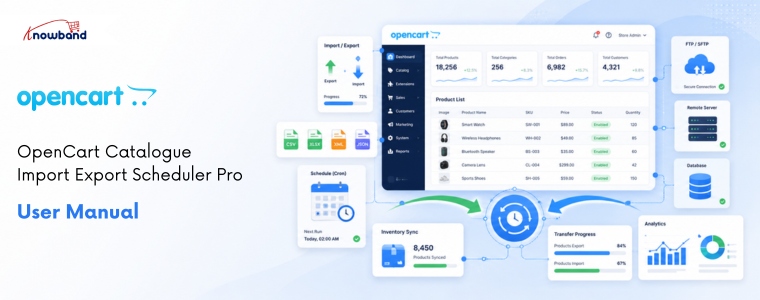


Opencart Catalogue Import Export Extension User Manual

If you manage a growing OpenCart store, you already know how time-consuming manual product updates can be. The Knowband OpenCart Import Export Scheduler Pro is, therefore, purpose-built to eliminate that friction entirely. It handles bulk product and category transfers in CSV, XLSX, JSON, and XML formats  all from within the OpenCart admin panel  with no coding, no developer involvement, and no wasted hours.

Furthermore, what truly sets this OpenCart bulk product import/export extension apart from generic tools is its reusable profile system. Every import or export task is consequently saved as a named profile with its own file format, column mapping, FTP or SFTP destination, and optional cron schedule. As a result, store owners can move from one-off data dumps to fully automated, scheduled catalogue syncs in a matter of minutes.

Moreover, whether you are running a daily supplier feed via FTP, migrating products between two OpenCart stores, or pushing bulk price updates to a remote SFTP server, Knowband‘s OpenCart Catalogue import export extension covers every scenario out of the box. No custom code is required. The OpenCart catalogue Migration via Import Export Extension is now available on the OpenCart Marketplace

1.1 Key Capabilities of Opencart Import Export Extension

  • Four file formats are supported for OpenCart bulk product import/export: CSV, XLSX, JSON, XML
  • Reusable named profiles with saved mappings, format settings, and FTP/SFTP configuration
  • FTP, FTPS, and SFTP transfer with live connection testing before saving
  • Fully automated, unattended OpenCart cron import/export on any schedule
  • Column auto-matching with required-field validation that blocks incomplete imports
  • Full import export support for OpenCart product combinations and variants
  • Multilingual field handling  export and import translated fields across all active languages
  • Transfer Logs with row-level error detail and re-download links for every run
  • Automatic file cleanup on a configurable retention schedule
  • Compatible with OpenCart 3. x.x | PHP 7.2+ | MySQL 5.6+

1.2 Who Is This Extension For?

This OpenCart CSV import export extension is specifically designed for:

  • Store owners managing catalogs of 100 to 50,000 SKUs who need repeatable bulk updates without manual effort
  • Agencies handling multiple OpenCart stores and requiring smooth catalogue migration between instances
  • International stores managing multilingual product data across several active languages
  • Businesses syncing supplier feeds on a daily or hourly schedule via FTP or SFTP
  • Administrators who want a reliable, log-backed history for every OpenCart bulk import/export run

2. Installation

Before proceeding, verify that your server meets the minimum requirements for Knowband‘s OpenCart scheduled import export extension: OpenCart 3.x.x, PHP 7.2 or higher, and MySQL 5.6 or higher.

Step 1: Upload via FTP

To begin with, extract the ZIP archive downloaded from the Knowband store. Connect to your server via an FTP client and copy all extracted files from the upload folder into the root directory of your OpenCart installation.

Step 2: Install in the Admin Panel

Next, log in to your OpenCart admin panel. Navigate to Extensions > Extensions, locate Knowband Import Export  Plugin in the list, and click Install. The  Plugin will thereafter be registered with your OpenCart instance.

Step 3:  Configure

Finally, click Edit on the same row to open the extension configuration page. You will land on the General Settings tab, where all global preferences  including cron URLs, file size limits, and cleanup schedules  are managed.

3. Admin Panel Overview

Once installation is complete, the Knowband OpenCart Import Export Scheduler Pro adds four clearly organised tabs inside its configuration page. Understanding each tab’s purpose is, consequently, the fastest way to get productive with OpenCart bulk catalog management.

4. General Settings

The General Settings tab is the control centre for all global behaviours of the OpenCart import export extension. It is divided into four sub-sections. Configuring these settings correctly upfront will, in turn, ensure that all subsequent import and export operations run smoothly.

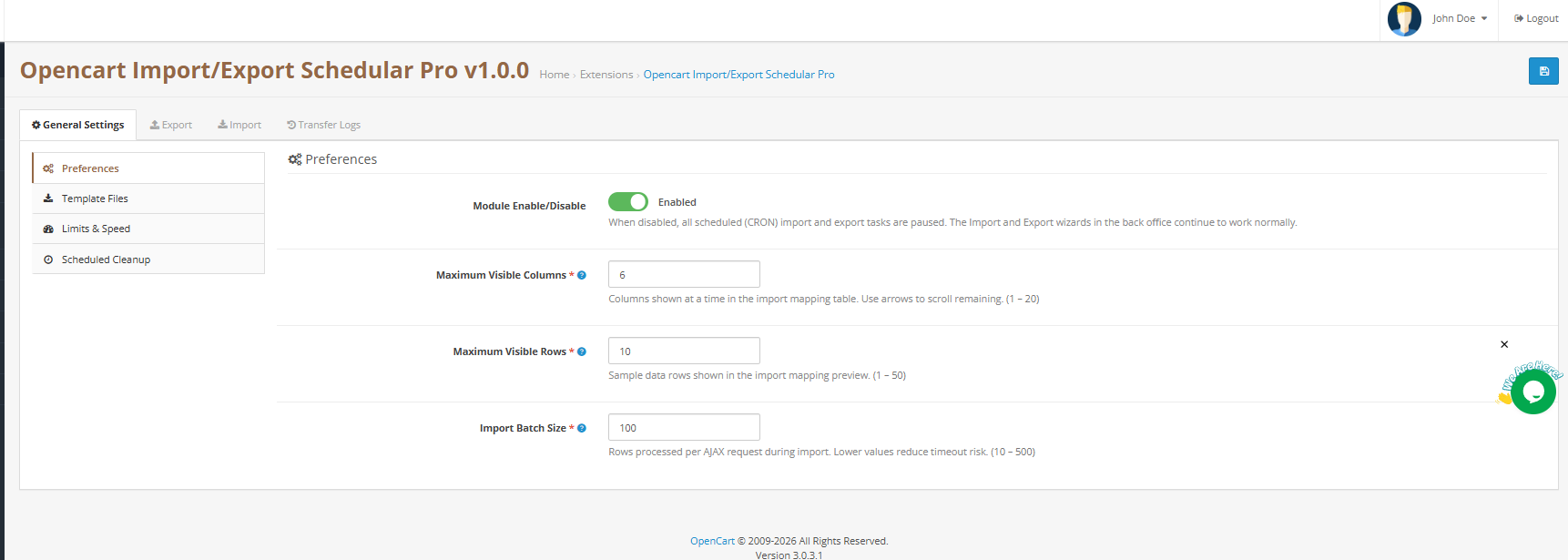
4.1 Preferences

Extension Enable / Disable turns the entire extension on or off. When disabled, all scheduled cron import and export tasks are paused immediately.

Maximum Visible Columns sets how many columns display at once in the OpenCart import mapping table. Range: 1–20. Default: 6. Use the pagination arrows to navigate remaining columns.

Maximum Visible Rows sets how many sample data rows appear in the mapping preview. For visual verification only does not restrict the actual import row count. Range: 1–50. Default: 10.

Import Batch Size controls how many rows are processed per AJAX request during OpenCart bulk product import. Lower values reduce timeout risk on shared hosting. Range: 10–500. Default: 100. On VPS or dedicated servers, increase to 300 or higher for faster large imports.

Click Save Settings to apply.

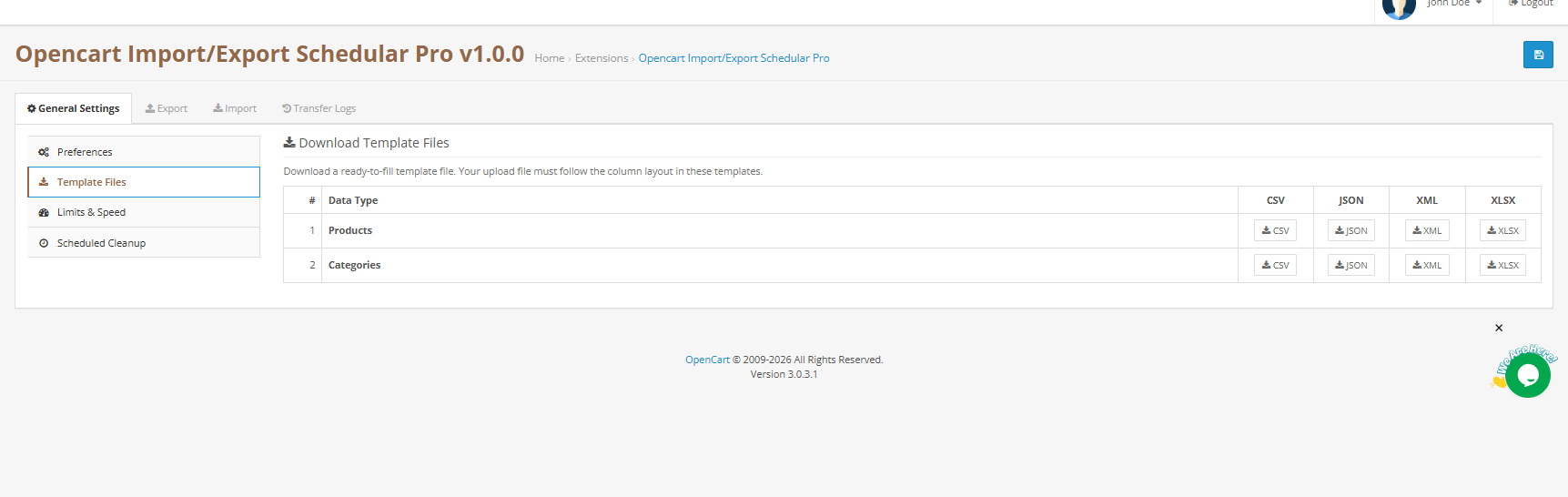
4.2 Template Files

This section provides ready-to-fill sample files for every supported entity and format combination  an essential starting point for anyone setting up an OpenCart CSV import or XLSX-based bulk upload for the first time. Two entities are available: Products and Categories. Each has four format buttons: CSV, JSON, XML, and XLSX.

Simply click the relevant button to download the template. Each template includes every column the importer recognises, with safe placeholder data. Fill it with real product data and import it back.

Important: Your uploaded file must follow the column layout shown in the templates. Deviating from this layout will cause column auto-matching to fail and require manual remapping.

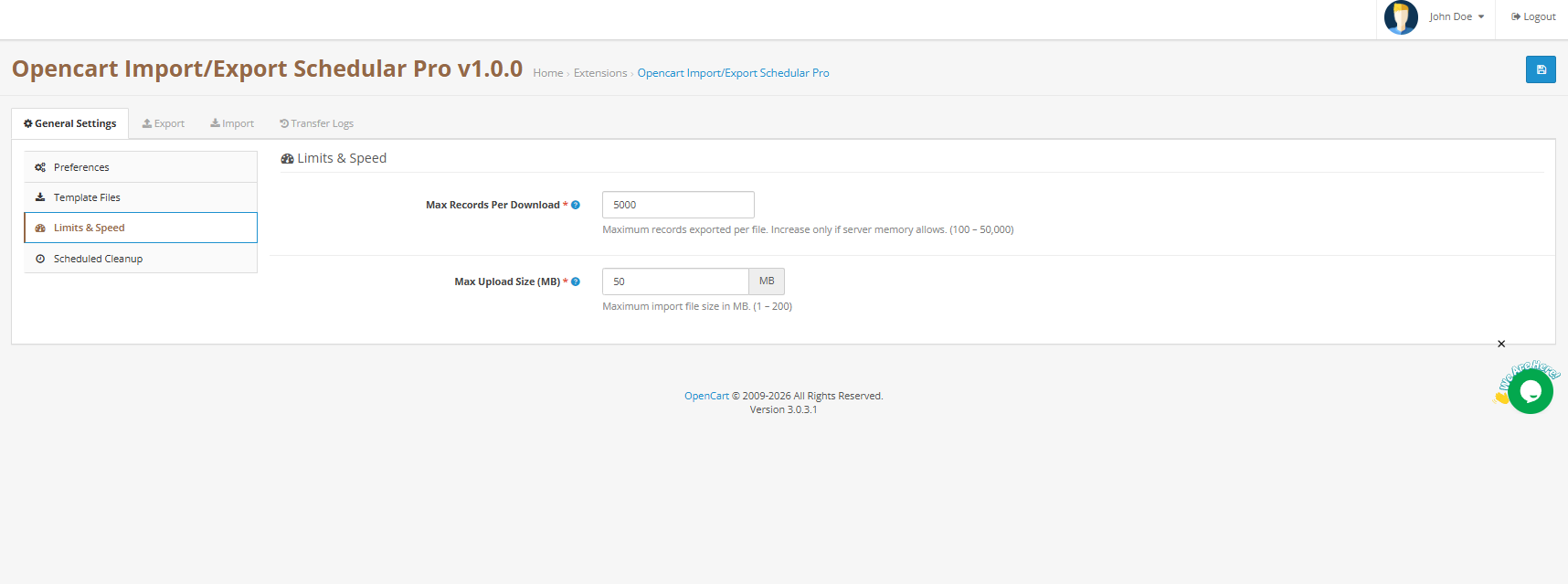
4.3 Limits and Speed

Max Records Per Download: Maximum number of records exported per file. Increase only if your server memory supports it. Range: 100–50,000. Default: 5,000.

Max Upload Size (MB)  Maximum import file size the plugin accepts. Works alongside PHP’s server-level upload limit; whichever is lower takes effect. Range: 1–200 MB. Default: 50 MB.

Click Save Settings to apply.

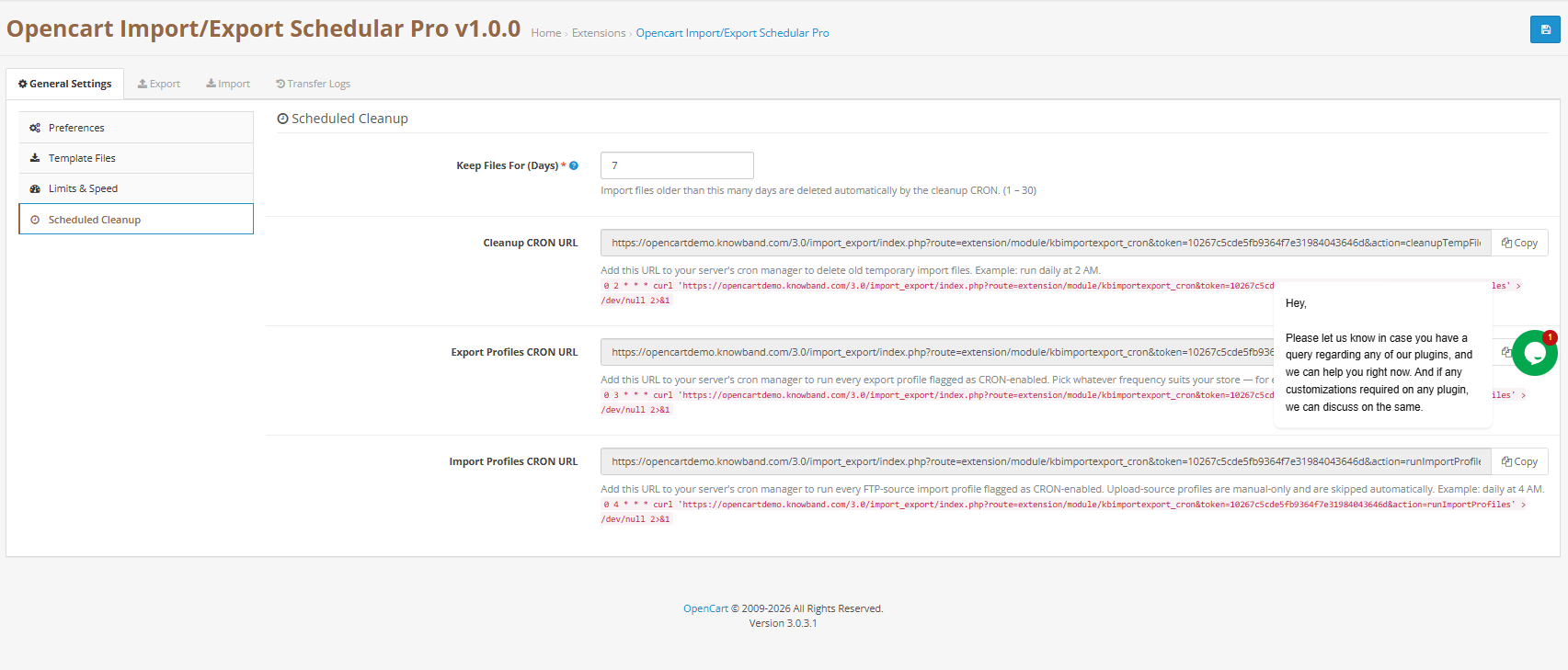
4.4 Scheduled Cleanup and Cron URLs

This is where you configure the three cron job URLs that power the automated side of Knowband‘s OpenCart scheduled import/export system. Each URL has a dedicated Copy button; paste it directly into your server crontab or OpenCart’s built-in scheduled tasks.

Keep Files For (Days)  Import and export files older than this number of days are deleted automatically by the cleanup cron. Range: 1–30 days. Default: 7 days.

Cleanup Cron URL  Recommended: daily at 2 AM. Deletes old temporary files automatically.

Export Profiles Cron URL: Recommended: daily at 3 AM. Runs every export profile flagged as cron-enabled and stores the generated file in Transfer Logs.

Import Profiles Cron URL  Recommended: daily at 4 AM. Fetches files via FTP/SFTP and runs every FTP-source import profile flagged as cron-enabled. Upload-source profiles are manual-only and are skipped automatically.

Click Save Settings to apply.

5. Export Profiles: Complete Walkthrough

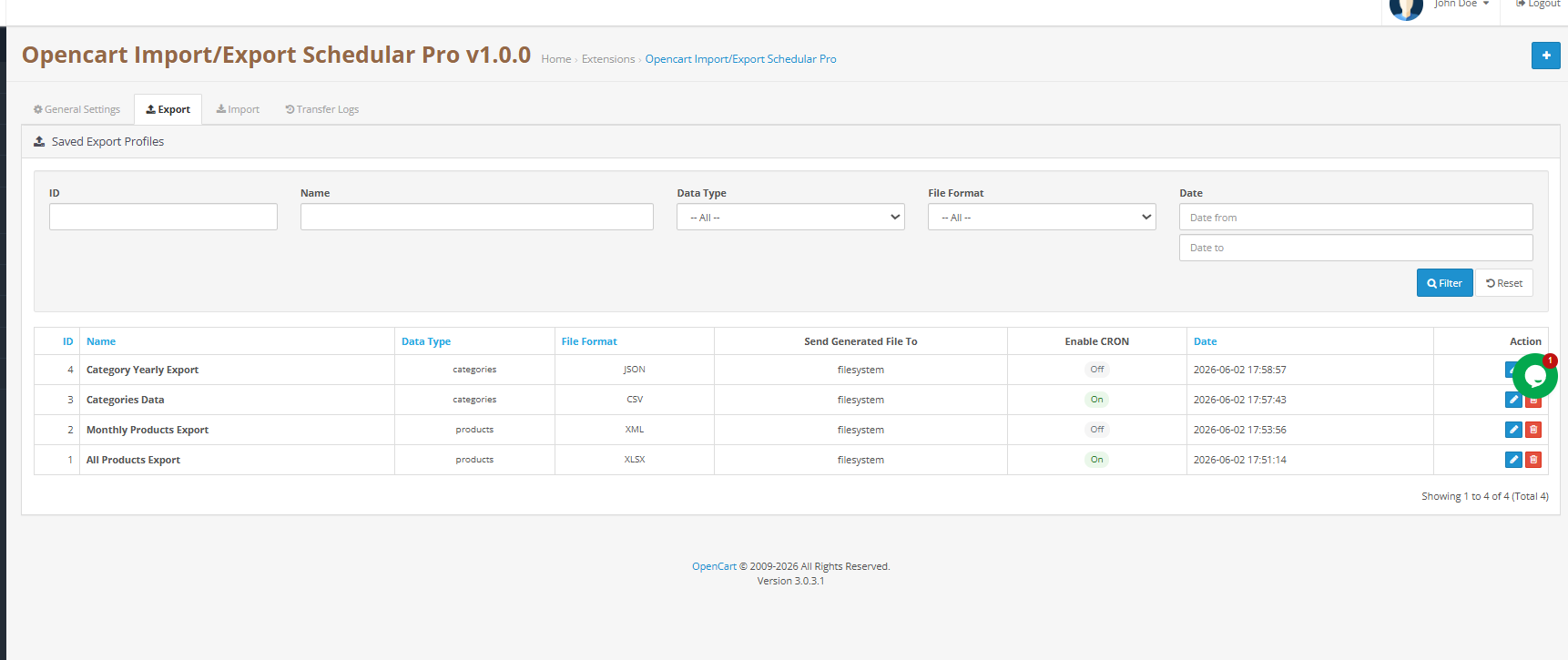
The Export tab lists all saved export profiles. Knowband‘s profile-based approach means you set up the OpenCart bulk export once and reuse it indefinitely  either manually with one click or automatically on a cron schedule. Each profile displays its ID, name, entity type, format, cron status, and date added.

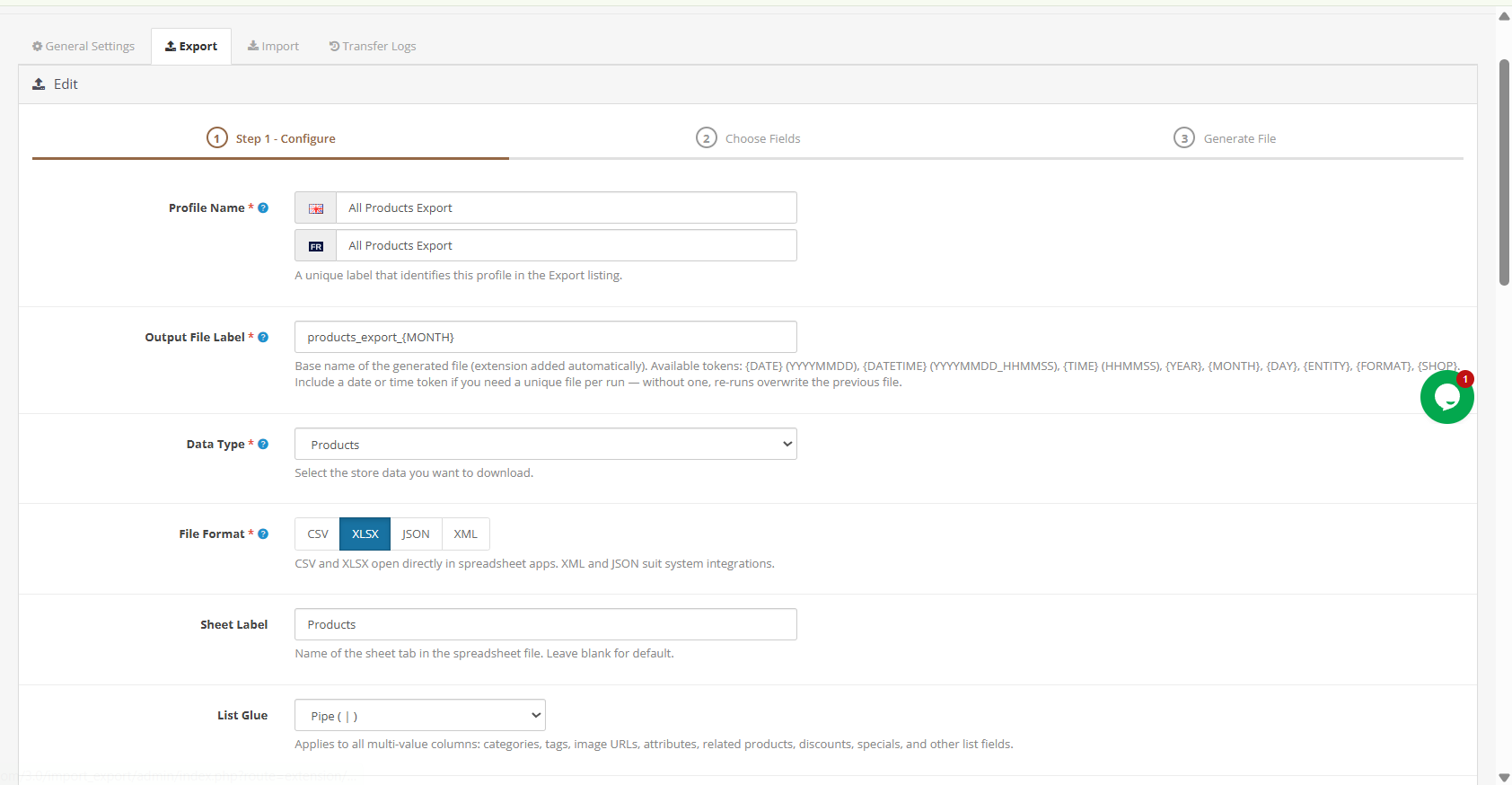
Click Add Export Profile to create a new one. The wizard runs through three steps: Transfer Settings, Choose Fields, and Generate File.

5.1 Step 1  Transfer Settings

Profile Name: A unique label for this profile in the Export listing. Example: Weekly Product Feed.

Output File Label: Base name for the generated file. The plugin is added automatically. Use letters, digits, hyphens, and underscores only. Example: products-daily.

Data Type: Select Products or Categories.

File Format: Select CSV, XLSX, XML, or JSON.

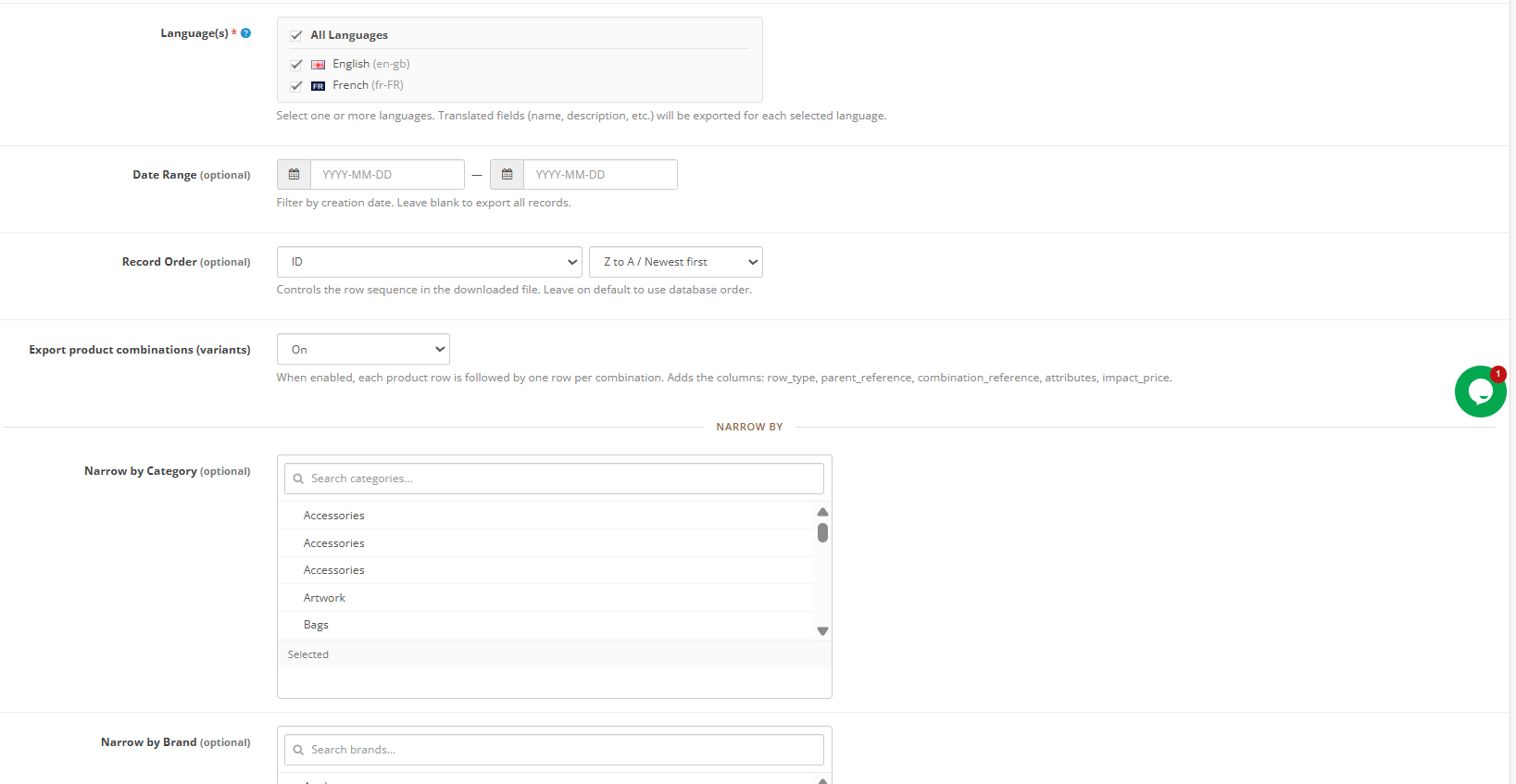
Language(s)  Select one or more store languages. Translated fields such as name and description are exported for each selected language. Select All Languages to include every active language, a key feature for multilingual OpenCart product import export workflows.

Date Range (optional)  Filter records by creation date. Leave blank to export all records.

Record Order (optional)  Controls row sequence in the output file. Leave on default for standard database order.

Export Product Combinations (Options/Variants). When enabled, each product row is followed by one row per combination. Adds the columns row_type, parent_reference, combination_reference, attributes, and impact_price. Enable this for a full OpenCart catalog export that includes all product variants.

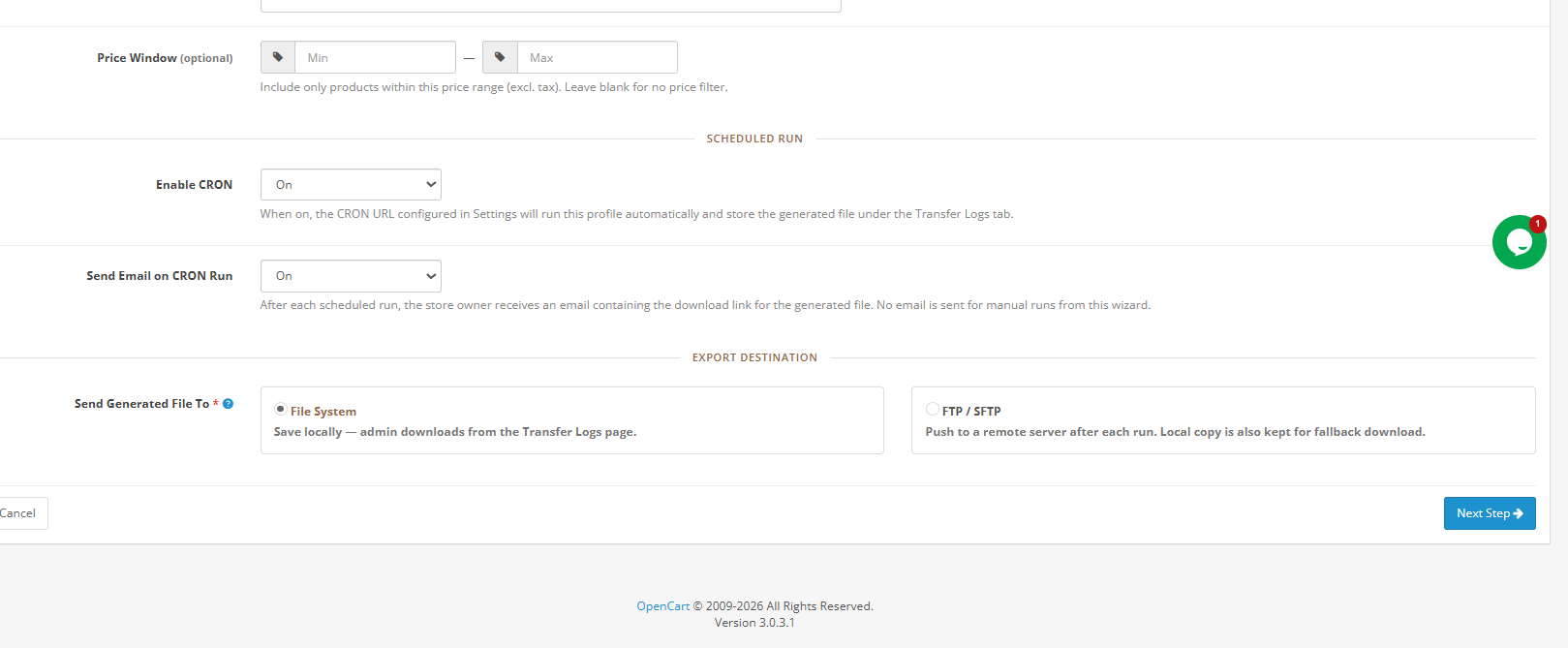
Scheduled Run  Enable Cron  When on, the Export Profiles Cron URL runs this profile automatically and stores the generated file in Transfer Logs after each run.

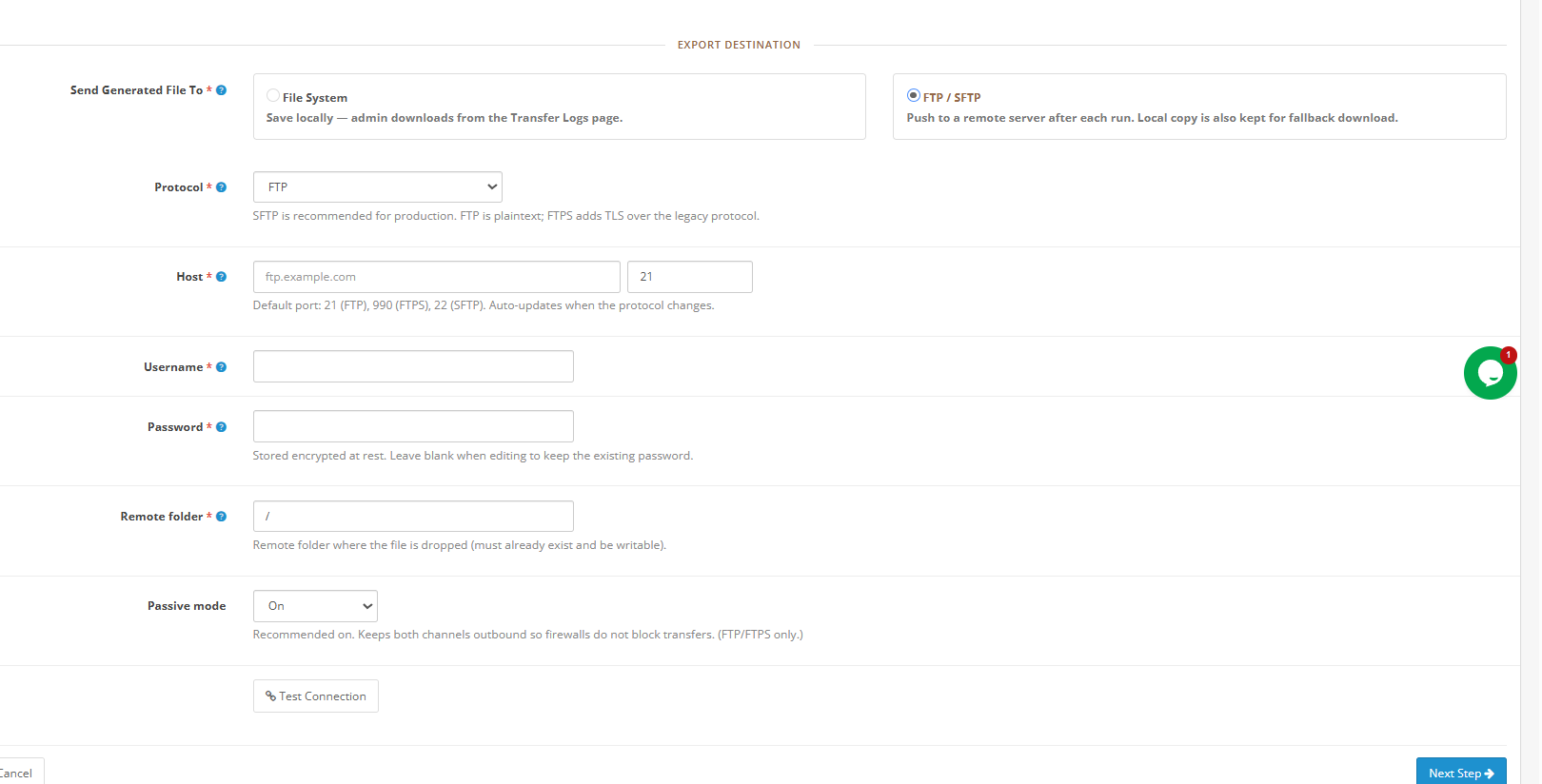
Export Destination

The file system saves the file locally. Administrators download it directly from Transfer Logs.

FTP / SFTP pushes the file to a configured remote server after each run. A local copy is also retained in Transfer Logs as a fallback.

When FTP / SFTP is selected, the following additional fields appear, Username, Password, Hostname and Remote Folder which is basically a path name of the folder on which you will export.

Output Style (CSV Delimiter): Universal comma, Windows/Excel semicolon, or Tab-separated.

List Glue  Separator for multi-value fields such as Tags and Category Names. Options: Pipe, Slash, or Comma.

Narrow by Category / Manufacturer / Supplier. Optional filters to scope the export to a specific product subset.

Price Window: Include only products within a specified minimum–maximum price range. Leave blank for no filter.

Click Next Step to proceed.

5.2 Step 2  Choose Fields

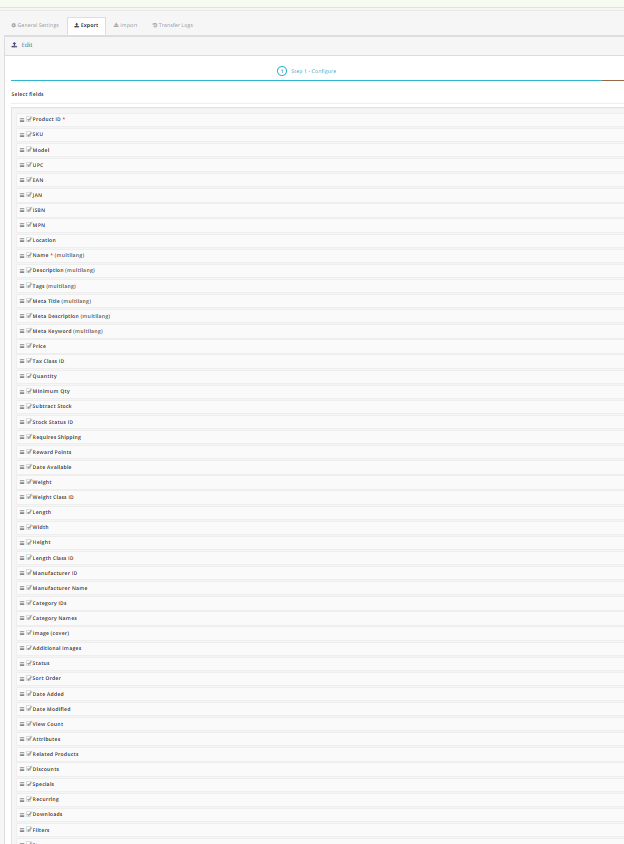
Every available product or category column appears as a selectable checklist. Required fields, marked with an asterisk, cannot be deselected. Additionally, you can reorder columns by dragging rows to control the exact sequence in the output file.

Three quick-action buttons are available:

  • Select All includes every available column in the export.
  • Deselect All  Clears all optional selections, leaving only required fields active.
  • Reset to Defaults restores the recommended default column set.

Available product fields include: ID, Model (SKU), Name, Status, Product Type, Condition, Manufacturer, Supplier, Tags, Date Added, Short Description, Description, Weight, Dimensions, EAN, UPC, MPN, Meta Title, Meta Description, SEO URL, Cover Image URL, All Image URLs, Category IDs, Category Names, Price, Cost Price, Special Price, Minimum Quantity, Stock Quantity, Stock Status, and Out of Stock Behaviour  making it one of the most comprehensive OpenCart bulk product export tools available.

Click Preview Data to see the first five rows based on your current selection. Click Save Profile to save without generating, or Next Step to proceed.

5.3 Step 3: Generate File in Opencart Catalogue Import Export Plugin

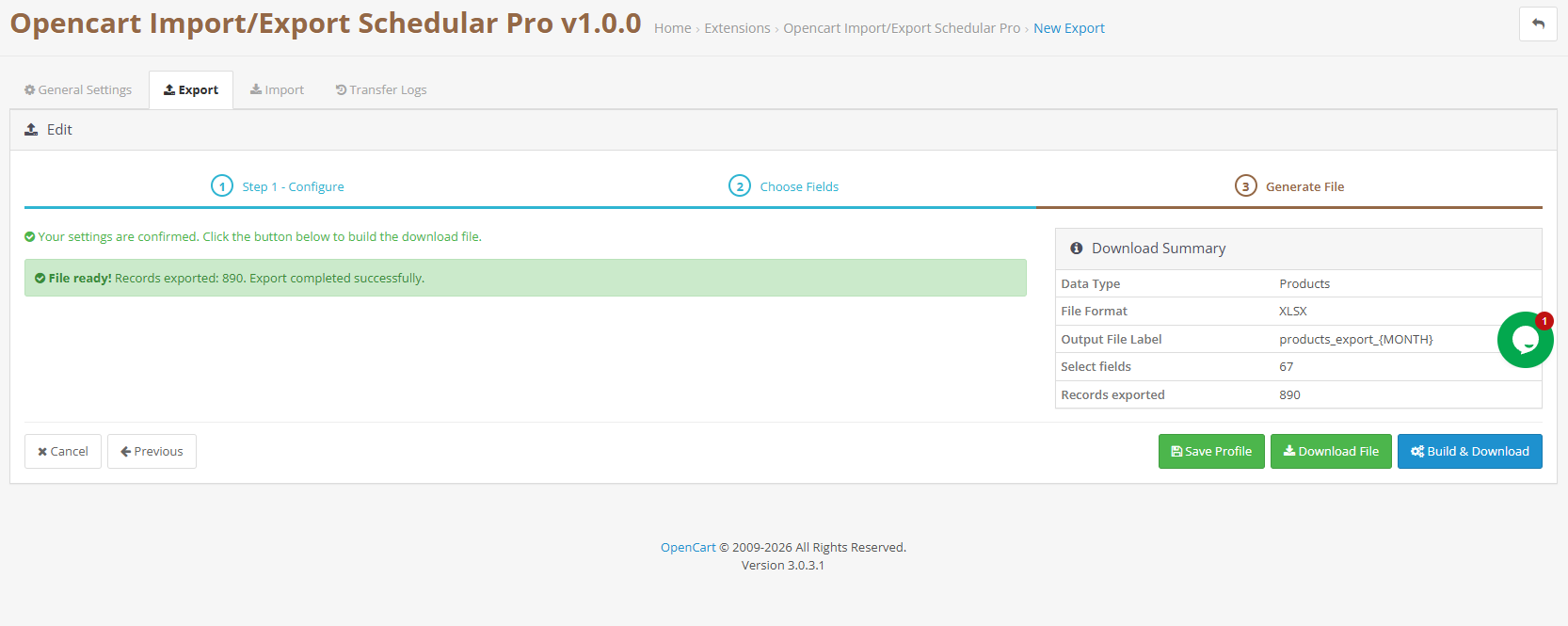
The final step presents a Download Summary confirming Data Type, File Format, File Label, and Fields Selected. Click Build and Download to generate the file immediately. The file downloads to your browser or is pushed to the configured FTP/SFTP destination, and the run is recorded automatically in Transfer Logs.

Note: Export files remain available for re-download in Transfer Logs until the scheduled cleanup cron removes them after the configured retention period.

6. Import Profiles  Complete Walkthrough

The Import tab, similarly to the Export tab, lists all saved import profiles. Each profile shows its ID, name, entity type, format, source type (Upload or FTP), cron status, and date added. Click Add Import Profile to begin the three-step wizard: Source Settings, Map Columns, and Run Import.

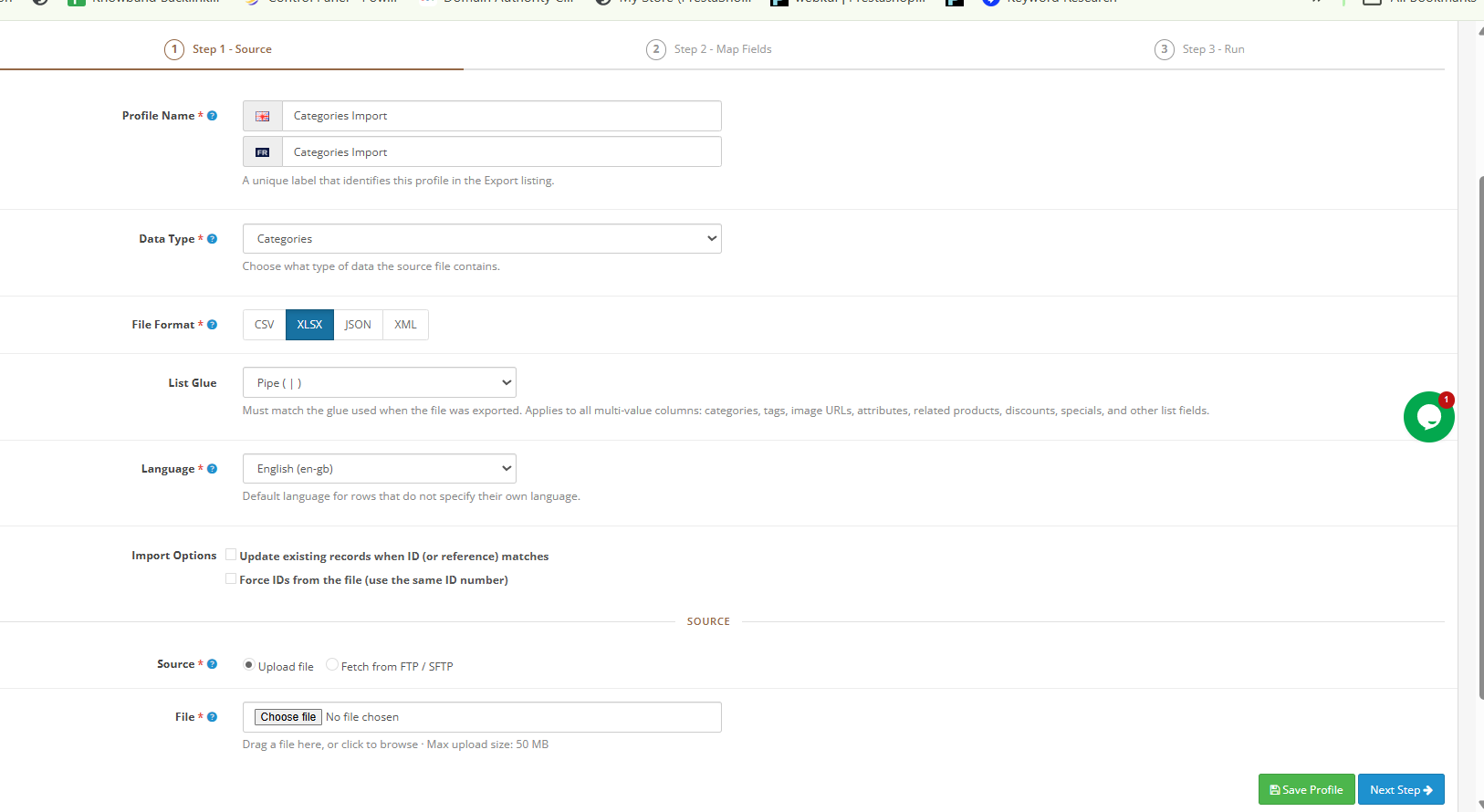
6.1 Step 1  Source Settings

Profile Name: A unique label for this profile. Example: Daily Supplier Feed.

Data Type: Products or Categories.

File Format  CSV, XLSX, JSON, or XML  must match the actual file format.

Output Style: CSV delimiter matching the file being imported.

List Glue must match the glue used during the corresponding export. This setting directly affects multi-value fields like Tags, Categories, and Image URLs.

Language: Default language for rows that do not specify their own language within the file.

Import Options

Update existing records when ID or model matches. Standard setting for all regular OpenCart bulk product import runs. Updates an existing product when a matching ID or SKU is found instead of creating a duplicate.

Force IDs from the file. Use only when migrating between stores where preserving the exact original product ID is required. Not recommended for routine imports.

Source Selection

Upload File for one-time manual imports. Maximum file size: 50 MB. Accepted formats: CSV, XLSX, JSON, XML.

FTP / SFTP  For pulling files from a remote server. Required for cron-driven automated OpenCart imports via scheduled FTP product sync.

When FTP or SFTP is selected as the source for an import profile in the Knowband OpenCart Import Export Scheduler Pro, a set of additional configuration fields appears on the screen. Each field plays a specific role in establishing the remote connection and controlling how the automated OpenCart scheduled import behaves.

The Transfer Protocol field is where you choose the connection method between FTP, FTPS, or SFTP. FTPS is generally recommended for production environments because it adds a layer of encryption over the standard FTP connection. The Server field takes the address of your remote FTP server, for example ftp.example.com. Right alongside it, the Port field auto-populates based on whichever protocol you select, which is 21 for FTP and 22 for SFTP, though you can override this if your server uses a non-standard port.

The Username and Password fields hold the login credentials for the remote server. Both are stored encrypted at rest, meaning they are never saved in plain text anywhere in the system. Once you have filled in the credentials, the Remote File Path field requires the absolute path to the source file on the remote server. 

This path must be exact and the file must exist at that location every single time the OpenCart cron import export runs. A typical example would be something like /home/feed/products.xml.

Passive Mode is a toggle that is recommended for FTP and FTPS connections, as it helps avoid connection issues caused by firewalls blocking the data channel. When SFTP is selected as the protocol, this setting is simply ignored. 

The Cron toggle, when enabled, instructs the Import Profiles Cron URL in General Settings to automatically fetch the file from the remote server and run the OpenCart bulk product import on the configured schedule, without any manual intervention. 

Click Save Profile, then Next Step.

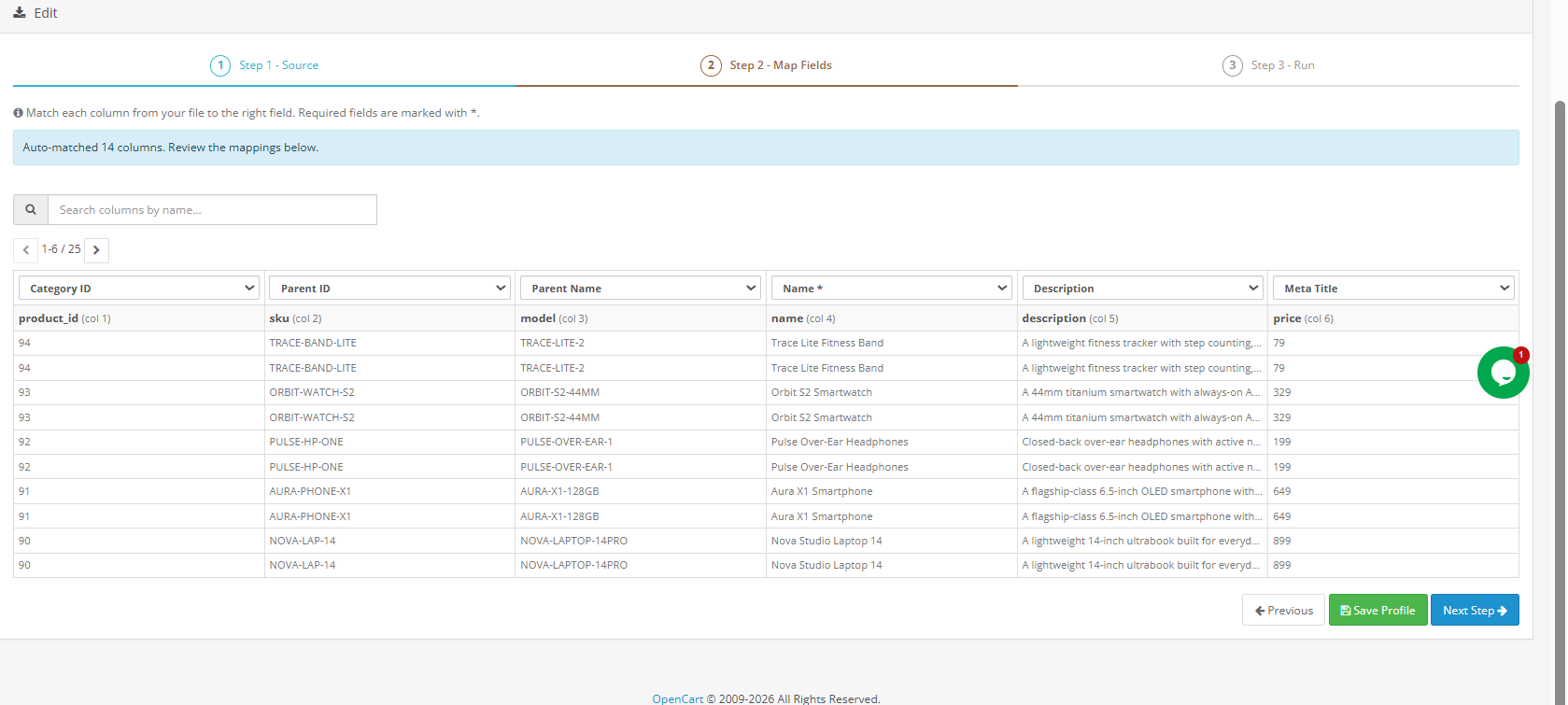
6.2 Step 2: Map Columns

The column mapping screen loads actual rows from your uploaded or fetched file. Each column from your file is matched to the correct OpenCart field. Knowband‘s auto-matching engine detects column names and maps them without manual intervention wherever possible.

A confirmation at the top of the screen shows how many columns were successfully matched  for example: 47 of 47 columns auto-matched. Nevertheless, you should still review the mapping below to verify accuracy, particularly for custom or non-standard column names.

Each file column appears as a dropdown selector at the top of its respective data column. The rows below display real data values from the file, making it straightforward to verify that each column is mapped correctly. Use the search box to find a specific column, and navigate through remaining columns with the pagination arrows.

Important: If a required field is left unmapped, the extension blocks the import and displays a warning before allowing you to proceed. This OpenCart import mapping validation step ensures data integrity on every run.

Click Save Profile to save the mapping. Click Next Step to proceed.

6.3 Step 3: Run Import

Once the mapping is confirmed, two options are presented:

Save Profile saves the import profile for future use without running the import immediately.

Start Import runs the import in batches as configured in General Settings. When complete, Transfer Logs records the full result: total records processed, successful records, and any failures with row-level error detail.

For large catalogs, the batch processing approach used by Knowband‘s extension means the OpenCart bulk product import continues reliably even on shared hosting because each batch is a separate AJAX request; server timeouts cannot interrupt the overall process.

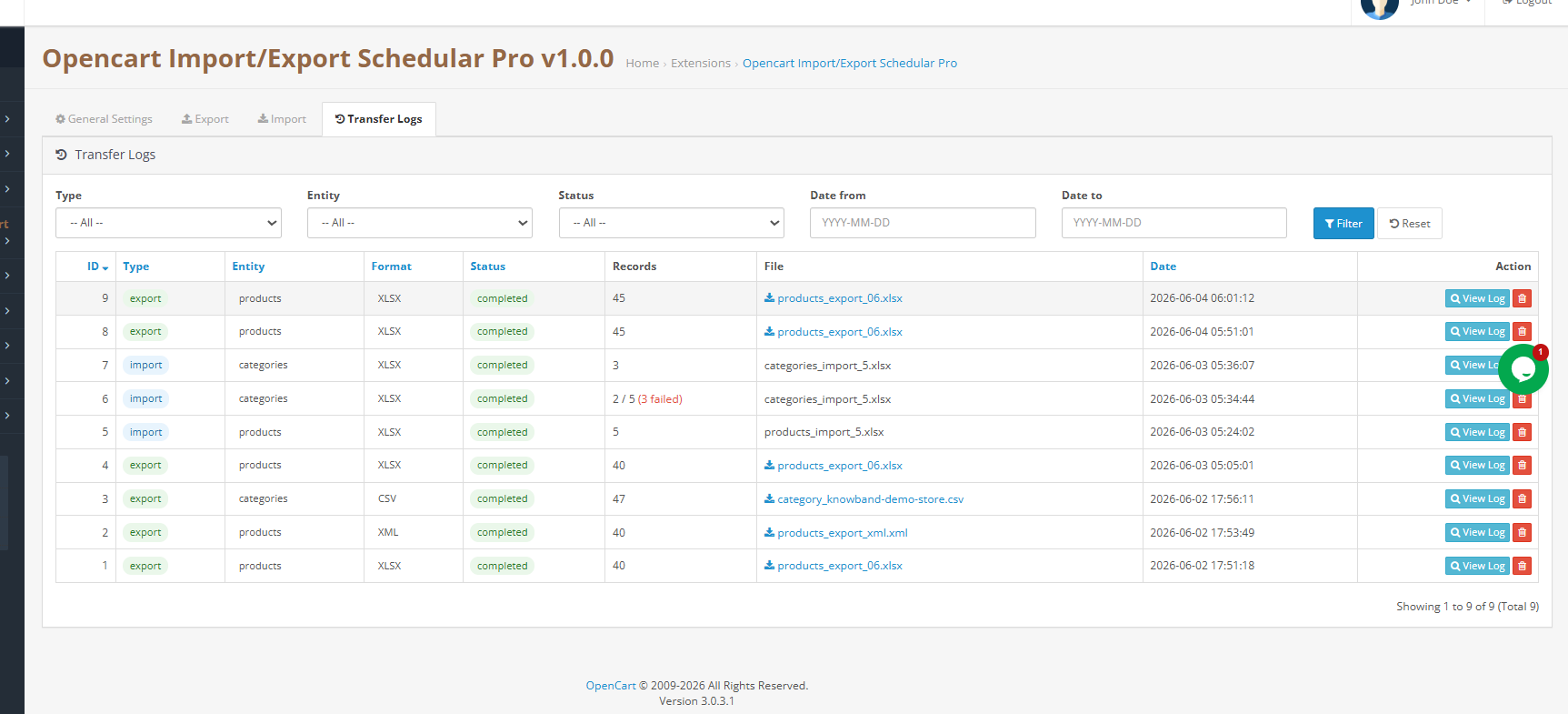
7. Transfer Logs

The Transfer Logs tab provides a comprehensive history of every import and export operation run through the extension. This is, consequently, the first place to check whenever an OpenCart bulk import export run produces unexpected results or an export does not appear in the expected destination.

Using Transfer Logs for Troubleshooting

Click the Log button on any row to open row-level error detail for failed records. This detail view shows precisely which rows failed and the specific error reason for each. As a result, you do not need to re-import the entire file; simply fix only the affected rows in your source file and re-import just those rows.

Export files remain available for re-download in the Logs tab until the scheduled cleanup cron removes them after the configured retention period (default: 7 days). This gives you ample time to verify, redistribute, or archive any generated OpenCart bulk export.


8. Frequently Asked Questions

Question1: What is the Knowband OpenCart Import Export Scheduler Pro?

Knowband‘s OpenCart Import Export Scheduler Pro is a professional-grade bulk data management extension for OpenCart 3.x.x. It handles product and category imports and exports in CSV, XLSX, JSON, and XML, and furthermore includes reusable profiles, column mapping with validation, FTP/SFTP file transfer, cron scheduling, email notifications, and full transfer logs  all from the OpenCart admin panel without any developer involvement.

Question2: How do I bulk upload products in OpenCart using a CSV file? Go to the Import tab and click Add Import Profile. Set the data type to Products, select CSV as the format, upload your file under Pick Source, and click Next Step. The extension auto-matches columns and displays the first rows of the actual file for verification. Confirm the mapping and click Start Import. Sample CSV templates are available from General Settings > Template Files to ensure your file follows the correct column layout.

Question3: Can I import and export OpenCart product combinations and variants? Yes. Enable Export Product Combinations (Options/Variants) in the export profile settings. Each product row is consequently followed by one row per combination, with attributes presented in a readable format. On re-import, any missing attribute groups and values are created automatically in the destination store.

Question4: How do I automate OpenCart product imports using cron jobs? Create an import profile with FTP or SFTP as the source and enable Cron in the scheduling section. Next, copy the Import Profiles Cron URL from General Settings > Scheduled Cleanup. Add it to your server crontab or OpenCart’s scheduled tasks with the required interval. From that point on, Knowband‘s extension handles the entire fetch-and-import cycle automatically a complete solution for scheduled OpenCart import automation.

Question5: How do I migrate products from one OpenCart store to another? Export the full catalog from the source store using any supported format. Import the resulting file into the destination store using a new import profile. Categories, product combinations, and attribute values that do not exist in the target store are created automatically on import, making cross-store OpenCart catalog migration clean and complete.

Question6: What happens if a bulk import fails or has errors? Every run is logged in Transfer Logs with a full record count. Partial failures show the count as X / Y with failures highlighted. Click the Log button on any row to review row-level error detail. Fix only the affected rows in your source file and re-import just those rows  there is no need to process the entire file again.

Question7: Which OpenCart versions does this extension support? Knowband‘s OpenCart Import Export Scheduler Pro is compatible with OpenCart 3.x.x, running on PHP 7.2 or higher and MySQL 5.6 or higher.

Question8: Can I schedule exports to be pushed automatically to an FTP server? Yes. In the export profile’s Transfer Settings, set the Export Destination to FTP / SFTP, configure the remote server credentials, and enable Cron. Thereafter, the Export Profiles Cron URL  when added to your server crontab  will automatically generate and push the export file to your FTP server on the schedule you define. Knowband‘s Opencart Import Export Extension additionally retains a local copy in Transfer Logs as a fallback for every automated run.

9. Tutorial

Admins can check the overall functionality through the tutorial video for the Opencart Import Export Extension