Introduction of Magento Product Update Extension
The Magento product update notification extension by Knwoband adds an attractive functionality to your Magento website, which is beneficial for both the store owner and the customers. This Magento extension helps the customers to subscribe for product updates i.e. if product price or stock availability changes customer will be notified by an email. Magento back in stock module adds a simple block to the product page of Magento store through which the user can subscribe by entering the email id for the respective product.
The subscribed customers for product will be visible to store owner and helps in updating the product according to requirement so that customer can buy those products.
The Magento stock alert provides simple input field to enter email Id and a notify button that will be displayed on the product page itself. Customers can easily get subscribed to the product by entering email id and start getting email corresponding to that.
Installation
After purchasing this Magento extension, you will get following files as shown below:
- magentoproductupdatenotification.zip(contains source code of the extension)
- User Manual
Follow the following steps to install the Magento extension by Knowband:
- Unzip the magentoproductupdatenotification.zip file.
- Copy all the files and folders of unzipped folder into your store root directory.
- After copying all the files and folders, clear the cache.
- Open any page of your store. Magento will install the Magento module at the time of loading any page.
- After installing, please login into your admin panel and go to the below menu:
System > Configuration > Advanced
Here you will see that “Vss_Productupdate” module is listed.
Extension Interfaces
There are two interfaces in this Magento price alert notification extension. Each interface have different functionality according to its use. These interfaces are:
- Admin Panel Interface(Only be accessible by admin/store owner)
- Front End Interface(accessible to front end user)
Each interface of this Magento product update extension has been described in separate section.
Admin Panel Interface
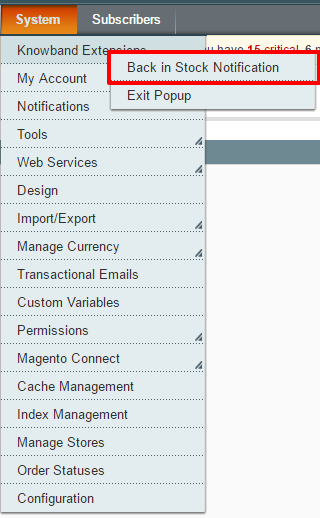
This part of the plug in will be for admin user, through which the admin can configure the settings. After installing Magento extension, Product Update Notification menu will be visible under System > Knowband Extensions menu in the menu bar as shown in below screen:
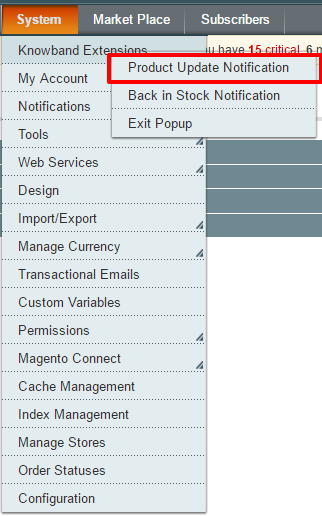
On clicking above mentioned menu, admin panel interface of the Magento stock alert extension will open.
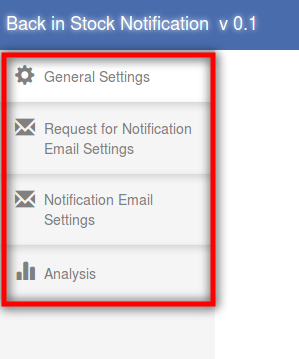
There are four tabs in the admin panel of this Magento price alert through which the admin will be able to manage the functionality of the Magento plugin. These are listed below:
- General Settings
- Request for Notification Email Settings
- Notification Email Settings
- Analysis
General Settings
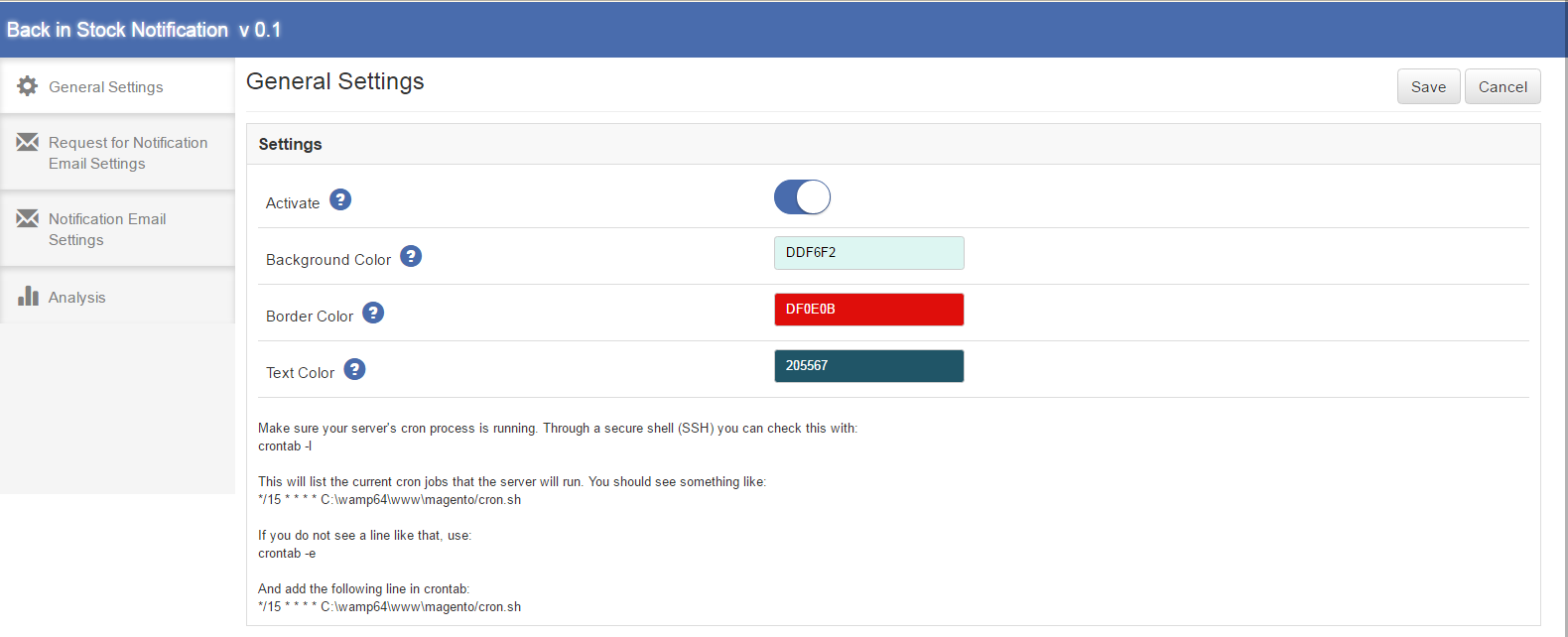
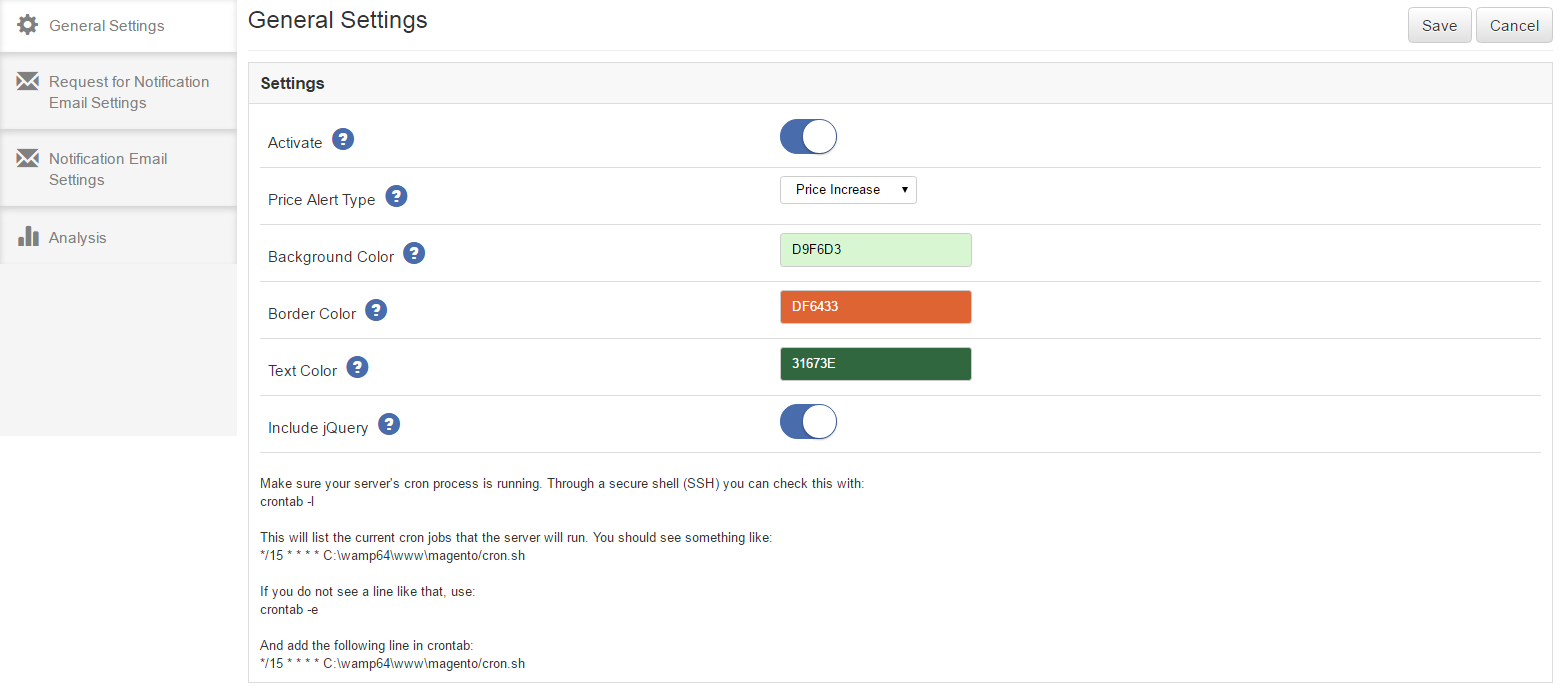
This tab will be opened by default when you click on the menu. General Settings tab will have following options:
- Activate – This will be an on/off switch. Admin will have the option to Enable/ Disable the Magento back in stock extension. If enabled Magento stock alert will be enabled on front end product page otherwise not.
- Price Alert Type – This will be a drop down list having options “Price Decrease”, “Price Increase” and “both”. It means if “Price Decrease” is set then mail will be triggered to customer only when price of subscribed product decreases. If “Price Increase” is set then mail will be triggered when price of subscribed product increases. And if “both” is set then mail will be triggered in both cases. Default value of this Magento price alert notification extension will be set to “Price Decrease”.
- Background Color – This will be a color picker palette. It will set the background color of Magento product update extension block on the product page.
- Border Color – It will also be a color picker palette. It will set the border color of Product update extension block on the product page.
- Text Color – This will also be a color picker palette. It will set the text color in the Magento stock alert extension block on the product page.
- Include j-Query – This field of Magento price alert will also be an on/off switch. By default it will set to off but if you are using Magento version lower than 1.9 then turn it on. It will include required j-Query files.
*Note 1: Stock notification mail will be sent to the customers at every time when product goes in stock from out of stock.
*Note 2: You have to make sure that Magento CRON process is running on your server to get notified your customers when any subscribed product comes in stock. Through a secure shell(SSH), you can check this with:
crontab -l
This will list the current CRON jobs that the server will run. You should see something like:
*/15 * * * * /home/user/public_html/magento/cron.sh
If you do not see a line that, use:
crontab -e
And add the following line in crontab:
*/15 * * * * /home/user/public_html/magento/cron.sh
Below is the screen shot of the this tab :
Request for Notification Email Settings
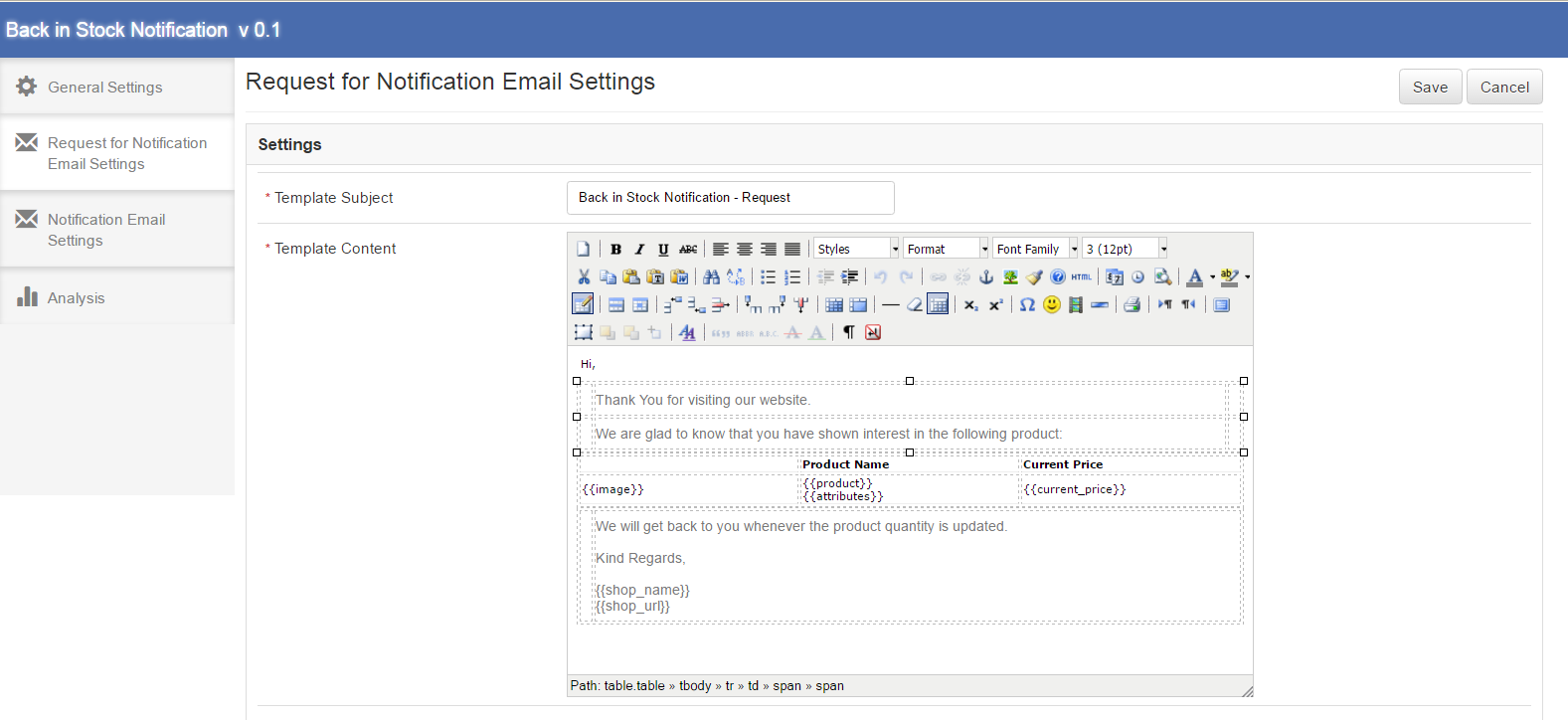
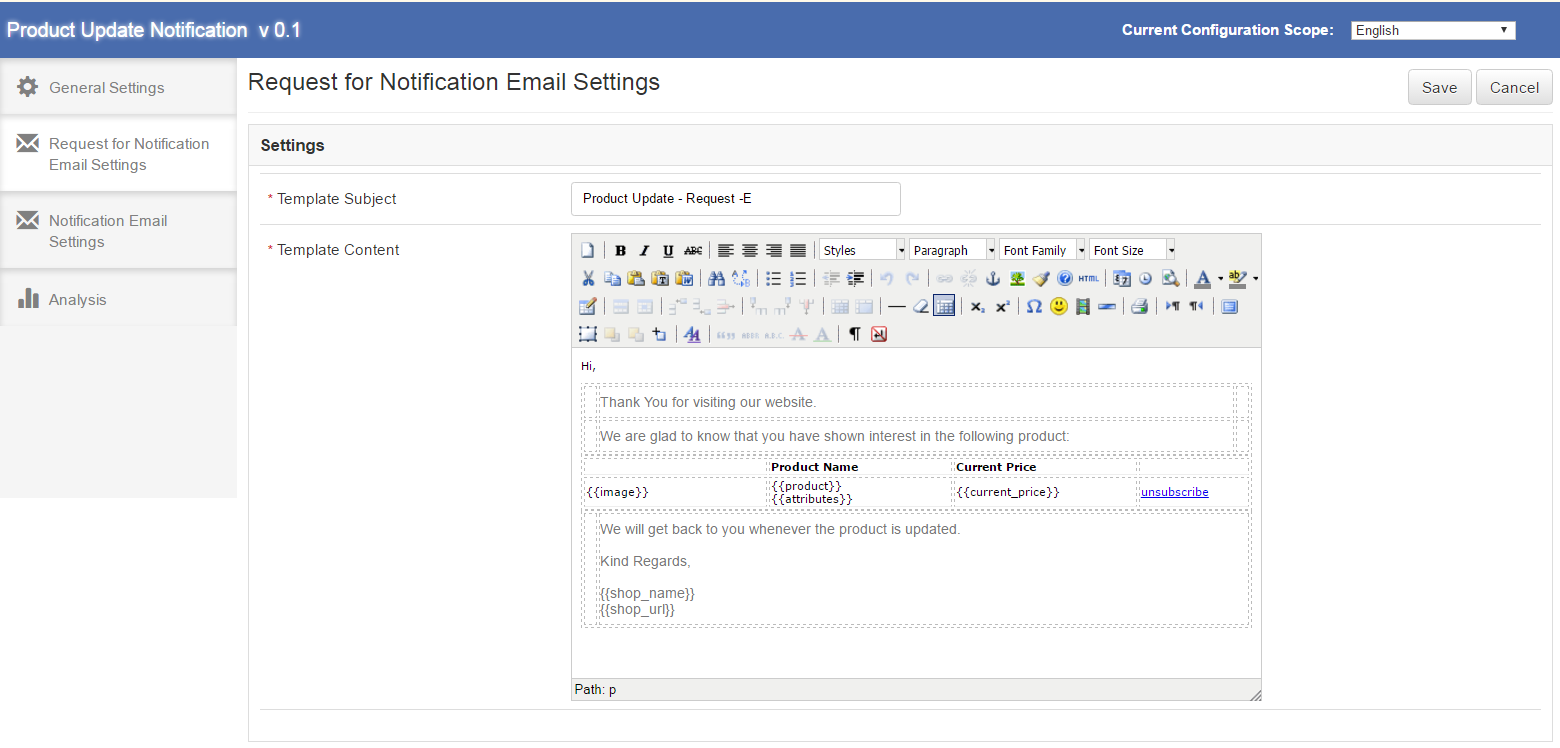
This tab of product update notification Magento will have the Email settings which will be sent when customer subscribes himself for notifications for a particular product. This tab will have the following options:
-
Template Subject – It will be the subject of the mail which will be sent. This field of the Magento product update will be mandatory and default value will be ‘Product Update – Request’.
-
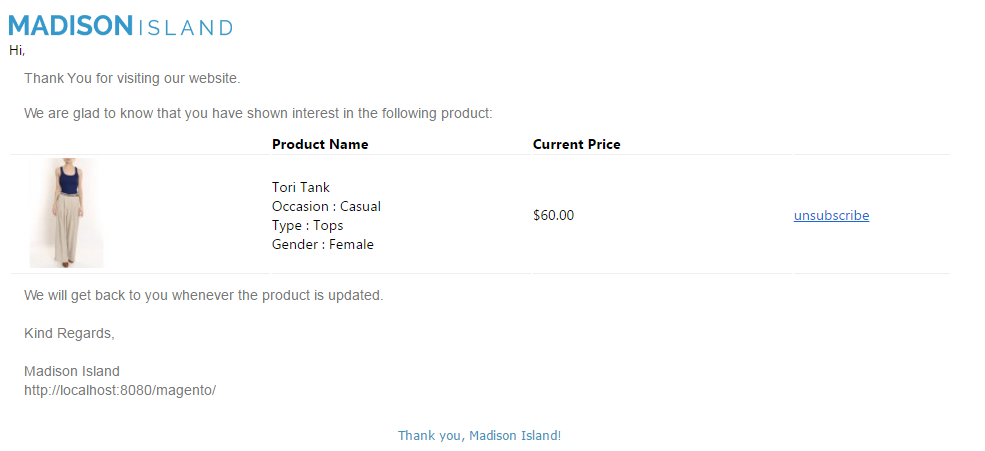
Template Content – This will be the content of the mail which will be sent initially to the customer. This field will also be mandatory. The default content of the Magento back in stock plugin will be as shown in the proposed screen below. The content enclosed in {{}}, will be the variables which will be used when sending actual mail. Other than these all content would be static. There will also be “Unsubscribe” link against the product clicking on which customer will be redirected to a page on store showing “You have been unsubscribed successfully”.
Below is the screen shot of the this tab :
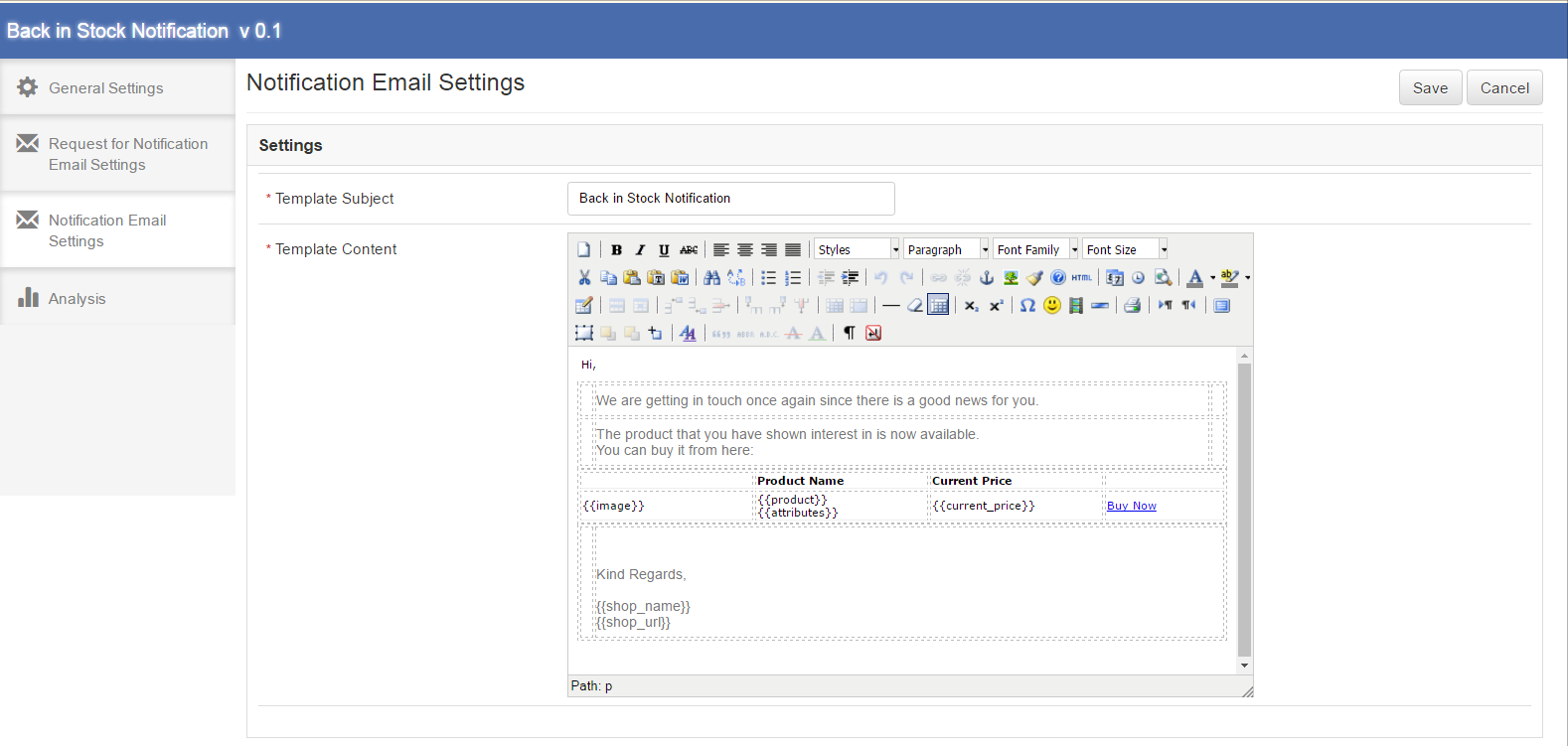
Notification Email Settings
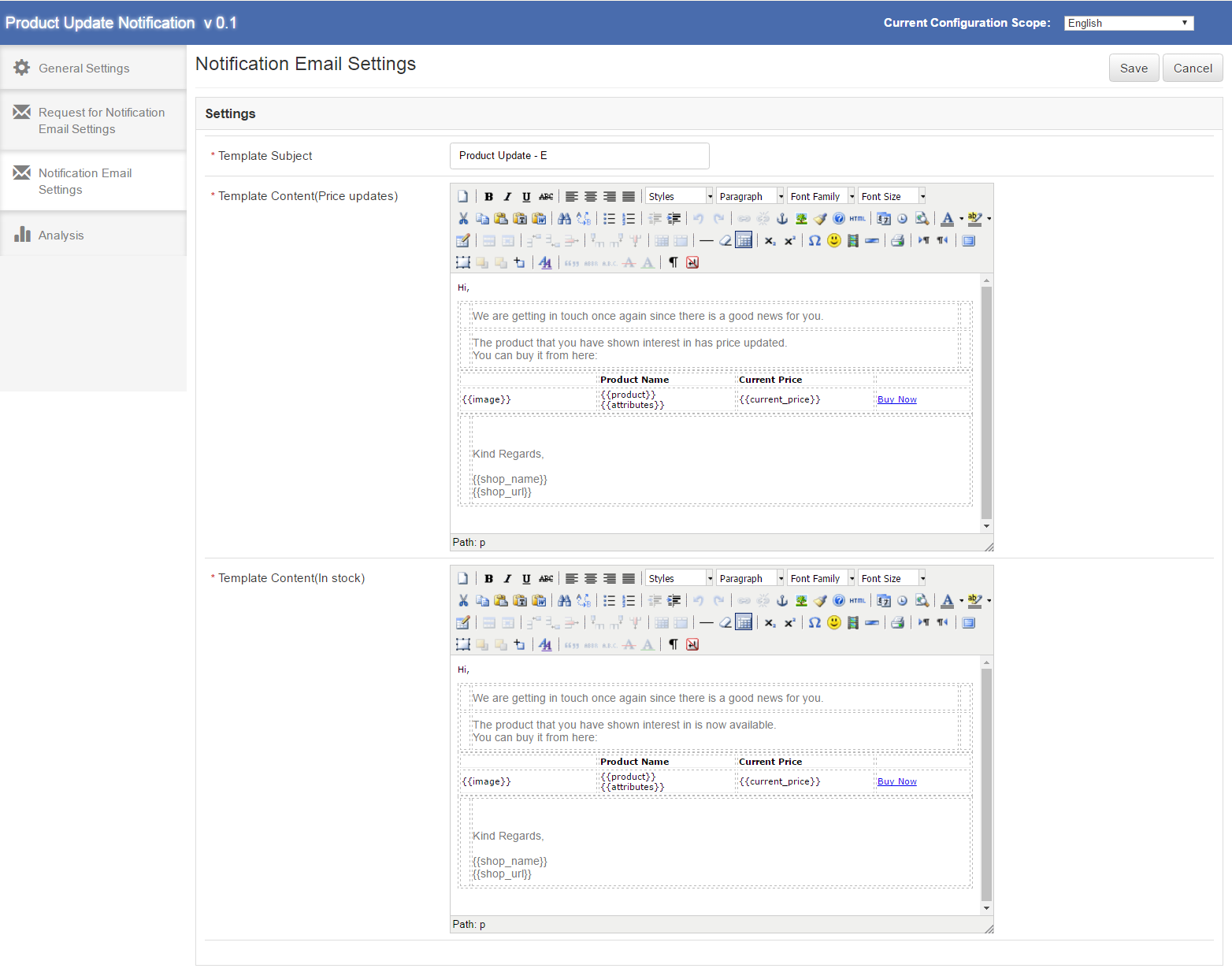
This tab of Magento stock alert extension will have the Email settings which will be sent to the subscribed customers for a particular product and that product gets updated i.e. either price updated or comes in stock from out of stock. This tab of Magento price alert extension will have the following options:
- Template Subject – It will be the subject of the mail of the Magento product update extension which will be sent to the customer when product gets updated. This field will be mandatory and default value will be ‘Product Update’.
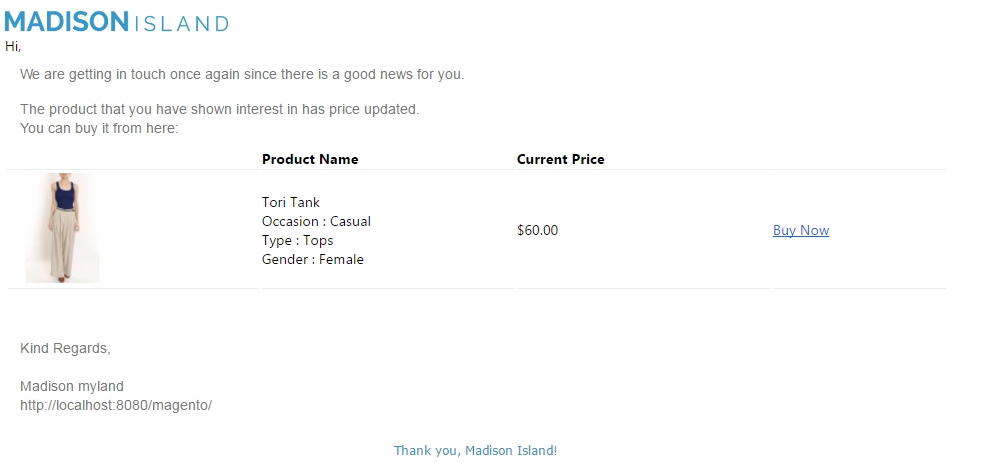
- Template Content(Price Updates) – This will be the content of the mail of product update notification extension which will be sent finally to the customer when a particular subscribed product gets price update. This field of Magento price alert notification extension will also be mandatory. The default content will be as shown in the proposed screen below. The content enclosed in {{}} will be the variables which will be used when sending actual mail. Other than these all content would be static.
-
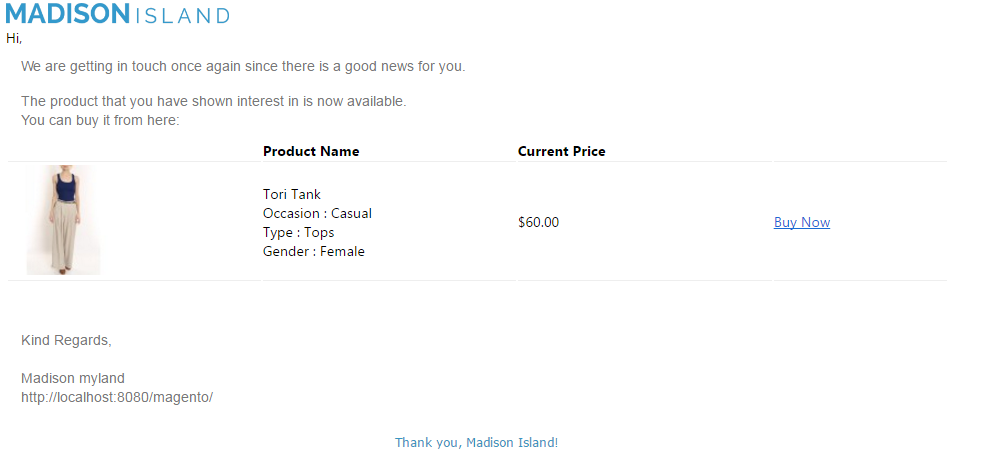
Template Content(In Stock) – This will be the content of the mail which will be sent finally to the customer when a particular subscribed product comes in stock. This field will also be mandatory. The default content of the Magento stock alert will be as shown in the proposed screen below. The content enclosed in {{}} will be the variables which will be used when sending actual mail. Other than these all content would be static.
Below is the screen shot of the this tab :
Analysis
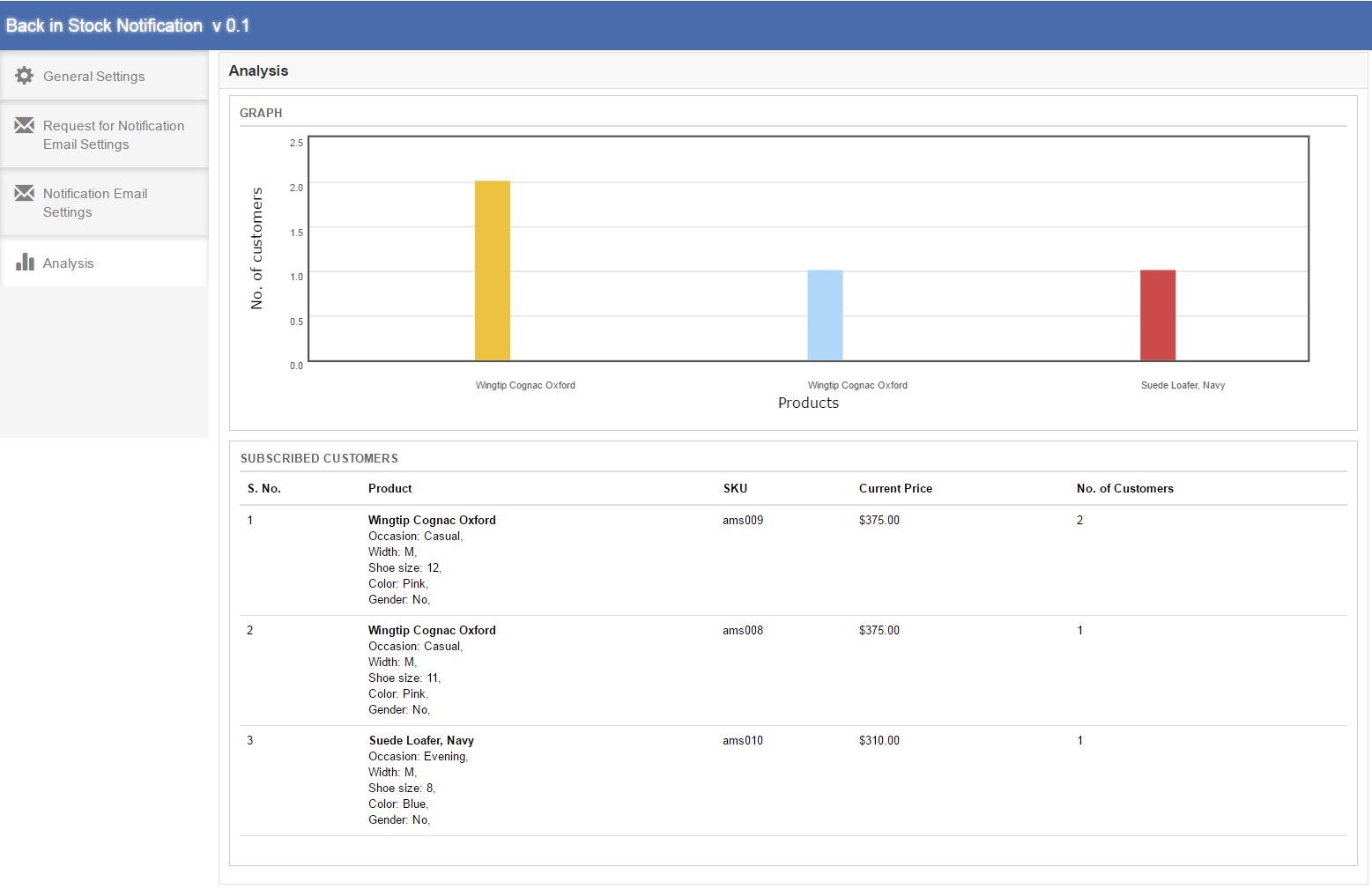
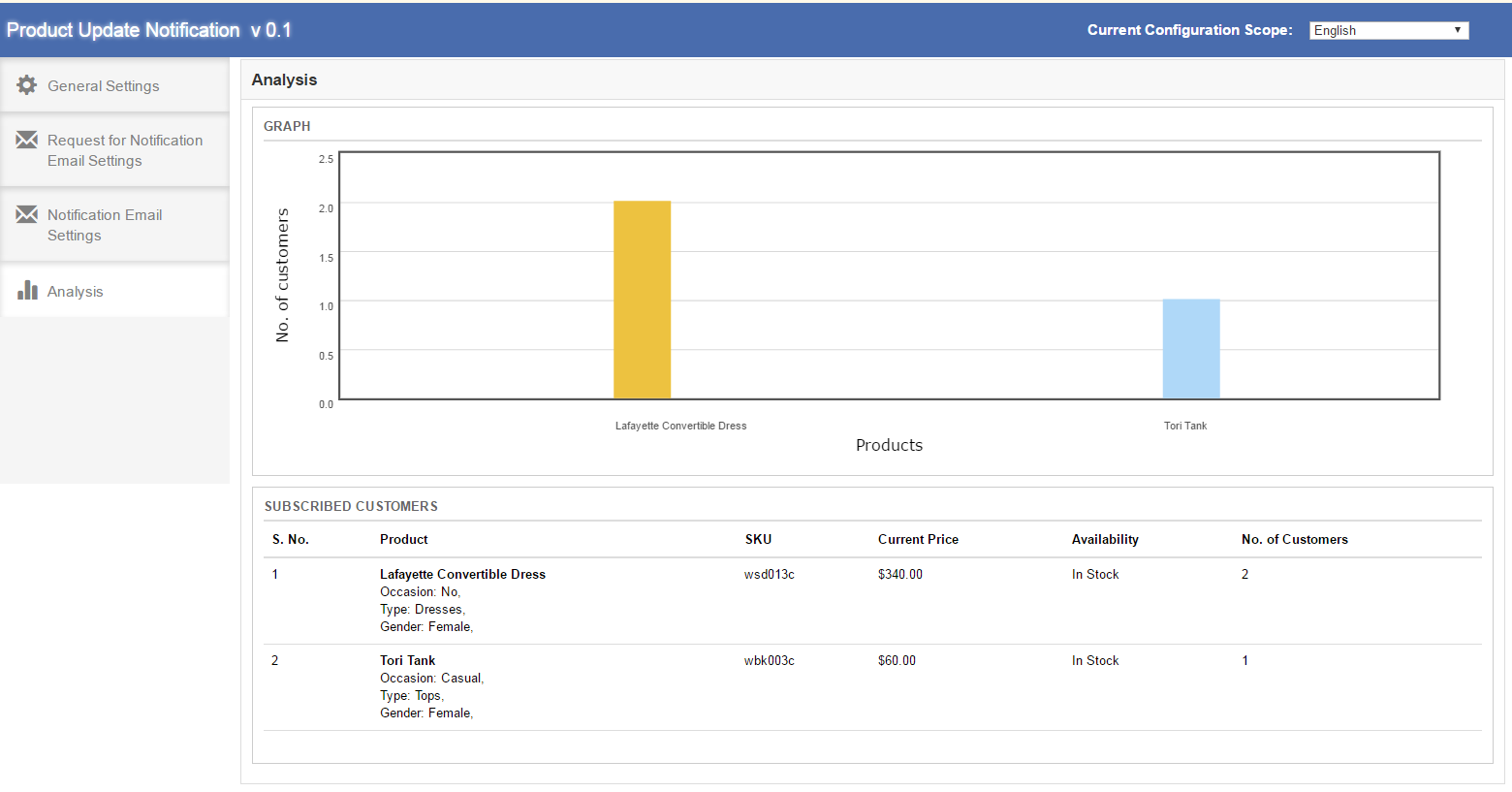
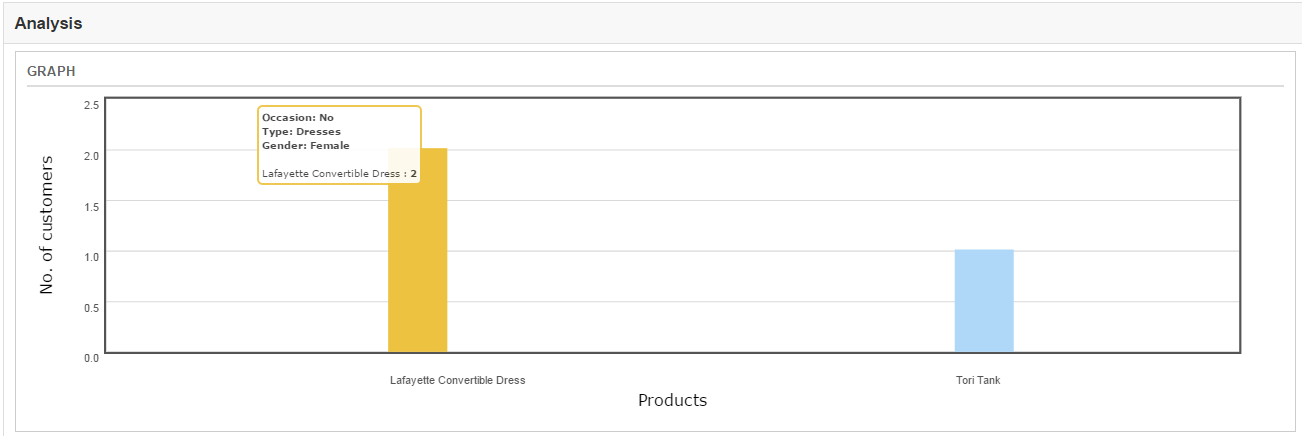
In this tab of product update notification extension, complete analysis of the subscribed customers can be found. This analysis would be in form of graph and in form of detailed list. It will be the analysis of top 10 products. Also, this list would only include the customers who are waiting for the notification email(either price update mail or stock availability mail). This tab of Magento product update extension will have two sections, which are described below:
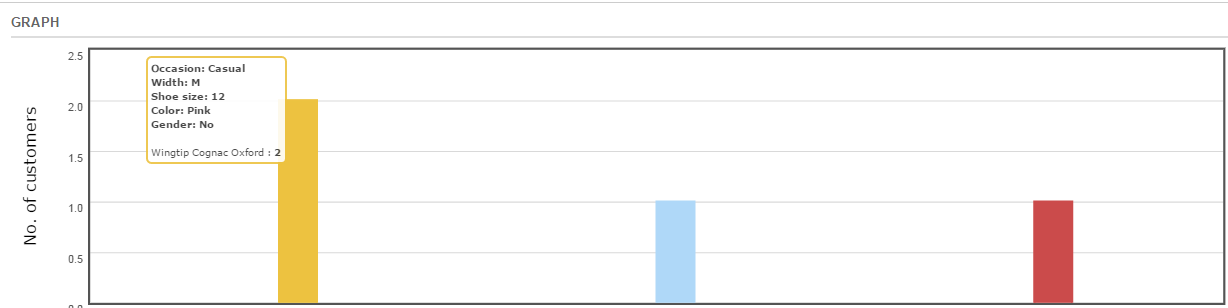
- GRAPH – The graph of the Magento stock alert will show the analysis of top 10 products. Horizontally products would be shown and vertically number of customers would be shown. On hovering a bar in the graph name of the product, product attributes and number of customers which have subscribed for this product will be shown in a pop up.
- SUBSCRIBED CUSTOMER – Subscribed customer would be a product wise detailed list. In first column of the list S. No., in second column product name and product attributes, in third column SKU of the product, in fourth column current price and in fifth column availability of the product(In stock or out of stock) and in sixth column number of customers that have subscribed for this product would be shown. This list of Magento price alert notification extension would also show top 10 products.
Below is the screen shot of the this tab :
On hovering a bar in the graph a small pop up will come as below:
Front End Interface
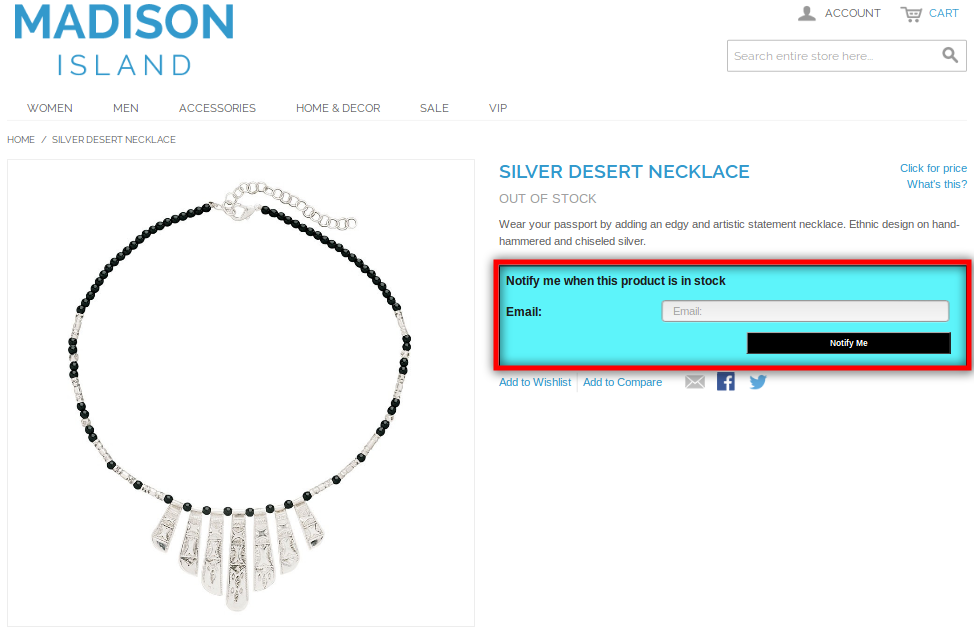
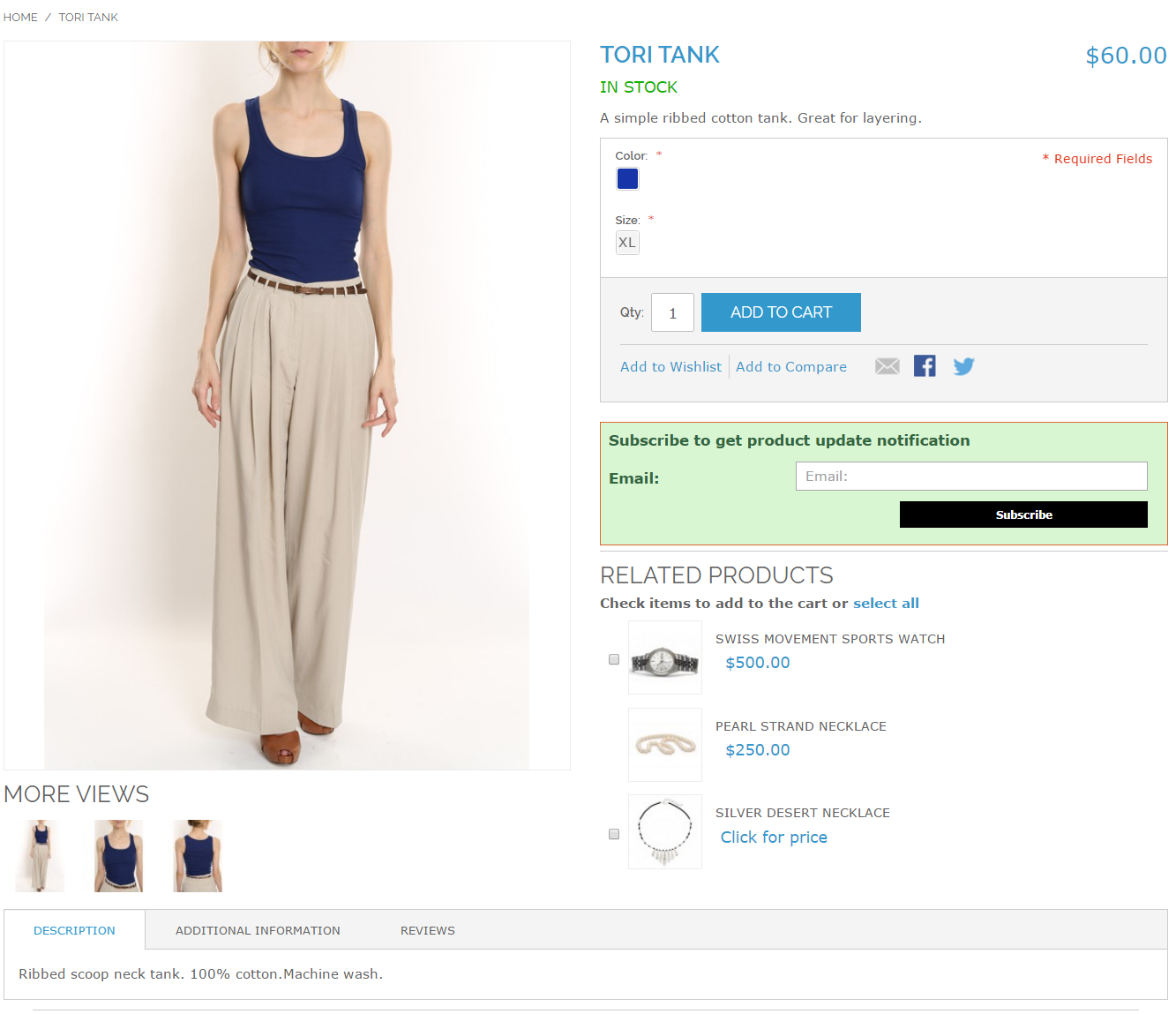
After enabling the Magento product update extension, the front end user will see a subscribe box at the product page. This block will contain an input field as to enter email id and a notify button through which the user will get subscribed for the respective product.
The front end of product update extension would appear as follows:
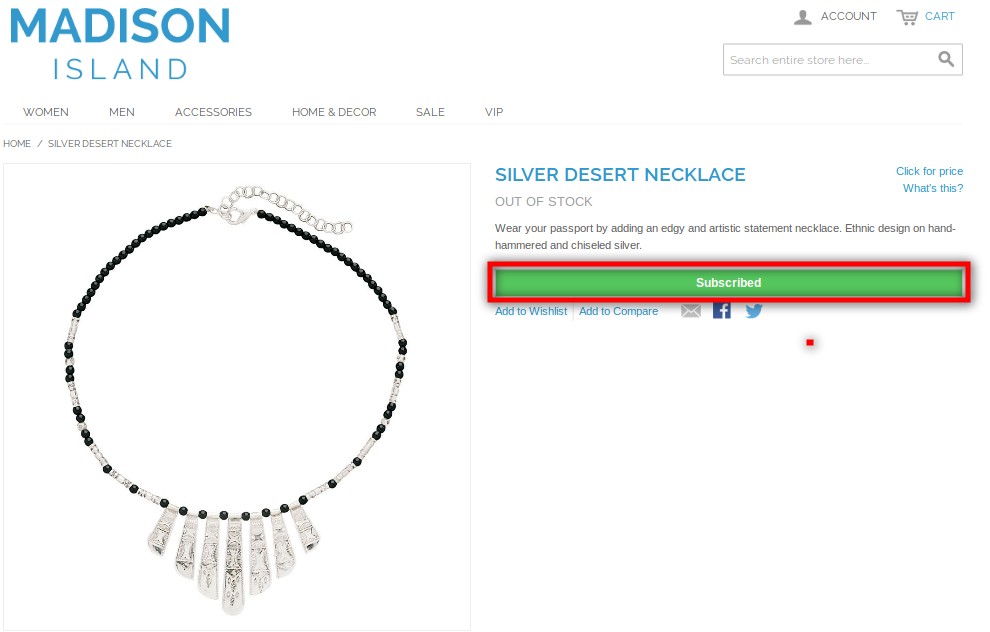
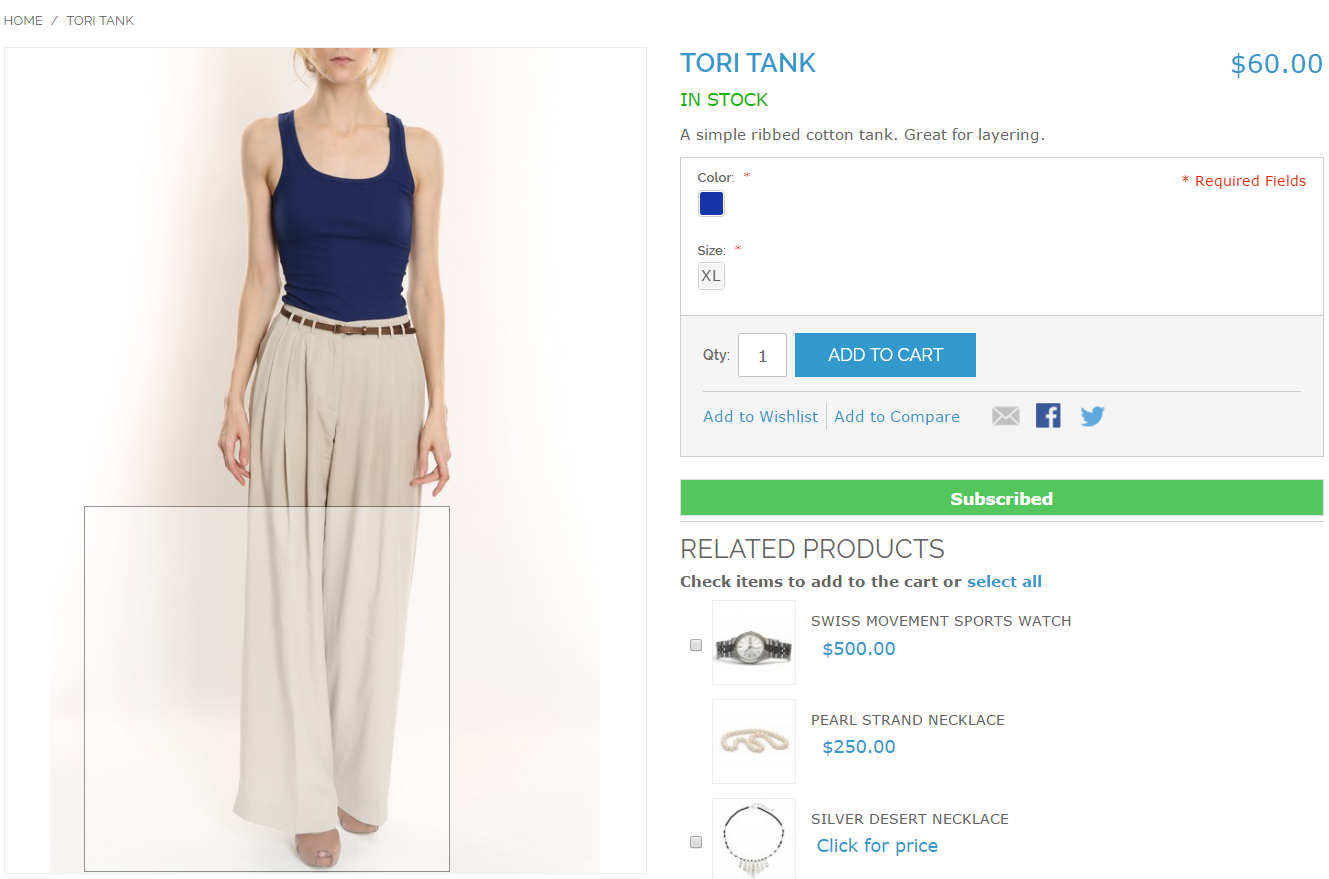
When customer enters the email id and click to the button “Subscribe” the initial mail will be sent to the entered email address and the message showing subscribed as below.
Note*
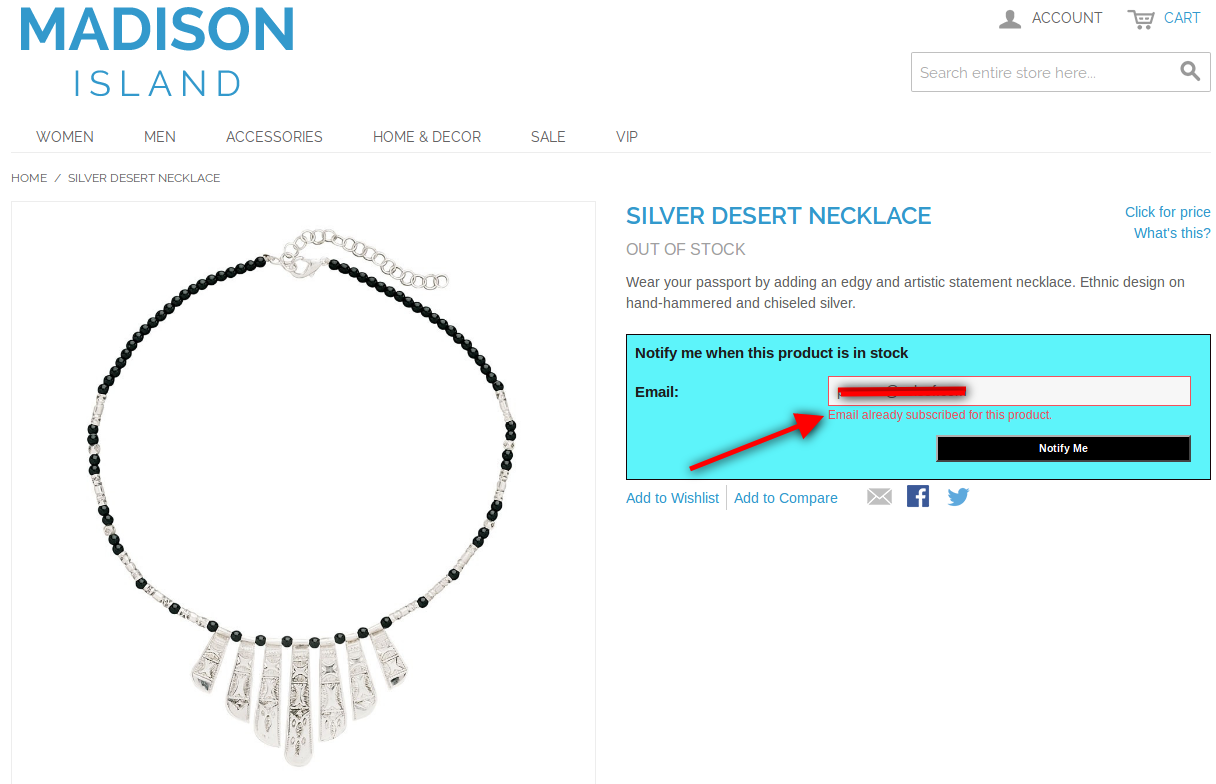
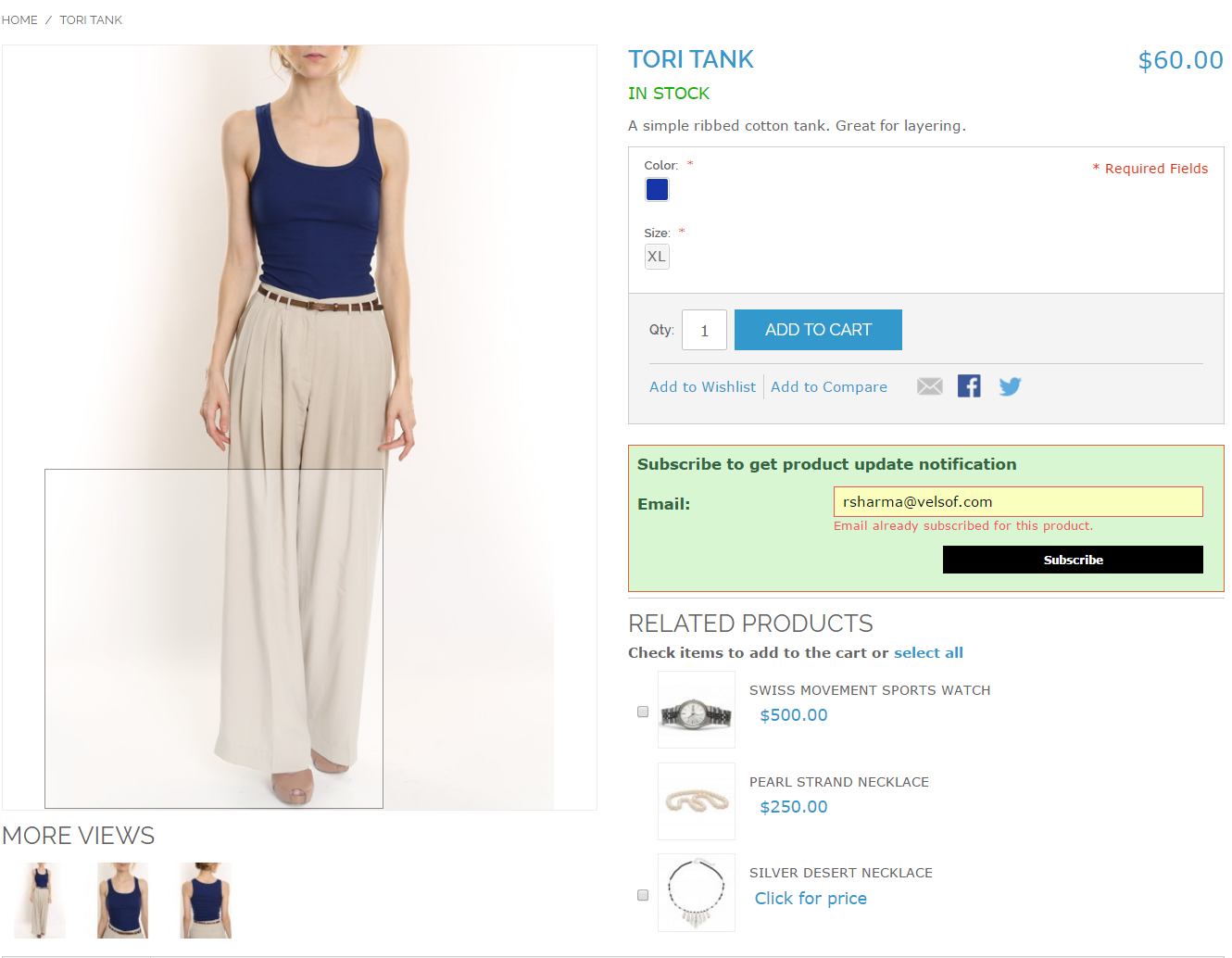
If a customer who has already subscribed for a particular product for Product Update tries to subscribe again with same email id for the same product then a message will appear showing “You have already subscribed for this product.”.
The screen shot is as following:
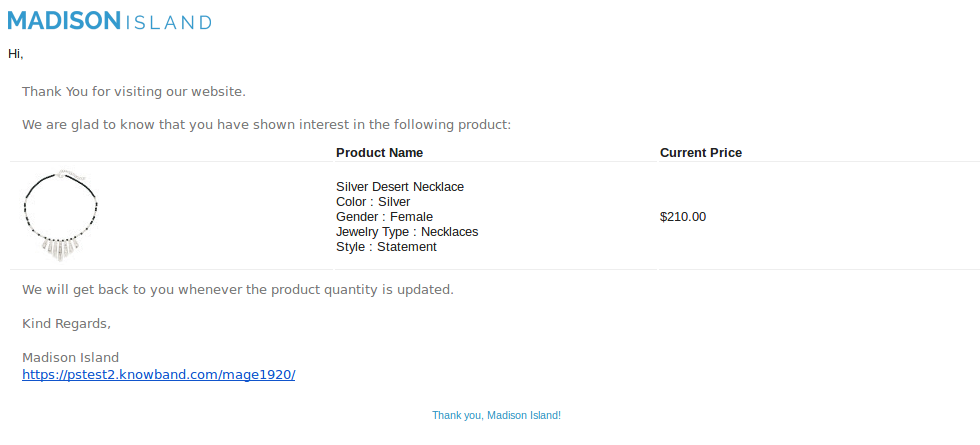
The initial email of the Magento stock alert extension by Knowband that will be triggered to the entered email id is as following:
Module Link: https://www.knowband.com/magento-product-update-notification
Front Demo: https://marketplace.knowband.com/