Upsell and Cross-sell strategies are important for online stores for better sales. The emergence of eCommerce has changed the process of buying and selling. Besides the complexities of modern eCommerce, some selling strategies like Upsell and Cross-sell are still the same. In this blog, we will try to understand the benefits of these Upsell and Cross-sell strategies and other related points.
What is Upselling?
Getting the customer to spend more money than the amount they have planned at the time of the sale process is called Upselling. There are certain ways to do it. Let’s get more clarity on this strategy with the help of an example.
For instance,
You could offer customers add-ons to the item they are purchasing on the checkout page. In case you are purchasing a subwoofer, you could offer two subwoofers at a 20% discount. Along with that, you can offer an option of gift wrapping the item for an additional fee after all increasing the average order value is what matters the most at the end of the day.
What is Cross-selling?
According to Shopify, Cross-selling is defined as ” a sales technique that is used to attain a customer to spend more by buying a product related to the one you already bought”.
Upselling and Cross-selling are two different strategies, so don’t get confused. If we define these strategies in simple words then, upselling involves selling an expensive item or upgrade to a customer whereas cross-selling is about offering an additional complimentary product.
How important are Upsell and Cross-sell strategies for eCommerce?
Upselling and Cross-selling are strategies that offer great benefits, one of them is higher sales.
Upsell and Cross-sell strategies raises customer retention
To solve issues, customers purchase products as well as services leaving aside impulse buys. Although they are aware of the problem, however, might not be aware of the best solution to the problem.
Upselling or Cross-selling when done right helps buyers find more value than what they were expecting. Further, these strategies can lead to an increase in revenues up to 43% and even improve customer retention.
Upselling and cross-selling increase average order value as well as lifetime value
Cross-selling and upselling increase your average order value. These strategies even help in creating revenue and profit at a very low incremental cost.
As per the marketing metric study reports, the probability of selling to an existing customer is 60-70%. Furthermore, the chances of selling a new prospect are 5-20%. Moreover, upselling to customers who are already existing is an extremely cost-efficient way to increase lifetime value.
Knowband modules that can help in upselling and cross-selling
Related Products Module
Related Products Module permit store admin to showcase the related product items depending upon the product items that are available in the cart. Furthermore, Knowband offers the module for different eCommerce platforms that are listed below.
Gift the Product is another great way of attracting more customers and increasing sales. This module makes your customers feel special by providing them a gift while they are completing checkout and the most essential thing is, gift of the buyer depends upon the total cart value. Platforms of which Knowband offers this module listed below.
Knowband provides Gift the product module for different eCommerce platforms.
Gift cards are similar to prepaid debit cards with money for future usage. Furthermore, Gift cards used in both ways- online and in person. Moreover, there are eCommerce platforms that offer Gift cards on their eCommerce store with fixed as well as custom amount options.
Final Thoughts on Upsell and Cross-sell strategies
Before wrapping up, there are a few tips that we would like to share with you. The first tip, use Cross-selling more on the checkout page. This way customers can tap into impulse buying. The second tip, avoid bombarding customers with too many choices as this can distract them and they will end up abandoning their cart.
In case you find any issue with above mentioned Knowband modules, feel free to write us at support@knowband.com. Along with efficient modules, Knowband provides efficient post-sales support to the customers. Moreover, we are available 24*7 to resolve your queries.
1.0 Introduction Magento Gift Card Manager Extension.
Gift cards have become a major factor of eCommerce businesses. Knowband provides the Magento Gift Cart Manager Extension that allows the Magento store owner to offer gift cards to their customers. Magento gift voucher extension is a module that enables the admin to acquire new online consumers while retaining the existing customers.
This Magento gift card extension by Knowband gives the flexibility to a customer to buy the gift card online and send the Gift voucher to their friends via email on a specific date and time. The online shoppers can order the gift cards for the special occasions for their near and dear ones.
1.1 Features of the Magento Gift Card Manager Extension
By using the Magento gift card manager extension, the eCommerce store merchant can offer the e-gift card option to their store visitors.
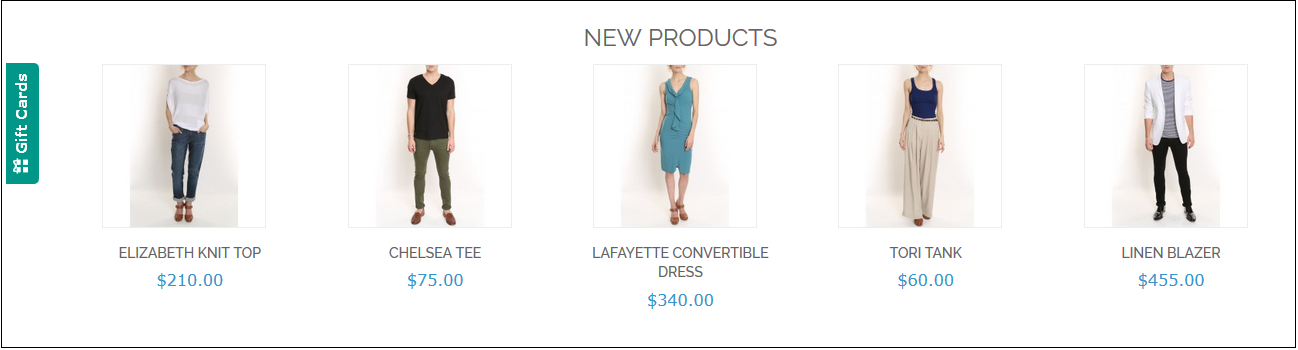
Magento store owner can place the link for Gift Card anywhere in the front-end of the website.
Knowband’s Magento send gift card manager extension allows the admin to fix the minimum duration within which the gift card is delivered to the end-user after the order for the same is placed.
Magento gift card module by Knowband enables the admin to set the prefix for the Gift card.
With the help of Magento gift voucher extension, the online store owners can customize the readymade email template subject and content as per desires.
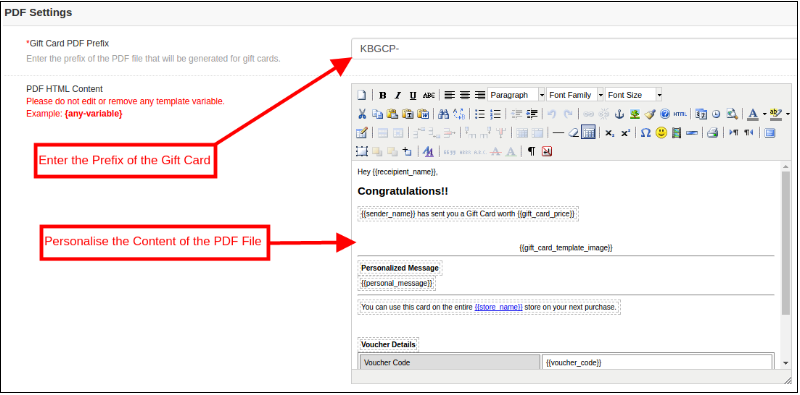
Magento gift card extension by Knowband offers the PDF customization option to the admin where they can change the Gift card prefix and content.
The Store admin can run the cron for implementing the changes automatically.
Magento gift card extension by Knowband allows the store admin to add, edit or delete the gift card template.
The online merchants can add the N number of gift card templates for various occasions including Anniversary, Birthdays, Holidays or any other special event. The default gift card designs or templates can be edited, disabled or deleted as required.
The store admin even gets an option to keep a track on the orders received for the gift card from the back-end of the Magento gift card manager extension.
Magento gift voucher extension helps the admin to increase the customer retention.
Knowband’s Magento send gift card extension is easy to install and configure.
Magento gift card extension is fully mobile responsive.
1.2 Magento Gift Card Manager Benefits for Customers:
1. Magento Gift card extension by Knowband save the valuable time of the customers. They can get the gift cards for the different occasion in case they are finding it hard to choose a tangible gift from the store.
2. The gift card option incorporated by Magento gift card module by Knowband is best for those customers who find it hard to select a gift for any occasion.
2.0 Installation
After purchasing the Magento gift card module from the store and you’ll get following files.
1. The zipped file that consists of the source code of the module
2. User Manual
Follow the following steps to install the Magento gift card manager extension:
1. The folder structure of the Gift Card Manager.
2. Copy all the folders of the zipped file and paste them into Magento root directory and clear the cash cache (if enabled).
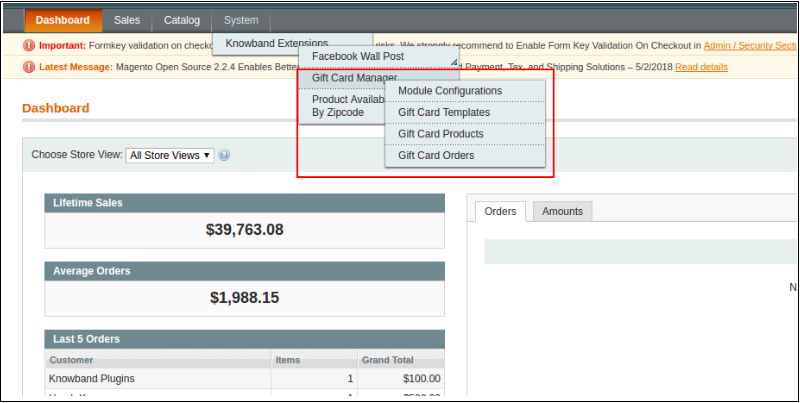
3. You will be able to find the “Gift Card Manager” option inside the “System > Knowband Extensions > Gift Card Manager”.
4. You can now configure the Magento Gift Card Manager as per your requirements and check its working in the front end.
3.0 Admin Panel
After installing Magento Gift Card Manager Extension in the Magento store, the admin gets a number of configuration options. There are following sections available to admin interface:
1. Module Configuration
2. Gift Card Template
3. Gift Card Products
4. Gift Card Orders
Let us discuss the various customization options of Magento gift voucher extension.
3.1.1 Module Configuration
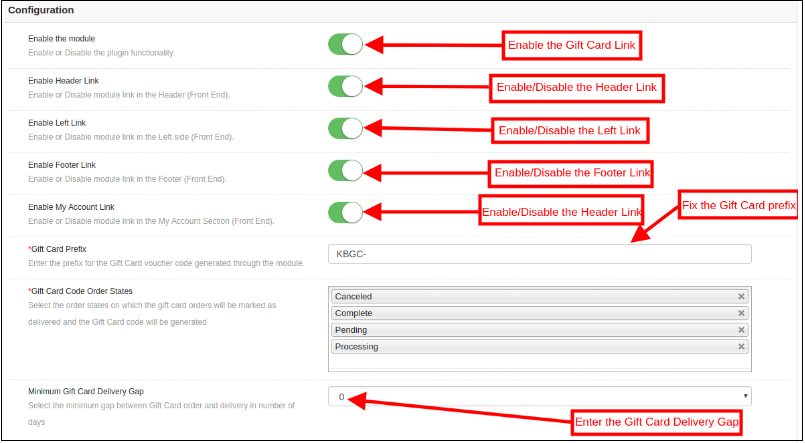
The Module configuration tab of Magento gift card manager module by Knowband offers the basic configuration options to the store admin. The Module Configuration tab is discussed below.
1. Enable the module: Initially, this Magento Gift voucher extension is disabled. The store admin can enable this option and offers their customer Gift card option. This can be done by toggling the button as shown below.
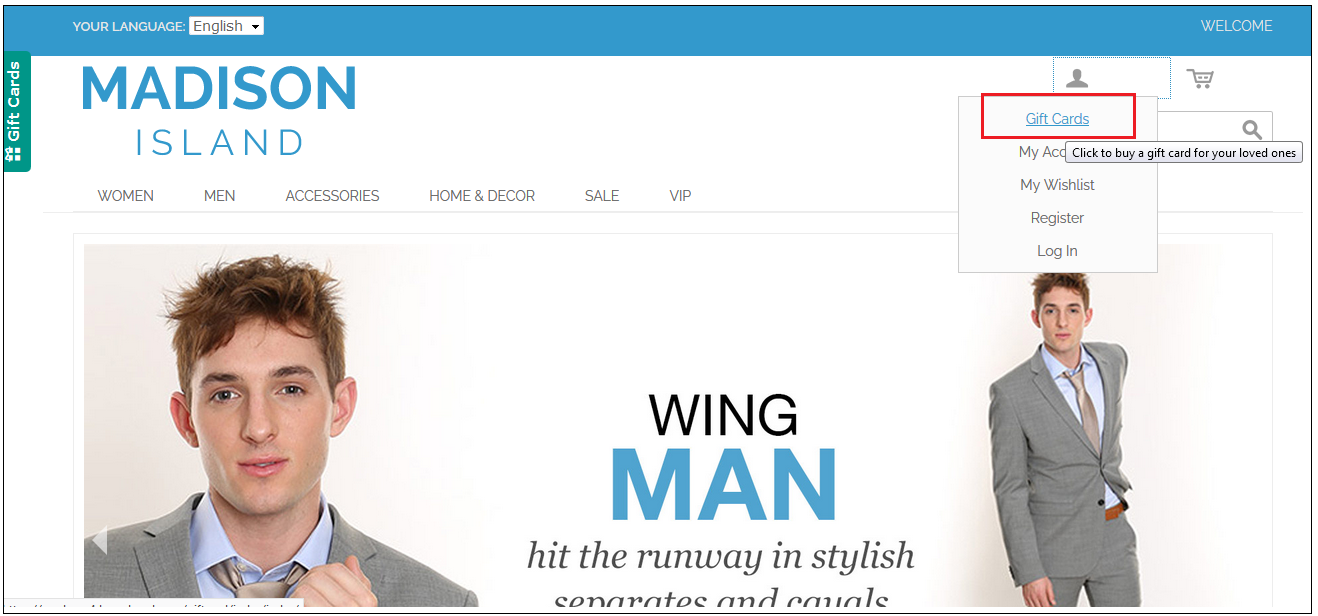
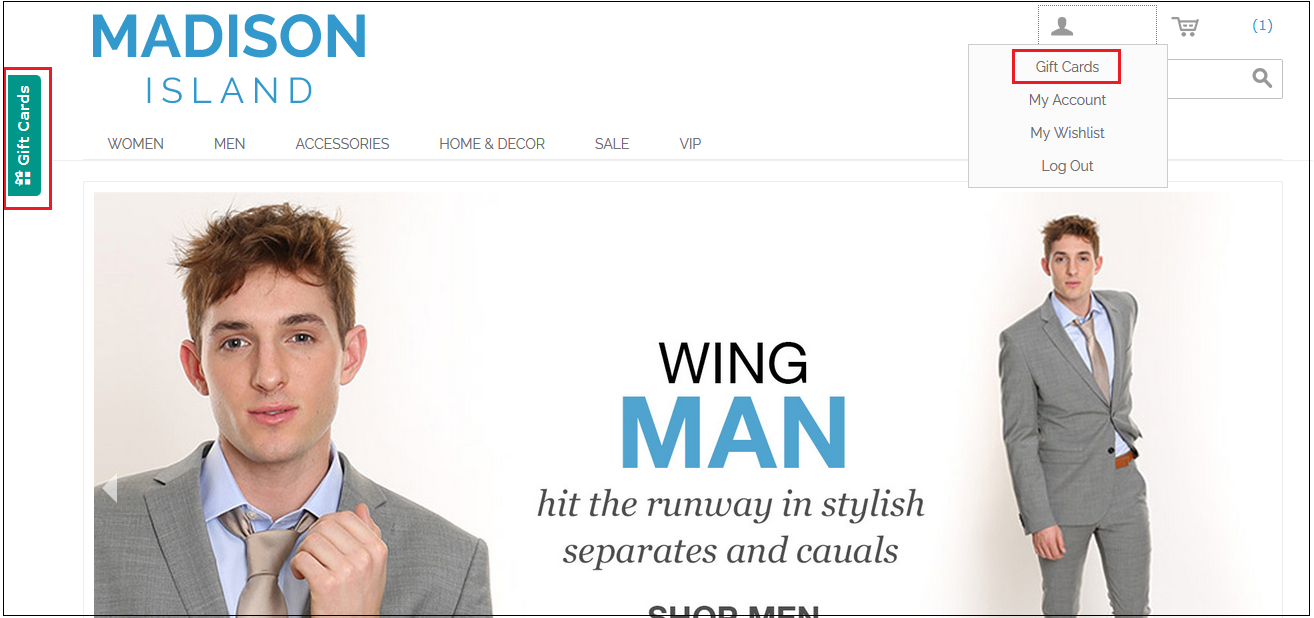
2. Enable Header Link: The Store admin can enable the button to display the gift card link in the header of the webpage.
Front End Preview:
3. Enable Left Link: In this section, the online retailer can enable the display of the link on the left side of the site.
4. Enable Footer Link: The admin can enable the display of the Gift cards link at the footer of the site.
Front End Preview:
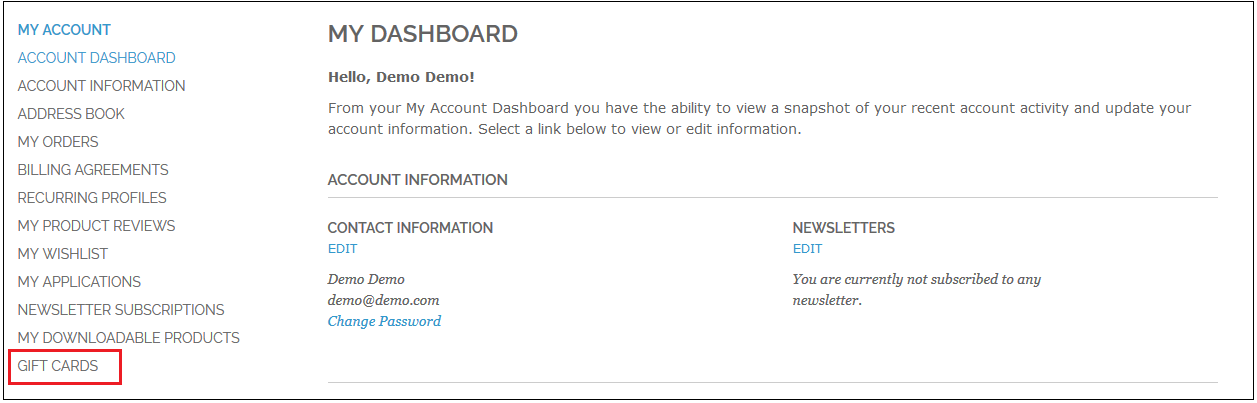
5. Enable My Account Link: The admin can enable the Gift card link in My Account page.
Front End Preview:
6. Gift Card Prefix: With this option of Magento gift card extension, the admin can set the prefix for the voucher code of the pre-paid gift card from here. For example, the code can be entered in the format KBGC – ******
7. Gift Card order Status: The admin gets an option to select the status of the orders.
8. Minimum Gift Card Delivery Gap: Knowband Magento gift voucher allows the store admin can specify the minimum duration of the day when the order was placed and day of the gift card delivery.
3.1.2 Email Setting
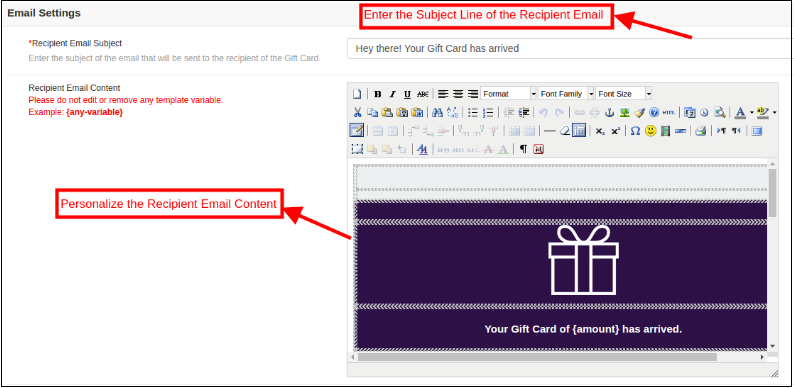
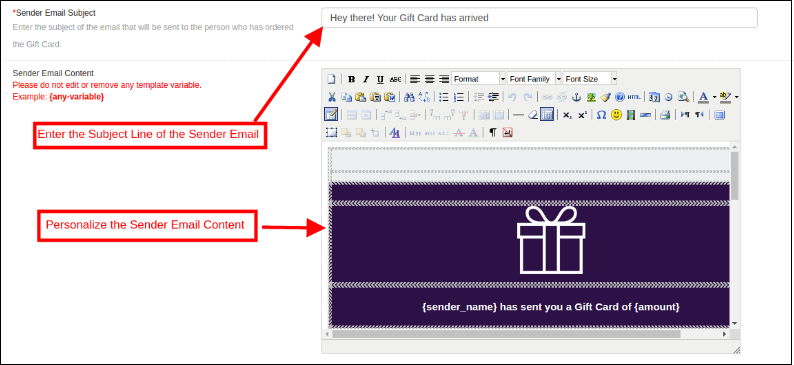
In this tab, the admin can customize the gift card email template as desires. This Magento gift card extension by Knowband offers default email templates. The entire email right from the subject line to the content can be edited and personalized as per the requirement.
This Magento gift card manager extension offers the two Email templates option.
Recipient Email Template
Sender Email Template
Recipient Email Template: In this section, the store admin can enter the subject line of the email and content as per the requirement.
Sender Email Content: In this section of Magento gift card extension, the store merchant can customize the email content as per the business requirement.
3.1.3 PDF Setting
The admin can enable the customers to download the gift card in PDF format. Magento gift voucher module offers the PDF Settings option to the admin. The buyer can print the gift cards in PDF format with the help of Magento gift card manager module. The admin can change the Gift Card prefix and PDF content from the back-end and the changes will be reflected in the PDF.
3.1.4 Cron Setting
The admin can execute the cron manually by clicking on the button shown in the image below.
Or else, the eCommerce store admin can enable automatic execution of the cron option by toggling the button as shown below.
3.2 Gift Card Template
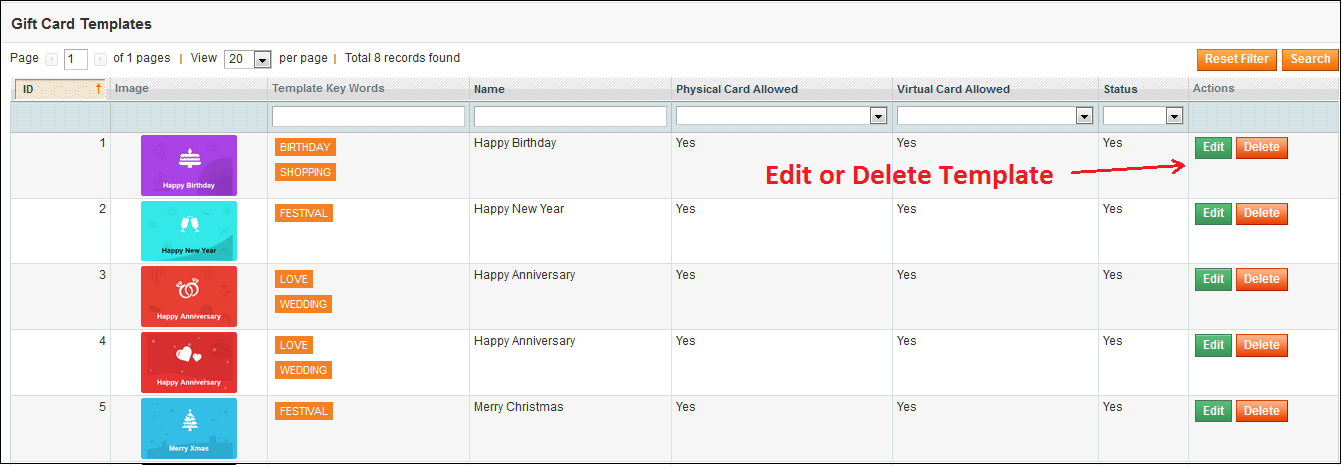
This tab lists out the default Gift card template. Admin can customize these Gift card template as per their desire. Other than this, the store merchant can edit or delete the Gift card template.
3.2.1 How to Edit and Delete Gift Card Template?
The admin even gets an option to edit the template or delete it. This can be done by clicking on the Edit or Delete button respectively as shown below:
3.2.2 How to Add New Gift Card?
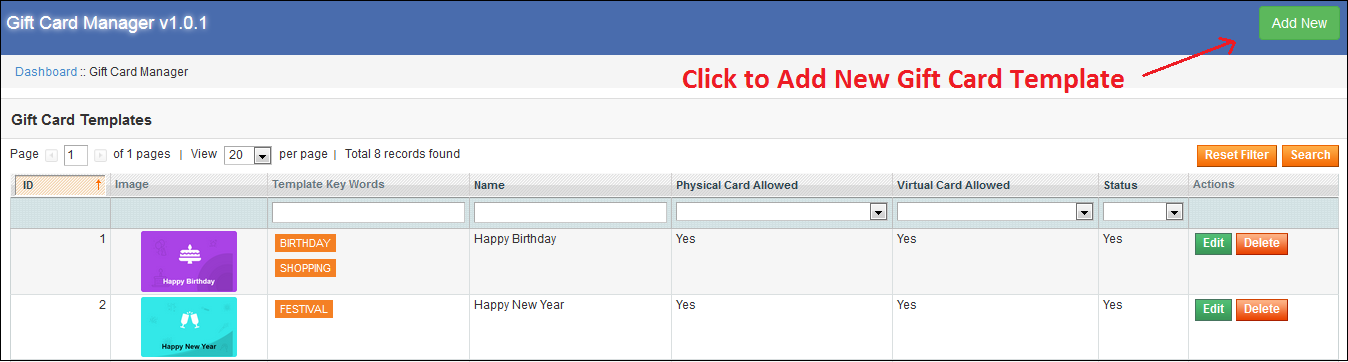
In order to create the new templates for the Magento gift card manager extension, go to the Gift Card template tab and then click on ‘Add New’ option at the top right side of the module.
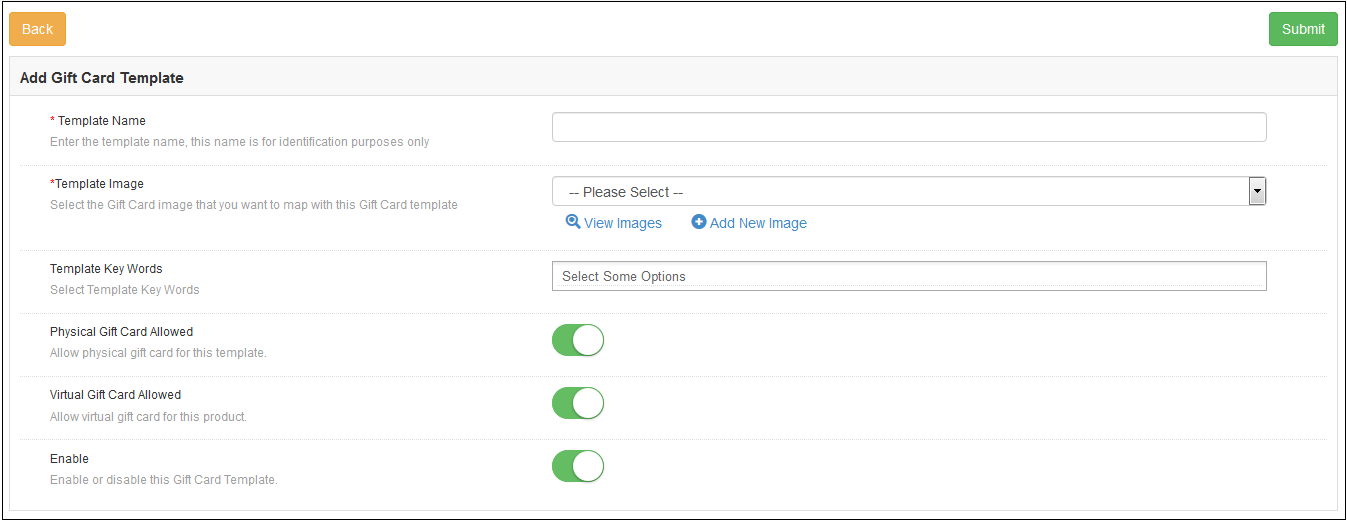
Fill-up the information in order to create the template as shown in the image:
1. Template Name: In this section of Magento send gift card extension, enter the name of the Gift Card template.
2. Template Image: The admin can select the image or the layout of the gift cards that will be shown in the front-end of the eCommerce site.
The images for the various occasions can be saved in the back-end of the Magento gift card manager extension by Knowband.
3.2.3 How to customize the template of the gift card?
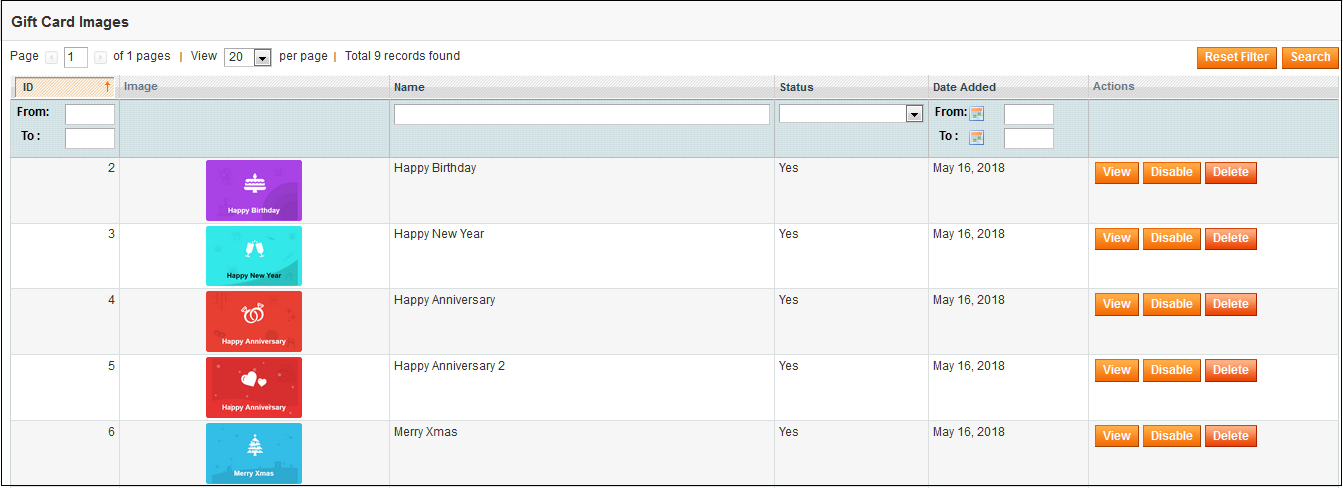
3.2.4 View Gift Card Template Images
The store admin can even view the images for the various events has been saved or can create a new image for the same.
As you click on the ‘View Images’ you’ll be redirected to the page below.
The list showcases the entire images that were created and saved. You can view the complete image or even delete it if required.
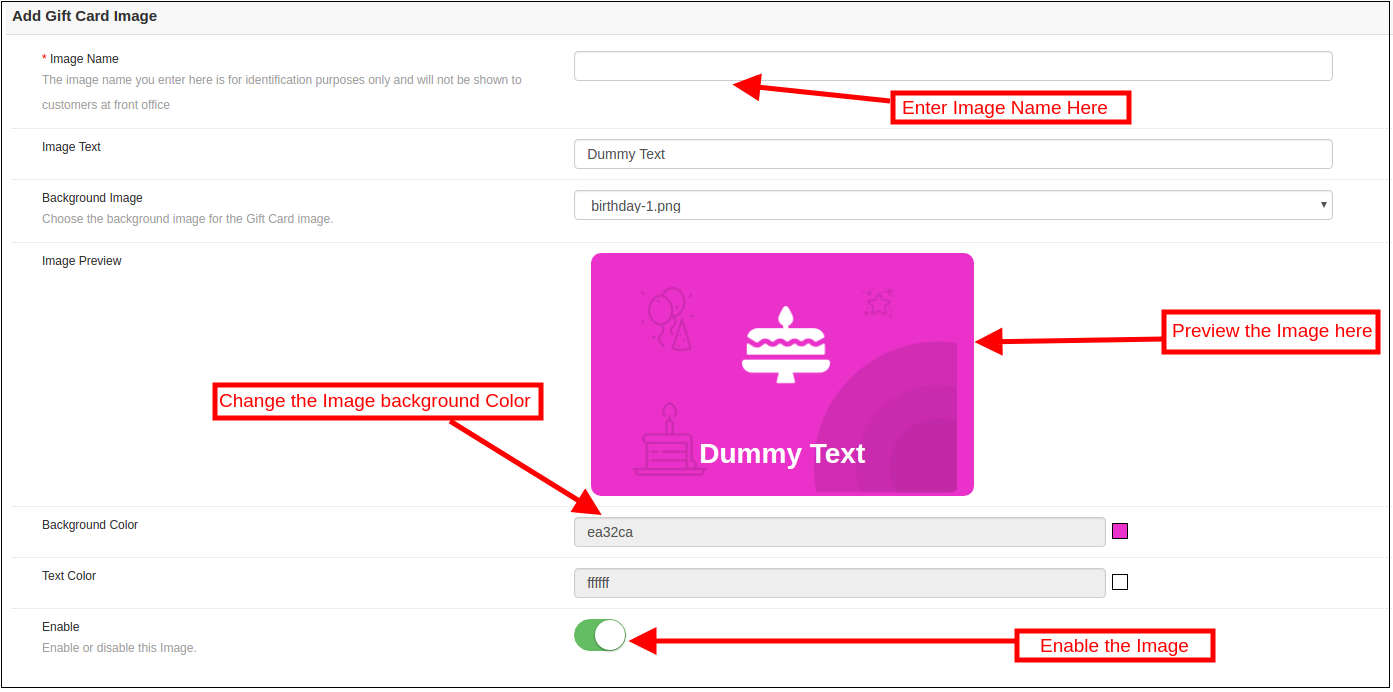
In order to create new images, click ‘Add New Image’ as shown below.
3.2.2 Add Gift Card Template Image
You can enter the image name and the text of the image to be shown on the gift card. Even the background image and color, as well as font color, can be changed at a button click. Preview the final image before making it live on the website.
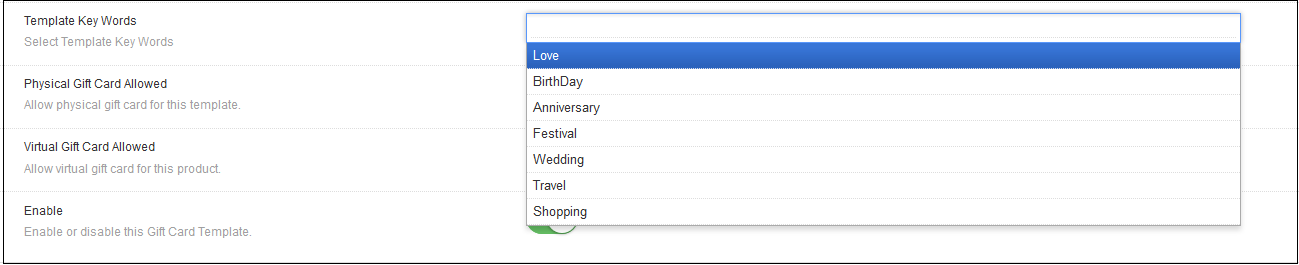
3.Template Keywords: The Magento gift card extension allows the admin to select the keywords of the gift cards.
4. Physical Gift Card Allowed: Enable this button if you want to offer the gift cards in physical form. If this functionality is enabled, then, the admin can allow the customers to send the gift card in physical form to the recipient.
5. Virtual Gift Card Allowed: The online retailer can enable the Virtual gift card functionality. This will allow the customers to download the e-cards.
6. Enable: Toggle this button to enable or disable the Gift card template.
3.3 Gift Card Product
Magento gift card template allows the e-merchants to customize the pre-paid gift card products in few simple steps.
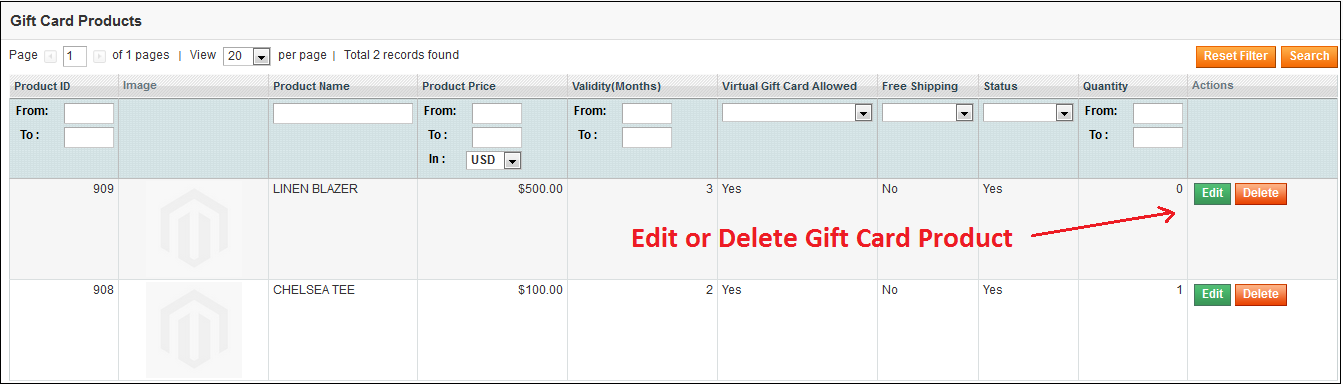
3.3.1 How to Edit and Delete Gift Card Product?
The admin even gets an option to edit/delete the gift card product from the section shown below:
3.3.2 How to Add New Gift Card Product?
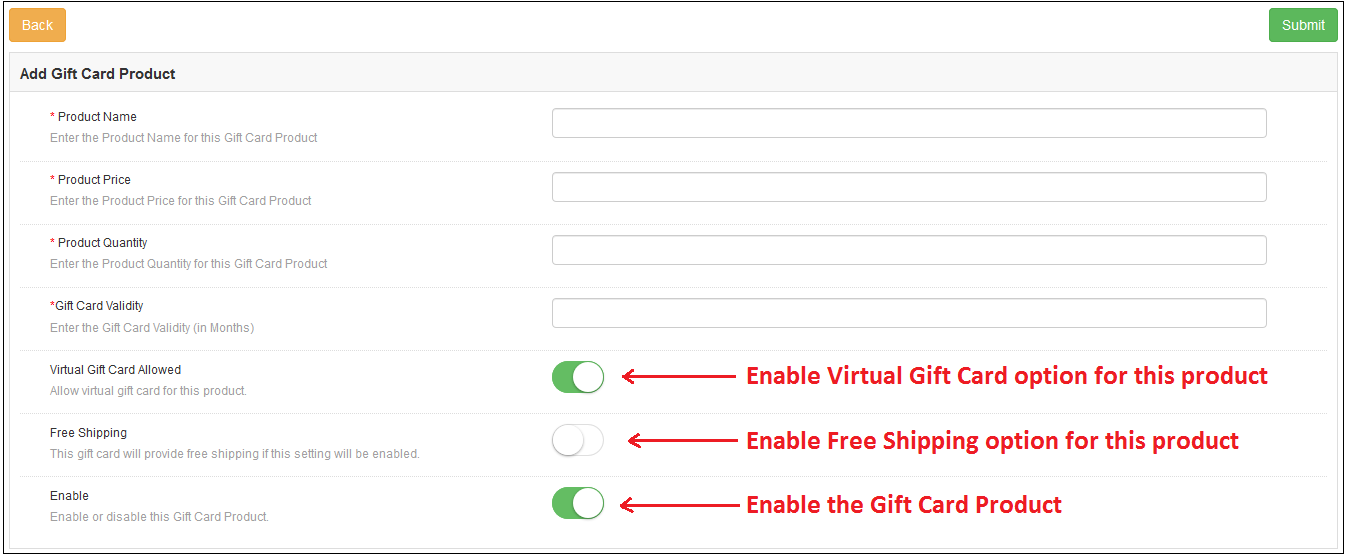
In order to create the new gift card product for the Magento gift card manager extension, go to the Gift Card template tab, then, click the ‘Add New’ option at the top right side of the module.
Listed below is the information that you need to provide for creating the product.
Product Name: Enter the name of the product here. It can be Happy Anniversary, Happy Birthday, Merry Christmas or any other.
Product Price: Enter the amount allowed in the gift card in this section.
Product Quality: Enter the product quality of this gift card product.
Gift Card Validity: The validity period in months of the gift card can be entered here.
Virtual Gift Card Allowed: Enable e-card by switching on the button.
Free Shipping: The eCommerce seller can even allow free shipping to the customer.
Enable: Gift Card Product can be enabled or disabled from here.
3.4 Gift Card Orders
The Gift Card Order tab provides the entire list of the orders received for the gift cards. It involves the recipient email, date of sending as well as the status of the gift cards.
In the ‘Gift Card Order’ tab go to the ‘View’ button in the right section. In this section shows the entire information about the order.
4.0 Website UI
The links to the gift cards page can be viewed in the front end as opted by the store admin.
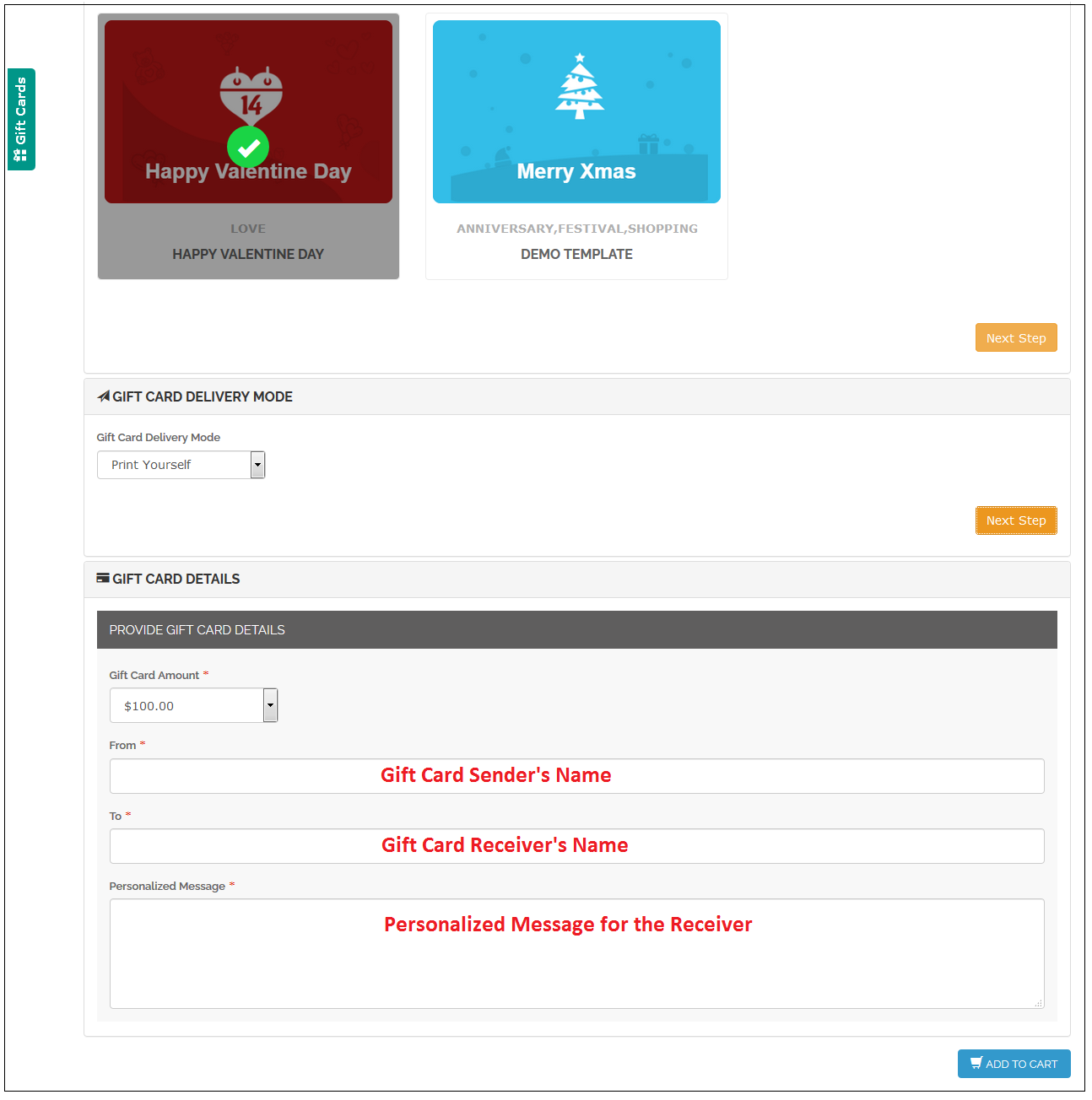
Once the store visitors click on the link, they will be redirected to the gift card page of the site.
Now, the Customer can buy the gift card and add the product to the shopping cart and proceed to the checkout page. The gift card will then be sent to the receiver.
For more details about this Magento Gift Voucher extension, you can visit here: