How to delete Products from the Fyndiq marketplace

Objective of the blog:

This blog will enable you to understand the way of deleting the products from the Fyndiq marketplace using seller central account.
Steps to delete Products using Seller-Central

1. Open the Fyndiq seller central login page (Login Page URL- https://fyndiq.se/merchant/login).

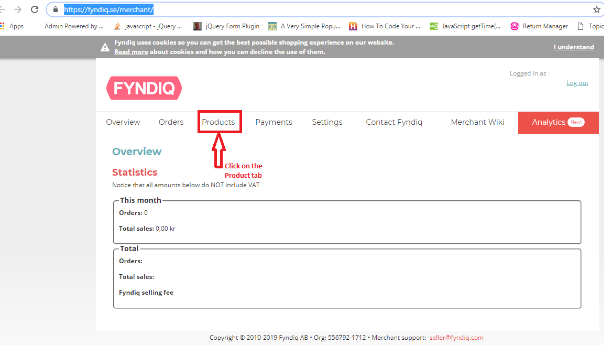
2. Click on the Products tab of the home page as shown below:
Fyndiq marketplace
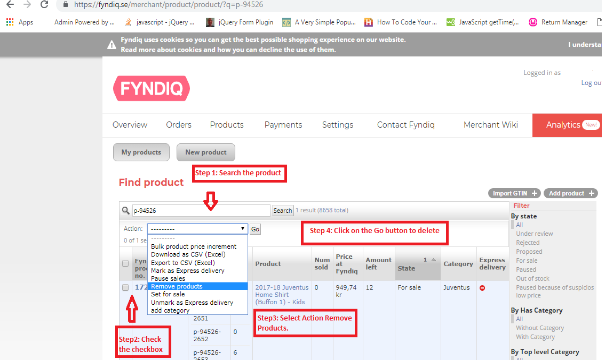
3. In the product page, you need to follow the following steps to delete the product from the Fyndiq marketplace.

  1. Search the product by using the product name/SKU.
  2. Tick the checkbox of the products which you need to delete.
  3. Select the “Remove products” option from the “Action” dropdown.
  4. Click on the “Go” button to delete the product.

These above steps are shown in the image below:

Summary

This blog will enable you to understand the way of deleting the products from the Fyndiq marketplace using seller central.
How to delete products from the Newegg marketplace

Objective of the blog

This blog helps us to learn how a seller can delete its products from the Newegg marketplace.

Methods to delete Products from the Newegg marketplace

You can delete products from the Newegg marketplace by using seller account

Delete manually from seller account

1. Open the Newegg seller portal (URL- https://sellerportal.newegg.com).

2. Fill the credentials (User Name and Password) and click on the Login button.

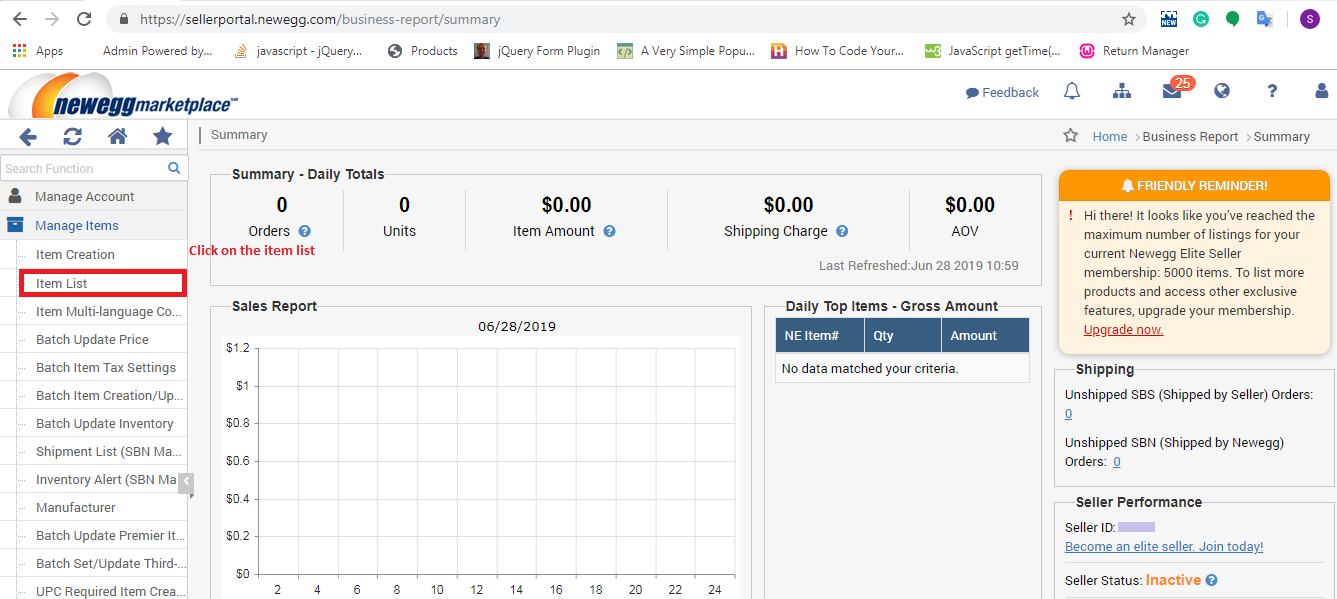
3. After logging in you have to select the “Item List” from the “Manage Items” section as shown in the image below:

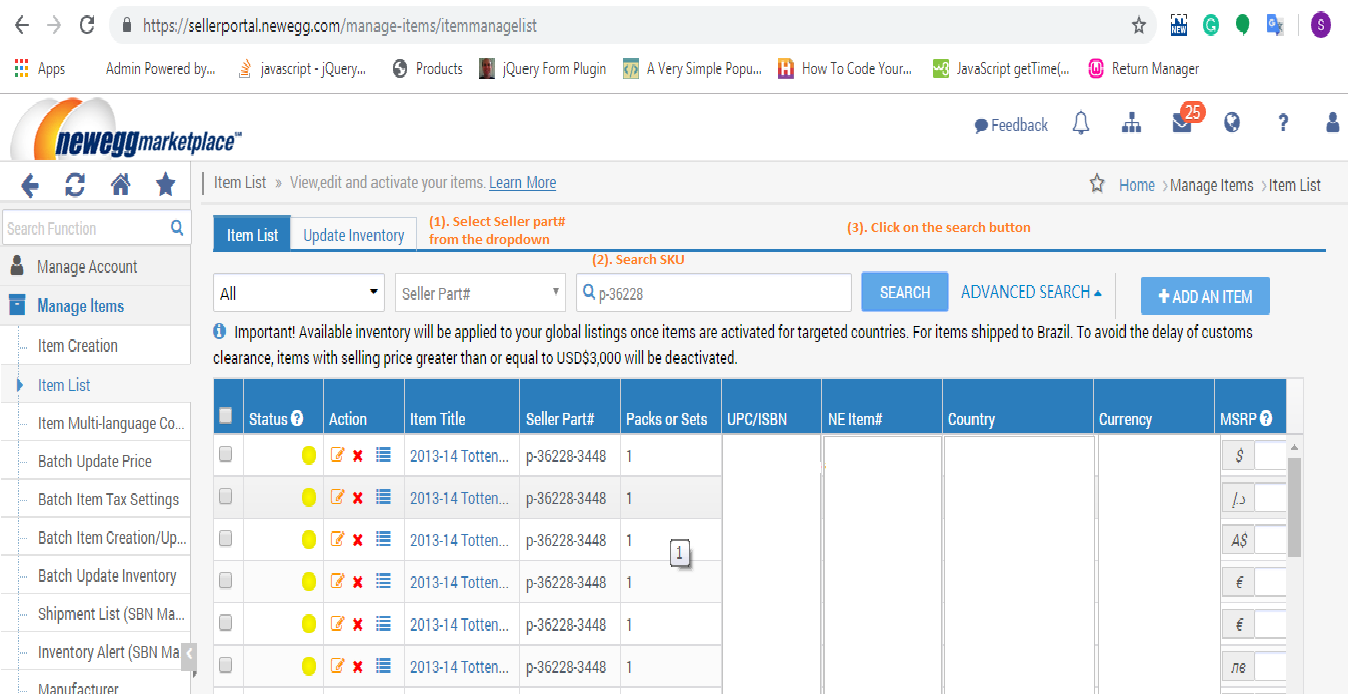
4. In the Item list page, you will need to click on the Search button after entering the SKU in the search box as shown in the image below.


5. On clicking the search button, the searched SKU list will be appeared where you need to follow the following steps to delete the products.

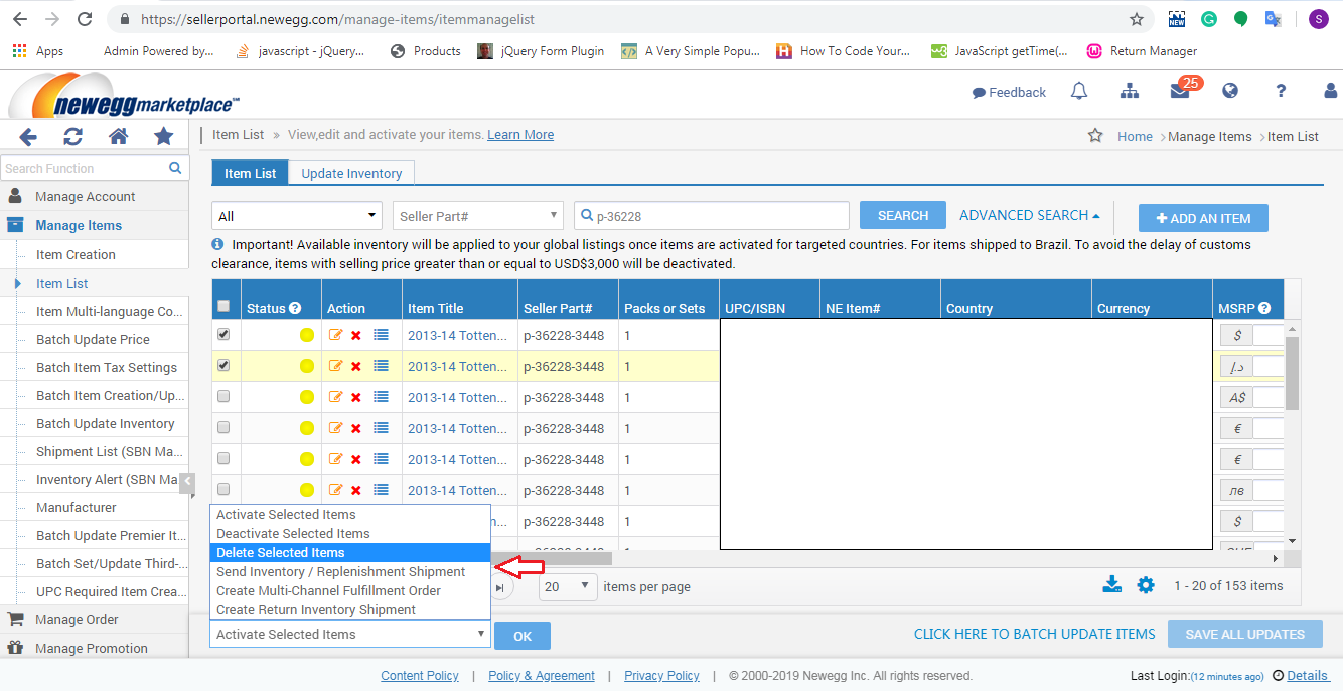
I.Check the checkbox of the products.

II.Select the “Delete Selected Item” option from the drop-down (located at the lower of the page) and click on the OK button to delete the selected product as shown in the below image:

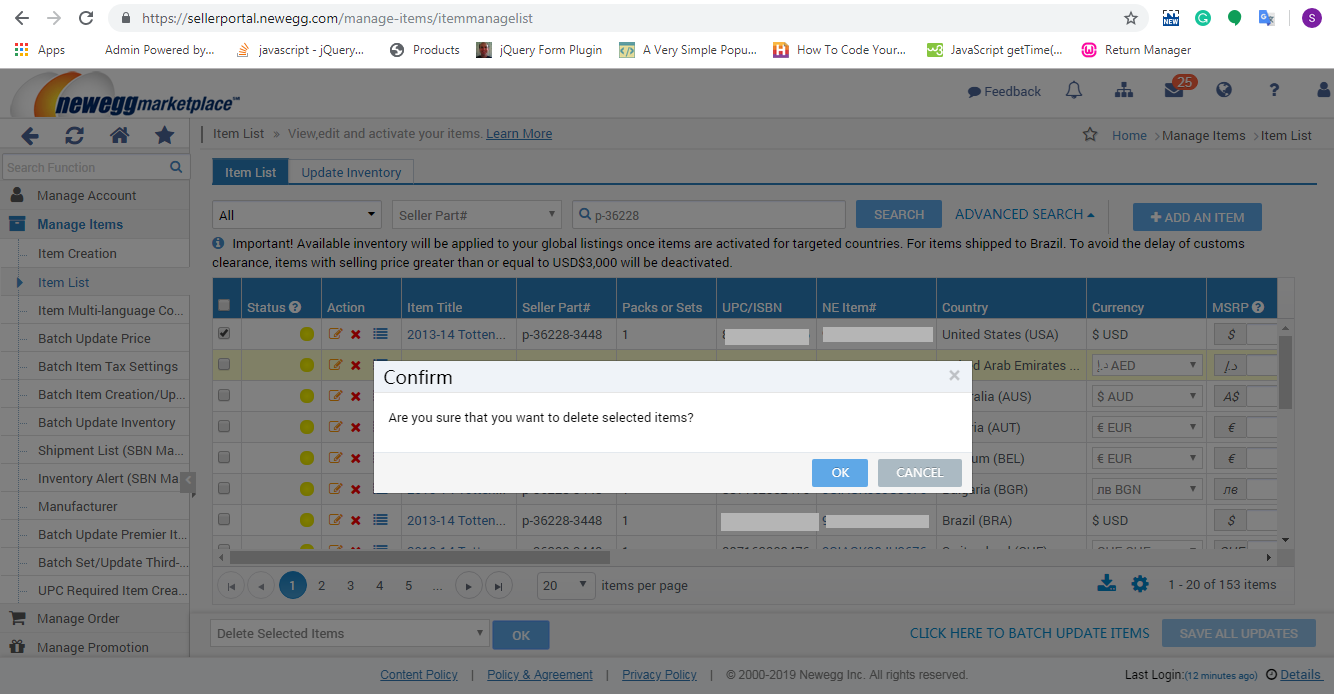
6. On clicking the OK button, a popup will be displayed on the screen for the confirmation and you will need to click on the OK button of the popup to delete the selected products as shown in the image below:


Summary

This blog helps you (seller) to delete your products from the Newegg marketplace.

How to delete products from MercadoLibre Marketplace?

Objective of the blog

After reading this blog, you can understand how the seller can delete the products from MercadoLibre marketplace.

Method to delete Products from MercadoLibre Marketplace:

You can delete products from MercadoLibre marketplace by two methods:

  • Delete manually from the merchant account
  • Using CSV file.

1. Delete manually from the merchant account

1. Login into MercadoLibre merchant account (URL: https://cbt.mercadolibre.com/secure/login/merchant/).

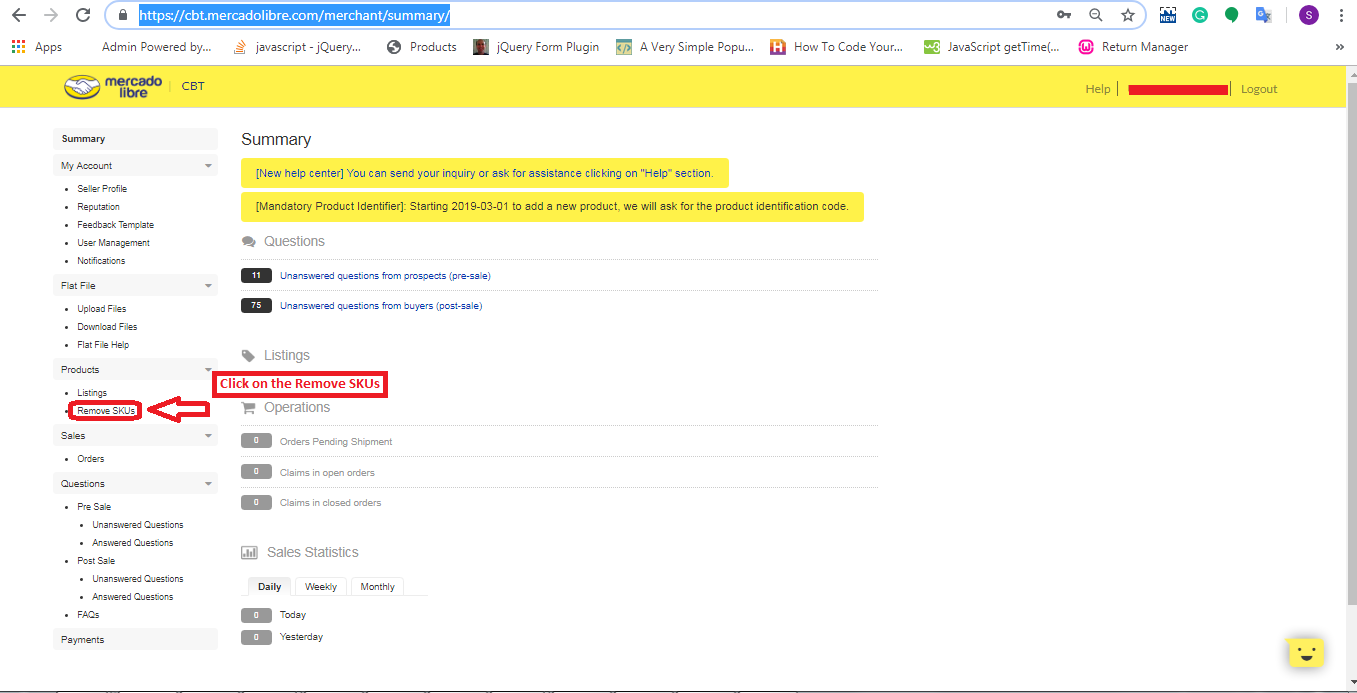
2. After login, you will be redirected to the summary page where you will need to click on the “Remove SKUs” link on the left side as shown in the image below:

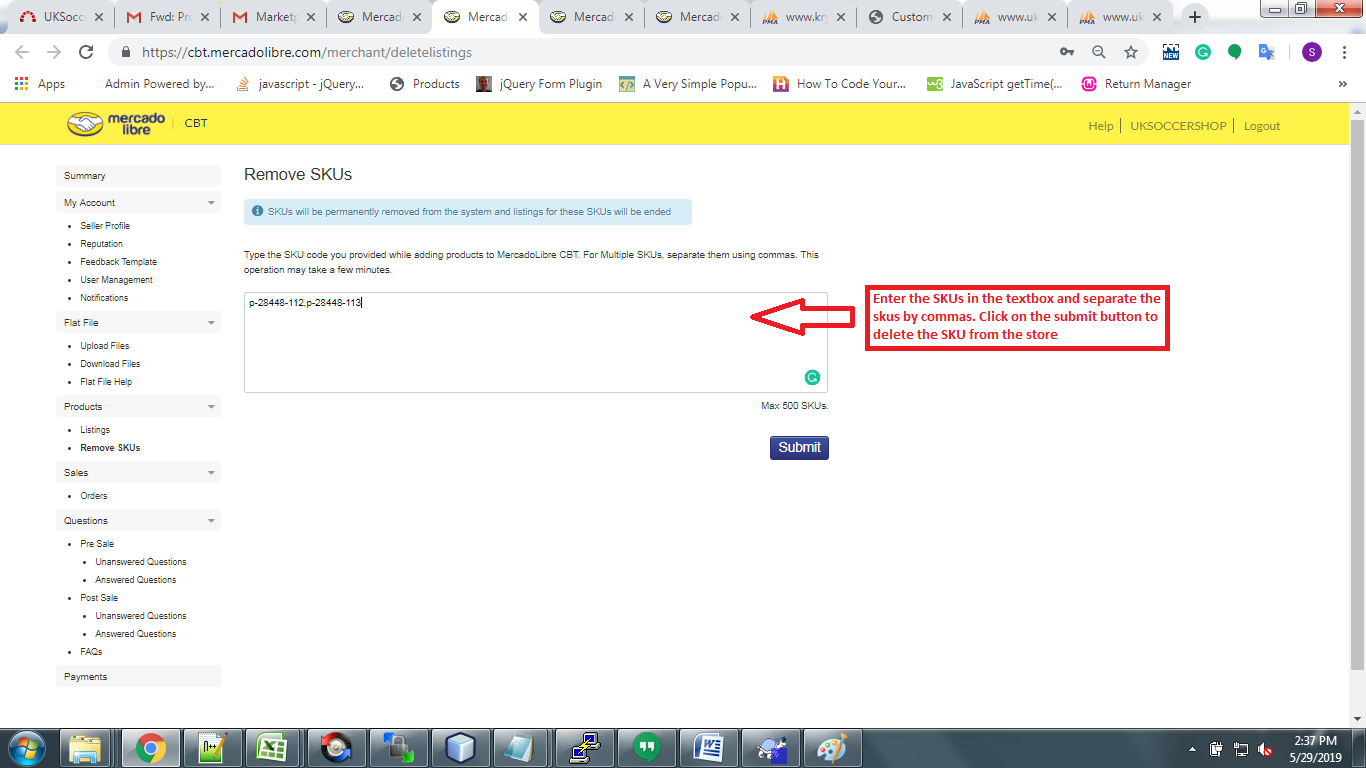
3. Then, You will need to enter product SKUs in the textbox and click on the submit button to delete as shown in the image below:

2. Using csv file

You can delete products in bulk from Mercadolibre marketplace using a CSV file.

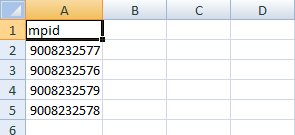
1) Create a “CSV” File with a column name: “mpid” and add all the MPID.

Example:

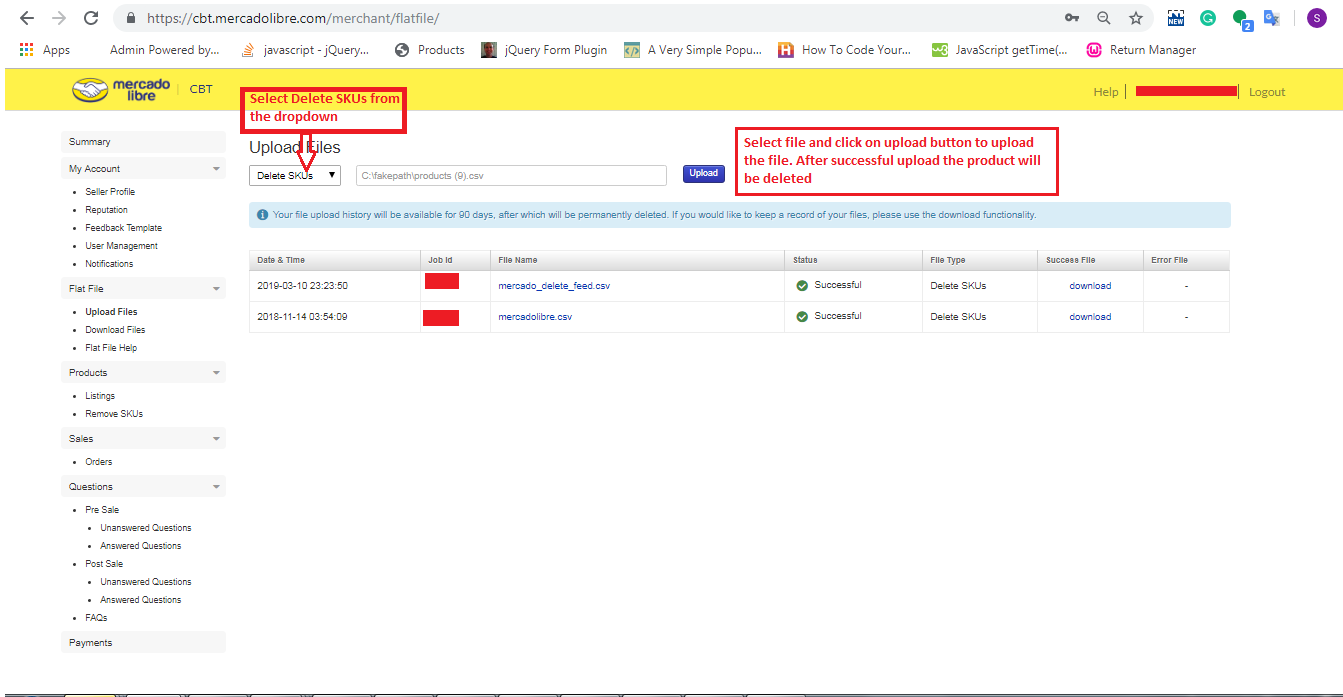
2) Go to the Merchant Portal -> Flat Files -> Upload Files

  • Select “Delete SKUs” option
  • Here you can upload CSV file that you have created in step 1 to delete the products as shown in the image below:

Hope it helps. Do let me know in the comments in case of any confusion.

How to Delete Products from the Catch Marketplace?

Objective of the blog

After reading this blog, you will be able to understand how a seller can delete products from the catch marketplace.

Methods to delete Products from the catch marketplace

You can delete products from the catch marketplace by two methods:

  1. By deleting manually from merchant account
  2. By Using Offer Feed

1.0 Delete manually from merchant account

  • Login to the Catch merchant account (URL: https://marketplace.catch.com.au/login).
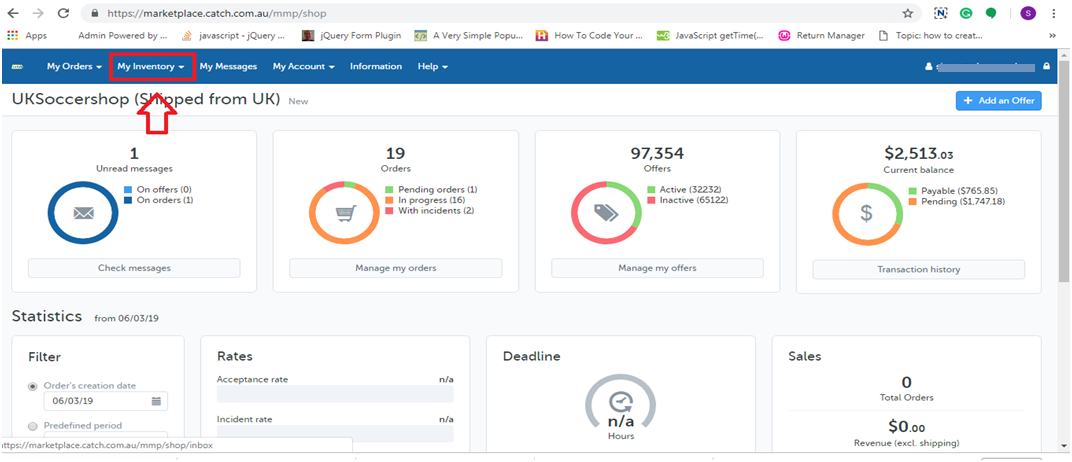
  • After logged in, you will be redirected to the home page where you need to select the offer list from the “My Inventory” tab as shown in the image given below:

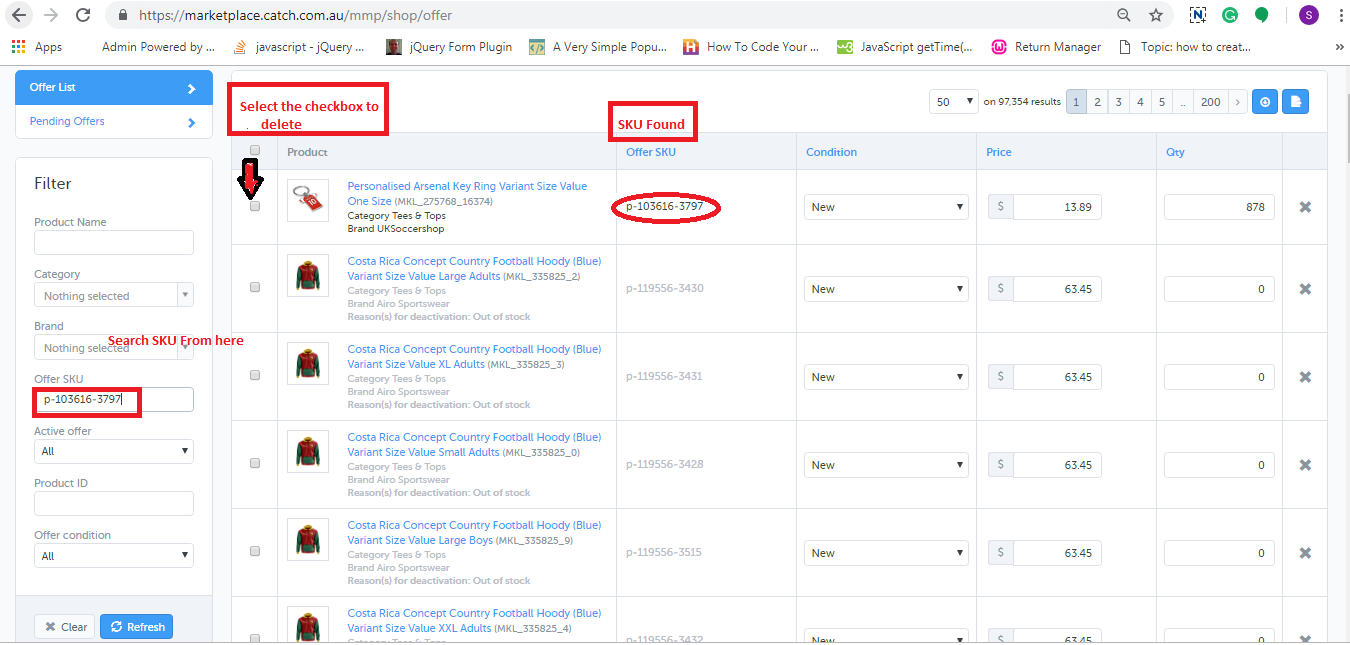
  • In the offer list page you need to search the SKU by using “Offer SKU” field and check the checkboxes corresponding to those SKU which you want to delete as shown in the image below.

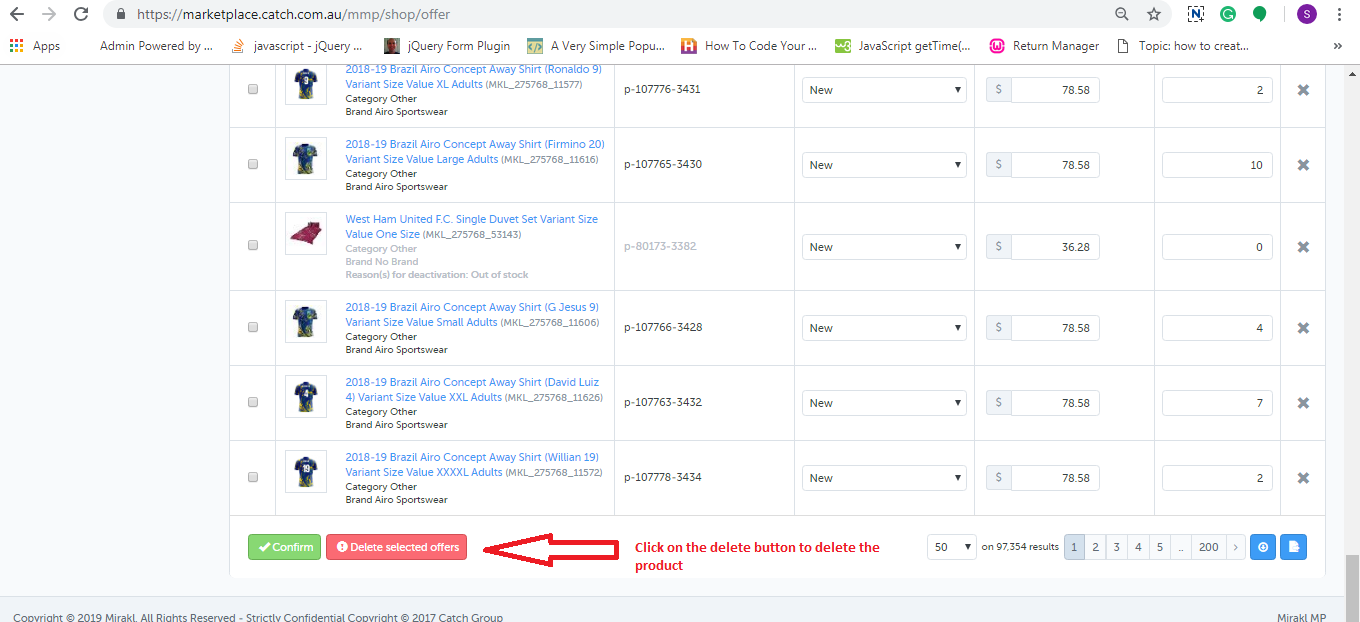
  • At the bottom of the page, you will find a button to delete the product as shown in the image below.

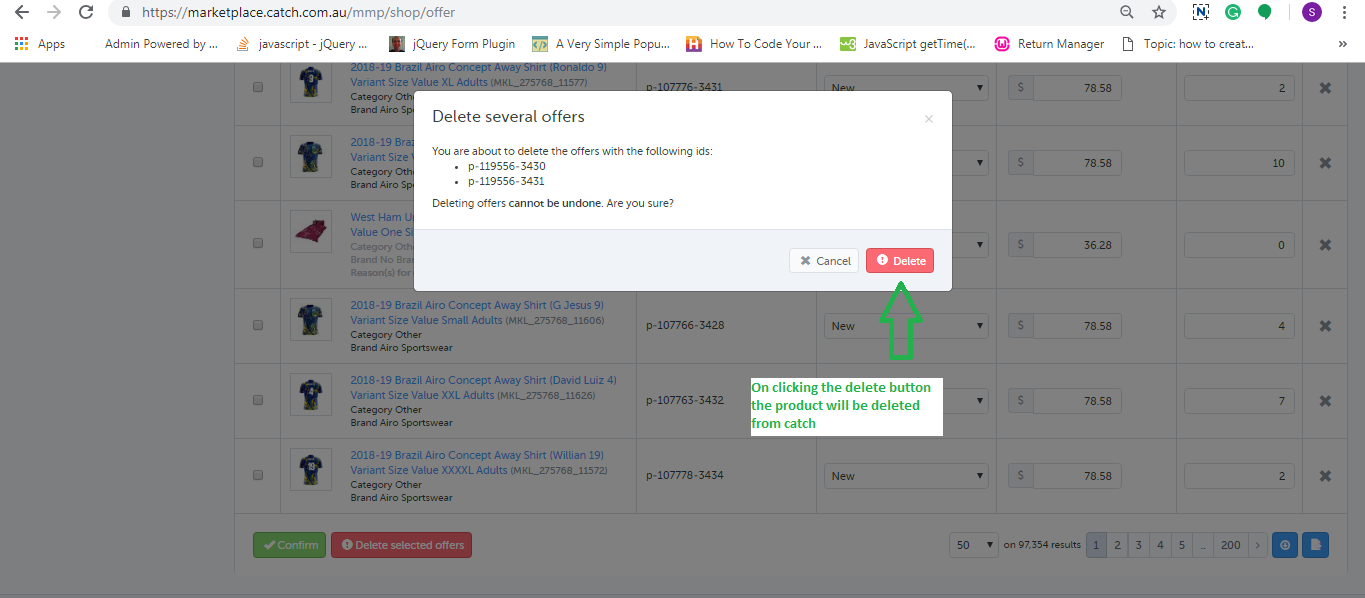
  • On clicking that button, a popup will be appeared on the screen which will show the list of SKUs that you have selected to delete and the button to delete those products. This is shown in the image below:

2.0 Using Offer Feed

You can delete the products in bulk from the Catch marketplace using offer feed. You can download the sample offer feed from the link given below:

Click Here to download offer feed

In this feed, you need to fill the data in the following fields:

  1. SKUs:  Enter the SKU which you want to delete
  2. update-delete:  Enter  “DELETE” in this column.
  3. club-catch-eligible: Enter FALSE
  4. tax-au: 0

After creating the feed, you need to upload the feed on the catch merchant account. The steps are given below:

  • Login to the Catch merchant account (URL: https://marketplace.catch.com.au/login).
  • After logged in, you will be redirected to the home page in which you need to select the “Import From File” option from the “My Inventory” tab.
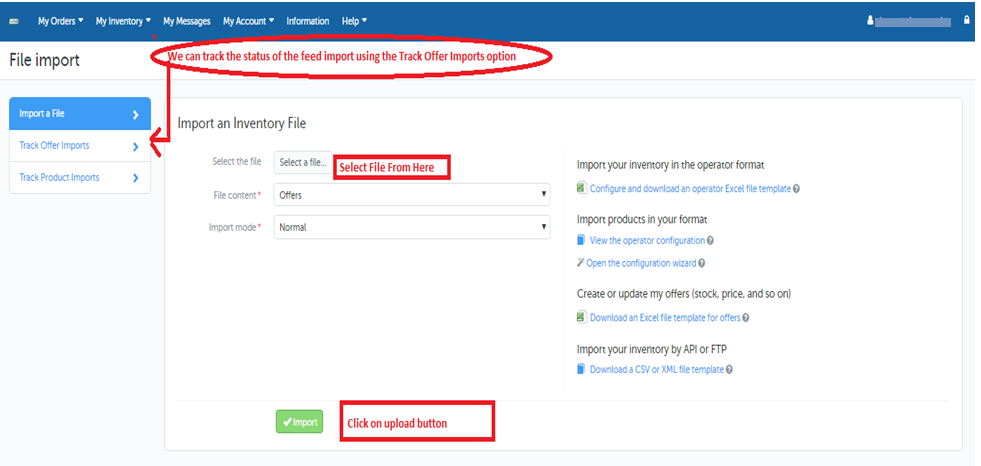
  • On the Import file page you need to upload the feed as shown in the image:

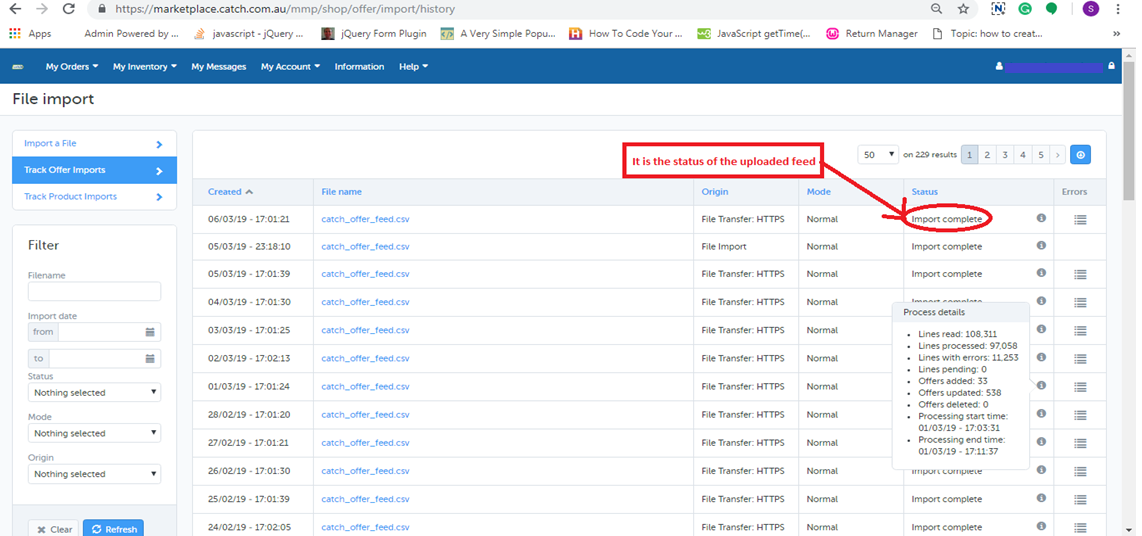
  • You can track the status of the uploaded feed using Track Offer Import Option as shown in the image given above. On clicking on the Track Offer Import option, a new page will be opened where you can check the status of the uploaded feed. If the feed is imported successfully then you can also check the processing status of the feed as shown in the image below:

Summary

After reading this document you (seller) can easily delete your products from the Catch marketplace.