How to get Instagram Client ID and Client secret details?

Instagram is one of the most popular photos and image sharing social networking site which was taken over by Facebook in 2012. The billion dollars company has a massive base of users, more than 600 million to be precise.

The social networking platform provides an API which is used by the developers to develop Social login solutions for various platforms like PrestaShop, OpenCart, and Magento etc.

To use an Instagram social login on your site, first of all, you will need a social login module (PrestaShop, OpenCart, or Magento), and then the following Instagram API details to configure the module:

  • Instagram Client ID
  • Instagram Client Secret

How to get these Instagram API details?

You need to follow these quick steps to the API details.

Step 1: The first step includes going to Instagram Developer Network page and then clicking on Register a New Client button on top right of the page.

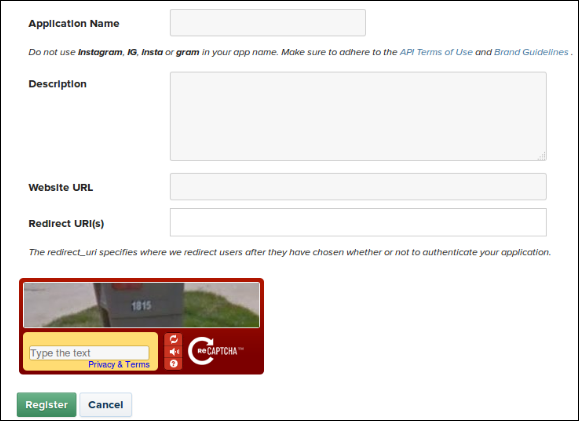
Step 2: Next, fill in the following form that asks for:

  • Application Name: Name of the application for which you are extracting the API details. In our Case, it would be “Social login”.
  • Description: A short description of the application.
  • Website URL: You website’s full URL. Say, https://yoursite.com
Step 3: Set your Redirect URL

In case you are using our Social Loginizer module (PrestaShop, OpenCart, or Magento) and SEO Friendly URL for your store then use this for redirect URL –

https://www.yourstore.com/module/socialloginizer/instagram

Otherwise, use this –

https://www.yourstore.com/index.php?fc=module&module=socialloginizer&controller=instagram

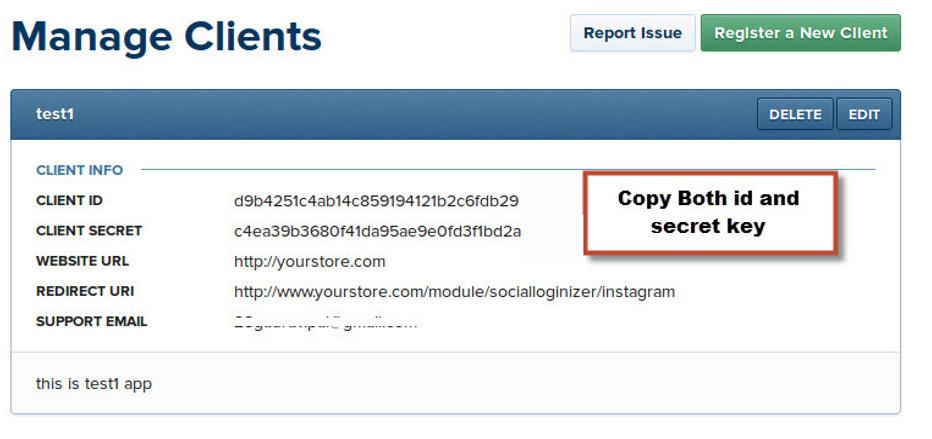
Step 4: After filling in the form, click Register button to get the API details. Copy and paste Client Id and Client Secret in the admin panel of your plug-in.

In case of you are using our Social Loginizer module for PrestaShop, OpenCart, or Magento, the screen to enter the API details will look something like this.

After filling these details in the specified field in your module/plugin, you can use the details to let your customers log in to your store using their Instagram Account.

Liked This? You’ll Like These Too

How to get Foursquare API Client ID and Client Secret details?

Foursquare is a local search cum discovery service that runs as a mobile app to provide personalized search results. The App provides personalized suggestions of places nearby based on “browsing history, previous purchases, and check-ins etc”.

With around 45 million users, this social networking platform can be a wise addition to your website.

To integrate the Foursquare with the applications like Social login (PrestaShop, OpenCart, Magento 2 and Magento), you need the following two Foursquare API details:

  • Foursquare Client ID
  • Foursquare Client Secret

How to get Foursquare API detail? You can follow these quick steps for the same.

Step 1: First of all you need to visit the Foursquare developer website

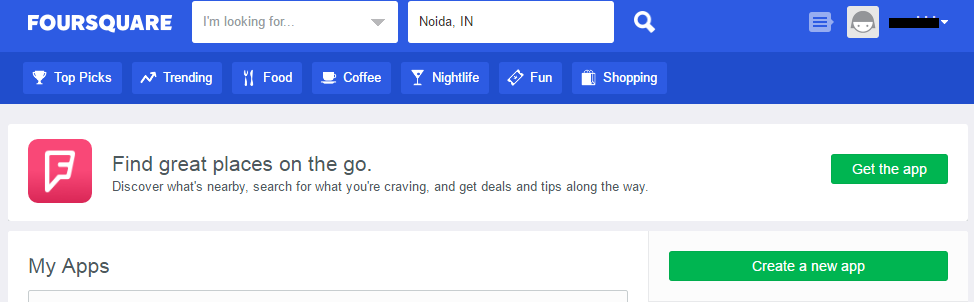
Step 2: On the welcome screen,  click on the ‘Create a new app’ button.

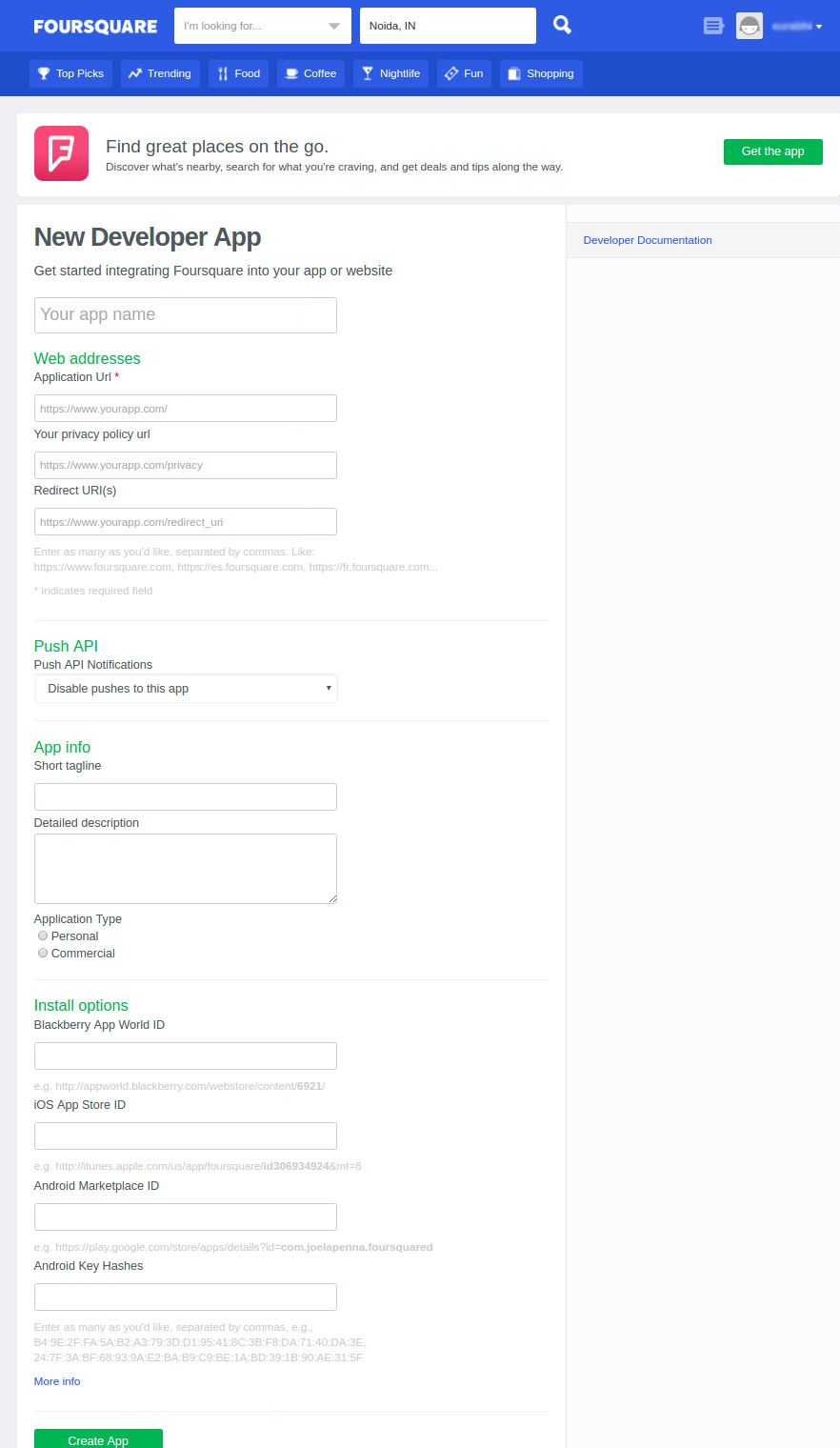
Step 3: The next screen will ask you to fill up some details. Fill the details, set the redirect URL and Save changes of the application.

PS: For redirecting URL, if you are using our Social login module and In case you are using SEO Friendly URL for your store then use this for redirect URL –

https://www.yourstore.com/module/socialloginizer/foursquare

Otherwise, use this –

https://www.yourstore.com/index.php?fc=module&module=socialloginizer&controller=foursquare

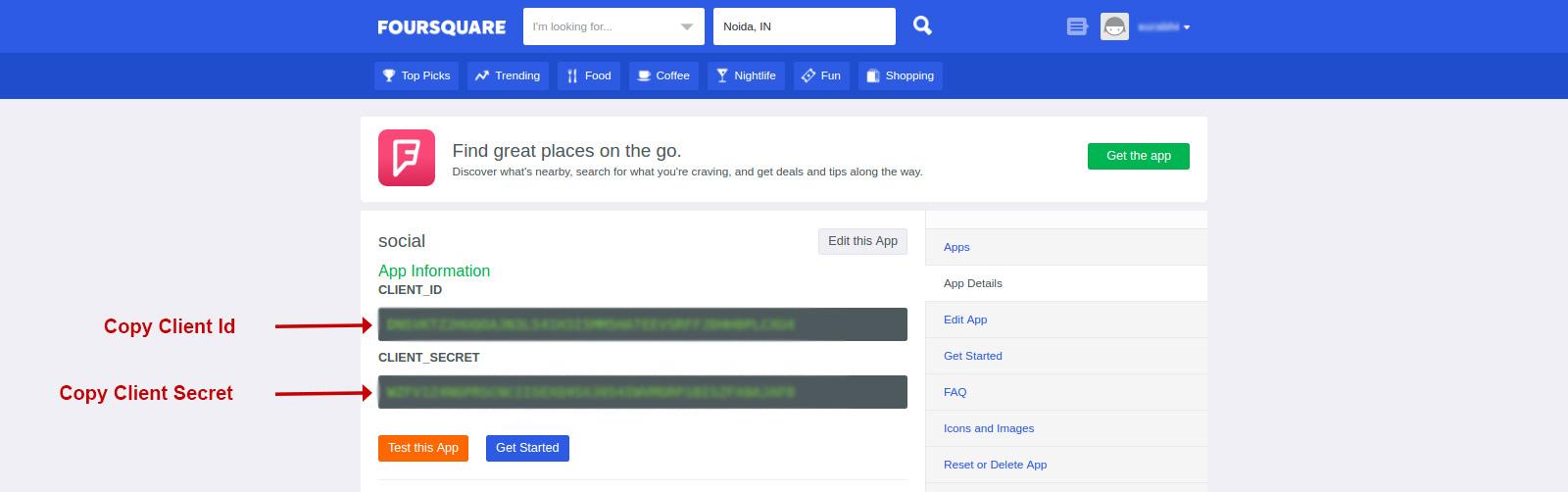
Step 4: After creating the App, you will be taken to a screen where you can copy your API credentials.

Step 5: You can use these API credentials on various Foursquare based solutions. Social login is one such solution. To use these details on a social login module, just copy and paste them in the specified field in the module configuration.

For example, our Social login modules (PrestaShop, OpenCart, and Magento) integrates the Foursquare social login option in the respective platforms with the help of the API details. If you own any of the above mentioned

Liked This? You’ll Like These Too