Magento Auto Switch Language and Currency Extension- User Manual

1.0 Introduction of Magento Auto Switch Language and Currency Extension:

Knowband Magento Auto Switch Language and Currency Module automatically change the language and currency of the eCommerce site according to the visitor’s country or region. The admin in Magento auto switch currency can offer a better store experience to the store visitors by providing them the relevant information in their preferred language. This is one of the must-have extensions to improve the user experience and the customer base globally.

1.1 Features of the Magento Auto change language and currency:

1. Magento language and currency autoswitcher automatically convert the language of the online store based on the location of users by detecting their IP address.

2. Magento Language and Currency switch Extension can be easily implemented on the store.

3. Knowband’s Magento Automatic language and currency converter tracks the IP address of the user and finds out their country or region of the user.

4. Magento Auto Switch Language and Currency Module convert the default language and currency according to the customer’s geolocation.

5. This Magento Auto Change Language Module is supported in multiple languages.

6. The Magento auto switch currency are SSL compatible also.

7. The Magento language and currency auto switcher by Knowband is multi-store compatible.

8. With the help of this Knowband Magento Automatic Switch Language and Currency Extension, the store admin can offer a better user experience to the customers by showing the content in their preferred language and currency.

9. The Magento auto switch currency back-end interface is extremely easy to use.

2.0 Installation

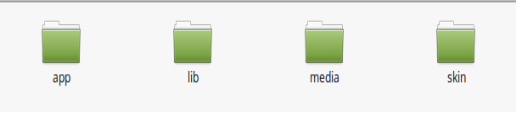
1. The folder structure of the Auto Switch Language and Currency folder.

2. Copy all the folders into Magento root directory and clear the cache (if enabled).

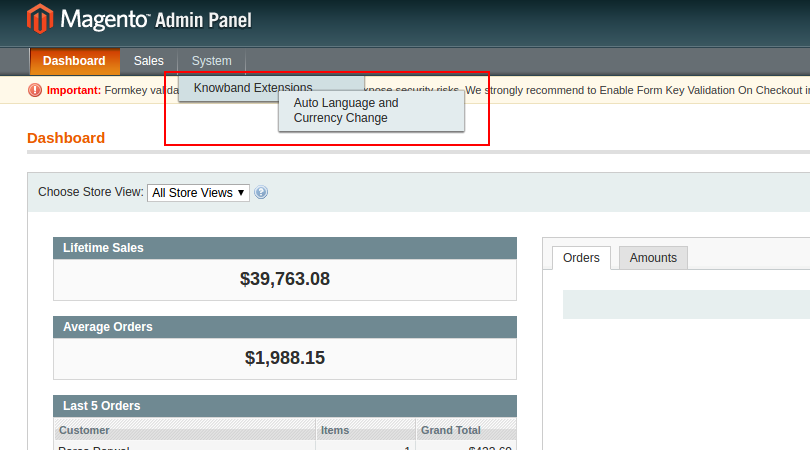
3. You will be able to find the “Auto Switch Language and Currency” option inside the “System > Knowband Extensions > Auto Switch Language and Currency”.
Magento Auto Switch Language and Currency Extension | Installation Folder4. You can now configure the Magento language and currency autoswitcher as per your requirements and check its working in the front end at following URL:

3.0 Admin Panel

After installing Magento Language and Currency Switcher Module in the Magento store. The admin interface of the Magento language and currency switcher offers two tabs. They are mentioned below:

1. General Settings

2. Country List

Let us discuss the various customization options of Magento Automatic language and currency converter:

3.1 General Settings

The various fields of the tab of Magento Auto Change Language and Currency Extension are listed below:

1.Language Switching
2.Currency Switching

1. Language Switching: In this section of Magento Auto Switch Language Module, the admin can enable/disable the auto switch language option. After enabling this feature, it will automatically change the website language whenever customers will visit the website.

2. Currency Switching: This Knowband Magento Auto Switch Currency Extension allows the admin to enable the auto switch currency option. If this button is enabled, then, the Magento Auto Currency Switch plugin will automatically change the currency being used in the front-end.

3.2 Country List

The Automatic Language and Currency Converter for Magento offers an option to the online retailer to add the Countries with preferred language and currency. For all the countries listed here with default language and currency will be different for the language.(As per the option selected by the admin)

3.2.1 How to Add New location/Country with the respective language and currency?

As per the requirement of the store the admin can add the countries here.

For adding the country the Store admin needs to Click on the ‘Add New’ button.
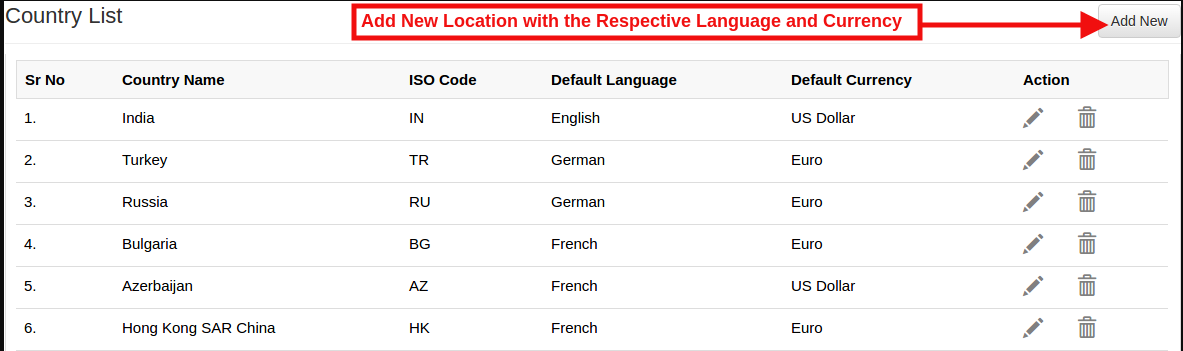
By clicking on the Add New button, the store admin will be redirected to the below-mentioned page:
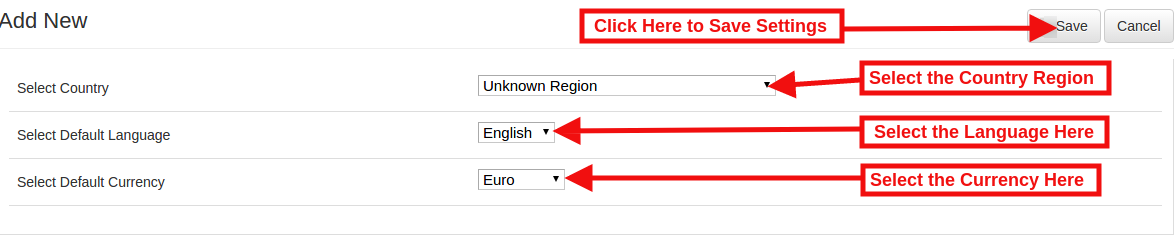
Select Country: In this field of Magento Auto change currency and language, the online merchant can select the country from the drop-down list.

Select Default Language: This contains the list of languages. The admin in Magento Auto Switch Currency Module can select the language used in that particular country.

Select Default Currency: By Select default currency option of the Magento Auto change currency the Magento store admin can select the currency for the selected country.

In case of admin need to update the Currency and Language for any particular Country then the admin can update the information by click on the ‘Edit’ button in Magento language and currency switcher.

Please refer the below screenshot for edit the details:
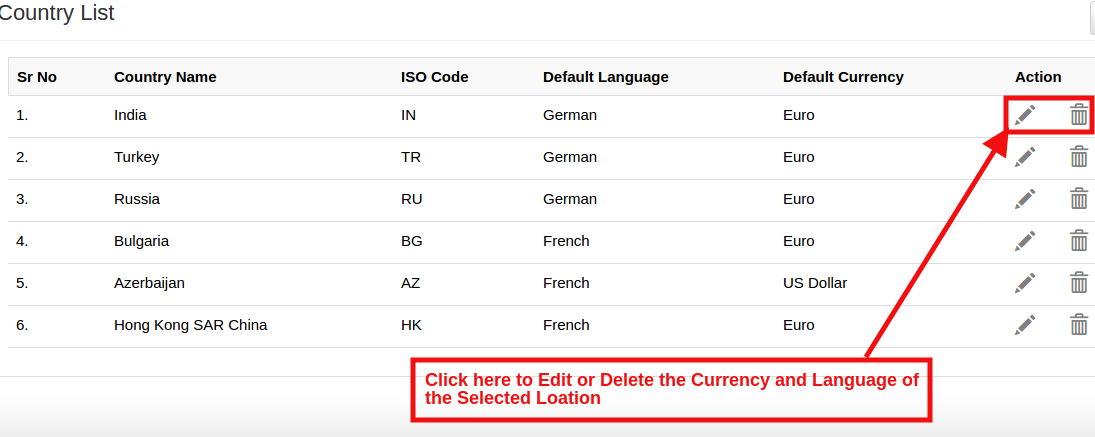
They can delete the specific country by clicking on the Delete button.

4.0 Front End

In the Front End, the Language and Currency will automatically switch according to admin configuration in Back-Office of

Magento language and currency switcher.
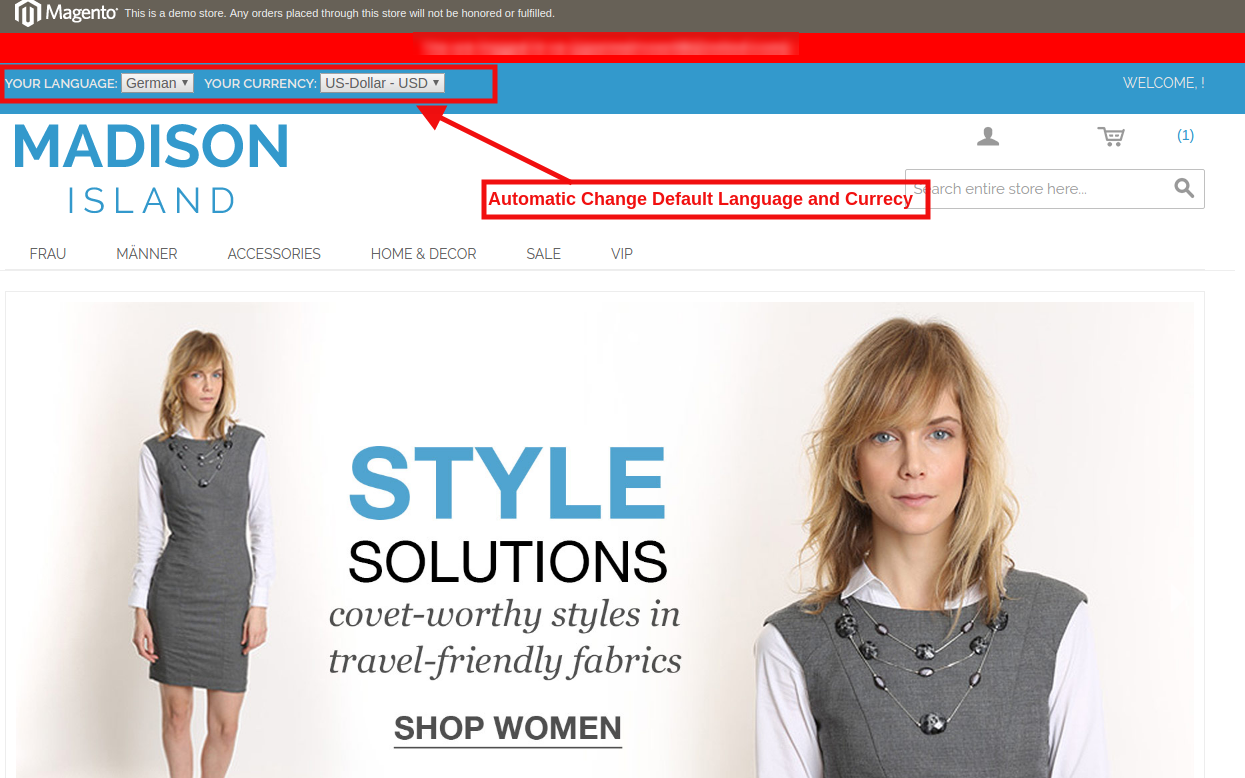
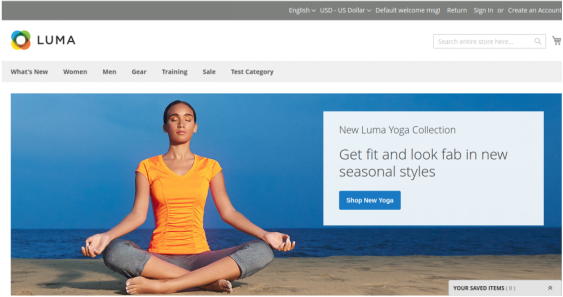
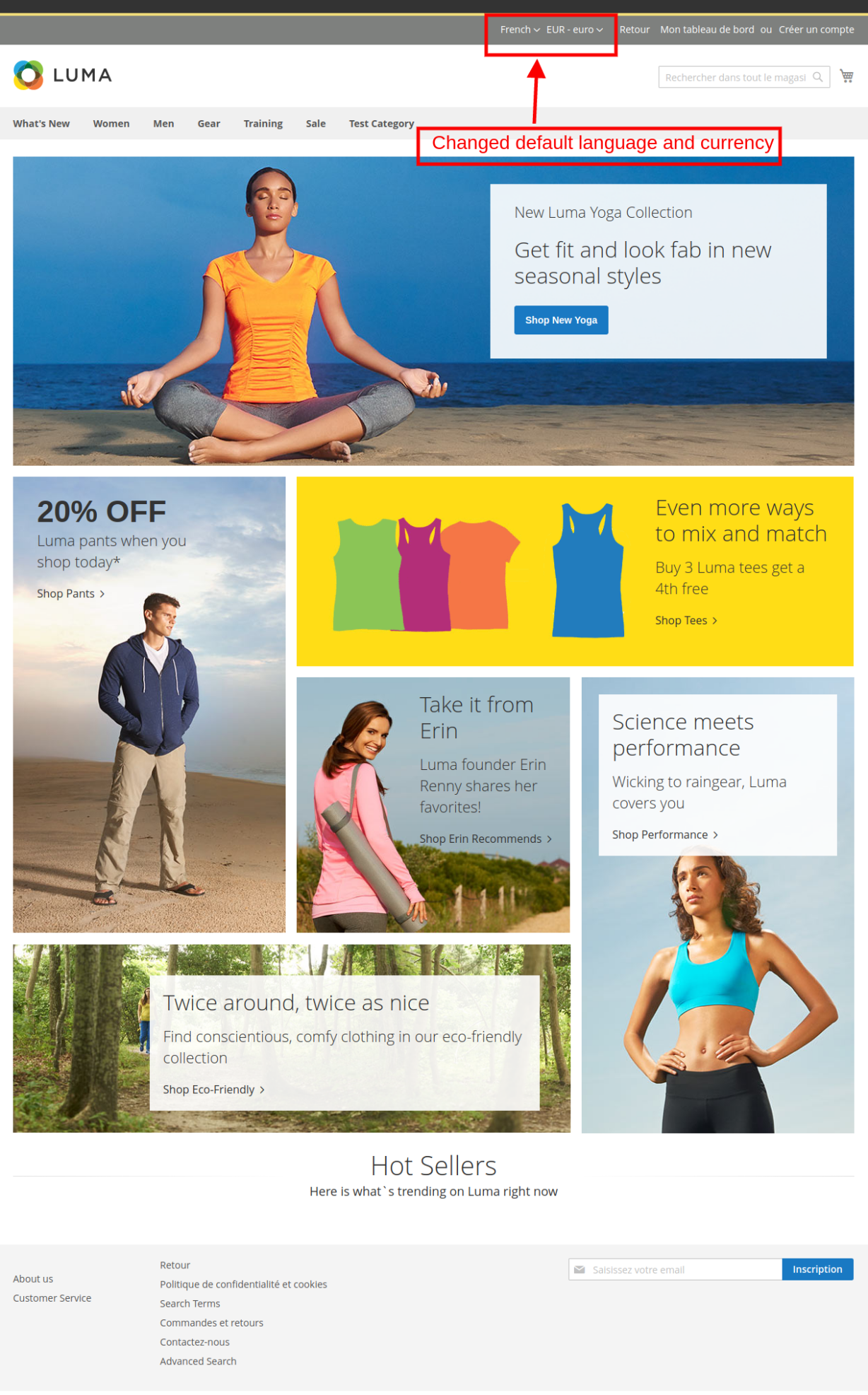
With Magento Auto change currency and language, the IP of the user will be detected and the default language and currency is changed automatically as shown in the image above. The changes will be based on the configuration of done in the back-end of the Magento Auto Switch Language and Currency Extension.
Magento 2 Auto Switch Language and Currency Extension- User Manual

1.0 Introduction

Magento 2 Auto Switch Language and Currency extension by Knowband offered helps you localize your eCommerce site. The store admin can fix the default language and currency to be used in a particular location from the backend of the Magento 2 Auto switch currency and language extension. The Magento 2 Auto change language and currency extension detects the IP of the site visitors. The visitors can view the contents and product prices in the specified language and currency. In short, the Magento 2 Auto switch currency and language module changes the language and currency being used on the site automatically based on the IP of the store visitor.

The Magento 2 store owners can now localize their business and cater overseas customers without making any changes in the site for the various locations.

1.1 Admin Benefits of Magento 2 Auto Switch Language and Currency Extension:

  • With Magento 2 automatic language and currency change module, the admin can tap the global audience with least hassle.
  • The Magento 2 auto switch language extension automatically changes the language of the site based on the location of the store visitor. The store owner need not make any changes in the back-end of the site.
  • The Knowband Magento 2 auto switch currency module changes the currency of the eCommerce site automatically based on the location of the customers.
  • The Online retailer can enable or disable the functionality just by clicking a button from the back-end of the Magento 2 auto change language and currency extension.
  • The Magento 2 automatic change language and currency module allows the admin to upload the geolocation file with ease.
  • The mapping of the language and currency for the various locations can be done at a few button clicks from the admin interface of the Magento 2 auto switch language and currency plugin.
  • This Magento 2 Automatic language and currency converter plugin offers multi-lingual support.
  • The Magento 2 language and currency auto-switcher is SSL compatible also.
  • The Magento 2 language and currency switcher module is compatible with the other themes.
  • The store admin can offer a better store experience to the customers by showing the information in their preferred language and currency.
  • This Magento 2 Auto change language and currency extension offers hassle-free and smooth functioning.

2.0 Installation

The steps to install the Magento 2 Auto Switch Language and Currency Module are mentioned below:

1. Buy the Magento 2 Auto Switch Language and Currency extension from Knowband. You can download the extension package.

2. The package has a zipped file that contains the user manual and the source code of Magento 2 Auto Switch Language and Currency plugin. Unzip the package.

3. Create a folder {Magento root}/app/code/Knowband/Autoswitchlangcurrency

4. Upload the extracted content in the above folder via FTP manager (like Filezilla or WinSCP – download here: https://filezilla-project.org/).

5. Now run below commands to install the plugin:

php -f bin/magento module:enable –clear-static-content Knowband_ Autoswitchlangcurrencyphp -f bin/magento setup:upgradephp -f bin/magento setup:di:compilephp bin/magento setup:static-content:deploy

6. The extension is now installed and ready for use. In Admin Panel go to “Knowband Extensions > Auto Switch Language and Currency”.

You can now configure and use the Knowband Magento 2 Auto Switch Language and Currency extension.

3.0 Admin Interface

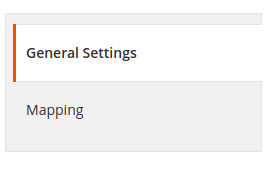
Magento 2 language and currency switch extension automatically changes the language and currency of the Magento 2 site by detecting the IP of the user. The user need not change the same manually. The admin interface of the Magento 2 currency and language switch plugin offers two tabs. They are mentioned below:

  1. General Settings
  2. Mapping

Let us discuss the various customization options of Magento 2 automatic language and currency switch module.

3.1 General Settings

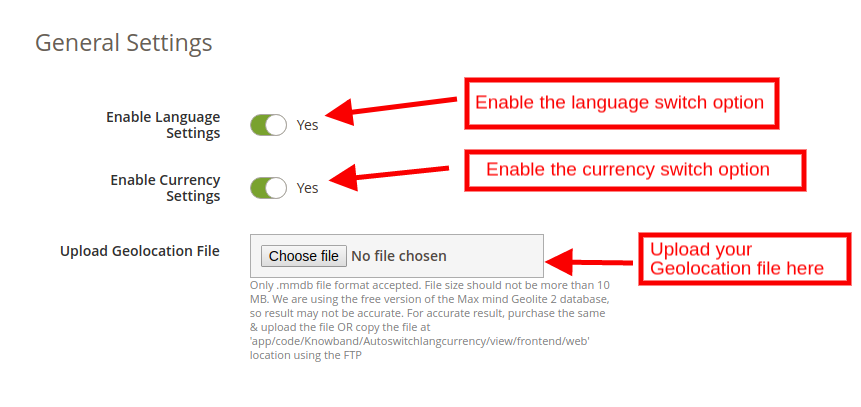
The General settings tab of Magento 2 Auto Language and Currency Switch module by Knowband offers basic configuration options. The various fields in this tab is discussed below.

Enable Language Settings: This field will enable the auto-language switch option. If enabled, the Magento 2 auto language switch extension will convert the language of site to one fixed in the back-end.

Enable Currency Settings: Enable this field to change the currency being used in the transaction of the eCommerce site. If this button is enabled, then, the Magento 2 auto currency switch plugin will automatically change the currency being used in the front-end.

Upload Geolocation File: You can upload the Geolocation file in this section of Magento 2 Auto language and currency change module. Only .mmdb file format is accepted.

You can upload the file here or copy the file in the location ‘app/code/Knowband/Autoswitchlangcurrency/view/frontend/web‘, using FTP.

3.2 Mapping

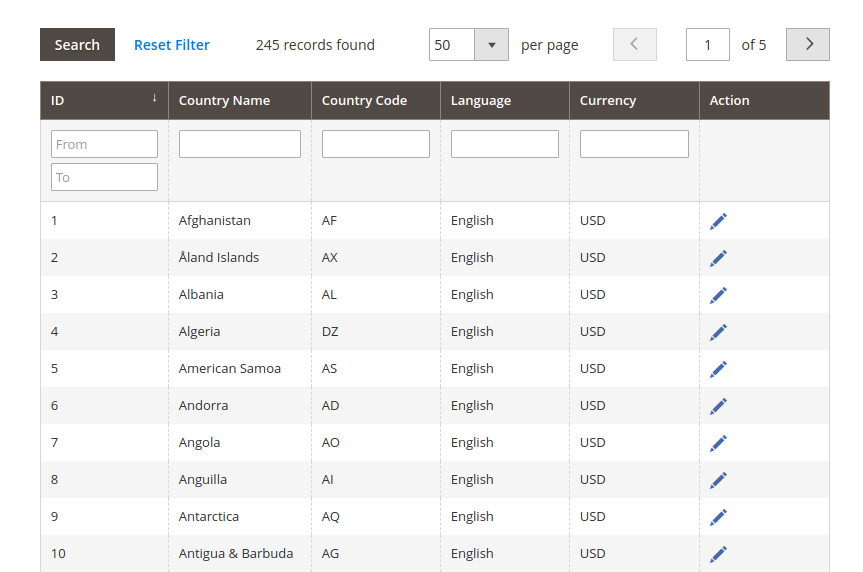
The mapping section of the Magento 2 auto currency and language change extension is where you map the language and currency to the relevant location. The geolocations uploaded in the general setting tab can be viewed here as shown in the image below:

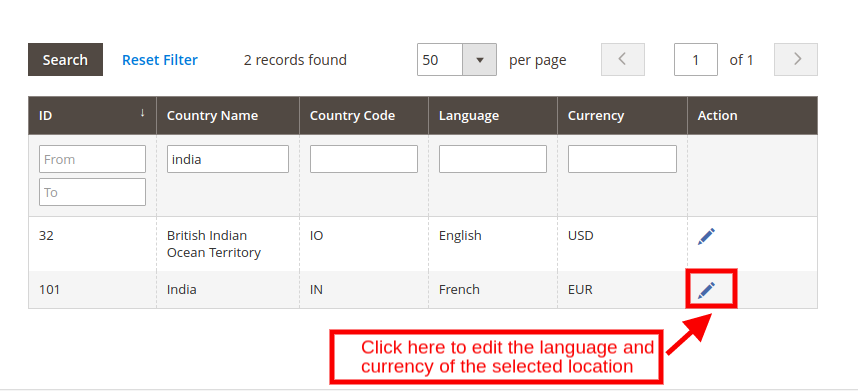
You can apply filter and find a particular location. In case, you want to change the language and currency fixed for a particular location, click on the ‘Edit’ icon as shown below.

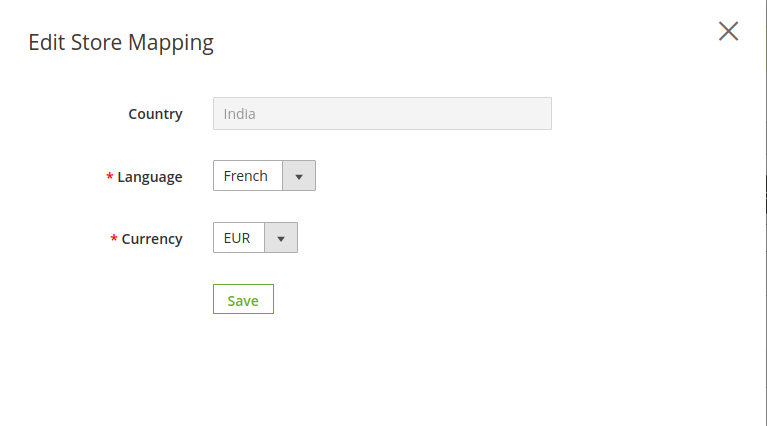
For instance, we select India. As you click on the edit icon, a popup will appear in the front-end to edit your store mapping.

Country: This section specifies the selected location.

Language: Select the language from the drop-down list. For instance, we change the language of India from English to French. The Magento 2 auto change language and currency plugin will detect the IP of the user. If the user is browsing the site in India, then, the language used in the site will be automatically changed to French and the user will view the entire content in French.

Currency: You can change the default currency of the site from this section. For instance, if you change the currency from INR to Euro, then, the users of the selected location will by default view the prices in Euro.

4.0 Store Front-end

The default language and currency of the site is shown in the front-end.

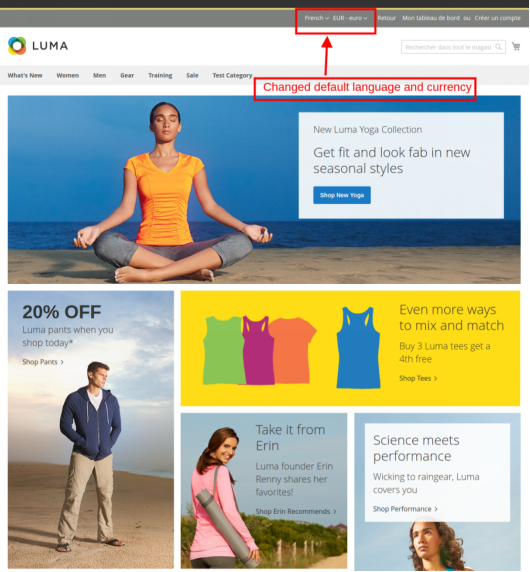
With Magento 2 auto change language and currency module, the IP of the user will be detected and the default language and currency is changed automatically as shown in the image below. The changes will be based on the configuration of done in the back-end of the Magento 2 auto switch language and currency plugin.

For more information about the Knowband Magento 2 Auto Switch Language and Currency:

Magento 2 Auto Switch Language and Currency module link.

Magento 2 Auto Switch Language and Currency Admin Demo link.

Magento 2 Auto Switch Language and Currency Front Demo link.

Magento 2 language and currency auto switcher YouTube Link.

For more Magento extension, visit here: www.knowband.com/magento-extensions