Am Mittwoch, Juli 18th 2018, verhängt die EU-Kommission eine Strafe von $ 5 Milliarden bei Google wegen Kartellrechtsverletzung von Androids Smartphone-Markt. Es wird gesagt, dass Google die Benutzer zu seiner Suchmaschine mit dem Motiv der Schwächung seiner Wettbewerber Suchanbieter und App-Entwickler geschoben hat. Sogar letztes Jahr wurde Google von den EU-Regulierungsbehörden wegen Marktmissbrauchs geschlagen und jetzt ist es wieder passiert und dieses Mal ist es eng.
Was ist Androids Missbrauch von Google?
Die EU-Kommissarin für den Wettbewerb, Margrethe Vestage, sagte: "Google hat Android kontrolliert, um seine Suchmaschine zu dominieren und seine Rivalen zu schwächen, weil sie die Chance haben, innovativ zu sein und wettbewerbsfähig zu sein." Sie fügte hinzu, dass Google Dienste anbietet, die wir alle mögen, aber sie können ihre Befugnisse nicht missbrauchen und ihre Dienste gegenüber den Mitbewerbern bevorzugen. Grund für die Geldbuße von Google sind die Vereinbarungen von Google mit den Android-Smartphone-Entwicklerorganisationen. Die Europäische Kommission hat Google vorgeworfen, ihre Kontrolle über Android zu haben und Hersteller zu zwingen, die Google-Suche-Anwendung und Chrome-Browser auf allen Android-Geräten für eine Play Store-Lizenz zu installieren. Obwohl Android eine kostenlose Open Source-Software ist, verhinderten sie, dass Hersteller ihre Apps vorinstallierten, wenn die Android-Version nicht von der Firma genehmigt wurde, die gegen die Wettbewerbsregeln verstößt. Im Smartphone-Markt hat Android 80% -Anteile unter den mobilen Betriebssystemen und der Anteil von Google am EU-Markt liegt in den meisten Ländern bei 90%. Die EU erklärte auch, dass Googles Investition in Android darauf zurückzuführen ist, dass die Nutzer vom Desktop auf mobile Geräte umgestiegen sind. Also haben sie alles geplant, um Android zu dominieren, um die Popularität ihrer Suchmaschine zu steigern.
Was hat Google zu sagen?
Google hat all diese Behauptungen zurückgewiesen und gesagt, dass sie gegen die Entscheidung der Kommission von wettbewerbswidrigem Verhalten Berufung einlegen würden. Google-Sprecher Al Verney sagte: "Android hat immer mehr Auswahl für alle bereitgestellt, nicht weniger"Google-Chef Sundar Pichai argumentiert, dass Android die Auswahl für die Nutzer erweitert hat. Das Android hat es vielen App-Entwicklern, einschließlich europäischen, ermöglicht, ihren Lebensunterhalt durch die Plattform zu verdienen."
Final Words
Beim Missbrauch von Android-Kartellen geht es darum, den Wettbewerb durch andere Suchdienste einzuschränken, um einen großen Marktanteil bei Android zu erreichen. Die Europäische Kommission hat Google eine Dauer von 90-Tagen eingeräumt, um alle laufenden illegalen Praktiken zu beenden. Wenn dies nicht geschieht, werden sie mit mehr Strafzahlungen von bis zu 5% des täglichen weltweiten Geschäfts der Google-Muttergesellschaft Alphabet konfrontiert. EU ist in Ordnung
Mercoledì, luglio 18th 2018, la Commissione dell'Unione Europea ha imposto una sanzione di $ 5 miliardi su Google rispetto all'antitrust sul predominio di Android nel mercato degli smartphone. Si dice che Google abbia spinto gli utenti al suo motore di ricerca con il motivo di indebolire i suoi provider di ricerca concorrenti e gli sviluppatori di app. Anche l'anno scorso, Google è stata schiaffeggiata dalle autorità di regolamentazione dell'UE per gli abusi di mercato e ora è successo di nuovo e questa volta è stretto.
Qual è l'abuso di Google su Android?
Il commissario UE per il concorso Margrethe Vestage ha dichiarato: "Google ha controllato Android per dominare il suo motore di ricerca e indebolire i suoi rivali dall'avere la possibilità di innovare e competere nel merito." Ha aggiunto che Google offre servizi che piacciono a tutti, ma che non possono abusare dei loro poteri e favorire i loro servizi rispetto ai concorrenti. Le motivazioni alla base della CE che impone l'ammenda di Google sono gli accordi di Google con le organizzazioni di sviluppatori di smartphone Android. La Commissione europea ha affermato che Google ha il controllo su Android e costringe i produttori a installare l'applicazione Ricerca Google e i browser Chrome in tutti i dispositivi Android per una licenza Play Store. Sebbene Android sia un software mobile Open Source, disponibile gratuitamente, tuttavia impedisce ai produttori di preinstallare le proprie app se la versione Android non è stata pre-approvata dalla società che viola le regole della concorrenza. Nel mercato degli smartphone, Android ha quote 80% tra i sistemi operativi mobili e la quota di ricerca di Google nel mercato UE è superiore al 90% nella maggior parte dei paesi. La CE ha anche affermato che l'investimento di Google in Android è dovuto al fatto che gli utenti sono passati dal desktop ai dispositivi mobili. Quindi, hanno pianificato tutto per dominare Android al fine di aumentare la popolarità del loro motore di ricerca.
Cosa dice Google?
Google ha negato tutte queste accuse e ha affermato che avrebbe fatto ricorso contro la decisione della Commissione di comportamenti anticoncorrenziali. Il portavoce di Google Al Verney ha dichiarato: "Android ha sempre offerto una scelta più ampia per tutti, non di menoL'amministratore delegato di Google Sundar Pichai ha affermato che Android ha ampliato la scelta per gli utenti: l'Android ha consentito a molti sviluppatori di app, tra cui quelli europei, di guadagnarsi da vivere attraverso la piattaforma.
Le parole finali
L'abuso di antitrust di Android riguarda la limitazione della concorrenza da parte di altri servizi di ricerca per ottenere enormi quote di mercato su Android. La CE ha dato a Google una durata di 90 giorni per porre fine a tutte le pratiche illegali in corso. In caso contrario, dovranno pagare più penali fino al 5% dell'attività giornaliera giornaliera della società madre Alphabet di Google. L'UE sta bene
W środę lipca 18th 2018, Komisja Unii Europejskiej nałożyła na Google grzywnę w wysokości X XUM miliarda dolarów za to, że antymonopolizowała dominację Androida na rynku smartfonów. Mówi się, że Google pchnął użytkowników do swojej wyszukiwarki z motywem osłabienia swoich dostawców wyszukiwania konkurentów i twórców aplikacji. Nawet w ubiegłym roku Google został uderzony przez unijnych regulatorów za nadużycia na rynku, a teraz stało się to ponownie i tym razem jest napięty.
Czym jest nadużywanie Androida przez Google?
Komisarz UE ds. Konkurencji, Margrethe Vestage, powiedziała: "Google kontroluje Androida, aby zdominować swoją wyszukiwarkę i osłabić rywali, którzy mają szansę na innowacje i konkurować, jak na to zasługi". Dodała, że Google oferuje usługi, które wszyscy lubimy, ale nie mogą nadużywać swoich uprawnień i faworyzować swoich usług nad konkurentami. Podstawową przyczyną nakładania przez Google grzywny na Google są umowy Google z organizacjami producentów smartfonów z Androidem. Komisja Europejska twierdzi, że Google ma kontrolę nad systemem Android i zmusza producentów do instalowania aplikacji Google Search i przeglądarek Chrome na wszystkich urządzeniach z systemem Android w celu uzyskania licencji w sklepie Play. Chociaż Android to oprogramowanie mobilne typu Open Source, które jest dostępne za darmo, jednak uniemożliwiło producentom wstępną instalację aplikacji, jeśli wersja Androida nie została wcześniej zatwierdzona przez firmę, co narusza zasady konkurencji. Na rynku smartfonów system Android ma 80% udziałów wśród mobilnych systemów operacyjnych, a udział wyszukiwarki Google w rynku UE w większości krajów przekracza wartość 90%. KE stwierdziła również, że inwestycja Google w Androida wynika z tego, że użytkownicy przenieśli się z komputerów stacjonarnych na urządzenia mobilne. Tak więc planowali to cały czas, aby zdominować Androida, aby zwiększyć popularność swojej wyszukiwarki.
Co Google ma do powiedzenia?
Google zaprzeczył wszystkim zarzutom i powiedział, że odwołają się od decyzji Komisji o antykonkurencyjnym zachowaniu. Rzecznik Google Al Verney powiedział: "Android zawsze zapewniał większy wybór dla wszystkich, a nie mniejDyrektor generalny Google, Sundar Pichai, argumentował, że Android rozszerzył wybór dla użytkowników. Android umożliwił wielu programistom aplikacji, w tym europejskim, przetrwanie dzięki platformie.
Ostatnie słowa
Naruszenie zasad ochrony konkurencji w systemie Android polega na ograniczeniu konkurencji ze strony innych usług wyszukiwania w celu uzyskania dużego udziału w rynku Androida. WE przekazała Google okres 90 na zakończenie wszystkich nielegalnych praktyk. Jeśli nie zostanie to zrobione, będą musieli zapłacić więcej kar nawet do 5% dziennej globalnej działalności abecadła firmy Google Alphabet. Grzywna UE
Na quarta-feira, julho 18th 2018, a Comissão da União Européia impôs uma multa de US $ 5 no Google sobre o antitruste do domínio do Android no mercado de smartphones. Está sendo dito que o Google levou os usuários ao seu mecanismo de busca com o motivo de enfraquecer seus provedores de pesquisa e desenvolvedores de aplicativos. Mesmo no ano passado, o Google foi golpeado por reguladores da UE por abuso de mercado e agora isso aconteceu novamente e desta vez é o mais apertado.
O que é o Android Abuse do Google?
A comissária da UE para a competição Margrethe Vestage disse: "O Google controlou o Android para dominar seu mecanismo de busca e enfraquecer seus rivais de terem a chance de inovar e competir de acordo com os méritos". Ela acrescentou que o Google oferece serviços que todos nós gostamos, mas eles não podem abusar de seus poderes e favorecer seus serviços sobre os concorrentes. Razão básica por trás da CE impor bem do Google são os acordos do Google com as organizações de desenvolvedores de smartphones Android. A Comissão Européia alegou que o Google tem o controle sobre o Android e forçou os fabricantes a instalar o Google Search e os navegadores Chrome em todos os dispositivos Android para uma licença da Play Store. Embora o Android seja um software móvel de código aberto, que está disponível gratuitamente, eles impediram que os fabricantes pré-instalassem seus aplicativos se a versão do Android não fosse pré-aprovada pela empresa, o que viola as regras da concorrência. No mercado de smartphones, o Android tem compartilhamentos de 80% entre os sistemas operacionais móveis e a participação de pesquisa do Google no mercado da UE está acima de 90% na maioria dos países. A CE também afirmou que o investimento do Google no Android é devido ao motivo pelo qual os usuários mudaram do desktop para dispositivos móveis. Então, eles planejaram o tempo todo para dominar o Android com o objetivo de aumentar a popularidade de seus mecanismos de busca.
O que o Google tem a dizer?
O Google negou todas essas alegações e disse que elas apelariam da decisão da comissão de comportamento anticoncorrencial. Al Verney, porta-voz do Google, disse:O Android sempre forneceu mais opções para todos, não menos". O CEO do Google, Sundar Pichai, argumentou que o Android expandiu a escolha para os usuários. O Android permitiu que muitos desenvolvedores de aplicativos, incluindo os europeus, ganhassem a vida através da plataforma.
Palavras finais
O abuso antitruste do Android restringe a concorrência de outros serviços de pesquisa para obter uma participação de mercado enorme no Android. A CE concedeu ao Google uma duração de 90 dias para encerrar todas as práticas ilegais em andamento. Se isso não for feito, eles enfrentarão mais multas de até 5% dos negócios diários diários da empresa-mãe do Google, a Alphabet. Multa da UE
The OpenCart-based eCommerce store owners can now create an online marketplace like Etsy and eBay with Knowband’s OpenCart Marketplace plugin. Further, just install the OpenCart Multi vendor Marketplace plugin in your store. Moreover, this will enable multi-seller functionality at your site. Third-party sellers can easily register and list their products on the site. The various aspects of the store management rest in the hands of the site admin. Thus, the seller’s profile, category request, products, and review approval happen from the back-end of the OpenCart Multi seller marketplace extension.
1.1 Admin Benefits of OpenCart Marketplace Extension
The various admin benefits of Knowband’s OpenCart Multi-vendor marketplace plugin are mentioned below:
The store admin can easily convert their single-vendor eCommerce site into a whole new and fully-functional marketplace with the help of Etsy clone for OpenCart.
The OpenCart Multi vendor Marketplace plugin supports all types of products including simple, configurable, and bundled.
The OpenCart multi-seller marketplace plugin enables the admin to set the global as well as the category-based commission to be charged to the sellers.
The store owner can easily monitor the seller’s profile and products being posted at the site. They can easily approve/disapprove the seller’s profile from the admin interface of the OpenCart Multi-vendor Marketplace plugin.
The admin can even assign the categories to the sellers. Additionally, the vendors can send a category request to the admin. These requests are processed by the store admin from the back-end of the OpenCart Multi seller Marketplace extension.
The OpenCart Marketplace Module allows the store admin to enable/disable the review/rating option from the site. If enabled, the customers can give reviews for the products as well as the sellers.
OpenCart Multi-vendor Marketplace plugin offers custom shipping options. If this feature is enabled, the sellers can add their own shipping methods.
The OpenCart Marketplace Plugin offers easy tracking of sales report and overall transaction of the site.
The store admin gets 24 default email templates to keep the sellers notified about the various aspects.
1.2 Seller Benefits of OpenCart Multi-Vendor Marketplace Extension
The third-party vendors can easily register as a seller at the site just by filling out a form.
Once the account approves, the sellers can list their products at the site from their dashboard.
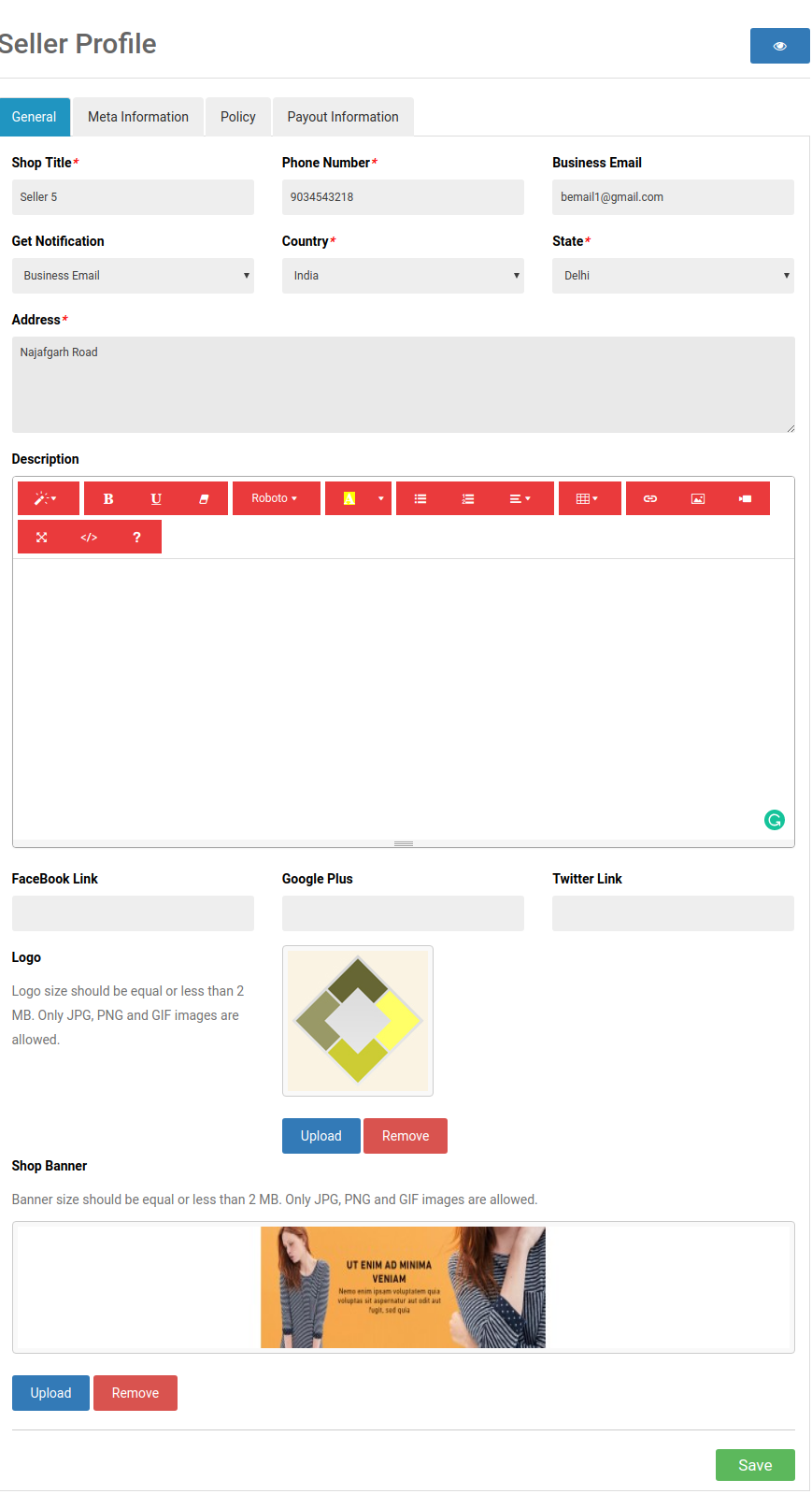
The sellers can add banners, shop logos, and metadata from their dashboards. The vendors can easily make an SEO-friendly URL for their shop.
The sellers even get an option to track the overall transaction and sales report from the dashboard with ease.
The sellers get an option to add category requests. The admin can approve/disapprove their request from the back-end of the OpenCart Marketplace Extension.
If enabled from the admin panel of the OpenCart Multi seller Marketplace module, the sellers can even add their own shipping methods.
1.3 Customer Benefits of OpenCart Multi-seller Marketplace Extension
The store visitors can now choose the ideal products from a wider range of product options.
The online shoppers can view the seller’s profile on the products page. Further, only if the admin allows it.
The customers even get an option to give their reviews for the products as well as the seller.
Customers can easily contact the sellers of the product from the seller account page and raise a ticket for their queries and issues.
1.4 New Features in OpenCart Multi vendor Marketplace plugin:
Improved Admin UI: It has a dynamic and functional new admin UI for effortless management.
A new Seller Custom Form: A new custom field is available to the backend of the Multi vendor marketplace. It allows the admin to create a separate registration form for the sellers.
Now admin can allow sellers to display the seller and admin details on the invoice.
To choose the order status for which commission/earning will be calculated a field in the admin panel is now available. Previous earning was being calculated on all the order status i.e. Cancelled, Returned, etc.
Admin can decide order status options for sellers which they can use for the customer orders.
An option is now available in the admin panel to enable/ disable the sellers. All the products will be removed automatically from OpenCart Marketplace if a seller is disabled by the admin.
Admin assigns the products to the individual seller.
OpenCart Marketplace extension allows the admin to register any customer as a seller.
OpenCart Marketplace Product page and admin UI
2. Installation of OpenCart Marketplace Plugin
Purchase the OpenCart Multi-vendor Marketplace Module from the Knowband store. You’ll get the following files:
Zipped File containing the source code of the module
User Manual
Follow the steps mentioned below in order to install the open cart Multi vendor Marketplace plugin in your store:
Unzip the zipped file. The vqmod must be installed, otherwise, the plugin will not work. You’ll get the folders as shown in the image below:
Copy all the files and folders of the zip file in the Root Directory of the site.
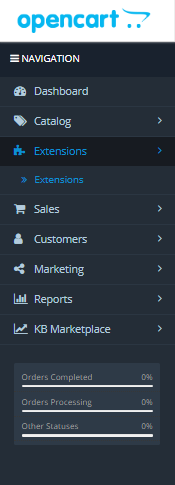
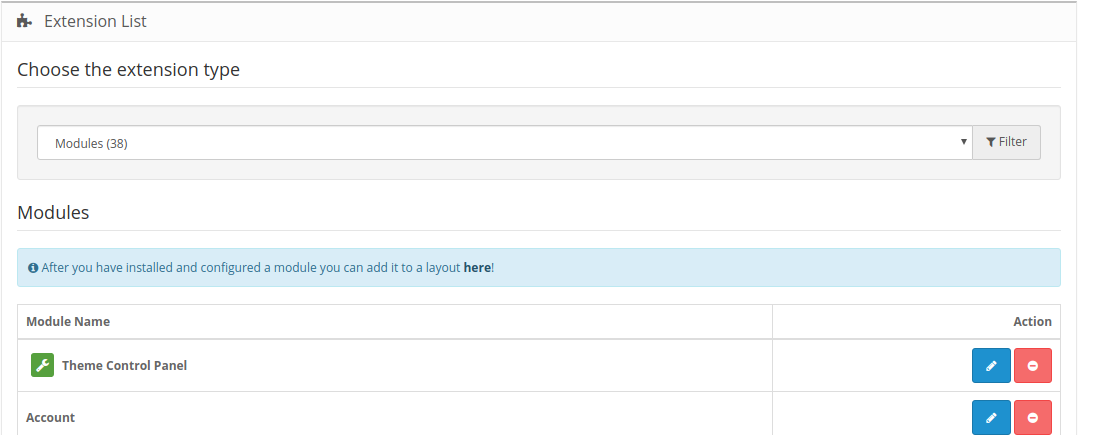
The admin can find the OpenCart Multi-Seller Marketplace extension at the path Admin Panel -> Extensions. Install the module by clicking on the ‘Install’ button corresponding to the module.
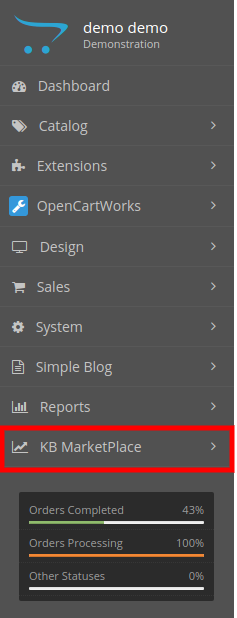
The OpenCart Marketplace plugin is now installed and is ready to use. Go to Admin -> Main Menu -> KB MarketPlace as shown in the image below:
3. Admin Panel
The OpenCart Multi-vendor Marketplace plugin offers multiple options for the configuration and management of the online marketplace.
After that, click on the edit option of the KnowBand Marketplace.
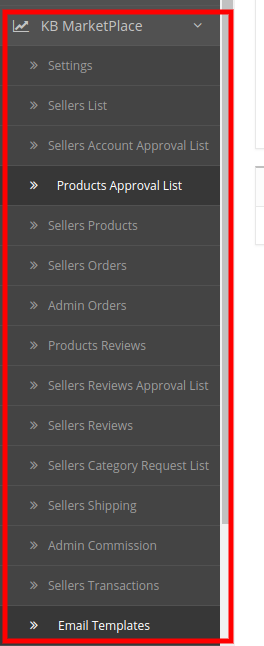
There are 6 main menus in the configuration settings:
3.1 Setting
3.2 Sellers
3.3 Products
3.4 Orders
3.5 Commissions
3.6 Support
All the six main menus are discussed below in detail:
3.1 Settings
The various fields of this menu of the OpenCart Multi-vendor Marketplace plugin are discussed below:
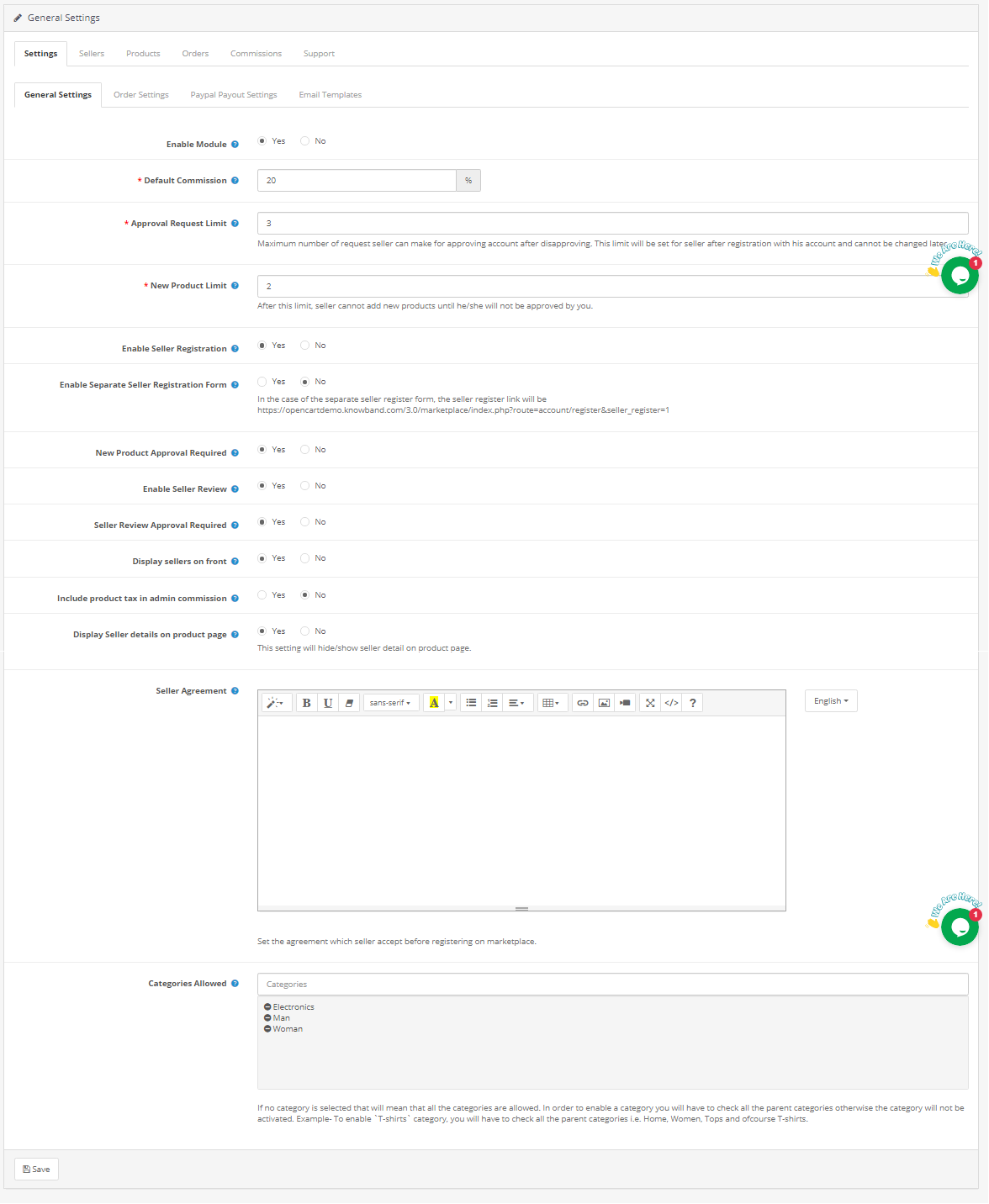
3.1.1 General settings
Enable Module: Toggle the button to “enable” the module on the website.
Default Commission: Set the commission to be charged to the sellers here. The percentage amount as specified by the admin here will be applicable to all the marketplace sellers by default.
Approval Request Limit: The store admin can approve/disapprove the seller’s account from the back-end of the OpenCart Multi vendor Marketplace plugin. The sellers can send a request for account approval. The admin can set the maximum number of requests that the seller can send in this section.
New Product Limit: Fix the maximum number of new products that a seller can list in the marketplace.
Enable Seller Registration: Select ‘yes’ in order to enable the third-party seller registration.
Enable Separate seller registration form: Select ‘yes’ in order to enable the separate seller registration form.
New Product Approval Required: If he selects ‘Yes’, then, the approval of the admin will be required to list the product at the site.
Enable Seller Review: Select ‘Yes’ if you want to enable the seller review option in the front-end.
Seller Review Approval Required: If this feature is enabled, then, the review will be posted in the front-end only after the approval of the store admin.
Display Sellers on the front: Enable to display the list of the sellers in the front-end of the website.
Include Product Tax in Admin Commission: If he selects ‘Yes ’, then, product tax will be included in the admin commission.
Display Seller Details on Product Page: Enable this option to display the seller’s details on the product page of the website.
Seller Agreement: Specify the terms and conditions for the sellers in this section. The agreement details as mentioned here display in the front-end of OpenCart Multi-seller Marketplace.
Categories that the admin allows: The admin can select the category that they want to assign to the sellers in this section.
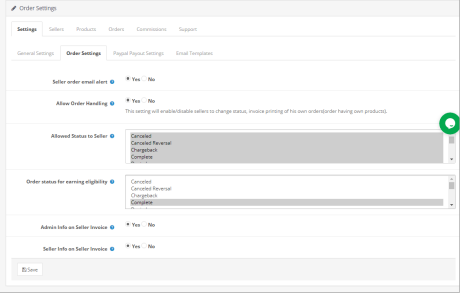
3.1.2 Order Settings:
Seller order email alert: If he selects ‘Yes’, then, an automated email will be sent to the vendors every time the order of their product is received.
Allow Order Handling: If he selects ‘Yes’, then, the sellers can handle the orders received on their products. They can process the orders and change the order status.
Allowed Status to Seller: Order statuses that are okay for sellers to update the order. It includes Cancelled, Cancelled Reversal, Chargeback, Complete, denied, processing, failed, expired, etc.
Order Status for Earning Eligibility: Order status assigned to the sellers only for which they will receive the Payouts or they will get the earnings only for the assigned order status such as complete, shipped, voided, etc. Admin can choose from the options mentioned in dropbox.
Admin Info on seller invoice: Select yes or no for sending a system-generated email to the seller on the new order.
Seller Info on seller invoice: Select yes or no for sending a system-generated email to the seller on the new order.
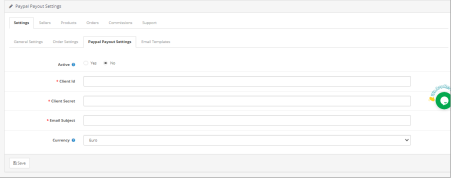
3.1.3 PayPal Payout Settings
Opencart Multi-Vendor Marketplace plugin offers admin access to set the PayPal Payout Settings from the backend of the store. Admin needs to activate the setting and fill the Client ID, Client Secret key, Paypal Email Subject, and Paypal Currency in the backend of the store.
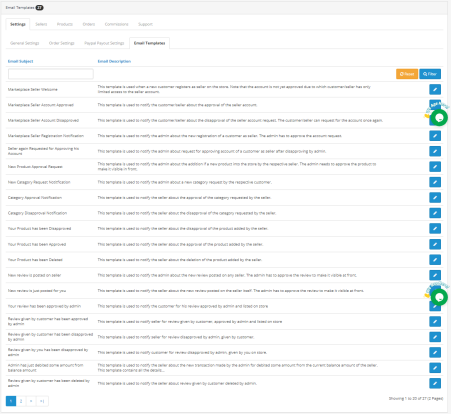
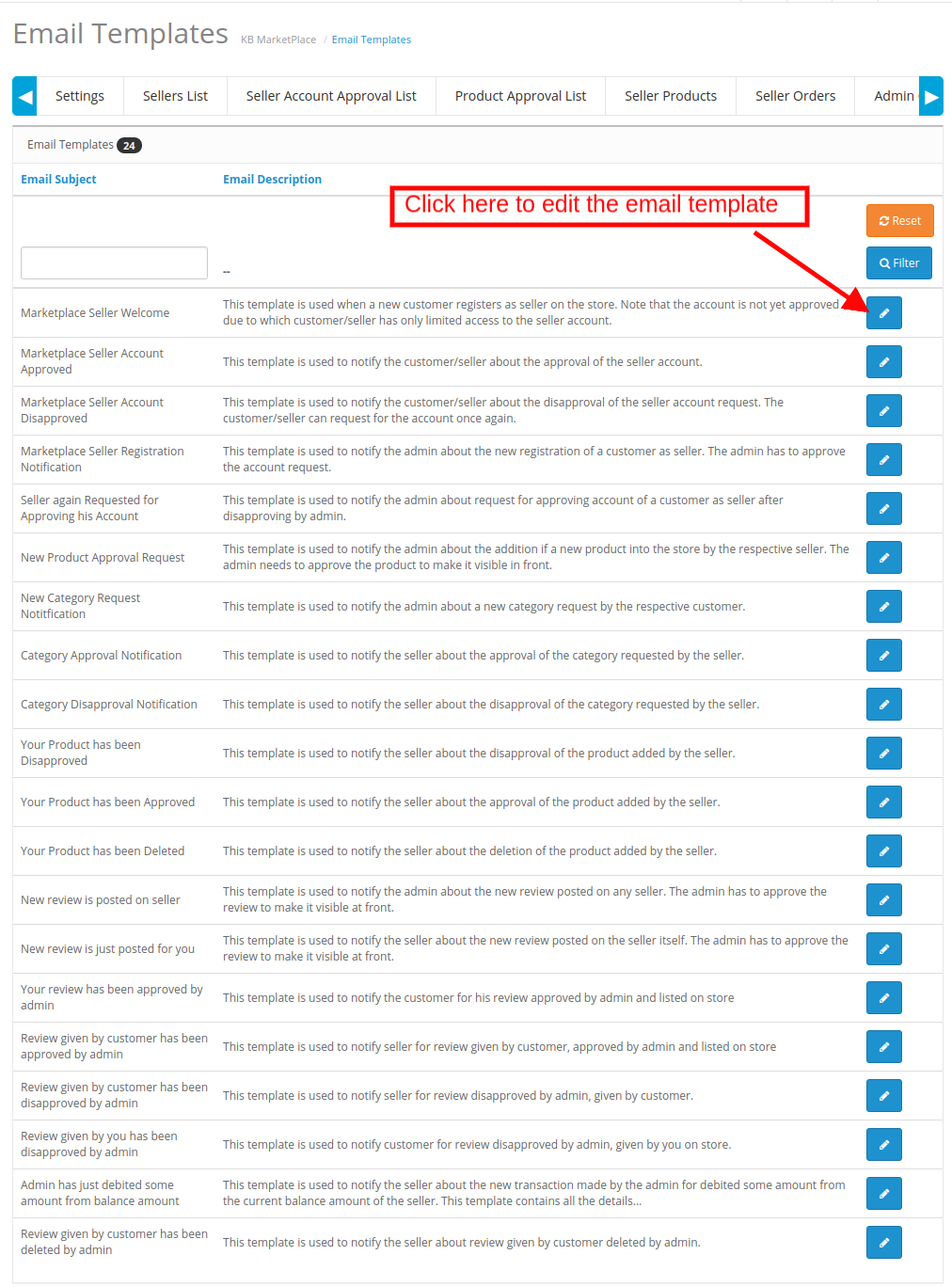
3.1.4 Email Templates
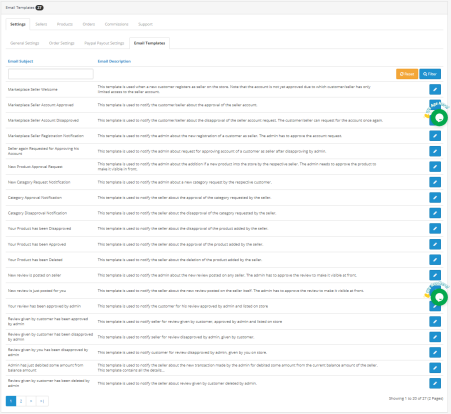
The OpenCart Multi seller marketplace plugin offers 24 pre-designed email templates for various scenarios. The store admin can even edit the templates if required by clicking on the Edit button.
3.2 Sellers
3.2.1 Sellers Setting
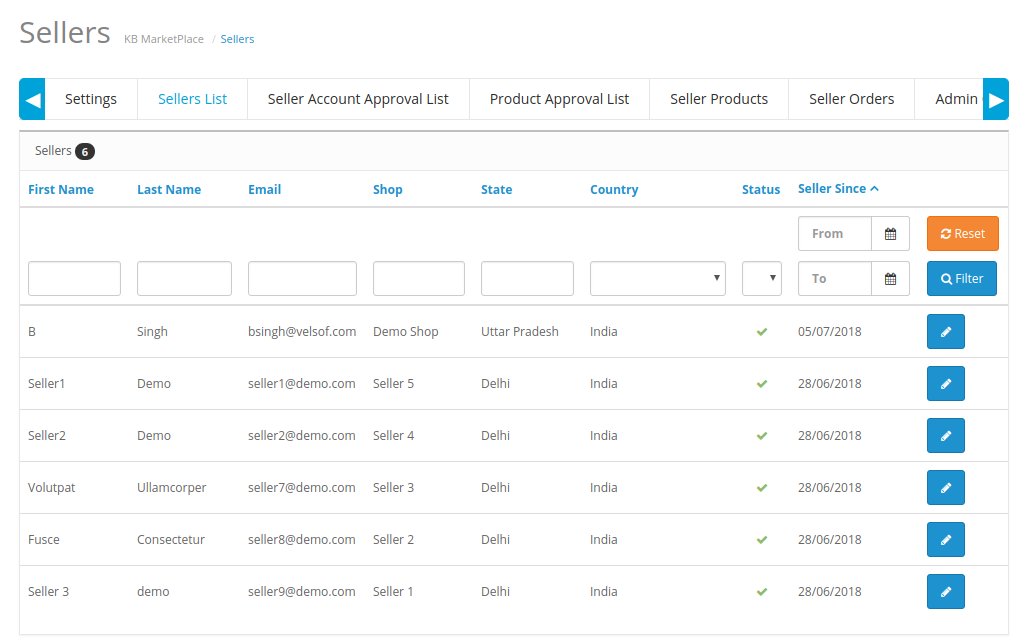
This page of the OpenCart Multi-vendor Marketplace extension has a list of all the sellers that the store owner approves. The admin can view the list of the sellers whose accounts he approves from the Seller Account Approval List tab of the OpenCart Multi seller Marketplace extension.
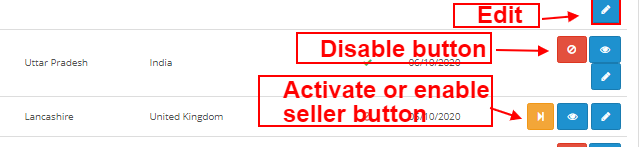
Admin can enable/disable the seller from the buttons shown below.
How to Edit Seller’s Account?
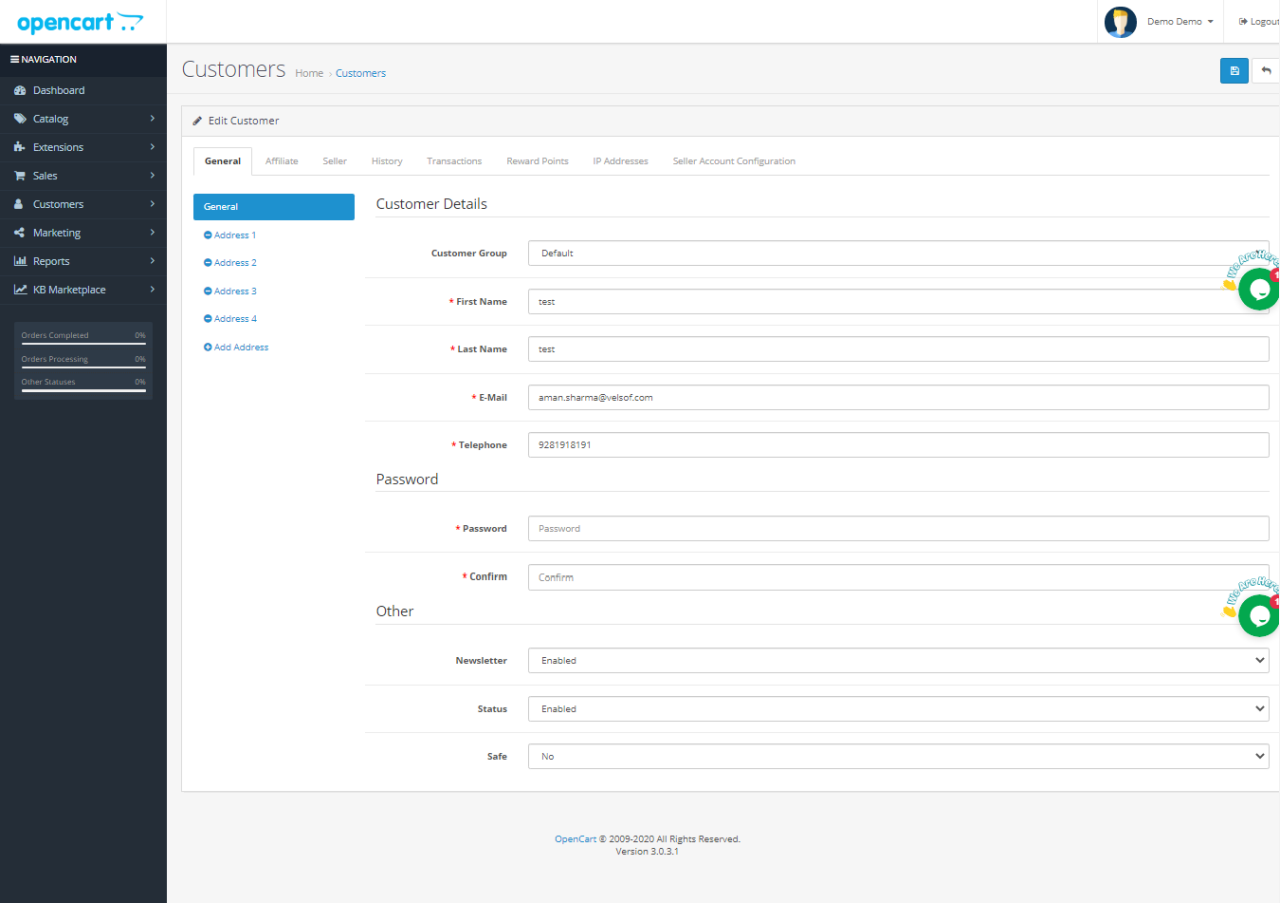
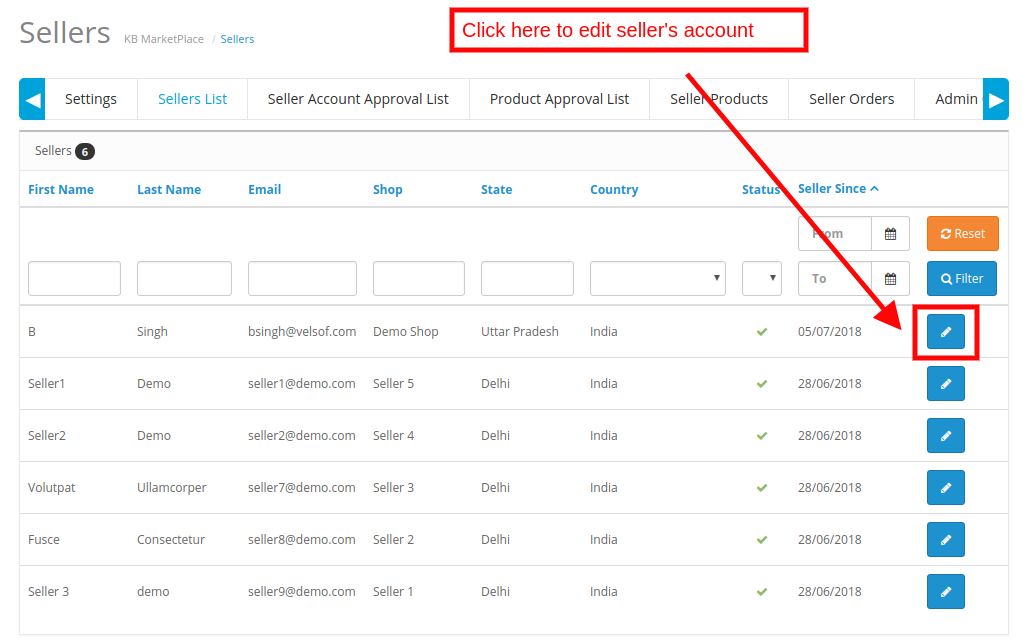
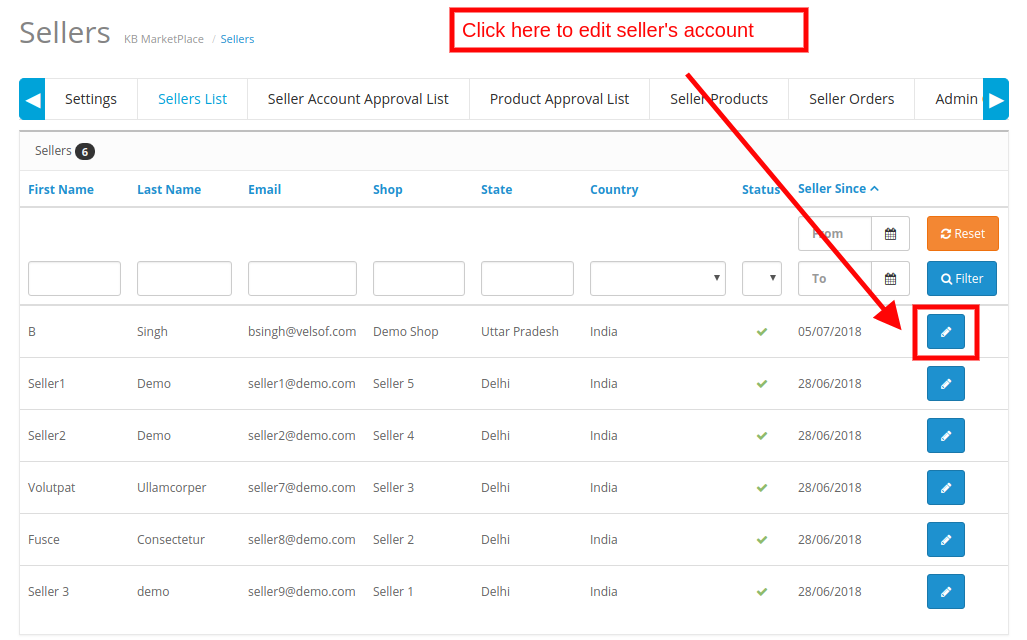
The admin can even edit the profile of the vendors from the back-end of the OpenCart Multi vendor Marketplace plugin. In order to edit the same, click on the Edit button. This will redirect you to an interface of the OpenCart multi-seller marketplace extension where you can make the required changes.
3.2.1.1 General
Customer Detail: Admin can edit all the basic details of sellers on the Customers Setting Page. This includes Customer group, Name, email address, contact information, etc.
Password: Admin can set the password for the seller.
Other: It includes more settings for Newsletter subscription, Enable/Disable the seller, and categorizing the seller as safe.
Multiple Addresses: the OpenCart Multi-Vendor Marketplace allows the admin to add one or more addresses to the seller’s account.
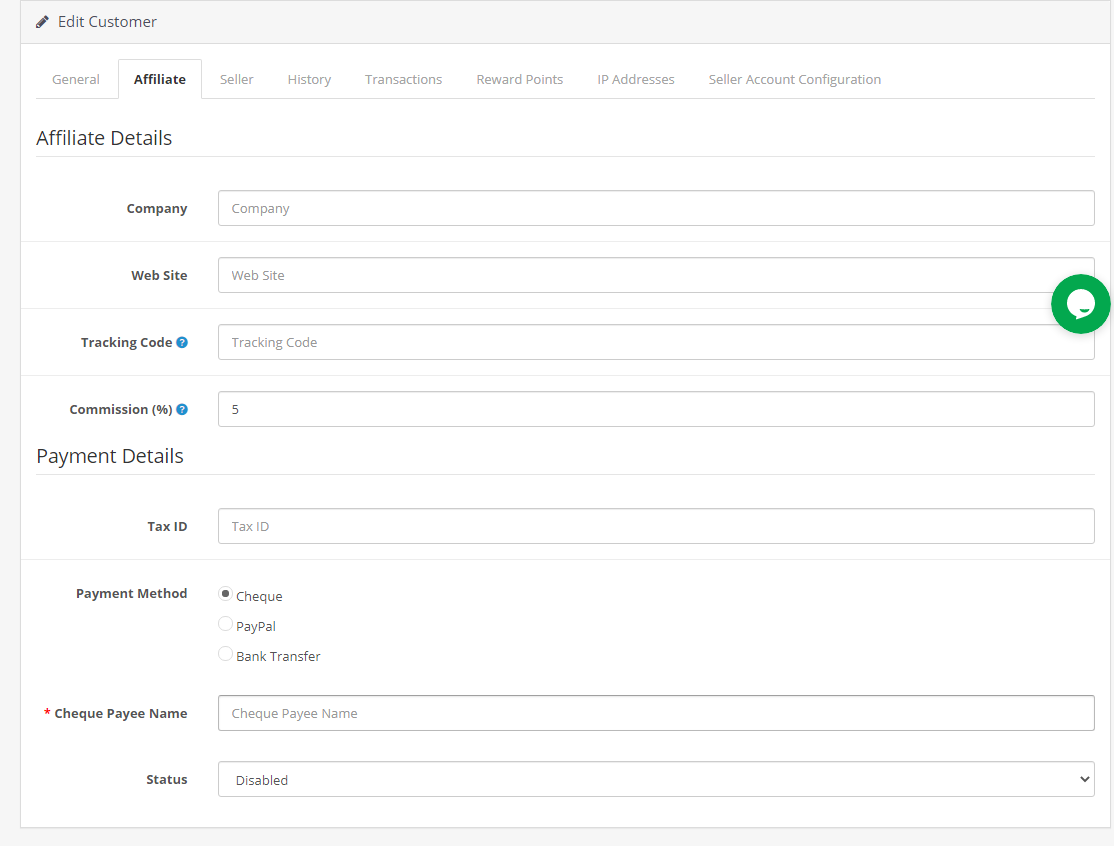
3.2.1.2 Affiliate
Admin can add affiliate Details in the Affiliate setting.
Affiliate Details: All the information such as Company Name, Website, Tracking code, Commission Percentage.
Payment Details: The admin can add or select the tax ID and Payment Methods. In fact, the payment methods that are indexed in the extension are Cheque, PayPal, and bank transfer.
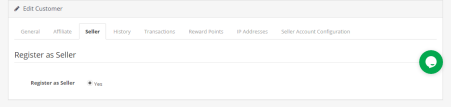
3.2.1.3 Seller
Admin can register the company as a seller by selecting the Yes button.
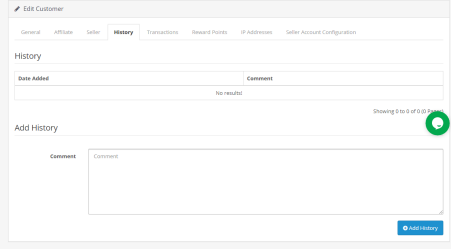
3.2.1.4 History
History: Seller history and comments will display here.
Add History: Admin can add comments for the seller in the History section which will display on History Table.
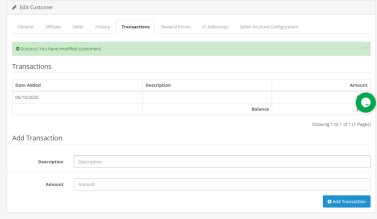
3.2.1.5 Transaction
Transactions: All the transactions will be shown here for the particular seller.
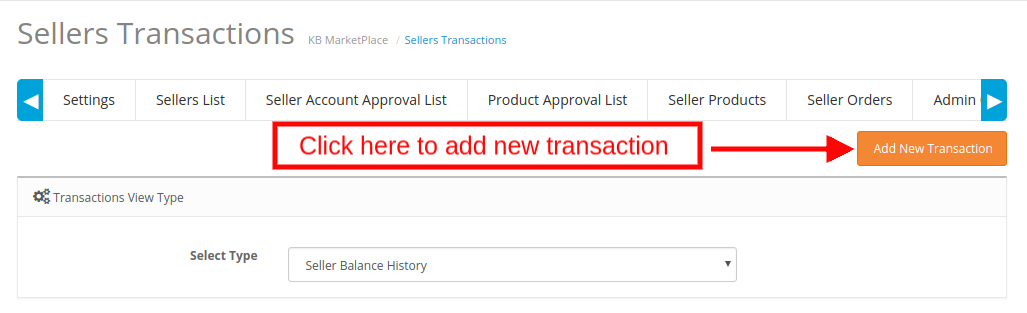
Add Transaction: The store owner even gets an option to add a transaction by clicking on the ‘Add New Transaction’.
3.2.1.6 Reward Points
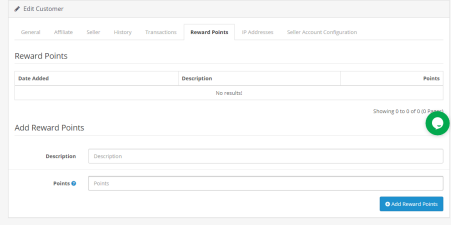
If the admin wants to reward the seller then he/she can add the reward description and points in this section of the Sellers setting.
Reward Points: A table showing all the reward points given to the seller by the admin will display here.
Add Reward Points: Admin can add new reward points by clicking on the ‘Add Reward Points’ button.
The window will display as shown below:
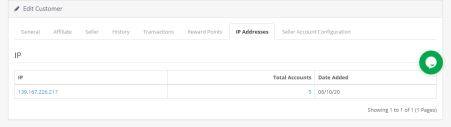
3.2.1.7 IP Address
The IP address of the seller and the number of accounts registered will display here.
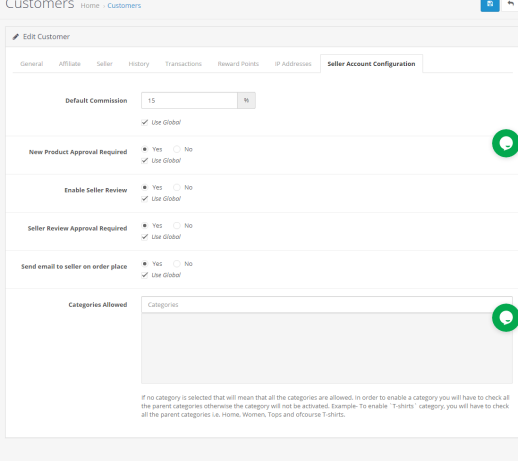
3.2.1.8 Seller Account configuration
OpenCart Multi-vendor Marketplace extension allows admin to set the commission amount for individual sellers.
Default commission: Admin can add the commission details in the Seller Account Configuration setting.
New Product Approval required: Select Yes if the admin wants to approve the new product and select no otherwise.
Enable Seller Review: Yes/No buttons are given to enable/disable seller reviews.
Seller Review Approval Required: If this feature is enabled, then, the review will be posted in the front-end only after the approval of the store admin.
Send email to seller on order place: If enabled then an auto-trigger mail will be sent to admin with the default email template.
Categories that the admin allows: Admin can assign categories to the seller. Sellers can only sell products from the allotted categories.
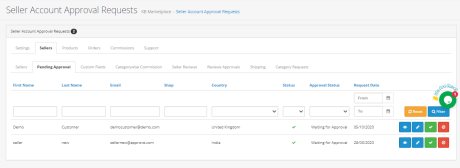
3.2.2 Pending Approval
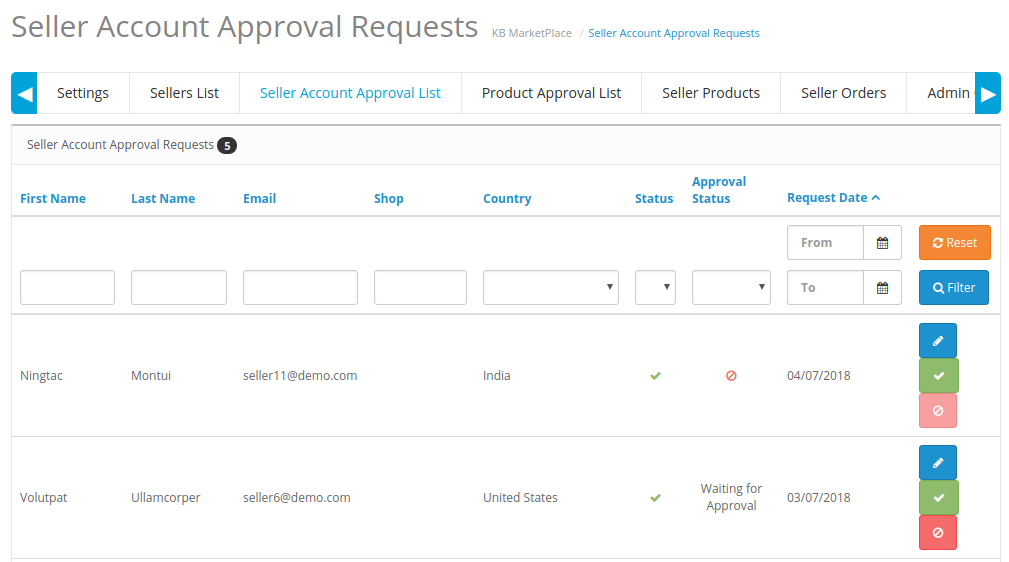
The third-party vendors can fill up the form in order to create a seller account at the site. The seller’s profile will list in this tab of the OpenCart Multi-vendor Marketplace Plugin for approval as shown in the image below:
How to Approve/Disapprove the Seller’s Account?
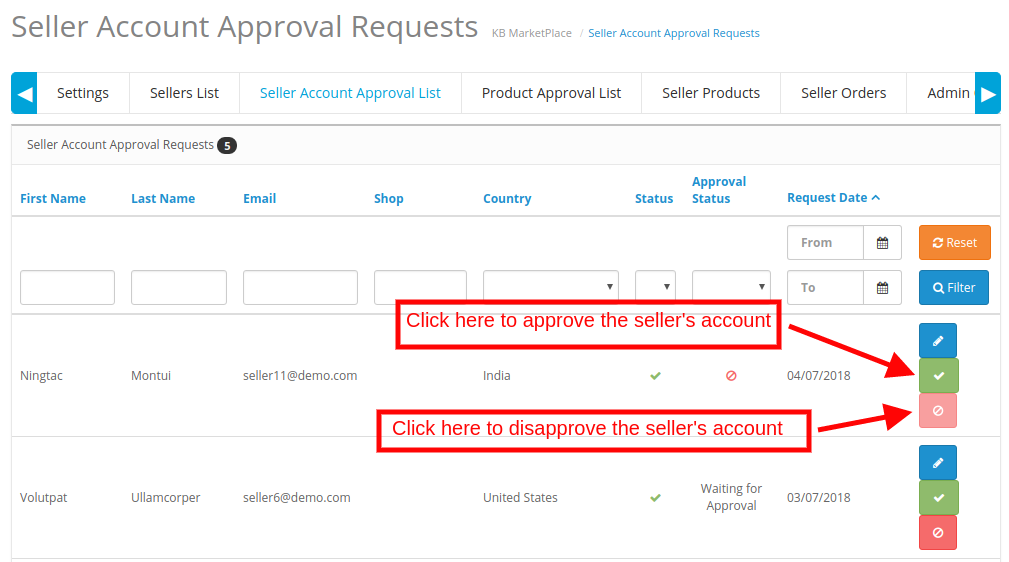
The admin can approve the seller’s account at a button click from the back-end of the OpenCart Marketplace module.
Just click on the approve or disapprove button corresponding to each seller account. On clicking on the Approve button, a pop-up will display asking for permission to approve or disapprove the seller account.
Once the seller’s profile approves, the same will list in the ‘Seller List’ tab of the OpenCart Multi-vendor Marketplace module.
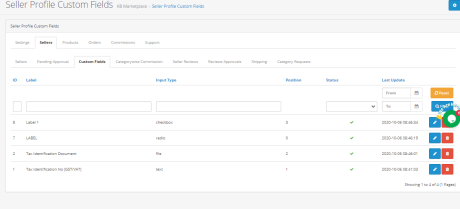
3.2.3 Custom Fields
(New)Admin can add a custom field for seller profile. This setting allows the admin to add one or more fields on the seller page to collect extra information from the seller.
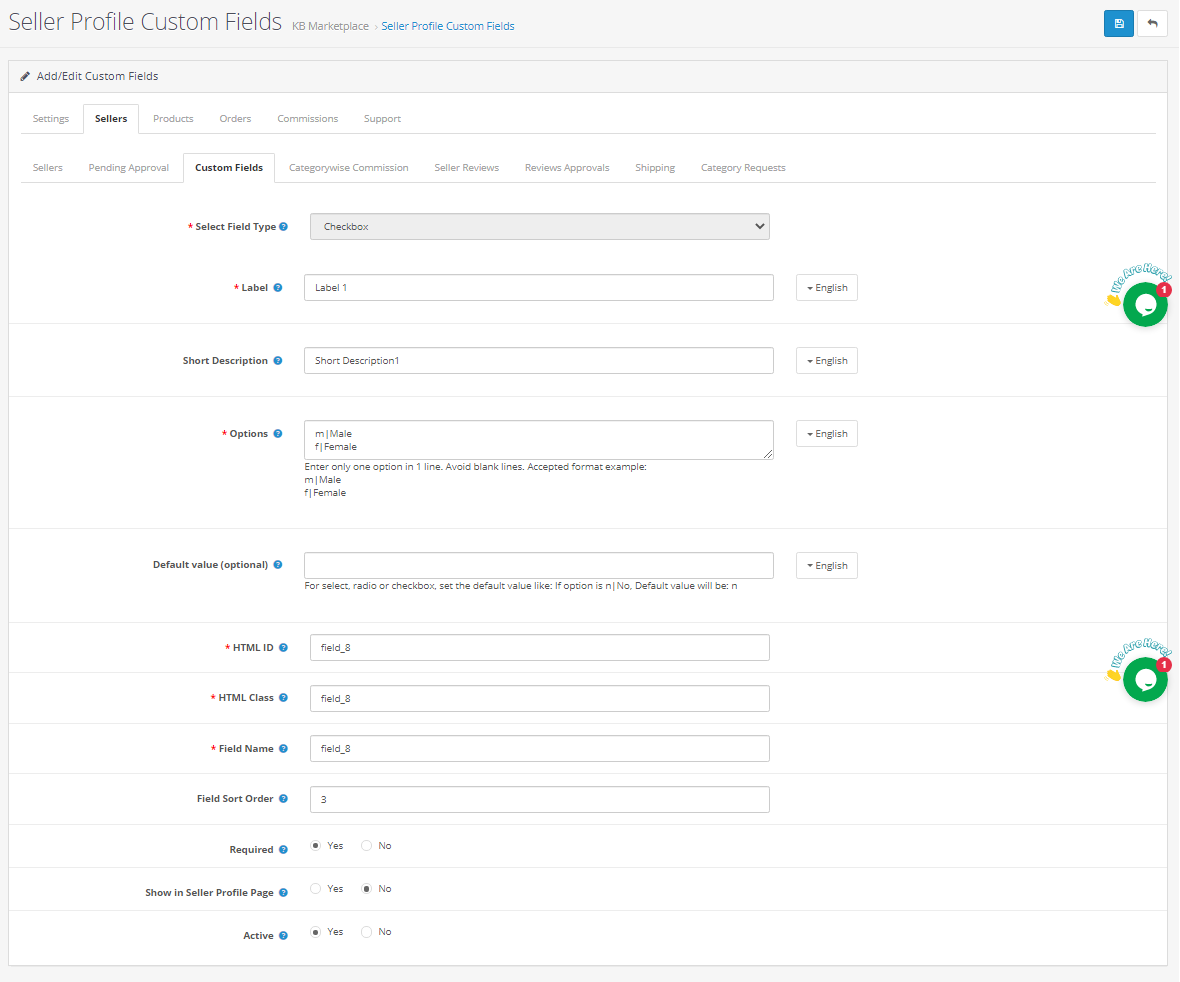
Click on the edit button for adding or updating the custom fields. On clicking the ‘edit button’, the following window will appear:
Select Field Type: Select the field type as a checkbox
Label: Add the field name which will display on the front end of the seller dashboard.
Short Description: Add the short description for the field
Options: Add the options for the field like Male, female, or Yes, No as the accepted format mentioned in the field.
HTML Details: Add HTML ID and HTML class here.
Add New Field Details: like field name, field sort order etc.
Required: Set the field as optional or mandatory
Show in seller profile page: Select Yes if the field is to display on Seller Profile Page otherwise select no.
Active: Activate or deactivate the field by selecting yes or no options.
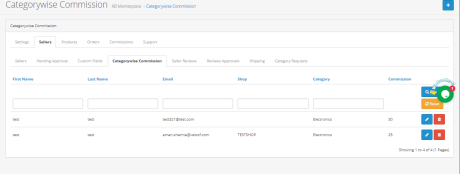
3.2.4 Category wise commission
With the Opencart Multi-Seller Marketplace plugin, the store admin gets access to set the commission category-wise. Admin can easily view the total earning, total commission for a particular category in Category Wise Commission. Category wise commission for the particular seller will display here as shown below:
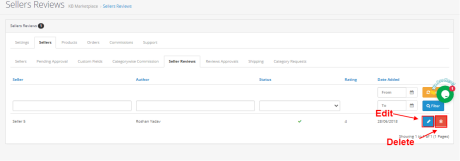
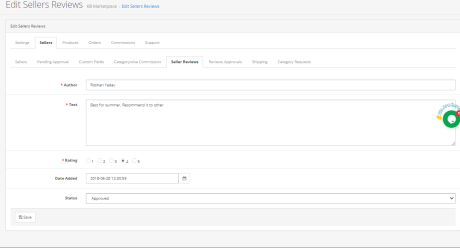
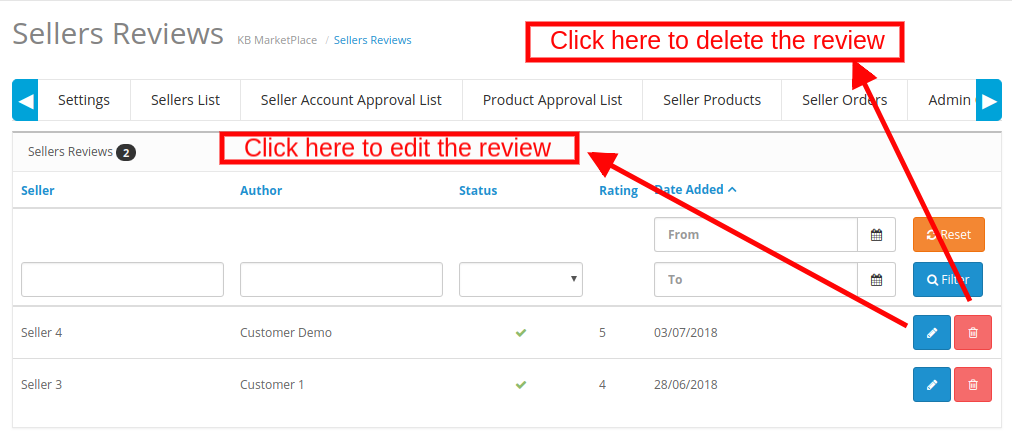
3.2.5 Seller Review
Admin can see the seller reviews and edit them from the backend if required.
The admin can add the author details, Text, update ratings, change the date of the review.
Admin can approve or disapprove the review from the status field.
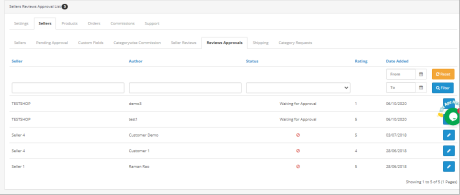
3.2.6 Reviews Approval
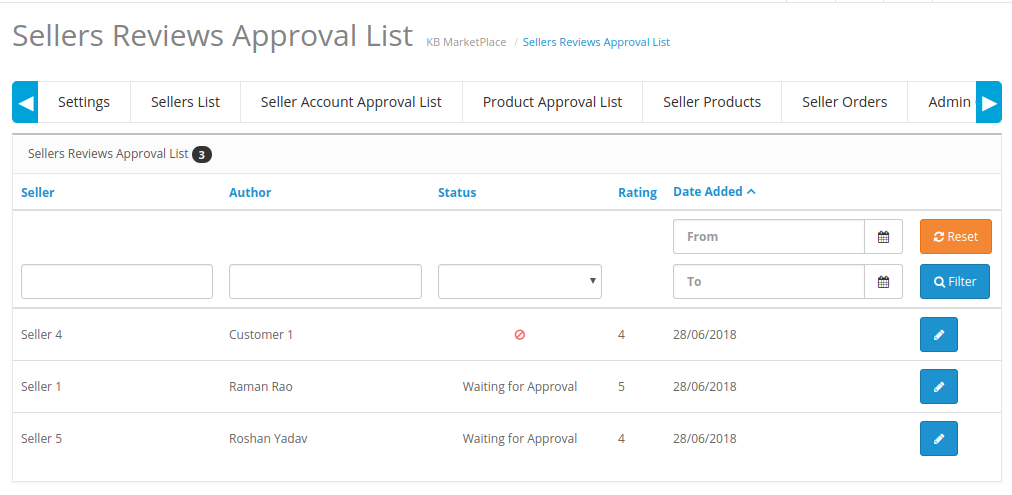
The list of approved and disapproved seller reviews will display here. If the admin click on the edit button then he will be directed to a new page.
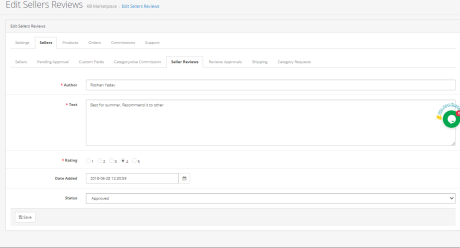
Store Admin can add the author details, Text, update ratings, change the date of the review.
Status: Admin can approve or disapprove the review.
The various fields of this interface are discussed below:
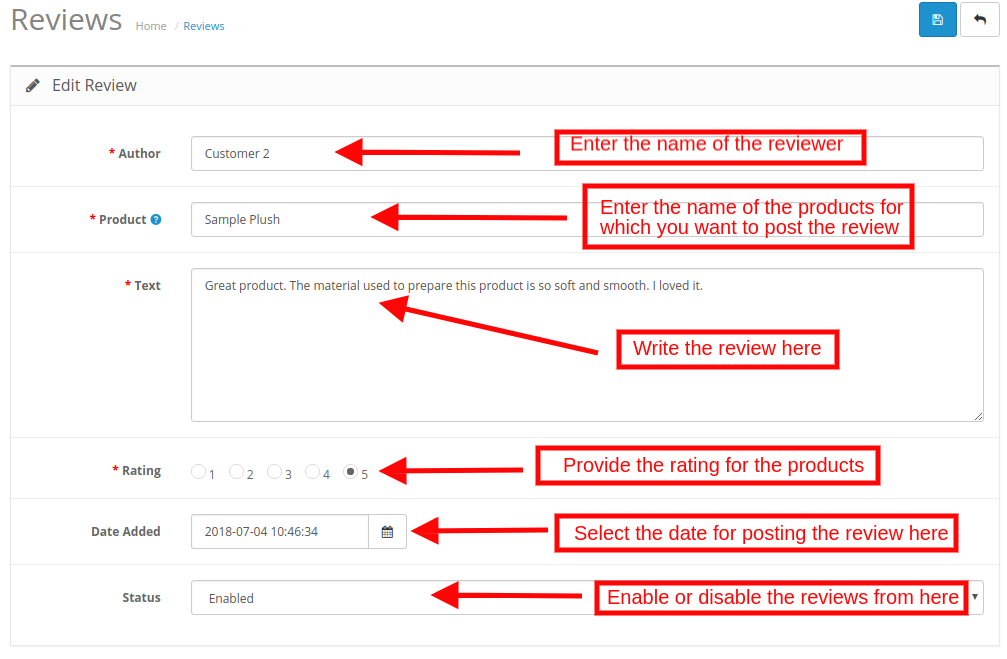
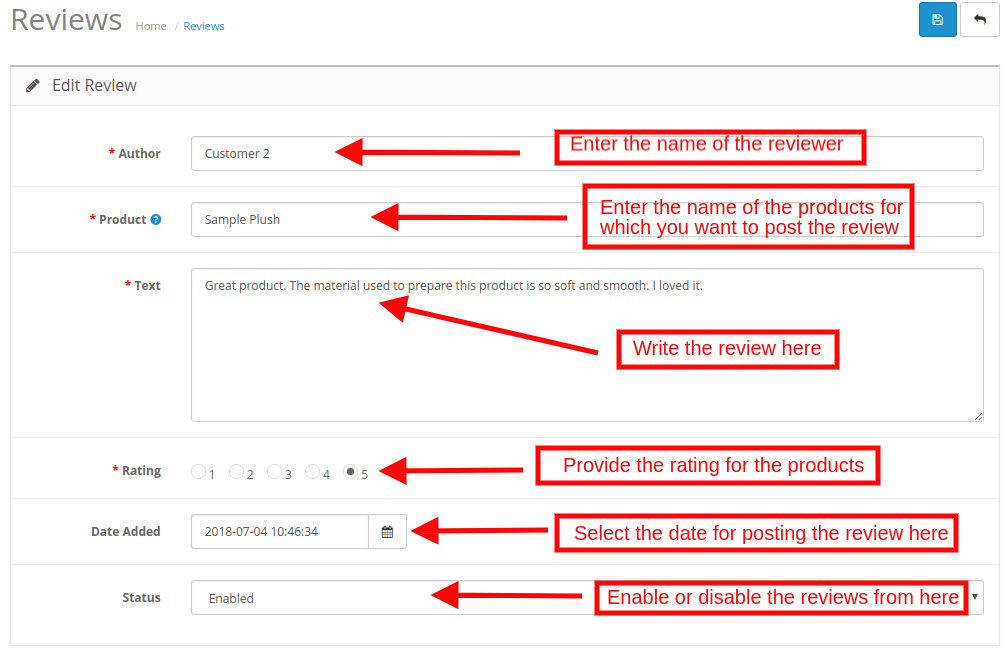
Author: The name of the reviewer will be shown here. The admin can change the name if required.
Text: The review entered by the customer will be shown here. The store owner can edit the review if required.
Rating: This section will by default show the rating given by the customer. The admin can even change the rating.
Review Date is available: The date when the review is available will display here.
Status: Enable or disable the review from here. If the admin enables it, the review will display on the product page.
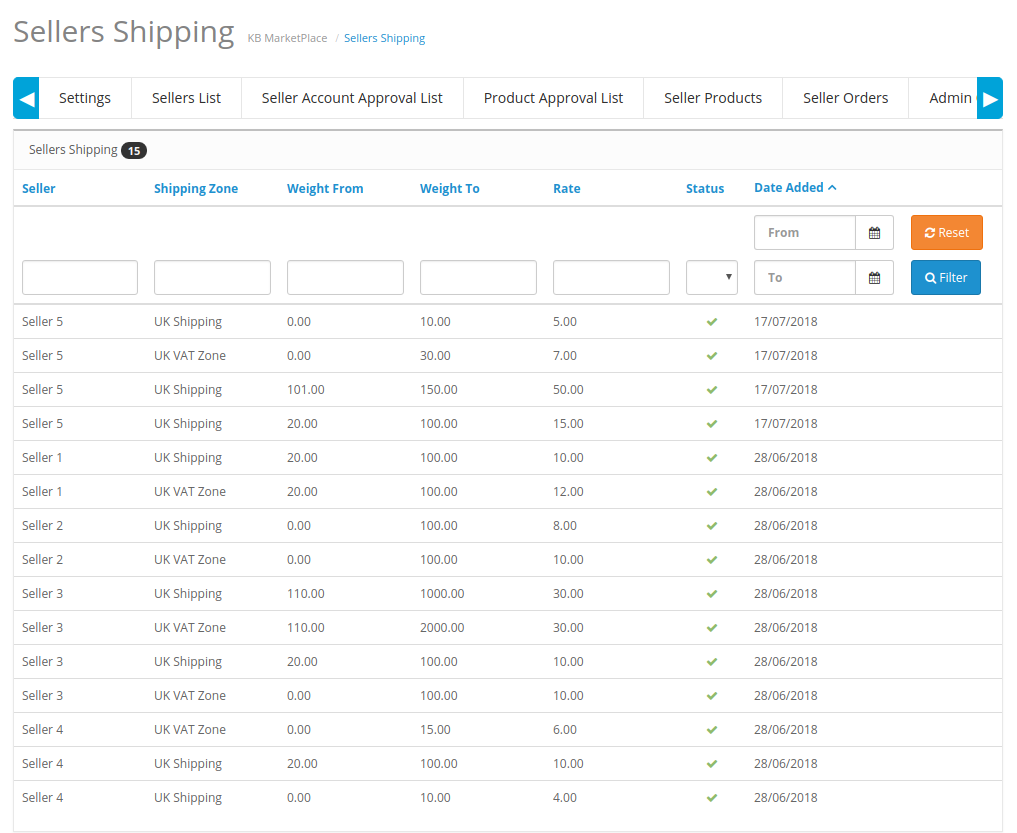
3.2.7 Shipping
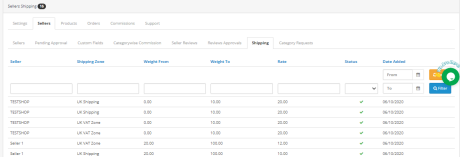
Seller’s shipping information can be reviewed by the admin from the backend of the OpenCart Multi-vendor Marketplace. The OpenCart Multi-seller Marketplace extension comes with custom shipping options wherein the sellers can add their own shipping methods. If this feature is enabled by the store admin from the Settings Tab of the OpenCart Multi-vendor Marketplace module, then, the sellers can add their shipping methods.
The shipping templates available by the sellers will list in the Sellers Shipping tab of the OpenCart Multi vendor Marketplace plugin. All the orders shipping details like shipping zone, weight, Rate, and status will display on this page as shown below:
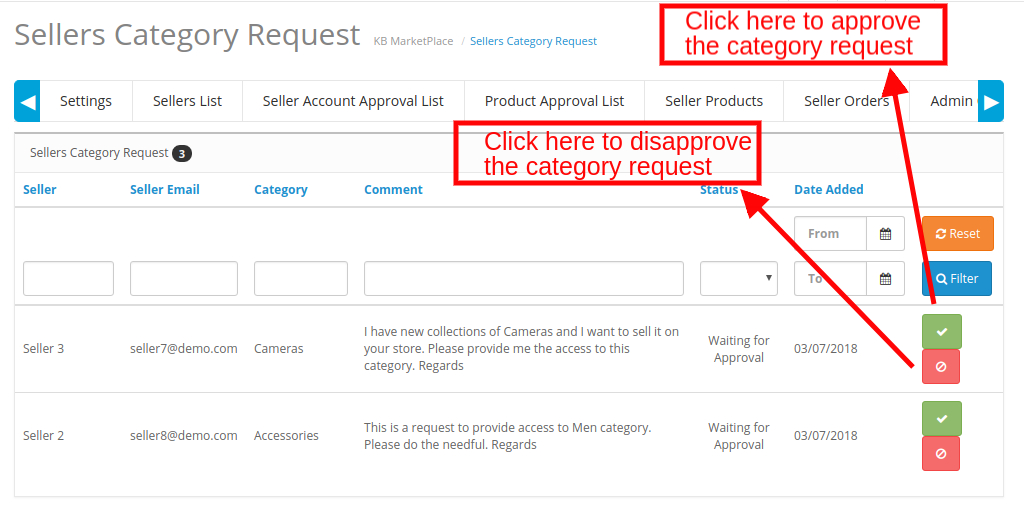
3.2.8 Category Requests
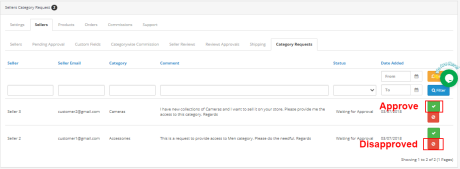
The admin assigns the category to the third-party seller for listing the products. The sellers can even request the admin to add a new category from their Dashboard. The category requests sent by the sellers will list in the Seller Category Request tab of the OpenCart Multi-Vendor Marketplace extension as shown in the image below:
3.3 Products
3.3.1 Seller Products
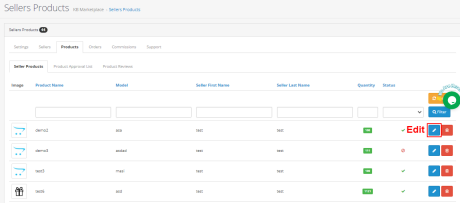
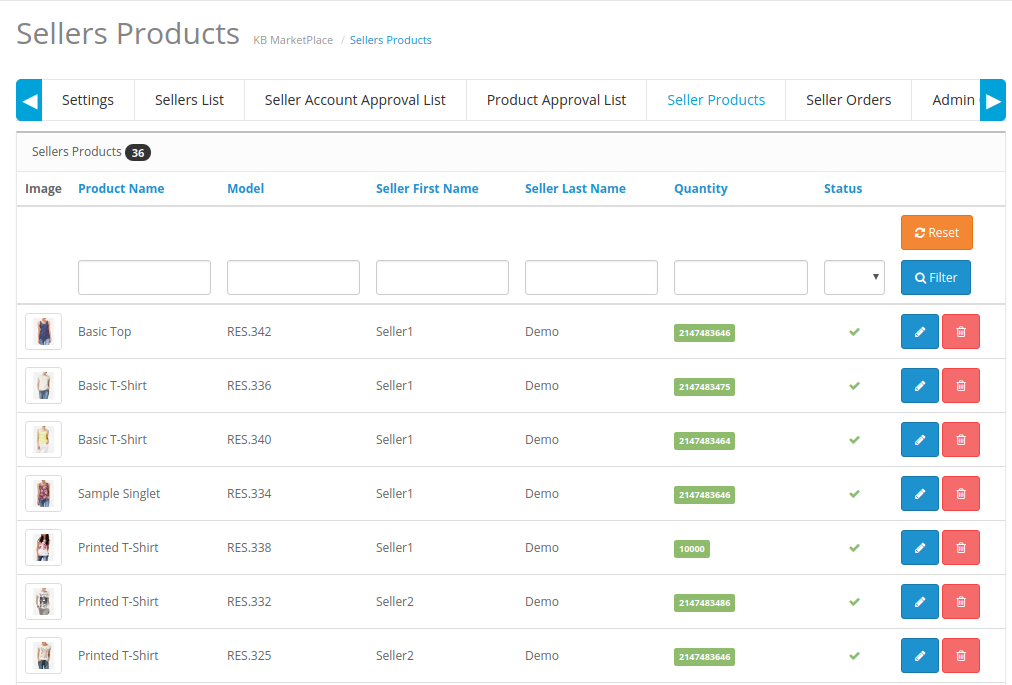
The admin approves the products from the back-end of the OpenCart Multi-vendor Marketplace extension. Further, they will list in the Sellers Products tab.
OpenCart Multi vendor Marketplace plugin- Sellers products
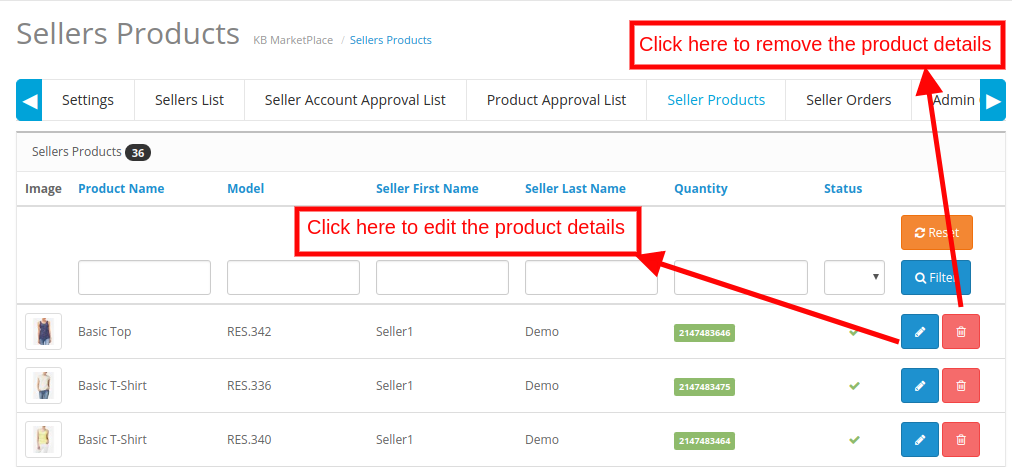
3.5.1 How to edit/remove the details of the products?
The store owner can edit or delete the product details of the sellers if required. Click on the ‘Edit’ or ‘Delete’ button respectively.
3.3.1.1 General
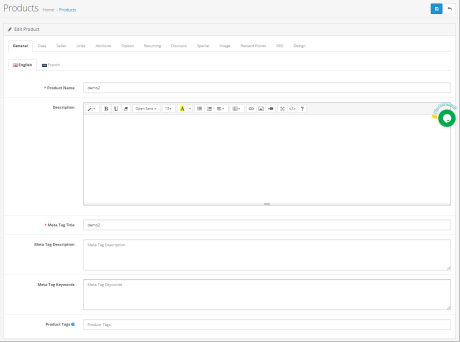
Add a general product description in the General setting tab of the product.
Product Name: Add product Name in this field.
Product Description: Add the product description in the description field.
Meta Tag Title: Enter the Meta tag here.
Listing Meta Description: Enter the Meta description of the website here.
Meta tag Keywords: Enter the meta keywords in this section. Enter the tags and separate them with comma.
Product Tags: Add all the product tags here.
3.3.1.2 Data
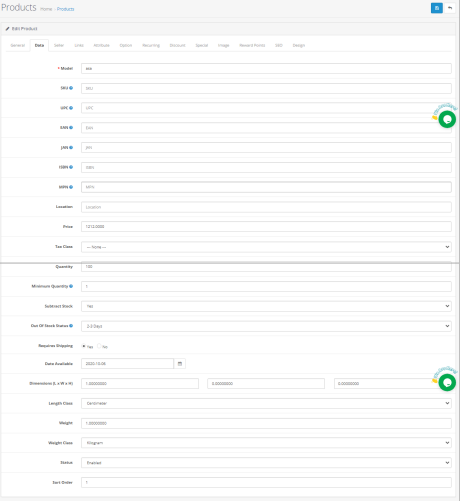
In the data section of Product description, the admin have to fill the details like Model, Product codes like SKU, UPC, EAN number, JAN, ISBN and MPN, Location details, Product price, Tax class, Quantity, Minimum quantity, Stock status, Shopping charges requirements, dimensions, weight etc.
3.3.1.3 Seller
Select the seller from the given seller’s list.
3.3.1.4 Links
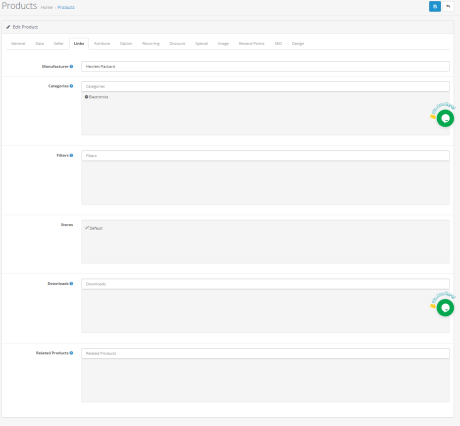
Add details like manufacturers, categories, filters, stores, related product, etc.
3.3.1.5 Attributes
Admin can add product attributes in English and French.
3.3.1.6 Option
If required then a product option will be available from this section.
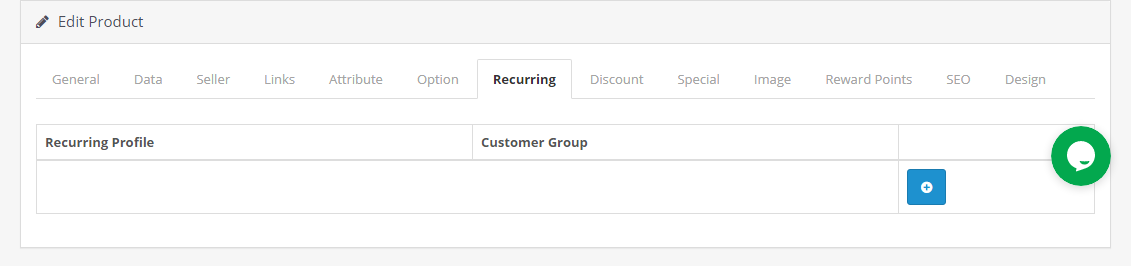
3.3.1.7 Recurring
From this section, addition of recurring profiles will happen.
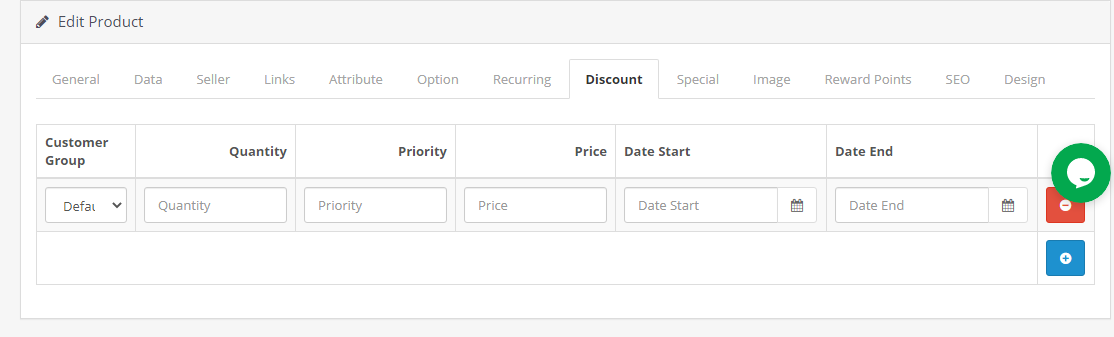
3.3.1.8 Discount
The discount details on the particular product will display here.
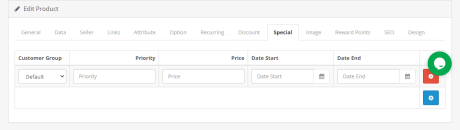
3.3.1.9 Special
Admin can set the product on priority for a period by adding start date and end date.
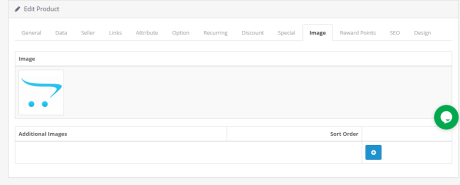
3.3.1.10 Image
Upload the Image of the product here. Addition of one or more images can happen with order to display.
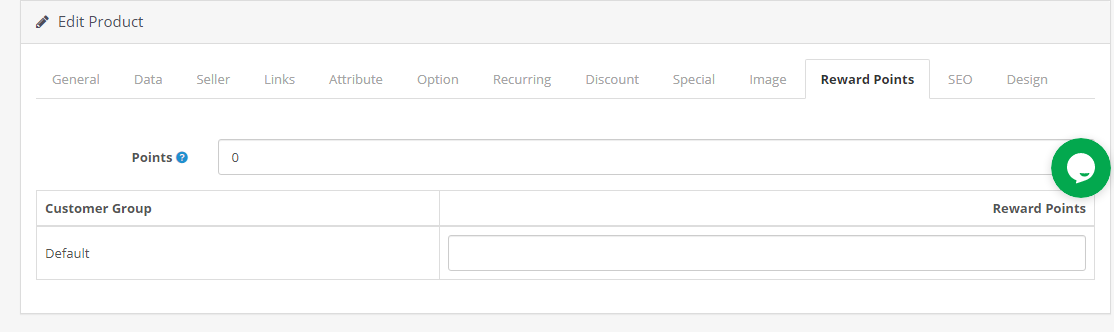
3.3.1.11 Reward Points
Admin can add a minimum number of points needed to buy this product.
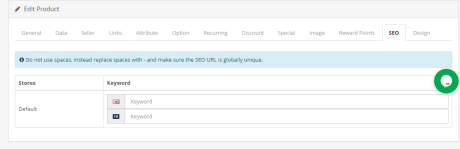
3.3.1.12 SEO
Add SEO for the product here.
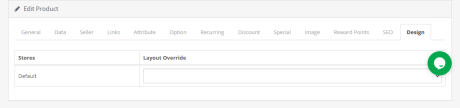
3.3.1.13 Design
From this design section, sellers can choose the layout design.
3.3.2 Product Approval List
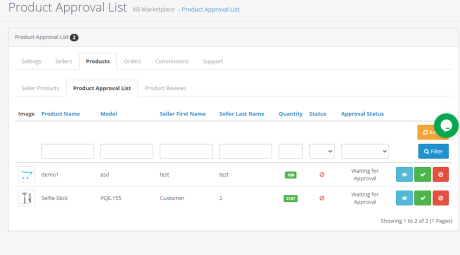
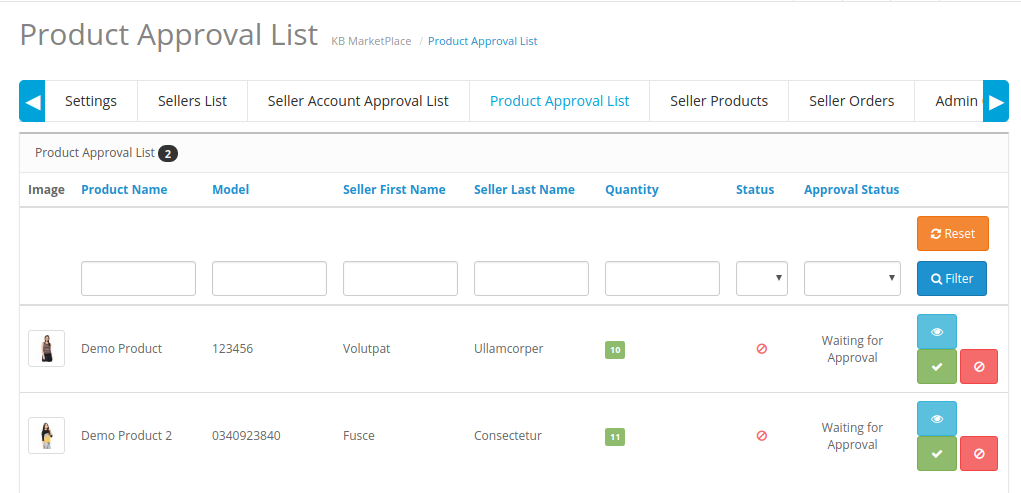
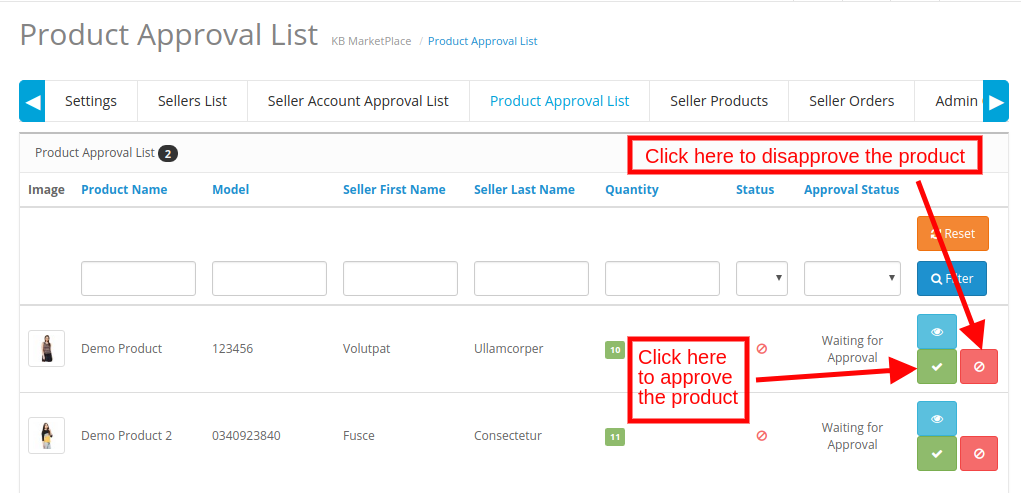
The third-party vendors can list their product from the dashboard of their profile. The products put in from the dashboard list in this tab of the OpenCart Multi-vendor marketplace module for approval. Admin approval is required only if this feature is enabled. The store admin can, then, approve or disapprove the product at a button click.
The products put in by the sellers will list in the Product Approval List tab of the OpenCart Multi seller Marketplace module as shown in the image below:
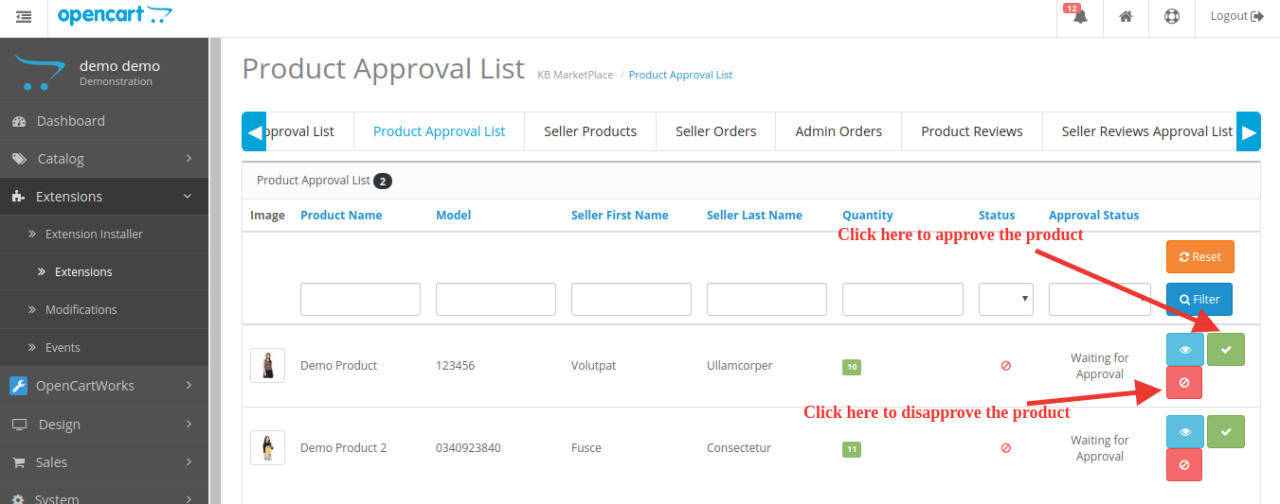
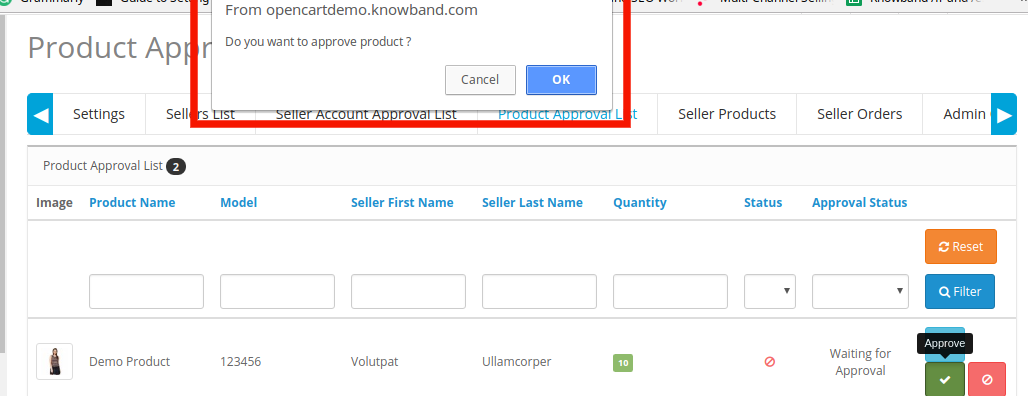
The admin can approve or disapprove of the products by clicking on the respective button corresponding to each product. Refer to the image below:
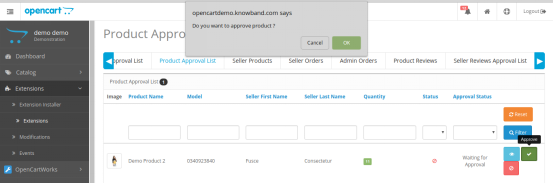
Once the Approve or Disapprove button is clicked, a pop-up will display with the message “Do you want to approve product?”
3.3.3 Product Reviews
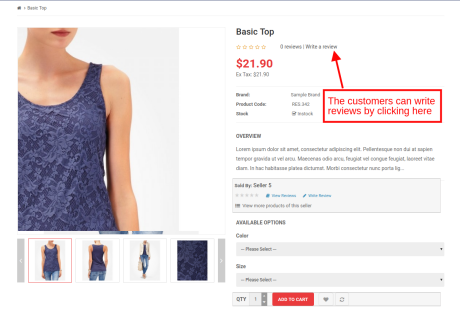
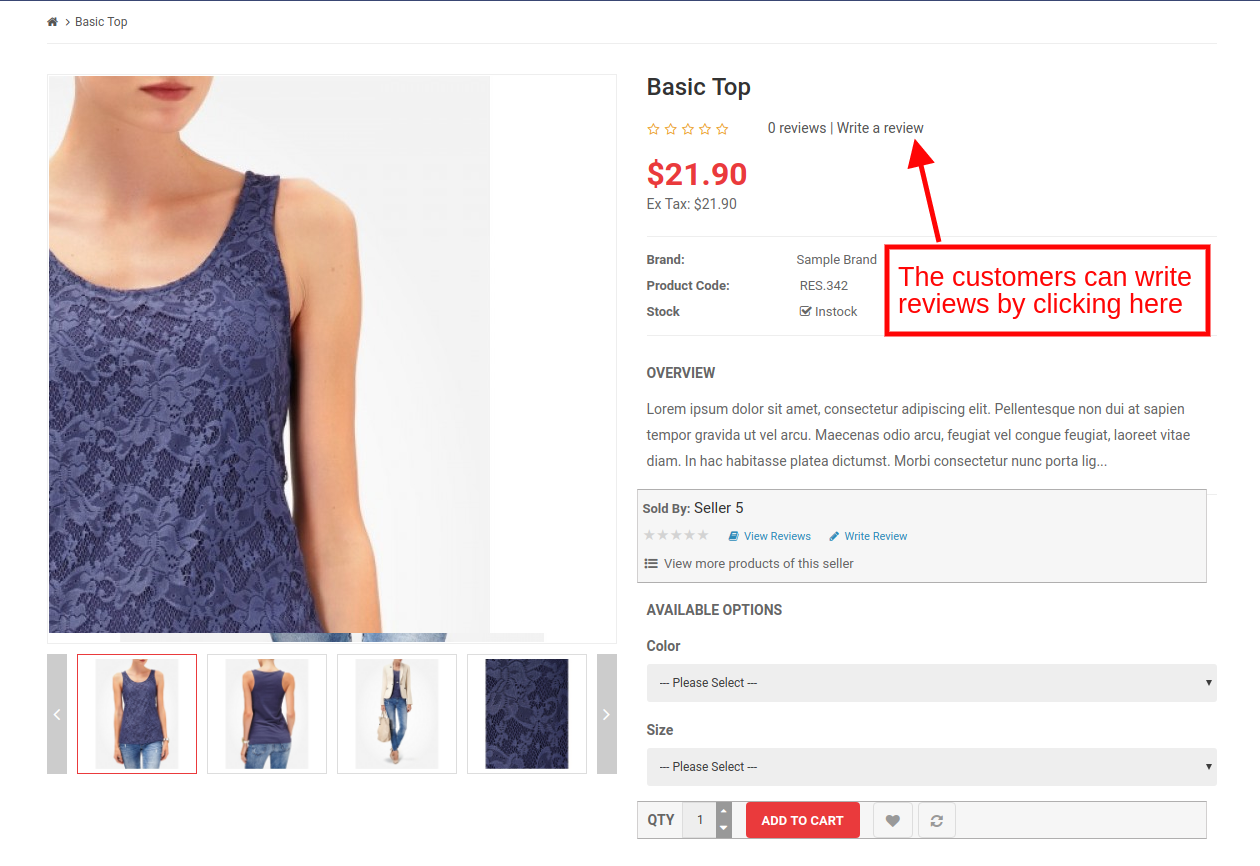
The customers can give ratings and write reviews for the products if this feature is enabled from the back-end of the OpenCart marketplace plugin. If enabled, the customers can leave their reviews by clicking on ‘Write a Review’.
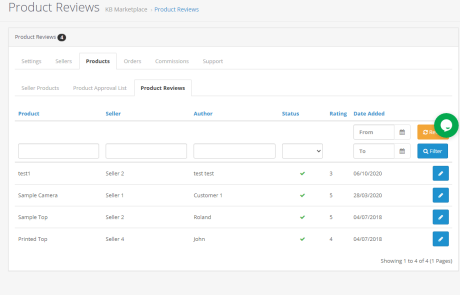
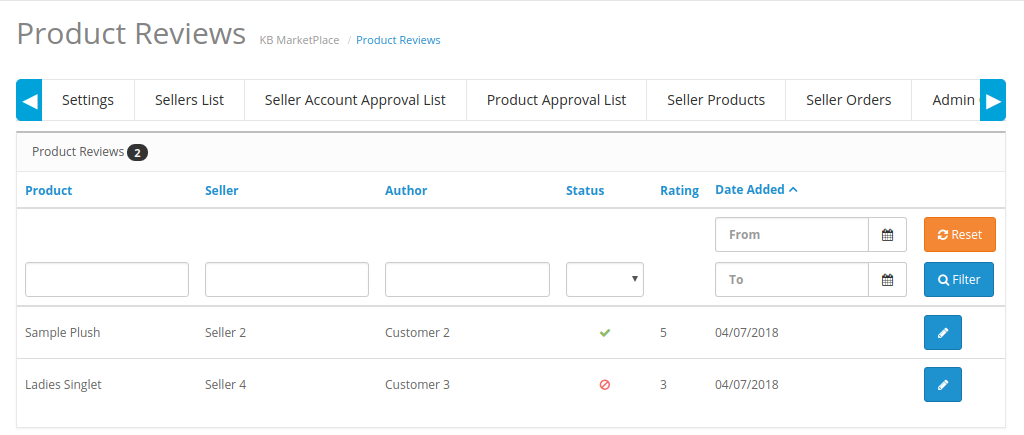
The reviews written in the front-end will list in the back-end of the OpenCart Multi-vendor Marketplace plugin as shown in the image below:
Click on the ‘Edit’ button to edit or approve the product reviews. This will redirect you to the review edition page of the OpenCart Multi-vendor Marketplace module.
3.4 Orders
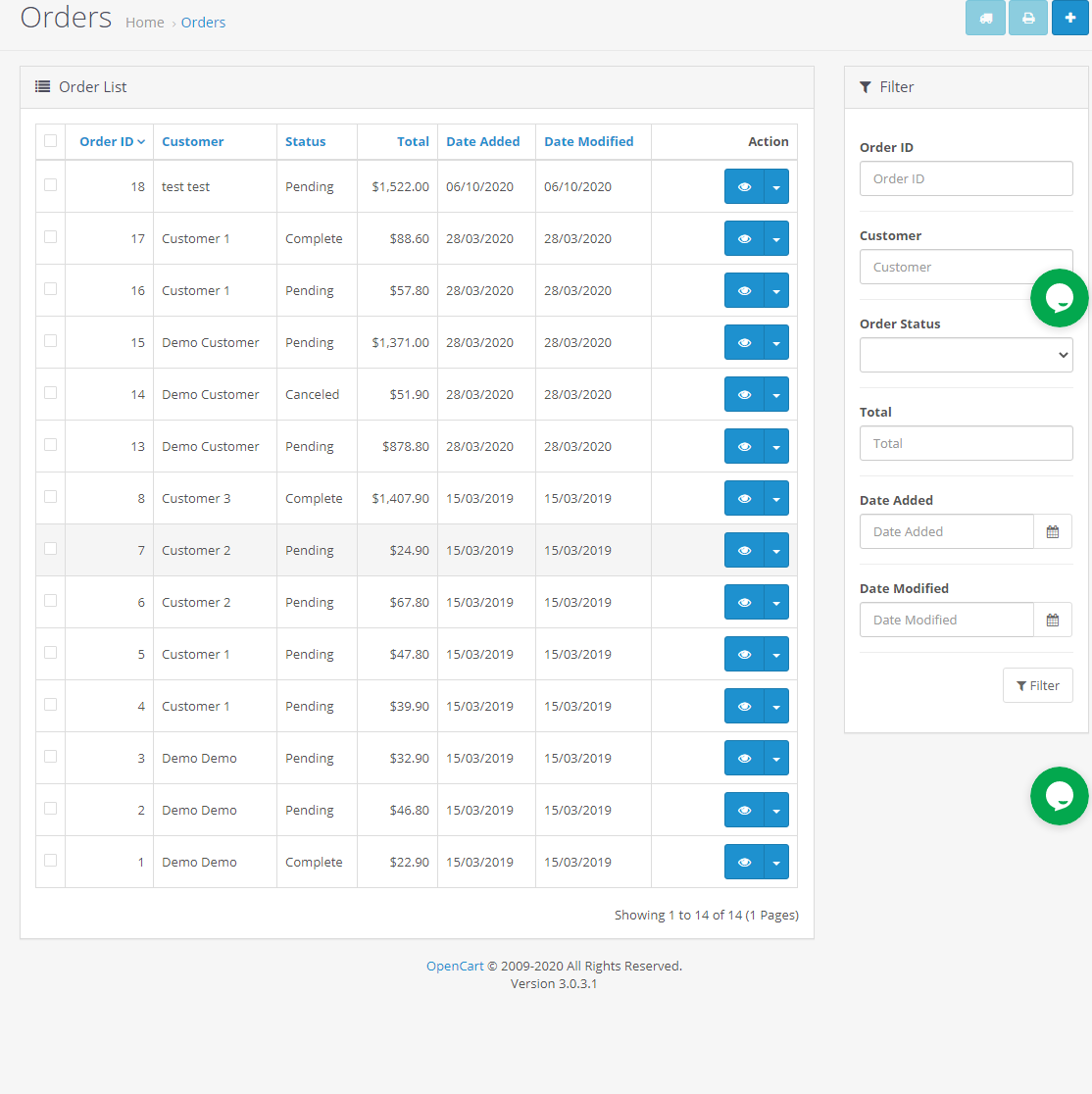
OpenCart store admin can view the list of all the orders here.
3.4.1 Seller Orders
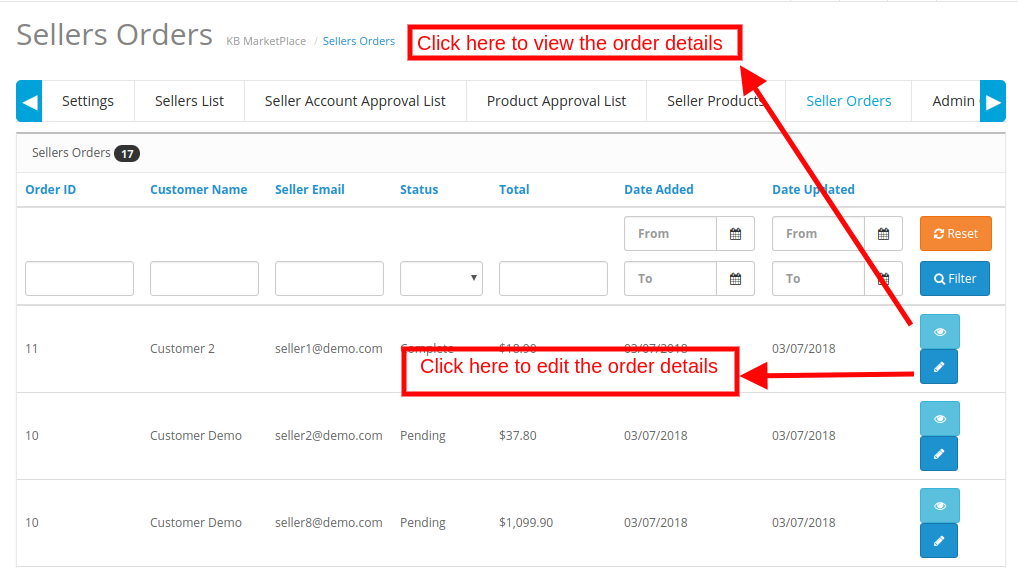
The orders received on the seller’s product will list in the tab of the OpenCart Multi seller marketplace plugin. The store admin can view or edit the orders by clicking on the View and Edit buttons respectively.
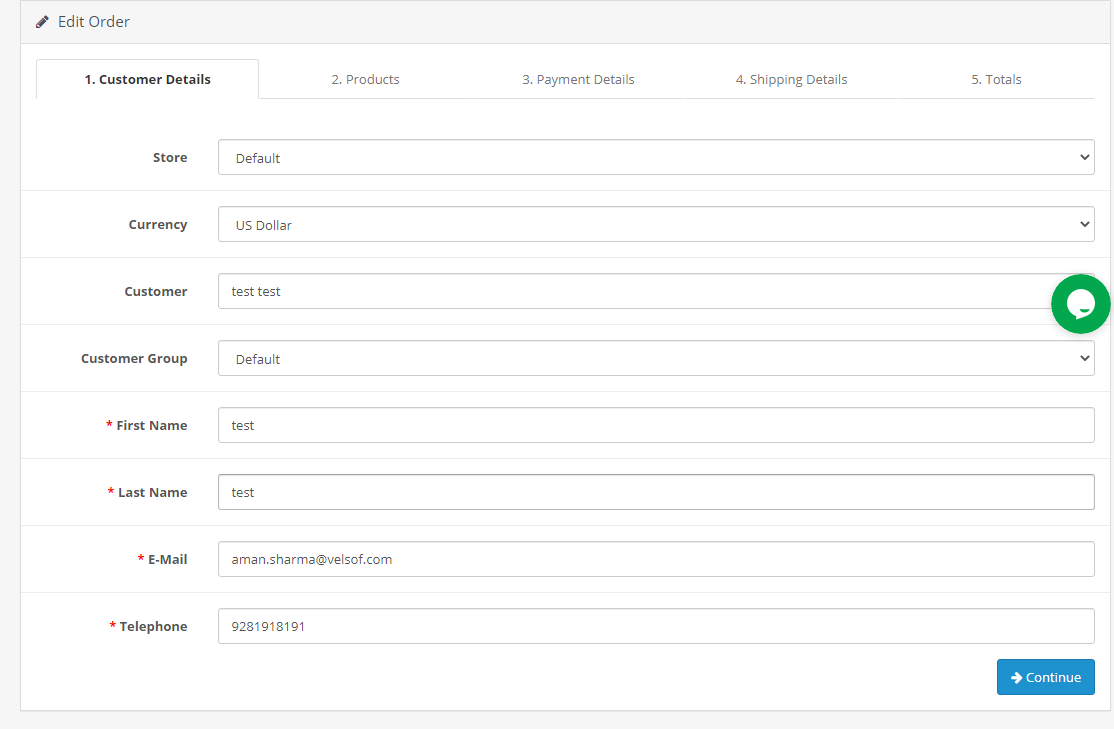
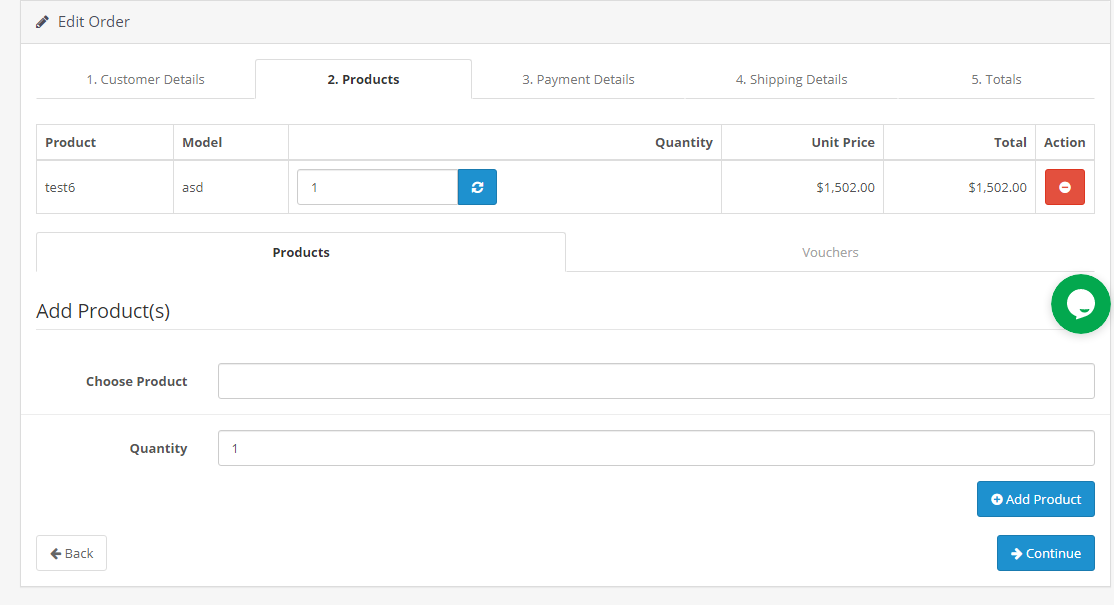
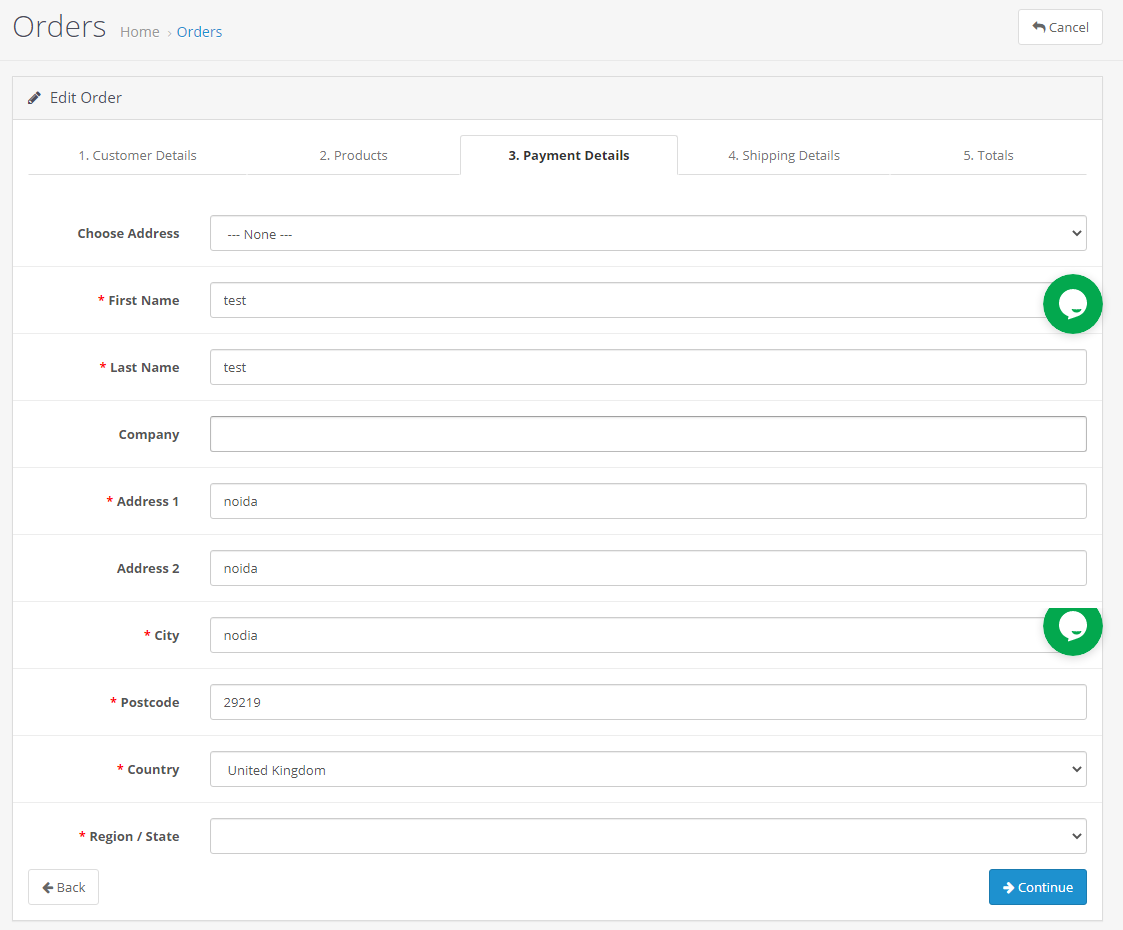
The following window will display if admin clicks the edit button. Admin can make the changes in all the fields as required.
3.6.1 Customer Details
From this section, admin can add their customer’s details.
3.6.2 Products
From this section, admin can add their products details.
3.6.3 Payment Details
From this section, admin can add their payment details.
3.6.4 Shipping Details
From this section, the admin can add their shipping details.
3.6.5 Totals
From this section, the admin can add the details of their total.
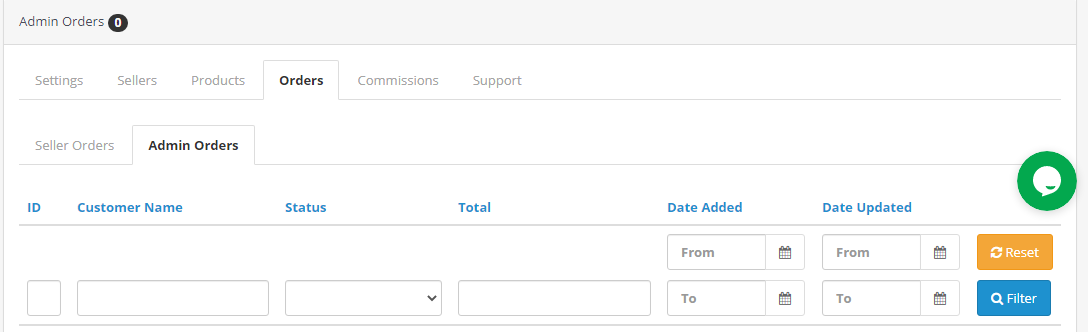
3.4.2 Admin Orders
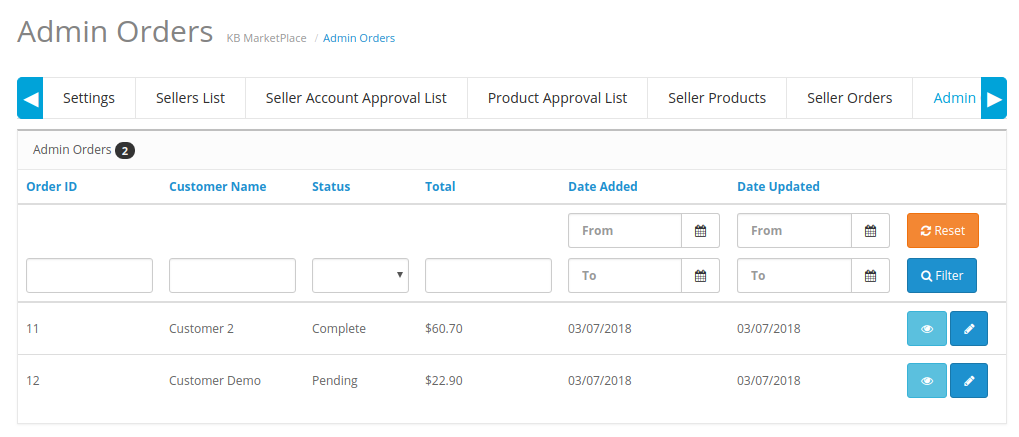
The admin can track the order details of their products in the Admin Order tab of the OpenCart Multi seller marketplace extension.
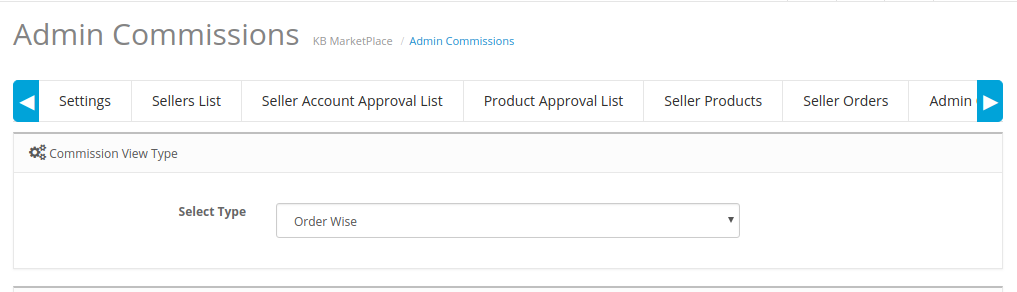
3.5 Commissions
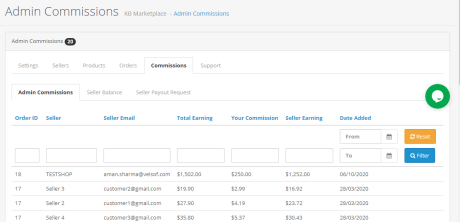
3.5.1 Admin commission
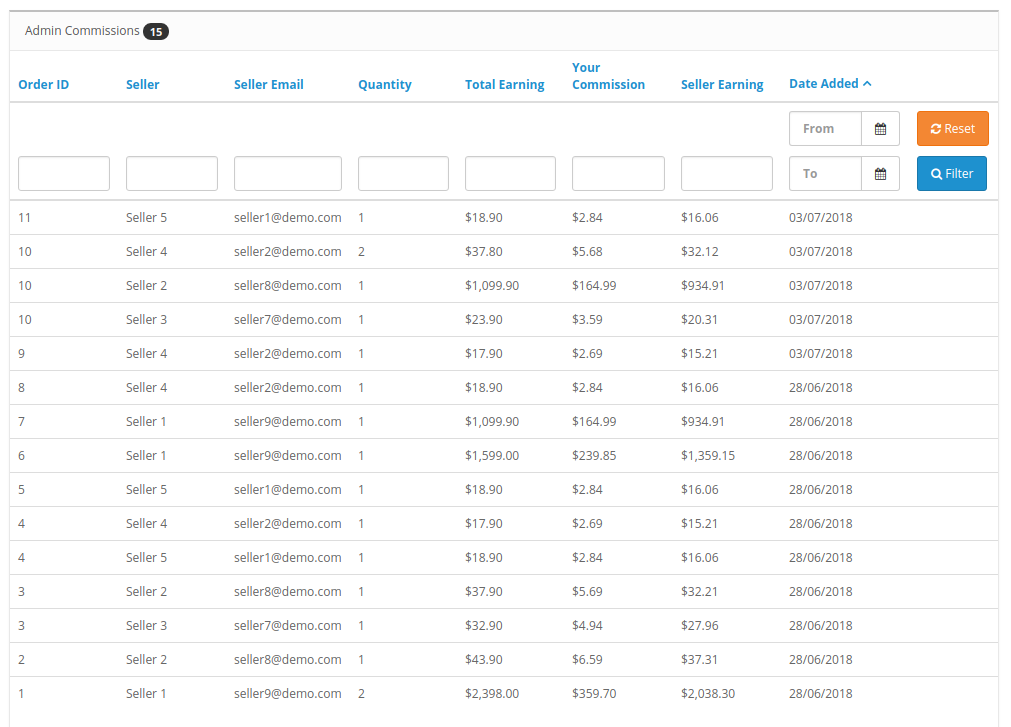
The admin can view the commission earned from the marketplace in this tab of the OpenCart Multi-vendor Marketplace Plugin. The store owner gets an option to view the earnings of the seller and total earnings.
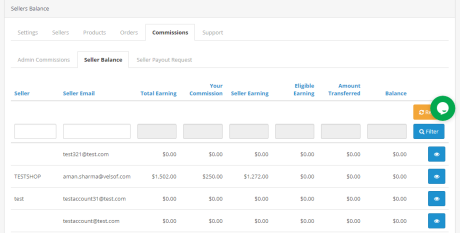
3.5.2 Seller Balance
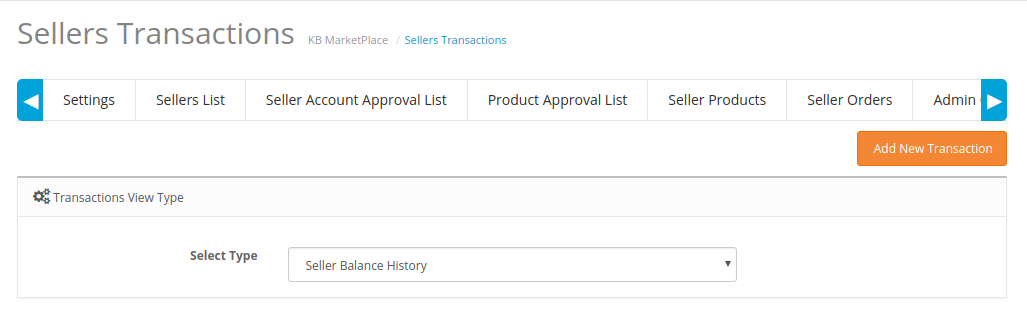
The store admin even gets an option to view the transaction of the sellers. The admin can see the Seller Balance History as well as Transaction History in this tab of the OpenCart Multi seller Marketplace plugin.
3.5.3 Seller Payout Request
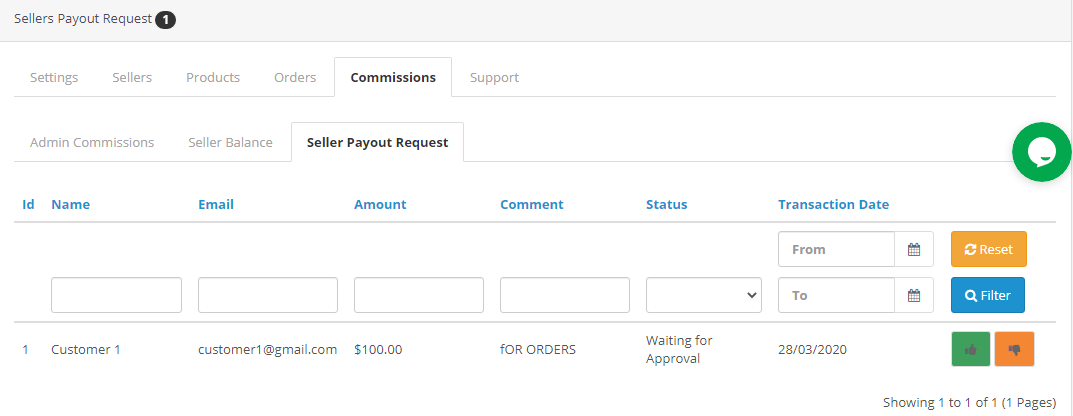
Payout Request sent by the sellers can be viewed by the admin from the backend of the Sellers Payout Request. Admin can approve/ disapprove the payout request with a few clicks. Once the admin clicks on the “Approve” button a pop window as shown in the figure will appear.
When the admin will click on the “Disapprove” button, a dialog box with a comment field will appear. Once the admin clicks the submit button after filling the comment fields, the request will disapprove.
3.6 Support
This tab is used to find the user manual of the Opencart multi-seller Marketplace Module and also to raise a support ticket for any kind of queries and issues.
4.0 Front-end UI
Once the OpenCart Multi vendor Marketplace plugin is successfully installed at the OpenCart store, third-party vendors can fill a simple form and open-up their online shop. For easy management of the shop, the seller gets access to their dashboard.
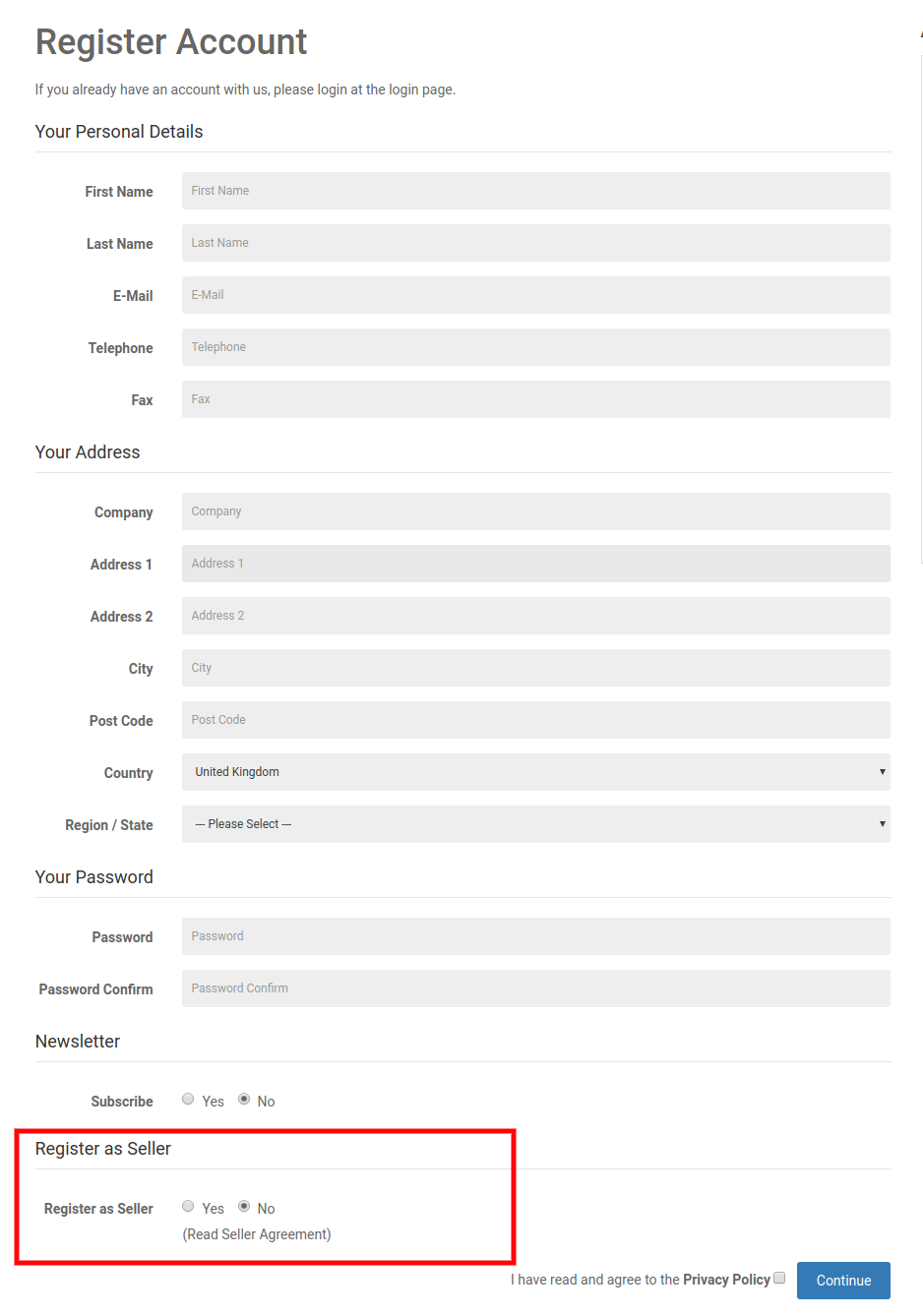
4.1 Seller Registration
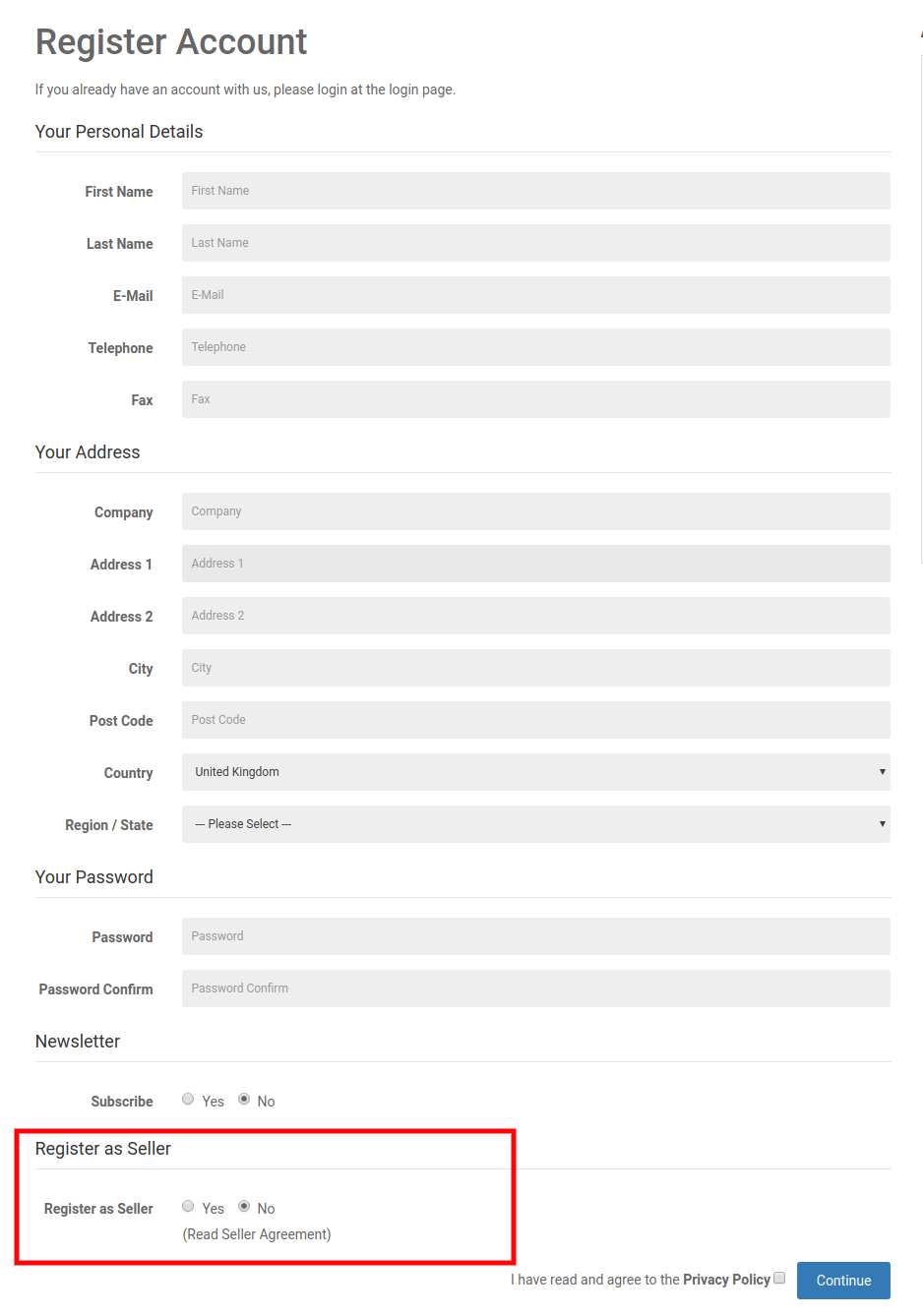
The third-party vendors can easily register as a seller of the site by filling a simple registration form. In order to register as a seller, select ‘Yes’ in the Register as Seller section of the form.
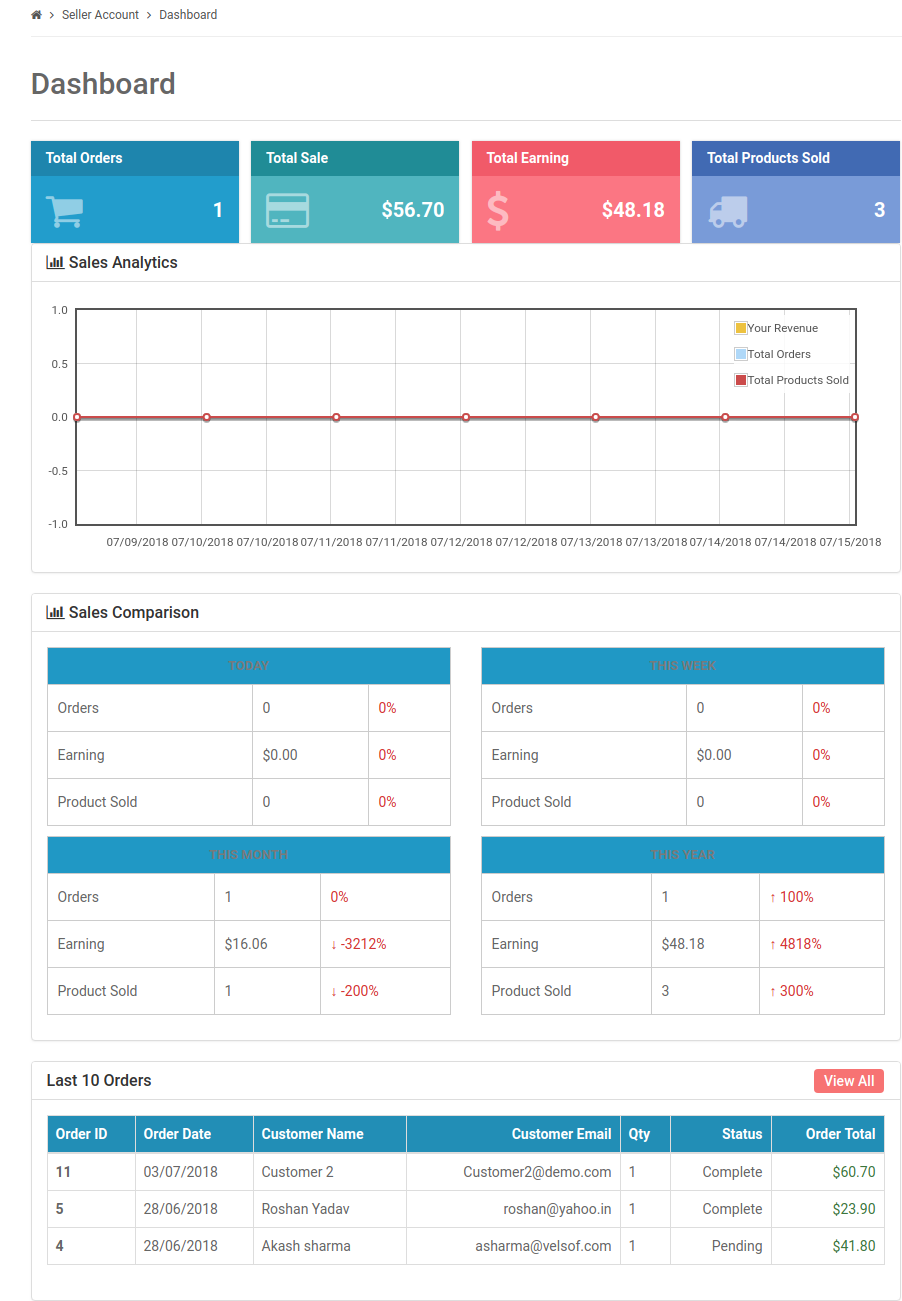
4.2 Seller Dashboard
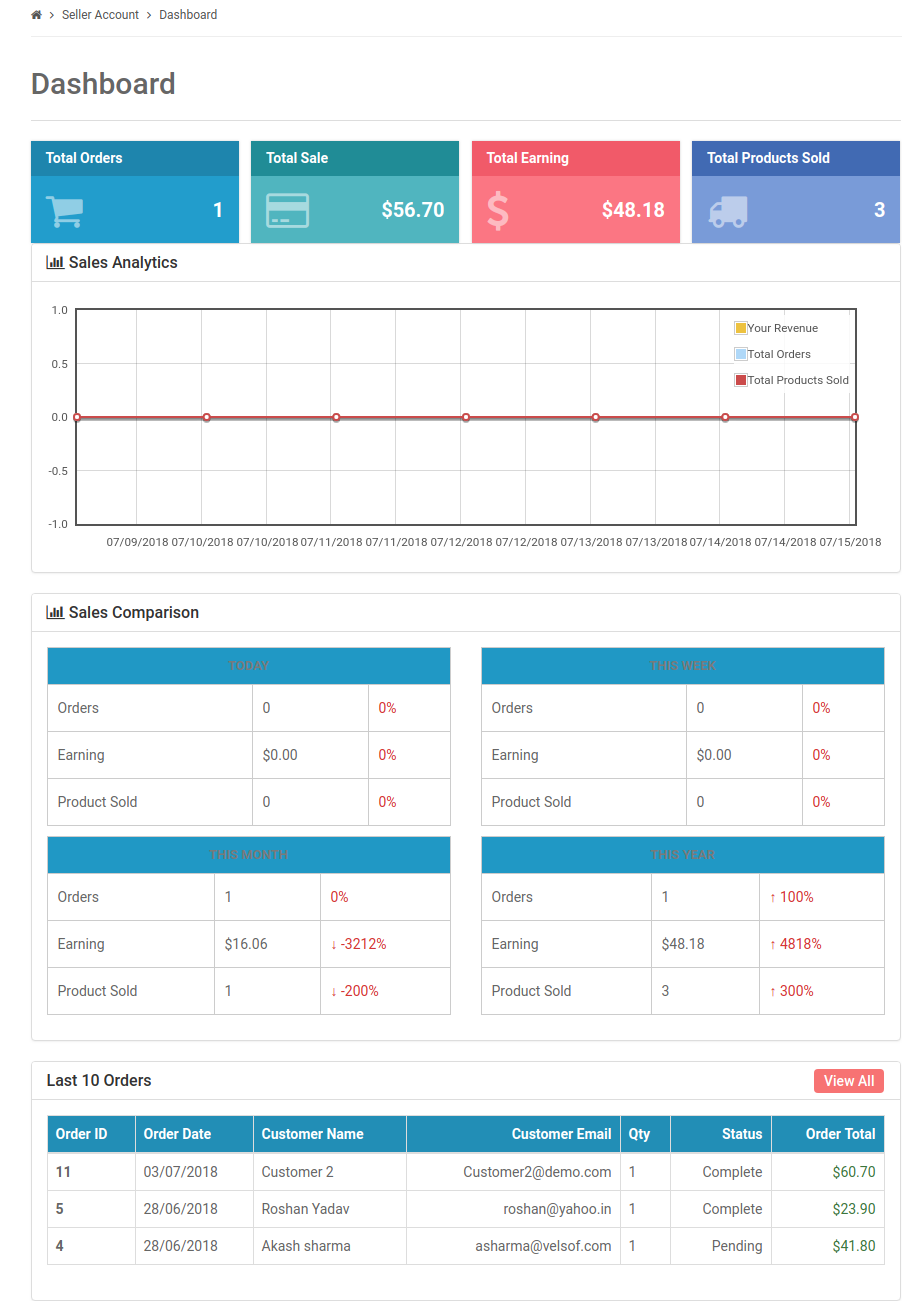
Once the registration is complete and the seller’s account approves from the back-end of the OpenCart multi-seller Marketplace plugin, the seller gets access to the Dashboard.
They can view the entire sales report and order details.
4.2.1 Seller’s Profile
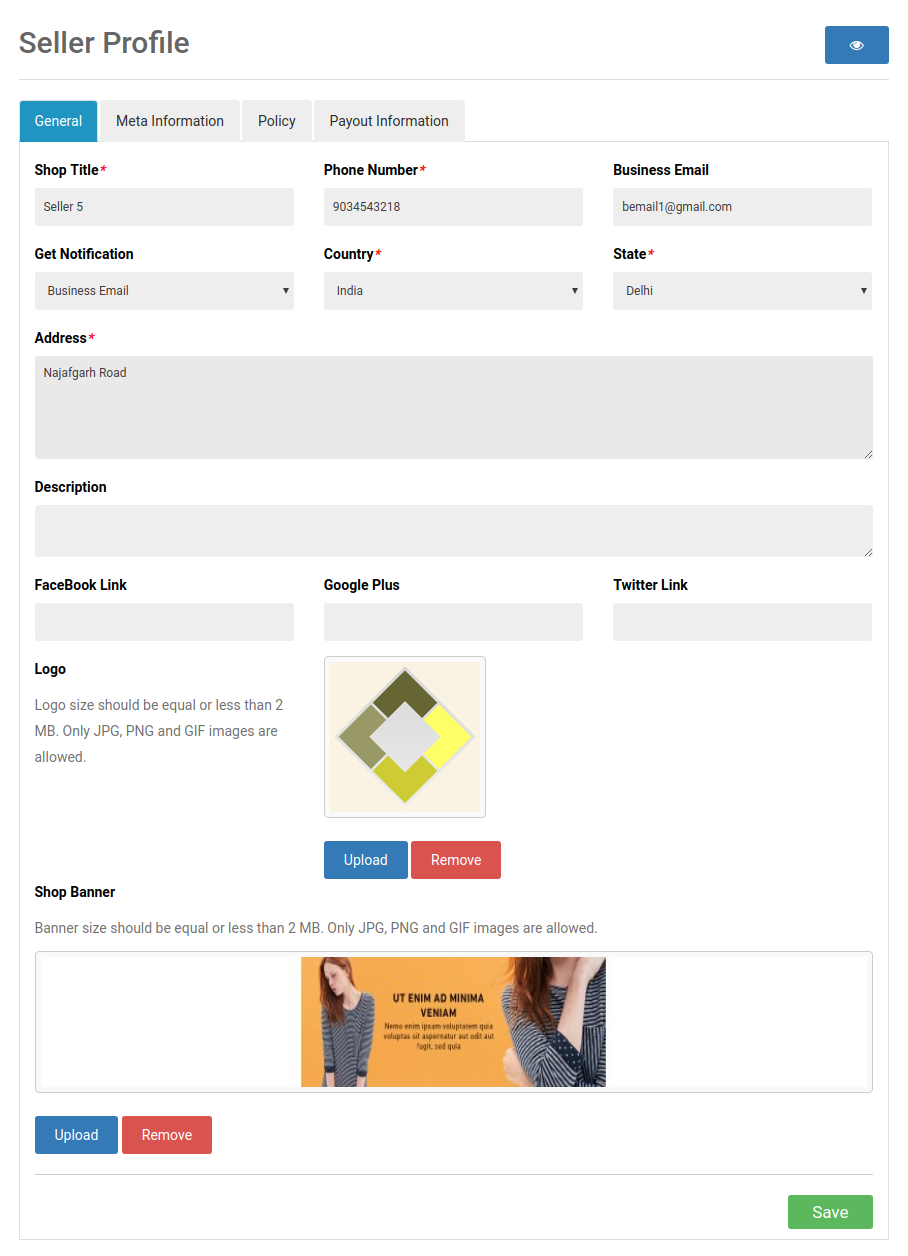
The sellers can edit their profile and personalize their shop from this tab of the dashboard.
4.2.2 Seller’s Product
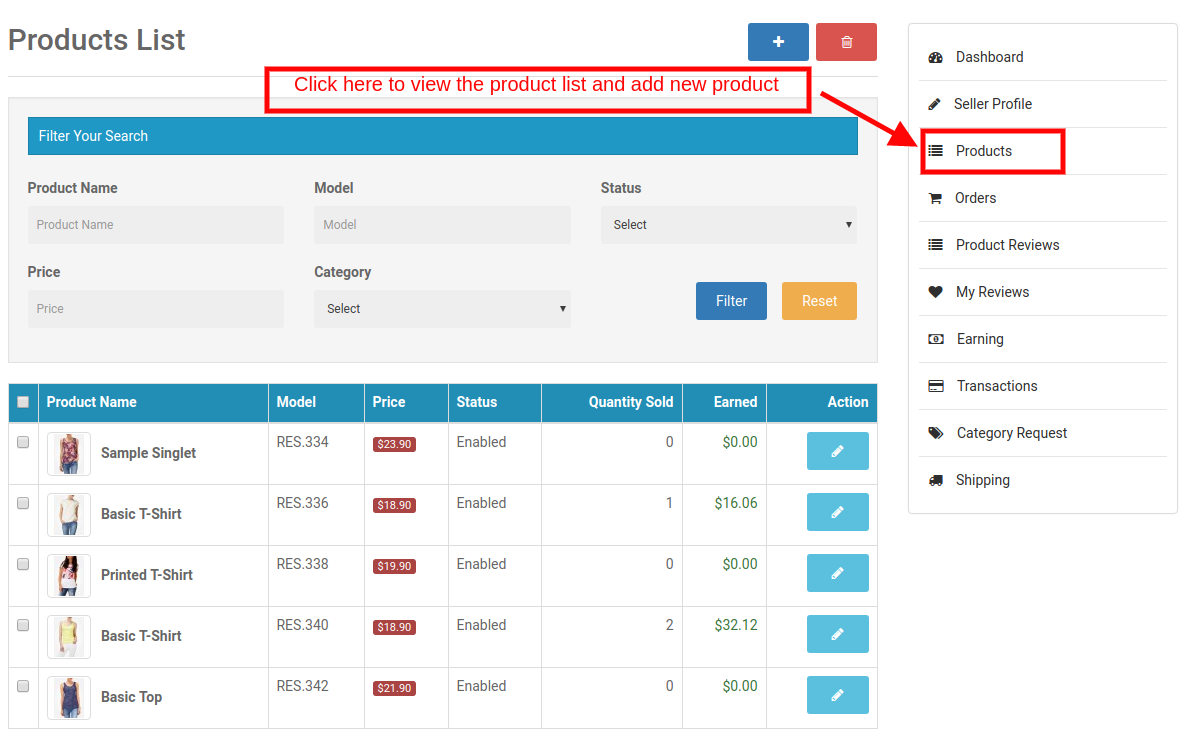
The sellers can follow the path mentioned below in order to add a new product.
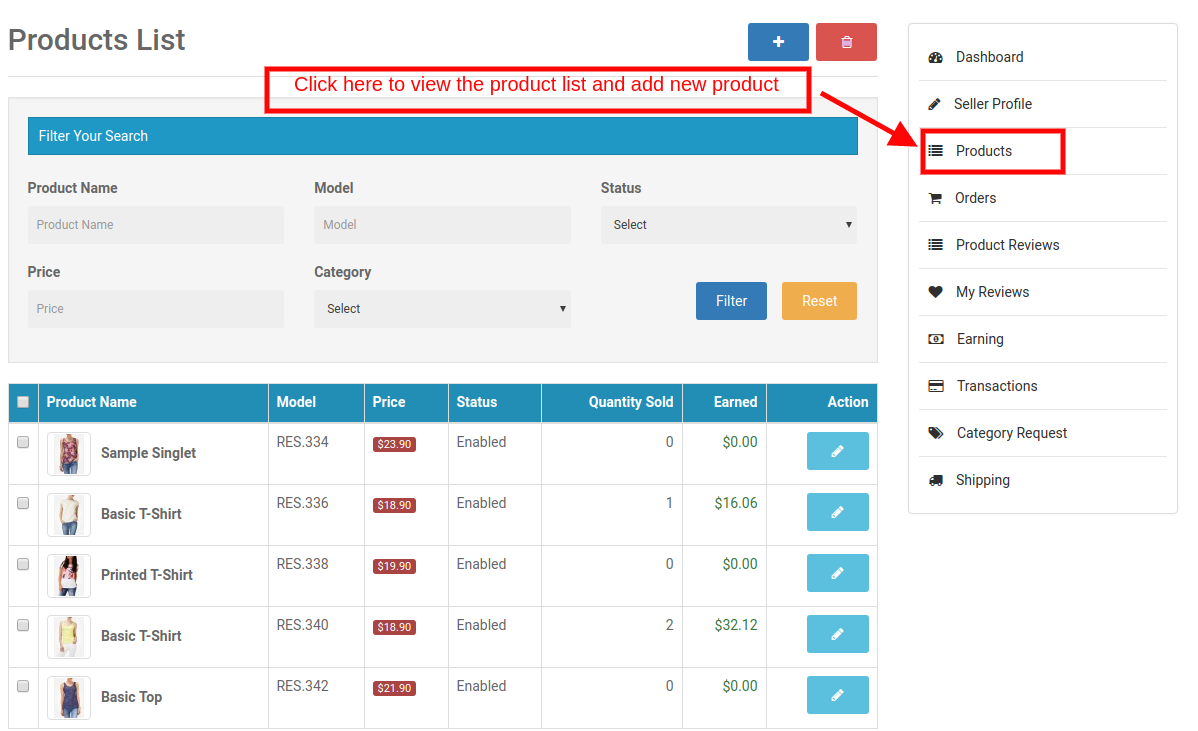
Go to My Account -> Dashboard -> Products
The list products display in this tab of the seller’s Dashboard.
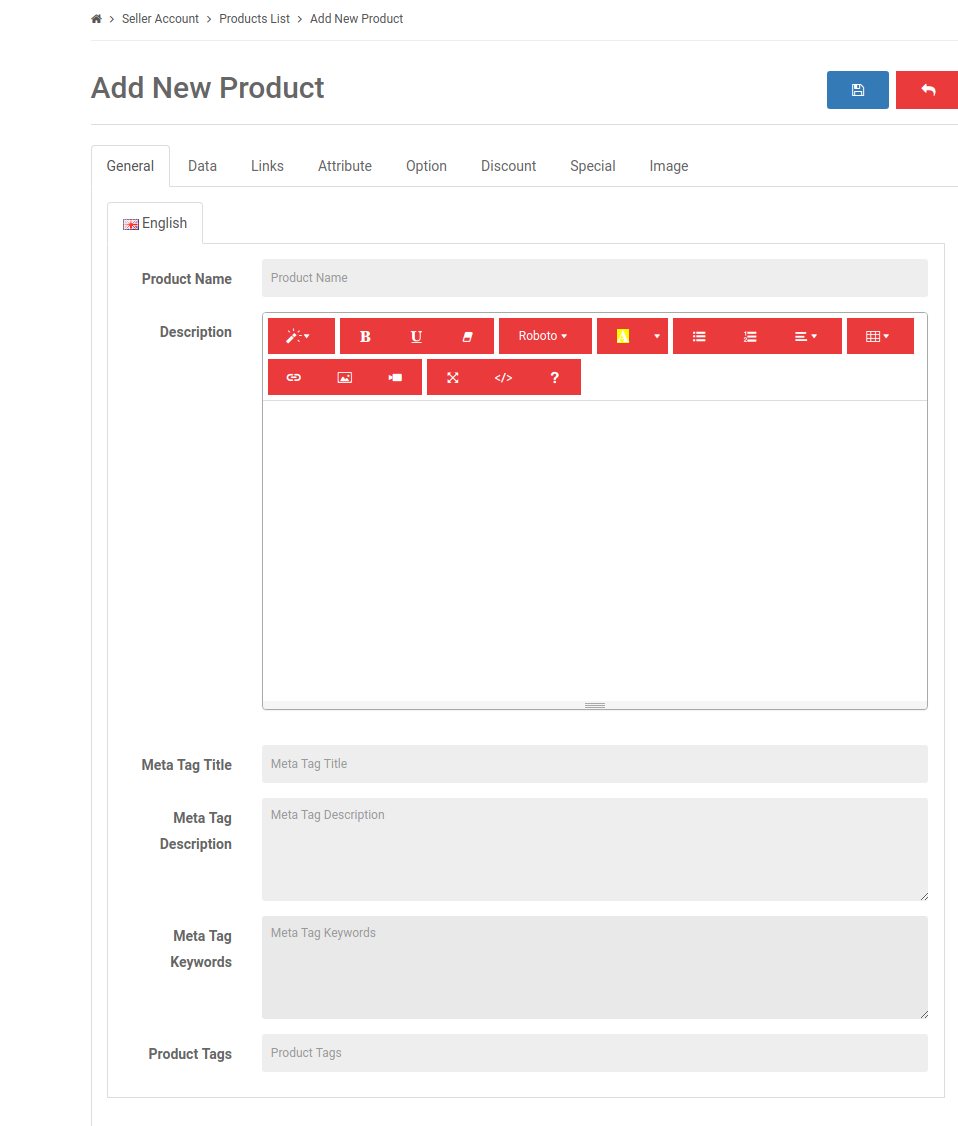
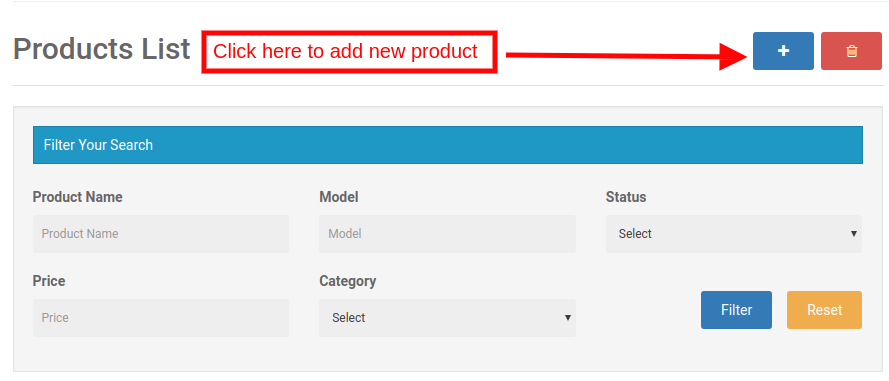
In order to add a new product click on the ‘+’ sign at the top right portion.
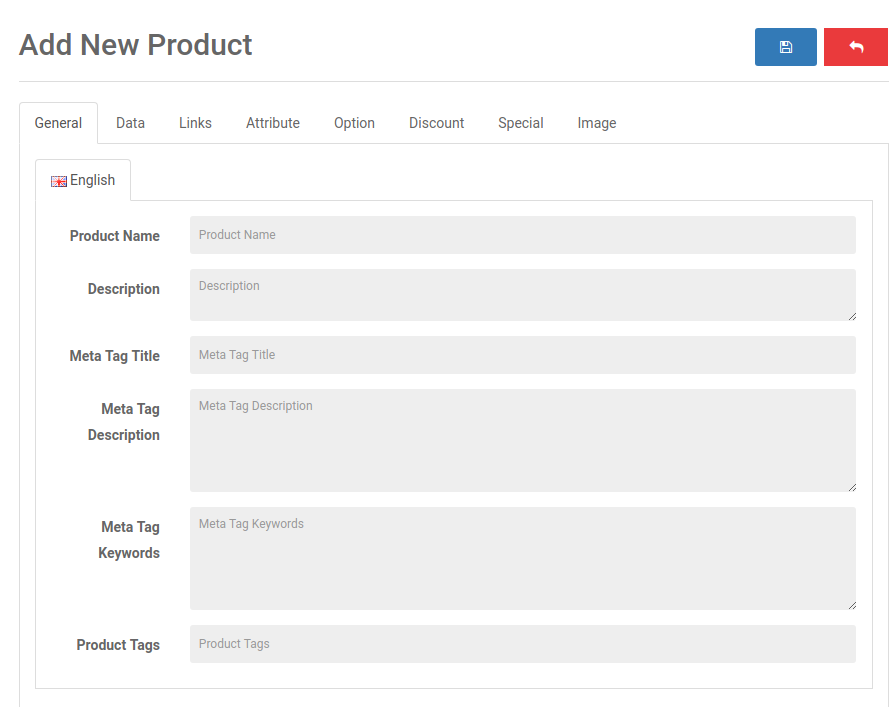
This will redirect you to the ‘Add New Product’ page. Fill up the required detail in order to add the product.
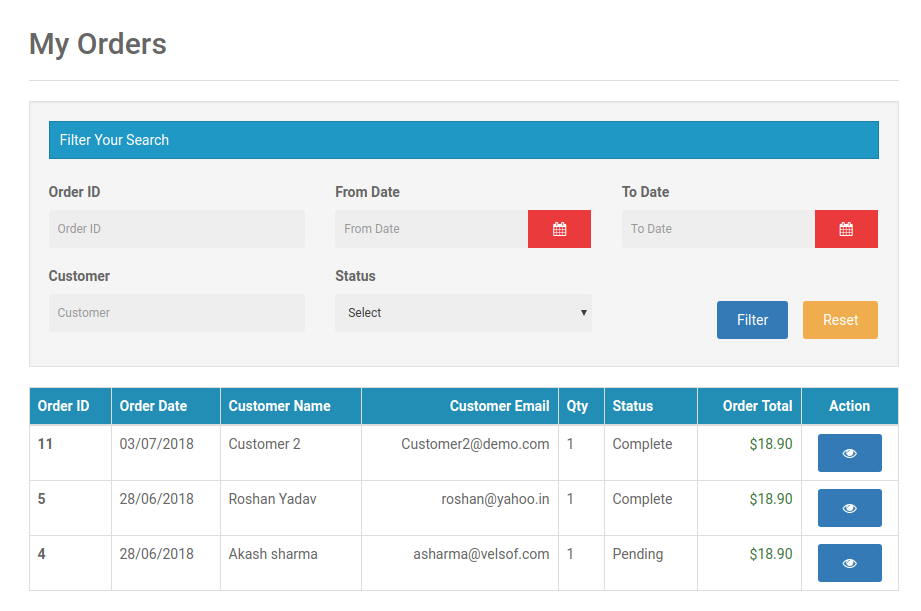
4.2.3 Order
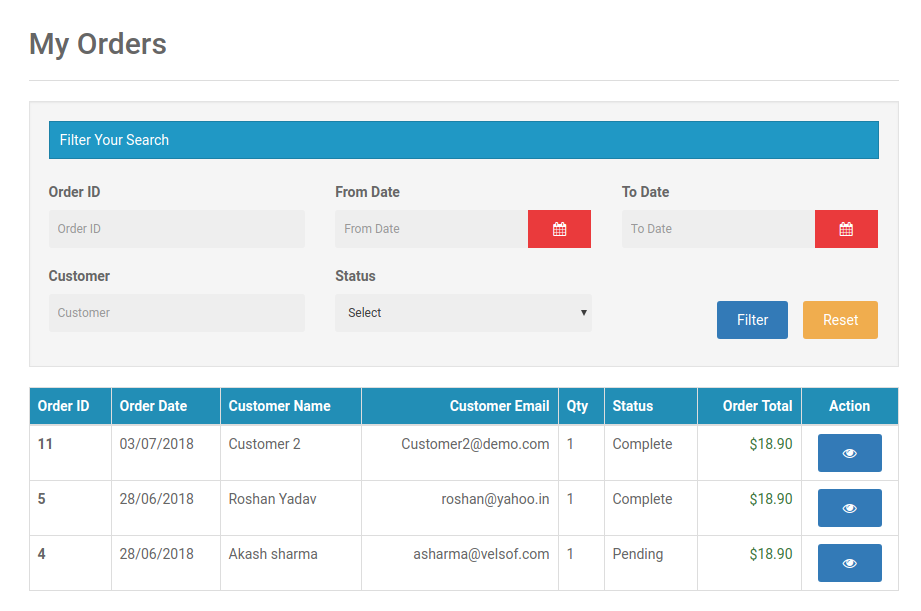
The sellers can view their orders and related details in this tab of the Dashboard.
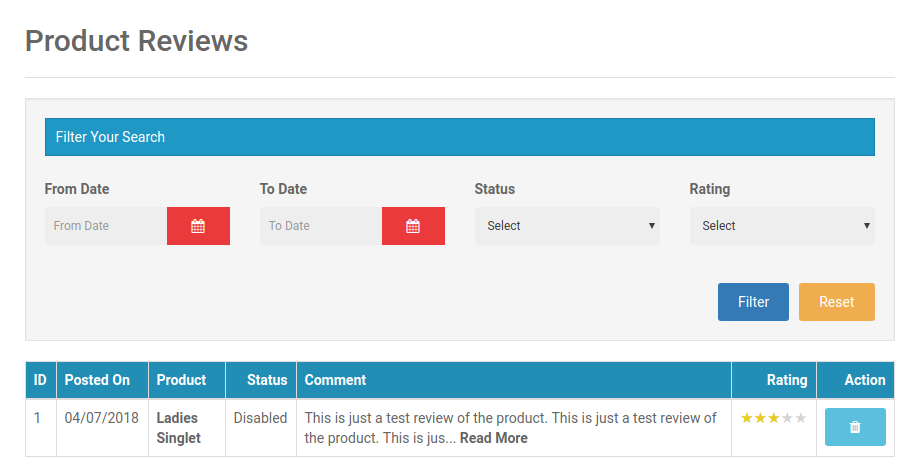
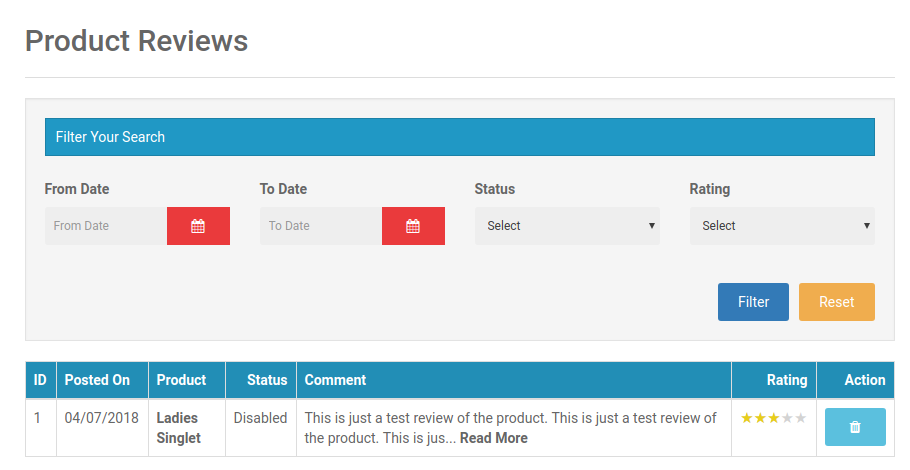
4.2.4 Product Reviews
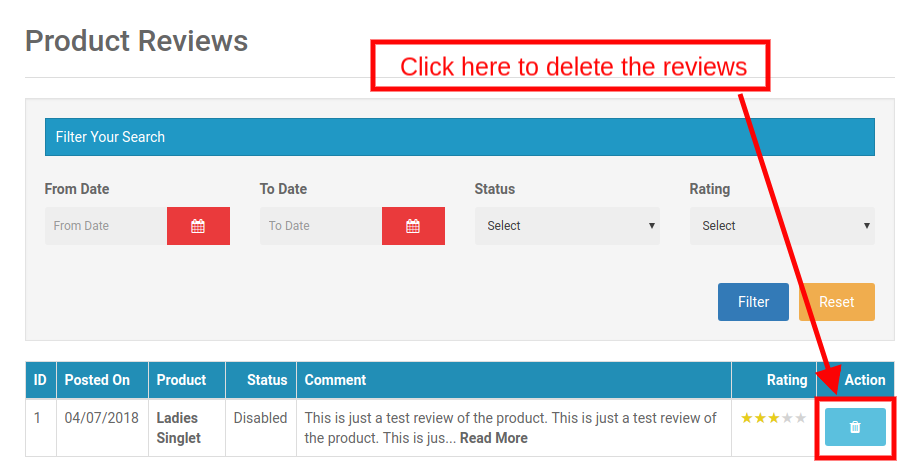
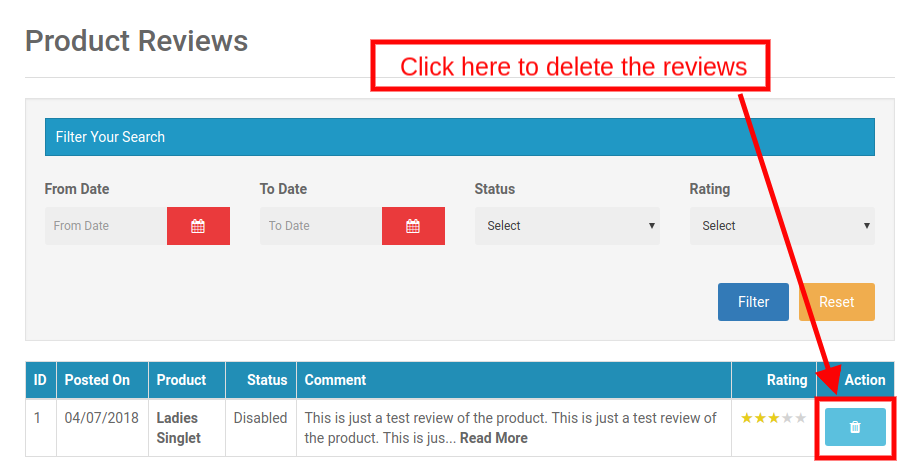
The sellers can view the review received on their product in the Product Review Tab of their Dashboard. All the reviews received will list as shown in the image below:
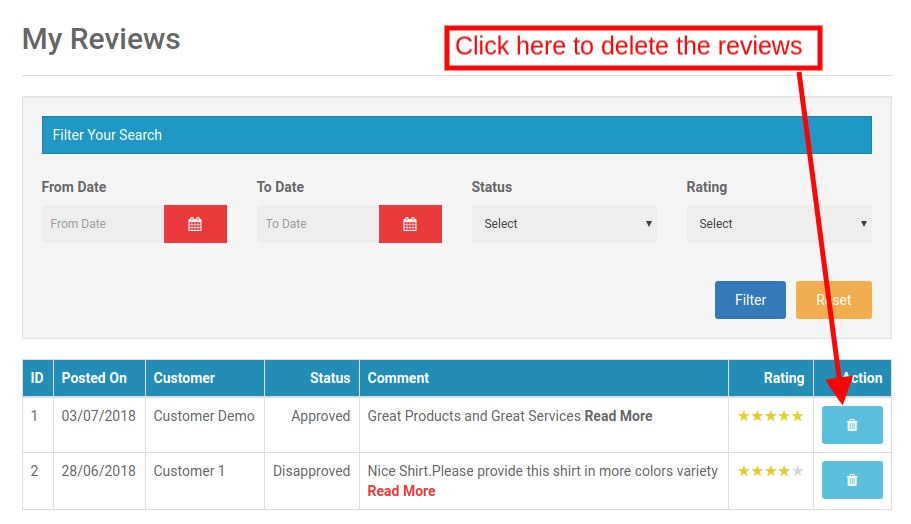
4.2.4.1 How can the sellers delete the Product Reviews?
Even the sellers get an option to delete the reviews. This happens by clicking on the ‘Delete’ button corresponding to each review.
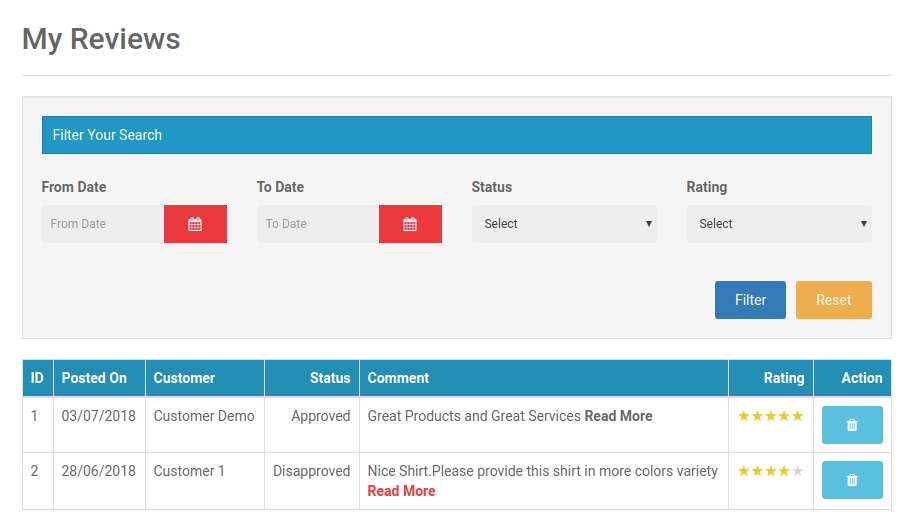
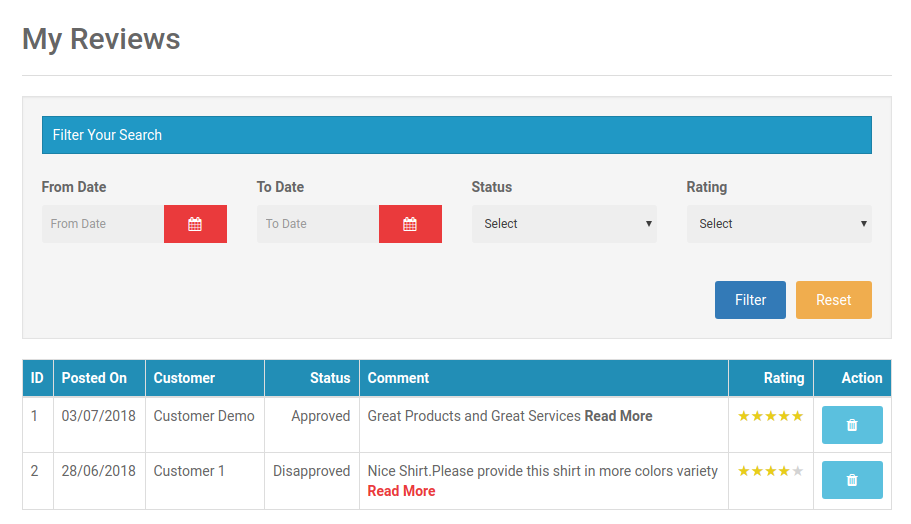
4.2.5 My Reviews
The tab of the seller’s dashboard lists out the reviews received on their profile.
OpenCart Multi vendor Marketplace plugin- My reviews
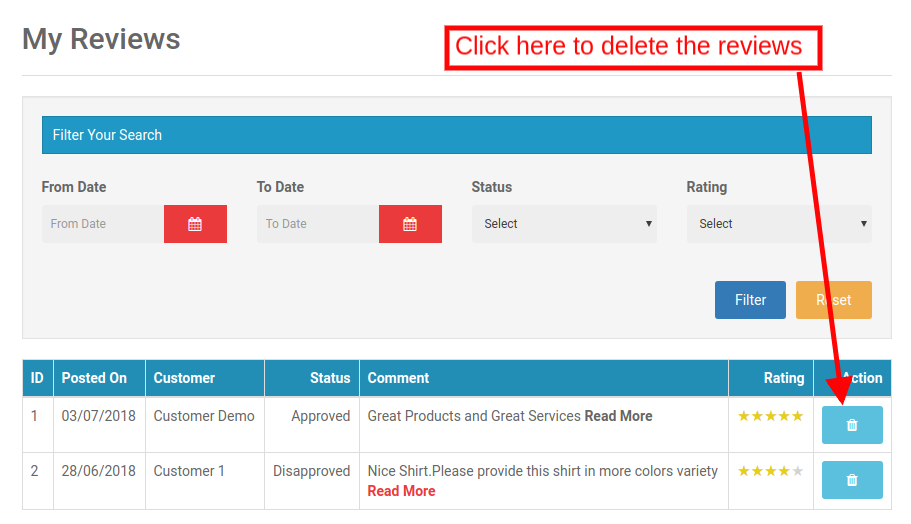
4.2.5.1 How can the Sellers Delete the Reviews on their Profile?
The sellers can even delete their profile reviews if required. This happens by clicking on the ‘Delete’ button corresponding to each review.
4.2.6 Earnings
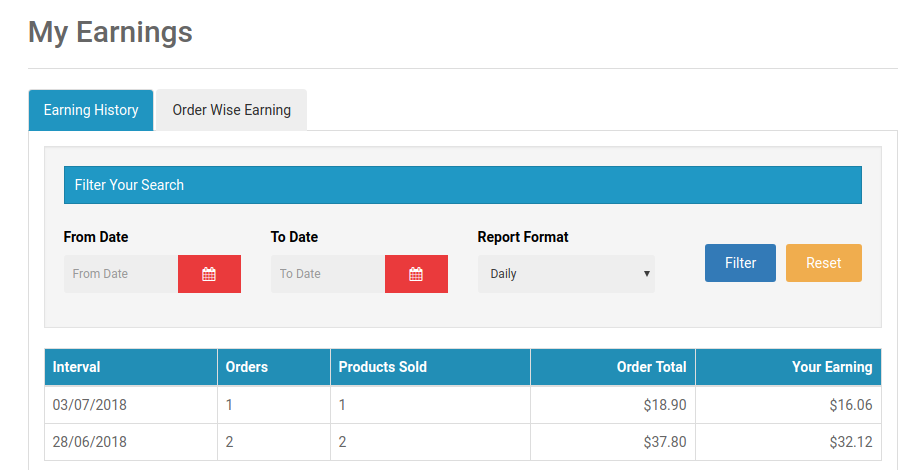
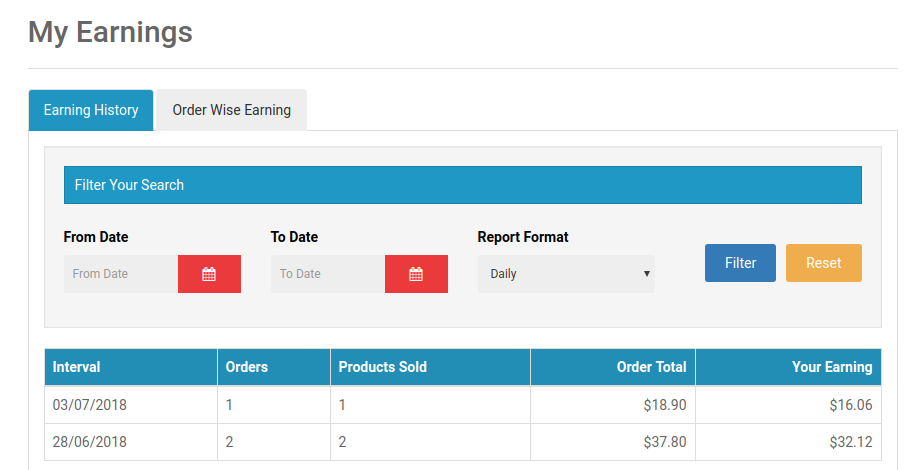
The total earnings of the seller can be viewed in this tab. The vendors can filter the results as per requirement.
The total earning history will display as shown below:
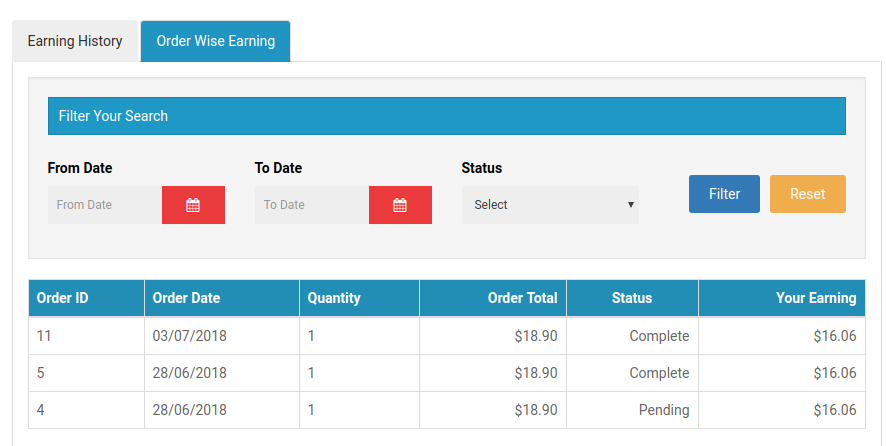
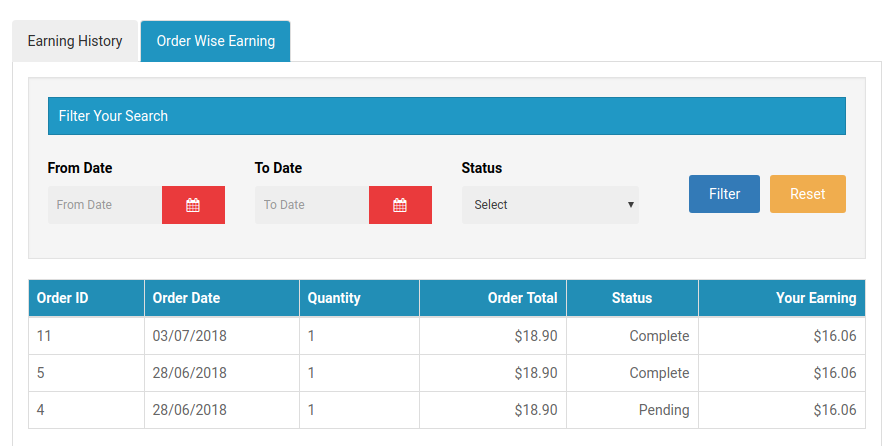
The sellers can even view the order-wise earning as shown below:
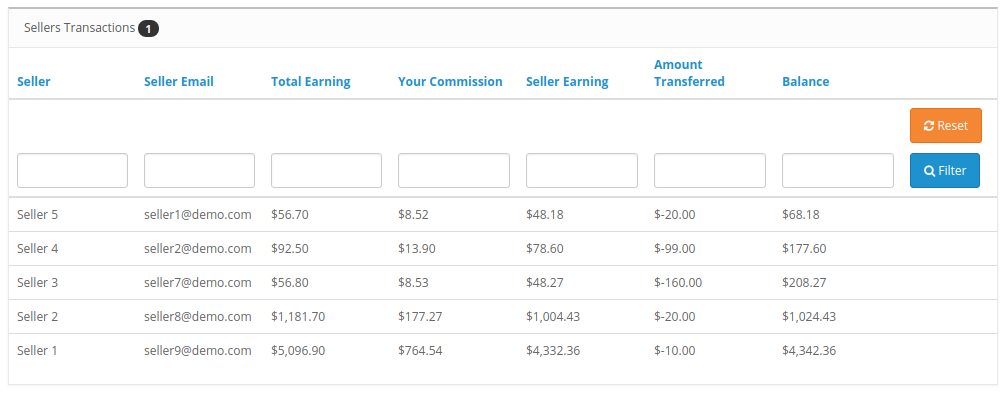
4.2.6 Transactions
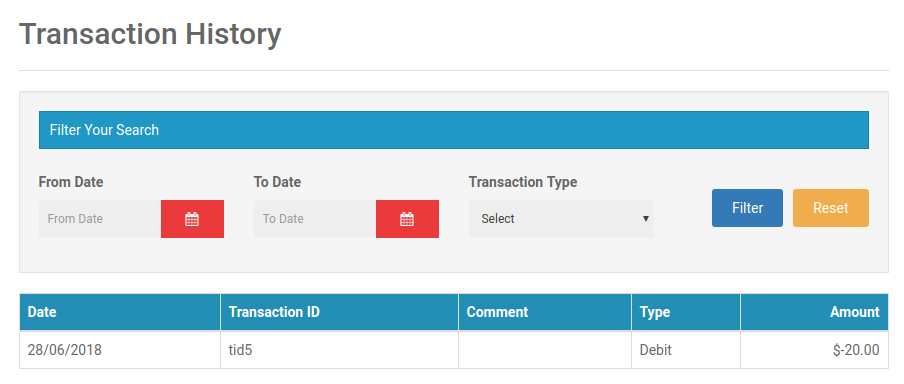
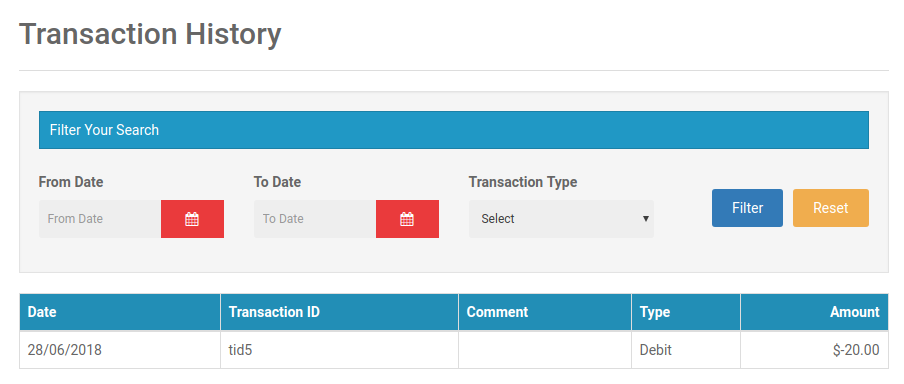
The seller can view their entire transaction history in this tab. The amount debited or credited in their account can be viewed here.
4.2.7 Payout Request
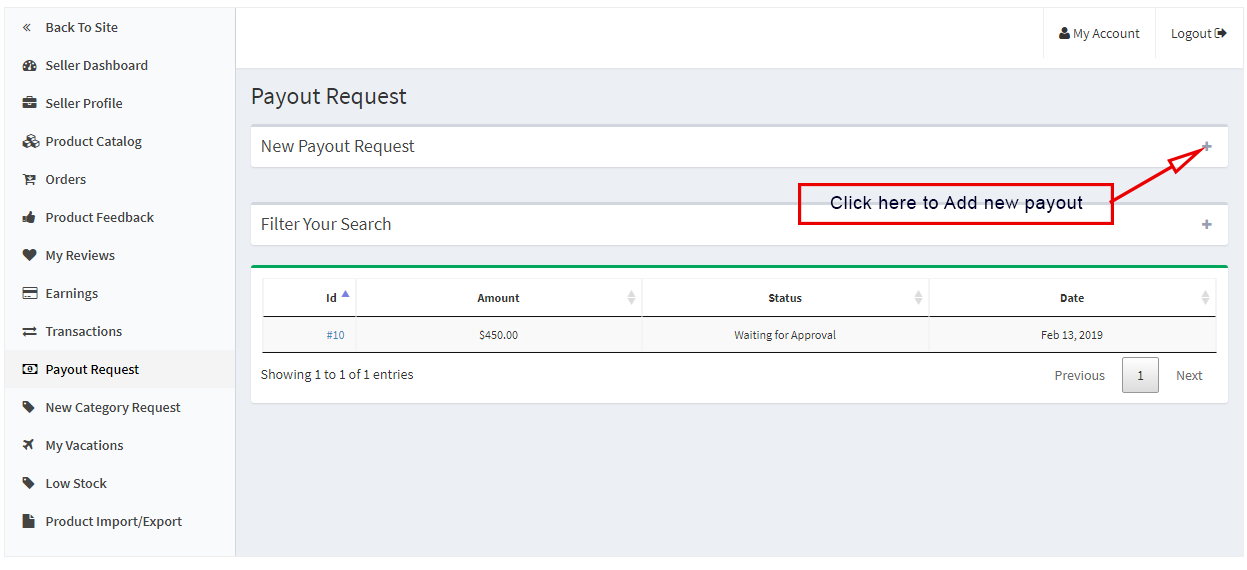
Sellers can view the list of payout request sent to the admin from the Payout Request tab. For a new payout request sellers need to fill the payout amount and reason and send it to the admin for approval.
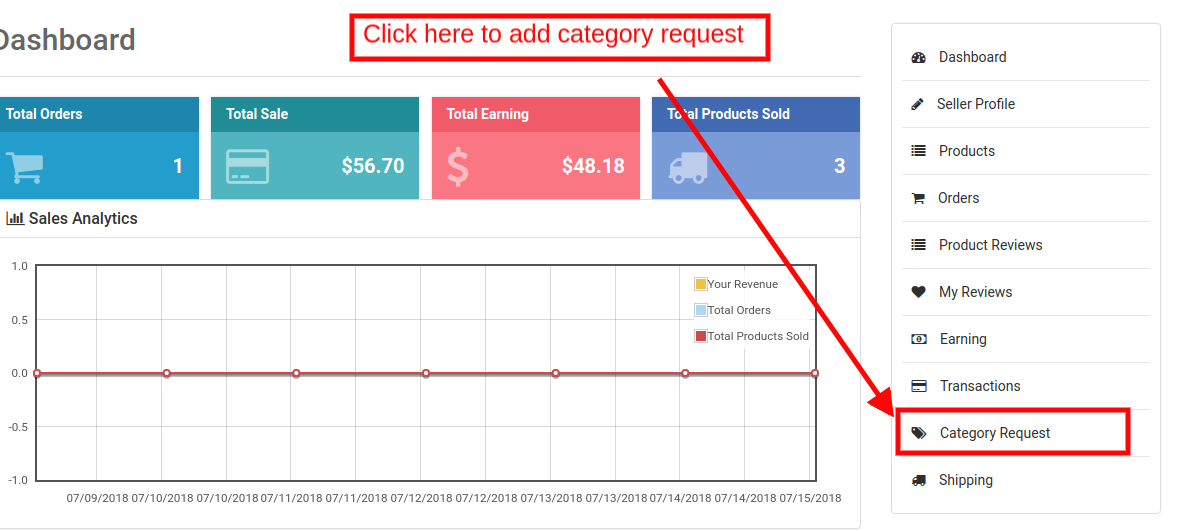
4.2.8 Category Request
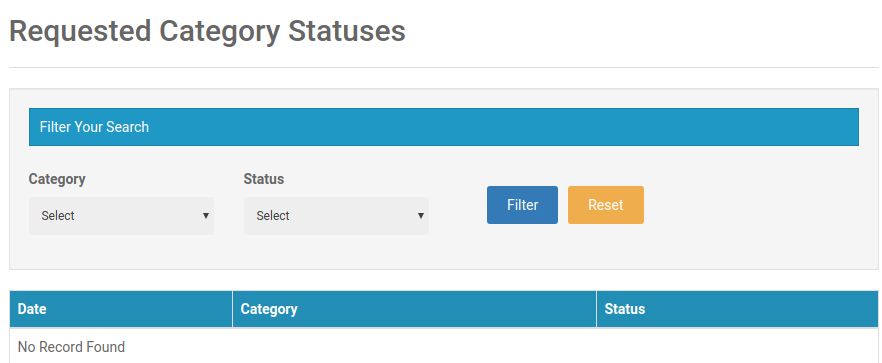
The sellers can view the categories assigned to them. Additionally, they can even send a category request to the store admin. In order to send category request, go to the Dashboard -> Category Request
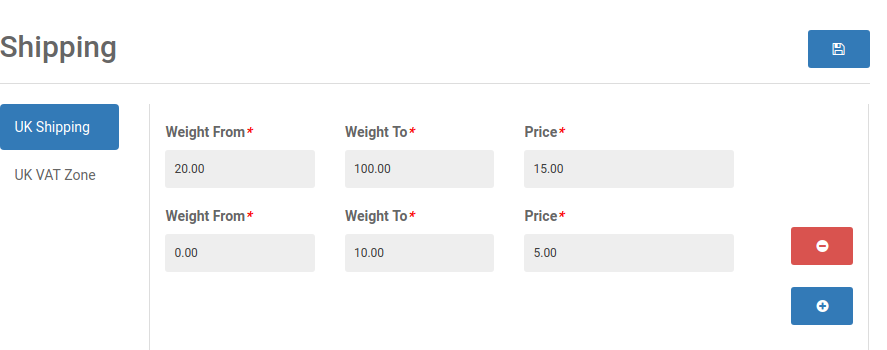
4.2.9 Shipping
The sellers can view the shipping process as in the screenshot below:
4.2.10 Product Import
With the help of the product import feature, sellers can add products in bulk. They have to download the template for products upload and just fill in the information of their products and upload again to list the products in bulk.
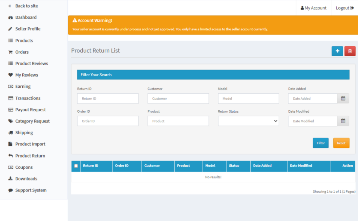
Product Return:
The seller can see the product return list here. The seller can add a filter to search for the product returned or requested for the product return.
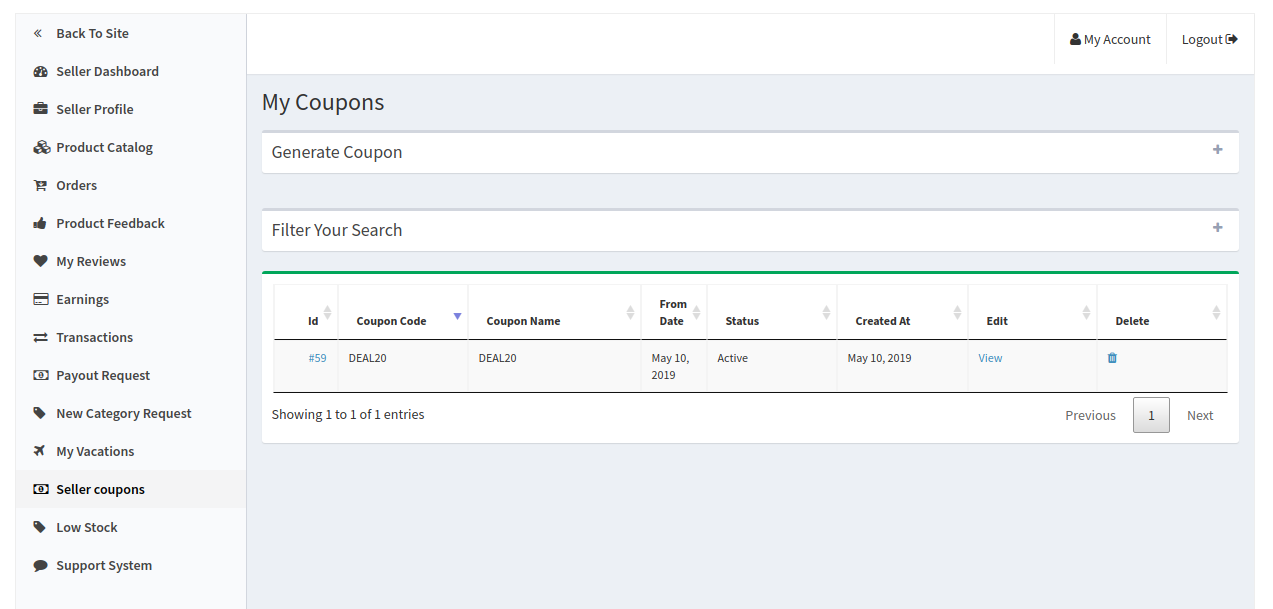
4.2.11 Seller Coupons
Using this feature seller’s can generate coupons for their customers. Sellers can use different variations for creating their coupons like users per coupon, coupon type etc.
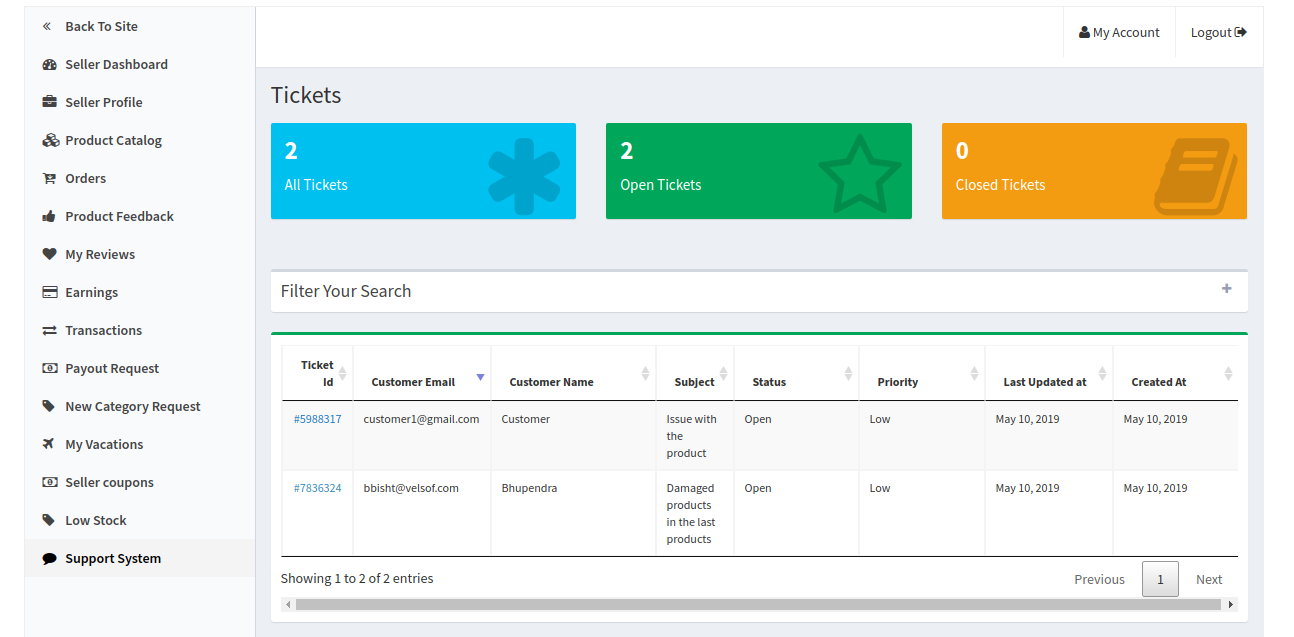
4.2.12 Support System
This feature allows the sellers to view the queries of their customers in the form of tickets. When the seller clicks on the Ticket ID they are able to see the full detail about the query and even reply and change the status of the query.
Die OpenCart-basierten eCommerce-Ladenbesitzer können jetzt mit dem OpenCart Marketplace-Plug-in von Knowband einen Online-Marktplatz wie Etsy und eBay erstellen. Installieren Sie einfach die OpenCart-Multi-Vendor-Marktplatz-Erweiterung in Ihrem Geschäft und dies wird die Multi-Seller-Funktionalität auf Ihrer Website aktivieren. Die Drittanbieter können ihre Produkte einfach auf der Website registrieren und auflisten. Die verschiedenen Aspekte des Filialmanagements liegen in den Händen des Site-Administrators. Das Profil des Verkäufers, die Kategorieanforderung, die Genehmigung der Produkte und der Überprüfung können über das Back-End des OpenCart Multi Seller Marketplace-Moduls erfolgen.
1.1 Admin Vorteile der OpenCart Marketplace Erweiterung
Die verschiedenen Vorteile des OpenCart Multi Vendor Marketplace Plugins von Knowband sind nachfolgend aufgeführt:
Der Store-Administrator kann seine Single-Vendor-E-Commerce-Site mit Hilfe des Etsy-Clones für OpenCart einfach in einen komplett neuen und voll funktionsfähigen Marktplatz umwandeln.
Das OpenCart Multi seller Marketplace-Modul unterstützt alle Arten von Produkten, einschließlich einfacher, konfigurierbarer und gebündelter Produkte.
Das OpenCart Marketplace-Plugin ermöglicht es dem Administrator, sowohl die globale als auch die auf Kategorien basierende Provision festzulegen, die den Verkäufern in Rechnung gestellt wird.
Der Ladenbesitzer kann das Profil und die Produkte des Verkäufers, die auf der Website veröffentlicht werden, problemlos überwachen. Sie können das Profil des Verkäufers einfach über die Admin-Oberfläche des OpenCart Multi-Vendor Marketplace-Moduls genehmigen / ablehnen.
Der Administrator kann die Kategorien sogar den Verkäufern zuweisen. Darüber hinaus können die Anbieter eine Kategorieanforderung an den Administrator senden. Diese Anfragen werden vom Store-Administrator vom Back-End der Erweiterung OpenCart Multi seller Marketplace verarbeitet.
Mit dem OpenCart Marketplace-Modul kann der Geschäftsadministrator die Überprüfungs- / Bewertungsoption von der Website aktivieren / deaktivieren. Wenn aktiviert, können die Kunden Bewertungen für die Produkte sowie für die Verkäufer abgeben.
Das OpenCart Multi-Vendor Marketplace-Plugin bietet benutzerdefinierte Versandoptionen. Wenn diese Funktion aktiviert ist, können Verkäufer eigene Versandmethoden hinzufügen.
Das OpenCart Marketplace-Plugin bietet eine einfache Verfolgung des Verkaufsberichts und der gesamten Transaktion der Website.
Der Shop-Administrator erhält Standard-E-Mail-Vorlagen von 24, um die Verkäufer über die verschiedenen Aspekte informiert zu halten.
1.2-Verkäufer Vorteile von OpenCart Marketplace Extension
Die Drittanbieter können sich einfach als Verkäufer auf der Website registrieren, indem sie ein Formular ausfüllen.
Sobald der Account genehmigt wurde, können die Verkäufer ihre Produkte auf der Website über ihr Dashboard auflisten.
Die Verkäufer können Banner, Shop-Logo und Metadaten aus ihrem Dashboard hinzufügen. Die Anbieter können leicht eine SEO-freundliche URL für ihren Shop erstellen.
Die Verkäufer erhalten sogar eine Option, um den gesamten Transaktions- und Verkaufsbericht mit Leichtigkeit im Dashboard zu verfolgen.
Die Verkäufer erhalten eine Option zum Hinzufügen einer Kategorieanforderung. Der Administrator kann seine Anfrage vom Back-End des Marketplace-Moduls von OpenCart Multi-Vendor genehmigen / ablehnen.
Wenn sie über das Admin-Panel des Marketplace-Moduls OpenCart Multi seller aktiviert sind, können die Verkäufer sogar ihre eigenen Versandmethoden hinzufügen.
1.3 Kundenvorteile der OpenCart Marketplace Extension
Die Ladenbesucher können jetzt die idealen Produkte aus einer breiteren Palette von Produktoptionen auswählen.
Die Online-Shopper können das Profil des Verkäufers auf der Produktseite anzeigen, wenn der Store-Administrator dies zulässt.
Die Kunden erhalten sogar eine Option, ihre Bewertungen für die Produkte sowie den Verkäufer zu geben.
2.0 Installation des OpenCart Marketplace Plugins
Erwerben Sie die Erweiterung OpenCart Multi-Vendor Marketplace vom Knowband Store. Sie erhalten folgende Dateien: 1. ZIP-Datei mit dem Quellcode des Moduls 2. Benutzerhandbuch
Führen Sie die folgenden Schritte aus, um die OpenCart Marketplace-Erweiterung in Ihrem Geschäft zu installieren:
1. Entpacken Sie die gezippte Datei. Der vqmod muss installiert sein, sonst funktioniert das Plugin nicht. Sie erhalten die Ordner wie im Bild unten gezeigt:
2. Kopieren Sie alle Dateien und Ordner der ZIP-Datei in das Stammverzeichnis der Site. 3. Der Administrator kann die Erweiterung OpenCart Marketplace unter dem Pfad Admin Panel -> Erweiterungen finden. Installieren Sie das Modul, indem Sie auf 'klickeninstallieren'Schaltfläche entspricht dem Modul. 4. Das OpenCart Marketplace-Plugin ist jetzt installiert und kann verwendet werden. Gehen Sie zu Admin -> Hauptmenü -> KB MarketPlace wie in der folgenden Abbildung gezeigt:
3.0
Das
Alle 15-Registerkarten werden im Folgenden ausführlich beschrieben.
3.1-Einstellungen
Die verschiedenen Felder dieses Tabs des OpenCart Multi-Vendor Marketplace-Plugins werden im Folgenden erläutert:
Standardauftrag: Legen Sie hier die Provision fest, die den Verkäufern in Rechnung gestellt werden soll. Der prozentuale Betrag, wie er vom Administrator angegeben wird, gilt standardmäßig für alle Marketplace-Verkäufer.
Limit für Genehmigungsanfrage: Der Shop-Administrator kann das Konto des Verkäufers vom Back-End des OpenCart Multi seller Marketplace genehmigen / ablehnen. Die Verkäufer können eine Anfrage zur Kontoerlaubnis senden. Der Administrator kann die maximale Anzahl der Anfragen festlegen, die der Verkäufer in diesem Abschnitt senden kann.
Neues Produktlimit: Korrigieren Sie die maximale Anzahl neuer Produkte, die ein Verkäufer auf dem Marktplatz anbieten darf.
Aktivieren Sie die Verkäuferregistrierung: Wählen Sie "Ja", um die Drittanbieter-Registrierung zu aktivieren.
Neue Produktzulassung erforderlich: Wenn "Ja" ausgewählt ist, wird die Genehmigung des Administrators benötigt, um das Produkt auf der Website aufzuführen.
Schicke eine Email an Verkäufer an Bestellplatz: Wenn "Ja" ausgewählt ist, wird eine automatische E-Mail an die Anbieter gesendet, sobald eine Bestellung ihres Produkts eingegangen ist.
Verkäuferbewertung aktivieren: Wählen Sie "Ja", wenn Sie die Verkäufer-Review-Option im Front-End aktivieren möchten.
Verkäufer Überprüfung Genehmigung: Wenn diese Funktion aktiviert ist, wird die Überprüfung erst nach Genehmigung durch den Store-Administrator im Frontend veröffentlicht.
Verkäufer auf der Vorderseite anzeigen: Aktivieren Sie diese Option, um die Liste der Verkäufer im Front-End der Website anzuzeigen.
Auftragsabwicklung zulassen: Wenn "Ja" ausgewählt ist, können die Verkäufer die Bestellungen ihrer Produkte bearbeiten. Sie können die Bestellungen bearbeiten und den Bestellstatus ändern.
Details zum Verkäufer auf der Produktseite anzeigen: Aktivieren Sie diese Option, um die Details des Verkäufers auf der Produktseite der Website anzuzeigen.
Meta-Schlüsselwörter auflisten: Geben Sie die Meta-Keywords in diesem Abschnitt ein. Geben Sie die Tags ein und trennen Sie sie durch Komma.
Listing Meta Beschreibung: Tragen Sie hier die Metabeschreibung der Website ein.
Verkäufer Vereinbarung: Legen Sie die Bedingungen für die Verkäufer in diesem Abschnitt fest. Die hier genannten Vertragsdetails werden im Front-End von OpenCart Marketplace angezeigt.
E-Mail-Vorlage bestellen: Diese E-Mail-Vorlage wird verwendet, um Bestelldetails an die Verkäufer zu senden. Der Administrator kann die Standardvorlage in diesem Abschnitt anpassen.
Kategorien erlaubt: Der Administrator kann die Kategorie auswählen, die er den Verkäufern in diesem Abschnitt zuweisen möchte.
3.2 Verkäuferliste
Der Administrator kann die Liste der Verkäufer, deren Konto genehmigt wurde, auf der Registerkarte "Verkäuferkonto-Genehmigungsliste" der OpenCart Multi seller Marketplace-Erweiterung einsehen.
Der Administrator erhält sogar eine Option, um das Profil der Verkäufer zu bearbeiten. Klicken Sie auf die Schaltfläche "Bearbeiten" für jeden Verkäufer, wie in der folgenden Abbildung gezeigt:
Wenn Sie hier klicken, werden Sie zur Benutzeroberfläche weitergeleitet, um das Profil des Verkäufers zu bearbeiten.
Die Drittanbieter können das Formular ausfüllen, um ein Verkäuferkonto auf der Website zu erstellen. Das Profil des Verkäufers wird sein
3.3.1 Wie kann ich das Konto des Verkäufers genehmigen / ablehnen?
Der Administrator kann das Konto des Verkäufers per Knopfdruck vom Back-End des OpenCart Marketplace-Moduls genehmigen. Klicken Sie einfach auf die Schaltfläche "Genehmigen" oder "Ablehnen", die den einzelnen Verkäuferkontos entspricht (siehe unten):
Wenn Sie auf die Schaltfläche Genehmigen klicken, wird ein Popup-Fenster angezeigt, in dem Sie aufgefordert werden, das Verkäuferkonto zu genehmigen oder abzulehnen. Sobald das Profil des Verkäufers genehmigt ist, wird das gleiche in der 'VerkäuferlisteRegisterkarte des OpenCart Multi-Vendor Marketplace-Moduls.
3.3.2 So bearbeiten Sie das Konto des Verkäufers
Der Administrator kann sogar das Profil der Anbieter vom Backend der OpenCart Multi seller Marketplace-Erweiterung aus bearbeiten. Um dasselbe zu bearbeiten, klicken Sie auf Bearbeiten Knopf wie im Bild unten gezeigt:
Dies führt Sie zu einer Schnittstelle der OpenCart-Multi-Seller-Marktplatz-Erweiterung, wo Sie die erforderlichen Änderungen vornehmen können.
3.4 Produktzulassungsliste
Die Drittanbieter können ihr Produkt über das Dashboard ihres Profils auflisten. Die Produkte, die über das Dashboard hinzugefügt werden, werden auf dieser Registerkarte des OpenCart-Marktplatzmoduls zur Genehmigung aufgelistet. Die Administratorgenehmigung ist nur erforderlich, wenn diese Funktion aktiviert ist. Der Store-Administrator kann das Produkt dann per Knopfdruck genehmigen oder ablehnen. Die von den Verkäufern hinzugefügten Produkte werden auf dem Tab "Produktzulassungsliste" des OpenCart Marketplace-Moduls aufgelistet, wie in der folgenden Abbildung dargestellt:
Der Administrator kann die Produkte genehmigen oder ablehnen, indem er auf die entsprechende Schaltfläche für jedes Produkt klickt. Siehe das Bild unten:
Wenn Sie auf die Schaltfläche Genehmigen oder Ablehnen klicken, wird ein Popup mit der Meldung "Möchten Sie das Produkt genehmigen?" Angezeigt.
Klicken 'Ok"Wenn Sie mit der Aktion fortfahren wollen.
3.5 Verkäufer Produkte
Die Produkte, die vom Administrator vom Back-End der OpenCart Multi-Vendor Marketplace-Erweiterung genehmigt wurden, werden auf der Registerkarte "Sellers Products" aufgeführt.
3.5.1 Wie bearbeiten / entfernen Sie die Produktdetails?
Der Ladeninhaber kann die Produktdetails der Verkäufer bei Bedarf bearbeiten oder löschen. Klicken Sie auf 'Bearbeiten' oder 'Löschen'Taste jeweils.
3.6 Verkäuferaufträge
Die auf dem Produkt des Verkäufers erhaltenen Bestellungen werden auf der Registerkarte des OpenCart Multi seller marketplace plugins aufgelistet.
Der Shop-Administrator kann die Bestellungen anzeigen oder bearbeiten, indem er auf die Schaltfläche klickt Ansicht und Bearbeiten Schaltfläche jeweils.
3.7 Admin-Aufträge
Der Administrator kann die Bestelldetails seiner Produkte auf der Registerkarte "Admin-Bestellung" der OpenCart Multi-Seller-Marktplatz-Erweiterung verfolgen.
3.8 Produktbewertungen
Die Kunden können Bewertungen abgeben und Bewertungen für die Produkte schreiben, wenn diese Funktion vom Back-End des OpenCart Marktplatz-Plugins aus aktiviert wird. Wenn aktiviert, können Kunden ihre Bewertungen hinterlassen, indem sie auf "Bewertung schreiben‘.
Die im Front-End geschriebenen Reviews werden im Backend des OpenCart Multi-Vendor Marketplace Plugins aufgelistet, wie in der folgenden Abbildung gezeigt:
Klicken Sie auf 'Bearbeiten', um die Produktbewertungen zu bearbeiten oder zu genehmigen. Dadurch werden Sie auf die Seite mit der Bewertungsversion des OpenCart-Marktplatzmoduls für mehrere Anbieter weitergeleitet.
Die verschiedenen Felder dieser Schnittstelle werden im Folgenden diskutiert:
Autor: Der Name des Rezensenten wird hier angezeigt. Der Administrator kann den Namen bei Bedarf ändern. Produkt: Das Produkt, für das die Bewertung gebucht wurde, wird hier angezeigt. Der Administrator kann das Produkt auswählen, für das Sie die Rezension hier veröffentlichen möchten. Text: Die vom Kunden eingegebene Bewertung wird hier angezeigt. Der Ladenbesitzer kann die Überprüfung bei Bedarf bearbeiten. Bewertung: Dieser Bereich zeigt standardmäßig die Bewertung des Kunden an. Der Administrator kann sogar die Bewertung ändern. Datum hinzugefügt: Das Datum, an dem die Rezension hinzugefügt wurde, wird hier angezeigt. Status: Aktivieren oder deaktivieren Sie die Überprüfung von hier aus. Wenn aktiviert, wird das Überprüfte auf der Produktseite angezeigt.
3.9-Verkäufer überprüft Genehmigungsliste
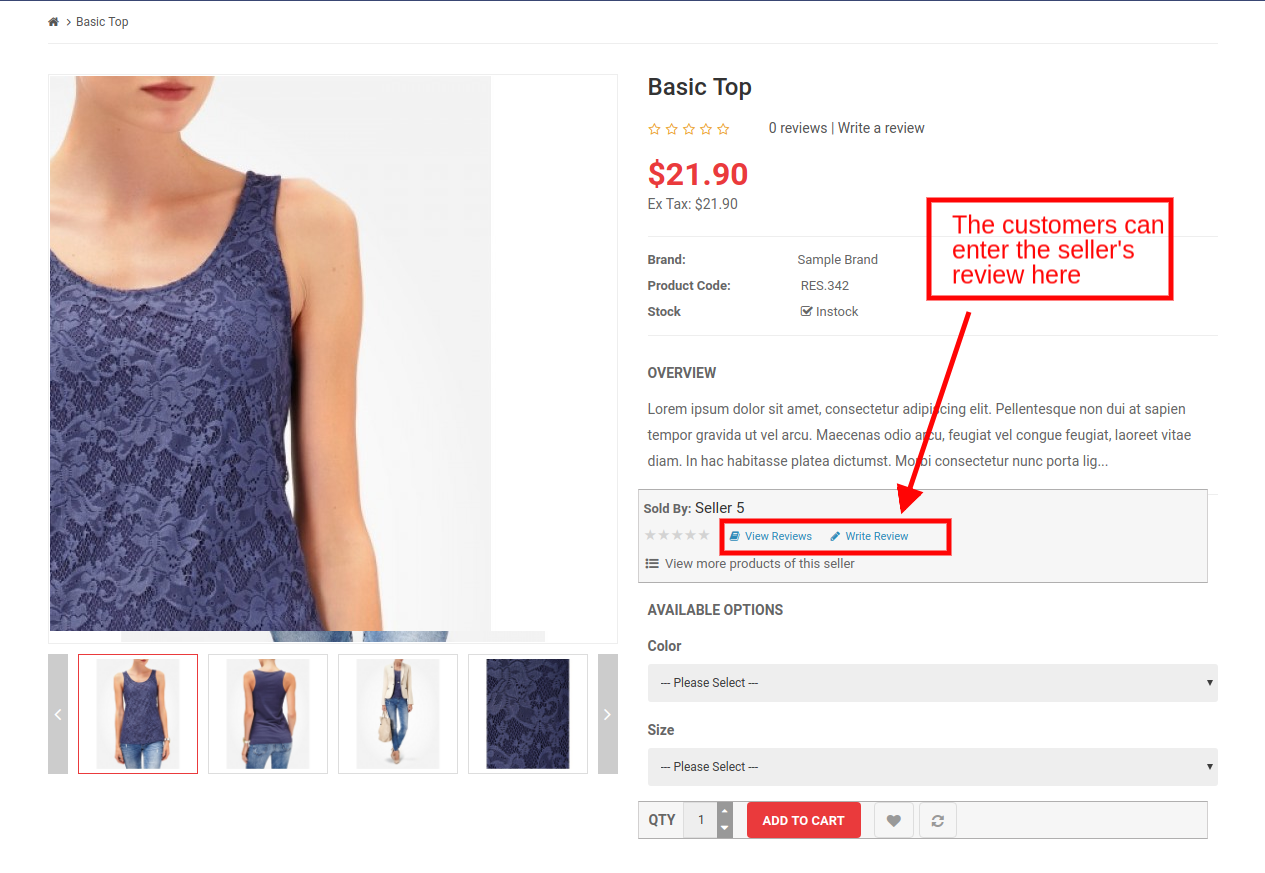
Die Kunden können den Verkäufern sogar Bewertungen geben, wenn diese Funktion vom Back-End des OpenCart Multi sellers Marketplace-Moduls aus aktiviert ist. Um den Review zu verlassen, können die Kunden auf den 'Bewertung schreiben'Link auf der Produktseite der Website. Siehe das Bild unten:
Die vom Store – Administrator genehmigten Reviews im Verkäufer überprüft die Genehmigungsliste Registerkarte des OpenCart Multi-Vendor Marketplace Moduls wird in diesem Abschnitt aufgelistet. Der Administrator kann die Bewertungen gemäß der Anforderung bearbeiten oder löschen, indem er auf die Schaltfläche klickt Bearbeiten or Löschen Schaltfläche jeweils.
3.11-Verkäufer Kategorie Anfrage
Der Administrator weist die Kategorie dem Drittanbieter für die Auflistung der Produkte zu. Die Verkäufer können den Administrator sogar auffordern, eine neue Kategorie von ihrem Dashboard hinzuzufügen. Siehe Abschnitt 4.2.7
Die Kategorieanfragen, die von den Verkäufern gesendet werden, werden auf der Registerkarte "Anfrage" der OpenCart Marketplace-Erweiterung in der Verkäuferkategorie aufgelistet, wie in der folgenden Abbildung gezeigt:
3.12 Verkäufer Versand
Die OpenCart Marketplace-Erweiterung wird mit benutzerdefinierten Versandoptionen geliefert, wobei die Verkäufer ihre eigenen Versandmethoden hinzufügen können. Wenn diese Funktion vom Geschäftsadministrator aus aktiviert wird Einstellungen Registerkarte des OpenCart Multi Vendor Marketplace-Moduls, dann können die Verkäufer ihre Versandmethoden hinzufügen.Siehe Abschnitt 4.3.
Die Versandvorlagen, die von den Verkäufern hinzugefügt wurden, werden auf der Registerkarte Verkäuferversand des OpenCart Multi sellers Marktplatz-Moduls aufgeführt.
3.13 Admin-Kommission
Der Administrator kann die Provision, die er auf diesem Marktplatz des OpenCart Multi-Vendor Marketplace-Plugins erhält, einsehen. Der Filieinhaber erhält eine Option, um die Auftrags- und Kategorieprovision anzuzeigen.
Wählen Sie den Typ der Provision, die Sie anzeigen möchten, aus der Dropdown-Liste aus, wie oben gezeigt. Hier werden die Gesamteinnahmen, die Einnahmen der Verkäufer sowie die Provision des Administrators aufgelistet.
3.14 Verkäufertransaktion
Der Store-Administrator erhält sogar eine Option, die Transaktion der Verkäufer anzuzeigen. Der Administrator kann in diesem Tab des OpenCart Multi seller Marketplace-Plugins sowohl die Verkäuferbilanz als auch die Transaktionshistorie einsehen.
Der Ladenbesitzer erhält sogar eine Option zum Hinzufügen einer Transaktion, indem er auf 'Neue Transaktion hinzufügen‘.
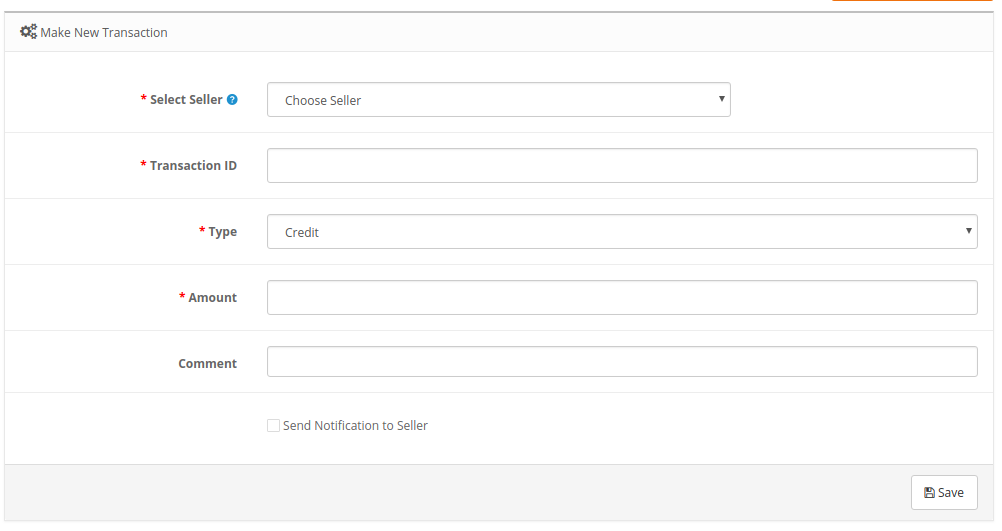
Dies öffnet eine Schnittstelle. Der Administrator kann die erforderlichen Details ausfüllen und neue Verkäufertransaktionen hinzufügen.
Die verschiedenen Felder dieses Tabs des OpenCart Marketplace-Plugins werden im Folgenden erläutert:
Verkäufer auswählen: Wählen Sie den Verkäufer aus der Dropdown-Liste. Transaktions-ID: Geben Sie eine eindeutige Transaktions-ID in diesem Abschnitt ein. Style: Wählen Sie die Art der Transaktion. Es kann Kredit oder Debit sein. Menge: Geben Sie den Betrag der Transaktion ein. Kommentar: Geben Sie einen Kommentar oder zusätzliche Informationen ein. Dies ist ein optionales Feld. Benachrichtigung an Verkäufer senden: Aktivieren Sie diese Option, um eine Benachrichtigung an den betroffenen Verkäufer bezüglich der Transaktion zu senden, die hier hinzugefügt wurde. Die Transaktion der verschiedenen Verkäufer ist in diesem Abschnitt der OpenCart Multi-Vendor Marketplace-Erweiterung aufgelistet, wie in der folgenden Abbildung gezeigt:
3.15 E-Mail-Vorlagen
Das OpenCart Multi Seller Marketplace Plugin bietet 24 vordefinierte E-Mail-Vorlagen für die verschiedenen Szenarien. Der Store-Administrator kann die Vorlagen bei Bedarf auch bearbeiten, indem er auf die Schaltfläche Bearbeiten klickt.
4.0 Front-End-Benutzeroberfläche
Sobald die Erweiterung OpenCart Multi-Vendor Marketplace erfolgreich im OpenCart Store installiert wurde, können die Drittanbieter ein einfaches Formular ausfüllen und ihren Online-Shop öffnen. Zur einfachen Verwaltung des Shops erhält der Verkäufer Zugriff auf sein Dashboard.
4.1 Verkäufer Registrierung
Die Drittanbieter können sich einfach als Verkäufer der Website registrieren, indem sie ein einfaches Registrierungsformular ausfüllen. Um sich als Verkäufer zu registrieren, wählen SieJa'Im Abschnitt "Als Verkäufer registrieren" des Formulars registrieren.
4.2-Verkäufer-Dashboard
Sobald die Registrierung abgeschlossen ist und das Konto des Verkäufers vom Back-End des OpenCart Marketplace-Plugins genehmigt wurde, erhält der Verkäufer Zugriff auf das Dashboard.
Sie können den gesamten Umsatzbericht und die Bestelldetails anzeigen.
4.2.1 Verkäuferprofil
Die Verkäufer können ihr Profil bearbeiten und ihren Shop über diesen Tab des Dashboards personalisieren.
4.2.2 Produkt des Verkäufers
Die Verkäufer können den unten genannten Weg folgen, um ein neues Produkt hinzuzufügen. Gehe zu Mein Konto -> Dashboard -> Produkte
Die bereits aufgelisteten Produkte werden auf dieser Registerkarte des Dashboards des Verkäufers angezeigt. Um ein neues Produkt hinzuzufügen, klicken Sie auf '+"Unterschreiben Sie oben rechts.
Dies wird dich auf dieNeues Produkt' Seite. Füllen Sie die erforderlichen Details aus, um das Produkt hinzuzufügen.
4.2.3-Bestellung
Die Verkäufer können ihre Bestellungen und zugehörige Details auf dieser Registerkarte des Dashboards einsehen.
4.2.4 Produktbewertungen
Die Verkäufer können die Bewertung, die sie über ihr Produkt erhalten haben, auf der Registerkarte Produktbewertung ihres Dashboards anzeigen. Alle erhaltenen Bewertungen werden wie in der folgenden Abbildung aufgelistet:
4.2.4.1 Wie können die Verkäufer die Produktbewertungen löschen?
Sogar die Verkäufer erhalten eine Option, die Bewertungen zu löschen. Dies kann durch Klicken auf die "Löschen'Schaltfläche für jede Überprüfung.
4.2.5 Meine Bewertungen
Der Tab des Dashboards des Verkäufers listet die Bewertungen auf, die er auf seinem Profil erhalten hat.
4.2.5.1 Wie können die Verkäufer die Bewertungen in ihrem Profil löschen?
Die Verkäufer können ihre Profilbewertungen bei Bedarf sogar löschen. Dies kann durch Klicken auf die "Löschen'Schaltfläche für jede Überprüfung.
4.2.6 Einnahmen
Das Gesamtergebnis des Verkäufers kann in diesem Tab eingesehen werden. Die Anbieter können die Ergebnisse nach Bedarf filtern. Der gesamte Verdienstverlauf wird wie folgt angezeigt:
Die Verkäufer können sogar das auftragsbezogene Einkommen sehen, wie unten gezeigt:
4.2.6 Transaktionsverlauf
Der Verkäufer kann seinen gesamten Transaktionsverlauf auf dieser Registerkarte anzeigen. Der Betrag, der auf ihrem Konto abgebucht oder gutgeschrieben wurde, kann hier eingesehen werden.
4.2.7-Kategorieanforderung
Die Verkäufer können die ihnen zugewiesenen Kategorien einsehen. Außerdem können sie sogar eine Kategorieanfrage an den Geschäftsadministrator senden.
I proprietari dei negozi eCommerce basati su OpenCart ora possono creare un mercato online come Etsy e eBay con il plugin OpenCart Marketplace di Knowband. Basta installare l'estensione del marketplace multiproduttore OpenCart nel tuo negozio e questo abiliterà la funzionalità multi-seller sul tuo sito. I venditori di terze parti possono facilmente registrarsi e elencare i loro prodotti sul sito. I vari aspetti della gestione del negozio sono nelle mani dell'amministratore del sito. Il profilo del venditore, la richiesta di categoria, i prodotti e l'approvazione delle revisioni possono essere fatti dal back-end del modulo del marketplace di MultiCart OpenCart.
1.1 Admin Benefits of OpenCart Marketplace Extension
I vari vantaggi amministrativi del plug-in OpenCart Multi marketplace di Knowband sono elencati di seguito:
L'amministratore del negozio può facilmente convertire il proprio sito eCommerce con un unico fornitore in un mercato completamente nuovo e completamente funzionale con l'aiuto di Etsy clone per OpenCart.
Il modulo OpenCart Multi marketplace market supporta tutti i tipi di prodotti, compresi quelli semplici, configurabili e in bundle.
Il plug-in di marketplace OpenCart consente all'amministratore di impostare la commissione globale e quella basata su categorie da addebitare ai venditori.
Il proprietario del negozio può facilmente monitorare il profilo del venditore e i prodotti pubblicati sul sito. Possono facilmente approvare / disapprovare il profilo del venditore dall'interfaccia di amministrazione del modulo OpenCart Multi Marketplace del fornitore.
L'amministratore può anche assegnare le categorie ai venditori. Inoltre, i venditori possono inviare una richiesta di categoria all'amministratore. Queste richieste vengono elaborate dall'amministratore del negozio dal back-end dell'estensione OpenCart Multi Seller Marketplace.
Il modulo OpenCart Marketplace consente all'amministratore del negozio di abilitare / disabilitare l'opzione di revisione / valutazione dal sito. Se abilitato, i clienti possono fornire recensioni per i prodotti e per i venditori.
Il plug-in OpenCart Multi Marketplace del venditore offre opzioni di spedizione personalizzate. Se questa funzione è abilitata, i venditori possono aggiungere i propri metodi di spedizione.
Il plug-in OpenCart Marketplace offre un facile monitoraggio del report delle vendite e della transazione complessiva del sito.
L'amministratore del negozio ottiene i modelli di posta elettronica predefiniti 24 per mantenere i venditori informati sui vari aspetti.
Vantaggi del venditore 1.2 dell'estensione del Marketplace di OpenCart
I fornitori di terze parti possono facilmente registrarsi come venditore presso il sito semplicemente compilando un modulo.
Una volta che l'account è stato approvato, i venditori possono elencare i loro prodotti sul sito dalla loro dashboard.
I venditori possono aggiungere banner, logo del negozio e metadati dalla loro dashboard. I venditori possono facilmente creare URL SEO-friendly per il loro negozio.
I venditori hanno anche la possibilità di monitorare con facilità la transazione e il report di vendita dal dashboard.
I venditori ottengono un'opzione per aggiungere la richiesta di categoria. L'amministratore può approvare / disapprovare la sua richiesta dal back-end del modulo OpenCart Multi Marketplace del fornitore.
Se abilitato dal pannello di amministrazione del modulo OpenCart Multi Seller Marketplace, i venditori possono persino aggiungere i propri metodi di spedizione.
1.3 I vantaggi per il cliente dell'estensione del Marketplace di OpenCart
I visitatori del negozio possono ora scegliere i prodotti ideali da una più ampia gamma di opzioni di prodotto.
Gli acquirenti online possono visualizzare il profilo del venditore nella pagina dei prodotti se questo è consentito dall'amministratore del negozio.
I clienti hanno anche un'opzione per dare le loro recensioni per i prodotti e il venditore.
2.0 Installazione di OpenCart Marketplace Plugin
Acquista l'estensione OpenCart Multi Marketplace del fornitore dal negozio Knowband. Riceverai i seguenti file: 1. File zippato contenente il codice sorgente del modulo 2. Manuale utente
Segui i passaggi indicati sotto per installare l'estensione OpenCart Marketplace nel tuo negozio:
1. Decomprimere il file zippato. Il vqmod deve essere installato, altrimenti il plugin non funzionerà. Otterrai le cartelle come mostrato nell'immagine qui sotto:
2. Copia tutti i file e le cartelle del file zip nella directory principale del sito. 3. L'amministratore può trovare l'estensione OpenCart Marketplace nel percorso Pannello di amministrazione -> Estensioni. Installa il modulo cliccando sul 'Installazione'pulsante corrispondente al modulo. 4. Il plug-in OpenCart Marketplace è ora installato ed è pronto per l'uso. Vai a Admin -> Menu principale -> KB MarketPlace come mostrato nell'immagine qui sotto:
3.0
Il
Tutte le schede 15 sono discusse di seguito in dettaglio.
Impostazioni 3.1
I vari campi di questa scheda del plugin OpenCart Multi Marketplace Marketplace sono discussi di seguito:
Commissione predefinita: Imposta la commissione da addebitare ai venditori qui. L'importo percentuale specificato dall'amministratore qui sarà applicabile a tutti i venditori sul mercato per impostazione predefinita.
Limite della richiesta di approvazione: L'amministratore del negozio può approvare / disapprovare l'account del venditore dal back-end di OpenCart Multi seller Marketplace. I venditori possono inviare richiesta di approvazione dell'account. L'amministratore può impostare il numero massimo di richieste che il venditore può inviare in questa sezione.
Nuovo limite di prodotto: Correggere il numero massimo di nuovi prodotti che un venditore può elencare sul mercato.
Abilita la registrazione del venditore: Seleziona "sì" per abilitare la registrazione del venditore di terze parti.
Approvazione del nuovo prodotto richiesta: Se è selezionato "Sì", allora sarà richiesta l'approvazione dell'amministratore per elencare il prodotto sul sito.
Invia email a venditore su posto dell'ordine: Se viene selezionato "Sì", verrà inviata automaticamente un'e-mail ai fornitori ogni volta che viene ricevuto un ordine del loro prodotto.
Abilita recensione venditore: Selezionare "Sì" se si desidera abilitare l'opzione di revisione del venditore nel front-end.
Approvazione della recensione del venditore: Se questa funzione è abilitata, quindi, la revisione verrà pubblicata nel front-end solo dopo l'approvazione dell'amministratore del negozio.
Mostra i venditori in primo piano: Abilitare per visualizzare l'elenco dei venditori nel front-end del sito web.
Consenti gestione ordini: Se viene selezionato "Sì", i venditori saranno autorizzati a gestire gli ordini ricevuti sui loro prodotti. Possono elaborare gli ordini e modificare lo stato dell'ordine.
Visualizza i dettagli del venditore sulla pagina del prodotto: Abilita questa opzione per visualizzare i dettagli del venditore sulla pagina del prodotto del sito web.
Elenco delle parole chiave Meta: Inserisci le meta keywords in questa sezione. Inserisci i tag e separali con una virgola.
Elenco Meta Descrizione: Inserisci qui la meta descrizione del sito.
Accordo del venditore: Specifica i termini e le condizioni per i venditori in questa sezione. I dettagli dell'accordo come menzionati qui verranno visualizzati nel front-end di OpenCart Marketplace.
Ordina modello email: Questo modello di email verrà utilizzato per inviare i dettagli dell'ordine ai venditori. L'amministratore può personalizzare il modello predefinito in questa sezione.
Categorie consentite: L'amministratore può selezionare la categoria che desidera assegnare ai venditori in questa sezione.
Elenco venditori 3.2
L'amministratore può visualizzare l'elenco dei venditori il cui account è stato approvato dalla scheda Elenco di approvazione account venditore dell'estensione OpenCart Multi Seller Marketplace.
L'amministratore ha anche un'opzione per modificare il profilo dei venditori. Fai clic sul pulsante Modifica corrispondente a ciascun venditore, come mostrato nell'immagine qui sotto:
Facendo clic qui, verrai reindirizzato all'interfaccia per modificare il profilo del venditore.
Scheda Elenco di approvazione account venditore 3.3
I fornitori di terze parti possono compilare il modulo per creare un account venditore sul sito. Il profilo del venditore sarà
3.3.1 Come approvare / disapprovare l'account del venditore?
L'amministratore può approvare l'account del venditore con un clic del pulsante dal back-end del modulo OpenCart Marketplace. Basta fare clic sul pulsante di approvazione o di disapprovazione corrispondente a ciascun account venditore come mostrato di seguito:
Facendo clic sul pulsante Approva, verrà visualizzato un popup che chiede il permesso di approvare o disapprovare l'account venditore. Una volta approvato il profilo del venditore, lo stesso verrà elencato nelElenco dei Fornitori'scheda del modulo OpenCart Multi Marketplace del fornitore.
3.3.2 Come modificare l'account del venditore?
L'amministratore può persino modificare il profilo dei venditori dal back-end dell'estensione del Marketplace Multi venditore OpenCart. Per modificare lo stesso, fare clic su Modifica pulsante come mostrato nell'immagine qui sotto:
Questo ti reindirizzerà a un'interfaccia dell'estensione del marketplace multiproprietà di OpenCart dove potrai apportare le modifiche richieste.
Elenco di approvazione del prodotto 3.4
I fornitori di terze parti possono elencare i loro prodotti dalla dashboard del loro profilo. I prodotti aggiunti dalla dashboard sono elencati in questa scheda del modulo del marketplace OpenCart per l'approvazione. L'approvazione dell'amministratore è richiesta solo se questa funzione è abilitata. L'amministratore del negozio può, quindi, approvare o disapprovare il prodotto con un clic del pulsante. I prodotti aggiunti dai venditori verranno elencati nella scheda Elenco di approvazione prodotti del modulo OpenCart Marketplace, come mostrato nell'immagine seguente:
L'amministratore può approvare o disapprovare i prodotti facendo clic sul rispettivo pulsante corrispondente a ciascun prodotto. Fare riferimento all'immagine qui sotto:
Dopo aver fatto clic sul pulsante Approva o Disapprova, verrà visualizzato un popup con il messaggio "Vuoi approvare il prodotto?"
Fare clic su 'Ok'se vuoi andare avanti con l'azione.
Prodotti 3.5 per venditori
I prodotti approvati dall'amministratore dal back-end dell'estensione OpenCart Multi Marketplace del fornitore saranno elencati nella scheda Venditori prodotti.
3.5.1 Come modificare / rimuovere i dettagli dei prodotti?
Il proprietario del negozio può modificare o eliminare i dettagli del prodotto dei venditori, se necessario. Clicca sul 'Modifica' o 'cancellare'pulsante rispettivamente.
Ordini del venditore 3.6
Gli ordini ricevuti sul prodotto del venditore saranno elencati nella scheda di OpenCart Multiplace marketplace plugin.
L'amministratore del negozio può visualizzare o modificare gli ordini facendo clic sul Vedi e Modifica pulsante rispettivamente.
Ordini amministrativi 3.7
L'amministratore può tracciare i dettagli dell'ordine dei loro prodotti nella scheda Ordine amministratore dell'estensione del marketplace di OpenCart Multi.
Recensioni dei prodotti 3.8
I clienti possono fornire valutazioni e scrivere recensioni per i prodotti se questa funzione è abilitata dal back-end del plug-in OpenCart marketplace. Se abilitato, i clienti possono lasciare le loro recensioni facendo clic su 'Scrivi una recensione‘.
Le recensioni scritte nel front-end saranno elencate nel back-end del plugin OpenCart Multi Marketplace Marketplace come mostrato nell'immagine qui sotto:
Clicca sul 'Modifica'pulsante per modificare o approvare le recensioni del prodotto. Questo ti reindirizzerà alla pagina dell'edizione di revisione del modulo OpenCart Multi Marketplace del fornitore.
I vari campi di questa interfaccia sono discussi di seguito:
Autore: Il nome del revisore verrà mostrato qui. L'amministratore può cambiare il nome se necessario. Product: Il prodotto per cui viene pubblicata la recensione verrà mostrato qui. L'amministratore può selezionare il prodotto per il quale si desidera pubblicare la recensione qui. Testo: La recensione inserita dal cliente verrà mostrata qui. Il proprietario del negozio può modificare la recensione se necessario. Valutazione: Questa sezione mostrerà per impostazione predefinita la valutazione fornita dal cliente. L'amministratore può persino modificare la valutazione. Data aggiunta: La data in cui è stata aggiunta la recensione verrà visualizzata qui. Stato: attiva o disattiva la recensione da qui. Se abilitato, la recensione sarà visualizzata sulla pagina del prodotto.
3.9 Sellers Reviews Lista di approvazione
I clienti possono persino fornire recensioni ai venditori se questa funzione è abilitata dal back-end del modulo OpenCart Multi seller Marketplace. Per lasciare la recensione, i clienti possono fare clic sul 'Scrivere una recensione'link nella pagina del prodotto del sito. Fare riferimento all'immagine qui sotto:
Le recensioni approvate dall'amministratore del negozio nel Lista di approvazione per i venditori la scheda del modulo Marketplace di OpenCart Multi sarà elencata in questa sezione. L'amministratore può modificare o eliminare le recensioni secondo il requisito facendo clic sul Modifica or cancellare pulsante rispettivamente.
Richiesta Categoria Venditori 3.11
L'amministratore assegna la categoria al venditore di terze parti per l'elenco dei prodotti. I venditori possono persino richiedere all'amministratore di aggiungere una nuova categoria dalla loro Dashboard. Fare riferimento alla sezione 4.2.7
Le richieste di categoria inviate dai venditori saranno elencate nella scheda Richiesta categoria venditore dell'estensione OpenCart Marketplace come mostrato nell'immagine seguente:
Spedizione di 3.12 Sellers
L'estensione OpenCart Marketplace è dotata di opzioni di spedizione personalizzate in cui i venditori possono aggiungere i propri metodi di spedizione. Se questa funzione è abilitata dall'amministratore del negozio da Impostazioni Scheda del modulo OpenCart Multi Marketplace del venditore, quindi, i venditori saranno autorizzati ad aggiungere i loro metodi di spedizione.Fare riferimento alla sezione 4.3.
I modelli di spedizione aggiunti dai venditori saranno elencati nella scheda Spedizione dei venditori del modulo OpenCart Multi Seller Marketplace.
3.13 Admin Commission
L'amministratore può visualizzare la commissione guadagnata dal market in questa scheda del plugin OpenCart Multi Marketplace Marketplace. Il proprietario del negozio ha un'opzione per visualizzare la commissione ordine-saggio e categoria.
Selezionare il tipo di commissione che si desidera visualizzare dall'elenco a discesa come mostrato sopra. Questo elencherà i guadagni totali, il guadagno dei venditori e la commissione dell'amministratore.
Transazione del venditore 3.14
L'amministratore del negozio ha anche un'opzione per visualizzare la transazione dei venditori. L'amministratore può vedere la cronologia del saldo del venditore e la cronologia delle transazioni in questa scheda del plugin OpenCart Multi Seller Marketplace.
Il proprietario del negozio ha anche un'opzione per aggiungere una transazione facendo clic su 'Aggiungi nuova transazione‘.
Questo aprirà un'interfaccia. L'amministratore può riempire i dettagli richiesti e aggiungere nuove transazioni venditore.
I vari campi di questa scheda del plugin OpenCart Marketplace sono discussi di seguito:
Seleziona il venditore: Scegli il venditore dall'elenco a discesa. ID transazione: Inserisci un ID transazione univoco in questa sezione. Digitare: Seleziona il tipo di transazione. Potrebbe essere credito o debito. Quantità: Inserire l'importo coinvolto nella transazione. Commento: Inserisci un commento o qualsiasi informazione aggiuntiva. Questo è un campo facoltativo. Invia notifica al venditore: Seleziona questa opzione per inviare una notifica al venditore interessato riguardo alla transazione che è stata aggiunta qui. La transazione dei vari venditori è elencata in questa sezione dell'estensione OpenCart Multi Marketplace del fornitore come mostrato nell'immagine qui sotto:
3.15 Modelli di email
Il plug-in per marketplace di OpenCart Multi seller offre modelli di posta elettronica pre-progettati 24 per i vari scenari. L'amministratore del negozio può persino modificare i modelli, se necessario, facendo clic sul pulsante Modifica.
Interfaccia utente 4.0 front-end
Una volta che l'estensione OpenCart Multi Marketplace del fornitore viene installata con successo nello store OpenCart, i fornitori di terze parti possono compilare un semplice modulo e aprire il proprio negozio online. Per una facile gestione del negozio, il venditore ottiene l'accesso al loro cruscotto.
Registrazione del venditore 4.1
I venditori di terze parti possono facilmente registrarsi come venditore del sito compilando un semplice modulo di registrazione. Per registrarsi come venditore, selezionare 'Sì'nella sezione Registra come venditore del modulo.
Dashboard del venditore 4.2
Una volta completata la registrazione e approvato l'account del venditore dal back-end del plug-in OpenCart Marketplace, il venditore ottiene l'accesso al Dashboard.
Possono visualizzare l'intero rapporto di vendita e i dettagli dell'ordine.
4.2.1 Profilo del venditore
I venditori possono modificare il loro profilo e personalizzare il loro negozio da questa scheda della dashboard.
Prodotto del venditore 4.2.2
I venditori possono seguire il percorso indicato di seguito per aggiungere un nuovo prodotto. Vai a Il mio account -> Dashboard -> Prodotti
I prodotti già elencati sono visualizzati in questa scheda della Dashboard del venditore. Per aggiungere un nuovo prodotto clicca sul '+'firma nella parte in alto a destra.
Questo ti reindirizzerà al 'Aggiungi nuovo prodotto' pagina. Compila i dettagli richiesti per aggiungere il prodotto.
Ordine 4.2.3
I venditori possono visualizzare i loro ordini e i relativi dettagli in questa scheda della Dashboard.
Recensioni dei prodotti 4.2.4
I venditori possono visualizzare la recensione ricevuta sul loro prodotto nella scheda Product Review del loro Dashboard. Tutte le recensioni ricevute saranno elencate come mostrato nell'immagine qui sotto:
4.2.4.1 In che modo i venditori possono eliminare le recensioni dei prodotti?
Anche i venditori hanno un'opzione per cancellare le recensioni. Questo può essere fatto cliccando sul 'cancellare'pulsante corrispondente a ciascuna recensione.
4.2.5 Le mie recensioni
La scheda della dashboard del venditore elenca le recensioni ricevute sul loro profilo.
4.2.5.1 Come possono i venditori cancellare le recensioni sul loro profilo?
I venditori possono anche cancellare le loro recensioni del profilo, se necessario. Questo può essere fatto cliccando sul 'cancellare'pulsante corrispondente a ciascuna recensione.
Guadagni 4.2.6
Le entrate totali del venditore possono essere visualizzate in questa scheda. I fornitori possono filtrare i risultati secondo i requisiti. La cronologia dei guadagni totali verrà visualizzata come mostrato di seguito:
I venditori possono persino visualizzare il guadagno ordinato come mostrato di seguito:
Cronologia transazioni 4.2.6
Il venditore può visualizzare l'intera cronologia delle transazioni in questa scheda. L'importo addebitato o accreditato nel proprio account può essere visualizzato qui.
Richiesta di categoria 4.2.7
I venditori possono visualizzare le categorie a loro assegnate. Inoltre, possono anche inviare una richiesta di categoria all'amministratore del negozio.
Właściciele sklepów eCommerce z OpenCart mogą teraz stworzyć sklep internetowy, taki jak Etsy i eBay z wtyczką OpenCart Marketplace Knowband. Po prostu zainstaluj rozszerzenie marketplace dla sprzedawców OpenCart w swoim sklepie, co umożliwi funkcjonalność wielu sprzedawców w Twojej witrynie. Sprzedawcy zewnętrzni mogą z łatwością rejestrować i umieszczać swoje produkty na stronie. Różne aspekty zarządzania sklepem spoczywają w rękach administratora strony. Profil sprzedawcy, zapytanie o kategorię, produkty i zatwierdzenie recenzji można uzyskać na zapleczu modułu marketplaceowego OpenCart Multi.
1.1 Admin Korzyści z rozszerzenia OpenCart Marketplace
Różne zalety administratora wtyczki OpenCard portalu Knowband dla sprzedawców Multi są wymienione poniżej:
Administrator sklepu może z łatwością przekonwertować witrynę eCommerce jednego producenta na zupełnie nowy i w pełni funkcjonalny rynek za pomocą klonu Etsy dla OpenCart.
Moduł marketplace'u OpenCart Multi obsługuje wszystkie rodzaje produktów, w tym proste, konfigurowalne i powiązane.
Wtyczka OpenCart Marketplace umożliwia administratorowi ustawienie zarówno prowizji globalnej, jak i opartej na kategoriach, która będzie obciążana sprzedawcami.
Właściciel sklepu może z łatwością monitorować profil sprzedawcy i produkty publikowane w witrynie. Mogą łatwo zatwierdzić / odrzucić profil sprzedawcy z interfejsu administratora modułu Marketplace OpenCart Multi.
Administrator może nawet przypisać kategorie sprzedającym. Dodatkowo sprzedawcy mogą przesłać żądanie kategorii do administratora. Te żądania są przetwarzane przez administratora sklepu z zaplecza rozszerzenia Marketplace Marketplace sprzedawcy OpenCart.
Moduł OpenCart Marketplace pozwala administratorowi sklepu włączyć / wyłączyć opcję sprawdzania / oceniania na stronie. Jeśli jest włączona, klienci mogą wystawiać recenzje produktów, a także sprzedawców.
Wtyczka OpenCart Multi vendor Marketplace oferuje niestandardowe opcje wysyłki. Jeśli ta funkcja jest włączona, sprzedawcy mogą dodawać własne metody wysyłki.
Wtyczka OpenCart Marketplace umożliwia łatwe śledzenie raportu sprzedaży i ogólnej transakcji witryny.
Administrator sklepu otrzymuje domyślne szablony e-mail 24, aby informować sprzedawców o różnych aspektach.
1.2 Sprzedawca Korzyści z rozszerzenia OpenCart Marketplace
Dostawcy zewnętrzni mogą łatwo zarejestrować się jako sprzedawca w witrynie, po prostu wypełniając formularz.
Po zatwierdzeniu konta sprzedawcy mogą wyświetlać swoje produkty w witrynie ze swojego pulpitu nawigacyjnego.
Sprzedawcy mogą dodawać banery, logo sklepu i metadane z pulpitu nawigacyjnego. Sprzedawcy mogą z łatwością tworzyć przyjazne dla SEO adresy URL w swoich sklepach.
Sprzedawcy mają nawet możliwość łatwego śledzenia ogólnego raportu transakcji i sprzedaży z pulpitu nawigacyjnego.
Sprzedawcy mają możliwość dodania żądania kategorii. Administrator może zatwierdzić / odrzucić żądanie z zaplecza modułu Marketplace OpenCart Multi.
Po włączeniu z panelu administracyjnego modułu Marketplace Open Shop wielu sprzedających, sprzedawcy mogą nawet dodawać własne metody wysyłki.
Korzyści 1.3 dla klienta z rozszerzenia OpenCart Marketplace
Odwiedzający sklep mogą teraz wybrać idealne produkty z szerszej gamy opcji produktów.
Klienci online mogą zobaczyć profil sprzedawcy na stronie produktów, jeśli zezwala na to administrator sklepu.
Klienci mają nawet możliwość wystawienia recenzji produktów, a także sprzedawcy.
2.0 Instalacja wtyczki OpenCart Marketplace
Kup rozszerzenie Marketplace OpenCart Multi Marketplace ze sklepu Knowband. Otrzymasz następujące pliki: 1. Spakowany plik zawierający kod źródłowy modułu 2. Instrukcja obsługi
Wykonaj poniższe kroki, aby zainstalować rozszerzenie OpenCart Marketplace w swoim sklepie:
1. Rozpakuj spakowany plik. Vqmod musi być zainstalowany, w przeciwnym razie wtyczka nie będzie działać. Dostaniesz foldery w sposób pokazany na obrazku poniżej:
2. Skopiuj wszystkie pliki i foldery z pliku zip do katalogu głównego witryny. 3. Administrator może znaleźć rozszerzenie OpenCart Marketplace w ścieżce Panel administracyjny -> Rozszerzenia. Zainstaluj moduł, klikając przycisk "zainstalować"przycisk odpowiadający modułowi. 4. Wtyczka OpenCart Marketplace jest teraz zainstalowana i jest gotowa do użycia. Idź do Admin -> Menu główne -> KB MarketPlace jak pokazano na obrazku poniżej:
3.0
The
Wszystkie zakładki 15 zostały omówione poniżej.
Ustawienia 3.1
Różne pola tej zakładki wtyczki OpenCart Multi sprzedawca Marketplace są omówione poniżej:
Domyślna Komisja: Ustaw prowizję, która zostanie obciążona sprzedawcami tutaj. Wartość procentowa określona przez administratora tutaj będzie domyślnie obowiązywać dla wszystkich sprzedających na rynku.
Limit żądania zgody: Administrator sklepu może zatwierdzić / odrzucić konto sprzedawcy z zaplecza Marketplace OpenCart Multi. Sprzedający mogą wysłać prośbę o zatwierdzenie konta. Administrator może ustawić maksymalną liczbę żądań, które sprzedawca może wysłać w tej sekcji.
Nowy limit produktu: Napraw maksymalną liczbę nowych produktów, które sprzedawca może wystawić na rynku.
Włącz rejestrację sprzedawcy: Wybierz "tak", aby umożliwić rejestrację sprzedawcy zewnętrznego.
Wymagana jest nowa aprobata produktu: Jeśli wybrano opcję "Tak", zatwierdzenie administratora będzie wymagane do wyświetlenia produktu na stronie.
Wyślij email do sprzedawca na zamówienie: Jeśli wybrano "Tak", za każdym razem, gdy otrzyma zamówienie na ich produkt, automatyczna wiadomość e-mail zostanie wysłana do sprzedawców.
Włącz weryfikację sprzedawcy: Wybierz "Tak", jeśli chcesz włączyć opcję przeglądu sprzedawcy w interfejsie użytkownika.
Zatwierdzenie recenzji sprzedawcy: Jeśli ta funkcja jest włączona, opinia zostanie opublikowana w interfejsie tylko po zatwierdzeniu przez administratora sklepu.
Wyświetl sprzedawców z przodu: Włącz, aby wyświetlić listę sprzedawców w interfejsie witryny.
Zezwalaj na obsługę zamówień: Jeśli wybrano "Tak", sprzedawcy będą mogli obsługiwać zamówienia otrzymane na ich produkty. Mogą przetwarzać zamówienia i zmieniać status zamówienia.
Wyświetl szczegóły dotyczące sprzedającego na stronie produktu: Włącz tę opcję, aby wyświetlić szczegóły sprzedawcy na stronie produktu na stronie internetowej.
Wyświetlanie meta słów kluczowych: Wprowadź słowa kluczowe meta w tej sekcji. Wprowadź znaczniki i rozdziel je przecinkami.
Opis Meta Opis: Wprowadź meta opis strony tutaj.
Umowa ze sprzedającym: Określ zasady i warunki dla sprzedawców w tej sekcji. Szczegóły umowy, o których tu wspomniano, będą wyświetlane w interfejsie OpenCart Marketplace.
Zamów szablon wiadomości e-mail: Ten szablon wiadomości e-mail zostanie wykorzystany do wysłania szczegółów zamówienia do sprzedawców. Administrator może dostosować domyślny szablon w tej sekcji.
Kategorie dozwolone: Administrator może wybrać kategorię, którą chcą przypisać sprzedawcom w tej sekcji.
3.2 Lista sprzedających
Administrator może wyświetlić listę sprzedawców, których konto zostało zatwierdzone na karcie Lista zatwierdzeń kont sprzedawców w rozszerzeniu Marketplace sprzedawcy OpenCart.
Administrator ma nawet możliwość edycji profilu sprzedawców. Kliknij przycisk Edytuj odpowiadający każdemu sprzedawcy, jak pokazano na poniższym obrazku:
Po kliknięciu tutaj nastąpi przekierowanie do interfejsu w celu edycji profilu sprzedawcy.
3.3 Karta Lista zatwierdzeń dla sprzedającego
Dostawcy zewnętrzni mogą wypełnić formularz, aby utworzyć konto sprzedawcy na stronie. Profil sprzedawcy będzie
3.3.1 Jak zatwierdzić / odrzucić konto sprzedawcy?
Administrator może zatwierdzić konto sprzedawcy za pomocą kliknięcia przycisku z zaplecza modułu OpenCart Marketplace. Po prostu kliknij przycisk Zatwierdź lub odrzuć, odpowiadający każdemu kontu sprzedawcy, jak pokazano poniżej:
Kliknięcie przycisku Zatwierdź spowoduje wyświetlenie okna pop-up z prośbą o zgodę na zatwierdzenie lub odrzucenie konta sprzedawcy. Po zatwierdzeniu profilu sprzedawcy ten sam zostanie wymieniony w "Lista sprzedawców"zakładka modułu Marketplace OpenCart Multi dla sprzedawców.
3.3.2 Jak edytować konto sprzedawcy?
Administrator może nawet edytować profil dostawców z zaplecza rozszerzenia Marketplace Marketplace sprzedawcy OpenCart. Aby edytować to samo, kliknij przycisk Edytuj jak pokazano na poniższym obrazku:
Spowoduje to przekierowanie do interfejsu rozszerzenia marketplace w sklepie OpenCart, w którym można dokonać wymaganych zmian.
3.4 Lista produktów
Dostawcy zewnętrzni mogą wyświetlać swoje produkty z pulpitu ich profilu. Produkty dodane z deski rozdzielczej są wymienione w tej zakładce modułu OpenCart Marketplace do zatwierdzenia. Zatwierdzenie administratora jest wymagane tylko wtedy, gdy ta funkcja jest włączona. Administrator sklepu może następnie zatwierdzić lub odrzucić produkt za pomocą kliknięcia przycisku. Produkty dodane przez sprzedawców będą wymienione na karcie Lista zatwierdzeń produktów w module OpenCart Marketplace, jak pokazano na poniższej ilustracji:
Administrator może zatwierdzić lub odrzucić produkty, klikając odpowiedni przycisk odpowiadający każdemu produktowi. Zobacz poniższy obraz:
Po kliknięciu przycisku Zatwierdź lub Odrzuć pojawi się wyskakujące okienko z komunikatem "Czy chcesz zatwierdzić produkt?"
Kliknij 'Ok"jeśli chcesz kontynuować akcję.
3.5 Sellers Produkty
Produkty zatwierdzone przez administratora z zaplecza rozszerzenia Marketplace w sklepie OpenCart będą widoczne na karcie Produkty sprzedawcy.
3.5.1 Jak edytować / usunąć szczegóły produktu?
Właściciel sklepu może w razie potrzeby edytować lub usunąć szczegóły dotyczące sprzedawców. Kliknij na 'Edytuj"lub"Kasować"przycisk odpowiednio.
3.6 Zamówienia sprzedawcy
Zamówienia otrzymane na produkt sprzedawcy zostaną wymienione w zakładce wtyczki OpenCart Multi marketplace.
Administrator sklepu może przeglądać lub edytować zamówienia, klikając przycisk Widok i Edytuj Przycisk odpowiednio.
Zamówienia administracyjne 3.7
Administrator może śledzić szczegóły zamówienia swoich produktów w zakładce Zamówienia Administratora w rozszerzeniu Marketplace w sklepie OpenCart Multi.
Recenzje produktów 3.8
Klienci mogą podawać oceny i pisać recenzje produktów, jeśli ta funkcja jest włączona z poziomu wtyczki OpenCart Marketplace. Po włączeniu klienci mogą opuścić swoje recenzje, klikając przycisk "Napisać recenzję‘.
Przeglądy napisane w interfejsie użytkownika zostaną wymienione na zapleczu wtyczki OpenCart Multi dla sprzedawców, jak pokazano na poniższym obrazku:
Kliknij na 'Edytuj", aby edytować lub zatwierdzić recenzje produktów. Spowoduje to przekierowanie do strony edycji recenzji modułu Marketplace OpenCart dla wielu sprzedawców.
Różne pola tego interfejsu omówiono poniżej:
Autor: Nazwisko recenzenta zostanie pokazane tutaj. Administrator może zmienić nazwę, jeśli jest to wymagane. Produkt: Produkt, dla którego publikowana jest recenzja, zostanie pokazany tutaj. Administrator może wybrać produkt, dla którego chcesz opublikować recenzję tutaj. Tekst: Przegląd wprowadzony przez klienta zostanie pokazany tutaj. Właściciel sklepu może edytować recenzję, jeśli jest to wymagane. Ocena: Ta sekcja będzie domyślnie wyświetlać ocenę podaną przez klienta. Administrator może nawet zmienić ocenę. Data dodania: Data wyświetlenia recenzji zostanie wyświetlona tutaj. Status: Włącz lub wyłącz recenzję stąd. Jeśli ta opcja jest włączona, recenzja zostanie wyświetlona na stronie produktu.
Lista zatwierdzeń sprzedawcy 3.9
Klienci mogą nawet wystawiać recenzje sprzedawcom, jeśli ta funkcja jest włączona z poziomu zaplecza modułu sprzedaży OpenCart Multi Marketplace. Aby opuścić przegląd, klienci mogą kliknąć przycisk "Napisać recenzję"link na stronie produktu na stronie. Zobacz poniższy obraz:
Recenzje zatwierdzone przez administratora sklepu w Lista akceptacji recenzji sprzedawców zakładka modułu Marketplace sprzedawcy OpenCart będzie wymieniona w tej sekcji. Administrator może edytować lub usuwać recenzje zgodnie z wymaganiem, klikając przycisk Edytuj or Kasować Przycisk odpowiednio.
Zamówienie kategorii 3.11 dla sprzedawców
Administrator przypisuje kategorię do sprzedawcy zewnętrznego w celu wystawienia na aukcję produktów. Sprzedawcy mogą nawet poprosić administratora o dodanie nowej kategorii z pulpitu nawigacyjnego. Zobacz rozdział 4.2.7
Żądania kategorii przesłane przez sprzedawców zostaną wymienione na karcie Żądanie kategorii sprzedawcy w rozszerzeniu OpenCart Marketplace, jak pokazano na poniższej ilustracji:
3.12 Sellers Shipping
Rozszerzenie OpenCart Marketplace zawiera niestandardowe opcje wysyłki, w których sprzedawcy mogą dodawać własne metody wysyłki. Jeśli ta funkcja jest włączona przez administratora sklepu z Ustawienia Zakładka modułu OpenCart Multi sprzedawca Marketplace, a następnie sprzedający będą mogli dodać swoje metody wysyłki.Zobacz rozdział 4.3.
Szablony wysyłkowe dodane przez sprzedawców zostaną wymienione na karcie Wysyłka sprzedawcy w module Marketplace wielu sprzedawców OpenCart.
3.13 Admin Commission
Administrator może wyświetlić prowizję uzyskaną z rynku na tej zakładce wtyczki OpenCart Multi Marketplace Marketplace. Właściciel sklepu ma opcję wyświetlenia prowizji za kategorie i według kategorii.
Wybierz rodzaj prowizji, którą chcesz wyświetlić z rozwijanej listy, jak pokazano powyżej. Będzie to lista całkowitych zarobków, zarobków sprzedawców, a także prowizji admina.
3.14 Transakcja sprzedawcy
Administrator sklepu ma nawet możliwość obejrzenia transakcji sprzedawców. Administrator może zobaczyć historię salda sprzedającego oraz historię transakcji na tej zakładce wtyczki OpenCart Multi sprzedawca Marketplace.
Właściciel sklepu ma nawet opcję dodania transakcji, klikając przycisk "Dodaj nową transakcję‘.
To otworzy interfejs. Administrator może wypełnić wymagane dane i dodać transakcję nowego sprzedawcy.
Różne pola tej zakładki wtyczki OpenCart Marketplace są omówione poniżej:
Wybierz sprzedającego: Wybierz sprzedawcę z rozwijanej listy. Identyfikator transakcji: Wprowadź unikalny identyfikator transakcji w tej sekcji. Rodzaj: Wybierz rodzaj transakcji. Może to być Credit lub Debit. Ilość: Wprowadź kwotę związaną z transakcją. Komentarz: Wpisz komentarz lub dodatkowe informacje. To pole jest opcjonalne. Wyślij powiadomienie do sprzedawcy: Zaznacz tę opcję, aby wysłać powiadomienie do danego sprzedawcy dotyczące transakcji, która została tutaj dodana. Transakcja różnych sprzedawców jest wymieniona w tej sekcji rozszerzenia Marketplace OpenCart dla sprzedawców, jak pokazano na poniższym obrazku:
Szablony e-mail 3.15
Wtyczka Open Market dla wielu sprzedawców oferuje gotowe szablony e-mail 24 dla różnych scenariuszy. Administrator sklepu może nawet edytować szablony, jeśli jest to wymagane, klikając przycisk Edytuj.
4.0 Interfejs front-end
Po pomyślnym zainstalowaniu rozszerzenia Marketplace OpenCart Multi w sklepie OpenCart, dostawcy zewnętrzni mogą wypełnić prosty formularz i otworzyć sklep internetowy. Aby ułatwić zarządzanie sklepem, sprzedawca ma dostęp do swojego pulpitu.
4.1 Rejestracja sprzedawcy
Dostawcy zewnętrzni mogą łatwo zarejestrować się jako sprzedawca witryny, wypełniając prosty formularz rejestracyjny. Aby zarejestrować się jako sprzedawca, wybierz opcję "tak"w sekcji Zarejestruj się jako sprzedawca formularza.
Pulpit sprzedawcy 4.2
Po zakończeniu rejestracji i zatwierdzeniu konta sprzedawcy z zaplecza wtyczki OpenCart Marketplace sprzedawca otrzymuje dostęp do Pulpitu nawigacyjnego.
Mogą przeglądać cały raport sprzedaży i szczegóły zamówienia.
4.2.1 Profil sprzedawcy
Sprzedawcy mogą edytować swój profil i personalizować swój sklep z tej karty na pulpicie nawigacyjnym.
4.2.2 Produkt sprzedawcy
Sprzedawcy mogą podążać ścieżką wymienioną poniżej, aby dodać nowy produkt. Iść do Moje konto -> Dashboard -> Produkty
Wyżej wymienione produkty są wyświetlane w tej zakładce na pulpicie Sprzedawcy. Aby dodać nowy produkt, kliknij przycisk "+"podpis w górnej prawej części.
To przekieruje Cię do "Dodaj nowy produkt"strona. Podaj wymagane szczegóły, aby dodać produkt.
Zamówienie 4.2.3
Sprzedawcy mogą przeglądać swoje zamówienia i powiązane szczegóły na tej karcie Pulpitu nawigacyjnego.
Recenzje produktów 4.2.4
Sprzedawcy mogą wyświetlać opinie o swoich produktach na karcie Przegląd produktów na swoim pulpicie nawigacyjnym. Wszystkie otrzymane recenzje zostaną wyświetlone, jak pokazano na poniższym obrazku:
4.2.4.1 W jaki sposób sprzedawcy mogą usuwać recenzje produktów?
Nawet sprzedawcy mają możliwość usunięcia recenzji. Można to zrobić, klikając przycisk "Kasować"przycisk odpowiadający każdej recenzji.
4.2.5 Moje recenzje
Karta panelu sprzedawcy zawiera listę opinii otrzymanych w ich profilu.
4.2.5.1 W jaki sposób sprzedawcy mogą usuwać recenzje w swoim profilu?
Sprzedawcy mogą nawet usunąć swoje opinie profilowe, jeśli jest to wymagane. Można to zrobić, klikając przycisk "Kasować"przycisk odpowiadający każdej recenzji.
Zyski 4.2.6
Łączne zarobki sprzedającego można wyświetlić na tej karcie. Sprzedawcy mogą filtrować wyniki zgodnie z wymaganiami. Całkowita historia zarobków zostanie wyświetlona jak pokazano poniżej:
Sprzedawcy mogą nawet wyświetlać zarobki w kolejności, jak pokazano poniżej:
Historia transakcji 4.2.6
Sprzedawca może wyświetlić całą historię transakcji na tej karcie. Kwotę doładowaną lub zaksięgowaną na koncie można zobaczyć tutaj.
Żądanie kategorii 4.2.7
Sprzedający mogą przeglądać przypisane do nich kategorie. Dodatkowo mogą nawet wysłać żądanie kategorii do administratora sklepu.
Os proprietários de lojas de comércio eletrônico baseados no OpenCart agora podem criar um mercado online como o Etsy e o eBay com o plug-in OpenCart Marketplace da Knowband. Basta instalar a extensão de mercado de vários fornecedores do OpenCart em sua loja e isso permitirá a funcionalidade de vários vendedores em seu site. Os vendedores de terceiros podem registrar e listar seus produtos facilmente no site. Os vários aspectos do gerenciamento da loja estão nas mãos do administrador do site. O perfil do vendedor, a solicitação de categoria, os produtos e a aprovação da análise podem ser feitos no back-end do módulo de mercado do vendedor OpenCart Multi.
Benefícios do 1.1 Admin da Extensão do OpenCart Marketplace
Os vários benefícios de administração do plug-in de mercado de fornecedores OpenCart Multi da Knowband são mencionados abaixo:
O administrador da loja pode facilmente converter seu site de comércio eletrônico de fornecedor único em um mercado totalmente novo e totalmente funcional com a ajuda do clone do Etsy para OpenCart.
O módulo de mercado do OpenCart Multi seller suporta todos os tipos de produtos, incluindo simples, configuráveis e agrupados.
O plug-in de mercado do OpenCart permite que o administrador defina a comissão global, bem como a baseada em categoria, a ser cobrada dos vendedores.
O dono da loja pode facilmente monitorar o perfil do vendedor e os produtos que estão sendo publicados no site. Eles podem facilmente aprovar / desaprovar o perfil do vendedor a partir da interface de administração do módulo do OpenCart Multi vendor Marketplace.
O administrador pode até atribuir as categorias aos vendedores. Além disso, os fornecedores podem enviar uma solicitação de categoria ao administrador. Essas solicitações são processadas pelo administrador da loja no back-end da extensão do Marketplace do OpenCart Multi Seller.
O módulo OpenCart Marketplace permite que o administrador da loja ative / desative a opção de revisão / classificação do site. Se ativado, os clientes podem dar opiniões sobre os produtos e sobre os vendedores.
O plugin OpenCart Multi vendor Marketplace oferece opções de envio personalizadas. Se esse recurso estiver ativado, os vendedores podem adicionar seus próprios métodos de envio.
O plug-in do OpenCart Marketplace oferece fácil acompanhamento do relatório de vendas e da transação geral do site.
O administrador da loja recebe os modelos de e-mail padrão do 24 para manter os vendedores informados sobre os vários aspectos.
Vantagens do 1.2 para o vendedor da OpenCart Marketplace Extension
Os fornecedores terceirizados podem registrar-se facilmente como vendedor no site apenas preenchendo um formulário.
Depois que a conta for aprovada, os vendedores poderão listar seus produtos no site a partir de seu painel.
Os vendedores podem adicionar banners, logotipo de loja e metadados de seu painel. Os fornecedores podem facilmente criar URLs amigáveis para SEO para sua loja.
Os vendedores ainda têm a opção de rastrear a transação geral e o relatório de vendas do painel com facilidade.
Os vendedores recebem uma opção para adicionar solicitação de categoria. O administrador pode aprovar / reprovar sua solicitação do back-end do módulo do OpenCart Multi vendor Marketplace.
Se ativada no painel de administração do módulo do OpenCart Multi-seller Marketplace, os vendedores podem até adicionar seus próprios métodos de envio.
Benefícios para o cliente 1.3 da extensão do OpenCart Marketplace
Os visitantes da loja agora podem escolher os produtos ideais a partir de uma ampla gama de opções de produtos.
Os compradores on-line podem visualizar o perfil do vendedor na página de produtos, se isso for permitido pelo administrador da loja.
Os clientes ainda têm a opção de fornecer suas avaliações para os produtos e para o vendedor.
2.0 Instalação do Plugin do OpenCart Marketplace
Adquira a extensão do Marketplace do OpenCart Multi vendor na loja Knowband. Você obterá os seguintes arquivos: 1. Arquivo compactado contendo o código-fonte do módulo 2. Manual do usuário
Siga as etapas mencionadas abaixo para instalar a extensão do OpenCart Marketplace em sua loja:
1. Descompacte o arquivo zipado. O vqmod deve ser instalado, caso contrário, o plugin não funcionará. Você obterá as pastas conforme mostrado na imagem abaixo:
2. Copie todos os arquivos e pastas do arquivo zip no diretório raiz do site. 3. O administrador pode encontrar a extensão do OpenCart Marketplace no caminho Admin Panel -> Extensions. Instale o módulo clicando no 'Instalarbotão correspondente ao módulo. 4. O plug-in do OpenCart Marketplace agora está instalado e pronto para uso. Vá para Admin -> Main Menu -> KB MarketPlace, como mostrado na imagem abaixo:
3.0
o
Todas as guias 15 são discutidas abaixo em detalhes.
Configurações 3.1
Os vários campos desta guia do plug-in do Marketplace do OpenCart Multi vendor são discutidos abaixo:
Comissão Padrão: Defina a comissão a ser cobrada dos vendedores aqui. O valor percentual especificado pelo administrador aqui será aplicável a todos os vendedores do mercado por padrão.
Limite do pedido de aprovação: O administrador da loja pode aprovar / reprovar a conta do vendedor do back-end do mercado de vários vendedores do OpenCart. Os vendedores podem enviar solicitação de aprovação da conta. O administrador pode definir o número máximo de solicitações que o vendedor pode enviar nesta seção.
Novo Limite de Produto: Corrigir o número máximo de novos produtos que um vendedor pode listar no mercado.
Ativar registro do vendedor: Selecione "sim" para ativar o registro de vendedor de terceiros.
Aprovação de novo produto necessária: Se 'Sim' for selecionado, então, a aprovação do administrador será necessária para listar o produto no site.
Enviar um email a vendedor em lugar do pedido: Se 'Sim' for selecionado, então, um e-mail automatizado será enviado aos fornecedores toda vez que um pedido do produto for recebido.
Ativar revisão do vendedor: Selecione "Sim" se você quiser ativar a opção de revisão do vendedor no front-end.
Aprovação da revisão do vendedor: Se esse recurso estiver ativado, a revisão será postada no front-end somente após a aprovação do administrador da loja.
Exibir vendedores na frente: Ative para exibir a lista dos vendedores no front-end do site.
Permitir tratamento de pedidos: Se "Sim" for selecionado, os vendedores terão permissão para lidar com os pedidos recebidos em seus produtos. Eles podem processar as ordens e alterar o status do pedido.
Exibir detalhes do vendedor na página do produto: Ative esta opção para exibir os detalhes do vendedor na página do produto do site.
Listando Meta Palavras-chave: Digite as meta palavras-chave nesta seção. Digite as tags e separe-as com vírgula.
Listagem Meta Descrição: Digite a meta descrição do site aqui.
Contrato do vendedor: Especifique os termos e condições para os vendedores nesta seção. Os detalhes do contrato, conforme mencionado aqui, serão exibidos no front-end do OpenCart Marketplace.
Modelo de Email de Pedido: Esse modelo de e-mail será usado para enviar detalhes do pedido para os vendedores. O administrador pode personalizar o modelo padrão nesta seção.
Categorias permitidas: O administrador pode selecionar a categoria que deseja atribuir aos vendedores nesta seção.
Lista de vendedores 3.2
O administrador pode visualizar a lista dos vendedores cuja conta foi aprovada na guia Lista de aprovações da conta do vendedor da extensão do Marketplace do OpenCart Multi-seller.
O administrador ainda tem a opção de editar o perfil dos vendedores. Clique no botão Editar correspondente a cada vendedor, conforme mostrado na imagem abaixo:
Ao clicar aqui, você será redirecionado para a interface para editar o perfil do vendedor.
Guia Lista de Aprovação de Conta do Vendedor 3.3
Os fornecedores terceirizados podem preencher o formulário para criar uma conta de vendedor no site. O perfil do vendedor será
3.3.1 Como Aprovar / Reprovar a Conta do Vendedor?
O administrador pode aprovar a conta do vendedor com um clique no botão do back-end do módulo do OpenCart Marketplace. Basta clicar no botão de aprovação ou reprovação correspondente a cada conta do vendedor, conforme mostrado abaixo:
Ao clicar no botão Aprovar, um pop-up será exibido solicitando a permissão para aprovar ou desaprovar a conta do vendedor. Assim que o perfil do vendedor for aprovado, o mesmo será listado noLista de vendedores'guia do módulo OpenCart Multi vendor Marketplace.
3.3.2 Como editar a conta do vendedor?
O administrador pode até editar o perfil dos fornecedores no back-end da extensão do Marketplace do OpenCart Multi Seller. Para editar o mesmo, clique no Editar botão como mostrado na imagem abaixo:
Isso irá redirecioná-lo para uma interface da extensão de mercado de vários fornecedores do OpenCart, onde você pode fazer as alterações necessárias.
Lista de aprovação de produtos 3.4
Os fornecedores de terceiros podem listar seus produtos no painel de seu perfil. Os produtos adicionados a partir do painel estão listados nesta guia do módulo de mercado do OpenCart para aprovação. A aprovação do administrador é necessária somente se esse recurso estiver ativado. O administrador da loja pode, então, aprovar ou reprovar o produto com um clique no botão. Os produtos adicionados pelos vendedores serão listados na guia Lista de Aprovação de Produto do módulo OpenCart Marketplace, conforme mostrado na imagem abaixo:
O administrador pode aprovar ou reprovar os produtos clicando no respectivo botão correspondente a cada produto. Veja a imagem abaixo:
Depois que o botão Aprovar ou Desprovar for clicado, um pop-up será exibido com a mensagem "Deseja aprovar o produto?"
Clique em 'Ok'se você quiser prosseguir com a ação.
Produtos para Vendedores 3.5
Os produtos aprovados pelo administrador do back-end da extensão do Marketplace do OpenCart Multi vendor serão listados na guia Produtos do vendedor.
3.5.1 Como editar / remover os detalhes dos produtos?
O proprietário da loja pode editar ou excluir os detalhes do produto dos vendedores, se necessário. Clique no 'Editar'ou'Excluir'botão respectivamente.
Pedidos do vendedor 3.6
As encomendas recebidas no produto do vendedor serão listadas na aba do plugin OpenCart Multi seller marketplace.
O administrador da loja pode visualizar ou editar os pedidos clicando no Visão e Editar botão, respectivamente.
Pedidos de administrador do 3.7
O administrador pode rastrear os detalhes do pedido de seus produtos na guia Ordem do administrador da extensão do mercado do OpenCart Multi seller.
3.8 Opiniões
Os clientes podem dar classificações e escrever comentários para os produtos se esse recurso estiver habilitado no back-end do plug-in do marketplace do OpenCart. Se ativado, os clientes podem deixar suas avaliações clicando em 'Escrever um comentário‘.
As revisões escritas no front-end serão listadas no back-end do plug-in do OpenCart Multi vendor Marketplace, conforme mostrado na imagem abaixo:
Clique no 'Editarbotão para editar ou aprovar as revisões do produto. Isso irá redirecioná-lo para a página de edição de revisão do módulo OpenCart Multi vendor Marketplace.
Os vários campos dessa interface são discutidos abaixo:
Autor: O nome do revisor será mostrado aqui. O administrador pode alterar o nome, se necessário. Produto: O produto para o qual a revisão foi postada será mostrado aqui. O administrador pode selecionar o produto para o qual você deseja postar a revisão aqui. Texto: A revisão introduzida pelo cliente será mostrada aqui. O proprietário da loja pode editar a revisão, se necessário. Classificação: Esta seção mostrará, por padrão, a classificação dada pelo cliente. O administrador pode até mudar a classificação. Data adicionada: A data em que a revisão foi adicionada será exibida aqui. Status: ative ou desative a revisão aqui. Se ativado, o revisado será exibido na página do produto.
3.9 Vendedores Avaliações Lista de Aprovação
Os clientes podem até mesmo dar opiniões aos vendedores se esse recurso estiver habilitado no back-end do módulo do OpenCart Multi Seller Marketplace. Para deixar a revisão, os clientes podem clicar no link 'Escrever comentário'link na página do produto do site. Veja a imagem abaixo:
As revisões aprovadas pelo administrador da loja no Lista de aprovações de revendedores A aba do módulo de mercado do OpenCart Multi vendor será listada nesta seção. O administrador pode editar ou excluir os comentários de acordo com o requisito, clicando no Editar or Excluir botão, respectivamente.
Solicitação de categoria de vendedores 3.11
O administrador atribui a categoria ao vendedor de terceiros para listar os produtos. Os vendedores podem até solicitar ao administrador para adicionar uma nova categoria a partir do seu Painel. Consulte a seção 4.2.7
As solicitações de categoria enviadas pelos vendedores serão listadas na guia Solicitação de categoria do vendedor da extensão do OpenCart Marketplace, conforme mostrado na imagem abaixo:
3.12 Vendedores
A extensão do OpenCart Marketplace vem com uma opção de envio personalizada em que os vendedores podem adicionar seus próprios métodos de envio. Se esta funcionalidade estiver ativada pelo administrador da loja a partir do Configurações Tabulação do módulo OpenCart Multi vendor Marketplace, então, os vendedores poderão adicionar seus métodos de envio.Consulte a seção 4.3.
Os modelos de envio adicionados pelos vendedores serão listados na guia Envio de vendedores do módulo de mercado de vários vendedores do OpenCart.
3.13 Admin Commission
O administrador pode ver a comissão obtida do mercado nesta guia do Plugin de mercado do OpenCart Multi vendor. O dono da loja tem a opção de visualizar a comissão por ordem e categoria.
Selecione o tipo de comissão que você deseja visualizar na lista suspensa, como mostrado acima. Isto irá listar os ganhos totais, o ganho dos vendedores, bem como a comissão do admin.
Transação do Vendedor 3.14
O administrador da loja ainda obtém uma opção para visualizar a transação dos vendedores. O administrador pode ver o Histórico de Saldos do Vendedor, bem como o Histórico de Transações nesta guia do plug-in do Marketplace do OpenCart Multi-seller.
O dono da loja ainda tem a opção de adicionar uma transação clicando no link 'Adicionar nova transação‘.
Isso abrirá uma interface. O administrador pode preencher os detalhes necessários e adicionar uma nova transação ao vendedor.
Os vários campos desta aba do plugin OpenCart Marketplace são discutidos abaixo:
Selecione o vendedor: Escolha o vendedor na lista suspensa. Transação ID: Insira um ID de transação exclusivo nesta seção. Digitar: Selecione o tipo de transação. Pode ser crédito ou débito. Valor: Digite o valor envolvido na transação. Comente: Digite um comentário ou qualquer informação adicional. Este é um campo opcional. Enviar notificação ao vendedor: Marque esta opção para enviar uma notificação ao vendedor em questão sobre a transação que foi adicionada aqui. A transação dos vários vendedores está listada nesta seção da extensão do Marketplace do OpenCart Multi vendor, como mostra a imagem abaixo:
Templates de Email 3.15
O plug-in de mercado de vendedor do OpenCart Multi oferece modelos de e-mail predefinidos do 24 para os vários cenários. O administrador da loja pode até editar os modelos, se necessário, clicando no botão Editar.
4.0 interface de usuário front-end
Assim que a extensão do Marketplace do OpenCart Multi vendor for instalada com sucesso na loja OpenCart, os fornecedores terceirizados poderão preencher um formulário simples e abrir sua loja on-line. Para facilitar o gerenciamento da loja, o vendedor tem acesso ao painel de controle.
Registo de vendedor 4.1
Os fornecedores terceirizados podem registrar-se facilmente como vendedor do site, preenchendo um formulário de registro simples. Para se registrar como vendedor, selecione "Sim'na seção Registrar como vendedor do formulário.
4.2 Seller Dashboard
Quando o registro for concluído e a conta do vendedor for aprovada no back-end do plug-in do OpenCart Marketplace, o vendedor terá acesso ao Painel.
Eles podem visualizar todo o relatório de vendas e detalhes do pedido.
4.2.1 Perfil do Vendedor
Os vendedores podem editar seu perfil e personalizar sua loja nessa guia do painel.
4.2.2 Produto do Vendedor
Os vendedores podem seguir o caminho mencionado abaixo para adicionar um novo produto. Vamos para Minha Conta -> Painel -> Produtos
Os produtos já listados são exibidos nesta guia do Painel do vendedor. Para adicionar um novo produto, clique em '+'sinal na parte superior direita.
Isso irá redirecioná-lo para o 'Adicionar Novo Produto' página. Preencha os detalhes necessários para adicionar o produto.
Pedido 4.2.3
Os vendedores podem visualizar seus pedidos e detalhes relacionados nesta guia do Painel.
4.2.4 Opiniões
Os vendedores podem visualizar a resenha recebida em seus produtos na guia Revisar produtos de seu painel. Todos os comentários recebidos serão listados como mostra a imagem abaixo:
4.2.4.1 Como os vendedores podem excluir as revisões do produto?
Até mesmo os vendedores têm a opção de excluir os comentários. Isto pode ser feito clicando no 'Excluirbotão correspondente a cada revisão.
4.2.5 Minhas Resenhas
A guia do painel do vendedor lista os comentários recebidos em seu perfil.
4.2.5.1 Como os Vendedores podem Excluir as Revisões em seus Perfis?
Os vendedores podem até excluir suas resenhas de perfil, se necessário. Isto pode ser feito clicando no 'Excluirbotão correspondente a cada revisão.
Ganhos 4.2.6
Os ganhos totais do vendedor podem ser visualizados nesta guia. Os fornecedores podem filtrar os resultados conforme a necessidade. O histórico total de ganhos será exibido conforme mostrado abaixo:
Os vendedores podem até ver o ganho de ordem, como mostrado abaixo:
Histórico de Transações 4.2.6
O vendedor pode visualizar todo o histórico de transações nessa guia. O valor debitado ou creditado em sua conta pode ser visto aqui.
Pedido de Categoria 4.2.7
Os vendedores podem ver as categorias atribuídas a eles. Além disso, eles podem até enviar uma solicitação de categoria ao administrador da loja.
Prestashop WordPress blog post manager addon allows the store admin to display to the WordPress blog post feed in Prestashop eCommerce store. Prestashop is an eCommerce CMS, hence, Prestashop blog is not as powerful as WordPress which is a blogging CMS. The Prestashop WordPress blogging module can merge the best of these two platforms and optimize the performance of your site. The admin can select the WordPress blogging site and can display its post feeds with the help of Prestashop WordPress blog post manager plugin.
1.2 Admin Benefits of Prestashop WordPress blog post manager extension
The admin can easily fetch the blog post of the selected WordPress site and display the post feed in the front-end with the help of Prestashop WordPress blog manager plugin.
Prestashop WordPress blog post manager addon allows the admin to select the category of the blogs that you want to display in the front-end of the site.
The admin can even customize the display options of the post feed from the back-end of the Prestashop WordPress post feed addon.
The admin can sort the display options from the back-end of the Prestashop WordPress blog post manager extension.
The Prestashop WordPress blog post manager offers multi-lingual support and can display the header text in multiple languages.
Prestashop WordPress blog manager extension allows the store owners to fix the number of blogs that they want to fetch and display.
The admin can create hooks to manage the post feeds with ease with the help of Prestashop blog post feed manager plugin.[Our the module doesn’t create a hook. Instead of it shows blog post in the selected hook.]
2.0 Installation
Follow the steps mentioned below in order to install the Prestashop WordPress Blog Post Manager addon in your Prestashop store.
1. Buy the Prestashop Blog Post Manager extension from the Knowband store. You’ll be provided with the following files:
a)Zipped file
b)User Manual
2. Unzip the zipped file. It would contain a number of files and folders.
3. Copy all the files and folders from the unzipped folder and paste them into your store “Modules” directory on the path – Root Directory/modules/.
4. The Prestashop WordPress blog post manager module is now ready to be installed on your store and you can find that in Store Admin -> Modules and Services.
In case, you are not able to find Prestashop Blog Post Manager module in admin modules list, please try searching module with following details –
Keyword – WordPress Blog Post Manager Author – Knowband Category – Front office Filter By – Installed & Not Installed / Enabled & Disabled
5. Click on “Install” button to install the module. It would, then, ask for your confirmation. Click on “Proceed with the installation” option.
6. This step will install the module and show notification – “Module(s) installed successfully”.
3.0 Admin Interface
The Prestashop WordPress blog post manager extension offers easy customization options. The admin interface offers two options:
Module Configuration
Blog Post Hook Mapping
Both the tab of the admin interface are discussed below.
3.1 Module Configurations
The module configurations tab of the Prestashop WordPress blog post manager plugin can configure the module is a few simple steps. The various options are discussed below.
Enable/Disable: Toggle the button in order to enable or disable the Prestashop addon. The WordPress blogs will be posted only when it is enabled.
Blog Feed URL: It refers to the URL of the WordPress blog whose posts are to be displayed in the front-end of the Prestashop store. Enter the feed URL of the WordPress site whose blogs are to be displayed on site’s front-end.[It is not editable once blogs are fetched. To make it editable you have to reset setting.]
Blog Post Sort By: Select the sorting option of the blogs. The blogs will be displayed as per the option selected.
Sort Direction: Select whether you want to sort the blogs in ascending or descending order of the selected sorting option.
Maximum Blogs to Fetch: Enter the maximum number of blogs that you want to fetch from the selected site[Add a point about the reset button. Which delete all previous saved blog setting and hook mapping of module
CRON Configuration:
In order to sync Blog post data automatically the Prestashop store admin can setup the cron job there is two option available in the admin panel of the module.
1. The Admin can run the cron manually.
2. Cron setup via SSH: In order to automate the setup the admin can configure this setting.
3.2 Blog Post Hook Mapping
This tab of the Prestashop WordPress Blogging module allows the store admin to customize the look and feel of the blog post feed.
3.2.1. How to add New Blog Post Hook Mapping?
In order to create New Blog Post Hook Mapping, click on the ‘Add New Hook’ or the ‘+’ sign on the top right position.
This will redirect you to the Hook creation page. The various fields of the same are discussed below:[Instead of hook creation it
Hook: Select the hook or position where on the web page where you want to display the post feeds.
Choose Blog Category: Select the category of the blogs that you want to display in the front-end.
Show Header Text: Enable the button in order to display the header text in the front-end.
Block Header Title: Enter the header title that you want to display in the front-end.
Blog Post to Display: Enter the number of the blog posts that you want to display in the front-end of the site.
Status: Toggle the button to enable/disable the hook.
Show Published Date: Enable the button in order to show the date when the blog was published.
Show Comment Count: Enable the button to show the comments of the blog post.
Show Description: Enable the button to display the description as well.
Where to Display: Select the web pages where you want to display the post feeds.[Explain this setting as it helps to show blog on the particular product page, category page, cms page or all page based on the setting.
3.2.2. How to Edit/Delete the Blog Post Hook Mapping?
The create hooks will be displayed in this tab of Prestashop WordPress blog post manager plugin. The admin can edit or delete by clicking on the Edit or Delete button respectively.
4.0 Front-end UI
The blog post feeds will be displayed in the front-end of the Prestashop website as shown in the image below: