How to fetch data from Firebase in Swift Language (iOS)?

Objectives of the blog

After reading this blog we will be able to understand the process to fetch data from Firebase. This process includes installation of Firebase SDK and implementation of code to fetch data from Firebase.

Pre-requisites

We need to write swift code to fetch the data from Firebase. For this first we will have to create the Firebase project. Follow the steps given below to create the Firebase project –

1. Go to https://console.firebase.google.com

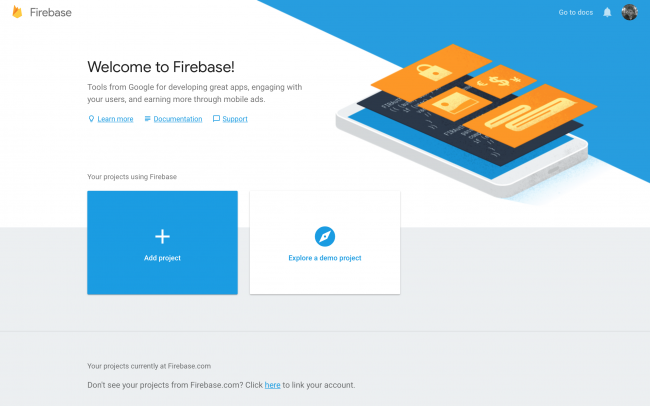
2. Then you will have to create Firebase project by clicking on “Add Project” button
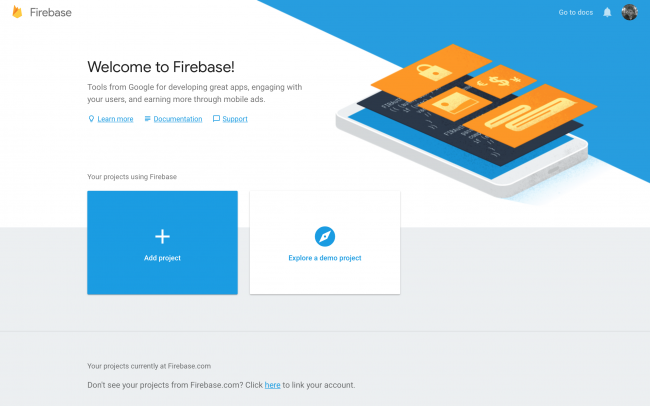
 

3. You need GoogleService-Info.plist file for iOS SDK as this file contains the details of the Firebase project which are used by Firebase SDK

4. Then add the plist file in the project

5. Add the following code before the return statement within application(_:didFinishLaunchingWithOptions:) in AppDelegate.swift file

FirebaseApp.configure()

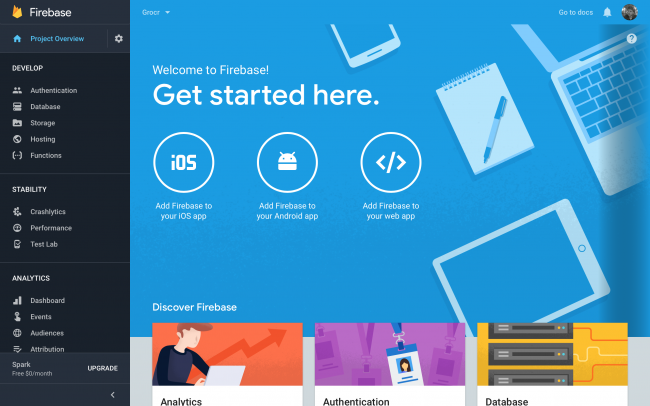
6. Then go to “Database” option from the left menu.
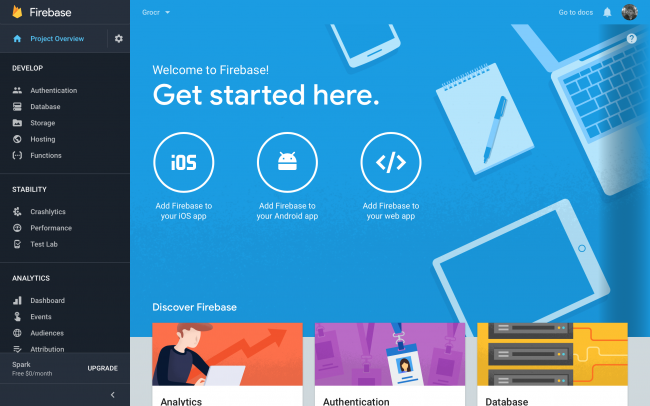
 

7. Select “Realtime Database” and that is the database for the Firebase project. All the data that is stored in or fetched from is from this location.

8. Firebase setup is completed

Now you will have to download Firebase SDK in the swift. For this you will have to install the following pods.

  1. pod ‘Firebase/Core’
  2. pod ‘Firebase/Database’

Let suppose you have the following data in the given structure in the Firebase database –

// The root of the tree
{
  // grocery-items
  "grocery-items": {
 
    // grocery-items/milk
    "milk": {
 
      // grocery-items/milk/name
      "name": "Milk",
 
      // grocery-items/milk/addedByUser
      "addedByUser": "David"
    },
 
    "pizza": {
      "name": "Pizza",
      "addedByUser": "Alice"
    },
  }
}


After successful installation of the pods, we can move on to the coding part.

Code Implementation

All the data points/nodes are used to access data from Firebase database. We create references to the nodes and then fetch data from that node.

In other words a Firebase reference points to a location in Firebase where data is stored.

First we will have to create reference to the root node of the database structure –

let ref = Database.database().reference(withPath: "grocery-items")

or the following way can be used –


let rootRef = Database.database().reference()
let ref = rootRef.child("grocery-items")

Reference to the child node which is “milk” can be created using the following code –

let milkRef = ref.child("milk")

Asynchronous listener can be attached to a reference in order to retrieve data from Firebase using observe(_:with:) method.

The following code will fetch the data and keep listening to the data changes on the database. As soon as any change is made in the database, the new snapshot of the node/reference is fetched and we get the updated data as soon as any change is made in the database.


ref.observe(.value, with: { snapshot in
  // This is the snapshot of the data at the moment in the Firebase database
  // To get value from the snapshot, we user snapshot.value
  print(snapshot.value as Any)
})

Then the snapshot values can be parsed and used in the app.

One big advantage of using observe method over observeSingleEvent method is that you don’t have to call the function again and again as the updated data is fetched from the database as soon as any value is changed in the database.

Summary

Now you should be able to fetch the data from the Firebase database in swift using Firebase SDK.

Please feel free to get in touch with us at support@knowband.com for any issues.

We also provide No Code Mobile App solutions for Prestashop, Opencart, Magento 2 and Woocommerce. Know more here:


How to save data to Firebase in Swift Language (iOS)?

Objectives of the blog

After reading this blog we will be able to install the Firebase SDK in your project and write code to save data to Firebase database along with the creation of the Firebase project.

Benefits of Using Firebase Database

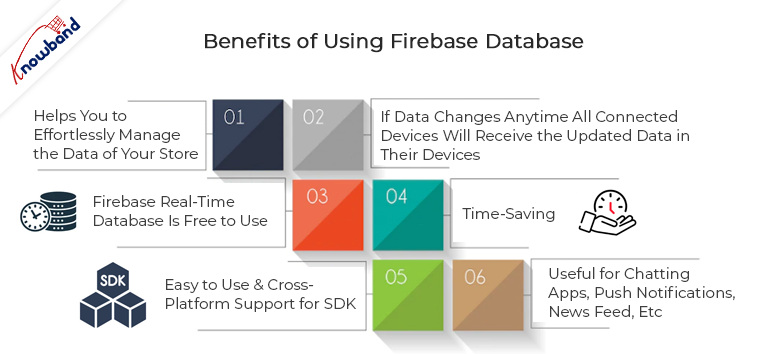
It doesn’t matter whether you are working on a small project or your eyes are on a big one you must need a database to store all your information. If you are working on a small project then you can use this Firebase database. Here are the list of benefits using Firebase database:

1. Helps you to effortlessly manage the data of your store.
2. If data changes anytime all connected devices will receive the updated data in their devices.
3. Firebase real-time database is free to use.
4. Time-Saving.
5. Easy to use & Cross-platform support for SDK.
6. Useful for chatting apps, push notifications, news feed, etc.

Pre-requisites

We need to write swift code to save the data to Firebase. For this, first we will have to create the Firebase project. Follow the steps given below to create the Firebase project –

1.Go to https://console.firebase.google.com

2.Click on “Add Project” button


3. Then create iOS app and download GoogleService-Info.plist file

4. Then move the plist file inside the project

5. After than in Xcode, open AppDelegate.swift and add this code before the return statement within application(_:didFinishLaunchingWithOptions:)

FirebaseApp.configure()

6.Then click on “Database” option from the left menu.


7. Select “Realtime Database”, there you will find the database URL, which you can use in the code in order to fetch the data from the database. Generally you will not need this URL as we are using GoogleServices-Info.plist file and the database url is already available in that file, we only need to initialize the Firebase.

8. Firebase setup is completed

Now you will have to download Firebase SDK in the swift. For this you will have to install the following pods.

1. pod ‘Firebase/Core‘
2. pod ‘Firebase/Database‘

Let suppose currently we have no data in the Firebase database and we want to save the following data in the given format in the database  –

// The root of the tree
{
  "movies": [
    "movie1": {
      "name": "Avengers",
      "addedByUser": "John"
    },
 
    "movie2": {
      "name": "Star Wars",
      "addedByUser": "Jane"
    },
  ]
}

After successfully installing the pods on the project, we are ready to implement the coding part.


Code Implementation

Before creating the references, you will have to understand that what is a Firebase reference.

A Firebase reference points to a location in Firebase where data is stored. Even if you create multiple references, they all share the same connection.

First we will have to create reference of the FIRDatabaseReference.

Reference that will hold root node (grocery-items) can be made by using the following code –

let ref = Database.database().reference(withPath: "movies")

or you can also use the following way –

let rootRef = Database.database().reference()
let ref = rootRef.child("movies")

Then we will have to create reference to the child items which are milk and pizza so that we can add the data inside those nodes.

let movieRefAvengers = ref.child("movie1")
let movieRefStarWars = ref.child("movie2")

We know that we need to save the dictionary inside these keys. For that, we will create two dictionaries one for milk and another for pizza.

let dictMovieRefAvengers: [String: String] = ["name": "Avengers", "addedByUser": "John"]
let dictMovieRefStarWars: [String: String] = ["name": "Star Wars", "addedByUser": "Jane"]

After that we can add the dictMovieRefAvengers and dictMovieRefStarWars into the movieRefAvengers and movieRefStarWars and these will get added as a child of those references.

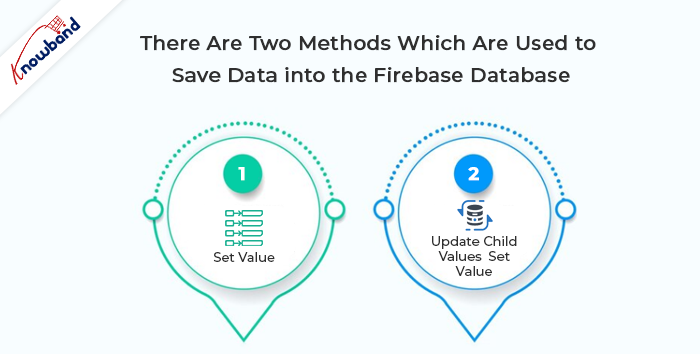
There are two methods which are used to save data into the Firebase database which are setValue and updateChildValues. If you want to know when your data has been committed, you can add a completion block. Both setValue and updateChildValues take an optional completion block that is called when the write has been committed to the database. This listener can be useful for keeping track of which data has been saved and which data is still being synchronized.


// Saving the values in movie1 node
movieRefAvengers.setValue(dictMovieRefAvengers) {
  (error:Error?, ref:DatabaseReference) in
  if let error = error {
    print("Data could not be saved: \(error).")
  } else {
    print("Data saved successfully!")
  }
}
 
// Saving the values in pizza node
movieRefStarWars.setValue(dictMovieRefStarWars) {
  (error:Error?, ref:DatabaseReference) in
  if let error = error {
    print("Data could not be saved: \(error).")
  } else {
    print("Data saved successfully!")
  }
}


After running the code shown above, you will get the same structure in the Firebase database which is already shown.

Summary

After following the above procedure, you will be able to save the data to the Firebase database in swift.

If you face any issues, please feel free to reach us at support@knowband.com. Knowband also provides PWA and Flutter Apps for Prestashop, Opencart, Magento 2 and Woocommerce. Know more:


Also Read This Articles:

How to Read data from local JSON file in Swift?

Introduction

We will assume that we want to have a JSON file added inside our project and want to access its data in swift language.

Code

You can create a JSON file in Xcode by going to File > New File > Empty and giving the file any name (eg. example.json). The file will be added and then we can add a JSON String in the file. i.e. –

{“animal”:”Lion”, “bird”:”Sparrow”}

You can add the above-mentioned String directly into the JSON file that we created.

The following function can be used to read the JSON data from the JSON file so that it can be accessed in Swift –

  static func readJSONFromFile(fileName: String) -> Any?
    {
        var json: Any?
        if let path = Bundle.main.path(forResource: fileName, ofType: "json") {
            do {
                let fileUrl = URL(fileURLWithPath: path)
                // Getting data from JSON file using the file URL
                let data = try Data(contentsOf: fileUrl, options: .mappedIfSafe)
                json = try? JSONSerialization.jsonObject(with: data)
            } catch {
                // Handle error here
            }
        }
        return json
    }

<strong>Recommended Read: </strong><a href="https://www.knowband.com/blog/tutorials/iterate-element-json-string-android-ios/">Iterate through each element of JSON string in Android and iOS</a>

Recommended Read: How to Migrate Magento Store From Localhost To Server?

Iterate through each element of JSON string in Android and iOS

Introduction

We will assume that we are going to take JSON string as input String and we will look into the process to access each element of JSON String in Android and iOS.

Android

String jsonString = "{\"animal\":\"Lion\", \"bird\":\"Sparrow\"}";
JSONObject jsonObject = new JSONObject(jsonString);
Iterator < ? > keys = jsonObject.keys();
while (keys.hasNext()) {
String key = (String) keys.next();
String value = jsonObject.getString(key);
// Here we get the value from the JSON String justify;
}

iOS

We convert the JSON string into JSON object using the extension given below

extension String {
func toJSONObject() -> Any? {
guard let data = self.data(using: .utf8, allowLossyConversion: false) else { return nil }
return try? JSONSerialization.jsonObject(with: data, options: .mutableContainers)
}
}

We use the above-mentioned extension as below-

let jsonString = "{\"animal\":\"Lion\", \"bird\":\"Sparrow\"}";
if let jsonObject = jsonString.toJSONObject() as? [String: String] {
for (key, value) in jsonObject {
print("\(key) : \(value)")
// Here we get all the keys and values from JSON string
}
}