1.0 Introduction
Knowband offers OpenCart Image Search Extension which implements image search functionality on the website. The online users just need to upload an image from the website front-end interface and as a result, they can view the matched products. Admin can set a higher threshold value from the admin interface for offering accurate results. The online merchant can show an image search option near the search box and on product pages as the “Search Visually same product” button.
The eCommerce store merchant can check total images, mapped images, unmapped images and total images yet to be synced. There is a specific link for viewing the reasons behind the unmapping of the images. This way, the online store merchant can implement an email search on the website and offer a better store experience to the customers.
1.1 Features of OpenCart Image Search Extension
- Online merchants can implement image search functionality on the website using the OpenCart Image Search Extension.
- This OpenCart Image Search Extension recognizes the uploaded image and provides matching products in the search result.
- The online users just need to upload images for searching the desired products.
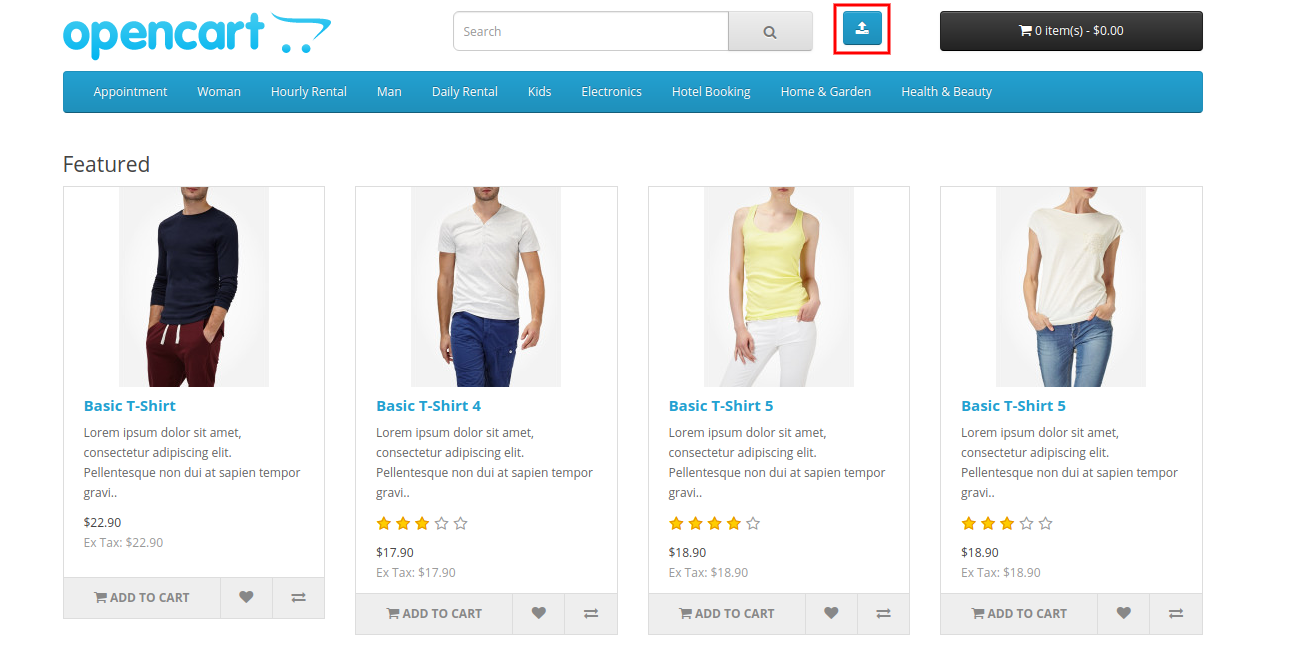
- There is an option to display the image search option near the search bar. Admin just needs to enable this option from the admin interface of this Search by Image module for OpenCart.
- The eCommerce store merchant can also enable us to show the “Search visually same Products” button on the website’s product pages.
- The Search by Image module for OpenCart has the functionality to sync the newly added product images automatically.
- There is an option to set threshold percentage according to which, admin can show more accurate results of image search. The range can vary from 50 to 100 where 95 is the recommended value for accuracy of results.
- OpenCart Image Search plugin provides steps for generating an API key from the clarified portal.
- The OpenCart store admin can view total available images and mapped images details in the OpenCart Image Recognition System admin interface.
- The online store admin can also view the number of unmapped images along with un-mapping reasons.
- The online sellers can also view the number of images that needs to be synced.
- With this Search by Image plugin for OpenCart, admin can offer a better user experience to the customers.
- OpenCart Image Recognition System has a Machine Learning feature that recognizes the uploaded images and shows matching product images in the image search result.
2.0 Installation
Buy OpenCart Image Search Extension from the store. You will receive these files:
- First, you will get a source code file of the OpenCart Image Search Extension in a zipped file format.
- User Manual of this OpenCart Image Search module.
Follow below-mentioned steps to install OpenCart Image Search Extension:
1. Unzip the received zip file. You will get the folders.
2. Copy all the folders of the zip file in the Root Directory of OpenCart setup via FTP manager.
3. There will be a file named kbimage_search.ocmod.xml (In case of Openvar v3.0.x file name would be kbimage_search.ocmod.zip). Upload the same file from the page “Admin -> Extension -> Extension Installer -> upload”.
So, OpenCart Image Search Extension is now successfully installed and ready to use at your store.
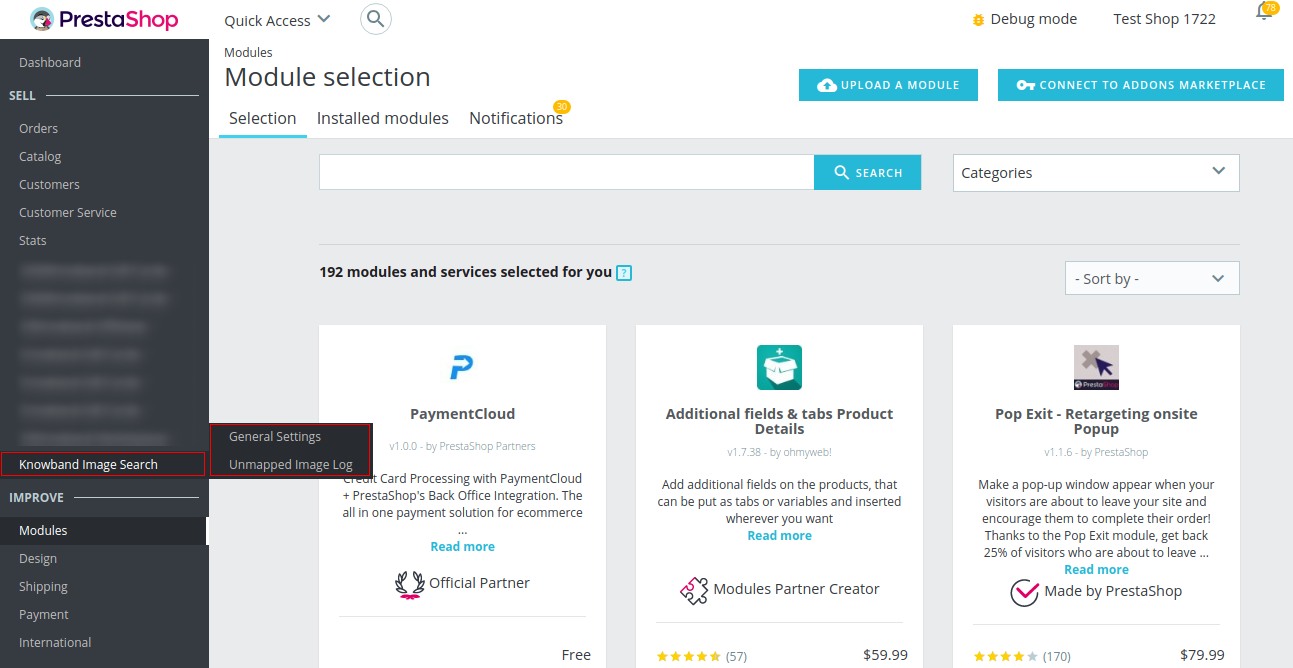
Now go to the admin menu and click on the extensions and thereby click on the configure button next to the OpenCart Image Search module.
3.0 Admin Interface
After the successful installation of OpenCart Image Search Extension, the online store merchant can easily implement the conditions and show the image search option on the website front-end interface.
There are two configuration sections:
- General Settings
- Unmapped images
3.1 General Settings
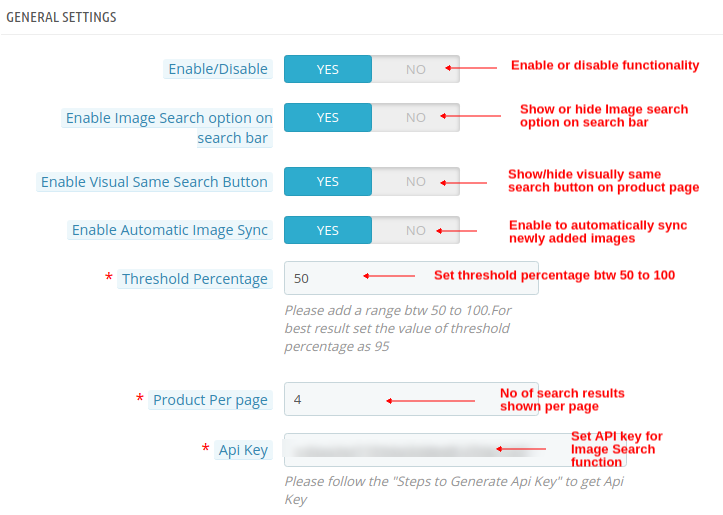
In the General settings section, the online store merchant can apply the basic settings for image search. The OpenCart Image Search module is highly customizable and offers smooth functioning to the users.
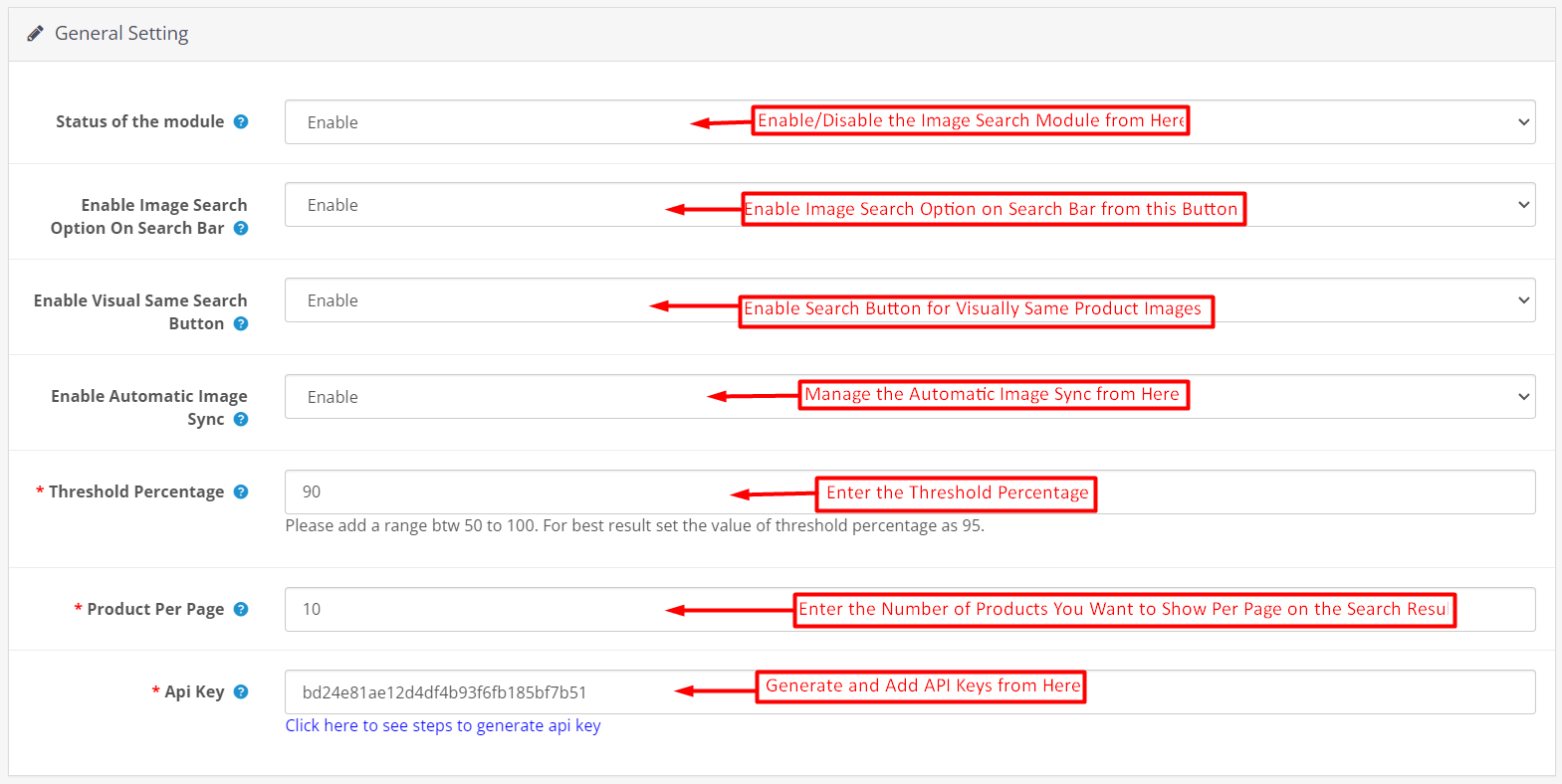
These are the configuration options:
- Status of the module: Activate or deactivate this OpenCart Image Search Extension functionality by enabling or disabling this option.
- Enable Image Search Option On search bar: The online merchant can show or hide the image search button from the search bar.
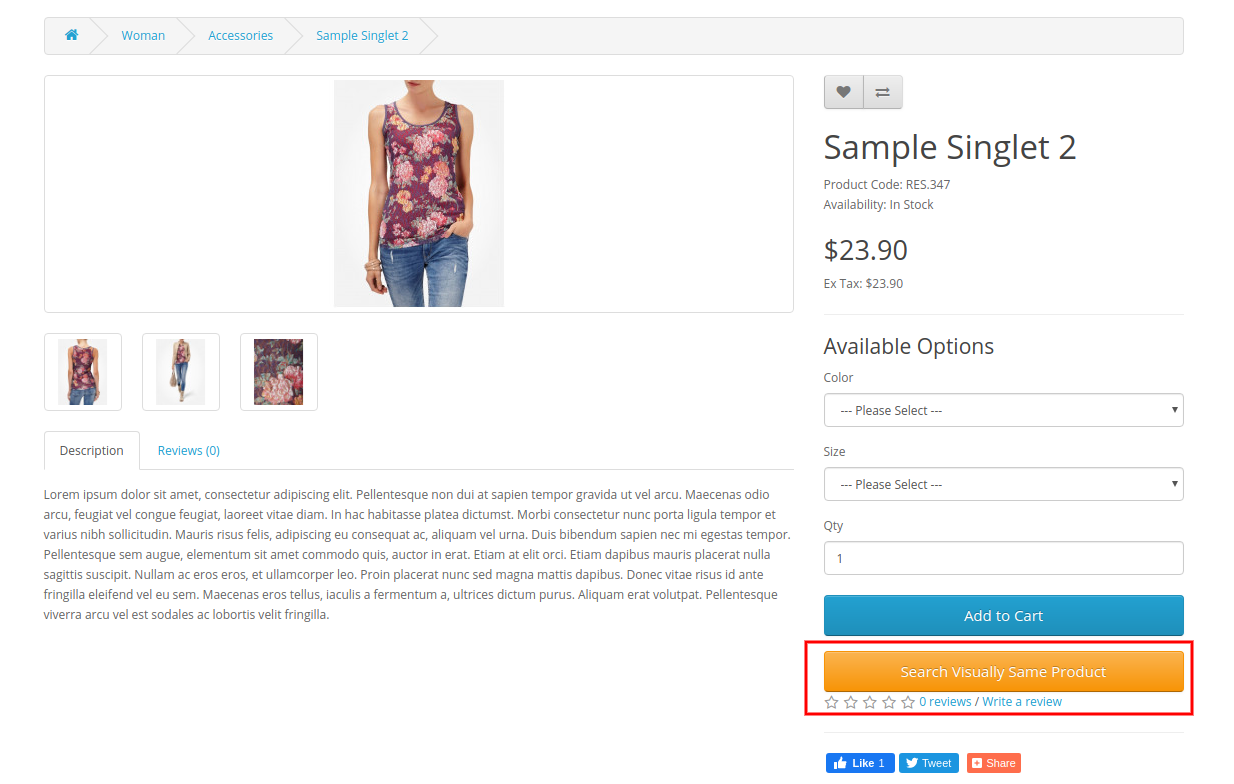
- Enable Visual same search button: Admin can show or hide a button on the product page to search visually the same images. Customers just need to click on this button to view similar product images.
- Enable Automatic image Sync: The online store merchant can activate this configuration option for automatically syncing the newly added product images.
- Threshold percentage: Admin needs to add a range between 50 to 100 as a threshold percentage.
- Product Per Page: The store admin can add the number of products he wants to show for the image search results.
- API key: Admin can check the steps to generate an API key in the provided link and set it from the admin interface.
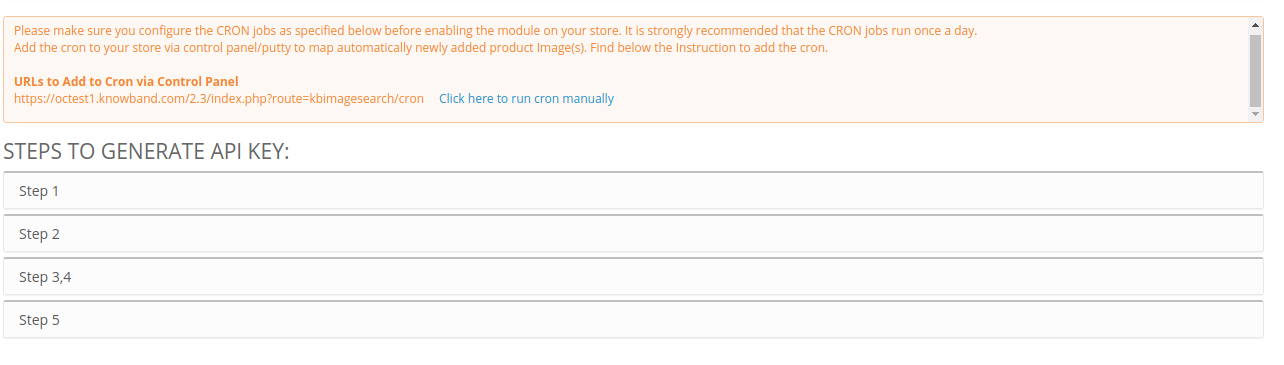
Apart from these settings, the admin needs to configure CRON setup and admin can run cron manually for image mapping. Steps for API key generation are given and admin can easily follow the steps to generate an API key.
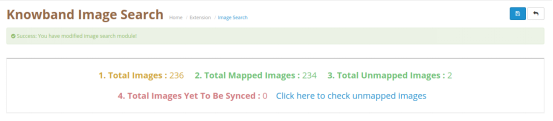
Admin can also check the number of total images, mapped images and number of images that needs to be synced. Apart from that, admin can also check the data of unmapped images and he can click on the link for getting the reason behind unmapping.
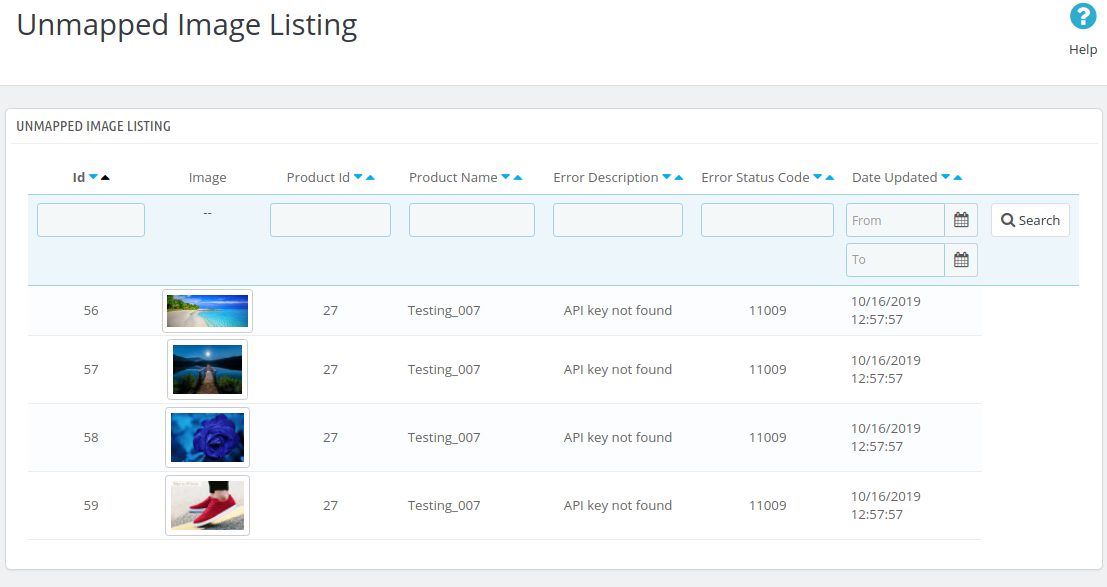
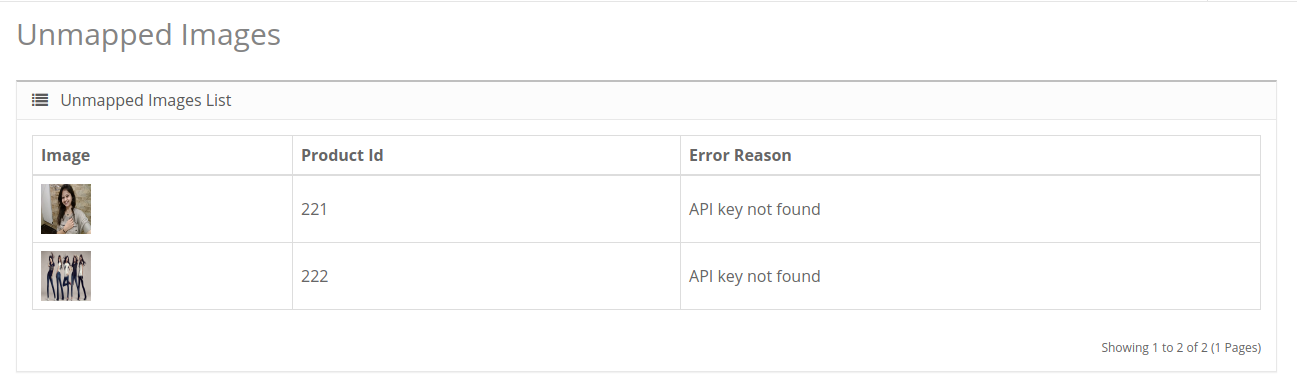
3.2 Unmapped Image Log
Admin can click on the provided URL for checking the details of the unmapped image. Here admin can view the product id and reason behind the unmapping of the image.
4.0 Front-end Interface
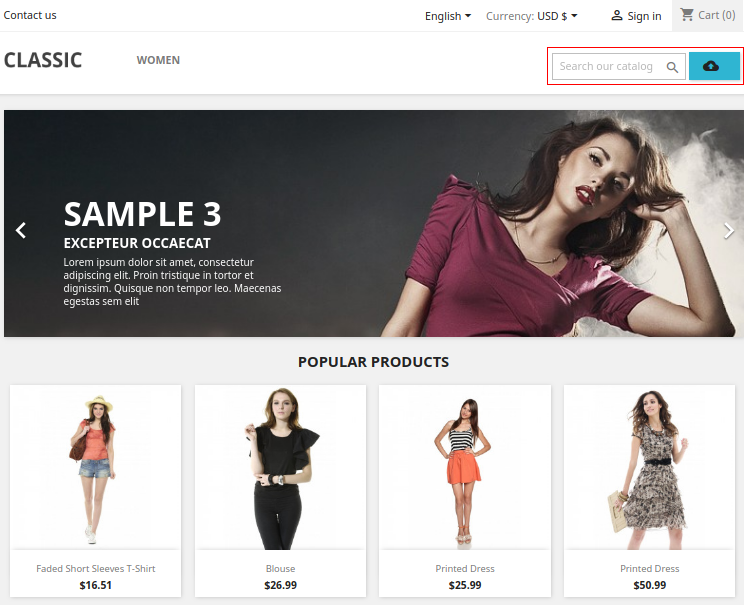
The online users can view the image search options on the website’s front-end interface and use it for their convenience.
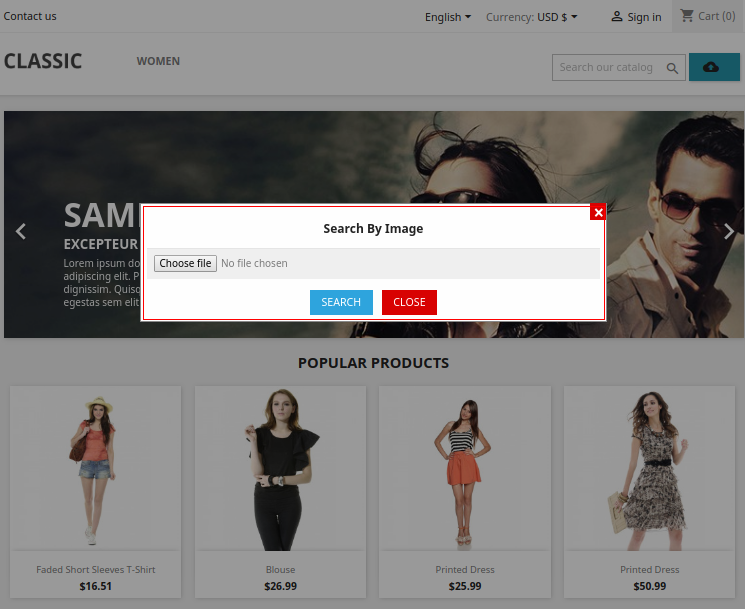
The online users can view the image search option on the search bar as shown below:
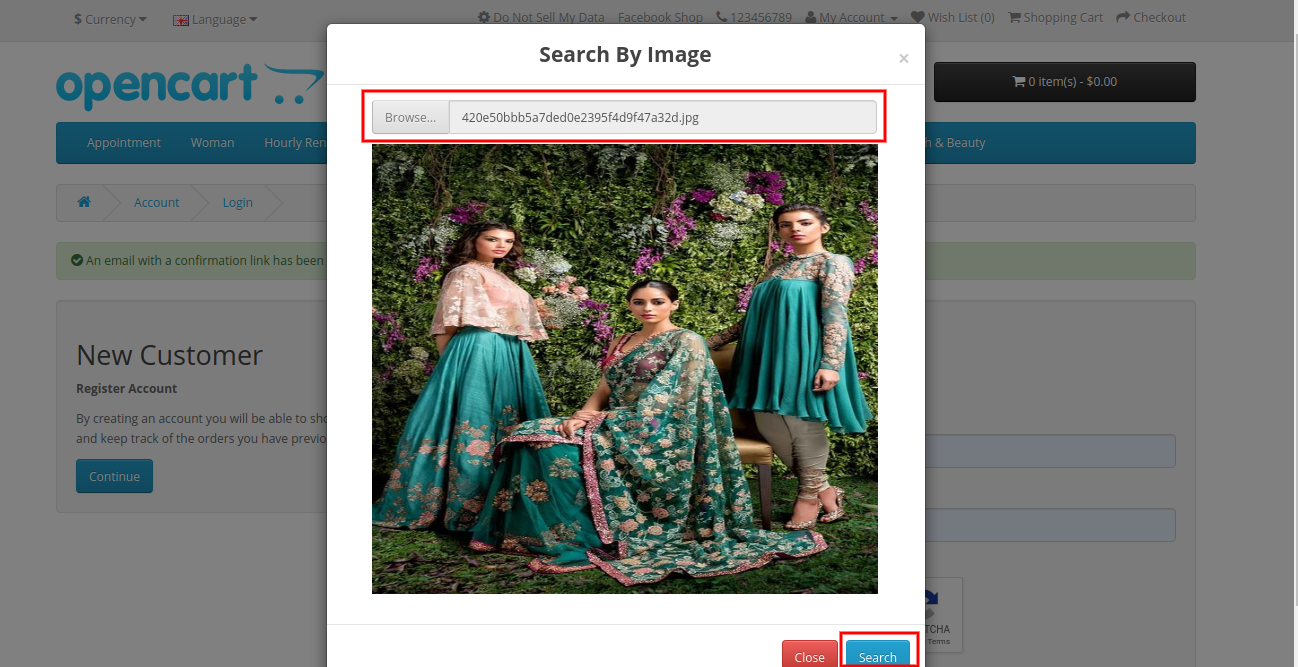
Online users just need to upload an image and click on the search button for the proceeding image search option. Check the below-mentioned image:
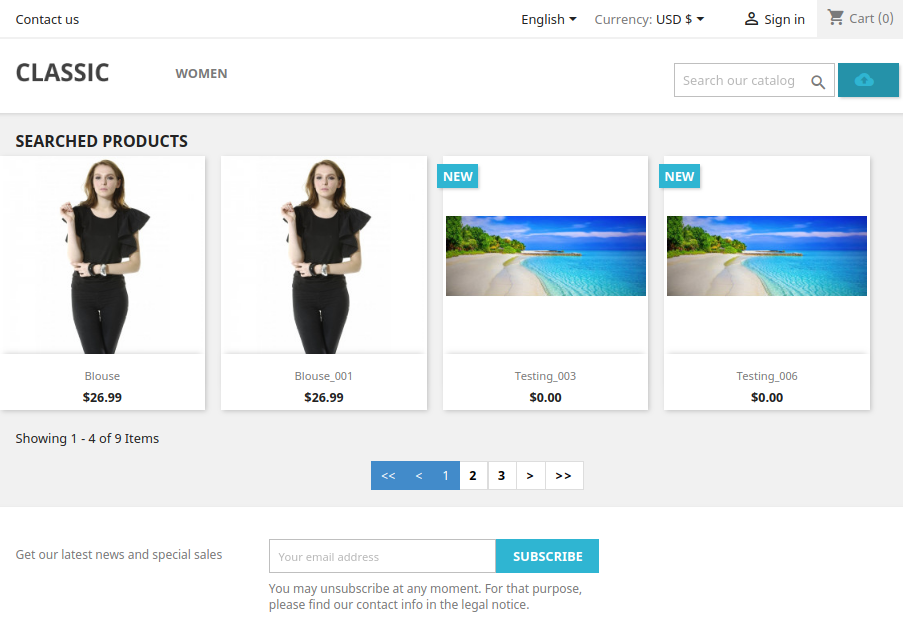
In search results, online users can view the products which meet the search criteria and they can easily find the desired products without any hassle or time taking process.

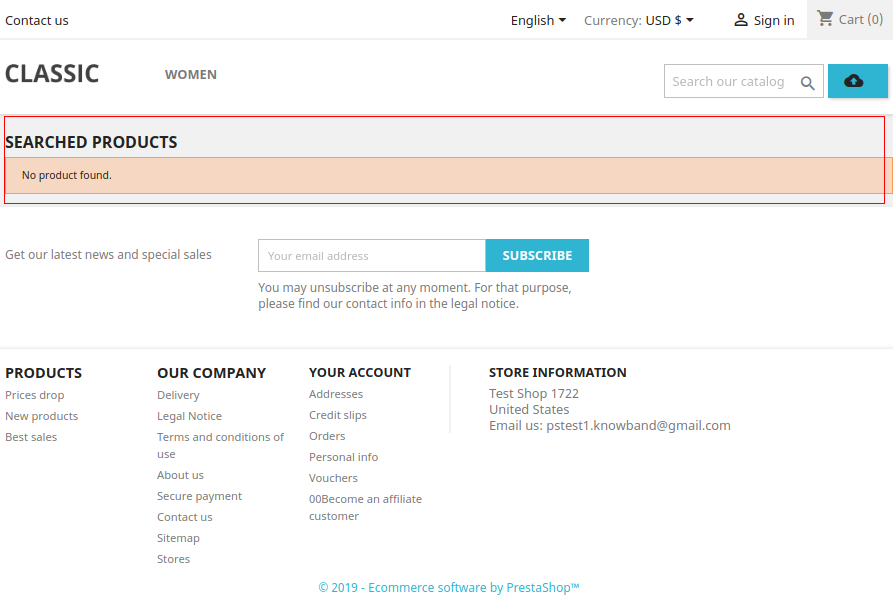
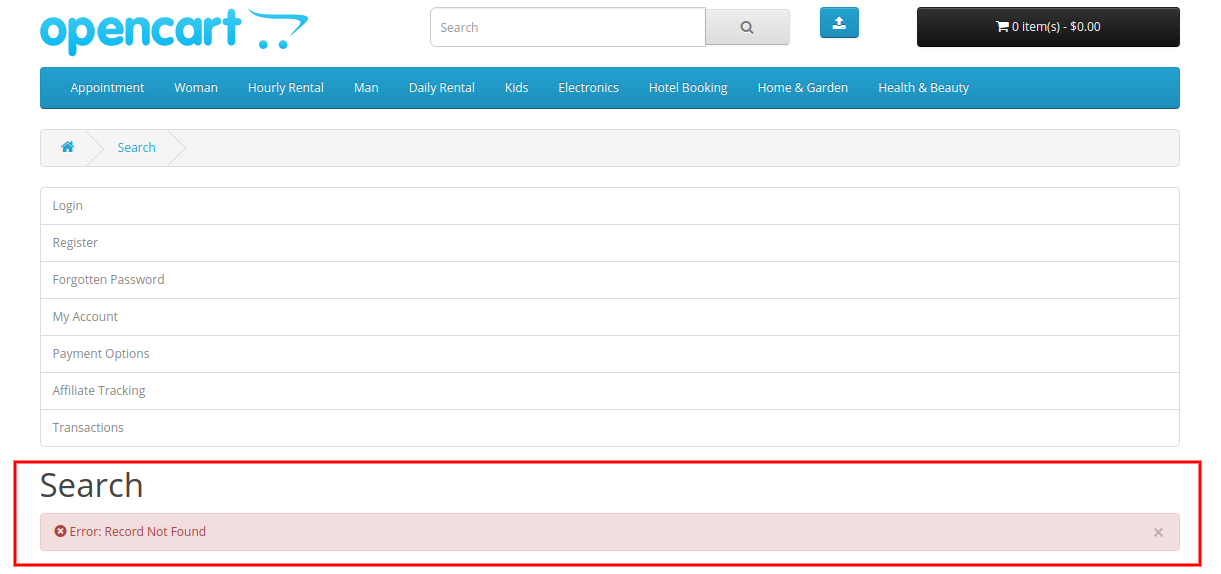
The search result will show an error in case of the unavailability of matching images.
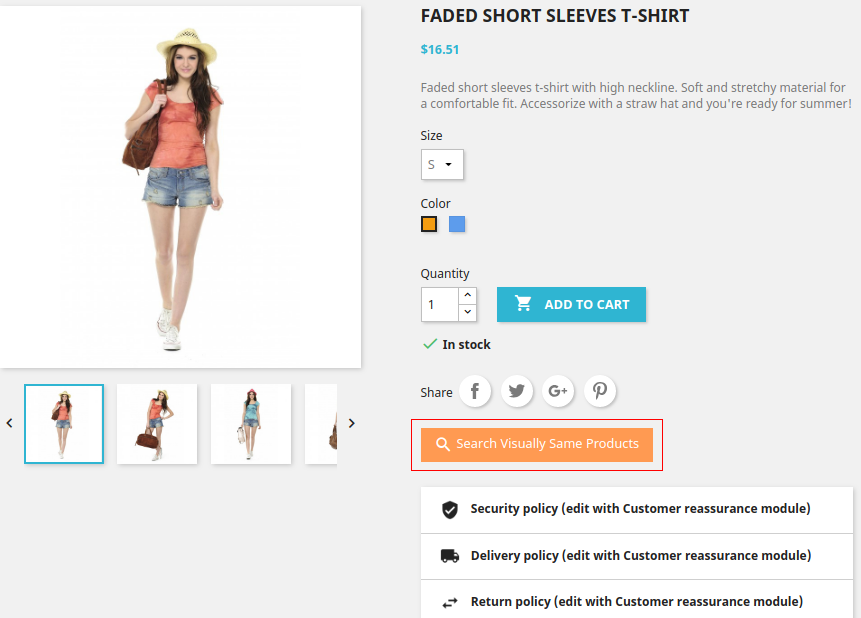
The OpenCart Image Search plugin also provides an option to show “visually similar product”. The online users can click on this button and check the visually same products.
This way, the online users can easily get the desired products without wasting much time and efforts. The eCommerce store merchant can easily configure the Search by Image module for OpenCart and implement image search functionality.