PrestaShop Etsy Integrator 4.0.1: New Features You Will Need
We are excited to announce the release of version 4.0.1 of PrestaShop Etsy Marketplace Integrator! This update comes with new enhancements designed to make managing your Etsy store easier, more efficient, and completely seamless.
1. OpenAPI Authentication Updates
Etsy has updated its authentication system, and Knowband’s Etsy Marketplace module now fully supports the new OpenAPI standards. All API requests from your PrestaShop store automatically include the correct authentication headers, ensuring that your integration continues to function smoothly without any interruptions. It’s important to upgrade to version 4.0.1 before 18 January, as connections may be disrupted if the update isn’t applied by then. This update keeps your store fully compliant with Etsy’s latest API requirements and prevents any potential downtime.
2. Better Return Policy Management
Handling return policies just got simpler with this new version. With this update, admins can create , sync and manage multiple return policies and assign them to specific profiles. Any categories linked to these profiles are automatically updated on Etsy with the assigned return policy. This ensures your listings remain accurate, consistent, and aligned with your store policies, saving time and reducing manual effort.
These updates are part of our ongoing effort to provide a reliable, efficient, and hassle-free integration between PrestaShop and Etsy. By upgrading now, you ensure your store continues to run smoothly while taking advantage of these new features.
Etsy is a marketplace that sells its items through various sites joins well defined for different countries. For instance, shop for handmade, classic, custom, and noteworthy presents for everyone, or shop for fragile antiques collected, one-of-a-kind, custom, and remarkable options, and so forth. In 2021, Etsy witnessed 7.5 million sellers sell their goods. In fact, there were 96 million active Etsy buyers last year.
Now, you know why selling on Etsy is a core option for your eCommerce business.
Knowband, an internet-based business expert community association, has developed a point of interaction for the Prestashop storekeepers. Furthermore, it assists them with starting selling on the Etsy marketplace. Prestashop Etsy Marketplace Integration Addon saves a great deal of time for the merchants. How? By decreasing the time connected with the manual transferring measure. Moreover, this Prestashop Etsy Integration Addon offers them the element of dealing with the stock and requests. Further, for the Etsy shop orders from the Prestashop administrator board.
Advantages of the Prestashop Etsy Marketplace Integration Module by Knowband
Give a robotized answer for listing the products to eBay Marketplace.
Prestashop Etsy API Integrator permits dealing with the stock at Etsy Marketplace from the Prestashop store.
Permission handling the Etsy store orders from the Prestashop store.
Costs are customizable productively on the Etsy Marketplace.
Products are recordable on different Etsy stores without any problem.
Reasons to choose the Prestashop Etsy Marketplace Integration Addon
Managing the profiles is smooth with Etsy Prestashop Connector
Profile management allows the store administrator to pick the principal settings to list the items. Besides, the profile management tab offers fundamental settings to list the item. For example – Etsy Store (country-wise), Currency, Language, and Shipping Profile. Thus, the store administrator can choose the fundamental setting.
Prestashop Etsy Connector allows listing the products in Bulk
The Prestashop Etsy Synchronization Addon allows the mass listing of the products. In addition, the Prestashop store classification to the Etsy Marketplace classification is mappable by the store administrator. Subsequently, every one of the items recorded under the Prestashop store class will get learned to the eBay Marketplace under the chosen Etsy classification. Utilizing this Etsy Prestashop Synchronization Addon, the store administrator can transfer products in mass utilizing profile-based item transferring.
Mapping of the Categories
To list the products on Etsy Marketplace, the Prestashop store administrator necessities to map the Prestashop store class to the most important Etsy Store classification. Subsequently, all the Prestashop store items get mapped to the Etsy classification.
Price Management is easy with Prestashop Etsy Marketplace Integration Addon
The Prestashop Etsy Integrator permits the Prestashop store administrator to list their store products to the Etsy. Furthermore, at an unexpected cost in comparison to the Prestashop store cost. The administrator can increment or abate the cost range on Etsy Store utilizing Etsy Prestashop Integrator. The administrator has the choice to list the products at a lower or more exorbitant cost because fixed or rate wise.
Easy ongoing synchronization
The Synchronization tab offers the cron settings. Further, used to motorize all the CRON settings. In fact, using this Synchronization tab administrator can without a doubt coordinate a lot of things. For instance, items status, request status, language sync, request declaration, and so forth.
Shipping format the executives
The director can make the conveyance profiles from this component. Also, the shipping layouts mapped to the different profiles made under the Profiles Management.
Item listing
Once over thing cron will list the items from the Prestashop Etsy Integration Module to the Etsy Marketplace close by the assortments, stock, and, thing depiction. Consequently, this component helps with posting the items.
Local Sync
Prestashop Etsy Integration Addon offers a nearby sync include. This component synchronizes the Prestashop store thing to the Etsy Prestashop Integration Addon. Besides, with the help of neighborhood sync, the administrator can synchronize their thing from the Prestashop store to the Prestashop Etsy API Integrator. Further, this tab is available under the synchronization tab of the Prestashop Etsy Marketplace Integration Addon.
What do you think of these reasons? You can also call them the key features of the Prestashop Etsy Marketplace Integration Addon. The plugin by Knowband is a stunning option that can help elevate your sales and revenues. In case you are interested and have any questions, let us know at support@knowband.com.
Knowband has developed an interface for the Prestashop store owners that can help them start selling on the Etsy marketplace. Further, the Prestashop Etsy integration addon saves the time of the sellers. How? By reducing the time involved in the manual listing process. In fact, the Prestashop Etsy marketplace integration module offers them a feature to handle the inventory. In addition, handle orders for the Etsy shop from the Prestashop back office.
Etsy is a marketplace that works as an intermediary between customers and artists. In addition, craftsmen of handmade items, or collectors of vintage products. Furthermore, the Etsy marketplace connector provides a unique platform to sellers to showcase their products. Thus, they can spread awareness regarding their products and services through this platform. It is also important for the marketplace to offer the best services to consumers. In fact, consumers like to have options and alternatives to choose from. Hence, the marketplaces are competing to win the sellers and offer great services to them to connect with their stores. Further, Etsy has more than 25 million visitors each month. Further, which gives sellers a wonderful opportunity to reach a larger audience network.
1.1 Key features of the Prestashop Etsy Integration module:
Simple installation and quick starting: The Etsy Prestashop integration module can install quickly. Further, the user-friendly interface of the Prestashop Etsy integration allows an easy process to list the products on the Etsy marketplace.
Bulk uploading of the products: By using this Prestashop Etsy integration addon, the admin can upload products in bulk.
Mapping of the store category with Etsy category: Sellers can easily map the product attributes and category with the Etsy category. Further, with the profile-based listing of the Prestashop Etsy API integrator.
Shipping template synchronization: Create shipping templates from the back-end of the Prestashop Etsy integration extension. Moreover, sync these templates with Etsy with the help of the cron jobs.
Order Synchronization: Manage and keep track of Etsy orders from the admin interface of the Etsy Prestashop API integration addon.
Order Status update: The Admin can update the order status of the Etsy marketplace orders with the help of the cron jobs. Furthermore, offered by the Prestashop Etsy integration module.
Inventory management: The admin can manage inventory for the Etsy store products from the Prestashop Back Office. The current status of the products can sync with the help of the cron jobs. Further, offered by the Prestashop Etsy synchronization extension. Suppose, they make any changes in the product inventory or attributes in the Prestashop store. Further, they can synchronize with Etsy with a button click with the Etsy Prestashop synchronization module.
Language translations: Prestashop Etsy integrator offers multi-lingual support. The admin can select the second language for the store. Moreover, easily synchronizes it with the Etsy marketplace shop. Further, through the cron job offered by the Etsy Prestashop integrator.
New Features offered by Knowband’s Prestashop Etsy Integrator Version 4.0.1:
OpenAPI Authentication for Etsy APIs: We have updated the module to work with Etsy’s new OpenAPI authentication. Now, all Etsy API requests include the required authentication headers, following Etsy’s latest standards, so your integration continues to work smoothly.
Return Policy Configuration & Mapping: A new return policy feature has been added to the module. Now admins can now create and manage multiple return policies and map them to specific profiles. Any products linked to a profile will automatically update on Etsy with the assigned return policy.
Key Features offered by Knowband’s Prestashop Etsy Integrator Version 2.0.0:
UX-related changes: To improve the user experience the interface of the shipping template has been changed. In addition, all the options for shipping template creation have been merged onto the same page. Furthermore, just like the Prestashop Etsy Marketplace interface.
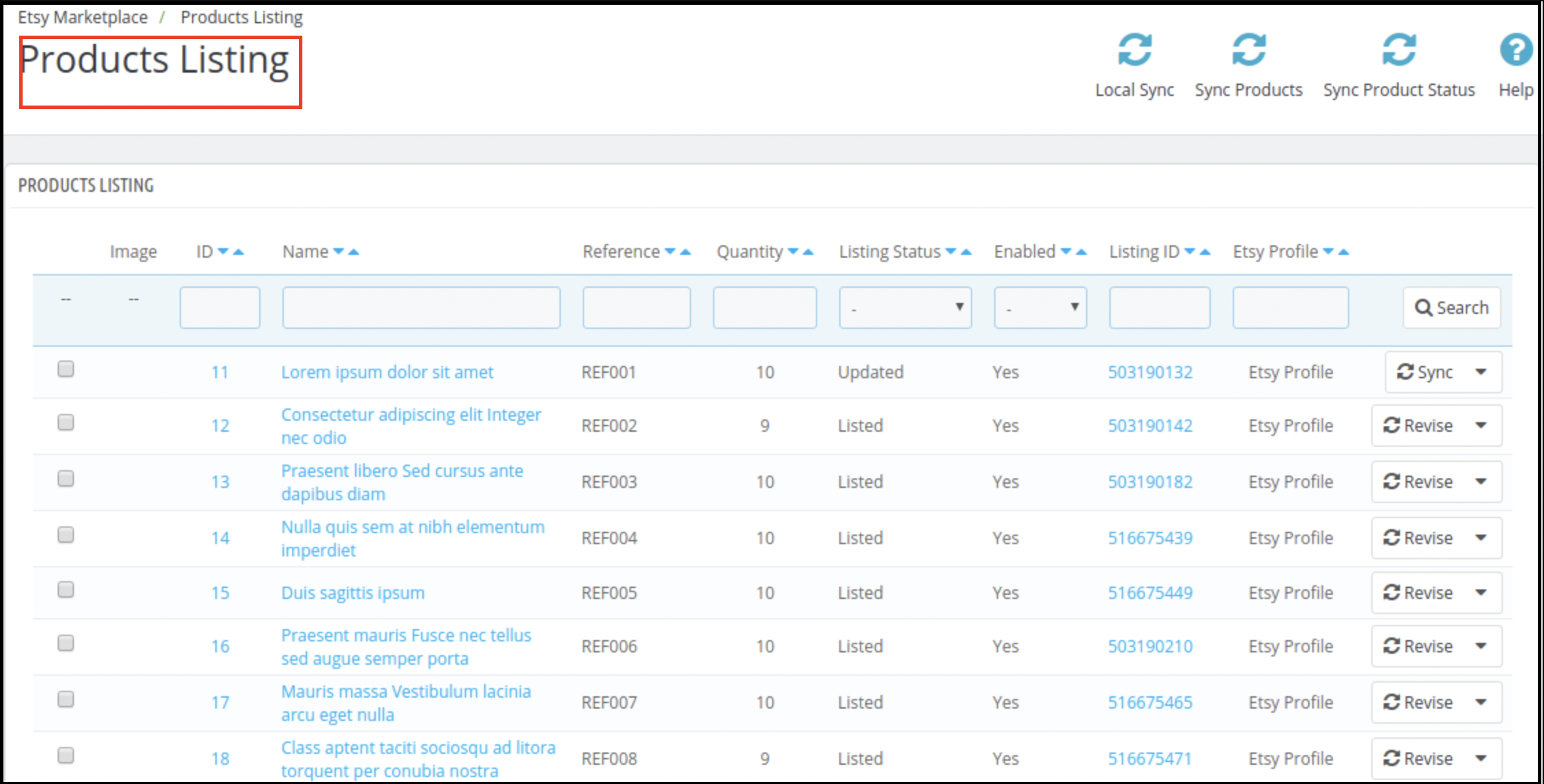
Code Optimization: Now the admin can sync the products from the Products Listings page. There are 3 options for product sync:
Local Sync: Local Sync option allows the admin to sync the PrestaShop store products to the Etsy PrestaShop Integration module. All the products which are mappable to a Profile will list in the Product Listings. Moreover, the admin can list the individual products on the Etsy Marketplace.
Sync Products: Sync Products option will sync the products to the Etsy Marketplace. All the enabled products will sync to the Etsy Marketplace. To avoid the syncing error, the admin can select the number of products. Further, to sync in one go under the General Settings. Cron setup is available to automate the process to list the products.
Sync Product Status: The admin can get the listing status of the syncing products by using the Sync Product Status.
Products Listings: In case you want to set the products as Inactive, Delete those products from this page only (Instead from the Etsy account). In fact, setting the product as Inactive on the Etsy account directly will relist the item on Etsy. Further, on the next CRON run.
The admin can view the Etsy store products from the Products Listings tab. Further, click on the Listing Id. In addition, it will open the Etsy store listing.
The admin can view the PrestaShop store listing by clicking the Product Name.
The admin can view the product listing page in the back office by clicking the ID.
Store admin can add Etsy store orders with store carriers.
Store admin can add the tracking numbers on Etsy orders.
Stora admin can add a size chart image for each profile and this additional image will be uploaded to Etsy.
Now instead of listing the variations separately on the Products Listings page, all the variations list under the product name.
The admin can sync the individual products to the Etsy Marketplace instead of listing the entire profile.
The admin can Disable/Enable Items before syncing and only enabled items will list to the Etsy store.
Custom Product Information: Now, the Prestashop Etsy Connector addon allows the admin to list the same product with different product details (product title and description) on Etsy Marketplace.
Profile Level Synchronization: We have recently introduced the profile level synchronization feature that allows the store admin to list/update the products from a particular category only instead of all.
Prestashop Etsy Marketplace Integration module
Knowband’s Prestashop Etsy Marketplace Integration module helps Prestashop store owners seamlessly connect their stores with Etsy to expand their reach and increase sales.
Additional features of the Etsy Prestashop Integration module
Attribute Mapping: All the PrestaShop store attributes will sync to the Etsy Marketplace Integration module automatically. In addition, the admin just needs to map these attributes to the Etsy Marketplace.
Etsy Category Attribute: The Etsy Category Attributes are now available in the Etsy Marketplace Integration module. Further, the admin can set the various attributes. For instance, Primary Color, Secondary Color, Holiday, and Accessory Style.
Product or Category Mapping: The PrestaShop Etsy marketplace Integration module enables syncing. Further, the selected products or entire category to the Etsy Marketplace. Furthermore, under the Profile Management tab of the Etsy Marketplace connector module, the admin can select the Product/Category option to sync the store products.
Custom Pricing: Etsy Prestashop integration module allows the admin to list the products on the marketplace at a different price. In fact, the admin can change the price of the products. Further, that displays on the marketplace by a fixed amount or a percentage amount. As per the requirement, the admin can increase or decrease the price of the products. In fact, he can do it from the back-end of the Prestashop Etsy integration addon.
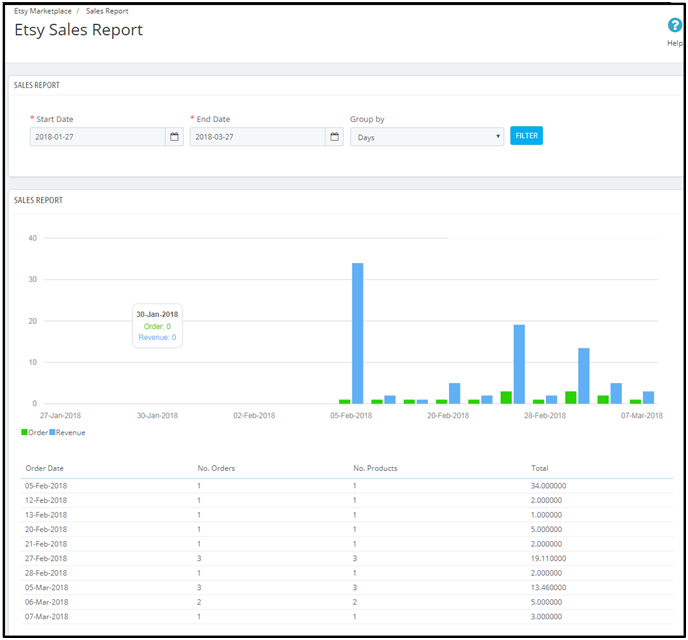
Sales Report: The sales report tab of the Etsy Prestashop integration plugin allows the sellers to check the order and revenue report.
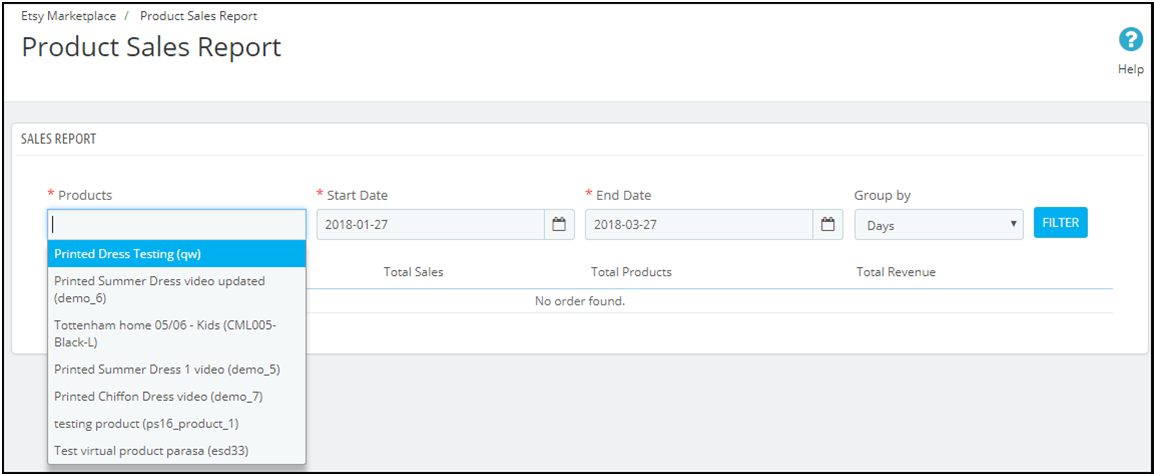
Product Sales Report: The admin can even view the sales report of particular products. In fact, he can do it from the back-end of the Prestashop Etsy integration plugin.
Shop Section: The Prestashop addon offers an option of adding a shop section in the front-end of the Etsy marketplace to the e-sellers. Further, the shop section allows the admin to categorize the products in a particular category. In fact, the created shop section will display at your Etsy shop.
Product Description Template: The e-sellers can use different placeholders for their product description to make them more impactful.
You can also watch the video on “Upgrade Guide – Knowband’s Prestashop Etsy Connector v3.0.4” here:
2.0 Installation
After purchasing the Prestashop Etsy integration extension, you will get the following files as available below:
1. kbetsy.zip (contains source code of the module)
2. User Manual
Follow the following steps to install the Etsy Prestashop integration extension:
Unzip the kbetsy.zip file. It would contain files and folders as shown below –
Copy all the files and folders of the unzipped folder into your store “modules” directory on the path – Root Directory/modules/.
Now module is ready to install on your store. Moreover, you can find that in Store Admin -> Modules and Services. Further, it would be shown as below –
In case, you are not able to find the module in the admin modules list. Further, please try searching the module with the following details –
Keyword – Etsy
Category – Other
Filter By – Installed & Not Installed / Enabled & Disabled
Click on the “Install” button to install the module. It would show a pop-up for your confirmation. Further, click on the “Proceed with the installation” option. In fact, this step will install the module and show a notification – “Module(s) installed successfully”.
3.0 System Setup
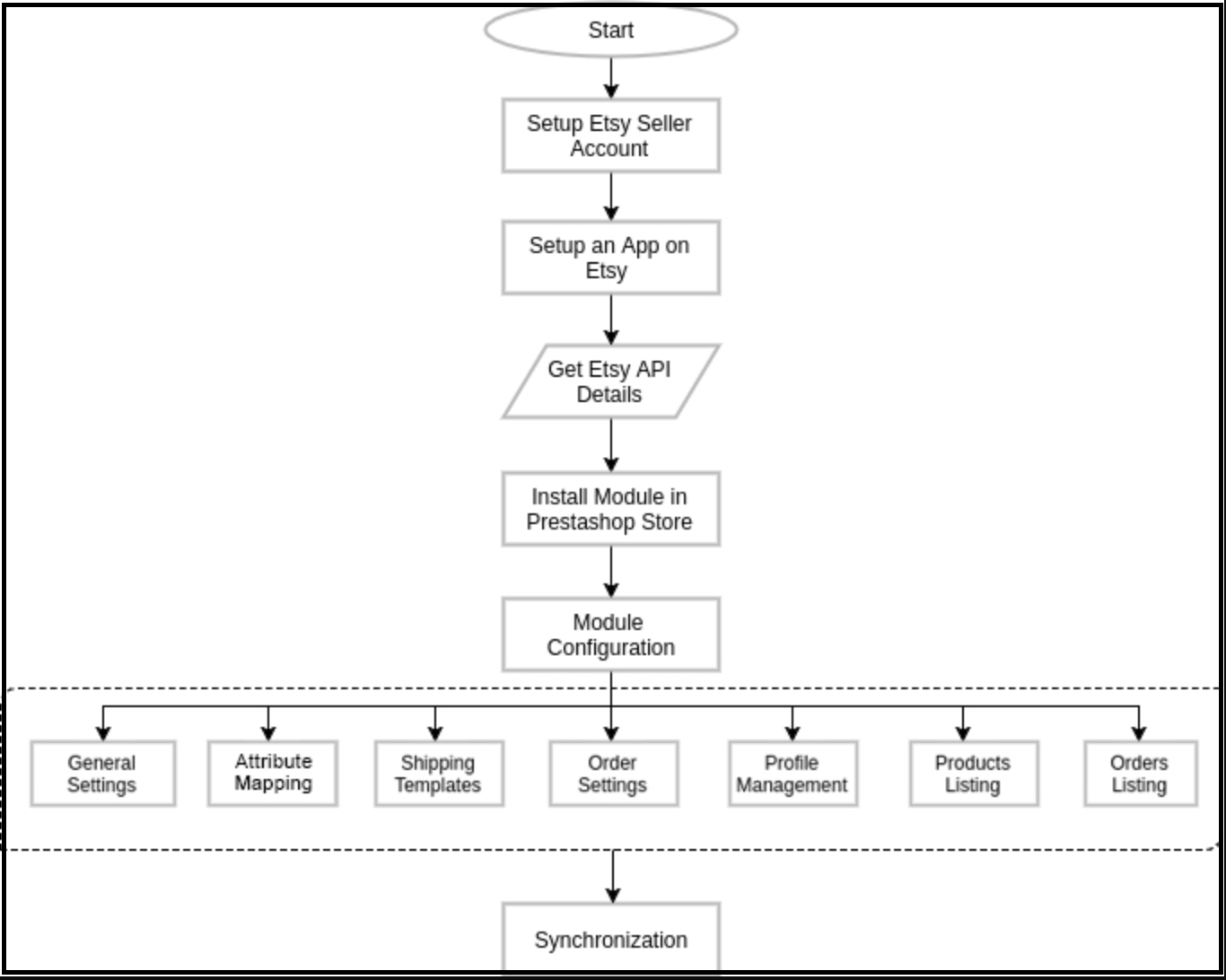
Before proceeding ahead, it is important to know what is the correct flow of actions. Further, to set up this system as several things are dependent on other things. In addition, if we do not take care, then it will become difficult to process smoothly or may be error-prone.
You need a seller account on Etsy to start selling on Etsy Marketplace. Moreover, to configure the Etsy Prestashop integration addon. In this section, we are listing all the steps to create a seller account on Etsy. Please find them below –
Click on the “Sell on Etsy” button present at the top right corner.
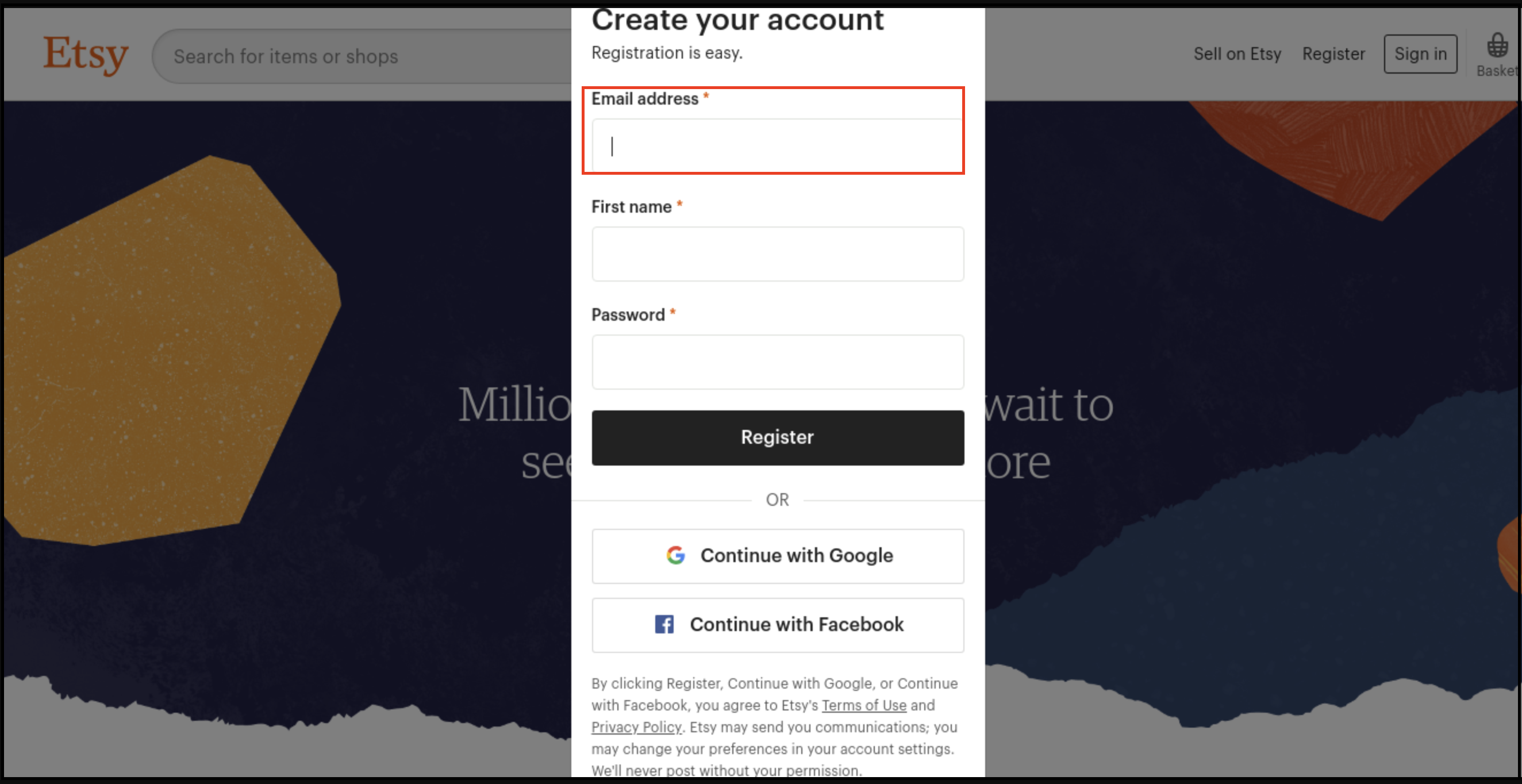
Click on the “Register” button on the page you are visiting now. Further, refer to the screenshot given below.
Fill up the registration form and click on the “Register” button. In fact, it would create your seller account and send a verification email to the provided email address.
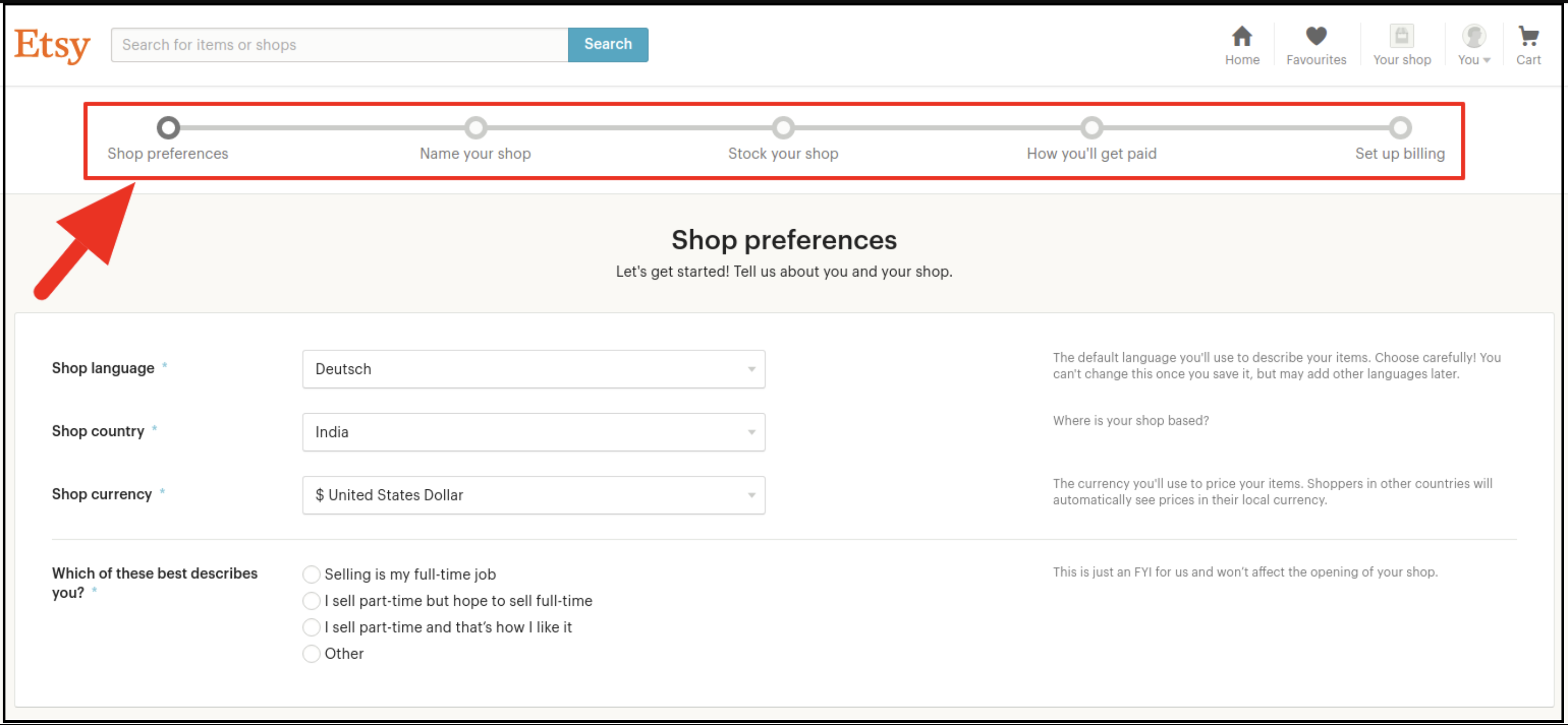
Now, it would also redirect you to another page as shown below.
Now, it is asking to set up your shop preferences. Further, complete all the highlighted sections. For instance, Shop Preferences and Name your shop, Stock your shop, How you will get paid, and Set up Billing.
5.0 Etsy Marketplace Integration- Setup an App
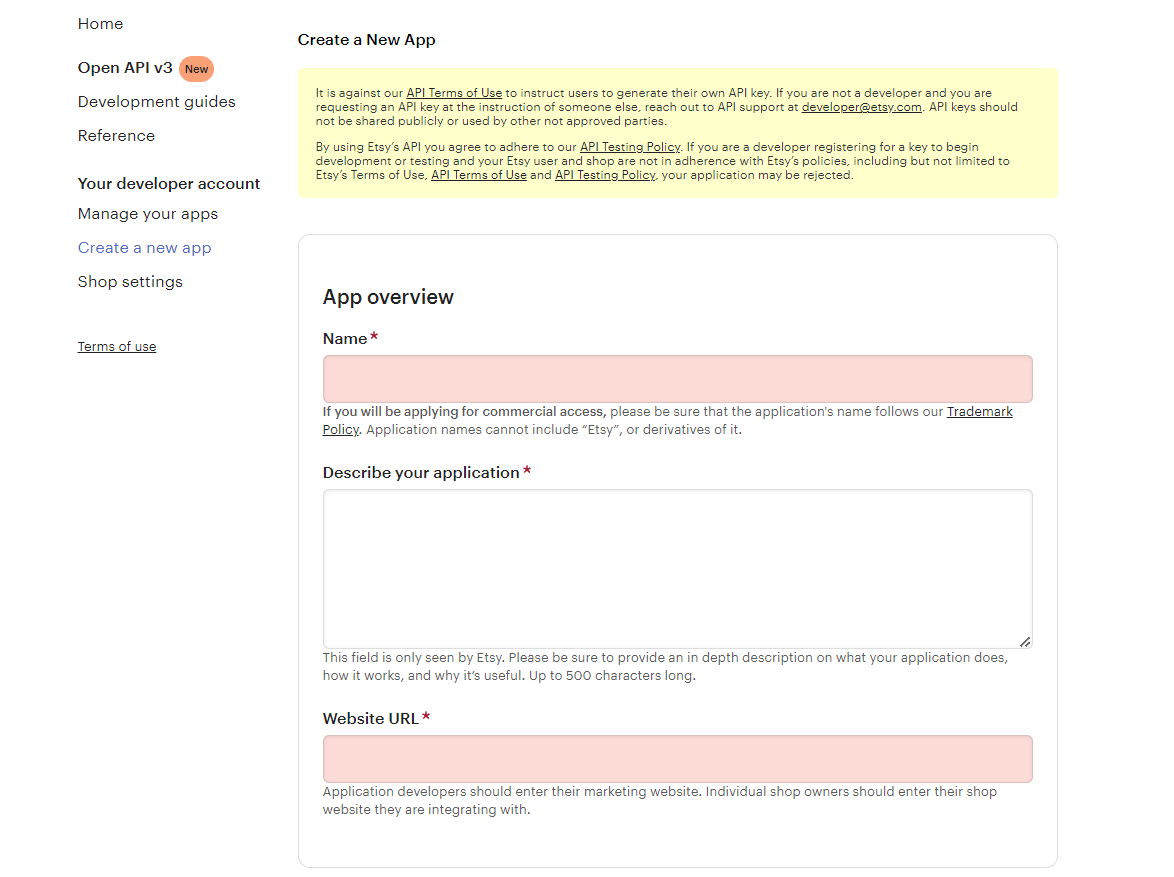
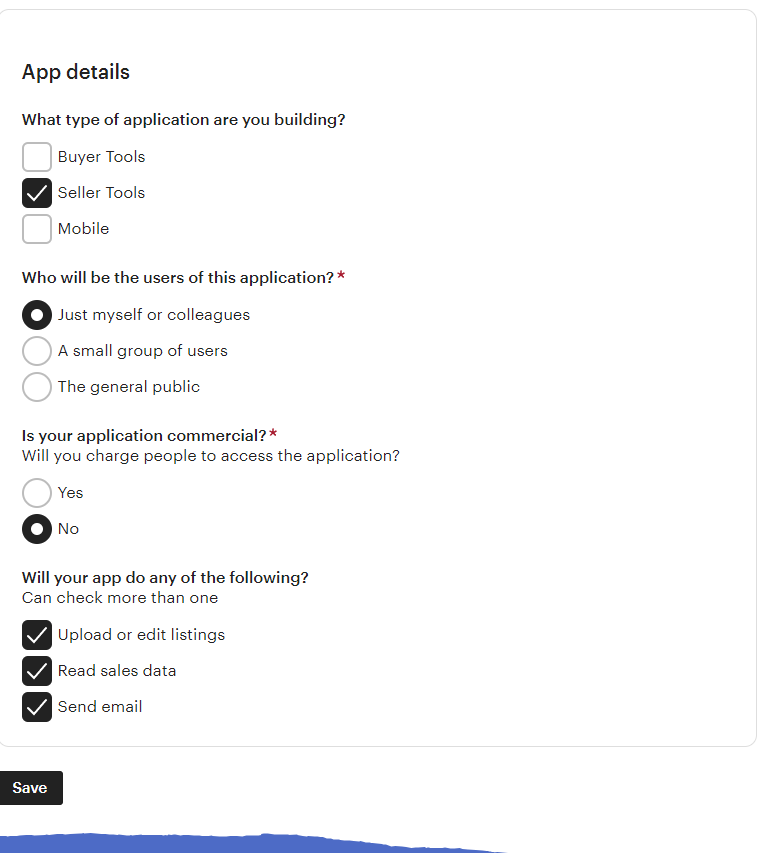
To start communication between Prestashop Store and Etsy Seller Account, you need to create an App on Etsy Marketplace. Further, the following are the steps to create an App on Etsy –
It would open a page where a form will be shown with a few input fields as shown below.
Fill up the form and click on “Read Terms and Create App”. Further, please make sure that you left the “Inventory Management Compatibility” checkbox is checked.
It would ask to accept “terms and conditions”. In fact, accept and click on the “Create App” button.
It would register your App on Etsy Marketplace and provide API details.
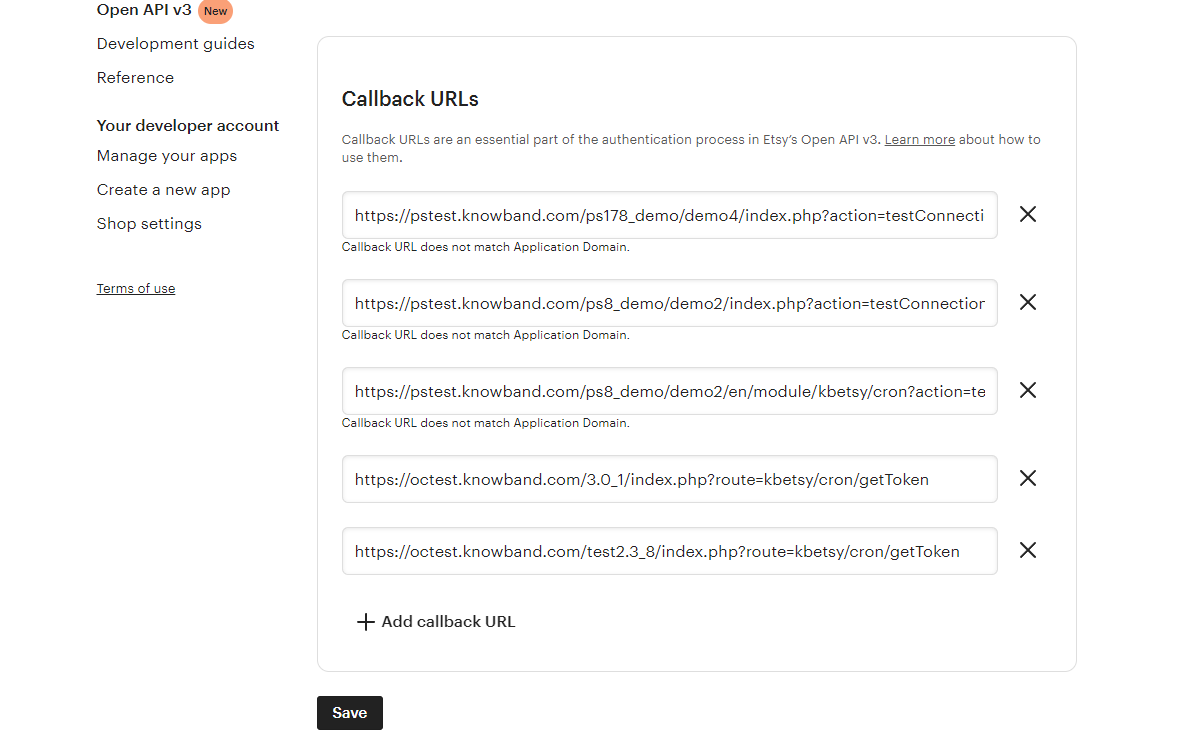
Once you successfully created the API, add the callback URL.
Click on the name of your App
Click on edit your callback URLs. After clicking on the following button, the page shown in the image will appear.
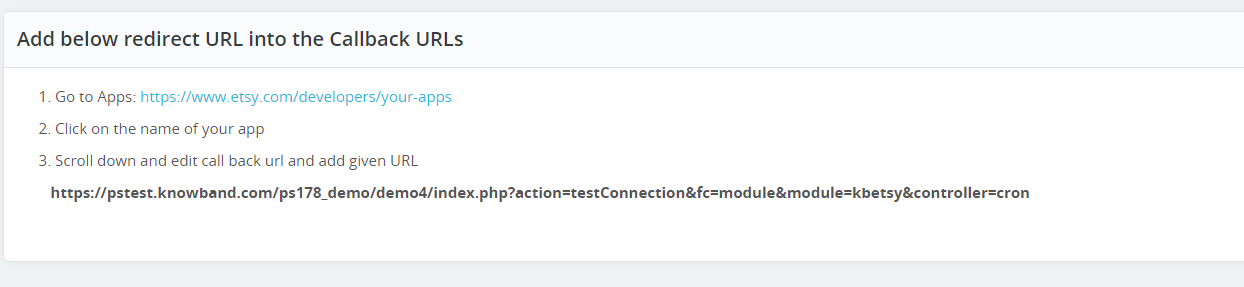
For finding the callback URL, please refer to the general setting section of our Prestashop Etsy Marketplace module. Copy the shown URL in the below image and paste the same on Etsy.
Click on the save button.
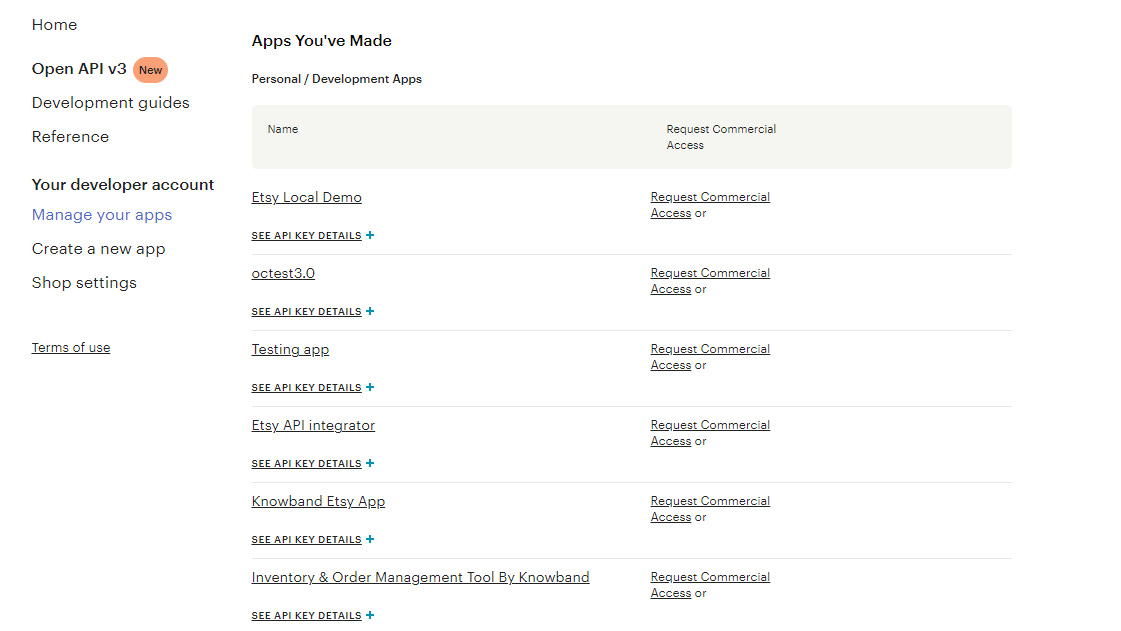
After saving the data, you will find the API page, where you can manage all of your Etsy Apps.
6.0 Admin Interface
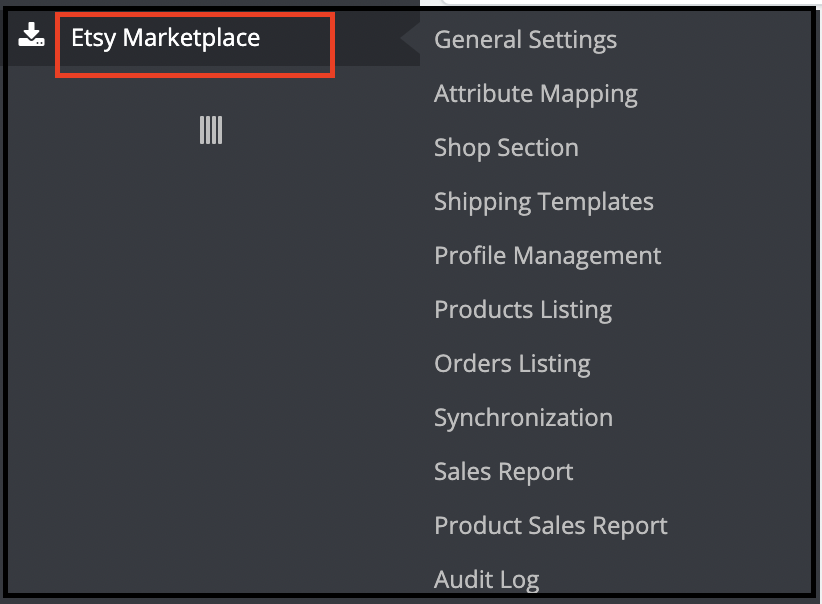
This Prestashop Etsy Integration addon is configurable. Moreover, the configuration settings can be updated via the admin interface. Further, after installation, store admin can find a menu named “Etsy Marketplace” in the left panel of Admin as shown below –
“Etsy Marketplace integration addon” menu contains the following options –
General Settings
Attribute Mapping
Shop Section
Shipping Templates
Profile Management
Products Listing
[New]Return Policy
Orders Listing
Synchronization
Sales Report
Product Sales Report
Audit Log
Each tab is explained below.
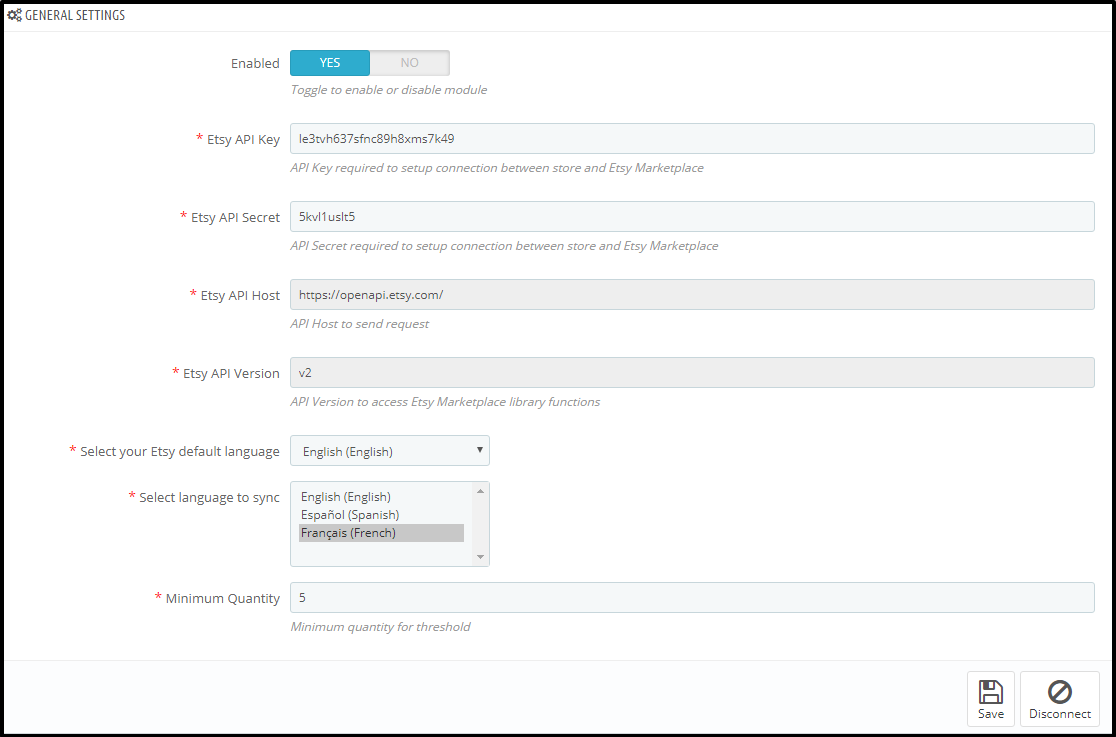
6.1 General Settings
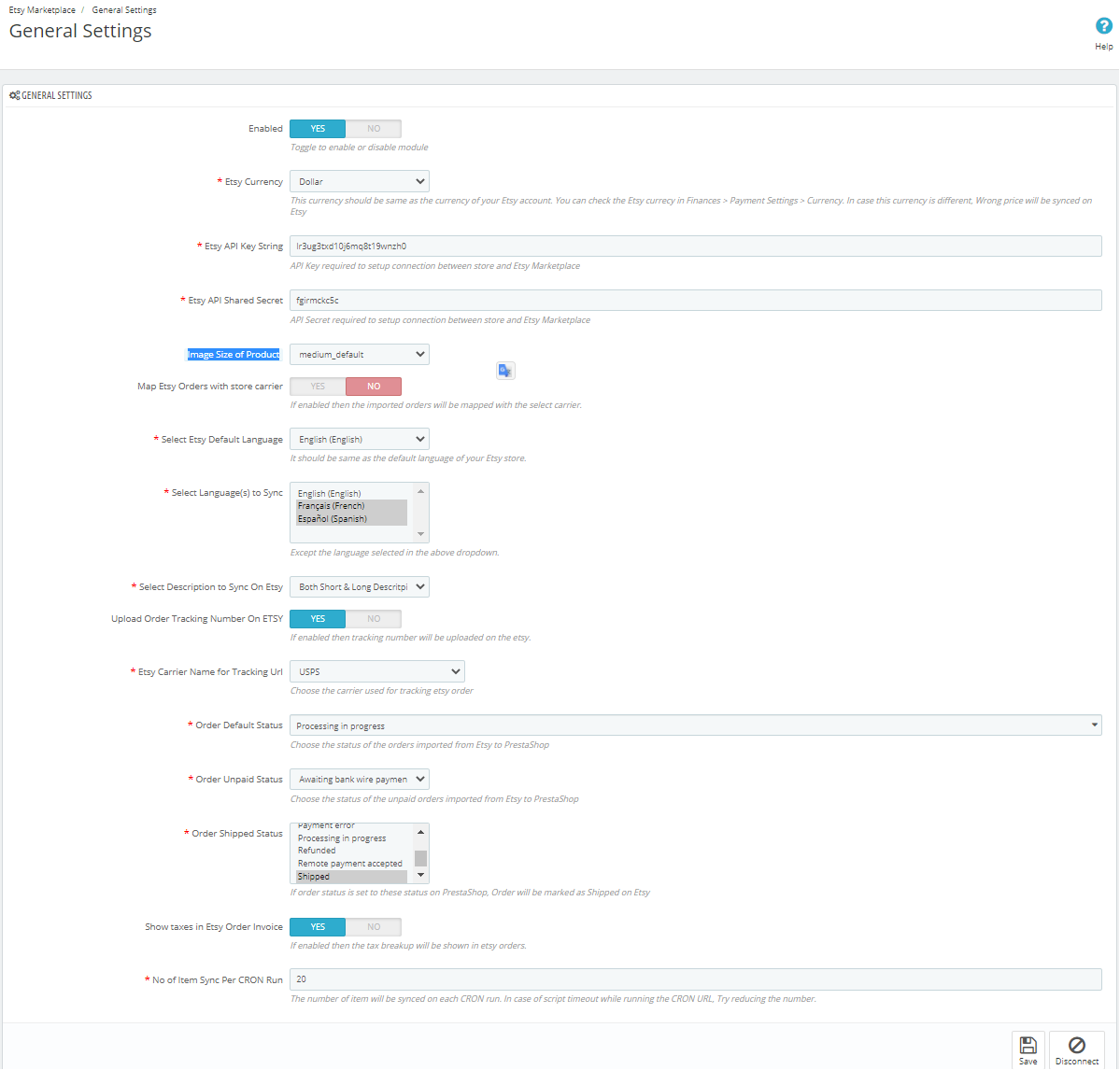
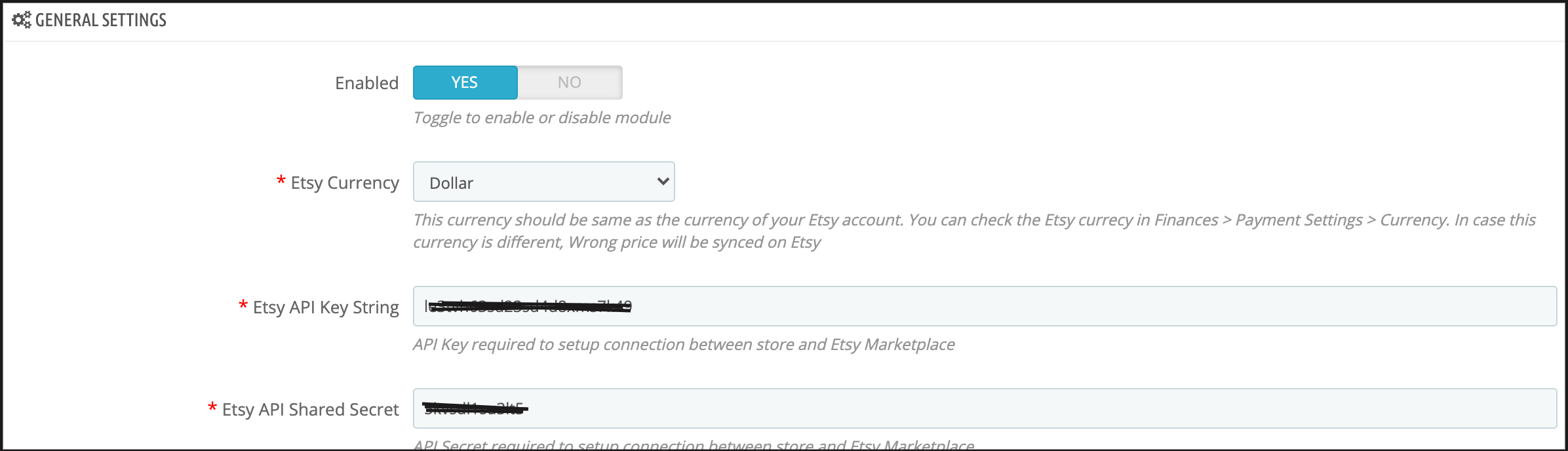
The General Settings tab of the Prestashop Etsy API integrator is there for capturing details. Further, of Etsy Prestashop Marketplace API like API Key, Host, etc. Please find the description of each input field below –
1. Enabled
Admin can Enable/Disable this Etsy Prestashop API integration module by the toggling button. If enabled, the Prestashop Etsy connector and all its settings will be working. Further, otherwise, there will be no impact of this module on the store.
2. Etsy Currency
This is a drop-down where the admin has to choose the appropriate currency. Further, for their which is similar to their Etsy Account.
3. Etsy API Key
This is a text box in which the admin has to enter Etsy API Key. Furthermore, which will authenticate the connection being established between the store and Etsy.
4. Image Size of Product
This feature allows the admin to select the size of the product image. Further, that will sync to Etsy Marketplace from PrestaShop.
5. Etsy API Secret
This is a text box in which the admin has to enter Etsy API Secret Key mandatory for authentication. Furthermore, between the Prestashop store and Etsy Marketplace.
6. Map Etsy Orders with Store Carrier
If enabled then the imported orders will be mappable with the select carrier.
7. Select Shipping Methods for Etsy orders
Store admin can select the shipping methods for Etsy Orders from the given list.
8. Etsy Default Language
The Etsy Prestashop Integration module allows the store admin to select the default language of the store.
9. Select Language to Sync
Admin can select the secondary languages to sync with Etsy Marketplace.
10. Select the Description type to sync on Etsy
This option enables Etsy sellers to the long description and short descriptions. In fact, or both they want to sync with the marketplace. Furthermore, they can select any one option from the descriptions that will sync according to the selection.
11. Upload the Order Tracking Number On Etsy
If enabled then the store admin can add the tracking number on orders and it will be uploaded on Etsy.
12. Etsy Carrier Name for Tracking Url
Store admin can choose the carrier used for tracking Etsy orders.
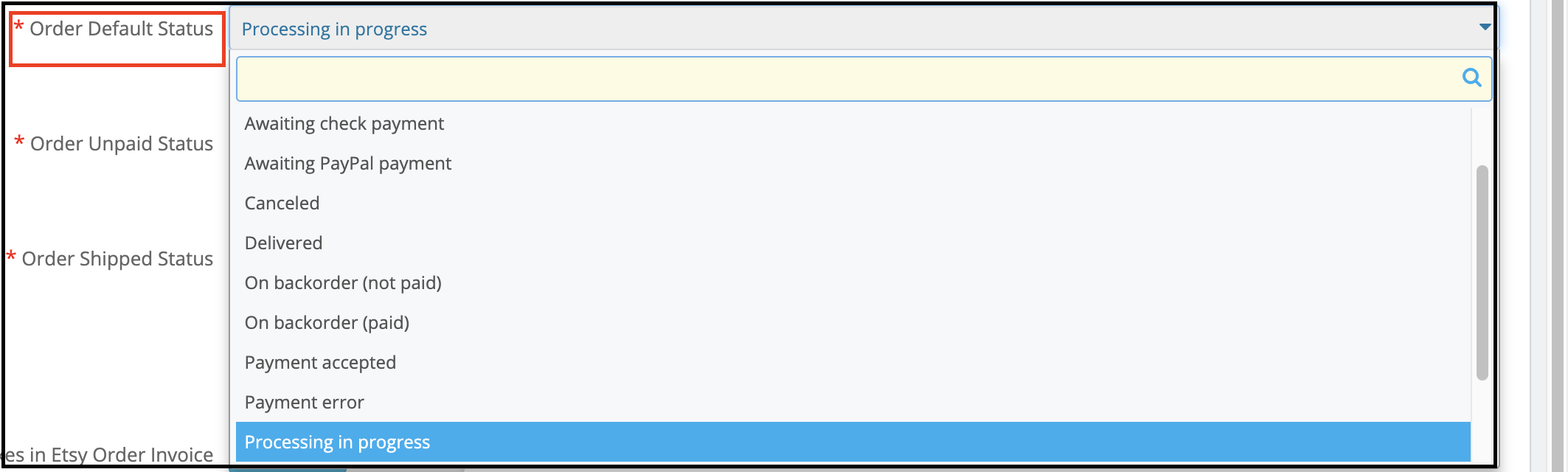
13. Order Default Status
This is a drop-down menu. Moreover, the admin has to choose order default status for orders imported from Etsy to PrestaShop.
14. Order Unpaid Status
This is a drop-down menu. Moreover, the admin has to choose order unpaid status imported for orders imported from Etsy to PrestaShop.
15. Order Shipped Status
This is a drop-down menu and the admin has to choose order shipped status for orders imported. In addition, if the order status is set to this status the orders will be marked as shipped on Etsy.
16. Show taxes in Etsy Order Invoice
If enabled then the tax breakup will be shown in Etsy orders.
17. No. of Items sync per cron
This is a text box and the admin has to define several items that he wants to sync per cron.
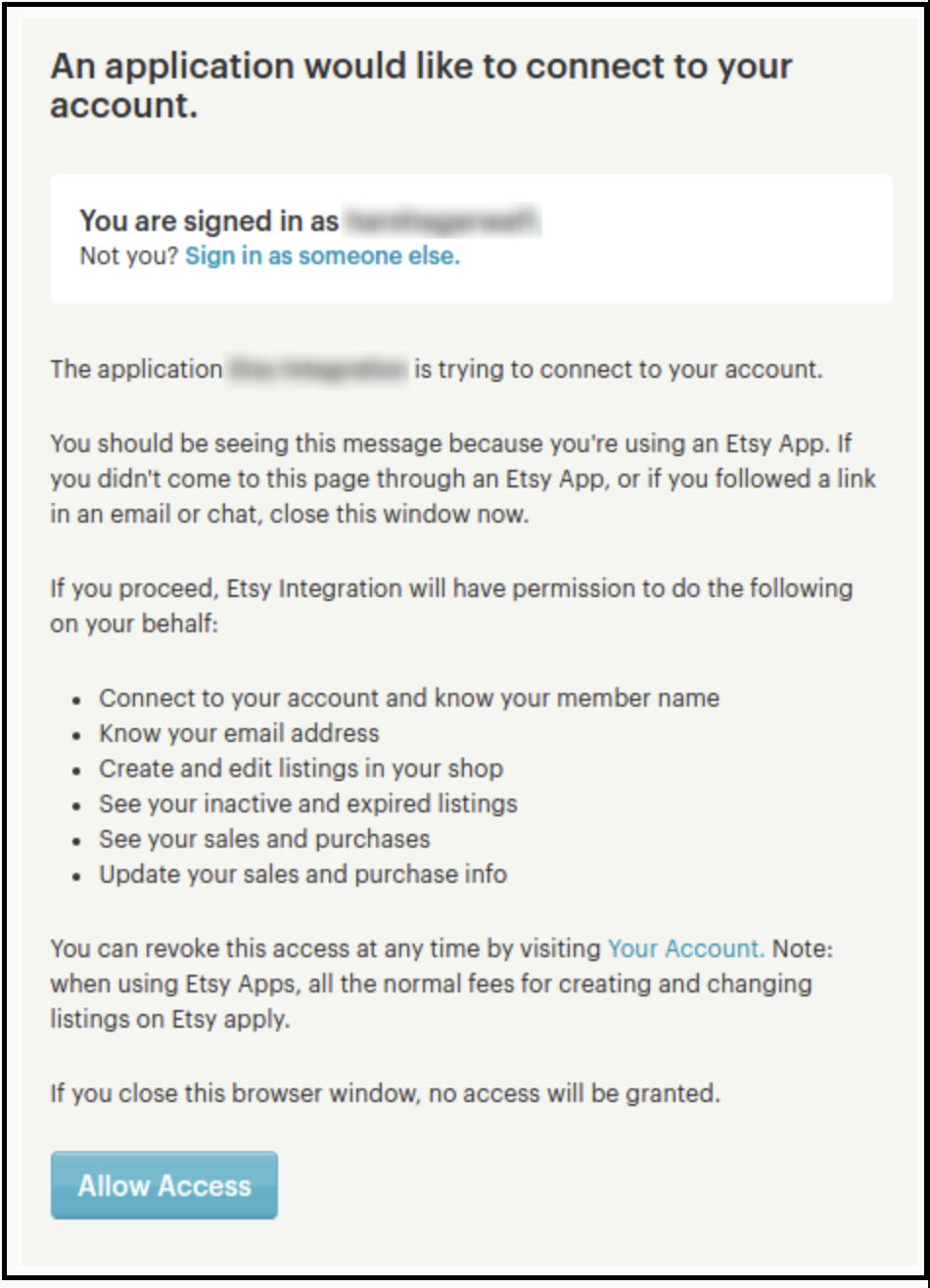
After providing these details or filling up the form, click on the “Connect” button. In fact, it would redirect admin to Etsy Marketplace to allow the App Access to the store. Furthermore, click on the “Allow Access” button as shown below. Moreover, it would establish a connection between the store and Etsy Marketplace.
It would also redirect admin back to the same page of “General Settings”. In addition, show the “Disconnect” button instead of “Connect” as the connection has now been set up with Etsy Marketplace. In fact, you can find the screenshot below –
6.2 Attribute Mapping
All the PrestaShop store attributes will sync to the Etsy Marketplace Integration module automatically. Moreover, the admin just needs to map these attributes to the Etsy Marketplace attributes.
6.3 Shop Section
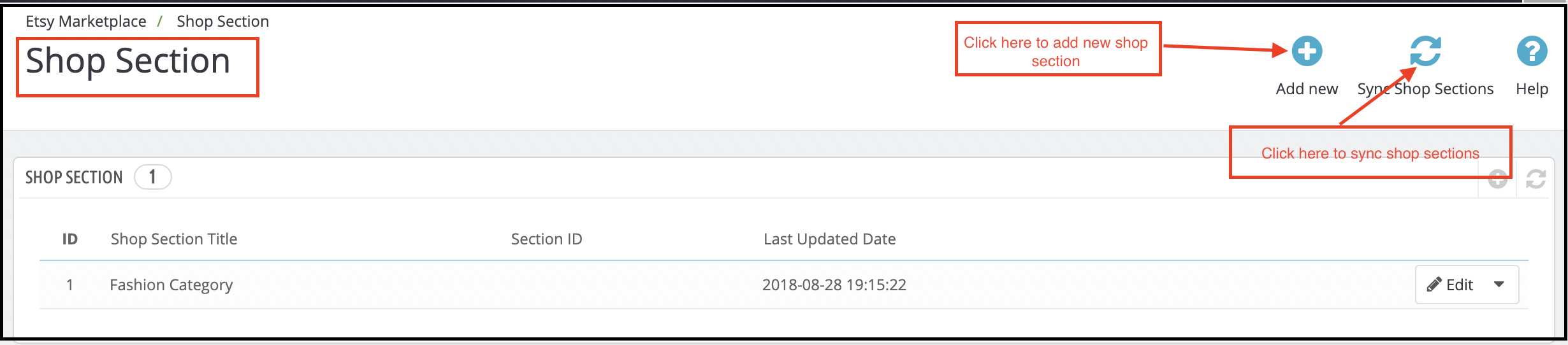
The shop section option offered by the Prestashop Etsy API integrator enables the e-merchants to create separate sections. Further, for the products of the same type. For instance, they can create sections like fashion, sports, and others. In fact, the customers can hit the section of their choice. Moreover, directly land on the products of their choice without browsing the entire assortment.
6.3.1 How to create new shop sections?
To add new shop sections, click on the Add New option at the top right position of the admin interface.
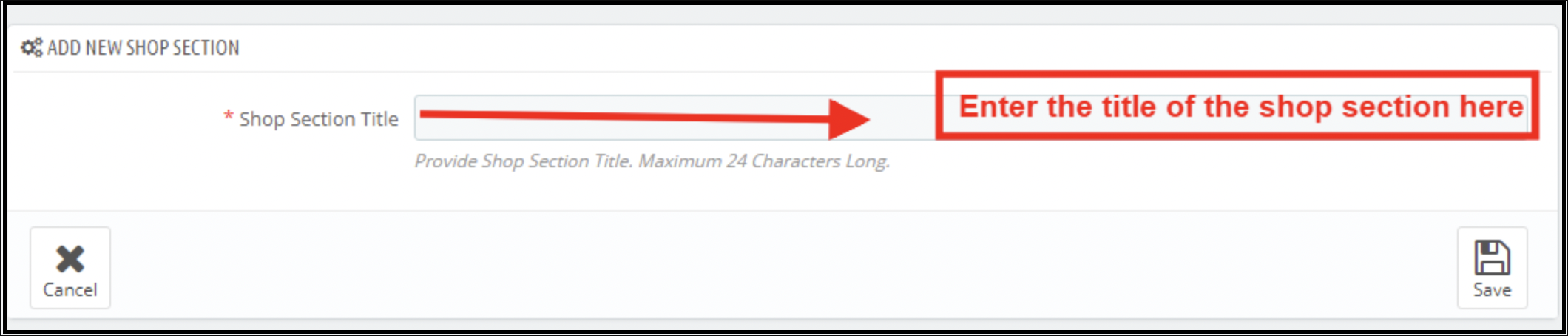
This will redirect you to the shop section creation interface.
Enter the name of the shop section in ‘Shop Section Title’ and save the changes.
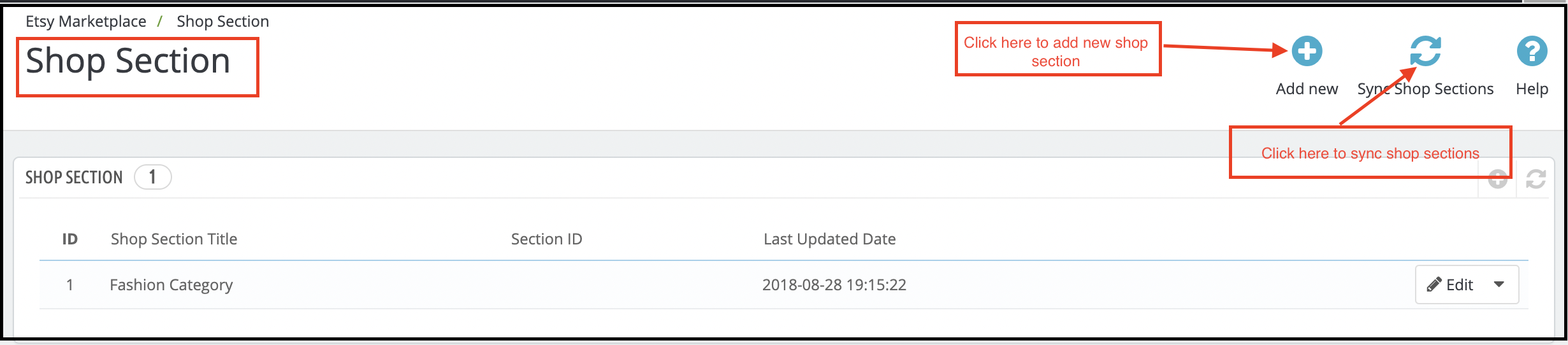
To sync the section with the marketplace click on the Sync Shop Sections button at the top right corner of the interface. Further, the cron option will sync all the sections in one go.
The synced sections will display in the ‘Profile Management’ tab. Further, the Prestashop Etsy Integrator is shown in the image below.
The admin can select the shop section and the products of that particular profile will list under the selected section.
6.3.2 How to edit or delete the shop sections?
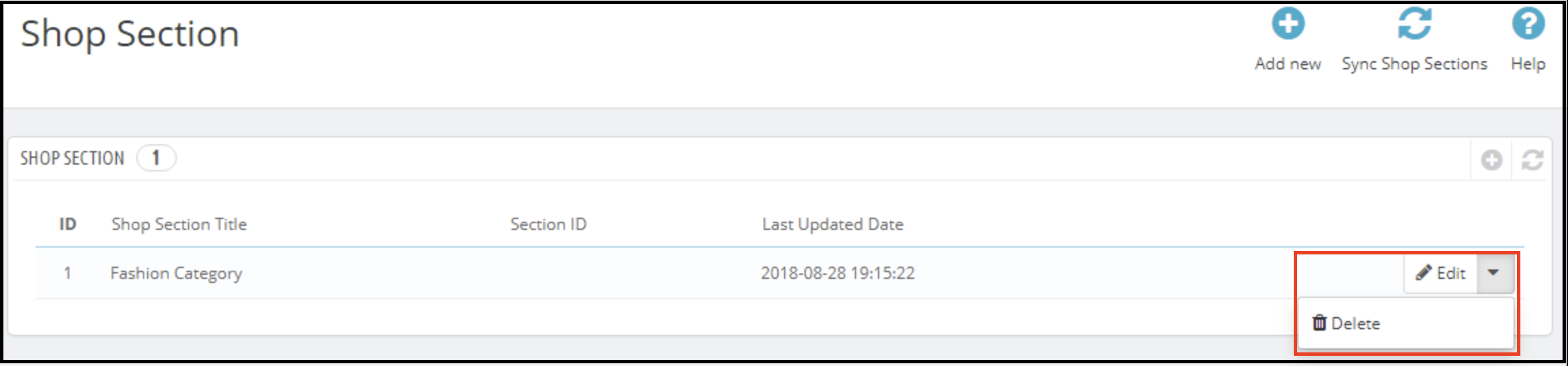
To edit a particular shop section, click on the ‘Edit’ button corresponding to it. Likewise, to remove the same, click on the corresponding ‘Delete’ button.
The created sections will display at the front-end as shown in the image below:
6.4 Shipping Templates
Etsy Prestashop connector allows the store admin to create the Shipping Templates to manage shipping options on the Etsy marketplace. Further, in this tab of the Prestashop Etsy integrator, the admin can create Shipping Templates. Furthermore, that contains shipping details. For instance, Shipping Origin Country, Minimum and maximum processing time for the orders, etc. In fact, the admin can create multiple Shipping Templates as per the need of the system. Further, the admin will have to map Shipping Templates to the Profiles (In Profile Management Tab) to make it work on Etsy Marketplace. This is explained later in this document. Thus, each Shipping Template can have multiple shipping entries. Further, to define shipping destinations and their cost according to the destinations.
Note – One Shipping Template can have one origin. However, multiple destinations with their costs. Further, the admin can add different standard entries and delivery upgrades for the shipping templates.
6.4.1 Steps to Add Shipping Templates
Following are the steps to add a Shipping Template to the system –
Go to the Etsy Marketplace connector addon-> Shipping Templates (Menu Option)
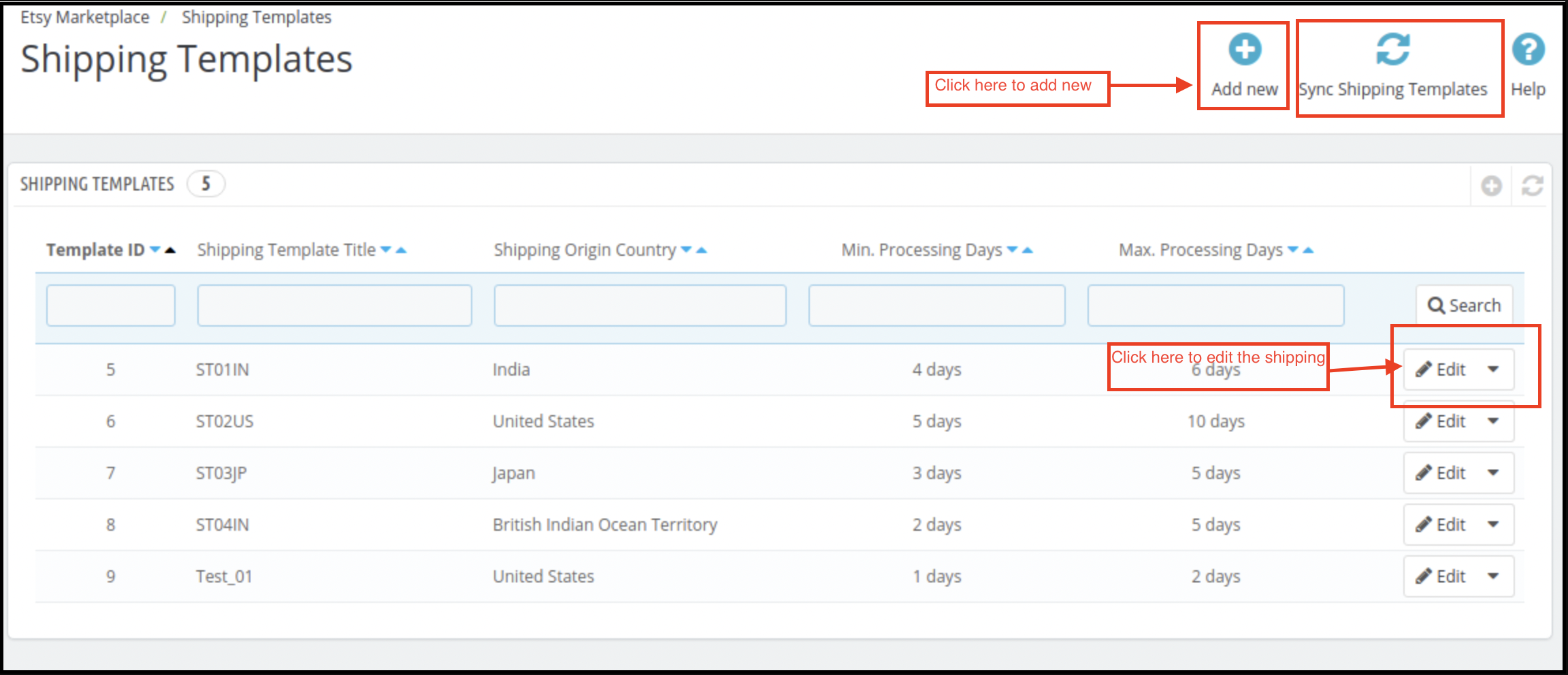
It would display the page where already added Shipping Templates will list (If any). Click on the “+” (Plus Icon – as shown in the above screenshot).
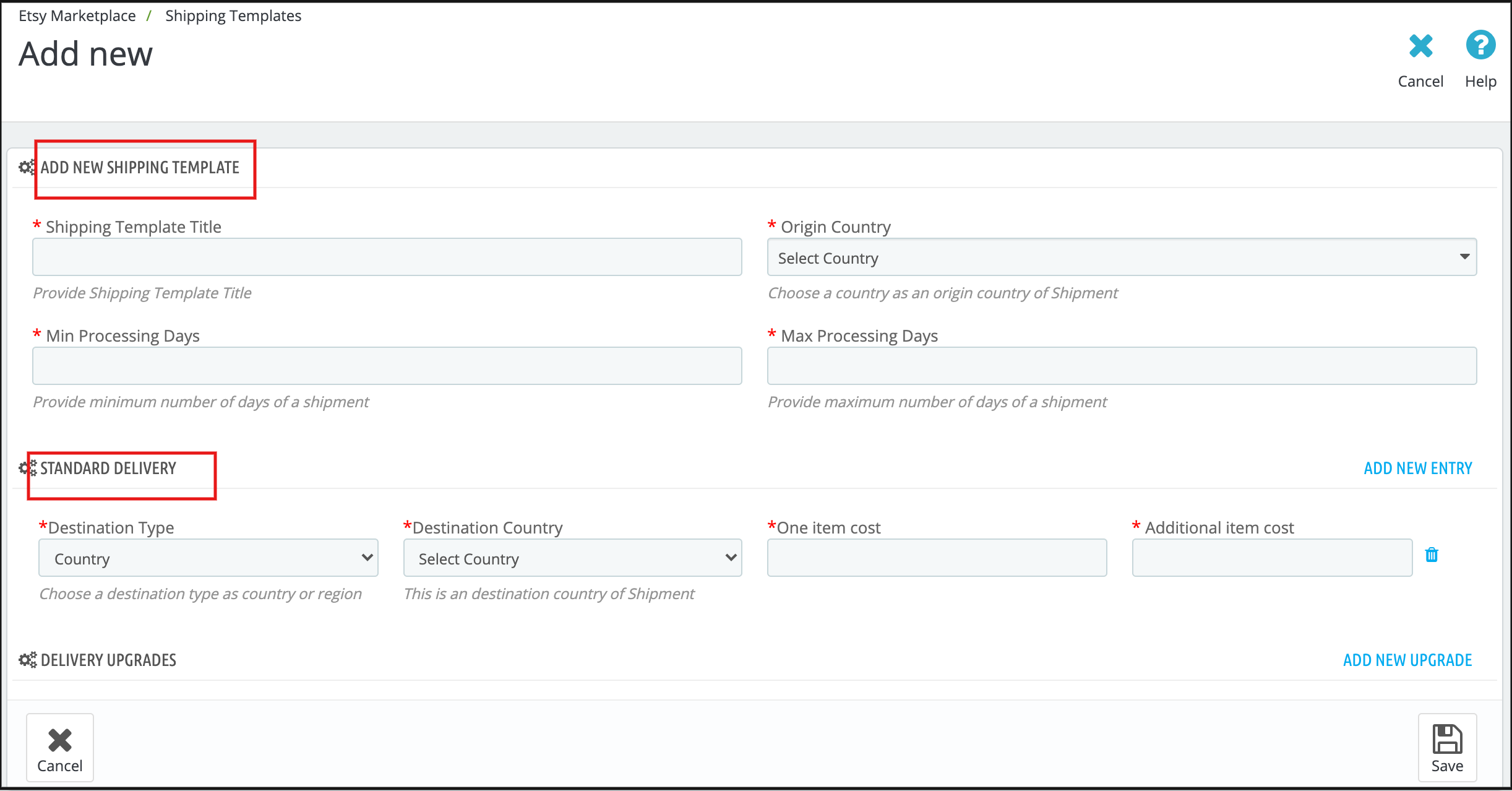
It would redirect the admin to the new page where a form with some input field will be shown (Screenshot is shown below).
Fill up the following input fields of the form –
Shipping Template Title
Origin Country
Origin Post Code
Processing Days (Min and Max)
Destination Type
Destination Country
One Item Cost
Additional Item Cost
Transmit Time Data (Choose Shipping career or add custom Delivery time.)
Choose Delivery Service (If the previous option is selected as a shipping career).
Or Choose Min and Max Processing days (if the previous option is selected as Delivery time).
Click on the “Save” button.
It would validate the provided data and save the details into the system if valid.
6.4.2 Steps to Edit/Delete Shipping Template
Following are the steps to edit/delete Shipping Template from the system –
Go to the Prestashop Etsy Marketplace Integration addon-> Shipping Templates (Menu Option)
It would display the page where already added Shipping Templates will list (If any). In fact, click on the “Edit/Delete” link given under the drop-down being shown corresponding to each Shipping Template.
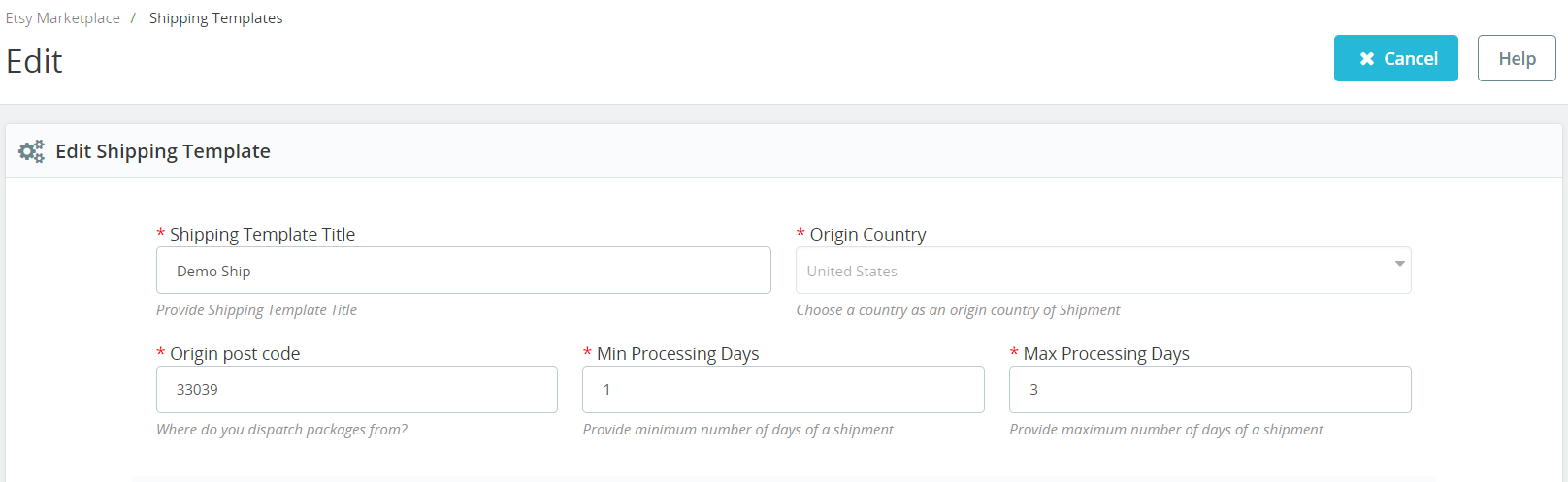
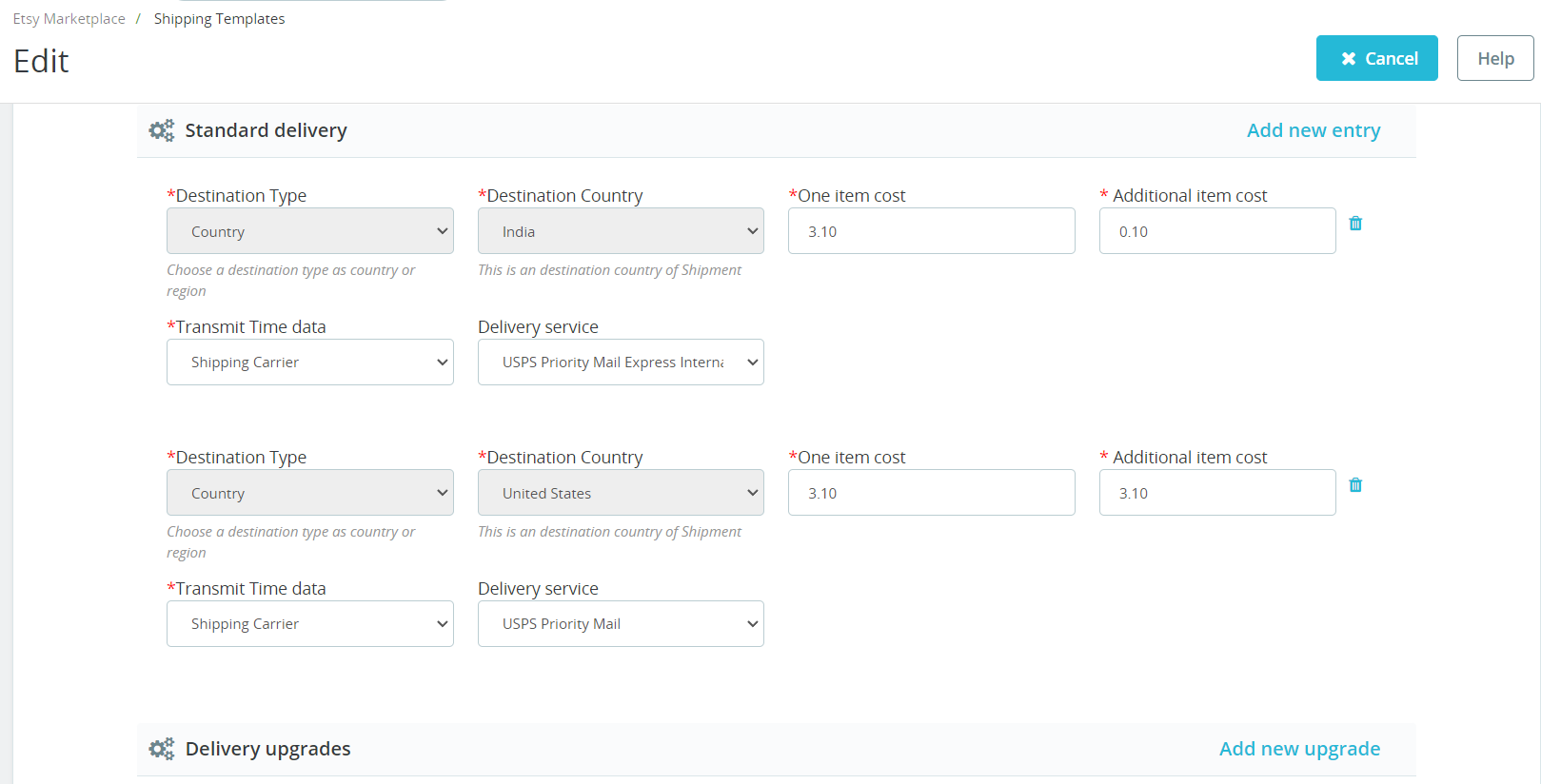
If the admin has chosen the “Edit” option then it would redirect the admin to a new page. Further, where a form with an already filled input field will be shown. Admin can simply update values. Moreover, save the details by clicking on the “Save” button.
If the admin has chosen the “Delete” option then it would delete the Shipping Template. In addition, all its Shipping Template Entries are from the system.
After creating shipping templates it is required to synchronize the Shipping Templates. Further, the admin needs to click the “Sync Shipping Templates” button under the “Shipping Templates” tab of the Etsy marketplace integration module. In fact, only after successful synchronization, these shipping templates will appear on the listing page.
6.4.3 Delivery Upgrades
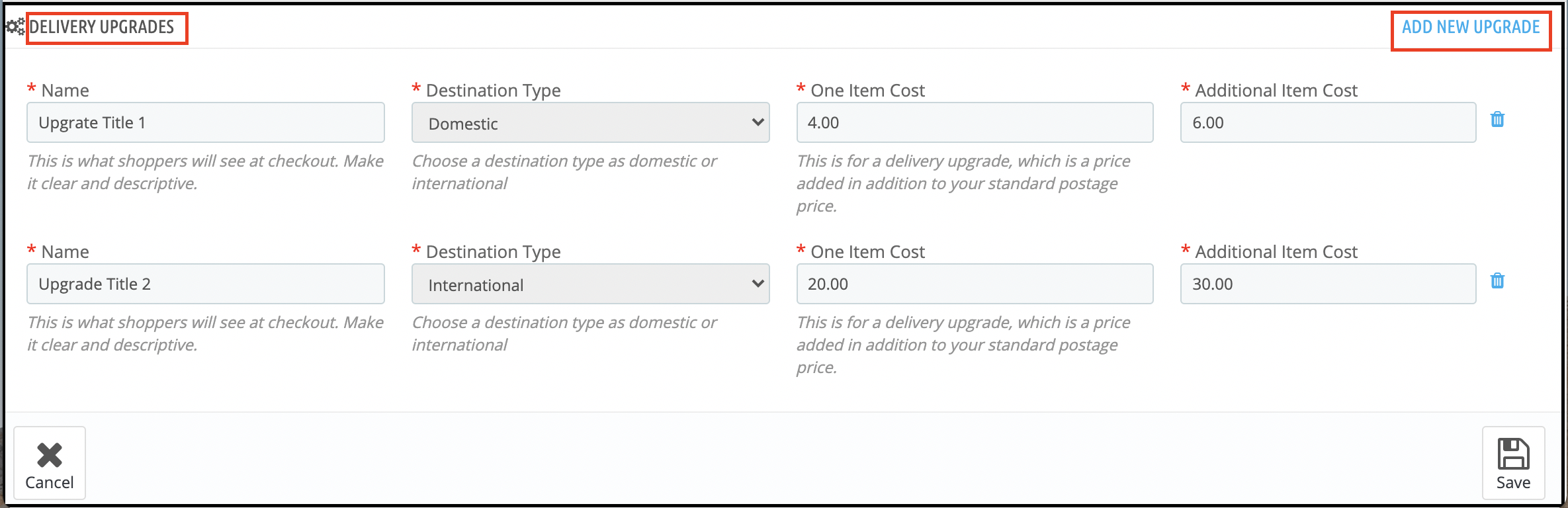
Admin can add the delivery upgrades to the Shipping Templates from this tab of the Etsy Prestashop integrator. In fact, the Delivery Upgrades tab of the Etsy Prestashop integration module displays the list of the Delivery upgrades added to the shipping templates.
6.4.4 Add Delivery Upgrades for a Shipping Template
Following are the steps to add Delivery Upgrades to the Shipping Templates-
Go to the Prestashop Etsy Integrator -> Shipping Templates (Menu Option)
It would display the page where already added Shipping Templates will list (If any). Click on any of the Shipping Templates in which you want to add Delivery Upgrades.
It would redirect to that particular Shipping Template Page.
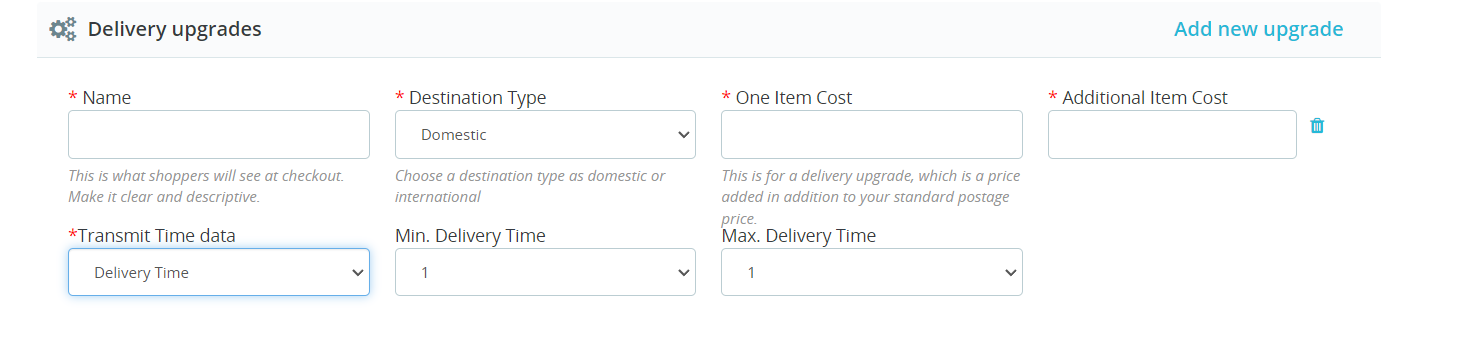
Click on the “Add New Upgrade” at the bottom right side of the Etsy Prestashop Integrator and it would open a drop-down form with, the input field will be shown.
Fill up the following form fields –
Delivery Upgrade Name
Destination Type
One Item Cost
Additional Item Cost
Transmit Time Data (Choose Shipping career or add custom Delivery time.)
Choose Delivery Service (If the previous option is selected as a shipping career).
Or Choose Min and Max Processing days (if the previous option is selected as Delivery time).
Click on the “Save” button.
It would validate and save the details to the system if valid.
6.5 Profile Management
The Profile Management tab provides options to create a profile for product listing. Further, profile-based listing allows the seller to list the attribute and categories of the Prestashop products. Furthermore, with the Etsy marketplace attributes and categories. In fact, the seller can select multiple Prestashop store categories at a time if there is only one category on Etsy for these products.
Under Profile Management admin can select the Shop Section in which he wants to show products for that profile.
In the recent enhancements, we have also provided the option to synchronize products on the profile level. Thus, if you want to update/list products on Etsy for particular profiles only, you can find the crons in the profile management tab itself.
Note: Please make sure to synchronize the Shipping Templates otherwise these details will not reflect in the Profile Management. Go to the Shipping Template tab of Prestashop Etsy Integration Addon and run the “Sync Shipping Templates” cron.
6.5.1 Add Profile to the System
Following are the steps to add Profile into the system –
Go to the Prestashop Etsy Integration Module -> Profile Management (Menu Option)
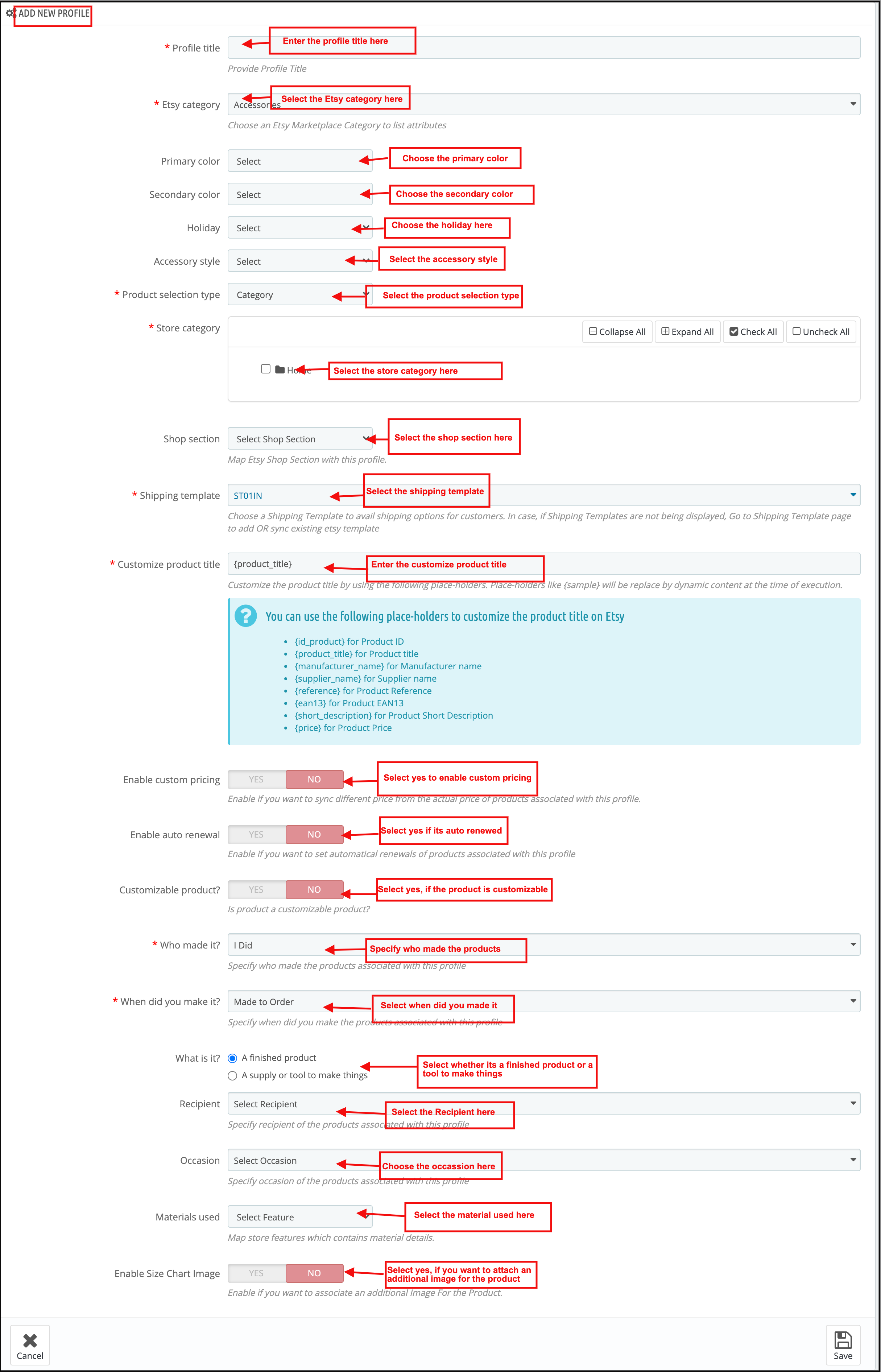
It would redirect the admin to a page where already added profiles will list (If any). Click on the “+” on the top right side of Etsy Prestashop Integrator (Plus icon as shown in the screenshot below) and it would redirect the admin to a new page where a form with some input fields will be shown.
Fill up the following input fields –
Profile Title
Etsy Category (List of Etsy Marketplace categories)
Store Category (List of Store Categories)
Shipping Template (List of Shipping Templates)
Primary Color
Secondary Color
Holiday
Accessory Style
Product Selection Type
Customize Product Title
Enable Custom Pricing
Customizable Product
Alter Quantity
Enable AutoRenewals
Who made it
When did you make it
Recipient
Occasion
Materials Used
Shop Section
Enable Size Chart Image
Size Chart Image
and click on the “Save” button.
It would validate and save the details into the system if valid.
6.5.2 Edit/Delete Profile
Following are the steps to edit/delete a profile from the system created in the Prestashop Etsy Integration plugin-
Go to the Prestashop Etsy Integration plugin -> Profile Management (Menu Option)
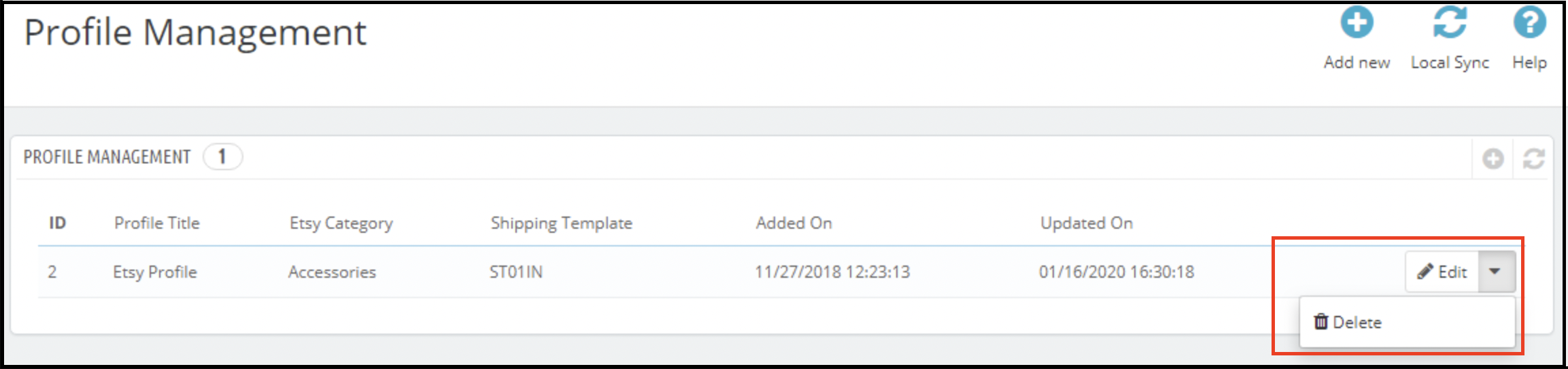
It would redirect the admin to a page of the Prestashop Etsy Integration module where already added profiles will list (If any, shown in the screenshot below).
Click on the “Edit/Delete” link given corresponding to each profile as shown in the above screenshot.
If the admin has chosen the “Edit” option then it would redirect the admin to a new page where a form with some already filled input fields will be shown. Admin can simply update values and save the details by clicking on the “Save” button.
If the admin has chosen the “Delete” option then it would delete the selected Profile from the system.
6.5.3 Product Selection Type
This is a drop-down and from this admin can select whether he wants to select the whole category to list or select particular products to add.
6.5.4 Etsy Category Attribute
Etsy Category Attributes are now available in the Etsy Marketplace Connector module. The admin can now choose the Primary Color, Secondary Color, Holiday, and Accessory Style.
6.5.5 Size Chart Image
By using this feature admin can also add an image for the product.
6.6 Products Listing
This section of Etsy Prestashop Integrator shows the list of all the products selected to list or listed on the Etsy Marketplace with their listing status and other details as shown in the screenshot below:
There are the following options cron options offered in the product listing tab of the Prestashop Etsy Integration module –
6.6.1 Sync Products
This option syncs the products of the category that was mappable in the profile. As the ‘Sync Products’ is executed, all the products of the profile will be listed at etsy.com.
6.6.2 Sync Product Status
The listing status of the products can sync back from the marketplace to the store by executing this cron of the Prestashop Etsy integrator.
6.6.3 Delete Products
This option allows the admin to delete product listings from Etsy Marketplace in bulk. To delete a product listing, the admin has to select the products that they want to remove and click on “Delete Product”. This will remove all the selected products from the listing.
6.6.4 Renew Products
This option allows the admin to renew the product in case the listing has expired on Etsy Marketplace in bulk. Furthermore, to renew the product, the admin has to select the products that they want to renew and click on the “Renew Product” action.
Along with this, the admin even gets the option to renew or relist one particular product. In fact, there is a Renew option corresponding to each product that has expired.
After setting up a product for renewal or relisting, these actions will be replaced with the “Delete” action.
Note – Product Renewal is chargeable on Etsy Marketplace.
6.6.5 Local Sync
Admin can sync all the products of their profiles using Local Sync and then every profile’s products list on the Product Listing Page. From there, the admin has an option to list individual products or lists in bulk.
6.6.6 Custom Product Details
In this section, the store admin can create different product titles and descriptions for Etsy product listings. Here, we provide an option for using the existing product details or create different ones for Etsy.
6.7 [New Feature] Return Policy Synchronisation
This tab allows the admin to manage and synchronize return policies between the module and Etsy. You can create, edit, and delete multiple return policies and assign them to specific profiles. Once mapped, any category associated with a profile will automatically update on Etsy with the corresponding return policy.
Add New: Create new return policies or modify existing ones directly from the module.
Sync Return Policies: Use the Sync Return Policy cron to fetch all available return policies from Etsy to your PrestaShop store. The synchronization includes details such as accept return/exchange options, the number of allowed returns/exchanges, and return deadline dates.
Profile Mapping: Within profile mapping, you can select a return policy to be assigned to the products in the chosen category.
Automatic Updates: When a product is added or updated in a mapped profile, the assigned return policy is automatically applied on Etsy.
This feature ensures your return policies remain consistent across your store and Etsy listings, saving time and reducing manual effort.
6.8 Order Listing
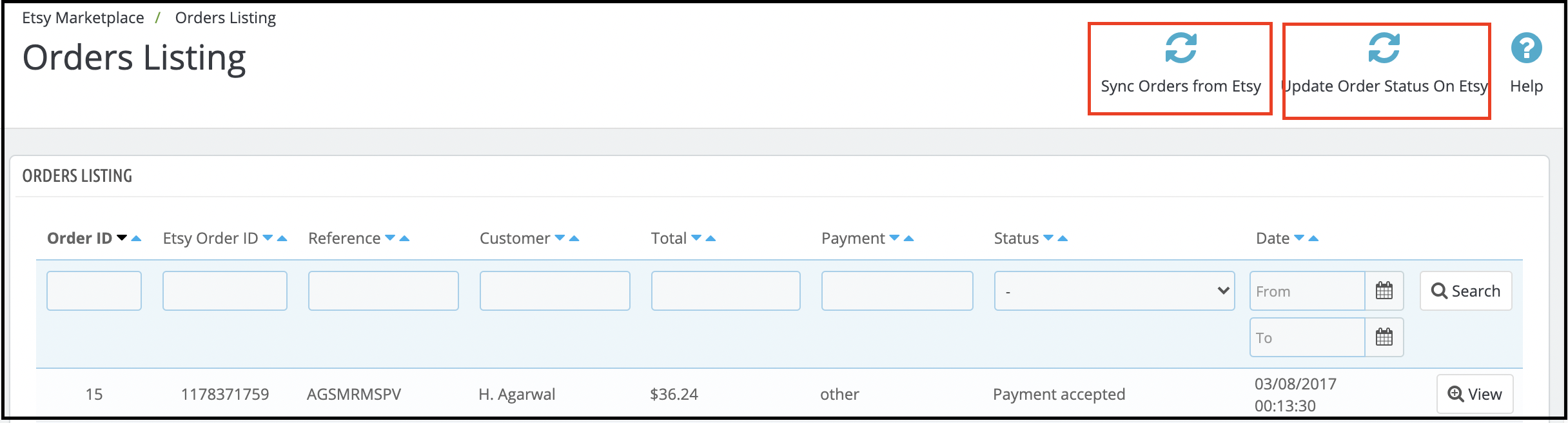
This tab of Etsy Prestashop Integrator shows the list of orders placed on Etsy Marketplace for your store products on Etsy as shown in the screenshot below –
Note: Please make sure to click on the “Sync Orders Listing” option under the Synchronization tab of the Etsy Prestashop integration module. Furthermore, only after successful sync orders will synchronize to the Prestashop back office.
6.9 Synchronization
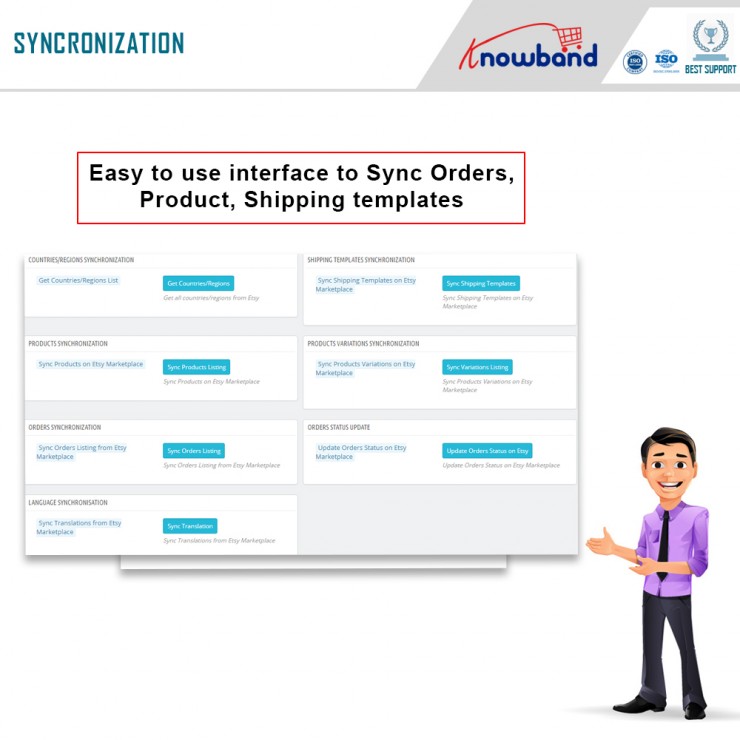
All tabs offered by the Etsy Prestashop integration addon defined above are basically for saving the settings. Further, also the options in the system are used during synchronization between the Prestashop Store and Etsy Marketplace. In fact, there are the following cron jobs to synchronize content between the Prestashop Store and Etsy Marketplace which you can find below –
6.9.9 Products Listing on Etsy Marketplace
Following are the steps to synchronize Products Listing on Etsy Marketplace –
Go to the Etsy Prestashop Integration addon -> Synchronization (Menu Option)
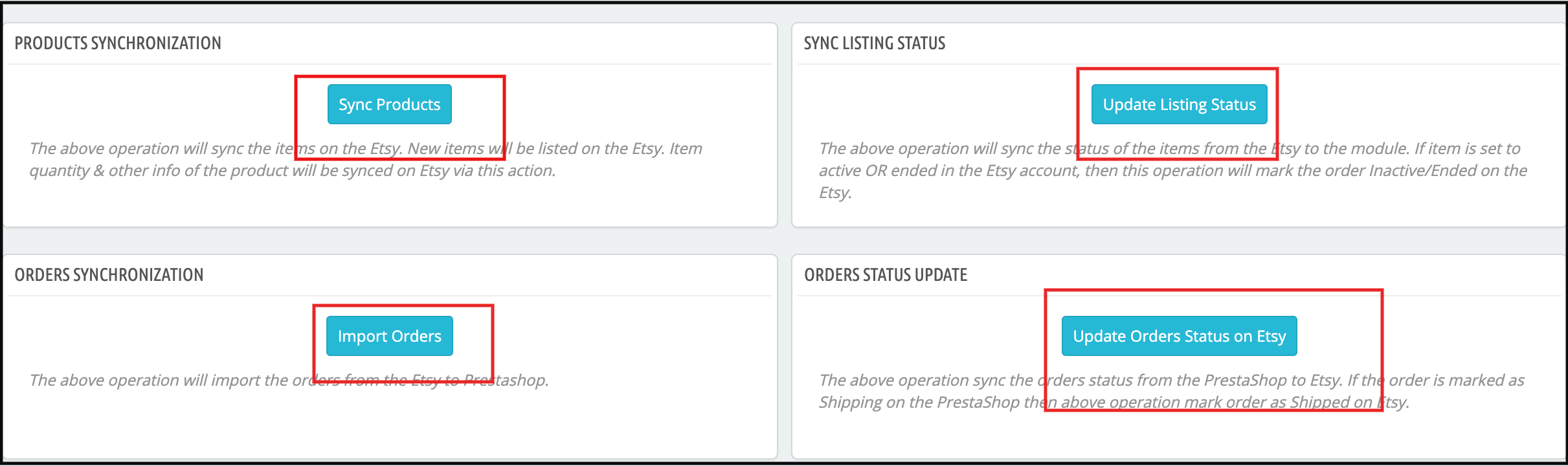
It would redirect the admin to a new page where all synchronization actions are listed as shown in the above screenshot.
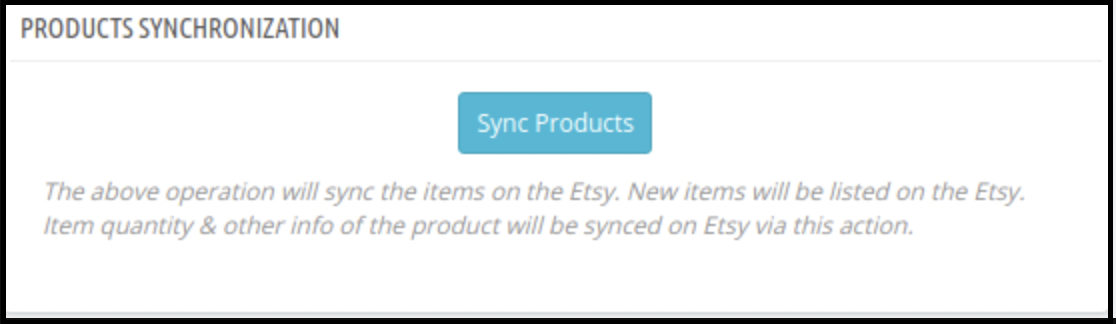
Click on the “Sync Products ” button shown below.
It would perform the following actions –
Update the Product list based on the profiles created in the system.
Add Products to Etsy Marketplace with product details (e.g. Price, Quantity, Image, etc.)
Update Products on Etsy marketplace which are already listed on Etsy Marketplace
Renew Products on Etsy Marketplace for that renewal are enabled.
Delete Products on Etsy Marketplace which are marked deleted on the Store.
Update the Listing Status of each product listed on Etsy Marketplace.
If synchronization completes successfully then it will display a message – “Synchronization completed” else “Synchronization failed”.
6.9.2 Orders Listing from Etsy Marketplace
Following are the steps to synchronize Products Variations Listing on Etsy Marketplace –
Go to the Prestashop Etsy Connector -> Synchronization (Menu Option)
It would redirect the admin to a new page where all synchronization actions are listed as shown in the above screenshot.
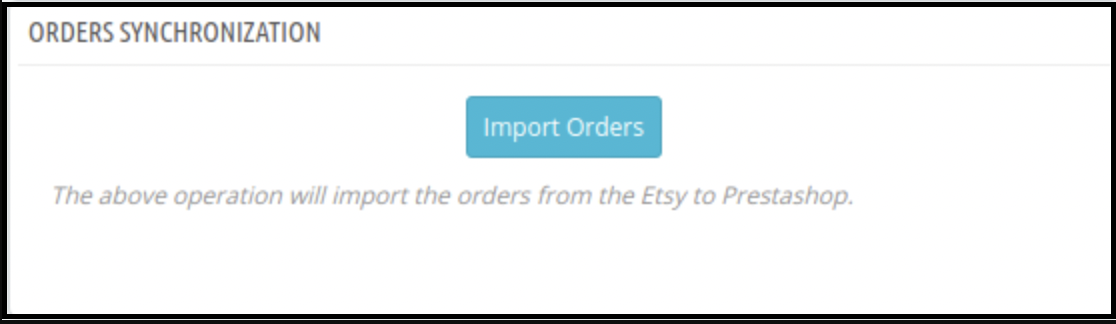
Click on the “Import Orders” button shown below.
It would perform the following actions –
Get Orders and Transaction details from Etsy Marketplace
Create Customers and Shipping Carriers into the Store as per the details that come from Etsy Marketplace
Create Orders into the Store as per the details that come from Etsy Marketplace and set the order status as per the configuration settings updated in the “Order Settings” tab of this module in admin.
If synchronization completes successfully then it would display the message – “Synchronization completed” else “Synchronization failed”.
6.9.3 Orders Status on Etsy Marketplace
Following are the steps to update the status of orders on Etsy Marketplace –
Go to the Prestashop Etsy connector -> Synchronization (Menu Option)
It would redirect the admin to a new page where all synchronization actions are listed as shown in the above screenshot.
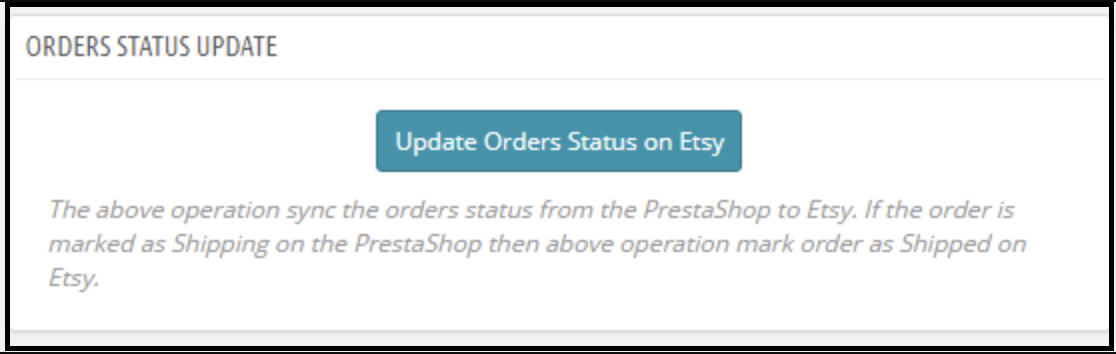
Click on the “Update Orders Status on Etsy” button shown below.
It would perform the following actions –
Check if there is any status update recorded by the module for any Etsy Order.
Update the Status of Orders as per the configuration settings updated in the “Order Settings” tab of this module in the admin
If synchronization completes successfully then it would display the message – “Synchronization completed” else “Synchronization failed”.
6.9.4 Update Product Listing Status from Etsy Marketplace
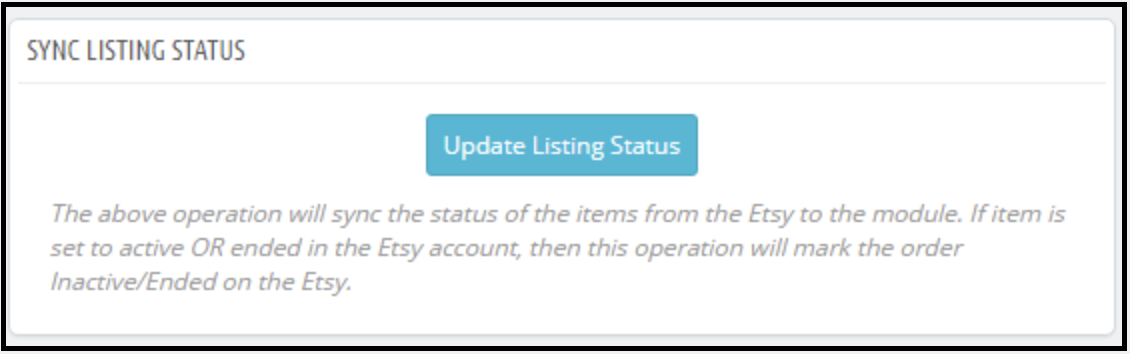
Sync the product status from Etsy to the Prestashop store by clicking this cron under the Synchronization tab.
1. Go to the Etsy Integration module -> Synchronization.
2. Click on the Update Listing Status from Etsy Marketplace.
6.10 Sales Report
The Etsy Prestashop integration module allows the store admin to check the sales report for the Etsy shop orders. Admin can use the date filter to check the sales report.
6.11 Product Sales Report
Etsy Prestashop Integration extension allows the store admin to generate the reports product-wise.
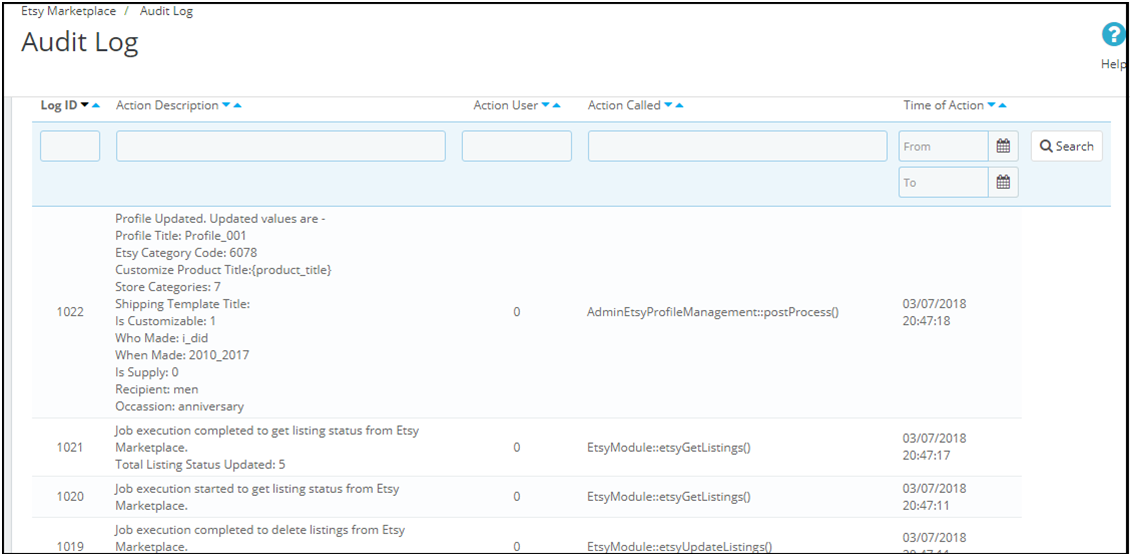
6.12 Audit Log
The audit log section of the Etsy PrestaShop connector helps to keep track of all the takes performed by the administrator.