What are different ways of reducing Post-Holiday Returns?

It is very essential to reduce post-holiday returns. Industry, sales channel, product type, and how to return data are collected and counted all affecting return rates. Further, the younger customers are driving the trend according to the reports. The reason is, they see internet purchases as rentals. Moreover, returns might rapidly undo your holiday success if you don’t account for them and discover:

  1. Sales are lower than expected
  2. Converted fewer clients than the originally
  3. Compared to sales cost and profit margins, sales cost is higher and profit margins are lower.

Therefore, in this blog, we will be discussing ways of reducing holiday returns and automating the returns process. However, before that, we will understand why it’s important to reduce the returns?

Why it’s important to reduce the returns?

The first step is to analyze why do people are returning products as this will give you valuable insights and even make you understand the real problem. Furthermore, it is to everyone’s best advantage to reduce the number of returns you receive. 

You might not be aware but lesser returns can save a lot of money on replacement items, shipping, as well as other factors. Moreover, it provides a better as well as efficient customer experience which is again good for eCommerce business. As a result, trust is created between your business and potential buyers.  

Henceforth, keeping the rate of return lower can result in better business. 

What are the ways of reducing returns?

  • Begin with quality control

The first way that helps in reducing post-holiday returns is “Begining with quality control”. Furthermore, 23% of returns happen as companies ship an incorrect item. Mis-ship happens usually when businesses grow.

Being a small retailer, you can wrap as well as send every order. It would be great if you double-check the order before shipping. When you adopt a hands-on approach, it’s easy to ensure that shipments are proper. Whereas larger businesses can opt for automation that can help you in resolving the issues. Furthermore, the Inventory management software includes a warehouse management feature that helps in reducing the number of returns your receive. 

  • High-Quality Photos

High-quality photos can even help in reducing post-holiday returns. Furthermore, such photos help customers understand the product better. Make sure you take pictures from different angles to make customers understand each feature of the product. 

In case you are not good at photography, feel free to hire a professional photographer. Money spent on getting good pictures will pay for itself with a reduced return rate. 

  • Better Product Descriptions

Writing better product descriptions can help customers understand the product well. Speaking about better product descriptions, make sure you include everything about the product. For example, if you have been selling furniture, make sure your product descriptions consist of measurement of the product, color, and material. This way customers can decide better and this will create transparency which is liked by customers a lot. 

  • Represent Sizing Correctly

Products that do not fit are one of the most common reasons for returns in the apparel industry. Because online buyers can’t try on garments before buying them, it’s understandable that products be returned because they don’t fit.

With the assistance of resources like size software and sizing charts, you may limit the number of returns you receive due to sizing concerns.

Knowband Modules assist in reducing post-holiday returns

Knowband, known as an eCommerce solution provider and module development company. Furthermore, Knowband has earned a reputation for offering efficient development services and post-sales support. Moreover, it offers a boost to your business by offering best-in-class plugins for different eCommerce platforms such as Magento, Prestashop, OpenCart, Shopify, and others. 

Knowband even offers some great modules for reducing post-holiday returns as well as reading the specifications of these modules helps in reducing the chances of return.

Module 1: Product size chart
The product size chart module helps in reducing post-holiday returns. Knowband offers this module for different eCommerce platforms such as:

Prestashop Addons

Magento 2 ® Extensions

Magento ® Extensions

Opencart Extension

Module 2: Product Video

The product video module is highly beneficial for eCommerce businesses. This helps customers to understand the product better. As a result, the return chances get reduced. Knowband even offers the module for different eCommerce platforms:

Magento 2 ® Extensions

Magento ® Extensions

OpenCart Extensions

Prestashop Addons

Module 3: Gift Card

Digital Gift Cards are a blessing for eCommerce stores. These enable customers to purchase accordingly from the specific store. Gift cards even provide freedom to permit them to purchase what they need. Furthermore, this offers the satisfaction of having gifted well.

PrestaShop Addons

Opencart Extensions

Magento 2 ® Extensions

Magento ® Extensions

Module 4: Product Review

Product review also helps customers make decisions better and feel more confident. Furthermore, the more reviews you have, the more confident a customer is that they’re making the right choice. Reviews can also assist a store’s internet visibility.

Product Review Reminder And Incentives – Prestashop Addons

Review Reminder And Incentives – Magento 2 ® Extensions

Review Reminder And Incentives – Magento ® Extensions

Final Note

Analyzing as well as testing your approach to returns and ways of measuring up to your peers is a great way of generating a return on your post-holiday returns. Along with that, another way of generating a return on post-holiday returns is by utilizing these modules.

In case you face trouble, feel free to write us at support@knowband.com

OpenCart Product Video – User Manual

1.0 Introduction

OpenCart product video extension by Knowband offers an easy interface to display the videos on the product page of the website. The product videos and their configuration options can be easily managed from the admin interface of the OpenCart product video module.

1.1 Admin Benefits offered by OpenCart Product Video Module:

  • OpenCart product page video extension is easy to install, understand and use.
  • The OpenCart product video tab module supports the videos of different platforms, namely, YouTube, Vimeo and Daily Motion.
  • OpenCart product video plugin allows the admin to set a default video for the various products of the website. It will be shown on the product pages in which the video display option is enabled.
  • The admin can manually enter the video URLs in the product details manually. These video display can be easily enabled/disabled from the back-end of the OpenCart Vimeo Video extension.
  • The OpenCart Daily Motion video plugin allows the store admin to change the various display options of the videos.

Features:

  • The Opencart product video extension is very easy to install and configure.
  • The Opencart adding video module is very easy to activate.
  • The eCommerce store admin can set a default video.
  • The Opencart YouTube extension allows to show/hide display controls in YouTube, DailyMotion videos.
  • With the help of Opencart Vimeo extension, you can auto-play videos.
  • You can show video frame border in Vimeo, DailyMotion videos.
  • You can enable/disable end screen option in DailyMotion Videos.
  • Show/hide video information of Dailymotion videos.
  • You can add videos just by inserting its link.
  • You can show default videos or specific videos on the particular product.
  • The Opencart Dailymotion extension offers a user-friendly interface.
  • The Opencart product video upload module offers a hassle-free implementation.
  • There is no need to change codes for implementation.

2.0 Installation

Purchase the OpenCart Product Video extension from the Knowband store. You’ll get following files:

1. The zipped File that contains the source code of the OpenCart Product Video module.

2. User Manual of OpenCart Product Video plugin.

Follow the steps below in order to install the OpenCart Product Video plugin in OpenCart store:

1. Unzip the zipped. You’ll get the folders as shown in the image below:


2. Copy all the files and folders of the zip file in the Root Directory of OpenCart setup via FTP manager.

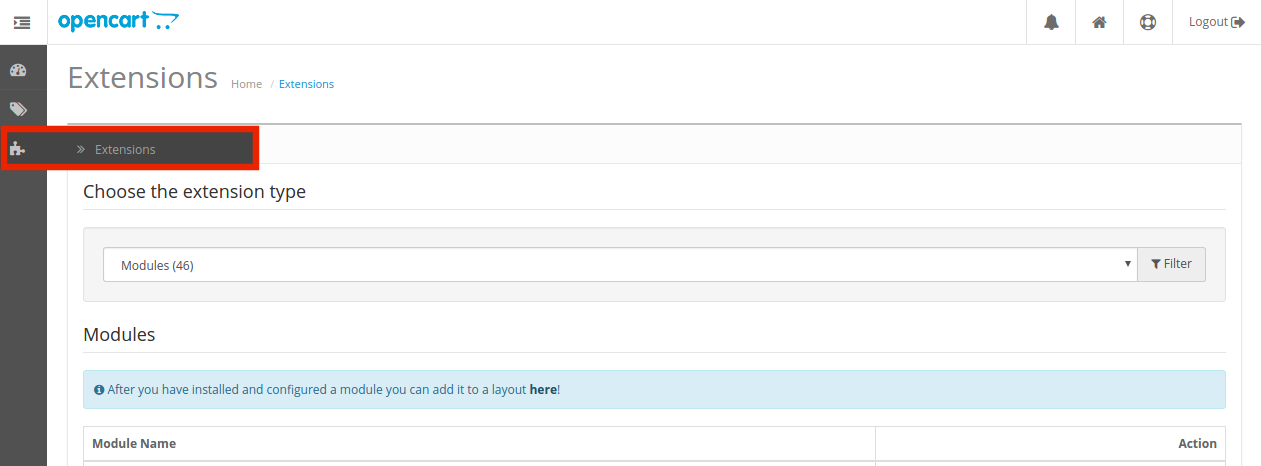
3. The OpenCart Product Video Upload extension is now installed and is ready to use. Go to Admin -> Main Menu -> Extensions as shown in the image below:

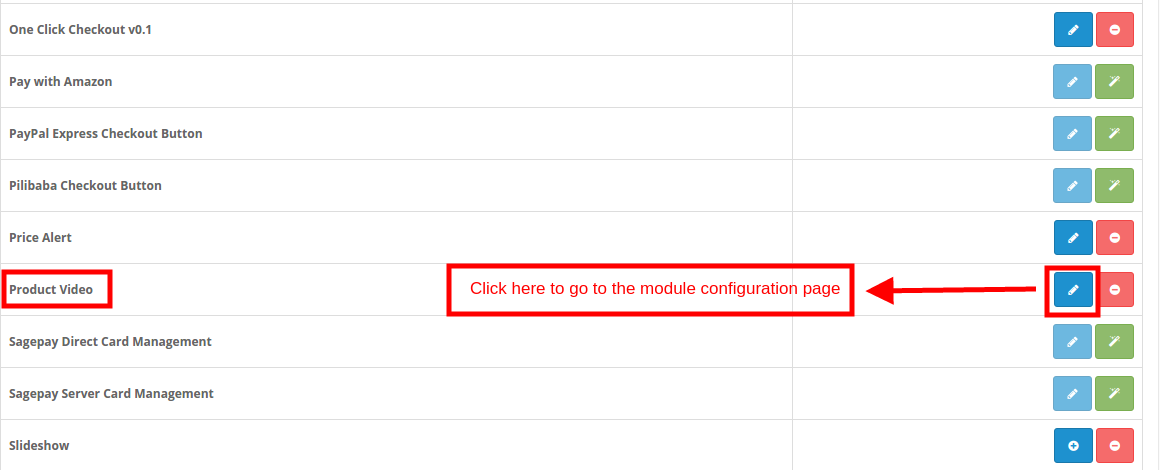
4. You’ll get the list of the OpenCart plugins that are installed in your store. Select Product Video from the list of the modules and click on the Edit button.

3.0 How to Upload Videos on the Product Page?

The store admin can either display a default image on the all the product pages or can upload the products individually on the different items.

In order to add the product videos, follow the steps mentioned below:

Go to the Product tab of the Main Menu as shown in the image below:
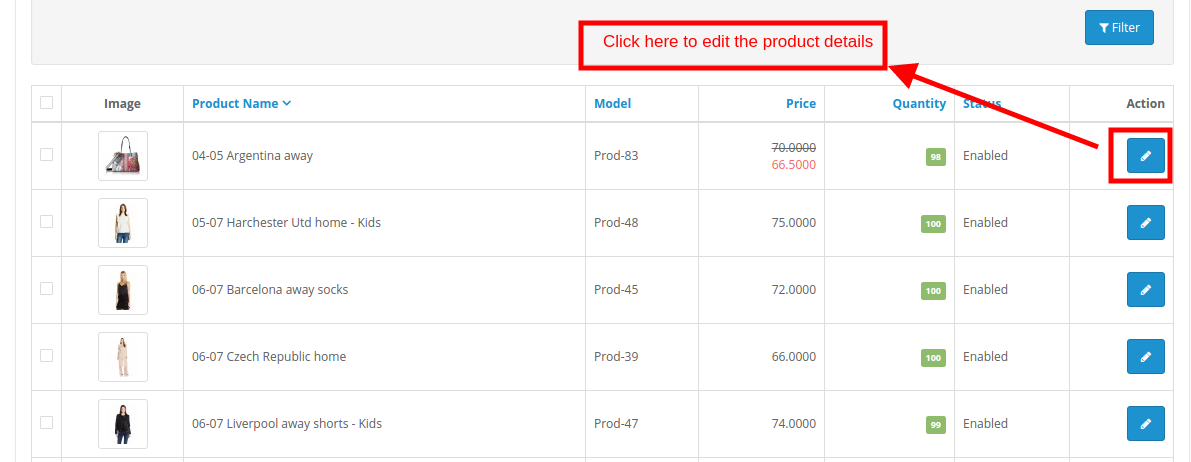
This will redirect you to the product catalog page.

Select any one product and click on the Edit link.

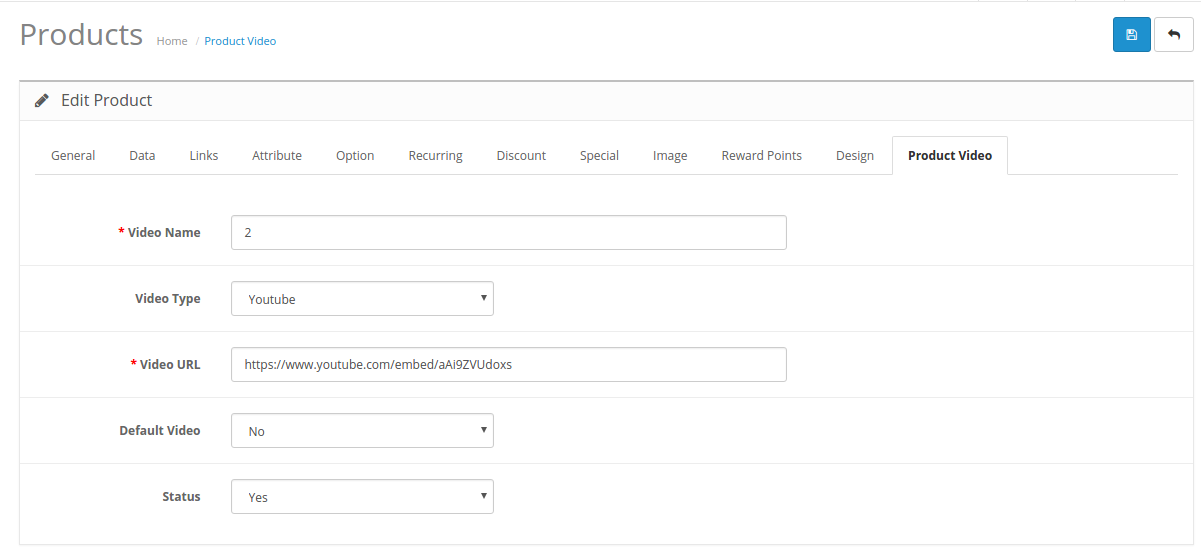
In the Edit product details interface, click in the ‘Product Video’ tab. Fill the fields as mentioned below:

  1. Video Name: Enter the name of the video to be displayed on the product page.
  2. Video Type: Select the video type. OpenCart product video extension can display YouTube, Vimeo as well as Daily Motion videos.
  3. Video URL: Enter the URL of the video.
  4. Default Video: If enabled, the default video specified in the admin interface of the OpenCart Product Video plugin will be displayed in the front-end. In order to display any video other than the default one select ‘No’.
  5. Status: Select Yes in order to display the video on the product page.

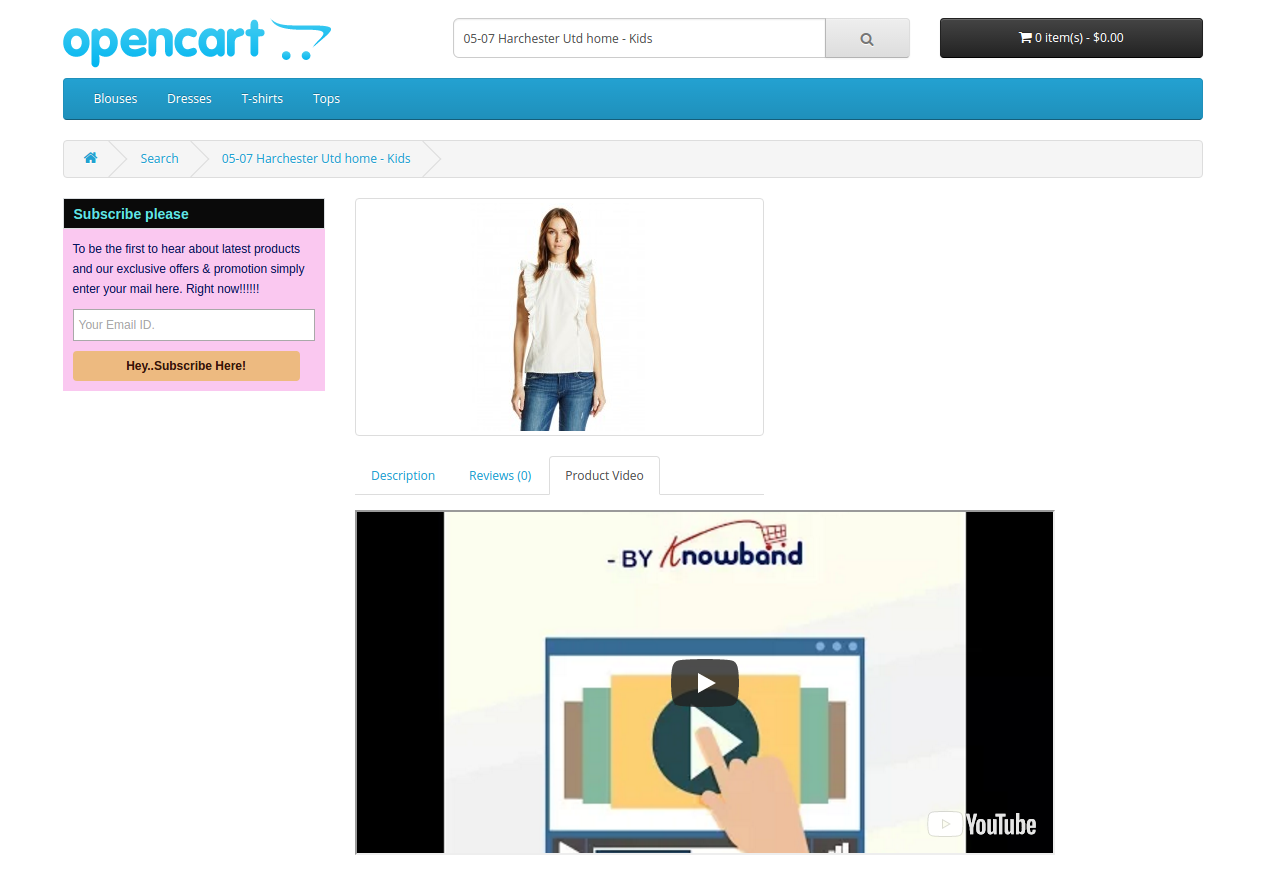
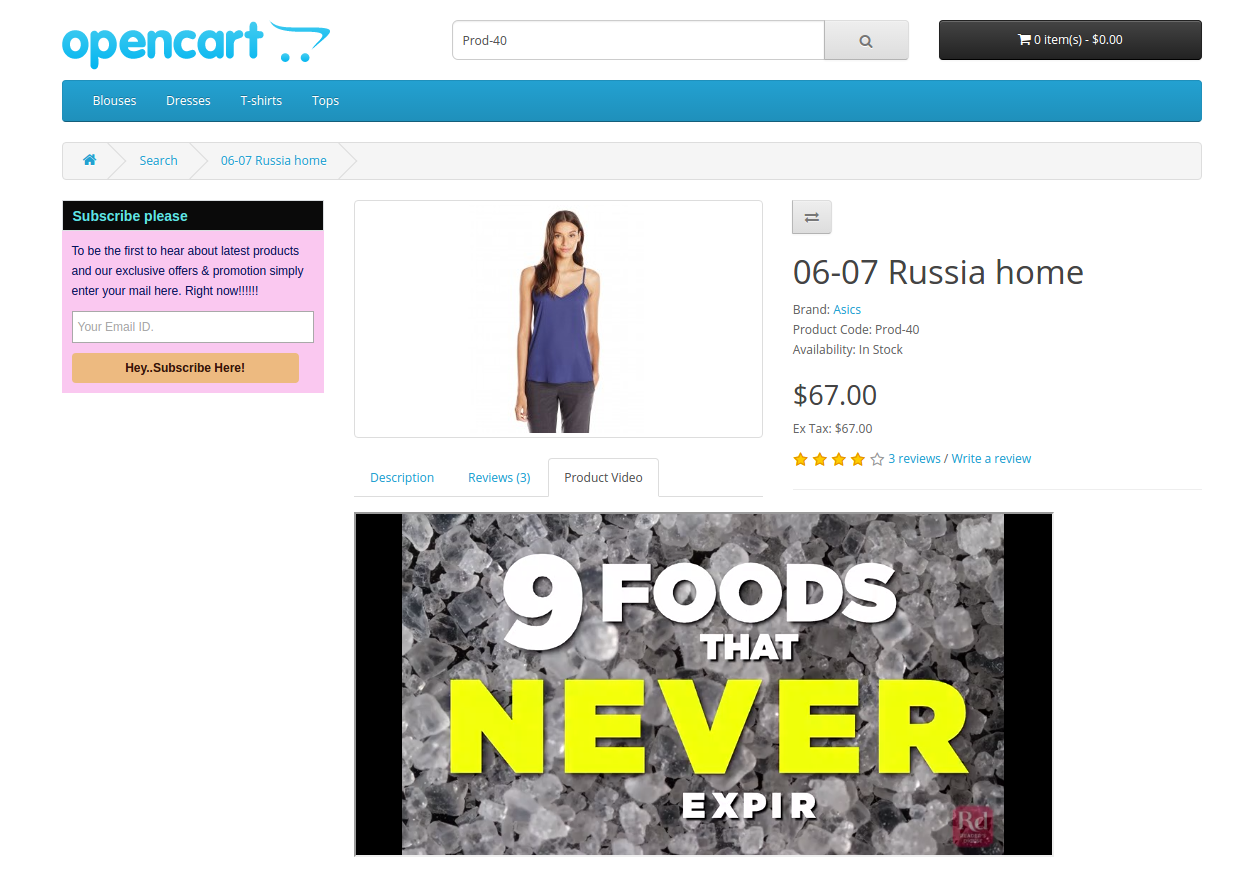
The video selected will be displayed in the front-end as shown in the image below:

4.0 Admin Interface

The admin panel of OpenCart product video extension offers four tabs. They are:

  • General setting
  • YouTube Setting
  • Vimeo Setting
  • Daily Motion Setting 

The various configuration options offered by OpenCart product video tab plugin are discussed in detail below.

4.1 General Settings

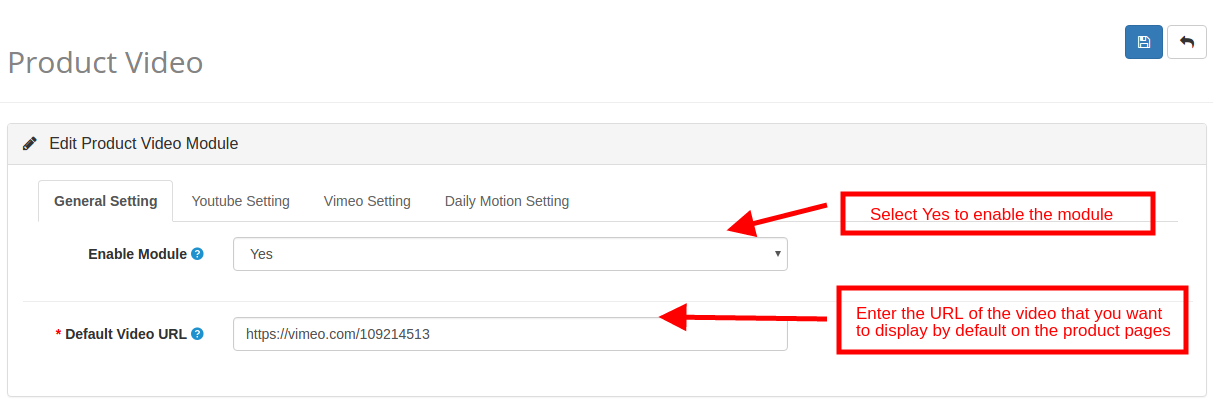
  1. Enable Module: Select ‘Yes’ to enable the OpenCart Product YouTube Video module.
  2. Default Video URL: Enter URL of the video that you want to set as default. In case, the video status of the product is enabled and the admin has not entered any specific video, then, the default video will be displayed in the front-end.

4.2 YouTube Settings

The Setting for the YouTube video can be changed from this tab of the OpenCart YouTube Video plugin.

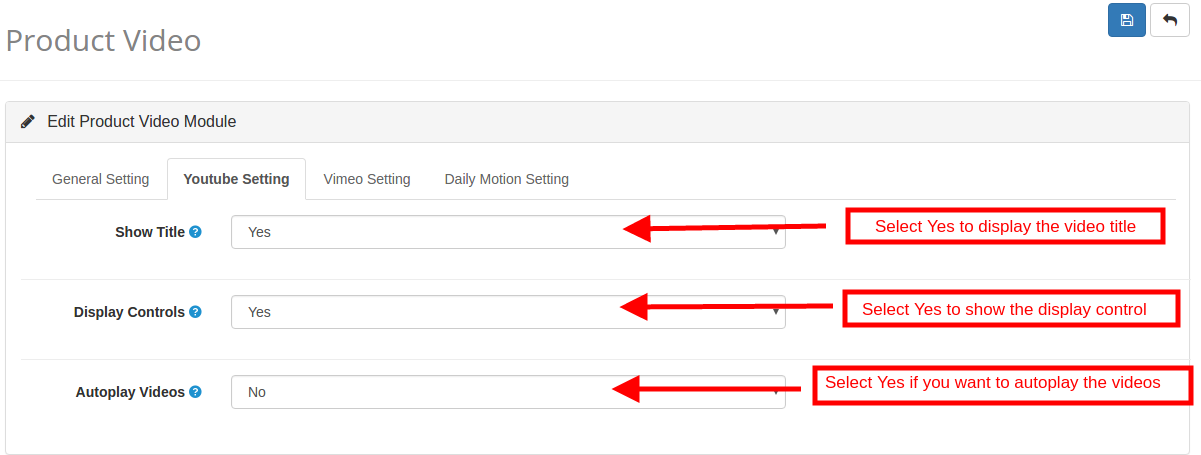
  1. Show Title: The ‘Title’ refers to the name of the video. Enable this option to display the title on the video.
  2. Display Control: The Display Control refers to the control options of the videos. If disabled, the control options will not be displayed in the front-end.
  3. Auto-play Video: Enable this option to autoplay the videos in the front-end.

4.3 Vimeo Settings

The configuration options of the Vimeo videos can be managed and changed from this tab of the OpenCart Vimeo Video plugin.

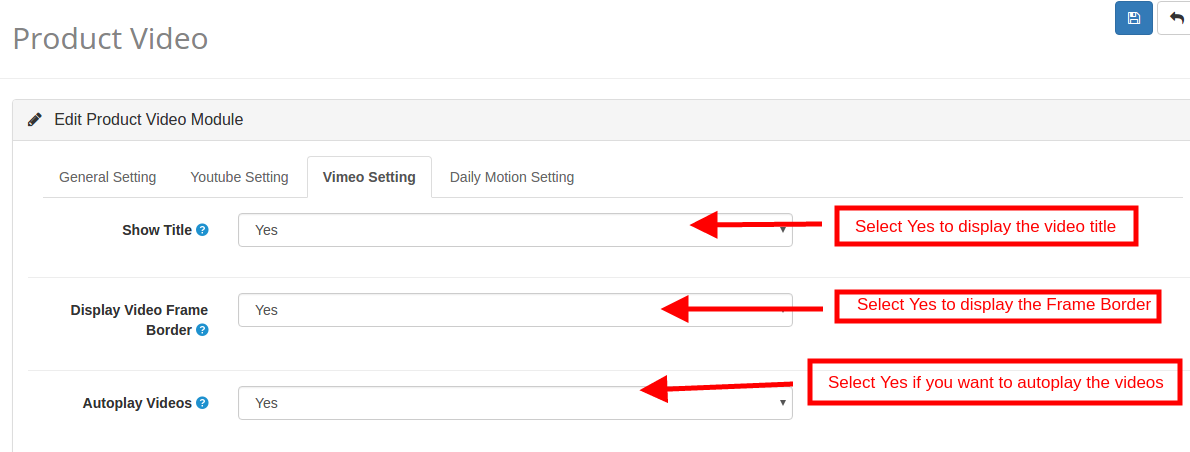
  1. Show Title: Enable this option to display the title or name of the video.
  2. Display Video Frame Border: Enable this option to show the frame border of the video in the front-end.
  3. Auto-play Video: Enable this option to autoplay the videos in the front-end.

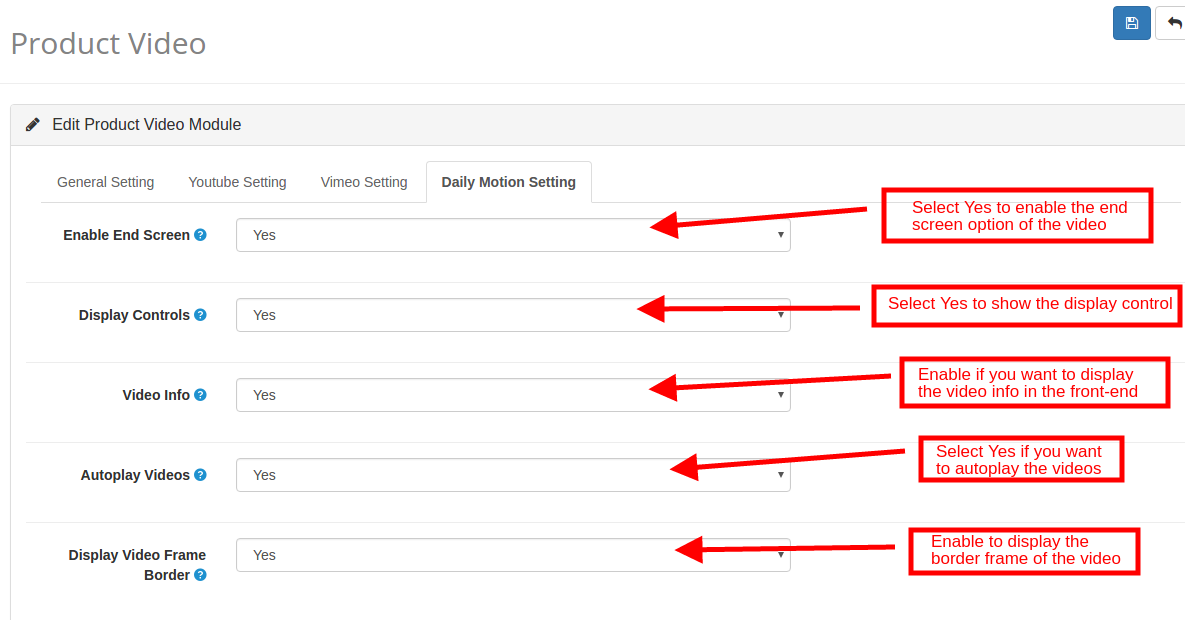
4.4 Daily Motion Settings

The store admin can manage and change the settings of the Daily Motion videos from this tab of the OpenCart Daily Motion Video plugin.

  1. Enable End Screen: Enable this option to display the end screen option.
  2. Display Controls: Enable to show the display control option of the video on the front-end.
  3. Video Info: If enabled, the video information will be displayed along with the videos.
  4. Auto-play Videos: If Yes is selected, then, the videos will autoplayed.
  5. Display Video Frame Border: If enabled, the border frame will be displayed.

5.0 Website UI

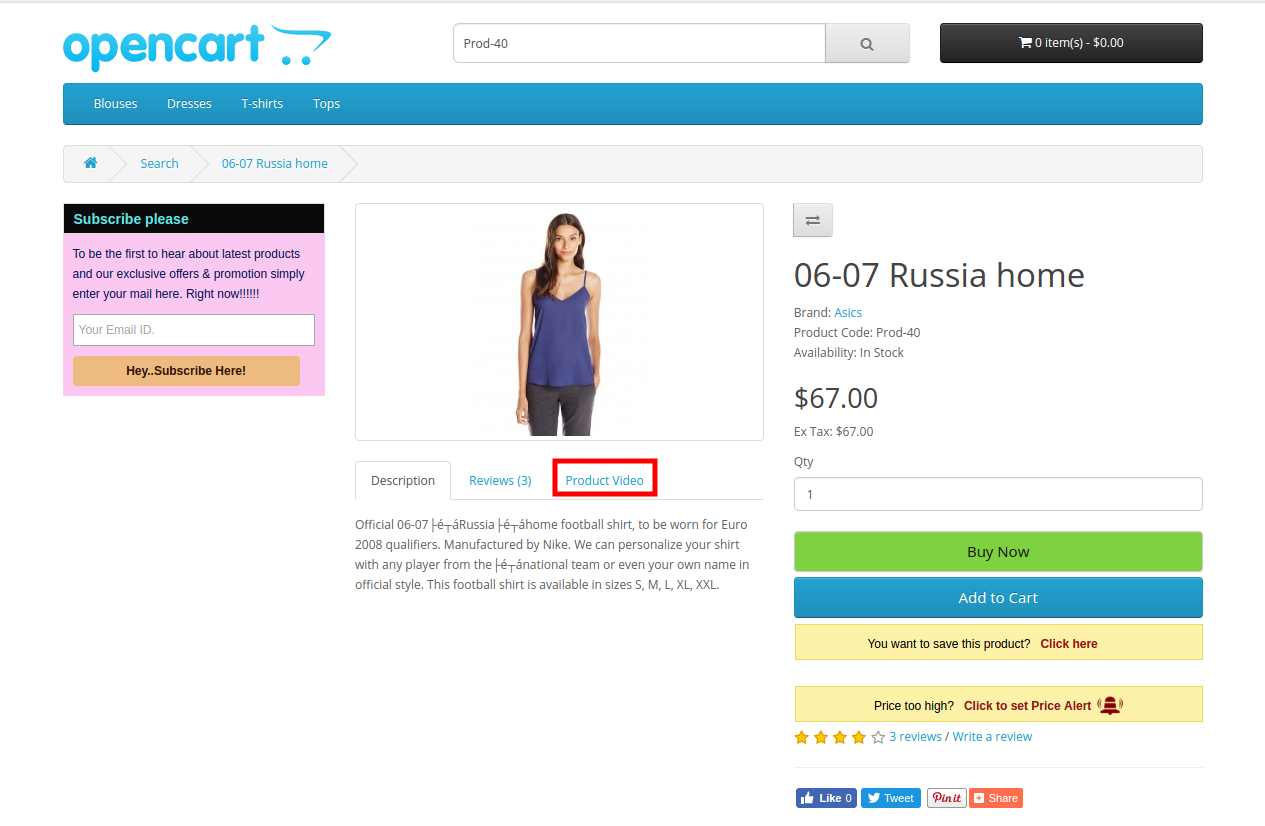
The product pages of the website will show a video tab once the OpenCart product video extension and videos are enabled as shown in the image below.


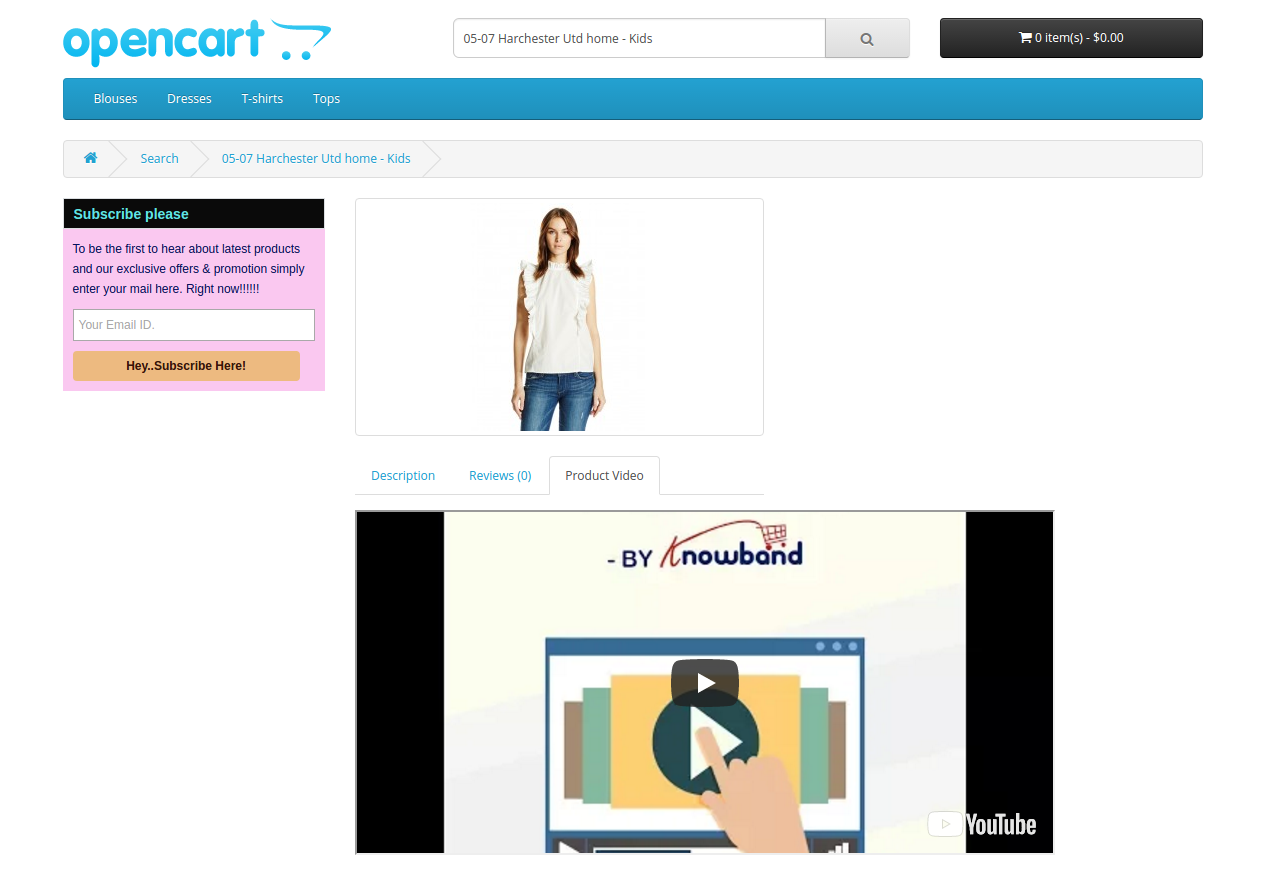
The specified videos will be shown as below:

For more details please visit:

Module Link: https://www.knowband.com/opencart-product-video

Admin Demo Link:

https://opencartdemo.knowband.com/2.3/demo1/admin/index.php?route=extension/module/productvideo&token=87BS8XxNNrFbZrKEbC6aLk0npL5z5new

Front Demo: https://opencartdemo.knowband.com/2.3/demo1/

User Manual: https://www.knowband.com/blog/user-manual/opencart-product-video/

Please contact us at support@knowband.com for any query or custom change request as per your business requirement.