
1.0 Introduction
Order confirmation emails have a deliverability problem that most store owners do not think about until a customer complains. WhatsApp messages achieve open rates of 95 to 98 percent against email’s 20 to 25 percent, a difference that shows up directly in how many customers actually see the updates you send them. An OpenCart WhatsApp CRM Extension takes the manual work out of it, and alerts go to the customer at the right moment without your team needing to do anything.
The Knowband OpenCart WhatsApp CRM and Order Notification Extension ties your store to the WhatsApp Business API. New order confirmations and status change alerts are sent automatically. Your support team can chat with customers in real time from within the OpenCart admin. Promotional messages can also be sent to a segmented contact list at whatever time you schedule. A chat icon on your storefront puts your agents within reach of any visitor.
This guide documents every tab and field in the extension. Every setting is described exactly as it appears in the admin panel, whether you are doing a fresh setup or working through a specific configuration.
1.1 Who Is This OpenCart WhatsApp CRM Extension For
This extension suits:
- Store owners who want WhatsApp order alerts to be sent automatically without needing a developer to set it up.
- Support staff who need an OpenCart WhatsApp Live Chat Extension so they can reply to customer messages from the OpenCart backend.
- Merchants who want an OpenCart WhatsApp Integration Extension that covers both automated notifications and outbound marketing campaigns in one place.
- Agencies that are building OpenCart stores for clients who have asked for a WhatsApp Business API connected to their shop.
2.0 Installation Guide of the OpenCart WhatsApp Live Chat Extension
Step 1: Download the Extension
After purchasing, download the videomate.ocmod.zip file, which contains the complete video plugin for OpenCart.
1. Unzip the downloaded file; this will contain the videomate.ocmod.zip and necessary folders.
2. Go to the upload folder and locate the admin and catalog files.

3. Copy these files into the root directory of your OpenCart store
Step 2: Upload via Extension Installer
- Go to Extensions > Extension Installer in your OpenCart admin panel.
- Upload the videomate.ocmod.zip file.
- Once installed, go to Extensions > Modifications, and click Refresh to apply changes.
Step 3: Assign User Permissions
Navigate to System > Users > User Groups, then edit your group and enable permissions for extension/module/videomate.
Step 4: Enable the Module
Navigate to Extensions > Extension Installer in your OpenCart admin dashboard.
2.3 Common Installation Issues
Upload fails: Your host is probably blocking the file size. Have them increase upload_max_filesize and post_max_size in the PHP settings to at least 32 MB.
Emails not going out: Go to System, then Settings, then the Mail tab. The extension uses the store’s default mail configuration unless you have set a different one at the form level.
Page looks wrong: Do a browser cache clear. Then reset the OpenCart theme cache using the blue cog icon on the Dashboard refresh panel.
3.0 Admin Panel Overview
The OpenCart WhatsApp CRM Extension adds its own section to the OpenCart admin sidebar after installation. Each tab in that section has a specific job:
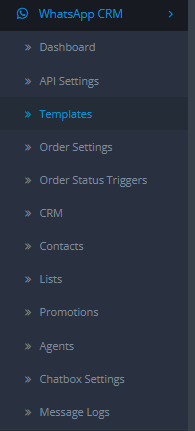
- Module/API Settings: This is where your WhatsApp Business API credentials go, along with the webhook configuration.
- Templates: Where you write and submit templates to WhatsApp for review.
- Order Settings: Decides which order-based WhatsApp alerts are active and when they are sent.
- Order Status Trigger: Links each order status to the template that gets sent for it.
- CRM: The live chat panel for two-way conversations with customers.
- Contacts: Your full contact database, with import and export built in.
- Lists: Groups of contacts that promotions get sent to.
- Promotions: Builds and schedules outbound campaigns to your contact lists.
- Agents: The support agents your visitors see in the storefront chat pop-up.
- Chatbox Settings: Settings that control the floating WhatsApp icon on your storefront.
- Message Logs: A timestamped record of all messages sent and received through the extension.
4.0 Module/API Settings of the OpenCart WhatsApp CRM Module
Nothing in the OpenCart WhatsApp Business API Extension works until this tab is filled in. Four credentials are required, and all four must be correct before the extension can send or receive anything.
4.1 WhatsApp API Settings
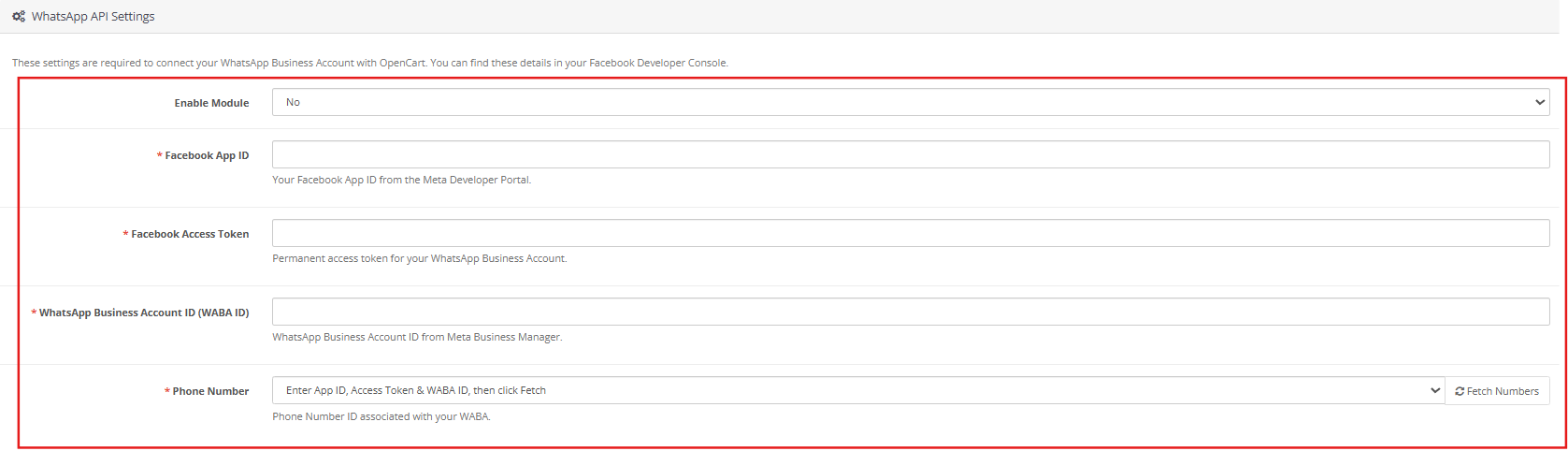
Enable Extension: You can easily enable/disable the plugin with this toggle. Turn it off, and the extension stops sending messages, and the storefront chatbox is removed.
Facebook App ID: Pull this from the Meta Developer Console. It identifies which Meta app the API request is coming from.
Facebook Access Token: This needs to be a permanent token, not the short-lived one shown in the API Setup tab. Head to Meta Business Settings, add a System User, give it full control over your app and WABA, then generate a token. The three permissions you need are whatsapp_business_messaging, whatsapp_business_management, and business_management. That token goes here.
WhatsApp Business Account ID (WABA ID): Your WABA ID lives in the Meta Developer Console, inside the WhatsApp section of your app. Copy it from there.
Phone Number: The registered WhatsApp Business number you want all messages to come from. Pick it from the dropdown.
Save the form once all four fields are filled. Any field left empty or entered incorrectly shows a validation error right away. An expired access token does the same.
4.2 Webhook Setup
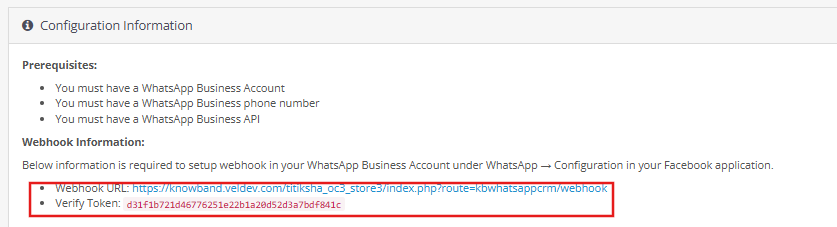
Below the credential fields, the Configuration Information section shows a Webhook URL and a Verify Token that are specific to your store. These go into the Meta Developer Console.
In your Meta app, go to WhatsApp, then Configuration, and paste the two values into the webhook setup fields. After that, the extension picks up incoming messages and template status updates on its own.
The webhook is not strictly required to get started. If it is not set up yet, you can click Sync Templates inside the Message Templates tab at any time to manually pull the latest approval status from WhatsApp.
5.0 Order Settings
The Order Settings tab is where you control when the OpenCart WhatsApp Order Notification Extension sends messages and which templates it uses for them.

5.1 WhatsApp Order Settings
Enable New Order Message: When this is on, a WhatsApp message goes out to the customer every time a new order lands in your store.
Enable Order Status Message: When this is on, customers get a WhatsApp update each time their order status changes. Turning this on also adds a WhatsApp number field to the customer address form so shoppers can put in the number where they want to receive those updates.
5.2 New Order Message Templates
This section lists your store languages. For each one, pick the approved Utility template that sends when a new order is placed. The dropdown only pulls in Utility templates that WhatsApp has already approved.
If the dropdown has nothing in it, your templates are either sitting in the queue waiting on WhatsApp review, or they were categorised as Marketing instead of Utility. Create a Utility template in the Message Templates tab, wait for approval, then come back here and save your selection.
6.0 Message Templates
Templates used anywhere in the OpenCart WhatsApp CRM Extension are created and submitted here. WhatsApp has to approve a template before it can be assigned to any message flow. Both submission and status checking happen inside this tab.
6.1 Templates List
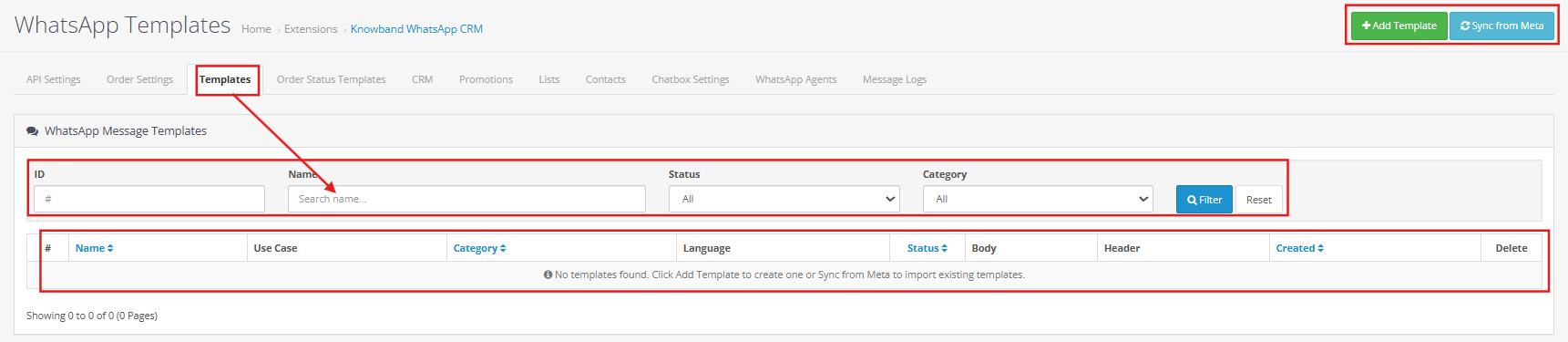
Every template tied to your WhatsApp Business Account shows up in this table. The columns cover Template ID, Name, Use Case, Category, Language, Status, and the date the template was created. Status can be Pending, Approved, or Rejected.
The Sync Templates button pulls the latest status data from WhatsApp whenever you need it. Search fields at the top let you filter by template name, category, language, or a date range.
6.2 Creating a New Template
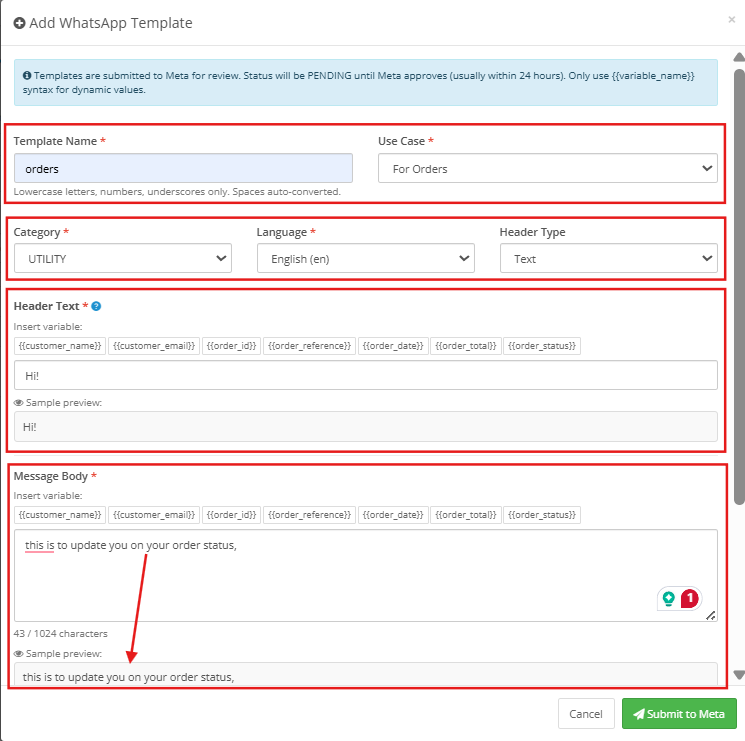
Name: Use lowercase letters and underscores only. Spaces and special characters are not accepted.
Use Case: Pick the use case that fits: For Orders, For Marketing, or For Customers.
Category: Utility or Marketing. Any template assigned to order notifications has to be in the Utility category. WhatsApp reviews the body text and may move a template to Marketing if it reads like a promotion.
Language: Choose the language the template is written in. If your store serves customers in multiple languages, you will need a separate template for each one.
Header Type: Not required. You can leave it as No Header or add a Text, Image, Video, or Document header if the message needs one.
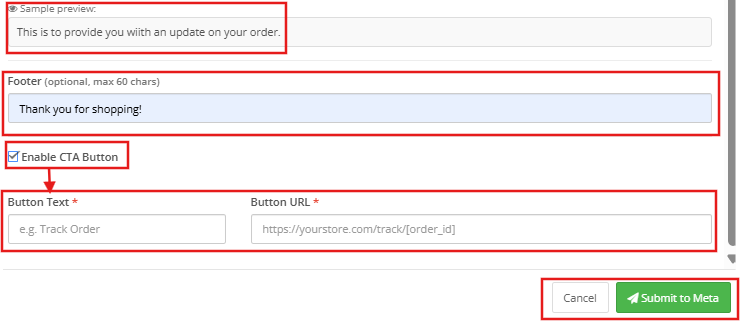
Message Body: The message itself. Bold, italic, and strikethrough options are in the editor toolbar. Use Insert Variable to drop in things like the customer’s name, their order ID, or the order total. The Body Preview below the editor shows you how the finished message reads as you build it.
Footer: An optional line of smaller text that sits below the main body.
Enable CTA Button: Switch this on to attach a CTA button to the message. You will need to fill in the Button Text and the URL it points to.
Hit Save when the template is ready. WhatsApp gets it for review right away. Straightforward templates are usually clear in a few minutes. More complex ones can take a few hours. Once it is approved, it shows up in Order Settings, Order Status Templates, and the CRM template list.
7.0 Order Status Triggers
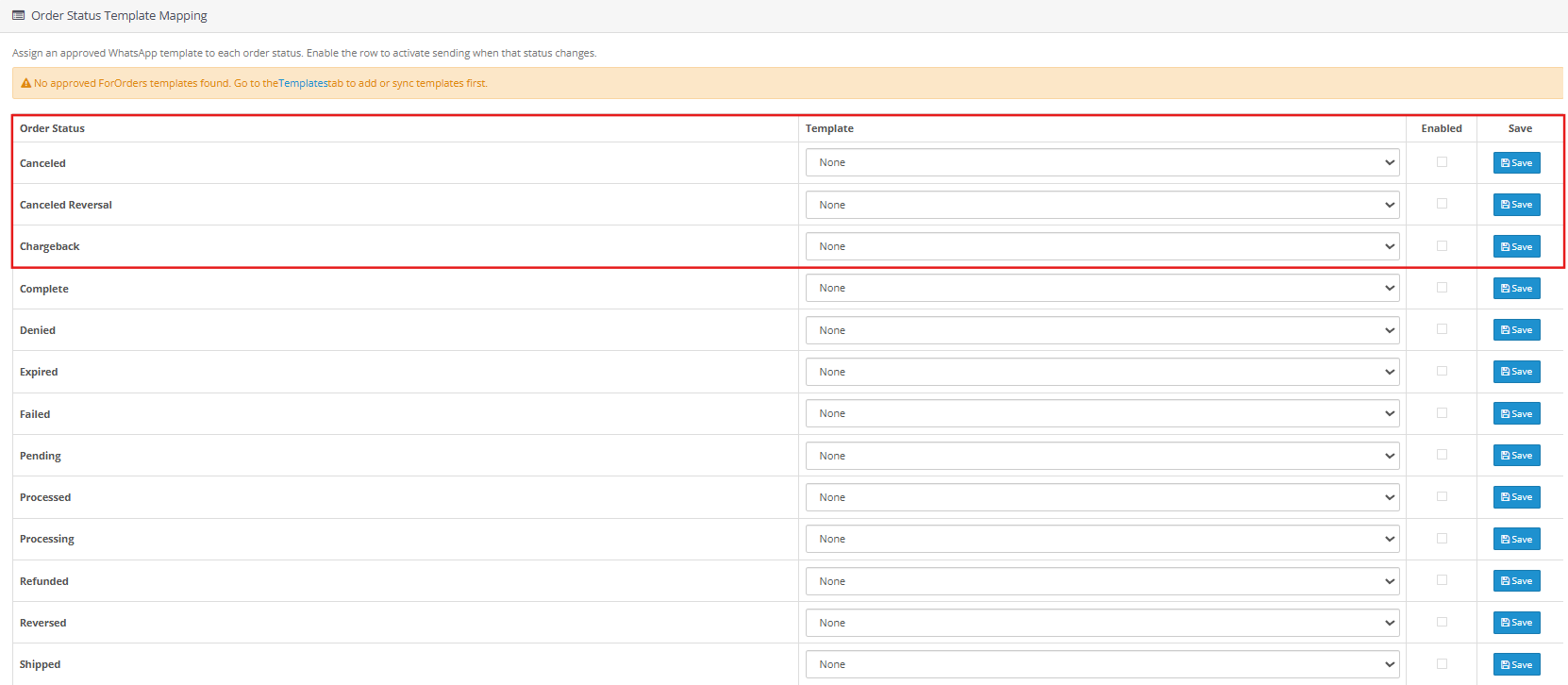
Each order status in OpenCart can be paired with a Utility template in this tab. When an order hits a status that has a template assigned, the extension sends that message to the customer as an automated WhatsApp update.
Every status your store uses is listed in the table: Awaiting check payment, Payment accepted, Processing in progress, Shipped, Delivered, Canceled, Refunded, and the rest. Each row shows whether notifications are on or off and which template is currently mapped to that status.
Hit Edit on any row to change it. Toggle Enable WhatsApp Notification on, pick a Utility template for each store language from the dropdown, and save. The row reflects the change straight away.
8.0 CRM: Live Two-Way Chat in Best WhatsApp CRM Extension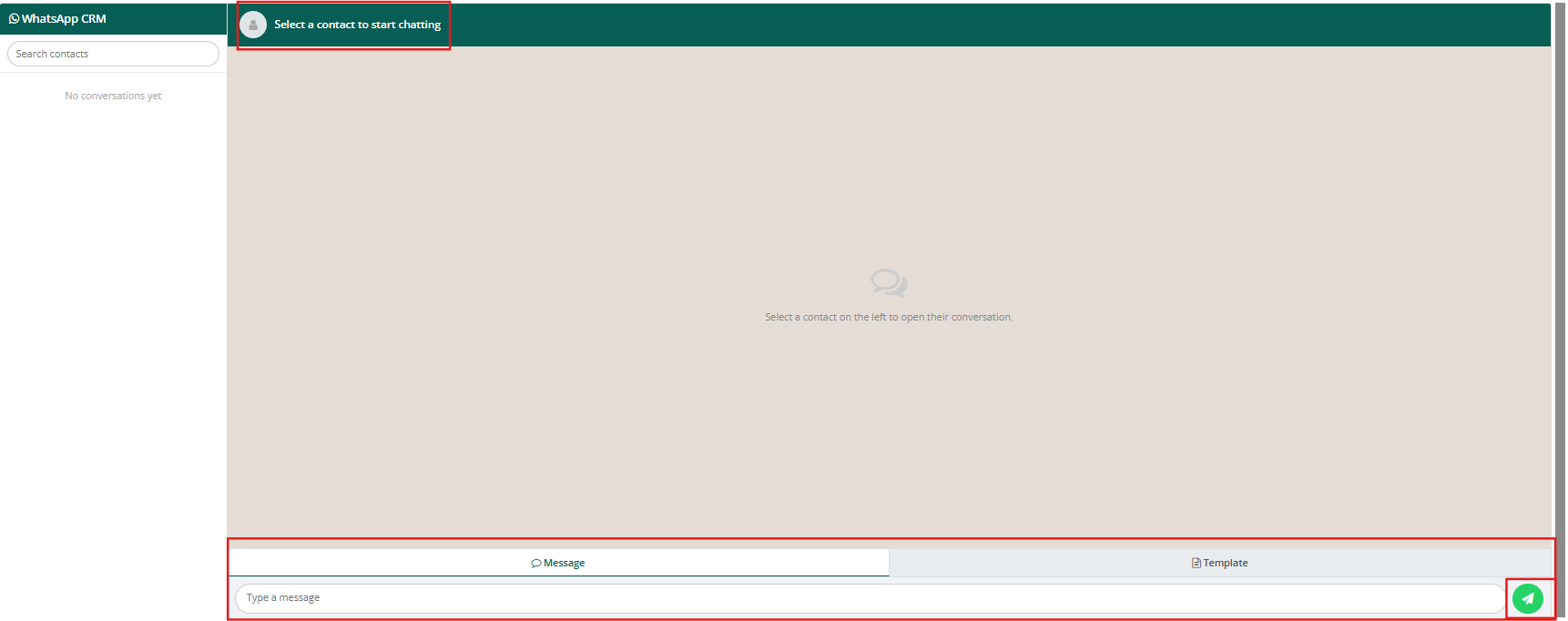

The CRM tab is the live chat section of this OpenCart WhatsApp Live Chat Extension. Your contact threads sit in a sidebar on the left. Click on any one of them to bring up the full conversation on the right.
Two tabs are at the bottom of the chat window: Message and Template. The message is for free-text replies, though this only works during the 24-hour window that opens when a customer sends you something first. After that window closes, swap to the Template tab. Approved Marketing templates can go out from there at any time.
Automated order alerts sent by the extension also show up inside the relevant contact thread. That way, your support team always has the full picture of what the customer received before they start a reply.
9.0 Promotions
The Promotions tab is for outbound WhatsApp campaigns. You pick the list of contacts, choose the template, set when it goes out, and the extension takes it from there.
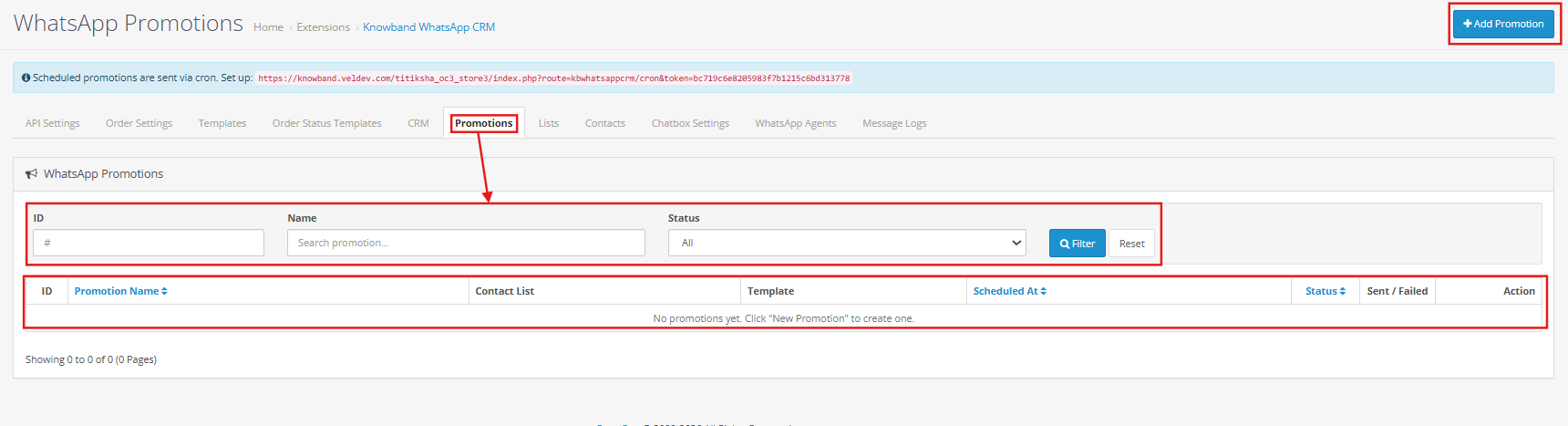
9.1 Creating a Promotion
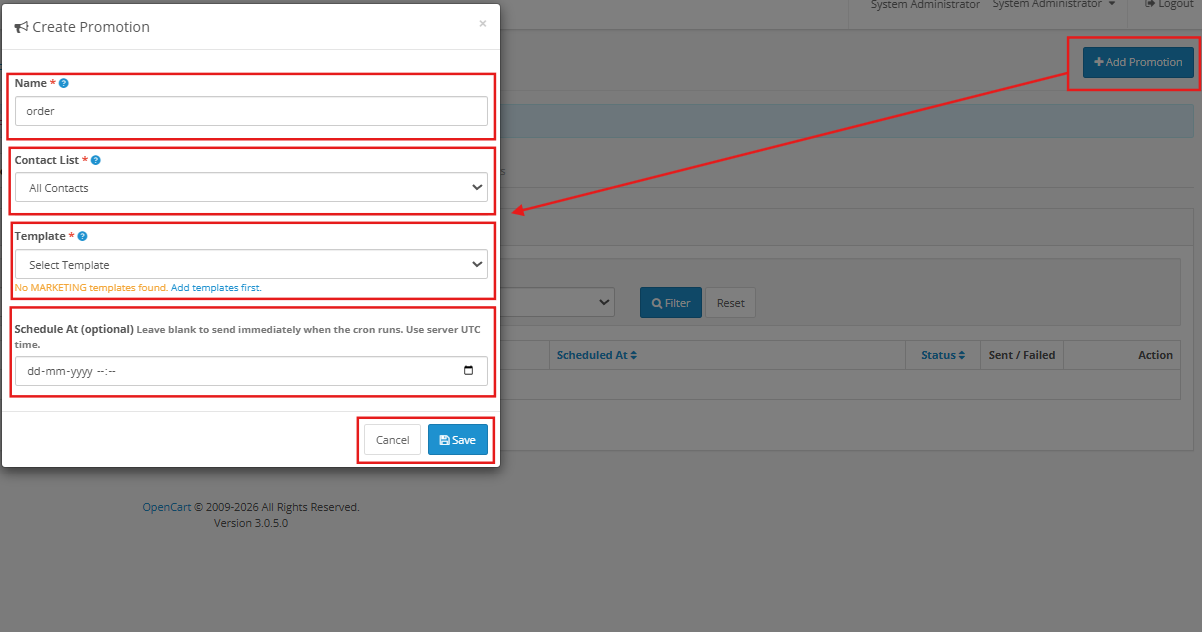
Name: An internal name so you can tell this campaign apart from others. It is not included in the message the customer receives.
Contact List: Choose which WhatsApp List this campaign targets. Every contact on that list will get the message.
Template: Pick an approved Marketing template from the dropdown. Marketing category templates are the only ones that appear here.
Schedule at: The date and time you want the campaign to go out. It has to be in the future. If you leave this blank, the campaign runs on the next CRON trigger instead.
Save it. The campaign will sit in the list with a scheduled status. The CRON command at the top of the Promotions page needs to be added to your server if you want campaigns to send automatically. It checks for pending campaigns every minute.
After a campaign runs, the Sent and Failed numbers fill in. The WhatsApp Business API bills you per message, so it is worth sending to a small group of 10 to 20 contacts first, just to see what the actual cost looks like before you go to the full list.
10.0 WhatsApp Contacts
Every phone number the extension can message is stored here. A contact needs a phone number and a name at a minimum. Linking to an OpenCart customer account is optional.
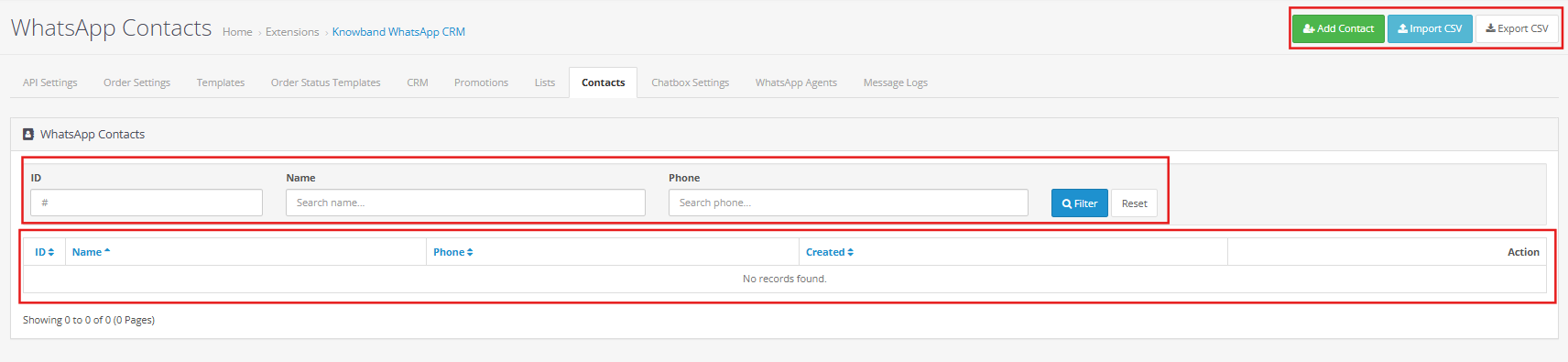
10.1 Adding a Contact Manually
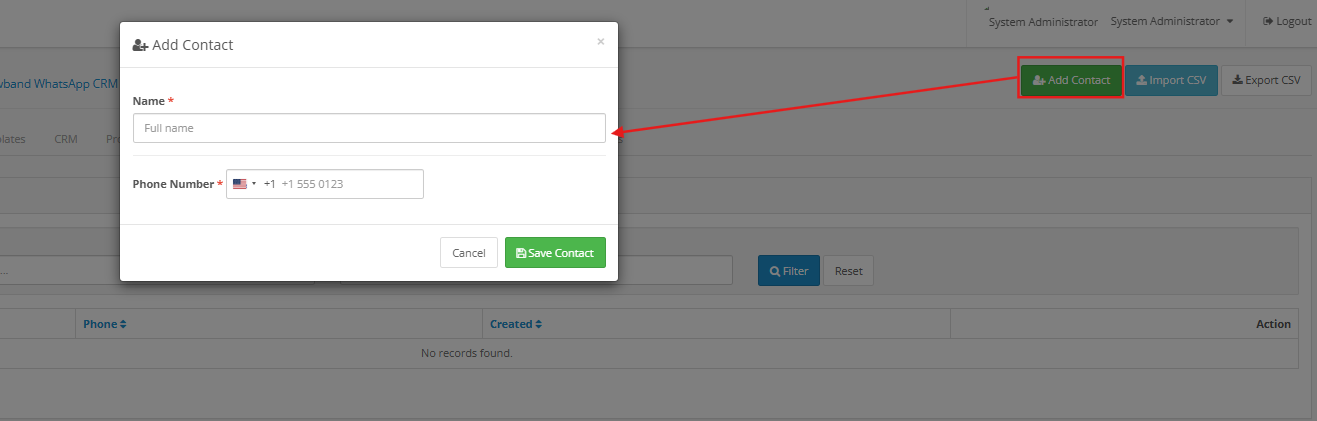
Phone Number: Start with the country code, no leading zero, no spaces or dashes. An Indian number, for example, would be entered as 919310436362.
Name: Whatever name you want displayed for this contact in the extension.
Click Save when done.
10.2 Importing Contacts in Bulk
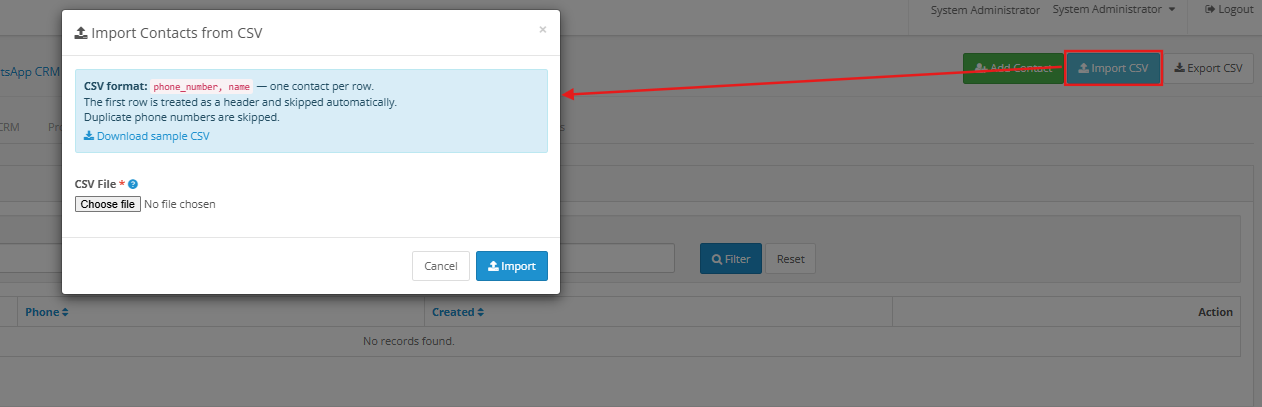
Click Download Template to get the CSV file in the right format. Add your contact data to it, come back to WhatsApp Contacts, and click Import Contacts to upload the file. Numbers that are already in the extension get their records updated. Numbers that are not in there yet get added as new contacts. Export to Excel and Export to CSV are both available if you need to pull the whole contact list out.
11.0 WhatsApp Lists
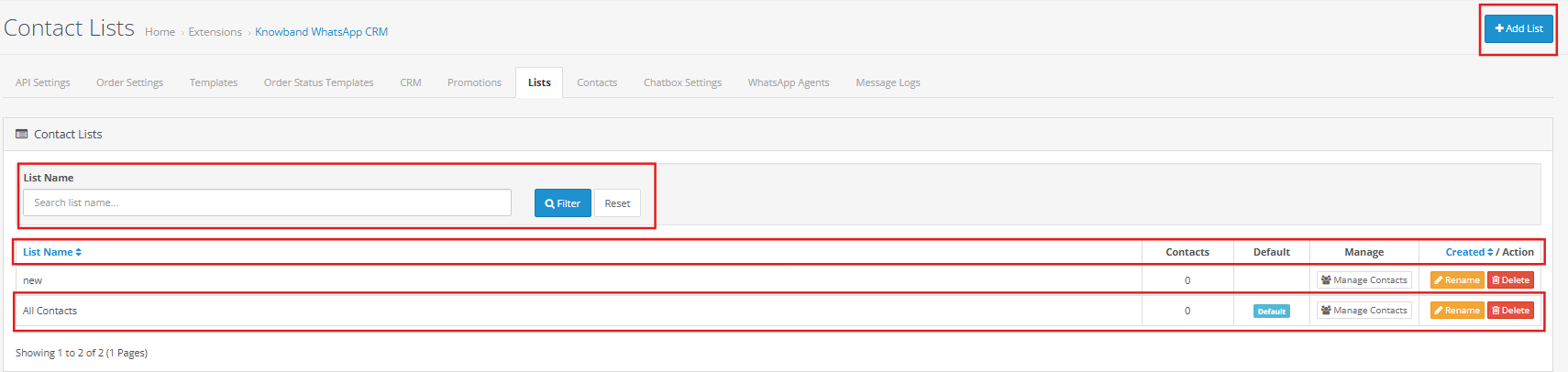
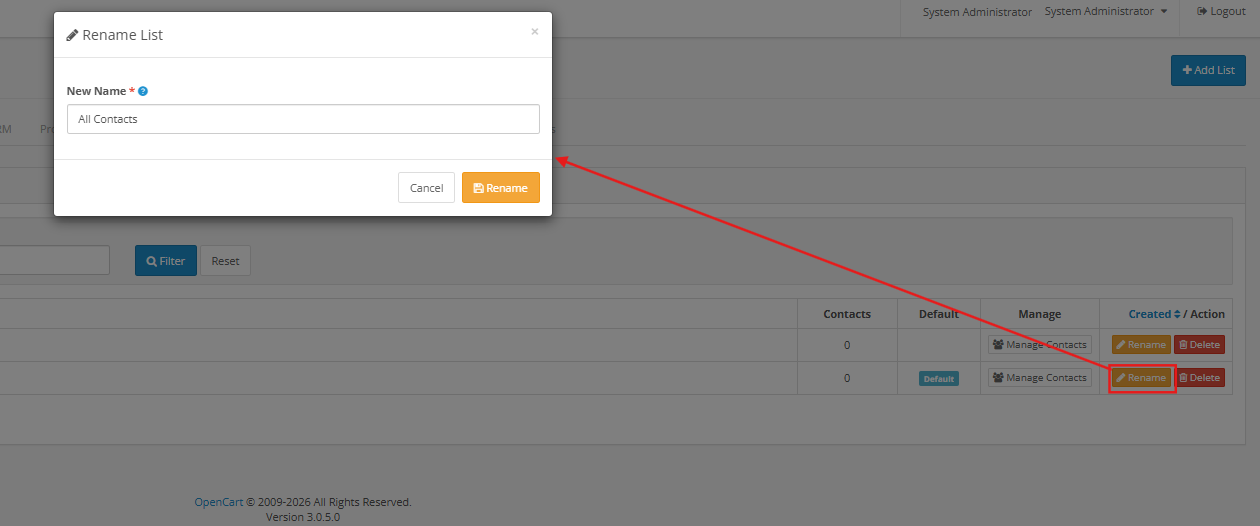
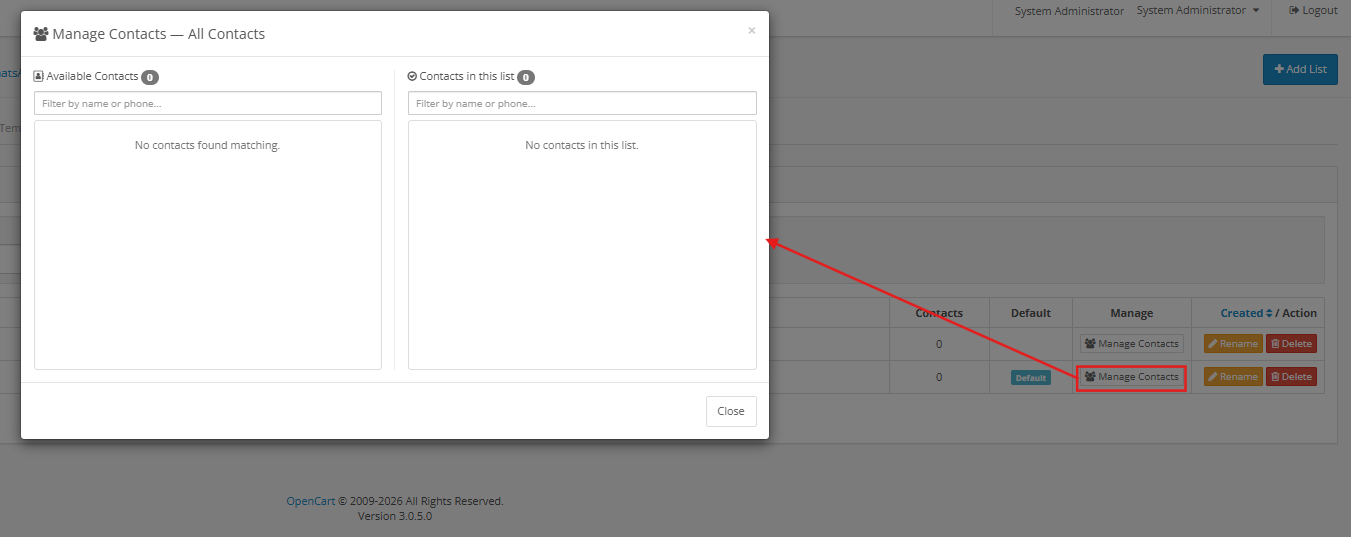
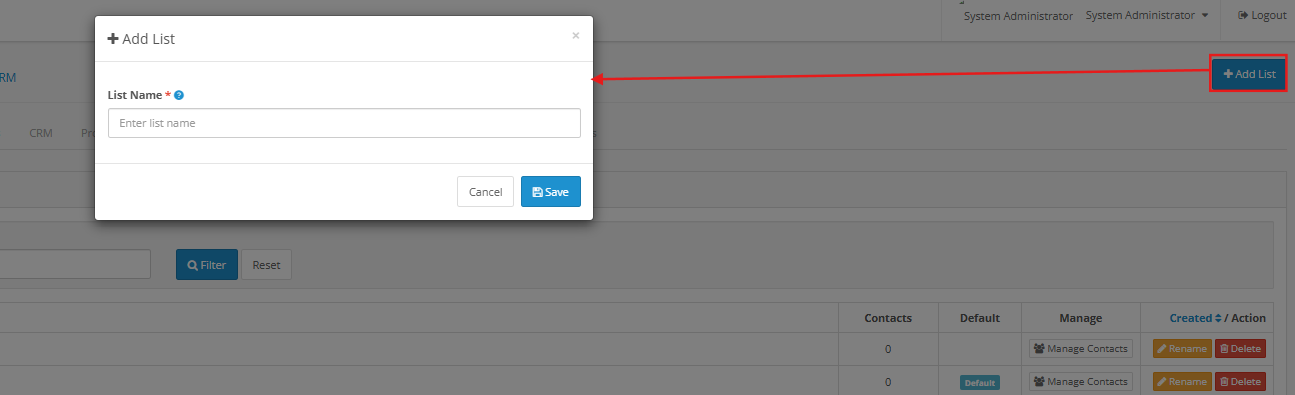
A WhatsApp List is just a named group of contacts. Promotions target one list at a time. To create one, click Add new list, type a name, and save it. If you mark a list as Default, new contacts get added to it automatically.
You assign contacts to lists from the WhatsApp Contacts tab. One contact can be in more than one list at the same time.
12.0 Chatbox Settings
This tab is for the floating WhatsApp icon on your storefront. When a visitor clicks it, a pop-up appears listing the agents you have set up. They tap Chat next to whoever they want to speak with, and it opens a WhatsApp conversation on their phone.
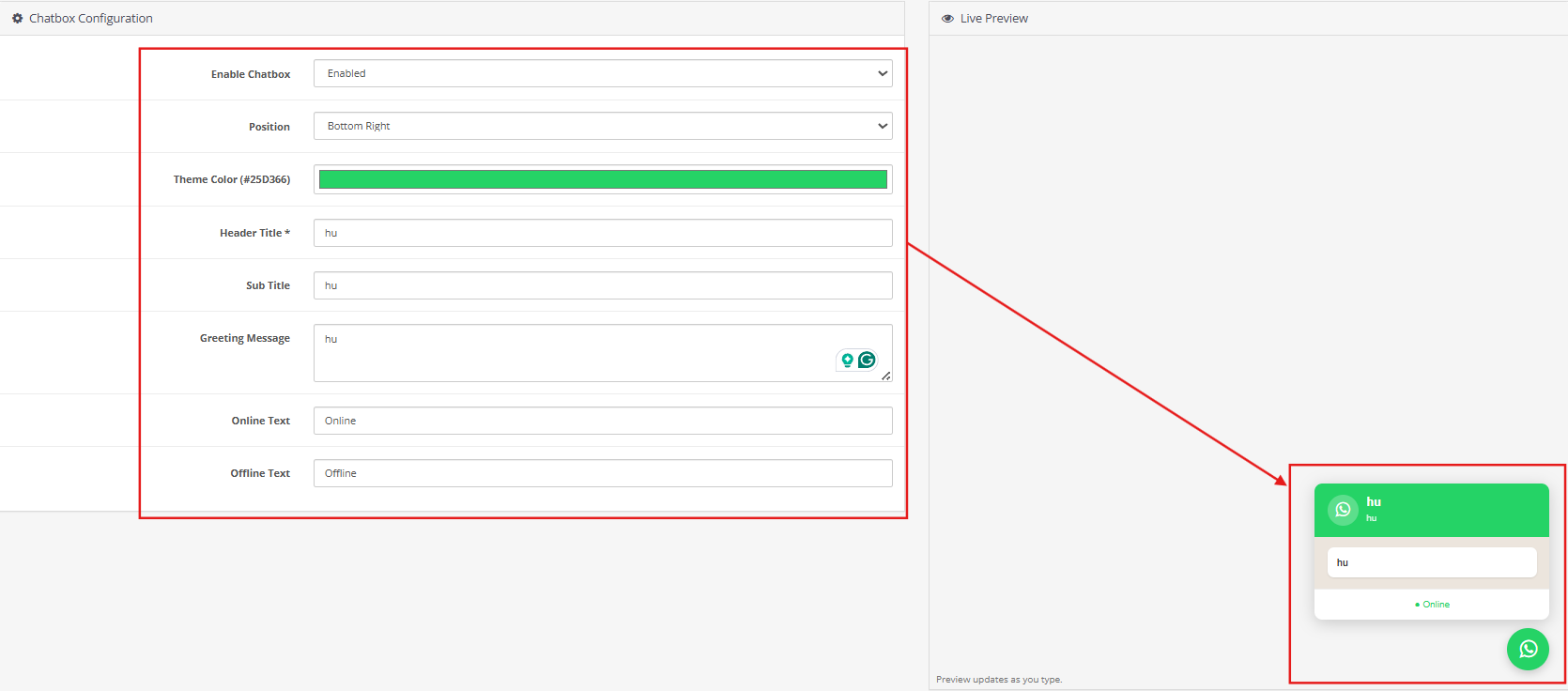
Enable Chatbox: Switch this on to show the icon on the storefront, or off to hide it.
Icon Position: Where the icon sits on the screen. Options include Bottom Right and Bottom Left.
Theme Color: The main color used for the icon background and the pop-up header. It defaults to WhatsApp green, which is #25D366.
Header Title: The text shown at the top of the chat pop-up. The placeholder example is “Chat with us”; enter whatever heading you want your visitors to see when the popup opens.
Sub Title: A short line shown below the header title. Use this to set response time expectations or any brief supporting text.
Greeting Message: The opening message displayed to visitors inside the chat pop-up before they select an agent. Accepts plain text. A WhatsApp emoji picker and formatting options are available in the bottom right of the text area.
Online Text: The label shown on agent cards when the agent is available. Defaults to “Online.”
Offline Text: The label shown on agent cards when the agent is not available. Defaults to “Offline.”
Hit Save Settings once you have made your changes.
13.0 WhatsApp Agents
Agents are the people your storefront visitors see in the chat pop-up. Each agent card has a name, a department or role, and a Chat button. When a visitor taps that button, it opens a WhatsApp conversation with that agent’s number on their device.
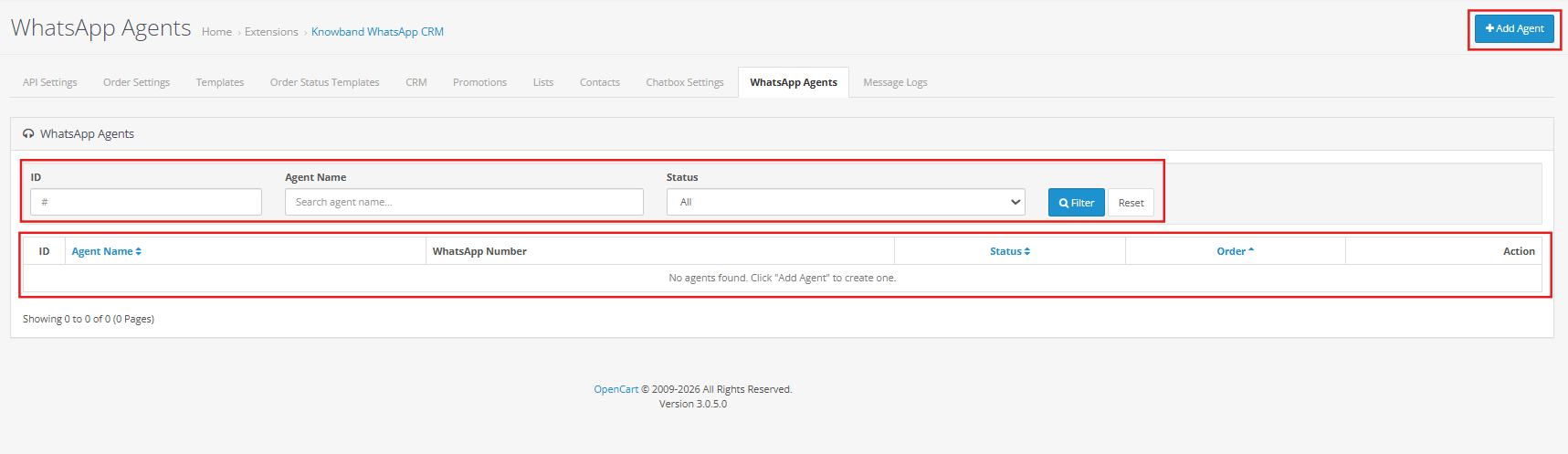
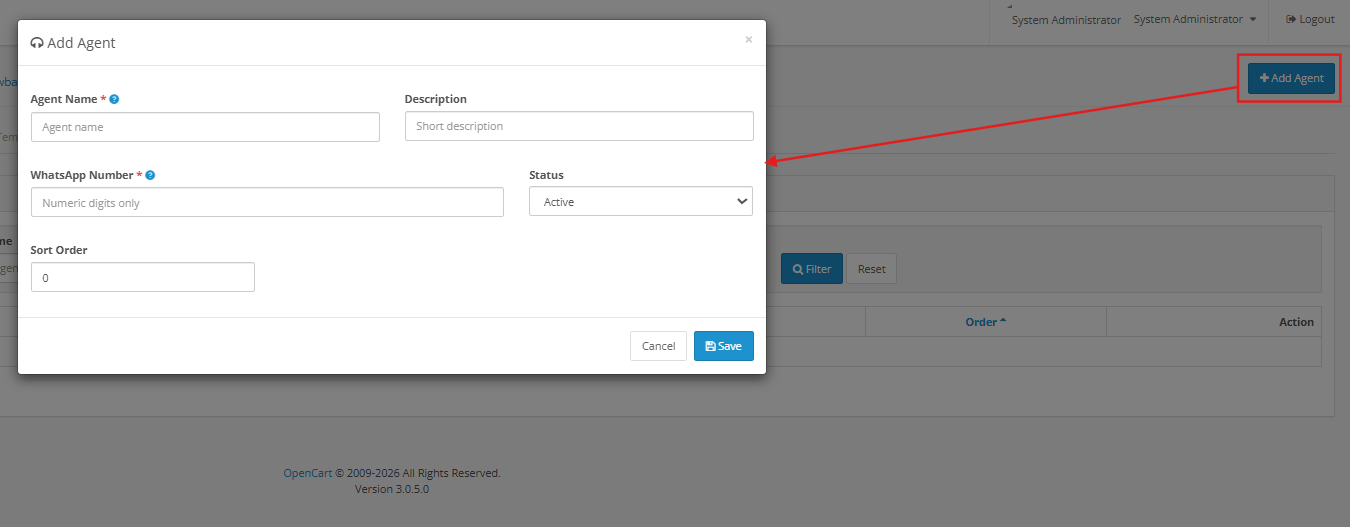
Active: Controls whether this agent is visible in the storefront popup.
Agent Name: The name shown on the agent card. Capped at 50 characters.
Contact Number: The agent’s WhatsApp number, country code included (for example, +919876543210). If you use the same number as the one in the API Settings, conversations from this agent also appear inside the CRM tab.
Department: The team name or role shown under the agent’s name. Up to 50 characters, and it can be set differently per language.
Display Order: A number that controls where this agent appears in the pop-up. The lower the number, the higher up the agent shows.
Avatar Type: Pick a Predefined Avatar from the available options, or upload an image of your own.
14.0 Message Logs

The Message Logs tab keeps a record of every message that has passed through the OpenCart WhatsApp Messaging Extension, both sent and received. Each row tells you the Direction, the phone number it involved, the template used if any, a preview of the message text, the WhatsApp Message ID, the delivery status, and the timestamp.
Order alerts, CRM replies, and campaign messages all end up in this list. A success status means the WhatsApp API received and accepted the message. The date range, phone number, and template filters make it easy to find a specific message. When something is not delivering the way it should, this tab is the right place to start looking.
15.0 Frequently Asked Questions
Q: What is the OpenCart WhatsApp CRM Extension, and what does it do?
The Knowband OpenCart WhatsApp CRM and Order Notification Extension connects your OpenCart store to the WhatsApp Business API. Order confirmations and status change alerts go to customers on WhatsApp automatically. Your team handles live customer conversations from inside the OpenCart admin through the CRM tab. You can run scheduled WhatsApp campaigns to contact lists through the Promotions tab. A storefront chatbox lets visitors tap through to your support agents on WhatsApp directly.
Q: Does the OpenCart WhatsApp Messaging Extension require a WhatsApp Business Account?
Yes, it does. The OpenCart WhatsApp CRM Extension needs a WhatsApp Business Account, a phone number registered as a WhatsApp Business number, and a Meta Developer App that has WhatsApp Business API access set up. All three are needed before the API Settings tab can be completed and before the extension can send anything.
Q: How does the OpenCart WhatsApp Order Notification Extension send alerts when a new order is placed?
When Enable New Order Message is switched on in Order Settings, the OpenCart WhatsApp Order Status Extension sends an approved Utility template to the customer each time an order goes through. For status updates, turn on Enable Order Status Message as well. That puts a WhatsApp number field on the customer address form. Once a customer fills it in and their order moves to a status that has a template mapped in Order Status Templates, the message goes out to that number straight away.
Q: Why are no templates showing in the Order Settings dropdown of the OpenCart WhatsApp CRM Extension?
Order Settings only lists Utility templates that have been approved by WhatsApp. An empty dropdown usually means templates are still in the review queue or sitting in the Marketing category by mistake. Head to Message Templates, build a Utility template, wait for the approval to land, then go back to Order Settings. The Sync Templates button is there if you want to pull the latest approval status without waiting for the webhook.
Q: How does the live chat work inside the OpenCart WhatsApp Live Chat Extension?
The CRM tab in the OpenCart WhatsApp Messaging Extension shows all contact threads on the left side. Click a contact to open the conversation. Use the Message tab to type a reply while the 24-hour window from the customer’s last message is still open. Once that closes, the Template tab is the way to reach them; any approved Marketing template can be sent from there, regardless of when the customer last wrote. Automated order alerts from the extension appear in the thread too, so your team always has context.
Q: Can I run WhatsApp marketing promotions through the OpenCart WhatsApp CRM Extension?
Yes, through the Promotions tab. Go there, click Add new promotion, give it a name, pick a Target List, choose a Marketing template, and set a time in the future for it to go out. The CRON command on the Promotions page needs to be on your server for campaigns to send automatically; it checks every minute for anything due. Before sending to your whole list, send it at a small group of 10 to 20 contacts first to see what the API costs look like.
Q: How does the OpenCart WhatsApp Business API Extension connect to WhatsApp?
The OpenCart WhatsApp Order Status Extension also available on Opencart Marketplace with Price $49.99, connects through four fields in the Module/API Settings tab: your Facebook App ID, a permanent Access Token, your WhatsApp Business Account ID (WABA ID), and your registered phone number. On top of that, you paste the Webhook URL and Verify Token shown in the Configuration Information panel into your Meta Developer Console. With those two steps done, the OpenCart WhatsApp Business API Extension handles message sending, template approval tracking, and incoming messages without any further manual input.
Q: Can I bring existing contacts into the OpenCart WhatsApp Order Status Extension from a spreadsheet?
Yes. Open the WhatsApp Contacts tab and click Download Template to get the CSV in the right layout. Put your contact data into it, then upload it using Import Contacts. If a phone number is already in the extension, that contact’s record gets updated. Anything new gets added. Once the contacts are in, you can assign them to WhatsApp Lists and target them in your next promotion.
Q: A template was rejected inside the OpenCart WhatsApp CRM Extension. What now?
Go to Message Templates and look at what the rejected template says. WhatsApp will reject templates that put sales or promotional language inside a Utility template, contain anything inaccurate, or go against its commerce policies. Delete the rejected one, fix whatever the issue was in the body text, and submit a fresh template. If the tone was the problem, write the body more like a factual update and less like a sales message.
Q: Which versions of OpenCart work with the Knowband WhatsApp CRM Extension?
The Knowband OpenCart WhatsApp CRM Extension runs on OpenCart 3.x. If you need compatibility details for versions released after this guide was written, the extension product page on the Knowband website will have the most current information. You can also contact the Knowband support team directly.
16.0 Conclusion
The Knowband OpenCart WhatsApp CRM Extension, also known as the OpenCart WhatsApp CRM and Order Notification Extension, is a full OpenCart WhatsApp Integration Extension. Order alerts go out on their own. Live support runs through the CRM tab. Campaigns reach targeted contact lists on a schedule you define.
The only thing that happens outside the extension is pulling your API credentials from the Meta Developer Console. After that, templates, order mappings, contact lists, agent profiles, and promotions are all handled from inside OpenCart.
For help getting set up or questions about any feature, the Knowband support team is at support@knowband.com. There are also documentation pages and setup videos on the Knowband website.
