Knowband Introduces OpenCart Google Tag Manager Extension to Simplify Store Tracking

Running an online store is not just about selling products. To grow your business, e-merchants also need to understand the customer’s behavior. However, tracking that behavior can often be complicated, especially if you don’t have a technical background.

That’s why Knowband has launched the OpenCart Google Tag Manager (GTM) Extension, a smart and easy plugin to help store owners connect their OpenCart store with Google Analytics 4 (GA4)  without writing a single line of code.

What Is Google Tag Manager?

First of all, let’s quickly understand what Google Tag Manager is. GTM is a free tool by Google that lets you manage all your website’s tracking codes in one place. Instead of adding code to every page of your site, you can simply add it once through GTM and manage everything from there.

This saves time, reduces errors, and makes your store’s tracking more accurate. As a result, you get better data to improve your marketing and customer experience.

Why Knowband’s OpenCart GTM Extension Is a Must-Have

Now that you know the importance of GTM, you might wonder how Knowband’s Google Tag Manager Plugin helps.

Well, the answer is simple:

It makes the process easier, faster, and error-free. Let’s take a look at how it works and what makes it stand out.
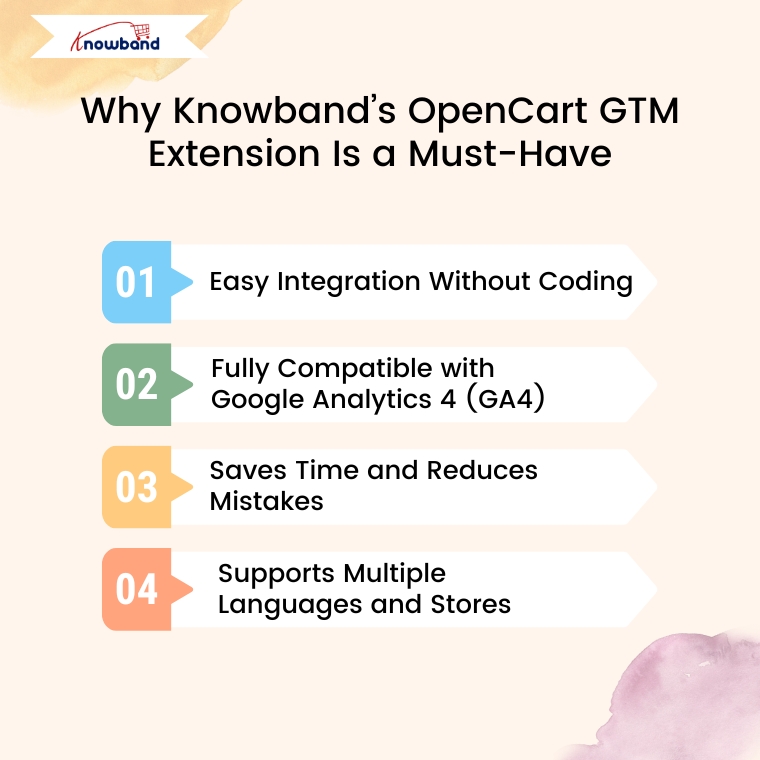
1. Easy Integration Without Coding

To begin with, the Knowband GTM Extension is incredibly easy to install and use. Once you upload it to your OpenCart store, you can link it with your Google Tag Manager account in just a few clicks. There’s no need for technical knowledge or a developer’s help.

2. Fully Compatible with Google Analytics 4 (GA4)

In addition, the Google Tag Manager extension for Opencart is fully compatible with the latest version of Google Analytics — GA4. This means it can track all important actions taken by your customers, including:

  • Page View – Track when a visitor opens any page.
  • View Category – Know when someone browses a category.
  • View Product – See when users view a product’s detail page.
  • Add to Cart – Track the products or cart data when users add items to their cart.
  • Remove from Cart – Know when they take something out of the cart.
  • Checkout Begins – See when the customer starts the checkout process.
  • Order Confirmation – Track successful purchases and revenue.
  • Apply Discount Code – Monitor the use of coupon codes.
  • View Cart – Know when customers review their cart before checkout.
  • Login/Register – Track customer sign-ins and new account sign-ups.
  • Add/Remove from Wishlist – See what customers are saving or removing from wishlists.
  • Search Products – Understand what people are searching for on your site.
  • UTM Tracking – Capture campaign performance with UTM parameters.
  • Scroll Depth – Measure how far down a page users scroll.

These detailed events give you a clear picture of how visitors interact with your store from the moment they land on your site until they make a purchase.

3. Saves Time and Reduces Mistakes

Furthermore, the Opencart Google Tracking extension helps you avoid the manual setup of tracking codes. The OpenCart GTM Plugin not only saves you time but also reduces the chance of mistakes. Instead of worrying about where to place each code, you can relax knowing everything is managed from one place.

4. Supports Multiple Languages and Stores

If you’re running multiple OpenCart stores or serving customers in different countries, the Opencart Google Tag Manager extension is perfect for you. The OpenCart No-Code Google Tag Manager Plugin supports multi-store and multi-language setups, so you don’t have to install separate tracking for each version of your site.

What Are the Benefits for Store Owners?

Now that we’ve covered the features, let’s talk about the real benefits you’ll enjoy when using the OpenCart Google Tag Manager Extension:

  • Smarter Marketing Decisions – With accurate tracking, you’ll know exactly which ads and campaigns are bringing sales.
  • Improved Customer Insights – See how users interact with your store and what they’re most interested in.
  • Time-Saving Automation – No more copying and pasting code across your site. Everything is automated.
  • Better Conversion Rates – With insights from GA4, you can improve your store’s layout, fix problem areas, and make the checkout smoother.
  • Stronger ROI – When you invest in the right marketing based on real data, your return on investment improves.
  • Enhanced Shopping Experience – Understanding what customers like helps you create a more enjoyable and personalized experience.

Final Thoughts

In conclusion, the Knowband OpenCart Google Tag Manager Extension is a powerful yet simple plugin for any OpenCart store owner. It connects your store to GA4 without any technical headache, tracks important customer actions, and gives you the insights you need to grow your business.

Whether you’re just starting out or already running a successful online store, this extension can help you make smarter decisions, save time, and boost your sales.

If you’re serious about improving your store’s performance, it’s time to upgrade your tracking system. Try the Knowband GTM Extension today — and take the guesswork out of your marketing and analytics.

OpenCart Google Tag Manager (gtag, GA4, GTM Events) Extension – User Manual

The Knowband OpenCart Google Tag Manager Extension is a powerful plugin designed to simplify the integration of Google Tag Manager (GTM) with your OpenCart store. With its intuitive interface, the Opencart Google Tag Manager Plugin enables store owners to add and manage various Google tags without requiring technical expertise. It allows you to monitor essential events such as product views, category, add-to-cart actions, remove-from-cart events, check-out events, payment events, shipping events, and order confirmations, giving you valuable insights into customer interactions.

Additionally, the OpenCart Google Tag Manager Plugin seamlessly captures UTM parameters, helping store owners to analyze the impact of their marketing campaigns. By leveraging the OpenCart Google Marketing Integration Plugin, e-merchants can identify which campaigns drive the most traffic and conversions, enabling smarter ad spend allocation and improved return on investment (ROI).

The Knowband’s OpenCart Google Tag Manager is Ideal for businesses looking to enhance tracking data or analytics about the stores and events, boost conversion rates, and improve the shopping experience. The Knowband OpenCart Google Tag Manager Extension supports Google Analytics, GA4, and other Google marketing tools, making data-driven decision-making easier and more efficient.

1.0 Key Features Offered by OpenCart Google Tag Manager Extension:

Seamless Google Tag Manager Integration: Easily connect Google Analytics, Google Ads, GA4, and other essential tracking tools to the OpenCart store without any coding skills required.

Live Event Tracking for Better Insights: The store owners can monitor key user actions in real time, such as Add to Cart, Product Views, Checkout events, applied coupons, as well as the payment& shipping methods, to gain instant insights into customer behavior.

Track Campaign Performance with UTM Parameters: Automatically capture UTM parameters to measure the success of your marketing campaigns and determine which channels drive the most traffic and conversions.

Advanced eCommerce Tracking for Data-Driven Decisions: Get in-depth analytics on product views, cart additions, and completed purchases to optimize your store’s sales performance.

Quick & Easy Setup – No Coding Required: With a user-friendly interface, the OpenCart GTM Extension makes tag management simple and stress-free, even for non-technical users.

Intuitive Admin Dashboard for Full Control: Manage and monitor all your tracking tags and events directly from your OpenCart admin panel with a clean, easy-to-use dashboard.

Multi-Language Support for Global Stores: The OpenCart GTM Extension supports multiple languages, allowing you to use it seamlessly in different regions and enhance the shopping experience for international customers.

2.0 Google Consoles IDs to Enable Functionality Knowband Opencart  Google Tag Manager Plugin

2.1 Steps to Get the Google Tag Manager ID

Step 1: Create the Google Tag Manager account.

Step 2: Create a new container or choose an existing container.

Step 3: The Container ID will look in this format GTM-XXXXXX and can be easily seen in the top-right corner of the interface of Google Tag Manager

 Step 4: Copy the Container ID and add it to the GTM container ID field in the configuration field.

2.2 Follow these steps to get the Google Measurement ID 

Step 1: Visit the Google Analytics account.

Step 2: Select the property for which you want to get the Measurement ID.

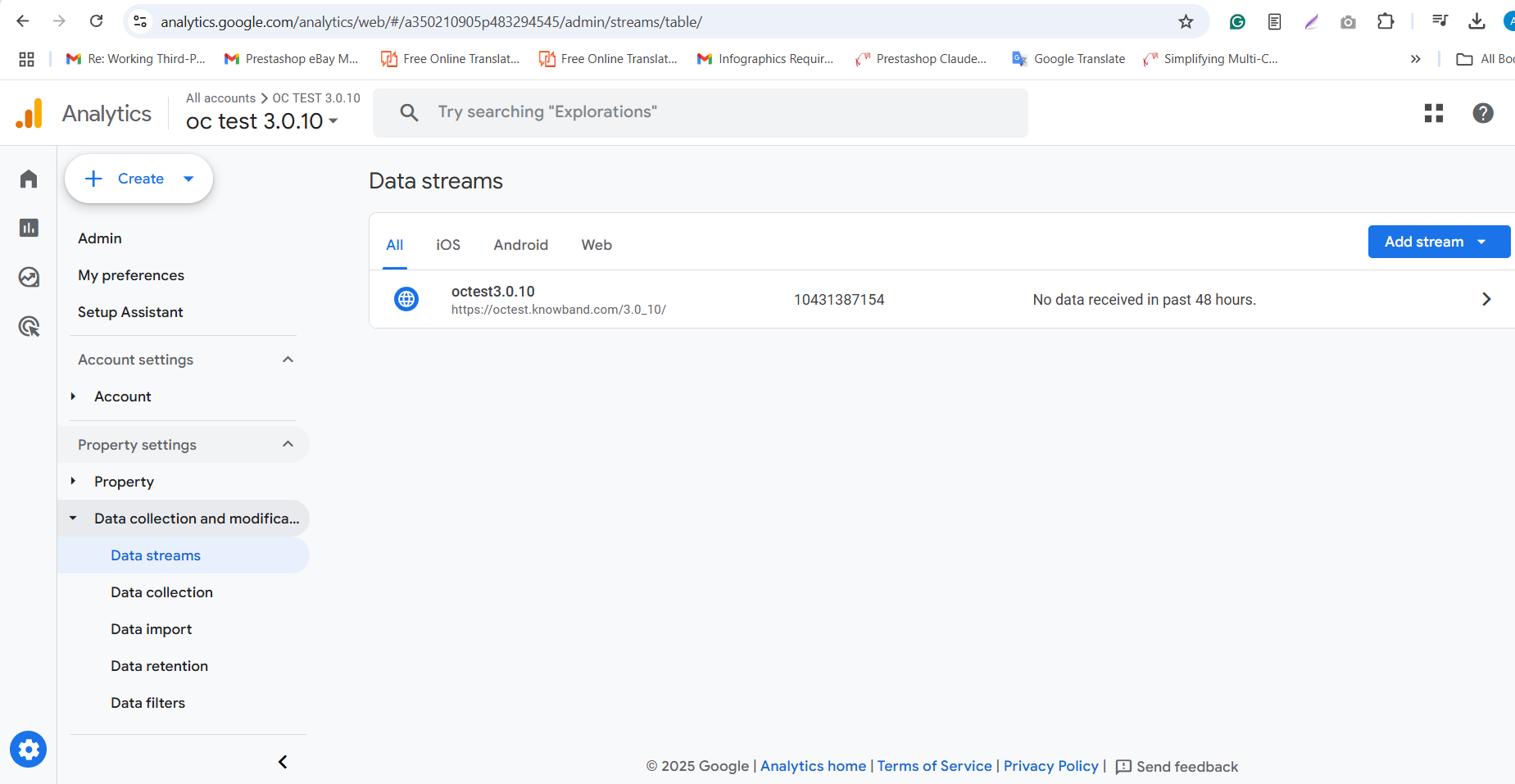
Step 3: Navigate to Admin ->Data Streams and choose your web data stream.

Step 4: The Measurement ID will be in this format- G-XXXXXXXXXX.

Step 5: Copy the Measurement ID and add it to the Google Measurement ID field in the module’s configuration.


2.3 How to Configure Events in Google Tag Manager?

Step 1: Download GTM Events from the module configurations. You can find the direct download link under Configurations > Instructions tab.

Step 2: Log in to your Google Tag Manager account.

Step 3: In Google Tag Manager, go to Admin > Import Container.

Step 4: Select the downloaded GTM Event file from your system.

Step 5: Choose the workspace where you want to import the events and select the “Merge” or “Overwrite” options as required.

Step 6: Click Confirm to complete the import process.

Step 7: Save and publish your container to activate the events in your Google Tag Manager.

3.0 Steps to Set Up OpenCart Google Tag Manager in 3 Simple Steps

Once you’re ready to integrate Knowband’s Opencart Google Tag Manager with your OpenCart store, follow these three simple steps to get started with the OpenCart Google Tag Manager Extension:

Purchase the OpenCart Google Tag Manager Extension from the Knowband store. You’ll get the following file: a Zipped File containing the source code of the module.

Follow the steps mentioned below to install the OpenCart Google Tag Manager plugin in your store:

Step 1: Purchase the Extension, and then you will receive a ZIP file containing the module’s source code.

Step 1: Extract and Upload Files

  1. Unzip the downloaded file – this will contain the kbgtag. OCMod file and necessary folders.
  2. Go to the upload folder and locate the admin and catalog files.
  3. Copy these files into the root directory of your OpenCart store

Step 2: Install and Activate the Module

Go to Extensions > Installer in your OpenCart admin panel.

  1. Upload the kbgtag.ocmod file in the installer.
  2. Go to Extensions > Modifications and click Refresh to apply the changes.

Integrate your store with Prestashop Google Tag Manager

No Coding Skills Required

Buy Now

4.0. Admin Panel Overview:

The Google Tag Manager for OpenCart offers an easy-to-use admin dashboard for OpenCart store owners. The store admin can easily set up and manage all tags directly from the Opencart admin panel. 


Enable or Disable Extension: The store admin can easily turn the module on or off whenever needed.

GTM Container ID: Enter the GTM Container ID in the box. The admin can find this ID by following the steps in section 1.1.

Google Analytics ID: Enter your Google Analytics Measurement ID here to connect Google Analytics with GTM for tracking.

Track Page Views: You can turn on or off the “Page View” tag to track when customers visit different pages.

Category Views: Control the “View Category” tag to track when customers view product categories on your site.

Product Details Page: Turn on the “View Product Details” tag to track when a customer looks at a specific product page.

Cart Removal: Enable or disable the tag that tracks when items are removed from the shopping cart.

Add to Cart: Turn the “Add to Cart” tag on or off to track when items are added to the cart.

Checkout Start: Turn on the tag to track when a customer begins the checkout process.

Checkout Page: Enable or disable the tag that tracks activity on the checkout page.

Address Selection: Turn on the tag to track when customers add or select their shipping address during checkout.

Shipping Method Choice: Enable the tag to track when customers choose their shipping method during checkout.

Order Confirmation: Control the “Order Confirmation” tag to track when a customer completes an order.

Discount Code Use: Turn on or off the “Apply Discount Code” tag to track when customers use a discount code.

Discount Code Removal: Enable or disable the tag that tracks when customers remove a discount code.

Cart Views: Use the “View Cart” tag to track when customers look at their shopping cart.

Customer Login: Enable or disable the tag that tracks when a customer logs into their account.

Customer Registration: Turn on or off the tag to track when customers create an account on your site.

Add to Wishlist: Enable the “Add to Wishlist” tag to track when a customer adds an item to their wishlist.

Track Remove from Wishlist: Turn on or off the tag that tracks when a customer removes an item from their wishlist.

 Search Product Tracking: Manage the tags for products that customers search for on your store.

Capture UTM Parameters: The store admin can enable or disable the capture of UTM parameters using this toggle button.


5.0 Steps to Preview Events in Google Tag Manager Plugin

Steps to Preview an Event in OpenCart Google Tag Manager Extension

Step 1: Log in to your Google Tag Manager account.

Step 2: Select the container associated with your OpenCart store.

Step 3: Click on the Preview button in the top-right corner.

Step 4: Enter your OpenCart store URL in the Tag Assistant popup and click Connect.

Step 5: Perform the action you want to track (e.g., adding a product to the cart or completing checkout).

Step 6: Go back to the Tag Assistant window to check if the event is firing correctly.

Step 7: If the event appears in the Tag Assistant, it is working correctly. Otherwise, troubleshoot using the event details shown.


6.0 Configuration Instructions:

The OpenCart no-code Google Tag Manager integration offers simple instructions that require no technical expertise for module setup. The store admin can easily visit the Google Tag Manager and Google Analytics Consoles and follow the easy steps to obtain the necessary credentials.

These instructions will help the store admin with extension configuration. However, if you face any issues during the setup or with the extension, you can reach out to us by emailing support@knowband.com or by raising a ticket at knowband.com/helpdesk.