

Email templates in PrestaShop play an important role in establishing effective communication with customers. These are used for notifications like order confirmations, account creation, password resets, and many more. Editing these templates allows you to customize the content and design to match your brand identity and improve user experience.
This guide will walk you through the steps to edit email templates in PrestaShop 8.
How to access the email template in Prestashop
First things, let’s head to the admin panel. Log in and navigate to “International => Translations” inside the Improve section:
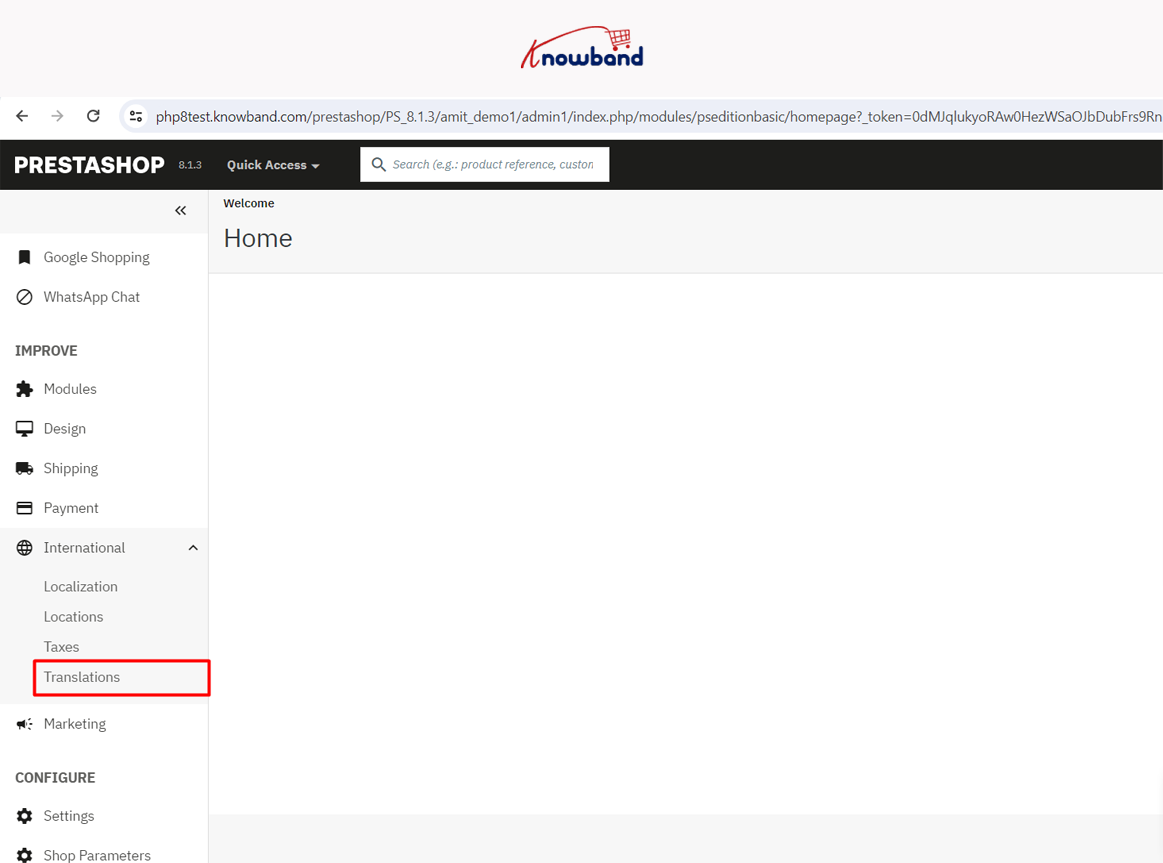
You will be at the Translation tab. To edit an email template you need to select the following options in the drop-down under Modify Translations block.
- Type of translation: Email Translations.
- Select the type of email content: If you want to adjust the Email Subject, pick Subject. But we are editing the email template, select Body.
- Select your theme: Choose the theme you’re working with; We will stick with Core (no theme selected).
- Select your language: Choose the language you’re working with; We will use English.

Once you’ve clicked the Modify button, you’ll be presented with the email templates.

In addition to customizing standard settings, you might be interested in enhancing your e-commerce performance with specialized features. For instance, the PrestaShop Abandoned Cart Recovery Email Addon is an excellent tool for recovering lost sales. By sending timely reminders to customers who have not completed their purchases, this addon helps to significantly increase conversion rates.
How to Select the Email Template in Prestashop
Let’s take a Registration email as an example and look at how to edit it. Click on Core Emails and select the account template.
You will see different options in the template. Like “View HTML”, “Edit HTML”, and “View/Edit TXT”.

The “View HTML version” tab provides a preview of how the email will be displayed to the recipient.
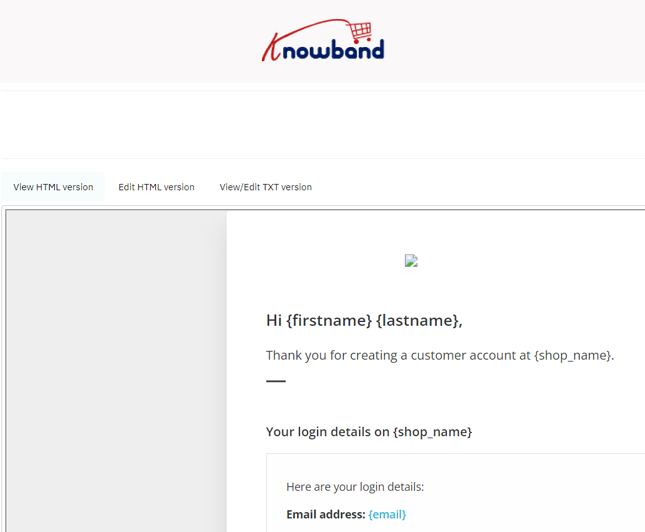
You have the option to modify the email template on the “Edit HTML version” tab. Here, you can adjust both the structure and the content using the WYSIWYG editor. However, exercise caution when making changes via the editor, as you might unintentionally remove essential layout elements. If you’re comfortable with HTML, it’s advisable to disable the WYSIWYG editor and directly manipulate the template code. To access the code, simply click on the Source code icon – “<>”

You can modify the content, add images, change the layout, or customize the styling using HTML and CSS.
Use placeholders like {firstname}, {lastname}, {order_reference}, etc., to insert customer and order information dynamically.

If you prefer to edit only the content of the email without risking any changes to the email template layout, you can do so in the “View/Edit TXT version” tab. This allows you to focus on modifying the text content of the email while leaving the template layout untouched.

Don’t forget to save all your changes and thoroughly test the email to ensure everything functions correctly.
This approach serves as a universal guideline for editing any email template you require. However, for emails related to orders, you’ll also need to access the following section: public_html/mail/_partials.

Prestashop Email Example
For example, look at the PrestaShop emails for Back in stock notifications created by our company. Emails are sent to notify about the stock of products.


