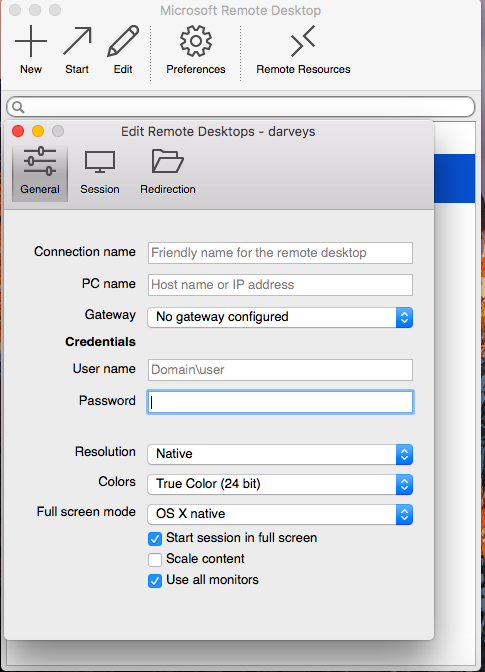
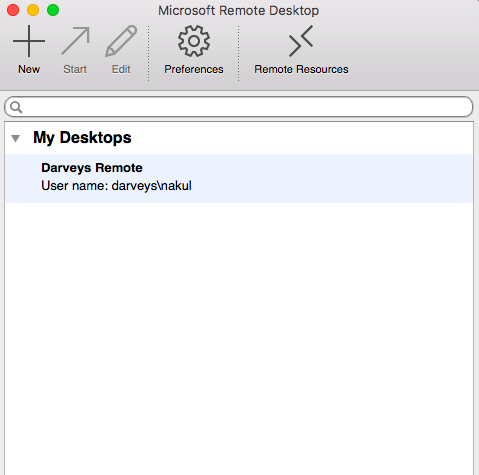
Check the steps to take RDP of the server from windows machine using MSTSC to remote on to a Computer from WINDOWS.
ALLOW THE REMOTE
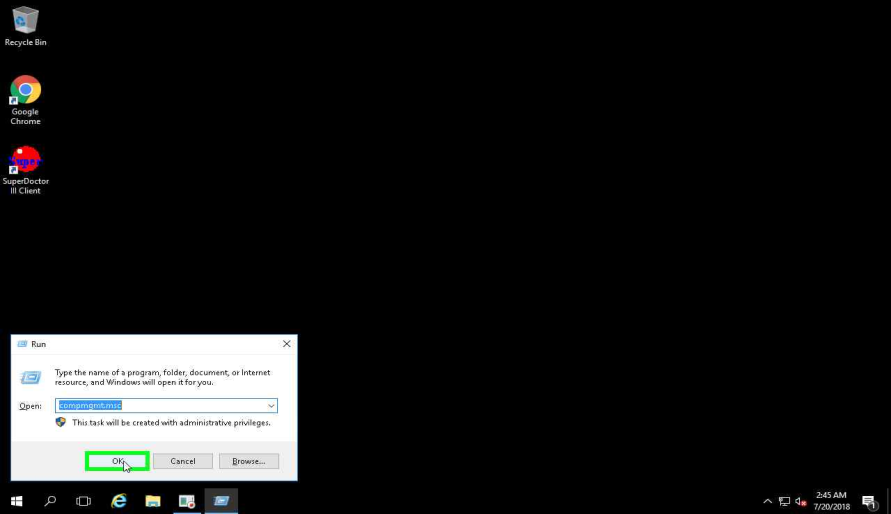
STEP 1: Open up your run command. (Quickest way to do is to do ‘Windows Key’ + r)
Type in compmgmt.msc
STEP 2: Select Users and Groups
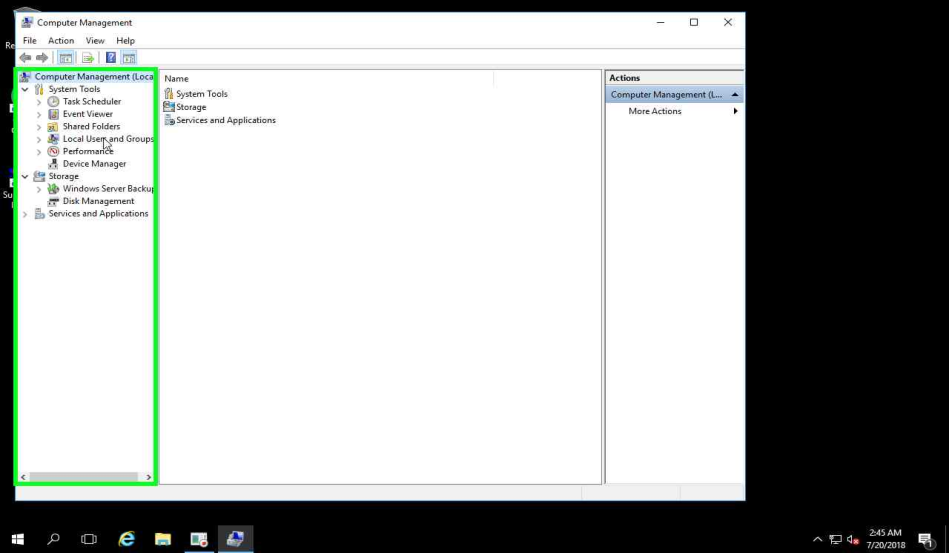
STEP 3: Select “Groups”.

STEP 4: Select “Remote Desktop Users”.
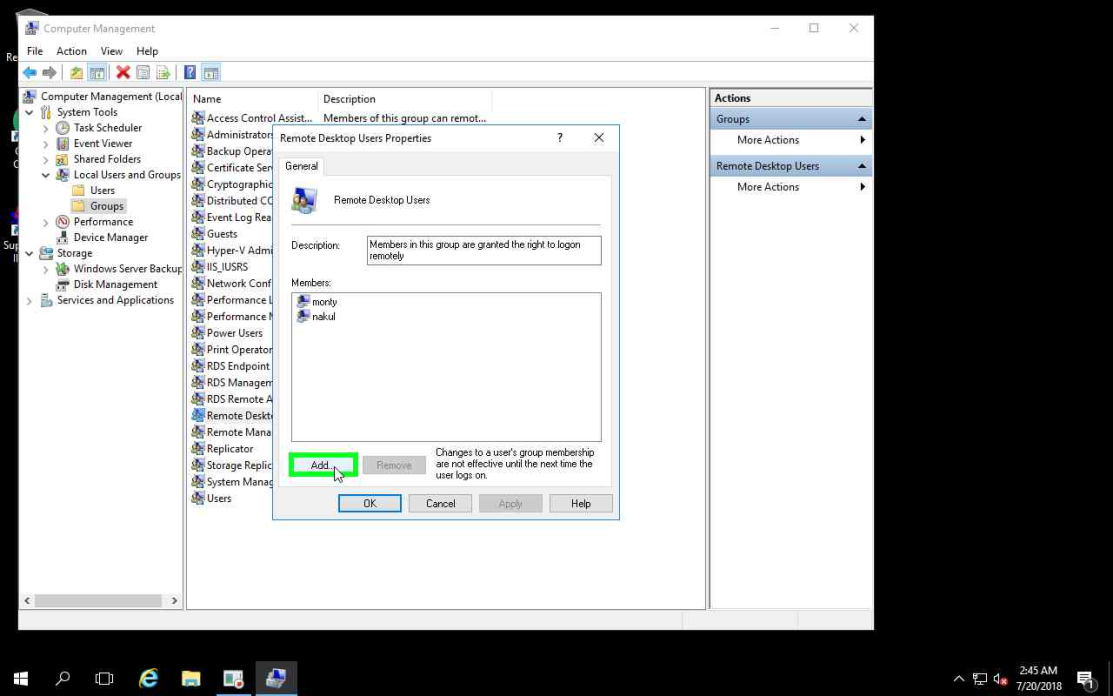
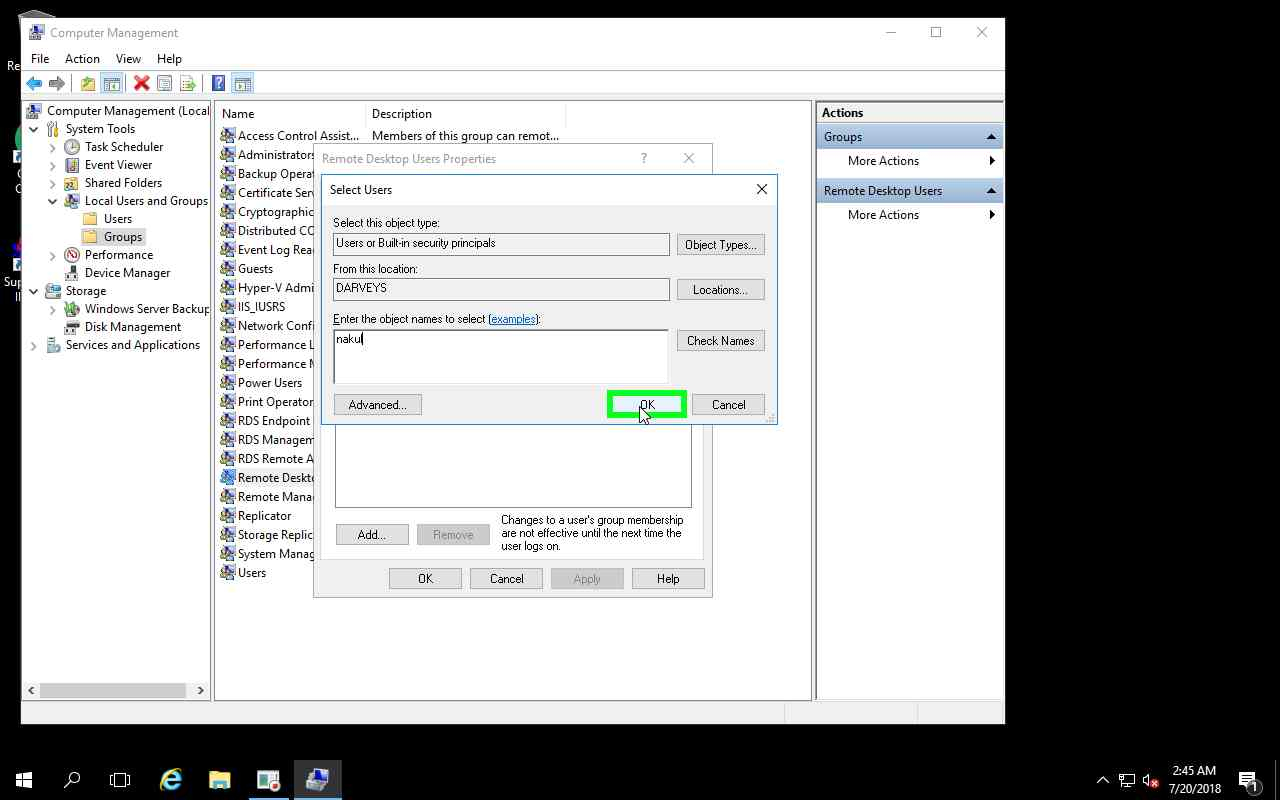
STEP 5: Add Users which you want to add for remote.
HOW TO TAKE REMOTE
STEP 6 :
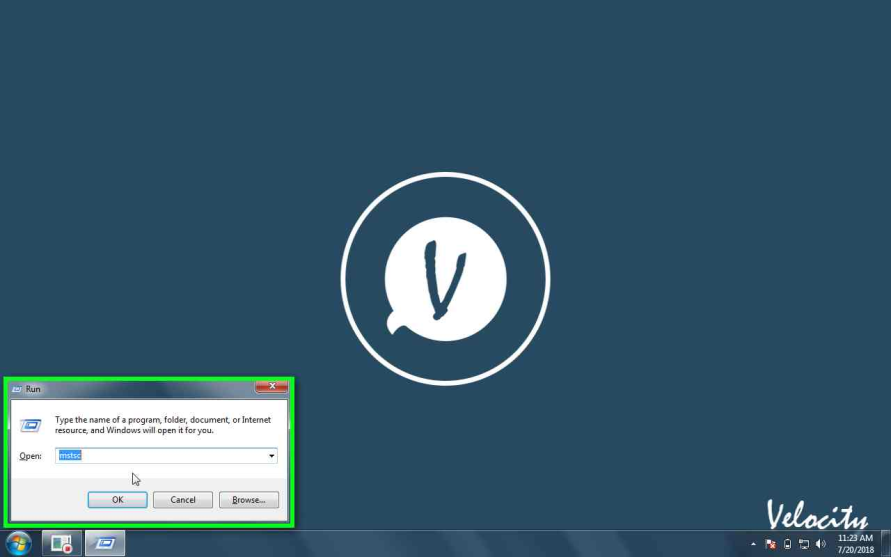
Open up your run command. (Quickest way to do is to do ‘Windows Key’ + r)
Type in mstsc
STEP 7:
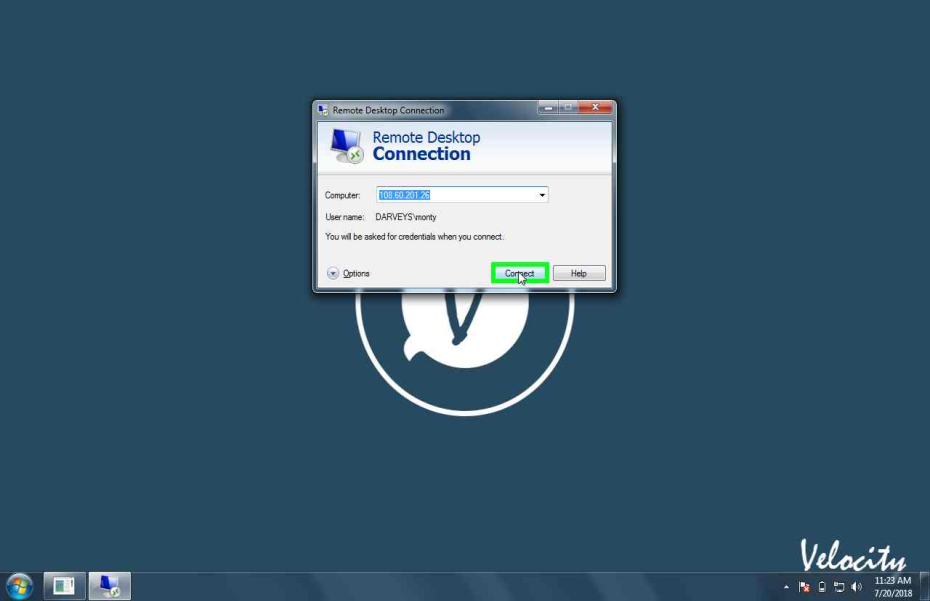
Enter the “IP address” or the “name of the machine”.
For eg:- \\ 108.60.201.26
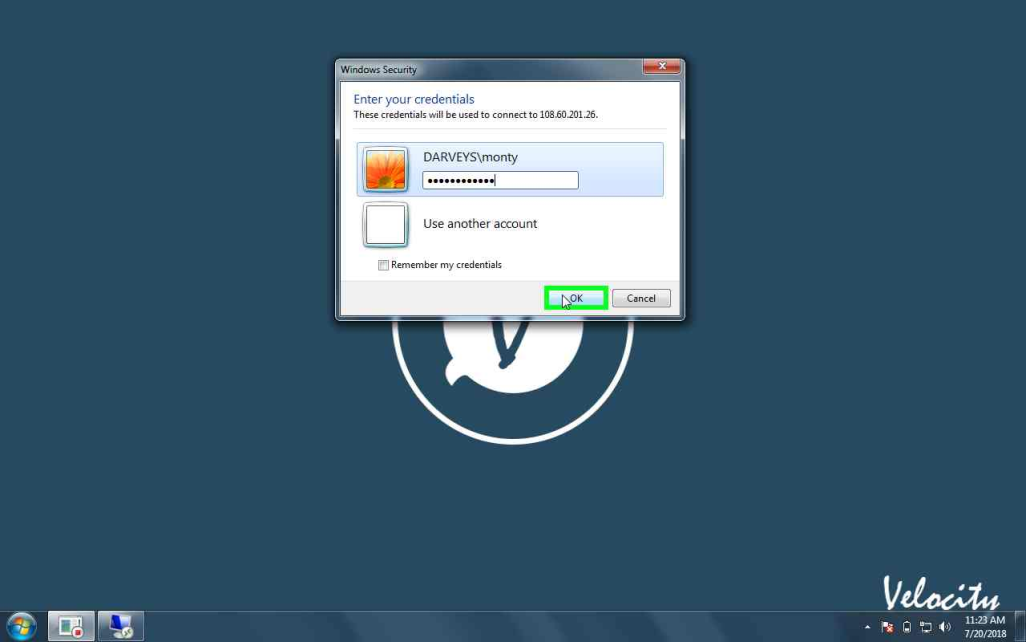
STEP 8: Enter Username and Password and then click on “OK”.
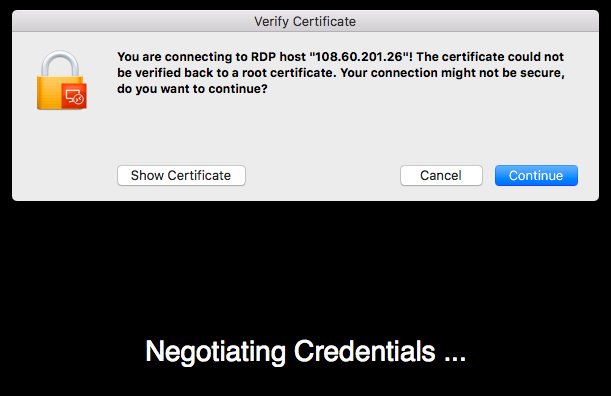
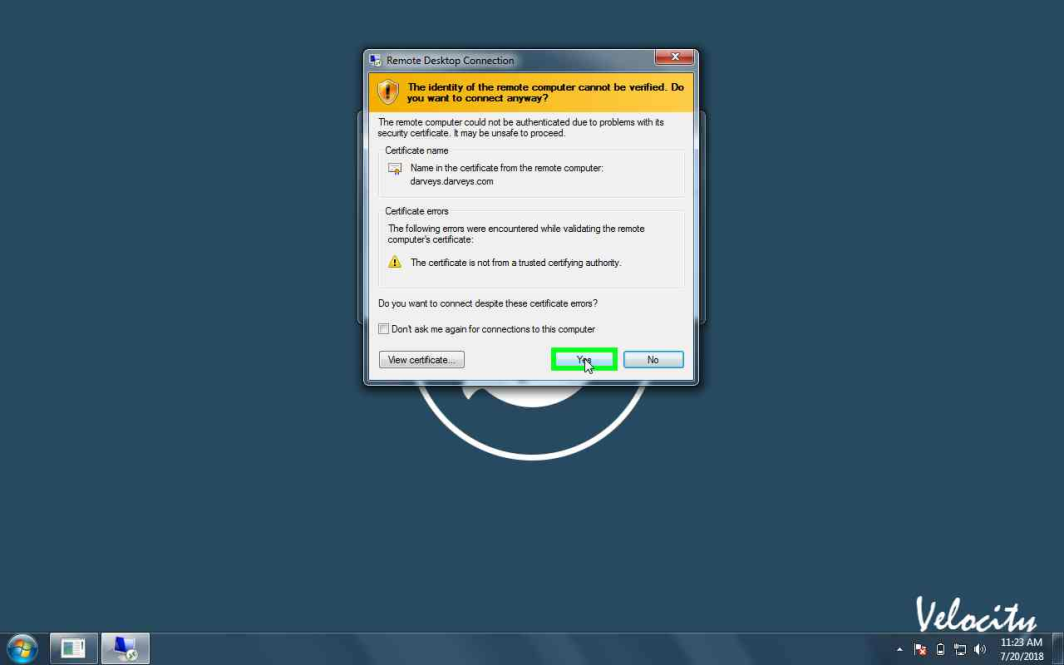
STEP 9: Click “Yes” to connect Remote server.
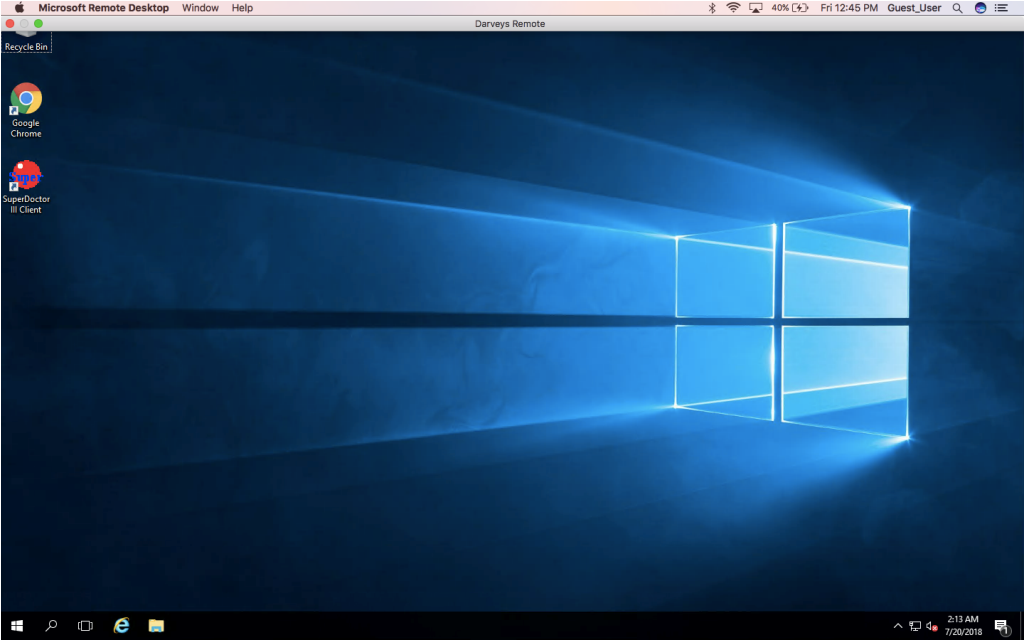
STEP 10: Now it is connected to the remote connection.