

The Knowband WooCommerce Google Tag Manager Plugin is a robust solution that streamlines the integration of Google Tag Manager (GTM) with your WooCommerce store. Designed with ease of use in mind, this plugin allows store owners to effortlessly implement and manage various Google tags—no technical knowledge is required.
Moreover, with the WooCommerce GTM Plugin, you can accurately track key customer interactions, including product views, category views, add-to-cart and remove-from-cart actions, checkout steps, payment processes, shipping details, and order confirmations. As a result, these insights help you better understand customer behaviour and optimize the user journey.
In addition, the Google Tag Manager for WooCommerce also captures UTM parameters, giving you a clearer picture of how your marketing campaigns are performing. By doing so, it allows store owners to identify which campaigns generate the most traffic and conversions. Consequently, this enables smarter budget allocation and an improved return on investment (ROI).
Ultimately, this plugin is ideal for businesses aiming to enhance their analytics, boost conversions, and elevate the overall shopping experience. The Knowband WooCommerce Google Tag Manager Extension supports Google Analytics, GA4, and other Google marketing tools—thereby empowering data-driven decision-making with precision and ease
Key Features of WooCommerce Google Tag Manager Plugin
Effortless Google Tag Manager Integration
Knowband’s WooCommerce Google Marketing Integration user-friendly integration tool makes it easy to connect Google Analytics 4 to your WooCommerce store with no technical skills or coding experience needed.
Moreover, this plugin allows the store admins to track key e-commerce metrics like product views, add-to-cart events, purchases, and more in real-time. Make data-driven decisions to boost conversions and grow your business, all from an intuitive dashboard.
Real-Time Event Tracking for Actionable Insights
WooCommerce Google Marketing Integration Plugin allows store owners to track critical customer interactions as they happen, including product views, add-to-cart actions, checkout steps, coupon usage, and selected payment and shipping methods, giving you immediate visibility into user behaviour.
Campaign Tracking with UTM Parameter Support
Furthermore, Custom Event Tracking WooCommerce Plugin automatically capture UTM parameters to evaluate your marketing campaign performance and identify the channels driving the highest traffic and conversions.
Enhanced eCommerce Tracking for Smarter Decisions
GTM WooCommerce Plugin allows the store owners to gain deeper insights into your store’s performance with advanced tracking of product engagement, cart activity, and completed purchases—perfect for data-driven strategy optimization.
Fast and Simple Setup – No Technical Knowledge Needed
The WooCommerce Google Event Tracker Plugin features an intuitive interface that enables a smooth, hassle-free setup—allowing users to manage tracking tags effortlessly, with no coding required.
Powerful Admin Dashboard for Complete Control
Moreover, you can manage all your tracking tags and events directly from your WooCommerce admin panel using a streamlined and user-friendly dashboard.
Multi-Language Compatibility for Global Reach
Knowband’s WooCommerce Google Analytics Integration is designed for international stores, the extension supports multiple languages to help you deliver a consistent, localized shopping experience across different regions.
2.1 Steps to Get the Google Tag Manager ID and Google Analytics Measurement ID
2.1.1 Steps to Get Google Tag Manager ID
Step 1: Access the Google Tag Manager account.

Step 2: Create a new container or select an existing container within your Google Tag Manager account.
Step 3: The Container ID will be displayed in the top-right corner of your Google Tag Manager dashboard, typically formatted as: GTM-XXXXXX.

Step 4: Copy the Container ID and add it to the GTM container ID field in the configuration field.
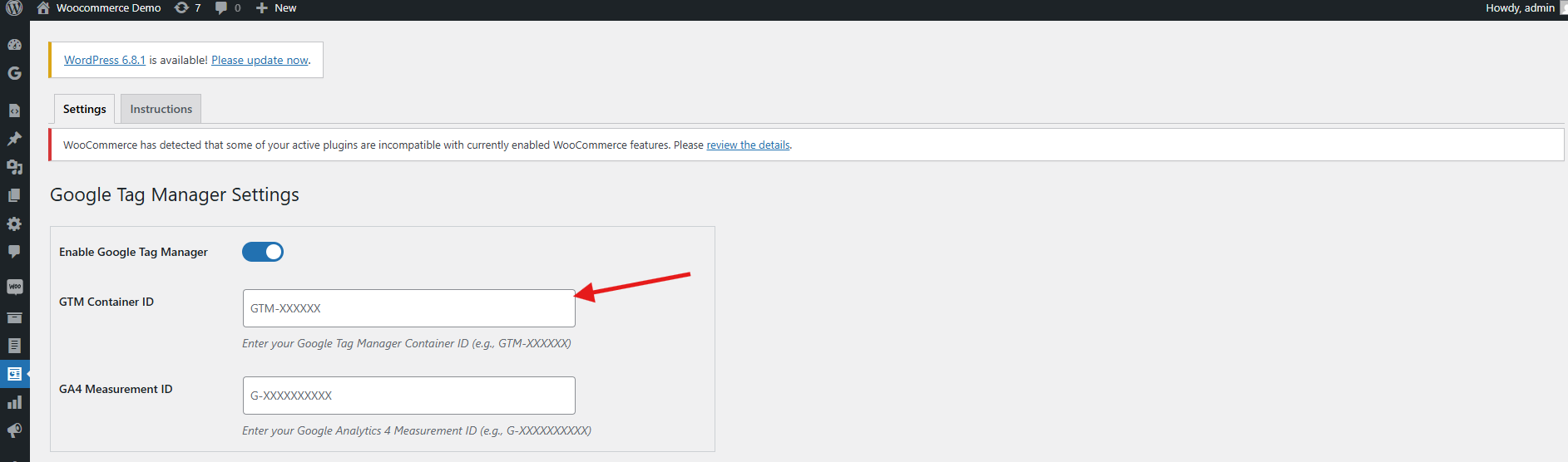
2.1.2 Follow these steps to get Google Measurement ID
Step 1: Visit the Google Analytics account.
Step 2: Select the property for which you want to get the Measurement ID.
Step 3: Navigate to Admin ->Data Streams and choose your web data stream.
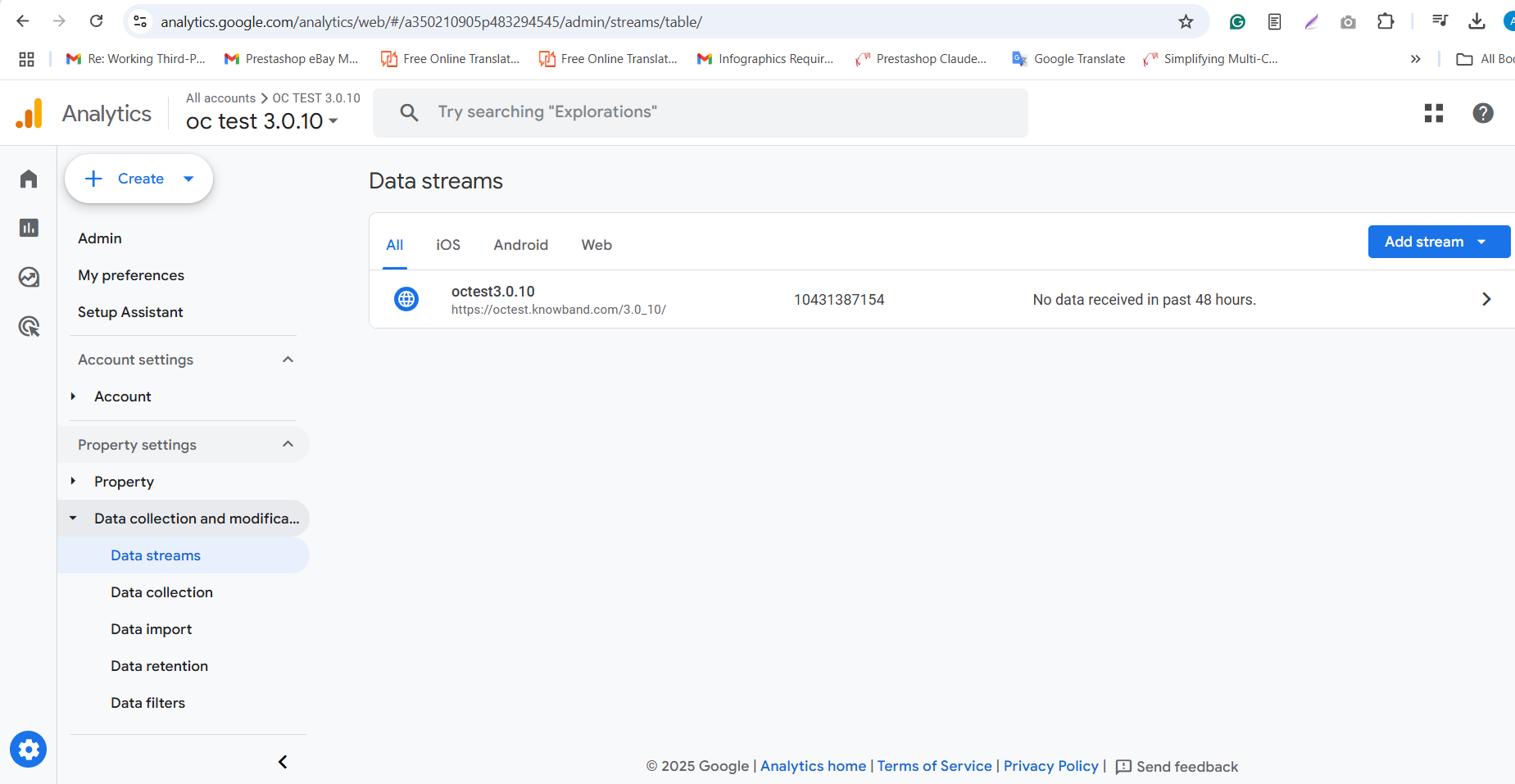
Step 4: Navigate to Admin > Data Streams in your Google Analytics account, then locate the Measurement ID, which appears in this format: G-XXXXXXXXXX.

Step 5: Copy this ID and paste it into the Google Measurement ID field within the module’s configuration settings.
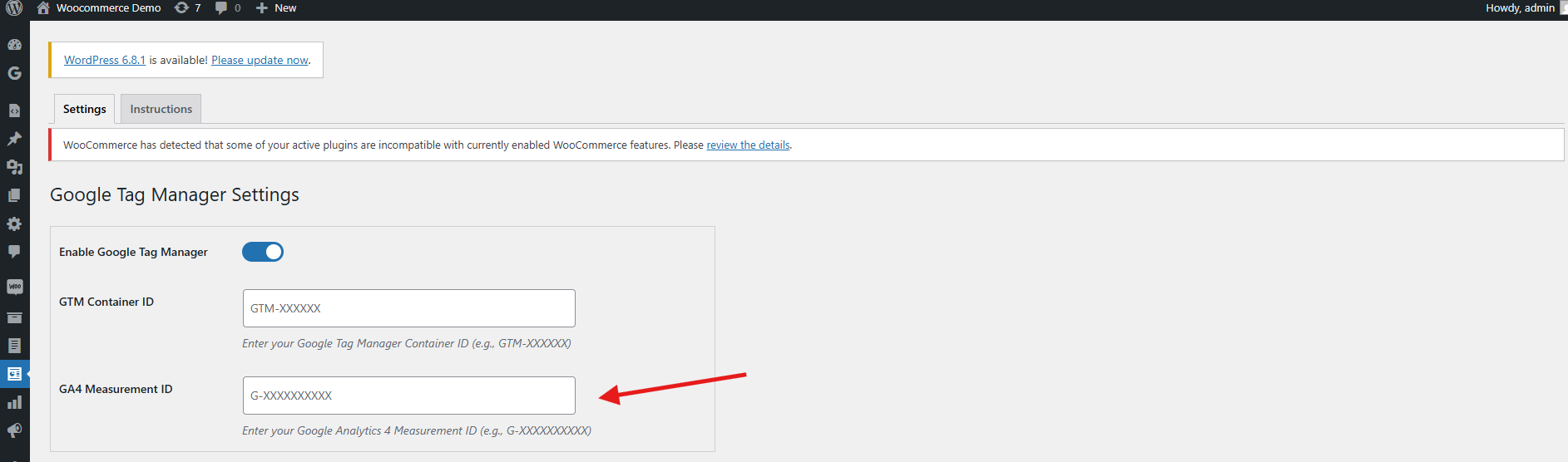
3.1 Configuring Events in Google Tag Manager
To enable event tracking in your WooCommerce store using the WooCommerce Google Analytics Integration Plugin, follow these steps:
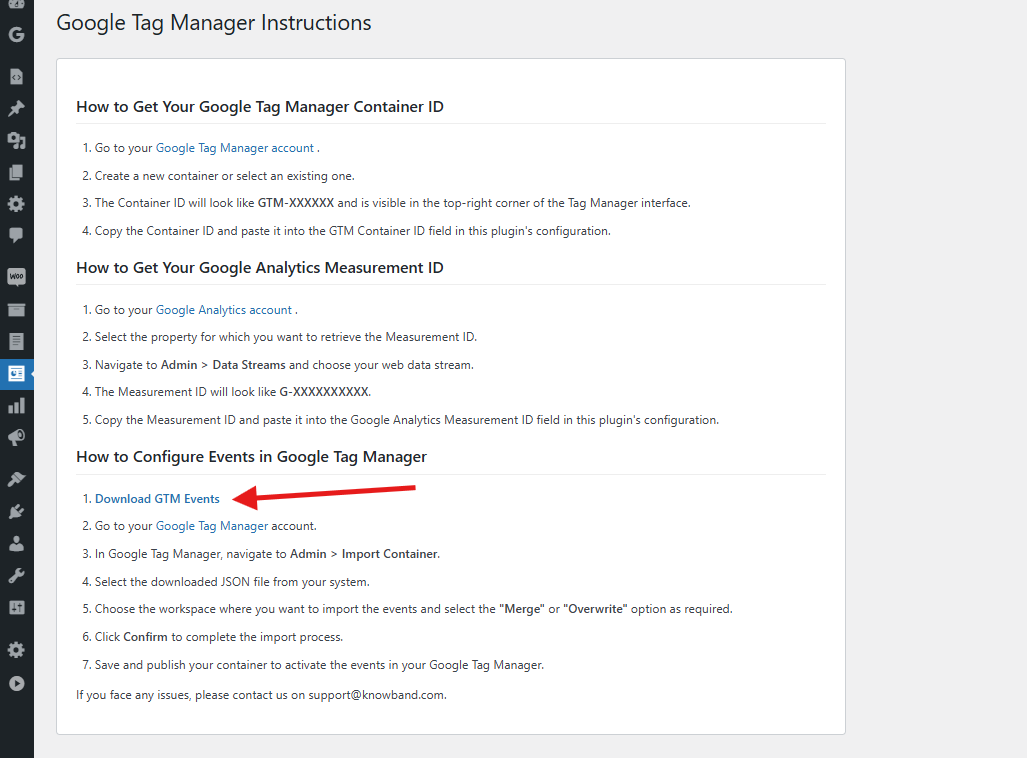
Step 1: Download the GTM Events File
Navigate to the WooCommerce gtag Integration Plugin’s configuration panel and go to the Instructions tab. There you’ll find a direct link to download the GTM events JSON File.
Step 2: Log into Google Tag Manager
Access your Google Tag Manager account.
Step 3: Import the Events Container
Go to Admin > Import Container in your GTM dashboard.

Step 4: Upload the JSON File
Select the downloaded JSON file from your computer.
Step 5: Choose the Workspace and Import Option
Pick the GTM workspace where you’d like to import the events. Then choose either Merge (to combine with existing settings) or Overwrite (to replace them entirely), based on your preference.
Step 6: Confirm the Import
Click Confirm to complete the import process.
Step 7: Publish the Container
Save and publish the updated container to activate the new events in your GTM account

By following the above steps, you can successfully configure the WooCommerce gtag Integration Extension. However, if you face any issues, please feel free to contact us at support@knowband.com.
4.0 Set Up WooCommerce Google Analytics Integration Plugin in 3 Simple Steps
Log in to your WordPress Admin Dashboard.
Navigate to Plugins > Add New.

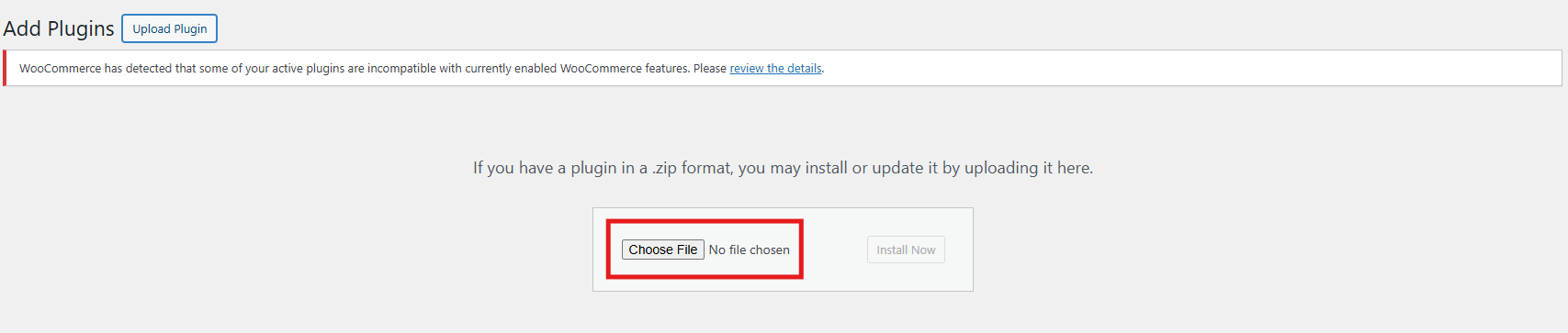
Upload the zipped file provided with the WooCommerce GA4 Integration purchase.
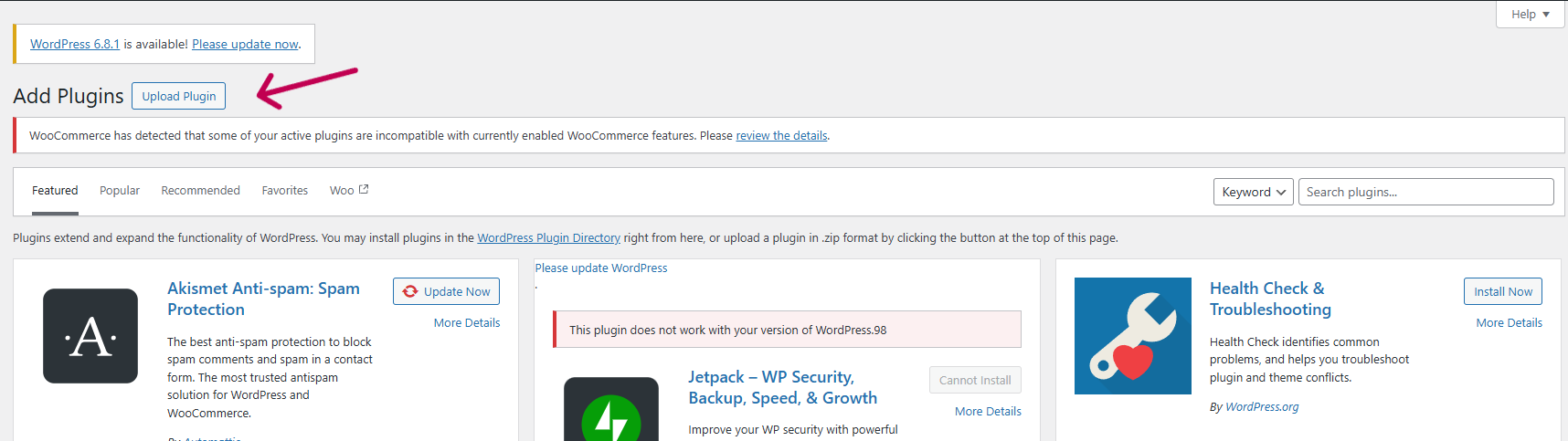
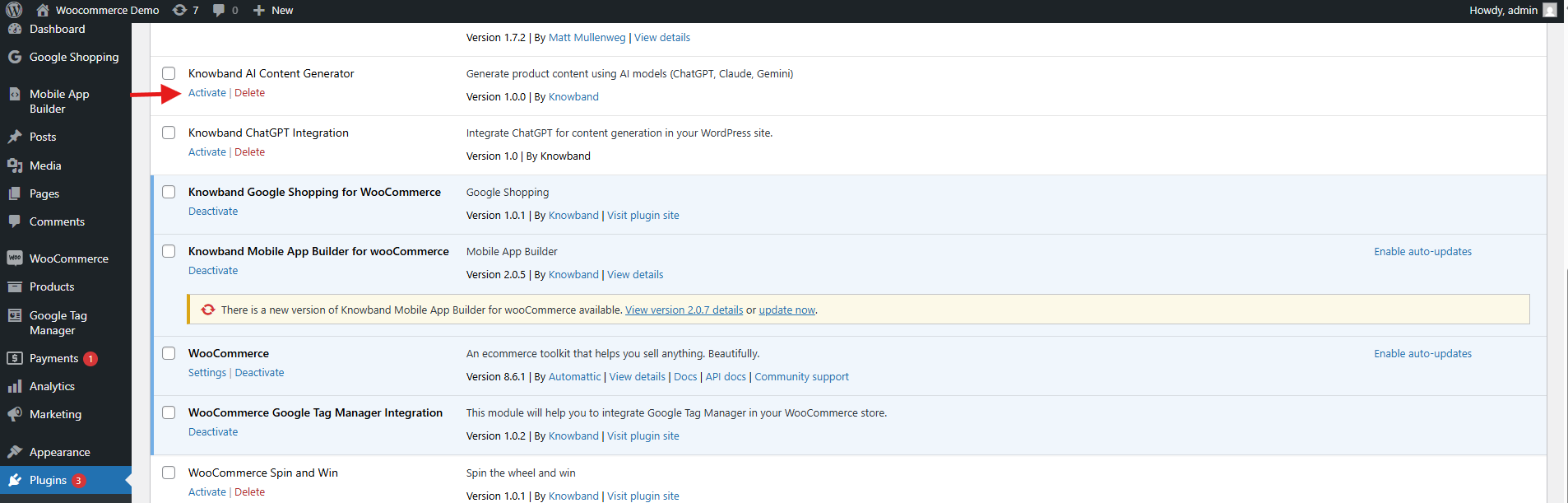
Click Install Now next to the plugin, then click Activate once installed.
5.0. Admin Panel Overview of WooCommerce eCommerce Measure Extension
The Google Tag Manager for WooCommerce extension includes a user-friendly admin dashboard that allows store owners to easily configure and manage tracking tags directly from the WooCommerce backend—no technical expertise required.
Core Features of the Admin Panel
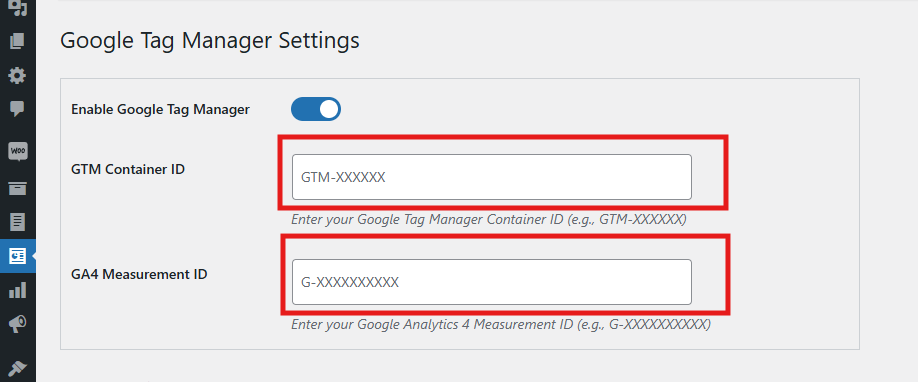
- Enable or Disable Extension
Instantly activate or deactivate the module as needed with a simple toggle. - GTM Container ID
Please enter your Google Tag Manager Container ID in this field to seamlessly connect your WooCommerce store with GTM. - Refer to section 1.1 for guidance on locating this ID.
- Google Analytics ID
Input your Google Analytics Measurement ID to link Google Analytics with GTM and start tracking store performance.
Event-Based Tag Management
Each event listed below can be individually enabled or disabled based on your store’s specific tracking requirements in the WooCommerce GA4 Integration Plugin. Consequently, this flexibility allows you to tailor the data collection, enabling Google Analytics to provide more relevant insights and helping you make smarter business decisions.
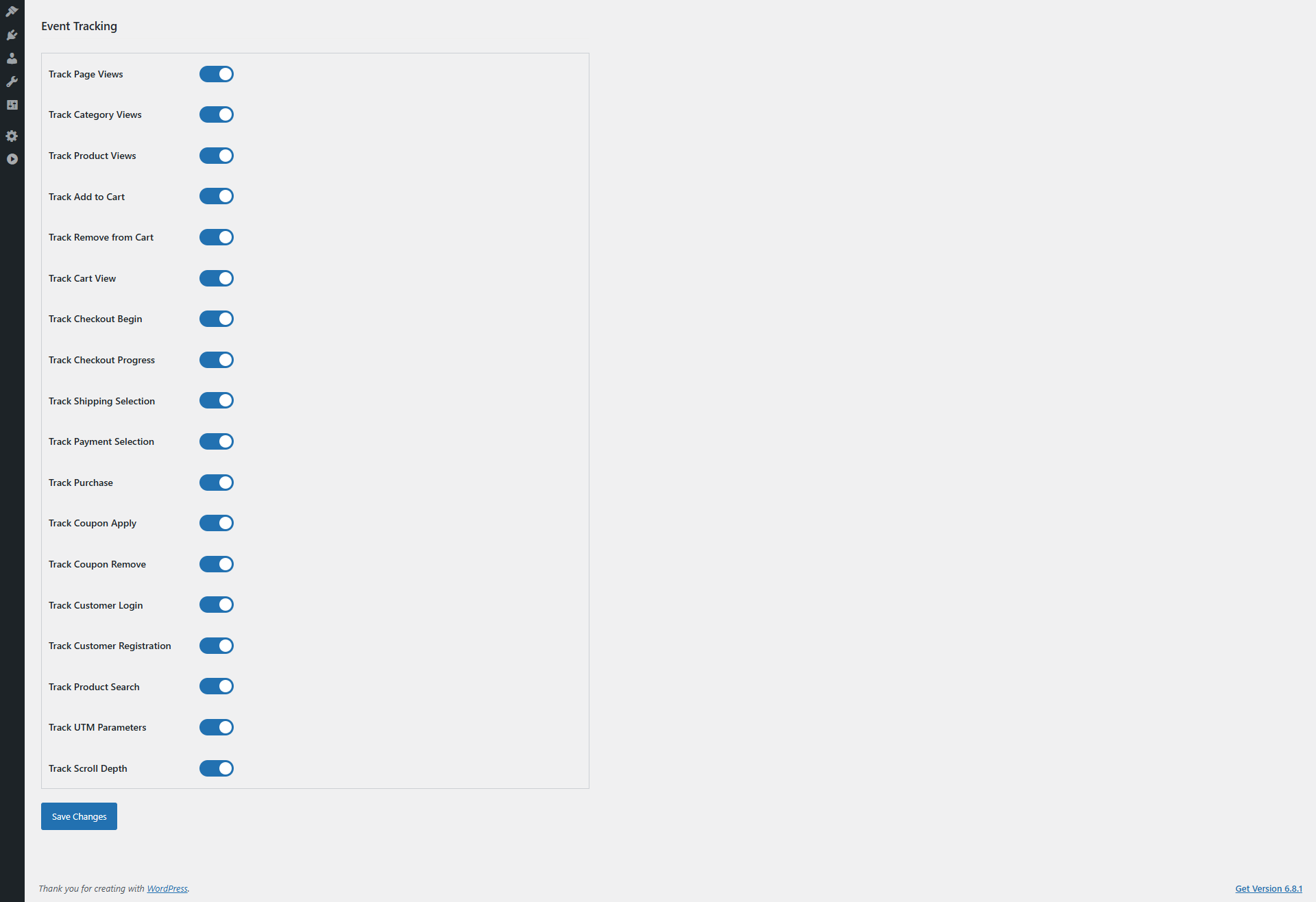
- Track Page Views
You can enable or disable the event as per your need. This event tracks every page visit, which helps GA analyze overall site traffic and user navigation patterns. Therefore, it is crucial to understand customer behaviour and optimise your site structure. - Category Views
Enable or disable as needed. Moreover, this tracks visits to product categories, allowing GA to identify popular sections. As a result, you can focus your marketing efforts and manage inventory more effectively. - Product Details Page
Furthermore, you can enable or disable the event as needed. This event in WooCommerce GA4 Integration Extension monitors engagement with individual product pages, providing valuable insights into which products attract the most attention. Thus, it aids in product promotion and stock management. - Add to Cart
Enable or disable as needed. This event in WooCommerce GA4 eCommerce Events tracks when customers add products to their shopping cart, giving GA critical data on purchase intent. Consequently, you can optimize your sales funnel and remarketing strategies. - Cart Removal
Enable or disable as needed. It detects when items are removed from the cart, which helps identify potential obstacles in the purchasing process. Hence, you can improve the user experience to reduce cart abandonment. - Cart Views
Enable or disable as needed. This monitors how often customers view their cart, providing insight into shopper engagement and possible bottlenecks before checkout. - Checkout Start
Enable or disable as needed. It captures when a user begins the checkout process, allowing GA to track funnel progression. Therefore, you can improve the checkout experience to minimize drop-offs. - Checkout Page
Enable or disable as needed. This tracks detailed interactions on checkout pages, offering valuable data for optimizing conversions at this critical step. - Address Selection
Enable or disable as needed. It monitors when customers add or select shipping addresses, helping identify preferences or issues during checkout. - Shipping Method Choice
Enable or disable as needed. This tracks which shipping options customers select, providing insights into customer preferences and aiding logistics and marketing planning. - Order Confirmation
Enable or disable as needed. The WooCommerce eCommerce Measure Extension’s order confirmation captures successful order completions, the primary conversion event for GA. Consequently, it is essential for accurate revenue tracking and ROI measurement. - Customer Login
Enable or disable as needed. This tracks when users log in to their accounts, offering insights into returning customer behaviour and loyalty program effectiveness. - Customer Registration
Enable or disable as needed. It monitors new account creations, useful for tracking customer acquisition and growth trends. - Discount Code Use
Enable or disable as needed. This monitors the usage of promotional or discount codes, helping assess the effectiveness of marketing campaigns and incentives. - Discount Code Removal
Enable or disable as needed. It tracks when discount codes are removed during checkout, highlighting friction points that may cause cart abandonment. - Search Product Tracking
Enable or disable as needed. This captures the search terms customers enter, offering valuable data to optimize product offerings and merchandising. - Capture UTM Parameters
Enable or disable as needed. It automatically collects UTM parameters from URLs, allowing GA to accurately attribute traffic and conversions to specific marketing campaigns. Consequently, this is essential for boosting your campaign’s ROI.
5.0 Configuration Instructions:
The WooCommerce No-Code Google Tag Manager Integration provides straightforward, beginner-friendly setup instructions—no technical knowledge required. Store admins can easily access the Google Tag Manager and Google Analytics Consoles and follow simple steps to retrieve the necessary credentials for integration.
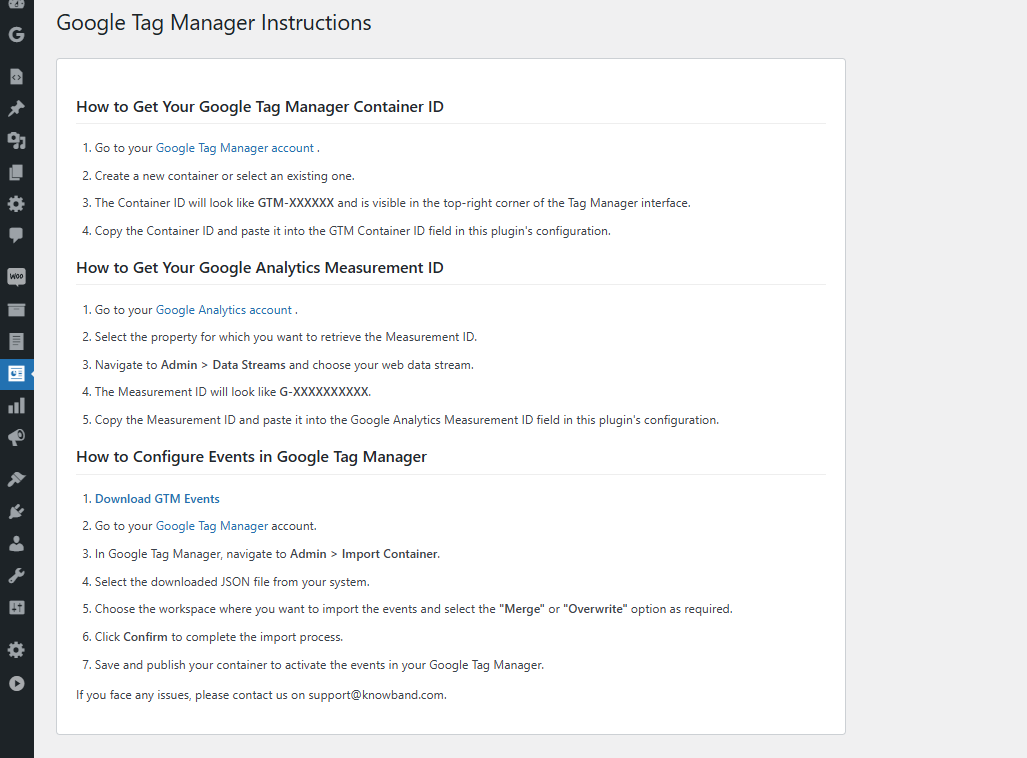
Moreover, these clear instructions are designed to guide you through the entire WooCommerce gtag Integrator Plugin configuration process with ease.
If you encounter any issues during setup or while using the extension, our support team is here to help. You can contact us by:
- Emailing: support@knowband.com
- Submitting a ticket: knowband.com/helpdesk

