

OpenCart SocialAI Pro Extension Complete User Manual
Running a busy OpenCart store usually means someone has to sit down, look at the catalogue, and write captions for Facebook, LinkedIn, and X every single time a product launches or comes back into stock. The Opencart AI Social Media Post Generator Extension, also known as the OpenCart SocialAI Pro Extension, removes that issue by linking your frontend catalogue straight to an AI writing engine and to your connected social accounts, so posts can be written and published without anyone typing a single line of copy.
Three tasks happen inside this one extension automatically: the AI writes the caption, a rule decides when that caption goes out and to which network, and a history log keeps a record of everything that was ever generated, whether it was published, held as a draft, or scheduled for later.
1. 0 Installation of the Opencart Social Media Automation Extension
The setup below installs the Opencart Social Media Automation Extension the same way as any other OpenCart module. From the OpenCart admin, go to Extensions and open the Installer screen. Upload the ocmod.zip file exactly as it was downloaded after purchase.
Open the FTP, copy the files under the upload folder to the site root file.
Go to the modification, refresh and clear the cache.
2.0 Admin Panel Overview
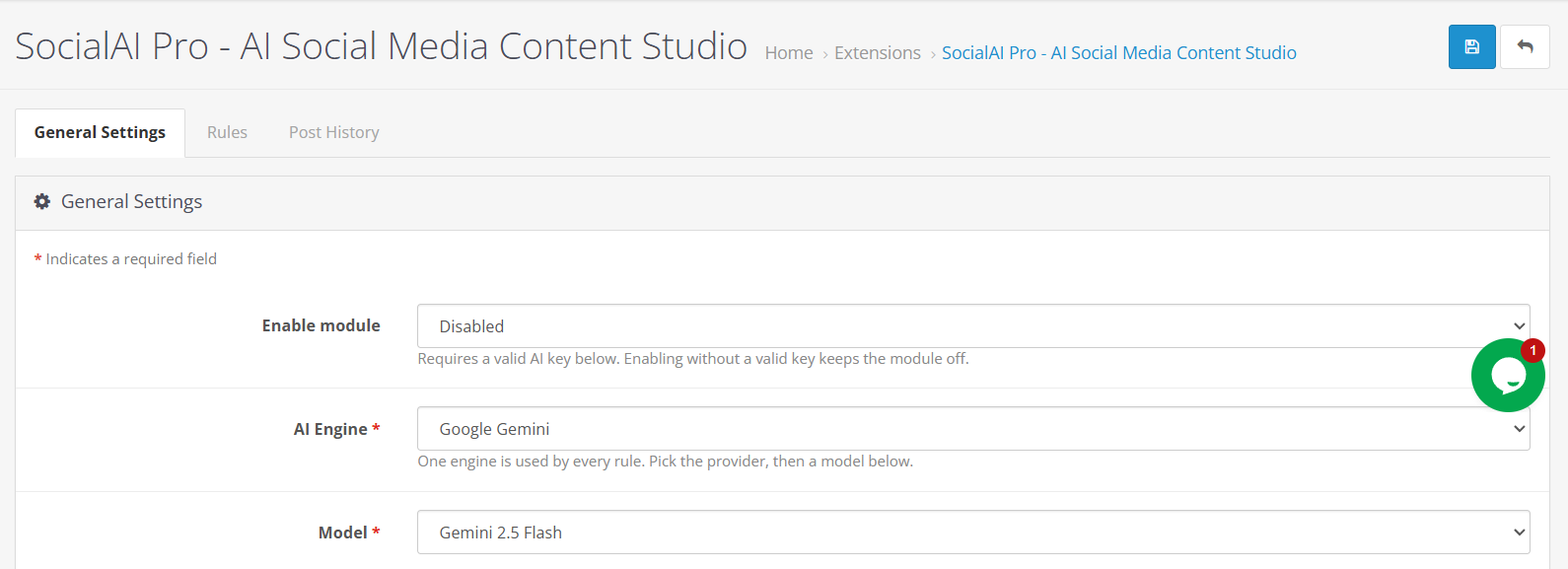
Once configuration opens for the first time, three tabs are visible across the top: General Settings, Rules, and Post History. Each one handles a different part of the workflow, and together they make up the entire Opencart AI Social Media Post Generator Extension experience.
General Settings is where the AI provider gets connected, where API keys live, and where each social account gets authorised through OAuth.
Rules are the automation layer; this is where a store owner decides which products qualify, what has to happen for a post to fire, which platforms receive it, and what tone the AI should write in.
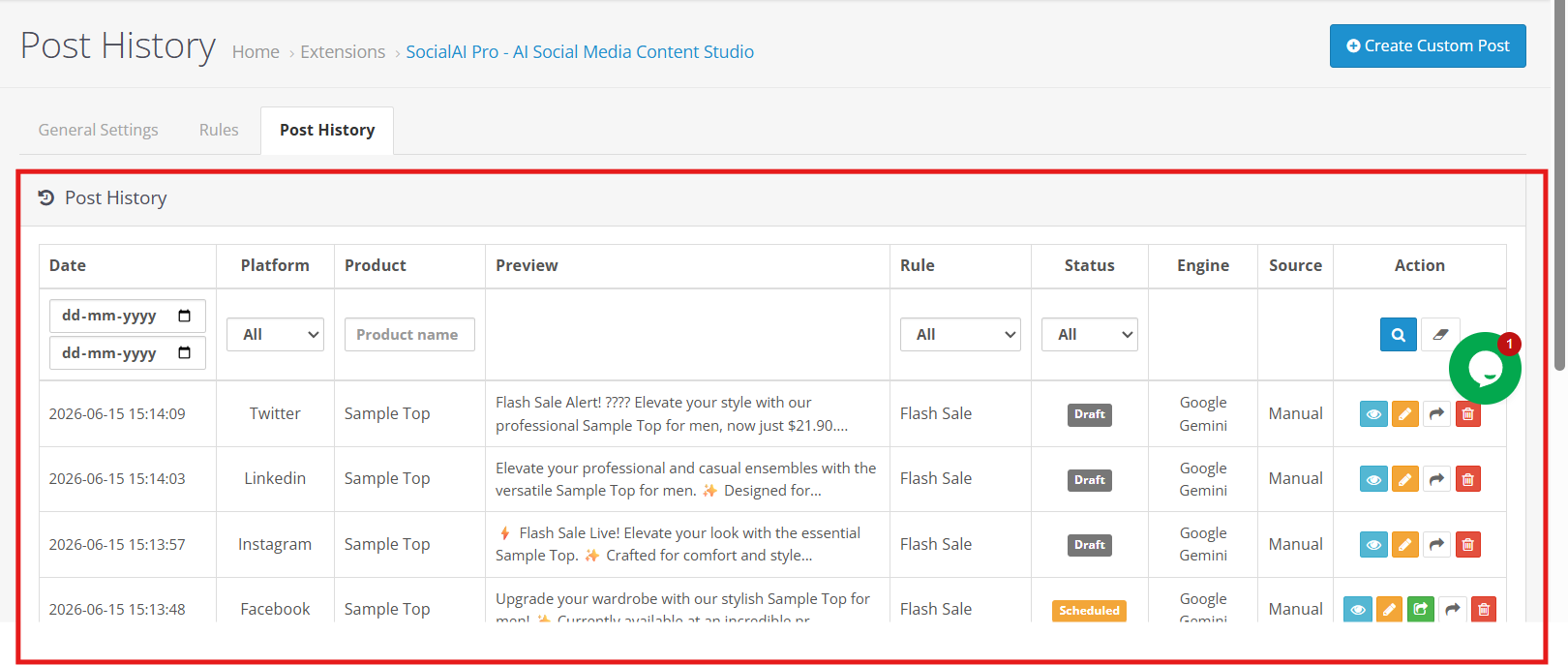
Every post the extension has ever produced shows up here with its status, the platform it targeted, which AI engine wrote it, and whether a rule triggered it or a human did. A post can also be started from scratch directly inside this tab, without involving a rule at all.
3.0 General Setting of Opencart AI Social Media Post Generator
Enable Module: Enable or disable the functionality on the frontend using the toggle.
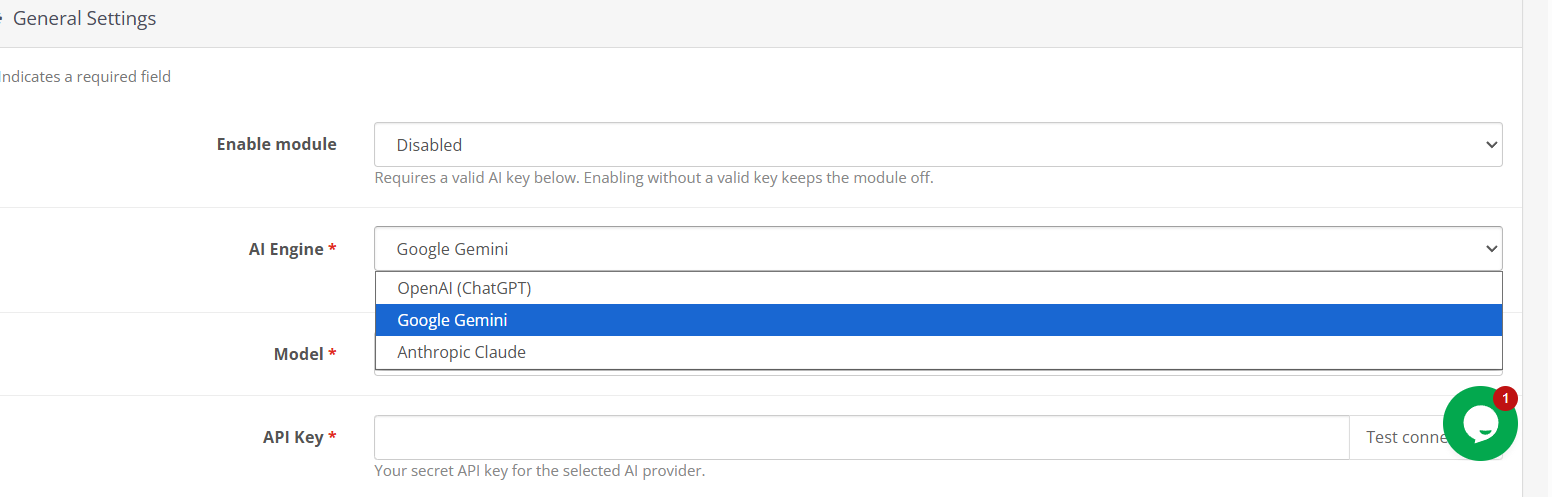
Choosing an AI Provider: Three engines are available from a single dropdown, and a store can only run one of them at a time:
OpenAI: The OpenAI ChatGPT choices include GPT-5, GPT-5 Mini, GPT-5 Nano, GPT-4.1, GPT-4.1 Mini, and GPT-4o.
Google Gemini: Gemini 3 Pro, Gemini 2.5 Pro, Gemini 3.5 Flash, and Gemini 2.5 Flash are all selectable for stores that would rather stay inside Google’s ecosystem.
Anthropic Claude: Claude Opus 4.8, Claude Sonnet 4.6, and Claude Haiku 4.5 are offered for anyone who already has Claude API access or simply prefers its writing style.
Switching providers takes effect on the very next post generated; it doesn’t touch anything already sitting in Post History from before the change.
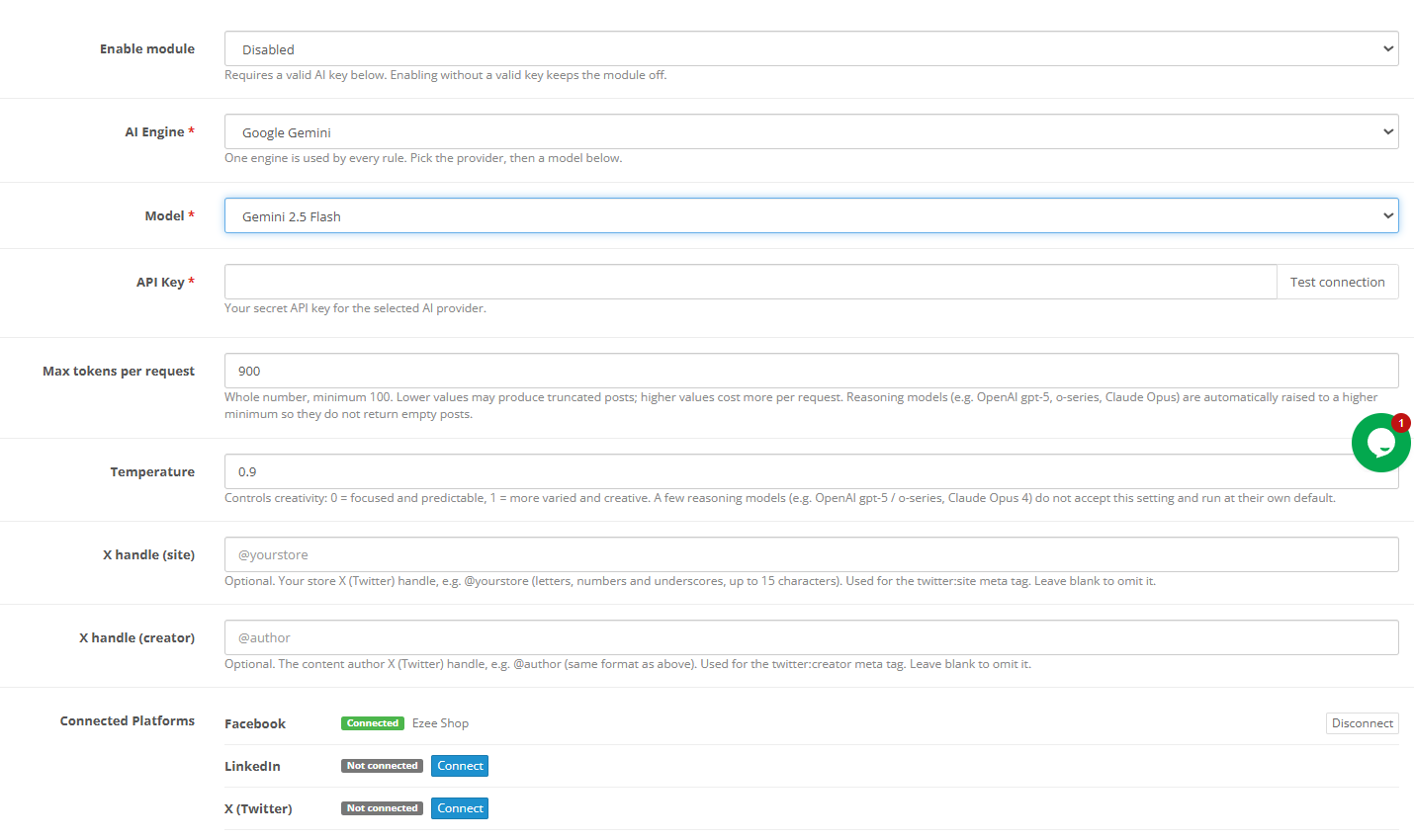
Entering the API Key: Store admins must paste the key for whichever provider was chosen above into this field. It needs to be a real, currently active key with either prepaid credit or billing turned on. A key that’s expired or been revoked will only show its error the first time the extension actually tries to generate something. The key itself stays in your store’s own database and is sent directly from your server to the provider, with nothing routed through a third party.
Temperature Slider: Store administrators can use the Temperature Slider to control the creativity and variation of AI-generated social media content. Lower values generate more consistent and predictable marketing copy, while higher values produce more creative, engaging, and diverse social media posts.
Token Ceiling: This shows how many tokens a single generation request is allowed to use, somewhere between 100 and 2,000.
Handles for X: Two optional fields sit here: one for the store’s own X handle, one for whoever is credited as the content’s author. Neither has any bearing on whether a post actually goes out; leave both blank if there’s no X presence to reference.
Linking Each Social Account: All three networks get connected from this same General Settings tab, and the Opencart Auto Publish Facebook LinkedIn Extension functionality handles each one through its own dedicated authorization flow.
Facebook: Click the Facebook connect button and a popup opens asking for posting permission on a Page. If more than one Page is managed under that account, a picker shows up so the right one can be chosen. As soon as that’s confirmed, the settings screen updates to show which Page is now linked: this is the Opencart Facebook Auto Post Extension side of the setup, and it’s usually the fastest of the three to finish.
LinkedIn: Open the LinkedIn Developer Portal first and find the app that was registered there. The Auth tab on that app holds the Client ID and Client Secret: copy both into the matching fields here. Before clicking the Connect button on this end, take the redirect URL shown in the extension and add it to the authorised redirect list inside the LinkedIn app, save that, and only then come back and finish authorising. This is the piece marketed as the Opencart LinkedIn Product Post Extension capability, and it’s the one most likely to need a second look if posts aren’t appearing: a mismatched redirect URL is the usual culprit.
X (Twitter): Inside the X Developer Portal, open Keys and Tokens for the registered app and copy the Client ID and Client Secret across into the extension. The redirect URL needs to be added to that app’s callback list too, the same way it does for LinkedIn. One thing that trips people up: the X app must have write permission turned on, not just read, or the whole Opencart Twitter Auto Post Extension connection attempt will fail at the authorisation step.
Instagram: Instagram posting isn’t part of this release. An Opencart Instagram Auto Post Extension capability is on the roadmap for a future update, but for now the extension only authorises and publishes to Facebook, LinkedIn, and X.
3.0 How to Create Rules To Generate Social Media Posts
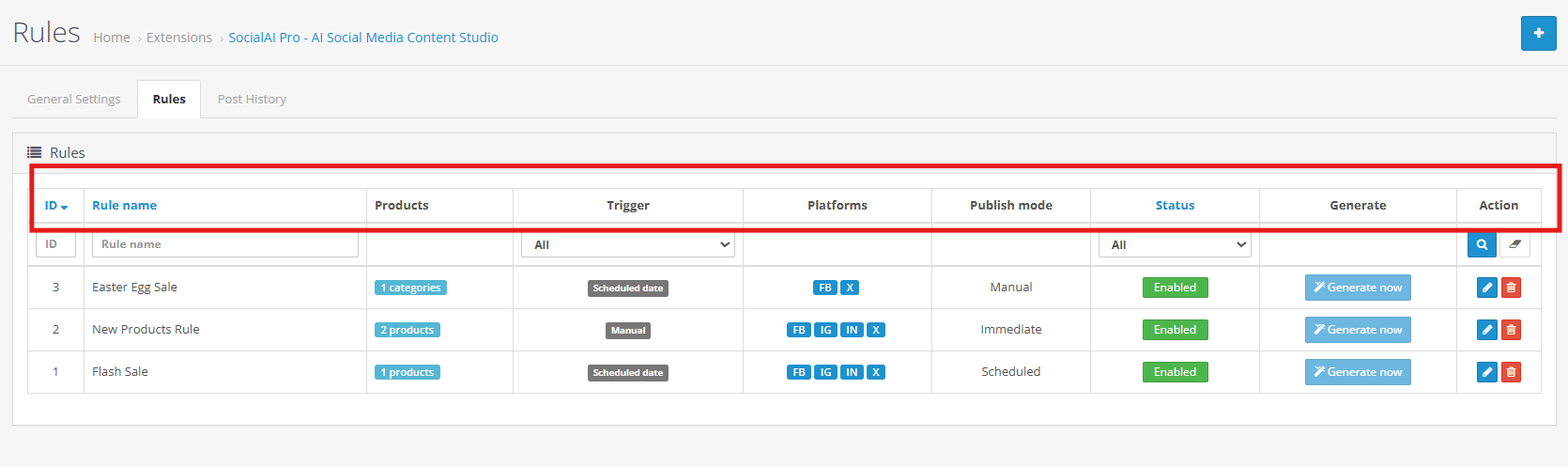
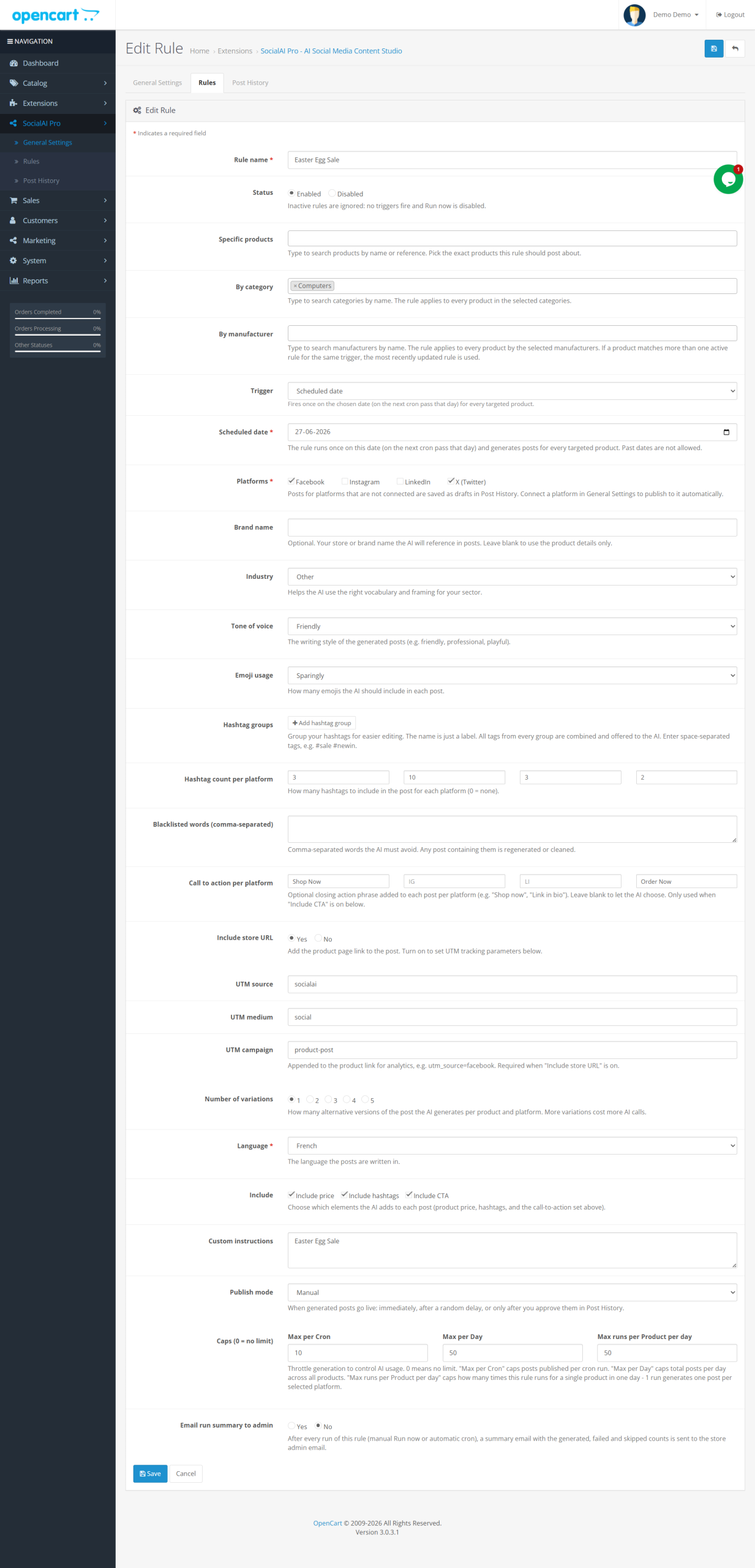
Store administrators can use this setting to assign a unique and descriptive rule name for easy identification and tracking within the OpenCart AI Social Media Automation Extension.
Products / Categories / Manufacturer
This feature allows merchants to define the product scope for automated social media content generation based on specific products, categories, or manufacturers.
Trigger
Store administrators can configure trigger events that automatically initiate AI-powered social media post generation and publishing workflows.
New Product
Automatically generates and publishes social media content when a new product is added to the OpenCart store.
Back in Stock
Automatically creates promotional social media posts when an out-of-stock product becomes available again.
Manual
Allows administrators to generate social media content manually without relying on automated trigger conditions.
Platforms
Merchants can select one or more connected social media platforms, including Facebook, LinkedIn, and X (Twitter), for content distribution.
Publish Mode
This feature allows administrators to define how and when generated social media content is published across selected platforms.
Immediate
Publishes AI-generated social media posts instantly after content generation without requiring manual review.
Manual (Draft)
Saves generated content as a draft, allowing administrators to review, edit, and approve posts before publication.
Scheduled
Automatically schedules social media posts within a defined time range to maintain consistent content distribution and engagement.
Scheduled Delay Window
Administrators can define a minimum and maximum publishing delay to automatically distribute social media content over a specified period.
Brand Name
This setting allows merchants to specify their brand name, enabling AI-generated content to maintain consistent brand messaging.
Industry
Store administrators can define their business industry to help the AI generate relevant and industry-specific social media content.
Tone of Voice
This feature enables merchants to customize the writing style of AI-generated posts to align with their brand communication strategy.
Emoji Usage
Administrators can control emoji usage within generated content to ensure consistency with brand and platform requirements.
Hashtag Groups
Merchants can define predefined hashtag groups to improve social media visibility, discoverability, and audience engagement.
Word Blacklist
This feature allows administrators to restrict specific words, phrases, competitor names, or sensitive terms from appearing in generated content.
Per-Platform CTA
Store owners can configure platform-specific call-to-action messages to improve engagement and conversion rates across social media channels.
Custom Instructions
Administrators can provide additional content-generation guidelines to ensure AI-generated posts align with specific marketing objectives.
Max Posts Per Cron Run / Per Day / Per Product Per Day
This feature enables merchants to control social media publishing frequency and prevent excessive or duplicate content generation.
Saving and Testing Rules
Save Rule
Store administrators can save automation rules to activate AI-driven social media content generation based on configured triggers and publishing conditions.
Generate / Run Now
This feature allows merchants to test and execute a rule instantly, generating social media content for all eligible products and selected platforms.
4.0 Post History Log in Opencart AI Social Media Post Generator Extension
Post History Overview
Store administrators can use the Post History Log to monitor, review, and manage all AI-generated social media content from a centralised dashboard.
What’s Recorded
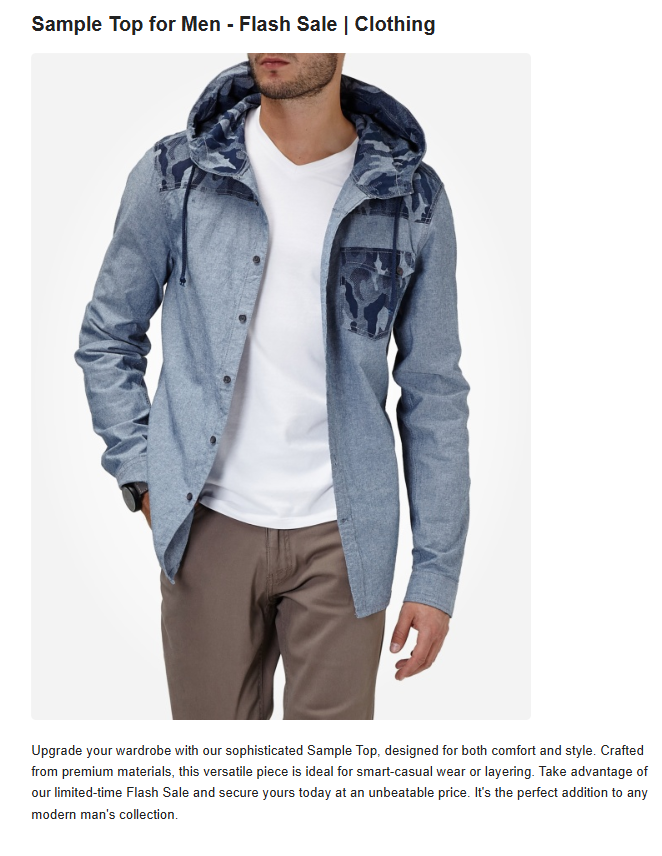
The system records essential details including post ID, generation date, platform, product, publication status, AI provider, and associated automation rule.
Create Post
Merchants can manually generate AI-powered social media content for selected products without creating an automation rule.
Manual Post Generation
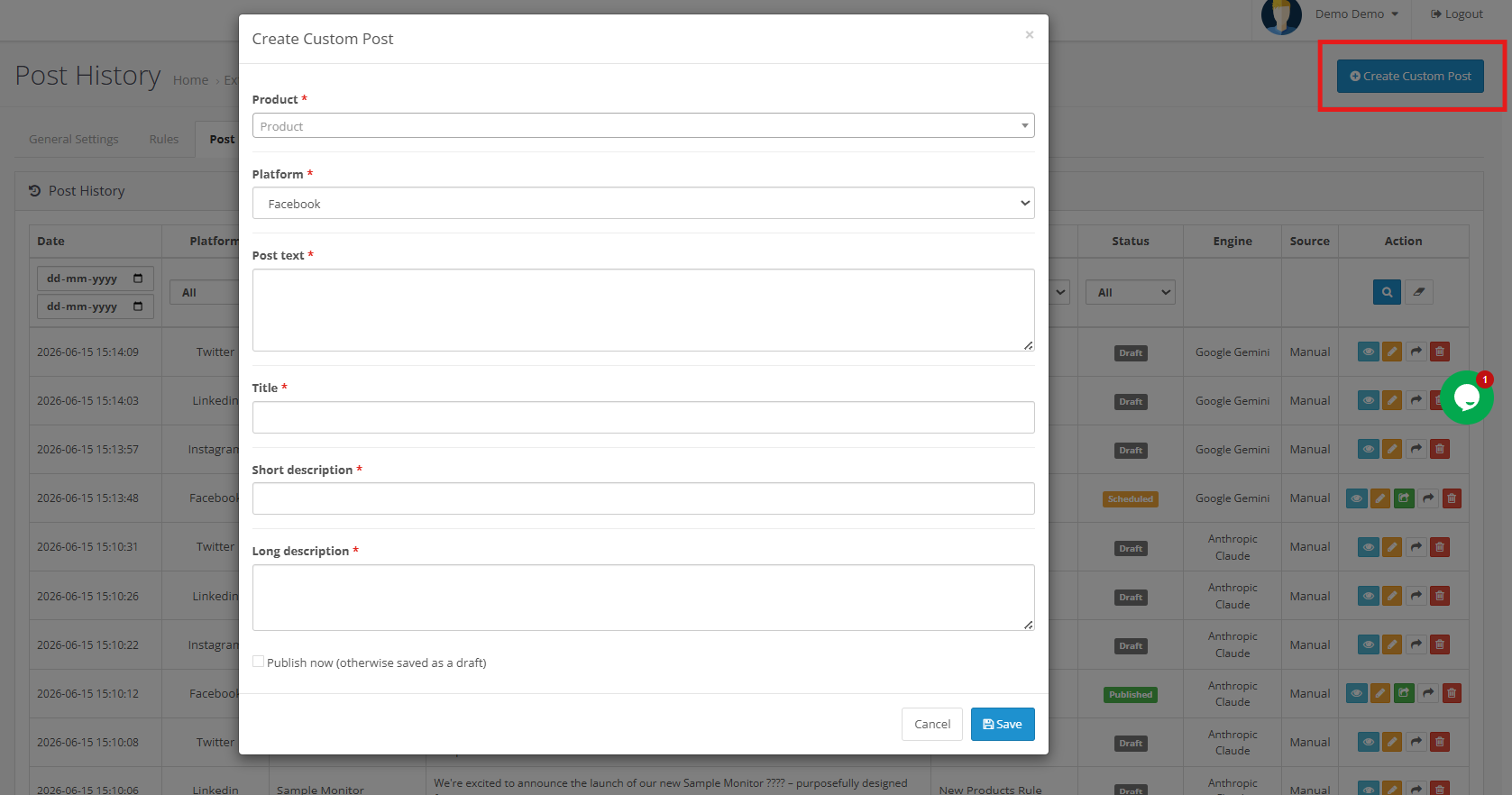
This feature enables administrators to create, review, edit, schedule, or publish custom social media content directly from the Post History section.
5.0 Steps to Generate the API Key for Opencart SocialAI Pro Plugin
For Claude API:
- Visit Anthropic’s website, and click “Start Building”.

- Create an account, access your Dashboard, generate an API key, and save it securely.

For Gemini API:
- To access the API, visit the Google AI Studio website.

- Click “Get API key,” accept the terms of service, create your key, and paste it into the module’s configuration settings.

For ChatGPT API:
- Obtain an OpenAI API key and configure it within the module settings.

- Click on your profile (top-right) → “View API keys” → “Create a new secret key”.

- Copy the key immediately and store it safely.

Conclusion
The Opencart AI Social Media Post Generator Extension covers the entire path from product data to a published post without requiring anyone to write captions by hand. As a complete Opencart Social Media Automation Extension, it handles the writing through AI, the timing and platform targeting through rules, and the record-keeping through its history log, all from inside the same OpenCart admin panel store owners already use daily.
Whether it’s running as an Opencart Auto Publish Facebook LinkedIn Extension pushing posts out the moment they’re generated, or as an Opencart Social Media Auto Scheduler Extension spacing a large batch out naturally over several days, editorial control never leaves the store owner’s hands: drafts can always be checked, edited, or held back before anything goes public.
For anyone evaluating it specifically as an Opencart Social Media Marketing Automation Extension, the short version is this: one AI engine writes on-brand copy, one rules engine decides when and where it goes, and one history log keeps track of all of it, which together cover the bulk of a catalogue’s day-to-day social presence without ongoing manual effort.
Opencart SocialAI Pro Extension is also available on Opencart Marketplace – https://www.opencart.com/index.php?route=marketplace/extension/info&member_token=a82287f721dce288db62f253df7a972b&extension_id=48624
Support questions, setup help, or configuration requests can go to support@knowband.com. Release notes and further documentation are maintained on the Knowband website.

Published by

