
Knowband LLMs Generator for WooCommerce is a WooCommerce AI SEO extension that makes your e-commerce site easily readable for AI bots and LLMs. AI like ChatGPT, Claude, Perplexity, Gemini and more bots answer consumers’ shopping queries directly. And how do they do that? With the help of crawlers. Knowband LLMs Generator for WooCommerce automatically creates two standard files llms.txt and llms-full.txt where all your product data, category data, page data and blog post data in the Markdown format is presented in one single request to crawlers. So it is both a llms.txt generator for WooCommerce, a crawler access manager and an AI bot analytics dashboard in one screen.
As a complete WooCommerce llms.txt plugin, this gives you:
- Automatic creation of llms.txt (short link index) and llms-full.txt (Markdown description of each item) for your products, categories, pages and blog posts.
- Product data such as regular price, discount price, product categories, tags, rating, product URL and product image URL added to llms-full.txt.
- Granular content inclusion/exclusion based on your choice of everything, selectively included, or excluding some of your products/posts based on their category and tags.
- URL and Exclude Link options to add additional links or exclude cart and account pages from llms.txt file.
- Bot-specific access control for GPTBot, Anthropic (ClaudeBot), Google-Extended, PerplexityBot and DeepseekBot through robots.txt and hard 403 block.Altogether, these capabilities make Knowband LLMs Generator one of the most practical WooCommerce AI visibility plugins available, whether your goal is to appear in AI-generated answers, control which AI companies can read your catalogue, or simply see which AI bots are visiting your store.
2. Requirements, Installation and Uninstallation
Requirements
- WordPress: Version 6.0 and above.
- WooCommerce: Version 7.0 and above, installed and activated. The plugin cannot load if WooCommerce is not present, and will display a notice to the user.
- PHP: Version 7.4 and above.
- Permalinks: Other than the “Plain” setting, found under Settings -> Permalinks. The /llms.txt, /llms-full.txt and cron URLs are delivered through WordPress rewrite rules that require pretty permalinks.
Installation
- Open WordPress and go to Plugins → Add New Plugin and then click on Upload Plugin.
- Select the plugin zip file (kb-llms-generator-woocommerce.zip) and click on Install Now.
- Click on Activate Plugin. You will notice that the LLMs Generator menu is added in the admin sidebar just after WooCommerce.
- Navigate to LLMs Generator → General Settings and enable the Enable plugin option, fill the Store name and click on Save Changes.
- Now run cron to generate llms.txt and llms-full.txt files.
On activation, the plugin creates four database tables (generation progress, crawler visits, include URLs and exclude links), adds its default settings, creates the storage folder wp-content/uploads/kb-llms-generator/ and registers its rewrite rules. The plugin is disabled by default, so nothing is published until you switch it on.
Deactivation and Uninstallation
Deactivating the plugin removes its block from robots.txt, stops the scheduled cron event and removes its rewrite rules. Your settings, URL rules, visit log and generated files are kept, so you can reactivate it at any time.
NOTE: Important: Deleting the plugin from the Plugins screen permanently removes all of its data, including every setting, the Include URL and Exclude Link rules, the complete crawler visit log, the saved dashboard layouts and the generated llms.txt files. Export or note down anything you want to keep before you delete the plugin.
3. Admin Navigation
The LLMs Generator menu will appear on installation of the plugin as a new menu within the WordPress admin panel. The WooCommerce LLMs TXT Generator menu is the control center for the WooCommerce llms.txt generator and each page has a separate tab in the sidebar of the Knowband LLMs Generator page.
Figure 1: LLMs Generator menu in the WordPress admin sidebar
- Dashboard: AI crawler analytics, with details of which bots have seen your files, how frequently, and what they’ve asked for.
- General Settings: Activates the plugin and sets the store name, description, batch sizes, privacy settings, Cron URL, and file generation status.
- Crawler Settings: Includes or excludes individual AI crawlers.
- Catalogue Contents: Selects products, categories, pages, and blog post to be included in your files.
- Include URL: Includes additional URLs in the “Additional Links” section.
- Exclude Link: Excludes certain URLs or complete paths from your files.
- Customisation: Inserts your custom text around certain sections of the file generated.
There is a separate Save changes button for each settings tab, and saving a single tab does not save another. All screens require capability llm_manage_option for access, which is provided to all by default to Administrators and Shop Managers roles.
4. AI Crawler Dashboard
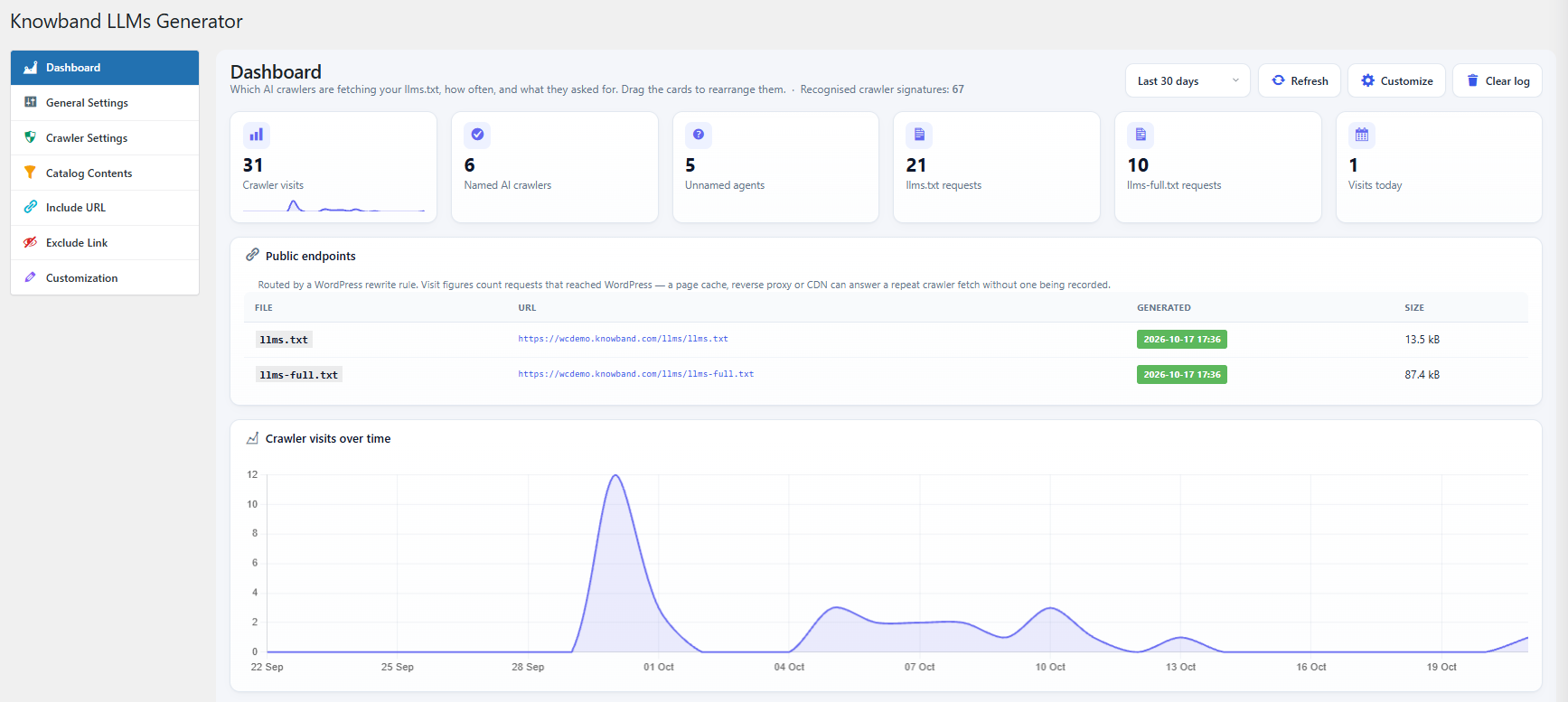
Dashboard is the initial screen of LLMs Generator and gives the answer to the question – which AI crawlers crawl your llms.txt, how often, and what was requested? Each incoming request for /llms.txt or /llms-full.txt on WordPress is registered and compared against 67 crawler fingerprints, including GPTBot, ClaudeBot, PerplexityBot, OAI-SearchBot, Google-Extended, CCBot, Amazonbot and Bytespider.
4.1 Toolbar
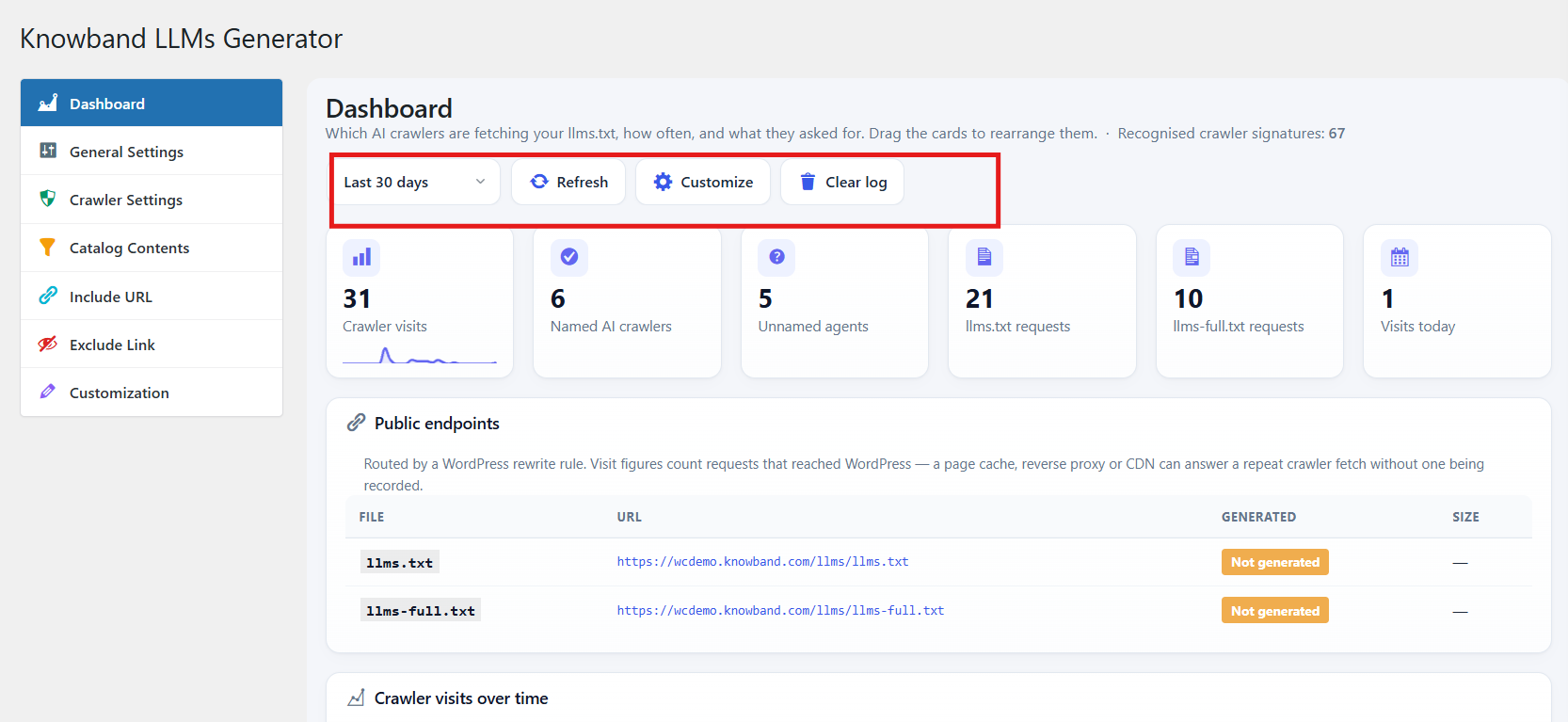
- Time Period: Specifies the time period during which all widgets will report on. Options: Last 7 days, Last 30 days, Last 90 days, Last 12 months, All time. Default: Last 30 days.
- Refresh: Refreshes all widgets with new data without reloading the page.
- Customize: Enters layout mode for the dashboard, allowing you to display, hide and move widgets around (see 4.5).
- Clear log: Removes all entries of crawler visits permanently after confirmation. Cannot be undone..
4.2 Key Metric Cards
KPI cards represent crawler traffic in six cards. Percentage change from the last similar period is displayed in all KPI cards except for the Visits today.
- Crawler visits: Total number of requests for both files in the selected period with a tiny trend sparkline.
- Named AI crawlers: Number of named crawlers like GPTBot or PerplexityBot.
- Unnamed agents: Number of unnamed agents which are not recognisable as crawlers like ordinary browsers and scripts.
- llms.txt requests: Requests for the shorter index file.
- llms-full.txt requests: Requests for the long Markdown file.
- Visits today: Visits for the day, regardless of the selected period.
4.3 Charts
- Crawler visits over time: A daily line chart of all visits in the selected period, which makes spikes in AI crawling easy to spot.
- Visits by crawler: A donut chart of the top eight crawlers, with the rest grouped as Other.
- Visits by purpose: Groups visits by why the bot crawls: AI search index, Model training, User-triggered fetch, Agent / automation, Shared dataset, Other or Unrecognised. This shows at a glance whether your content is being used for AI search answers or for training models.
- Visits by file: The split between llms.txt and llms-full.txt requests.
4.4 Tables
- Public endpoints: Lists the public URL of llms.txt and llms-full.txt, the date and time each file was last generated, and its size.
- Top crawlers: Up to 20 crawlers ranked by visits, with Vendor (for example OpenAI, Anthropic, Amazon), Purpose badge, Visits, Share of total and Last seen time.
- Generation progress: Shows the current generation cycle, the last batch run time, and for each content type the items Processed, the Total, a progress bar and the State (Nothing to do, In progress or Complete).
- Recent visits: The 50 most recent requests with time, crawler or user agent, purpose, requested file and IP address. The IP column shows a dash when Log IP addresses is switched off.
NOTE: Visit figures count only requests that reached WordPress. If a page cache, reverse proxy or CDN answers a repeated crawler request on its own, that request is not recorded. Crawlers that you block under Crawler Settings receive a 403 response and are not counted either.
4.5 Customizing the Dashboard Layout
Click Customize to enter layout mode. Every card gets a dashed outline, a remove (x) button and a drag handle, and the toolbar changes to Reset layout, Cancel and Save layout.
A Widget library panel also opens on the right. It lists all 14 widgets, grouped into Key metrics, Charts and Tables, each with an on/off switch.
- Click Customize.
- Drag cards by their handle to reorder them, or click the x on a card to hide it.
- Use the switches in the Widget library to show or hide widgets.
- Click Save layout to keep your arrangement, Cancel to discard your changes, or Reset layout to return to the default layout.
The layout is saved for each admin user separately, so every team member can arrange the dashboard in the way that suits them.
5. General Settings
Go to LLMs Generator > General Settings to enable the plugin and set up the generation settings, the visiting settings, and the scheduling of generation.
5.1 Store and Generation Settings
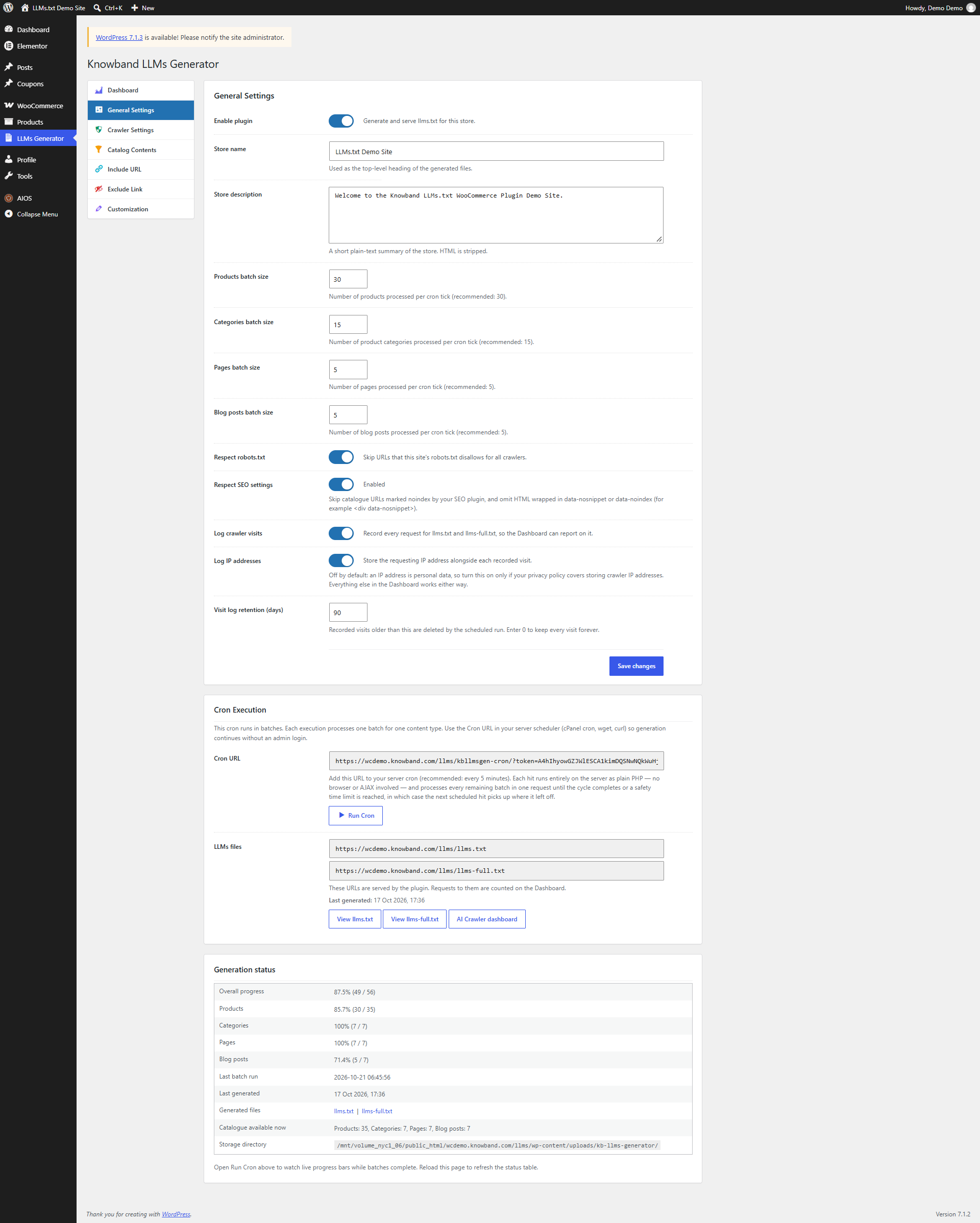
- Enable plugin: The main switch. If enabled, the plugin creates and delivers llms.txt and llms-full.txt, keeps logs of visits by crawlers and triggers its own cron task. If disabled, llms.txt and llms-full.txt URLs return 404 Not Found and no generation or logging is done. Default: Disabled.
- Store name: Will be used as a headline (# Store name) of the two generated files. Mandatory field with a default value equal to your WordPress site name.
- Store description: Plain-text description of your store, added as a quote line (> description) under the store name. HTML is removed. It is a great place to provide information about the types of goods your offer, to whom you sell and where you send your goods, AI assistants use it as contextual information about your entire product catalog.
- Products batch size: Number of products processed during each cron execution. Default: 30.
- Categories batch size: Number of product categories processed during each cron execution. Default: 15.
- Pages batch size: Number of pages processed during each cron execution. Default: 5.
- Blog posts batch size: The number of blog posts processed per cron run. Recommended and default: 5.
All batch sizes must be whole numbers greater than 0. Smaller batches are safer on shared hosting, while larger batches finish generation sooner on powerful servers.
5.2 Respecting robots.txt and SEO Settings
- Respect robots.txt: Skips URLs that your site’s robots.txt disallows for all crawlers (the User-agent: * group). This check is applied to the links you add under Include URL. Default: On.
- Respect SEO settings: Skips products, pages, posts and product categories that your SEO plugin marks as noindex. Yoast SEO, Rank Math, All in One SEO and SEOPress are supported. It also removes any HTML wrapped in data-nosnippet or data-noindex (for example <div data-nosnippet>) from descriptions. Default: On.
5.3 Crawler Visit Logging and Privacy
- Log crawler visits: Records every request for llms.txt and llms-full.txt so that the Dashboard can report on it. Default: On.
- Log IP addresses: Stores the requesting IP address with each recorded visit. An IP address is personal data, so turn this on only if your privacy policy covers storing crawler IP addresses. All other Dashboard features work without it. Default: Off.
- Visit log retention (days): Recorded visits older than this number of days are deleted automatically by the scheduled run. Enter 0 to keep every visit forever. Default: 90.
Click Save changes to apply the settings above.
NOTE: Saving General Settings, Catalog Contents or Customization, or adding, editing or deleting an Include URL or Exclude Link rule, starts a fresh generation cycle. The current llms.txt and llms-full.txt are removed and rebuilt, so click Run Cron afterwards to publish the updated files straight away.
5.4 Cron Execution
The generation is done in small batches to ensure that large catalogues do not timeout. Every batch handles one content type either products, categories, pages or blog posts. Once everything is complete, the files are put together for publishing.
Figure 12: Cron Execution panel
- Cron URL: A secure URL containing a unique 40-character token. Add it to your server scheduler, such as cPanel Cron Jobs, wget or curl, so that generation continues without anyone logged in to the admin. The recommended interval is every 5 minutes. Each hit runs on the server and processes all remaining batches until the cycle is complete or a safety time limit is reached; the next hit then continues from where it stopped.
- Run Cron: Opens the generation page in a new tab with a live progress bar for every content type (see 5.6).
- LLMs files: Shows the public URLs of llms.txt and llms-full.txt and the date they were last generated. If nothing has been generated yet, a message explains that the URLs return 404 until you run the cron.
- View llms.txt / View llms-full.txt: Open the generated files in a new tab.
- AI Crawler dashboard: Opens the Dashboard tab.
An example server cron entry that runs every five minutes:
*/5 * * * * wget -q -O – “https://knowband.veldev.com/wp_amit2/kbllmsgen-cron/?token=YOUR_TOKEN” >/dev/null 2>&1
Tip: Keep the Cron URL private, because anyone who has it can trigger generation. Without a server cron, the plugin still uses WP-Cron, which runs one batch every five minutes whenever your site receives traffic.
5.5 Generation Status
Figure 13: Generation status panel
This read-only table shows the overall progress of the current cycle, the progress for Products, Categories, Pages and Blog posts, the last batch run time, when the files were last generated, links to the generated files, how many items are currently available in the catalogue, and the storage directory on the server. Reload the page to refresh the table.
Warnings also appear on this tab when action is needed, for example when the storage directory is not writable, when static llms.txt files in the WordPress root are blocking the plugin, or when the last build contained no catalogue sections.
5.6 Run Cron Page
Clicking Run Cron opens a standalone page titled “Knowband LLMs Generator – Run”. It runs one batch after another and shows a progress bar for each content type. When every bar reaches 100%, it displays “Cron executed successfully!” and the new files are live.
6. Crawler Settings
Navigate to LLMs Generator > Crawler Settings to decide which AI companies may read your generated files. This gives you a simple way to block AI training crawlers while still allowing others, without editing robots.txt by hand.
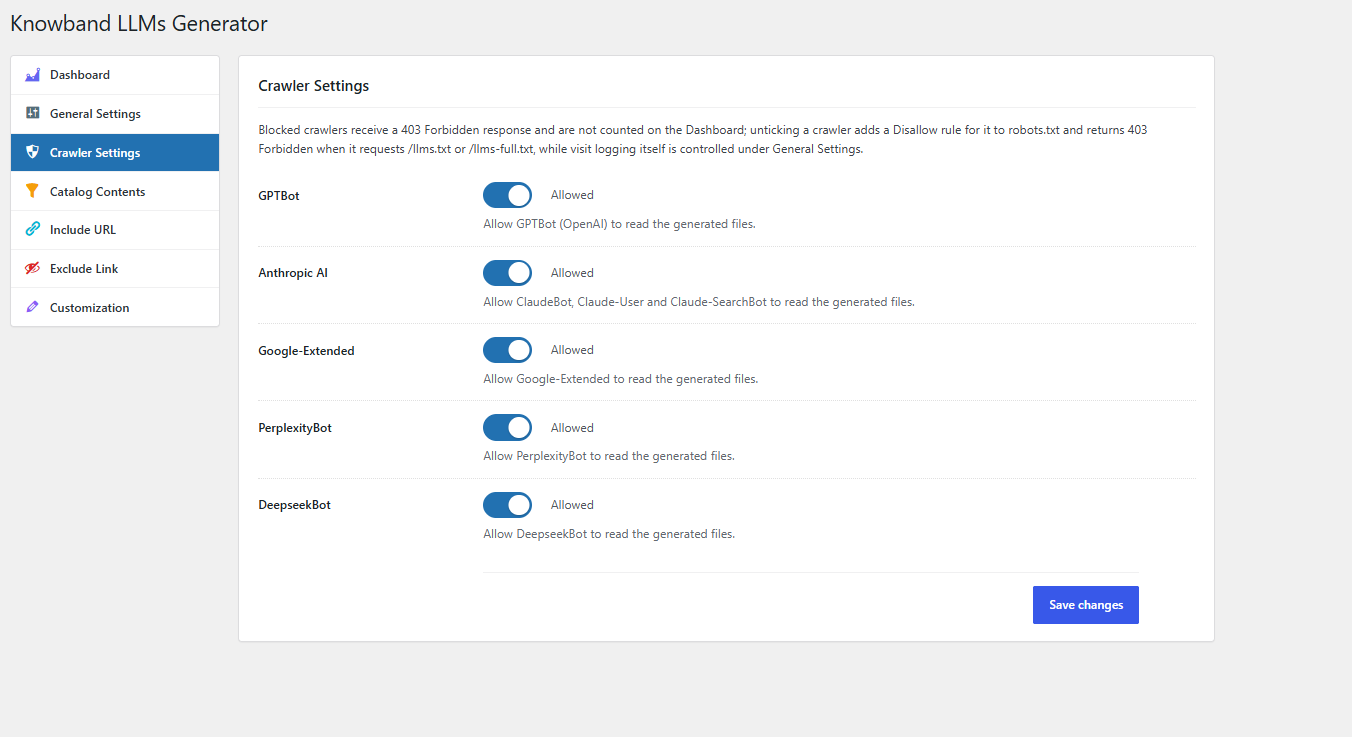
- GPTBot: Allows GPTBot (OpenAI) to read the generated files.
- Anthropic AI: Allows ClaudeBot, Claude-User and Claude-SearchBot to read the generated files.
- Google-Extended: Allows Google-Extended, the token Google uses for Gemini and AI training, to read the generated files.
- PerplexityBot: Allows PerplexityBot to read the generated files.
- DeepseekBot: Allows DeepseekBot to read the generated files.
All crawlers are allowed by default. When you switch a crawler off and click Save changes, the plugin blocks it in two ways:
- robots.txt rule: A managed block is added to robots.txt with a Disallow rule for /llms.txt and /llms-full.txt for that crawler. If your site has a physical robots.txt file, the plugin edits it; otherwise it adds the rules to the virtual robots.txt that WordPress generates.
- 403 Forbidden response: Because not every bot obeys robots.txt, a request from that crawler for /llms.txt or /llms-full.txt is also refused with a 403 Forbidden response. Blocked requests are not counted on the Dashboard.
In the example below, GPTBot and Anthropic AI have been switched off, and the plugin has written the matching rules into robots.txt:
NOTE: If your physical robots.txt file is not writable, an error asks you to make it writable by the web server (for example chmod 664) and save again. Visit logging itself is controlled under General Settings, not on this tab.
7. Catalog Contents
Navigate to LLMs Generator > Catalog Contents to choose exactly which WooCommerce content is described in llms.txt and llms-full.txt. The tab has four sections, Products, Product categories, Pages and Blog posts, and every section has the same two basic controls:
- Include this content type: Switches the whole section on or off. Default: Enabled.
- Selection mode: All includes every published item of this type. Only the selected items includes only the items you pick in the search box below. Default: All.
7.1 Products
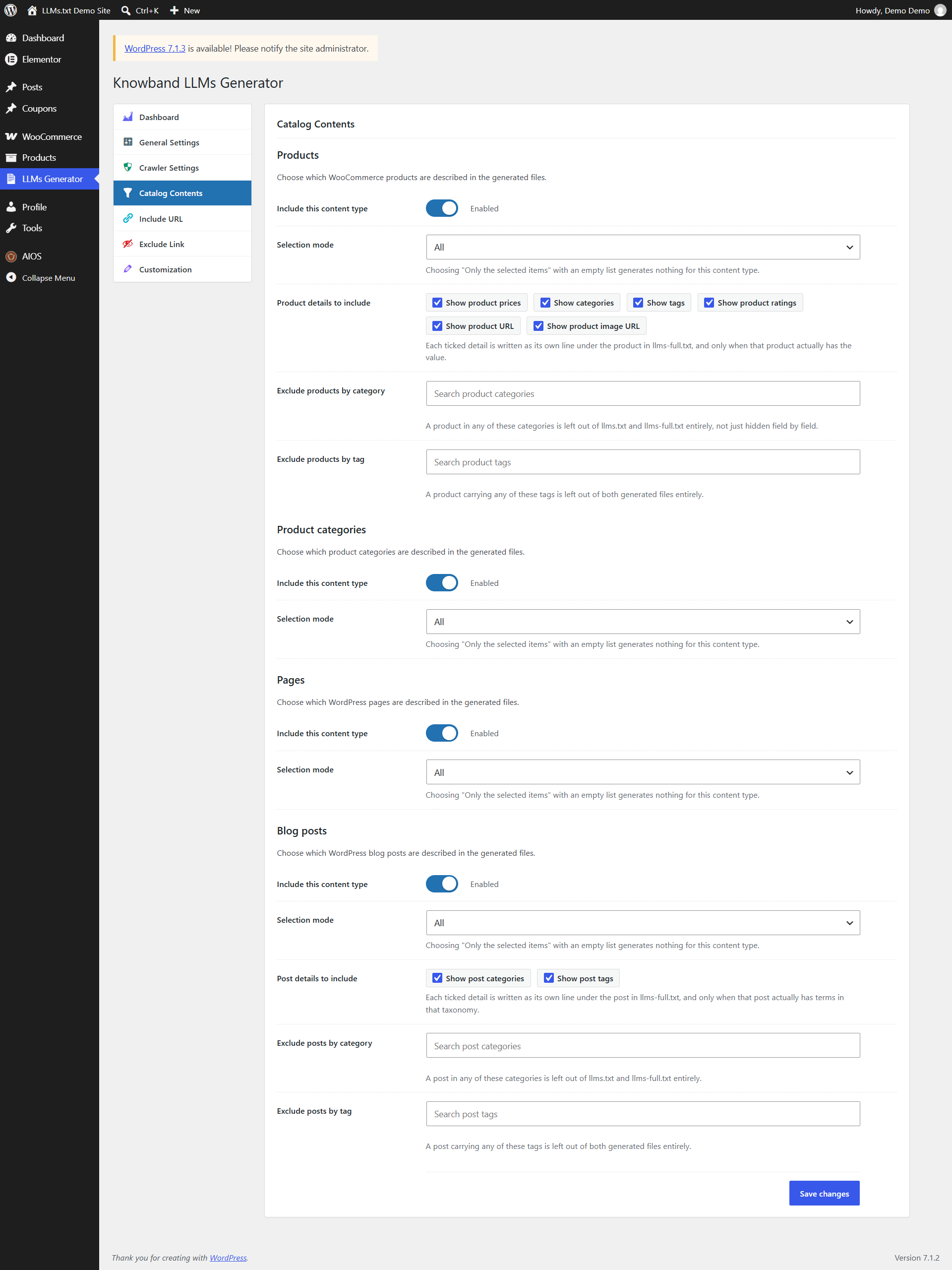
- Search products: Appears when Selection mode is Only the selected items. Start typing a product name and pick it from the list. Products are shown with their SKU, and each selected product appears as a tag that you can remove with x.
- Product details to include: Choose which details are written under each product in llms-full.txt: Show product prices (regular and discounted price with the store currency), Show categories, Show tags, Show product ratings (average rating and number of ratings), Show product URL and Show product image URL. A detail is written only when the product actually has a value. All are ticked by default.
- Exclude products by category: Any product in one of the selected product categories is left out of both files entirely.
- Exclude products by tag: Any product carrying one of the selected tags is left out of both files entirely.
7.2 Product Categories
Includes your WooCommerce product categories, each with its description and product count. In this example, only the Fashion and Offer categories are selected, so other categories are not listed in the files.
7.3 Pages
Includes WordPress pages such as About Us, Contact Us, Shop and your policy pages. Choosing only the pages that help a customer, and leaving out pages such as Cart, Checkout and My account, keeps the files focused and useful for AI assistants.
7.4 Blog Posts
- Post details to include: Show post categories and Show post tags add a Categories and a Tags line under each post in llms-full.txt. Both are ticked by default.
- Exclude posts by category: Any post in one of the selected categories is left out of both files entirely.
- Exclude posts by tag: Any post carrying one of the selected tags is left out of both files entirely.
7.5 Selecting Specific Items
When Selection mode is set to Only the selected items, start typing in the search box and click a suggestion to add it. Selected items appear as tags under the box.
NOTE: If you choose Only the selected items without picking any item, saving is blocked with the message “Choose at least one item, or switch this back to All.” Switching a section back to All clears its selected items. Only published items are included, and the category and tag exclusions apply to the exact term you select, not to its child terms.
Click Save changes to apply the settings above.
8. Include URL
Navigate to LLMs Generator > Include URL to add extra links that are not part of your WooCommerce catalogue, such as your blog home page, a size guide, a landing page or a page on another website. These links are written to an “Additional Links” section at the end of both files. Exclude rules still apply to these URLs.
8.1 Browsing the Include URL List
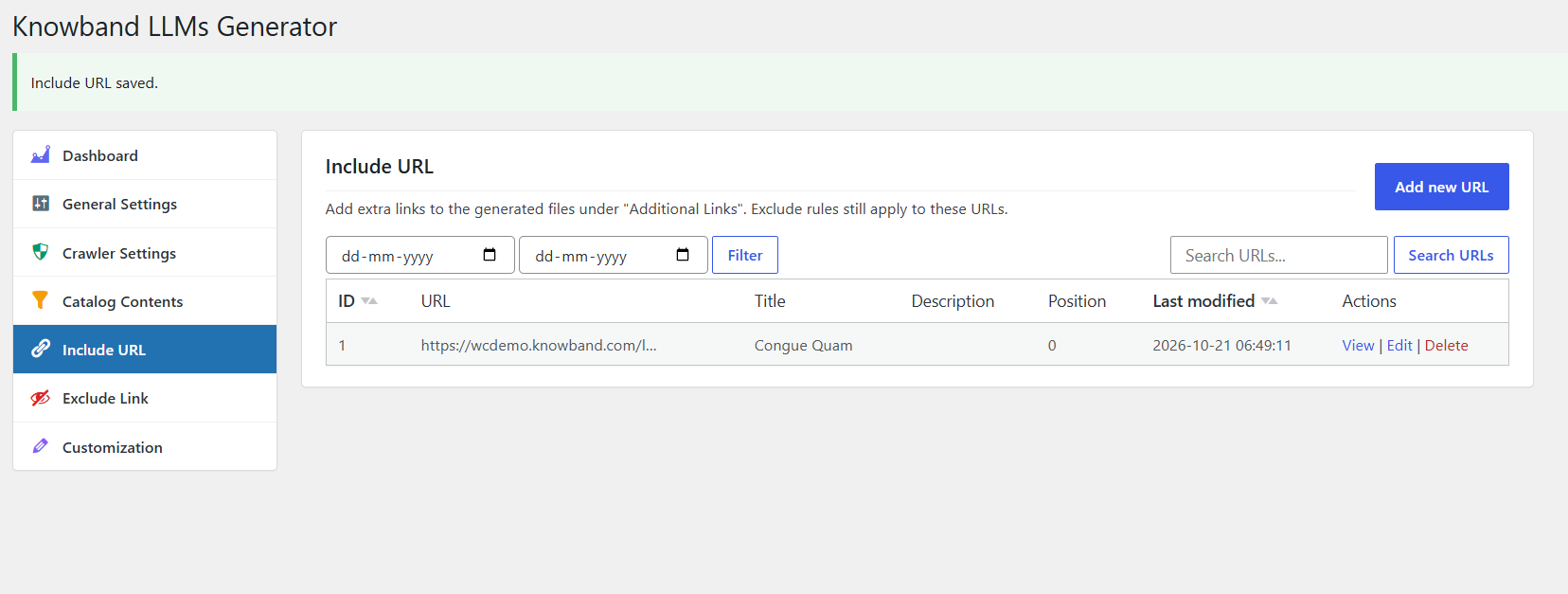
The list shows each link’s ID, URL, Title, Description, Position and Last modified date, with View, Edit and Delete actions. You can filter the list by a Last modified date range using the two date fields and Filter, search by URL, title or description using Search URLs, and sort by ID or Last modified. Links are listed by Position by default.
8.2 Adding or Editing a URL
Click Add new URL, or Edit on an existing row, to open the form.
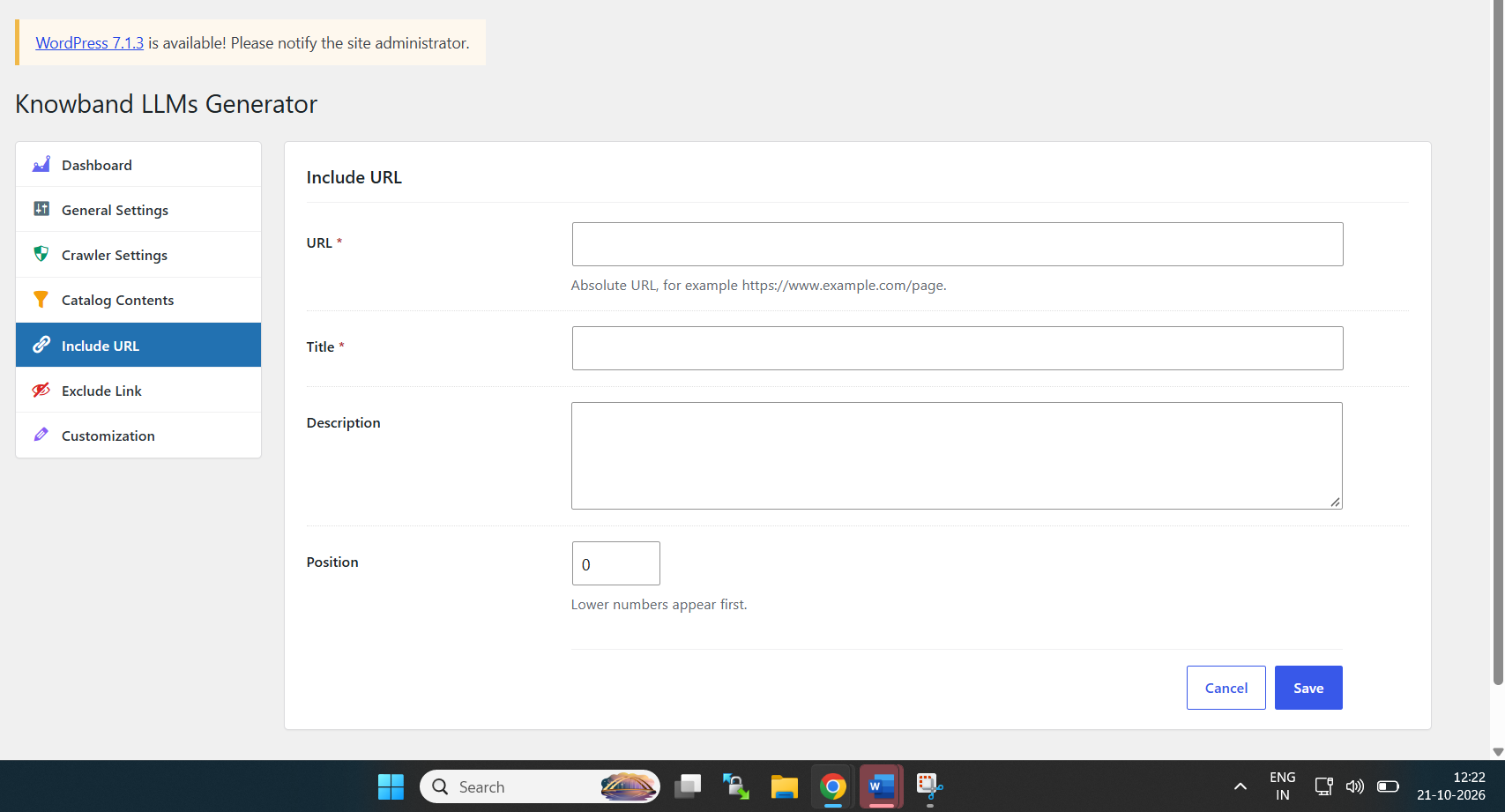
- URL (required): An absolute URL, for example https://www.example.com/page. Each URL can be added only once.
- Title (required): The link text written into the files.
- Description: An optional description written after the link. A clear, factual sentence helps AI assistants understand what the page offers.
- Position: The display order. Lower numbers appear first. Default: 0.
Click Save to add the link, or Cancel to return to the list.
8.3 Viewing a URL
Click View on any row to see all of its details, with Back to list and Edit buttons. Click Delete on a row, and confirm, to remove a link permanently.
NOTE: An Include URL is skipped if it matches an Exclude Link rule, if robots.txt disallows it while Respect robots.txt is on, or if it points to a page marked noindex while Respect SEO settings is on.
9. Exclude Link
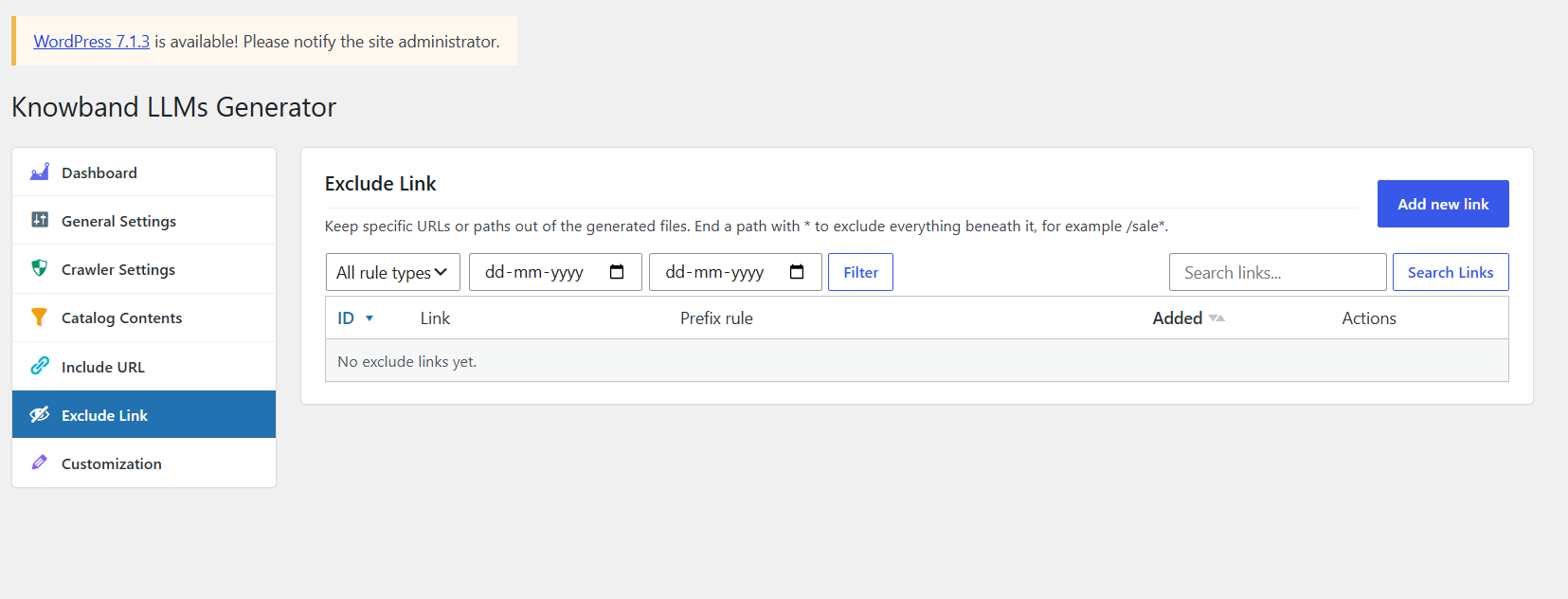
Navigate to LLMs Generator > Exclude Link to keep specific URLs or whole sections of your site out of the generated files. This is useful for account, cart, checkout and sale pages, or for any content you do not want AI assistants to see.
9.1 Browsing the Exclude Link List
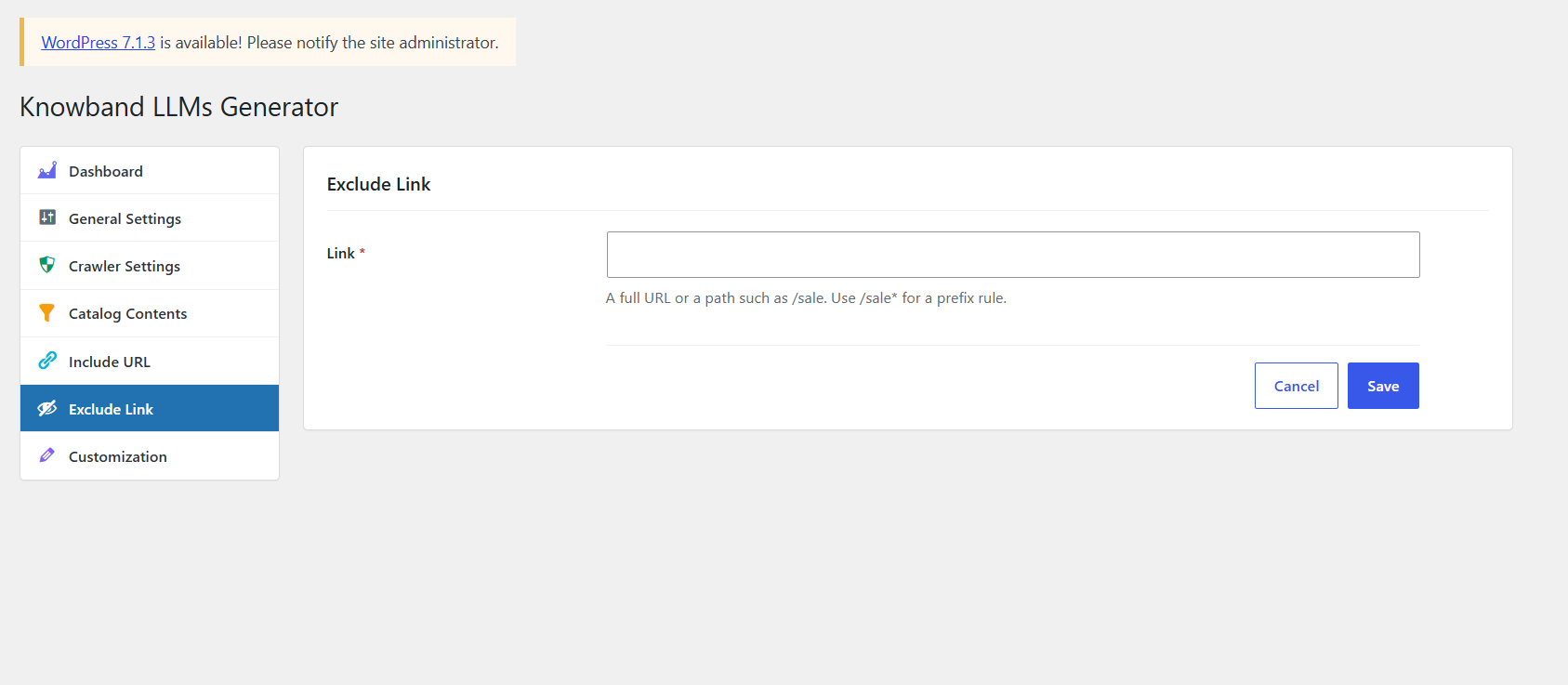
9.2 Adding or Editing a Link
- Link (required): A full URL, such as https://knowband.veldev.com/wp_amit2/cart/, or a path, such as /cart. End a path with * to create a prefix rule that excludes everything beneath it, for example /my-account*.
Click Save to add the rule.
9.3 How Exclude Rules Match
- Exact rule: Matches only that URL, for example /cart excludes the Cart page only.
- Prefix rule: /sale* matches /sale and every URL under /sale/, but not /sale-items.
- Normalisation: Matching ignores upper and lower case, http or https, a leading www., query strings, #fragments and trailing slashes. Paths without a domain are treated as paths on your own store.
- Priority: Exclude rules apply to both catalogue items and Include URL entries, and they always win over inclusion.
10. Customization
Navigate to LLMs Generator > Customization to add your own text to the generated files. You can use it for a short introduction for AI assistants, shipping or currency information, a return policy summary, or contact details. Each section shows a preview of where its text is placed. All fields are optional and HTML tags are removed when you save.
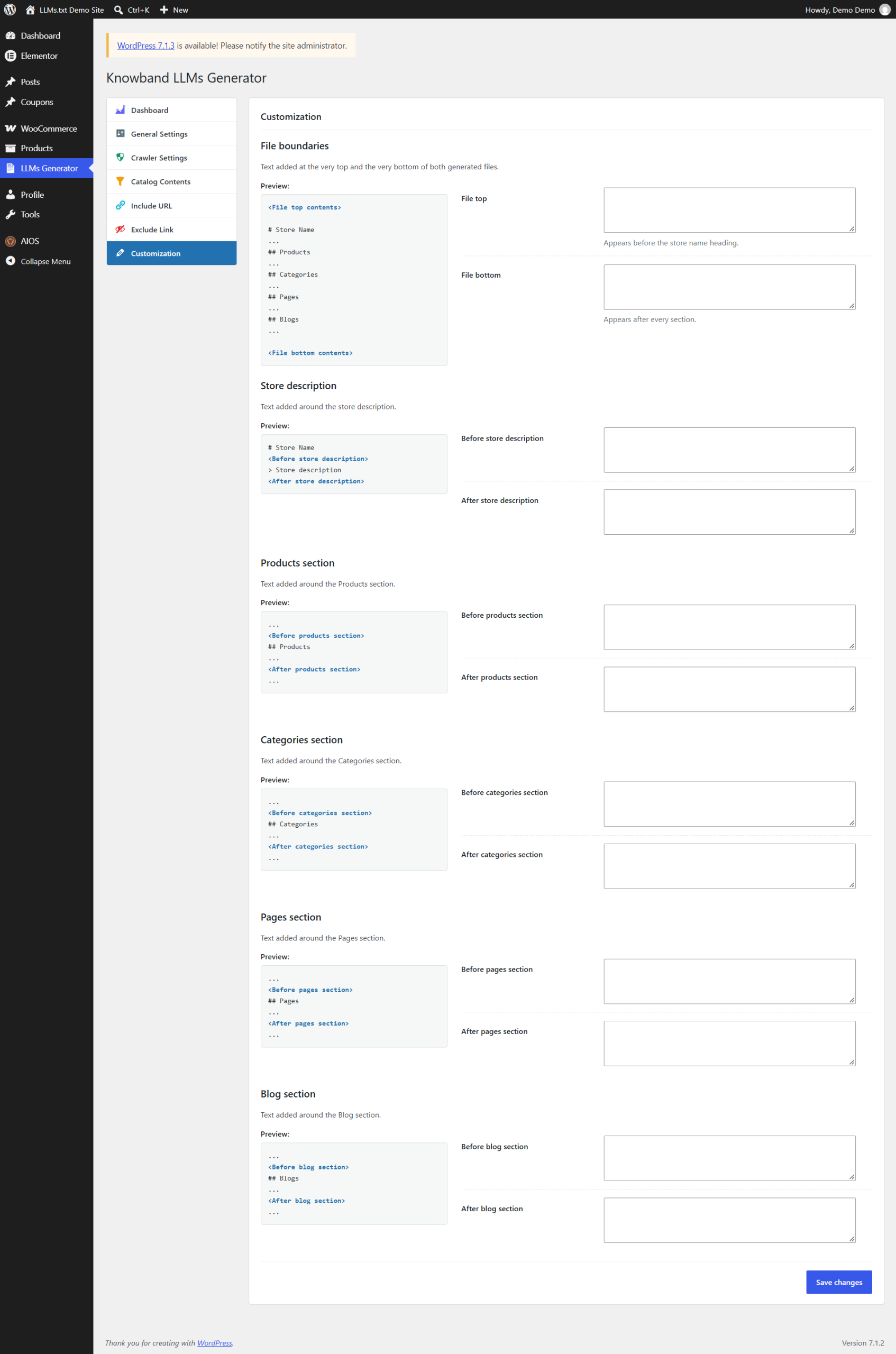
- File top: Text placed at the very top of both files, before the store name heading.
- File bottom: Text placed at the very end of both files, after every section.
- Before / After store description: Text placed directly above and below the store description line.
- Before / After products section: Text placed around the ## Products section.
- Before / After categories section: Text placed around the ## Categories section.
- Before / After pages section: Text placed around the ## Pages section.
- Before / After blog section: Text placed around the ## Blogs section.
Text around a section is written only when that section has content. Click Save changes to apply the settings.
For example, this store uses the following customization:
- File top: This file helps AI assistants understand the Fit Buddy Fashion Store catalogue. Prices are shown in Indian Rupees (INR).
- Before products section: All products below are in stock and ship within 2-3 business days.
- File bottom: For order support, returns or bulk enquiries, contact us at https://knowband.veldev.com/wp_amit2/contact-us/
11. The Generated llms.txt and llms-full.txt Files
The plugin publishes two plain-text files at the root of your store, for example:
- llms.txt: https://knowband.veldev.com/wp_amit2/llms.txt
- llms-full.txt: https://knowband.veldev.com/wp_amit2/llms-full.txt
11.1 llms.txt
llms.txt is a compact link index. It starts with your store name and description, followed by a section for each content type. Every item is a single Markdown link with a short description of up to 200 characters.
11.2 llms-full.txt
llms-full.txt contains the same items, but with the full description converted to Markdown and the extra details you enabled under Catalog Contents, such as product MRP, discounted price, categories, tags, rating, product URL and image URL. Items are separated by a dashed line.
11.3 File Structure
Both files always follow the same order. Sections that are disabled or empty are left out.
<File top>
# Store name
> Store description
## Products
## Categories
## Pages
## Blogs
## Additional Links (from Include URL)
<File bottom>
Both files are served with the text/plain content type, an X-Robots-Tag: noindex header so that they do not appear in normal search results, and a one-hour cache header. While the plugin is disabled, or before the first generation finishes, both URLs return 404 Not Found.
12. Troubleshooting
- /llms.txt returns 404: Make sure Enable plugin is on, that your permalinks are not set to Plain, and that a generation has finished. Click Run Cron on the General Settings tab and wait for “Cron executed successfully!”.
- The files disappeared after saving settings: This is expected. Saving settings starts a new generation cycle. Click Run Cron, or wait for the next scheduled run, to publish the files again.
- A section is missing from the files: Check that the content type is enabled under Catalog Contents, that Only the selected items has at least one item, and that no Exclude Link rule (for example a prefix rule such as /product*) matches the whole section.
- The Dashboard shows no new visits: Check that Log crawler visits is on. Visits served by a page cache, proxy or CDN are not recorded, so exclude /llms.txt and /llms-full.txt from full-page caching if you want complete statistics.
- A blocked crawler still appears in robots.txt checks: Make sure a physical robots.txt file is writable by the web server and save Crawler Settings again.
- Static llms.txt files warning: An llms.txt or llms-full.txt file in your WordPress root folder blocks the plugin. It is removed automatically on the next publish when you click Run Cron.
From building a clean llms.txt for your WooCommerce catalogue to controlling which AI bots can read it and measuring how often they visit, Knowband LLMs Generator for WooCommerce gives store owners a complete, easy-to-manage way to prepare their store for AI search and AI shopping assistants.