

The WooCommerce ChatGPT Content Generator Plugin is an advanced AI-based tool designed to simplify content management for your WooCommerce store. Powered by advanced OpenAI’s ChatGPT technology, this innovative plugin makes bulk content creation effortless, making it an essential resource for modern eCommerce businesses. With this tool, you can quickly craft engaging product and category descriptions, compelling titles, and SEO-optimized content to improve your store’s visibility and enhance customer satisfaction.
Designed to seamlessly integrate with WooCommerce, the plugin streamlines content generation, saving time and effort for merchants. Thus, utilizing the capabilities of ChatGPT Engines 3.5 and 4.0, helps you deliver high-quality content that not only helps you grow your online store’s performance but also saves time in manual content writing.
Key Features of Knowband’s WooCommerce ChatGPT Content Generator Plugin
Effortless Content Creation: Easily generate high-quality product titles, detailed descriptions, and optimized meta tags, ensuring consistent and professional content across your store while saving valuable time.
4 AI Engine Support: Powered by advanced ChatGPT models GPT-4.0, GPT-4-turbo, GPT-4, and GPT-3.5-turbo, the WooCommerce ChatGPT Plugin caters to diverse content generation needs, making it ideal for businesses of all sizes.
SEO-Optimized Output: Create SEO-friendly content effortlessly to enhance your store’s search engine rankings and drive more organic traffic.
User-Friendly Interface: Designed with simplicity in mind, the plugin offers an intuitive setup process, making it accessible for store admins without technical expertise.
Category and Meta Tags Management: Quickly generate category names and meta descriptions for a polished and organized presentation.
Bulk Content Generation: Streamline operations by processing multiple products at once, perfect for stores with extensive catalogs.
Enhanced Store Operations: Simplify content-related tasks to ensure smooth and efficient product updates, optimizing your store’s overall performance.
Global Flexibility: With support for various languages, including RTL scripts, the plugin accommodates businesses targeting diverse markets.
This streamlined tool empowers WooCommerce store owners to create and manage content effectively, enhancing productivity and boosting online presence.Top of Form
Setting Up the ChatGPT Key for Your Plugin
Follow these simple steps to enable ChatGPT functionalities in your WooCommerce plugin:
Step 1: Generate Your API Key
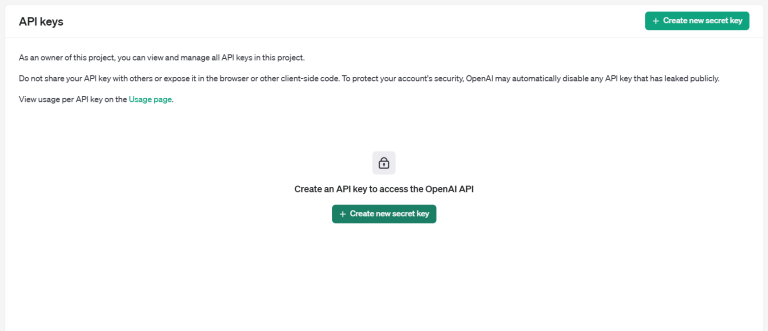

- Visit the OpenAI API Key Generation page.
- Log in to your OpenAI account or create one if you don’t have an account yet.
- Click on “Create new secret key” to generate a unique API key.


Copy and securely save the generated key, as it will be visible only once.
Important: Verify Billing Status
To ensure uninterrupted functionality, confirm that your OpenAI account has an active billing setup and sufficient credits:
- Visit the OpenAI Billing Overview page.
- Check your account balance.
- Add funds if necessary to prevent API request failures.
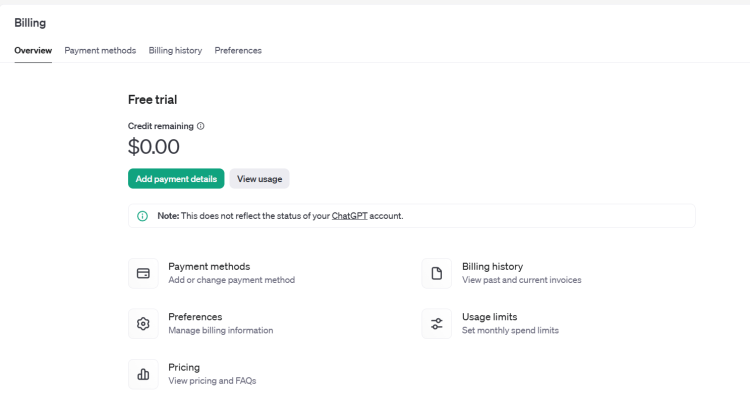

Once you’ve set up your API key and verified your billing, your WooCommerce ChatGPT plugin will be fully operational, ready to streamline content generation for your store.
Installation Guide
Follow these simple steps to install the WooCommerce AI Content Generator Module on your WooCommerce site:
Step 1: Purchase the Plugin
Buy the WooCommerce plugin from the Knowband store. Upon purchase, you’ll receive a zipped file containing the module’s source code.
Step 2: Access the WordPress Dashboard


Navigate to your WordPress Dashboard and go to Plugins → Add New.
Step 3: Upload the Plugin
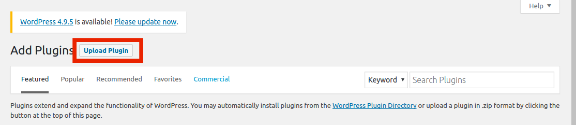

You’ll be directed to a new interface. Click on Upload Plugin.
Step 4: Upload the File
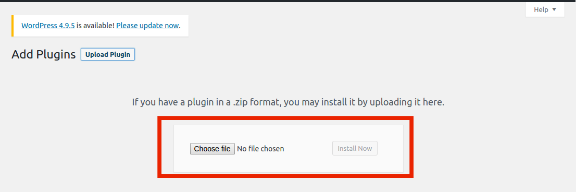

Click Choose File, select the zipped file you received, and upload it.
Once uploaded, activate the plugin, and it will be ready to enhance your WooCommerce site with AI-powered content generation capabilities.
Admin Panel Overview:
The WooCommerce AI Product Description Generator Plugin comes with an intuitive admin dashboard that allows the admin to handle all the content creation tasks efficiently.
1. Connection Setting:
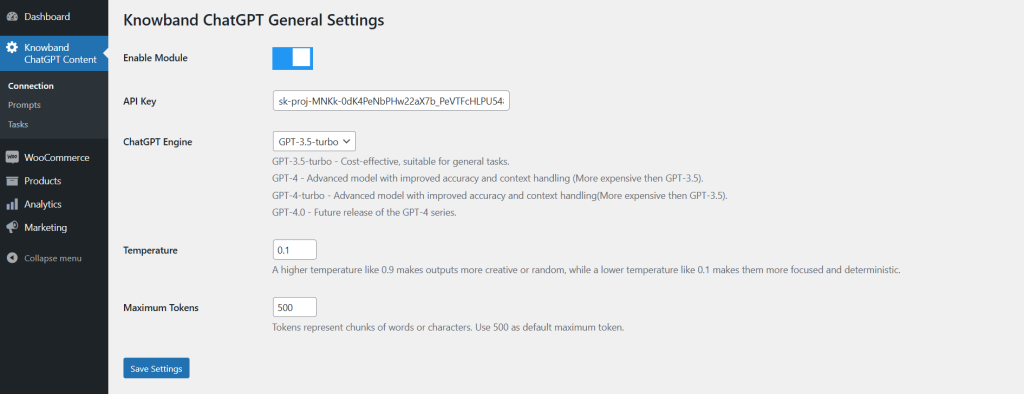

Enable Module: The store admin can activate/deactivate the extension using the following button.
API Key: Insert the obtained ChatGPT API key in this section. Please follow the steps mentioned above to get the ChatGPT API key for your module.
ChatGPT Engine: The plugin comes with 4 powerful ChatGPT engines to streamline the content management on your store.
- GPT-3.5-turbo – Cost-effective, suitable for general tasks.
- GPT-4 – Advanced model with improved accuracy and context handling (More expensive than GPT-3.5).
- GPT-4-turbo – Advanced model with improved accuracy and context handling(More expensive than GPT-3.5).
- GPT-4.0 – Future release of the GPT-4 series.
Select the one that suits your needs the best.
Temperature: The following text field accepts values between 0.1 and 0.9. Whereas, the lowest value 0.1 generates more focused and simple content. On the other hand, the highest value 0.9 generates more creative and refined content.
Maximum Tokens: Tokens represent chunks of words or characters. Use 500 as the default maximum token.


Also Available for Prestashop eCommerce Platform
2. ChatGPT Prompts
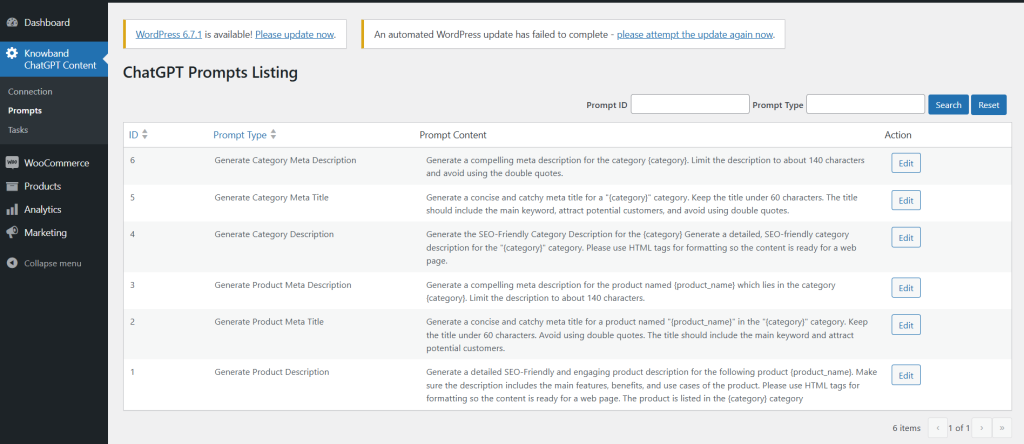

Generate Category Meta Description: Generate a compelling meta description for the category {category}. Limit the description to about 140 characters and avoid using the double quotes.
Generate Category Meta Title: Generate a concise and catchy meta title for a “{category}” category. Keep the title under 60 characters. The title should include the main keyword, attract potential customers, and avoid using double quotes.
Generate Category Description: Generate the SEO-Friendly Category Description for the {category} Generate a detailed, SEO-friendly category description for the “{category}” category. Please use HTML tags for formatting so the content is ready for a web page.
Generate Product Meta Description: Generate a compelling meta description for the product named {product_name} which lies in the category {category}. Limit the description to about 140 characters.
Generate Product Meta Title: Generate a concise and catchy meta title for a product named “{product_name}” in the “{category}” category. Keep the title under 60 characters. Avoid using double quotes. The title should include the main keyword and attract potential customers.
Generate Product Description: Generate a detailed SEO-Friendly and engaging product description for the following product {product_name}. Make sure the description includes the main features, benefits, and use cases of the product. Please use HTML tags for formatting so the content is ready for a web page. The product is listed in the {category} category.
3. ChatGPT Logs Listing
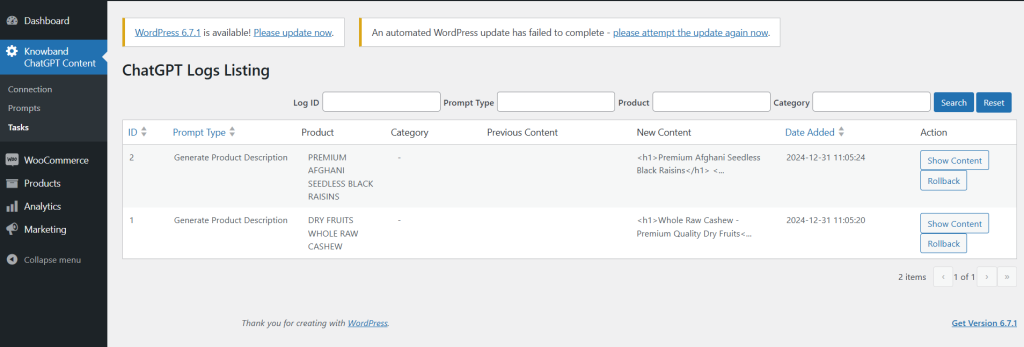

This tab provides the admin with a comprehensive overview of completed tasks. It displays details such as the executed prompt type, product name, product category, previous content, and the newly generated content.
Additionally, the store admin can filter the data using criteria like Filter ID, Prompt Type, and Product Name for easy navigation and organization.
How to Use ChatGPT Prompts
Store administrators can easily utilize ChatGPT prompts by following these steps:
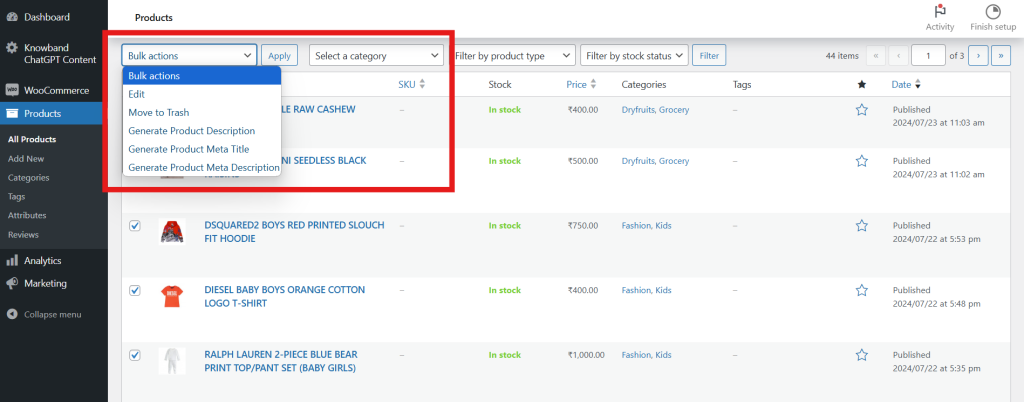

- Navigate to Catalog → Products in the admin panel.
- Select the desired products from the list.
- Access the Bulk Actions tab.
- Choose the appropriate prompts to perform actions on the selected products.
This streamlined process enables admins to efficiently generate content for multiple products at once, saving time and effort.
