
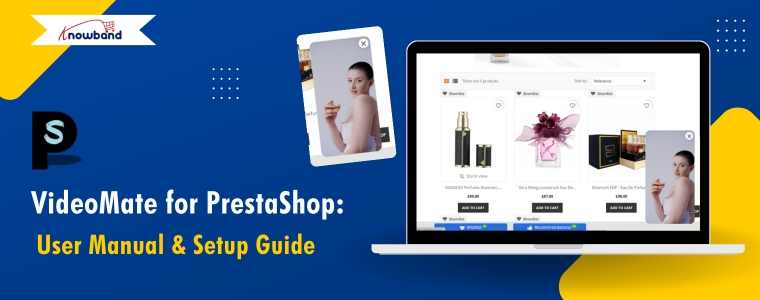
VideoMate is a comprehensive PrestaShop video addon designed to transform your online store with engaging video content. As a powerful PrestaShop product video module, VideoMate allows you to easily integrate MP4 videos into your store, creating dynamic and interactive experiences that help showcase your products, promotions, and brand story more effectively.
Furthermore, this versatile PrestaShop VideoMate Addon supports multiple widget types, including responsive video carousels, floating video players, and single video displays, giving you full control over how videos appear across your site. Whether you want to highlight your best sellers, or new products, or simply add captivating videos on the homepage or category pages, VideoMate offers flexible video mapping and display options tailored to your needs.
Additionally, with features like video library management, status toggling, and client-side validation, managing your video assets is effortless and secure. Meanwhile, the floating video module allows you to add stylish, movable video players that users can minimize or close, while the carousel module displays multiple videos with autoplay and navigation controls, ensuring a smooth and modern user experience.
Moreover, designed for seamless integration, Knowband’s PrestaShop product video addon enhances product pages with rich media content that increases user engagement and boosts conversion rates. Ultimately, whether you are looking for a PrestaShop category video module, a homepage video solution, or a full-featured video marketing module, VideoMate offers an all-in-one video widget module for PrestaShop that is responsive, customizable, and easy to manage.
[New] Latest Updates of PrestaShop Video Manager Module v1.0.4
PrestaShop VideoMate Manager v1.0.4 has been released with the following changes:
Dashboard and Reports: Now you can track impressions, plays, product clicks, and add to cart with charts, tables, date filters, and CSV export.
Shoppable Video: Attach products to a video, with a product card and Add to cart on the storefront.
YouTube and Vimeo: Add videos by link, with cover images fetched automatically or uploaded by you.
Widget Controls: Schedule widgets, set delay or scroll triggers, target pages and devices, and choose landscape, portrait, or square video.
[New] Latest Updates of Prestashop Video Manager Module v1.0.3
This major update brings the new enhancement that now you can generate videos using AI Platforms.The Prestashop Video Manager Module now supports AI-powered video generation using Gemini and ChatGPT. Create product and promotional videos automatically with advanced AI technology.
[New] Latest Updates of Prestashop Video Manager Module v1.0.2
The new version of the PrestaShopVideomate module now includes new enhancements that give store owners greater control over video content and how customers interact with the videos.
1. Video Upload Type Options
Now, store owners can choose between two methods of video type for their store:
Direct Upload: They can select and upload video files stored locally on their computer
External URL: Store owners can also add URLs to videos hosted on supported platforms using their URLs, which are publicly accessible.
These options give you flexibility in managing your video content based on your preferred hosting method.
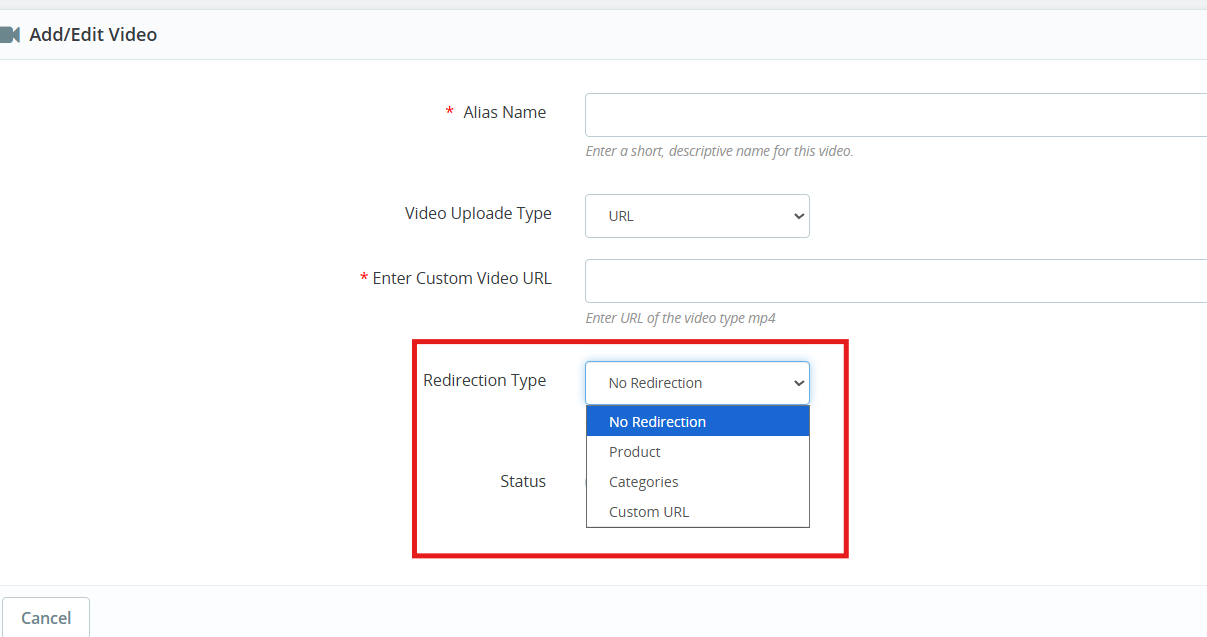
2. Configurable Redirection Settings
The Prestashop Video Manager module introduces redirection controls that determine where customers land after clicking on a video.
You can direct them to redirection URLs of products and categories as well as any custom URL.
3. Video Integration on Product Pages
Videos now appear within the product image gallery on individual product pages. When you add a video, it displays alongside your product photos in the same viewing area.
These key features specially helps in
- Demonstrate how products work in real
- Keep potential buyers engaged longer on your product pages
- Deliver more detailed product information without cluttering the page layout
1.0 Key Features of Prestashop VideoMate Addon
Video Library Management First and foremost, with the VideoMate PrestaShop Addon, upload MP4 videos (up to 50MB) and manage them easily using alias names, status toggle, and in-admin previews.
Video Mapping Management Additionally, this PrestaShop product video addon lets you map videos to products, categories, home pages, Best Sellers, or New Product pages with flexible widget types.
Frontend Video Display. Furthermore, use a carousel, single, or floating widget to display videos beautifully across your store. A responsive video module for PrestaShop ensures smooth playback on all devices.
Broad Widget Placement Moreover, this PrestaShop video carousel module supports placement on product pages, category pages, home pages, and special listings, maximizing visibility and customer engagement.
Custom Widget Configuration In addition, configure widget settings like autoplay, video count, position, and custom headings—making it a PrestaShop custom video display module with high flexibility.
Centralized Admin Panel Subsequently, manage all configurations from a clean admin panel with global enable/disable controls—ideal for store-wide video campaign control.
Optimized Performance & Compatibility Meanwhile, this lightweight PrestaShop MP4 video integration works seamlessly with prestashop versions 1.7 to 8. x.x.
Effective Video Marketing Strategies As a result, a true PrestaShop video marketing module, VideoMate enhances your store’s product pages with engaging video content that boosts conversions and customer trust.
Fully Responsive & Mobile-Friendly Consequently, VideoMate is a responsive video module built specifically for PrestaShop that automatically optimizes video display across all devices, delivering seamless playback on desktop, tablet, and mobile screens.
Knowband’s PrestaShop Addon to Show Product Videos Ultimately, VideoMate serves as your comprehensive video display solution for PrestaShop, offering versatile functionality as a homepage video module, category video module, or floating video module to meet all your site’s video integration needs.
2.0.0 Installation Guide for PrestaShop VideoMate Addon
Step 1: Purchase and download the Knowband’s Prestashop VideoMate Addon After your purchase is complete, you’ll receive the videomate.zip file. VideoMate is your complete PrestaShop video marketing module, designed to transform and enhance your storefront with professional video integration.
Step 2: Access Module Manager Once logged in, go to Modules > Module Manager > Upload a Module to begin the installation of your PrestaShop MP4 video integration solution.

Step 3: Upload and Install the Module Then, drag and drop the videomate.zip file or manually upload it. PrestaShop will automatically install this feature-rich video widget module for PrestaShop.
Step 4: Configure the Addon Finally, click Configure to start managing your video library, mapping videos to products, categories, or special pages like Best Seller and New Product – all with one of the best PrestaShop addons to show product videos.
3.0. Admin Panel Configuration
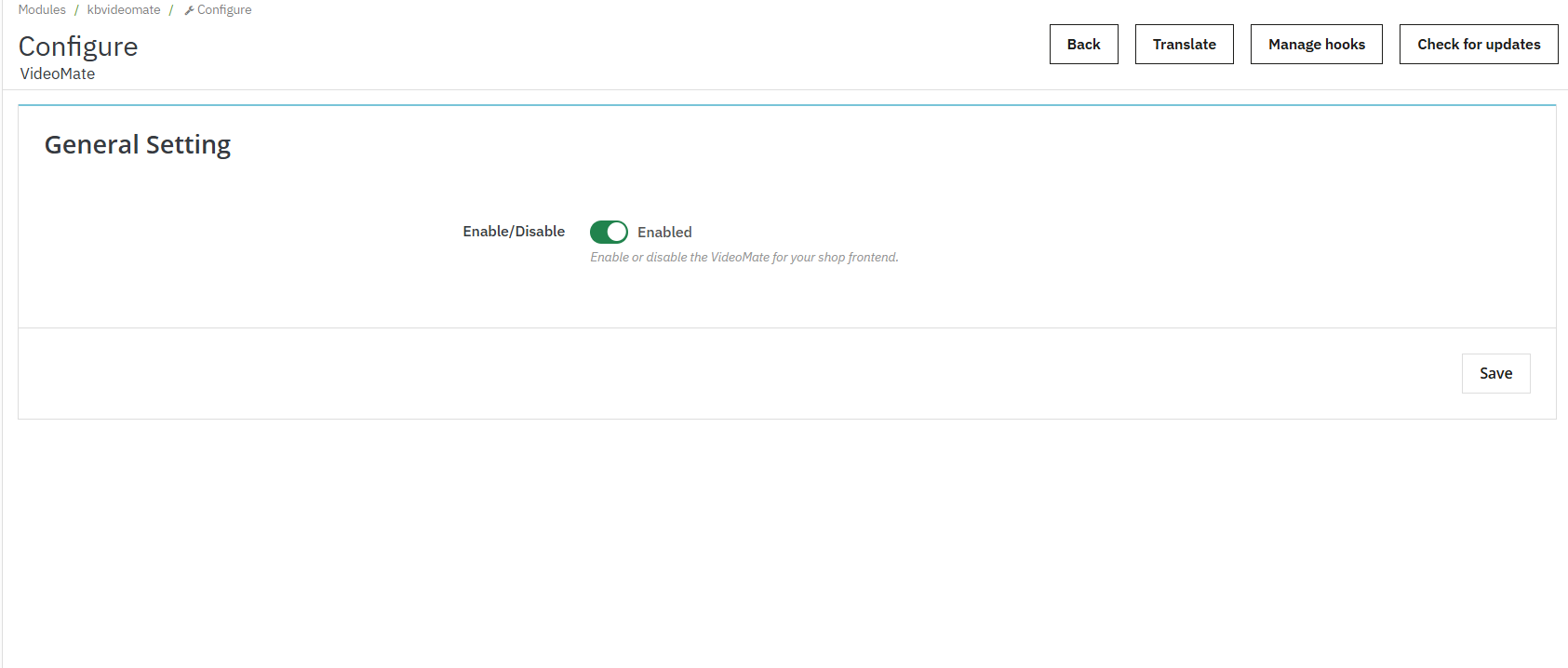
3.0.1 General Settings
Enable or disable the entire video widget functionality across your store with a single toggle. Additionally, this is useful for temporary deactivation without losing configurations.
3.0.2 Video Library Management
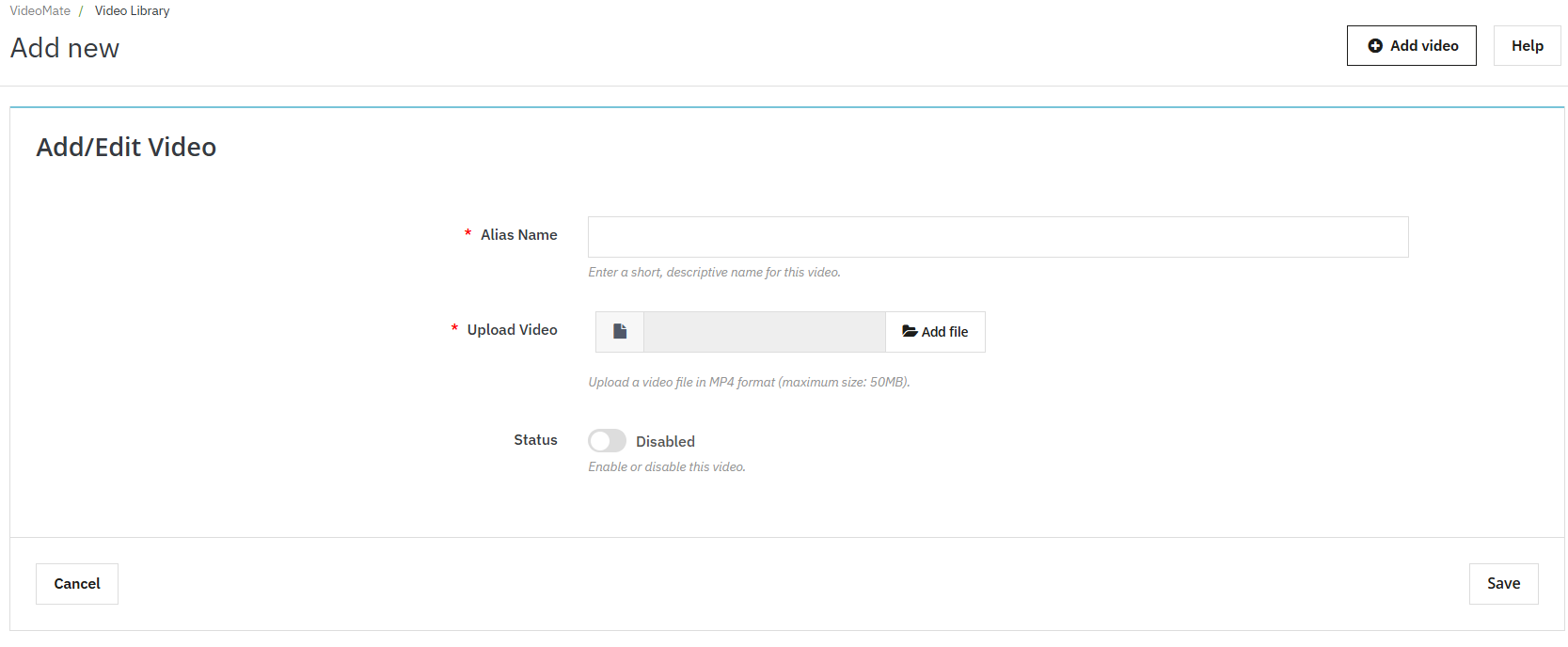
- Add New Video: Click “Add New” to upload MP4 videos (up to 50MB) to the library. This feature enables PrestaShop MP4 video integration.
- Alias Name: Assign a unique name to each video for easy identification and mapping.
- Upload Video: The Videomate allows the store owners to browse and upload mobile-friendly video files in MP4 format.
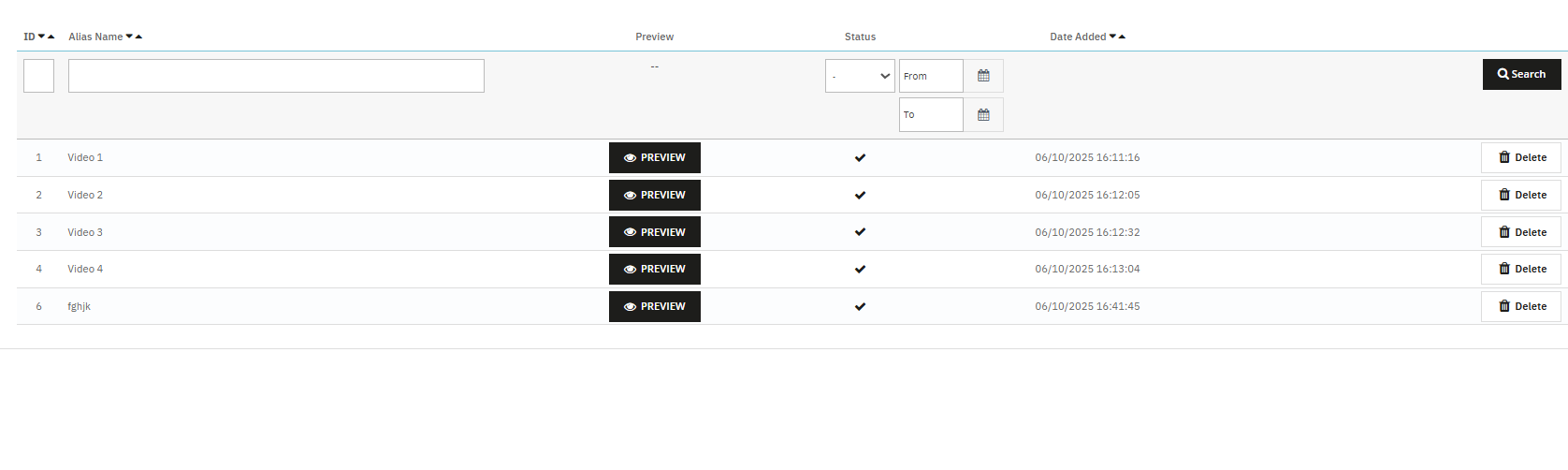
- Preview Option: Knowband’s VideoMate Prestashop Module allows store owners to preview before being mapped or published.
- Redirection URL: The store owners can now link their videos to product pages, category pages and custom page URLs using the Prestashop Video Manager Module
3.0.3 AI Video Generation in Prestashop Video Manager Module
[New] Enable AI Video Generation: Enable this option to start the AI-powered video generation functionality.
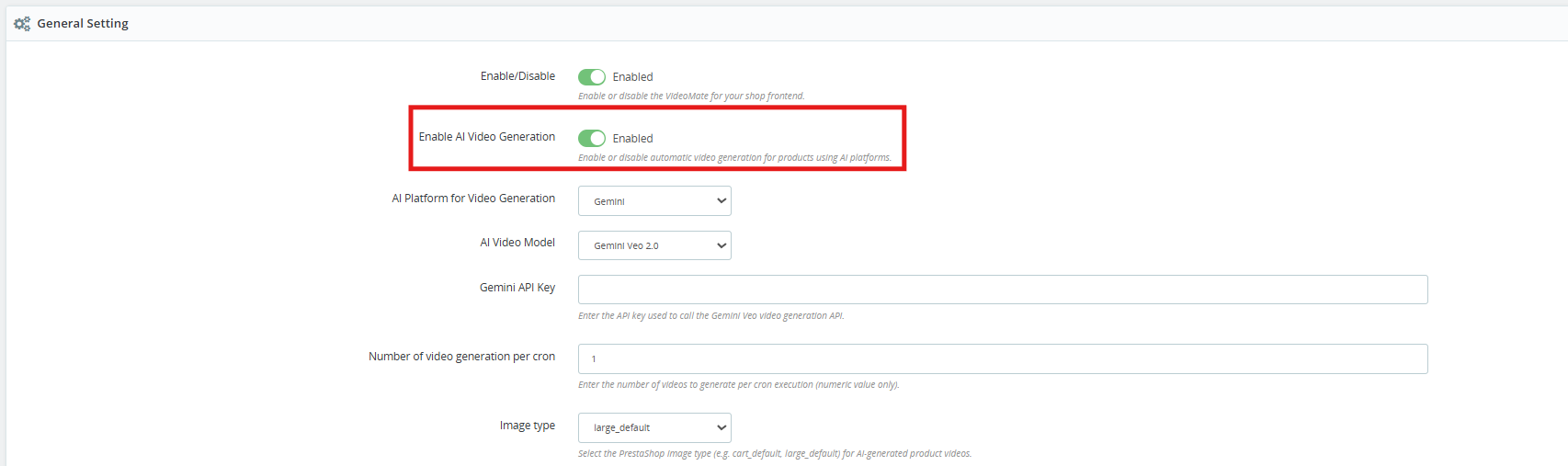
[New] AI Platform for Video Generation: Select either ChatGPT or Gemini as your generation platform. Both AI platforms work well and it really comes down to which fits your requirement and what you are willing to spend.
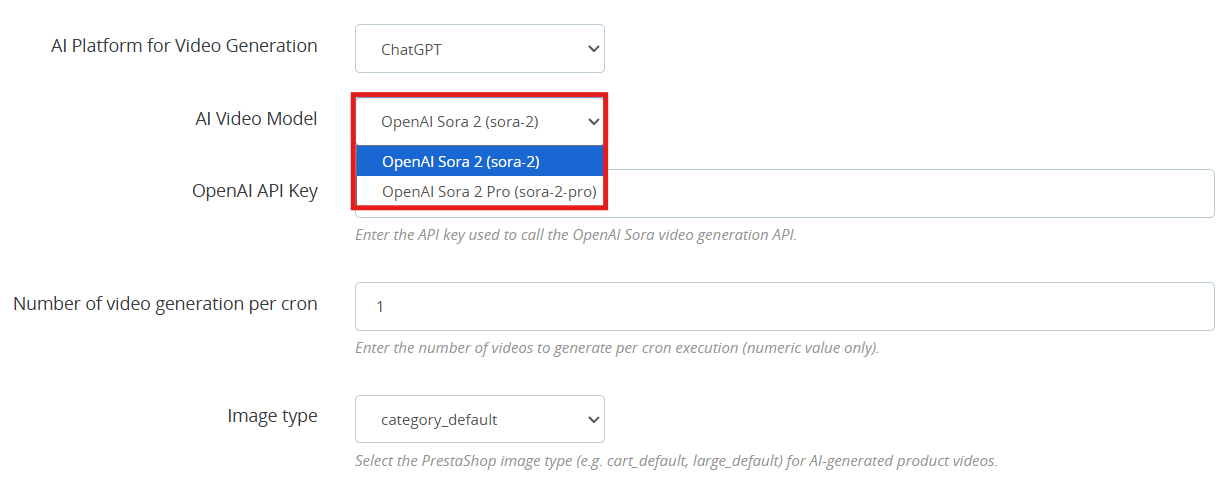
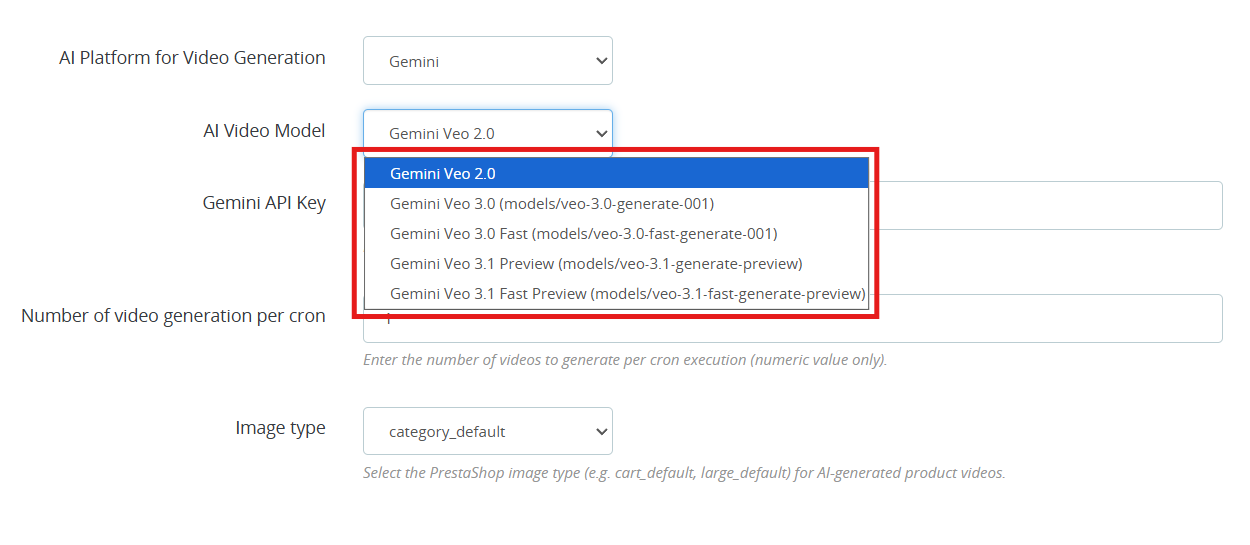
[New] AI Video Generation Models: VideoMate is one of the popular Prestashop AI Video Generation Module which is available right now. Whether you are going with the ChatGPT video generator or the Gemini video generation, you have clear options to work with.
ChatGPT Models (OpenAI)
- OpenAI Sora 2: This model turns text prompts into sharp, visually strong videos. A good all-around pick for PrestaShop AI product video generation.
- OpenAI Sora 2 Pro: this OpenAI ChatGPT model steps it up with finer detail, support for longer clips, and cleaner results on more complicated scenes. Worth it if your store needs polished, high-end AI-generated product videos.
Gemini Models (Google)
- Gemini Veo 2.0 Output in Veo 2.0 is consistent and predictable, which makes it a natural fit for PrestaShop Gemini video generation tasks.
- Gemini Veo 3.0 (models/veo-3.0-generate-001) Noticeably better motion handling and prompt accuracy over Veo 2.0. You can go here for PrestaShop marketing video generation or any product showcase.
- Gemini Veo 3.0 Fast (models/veo-3.0-fast-generate-001) is designed for throughput. If you are running bulk AI video generation in PrestaShop through cron jobs, this is the one to use.
- Gemini Veo 3.1 Preview (models/veo-3.1-generate-preview) handles more nuanced prompts better than previous versions.
- Gemini Veo 3.1 Fast Preview (models/veo-3.1-fast-generate-preview) Same generation quality as 3.1 Preview but tuned for speed. It is practical for high-volume PrestaShop product video automation where you cannot afford long wait times.
- OpenAI API Key: Paste your OpenAI key here to get PrestaShop ChatGPT video generation running. Steps are in section 3.4.
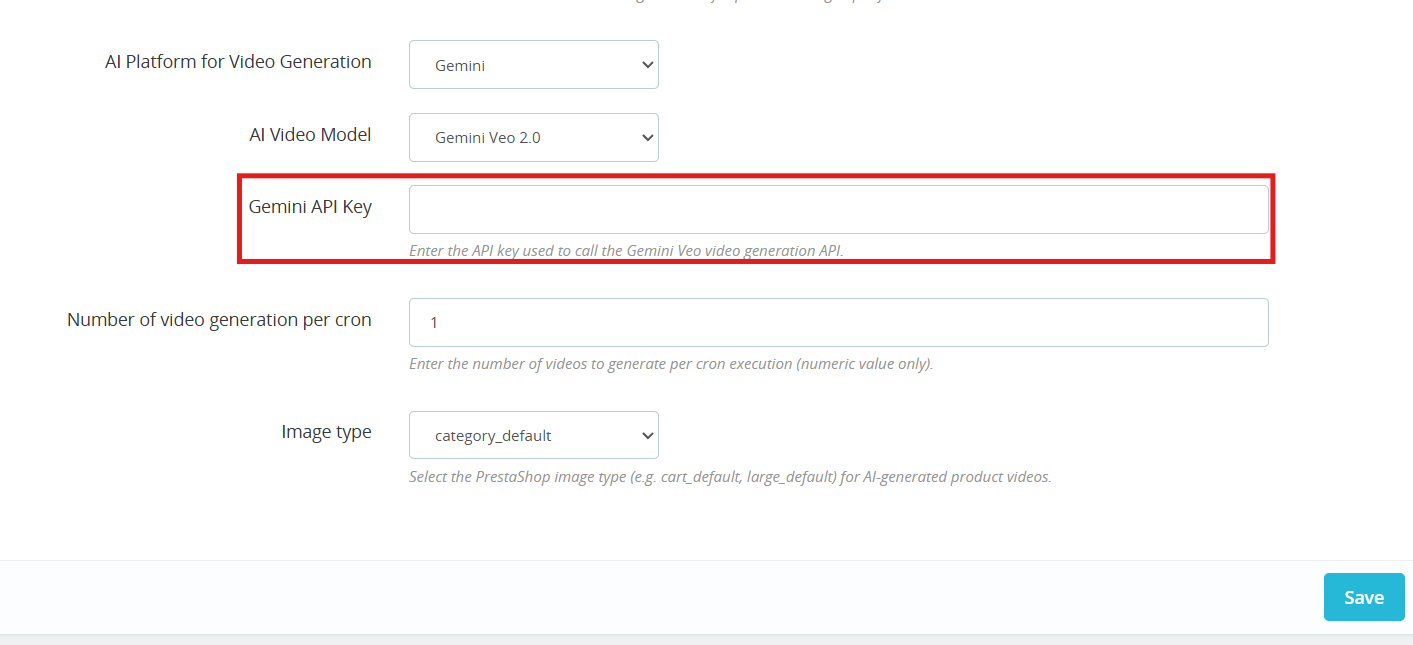
- Gemini API Key Add your Gemini key to switch on PrestaShop Gemini AI video generation. Steps are in section 3.5.
- Number of Videos per Cron Controls how many videos the PrestaShop AI Video Generation module queues up each time the cron runs.
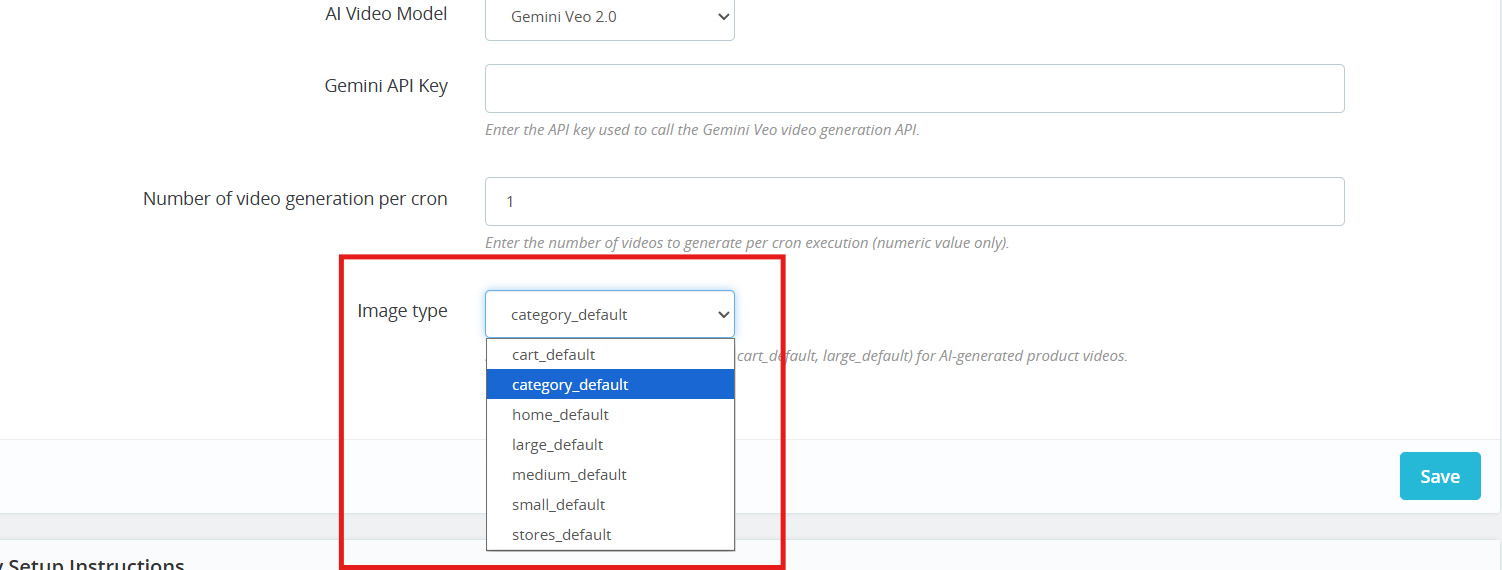
- Image Type: Choose which image size gets passed to the AI during PrestaShop AI video generation: cart, large, small, medium, stores, or category.
Cron URL: Run the cron URL provided in the General Configuration section to automatically generate videos using AI.

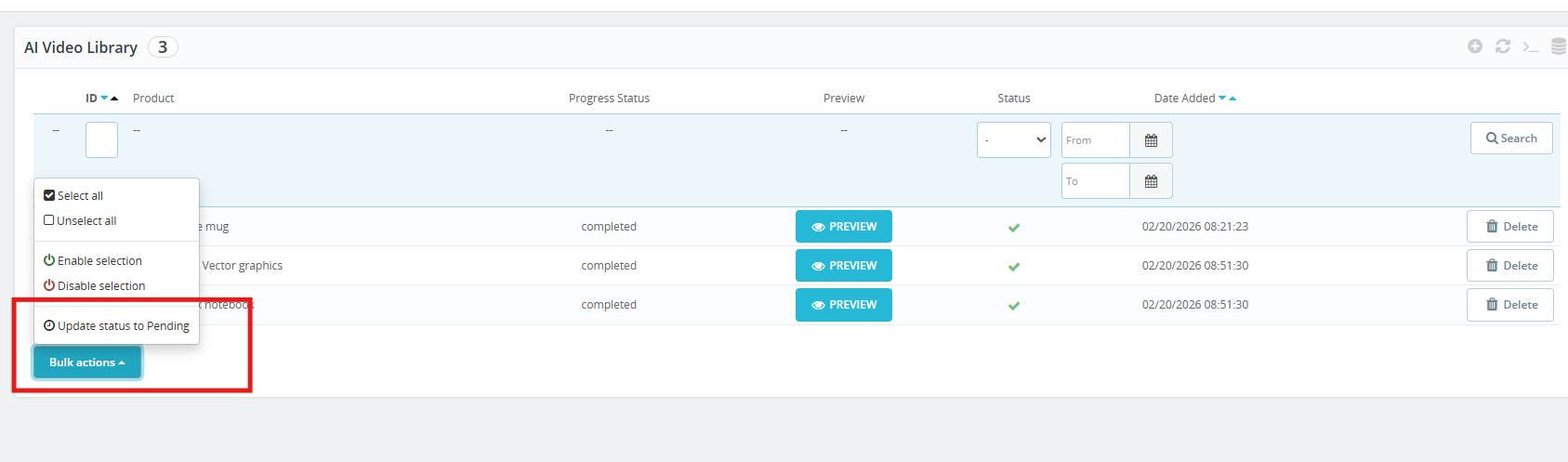
3.0.4 AI Video Library
This is where all your PrestaShop AI Video Library entries live, queued, paused, or active. Click + to set up a new one.
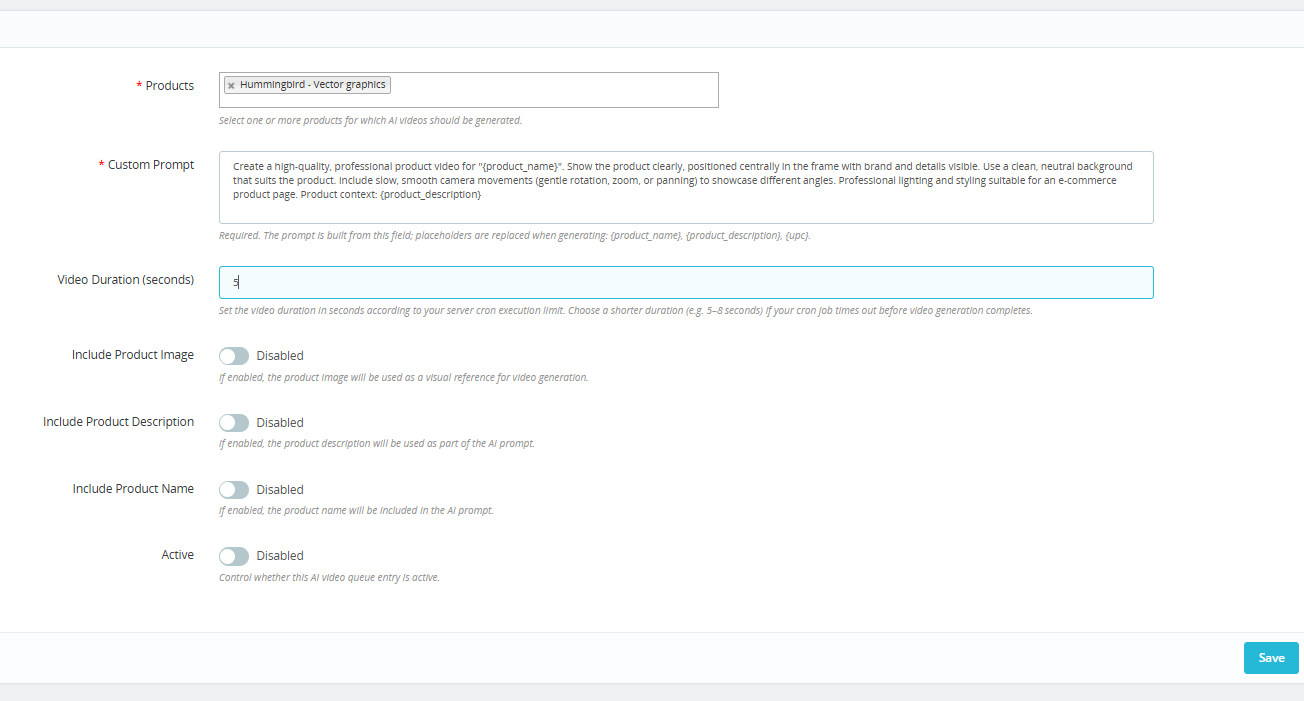
- Products: Choose the products you want to cover. The PrestaShop AI Video Generation module handles the rest, generating a video for each one through ChatGPT or Gemini.
- Custom Prompt: Type out what you want the AI to do. Add in {product_name}, {product_description}, or {upc} where needed. The module add these variable with live product data each time a video runs, which keeps your PrestaShop AI product video prompts scalable without extra manual work.
- Video Duration (seconds) Staying in the 5 to 8 second range helps you avoid cutoffs during automated PrestaShop video generation.
- Include Product Image: Allow the AI model to take your product photo as a reference so the output stays visually close to the real item. Helps the PrestaShop AI video generator stay on brand.
- Include Product Description Gives the AI more to work with. More context generally means more relevant AI-generated product videos in PrestaShop.
- Include Product Name Keeps the prompt tied to the right product so there is no mismatch in the final PrestaShop AI video output.
- Active: You can enable or disable the AI Generation settings for the product. If this is disabled, then products will not be added to the queue for video generation.
Generated AI Video Demonstration:

3.0.5 Video Widgets Configuration
The VideoMate PrestaShop Module exhibit the feature to place the dynamic video widgets across multiple pages.
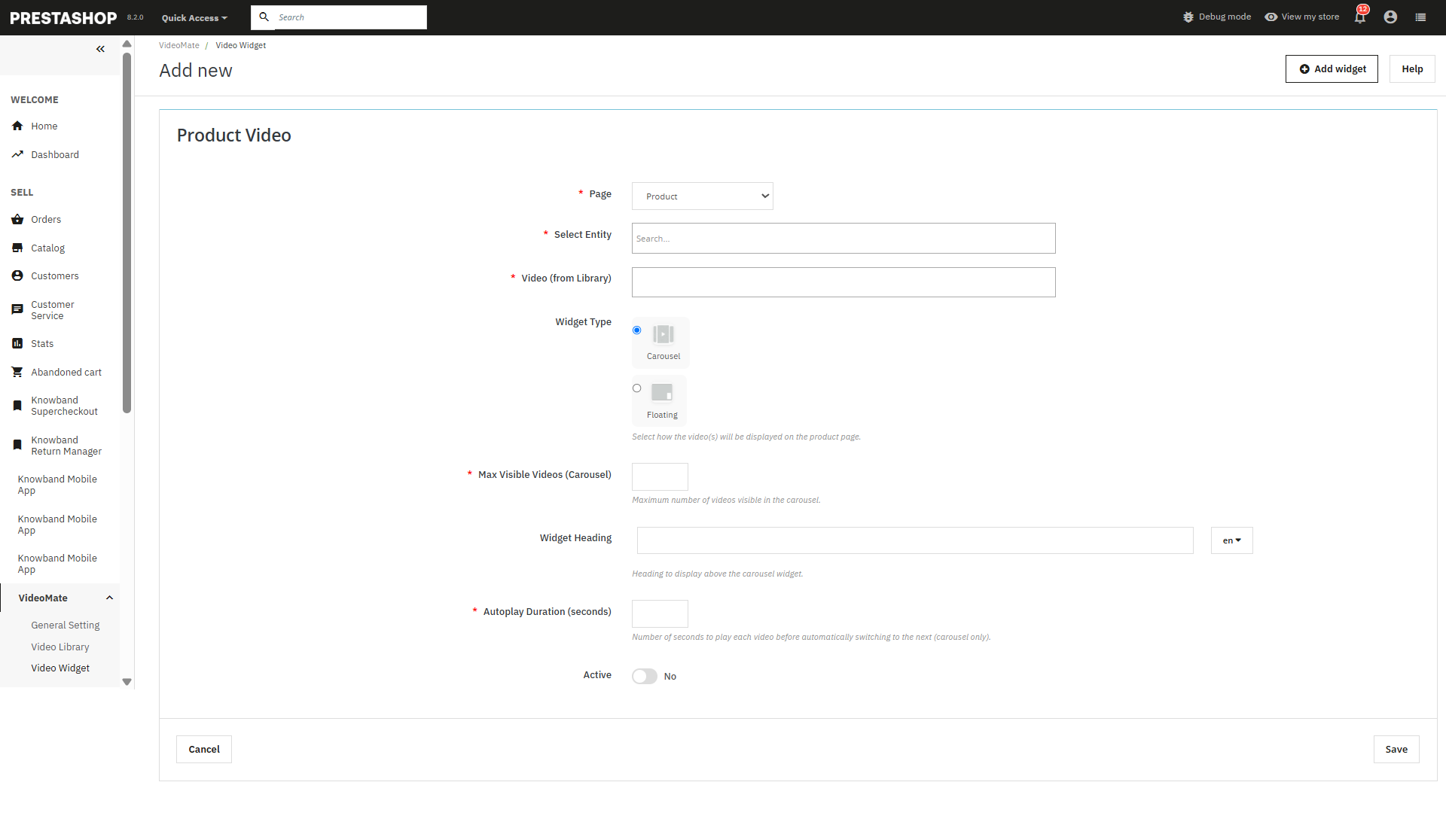
- Add New Widget: Click to create a new video widget for YouTube or MP4 videos.
- Page Selection: Choose where to display videos — Homepage, Product Page, Category Page, Best Seller, or New Product.
- Select Entity: Dynamically assign videos to specific products or categories.
- Video Selection: Select from videos already available in your media library.
- Widget Type: Select between:
- Carousel – For multiple videos in a slider format.
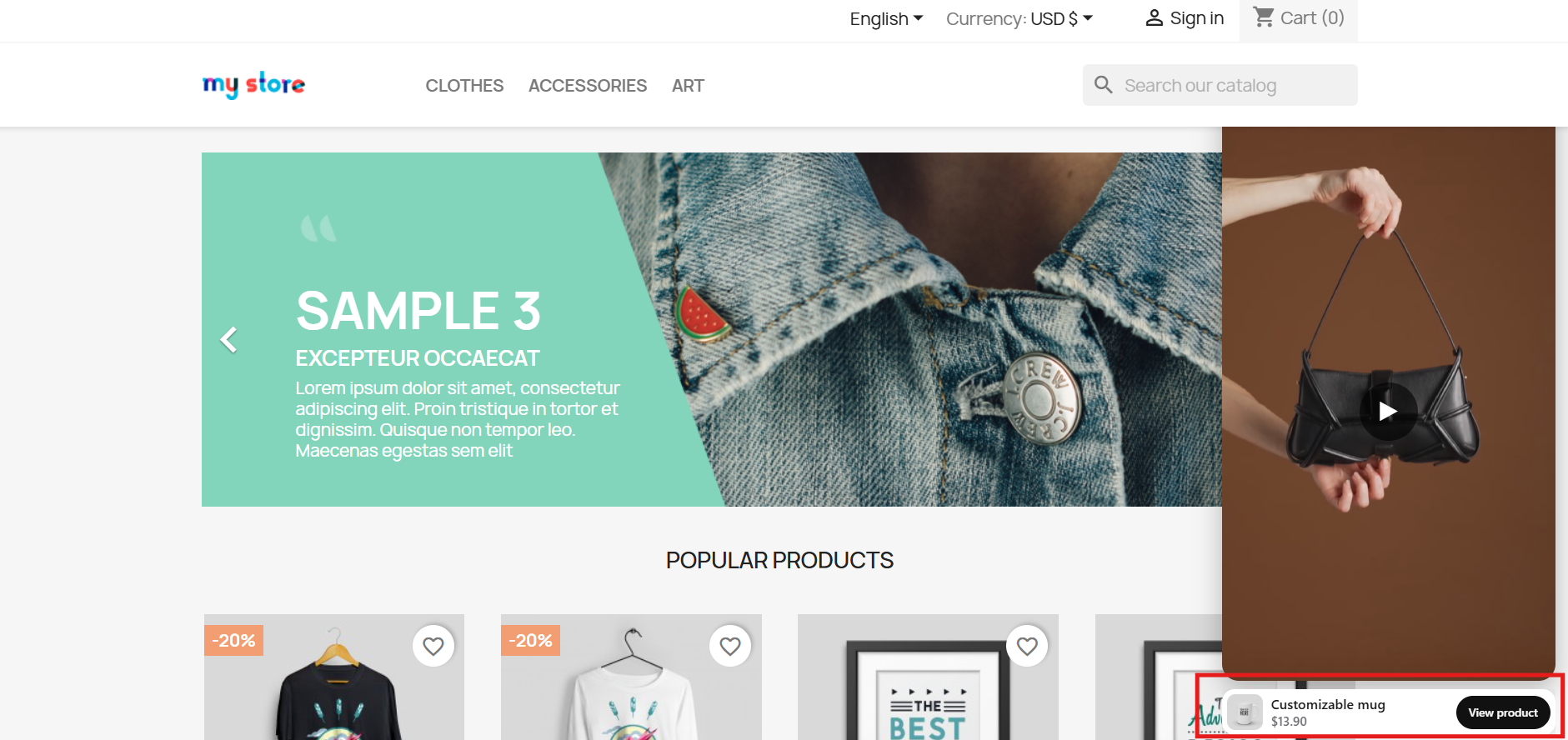
- Floating – Provides a movable video player positioned at the bottom-left or bottom-right of the screen.
- [New] Product Video: Store owners can now add videos to product pages using the new Product Video widget of the PrestaShop Video Manager. The added product videos will be displayed alongside product images on the product image section, allowing merchants to showcase product visuals more effectively.
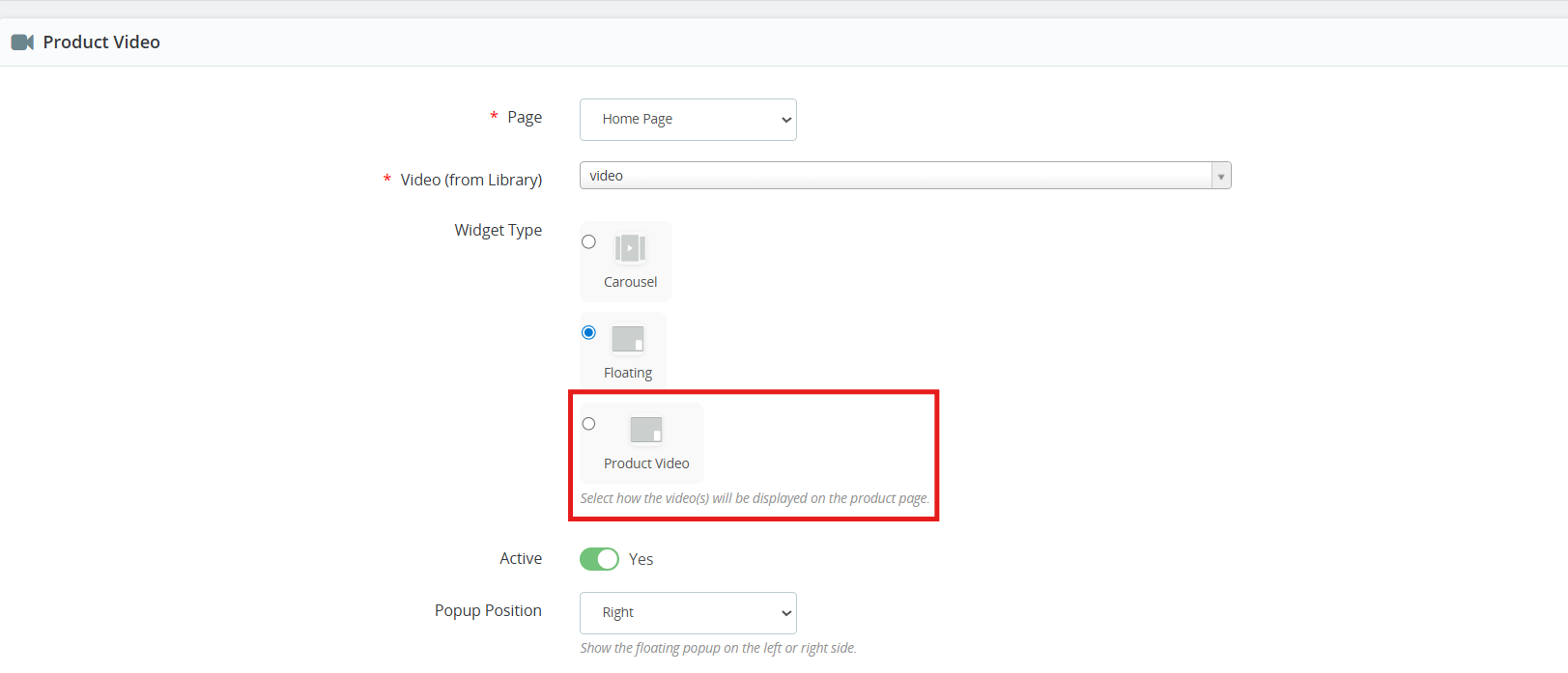
- Maximum Visible Videos: Prestashop video marketing module allows the store owners to define how many videos should be shown in a carousel (shows 5 in case of 5 maximum videos).
- Widget Heading: The Responsive video module for PrestaShop allows the module to optionally set a title above the widget to engage users.
- Autoplay Video: The Prestashop VideoMate Module allows the e-merchant to set the autoplay time in seconds for videos to begin automatically.
- Status (Active/Inactive): This feature of the PrestaShop floating video module enables or disables the status of the widget without deleting it.
Store owners can disable the widgets added in the video Widgets.
- Save: Click to save your configurations and apply the widget to your selected pages.
3.0.6 PrestaShop Video Dashboard
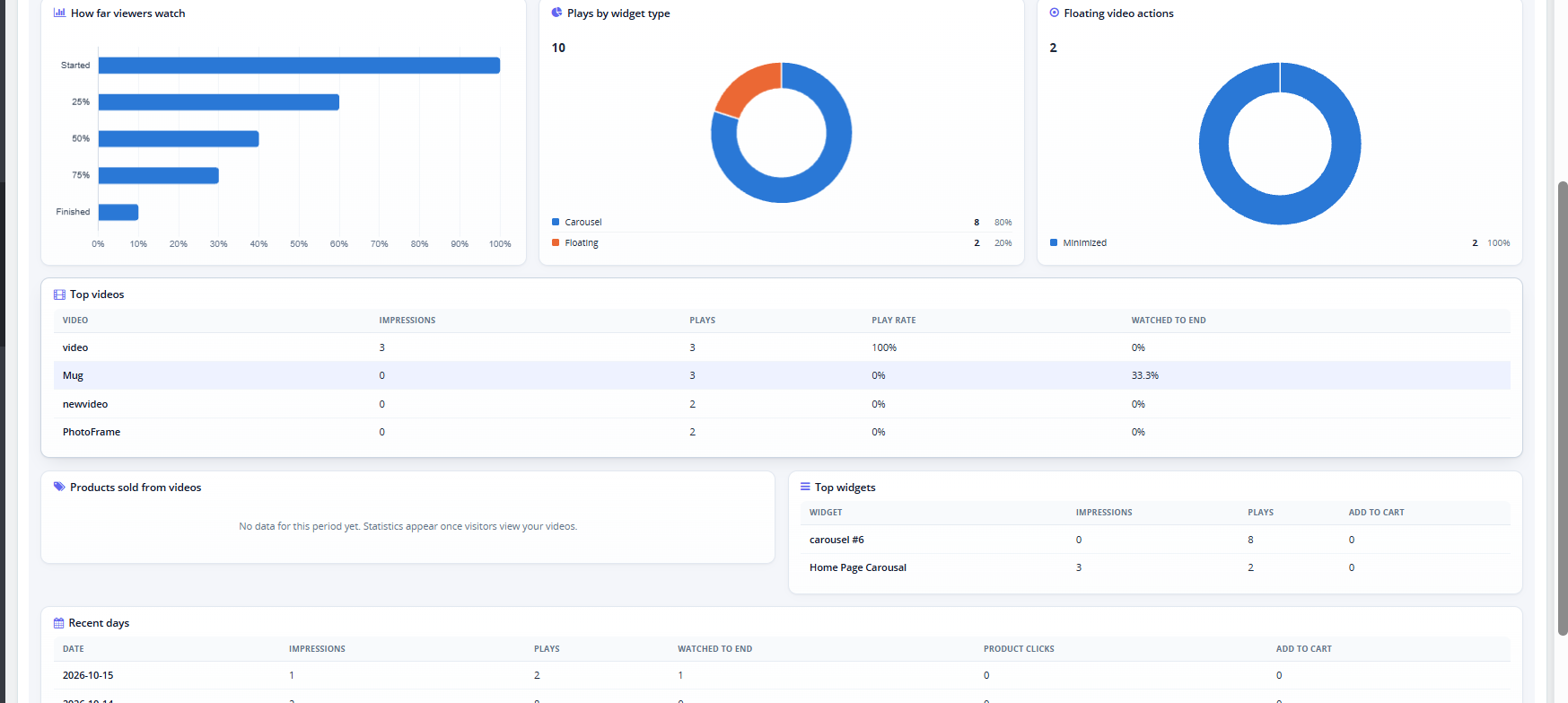
The Dashboard tab within the PrestaShop VideoMate plugin allows for tracking the way the customers watch your videos and which products they purchase through your videos. All your PrestaShop video statistics will be available to you in one place!
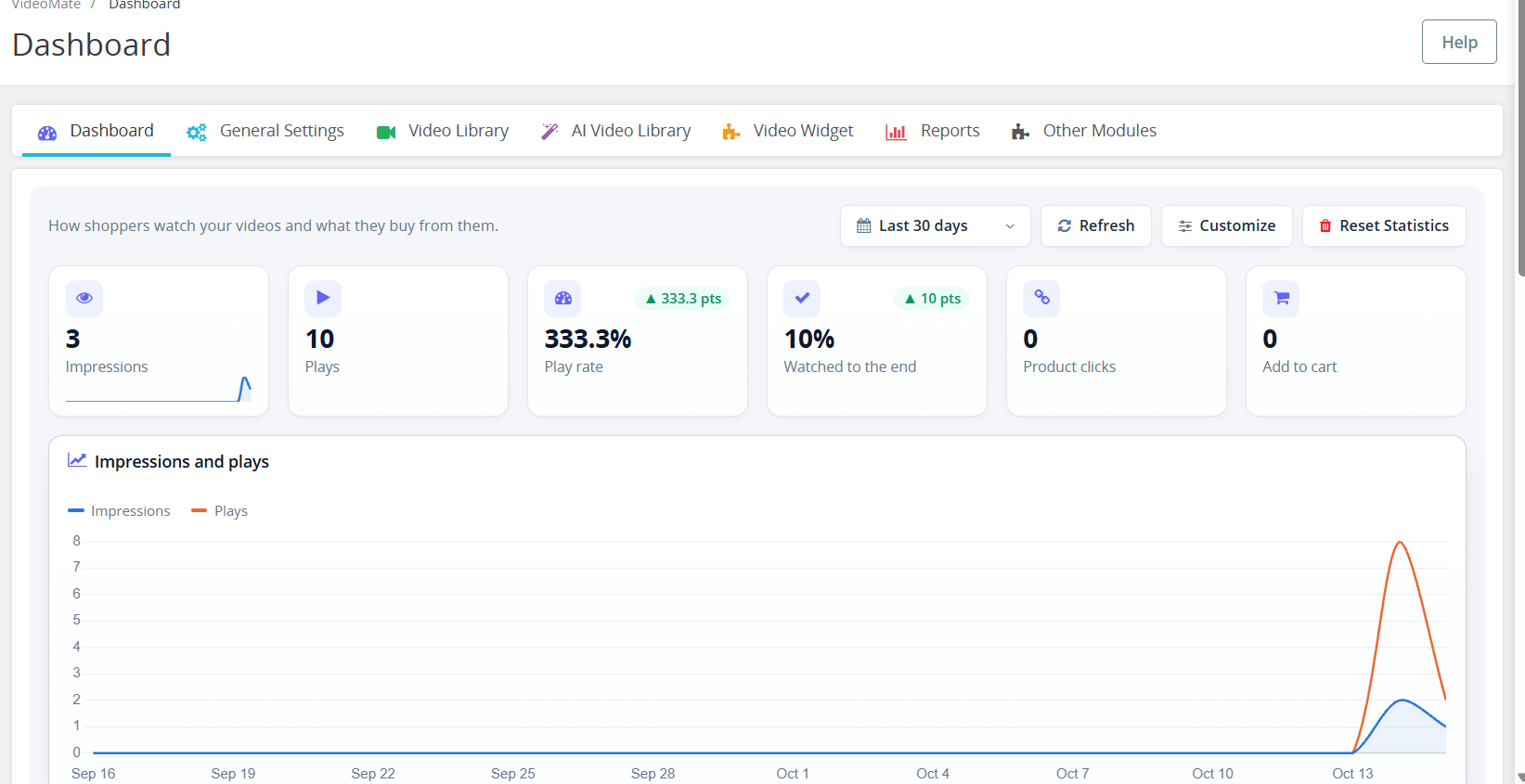
Period: choose the time period for all charts.
Refresh: refreshes the statistics.
Customize: Add, remove, and rearrange dashboard elements. Changes to the layout will be saved only to your admin profile.
Clear Statistics: permanently removes the collected statistics.
Cards: Impressions, Plays, Play rate, Watched to the end, Product clicks, and Add to cart.
Charts: Impressions and plays over time, how far viewers watch (Started, 25%, 50%, 75%, Finished), plays by widget type, and floating video actions.
Tables: Top videos, Products sold from videos, Top widgets, and Recent days.
3.0.7 YouTube and Vimeo Videos in PrestaShop

This YouTube Vimeo PrestaShop module lets you add videos by link. In Video Library, the Video Source field now includes YouTube and Vimeo. Select one, paste the video link, and the module builds the embed automatically.
3.0.8 PrestaShop Video Cover Image (Poster)
The Poster Upload field sets the PrestaShop video cover image shown before the video plays. It accepts JPG, PNG, or WebP files up to 3 MB, at least 16×16 px. For YouTube and Vimeo videos the cover is fetched automatically, and you can upload your own to replace it.
3.0.9PrestaShop Shoppable Video
You can turn any video into a PrestaShop shoppable video by attaching products to it.
- Shoppable Products: start typing a product name and select it from the list. You can attach up to 100 products to one video.
- Bulk Add Products: paste product IDs or references, separated by commas or new lines, to add up to 1000 at once.
On the storefront, each attached product appears as a card with the image, name, price, and an Add to cart button. This PrestaShop video add to cart option lets customers buy without leaving the video. After a product is added, a View cart button appears. If a product has options, the card links to its product page instead.
3.1.0 PrestaShop Video Reports
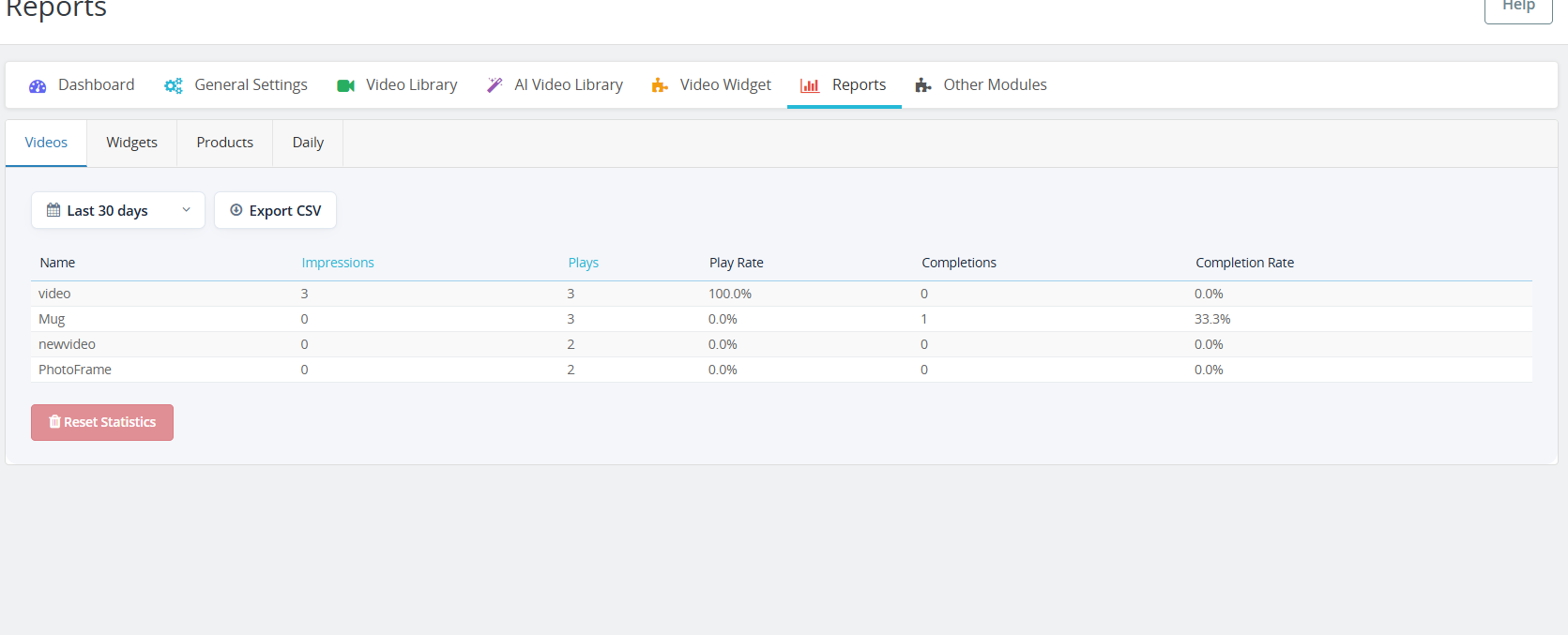
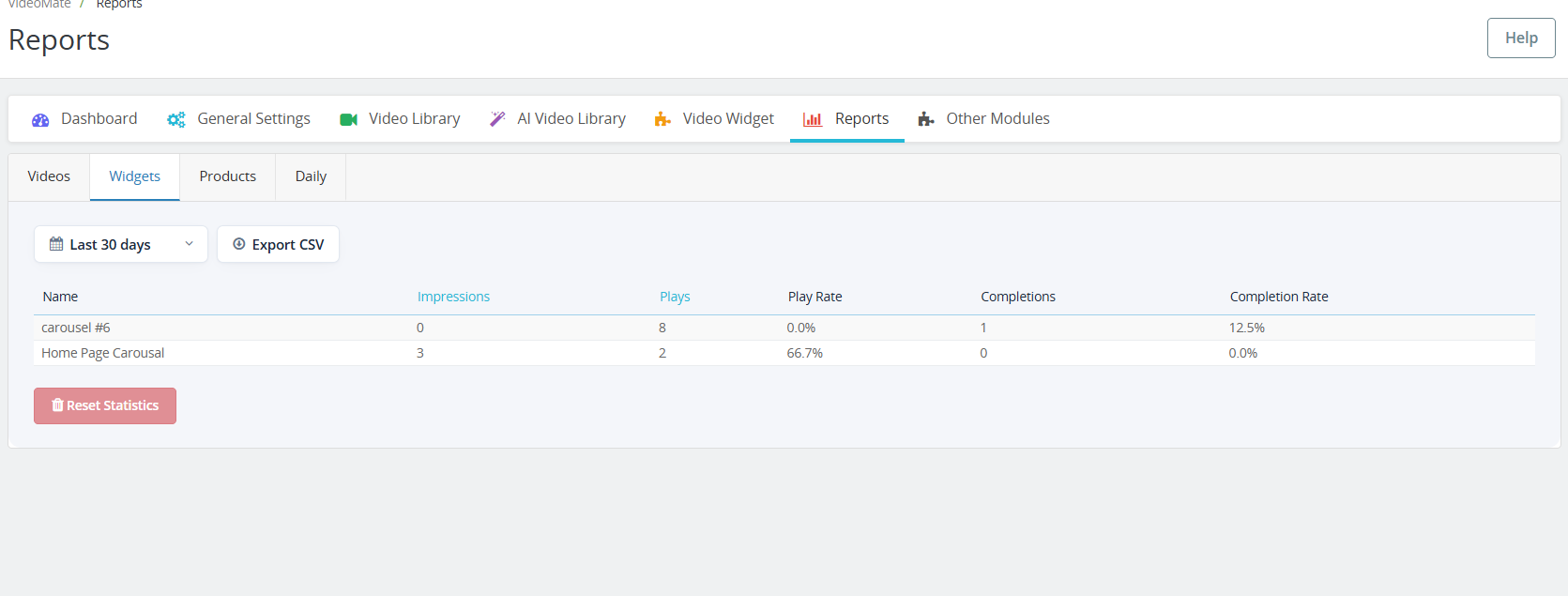
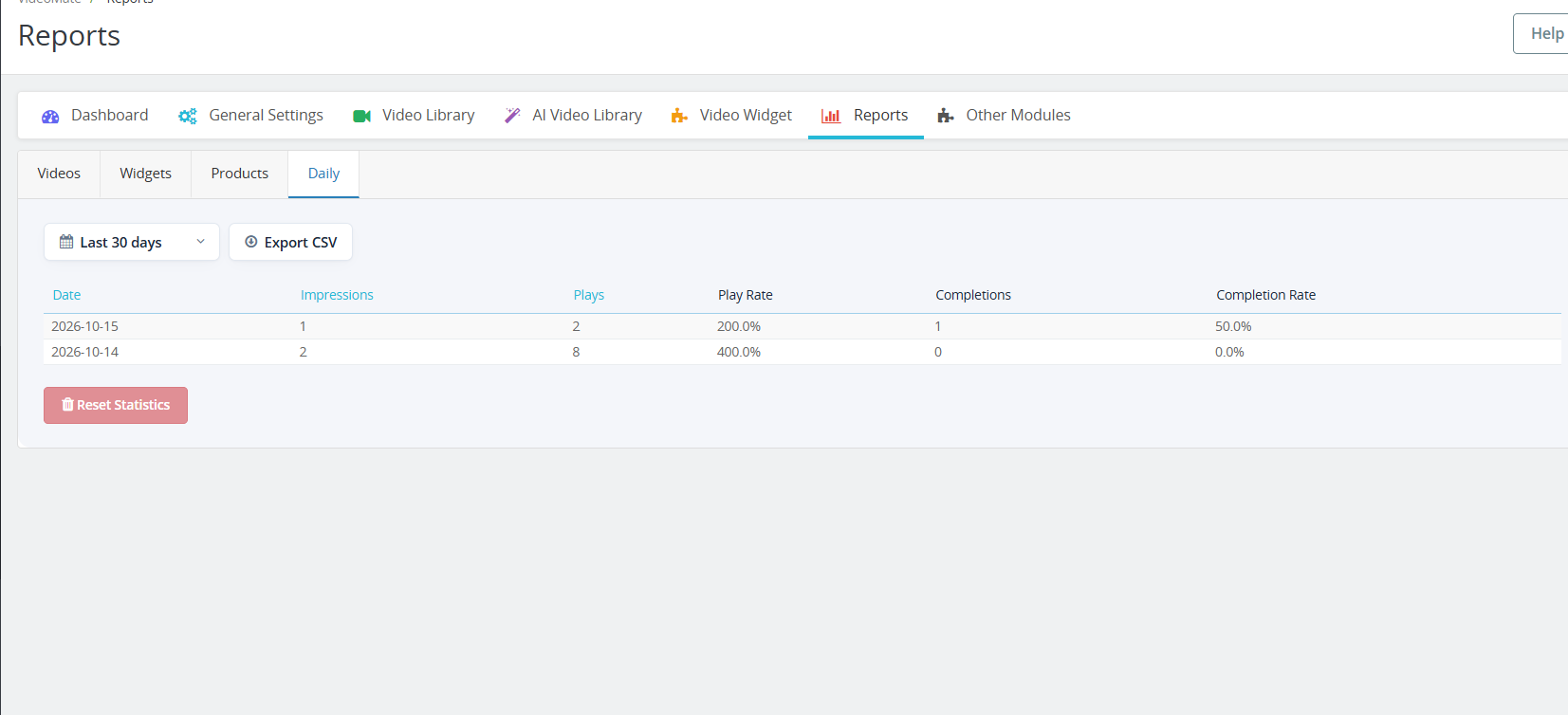
The new Reports tab has four sub-tabs: Videos, Widgets, Products, and Daily. Each one shows impressions, plays, play rate, completions, and completion rate.
- Choose a period to filter the data.
- Click Impressions or Plays to sort the table.
- Click Export CSV to download the table. PrestaShop video reports can then be opened in Excel or Google Sheets.
- Click Reset Statistics to clear the recorded data.
4.0 Benefits of PrestaShop VideoMate Module
Boosts Product Engagement
Videos provide a richer shopping experience, helping customers understand product features better and reducing purchase hesitation.
Improves Conversion Rates
Significantly, customers are more likely to convert when they see video demos or tutorials, making VideoMate a powerful PrestaShop product video module for increasing sales.
Flexible Video Placement
Add videos across product pages, category pages, homepage, Best Seller, and New Product pages – ensuring visibility where it matters most.
Multiple Display Options
Choose from the carousel, floating, or single video widgets for a dynamic and responsive presentation tailored to your design.
Supports A & YouTube Links
Furthermore, seamlessly upload MP4 videos (up to 50MB) or trending social media videos, enabling full PrestaShop video integration.
Mobile-Responsive Design
All video widgets are fully responsive, ensuring smooth performance across desktop, tablet, and mobile devices.
Tutorial: Watch the Video Guide
To help you set up and use the PrestaShop VideoMate Module, we have created a comprehensive YouTube tutorial. This step-by-step video guide walks you through the installation process, configuration options, and how to effectively add and manage video content on your store.

If you experience any difficulties during installation or when using the Prestashop VideoMate Extension, our support team is ready to assist you. Reach out to us through email at support@knowband.com or by submitting a ticket at knowband.com/helpdesk for prompt assistance with any technical issues or questions you may have.