
Knowband PrestaShop Point of Sale Module is an all-in-one PrestaShop Multiple Store POS module that is specially designed for merchants who have one or multiple physical stores in addition to their online store. The Knowband PrestaShop POS module comes in handy for such merchants as it integrates functionalities like store-level sales, stock management, and employee management directly into their PrestaShop back-end, making it a viable PrestaShop POS Module Alternative to other POS systems.
The module is built around Multi-Outlet POS approach. Every physical location, which is called an outlet in admin terms, is configurable on its own using its own unique address, currency, language, and sales regulations, but all outlets will still work under one single PrestaShop website. Thus, the Prestashop Point of sale Addon is appropriate for Multi-Outlet Retail business models including but not limited to boutique chains, franchise counters, pop-ups, and warehouses with retail activity in addition.
Knowband Point of Sale is not a payment method in itself. It records POS sales through its own internal order flow and always uses a fixed internal payment method for POS transactions; the order status applied once a sale is paid is configurable in Settings, and shipping, discounts, and commission are layered on top of that flow.
1.1 What the module includes
The Prestashop Point of Sale Module includes functionalities like dashboard, multi-outlet creation, commission tracking, inventory sync and many more.
- Sales dashboard module for PrestaShop: a customizable, draggable widget grid for reviewing outlet performance, oversold orders, and sales trends
- Outlet management: creating, editing, and activating individual outlets, each with its own address, currency, language, and override rules
- PrestaShop sales agent management: assigning PrestaShop employees to outlets as cashiers, and flagging specific employees as POS managers
- Commission tracking: recording salesperson commission per sale, with reporting broken down by employee and outlet
- POS Customer Management for PrestaShop: Searching, creating and configuring guest check-out behavior based on outlet
- PrestaShop Barcode Scanner Module: Matching the barcodes entered through the scanner with a user configurable barcode field such as EAN13, UPC, ISBN, MPN, and Reference
- Inventory Synchronization for PrestaShop: Maintaining the correct stock visibility while assigning, selling and returning products in various outlets
- Offline order module for PrestaShop: queuing sales when the connection drops and syncing them automatically once connectivity returns, using idempotency keys to prevent duplicate orders
- PrestaShop POS with receipt printing: generating printed receipts through standard browser-based HTML printing, with configurable discount line display
- Return and refund POS trail: order-level visibility into paid amounts, order status, and oversold flags so that returns and refunds can be traced back to the original outlet and salesperson
- PWA-style panel access: a public POS panel URL, optionally customised, that can be opened in a browser tab or installed as an app-like shortcut on a desktop device
2.0 Requirements and Compatibility for Prestashop Point Of Sale Addon
2.1 PrestaShop compatibility
The module is compatible for Prestashop 1.7, Prestashop 8.x. and Prestashop 9. x.x. Store owners can use it feel free, in case if you face any issue, our team is always available at supprot@knowband.com
2.2 Module dependencies
The Multi-Outlet POS system creates and relies on its own database tables for outlets, product-to-outlet assignment, stock allocation, discount logs, offline order queues, and commission records, in addition to standard PrestaShop tables for employees, customers, carriers, and orders.
2.3 Required permissions
The administrator installing or configuring the module needs valid PrestaShop back-office access with rights to manage modules, products, carriers, customers, employees, and orders. Outlet management in particular touches products and carriers directly, so an store adins without those permissions will not be able to complete outlet setup.
3.0 Installation and Activation of Prestashop Multi Outlet POS System
3.1 Installing the module
Install Knowband PrestaShop Point of Sale from the PrestaShop module list in the back office, the same way any standard PrestaShop module is installed.
- Navigate to Module Manager > Modules
- Click on the Upload option and upload Knowband Prestashop Point of Sale
- After installation, click on configure, this will redirect you to the configuration module.
3.2 Activation
Installing the module is not the same as activating it for live sales. Enable the module from the Enable POS module Tab.
4.0 Module Tabs Structure in POS
After installation, you will see the module Knowband Prestashop Point of Sale under the PrestaShop SELL menu.
- Dashboard
- Settings
- Outlets
- Employees
- Orders
- Reports
- Receipt Settings
- Other Modules
5.0 Admin Panel Module Configuration in Prestashop POS System
5.1 Dashboard
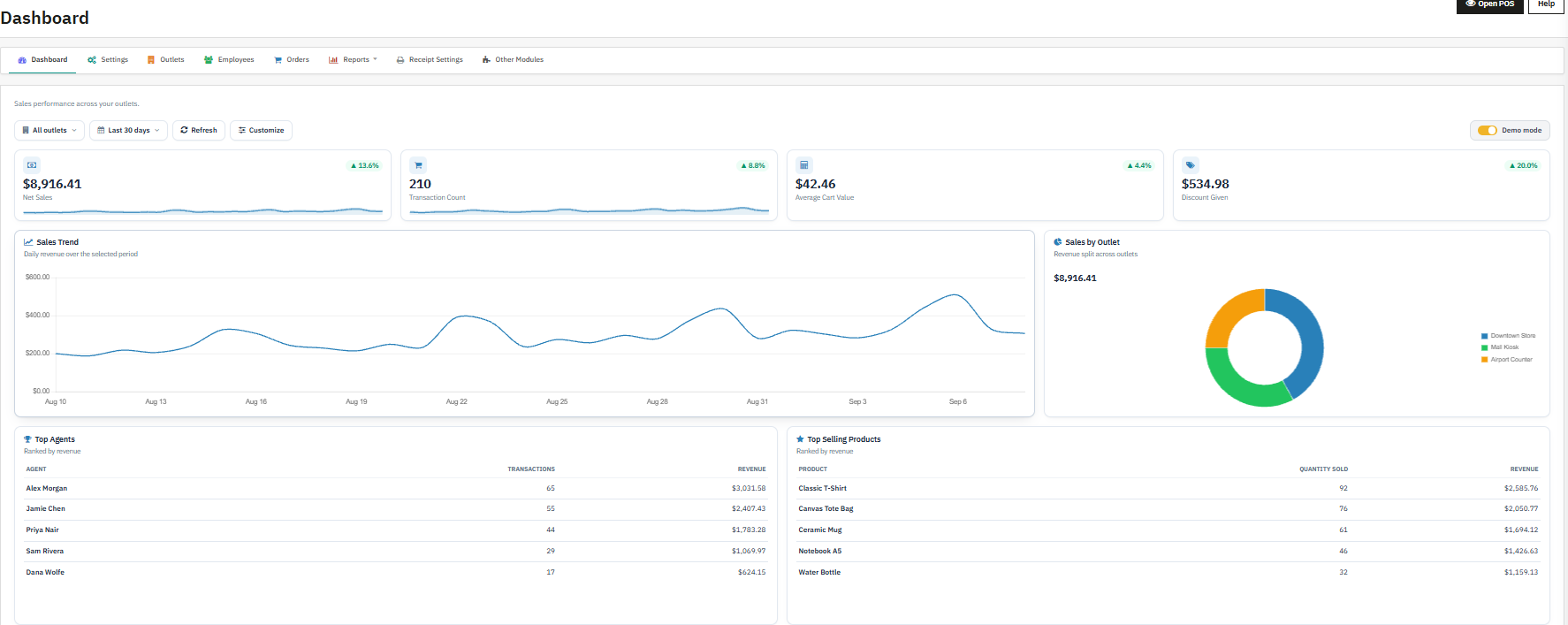
The Dashboard is the landing page of the sales dashboard module for PrestaShop and gives the administrator an outlet-scoped overview of POS activity as soon as they open the Knowband Prestashop Point Of Sale menu.
5.1.1 Purpose
- Review recent sales activity and trends across outlets.
- Check individual outlet performance.
- See oversold order counts, which relate directly to inventory sync accuracy.
- Open the POS panel quickly from a single screen.
- Customise the widget layout to match how the store owner or manager wants to review data.
5.1.2 Fields and controls
- Outlet selector: switches the dashboard view to a specific outlet or to all accessible outlets, central to multi-outlet management
- Period selector: changes the reporting period used by the dashboard widgets
- Widget customise controls: allow enabling, rearranging, and saving the widget layout
- Oversold orders quick link: opens the Orders screen filtered to orders flagged as oversold
5.1.3 Buttons and actions
- Open POS: opens the POS panel in a new browser tab
- Reset dashboard layout: returns the widget arrangement to the default layout
- Demo mode toggle: switches the dashboard to a demo dataset instead of live data, useful for screenshots or training
5.1.4 Important behavior
- Widget data loads through AJAX rather than a full page reload.
- Dashboard content is always outlet-specific once an outlet is selected.
- The widget layout and demo mode setting are saved per shop, so multi-shop PrestaShop installs keep separate dashboard preferences.
5.2 General Settings
Settings is the main configuration area for the module’s behaviour and is organised into five sub-tabs: General, Product, Customer, Payment, and Shipping.
5.2.1 General
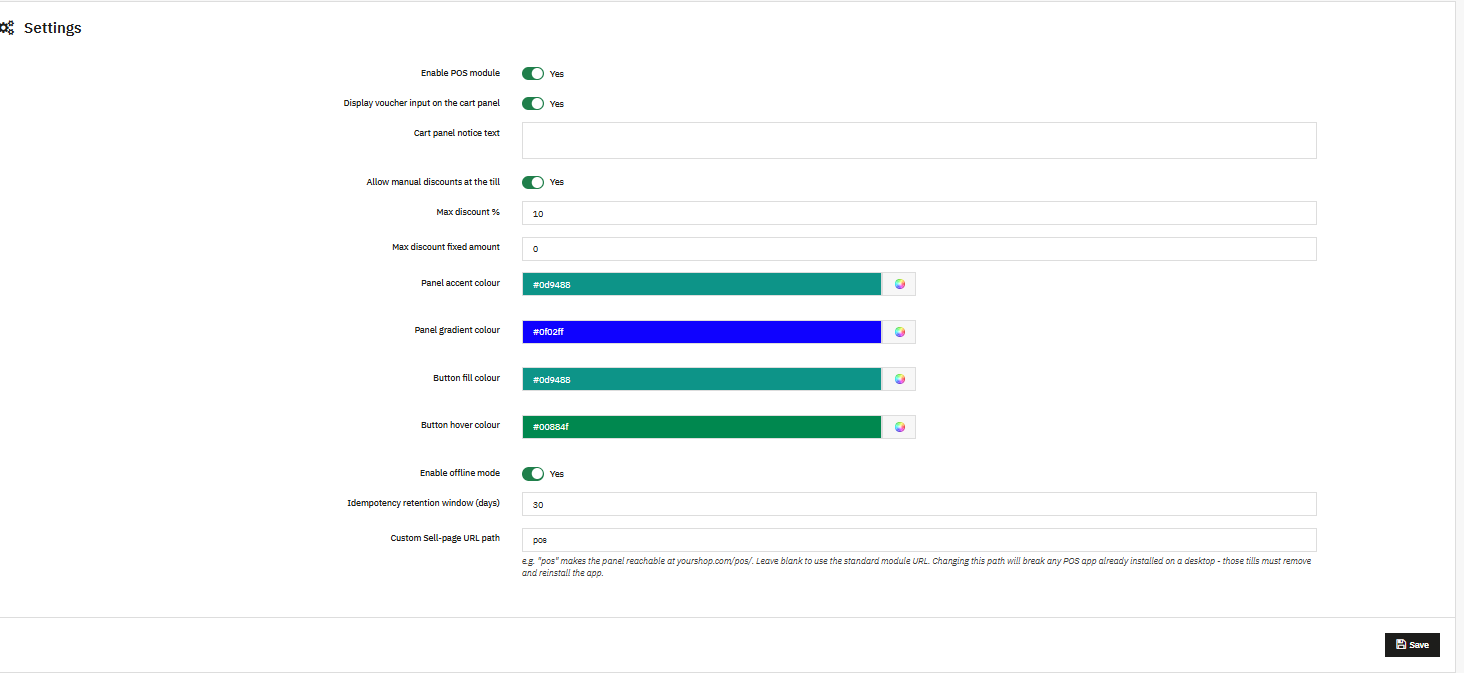
It controls the core operational behaviour of the PrestaShop POS module: whether it is active, how discounts and offline mode work, panel colours, and the public panel URL.
- Enable POS module: turns the entire module on or off; when disabled, the POS panel becomes unavailable
- Display voucher input on the cart panel: shows or hides the voucher field in the POS cart
- Cart panel notice text: optional message shown above the POS cart
- Allow manual discounts at the till: enables cashier discounting
- Max discount %: maximum manual discount percentage a cashier may apply
- Max discount fixed amount: maximum fixed discount amount a cashier may apply
- Panel accent colour: main colour used by the POS interface
- Panel gradient colour: secondary colour for the POS background gradient
- Button fill colour: main colour for action buttons in the POS panel
- Button hover colour: button hover state colour
- Enable offline mode: activates the offline order module for PrestaShop, allowing sales to be queued while connectivity is lost and synced automatically once it returns
- Idempotency retention window (days): number of days to retain de-duplication keys for offline sales, preventing the same offline sale from being recorded twice
- Custom Sell-page URL path: This option allows the POS panel use a custom public URL path, such as /pos/, and supports PWA-style shortcut installation
Note: Changing the custom panel path can break already-installed desktop app shortcuts, because an installed shortcut points to the URL it was created with.
5.2.2 Product
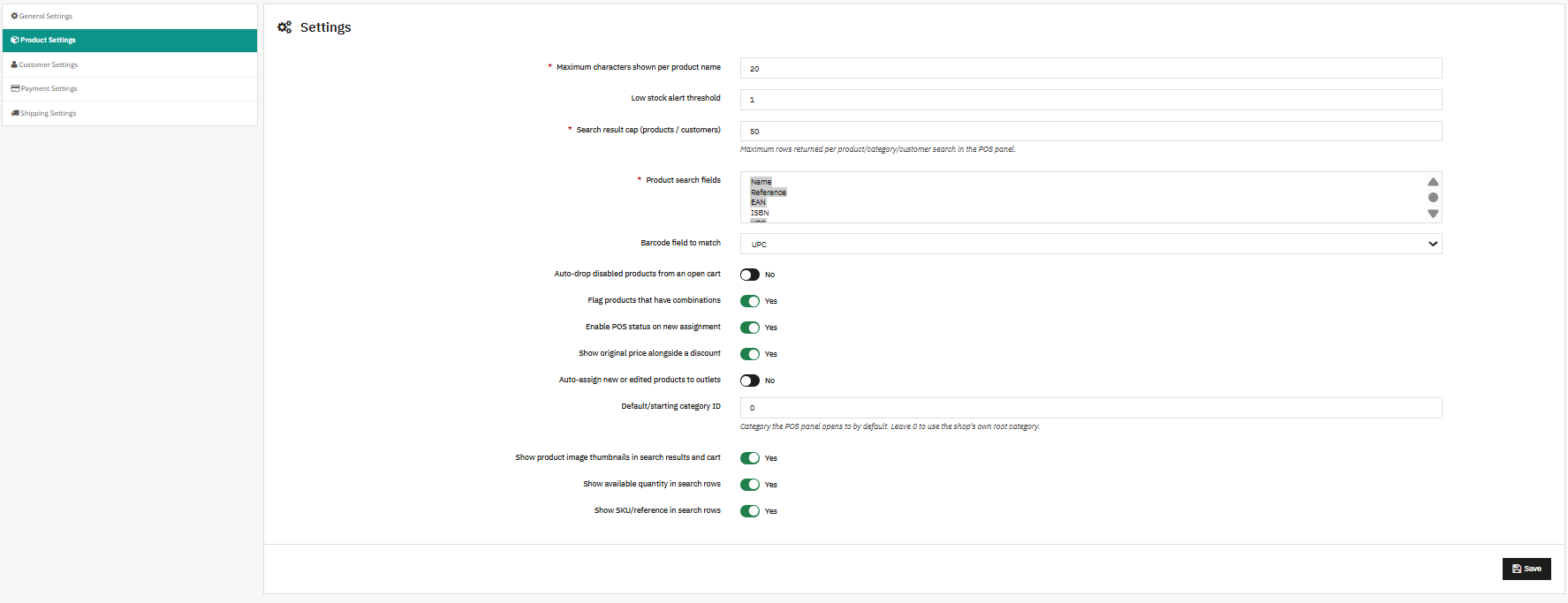
Controls how products are searched, displayed, assigned, and managed in the POS, and is the main configuration point for both the barcode scanner module for PrestaShop and the inventory sync module for PrestaShop.
- Maximum characters shown per product name: truncates long product names in the POS interface
- Low stock alert threshold: flags low stock when allocated stock falls to or below the chosen value
- Search result cap (products / customers): maximum number of rows returned in product or customer searches
- Product search fields: selects which product fields are text-matched in POS search, from Name, Reference, EAN, ISBN, UPC, MPN, and Tags
- Barcode field to match: selects which barcode field the barcode scanner module for PrestaShop uses when scanning or typing a code, from EAN13, UPC, ISBN, MPN, and Reference
- Auto-drop disabled products from an open cart: removes disabled or de-assigned products from an open cart automatically
- Flag products that have combinations: marks products with variants so the cashier knows a choice is required before completing the line
- Enable POS status on new assignment: makes newly assigned products immediately available for POS sale
- Show original price alongside a discount: displays both original and discounted pricing for price-reduced products
- Auto-assign new or edited products to outlets: automatically assigns products to active outlets, supporting the inventory sync module for PrestaShop
- Default/starting category ID: category the POS panel opens to by default; set to 0 to use the shop root category
- Show product image thumbnails in search results and cart: displays small product images
- Show available quantity in search rows: displays outlet stock in product search results
- Show SKU/reference in search rows: shows product reference text under the product name
5.2.3 Customer

Handles the global portion of PrestaShop POS customer management. Most customer-related configuration now lives at the outlet level rather than here.
- Let cashiers pick customer groups on creation: shows a customer group selection box when a cashier creates a customer from the panel
5.2.4 Payment

Controls the payment status applied to POS sales and the salesperson commission rules that drive commission tracking.
- How POS sales are paid: a display-only field explaining that all POS sales use one fixed internal payment method
- Status applied once paid: the order status assigned once a sale is marked paid
- Enable salesperson commission tracking: turns commission calculation on or off for commission tracking
- Commission rate (% of order total): percentage of each sale total used for salesperson commission
5.2.5 Shipping

Controls shipping behaviour for POS orders, including which carriers a cashier can offer.
- Allow shipping a POS sale to the customer: enables shipping at the POS
- Carriers available at the till: multi-select list of all carriers a cashier may choose from
- Pre-selected carrier: default carrier chosen when a cashier enters shipping mode
5.3 How to add Multi Outlets in Prestashop Point of Sale
Outlets are the core of Multi-Outlet Retail configuration. This section covers the outlet listing, the add and edit outlet form, and the outlet products panel used for inventory sync.
5.3.1 Outlets listing
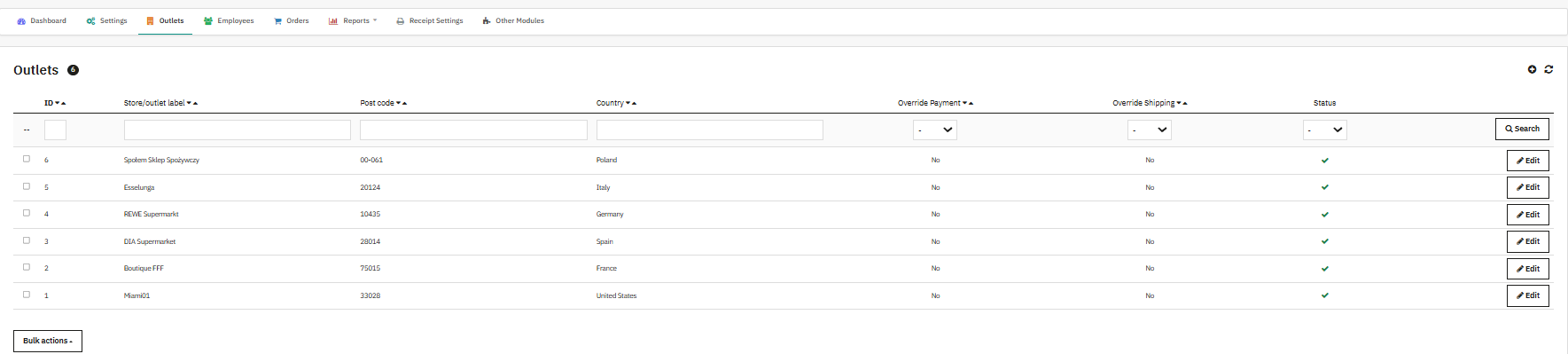
Lists every outlet configured for the current shop and is the entry point for outlet management.
Listing columns: ID, Store/outlet label, Post code, Country, Override Payment, Override Shipping, Status
- Edit: opens the outlet configuration form
- Status toggle: enables or disables the outlet
- Open POS: opens the POS panel for that context in a new tab
- Add new outlet: creates a new outlet record
5.3.2 How to Add an Outlet using PrestaShop Point of Sale System
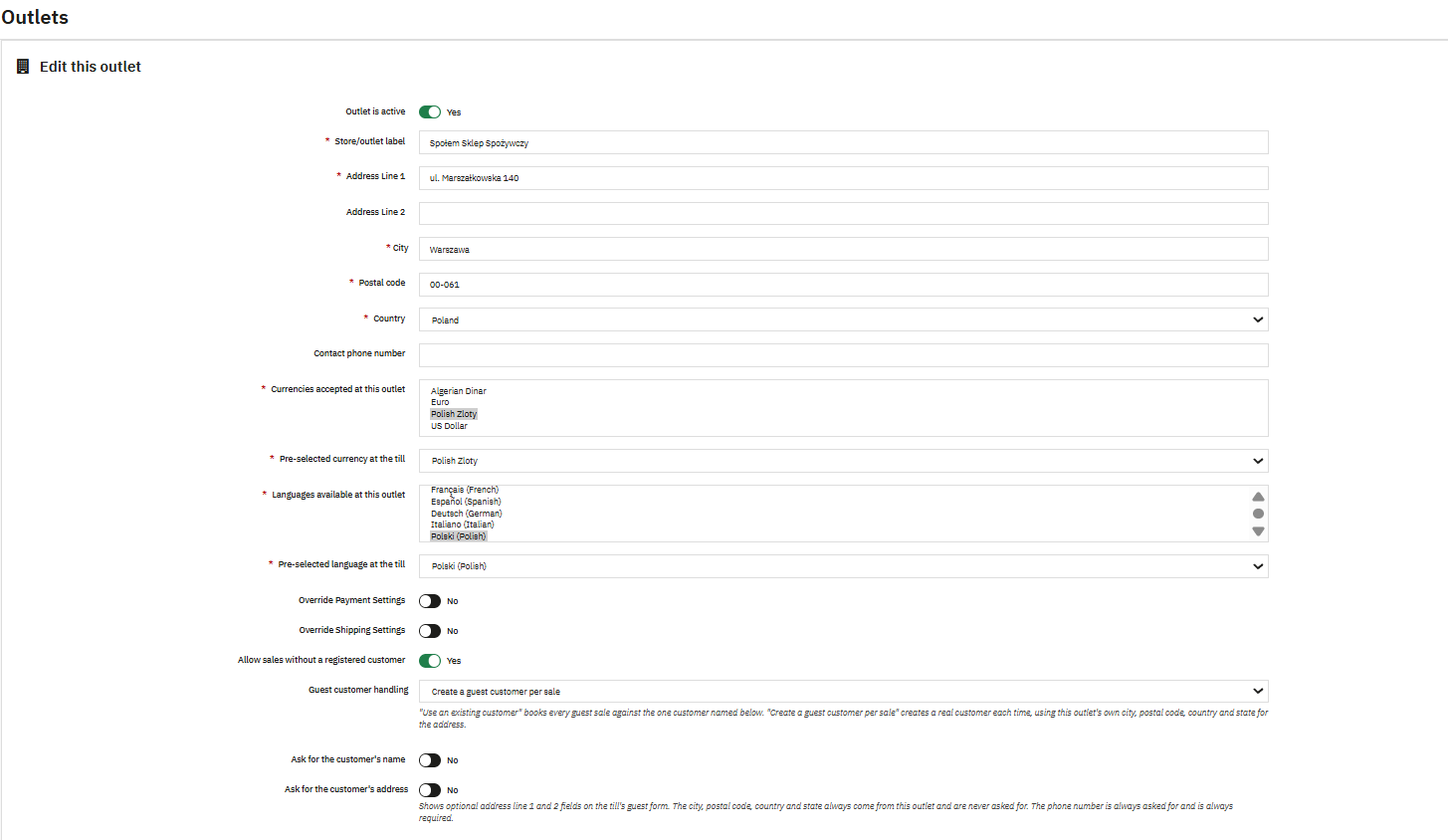
Creates or edits a single outlet, defining its physical profile plus its local payment, shipping, and guest checkout rules.
Core fields: Outlet is active, Store/outlet label, Address Line 1, Address Line 2, City, Postal code, Country, State, Contact phone number, Currencies accepted at this outlet, Pre-selected currency at the till, Languages available at this outlet, Pre-selected language at the till
5.3.3 Payment override group
- Override Payment Settings: turns the outlet payment override on or off
- Status applied once paid: order status assigned to paid POS sales at this outlet
- Enable salesperson commission tracking: enables commission tracking at the outlet level
- Commission rate (% of order total): commission percentage specific to this outlet
5.3.4 Shipping override group
- Override Shipping Settings: turns the outlet shipping override on or off
- Allow shipping a POS sale to the customer: enables shipping at this outlet
- Carriers available at the till: allowed carriers for this outlet
- Pre-selected carrier: default shipping carrier for this outlet
5.3.5 Guest checkout group
This group is the outlet-level half of PrestaShop POS customer management.
- Allow sales without a registered customer: enables guest sales at this outlet
- Guest customer handling: selects whether guests use an existing customer record or a new guest customer created per sale
- Guest checkout customer email: email of the existing customer used for guest sales
- Ask for the customer’s name: shows name fields on the guest form
- Ask for the customer’s address: shows address fields on the guest form
5.3.6 How to Assign Products to Outlet
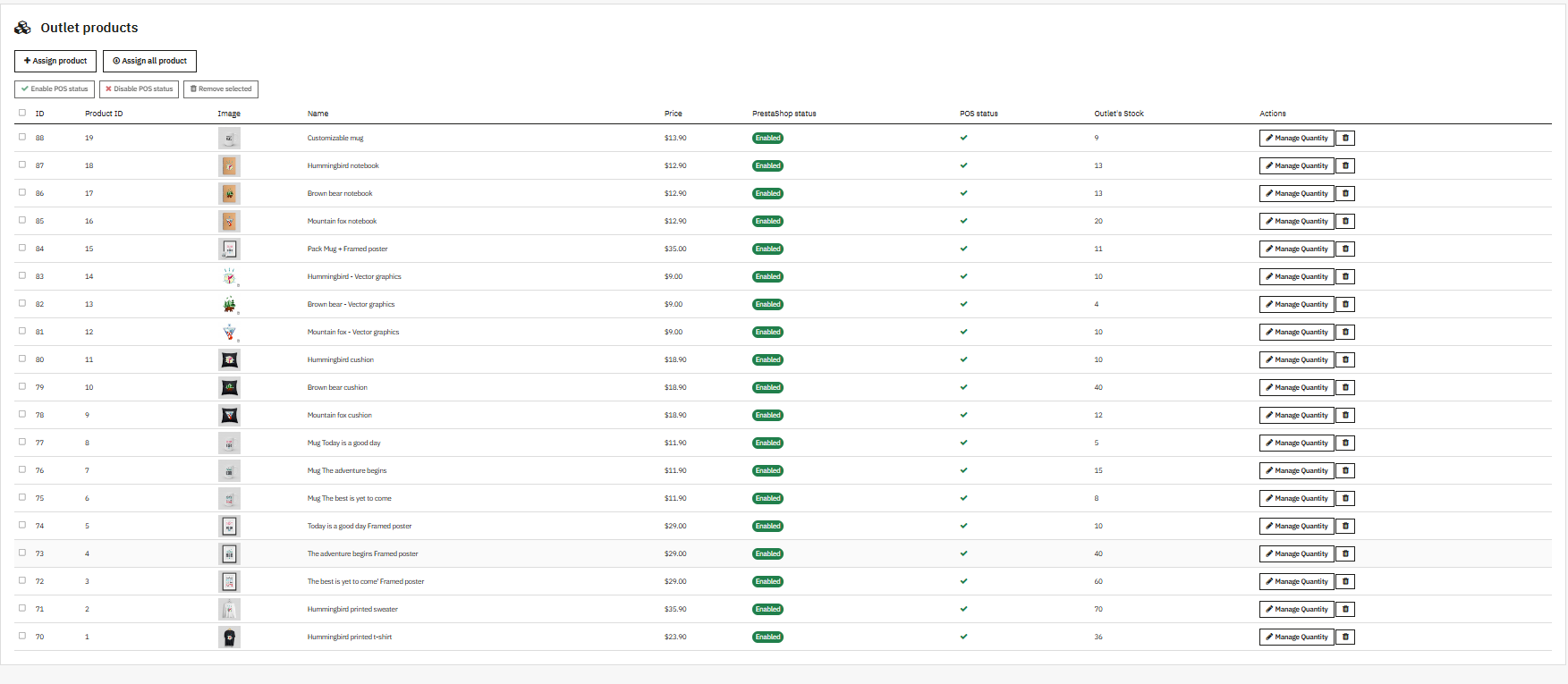
Appears when editing an existing outlet and is the working screen for the inventory sync module for PrestaShop at outlet level.
- Assign product to outlet
- Assign all products to outlet
- Manage quantity for assigned products
- Remove a product from this outlet
5.4 Employees
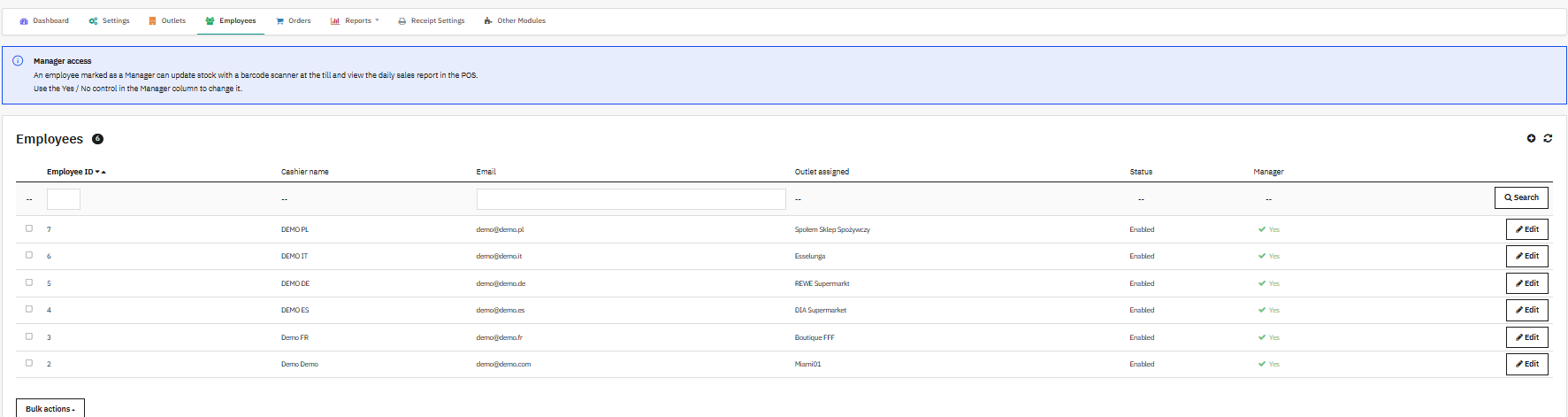
The Employees screen is the PrestaShop sales agent management view, listing every PrestaShop employee assigned to a POS outlet.
Listing columns: Employee ID, Cashier name, Email, Outlet assigned, Status, Manager
- Edit: opens the employee record in the standard PrestaShop employee editor
The Employee tab provides functionality for the creation of employee accounts and configuring of permissions and outlets that employees will have access to.
- First Name: Provide the first name of the employee.
- Last Name: Provide the last name of the employee.
- Avatar: Upload the avatar image of the employee.
- Enable Gravatar: Specify whether you want to use the employee’s Gravatar image (Yes/No).
- Email Address: Provide the employee’s email address. This email can be used as a login and account information exchange channel.
- Password: Provide a password of at least 8 characters for the employee.
- Language: Provide the language used by the employee in the administration panel.
Access and Permissions
- Active: Select Yes if you want to give the employee access to the Admin panel; otherwise select No.
- Role: Choose the role of the employee. Based on the chosen role, the employee gets permission and access to functions.
- Default Page: Choose the page that should be opened right after logging in by the employee.
POS Access
- POS Outlet Assigned To: Choose the POS outlet that belongs to the employee.
If this field is left blank/uninitialized, the employee is not considered a cashier and hence does not get POS access.
- Employee Image: Choose the photo/image of the employee. It could help in recognizing the employee in the system. Once all the necessary data is entered, save the employee’s record.
5.5 How to sync orders in POS
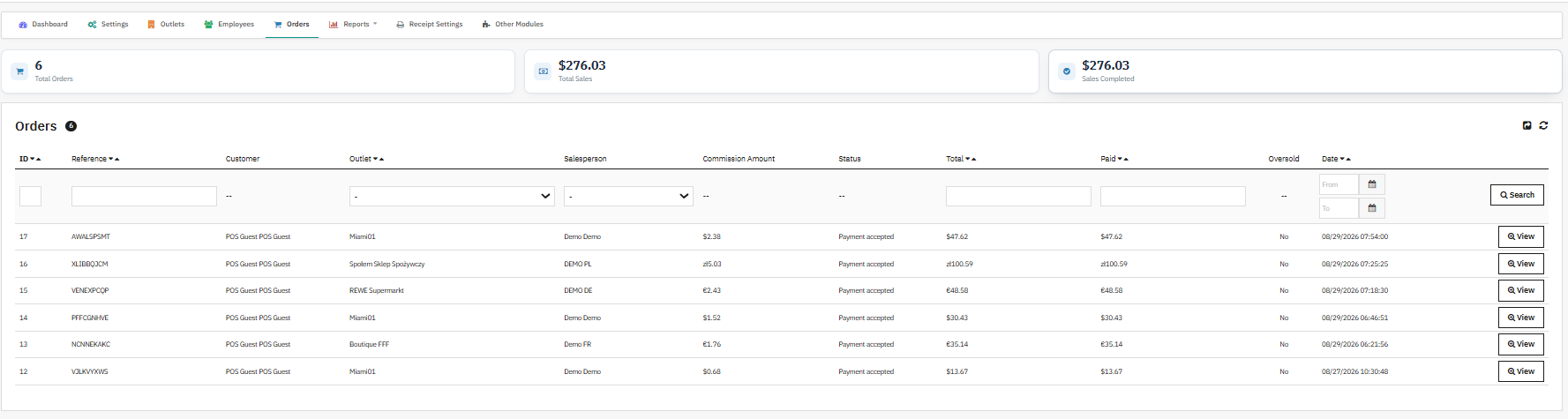
The Orders screen lists all POS-originated orders and is the primary place to review sales history and the starting point for any return and refund POS trail investigation.
Listing columns: ID, Reference, Customer, Outlet, Salesperson, Commission Amount, Status, Total, Paid, Oversold, Date
Filters: Outlet filter, Salesperson filter, Date filter
View: opens the detailed order view for that sale, including outlet, salesperson, and payment detail useful for tracing a return
CSV export is available through the standard PrestaShop helper list export mechanism, which makes it straightforward to pull a return and refund POS trail or a reconciliation file for accounting.
5.6 How to Analyse Reports
The Reports parent tab groups the two reporting screens used for commission tracking and discount oversight.
5.6.1 Discount Report

Summarises discount activity by employee and outlet, helping administrators identify cashiers who discount heavily or frequently.
Listing columns: Employee ID, First name, Last name, Outlet, Times discounted, Total discounted, Per-item discounts, Per-item total, Whole-cart discounts, Whole-cart total, Last discount
Filters: Employee name filters, Outlet filter, Last discount date range
This is a read-only report. It is based on discount activity logged by the module and does not include voucher-related discount rows.
5.6.2 Commission Report
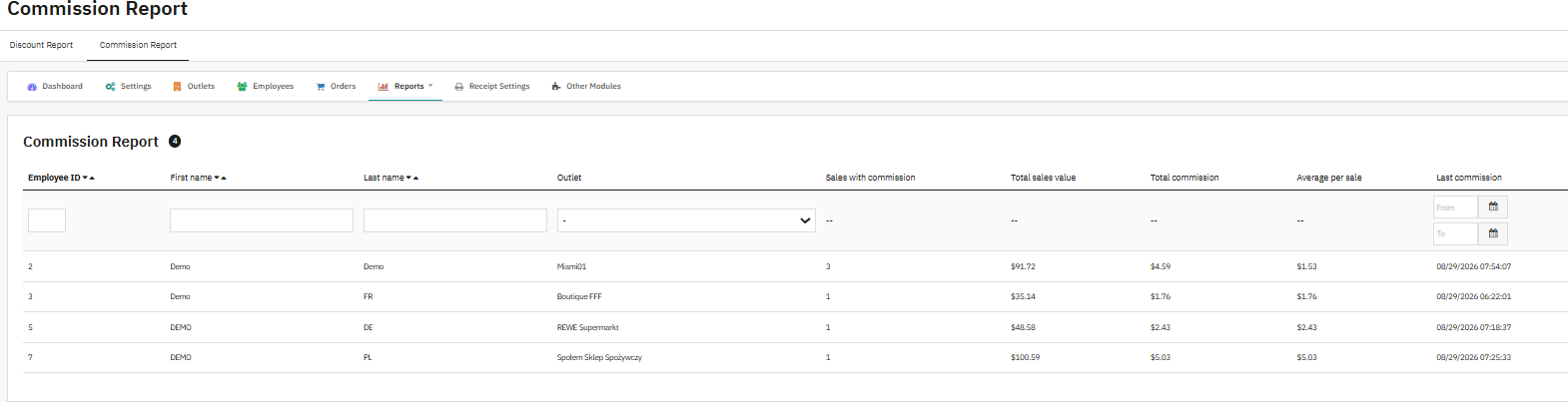
The primary screen for commission tracking, summarising commission earned by a salesperson at each outlet.
Listing columns: Employee ID, First name, Last name, Outlet, Sales with commission, Total sales value, Total commission, Average per sale, Last commission
Filters: Outlet filter, Last commission date range
View orders: opens the Orders page filtered to the related salesperson and outlet
Note: This report is grouped by salesperson and outlet, which matters when a single employee works across multiple outlets under Multi-Outlet POS operations.
5.7 Receipt Settings
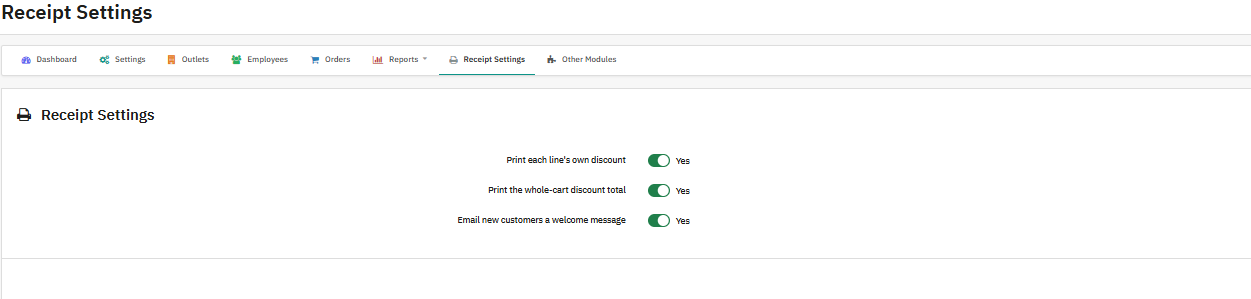
Controls how PrestaShop POS with receipt printing displays discounts and whether new customers receive a welcome email.
- Print each line’s own discount: prints a separate discount line for each discounted product on the receipt
- Print the whole-cart discount total: prints a separate total line for cart-level discounts
- Email new customers a welcome message: sends a welcome email when a cashier creates a new customer from the POS.
6.0 Conclusion
Knowband PrestaShop Point of Sale also called as PrestaShop Multi-Outlet Point of Sale (POS) module for stores that need genuine multi-outlet management inside PrestaShop rather than a bolted-on third-party system. It gives admins the tools to create outlets, assign employees through sales agent management. Also, this module keep stock accurate with the inventory sync module for PrestaShop, scan products with the barcode scanner module for PrestaShop, take sales while offline through the offline order module for PrestaShop, configure shipping and payment behavior, print receipts, and monitor discount and commission trends from a single sales dashboard module for PrestaShop. If you find any issue with the module, please feel free to contact us at support@knowband.com
Watch the video tutorials below to learn how to configure and use the PrestaShop Point of Sale Module step by step.
