There’s a particular support ticket I’ve learned to dread. A merchant updates a module; it appears to go through, then something stops behaving. Never the whole store. One PrestaShop controller page misbehaving, or a config value that refuses to save, or a listing column that has emptied itself. When I look, the module code is on the new version and the database underneath is still on the old.
That gap is what this article is about. A PrestaShop module is not only the PHP you shipped but it is that PHP plus the tables and columns the PHP expects to find. Skip the PrestaShop database update that should travel with a code release, and you get a module that is installed, apparently working, and quietly wrong.
I have done this to myself more than once. What follows is what I learned about PrestaShop module database updates, the hard way.
1.0 How PrestaShop module updates actually handle the database
Plenty of assumptions float around here, and some are wrong.
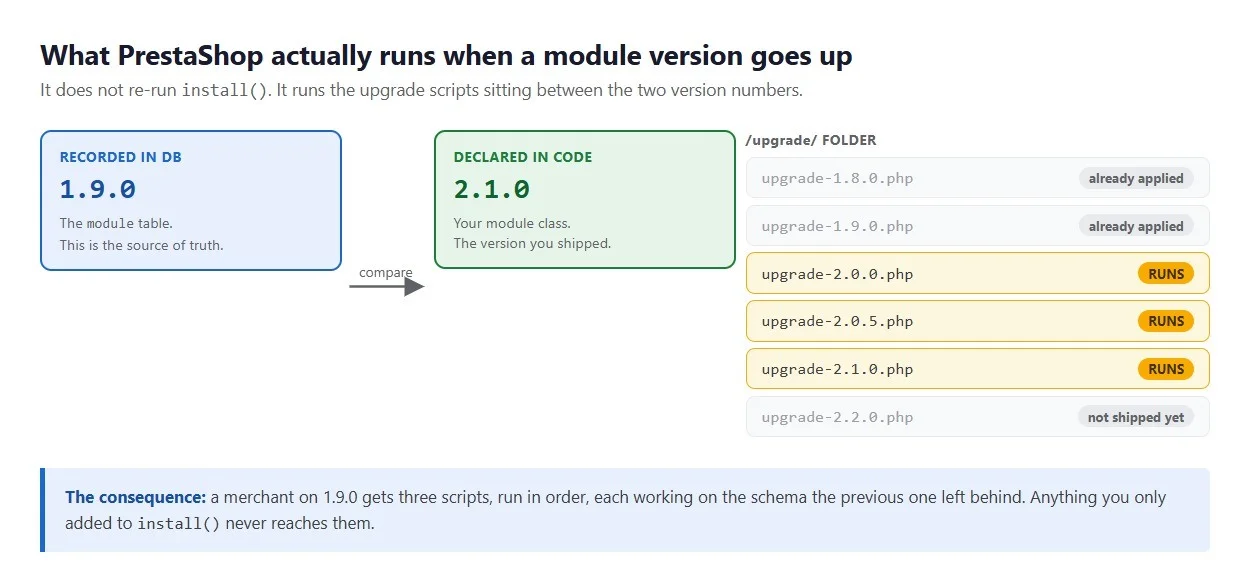
Drop a new version into /modules/ and your install routine does not re-run. Tables untouched. What happens instead: PrestaShop reads the module’s upgrade/ folder, finds the files named upgrade-<version>.php sitting between the recorded version and the one your module class declares, and runs those in order.
A store on 1.9.0 receiving 2.1.0 runs three scripts, in order.
Three things follow from that, and all three matter for PrestaShop database changes.
The version in the `module` table is the source of truth. Not the one in your main class file. PrestaShop reads both. What it acts on is the recorded one, and that decides how many upgrade scripts you are about to run.
Your `install()` method is for fresh installs only. Say version 2.0 needs a new table. Put it in install() and anybody coming to 2.0 fresh is covered. The store sitting on 1.9 gets nothing, because its install ran a year ago and is never running again.
One failure stops everything. Return false from an upgrade function and three things happen: PrestaShop halts, records which version fell over, and disables the module. No moving on to the next script. That is deliberate, though it means a half-applied schema change leaves you disabled rather than broken.
The enabling auto-update for modules page sets out the file-naming rules. Read it once properly rather than from memory.
The upgrade function naming trap
This one cost me an afternoon. Either upgrade_module_2_0_1 or upgradeModule201 works as a function name, and PrestaShop looks for both. What it also does, before your file is included, is check whether one of those names exists already. Find it and the file gets marked a duplicate and skipped.
Copying an old upgrade script as a template is exactly how people get here. The name inside it never gets changed. Nothing upgrades, and the error message won’t tell you much.
2.0 PrestaShop database migration: what goes wrong on real stores
All of these happened on stores I worked on.
PrestaShop database schema changes that drift between installs
Version 2.0 needs a new column, so you update install() and write an upgrade script. Both correct. Three versions on, somebody renames the module folder or a merchant reinstalls. On some installs, install() created that column. On others the upgrade path did. Two definitions, drifting apart, and a single version number now covers both of them.
So the definition lives in a single method both paths call. PrestaShop database schema changes cannot drift if there is only one.
Upgrade scripts that assume a clean starting point
ALTER TABLE … ADD COLUMN on a column that already exists throws an error, your function returns false, the module gets disabled. Interrupt a previous update, restore a partial backup, sync from staging twice over: any of those and you are there.
Every schema change I write now checks first. Adding a column means a SHOW COLUMNS beforehand, creating a table means SHOW TABLES, an index means SHOW INDEX. A few lines, and the script survives a second run. That matters, because a stranger’s database can be in any state at all. There is IF NOT EXISTS in both MySQL and MariaDB, but only on some operations, so the explicit check travels better.
Multistore: configuration rows written for one shop only
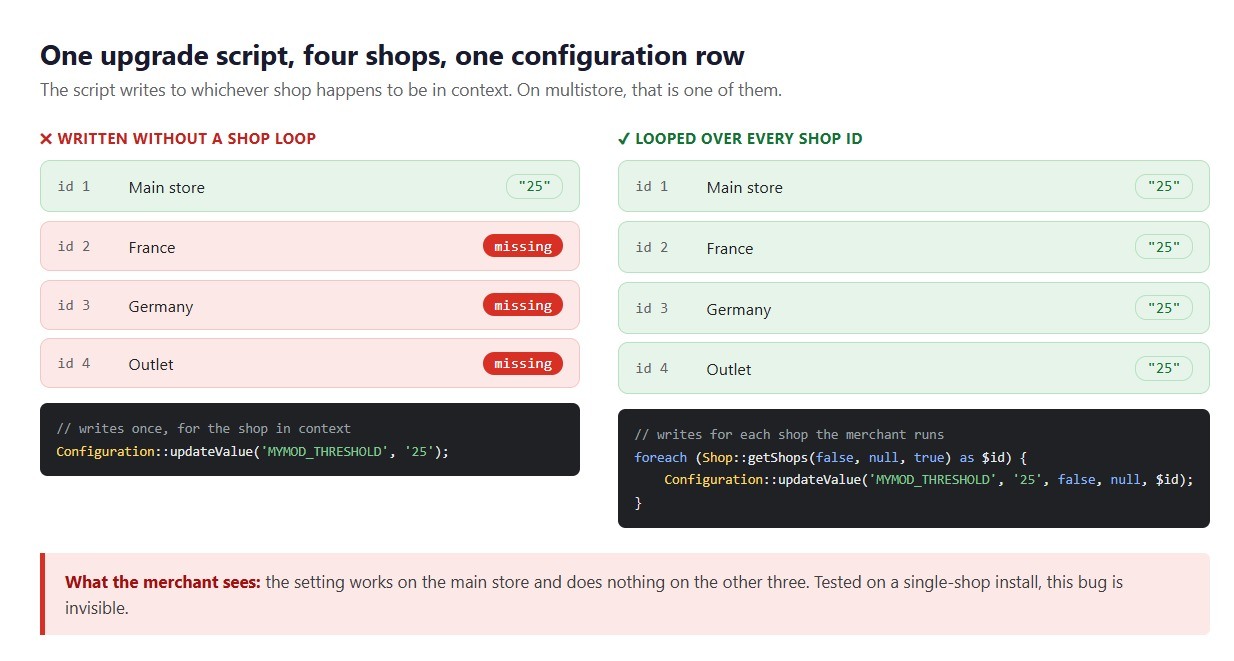
Quiet and nasty, this one. A per-shop setting arrives in the new version. Default row created by the upgrade script, tested by the developer, all looking fine. But one row got written, for whichever shop was in context, and the merchant runs four.
Three stores are now missing it. Depending how your code reads that, you get a PHP notice, an empty value treated as a real setting, or a blank where a price should be. The multistore documentation covers the context rules. Loop every shop ID in any upgrade touching configuration or per-shop data.
On a single-shop install, this bug is invisible.
ALTER TABLE locks on large catalogue tables
Nothing about adding a column to a 400,000-row table is instant. Depending on the operation, the MySQL version and the storage engine, the whole table may get copied. On a live store during trading hours that lock runs long enough for customers to notice.
So I check table size before writing the migration. If it’s large: maintenance window, or restructure to avoid the rebuild.
The config key with no default value
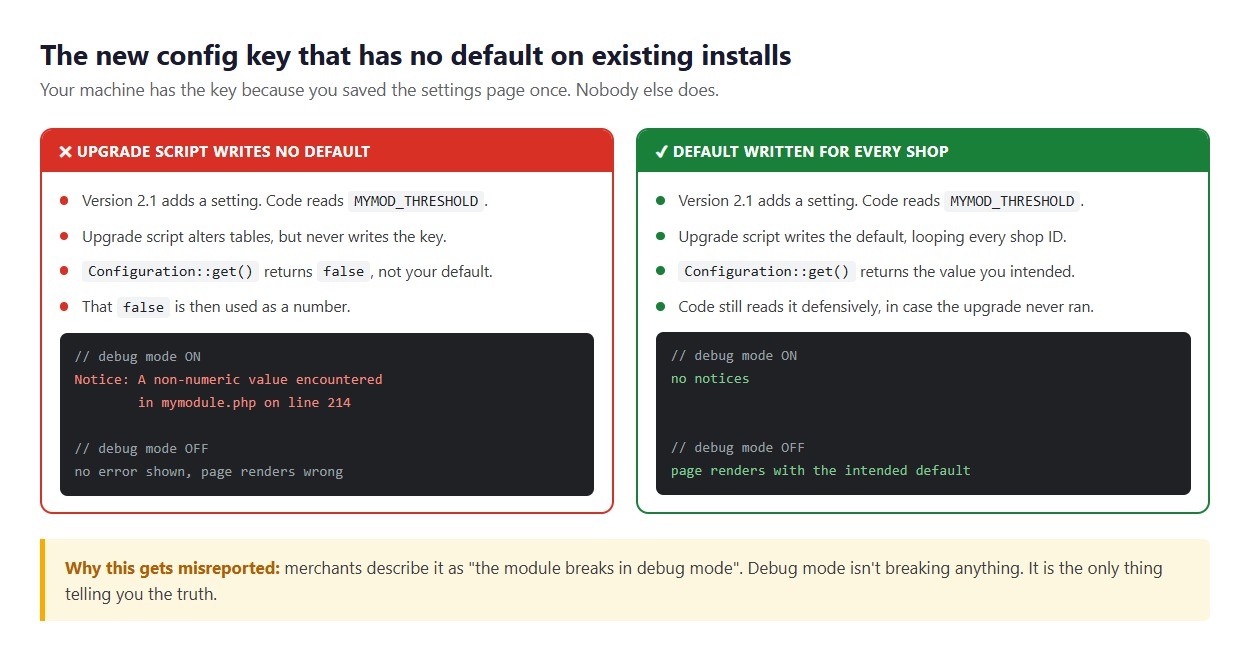
The one I see most often in other people’s modules, and no table involved.
You add a setting in the new version. The admin form reads it. So does the front controller. Both were written on a machine where the settings page had been saved at least once already. So the key exists and everything looks right. Ship that, and every existing install is reading a Configuration key nobody ever wrote.
What comes back is false. Your default never appears, nor an empty string you could at least test for. From there it goes on to be used as a number, or handed to a function that wanted a string. Debug mode off, and you often get away with it: the merchant sees a page that’s slightly wrong and thinks nothing of it. Debug mode on, and it surfaces as a notice or a type error. Which is how this reaches you as “the module breaks in debug mode”, when debug mode is the only honest party involved.
The same code, with and without the default written.
The fix is dull. Every new config key gets its default written in the upgrade script, for every shop, shipping with the code that reads it. Read it defensively too, because you cannot be sure the upgrade ran.
PrestaShop module database migration versus schema change
Schema changes are the easy half. The hard half is when the meaning of existing data changes: splitting a column in two, moving a CSV field into a related table, re-encoding a status.
That is where I have seen the most damage. A botched ALTER TABLE fails loudly; a botched data transformation succeeds and writes nonsense. A PrestaShop module database migration that moves data needs a count before and after, then compared. Better found inside the upgrade script than by a merchant three weeks later.
3.0 PrestaShop module upgrade best practices I’d actually defend
The ones that have saved me:
Make every migration idempotent
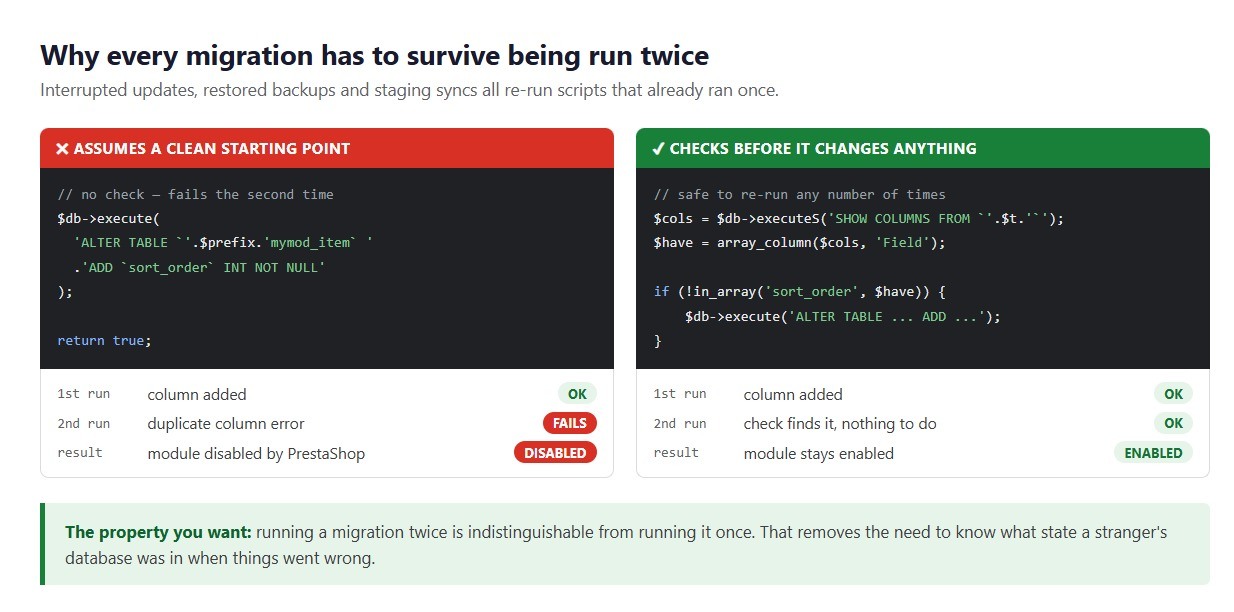
Nothing should change on the second run that the first run did not already handle. Get that property and a whole category of support problem disappears, because the state of the database stops being something you need to establish first. Before writing raw SQL against core tables, PrestaShop’s database layer notes are worth an hour.
The guarded version survives a second run.
Log every failure instead of returning false silently
A bare return false is enough for PrestaShop to stop and disable the module. Not enough for you. So wrap the work. Catch whatever comes out of it, and hand that to PrestaShopLogger with the module name and version attached. Otherwise a merchant reports a failed update and you are guessing.
On PHP 7 and above, catch Error as well as Exception. Get a type error in your own migration code and it arrives as an Error, so a handler watching only for Exception lets it through.
Support every version you have ever shipped
A merchant can be on any version you have released. Somebody going 1.4 to 3.0 runs every script in between, in order, so each has to work on whatever schema the previous one left. That is why old upgrade files stay in the module. Somebody two years behind has no other route forward.
Test on staging, not on a clean local install
A fresh install of the new version proves nothing about the upgrade to it. What you want instead: install the old version, put realistic data in, then upgrade. On multistore too, if you support it.
Better still: take a copy of a real store, and put the upgrade through that instead. Your local install has clean data and four products, which is why it surfaces nothing. A real store carries half-finished imports, rows left by a module uninstalled two years ago, columns a previous developer added by hand, a catalogue big enough that ALTER TABLE takes a while.
Then timing. An upgrade wanting six minutes against real data is better learnt while booking a maintenance window than at eleven on a Friday.
Back up before schema changes, and say so
No snapshot gets taken of your tables before a module upgrade. Not by PrestaShop, not by anything. So if the merchant has no backup and your migration stops halfway through transforming data, that data has gone. Say so in the changelog rather than discovering it together.
Recovering a failed PrestaShop database update
An update failed on a live store; module disabled. Roughly this order:
Find out which version failed. That gets recorded, and if you wrote a log message it’ll be sitting there too. Between them you know which script to open and which changes landed before it stopped.
Check the actual schema, not the version number. All the module table knows is what the last successful upgrade wrote. The real tables are where the answer is, held up against whatever the failed script was trying to do.
Fix forward, not backwards. Rolling the version number back is tempting and usually wrong, because the earlier scripts have already run and re-running them against a partly changed schema turns one problem into three. Write a corrective migration from wherever the schema is to where it should be.
Then work out why the migration was not idempotent. That is the real bug.
A short checklist before you ship a module update
The list I run:
- Main class version, highest upgrade-*.php file: do they match?
- Each upgrade function named for its own file’s version?
- Every schema change checking first whether it already applied?
- Every configuration write looping over all shops?
- Every new config key given a default for existing installs?
- Run against a staging copy of a real store yet?
- Old version installed, data added, then upgraded?
- Same path on multistore?
- Something useful logged before each return false?
- Catching Error as well as Exception?
- Old upgrade files still in place for merchants several versions behind?
- Changelog telling merchants to back up?
- On a large table, how long is that ALTER holding a lock?
Items 6 and 7 are the ones people skip, and between them they catch most of it.
Conclusion
PrestaShop module upgrade problems are awkward for one reason: nothing announces them. The module reports its new version quite happily. The admin page loads. No logs, unless you wrote them. Meanwhile your code expects one thing, the database holds another, and that sits untouched until somebody uses the one feature caught in between.
Treat the schema as part of the release. Write migrations that survive a second run. Log what happened. Put it through staging before any merchant does. On the framework side, PrestaShop’s module development documentation is the place to start.
If you have questions or need assistance for your website performance or migration, Our experts are here to help. Contact the Knowband team at support@knowband.com today for reliable ecommerce plugins tailored to your eCommerce needs.