Skip to content

Knowband Blog | Ecommerce Modules

Magento, Prestashop, Opencart, Shopify

Tag: order social sharing bar module

OpenCart Order Social Sharing extension- User Manual

1.0 Introduction

Social media is a strong platform for online marketing and promotional programs. In order to promote products and brands, many online experts focus on Social media marketing. Now the online store admin can use Social media platforms like Facebook, LinkedIn, and Twitter in order to promote products and brands without any complicated process.

Knowband offers OpenCart Order Social Sharing extension, which allows showing multiple social media buttons for sharing order summary. The customers can share order summary on Facebook, Twitter and LinkedIn pages. This way, the store admin can get relevant traffic which can be converted in the near future with the help of OpenCart Social Promotion module.

1.1 Basic Features of this OpenCart Order Social Sharing extension

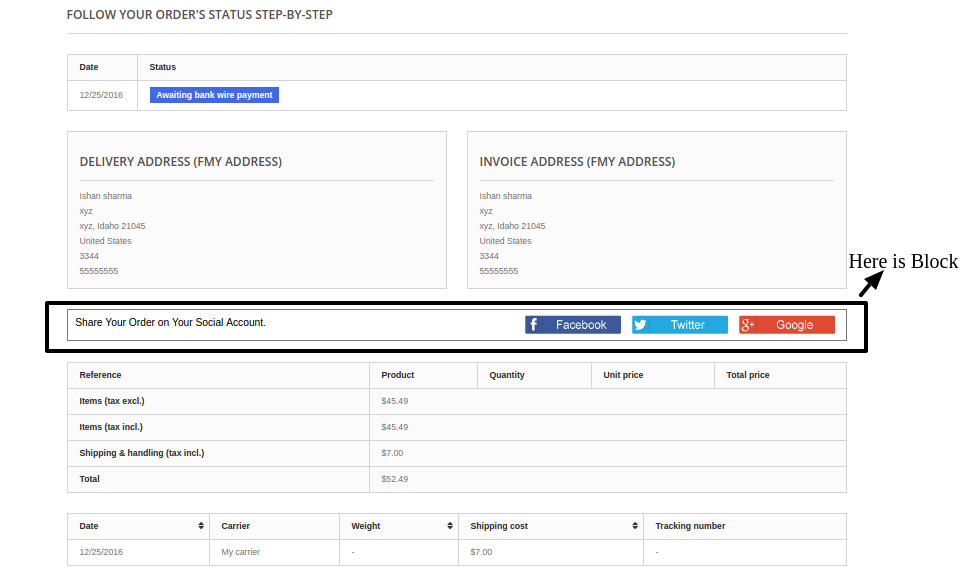
  1. The OpenCart Order Social Sharing extension shows Facebook, Twitter and Linkedin buttons on order confirmation page.
  2. Online customers can share their order summary just by clicking on any particular social sharing button.
  3. OpenCart Order Social Sharing module allows the online merchant to show/hide any social sharing button anytime.
  4. OpenCart Social Promotion module provides a color picker tool for managing look and feel of the social sharing buttons.
  5. Opencart Social Promotions module provides an option to enter custom CSS and JS codes for the advance look and feel settings.
  6. Order Share Buttons for OpenCart shows statistics for viewing order sharing details.
  7. OpenCart Order Social Sharing extension is mobile responsive.
  8. Order Share Buttons for OpenCart is compatible with all OpenCart themes.
  9. OpenCart Social Media Buttons extension increases website traffic and product popularity.
  10. OpenCart Order Social Share Buttons plugin is simple and highly customizable.
  11. There is no need to change even a single line of code in order to implement the OpenCart Social Media Buttons extension.

2.0 Installation

Purchase OpenCart Order Social Sharing extension from the Knowband website. You will receive these files after purchasing the OpenCart extension:

  • First, you will get a source code file of the OpenCart Social Promotion module in zipped file format.
  • User Manual of this Opencart Social Promotions module extension.

Follow below-mentioned steps in order to install OpenCart Order Social Sharing extension:

1. Unzip the received zip file. You will get the folders as shown in the following image:

OpenCart order social sharing Extension installation

2. Copy all the folders of the zip file in the Root Directory of OpenCart setup via FTP manager.

So, OpenCart Order Social Sharing extension is now successfully installed and ready to use at your store.

Now go to the admin menu and click on the extensions and thereby click on configure button next to OpenCart Social Promotion module.

3.0 Admin Interface

After installing the OpenCart Order Social Sharing module successfully, you can configure it for showing social sharing buttons on the website. From the settings section, you can activate the social media buttons and manage the look and feel of the social media buttons.

3.1 Setting Tab

In the Settings tab, you will find these customization tabs:

  • General Settings
  • Look and Feel Settings

The online store merchant can activate or deactivate the OpenCart Social Promotion module, show or hide the social media buttons and manage the look and feel of the social media sharing buttons.

3.1.1 General Setting Tab

In the General Settings tab of the back office of OpenCart Order Social Sharing extension, you will find these customization options:
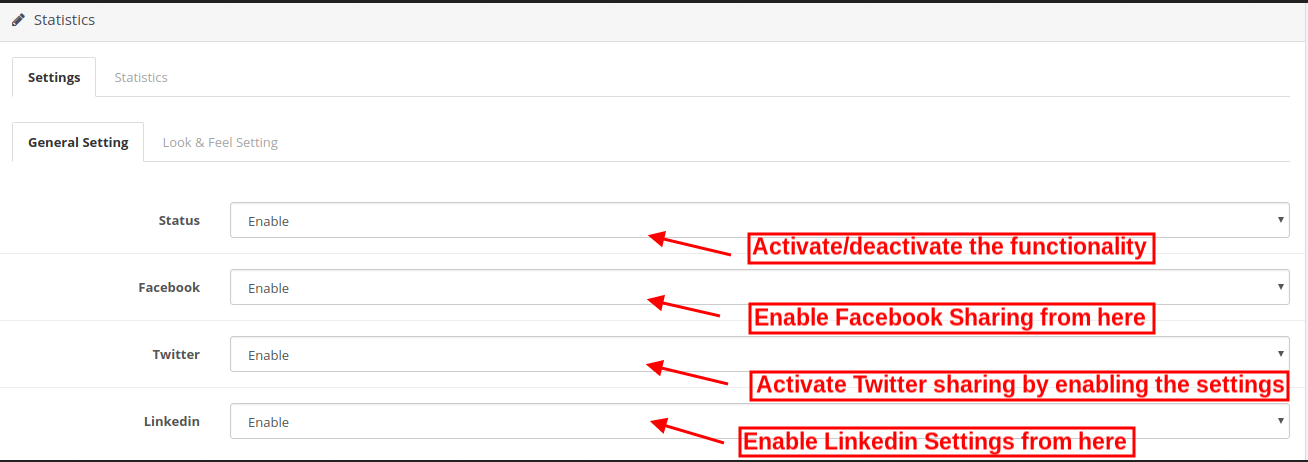
  • Status: The online merchant can activate or deactivate the OpenCart Social Promotion module easily just by selecting the option.
  • Facebook: Enable or Disable the option to show or hide the Facebook button from the order confirmation page.
  • Twitter: You can show or hide the Twitter button from the website by enabling or disabling the menu option from the back office of OpenCart Order Social Sharing module.
  • Linkedin: The store admin can enable or disable the Linkedin button from the admin interface of this OpenCart Order Social Sharing extension.

3.1.2 Look and Feel Tab

In this menu option, the online merchant can manage the look and feel of social sharing block. These are the customization options:
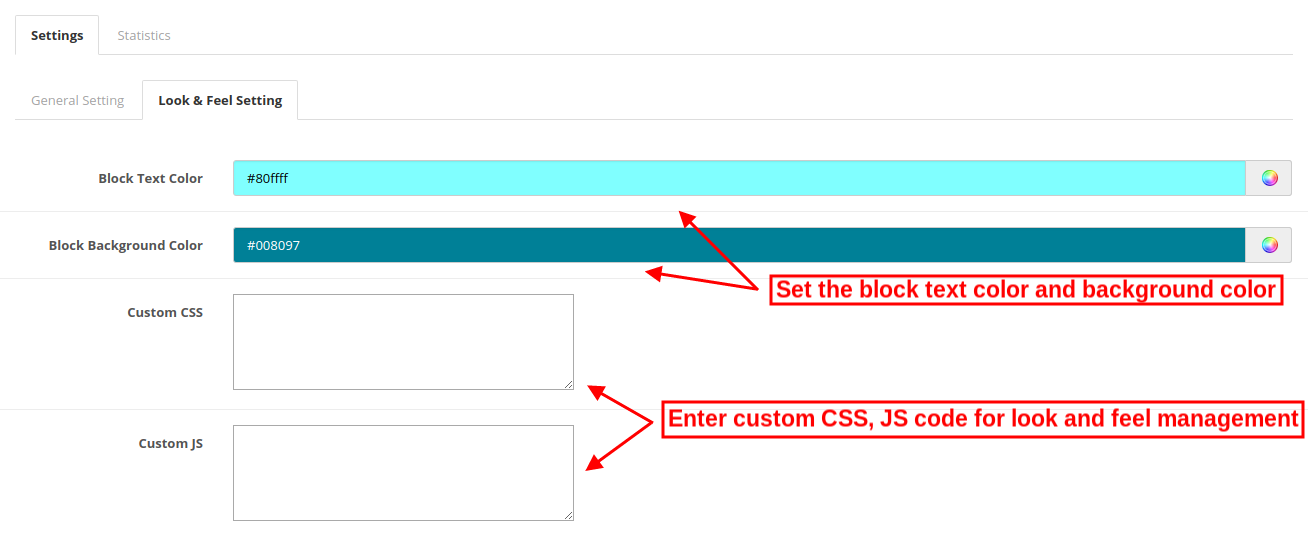
  • Block text color: Set the social sharing block text color from the color picker tool from the admin interface of OpenCart Social Promotion module.
  • Block background color: Set the background color of the social sharing block.
  • Custom CSS and JS: Enter custom CSS and JS code for the advance look and feel settings from the back office of Opencart Social Promotions module.

3.2 Statistics

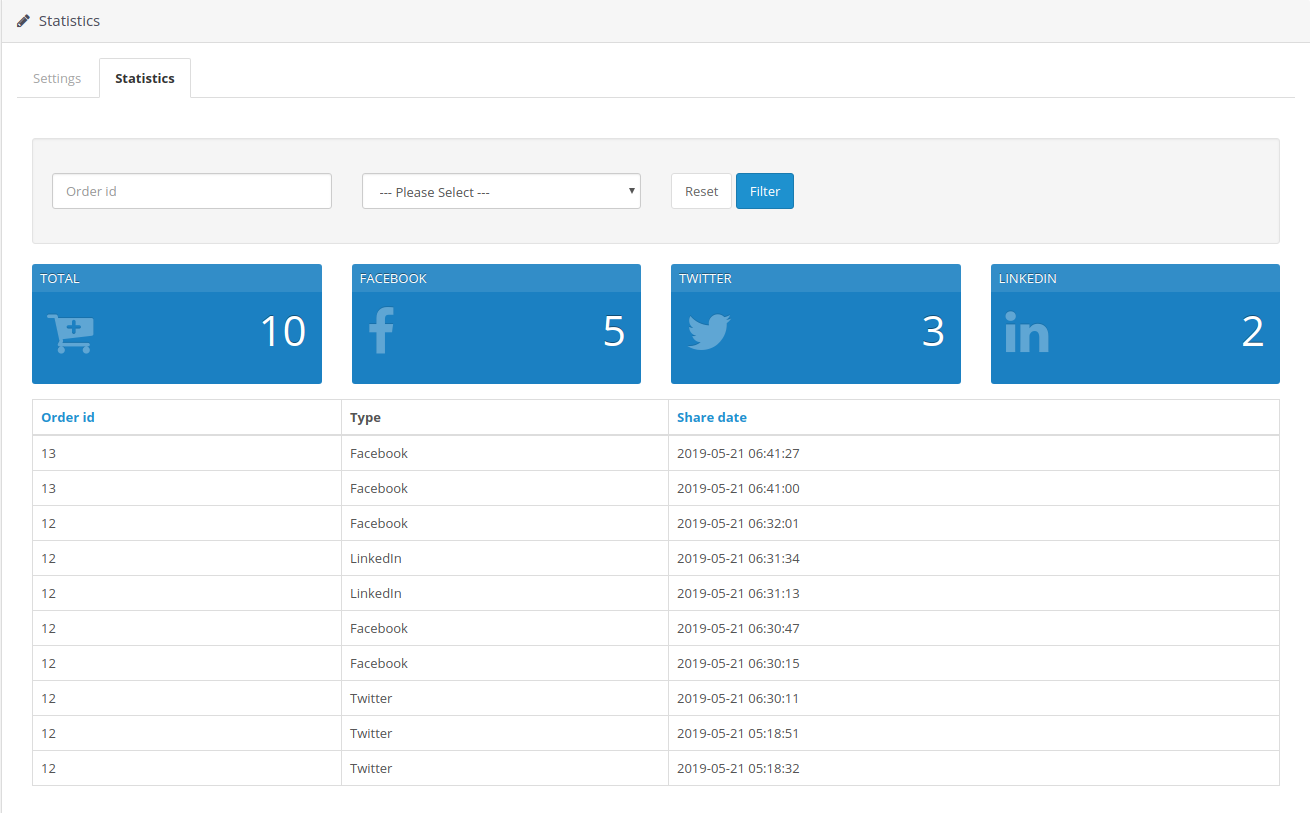
The online store admin can also view detailed information about the shared orders. Admin can also filter the result for viewing the results separately. This way, the store admin can get the details that how many customers sharing their order summary on which platform from the admin section of OpenCart Social Media Buttons extension.
4.0 Front-end Interface

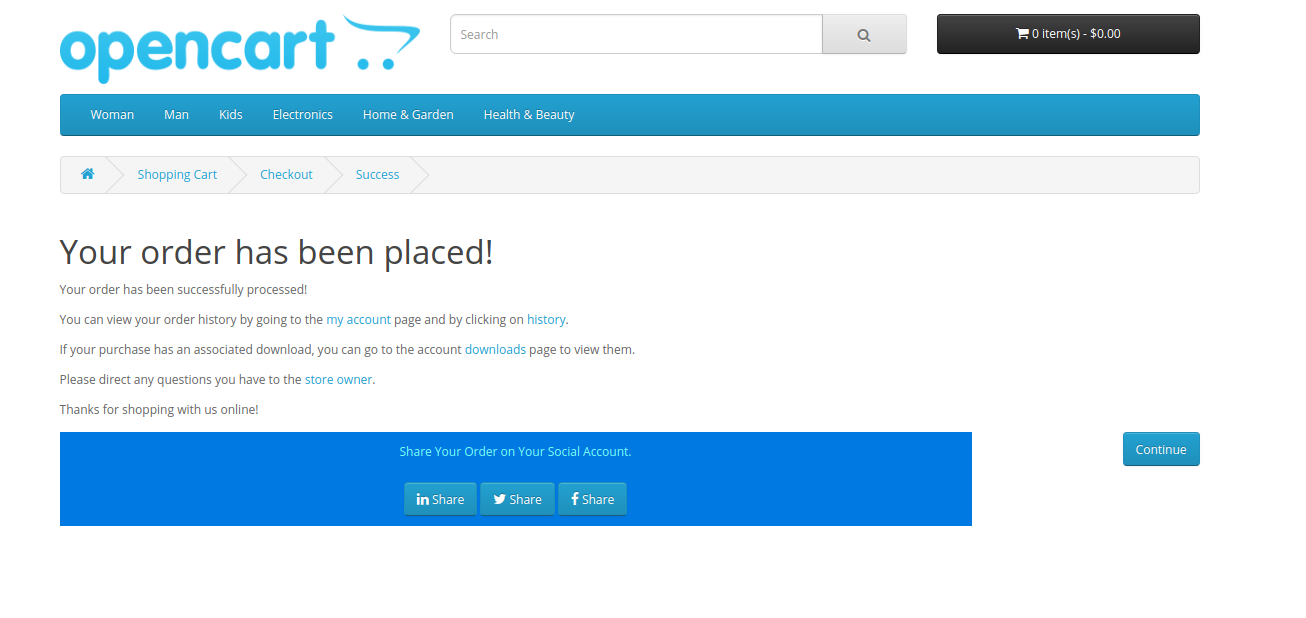
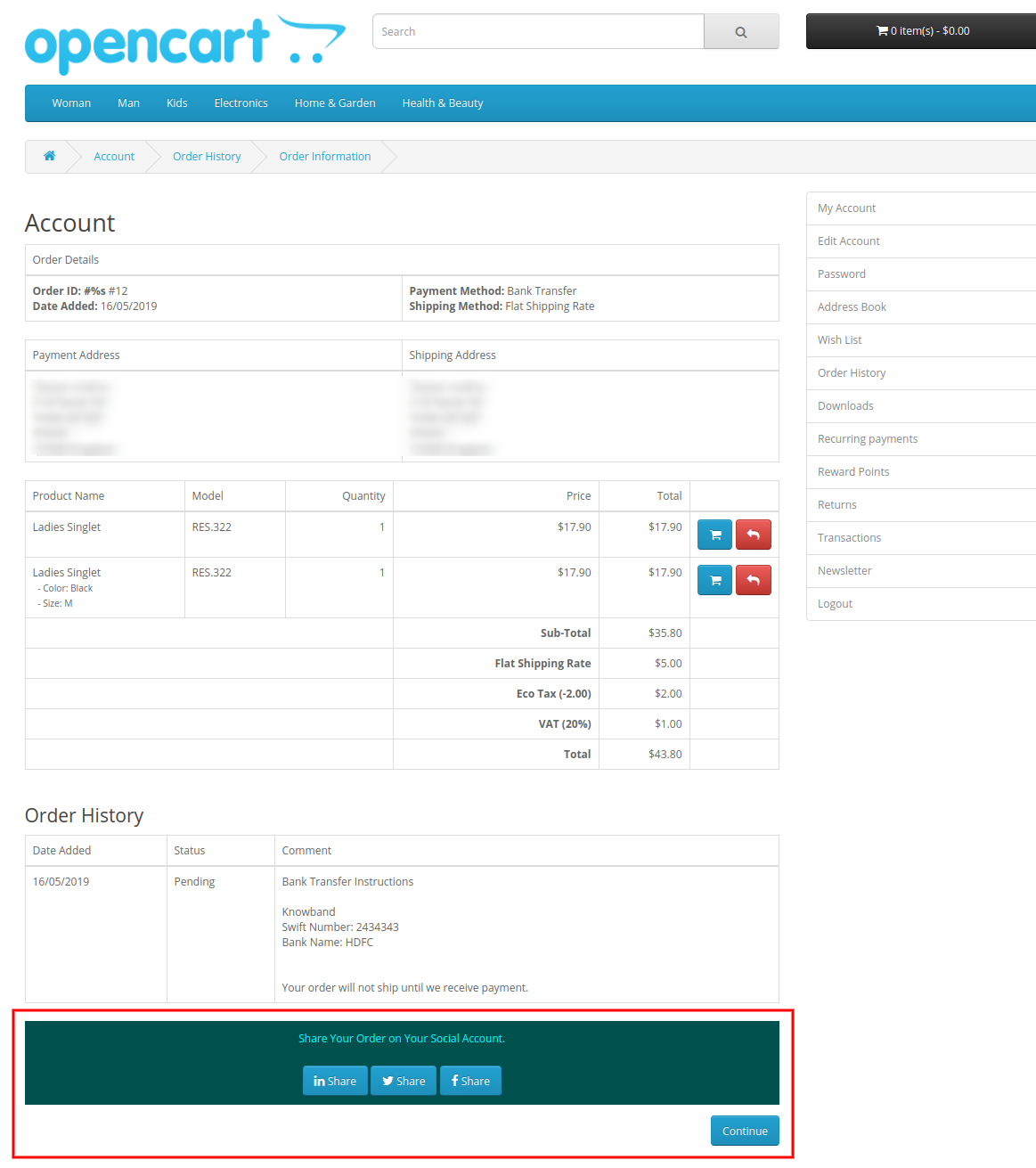
The online customers can view the social sharing buttons on the order confirmation page and order summary page. They can select any of the social media platforms for sharing their order summary with the help of OpenCart Order Social Sharing module.

Customers can view the order sharing option on the order confirmation page as shown below:
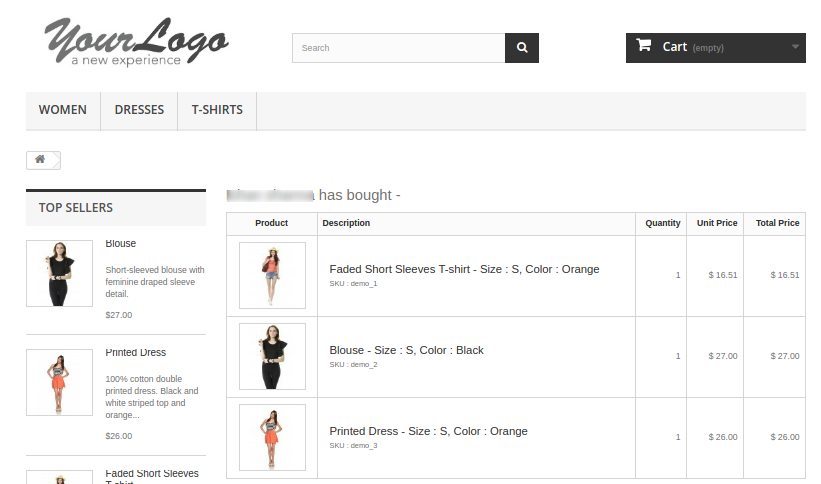
Customers can also view the order summary sharing option on the order history page:
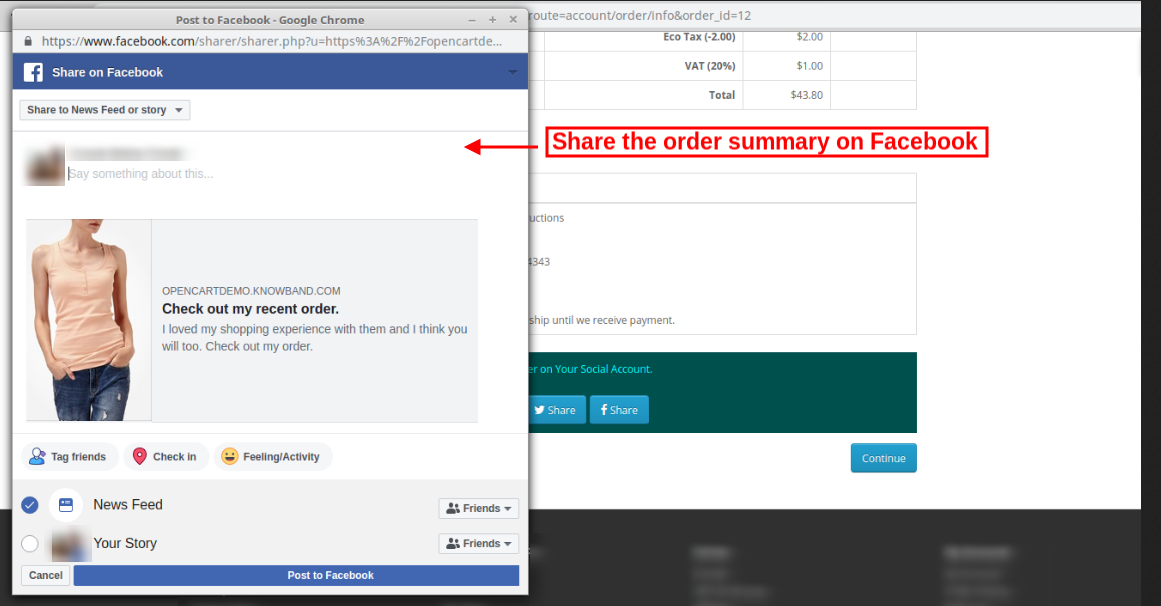
The online customers can share the order summary on Facebook as shown below with Opencart Social Promotions module:
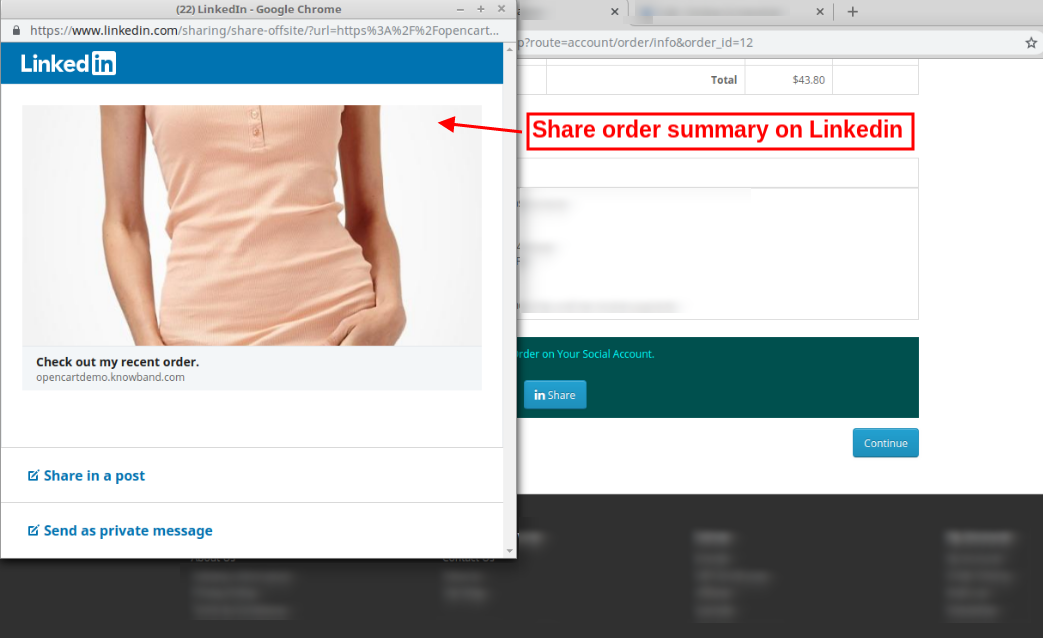
The online merchant can share the order summary on Linkedin as shown below:
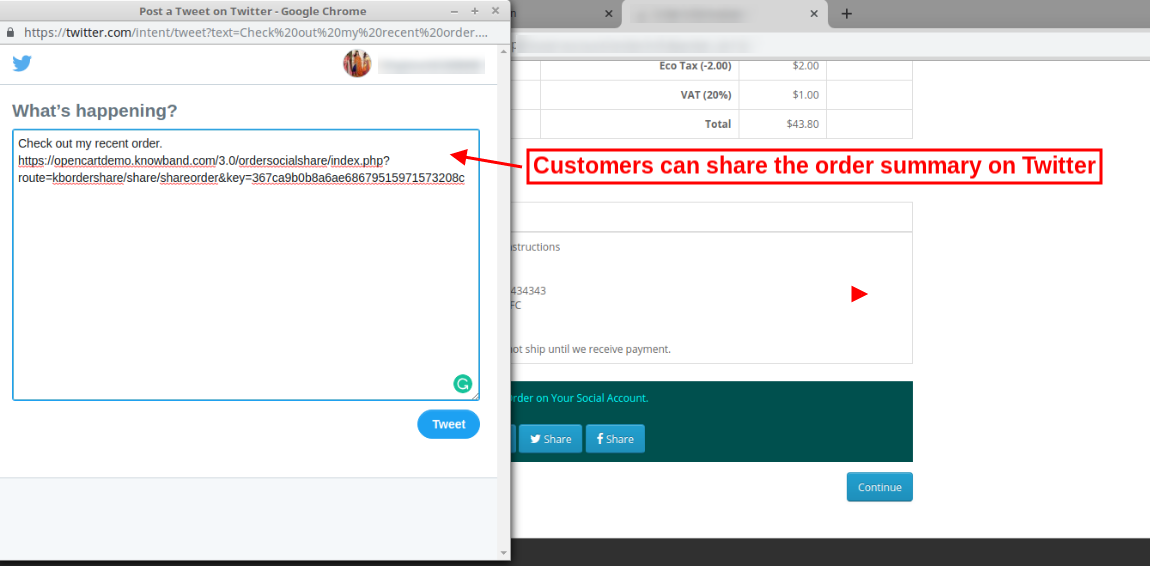
The online merchant can share the order summary on Twitter as shown below:
The OpenCart Social Media Buttons extension is mobile responsive which allows the customers to share the product using mobile devices like laptop, tablet, and mobile phone.

This way the online store admin can implement OpenCart Order Social Share Buttons plugin for increasing website traffic and product popularity without spending a huge amount. The admin can get relevant traffic which can be converted in the near future. The customers can share the order summary with their friends and relatives. The customers can even share the order summary after placing the order.


Posted on May 21, 2019June 19, 2019Author Joe ParkerCategories Opencart, Opencart User Manual, User ManualTags OpenCart order social sharing Extension, OpenCart social promotion extension, order sharing on linkedin, order social sharing bar module, order summary sharing on facebook, order summary sharing on twitter

Prestashop Order Social Sharing addon – User Manual

Introduction

Knowband Prestashop order social sharing module has the functionality through which Prestashop website will be able to allow customers to share their orders details on social networking sites. This Prestashop social promotion addon displays an attractive bar of social media buttons. The customer can easily share the order details with their friends on there social media profiles. The Prestashop social promotion addon is highly customizable.

The addon provides a lot of features which are as follows:

  • It is very easy to activate/deactivate the Prestashop order social sharing module.
  • The Prestashop social promotion addon is fully customizable.
  • The Prestashop extension shows social sharing option on order confirmation page.
  • The Prestashop social promotion offers a user-friendly interface.
  • The Prestashop orders social sharing addon is mobile responsive.
  • Allows customers to share their order summary with their friends on social media
  • Configure it to as per your theme design without doing changes in the code.
  • Color picker tools to change text color and background easily.
  • Show/hide any social share button easily.
  • Enable/disable any of the social sharing options from the three- Facebook, Google+, and Twitter.
  • There is an option to add custom CSS and JS.
  • The order social promotions plugin offers SSL compatibility.
  • The order social sharing bar module is compatible with all the Prestashop themes.
  • The Prestashop share a purchase extension is multi-store compatible.

Installation Manual

Follow the following steps for installing Order Social Sharing addon:

  1. Download the addon package.
  2. Unzip the package in /modules directory of your Prestashop store via FTP manager (like Filezilla or WinSCP – download here: https://filezilla-project.org/). Folder structure for Order Social Sharing addon is shown in the image below:

Figure 1 – Order Social Sharing addon Directory Structure

  1. You will be able find the Order Social Sharing addon that is ready to be installed in the “Modules List” in your PrestaShop store as shown below.

Figure 2 – Order Social Sharing Installation

  1. Click on the “Install” link to install. Once the module is installed properly the “Install” link will be converted to ‘Configure’.

User Manual

This User Manual will guide you through the Admin Module/Store Front settings and various features of the this Order Social Sharing Addon.

Admin Interface

This will contain 2 tabs ‘General Setting Tab’ and ‘Look and Feel Setting Tab’ after successful installation.

General Setting Tab

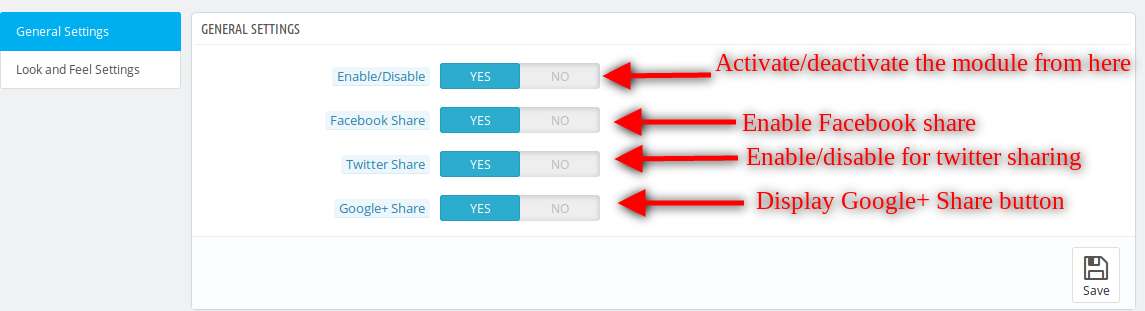
This Tab will contain these fields . Steps –

1 . Go to Modules and Services > Search module ‘Order Social Sharing’ > Click on “ Configure” Button > Select General Setting Tab.

Figure 3 – Order Social Sharing General Setting Tab

Fields

1.Enable :

By default, value will be OFF. Whole functionality of this Prestashop order social sharing addon will depend on value of this setting.

Steps – Go to modules and Setting >Search Module ‘Order Social Sharing’> Click on Configure button > Select General Setting > Enable the plugin Option > Click on Save.

2. Facebook Share:

By default it would be ON . When admin enable it, he would be able to display Facebook Share Option .

Steps – Go to modules and Setting >Search Module ‘Order Social Sharing’> Click on Configure button > Select General Setting > Enable Facebook Share > Click on Save.

Note: To share order details in Facebook , make sure that ‘Facebook Share’option is Enabled .

3. Twitter Share:

By default it would be ON . When admin enable it, he would be able to display Twitter Share Option .

Steps – Go to modules and Setting >Search Module ‘Order Social Sharing’> Click on Configure button > Select General Setting > Enable Twitter Share > Click on Save.

Note: To share order details in Twitter , make sure that ‘Twitter Share’option is Enabled .

4. Google+ Share:

By default it would be ON . When admin enable it, he would be able to display Google+ Share Option .

Steps – Go to modules and Setting >Search Module ‘Order Social Sharing’> Click on Configure button > Select General Setting > Enable Google+Share > Click on Save.

Note: To share order details in google+, make sure that ‘Google+Share’option is Enabled .

  1. Save Button: When admin will click on this button, module will first validate all the fields with valid values. After successful validation, module will save settings into database and return back with success message.

Steps – Go to modules and Setting > Search Module ‘Order Social Sharing’> Click on Configure button > Select General Setting / Look & Feel Setting Tab > Click On Save.

Look and Feel Setting Tab

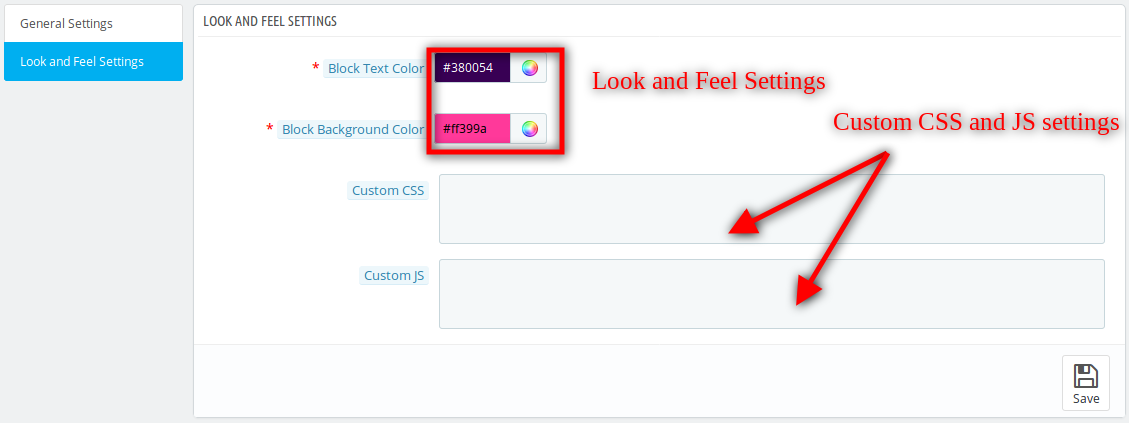
This tab will contain all the look and feel features of the module .

Figure 1 – Order Social Sharing Look and Feel Setting Tab

Steps – Go to Modules and Services > Search module ‘Order Social Sharing’ > Click on “ Configure” Button > Select Look and Feel Setting Tab.

Fields

1. Block Text Color :

This will set the color of the text inside the block.

Steps – Go to modules and Setting >Search Module ‘Order Social Sharing’> Click on Configure button > Select Look & Feel Setting Tab > Select the Block Text color > Click on Save.

2. Block BackGround Color :

This will set the color of the background inside the block.

Steps – Go to modules and Setting >Search Module ‘Order Social Sharing’> Click on Configure button > Select Look & Feel Setting Tab > Select Block Background Color > Click On Save.

3. Custom CSS :

This will set the CSS of the ‘Success Checkout’, ‘Order History and Details‘ and ‘Shared Link’ page. Steps –

Go to modules and Setting >Search Module ‘Order Social Sharing’> Click on Configure button > Select Look & Feel Setting Tab > Enter any CSS Code at Custom CSS Field > Click On Save.

Note: Enter CSS content excluding <style> — inner content– </style> Tags (only write inner content ) .

4. Custom JS :

This will set the JS of the ‘Success Checkout’, ‘Order History and Details‘ and ‘Shared Link’ page. Steps –

Go to modules and Setting >Search Module ‘Order Social Sharing’> Click on Configure button > Select Look & Feel Setting Tab > Enter any JS Code at Custom JS Field > Click On Save.

Note: Enter JS content excluding <script> –inner content– </script> Tags (only write inner content ).

Front End Interface

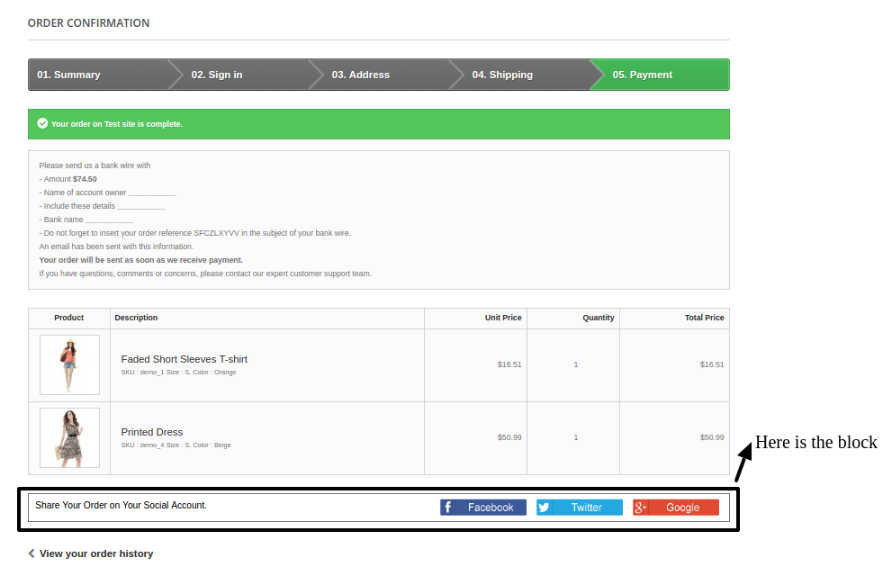
If admin enable the plugin then the below like image will be displayed in the Front End .

Success Checkout Page

Steps – Add any product to Cart > Proceed to Checkout Process > Completed Checkout Process > Click on ‘I confirm my order ’ > Order Confirmation Page .

Figure 1 – Order Social Sharing Default PopUp

When customer clicks on any share button, then details of order (name, image, reference, combination and current price with discount) as well as the name of the buyer will be share on corresponding social media. The UI or html design of products will be same as displayed in above screen.

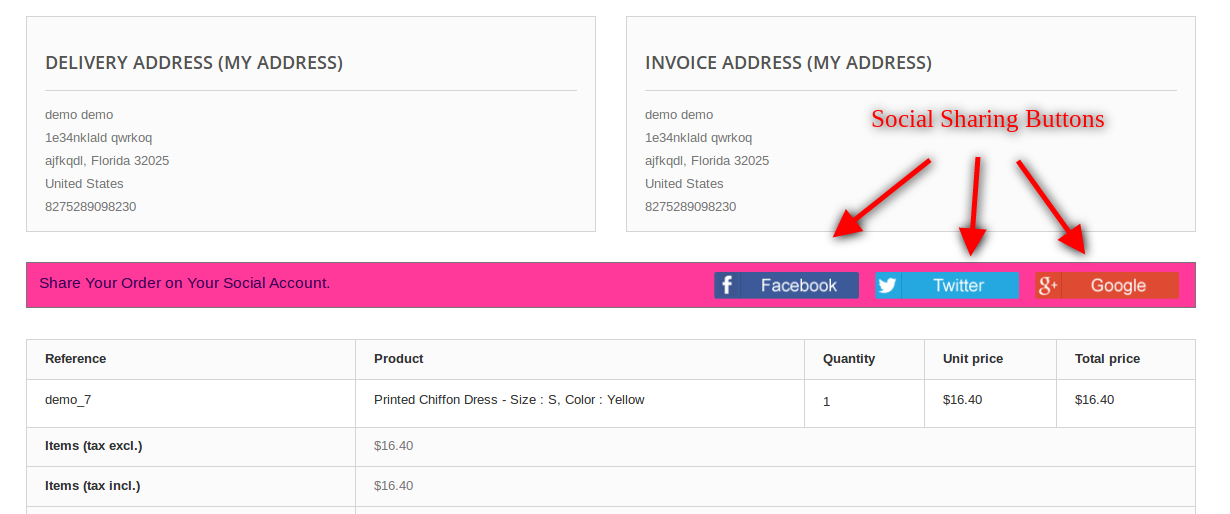
Order History and Details Page

Steps – Go to “My Account“ Page > Click on “Order History and Details” link >Select any “Details” for any “Order reference” .

Figure 1 – Order Social Sharing Customized Popup

Shared Order Details Page

When the user clicks on the link on any social networking website (Google , Facebook , Twitter) then redirected to the page like below.

In this page both the image and the product name will have link reference.

Figure 1 – Order Social Sharing share order page

For more details about this Prestashop addon:

Module Link: https://www.knowband.com/prestashop-order-social-sharing

Admin Demo Link:
https://ps.knowband.com/demo4/16/admin1/index.php?controller=AdminLogin&token=ffa17b0c72ff8c0ab7cf3e344c5ae4fc&redirect=AdminModules&demo_lang=en

Front Demo: https://ps.knowband.com/demo4/16/en/login?back=history

Watch Video:
https://www.youtube.com/watch?v=FJzMBH4Jd-E&feature=youtu.be

Addon Store link:
https://addons.prestashop.com/en/share-buttons-comments/25873-knowband-order-social-sharing.html

Please contact us at support@knowband.com for any query or custom change request as per your business requirement.

Posted on January 3, 2017August 13, 2022Author Joe ParkerCategories Prestashop User Manual, User ManualTags order social promotions plugin, order social sharing bar module, order social sharing button, Prestashop order social sharing addon, Prestashop share a purchase extension, Prestashop social promotion
Proudly powered by WordPress
Please wait...

Newsletter Subscription

Subscribe With Us and Get Latest Updates
SUBSCRIBE
Exit mobile version