How to display price in all currencies on OpenCart Product Page?

Objectives of the blog

After reading this blog we will be able to display price in all currencies in the product page of OpenCart 3.x

Problem Statement

By default, OpenCart 3.x display price of the product into the currency set as default or chosen by the end user. And to display the price in all available currencies there will be few changes in the default or core files of OpenCart. (In case you do not want to change the core files then it can be done either through VqMod or OcMod.)

Requirement

We would need to modify the below-mentioned files to show the price of the product in all available currencies in the product page.

Procedure to solve the issue-

Follow the below-mentioned steps –

Open product.php from Catalog/Controller/Product and search for

$results =

$this->model_catalog_product->getProductImages($this->request->get['product_id

']);

2. And, add the following statement after that –

$currencies = $this->model_localisation_currency->getCurrencies();

3. Again find following code snippet in the same file –

if ($this->customer->isLogged() || !$this->config->get('config_customer_price')) {

   $data['price'] = $this->currency->format($this->tax->calculate($product_info['price'], $product_info['tax_class_id'], $this->config->get('config_tax')), $this->session->data['currency']);

} else {

   $data['price'] = false;

}

4. And replace it with –

$data['price'] = array(); 
if ($this->customer->isLogged() || !$this->config->get('config_customer_price')) {

   foreach ($currencies as $currency) {

       if ($currency['status']) {

           $data['price'][] = $this->currency->format($this->tax->calculate($product_info['price'], $product_info['tax_class_id'], $this->config->get('config_tax')), $currency['code']);

       }

    }

}

5. Open product.twig from catalog/view/theme/default/template/product and search for

<h2>{{ price }}</h2>

5. And replace it with –

{% for currency_price in price %} <h2>{{ currency_price }}</h2> {% endfor %}

Then, clear all Caches (ocmod cache, twig cache, vqmod cache)

That’s all.

Refer the screenshot below after applying changes into the code –
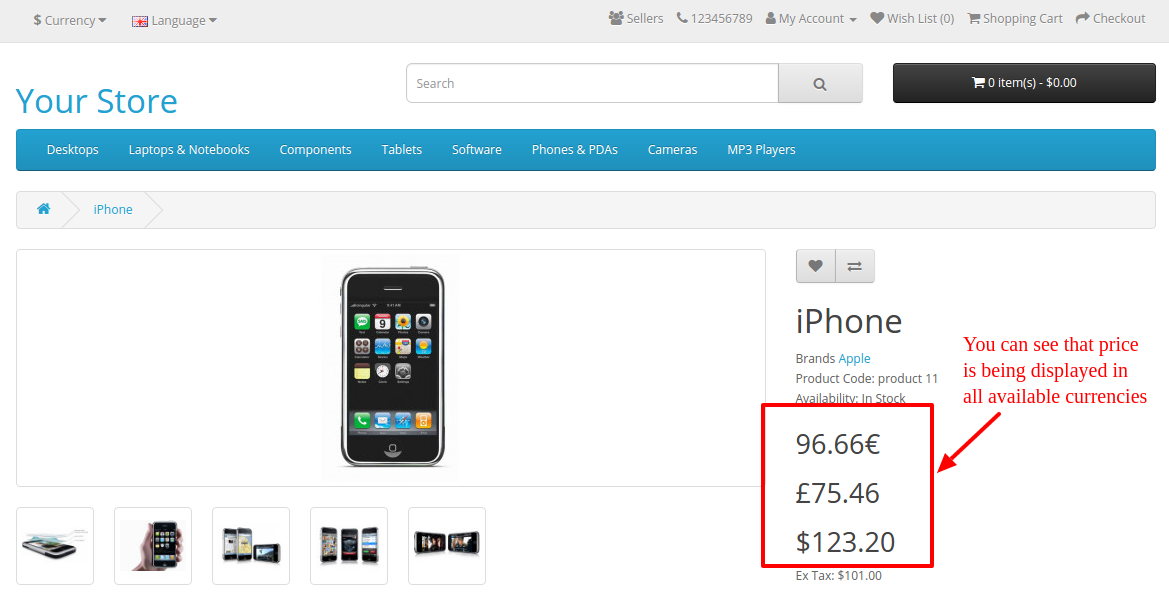
product-prices-in-all-currencies

Summary

After following the above procedure, you will be able to display the price in all available currencies in Product Page.
How to open “Terms & Conditions” link in a new tab on checkout page (OpenCart)?

Objectives of the blog

After reading this blog we will be able to add the html attribute in “Terms and Condition” link to open it in new tab.

Current Scenario

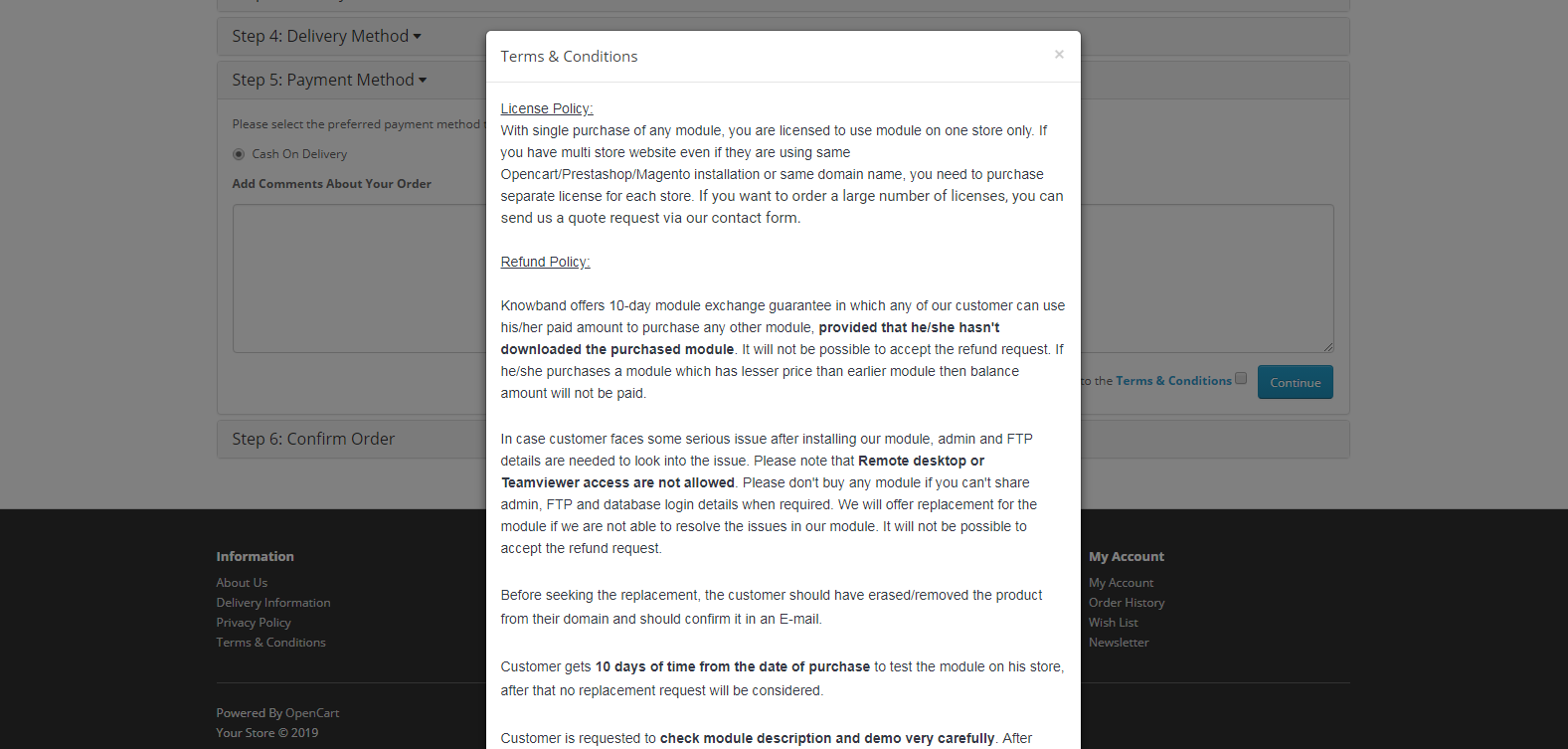
Presently, The “Terms & Conditions” link shows entire page in a popup window on checkout page of Opencart. But for “Terms & Conditions” having custom texts and html we want to open the same link in new tab as the content of page may not look appropriate in pop-up.

Refer below screenshot for the same-


Procedure:

STEP 1:-

Terms and Conditions link displayed on default checkout page resides in catalog/view/theme/default/template/checkout/payment_method.tpl, Block of code used for link is as below :


<div class="pull-right"><?php echo $text_agree; ?>


$text_agree is the variable that prints the link on page and this variable is set at location catalog/controller/checkout/payment_method.php

Variable definition looks as below :-

$data['text_agree'] = sprintf($this->language->get('text_agree'), $this->url->link('information/information/agree', 'information_id=' . $this->config->get('config_checkout_id'), true), $information_info['title'], $information_info['title']);


You need to replace this definition with new one –

$data['text_agree'] = sprintf($this->language->get('text_agree'), $this->url->link('information/information', 'information_id=5' , true), $information_info['title'], $information_info['title']);


we have replaced the href :-

https://your_store_url/index.php?route=information/information/agree&information_id=5


that does not contain header, footer and other content with

https://your_store_url.com/index.php?route=information/information&information_id=5


which contains header, footer and other content in the page.

STEP 2 :-

Lastly, you have to edit the definition of link in catalog/language/en-gb/checkout/checkout.php

In above file location there would be a definition as below : –


$_['text_agree'] = 'I have read and agree to the <a href="%s" class="agree"><b>%s</b></a>';


We have to add a attribute  target=”_blank” and remove  class=”agree” in above anchor tag to open the link in new tab. The new definition of text_agree key would be as follow:-

$_['text_agree'] = 'I have read and agree to the <a href="%s" target="_blank"><b>%s</b></a>';


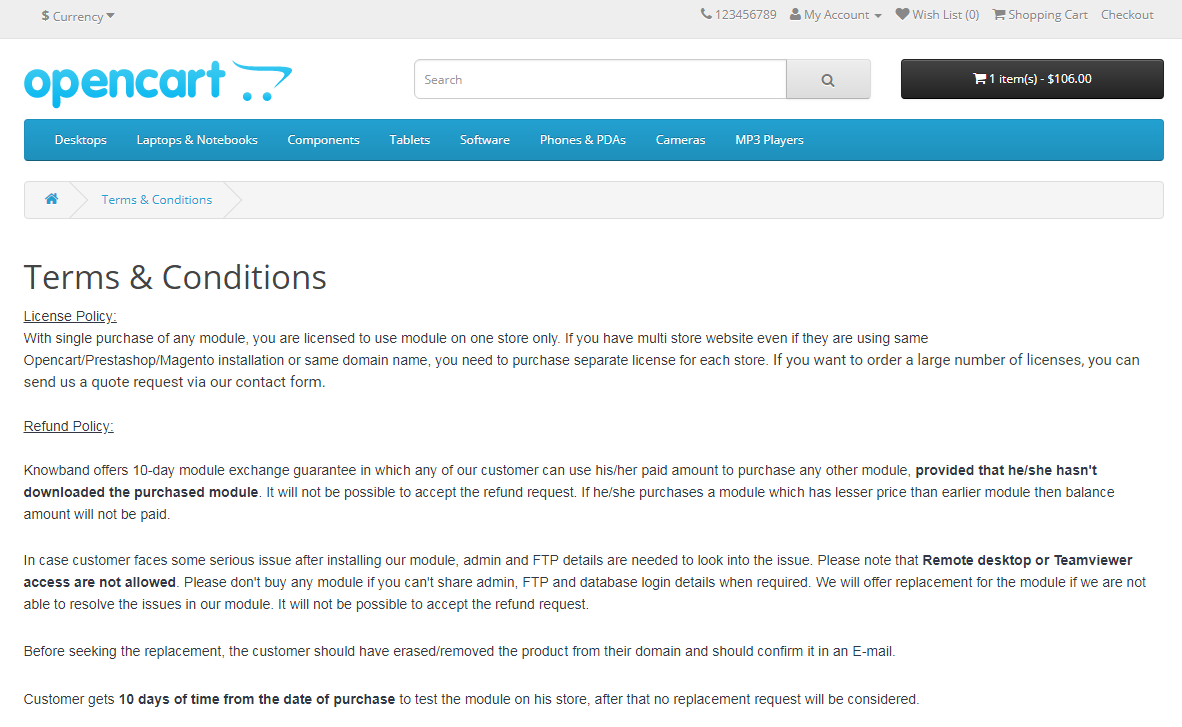
After saving the above changes, we will be able to open the “Terms & Conditions” link in a new tab on checkout page.

Please refer to the screenshot below :-


Summary:

After following above changes, we will be able to open the “Terms & Conditions” link in a new tab on checkout page.

NOTE: This demonstration is for default template but this will work same for other templates having similar code.

Show all products when search is blank (Opencart 2.3.x)

Objectives of the blog

After reading this blog you will be able to display all products when the search is blank.

Problem Statement

Currently in Opencart, when user search for any string using search functionality, then no products are returned if no search product found in database. We want to make it return all the products when search is empty.

Code Implementation

To achieve this, we will have to make some changes in the model function which we are using to fetch products from database on the basis of entered search keyword.

Here we are making changes in getProducts()  function of model catalog/model/catalog/product.php as we are using this function to display results on the basis of search keyword.

Note: you can make same changes in the model function which you are using to fetch products.

Here is the code which we have added in the model:

/*Checked if the result empty (affected rows 0) of query which is running to fetch data on the basis of search keyword.
* If yes then added new query to fetch new added products and executed same.  
* By doing this we will display our new products on the search page instead of showing blank page.
*/
if($query->num_rows == 0){
   $sql = "SELECT DISTINCT p.product_id  
           FROM " . DB_PREFIX . "product p  
           LEFT JOIN " . DB_PREFIX . "product_description pd ON (p.product_id = pd.product_id)  
           LEFT JOIN " . DB_PREFIX . "product_to_store p2s ON (p.product_id = p2s.product_id)  
           WHERE p.status = '1' AND p.date_available <= NOW() AND p2s.store_id = '" . (int)$this->config->get('config_store_id') . "'  
           GROUP BY p.product_id ORDER BY p.product_id DESC LIMIT 20";
   $query = $this->db->query($sql);
}

Add this code just after executing main query or just after line ($query = $this->db->query($sql)).

In this code first we have checked the number of affected row by the main query (used to fetch data on the basis of search keyword). If the affected row is 0 ($query->num_rows == 0) then added our query to fetch new added products.

By doing this we will display our new products on the search page instead of showing blank page.

Note: here we have written query to fetch new added products from the database if search is empty. You can also add query to fetch special or best seller products according to your requirement.

Summary

After making the following changes in the model file, new added products will be shown when the search is empty.