
1. Introduction
Having an OpenCart website requires much more than just adding your products and completing orders. Search engines need to know what is on the web page, customers require faster-loading pages, and there are also broken links that have to be detected before they start bringing losses to you. An OpenCart SEO Audit Manager developed by Knowband provides all these functions from one dashboard instead of using different add-ons, Excel sheets, and manual checks. An OpenCart SEO Audit Extension indeed does all these things at once.
The fundamental principle behind the operation of the OpenCart SEO Audit Extension is to rate products, product categories, informational pages, manufacturers, and blogs that are compatible with OpenCart. Every single page will get its own quality rating, taking into account such aspects as meta tags, readability, keyword inclusion, linking, and more. For those store owners who do not know much about SEO, this is a good checklist.
Apart from scoring, the Extension includes functionalities such as OpenCart Google Analytics 4 Analysis, OpenCart Google Search Console, and OpenCart PageSpeed Insights for traffic analysis, search analysis, and page speed information to be found in one dashboard. In addition, it takes care of redirect management using the OpenCart URL Redirect Extension. This extension also identifies any 404 URL that might ruin users’ experience and detects duplicate SEO URLs.
This module acts as an OpenCart Technical SEO plugin, which allows you to edit your robots.txt file using OpenCart Robots.txt Editor and creates XML and HTML sitemaps using OpenCart Sitemap Generator. With the optional OpenCart AI Content Generator based on ChatGPT, it drafts such important elements as meta titles, meta descriptions, product descriptions, and social media tags.
This manual describes the functionality of the Knowband OpenCart SEO Audit Extension on the basis of its actual navigation, features, and performance. This document does not give any guarantees concerning the ranking of the page in search results, since no on-page service can control the search engine ranking of a page. It gives an explanation of each feature’s function, usage, and relevance. The manual is written for those OpenCart store owners who have the knowledge of OpenCart but do not know how to perform an OpenCart SEO audit.
2. Key Features of OpenCart SEO Audit Manager
OpenCart SEO Audit Manager, a complete OpenCart SEO audit extension for OpenCart stores, combines several distinct capabilities under one module. Together, they cover most of the recurring SEO maintenance tasks an OpenCart store needs:
- SEO and readability scoring for products, categories, information pages, manufacturers, and supported blog content
- Score history with trend charts, snapshots, and comparisons over time
- Issues grouped by rule, so administrators can fix one problem across many pages at once
- OpenCart Google Analytics 4 integration with sessions, users, eCommerce, and behavior reporting
- OpenCart Google Search Console integration covering performance, sitemap submission, and URL indexing checks
- PageSpeed Insights integration with mobile and desktop testing, plus historical trend tracking
- An OpenCart Redirect Manager supporting OpenCart 301 Redirects plus 302 and 303 redirect types, including bulk CSV import
- 404 URL detection that records missing storefront requests for review
- Duplicate URL checking, effectively an OpenCart SEO Checker for SEO keywords assigned to more than one page
- XML and HTML sitemap generation through the module’s OpenCart Sitemap Generator, along with RSS feed support
- robots.txt management via the built-in Robots.txt Editor, directly from the admin panel
- An OpenCart AI Content Generator (ChatGPT-assisted) for meta titles, descriptions, product copy, and social metadata
- Import/export for bulk SEO data backup, restore, and AI-assisted enhancement
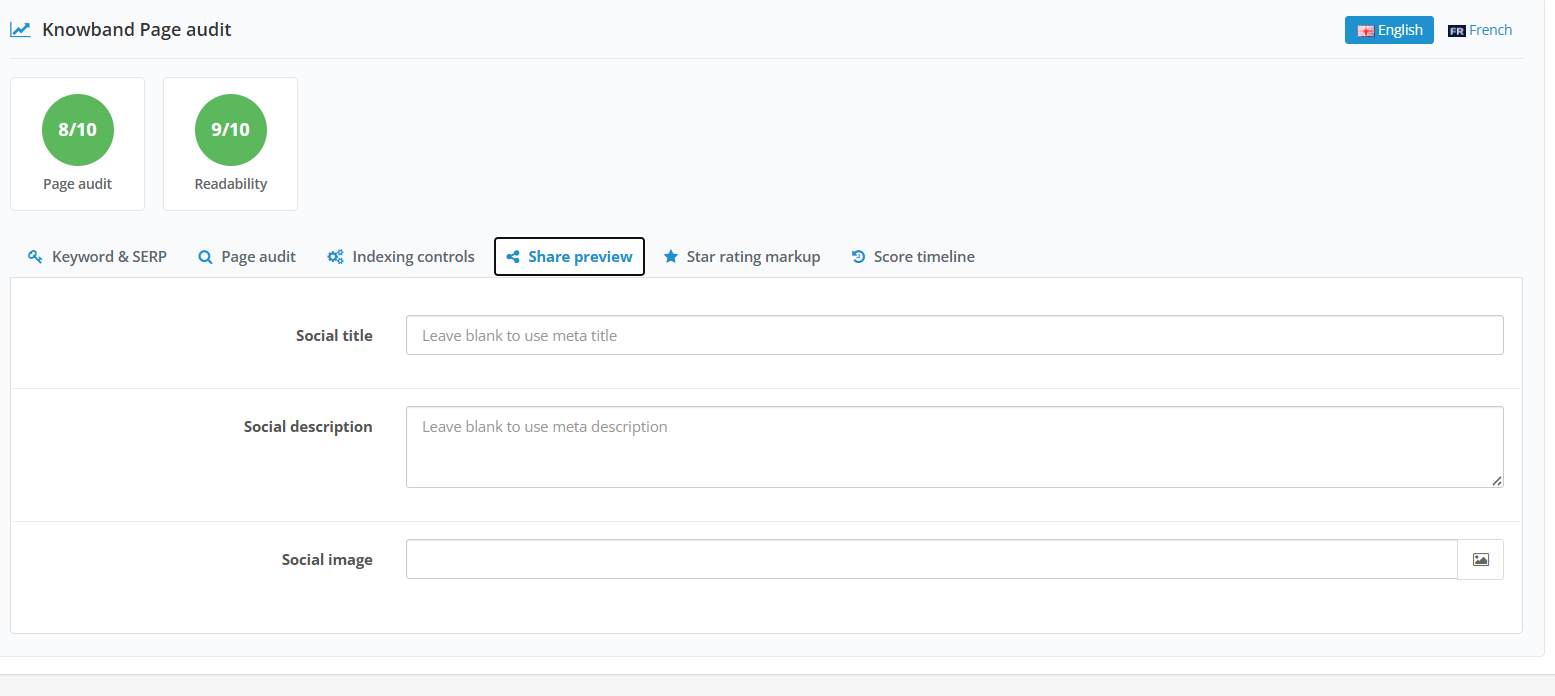
- Social Cards for Open Graph and X (Twitter) card metadata, plus structured data support
Each of these areas is documented in detail in the sections that follow, using the exact tab names and fields found in the OpenCart SEO Audit Module.
3. Installation of the Extension
Step 1: Download the module. Download the OpenCart SEO Audit Manager, an OpenCart SEO plugin developed and extract it on your local machine.
Step 2: Copy the files to your server. Upload the contents of the files’ upload (admin, system, catalogue) directory into your store, keeping the existing folder structure intact.
Step 3: Install or refresh the OCMOD modification. The module includes an OCMOD modification that adds the Knowband SEO group to the admin sidebar. In OpenCart, go to Extensions > Modifications and refresh the modification list so the OpenCart SEO Extension appears correctly. If the sidebar entry does not appear immediately, the extension also includes an event-based fallback that adds the menu automatically once the extension is installed.
Step 4: Install the extension. Open the OpenCart administration panel, go to Extensions, locate Knowband SEO, and install it.
Step 5: Confirm user permissions. Installation grants the installing user group access and modification permission for the module’s routes. If other administrator groups also need to use the module, add their access and modify permissions manually under System > Users > User Groups.
4. Admin Overview of OpenCart SEO Audit Extension
The OpenCart SEO Audit Extension organises its tools under a dedicated admin menu. The navigation includes Dashboard, Analytics (includes GA, GSC & PageSpeed Insight dashboards), Score History, URL Optimisation, Sitemap XML, and HTML. This extension also includes updating products in bulk using import/export settings. Also allow you to edit sitemap.xml, sitemap.html, and robots.txt.
4.1 Dashboard
The dashboard is the summary view of your store’s overall SEO condition. It is usually the first place to check when reviewing how your catalog is performing from a content and metadata POV.
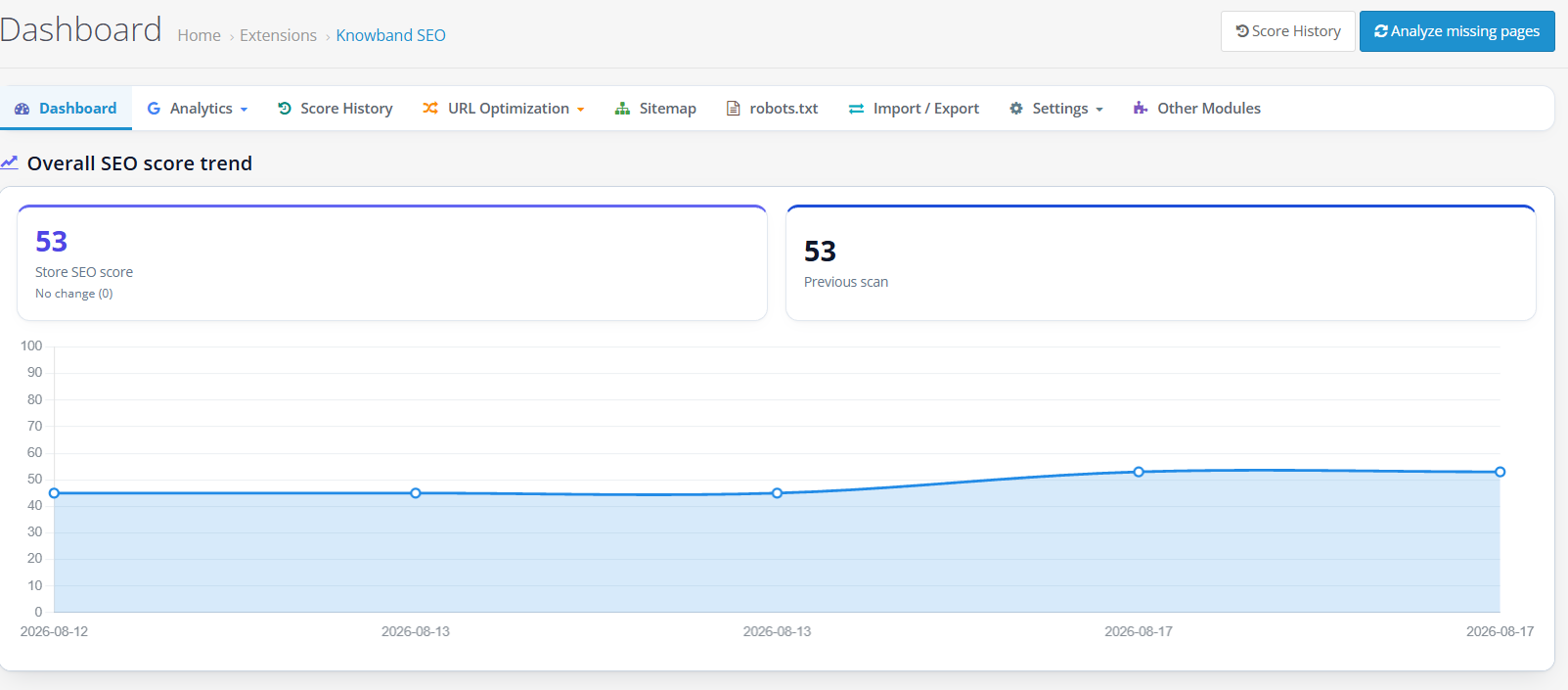

- Current website score / Previous score: The overall SEO score of the store as of its latest audit, presented in relation to the previous period’s score to track if there was an improvement or decline.
- Trend of the overall SEO score: A graph showing the performance of your website over time that will help understand whether the improvements made had any lasting impact or just an initial positive response.
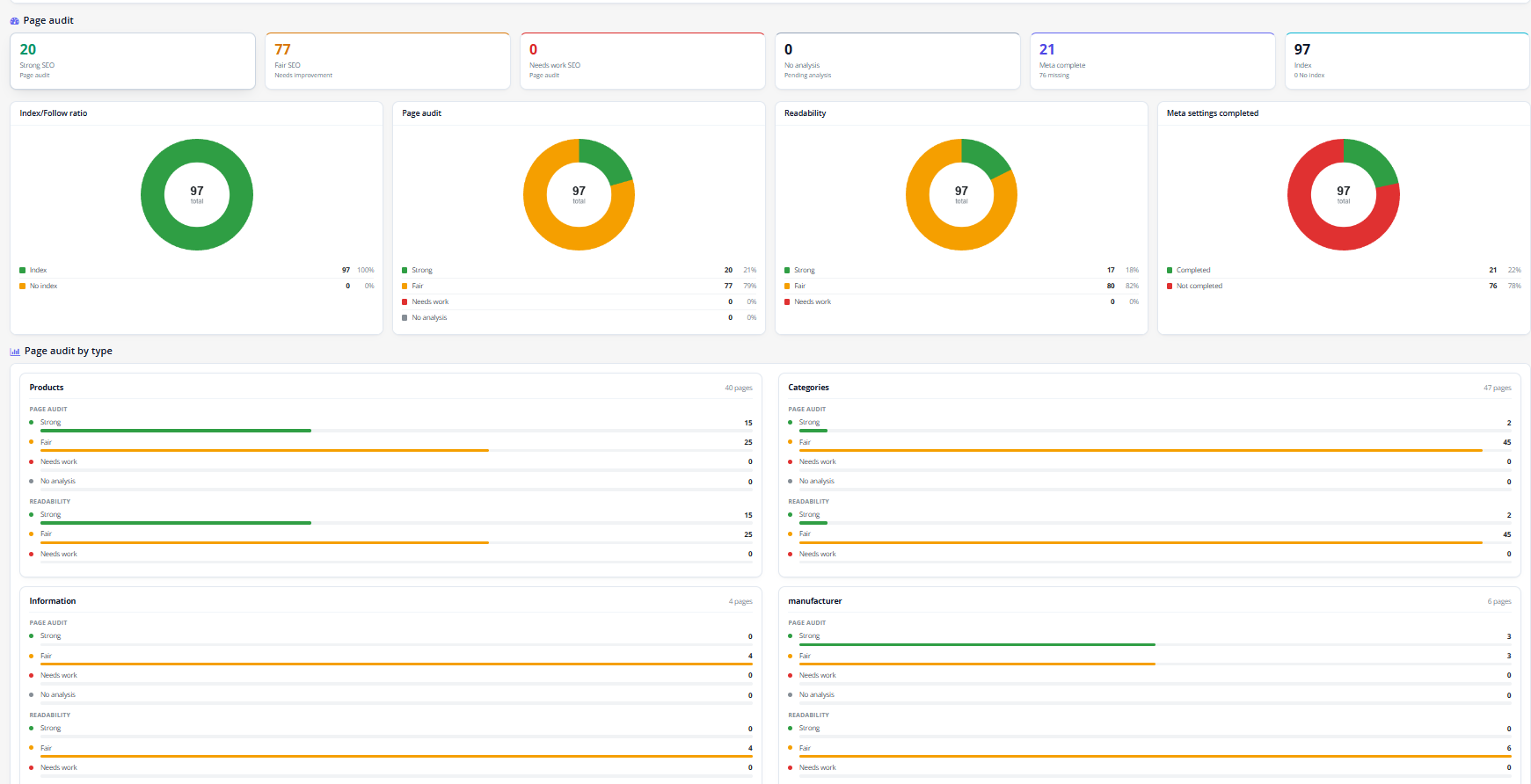
- Index/Follow ratio: The ratio of pages marked for indexing and following versus those marked noindex and nofollow, will allow to detect the pages that were mistakenly blocked from search engines’ crawling.
- Pages by scores distribution: A chart reflecting the number of pages with strong, moderate, and poor SEO scores.
- Readability: a chart summarizing readability scores across analyzed content, separate from the SEO score.
- Meta settings completed: a chart showing how many pages have complete metadata (title, description, and similar fields) versus how many are missing it.
- SEO checklist: a list of store-wide technical items, including SEO URLs enabled, SSL enabled, XML sitemap enabled, robots.txt existence, maintenance mode status, webmaster verification, URL redirects, RSS, and blog detection where relevant. Each row shows whether the item is in place and may include an edit or external link to fix it directly.
- Score History (header action): a shortcut that opens the Score History tab without using the main menu.
- Analyze missing pages (header action): opens the bulk analysis tool described below, used to score pages that have not yet been analyzed.
4.2 Analytics
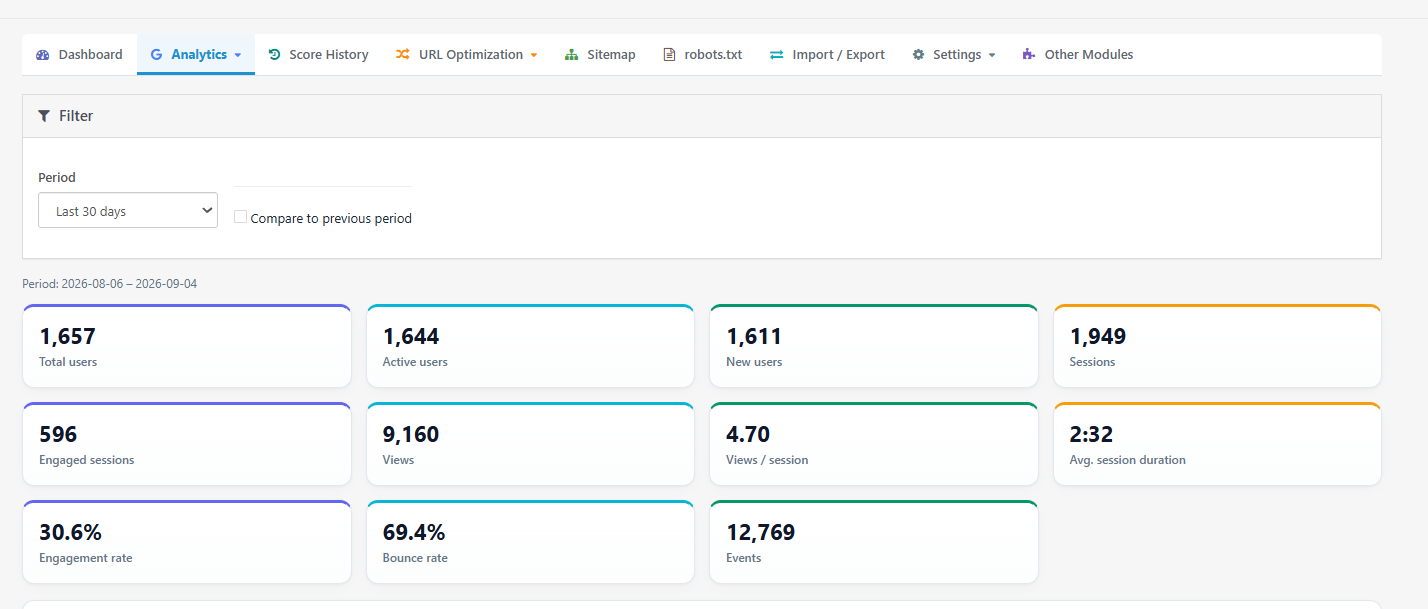
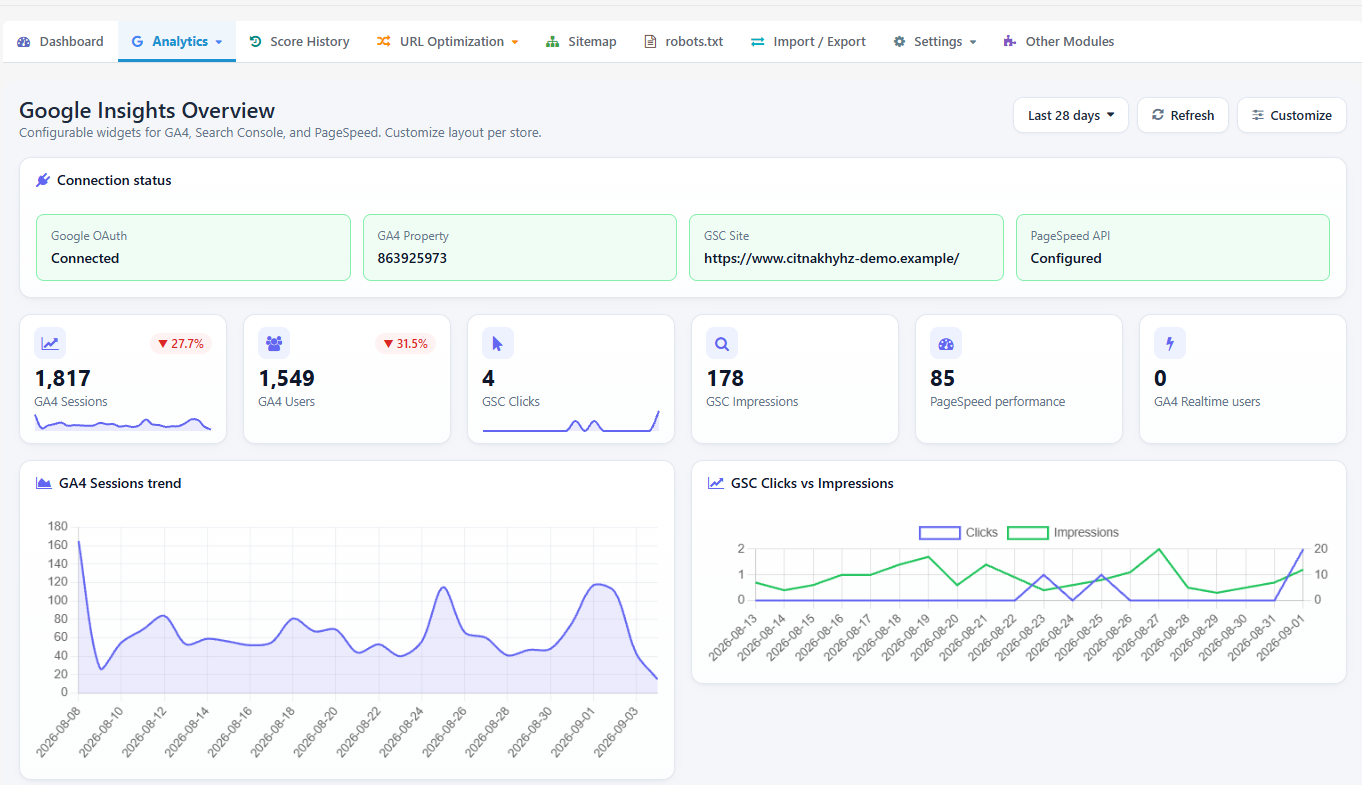
Analytics contains the tabs, including Analytic Dashboard, Settings, GA4 Analytics, Search Console, and PageSpeed.
4.2.1 Analytics Dashboard of the OpenCart SEO Audit Manager
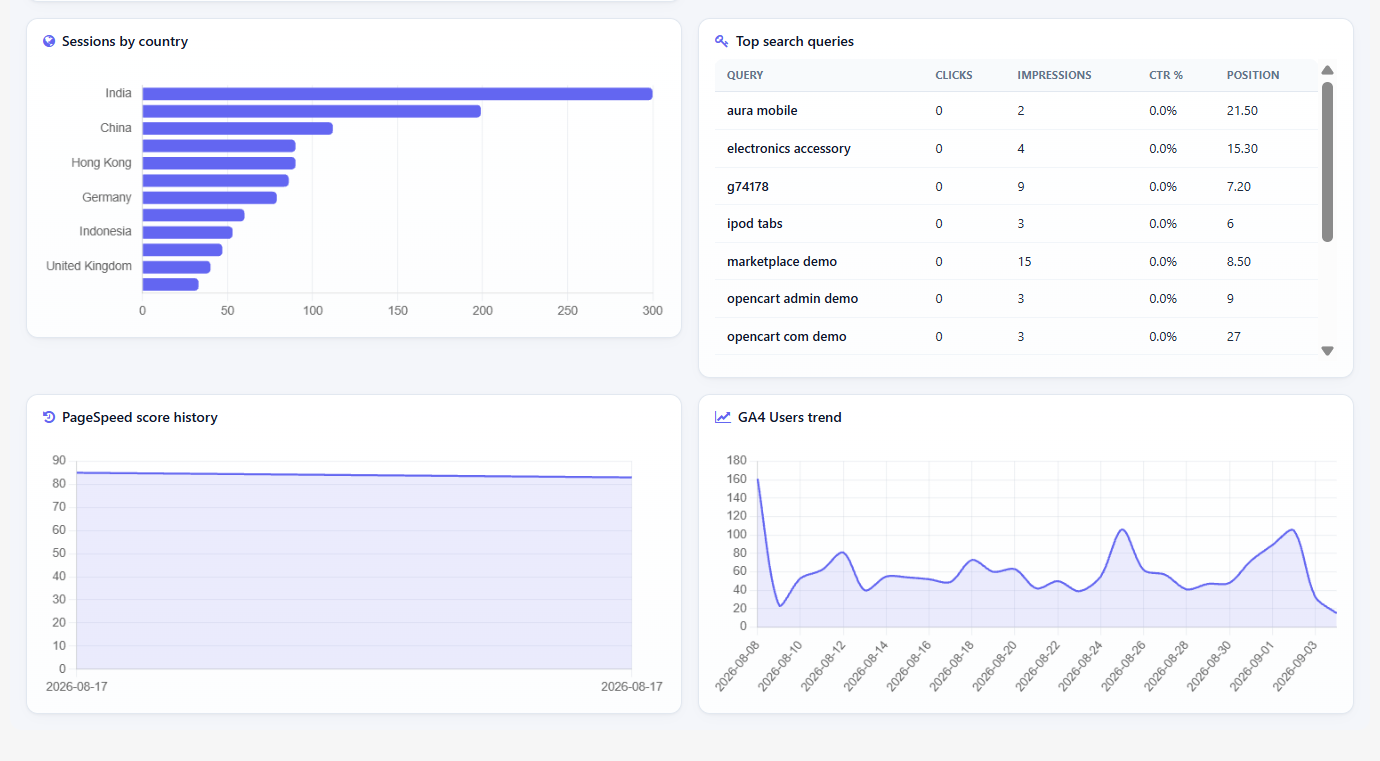
This is a customizable widget dashboard that pulls together GA4, Search Console, and PageSpeed data in one place, so you do not need to open each integration separately for a quick check. These widgets are included from Google Analytics 4, Google Search Console and PageSpee
- Period selector: The Store owner can set the reporting window for every widget on the page, with choices of Last 7 days, Last 28 days, Last 30 days, or Last 90 days.
- Sessions: Select GA4 sessions recorded in the selected period.
- Users: total Unique users recorded in the selected period.
- Page views: Total page views recorded in the selected period.
- Realtime users: The number of users currently active on the storefront, updated close to live.
- Sessions trend / Users trend: Line charts showing how sessions and users changed day by day across the selected period.
- Sessions by country: A breakdown of sessions by visitor country.
- Sessions by device: A breakdown of sessions by device category, such as desktop, mobile, or tablet.
- Top traffic sources: The channels or sources sending the most sessions to the store.
- Clicks: total Search Console clicks in the selected period.
- Impressions: total times your pages appeared in Google search results.
- CTR: click-through rate, calculated as clicks divided by impressions.
- Avg position: the average ranking position of your pages in Google search results for the period.
- Clicks vs Impressions: a combined chart plotting clicks and impressions together so you can see how they move relative to each other.
- Top search queries: the search terms generating the most clicks or impressions.
- Top landing pages: the pages receiving the most traffic from search.
- PageSpeed performance: a widget summarizing your most recent PageSpeed test scores.
- Refresh: reloads the data for all currently displayed widgets.
- Customize: opens the widget library so you can add, remove, or reorder widgets.
- Save layout: stores your current widget selection and arrangement for this store.
- Cancel: closes the customization view without saving changes.
- Reset layout: restores the default widget selection and order.
4.2.2 Settings of GA4, GSC and PageSpeed
This includes holds every configuration value the Analytics area needs, organized into General, Credentials, Properties, Access, PageSpeed Cron, and Notifications sections.
General
- Analytics Status: turns Analytics data collection and dashboards on or off for this store.
- Default Period (days): the reporting window used by dashboard widgets when no other period has been chosen.
- API Cache TTL (minutes): how long API responses are cached before the Extensionrequests fresh data from Google, which reduces API usage but delays how quickly new data appears.
- Search Console Data Lag (days): the number of most recent days excluded from Search Console reporting, since Google typically finalizes that data a few days after it occurs.
- History Retention (days): how long PageSpeed test history is kept before older records are removed.
Credentials
- PageSpeed API Key: your Google PageSpeed Insights API key, required to run performance tests.
- Google OAuth Client ID: the Client ID from the Web application OAuth client you created in Google Cloud.
- Google OAuth Client Secret: the matching Client Secret; leaving this field blank when editing keeps the value already stored.
- Connect with Google: starts the OAuth authorization flow using the Client ID and Secret above.
- Disconnect Google: removes the stored Google connection for this store.
- Refresh: reloads the list of available Google properties after a successful connection.
Properties
- Search Console Property: the specific Search Console property this store’s data should be pulled from.
- GA4 Property: the specific GA4 property ID this store’s data should be pulled from.
- PageSpeed Test URL: the default URL used when running a PageSpeed test without specifying a custom one.
- Custom Test URL: an optional alternate URL available when a custom PageSpeed target is selected instead of the default.
PageSpeed Cron
- Enable Scheduled Checks: turns on automatic, recurring PageSpeed tests.
- Pages To Test: which page targets are included in the scheduled checks.
- Cron URL: the unique URL your server scheduler should call to trigger scheduled PageSpeed checks.
- Last Run: the date and time the scheduled check last executed.
- Regenerate: creates a new security token for the Cron URL; any existing scheduled job still using the old URL will stop working until it is updated.
- Run now: triggers a scheduled check manually, without waiting for the next scheduled time.
Notifications
- Enable Email Alerts: turns on email notifications for score or performance changes.
- Alert Recipient: the email address that receives alerts.
- Alert Threshold (points): the score-change amount that triggers an alert.
- Also Notify On Recovery: sends an additional alert when a score that previously dropped recovers.
- Notify When Core Web Vitals Fail: sends an alert specifically when Core Web Vitals metrics fail their thresholds.
- Send test email: sends a sample alert to the configured recipient so you can confirm delivery is working.
Steps to Create Google Client ID & Secret ID
- Enable the required APIs. Inside that project, turn on the Google Analytics Admin API, Google Search Console API, and PageSpeed Insights API.
- Configure the OAuth consent screen. Google requires this before it will let your project request access to Analytics and Search Console data.
- Create an OAuth 2.0 Client ID. Choose “Web application” as the type.
- Add the redirect URI. Copy the exact redirect URI shown by the module and paste it into the OAuth Client’s settings.
- Save the Client ID and Client Secret. Copy both values from Google Cloud and paste them into the matching fields here.
- Click Connect with Google. This starts the authorization process using the credentials you just saved.
- Click Refresh. This loads the list of Google properties available to your account.
- Select the correct properties. Choose the right Search Console property and GA4 property for this store.
- Create a PageSpeed Insights API key. Generate this in the same Google Cloud project.
- Paste the key into the PageSpeed API Key field. This connects PageSpeed testing to the module.
4.2.3 GA4 Analytics
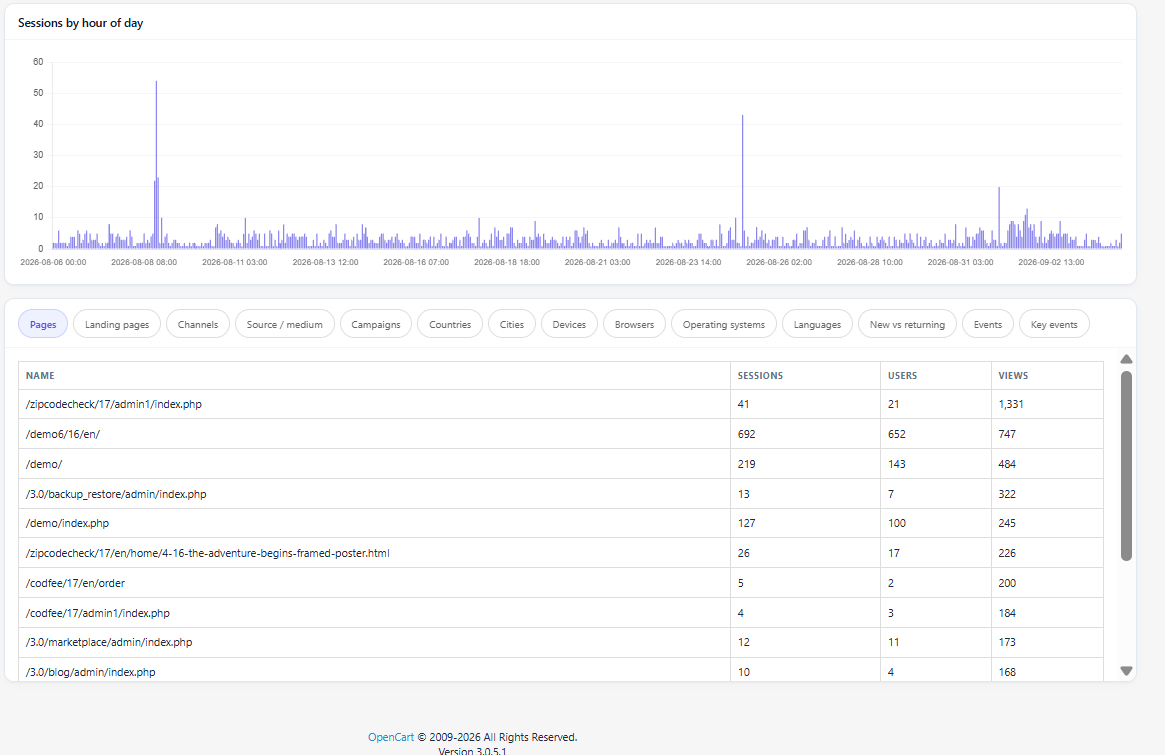
- This is inclusive of visualization of your Google Analytics 4 metrics including traffic, engagement, and eCommerce activities.
- Period Selector: Last 2 days, Last 7 days, Last 28 days, Last 30 days, or Custom that shows Date start, Date end, and an Apply button for a particular period.
- Compare to previous period: this will add a second line to your charts and cards in order to indicate the corresponding period SEO score of fStore, this way you can tell whether there has been an improvement.
- Overall SEO score trend: This is a graph of website score trend overtime, and it will help in knowing whether the changes that you have made recently are working or not.
- Index/Follow ratio: This will show the number of pages that are marked as index and followed against the number of pages that are noindexed and nofollowed. This way you can know the pages hidden from the search engines
- Page audit: a chart showing how many pages fall into strong, fair, and weak score bands, giving a quick sense of catalog-wide health.
- Total users: everyone who visited the store in the period.
- Active users: users counted by GA4 as actively engaged during the period.
- New users: first-time visitors in the period.
- Sessions: total sessions recorded in the period.
- Engaged sessions: sessions that met GA4’s engagement criteria, such as lasting a minimum duration or including a conversion event.
- Views: total page or screen views.
- Views per session: average number of views per session.
- Avg. session duration: average length of a session.
- Engagement rate: the share of sessions that were engaged sessions.
- Bounce rate: the share of sessions that were not engaged.
- Events: total events recorded, such as clicks or scroll triggers configured in GA4.
- Realtime panel: shows active users from the last 30 minutes, broken down by country, device, or page.
- Traffic over time: a chart of sessions, users, and views across the selected period, with a previous-period comparison line when enabled.
- Sessions by hour of day: a chart showing which hours typically bring the most sessions.
- Revenue: total eCommerce revenue recorded by GA4.
- Purchases: total completed purchase events.
- Transactions: total recorded transactions.
- Average order value: revenue divided by the number of orders.
- Items purchased: total quantity of items sold.
- Purchase funnel: a step-by-step view of Add to cart, Begin checkout, and Purchase, plus the conversion rates between them (Cart to checkout, Checkout to purchase, and Cart to purchase).
- Top items: the best-selling products by revenue or quantity in the period.
4.2.4 Search Console
This Google Search Console Integrations in OpenCart includes performance and sitemap & URL check options. Together they show how your store appears in Google search results and whether Google has indexed your pages correctly.
Available Options
- Clicks: how many times a search result led to a click on your site.
- Impressions: how many times your pages appeared in search results, whether clicked or not.
- CTR: click-through rate, clicks divided by impressions.
- Average position: the average ranking position of your pages for the queries measured.
- Comparison toggle: adds a previous-period series alongside the current data.
- Period / date range selector: sets the reporting window for the Performance data.
- Search type filters: narrows results to Web, Image, Video, or News search.
- Queries table: search terms, with Clicks, Impressions, CTR, Position, Previous, and Change columns.
- Pages table: individual URLs, with the same metric columns as Queries.
- Countries table: performance broken down by visitor country.
- Devices table: performance broken down by device type.
- Search appearance table: performance broken down by the type of search result shown (for example, a normal listing versus a rich result).
- Clicks vs impressions chart: plots both metrics together over time so you can see whether visibility and clicks are moving in the same direction.
Sitemaps & URL Check
- Sitemap: the submitted sitemap’s URL.
- Last submitted / Last downloaded: when the sitemap was last submitted to Google and when Google last downloaded it.
- Status: Google’s current processing status for the sitemap.
- Warnings / Errors: counts of issues Google found while processing the sitemap.
- Submitted URLs: how many URLs the sitemap contains.
- Submit/Delete sitemap: actions to add a new sitemap to Search Console or remove one that is no longer needed.
- Google Index Checker: URL filter: enter a specific URL to check its indexing status.
- Google Index Checker: Indexed filter: narrows results to indexed or not-indexed URLs.
- Details: opens the full inspection result for a checked URL, which can show Indexed by Google, Not indexed, Listed in a submitted sitemap, or Not found in any submitted sitemap.
- Check new URL: runs a fresh indexing check on a URL and stores the result in history for future reference.
- Open in Search Console to request indexing: opens Google’s own URL Inspection tool, since Google does not provide an API for requesting indexing of ordinary pages.
Submit your XML sitemap here after configuring the Sitemap tab, and revisit the Sitemaps table periodically to check for warnings or errors rather than assuming a one-time submission is enough.
4.2.5 PageSpeed
PageSpeed brings Google PageSpeed Insights testing into the admin, with Run Test, Results, and History areas.
Run Test
- Home page: runs the test against the storefront’s home page.
- Category page: runs the test against a selected category page.
- Product page: runs the test against a selected product page.
- Custom URL: runs the test against any URL you specify.
- Mobile / Desktop: every test runs on both device types, since performance often differs between them; a full test can take up to 90 seconds.
Results
- Field data: real-world performance measured from actual Chrome users, when enough data exists in the Chrome User Experience Report.
- Lab data: performance measured in a controlled, simulated test environment, useful when field data is unavailable.
- Lighthouse scores: the overall category scores Google’s Lighthouse tool assigns.
- Metrics: individual timing measurements such as load and rendering speed.
- Insights: guidance describing what is affecting performance.
- Diagnostics: additional technical detail about performance issues.
- Passed audits: checks the page already satisfies.
- Failed audits: checks the page does not satisfy, each with an explanation of the issue.
History
- Target: filters history by which page type was tested (Home page, Category page, Product page, Custom URL).
- Device: filters history by Mobile or Desktop.
- From / To: date range filters for the history list.
- Date: the date a specific test was run.
- URL: the exact URL that was tested.
- LCP: Largest Contentful Paint, a Core Web Vitals loading metric.
- INP: Interaction to Next Paint, a Core Web Vitals responsiveness metric.
- CLS: Cumulative Layout Shift, a Core Web Vitals visual stability metric.
- Source: whether the test was run Manually or by a Scheduled check.
- Export CSV: downloads the filtered history as a CSV file.
4.3 Score History
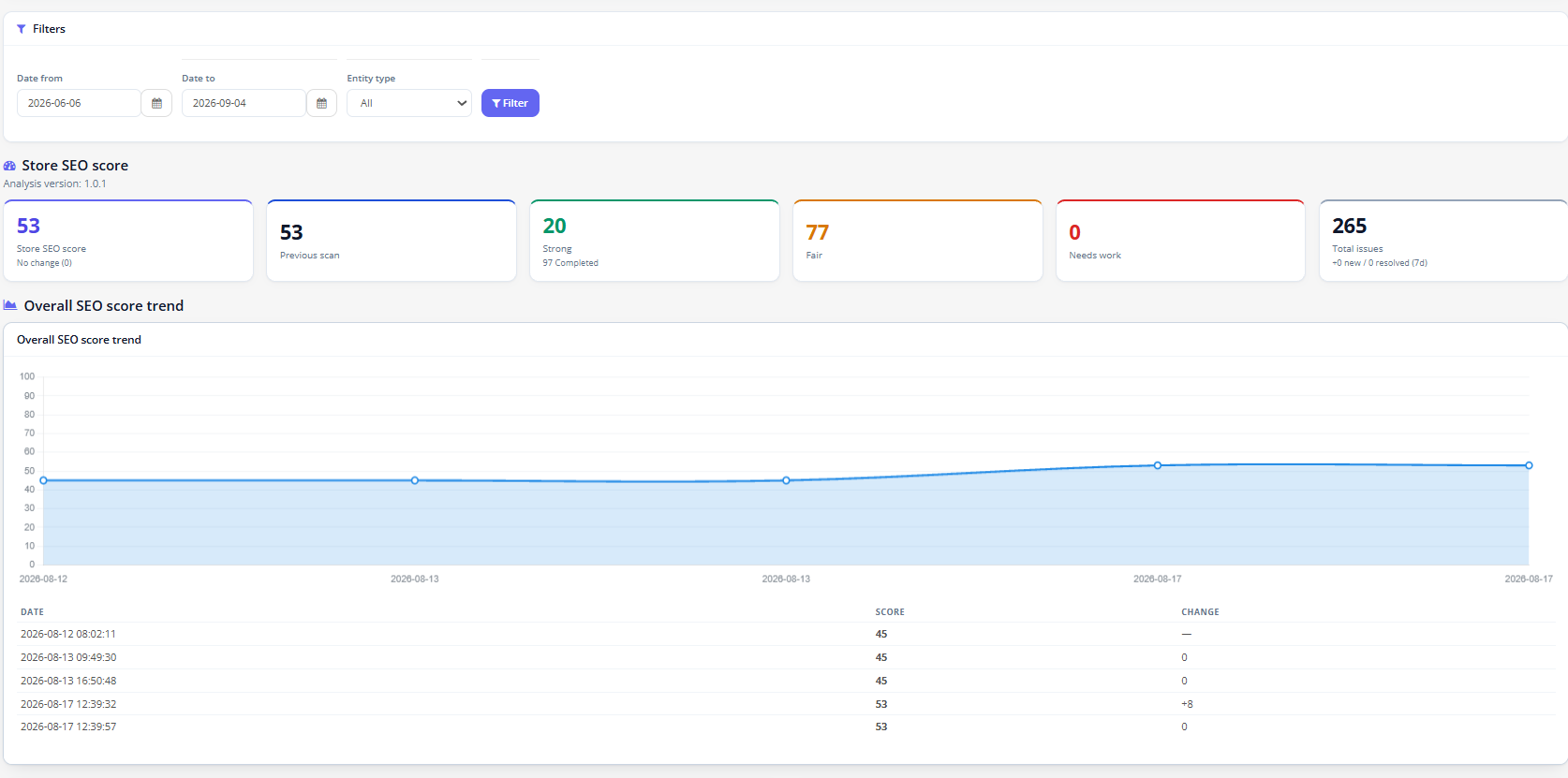
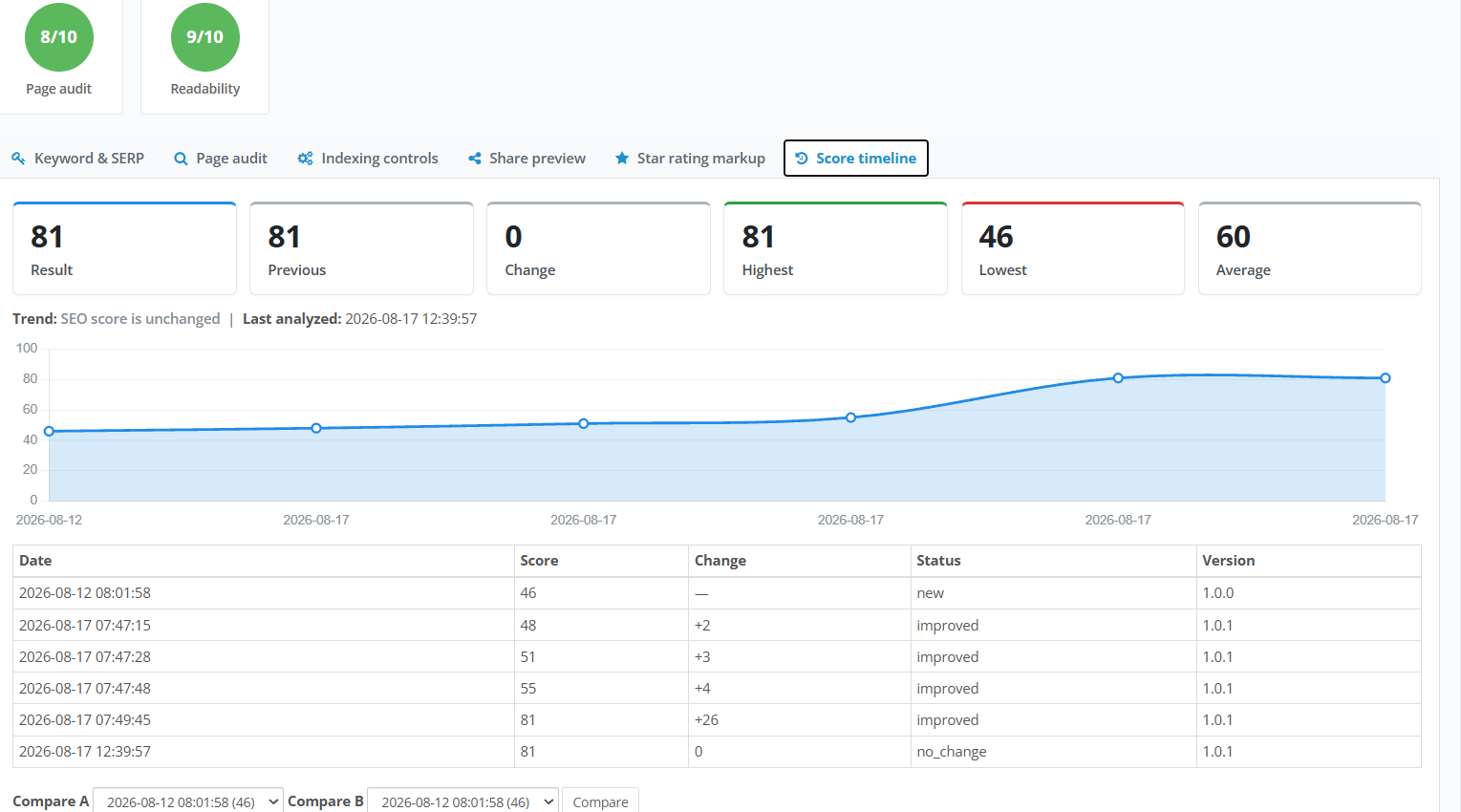
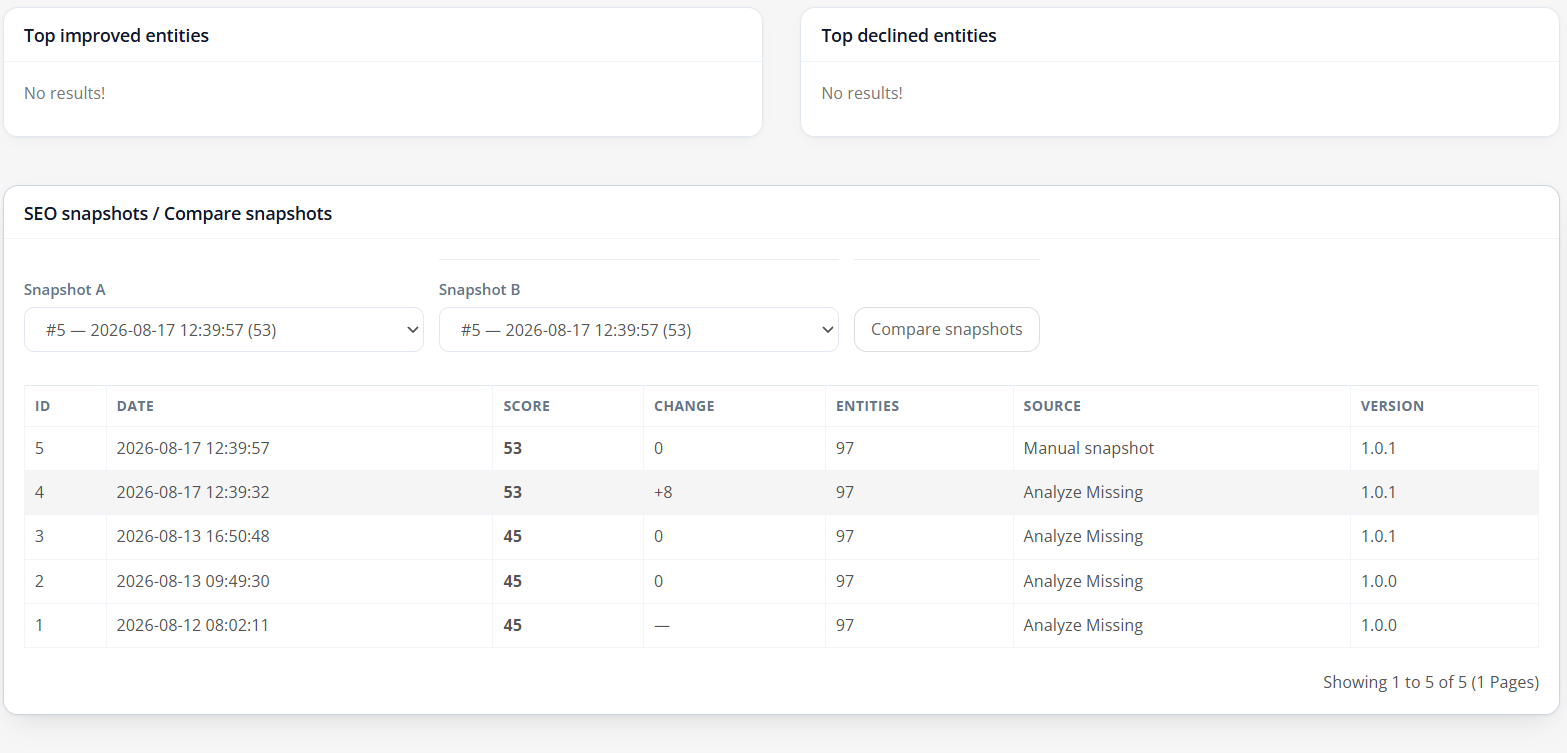
Score History in OpenCart SEO Audit Extension tracks how your store’s overall SEO score, and individual entity scores, change over time. This is where you confirm whether your SEO efforts are actually moving the needle..
Use Create snapshot to capture the store’s current state manually, for example before a large content update. To compare two points in time, select one snapshot as Snapshot A and another as Snapshot B, then click Compare snapshots; the two selections must be different from each other.
Best practice is to enable automatic snapshots and configure a retention policy in General Setting so that history builds up on its own, rather than depending on manual snapshots that are easy to forget.
4.5 URL Optimisation in Prestashop
This OpenCart SEO Audit Extension includes features like a redirection feature, 404 URL fixing and Duplicate URL detection.
A 301 redirect signals a permanent move and is generally the right choice when a page has been renamed or merged and the old URL should never be used again, this is the most common use case for OpenCart 301 Redirects. A 302 redirect signals a temporary move, useful for short-term changes such as a seasonal category being swapped out and back. A 303 redirect is typically used to point a request elsewhere after an action, such as a form submission, and is less commonly needed for straightforward catalogue URL changes.
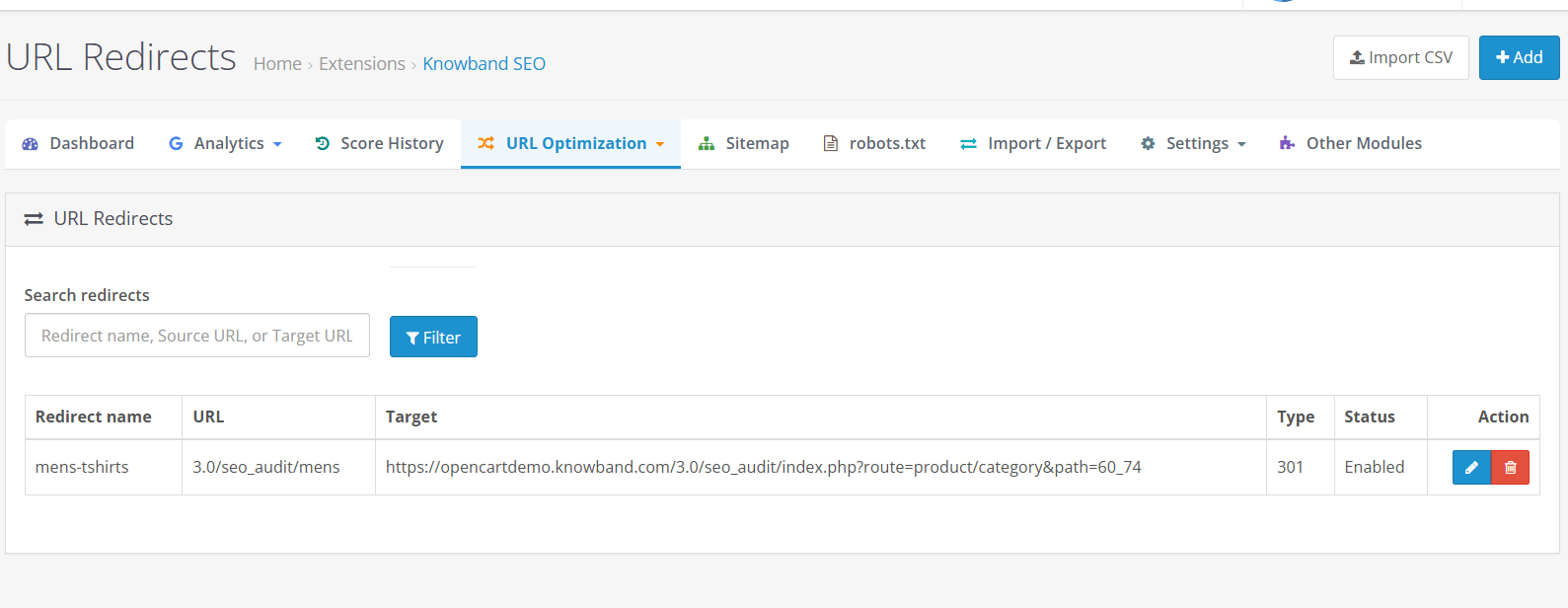
Import CSV: this includes adding a bunch of URLs directly at once from a sheet.
Add Redirect: Type in a redirect’s name, its source URL, or its target URL, and click Filter to narrow the list down, handy once you’ve got more than a handful of redirects saved.
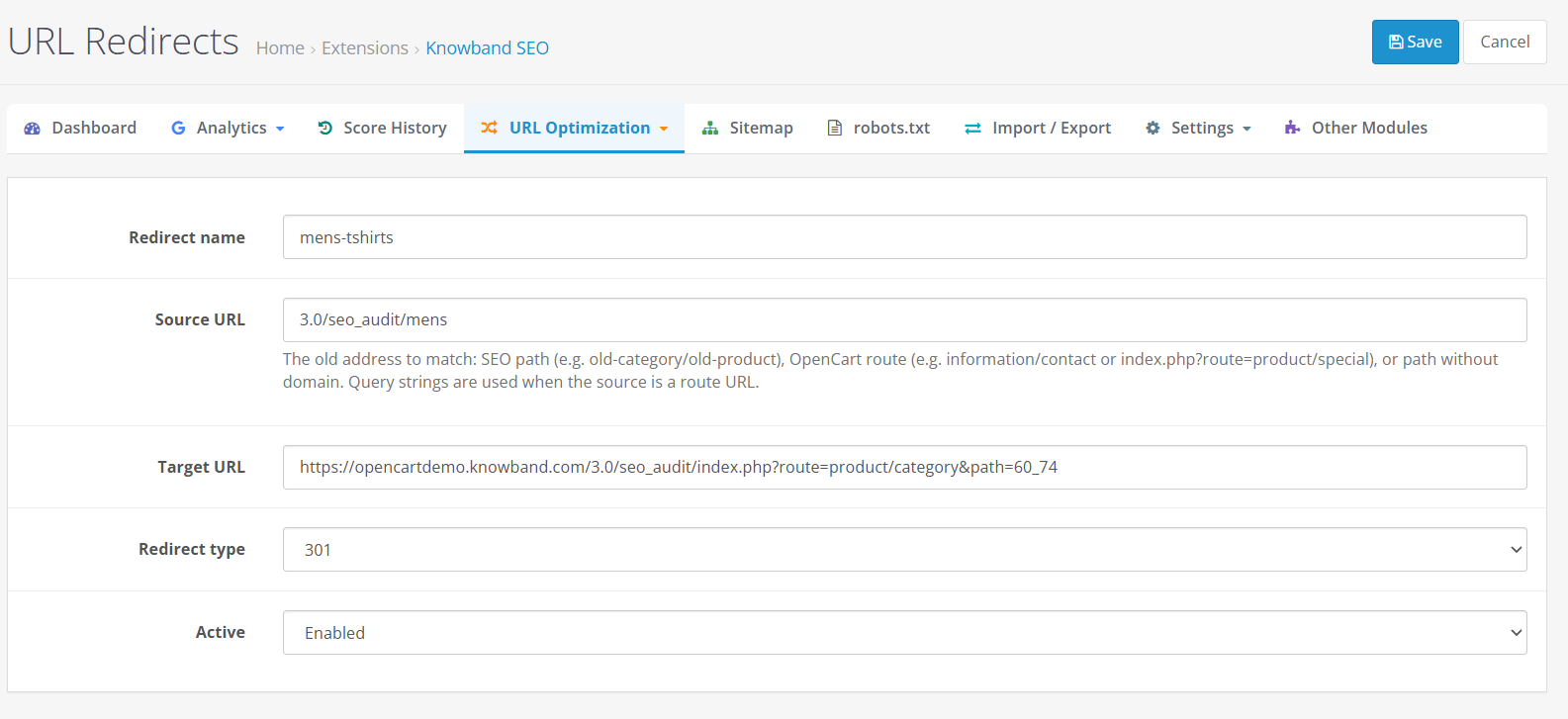
Redirect entry type: Individual for a single redirect, or Bulk for a CSV upload; Bulk mode is available only when adding, not editing.
Redirect name: an optional label to help you identify the redirect later, such as “mens-tshirts.”
Source URL: the old address to redirect from; this can be an SEO path (for example, old-category/old-product), an OpenCart route such as information/contact, or a path without the domain. This field is required.
Target URL: the destination address, entered as a relative path or a full http(s) URL. This field is required, and unsafe schemes such as javascript: or data: are rejected.
Redirect type: 301, 302, 303, or 404; new individual forms default to 301.
Active: Enabled or Disabled; new individual forms default to Enabled.
Save: stores the redirect and returns to the list with a success message.
The file must stay under 2 MB and 2,000 rows. Invalid rows are skipped, and the import result reports how many rows were imported and how many were skipped.
Editing and managing redirects. Use Search redirects to locate an entry by name, source, or target, then use Edit or Delete from the row actions. Bulk mode is available only when adding redirects, not when editing an existing one.
Avoiding mistakes. Redirects do not run on the storefront unless both the module’s master Status and Enable URL redirects are turned on in General Setting. Base redirect decisions on an actual URL change, such as a renamed product or a restructured category, rather than redirecting pages speculatively. A chain of redirects pointing to other redirects should generally be avoided; point each source directly to its final destination where possible.
Example. If a product URL changes from /product/old-name to /product/new-name after a rename, add a 301 redirect from the old path to the new one so that existing links and bookmarks continue to work.
10. 404 URL Detection
A 404 URL is a storefront request for a page that no longer exists or never existed at that address. Left unaddressed, these broken links frustrate visitors and waste any traffic or link value the old page had earned.
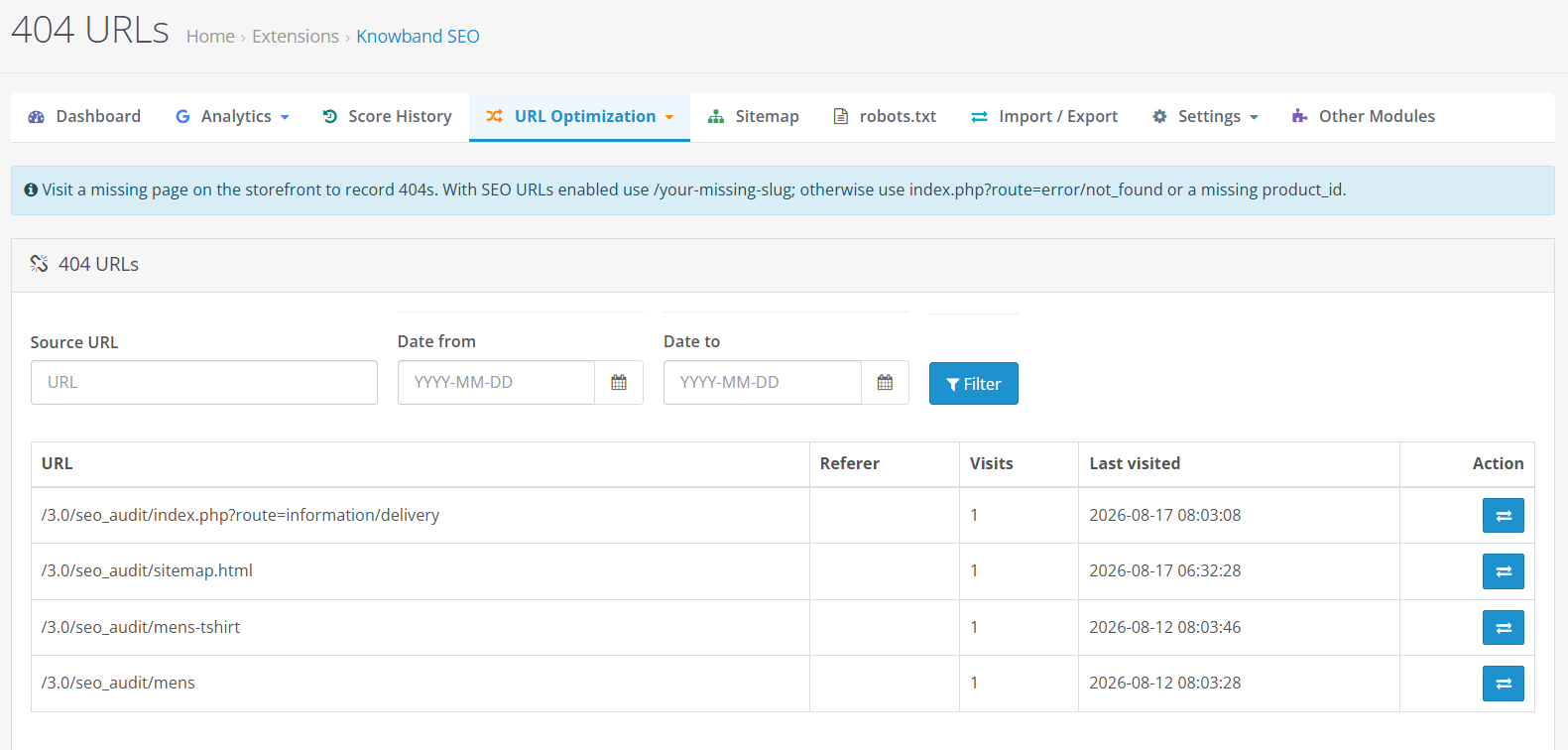
This module detects the 404 URLs and allow the store owners to redirect the 404 URL by following redirect feature.
4.6 Robots.TXT
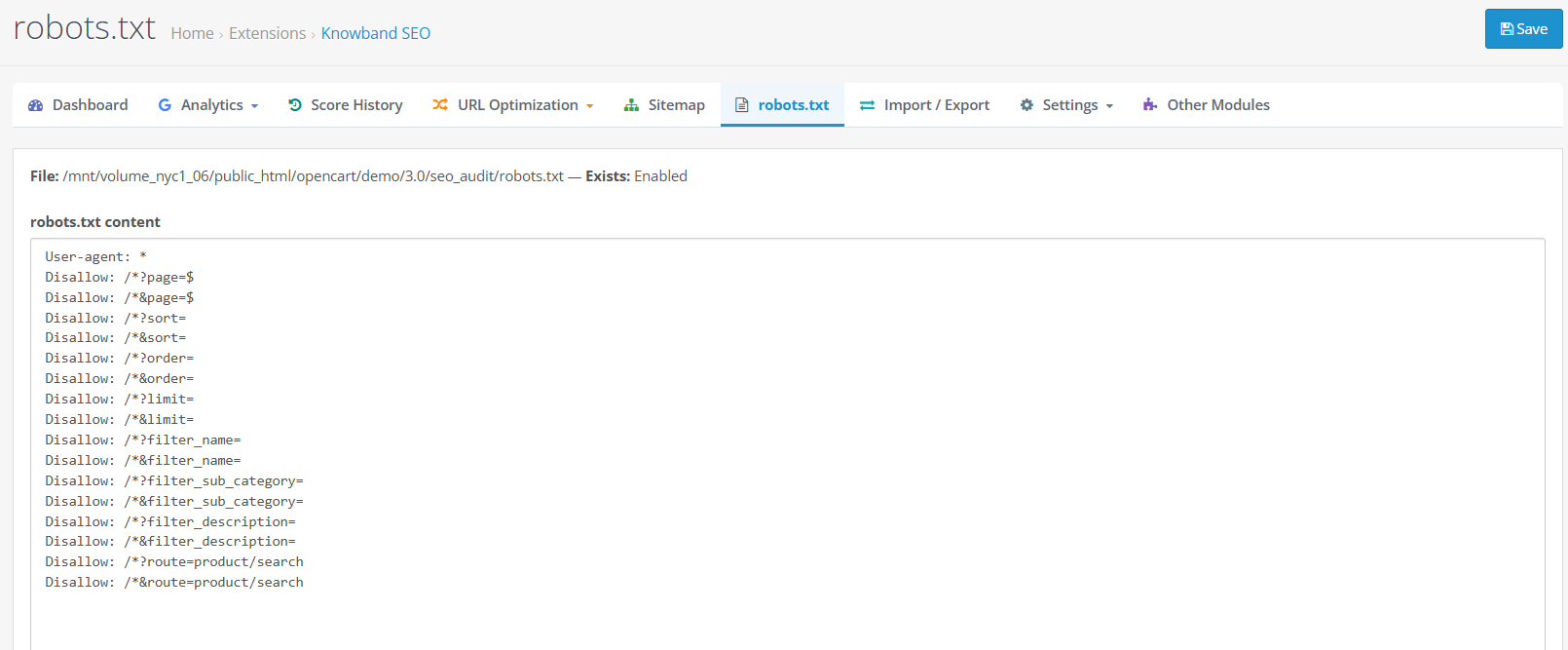
Robots.txt is a plain text file at your store’s root address that tells well-behaved search engine crawlers which parts of the site they should avoid crawling.
A misconfigured robots.txt file can accidentally block important pages from being crawled, while a well-configured one keeps crawlers away from admin and system directories that offer no value in search results.
The OpenCart Robots.txt Editor includes:
- File path: the server location of the robots.txt file, for reference.
- Exists: shows Enabled when a robots.txt file is already present, or Disabled when it is not.
- robots.txt content: an editable text area containing the file’s directives. If no file exists yet, this area is pre-filled with a starting version that disallows the /admin/ and /system/ directories.
- Save: writes the edited content to the file.
4.7. XML Sitemap
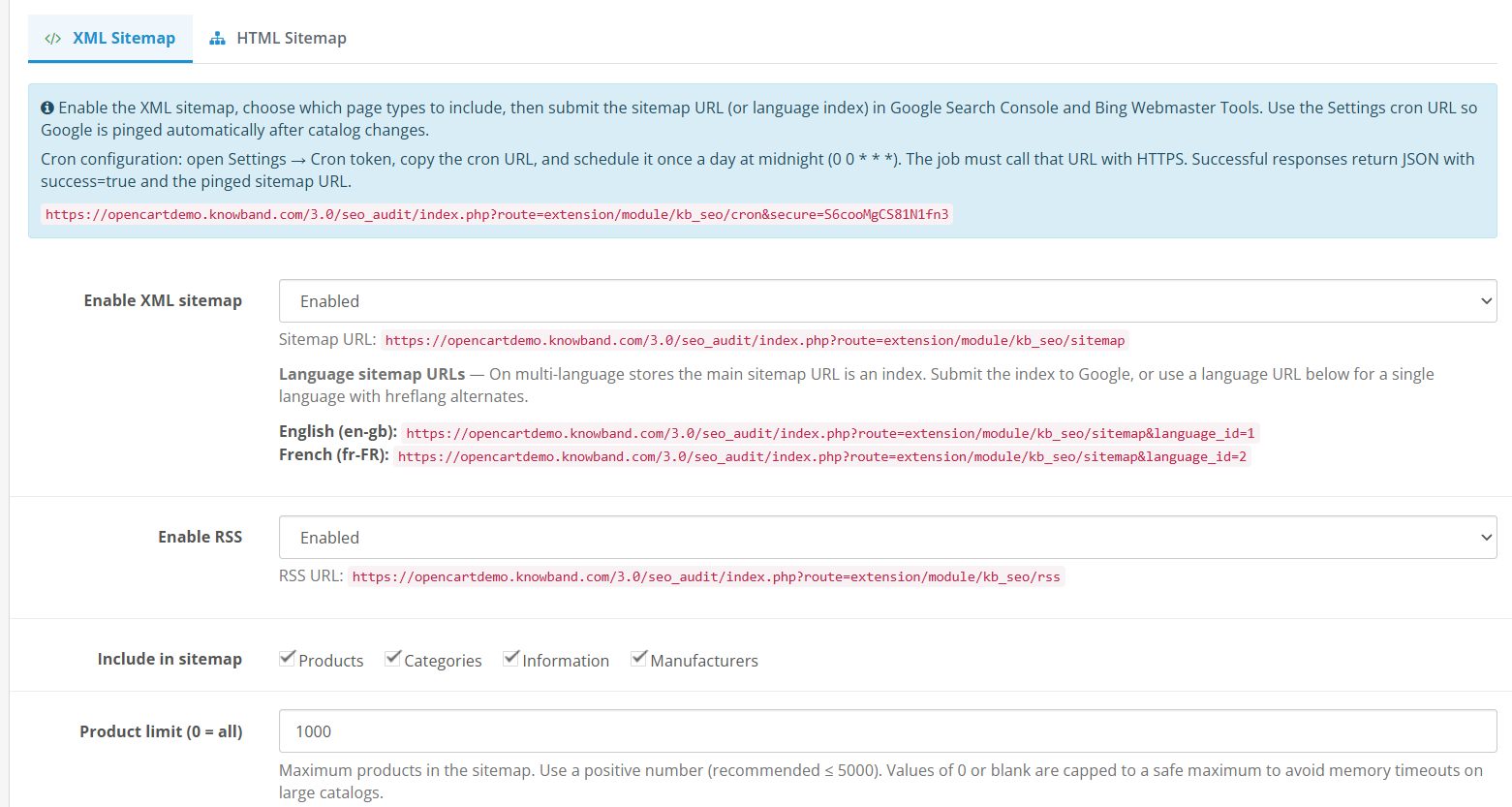
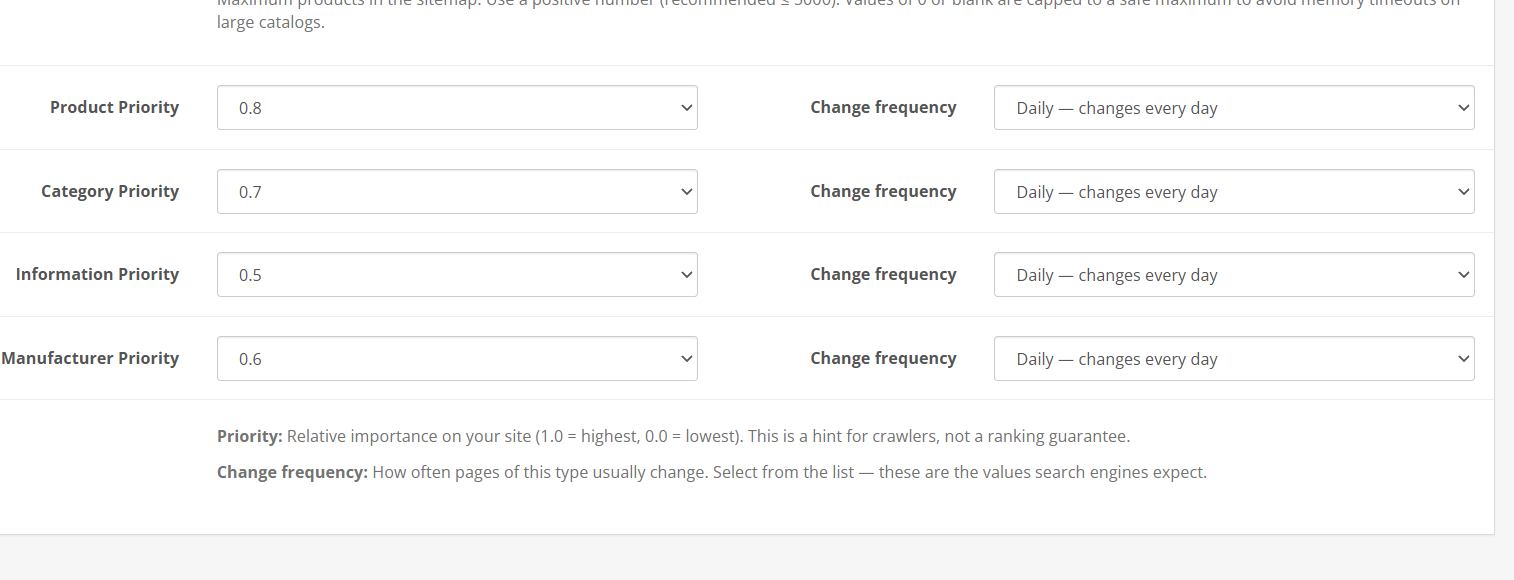
The module’s OpenCart XML Sitemap tool, part of its broader OpenCart Sitemap Generator, allows you to configure the following under Sitemap > XML Sitemap:
- Enable XML sitemap: turns on the public XML sitemap endpoint.
- Sitemap page URL: displays the public URL once the sitemap is enabled.
- Per-language sitemap URLs: shown for each enabled storefront language, since each language can have its own sitemap address.
- Enable RSS: turns on the RSS feed endpoint alongside the sitemap.
- Include in sitemap: checkboxes for Product, Category, Information, and Manufacturer, controlling which content types are listed in the sitemap.
- Product limit: the maximum number of products included; the Extension recommends a positive value of 5,000 or lower, and treats zero or a blank value as a safe maximum.
- Priority (per content type): a value from 1.0 down to 0.0 indicating relative importance within your own site; saved values are clamped to this range.
- Change frequency (per content type): Always, Hourly, Daily, Weekly, Monthly, Yearly, or Never, describing how often that page type typically changes; invalid values are normalized to Weekly.
- Save: stores the configuration.
The HTML Sitemap sub-tab works alongside the XML version, publishing a customer-facing sitemap page instead of a machine-readable file. Its fields are:
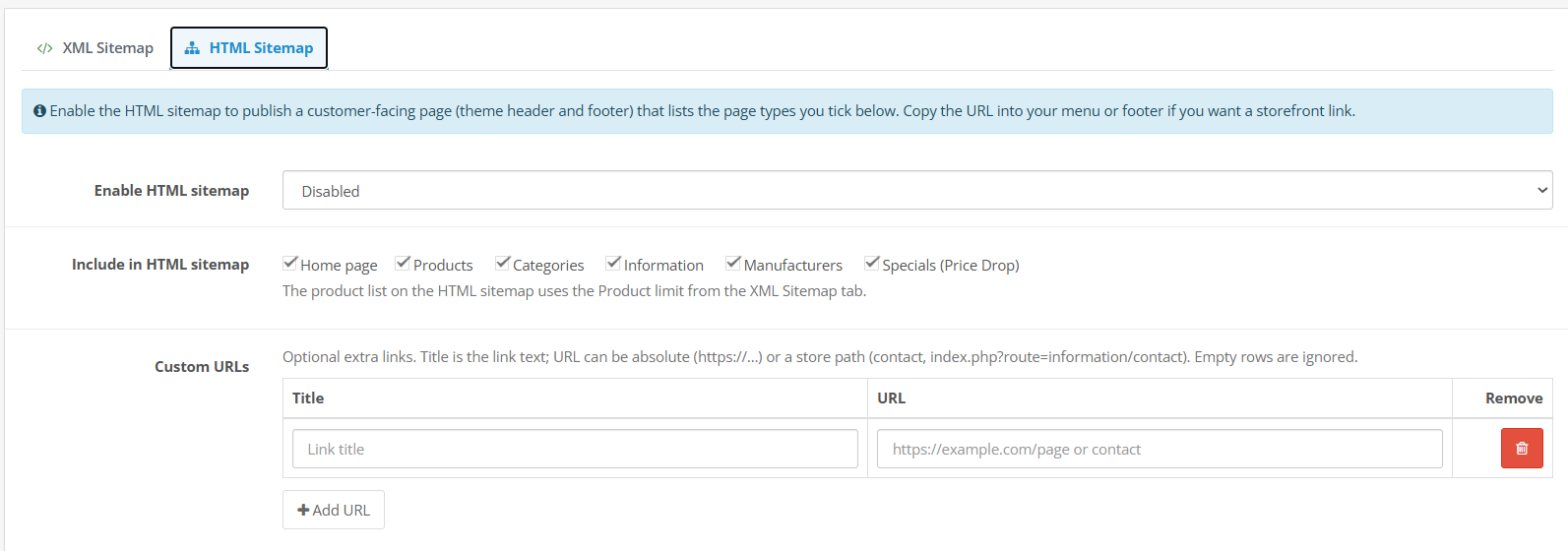
- Enable HTML sitemap: publishes the customer-facing sitemap page.
- Sitemap page URL: shown only once the HTML sitemap is enabled.
- Per-language HTML sitemap URLs: shown for each enabled storefront language.
- Include in HTML sitemap: checkboxes for Home page, Product, Category, Information, Manufacturer, and Specials (Price Drop).
- Custom URLs: an optional table of additional links, each with a Title and a URL (an absolute https:// address or a store path such as contact).
- Add URL: adds a new blank row to the Custom URLs table.
- Remove: deletes a row from the Custom URLs table.
- Save: stores the configuration; the extension returns to the HTML tab if it was the active tab when you saved.
The HTML sitemap’s product list reuses the Product limit set on the XML Sitemap tab.
4.8 Settings
4.8.1 General Setting
General Setting is the module’s central configuration page, and Status here is the master switch that everything else depends on. This is also where the extension functions as an OpenCart Metadata Manager, letting you define default meta title and description templates for products and categories.
Master and analysis controls
- Status: the master switch for the entire module; storefront metadata, redirects, panels, and score columns only work when this is enabled. Default: Disabled.
- Enable Page audit: shows SEO score cards, the Page audit tab in catalog forms, and SEO Score columns in catalog lists. Default: Disabled.
- Enable readability analysis: shows readability score cards and lists alongside the SEO scores. Default: Disabled.
- Enable auto analysis on edit: reruns analysis automatically while a page is being edited; scores are also saved when the catalog form is saved. Default: Disabled.
- Record 404 requests: records missing storefront URL requests for the 404 URLs report. Default: Disabled.
- Enable URL redirects: applies active redirects on the storefront. Default: Enabled, though the master Status must also be enabled for redirects to actually run.
- Enable XML sitemap: turns on XML sitemap functionality store-wide. Default: Disabled.
- Enable RSS: turns on RSS functionality store-wide. Default: Disabled.
Search and metadata defaults
- Title separator: the character or text used between parts of a generated title, such as -; referenced by the {title_separator} shortcode. Default: -.
- Show products in search by default: whether new products appear in the storefront search index by default. Default: Enabled.
- Show categories in search by default: whether new categories appear in the storefront search index by default. Default: Enabled.
- Show manufacturers in search by default: whether new manufacturers appear in the storefront search index by default. Default: Enabled.
- Show information pages in search by default: whether new information pages appear in the storefront search index by default. Default: Enabled.
- Product meta title template: the default meta title pattern for products, using shortcodes. Default: {product_name} {title_separator} {shop_name}.
- Product meta description template: the default meta description pattern for products. Default: blank.
- Force product meta templates: when enabled, the template is applied even if a product already has its own meta title or description. Default: Disabled.
- Category meta title template: the default meta title pattern for categories. Default: {category_name} {title_separator} {shop_name}.
- Category meta description template: the default meta description pattern for categories. Default: blank.
- Force category meta templates: when enabled, the template is applied even if a category already has its own meta title or description. Default: Disabled.
Supported shortcodes across these templates include {product_name}, {category_name}, {shop_name}, {title_separator}, {brand}, {og_meta_title}, and {og_meta_description}.
Cron and verification
- Cron secure token: the secret value used in the module’s cron URL to authenticate scheduled requests; a token is generated by default.
- Google verification code: the content value from Google Search Console’s HTML-tag verification method; it can be left blank if verification is already completed another way.
- Bing verification code: the content value from Bing Webmaster Tools verification; it can also be left blank if verification is already completed another way.
Score History
- Enable SEO score history: turns on score tracking and snapshots. Default: Enabled.
- History retention: Keep all history (default), Delete older than X days, Keep only daily snapshots, or Keep only weekly snapshots.
- Retain history for (days): the number of days to keep when the day-based retention option is selected. Default: 365.
- Automatic snapshot schedule: Manual only, Daily (midnight) (default), Weekly, or Monthly; automatic snapshots also require a scheduled request to the module’s cron URL.
4.8.2 Social Cards
Social Cards controls the Open Graph and X (Twitter) card metadata added to storefront pages, along with basic structured data settings.
- Enable Facebook Open Graph: turns Open Graph metadata on or off. Default: Enabled.
- Enable X Card: turns X (Twitter) card metadata on or off. Default: Enabled.
- X card type: summary or summary_large_image, controlling how a shared link’s preview card is laid out. Default: summary_large_image.
- Site type: Organization, WebSite, or LocalBusiness, used in the structured data describing your store. Default: Organization.
- Site name: the name used in site-level metadata.
- Breadcrumbs: turns breadcrumb structured data on or off. Default: Enabled.
- Facebook: your store’s Facebook profile URL.
- Twitter: your store’s Twitter/X profile URL.
- Instagram: your store’s Instagram profile URL.
- LinkedIn: your store’s LinkedIn profile URL.
- YouTube: your store’s YouTube channel URL.
- Pinterest: your store’s Pinterest profile URL.
- Save: stores the settings.
4.8.3 ChatGPT Content Generator
Knowband OpenCart SEO Audit Extension also includes the feature of an AI Content Generator as an additional tab inside product and category SEO panels, and as a bulk tool within Import/Export.
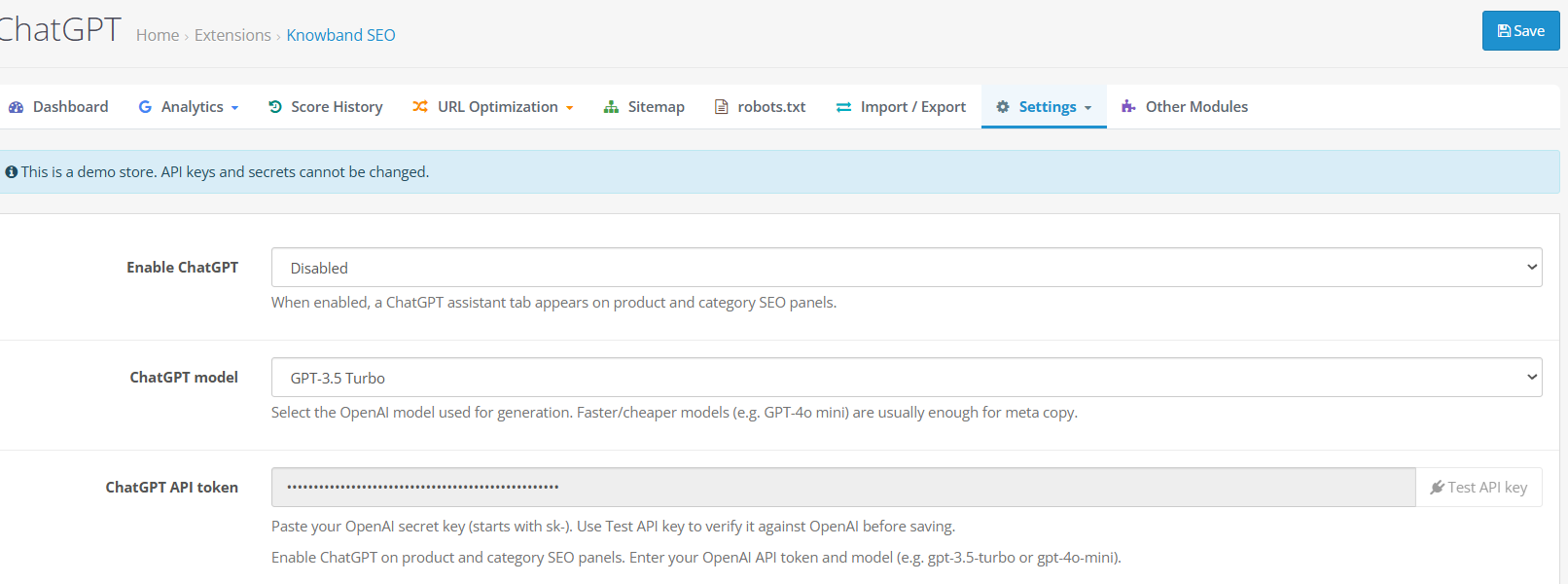
- Enable ChatGPT: turns the assistant on or off across the module. Default: Disabled.
- ChatGPT model: GPT-4o, GPT-4o mini, GPT-4 Turbo, GPT-4, or GPT-3.5 Turbo; the controller falls back to gpt-4o-mini and the installation default is gpt-3.5-turbo.
- ChatGPT API token: your OpenAI secret key, which must begin with sk-.
- Test API key: sends a live validation request to OpenAI to confirm the token works.
Single-page fields (SEO panel > ChatGPT tab).
- Prompt templates: a set of ready-made prompts you can select instead of writing your own.
- Your prompt: a free-text box for a custom prompt, supporting shortcodes such as {product_name}, {brand}, {category_name}, {meta_title}, and {meta_description}.
- Generate: sends the prompt to ChatGPT and returns a draft.
- Generated content: displays the draft returned by ChatGPT for review.
- Apply: places the generated content into the relevant field (the catalog form must still be saved afterward for the change to take effect).
- Apply to: chooses which field the generated content should be applied to.
- Clear history: clears the recent generation history for this page.
- Recent history: a list of previous prompts and results for this page.
Bulk fields (Import/Export > ChatGPT enhance).
- Field checkboxes: choose which fields to generate, from Meta title, Meta description, Meta keywords, Social title, Social description, Product tags, SEO URL, Primary keyword, Supporting keywords, and Product description (readability).
- Select all / Select none: quickly selects or clears every field checkbox.
- Process all products: generates content for the entire catalog.
- Max products: an alternative to Process all products, capping the run at a specific number, up to 5,000 distinct catalog products across all languages for each product.
- Products per API call: how many products are sent together in a single request, from 1 to 5; the Extension forces this to 1 whenever Product description (readability) is selected.
- Start / progress indicator: begins the enhancement run and shows live progress.
- Maximise SEO & readability scores (download JSON): the action that runs the enhancement and produces a downloadable file; it does not save directly to the catalog.
That downloaded file must then be brought back in through the Import panel described below; the bulk ChatGPT tool never writes to the catalog on its own.
4.9. Import/Export
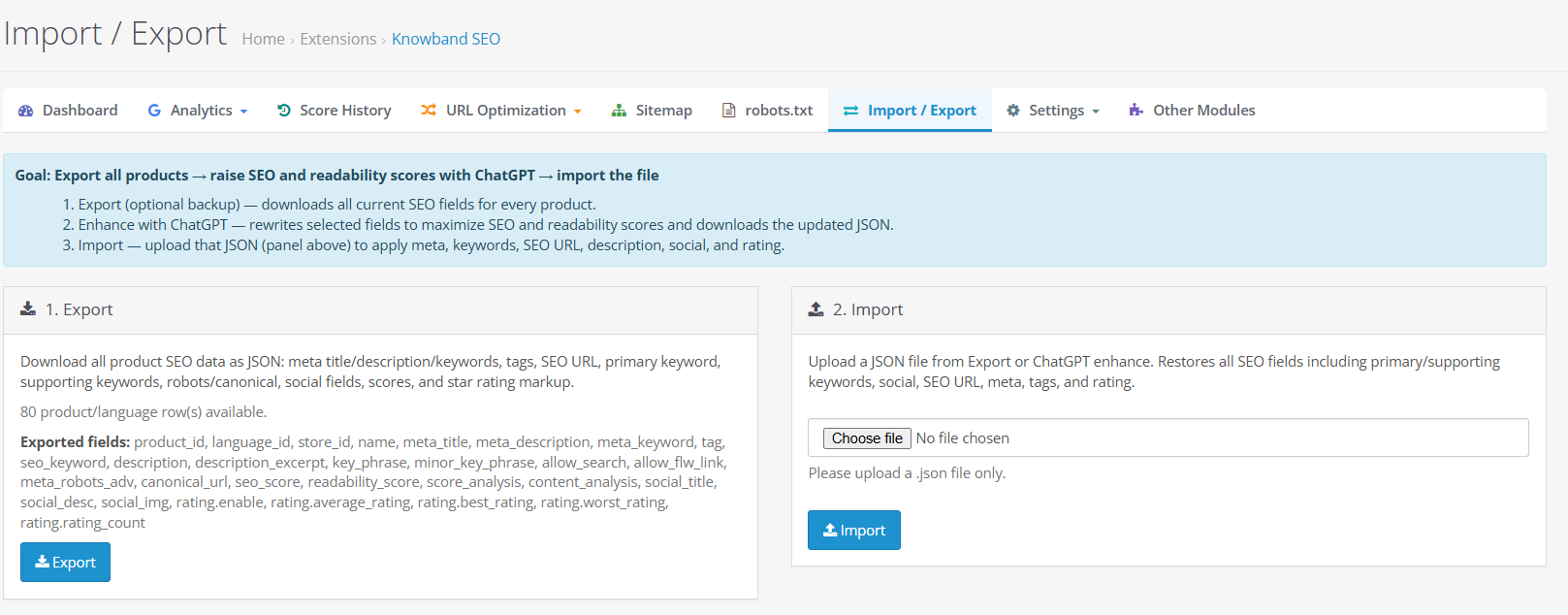
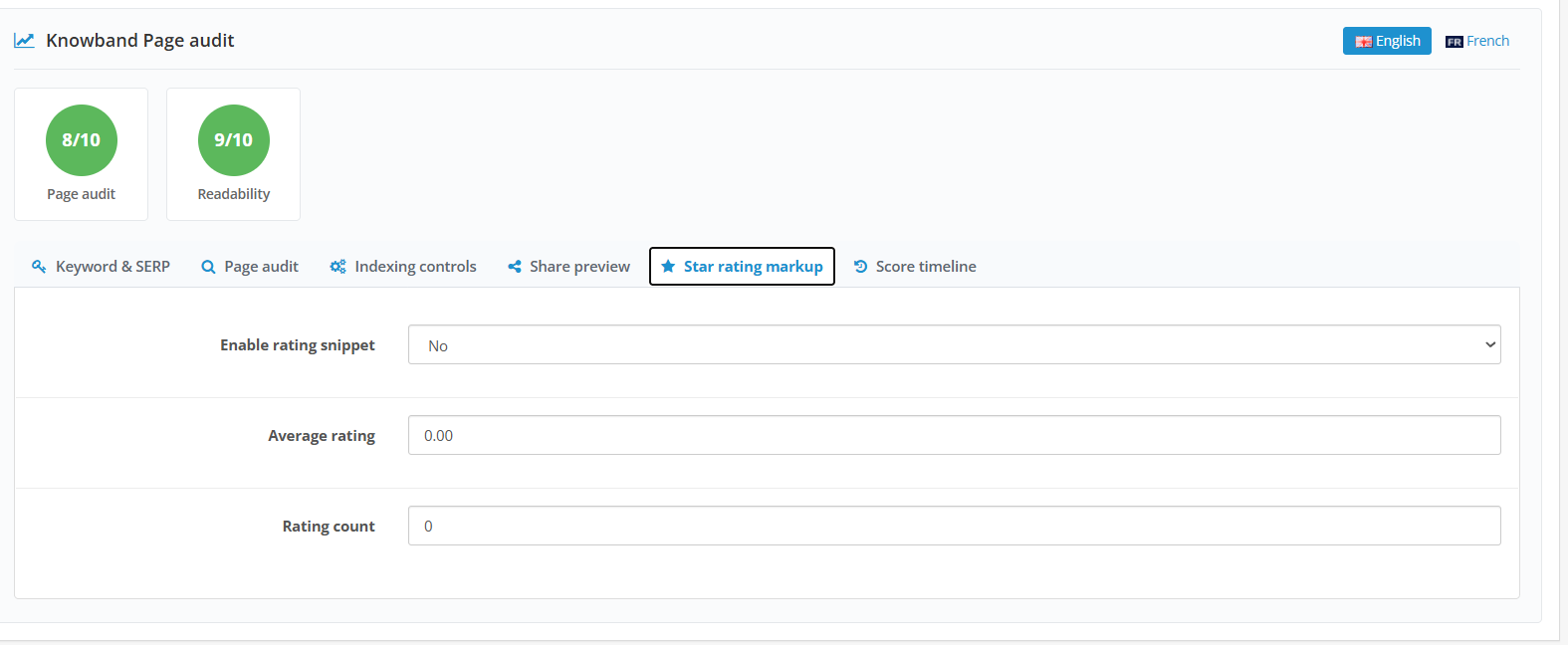
Import/Export handles product SEO data as a JSON file: meta title, description, keywords, and tags; the SEO URL, primary and supporting keywords, robots and canonical settings, social title, description, and image; SEO and readability scores and analysis data; and rating markup fields. This is used in updating multiple product in bulk.
Supported format. The exported file uses JSON format at version 1.2 and includes an export timestamp and field list along with the product data.
Export fields.
- Export: the single action button that generates and downloads the current product SEO data as a JSON backup file, versioned 1.2 and including an export timestamp, field list, and product data. This same file can also serve as a baseline before running the ChatGPT enhancement tool described in Section 14.
Import fields.
- Choose file: selects the .json file to import; the extension must be .json, the content must be valid JSON, it must contain a products array, and it must stay under 5 MB with no more than 5,000 rows.
- Import: runs the import; product and language IDs in the file must be positive numbers matching the current store. Successful imports report the number of updated product and language rows.
Other Modules is a shared Knowband catalogue page reachable from the Knowband SEO menu. It lists other Knowband extensions available for OpenCart rather than SEO configuration options specific to this module.
5. SEO Audit and Scoring
The scoring system is the foundation of Knowband’s OpenCart SEO Audit Extension. Every product, category, information page, manufacturer page, and supported blog entity can receive an SEO score and a separate readability score once the relevant analysis settings are enabled in General Setting , the core of what makes this an effective OpenCart SEO Analyzer.
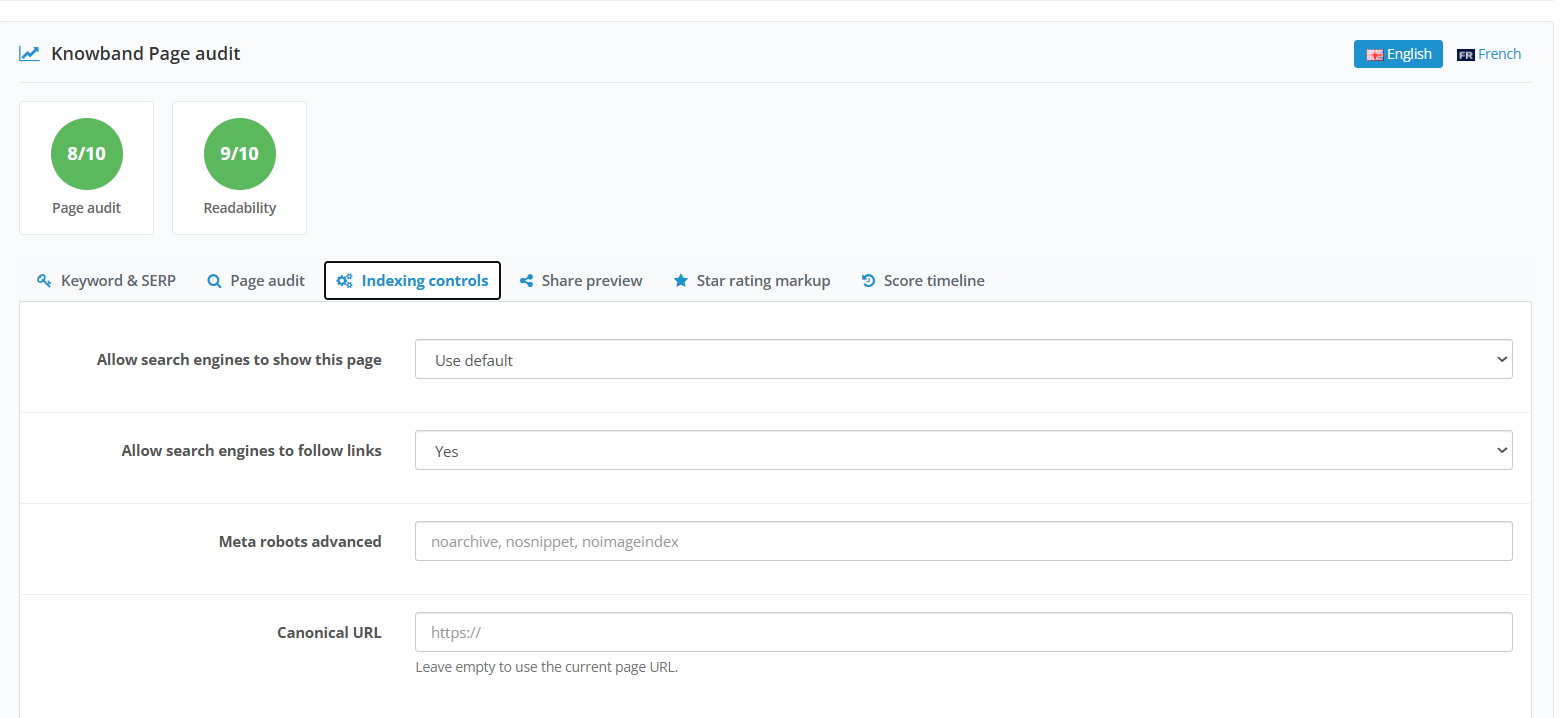
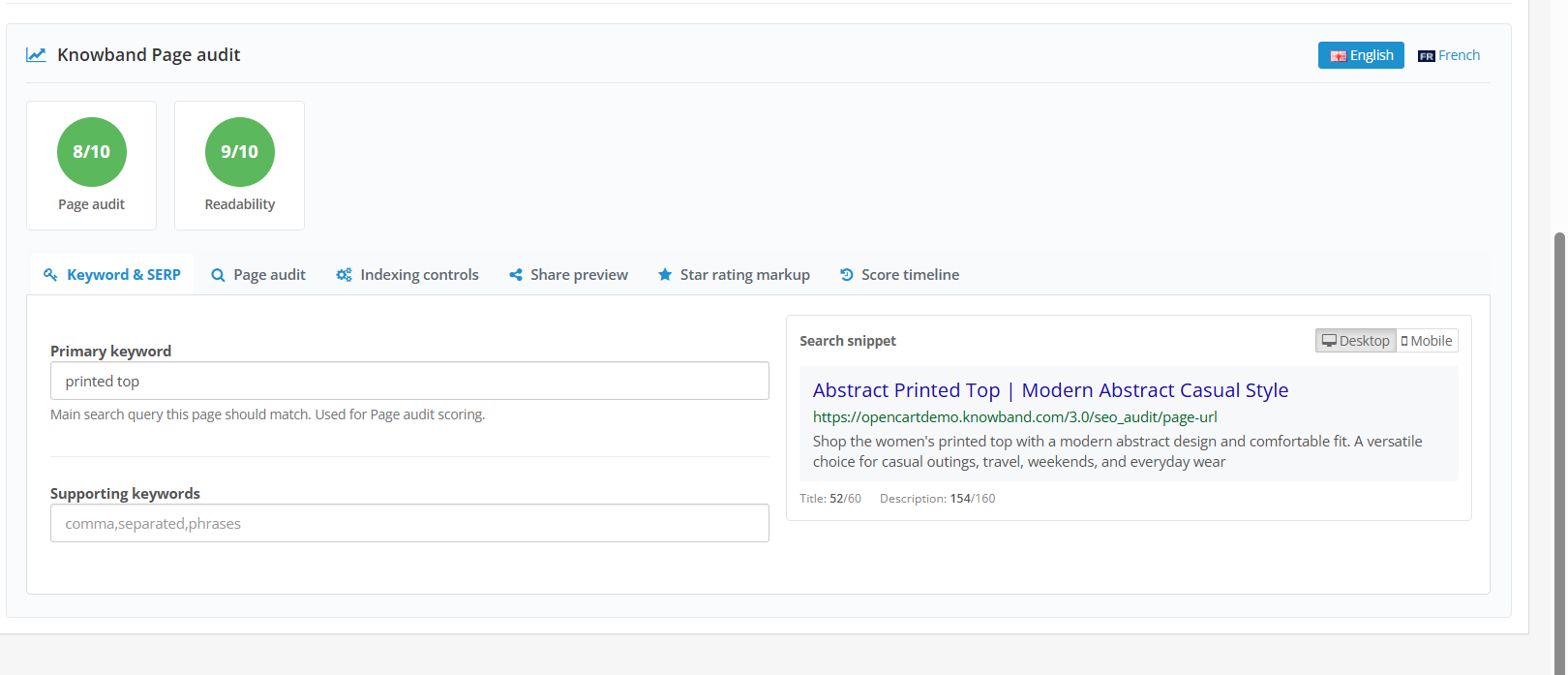
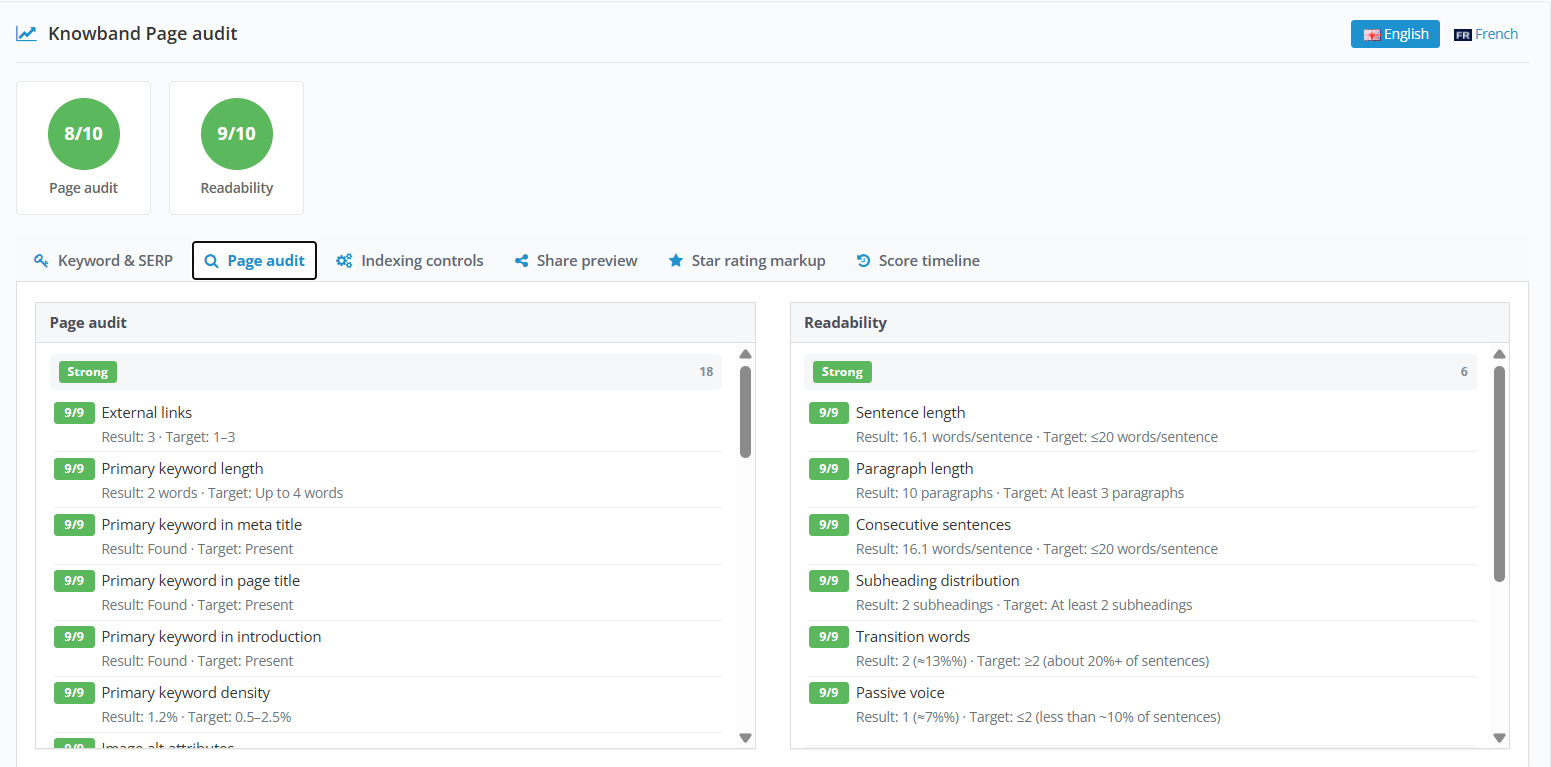
Supported page types. Scoring covers Products, Categories, Information pages, and Manufacturers by default. Blog posts, Blog categories, Blog tags, and Blog authors are included only when a supported Knowband Blog integration is connected to the store.
What the score measures. Running this OpenCart SEO Audit means the rule library evaluates content length, sentence and readability quality, heading structure, internal links, image alt attributes, title and description length, and the placement and density of your primary and supporting keywords in the page’s content and URL slug. Any rule that scores below 7 is logged as an issue and grouped under the Issues tab.
What the score means. A high score indicates that a page has covered the fundamentals: a reasonably descriptive title and description, readable content, sensible heading structure, and keyword usage that matches the page’s stated focus. A low score does not mean a page is invisible to search engines; it means specific, correctable gaps exist. Since the Extensioncannot see how Google actually ranks a page, the score should be read as a content quality checklist rather than a ranking prediction.
Why the score matters. Search engines reward pages that clearly answer a search intent with well-structured, readable content. A low score often points to the same weaknesses that make a page harder for a human shopper to read, so fixing them tends to help both audiences.
What to do about a low score. Open the page from the catalog list, review its Page audit panel, and check the specific rules it failed. Alternatively, open the Issues tab, filter by the relevant entity type, and work through rules that affect multiple pages at once. After making changes, save the page (or rely on Enable auto analysis on edit) so the score updates. This ongoing review is the heart of OpenCart SEO Optimization within the module.
How to improve a page. Set a clear primary keyword and, where relevant, supporting keywords that reflect what a shopper would actually search for. Write a meta title and description that describe the page honestly rather than stuffing keywords. Break long content into sections with headings, add descriptive alt text to images, and link to related products or categories where it makes sense for the shopper, not purely for the score.
Throughout this process, remember that an OpenCart SEO Audit is only useful when it leads to real edits. The module’s role is to surface what needs attention; the administrator’s role is to decide how to phrase and structure the fix, using the OpenCart SEO Audit Extensionas a guide rather than a final authority.
5. Frequently Asked Questions
I found several 404 URLs. How can I redirect them? Open URL Optimization > 404 URLs, review the list ordered by visit count, and click Redirect next to the entry you want to fix. This opens the redirect form with the old URL already filled in as the Source URL; enter the correct destination as the Target URL, choose the redirect type, and save. Only redirect to a page that is genuinely relevant to the original content.
How should I handle a URL that is no longer available? If a replacement page exists, add a 301 redirect from the old URL to the new one through URL Optimization > URL Redirects. If no relevant replacement exists, it is reasonable to leave the URL as a 404 rather than redirecting visitors somewhere unrelated.
How can I improve a page with a low SEO score? Open the page’s Page audit panel, or open Issues and filter by entity type, to see exactly which rules the page failed. Address specific gaps, such as a missing meta description, thin content, or missing image alt text, then save the page so the score updates. Score History will then show whether the change moved the page’s score in the right direction.
Can I use the Extensionto generate meta titles and descriptions? Yes. Enable and configure ChatGPT under Settings > ChatGPT, then use the ChatGPT tab inside a product or category’s SEO panel to generate a meta title or description from a prompt. Review the result, click Apply, and save the catalog form. For many products at once, use the bulk ChatGPT tool inside Import/Export instead.
How can I check duplicate URLs? Open URL Optimization > Duplicate URLs to see which SEO keywords are assigned to more than one page in the same store and language. Click Update on a conflicting row, edit each keyword so it becomes unique, and save.
How can I check my XML sitemap? Open Sitemap > XML Sitemap, confirm Enable XML sitemap is turned on, and open the displayed public sitemap URL to verify it loads. Submit that same URL under Analytics > Search Console > Sitemaps & URL Check to confirm Google has received it and to monitor for warnings or errors afterward.
Can I connect Google Search Console? Yes. Set up a Google Cloud project with the Search Console API enabled, configure OAuth credentials under Analytics > Settings, click Connect with Google, and select the correct Search Console property for the store. Once connected, the Search Console tab shows Performance data and lets you manage sitemap submissions and URL indexing checks.
Can I view Google Analytics data inside the module? Yes. After connecting Google and selecting the correct GA4 property in Analytics Settings, the GA4 Analytics tab displays sessions, users, engagement, eCommerce, and breakdown data directly in the admin panel, without needing to open Google Analytics separately.
How can I identify SEO issues on product or category pages? Use the Dashboard’s Page audit by type chart to see which content type has the most low-scoring pages, then open Issues and filter by entity type to review specific rules affecting those pages. Alternatively, open an individual product or category and review its Page audit panel directly.
Does the Extensionguarantee better search rankings? No. The OpenCart SEO Audit Manager measures on-page content quality, technical configuration, and available Google data, all of which support good SEO practice. It does not control, and cannot guarantee, how any search engine ranks a specific page.
Is a blog required to use the module? No. Blog-specific scoring, trends, and entity types appear only when a supported Knowband Blog integration is connected to the store. Every other feature works fully without a blog installed.
Do I need Google or OpenAI accounts to use the core module? No. Analytics, Search Console, PageSpeed, and ChatGPT are optional integrations that require their own external credentials. The scoring system, redirects, 404 detection, duplicate URL checking, sitemap generation, and robots.txt management all work independently of those connections.